Smart Lighting with Tuya
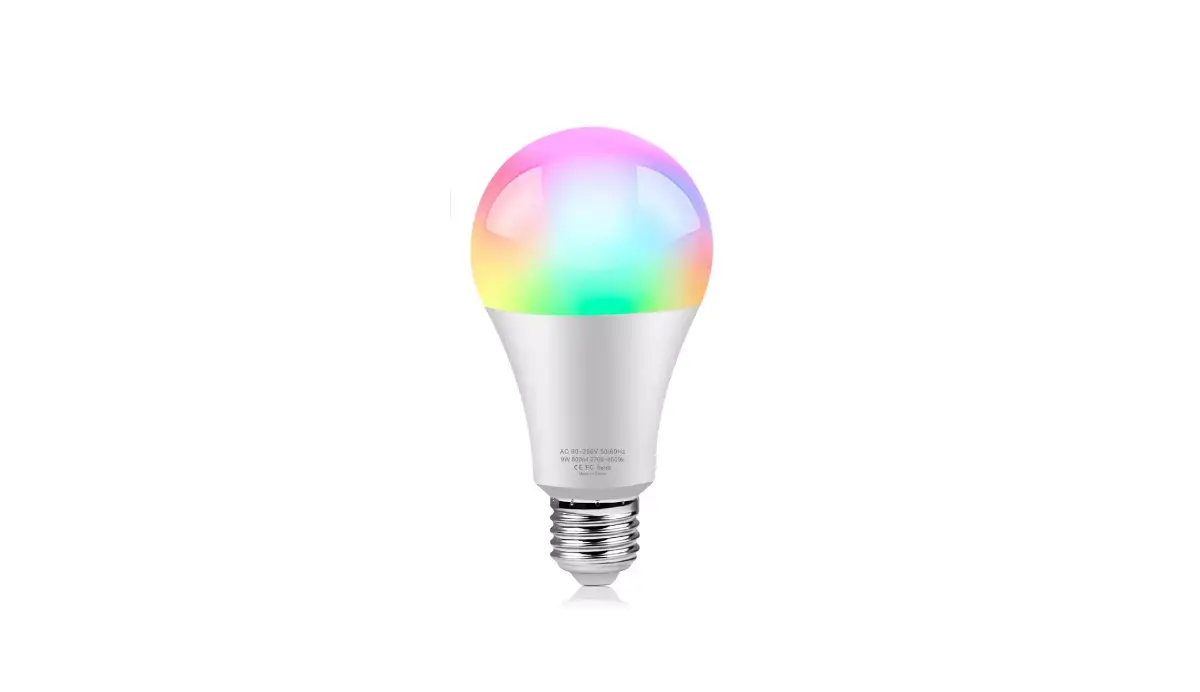
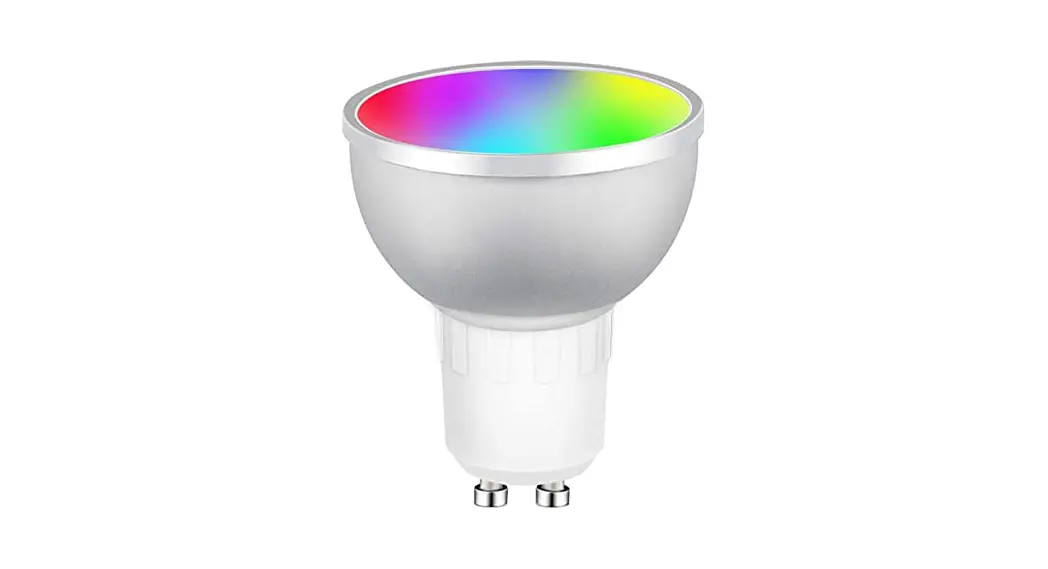
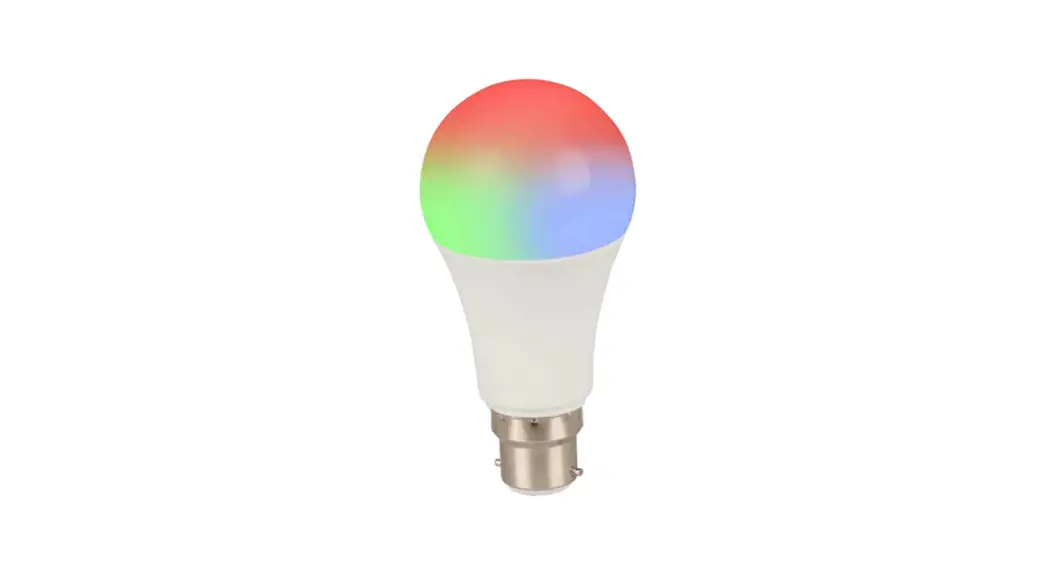
Product Information: The SSC-LUXon smart lighting system
allows users to control their lights using the Smart Life app or a
voice assistant such as Amazon Alexa or Google Home. The system is
compatible with both Android and iOS devices. It is important to
note that the smart lights require a 2.4 GHz WLAN connection, as
operation with Tuya is not possible in 5.0 GHz mode. The range of
the Wi-Fi connection is crucial for the functionality of the smart
lights outdoors. The SSC-LUXon smart light sources comply with
directive 2014/53/EU. Product Usage Instructions: 1.
Installing the Smart Life App: – Visit the Google Play Store
or App Store on your smartphone. – Search for the Smart Life app
and download it. – Open the app and click on “Sign Up”. – Enter
your email address and click on “Get Verification Code”. – Wait for
the verification code to be sent to your email and enter it in the
app. – Choose a secure password for your account. 2. Adding
Light Sources & Lamps in the App: – After registering and
logging into the Smart Life app, click on the plus symbol at the
top right corner. – Select “Add Device”. – In the left-hand menu,
choose “Lighting” and then “Light Source (Wi-Fi)”. – Select your
Wi-Fi network from the list and enter the corresponding Wi-Fi
password. Note: It is recommended to couple only 3 lights at
a time during installation to ensure smooth commissioning. However,
more than 3 lights can be installed per circuit, but they should be
set up one after the other (3 lights each).
Setup & quick start for SSC-LUXon smart lighting with Tuya
With the purchase of an SSC-LUXon smart light source, the colourful world of lighting is open to you. To be able to use all functions, a few steps are necessary in advance. On this page, you will find out everything you need to know about setting up and operating the lights and how to connect them to a voice assistant* such as ,,Amazon Alexa” or ,,Google Home”. We hope you enjoy your smart lighting!
! Before you get started, here is an important note: Please ensure that your WLAN is set to 2.4 GHz. Operation with Tuya is not possible in 5.0 GHz mode. You can check this in the settings of your internet router under the item ,,Wi-Fi”.
Information on the use of the smart lighting outdoors: If you want to combine our smart light source with an outdoor light, we recommend that you first configure the light source on the router. Then you can try it out in the garden to see how far the Wi-Fi connection is stable.
Please note that the range of your Wi-Fi connection is crucial for the functionality of the smart light outdoors.
Our SSC-LUXon smart light sources complies with directive 2014/53/EU. You can download the complete text of the EU declaration of conformity as a PDF document on the following page: https://www.led-lichtraum.de/info/doc
* You do not necessarily need a voice assistant to operate the light sources. You can also control the lights directly with your smartphone and the ,,Smart Life” app. However, operation by voice control increases the convenience considerably, as you do not have to pick up your smartphone every time.
1/11
1. Installing the Smart Life App The first thing you need is the Smart Life app, regardless of whether you want to control your smart lights directly or via voice assistant. The app serves as an interface between your lights and the configuration.
1.1 Download the Smart Life App Visit the Google Play Store or App Store with your smartphone. The Smart Life App is available for Android & iOS.
1.2 Register with Smart Life
After installing the Smart Life App: Click on ,,Sign Up” at the beginning.
Now enter your e-mail address and confirm it with ,,Get Verification Code”. This step is for your
own security.
Now wait until you receive your code by e-mail and enter it in the
app.
In the next step you will be asked to choose your personal password. Please note that the password should be as secure as possible (upper & lower case letters, numbers and special characters).
! Important notice for the next step 1.3: When installing several lights, we recommend that you couple only 3 lights at a time. Otherwise, the commissioning may not work smoothly. However, a total of more than 3 lights can be installed per circuit. Only the setup up should be done one after the other (3 lights each).
2/11
1.3 Add light sources & lamps in the app
After registration, you will see the following screen – click on the plus symbol
at the top right and choose ,,Add Device”.
Now select ,,Lighting” in the left-hand menu and
then ,,Light Source (Wi-Fi)”.
Select your Wi-Fi Network and enter the
corresponding Wi-Fi password. Make sure that
your Wi-Fi is set to 2.4 GHz!
First switch on the purchased light with the smart light source. If the light flashes directly (your light at home, not in the
app), select ,,Confirm the indicator is blinking” Otherwise, select ,,Reset
Device Step bye Step” and follow the described
steps.
After confirming, that the light ist blinking, select the status of the light.
Wait until the light is found and added. Once
your light has been found, we recommend giving it a meaningful
name (from [model name] to e.g. Smart Light GU10). Click on the pencil in the upper right corner
to change the name. 3/11
1.4 Control lights with the Smart Life app
After you have clicked on your light or group (will be explained later), you can use the rotary controls to adjust the colour temperature or
dim the light.
Click on ,,Colour” at the top of the menu to set the colour of the light. In addition, you can also dim or adjust the colour
intensity here.
Scenes are ready-made programmes that
automatically change the light or the light colour, for example just try it out!
At the bottom left you will find the timer. Here
you can set when the light switches on or off automatically, just like on
a TV.
4/11
1.5 Create light groups
Go to the overview, where you can see all devices and click on the name of one of the lights you want to add to a group.
Click on the pencil at the top right.
Choose ,,Create group”.
Now select all the lights you want to assign to the
group and click save at the top.
You will now be asked to give the group a name
(e.g. Living room).
Done now you can control all lights within
a group in the same way as individual lights (described in step 1.4).
5/11
2. Control with Amazon Echo (Alexa) 2.1 Connection with Amazon Echo
After setting up the Smart Life App, start your Amazon Alexa App. Click
on ,,More” in the menu.
Select ,,Skills & Games” on the left side.
Use the search function to find the ,,Smart Life”
skill. Then click on it.
Press the ,,Enable To Use” button to activate the skill.
In the last step, you must agree the connection by clicking ,,Agree and link”.
The Amazon Echo Smart Life Skill has been linked successfully. In the next
step, add your lights.
6/11
2.2 Add lights to Amazon Echo
Now add the lights you have set up in the Smart
Life App to your Echo. To do this, press ,,Detect Devices”. Searching for
new devices can take up to 45 seconds. Wait and do not switch off the
smartphone.
You will then see the lights in the overview. These have the same
names that you previously assigned in the
Smart Life App.
2.3 Create groups in Amazon Echo
Click on ,,Devices” in the main menu, then on the plus at the top right and
select ,,Add Group”.
You will see an overview, how to set up a group. Click ,,Next”. Give the
group a name, e.g. Living room.
Select the lights to be grouped.
7/11
2.4 Voice commands to control lights with Amazon Echo Overview of the most important commands for controlling your smart lighting with Amazon Echo: ,,Alexa, turn [device name or group name] lights on.” Example: Alexa, turn living room lights on.. ,,Alexa, turn [device name or group name] lights off.” Example: Alexa, turn living room lights off. ,,Alexa, [device name or group name] lights on.” Example: Alexa, living room lights on. ,,Alexa, device name or group name] lights off.” Example: Alexa, living room lights off. ,,Alexa, brighten the lights [device name or group name] to 50 %.” Example: Alexa, brighten the lights living room to 50 %. ,,Alexa, make my lights [device name or group name] warmer.” Example: Alexa, make my lights [device name or group name] warmer. ,,Alexa, [device name or group name] lights red.” Example: Alexa, living room lights red.
8/11
3. Control with Google Home 3.1 Connection with Google Home
After setting up the Smart Life App, start your Google Home App. Search the button ,,Connect Smart Life” in the upper horizontal menu and click on it.
Agree the connection by clicking ,,Agree and link”.
Choose the devices, you want to connect.
Now select a room that you want to assign to
the light. In our example, ,,living room”.
The added devices are now visible in the home
screen of the Google Home app.
9/11
3.2 Control lights with Google Home
You can now control the light via the app (voice commands follow below).
Click on the light or room to enter the control
center.
Here, the rotary control can be used to dim the brightness, switch the light on/off and adjust the
light colour.
After clicking on the ,,Colour” button, you can choose from one of the numerous colour modes.
3.3 Manage lights in rooms & groups with Google Home
Click on settings on the home screen to edit a
group.
Choose the item ,,Rooms and groups” and select the room you want to
manage.
Here you can change the name of the room, add devices or delete the
room.
10/11
3.4 Voice commands to control lights with Google Home Overview of the most important commands for controlling your smart lighting with Google Home: ,,Ok Google, turn [device or group name] on.” Example: Ok Google, turn living room on. ,,Ok Google, turn [device or group name] off.” Example: Ok Google, turn living room off. ,,Ok Google, [device or group name] on.” Example: Ok Google, living room on. ,,Ok Google, [device or group name] off.” Example: Ok Google, living room off. ,,Ok Google, set [device or group name] to 50 %.” Example: Ok Google, set living room to 50 %. ,,Ok Google, turn [device or group name] red.” Example: Ok Google, turn living room red.
11/11
 Dokumente bei led-lichtraum.de