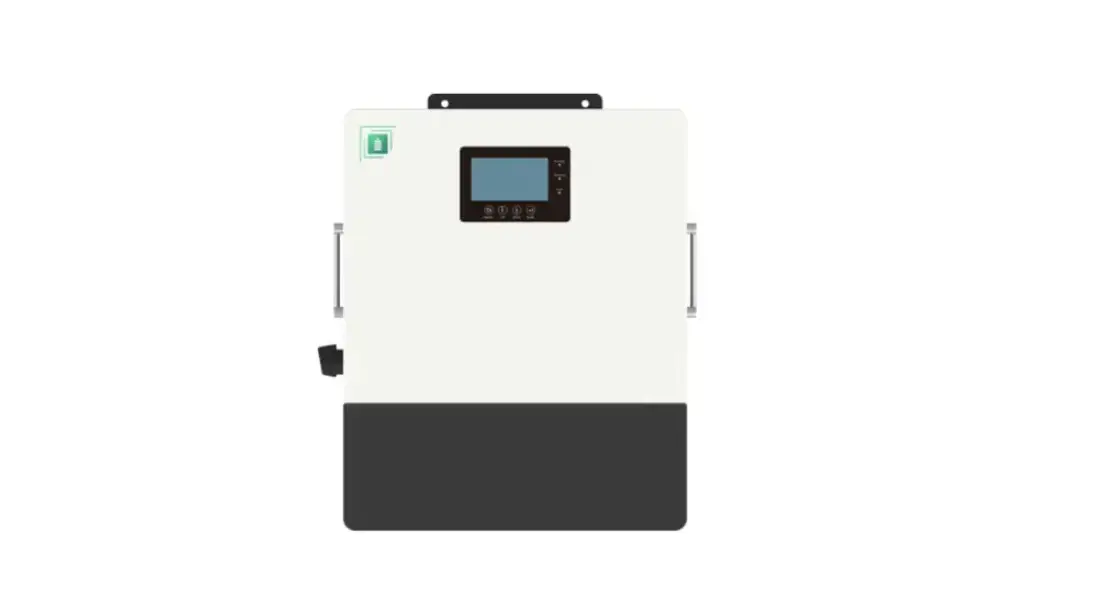
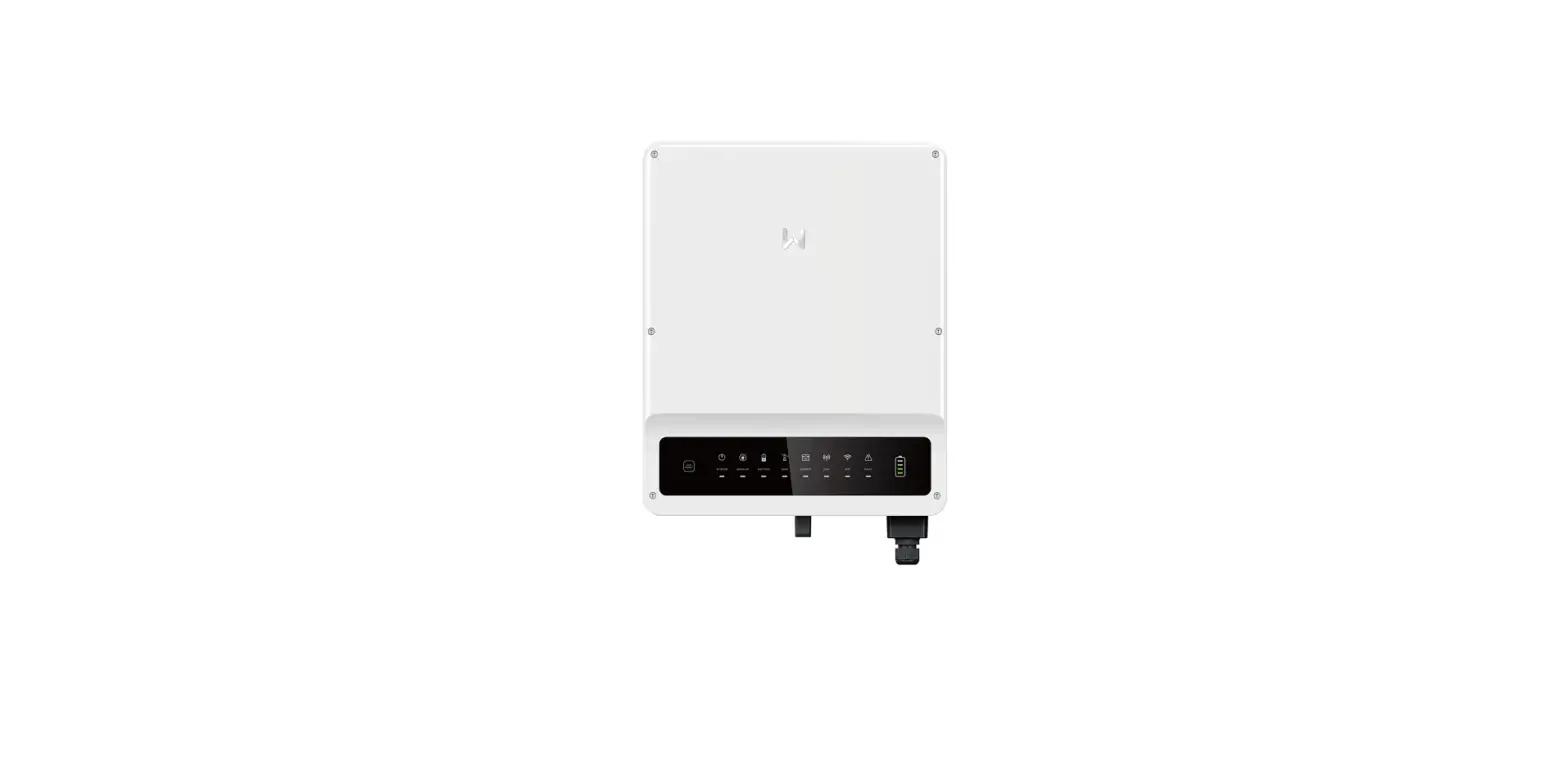
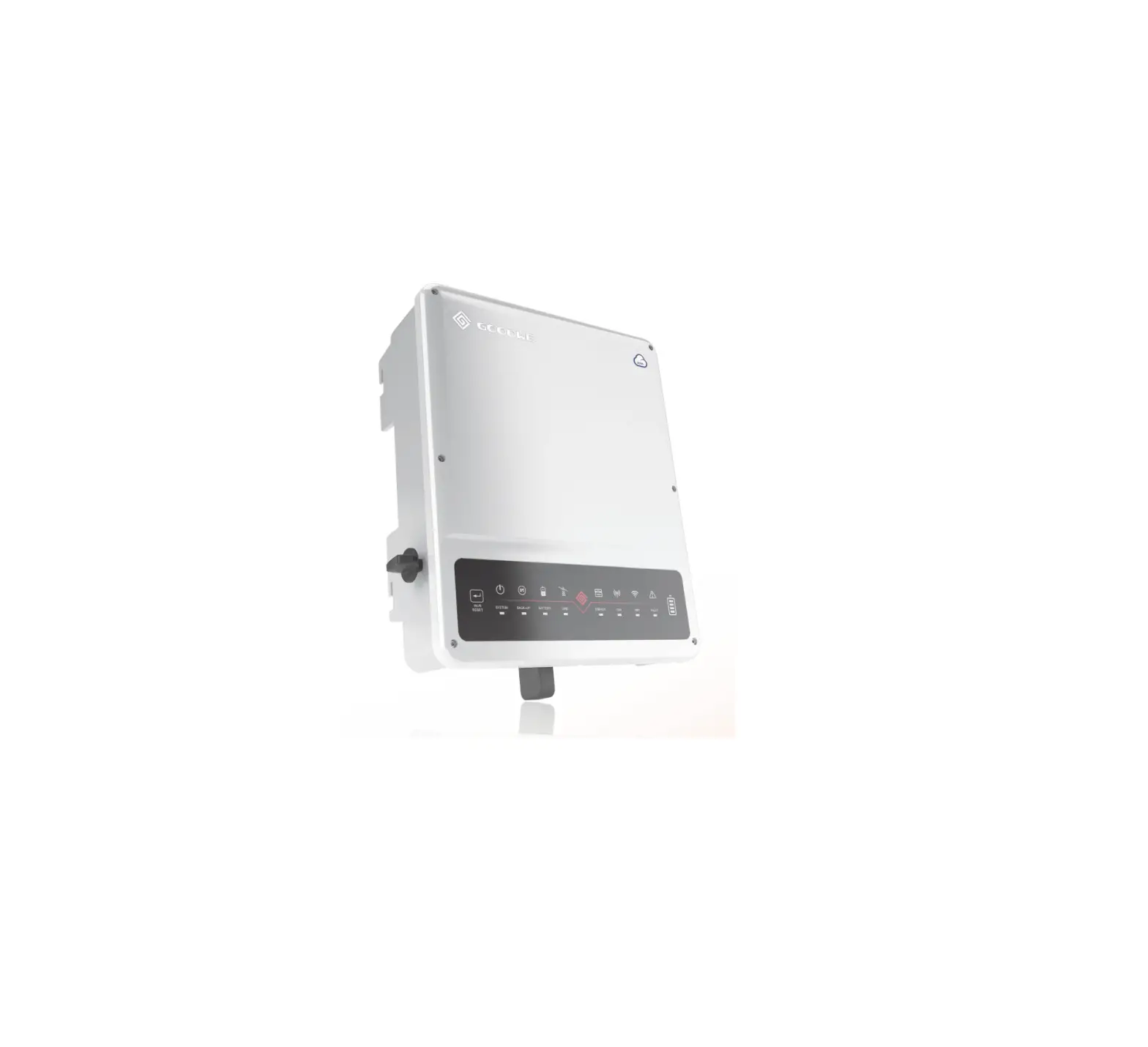
FP-ENVY-8K Envy Inverter 10 kW
Product Information:
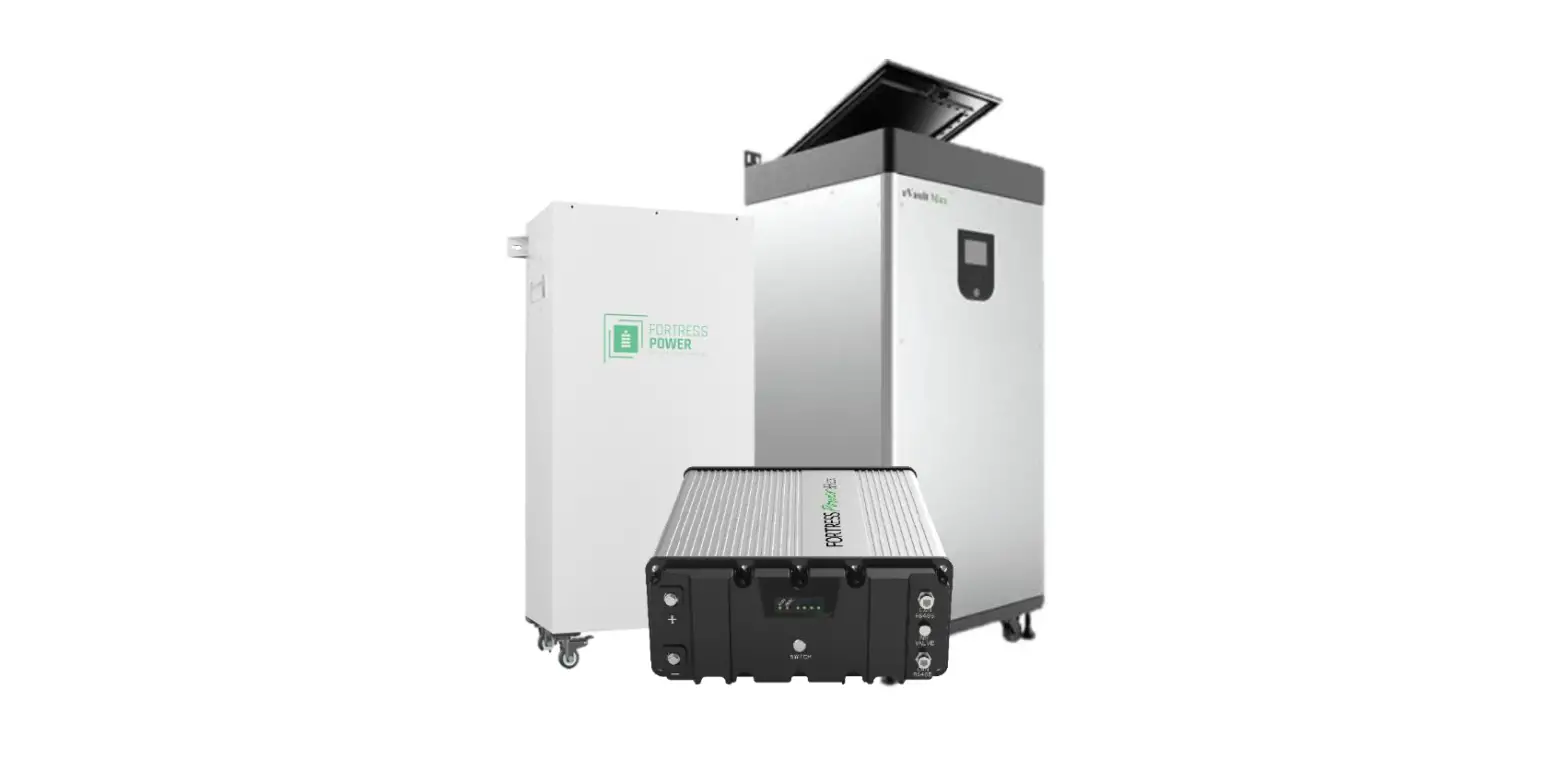
The Fortress Power Batteries are a crucial component for
completing your solution. They are manufactured by Fortress Power
LLC and are not included with the product. The product is
copyrighted by Fortress Power LLC and all rights are reserved.
Please note that the information provided in this manual is subject
to change without notice.
Product Usage Instructions:
Safety Instructions:
Before using the product, it is important to read and understand
the safety instructions provided in this manual. These instructions
ensure the safe installation and operation of the product.
Brief Introduction:
This section provides a brief overview of the product,
highlighting its key features and benefits. It serves as an
introduction to help users familiarize themselves with the product
before installation.
System Solution:
This section explains how the product fits into a complete
system solution. It provides information on how the Fortress Power
Batteries integrate with other components to create a comprehensive
power solution.
Unboxing:
This section provides step-by-step instructions on how to unbox
the product. It guides users through the process of unpacking and
handling the product safely.
Overview and Requirements:
This section provides an overview of the product’s features,
specifications, and requirements. It includes information on the
necessary equipment, tools, and environmental conditions for proper
installation.
Installation:
This section provides detailed instructions on how to install
the product. It includes step-by-step procedures, diagrams, and
precautions to ensure a successful installation.
Third Party RS485 Communication:
This section explains how to establish RS485 communication with
third-party devices. It provides instructions on connecting and
configuring the communication interface for seamless
integration.
Commissioning and Powering Down Sequence:
This section provides instructions on how to commission the
product and perform a proper power-down sequence. It ensures that
the product is correctly set up and safely powered down when
necessary.
Start Up the Inverter:
This section guides users through the process of starting up the
inverter. It includes detailed steps to follow for a successful
startup.
Shut Down the Inverter:
This section provides instructions on how to shut down the
inverter properly. It explains the steps to take to safely power
off the inverter.
Wiring Diagrams:
This section includes wiring diagrams that illustrate the
correct connections for various configurations. It helps users
ensure proper wiring during installation.
Envy Programming through LCD Interface:
This section explains how to program the product using the LCD
interface. It provides instructions on navigating the interface and
making programming changes.
Monitor System Setup:
This section provides instructions on setting up the system
monitoring features. It guides users through the process of
configuring and monitoring the system for optimal performance.
Troubleshooting & Maintenance:
This section offers troubleshooting tips and maintenance
guidelines. It helps users identify and resolve common issues and
provides information on regular maintenance to prolong the
product’s lifespan.
INSTALLATION/USER MANUAL
COMPLETE YOUR SOLUTION WITH FORTRESS POWER BATTERIES
Fortress Power LLC
*Batteries are not Included
1 2023 Fortress Power, LLC. All rights reserved. Information subject to change without notice.
TABLE OF CONTENTS
SAFETY…………………………………………………………………………………………………………………………………………………….. 4
SAFETY INSTRUCTION ………………………………………………………………………………………………………………………………………………………………………………………………………………………………4
BRIEF INTRODUCTION …………………………………………………………………………………………………………………………….. 6
SYSTEM SOLUTION ………………………………………………………………………………………………………………………………………………………………………………………………………………………………….6
UNBOXING……………………………………………………………………………………………………………………………………………….. 7
OVERVIEW AND REQUIREMENTS …………………………………………………………………………………………………………… 8
CONNECTION OVERVIEW ………………………………………………………………………………………………………………………………………………………………………………………………………………………….8 CABLE REQUIREMENTS…………………………………………………………………………………………………………………………………………………………………………………………………………………………….8 INSIDE THE ENVY CABINET……………………………………………………………………………………………………………………………………………………………………………………………………………………..9
Connection Ports…………………………………………………………………………………………………………………………………………………………………………………………………………………………9 Communication Board Ports……………………………………………………………………………………………………………………………………………………………………………………………………9 ENVY DIMENSIONS…………………………………………………………………………………………………………………………………………………………………………………………………………………………………10 Case Specifications…………………………………………………………………………………………………………………………………………………………………………………………………………………..10 Knockout Port Dimensions……………………………………………………………………………………………………………………………………………………………………………………………………..10
INSTALLATION ……………………………………………………………………………………………………………………………………….. 11
MECHANICAL INSTALLATION……………………………………………………………………………………………………………………………………………………………………………………………………………………11 Requirements for installation location……………………………………………………………………………………………………………………………………………………………………………….11 Wall Mounting the Envy…………………………………………………………………………………………………………………………………………………………………………………………………………..12
ELECTRICAL INSTALLATION …………………………………………………………………………………………………………………………………………………………………………………………………………………….13 PV Components and Connection………………………………………………………………………………………………………………………………………………………………………………………….13 Rapid Shut Down (RSD)…………………………………………………………………………………………………………………………………………………………………………………………………………..14 Battery Connection…………………………………………………………………………………………………………………………………………………………………………………………………………………..15 AC Connection ……………………………………………………………………………………………………………………………………………………………………………………………………………………………17 Generator Connection………………………………………………………………………………………………………………………………………………………………………………………………………………18 AC Coupling Instal lati on Connection……………………………………………………………………………………………………………………………………………………………………….18 Paralleling Multiple Inverters…………………………………………………………………………………………………………………………………………………………………………………………………18
THIRD PARTY RS485 COMMUNICATION ………………………………………………………………………………………………………………………………………………………………………………………………..19
COMMISSIONING AND POWERING DOWN SEQUENCE ……………………………………………………………………….. 19
START UP THE INVERTER………………………………………………………………………………………………………………………………………………………………………………………………………………………..19
Fortress Power LLC
2
SHUT DOWN THE INVERTER……………………………………………………………………………………………………………………………………………………………………………………………………………..19
WIRING DIAGRAMS ……………………………………………………………………………………………………………………………….20
Backup Applications with Backfeeder Connection (split-phase service 120/240V & 120/208V)……………………………………………………………………20 AC Coupling Applications with a Backfeeder Connection (split-phase service 120/240V)……………………………………………………………………………….21 Off Grid Applications Connection (split-phase service 120/240V)…………………………………………………………………………………………………………………………….22 Paralleled Systems Applications with a Feeder tap Connection (split-phase service 120/240V) ………………………………………………………………..23
ENVY PROGRAMMING THROUGH LCD INTERFACE……………………………………………………………………………….24
BASIC SECTION …………………………………………………………………………………………………………………………………………………………………………………………………………………………………….24 CHARGE SECTION………………………………………………………………………………………………………………………………………………………………………………………………………………………………….25
AC Charge……………………………………………………………………………………………………………………………………………………………………………………………………………………………………25 TOU (Time of Use)……………………………………………………………………………………………………………………………………………………………………………………………………………………..25 Charge First (PV)……………………………………………………………………………………………………………………………………………………………………………………………………………………….25 TOU (Time of Use)……………………………………………………………………………………………………………………………………………………………………………………………………………………..25 Lead Acid/Open Loop Settings…………………………………………………………………………………………………………………………………………………………………………………………….25 Generator ……………………………………………………………………………………………………………………………………………………………………………………………………………………………………. 26 AC Couple…………………………………………………………………………………………………………………………………………………………………………………………………………………………………….26 Discharge Section…………………………………………………………………………………………………………………………………………………………………………………………………………………….26 ADVANCED SECTION………………………………………………………………………………………………………………………………………………………………………………………………………………………………27 Offgrid Output……………………………………………………………………………………………………………………………………………………………………………………………………………………………..27 AC Couple……………………………………………………………………………………………………………………………………………………………………………………………………………………………………..27 Charge Last …………………………………………………………………………………………………………………………………………………………………………………………………………………………………27 EPS Output Without Battery ………………………………………………………………………………………………………………………………………………………………………………………………..28 Micro-Grid…………………………………………………………………………………………………………………………………………………………………………………………………………………………………….28 Smart Load…………………………………………………………………………………………………………………………………………………………………………………………………………………………………28 Run Without Grid………………………………………………………………………………………………………………………………………………………………………………………………………………………28 Battery Type……………………………………………………………………………………………………………………………………………………………………………………………………………………………….28
MONITOR SYSTEM SETUP……………………………………………………………………………………………………………………. 30
WI-FI DONGLE CONNECTION AND REGISTRATION …………………………………………………………………………………………………………………………………………………………………………………30 Attach home WIFI to Dongle (Alternative method)………………………………………………………………………………………………………………………………………………………30 Register Account………………………………………………………………………………………………………………………………………………………………………………………………………………………..31
TROUBLESHOOTING & MAINTENANCE………………………………………………………………………………………………….33
REGULAR MAINTENANCE………………………………………………………………………………………………………………………………………………………………………………………………………………………33 LED DISPLAYS……………………………………………………………………………………………………………………………………………………………………………………………………………………………………..33 TROUBLESHOOTING BASED ON LCD DISPLAYS…………………………………………………………………………………………………………………………………………………………………………………….33 FAN MAINTENANCE AND REPLACEMENT…………………………………………………………………………………………………………………………………………………………………………………………………37
DATA SHEET………………………………………………………………………………………………………………………………………….. 38
CONTACT INFORMATION ……………………………………………………………………………………………………………………… 40
Fortress Power LLC
3
Safety
Safety Instruction
General Safety Instructions
Safety regulations have been strictly observed in the design and testing of the inverter. Prior to any work, carefully read all safety instructions and always observe them when working on or with the inverter. The installation must adhere to all applicable national or international standards or regulations.
Incorrect operation or work may cause:
· injury or death to the operator or a third party · damage to the inverter and other properties belonging to the operator or a third party.
Important Safety Notifications
There are various safety issues that must be carefully conveyed prior to during and after the installation, as well as during future operation and maintenance. The following are important safety notifications for the operator, owner, and user of this product under normal conditions of use.
DANGER
Dangers of High Voltages and Large Current
· Beware of high PV voltage. Please turn-off the DC switch of PV Panel output before and during the installation to avoid electric shock.
· Beware of high grid voltage. Please turn-off the AC switch at the grid connection before and during the installation to avoid electric shock.
· Beware of large current of the battery output. Please turn-off the battery module before and during the installation to avoid electric shock.
· Do not open the inverter when it’s working to avoid electric shock and damage from live voltage and current from the system.
· Do not operate the inverter when it’s working, only the LCD and buttons can be touched in limited cases by qualified personnel,
· Other parts of the inverter can be touched when the inverter is in a safe state (e.g., fully shutdown).
· Do not connect or disconnect any connections (PV, battery, grid, communication etc.) of the inverter when it’s operating.
· Make sure the inverter is well grounded. An operator should make sure he is well protected by reasonable and professional insulation measurements (e.g., personal protective equipment (PPE).
· Inspect relevant existing wiring on-site of the installation is in good condition before installation, operation, or maintenance.
Fortress Power LLC
4
WARNING
Avoid Misoperation and Inappropriate Usage
· All the work of this product (system design, installation, operation, setting, configuration, and maintenance must be carried out by qualified personnel as required.
· All connections must be in accordance with local and national regulations and standards. · The inverter and system can inter-connected with the utility grid only if the utility grid permits it. · All the warning labels or nameplates on the inverter must be clearly visible and must not be removed, covered,
or pasted. · The installation should consider the safety of future users when choosing the right position and location as
specified in this manual. · Please keep the children away from touching or misusing the inverter and relevant systems. · Beware of burning hurt, the inverter and some parts of the system could be hot when working, please do not
Notice
· Please carefully read this manual before any work is carried out on this inverter, the installation, please keep this manual carefully stored and easy to access at any time.
· The qualified personnel should have had training in the installation and commissioning of the electrical system as well as dealing with hazards, also they should have the knowledge of the manual and other related documents. As the installer or operator, they are required to be familiar with local regulations and directives.
Fortress Power LLC
5
Brief Introduction
System Solution
This product and its associated system are suitable for the following system applications (system diagram):
PV Array
PV Array
48V Batteries
Generator
PV Array
Load
48V Batteries
Generator
PV Array
Load
48V Batteries PV Array
Load
EPS
48V Batteries Fortress Power LLC
Smart Load
Diagram Number 1 2 3 4 5
Load
Load
Applications Off-Grid
On-Grid, Backup, Net-Metering, Zero-Export AC Coupling, AC /DC COUPLING No Battery Smart Load 6
Unboxing
When the packaging is unpacked, the inner components should match those listed in the list below. If any components are missing, please create a support ticket at www.fortrespower.com/support
1
2
3
4
5
6
7
8
9
10
11
12
13
14
15
Part Number
1 Envy Inverter
Part Name
2 Cabinet Keys
3 Battery To Inverter Communication Cable
4 Inverter To Inverter Communication Cable
5 Current Transformer (CT)
6 Dongle
7 Dongle Screws
8 Mounting Screw for Wooden Platform
9 Wall Mount Bracket
10 RJ45 Terminals
11 L-shaped Brace
12 Nylon Lock Nut
13 Expansion Screw
14 Installation/ User Manual
15 Knockout Wiring Template
Fortress Power LLC
Quantity 1 2 1 1 2 (connected by one cable) 1 4 6 1 4 2 10 6 1 1
Checked by User/Installer
7
Overview and Requirements
Connection Overview
PV Array
Utility Grid
PV Fuse Disconnect
PV INPUT
+
–
Battery
+
–
Generator
Load
L1
L2
L1
L2
Grid
L1
L2
G
N
eFlex 5.4kWH
Main Panel
—OR—
—OR—
eVault Max 18.5kWH
48V Batteries
Generator
Backup Panel
The Envy 8k has already built in breakers for all AC connections as well as the Battery connection. Please include the following PV Fuse breakers
in accordance with the local jurisdiction.
Inverter model
12K
PV Fuse Breakers (1 Pole)
MPPT1 string 1: 600V/20Adc MPPT1 string 2: 600V/20Adc
Integrated Grid Breaker (2 Pole) Integrated Generator or AC Coupling (2 Pole) Breaker
Integrated Load Breaker (2 Pole) Integrated Battery Breaker
MPPT2 string1: 600V/20Adc MPPT2 string 2: 600V/20Adc 1 qty 63Aac 1 qty 63Aac 1 qty 63Aac 1 qty 250Adc
Cable Requirements
Suggested Wire Gauge Section
Grid Input Integrated Breaker 63Aac
Load Output Integrated Breaker 63Aac
Cable Gauge (AWG)
Minimum Voltage (V)
Torque (N.M)
6
600
2
Length of Cable Insulation Removal
5/16-3/8 in (8~10mm)
Terminal Type Compression/Screw type
6
600
2
5/16-3/8 in (8~10mm) Compression/Screw type
Battery Cable
Integrated Breaker 250Adc 1/0-3/0
600
Generator Cable
Integrated Breaker 63Adc
Up to 4
600
PV Cable
PV Input
10-8
600
Note: Cable gauge also will depend on connection distance
17
1/4-5/16 in (6-8mm)
Compression/Allen 5/16 SAE
2
5/16-3/8inch(8~10mm) Compression/Screw type
N/A
1/4-5/16 in (6~8mm)
Spring Clamp
Fortress Power LLC
8
Inside the ENVY Cabinet
Connection Ports
Do not use an impact driver to tighten or loosen fastener on any of the Envy port connections.
Area
Description
1
Communications Boards
2
250A Battery Breakers
3
Battery Connection Ports
4
63A Generator Breaker and Connection Port
5
63A Load Breaker and Connection Port
6
63A Grid Breaker and Connection Port
7
PV Input
8
Protective Earth or Ground Connection Bars Connection
9
Neutral Connection Bar
Communication Board Ports
Port
Description
a.
Battery communication port (CAN&RS485)
b.
CT Interface Connection
c.
INV 485: Debugging port
d.
Parallel communication port
e.
FAN1/2/3 Connection port
f.
NTC: Connection for temperature sensor of lead-acid battery
g.
Meter 485B&485A: For Meter communication
h.
±12V: Reserved for customer to use, Max 500mA
i.
CAN Matching resistance: Set DIP switch when use inverters in
parallel
j.
GEN (NO, NC): Connection for generator auto-start function
k.
DRY (NO, NC): reserved
Fortress Power LLC
9
Envy Dimensions
Case Specifications
Area 1 2 3 4 5 6
Knockout Port Dimensions
Description Touch LCD PV Switch RSD STOP button Dongle Connection Port and Dongle Leveling Wall Support Bracket Support
Fortress Power LLC
10
Installation
Mechanical Installation
Requirements for installation location
Location Selection and Installation a) The mounting wall should be strong enough to bear the weight of the inverter. Please maintain the minimum clearances when using multiple inverters in parallel as presented below for adequate heat dissipation. Other electrical accessories such as the ENVY distribution Panel (EDP) may be mounted with a minimum 2-inch clearance on either side of the inverter. If a wireway, cabinet, EDP or any sort of equipment is mounted below the inverter fans, the minimum clearance shall be 15.8 inches (400mm) unless extended outside the wall to be below the inverter’s knockout section without blocking the fans pathway.
Lock Safety Screw
15.8″ minimum Clearance
a) The inverter is allowed to be installed outdoors if it is withing operating temperature range. Never position the inverter in continuous sunlight, rain, or snow. To avoid continuous sunlight exposure, the inverter is allowed to be installed in the north, east, west side orientation of the property (in reference to the sun) as this might damage the LCD screen due to excessive UV exposure. If installed in the south side orientation, choose a well shaded site or a shed to protect the inverter from direct sunlight, rain, and snow etc. Otherwise install in the correct property side orientation as described in the figure below.
b) The inverter should be installed upright on a vertical surface.
>75 90
Fortress Power LLC
>90 90
11
Wall Mounting the Envy
The inverter is wall-mounted type and should be installed on a vertical, solid mounting surface, such as wood studs, brick, or concrete wall. Two or more people may be needed to install the inverter due to its weight. The slots on the mounting bracket can accommodate various stud spacings from 12inches(305mm) to 16inches(406mm).
The mounting steps are as below: (Use brick wall as example)
1.
Mark the drill holes positions
with the mounting bracket,
2. Drill four48mm(5/16inch) diameter holes, making sure the depth of the holes is deeper than 50mm(2inches).
3. Install and tighten the expansion bolts into the holes.
4.
Then use the corresponding
nuts and washers (packaged
together with the expansion bolts) to
install and fix the wall-mounting
bracket on the wall.
5.
Hang the inverter onto the
wall-mounting bracket and lock the
inverter on the wall using 2 self-
tapping screws on the top of the
inverter.
For installation on wood studs
Fasten the mounting bracket on the studs with 4 wood screws, then hang the inverter onto the bracket and lock the inverter on the wall with 2 selftapping screws.
Please note that the wood screws and self-tapping screws are not provided with the inverter. Installers need to prepare the screws before installation.
Fortress Power LLC
12
Electrical Installation
PV Components and Connection
The PV connection of this hybrid inverter is the same as that of a traditional on-grid solar inverter (string inverter).
WARNING
·
Please double check the lowest ambient temperature of the installation location. The rated Voc on solar panel nameplate is
obtained at 25. As the ambient temperature drops, the Solar panel Voc increases. Please ensure the Maximum solar string voltage
corrected at the lowest temperature does not exceed the inverter’s maximum recommended input voltage of 550V. Over voltage will
damage the inverter.
·
Do not use a PV combiner. Using a PV combiner may affect or cause permanent damage to the inverter.
Component Requirement:
20A PV Fuse breakers per string (4 maximum)
Depending on Local Jurisdiction
NOTICE
1.
The inverter has two MPPTs. For MPPT1, users can connect two strings. For MPPT2 users can connect two strings. Both MPPTs work
independently. All these strings are to be connected directly into the Inverter. Do not use a PV combiner as this may cause damage to the
inverter.
2.
When users connect 2 strings to MPPT1, make sure the two strings have same quantity of solar panels. The inverter will limit the
total MPPT1/MPPT2 input current to 25A/25A automatically.
3.
The inverter will limit the max solar input power to 13kW totally.
4.
Protect the MPPT inputs by installing 20-amp fuse breakers
Facing the same direction with the same amount of modules per string
RSD R
RSD R
RSD R
RSD R
RSD R
RSD R
Facing the same direction with the same amount of modules per string
RSD R
RSD R
Steps for PV Connection
1. Strip off 1/4-5/16inch(6~8mm) insulation on the PV string’s positive and negative conductors.
2. Use wire ferrules for PV string conductors if they are stranded wire type. Insert the conduit fitting into the opening for PV connection and tighten it from the inside using the counter nut.
3. Route the PV conductors through the conduit fitting and into the inverter. 4. Secure the cable gland in place. 5. Ensure that the cables are connected correctly and securely. 6. Then take appropriate measures to ensure that the conduit and conduit fittings
are fastened reliably and seal the cable entry holes.
RSD R
RSD R
20A PV Fuse Breakers per String
Fortress Power LLC
13
Rapid Shut Down (RSD) Overview Connection of RSD Receivers (RSD R)
………..
………..
APsmart RSD-S Receiver
APsmart RSD-S Receiver
APsmart Single Core Transmitter
·
The Envy Inverter already includes an APsmart Rapid Shutdown Transmitter located behind the Communication Board black plate.
·
The APsmart Rapid Shutdown System Transmitter and APsmart RSD-S/RSD-D receivers (not included) work together as a rapid shutdown
solution for PV modules.
·
For more information on how to connect the APsmart receiver please refer to the RSD-S and RSD-D Installation Quick guide.
·
The Transmitter sends a signal to the RSD-D units, enabling the PV modules to remain connected and continue supplying energy while the
Transmitter is powered on.
·
When the Transmitter is switched off by the Emergency RSD button, the RSD-D units automatically enter rapid shutdown mode, halting
energy production.
·
This solution is compliant with the 2017 and 2020 specifications of the NEC 690.12 and supports SunSpec signaling for rapid shutdown.
If an emergency occurs, simply activate
the “RSD STOP” button. This will immediately cease and the RSD power supply, causing the inverter AC output to cease, and reducing the voltage of the PV conductor to below
30V within a timeframe of 30
seconds.
PV DISCONNECT
RSD STOP BUTTON
DONGLE CONNECTION PORT
**Rapid Shut Down will be mandated depending on your local jurisdiction.
The APsmart Transmitter is connected to the inverters internal 12V power supply. The output current limit is 1A (12W). Do not exceed this limit as this may cause damage to the inverter.
Device
Voltage Rating (V)
Current (A)
APsmart Single Core Transmitter
12
0.5
Tigo RSS Transmitter
12
1
Fortress Power LLC
14
Battery Connection Battery power cable connection
All batteries must be installed as a single battery bank when paralleling multiple inverters. Cable mounting Instructions:
1. Strip 1/4-5/16inch(6-8mm) insulation from the cable end and crimp a ferrule to the cable ends. 2. Route the battery power cable, connect positive to BAT+, negative to BAT-. 3. Secure the conduit fitting to the enclosure using the counter nut. 4. Crimp the ferrules into the stripped and fasten the battery positive and negative cables into the battery bus according to the markings. 5. Fix the cable gland in place. For best practice, install a Copper Busbar when paralleling two lithium batteries. Please Refer to the eFlex and evault Max manual for more details on installation and battery paralleling.
(Included)
Bus Bar
Fortress Power LLC
15
Envy Battery communication port Pinout
The battery communication port on inverter is an Rj45 socket, Pin for the RJ45 plug of the communication cable is as below. Make the communication cable according to the below inverter Pin and the correct pinout of communication port on battery. The inverter supports both CAN and RS485 communication. Use the communication cable included in the Envy Inverter packaging when using eFlex 5.4kWh batteries. Use the communication cable included in the eVault Max 18.5kWh packaging to establish battery to inverter communication.
Pin
Description
1
NC
2
GND
3
NC
4
BAT CAN H
5
BAT CAN L
6
NC
7
BAT RS485 A
8
BAT RS485 B
Please Refer to our minimum Battery Sizing Standard when sizing with the ENVY Inverter. Please Refer to the eFlex and eVault Max Installation Manual for more details.
Fortress Power LLC
16
AC Connection Grid connection
Put the built-in load breaker in the ON position before providing power to EPS load
a. Strip off 5/163/8inch(8~10mm)
insulation sleeve on
the cables.
b. Use wire ferrules if the cables are made of fine
stranded wires.
c. Secure the conduit fitting to the enclosure using
the counter nut of the fitting.
d. Fasten the grid and EPS load cables to the
terminal block in accordance with the markings.
e. Secure conduit to the conduit fitting.
f. Check that the cables are connected correctly
and securely, then take appropriate measures to
ensure that the conduit and conduit fitting are
secured reliably and seal the cable entry holes.
Ground Neutral Bond
Make a bond connection between the Neutral and Ground at the Main Breaker Panel or you may also only make the bond once at the Utility Meters with breaker attached if applicable.
CT connection
To measure the power imported from and exported
to the grid, a pair of CTs or one three phase meter
must be installed at the service entry point in or near the main service panel. We standardly supply 2 CT for one inverter. The CT interface for 2 CTs
connection is an RJ45 port. We have made an RJ45 plug on those 2 CTs in advance, so you can connect it to the port directly. Never put the CTs on
the Load side, nor the generator side or inverter will not function properly. For Off Grid application, disregard the CTs.
CT Clamp Ratio
The inverter supports 3 ratios of CT clamp- 1000:1, 2000:1 and 3000:1 . The CT ratio of the CTs in the accessory bag is 3000:1. If you are using a 3rd party CT, please ensure
Extender
the CT ratio is one of them, and select the correct CT ratio setting in the inverter
monitor page or on the inverter LCD.
Extend CT Clamp Cable
The CT wires can be extended with a common ethernet cable if the length is not
enough. An RJ45 adapter is needed for the extension. The CT
wires can be extended up to 300ft (around 100m).
Please refer to the connection diagram for the correct positions of CTs and clamp the 2 CTs on the L1 and L2 wires at the service entry point in the main service panel. CT1(label L1) should go to L1 and CT2(label L2) should go to L2. The arrow on the CT is pointing to the inverter. (*** Incorrect install of the CT will cause The Display to show incorrect information’s and features of the inverter will not function correctly) If the CT are in a wrong direction, there is an option you can change the direction of the CT on your inverter call: CT Direction Reversed (Only for Direction not CT1 or CT2 Placement) in Advanced Tab of the LCD. You would not need to go change it physically.
CT Port Pin Definition
Pin
Description
1-4
Reserved
5
CT2N
6
CT2P
7
CT1N
8
CT1P
Optional Meter Connection
If you need to use a meter for import/export detection instead of CTs, you need to connect it to the Meter 485A and 485B terminals on the inverter.
Fortress Power LLC
17
Generator Connection
When Using the Generator Connection, do not connect an AC Coupled system. Inverter and Generator Damage will occur. This hybrid inverter can work with a generator. There are Gen ports on the inverter for generator connection. Generator requirements: the generator should be neutral bonded type, with 240V/120V output. Fault or Damage may occur if connecting a 208V Generator. When the generator is started, all the loads connected to EPS Load will be supplied by the generator. Meanwhile the battery will be charged. The pass-through relay on the generator port is 50A. When the generator is on, please ensure the total load and charge current will not exceed 50A. The generator start signal shall be connected to the COM board GEN Nominal Open (NO1 and CO1), or Nominal Close (NC1 and NO1) port, if users want to start generator remotely.
AC Coupling Installation Connection The inverter supports AC coupling connection with the existing grid-interactive solar system. The existing solar system is connected to the inverter’s GEN port. Make sure to add a fused disconnect switch between the Envy Gen Port and the Ac Coupled system. It is forbidden to connect the Generator in Gen Port when AC Coupled. Damage to the Generator or Inverter will occur.
What is frequency shifting power reduction? All UL1741SA compliant grid-interactive inverter has the Frequency-Watt feature, which requires the grid-interactive inverter to reduce power with the increasing of grid frequency. The power will drop to zero before the over frequency trip threshold is reached. When the Fortress Power hybrid inverter requires the grid interactive inverter to reduce power, it simply shifts the output frequency up a bit, the grid-interactive inverter will limit its output power accordingly after sensing this frequency shift.
Paralleling Multiple Inverters
Primary Inverter
Secondary Inverter
Secondary Inverter
INV
ON
GEN LOAD GRID
L1 L2 L1
L2 L1
L2
PV BAT
BAT COM CT RS485
Parallel
INV
ON
GEN LOAD GRID
L1 L2 L1
L2 L1
L2
PV BAT
BAT COM CT RS485
Parallel
INV
ON
GEN LOAD GRID
L1 L2 L1
L2 L1
L2
PV BAT
BAT COM CT RS485
Parallel
eFlex 5.4kWH
—OR—
eVault Max 18.5kWH
Use the Communication Cables included in the in the Envy Inverter along with those of the eFlex5.4kWh and eVault Max 18.5kWh. The Envy paralleling communication cables measures 6.5ft. Therefore, installers might need to provide an extra longer communication cable to be able to make parallel connections if installed further apart. The battery communicates only with the Master Inverter through Modbus RS485. Connect the communication cable to the BAT COM port. Proceed to the Advanced Section under the LCD programming segment to finish paralleling process.
Fortress Power LLC
18
Third party RS485 communication
Meter 485B&485A: are used when the Meter is not connected. These two pins can be used to communicate with the inverter using our Rs485 Modbus protocol.
INV485: This interface is shared with the WIFI module. If the WIFI module is not in use, users can use this interface to communicate with the inverter.
Pin
Description
1
485B
2
485A
3-8
/
Commissioning and Powering Down Sequence
THERE ARE MULTIPLE LOCATIONS for these Breakers / Switches.
· Battery and Load breakers are inside the Envy Wire Bay. · PV disconnect switch is on the side of the Envy. · Grid and Generator/AC coupled PV are external breakers.
Start up the inverter
Before proceeding, place all AC and DC breakers off
1. Switch ON the Battery Breaker inside the inverter a. Turn on the battery system. b. Inverter will power up. i. If the Inverter does not power up Stop and correct the issue until it powers up
2. Place the Inverter in Standby mode. a. LCD screen – Basic section
3. Turn the PV Switch on the side of the inverter to On a. When commissioning, measure the PV and assure there is no reverse polarity prior to turning on.
4. Confirm the Inverter is setup and running. a. Inverter Programming i. The last settings are stored therefore reprogramming may not be necessary. ii. LCD programming is detailed in the user manual. b. Battery communication i. Confirm battery voltage, SOC. c. PV connection i. Confirm PV voltage per MPPT.
5. Switch ON Load Breaker inside the inverter 6. Exit Inverter standby mode.
a. LCD screen – Basic section b. Confirm Loads are being powered. 7. Turn on the Grid Breaker 8. If AC Coupling or Generator Turn on This Breaker.
Shut down the Inverter.
Danger: Do not disconnect the battery, PV, and AC input power under load. If there is an emergency issue, and you must shut down the inverter, please follow the steps as below.
1. Turn Off Generator/Ac Coupled PV external breaker. 2. Turn OFF the Grid breaker that feeds inverter. 3. Switch OFF the Load breaker inside the inverter. 4. Turn OFF PV Switch on the side of the inverter. 5. Switch OFF the Battery breaker inside the inverter.
a. wait for the LCD to turn off.
Fortress Power LLC
19
Wiring Diagrams
Backup Applications with Backfeeder Connection (split-phase service 120/240V & 120/208V)
Connection diagram for 120/240V is as below. The connection diagram for 120/208V split phase service is roughly the same except that generator is not supported.
Line 1 / Negative Line 2 / Positive Neutral Ground Communication / Sensors
RSD R
RSD R
RSD R
RSD R
PV Fuse Disconnect
(20A)
INV
PV
BAT
ON BAT COM CT RS485
GEN L1 L2
LOAD
L1
L2
GRID
L1
L2
Parallel
2 Wire Starter NO or NC
Configuration
Utility Grid
CT1 CT2 Main Panel Breaker (200A)
eFlex 5.4kWH
—OR—
—OR—
eVault Max 18.5kWH
63
70
Backup Panel
Only Bond Neutral once at the main panel Always adhere to your local jurisdiction guidelines and make sure that an Electrician makes all electrical connections.
Fortress Power LLC
20
AC Coupling Applications with a Backfeeder Connection (split-phase service 120/240V)
Line 1 / Negative Line 2 / Positive Neutral Ground Communication / Sensors
INV
PV
BAT
ON BAT COM CT RS485
GEN L1 L2
LOAD
L1
L2
GRID
L1
L2
Parallel
Utility Grid
70
eFlex 5.4kWH
Backup Panel
—OR—
—OR—
eVault Max 18.5kWH
Existing Solar Inverter or
Microinverter
Only Bond Neutral once at the main panel Always adhere to your local jurisdiction guidelines and make sure that an Electrician make all electrical connections.
Fortress Power LLC
Main Panel Breaker (200A)
63
21
Off Grid Applications Connection (split-phase service 120/240V)
Line 1 / Negative Line 2 / Positive Neutral Ground Communication / Sensors
PV Fuse Disconnect
(20A)
RSD R
RSD R
RSD R
RSD R
eFlex 5.4kWH
INV
PV
BAT
ON BAT COM CT RS485
GEN L1 L2
LOAD
L1
L2
GRID
L1
L2
Parallel
Manual Transfer Switch
2 Wire Starter NO or NC
Configuration
2P Generator Breaker
Main Breaker Panel (70A)
—OR—
—OR—
eVault Max 18.5kWH
WARNING: Make sure to turn off the Generator Breaker on the Envy before turning on the Generator and the PV system is bypassed. Fault or Damage will occur if power enters to the load side of the Envy. Only Bond Neutral once at the main panel Always adhere to your local jurisdiction guidelines and make sure that an Electrician make all electrical connections.
Fortress Power LLC
22
Paralleled Systems Applications with a Feeder tap Connection (split-phase service 120/240V)
Line 1 / Negative
Line 2 / Positive Neutral
RSD R
RSD R
Ground
Communication / Sensors
Primary Inverter
INV
PV
BAT
ON BAT COM CT RS485
GEN L1 L2
LOAD
L1
L2
GRID
L1
L2
Parallel
eFlex 5.4kWH
–OR–
–
eVault Max 18.5kWH
RSD R
RSD R
Secondary Inverter
INV
PV
BAT
ON BAT COM CT RS485
GEN L1 L2
LOAD
L1
L2
GRID
L1
L2
Parallel
RSD R
RSD R
Secondary Inverter
INV
PV
BAT
ON BAT COM CT RS485
GEN L1 L2
LOAD
L1
L2
GRID
L1
L2
Parallel
Utility Combiner Panel
Fused Disconnect
Utility Grid
Manual Transfer Switch
Main Panel Breaker (200A)
CT1
CT2
Load Combiner Panel
Generator Combiner Panel
Main Panel
Generator
Only Bond Neutral once at the main panel Always adhere to your local jurisdiction guidelines and make sure that an Electrician make all electrical connections. Depending on your Local Jurisdiction a feeder tap breaker might be required between the Manual Bypass Switch and the feeder tap.
Fortress Power LLC
23
Envy Programming Through LCD Interface
Setting Parameters · Always enable Standby when adjusting parameters and changes to the Inverter settings. · Make sure to press SET on every change made, otherwise the value will revert to the default/previous parameter.
· Password to make Changes is 00000
· Touch the screen to light it up if it’s in sleep mode. · Settings must be the same on all inverters when paralleled. · Make sure that the Primary Battery is connected to the Master inverter when paralleling multiple inverters. · Note: there are up to 3 time periods for Time of Use Settings (TOU) for each configuration. If used, always start with Time 1, use Time 2
then Time 3. Leave Time 2 and 3 blank if only a single time period is needed.
Clicking on the Home icon at the bottom of the screen, you’ll get into the Home Screen page of the inverter.
Figure# 1 2 3 4 5 6 7
Name Battery Solar Backup Grid Loads Inverter Identification Energy Usage Data
Displays Voltage, SOC MPPT Voltage & Power Production Voltage, Power, and Frequency Voltage, Power, and Frequency Power Qty. of Inverters, Role, and Phase (1~3, 1: R Phase, 2: S Phase, 3: T Phase) Daily and Historical Energy Production and Consumption, Import and Export Power
Clicking on the gear icon
at the bottom of the screen, you’ll get into the parameter setting page of the inverter.
Basic Section
Figure# Name
1
Restart Inverter
Function Restart the system, please note the power maybe interrupted when restarted.
Fortress Power LLC
24
2
Standby
For users to set the inverter to normal status or to standby status. In standby status, the inverter will stop
any charging or discharging operations, as well as solar-feed-in and will allow AC passthrough if Grid-tied.
3
Export to Grid
When enabled, Inverter will export excess energy production back to Utility using the set kW.
4
Zero Export (Self When enabling, Inverter will sense voltage and current every 20ms to prevent any solar being exported and at
Consumption)
the same time allow solar production to supply power to the loads connected in the main panel and critical
load panel. Disable Export to Grid when using this function
Charge Section
Figure# 1 2 3 4 5
1
2 3
Name Operating Mode
Bat Charge Current Limit(a)
AC Charge
TOU (Time of Use)
According to SOC/Volt
Charge First (PV)
TOU (Time of Use) Lead Acid/Open Loop Settings
Function Enabling SOC or Bat V to control charge and discharge logic depending on battery type. Always use percentage settings when in Closed Loop Using lithium batteries Use to set the maximum charging current recommended by the battery manufacturer.
By enabling, inverter will use available AC to charge the battery. AC Charge power(kW) to limit utility charging power, AC Charge will obey the time ranges. Users can charge batteries with grid power when electricity prices are cheap, and discharge battery power to supply load or export to the grid when electricity prices are high. AC Charge will adhere to charging based on SOC/Volt settings rather than TOU.
Scroll Down Charge first: PV charge configuration. When using enable Charge first, PV will charge the battery as a priority, set time periods when PV charge can happen, charge first power(kW) to limit PV charge power, and “Charge first SOC (%)” as the target SOC for PV charge first. “Charge first Volt(V)” as the target battery voltage for PV Charge first AC Charge will obey the time ranges. Users can charge batteries with grid power when electricity prices are cheap, and discharge battery power to supply load or export to the grid when electricity prices are high. When using Lead-acid battery or Open Loop Settings, you need to set parameters in these programs, Follow the battery manufacture recommendations.
Scroll Down
Fortress Power LLC
25
Figure# 1
2 3 4
Name Charge Current Limit (A)
Gen rated power
Charge Start & End SOC/Volt
AC Couple
Generator
Generator Start Conditions 1. When utility fails and 2. When battery is discharged to cut-off settings or there is force charge request from battery or when the battery voltage or SOC is lower than the Generator Charge start Volt/SOC settings, Generator Stop Conditions 1. When battery voltage or SOC is higher than Charge end Volt/SOC settings value. AC Coupling Users need to enable AC coupling function. The inverter supports AC coupling connection with the existing grid-interactive solar system. The existing solar system is to be connected to the inverter’s GEN port.
Function Set the Max. battery charge current from the Generator. The Generator will start charging according to the Charge start Volt/SOC and stop charging when the battery voltage or SOC reaches the Charge end Volt/SOC value. Inverter has the peak-shaving function, when you need you can enable it and setup the Gen peakshaving power(W) Depends on the Bat operating mode setting; The system will use either battery SOC or battery voltage to determine whether the system needs to start or stop the generator. When the Grid is on, the GEN terminal is connected to the grid terminal inside the inverter. In this case the hybrid inverter will bypass the interactive inverter AC to the grid and EPS. When On-Grid and Export to Grid are enabled, the AC-coupled inverter will always be on, and it will sell any extra power back to the grid. Ensure you are allowed to sell power to your utility provider. When export to Grid is disabled, the AC-coupled inverter will stay at off mode and could not work at on-grid mode to sell power. When grid is off, The GEN terminal is connected to the EPS terminal inside the inverter. In this case, the loads will be first supplied by solar power. If solar panels are generating more power than load consumption, the excess solar power will be stored in the battery. When solar power exceeds the sum of load power and max battery charging power, e.g., when battery is nearly full. The inverter will signal the grid interactive inverter to reduce power via the frequency shifting power reduction mechanism, thus, to maintain the balance of generation and consumption of the micro grid system.
End SOC (%): The SOC at which the AC coupled inverters are shut down when in off-grid mode. 90% recommended. Start SOC (%): The SOC at which the AC coupled inverters are turned on when in off-grid mode. 50%~70% recommended
Discharge Section
Figure# Name
1
Operating Mode
Function You can choose “Use SOC %” or Use Bat V” to control the battery discharge state
Fortress Power LLC
26
2
Discharge current Discharge current limit(A): The Max. discharge current from battery
limit(A)
3
Discharge start The Min. value can be set to 50. When the inverter detects the import power is higher than this value, battery
power(W)
start discharging, otherwise battery will keep standby.
4
On-grid Cut-off When the On-grid value is reached. Inverters will stop discharging batteries and switch to grid power to supply
(%)/V & Off-grid loads. The maximum set value is 90%. When Off Grid value is reached, the inverter will stop discharging the
Cut-off (%)/V
battery. Make sure to have an external power source like a generator so that the home does not lose power.
5
Forced discharge Settings for battery force discharge within certain the time period. The inverter will discharge battery to the
loads and excess will sell back to the grid at set power rate until time or Stop SOC is reached.
Scroll Down
1
Grid peak-shaving Is used to set the maximum power that the inverter will draw from its grid power. The rest will be supplied
& Grid peak-
with available solar and battery power.
shaving
power(kW):
2
Smart Load
This function is to make the Gen input connection point as a load connection point, if you enable it, inverter
will supply power to this load when the battery SOC and PV power is above a user setup value. e.g., Smart
load start SOC=90%, Smart load end SOC=85%, Start PV power=300W, it means: When the PV power exceeds
300W, and the battery system SOC gets to 90%, the Smart Load Port will switch on automatically to supply
the load which is connected on this side. When the battery reaches SOC<85% or PV power<300w, the Smart
Load Port switch off.
Note:
If you enable the Smart load function, it’s forbidden to connect the generator at the same time, otherwise
the device will be damaged!
Advanced Section
Figure# 1 2
3 4 5 6
Name PV Input CT Configuration
Offgrid Output
Seamless Switch
AC Couple Charge Last
Function Provides Selection of the quantity of MPPTS being used The supported CT ratio is 1000:1, 2000:1, 3000:1. The Default CT ratio that is provided with your inverter is 3000:1. If 3rd party CT is to be used, please. ensure its CT ratio is one of them and set it accordingly. CT direction reverse is to correct the direction of energy flow if installers placed the CTs in the wrong orientation. Meter type should be 0:1 phase. Enable to turn on Backup mode.
When enabled, the inverter will start inverting in less than 20ms when grid outage. Otherwise, it will inverter in less than 50ms. Enable when user has AC coupling. AC coupled systems must always be connected in the Generator Port.
When enabled, solar will supple energy first to Loads>Export to Grid and charge battery with the remaining power.
Fortress Power LLC
27
7
EPS Output
When enabled, it will use solar power to supply load when the grid fails, or load-shedding happens.
Without
Battery
8
Micro-Grid
Only needs to be set when the generator is connected to the inverter’s grid port. With this option enabled, the
inverter will use AC power to charge the battery and won’t export any power through the grid.
9
Smart Load
Enable to Turn ON Smart Load function. Do not connect an AC source when this function is enabled, or you
may damage the inverter
10
Run Without
Enable when in Off Grid application. Do not place any AC Source on the grid port when this function is enabled.
Grid
Scroll Down
1
Grid Type
Choose 120/240V or 120/208V
2
Grid Frequency Choose 60 Hz (US, PR, MX) 50Hz
3
Grid Regulation UL1741 & IEEE, CA RULE21, HAWAII HECO, PR-LUMA. Voltage and Frequency codes will generate automatically.
4
Battery Type
NO, BATTERY, LEAD-ACID, LITHIUM
5
Lithium Brand
LITHIUM 0 (FORTRESS POWER Protocol). Confirm batteries are communicating in the Detailed System
information Section.
6
Lead Capacity
Set battery bank capacity for open loop settings or Lead Acid batteries. Leave default value if Closed Loop.
(Ah)
For Lead-acid battery
1.
The temperature sensor for the lead-acid battery is optional. If you need it, please contact the
distributor for purchasing.
2.
There are three stages for lead-acid battery charging. For charging/discharge related parameters,
please check the charge /discharge settings page.
Scroll Down
Primary Inverter
INV
ON
GEN LOAD GRID
L1 L2 L1
L2 L1
L2
PV BAT
BAT COM CT RS485
Parallel
Secondary Inverter
INV
ON
GEN LOAD GRID
L1 L2 L1
L2 L1
L2
PV BAT
BAT COM CT RS485
Parallel
Secondary Inverter
INV
ON
GEN LOAD GRID
L1 L2 L1
L2 L1
L2
PV BAT
BAT COM CT RS485
Parallel
eFlex 5.4kWH
—OR—
eVault Max 18.5kWH
When paralleling multiple Inverters, make sure to complete paralleling process by identifying which is the Primary inverter and the secondary on Parallel System area under the Advance Section. You can confirm by Selecting the Home Icon and view how many inverters are in connection (PNUM) and which Role each has (P=Primary, S=Subordinate)
Fortress Power LLC
28
Detailed System Information Section
To access the Detailed System Information, click on the pie icon at the bottom of the screen and you’ll be able to view the detailed real time solar information, batter information, grid information and EPS output information. To confirm Batteries have been installed correctly and are communicating with the inverter, please refer to the Battery side of this section and note the “Imaxdischg”. For each eFlex 5.4kWh installed the value should be 60A. For each eVault 18.5kWh installed, the value should be 250A.
Fortress Power LLC
29
Monitor System Setup
Wi-Fi Dongle Connection and Registration
Users can use the Wi-Fi/ dongle to monitor their inverter and view the monitoring data on a computer or smart phone remotely. Connect the dongle on the inverter while it’s energized. The Dongle has a wireless signal reach of up to 10 meters (approximately 30ft.) in an open space. If the Internet Router is farther than this distance, it is recommended to install a WIFI extender. Make sure to keep the Dongle connected permanently as it also serves to provide a seal to the Dongle Port. Make sure to also install the Nylon Lock Nuts in the knockout holes that are not being used.
Attach home WIFI to Dongle (Alternative method) Password: admin
Fortress Power LLC
30
Connect to the Wireless Network of the Dongle BA****** using your phone or Laptop>type in a web browser 10.10.10.1>Username: admin Password: admin> Select English> Select Station Mode Setting> Select Scan on SSID> Select your Internet Wireless Network>Enter your router’s Password> Click Save and select yes to Reboot Dongle. Wait 1-2 minutes until the Dongle shows three solid green LED’S. Success! Now you can disconnect your mobile phone from the “BAxxxxxxxx” wireless network.
INV LED Cloud Icon LED Wi-Fi Icon LED
LED Status All LED’s are solid green INV LED flashing
Cloud Icon LED Flashing
WIFI LED flashing
Status Communication is Normal Communication Failure between Dongle and Inverter Communication Failure to the Internet
Communication Failure between Dongle and Router
LED Definitions Communication between datalogger and inverter Communication between datalogger and network Communication between datalogger and HomeWiFi
Troubleshoot
Strictly Inspect the Connection between Dongle and Inverter
Check Router works normally. If not, Reset Router. Note: Dongle should be within 10 meters (approx. 33ft) distance from the router. Government issued Routers might not accept the dongle connection ex. Starlink. If this is the case, then add a compatible Wi-Fi extender and connect to it Check if Homewifi name and password are correct
Register Account
1. Download Envy Fortress Power APP from the Google Playstore or Apple Appstore .
2. On the Home Page, Select Register to register your Envy and create a User Account. You can also do this through the Web Portal at envy.fortresspower.io
3. Create and register the end-user’s information and credentials. The “customer code” is a code we assign to your distributor or installer that will allow them to view each station and end-user created using this registration method. Installers can contact Fortress Power Tech Support to be assigned a code. For DIY users feel free to use the Customer Code: Fortress.
4. Once registered, you can log in using the created credentials. If you want to have more stations that need to be created, you can create them
as stated in the image below. If there are multiple inverters being paralleled, then select Add Wi-Fi Module to the station created.
Fortress Power LLC
31
Envy Fortress Power
5. Login on the APP with your account, you’ll find the inverter information already appears. Now you’ll be able to monitor and control the inverter remotely on any smart phone or computer that has an Internet connection.
6. When selecting the Data Section, User will be able to monitor daily Energy production, Consumption, and Distribution. 7. When Selecting the Monitor Section, It will inform the user of any Event/Alarms/Faults relevant to the inverter and/or battery.
Fortress Power LLC
32
Troubleshooting & Maintenance
Regular Maintenance
Inverter Maintenance a. Check the inverter every 6 months or 1 year to verify if there is damage on cables, accessories, terminals, and the inverter itself. b. Check the inverter every 6 months to verify if the operating parameter is normal and there is no abnormal heating or noise from the inverter. c. Check the inverter every 6 months to confirm there is nothing that covers the inverter heat sink, if there is, shut down the inverter and clear the heat sink.
Battery Maintenance Follow the manufacturer’s requirements on maintenance. When you carry out these works on batteries, please make sure to fully shut down the inverter for safety consideration.
LED Displays
LED
Green LED Yellow LED Red LED
Display
Solid lit Flashing Solid lit
Solid lit
Description
Working normally Firmware upgrading Alarm, inverter is working but
needs checked. Fault , inverter stopped working
Suggestion
Wait till upgrading complete Wait for it to be clear up, If Alarm, remains it might need
tro ubles ho oti ng Need troubles hooti ng
Troubleshooting Based on LCD Displays
Once there is any warning or fault occurring, users can troubleshoot according to the LED status and the warning/fault information on the LCD. Touching the bell icon at the bottom of the screen, you’ll see all the current and historical fault & warning information on this page.
1. Fault on the LCD If the dot on the left of fault item is red, it means the fault is active. When it is grey, it means the fault is inactive.
Fault
M3 Rx failure Model fault
Eps short circuit
Meaning
M3 microprocessor fails to receive data from DSP
Incorrect model value
Inverter detected short-circuit on EPS Load output terminals
Fortress Power LLC
Troubleshooting
Restart inverter, if the error still exists, contact Fortress Power service or your inverter supplier.
1. Check if the L1, L2 and N wires are connected correctly at inverter EPS Load output port. 2. Disconnect the EPS Load breaker to see if fault remains. If fault persists, contact Fortress Power service or your inverter supplier.
33
EPS power reversed Bus short circuit Relay fault M8 Tx failure
M3 Tx failure
Inverter detected power flowing into EPS Load port
DC Bus is short circuited
Relay abnormal
DSP fails to receive data from M8 microprocessor
DSP fails to receive data from M3 microprocessor
Vbus over range
DC Bus voltage too high
Restart inverter, if the error still exists, contact Fortress Power service or your inverter supplier.
Please check if the PV string voltage is within the inverter specification. If string voltage is within range, and this fault still appears, contact Fortress Power service or your inverter supplier.
EPS connect fault PV volt high
EPS Load port and grid port are connected mixed up
Check if the wires on EPS Load port and grid port are connected correctly . If the error exists, contact Fortress Power service or your inverter supplier.
PV voltage is too high
Please check if the PV string voltage is within the inverter specification. If string voltage is within range, and this fault still appears, contact Fortress Power service o your inverter supplier.
Hard over curr Neutral fault PV short circuit
Hardware level over current protection Restart inverter, if the error still exists, contact Fortress Power service
triggered
or your inverter supplier.
Voltage between N and PE is greater than 30V
Check if the neutral wire is connected correctly.
Short circuit detected on PV input
Disconnect all PV strings from the inverter. If the error persists, contact Fortress Power service or your inverter supplier.
Temperature fault Heat sink temperature too high
Install the inverter in a place with good ventilation and having no direct sunlight. If the installation site is okay, please check if the NTC connector inside the inverter is loose.
Bus sample fault Inconsistant M8 Rx fault
Para Comm error
Inverter detected DC bus voltage lower than PV input voltage
Sampled grid voltage values of DSP and M8 microprocessor are inconsistent
Restart inverter, if the error still exists, contact Fortress Power service or your inverter supplier.
M8 microprocessor fails to receive data from DSP
Parallel communication abnormal
1.Please check whether the connection of the parallel cable is loose, please connect the parallel cable correctly Please check and make sure the PIN status of CAN communication cable from the first to the end inverter is correctly inserted
Para master loss
No master in the Parallel system
Fortress Power LLC
a. If a master has been configured in the system, the fault will be automatically removed after the master works. If so, you can ignore it. b. If a master has not been configured in the system, and there are only slaves in the system, please set the master first. Note: For single unit running system, the role of the inverter should be set as “1 phase master”
34
Para rating Diff Para Phase set error
Rated power of parallel inverters are Please confirm that the rated power of all inverters are the same, or
inconsistent
you can contact Fortress Power service to confirm
Incorrect setting of phase in parallel
Please confirm that the wiring of the parallel system is correct first. In this case, then connect each inverter to the grid, the system will automatically detect the phase sequence, and the fault will be automatically resolved after the phase sequence is detected.
Para Gen un-Accord
Inconsistent generators connect in parallel
Some inverters are connected to generators, some are not. please confirm that all inverters in parallel are connected to generators together or none of them are connected to generators
Para sync loss
Parallel inverter fault
Restart inverters, if the error still exists, contact Fortress Power service or your inverter supplier
2. Alarm on the LCD If the dot on the left of the alarm item is yellow, it means the alarm is active. When it is grey, it means the alarm is cleared.
Alarm
Bat com failure AFCI com failure AFCI high Meter com failure Bat Fault
Fortress Power LLC
Meaning
Inverter fails to communicate with battery Inverter fails to communicate with AFCI module
PV arc fault is detected
Troubleshooting
Check if communication cable is correct, and if you have chosen the correct battery brand on inverter L If all is correct but this error persists, please contact Fortress Power service or your inverter supplier. Restart inverter, if the error persists, contact Fortress Power service or your inverter supplier.
Check each PV string for correct open circuit voltage and short circuit current. If the PV strings are in good condition, please clear the fault on inverter LCD.
Inverter fails to communicate with the meter
Battery cannot charge or discharge
1. Check if the communication cable is connected correctly and in good condition.
2. Restart inverter. If the fault persists, contact Fortress Power service or your inverter supplier.
1. Check the battery communication cable for correct pinout on both inverter and battery end;
2. Check if you have chosen an incorrect battery brand;
3. Check if there is fault on battery’s indicator. If there is fault, please contact your battery supplier.
35
Auto test failure Lcd com failure Fwm mismatch
Fan stuck
Auto test failed LCD fails to communicate with M3 microprocessor
Firmware version mismatch between the microprocessors
Cooling fan(s) are stuck
Only applied to Italy model
Restart inverter. If fault still exists, contact Fortress Power service or your inverter supplier.
Trip by gfci high Trip by dci high PV short circuit
Inverter detected leakage current on AC side
Inverter detected high DC injection current on grid port
Inverter detected short circuited PV input
GFCI module fault GFCI module is abnormal
Bat volt high Bat volt low
Battery voltage too high Battery voltage too low
Bat open
Battery is disconnected from inverter
Offgrid overload Overload on EPS port
Offgrid overvolt
EPS voltage is too high
Meter reversed Offgrid dcv high
RSD Active
Meter is connected reversely
High DC voltage component on EPS output when running off-grid
Rapid shutdown activated
2.Check if there is ground fault on grid and load side; 3.Restart inverter. If the fault remains, contact Fortress Power service or your inverter supplier.
Restart inverter. If the fault remains, contact Fortress Power service or your inverter supplier. c. Check if each PV string is connected correctly; d. Restart inverter. If the fault remains, contact Fortress Power service or your inverter supplier.
Restart inverter. If fault still exists, contact Fortress Power service or your inverter supplier. Check if battery voltage exceeds 59.9V, battery voltage should be within inverter specification.
Check if battery voltage is under 40V, battery voltage should be within inverter specification.
Check battery breaker or battery fuse.
Check if load power on inverter EPS port is within inverter specification. Restart inverter. If fault still exists, contact Fortress Power service or your inverter supplier.
Check if meter communication cable is connected correctly on inverter and meter side.
Restart inverter. If fault still exists, contact Fortress Power service or your inverter supplier.
Check if the RSD switch is pressed.
Para phase loss
Para no BM set Para multi-BM set
Phase losing in parallel system
Master isn’t set in the parallel system Multiple Masters have been set in the parallel system
Please confirm that the wiring of the inverter is correct. If the master is set to 3 Phase master, the number of parallel inverters needs to be 3. (And the grid input of each inverter should be connected with Grid L1,L2,L3 rightly). If the master is set to 2x 208master, the number of parallel inverters needs to be 2. (And the grid input of each inverter should be connected with Grid L1,L2,L3 rightly)
Please set one of the inverters in the parallel system as the master
There are at least two inverters set as Master in the parallel system, please keep one Master and the other set as Slave
Fortress Power LLC
36
Fan maintenance and Replacement
Please check and clean the fans regularly. The recommended period is 6 months. Please replace the fan following up the below diagram if there is problem with the fans. Turn off the system and wait for more than 5 minutes before disassembling the machine.
a. Open the wiring cover.
a. Unplug the fan cable.
b. Loosen the screws and remove them.
c. Remove the fan fixing.
d. Loosen the waterproof connector.
e. Remove the fan and replace it
g. After the fan is installed, follow the steps just now to push back and assemble it back.
Fortress Power LLC
37
Data Sheet
PV output data
Max. usable input current(A) Max. short circuit input current(A) Start input voltage(V) Startup voltage(V) Full power MPPT voltage range(V) DC nominal voltage(V) MPPT tracker DC voltage range(V) MPP operating voltage range(V) Max. power(W) Number of MPPT Inputs per MPPT
AC Grid output data
Nominal Output Current(A) Max. Output Current(A) Rated voltage(V) Operating voltage range(V) Continuous power output(W) Operating frequency (Hz) Operating frequency range (Hz) Phase shift Reactive power adjust range THDI Sync inrush current(A)
EPS AC output data
Nominal output current(A) Nominal output voltage(V) Continuous output power (VA) Operating frequency (Hz) Peak power (VA) THDV Switching Time (ms)
Efficiency
Max. Efficiency @ PV to grid Max. Efficiency @ battery to grid CEC Efficiency
Fortress Power LLC
FP-ENVY-8K
25/25 31/31 100 140 170-480 360 100-600 120-480 12000
2 2/2
33.3 37 240 180-270 @240V 8000 50/60 55-65 0.99@full load -0.8~+0.8 leading Adjustable <3% 35
33.3 (240V) (120/240V) (120V/208V)
8000 60
2xPn, 0.5s <3% <20
97.5% 94% 96.9%
FP-ENVY-10K
25/25 31/31 100 140 200-480 360 100-600 120-480 15000
2 2/2
41.6A 46 240
180-270 @240V 10000
50/60 55-65 0.99@full load -0.8~+0.8 leading Adjustable <3%
35
41.6 (240V) (120/240V) (120V/208V)
10000 60
2xPn, 0.5s <3% <20
97.5% 94% 96.9%
38
Battery data
Type
Max. charge current(A) Max. discharge current(A) Nominal voltage(V) Voltage range(V) Min-Max. voltage(V)
General Data
Integrated disconnect Reverse polarity protection DC switch rating for each MPPT Output over-voltage protection varistor Output over current protection Ground fault monitoring Grid monitoring Pole sensitive leakage current Monitoring unit AFCI RSD Dimensions(mm)
Weight(kg) Degree of protection Cooling concept Topology Relative humidity Altitude(m) Operating Temperature Range () Noise emission(dB) Internal consumption (W Display Communication interface Standard warranty
Fortress Power LLC
Lead-acid battery/Lithium battery/No Battery 167 167 48
48-56 Fortress Power Batteries 40-60
DC switch Yes Yes
Yes Yes
Yes Yes Yes
Yes Yes 750*520*285mm (29.5*20.5*11.25 inch) 50kg(110 Ibs) NEMA4X / IP 65 FAN Transformer-less 0-100% <2000m -25~60,>45 Derating <50dB
15 Touch color screen Rs485/ Wi-Fi/ CAN
10 Years
Lead-acid battery/Lithium battery/No Battery 210 210 48
48-56 Fortress Power Batteries 40-60
DC switch Yes Yes Yes Yes Yes Yes Yes Yes Yes
750*520*285mm (29.5*20.5*11.25 inch)
50kg(110 Ibs) NEMA4X / IP 65
FAN Transformer-less
0-100% <2000m -25~60,>45 Derating <50dB
15 Touch color screen Rs485/ Wi-Fi/ CAN
10 Years
39
Contact Information
For Technical Support Please Contact us at Tech-Support Contact Information
Useful Links
·
Phone:
Tech Support (877) 497-6937
Tech Support (Spanish) (215) 710-8960
·
Support Tickets: https://www.fortresspower.com/support/
·
Warranty Submittal: https://www.fortresspower.com/warranty/
Version FP-8K-MV.3
Fortress Power LLC
40
 envy.fortresspower.io
 Fortrespower.com
 Fortress Power Battery Technical Support