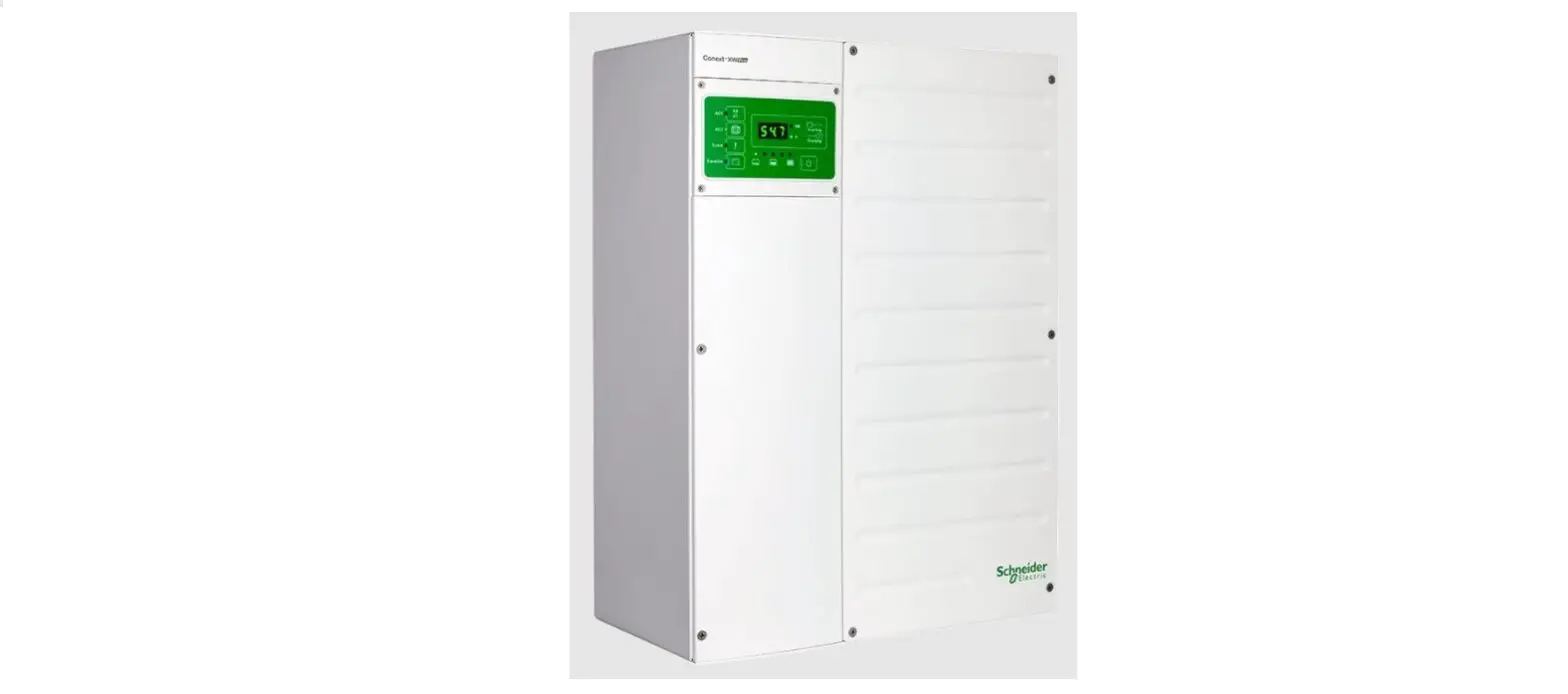
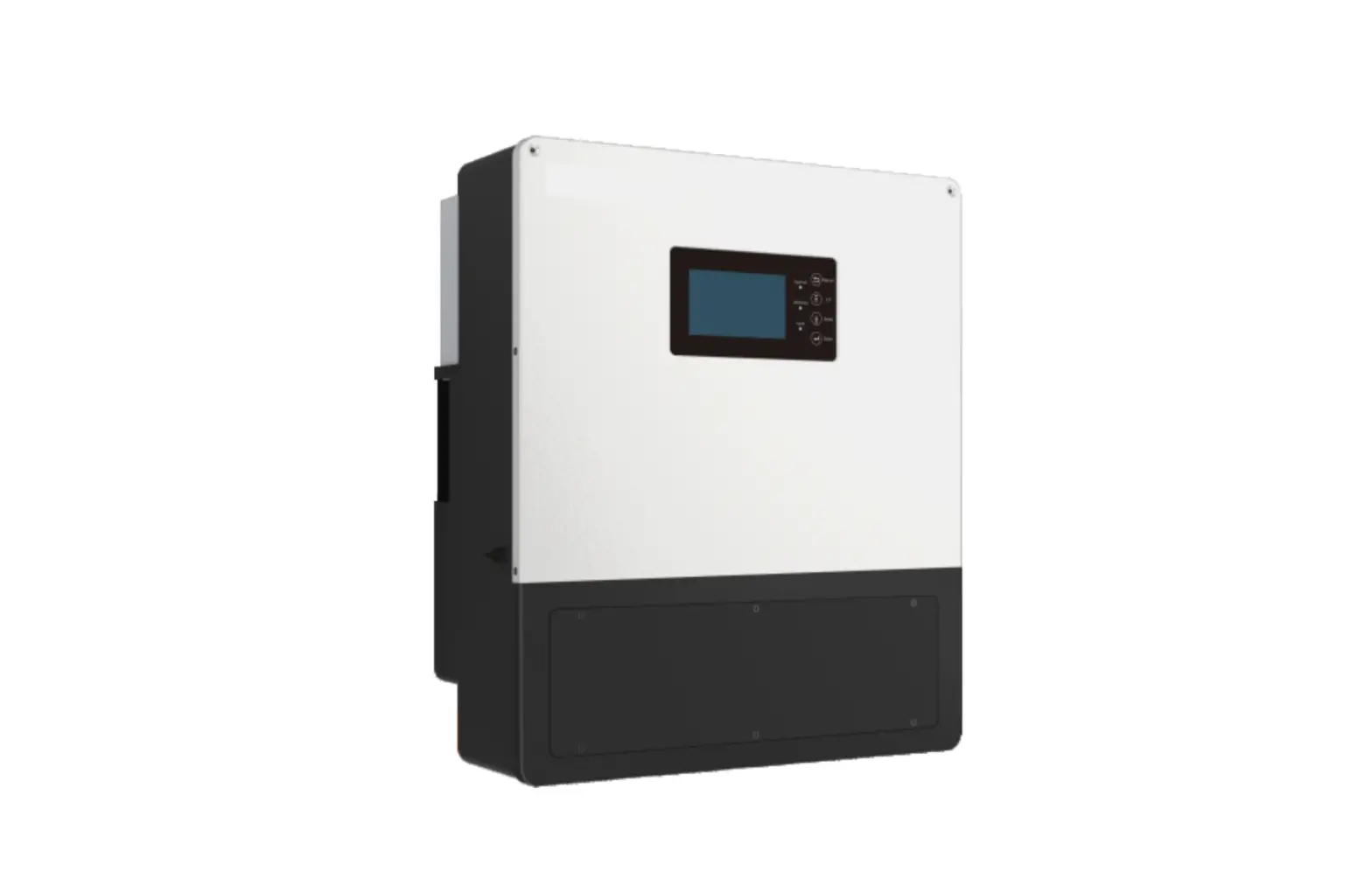
FP-Envy 8K Envy Inverter
Local and Remote Monitoring Set-Up Guide for FP-Envy
8K/10K/12K
Product Information:
The FP-Envy 8K/10K/12K is a power inverter that allows for local
and remote monitoring through the Envy Fortress Power APP. The
inverter comes with a Dongle that needs to be integrated to the
inverter to enable monitoring. The Dongle requires a Wi-Fi network
to connect to and can be integrated with the home Wi-Fi network to
allow for remote monitoring. The inverter and end-user can be
registered through the web portal method.
Product Usage:
Dongle Integration:
- Download the Envy Fortress Power APP from either the Apple App
Store or Google Play Store on a mobile device. - Plug the Dongle to the inverter while the inverter is
energized. - Connect to the Dongle’s Wi-Fi Network usually named
BA********. - Access the Envy App and press the WIFI Module Connect.
- Proceed to integrate the Dongle to the home Wi-Fi by inputting
the router’s SSID and Password. Server must be set to North
America. After clicking on Set, Click HomeWifi Connect. The Dongle
will display 3 solid LED’s if the connection is successful. This
may take 1 minute after selecting HomeWifi Connect.
Inverter and End user Registration [Web Portal Method
(Suggested)]:
- Follow the Dongle Integration Process as mentioned above.
- Search envy.fortresspower.io and Login Installer Username and
Password credentials. If any have not been assigned, please contact
Tech Support. - Once logged in, go to Configuration > Station > Add
Station (Create Plant Name). Please make sure you select the
correct location and time zone. - After creating Station, go to Dongles > Add Dongles >
Input Dongle Serial Number and Pin (located in the packaging box
and right side of the Dongle) and associate the dongle to the
created station. - Next, go to Users and fill out the End-user profile and log in
credentials. - Once User is added, associate End-user by User Management >
Station Config > Select Station. - To give Read Only access to End-user, select User Management
> Edit > Read Only. Otherwise, leave Normal.
Contact Information:
- Tech Support Phone: (877) 497-6937
- Tech Support (Spanish) Phone: (215) 710-8960
- Support Tickets: https://www.fortresspower.com/support/
- Warranty Submittal:
https://www.fortresspower.com/warranty/
Local and Remote Monitoring Set-Up Guide
FP-Envy 8K/10K/12K
TABLE OF CONTENTS
DONGLE INTEGRATION…………………………………………………………………………………………………………………..2 INVERTER AND END USER REGISTRATION (MOBILE METHOD) ………………………………………………………………3 INVERTER AND END USER REGISTRATION [WEB PORTAL METHOD (SUGGESTED)] ……………………………………3 CONTACT INFORMATION………………………………………………………………………………………………………………..6
1
Dongle Integration
1. Download the Envy Fortress Power APP Located both in Apple App Store
1
on a mobile device.
2
and Google Play Store
2. Plug the Dongle to the inverter while inverter is energized. 3. Connect to the Dongles Wi-Fi Network usually named BA******** 4. Access the Envy App and Press the WIFI Module Connect. 5. Proceed to integrate the Dongle to the Home Wi-Fi by inputting the router’s SSID and Password. Server must be
Set to North America. After clicking on Set, Click HomeWifi Connect. The Dongle will display 3 solid LED’s if the connection is successful. This may take 1 minute after selecting HomeWifi Connect.
3
4
5
If your cellphone does locate the customer’s Router as shown on the 5th step image, then proceed to access the web browser on your cellphone or laptop while being connected to the dongle’s Wi-Fi signal as seen in the 3rd step image. Type 10.10.10.1>User: admin, Password: admin. Select English on the top right side. Next, Select Station Mode Setting and input the internet router’s SSID and Password. Save and confirm that the Dongle has been integrated successfully by displaying 3 solid LEDs after 1 minute. Warning. You must not access nor change any other values in this web portal. Doing so, may break the Dongle and make it inoperable.
2
Inverter and End user Registration (Mobile Method) 6. Select Register Tab 7. Complete End User Registration. Create End User username, password and make sure to select correct Continent, Region, Country, Time zone and physical Address. The Customer (Installer) Code shall be provided by Fortress Power to the Installer in which every installation done with this code will be reflected on the installer’s portal. The serial number and pin of the dongle is located on the side of the dongle and the packaging box. 8. Once Registered, the user can access the End User Portal where they can view direction of power flow, Solar, Battery, Export, and Consumption Data.
6
7
8
Inverter and End user Registration [Web Portal Method (Suggested)]
1. Follow the Dongle Integration Process 2. Search envy.fortresspower.io and Login Installer Username and Password credentials. If any have not been
assigned, please contact Tech Support. 3. Once Logged in, Go to Configuration>Station>Add Station (Create Plant Name). Please make sure you select the
correct location and time zone. 4. After Creating Station, Go to Dongles>Add Dongles>Input Dongle Serial Number and Pin (located in the
packaging box and right side of the Dongle) and associate the dongle to the created station. 5. Next, Go to Users and fill out the End-user profile and log in credentials. 6. Once User is added, Associate End-user by User Management>Station Config> Select Station 7. To give Read Only access to End-user, Select User Management>Edit>Read Only. Otherwise, leave Normal.
3
4
5
Contact Information
For Technical Support Please Contact us at Tech-Support Contact Information
Useful Links
·
Phone:
Tech Support (877) 497-6937
Tech Support (Spanish) (215) 710-8960
·
Support Tickets: https://www.fortresspower.com/support/
·
Warranty Submittal: https://www.fortresspower.com/warranty/
FP-ENVY-MSUG.2 6
 envy.fortresspower.io
 Fortress Power Battery Technical Support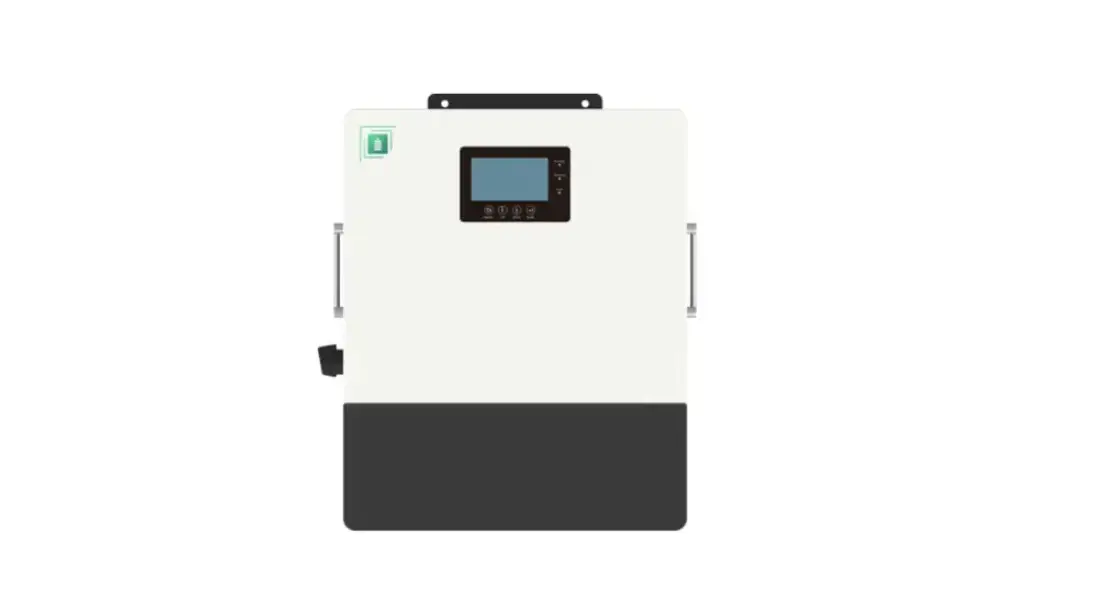


![Champion 4000w Open Frame Inverter [100807] User Manual](https://static-data1.manualsee.com/1/img/45/16948/2020/12/Champion-4000W-Open-Frame-Inverter.jpg "Champion 4000w Open Frame Inverter [100807] User Manual")