 Touchscreen display
Safety & Recommendations 
IMPORTANT INFORMATION
 WARNING:
TO PREVENT FIRE OR SHOCK HAZARDS, DO NOT EXPOSE THIS UNIT TO RAIN OR MOISTURE. ALSO, DO NOT USE THIS UNIT‘S POLARIZED PLUG WITH AN EXTENSION CORD RECEPTABLE OR OTHER OUTLETS UNLESS THE PRONGS CAN BE FULLY INSERTED.REFRAIN FROM OPENING THE E-SCREENS HOUSING AS THERE ARE HIGH VOLTAGE COMPONENTS INSIDE.CAUTION:
TO REDUCE THE RISK OF ELECTRIC SHOCK, MAKE SURE POWER CORD IS UNPLUGGED FROM WALL SOCKET. TO FULLY DISENGAGE THE POWER TO THE UNIT, PLEASE DISCONNECT THE POWER CORD FROM THE AC OUTLET. DO NOT REMOVE COVER (OR BACK). NO USER SERVICEABLE PARTS INSIDE. REFER SERVICING TO QUALIFIED SERVICE.WARNING:
FOR CONTINUED SAFETY, DEVICES WITH CLASS I CONSTRUCTION SHALL BE CONNECTED TO A MAIN SOCKET OUTLET WITH A PROTECTIVE EARTHING CONNECTION.WARNING:
THIS IS A CLASS A PRODUCT MEANT TO BE USED IN PROFFECIONAL ENVIROMENTS. – THIS PRODUCT MUST NOT BE USED IN RESIDENTIAL AREAS.
1.1. USE
- Transport the product upright with proper packaging. Avoid placing the product face up or down. Handle with care!
- Do not send a static (non-moving) image to the e-screen, it may cause image ‘burn-in’ or image retention.
- “Burn in” and/or image retention is not covered under warranty.
- Make sure to change the image on the e-screen periodically. It is recommended to turn off the e-screen for at least 6 hours after 16 hours of usage in a 24-hour period to help avoid image retention.
1.2. EXEMPTIONS
- This product isn’t warranted for any damage caused by natural disaster (such as earthquake, thunder, etc.), fire, acts by third parties, accidents, owner’s intentional misuse and fault, or use in other improper conditions.
- This product isn’t warranted for incidental damages (such as profit loss or interruption in business, modification or erasure of record data, etc.) caused by use or inability to use of this product.
- This product isn’t warranted for any damage caused by inappropriate operation, or from not following the user manual.
- This product isn’t warranted for any damage caused by misuse or malfunction through simultaneous use of this product and the connected equipment or software.
- This product isn’t warranted for any damage caused by neglect of the installation instructions.
- This product isn’t warranted for any damage caused by improper installation.
- This product isn’t warranted for any damage caused by disassembly, modification or repair by non-authorized service centers or people.
SAFETY INSTRUCTIONS
Before using this e-screen, please read this user manual thoroughly to help protect against property damage and to ensure your personal safety and the safety of others.
- Read and follow all instructions and safetywarnings found in this manual.
- For installation or adjustment, please follow the instructions in this manual and refer all servicing to qualified service personnel.
2.1 SAFETY PRECAUTIONS
If smoke or a peculiar smell comes from the eScreen, remove the power plug from the outlet immediately. Failure to do so may result in fire or electrical shock.
Contact your dealer for inspection.
If the e-Screen has been turned on but there is no picture, remove the power plug from the outlet immediately. Failure to do so may result in fire or electrical shock.
Contact your dealer for inspection.
If water is spilled or objects are dropped inside the e-Screen, remove the power plug from the outlet immediately. Failure to do so may result in fire or electrical shock.
Contact your dealer for inspection.
If the e-Screen is dropped or the e-screen‘s housing is damaged, remove the power plug from the outlet immediately. Failure to do so may result in fire or electrical shock.
Contact your dealer for inspection.
If the power cord or plug is damaged or becomes hot, turn off the main power switch of the eScreen, make sure the power plug has cooled down and remove the power plug
from the outlet.
If the e-Screen is still used in this condition, it may cause fire or electrical shock. Contact your dealer for replacement.
2.2 MOVING AND CARRYING
NOTICE
Moving the product:
Moving the product requires at least four people. Attempting to move the product with fewer people may result in damage to the display or in serious injury of the people handling the screen. When moving a display in its shipping carton, lift the carton using the white handles.
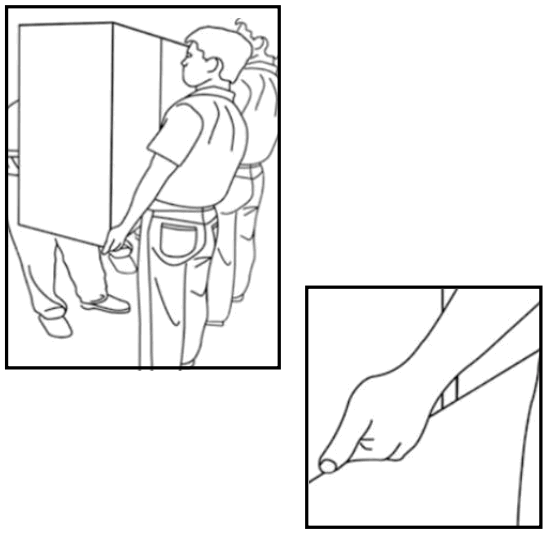
Carrying the product:
This product is heavy; please follow proper lifting techniques, as pictured below. Failure to do so may cause injury.
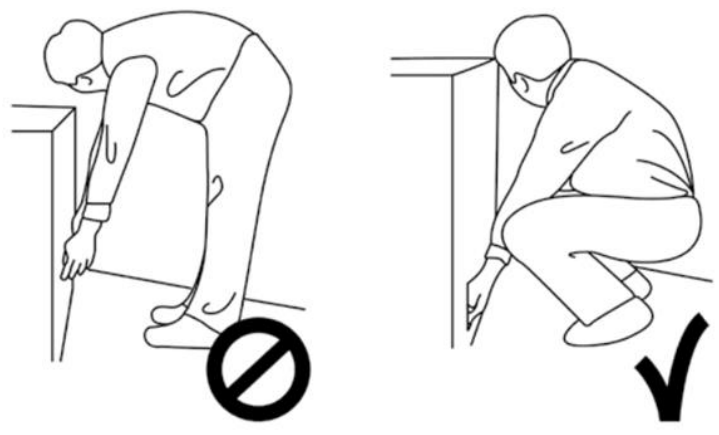
2.3 INSTALLATION
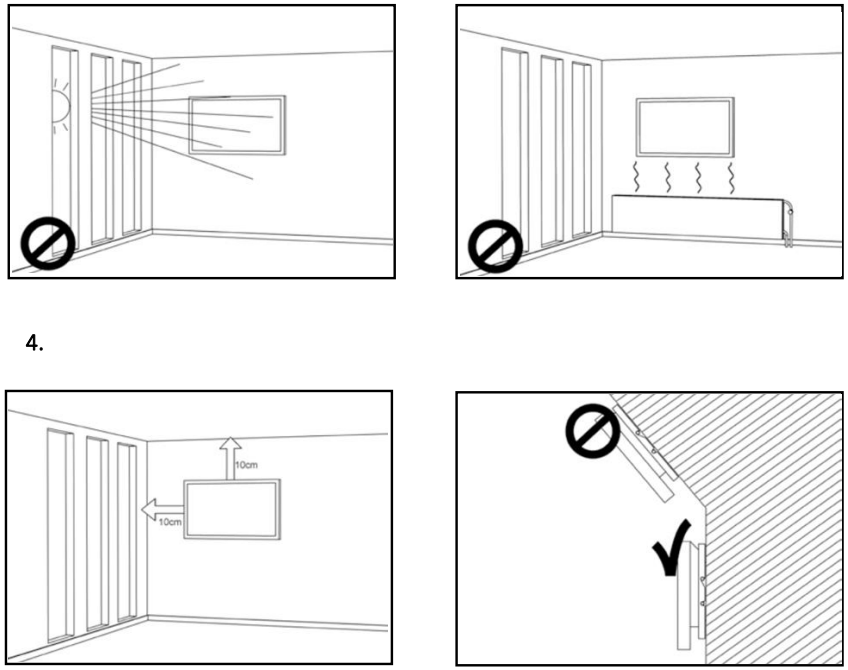
Don‘t install in a high-temperature environment.
If the e-screen is used in high-temperatures or in direct sunlight, it may cause the housing of the product or other parts to become distorted or damaged, resulting in overheating or electrical shock.
Don‘t install in a high-humidity environment.
This may cause overheating or electrical shock.
Don‘t install near any heat sources such as radiators, heat registers, stoves, or other apparatus that produce heat.
This may cause fire or electrical shock.
Don‘t overload outlets or cables beyond electrical capacity. Don‘t use extension cords as it may cause fire or electrical shock.
Don‘t insert the power plug into an outlet other than 100~240V AC.
This may cause fire or electrical shock.
- Don’t use a damaged power plug or worn outlet.
- Don’t insert an improper power plug it may cause fire or electric shock.
Don‘t place the e-screen on an unstable shelf or surface. The e-screen may fall, causing injury.
Please install on a horizontal, stable, level surface.
Don‘t place objects on the e-screen.
- If the e-screen is covered or the vents are blocked, the display could overheat and cause a fire.
- If objects or liquids get inside the e-screen, this may cause fire or electrical shock.
- Do not put heavy objects on the e-screen as they may fall, causing injury.
- Please keep a 10 cm minimum distance between e-screen, wall and/or other objects to ensure sufficient ventilation.
Don‘t move the e-screen when it is connected to the power cord and AV cables.
- When moving the e-screen, make sure to remove all cables first.
- When unpacking or carrying the e-screen, at least 4 people are needed. Make sure the e-screen is carried upright.
- Transport the e-screen upright. Avoid placing the e-screen face up or down.
- Handle the e-screen gently. Do not drop.
2.4 WALLMOUNT SAFETY NOTICE
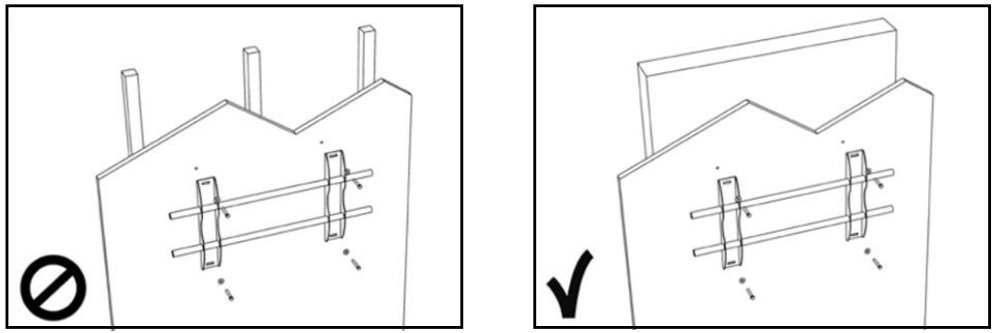
- Please make sure that the bracket is mounted on a solid surface.

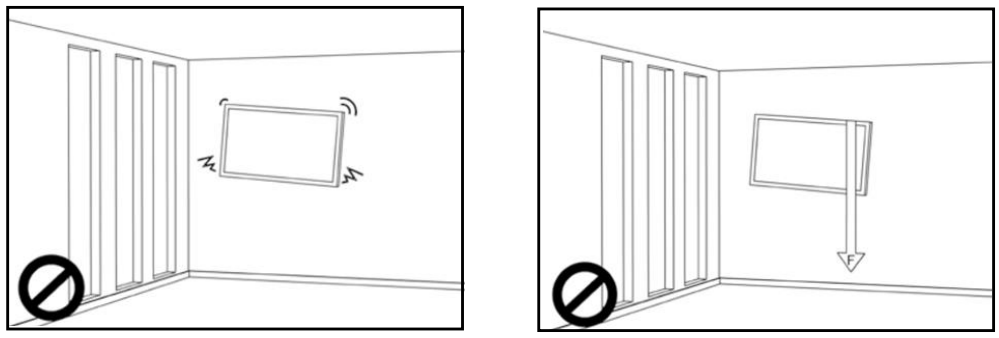
- After mounting the screen, do not pull, push or shake the screen.

SAFETY INSTRUCTIONS
- ot install screens in direct sunlight, humid conditions, or high temperatures.

2.5 RECOMMENDED USE
If you encounter a problem during installation, please contact your supplier for assistance. Don’t repair or open the e-screen by yourself. Failure to do so may result in fire or electrical shock.
Contact your dealer for inspection.
Protect and correctly use the power cord/plug.
- Don‘t pinch the power cord/plug between hard surfaces.
- Don‘t step on the power cord/plug.
- Before inserting the power plug into the wall outlet, connect the power cord to the display.
- Using an e-screen with a damaged or non-original power cord can damage the screen, cause fires or electrical shocks.
Using extension cords (not recommended)
If an extension cord must be used, ensure the voltage rating exceeds the max power consumption of the display. If the voltage rating is less than the display, it will cause the extension cord to overheat.
Do not operate the screen during thunder or lightning.
Remove the powerplug from the power outlet.
Don’t use any kind of liquid on the e-screen.
- If liquid is spilled on the e-screen, remove the power plug from the wall socket and ask qualified service personnel to check the product.
- If liquid gets on e-screens glass plate, clean it with a dry and soft cloth immediately.
- Don’t use any chemicals on the e-screen.
- If metal or liquids get into the e-screen, it may cause a fire or an electrical shock.
Don’t install or remove the power plug with wet hands. This may cause an electrical shock.
If the e-screen will not be used for a long period of time, unplug the display. Preventing to do so may cause premature wear of electrical components or fire.
Handle the e-screen with care, prevent glass breakage.
- If the glass of the e-screen is broken, liquids may escape. Please don‘t touch the liquid.
- If these liquids come into contact with skin or eyes, immediately wash it away with clean water and consult a medical professional.
Precautions with the remote-control batteries
- Please only use approved AAA type batteries.
- Please be sure to insert batteries by matching the + and -.
- Don’t recharge, heat, disassemble, short or throw batteries into a fire.
- Don’t mix a new battery with a used one.
- Don’t mix different types of batteries together (only use the specified type).
2.6 CLEANING
Remove the power plug from the power outlet before cleaning.
Failure to do so may result in electrical shock or damage.
Cleaning the surface of the e-screen
- When the surface of the e-screen becomes dirty, wipe the surface lightly with a soft clean cloth.
- If the surface requires additional cleaning, lightly moisten the cloth.
- Do not to let any kind of liquid enter the e-screen as it may cause electrical shock or damage.
- Do not clean the e-screen with alcohol, solvents or ammonia, as this could damage the e-screen.
 Touchscreen display
Product Content & Operation
PACKAGE CONTENT
1.1. UNPACKING
- The Touch Monitor is packed using cushions to protect the product during shipping.
- Before unpacking, prepare a stable, level, and clean surface near a wall outlet.
- Step 1: Place the box in an up-right stable position.
- Step 2: Remove the white handles and cut the banding
- Step 3: Smoothly lift the upper part of the box, this will reveal the touch monitor box content
- Step 4: Remove the top cushion and take the accessory bag out.
- Step 5: Extend the bag up and carefully cut the upper layer to unseal the touch monitor bag
- Step 6: Prepare your screen for installation, and then remove it from the box by lifting it.
1.2. INCLUDED ACCESORIES.
| ITEMS |
| Power Cord 1.8m |
| Remote Control |
| Passive Stylus x2 |
INSTALLATION
2.1 ENVIROMENT CONDITIONS
When operating the screen, ambient room conditions should not exceed the following:
- Operating temperature: -5˚C to 45˚C (41˚F to 104˚F)
- Humidity: less than 90% RH (Max)
OVERVIEW
2.2 GENERAL OVERVIEW OF THE SCREEN
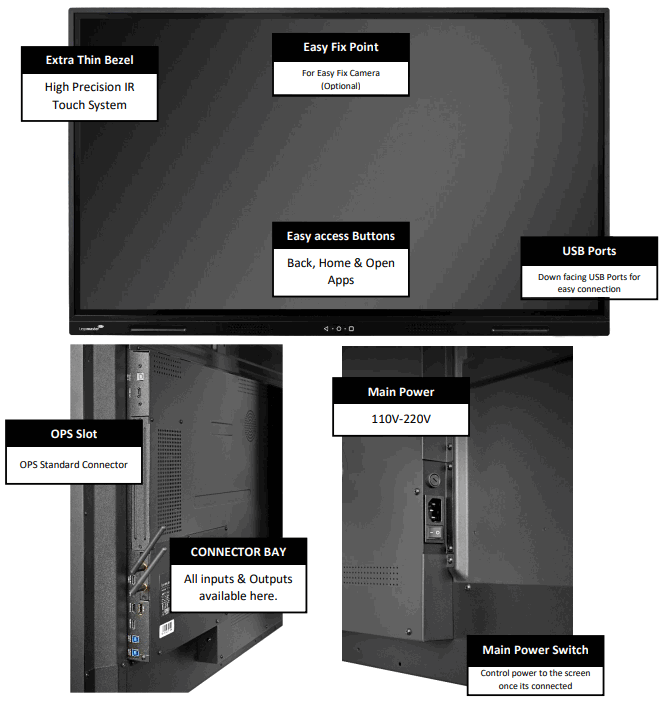
2.3 INPUT / OUTPUT CONNECTOR INFORMATION

- USB-A 2.0 (x1) / USB-A 3.0 (x5)
- USB-B 3.0 (x3)
- HDMI 2.1 (x1) / HDMI 2.1 Out (x1) HDMI 2.0 (x2)
- DP 1.2 (x1)
- Minijack 3,5 Stereo (x1)
- USB-C (x2)
- RS-232 (Serial)
- RJ-45 (x1 IN) / RJ-45 (x1 Out)
- SPDIF (Optical Audio)
- VGA (x1)
2.4 REMOTE CONTROL
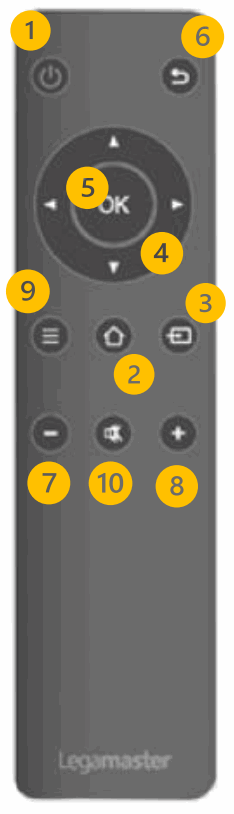
- Turn the display ON and OFF.
- Home: Head directly to the main home page
- Source Selection Displays the input selection screen to select from
- Navigation Buttons Easy navigation wheel
- Select / Confirm: Confirm your on-screen selection
- Back / Return to previous MENU Returns to the previously selected on screen MENU.
- Volume Down Lowers the audio volume.
- Volume Up Raises the audio volume.
- Settings MENU Direct access to the main settings MENU
- Mute mutes the scree’s audio
OVERVIEW / OPERATING THE SCREEN
2.4.1 CHANGING THE REMOTE-CONTROL BATTERY
- Remove the battery cover:
On the backside of the remote-control, slide down the battery cover. - Insert batteries:
Use two AAA batteries and insert them according to the plus and minus indicators in the remote control. - Close the battery cover by sliding it back into place.
I. Discard batteries according to the local waste reduction and recovery regulations.
II. Do not keep used, empty batteries in the remote control. They can leak and result in damages to the remote control.
III. Only use batteries according to the instructions and regulations found in this manual and to the instructions and regulations set forth by the batterie’s manufacturer.
About the remote control
- Do not drop, shake, or bump.
- Avoid moist conditions, liquids, high-temperatures and/or exposure to direct sunlight.
- Don‘t dismantle.
TURNING THE DISPLAY ON AND OFF
Please make sure the display is connected to an AC power-socket using the supplied power cable.
Set the AC-switch to “l “. The Touch monitor will start up, if not.
To switch the display on, push the center button “O” on the screen once, or push the power-button on the remote control.
To switch the monitor off, press the center button “O” on the screen, open the quick launch menu and select the “power off” option or push the power button on the remote control. The display will switch to stand-by mode.
To turn off power completely, turn the AC switch to “O “or disconnect the AC power cord from the power outlet.
OPERATING THE SCREEN
3.1 OPERATING THE SCREEN FOR THE FIRST TIME
When first starting up your screen you will be prompted to set-up some basic options:
Step 1: Language
Step 2: Choose your set-up, this step will let you select a default profile including premade configurations being the fastest start, option two will be a custom set up that includes multiple screen customization options and lastly option three is loading a backup option, to load a preexisting configuration via a USB stick.
In case you select the custom option, the available configurations will be:
Step 1: Connectivity option will be displayed, select between Ethernet or Wi-Fi and check for firmware updates.
Step 2: Select your energy Mode: Multiple options will be displayed to select your preferred power consumption profile, ECO mode will be ON as default, remember that changing this profile may affect the screen’s power consumption.
Step 3: Source Settings menu: this menu will display all available inputs. From this menu you will be able to select what inputs will be available for the user to select and utilize. Added to this selection you will be able to create a shortcut to said input on the main screen’s interface.
Step 6: Set up a security PIN code.
Step 7: Time & Date: All options to configure you time and date will be displayed. Time zone, Time format and Date format.
Step 8: System Configuration will allow you to choose between three different modes:
- Android ON: Will display all tools and features the screen has to offer.
- Android OFF: Will limit the interaction, disabling the Android interface and only providing basic tools such as a Whiteboard App and Annotation tools.
- Launcher Only: Will disable all android tools and provide only a “Home screen” with the previously selected inputs.
Step 9: Home Screen Settings: From this menu you will be able to select
- Home screen layout: Adding four, six or eight App-tiles to the main home screen.
- Home screen Background: Four default background will be available; you will also be able to load you own background after running the first time set up.
- Clock Options: You will be able to select the type of clock display to add to your home screen, either disabling it, having an analog or a Digital type of clock.
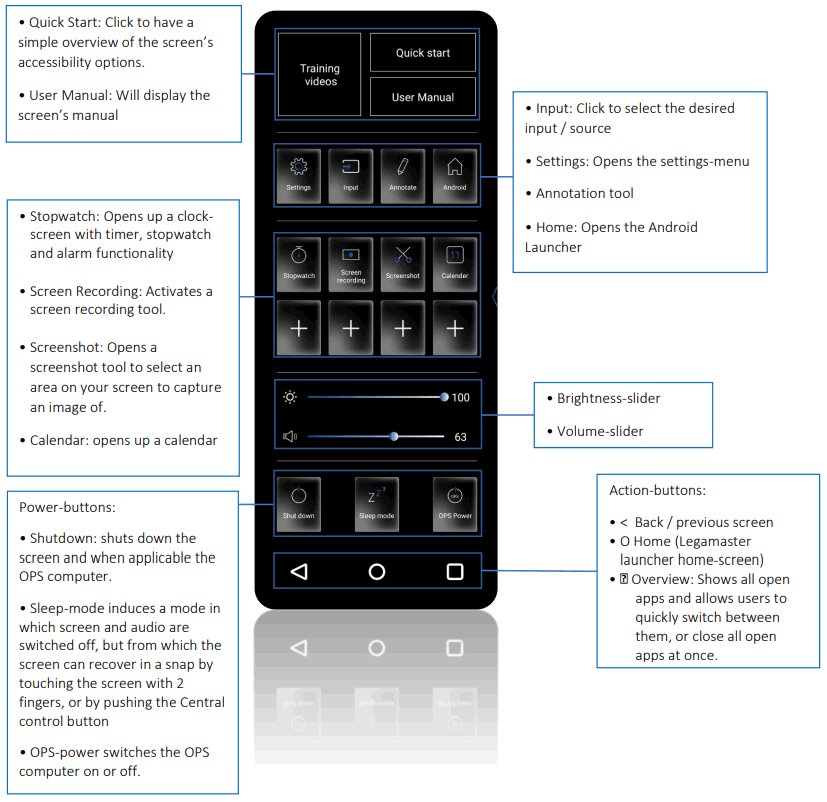
3.2 QUICK LAUNCH MENU
By pushing the center button “O” on your screen once or clicking the floating arrows in the screen, the quick launch menu will open. From this customizable menu, you will be able to access inputs, add most used apps and control the screen.
OPERATING THE SCREEN
3.3 SETTINGS MENU
| MAIN SETTINGS | LEVEL1 | LEVEL 2 | VALUES | EXPLANATION | |
| NETWORK & CONNECTED DEVICES | Ethernet | MAC address | shows the MAC address for the wired connection | ||
| IP address | shows the IP address for the wired connection | ||||
| Ethernet | ON/OFF | Toggle ethernet-connection on / off for the screen itself. Disabling this does not disable ethernet for the OPS | |||
| Wi-Fi | MAC address | shows the MAC address for the Wi-Fi connection | |||
| IP address | shows the IP address for the Wi-Fi connection | ||||
| Wi-Fi | ON/OFF | Toggle Wi-Fi on and off | |||
| Hotspot | Hotspot | ON/OFF | Toggle the hotspot-functionality on / off | ||
| Setup Wi-Fi hotspot | Set-up the hotspot | ||||
| Bluetooth | MAC address | show the MAC address for the bluetooth adapter | |||
| Bluetooth | ON/OFF | Toggle bluetooth on/ off, show / connect with available devices | |||
| DEVICE | Picture | Picture mode | Standard | Select pre-set picture modes | |
| Dynamic | |||||
| Soft | |||||
| User | Picture mode where settings can be adjusted manually in ‘Advanced’ | ||||
| Power mode | User | Choose a power-mode: User = manual brightness setting, Auto = Automatic brightness setting based on ambient light conditions, balanced = brightness 75, ECO = brightness 50, DCR = 100. Power consumption varies based on these settings. | |||
| Auto | |||||
| Balanced | |||||
| ECO Friendly | |||||
| DCR | |||||
| Color tempreture | Standard | Select a color temperature mode | |||
| Cool | |||||
| Warm | |||||
| Eye protect | ON/OFF | Toggle Eye Protect mode on / off. When enabled, the brightness will be reduced when writing. | |||
| Anti blue light | ON/OFF | Toggle Anti blue light on / off. When enabled the amount of blue light will be reduced. | |||
| Backlight | 0-100 | Manually adjust the brightness. Using this setting will change the power mode setting to ‘Manual’ | |||
| Advanced | Contrast | 0-100 | In Picture mode ‘User’, use these settings to manually adjust the picture settings | ||
| Brightness | 0-100 | ||||
| Saturation | 0-100 | ||||
| Sharpness | 0-100 | ||||
| PC mode | PC / Video | Allows switching to Video mode, in which ‘Overscan’ can be used | |||
| Display mode | 16:9/P2P | Toggle picture aspect mode | |||
| MEMC | Off/Low/Middle/High | Change the MEMC level | |||
| Overscan | ON/OFF | toggle between overscan on and off. | |||
| HDR | ON/OFF | toggle between HDR on and off. | |||
| VGA auto adjust | toggle VGA auto adjust o / off when receiving a VGA signal | ||||
| MAIN SETTINGS | LEVEL1 | VALUES | EXPLANATION | |
| DEVICE | Sound | Audio output | Speaker/SPDIF/ARC/Bluetooth | Choose the Audio output |
| Sound mode | Standard/Music/Movie/Sports/User | Select a pre-set sound mode. ‘User’ allows manual sound settings | ||
| SPDIF Mode | RAW/PCM | Toggle SP/DIF mode between RAW / PCM | ||
| AVC | ON/OFF | toggle AVC on / off | ||
| Sound Effect | ON/OFF | toggle sound effect on / off | ||
| Volume | 0-100 | set volume | ||
| Balance | 0-100 | set balance | ||
| EQ 120Hz | 0-100 | Manually adjust settings when sound mode is set to ‘User’ | ||
| EQ 500Hz | 0-100 | |||
| EQ 1.5KHz | 0-100 | |||
| EQ 5KHz | 0-100 | |||
| EQ 10KHz | 0-100 | |||
| MAIN SETTINGS | LEVEL1 | LEVEL2 | VALUES | EXPLANATION | |
| SYSTEM | Security | Change password | Change your password | ||
| Safe mode | ON/OFF | Safe mode password-protects the complete settings menu | |||
| App lock | Select individual apps that will be password-protected | ||||
| App install/uninstal l lock | ON/OFF | App (de)install lock disables (de)installation of apps | |||
| Touch lock | ON/OFF | Touch lock disables touch functionality | |||
| Keypad lock | ON/OFF | Keypad lock disables use of the Central Control Button | |||
| IR lock | ON/OFF | IR lock disables use of the remote control | |||
| Network lock | ON/OFF | Network lock disables ethernet, Wi-Fi and Bluetooth connections | |||
| Cast App | AirServer / E-Share | Lets the user choose between both casting apps | |||
| Manage apps | Installed apps | manage user-installed apps (FORCE STOP/UNINSTALL/CLEAR DATA) | |||
| All apps | manage all apps (FORCE STOP/DISABLE/CLEAR DATA) | ||||
|
Power | Power-on / shutdown timer | Shutdown timer | set the shutdown timer | ||
| Power-on timer | set the power-on timer | ||||
| Power on settings | Power on mode | Direct | set power on mode to direct | ||
| Standby | set power on mode to standby | ||||
| Memory | set power on mode to memory | ||||
| Power on source | Memory/Android/PC /HDMI1/HDMI2/HD MI3/DP/USB_C/VGA | Choose the source in which the screen powers-on | |||
| Power on volume | Memory/User | Set the power-on volume. In ‘User’ users can select a power-on volume manually | |||
| Volume setting | 0-100 | Set the power-on volume | |||
| Boot OPS at power-on | ON/OFF | Choose whether the OPS boots automatically when the screen is power-on | |||
| Wake on lan | ON/OFF | Enable / disable wake on Lan | |||
| Keep power and network to OPS | ON/OFF | Enable / Disable Power and network connections to the OPS even if the screen is OFF | |||
|
Motion Detect | Motion Detect Mode | Off/Power Manager | Select the power Detect mode | ||
| Motion Detection | Off/15/30/45/60 minutes | Dis- / enable the proximity sensor to put the screen in sleep mode when no motion is detected by the proximity sensor | |||
| Shutdown timer | OFF/1/10/20/30/60/ 90/120/180 minutes | set a shutdown timer | |||
| Auto shutdown | Off/1/3/5/10 minutes | Shuts down the screen when there is no signal | |||
| MAIN SETTINGS | LEVEL1 | LEVEL2 | VALUES | EXPLANATION | |
| OTHERS | More | Auto sense | OFF/Prompt/Direct | Select the auto sense mode. In auto sense, the screen will detect new active signals and switch to that source automatically (direct), or when confirmed (prompt). When a signal is switched off, autosense will automatically check for other active sources in the sequence OPS slot, HDMi 1, HDMi 2, HDMi 3, DisplayPort, USB C, VGA always ending in the Android launcher (when enabled) | |
| Temperature protection | ON/OFF | With temperature protection, a user can set an alarm temperature in which the screen will shutdown automatically | |||
| Palm Rejection | ON/OFF | Enable / Disable Palm Rejection | |||
| Current temperature | 0-100 | shows the current temperature of the screen | |||
| Alam temperature | 50-100 | set the alam temperature value. When reached, the screen will automatically shutdown to prevent further temperature increase | |||
| HDMI | HDMI out | 1080p 60Hz/2160p 30Hz/2160p 60Hz | set the HDMI out signal | ||
| HDMI EDID version | EDID 1.4/EDID 2.0 | set the HDMI EDID version | |||
| Date & time | Automatic date & time | ON/OFF | Automatic date and time requires an active internet connection. Disabling this setting allows users to maually set the date & time | ||
| Date | Show or set the current date | ||||
| Time | show or set the current time | ||||
| Time zone | set the time zone | ||||
| Use 24-hour format | ON/OFF | Choose between a 12 or a 24 hr time format | |||
| Languages | Deutsch/English/Francais/Nederlands/Spanish | Set the language | |||
| Keyboard & inputs | Current Keyboard | Shows the current keyboard / allows users to switch keyboards | |||
| Android Keyboard AOSP) | Configure the default (AOSP) keyboard | ||||
| Manage keyboards | Manage keyboards | ||||
| Individuation | Fullscreen Gesture | ON/OFF | Enable/Disable Fullscreen Gestures | ||
| Show Menu at right | ON/OFF | Swtches the menu from the left as a default to the right. | |||
| Set wallpaper | change and set the wallpaper | ||||
| Set ‘no input’ wallpater | change and set the no input wallpaper | ||||
| Set source label | Label various sources for easier recognition | ||||
| Device | Device name | show or change the device name | |||
| Device model | shows the device model | ||||
| System information | Firmware version | shows all system information | |||
| Database Copy | Export to USB | Export the screen configuration to a USB drive | |||
| Import from USB | Import the screen configuration from a USB drive | ||||
| System Updates | Local update | Updates the systems firmware using a USB drive | |||
| Online update | Checks for updates online | ||||
| Reset | Restore factory settings. NOTE! This will erase all custom settings, data and custom apps from your system | ||||
3.4 UPDATING THE SCREEN
Before first using the screen, please update it to the latest firmware version. Evolve ETX 30 touch monitors can be updated in 2 ways, Over-the-Air (Internet connection required) or using a USB-drive.
To update to the latest firmware version using OTA, open the Quick Launch menu by tapping the center button “O” on the touch monitor. From this menu, click on the setting option to open the main settingsmenu and navigate to Device -> System Updates -> Online Update. You will be prompted with a download option if an update is available.
NOTE: please verify that the correct server URL is entered: http://68.66.241.101:8080/ota30/upgrade
To update to the latest firmware version using a USB Drive, open the Quick Launch menu by tapping the center button “O” on the touch monitor. From this menu, click on the setting option to open the main settings-menu and navigate to Device -> System Updates -> local Update (USB).
3.5 OPERATING THE SCREEN BUTTONS
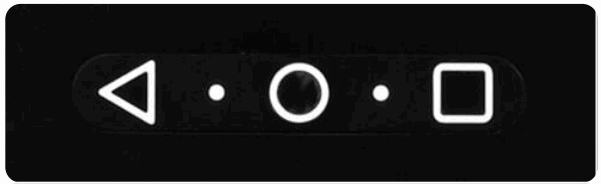
The screen features three buttons integrated in the screen’s frame these buttons have two different
functionalities depending on the press time on them:
- Back Button:
– Short Press: Will simple go back to the previous menu/ option.
– Long Press: Will open the input selection menu. - Home Button:
– Short Press: Will take you to the home screen.
– Long Press: Will turn the screen OFF - Square Button:
– Short Press: Will open the recently used Apps.
– Long Press: Will open the Quick Menu
TROUBLESHOOTING
FOR FREQUENTLY ASKED QUESTIONS, PLEASE VISIT: WWW.FAQ.LEGAMASTER.COM
Product Content & Operation – Version 1.0