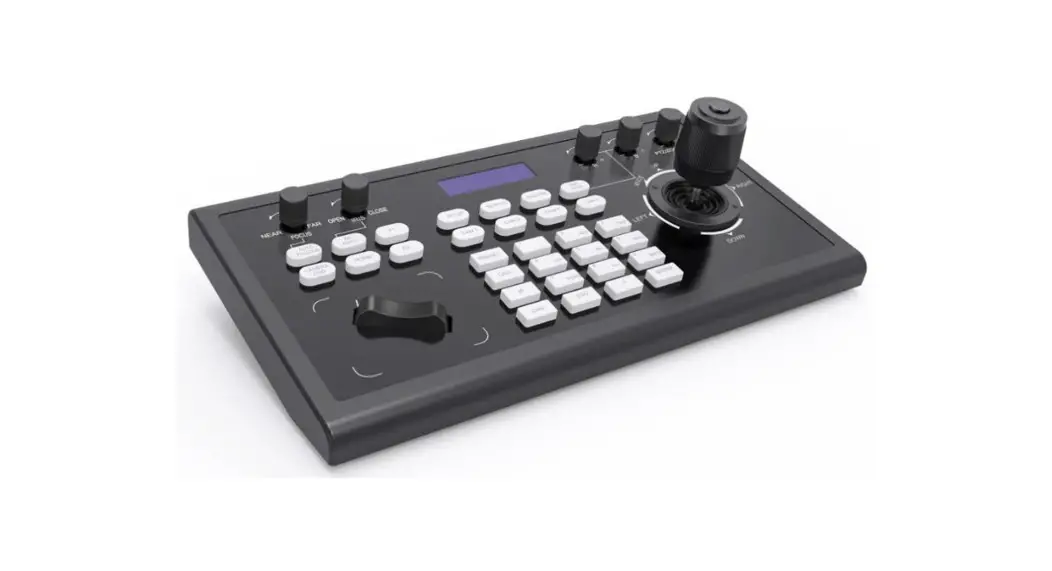
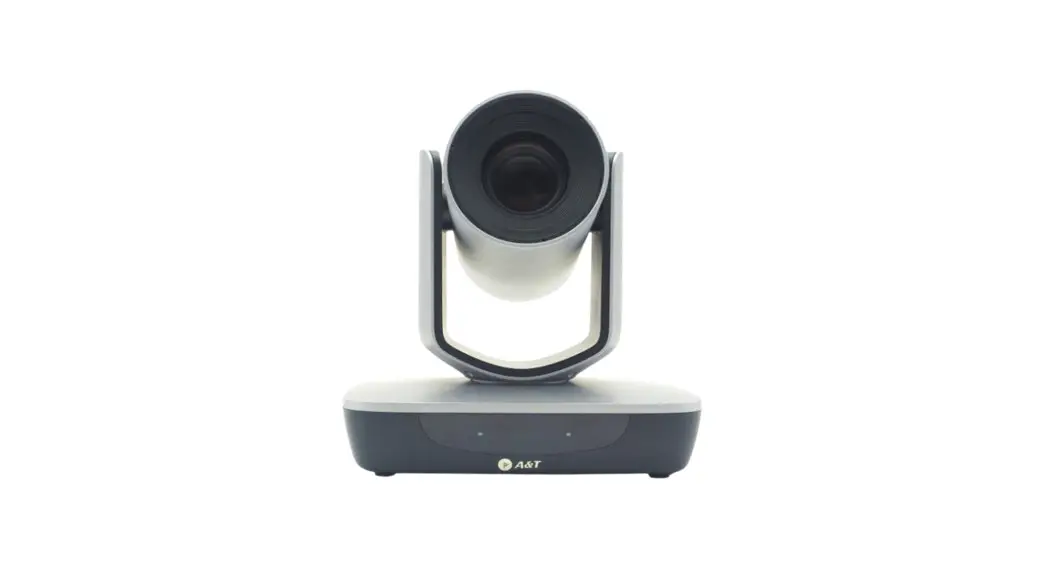
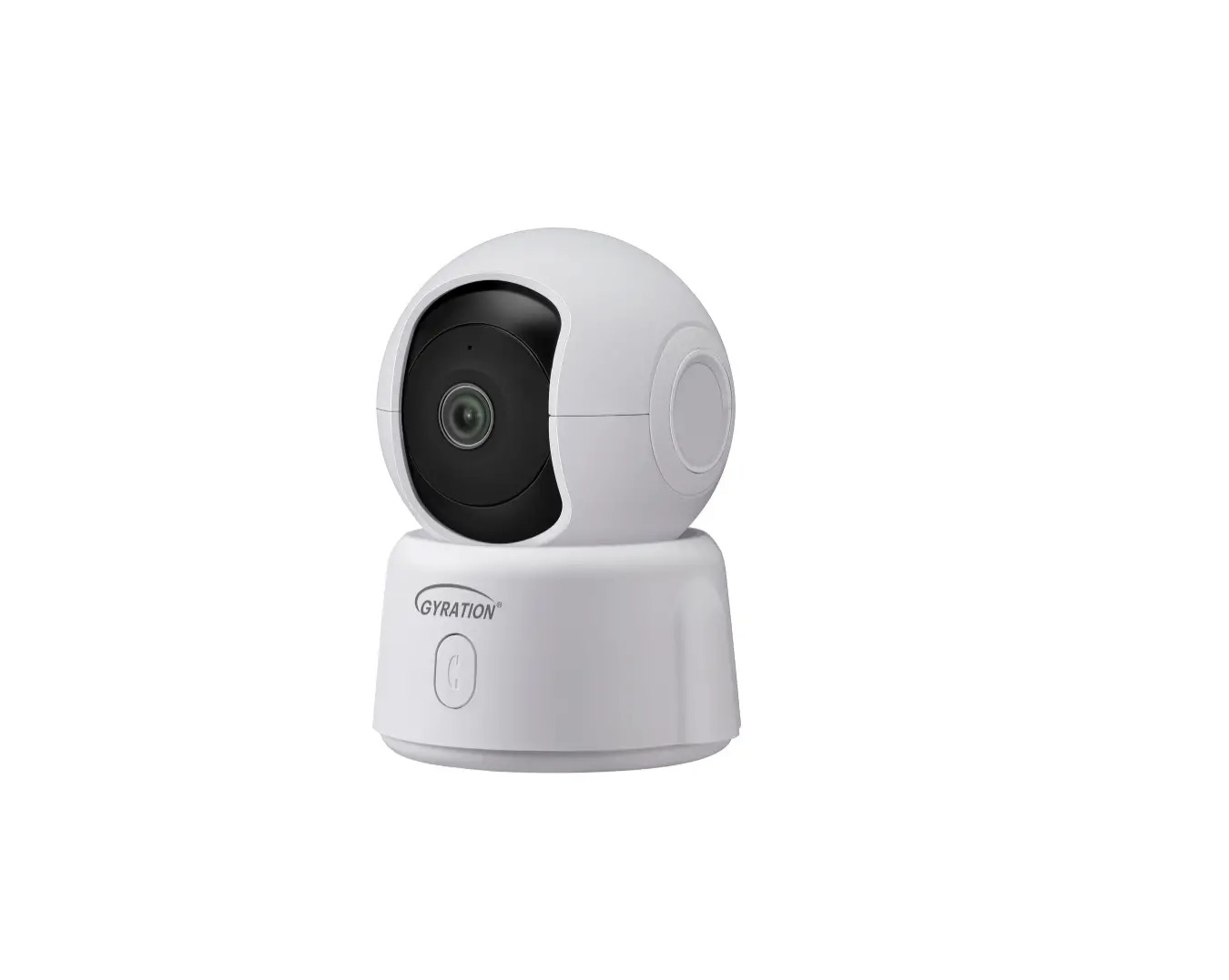
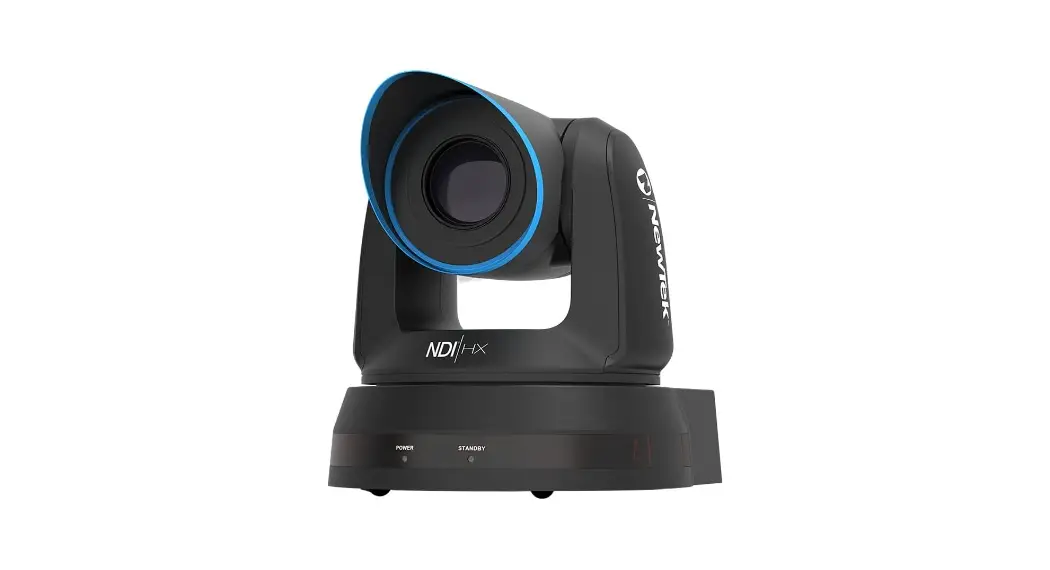
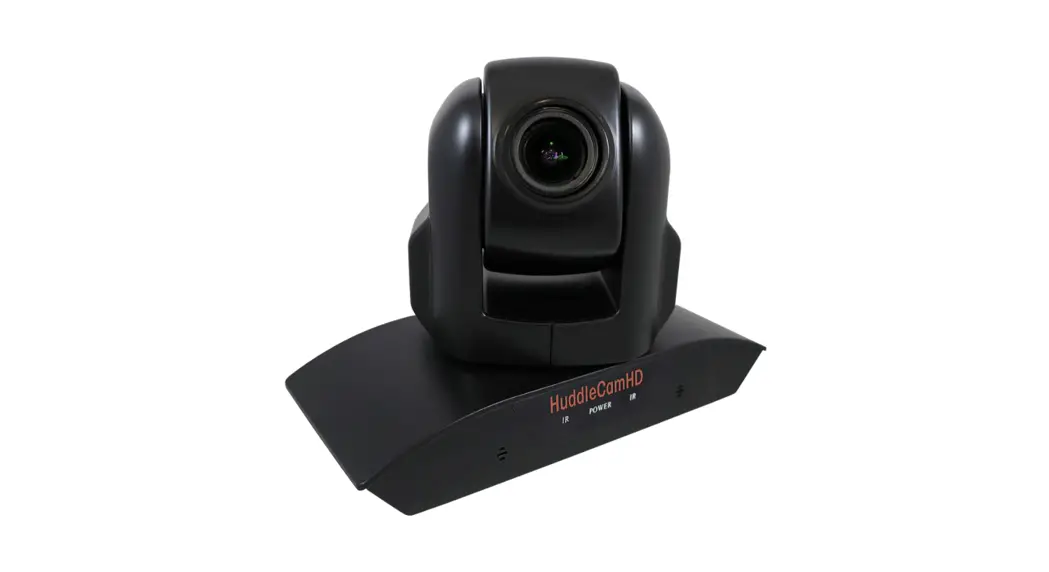
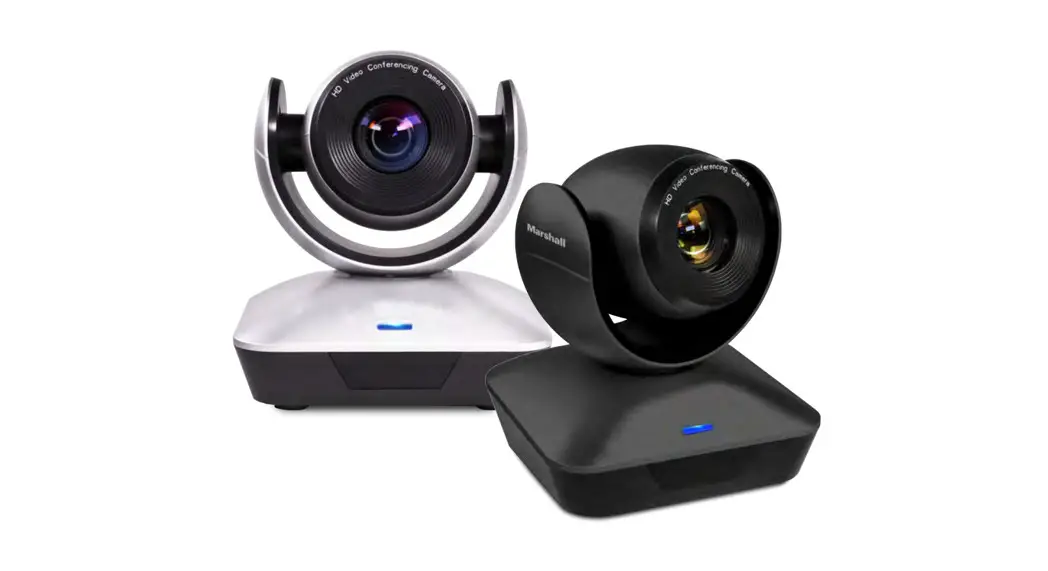
RGB-RD-UM-X8E005 PTZ Camera
Product Information
The RGB-RD-UM-X8 E005 Revision No: V1.5 is a video processor
that offers various features. The product comes with a user manual
that provides guidelines on how to use the product.
Declarations
The product comes with FCC and Warranty declarations. The
Federal Communications Commission (FCC) statement ensures that the
product meets the safety standards. The guarantee and compensation
policy covers manufacturing defects, and the buyer must contact
RGBlink immediately if they encounter any issues.
Operators Safety Summary
The operator’s safety summary provides information on how to
handle the device safely. It is essential to follow these
guidelines to prevent personal injury and damage to the product.
Users should not remove covers or panels as there are no
user-serviceable parts within the unit. It is also crucial to use
the proper power cord, fuse, and avoid operating the device in
explosive atmospheres.
Installation Safety Summary
The installation safety summary recommends following specific
safety precautions when installing the product. The chassis must
connect to earth via the ground wire provided in the AC power cord
to protect users from electric shock. Users should install the AC
socket-outlet near the equipment and ensure it is easily
accessible.
Unpacking and Inspection
It is essential to inspect all delivered goods for damage
incurred during transport, material, and manufacturing faults on
receipt of the product. If you find any complaints, you should
inform RGBlink immediately in writing.
Product Usage Instructions
Follow these guidelines for using the product:
- Read all directions and instructions carefully before using the
product. - Do not remove covers or panels as there are no user-serviceable
parts within the unit. - Use only the power cord and connector specified for your
product. - Ensure that the chassis connects to earth via the ground wire
provided in the AC power cord. - Install the AC socket-outlet near the equipment and ensure it
is easily accessible. - Inspect all delivered goods for damage incurred during
transport, material, and manufacturing faults on receipt of the
product. - If you find any complaints, inform RGBlink immediately in
writing.
By following these guidelines, you can use the RGB-RD-UM-X8 E005
Revision No: V1.5 safely and efficiently. If you have any questions
or concerns, please refer to the user manual’s support section or
contact RGBlink for assistance.
User Manual
Article No: RGB-RD-UM- X8 E005 Revision No: V1.5
CONTENTS
Declarations ………………………………………………………………………………………………………………………………………………..2 FCC/Warranty ……………………………………………………………………………………………………………………………………… 2 Operators Safety Summary …………………………………………………………………………………………………………………… 3 Installation Safety Summary …………………………………………………………………………………………………………………..3
Chapter 1 Your Product …………………………………………………………………………………………………………………………………5 1.1 Packing Configuration …………………………………………………………………………………………………………………….. 5 1.2 Product Overview …………………………………………………………………………………………………………………………… 6 1.2.1 Rear Panel …………………………………………………………………………………………………………………………….8 1.2.2 Front Panel ………………………………………………………………………………………………………………………….. 9 1.2.3 Dimension …………………………………………………………………………………………………………………………..10
Chapter 2 Install Your Product ……………………………………………………………………………………………………………………..11 2.1 Plug in Signals ………………………………………………………………………………………………………………………………. 11 2.2 Plug in Main Power ………………………………………………………………………………………………………………………. 11 2.3 Turn on Your Product ……………………………………………………………………………………………………………………. 11
Chapter 3 Use Your Product …………………………………………………………………………………………………………………………12 3.1 Install XPOSE 2.0 ……………………………………………………………………………………………………………………………12 3.2 XPOSE Controls X8 …………………………………………………………………………………………………………………………15 3.2.1 Login in XPOSE …………………………………………………………………………………………………………………….15 3.2.2 Input and Output Settings …………………………………………………………………………………………………….15 3.2.3 Display Management ………………………………………………………………………………………………………….. 22 3.2.4 Layer Management …………………………………………………………………………………………………………….. 28 3.2.5 Preset Management …………………………………………………………………………………………………………….32 3.2.6 System Setting ……………………………………………………………………………………………………………………. 36
Chapter 4 Order Codes ………………………………………………………………………………………………………………………………. 41 4.1 Product Code ……………………………………………………………………………………………………………………………….. 41 4.2 Module Code ……………………………………………………………………………………………………………………………….. 41 4.2.1 Input Modules ……………………………………………………………………………………………………………………. 41 4.2.2 Output Modules …………………………………………………………………………………………………………………. 41 4.2.3 Others ……………………………………………………………………………………………………………………………….. 41
Chapter 5 Support ………………………………………………………………………………………………………………………………………42 5.1 Contact Us …………………………………………………………………………………………………………………………………… 42
Chapter 6 Appendix …………………………………………………………………………………………………………………………………… 43 6.1 Specification ………………………………………………………………………………………………………………………………… 43 6.2 Terms & Definitions ………………………………………………………………………………………………………………………. 44 6.3 Revision History ……………………………………………………………………………………………………………………………. 49
© Xiamen RGBlink Science & Technology Co., Ltd. Ph: +86 0592 5771197 | [email protected] | www.rgblink.com
1
Thank you for choosing our product! This User Manual is designed to show you how to use this video processor quickly and make use of all the features. Please read all directions and instructions carefully before using this product.
Declarations
FCC/Warranty
Federal Communications Commission (FCC) Statement
This equipment has been tested and found to comply with the limits for a class A digital device, pursuant to Part 15 of the FCC rules. These limits are designed to provide reasonable protection against harmful interference when the equipment is operated in a commercial environment. This equipment generates, uses, and can radiate radio frequency energy and, if not installed and used in accordance with the instruction manual, may cause harmful interference to radio communications. Operation of this equipment in a residential area may cause harmful interference, in which case the user will be responsible for correcting any interference.
Guarantee and Compensation
RGBlink provides a guarantee relating to perfect manufacturing as part of the legally stipulated terms of guarantee. On receipt, the purchaser must immediately inspect all delivered goods for damage incurred during transport, as well as for material and manufacturing faults. RGBlink must be informed immediately in writing of any complains.
The period of guarantee begins on the date of transfer of risks, in the case of special systems and software on the date of commissioning, at latest 30 days after the transfer of risks. In the event of justified notice of compliant, RGBlink can repair the fault or provide a replacement at its own discretion within an appropriate period. If this measure proves to be impossible or unsuccessful, the purchaser can demand a reduction in the purchase price or cancellation of the contract. All other claims, in particular those relating to compensation for direct or indirect damage, and also damage attributed to the operation of software as well as to other service provided by RGBlink, being a component of the system or independent service, will be deemed invalid provided the damage is not proven to be attributed to the absence of properties guaranteed in writing or due to the intent or gross negligence or part of RGBlink. If the purchaser or a third party carries out modifications or repairs on goods delivered by RGBlink, or if the goods are handled incorrectly, in particular if the systems are commissioned operated incorrectly or if, after the transfer of risks, the goods are subject to influences not agreed upon in the contract, all guarantee claims of the purchaser will be rendered invalid. Not included in the guarantee coverage are system failures which are attributed to programs or special electronic circuitry provided by the purchaser, e.g. interfaces. Normal wear as well as normal maintenance are not subject to the guarantee provided by RGBlink either. The environmental conditions as well as the servicing and maintenance regulations specified in this manual must be complied with by the customer.
© Xiamen RGBlink Science & Technology Co., Ltd. Ph: +86 0592 5771197 | [email protected] | www.rgblink.com
2
Operators Safety Summary
The general safety information in this summary is for operating personnel.
Do Not Remove Covers or Panels
There are no user-serviceable parts within the unit. Removal of the top cover will expose dangerous voltages. To avoid personal injury, do not remove the top cover. Do not operate the unit without the cover installed.
Power Source
This product is intended to operate from a power source that will not apply more than 230 volts rms between the supply conductors or between both supply conductor and ground. A protective ground connection by way of grounding conductor in the power cord is essential for safe operation.
Grounding the Product
This product is grounded through the grounding conductor of the power cord. To avoid electrical shock, plug the power cord into a properly wired receptacle before connecting to the product input or output terminals. A protective-ground connection by way of the grounding conductor in the power cord is essential for safe operation.
Use the Proper Power Cord
Use only the power cord and connector specified for your product. Use only a power cord that is in good condition. Refer cord and connector changes to qualified service personnel.
Use the Proper Fuse
To avoid fire hazard, use only the fuse having identical type, voltage rating, and current rating characteristics. Refer fuse replacement to qualified service personnel.
Do Not Operate in Explosive Atmospheres
To avoid explosion, do not operate this product in an explosive atmosphere.
Installation Safety Summary
Safety Precautions
For all X8 installation procedures, please observe the following important safety and handling rules to avoid damage to yourself and the equipment. To protect users from electric shock, ensure that the chassis connects to earth via the ground wire provided in the AC power Cord. The AC Socket-outlet should be installed near the equipment and be easily accessible. Please refer to and follow the instruction for the save device installation and connection of device.
© Xiamen RGBlink Science & Technology Co., Ltd. Ph: +86 0592 5771197 | [email protected] | www.rgblink.com
3
Unpacking and Inspection
Before opening X8 shipping box, inspect it for damage. If you find any damage, notify the shipping carrier immediately for all claims adjustments. As you open the box, compare its contents against the packing slip. If you find any shortages, contact your sales representative. Once you have removed all the components from their packaging and checked that all the listed components are present, visually inspect the system to ensure there was no damage during shipping. If there is damage, notify the shipping carrier immediately for all claims adjustments.
Site Preparation
The environment in which you install your X8 should be clean, properly lit, free from static, and have adequate power, ventilation, and space for all components.The device should be far away from drips,so objects such as vases filled with liquid should not be placed on the device.
© Xiamen RGBlink Science & Technology Co., Ltd. Ph: +86 0592 5771197 | [email protected] | www.rgblink.com
4
Chapter 1 Your Product
1.1 Packing Configuration
AC Power Cord
Network Cable
HDMI Cable
Note: AC Power Cable supplied as standard according to destination market.
© Xiamen RGBlink Science & Technology Co., Ltd.
Ph: +86 0592 5771197 | [email protected] | www.rgblink.com
5
1.2 Product Overview
X8 as a new member of X series maintains leading technology. Since 2015, X series provide excellent solutions for national conference, stage activities and other high-end applications. With the higher requirements of resolution and layers, X8 upgrades and supports 4K/8K processing. X8 is an HDCP compliant, scalable and extendable routing and video wall processor configurable to support a variety of inputs and outputs. It features RGBlink 3rd generation high performance video scaling technology for excellent image reproduction. The most outstanding feature of it is its throughly modular design, the card frame style, SmartSlot system allowing installation of up to 24 inputs and 12 outputs. Any input can be scaled, positioned, routed, transcoded to any output or be assembled as layers across outputs. Built for intensive switching and routing applications, the modular design extends to all aspects of the X8 for reliable and durable service.
8K & 12G Camera Project
© Xiamen RGBlink Science & Technology Co., Ltd.
Ph: +86 0592 5771197 | [email protected] | www.rgblink.com
6
LED & LCD Compatible Multi-4K Source to Different Screens Multi-Control
© Xiamen RGBlink Science & Technology Co., Ltd.
Ph: +86 0592 5771197 | [email protected] | www.rgblink.com
7
1.2.1 Rear Panel
1
4
2
3
5
Chassis Module Structure
6 input module slots up to 24 inputs totally;
1
Optional input modules: Quad 4K HDMI Input Module, Quad DP 1.2 Input Module
(preliminary),Quad 12G SDI Input Module, Single HDMI 2.1 & Single DP 1.4 Input Module
(preliminary).
2
6 output module slots up to 12 outputs totally;
Optional Output modules: Dual HDMI 2.0 Output Module,Dual DP 1.2 Output Module
(preliminary).
3
Communication ports including GENLOCK,LAN,RS232,CTL,USB 3.0 and HDMI.
4
CXP ports (to be developed).
5
2 slots for power supply modules and power switch.
© Xiamen RGBlink Science & Technology Co., Ltd.
Ph: +86 0592 5771197 | [email protected] | www.rgblink.com
8
1.2.2 Front Panel
1
2
Front Panel Structure
1
TFT-LCD panel to show the info of input and output modules, device status,
weather and so on.
2
1×USB 2.0 port for upgrade;
1×USB 3.0 port(blue) to be developed.
© Xiamen RGBlink Science & Technology Co., Ltd.
Ph: +86 0592 5771197 | [email protected] | www.rgblink.com
9
1.2.3 Dimension
Following is the dimension of X8 for your reference: Dimension: 522mm×484mm×355.6mm
© Xiamen RGBlink Science & Technology Co., Ltd.
Ph: +86 0592 5771197 | [email protected] | www.rgblink.com
10
Chapter 2 Install Your Product
2.1 Plug in Signals
Connect signals to the product (ensure all the device are all power off first).Tighten connector screws/locks where provided.
Please use cable that can support HDMI 2.0 to ensure 4K@60Hz input and output when 4K signal is used. Connect RS232 port of device and computer with serial cable or connect LAN port of device and computer with network cable or connect both device and computer to the same router, make sure their IP address is not completely same.
2.2 Plug in Main Power
Connect IEC cable to device and plug into wall socket. Turn on power at wall socket.
If the devices is restarted, make sure the indicator light upon the PSU module is totally out before plugging in the power.
2.3 Turn on Your Product
Turn on the power switch on the rear panel. The system begins to work,and the TFT-LCD screen shows the input slot and output slot information, device status, COM. Versions. IP address and serial number.
© Xiamen RGBlink Science & Technology Co., Ltd.
Ph: +86 0592 5771197 | [email protected] | www.rgblink.com
11
Chapter 3 Use Your Product
3.1 Install XPOSE 2.0
Environment Requirements: Window Processor: 1 GHz or above 32 bit or 64 bit processor Memory: 4 GB or more Graphics: Support DirectX 9 128M or above (open AERO effect) Hard disk space: Above 16G (primary partitions, NTFS format) Monitor: Resolution must be 1920×1080 pixel or above (it can not display normally if the resolution is lower than 1920×1080) Operating system: Windows 7 or above (full version, not Ghost version or compact version) CPU:i5 and above Mac Monitor: Resolution must be 1680×1050 pixel or above (it can not display normally if the resolution is lower than 1680×1050) CPU:i5 and above
Double click ,it will pop-up the installer language box, select the language, for example, select “English”, and click “OK” to confirm.
Click “Next” to install:
Click “Browse…” to select the XPOSE software install location:
© Xiamen RGBlink Science & Technology Co., Ltd.
Ph: +86 0592 5771197 | [email protected] | www.rgblink.com
12
During installation, it will pop up the window of Install Shield Wizard for Virtual Com port: Click “Next”: Then click “Install”, as shown in the figure below:
© Xiamen RGBlink Science & Technology Co., Ltd.
Ph: +86 0592 5771197 | [email protected] | www.rgblink.com
13
Click “Finish” and complete the installation, as shown in the figure below: Click “Finish” and is ready to run the XPOSE :
© Xiamen RGBlink Science & Technology Co., Ltd.
Ph: +86 0592 5771197 | [email protected] | www.rgblink.com
14
3.2 XPOSE Controls X8
3.2.1 Login in XPOSE
Double click this icon
, and enter the log on interface as follow:
The initial language of XPOSE 2.0 is self adjusted based on the operation system language of the computer. If you want to change language, just click Language and choose one you need.
Keep the user name as “Admin” and password blank and then click Start. After login, users can find the management including: System Setting, Device Search, Display Management, Layer Management, Preset Management, Keyboard Settings. The details of each hierarchy will be described hereafter.
3.2.2 Input and Output Settings
Connect the Device
Click the icon
to openSystem Setting, and select X8 inFind Device.
© Xiamen RGBlink Science & Technology Co., Ltd.
Ph: +86 0592 5771197 | [email protected] | www.rgblink.com
15
Click the icon X8 and click
and click refresh
to check all available devices in the network. Click to choose
to obtain the control of this device inChosen Devices, as shown in the picture below.
:
purple tip indicates input, blue tip indicates output,
yellow tip indicates communication.
Input Setting
Click any input port in purple area, the board where the port locates is selected. Users can do settings to the board now. A red rectangle flashes around the chosen port when it is clicked.
© Xiamen RGBlink Science & Technology Co., Ltd.
Ph: +86 0592 5771197 | [email protected] | www.rgblink.com
16
Property Setting
Input Port: Current port Scale X/Y: Vertical and horizontal position Width/Height: Vertical and horizontal size Crop Left: Crop left Top: Crop top Width: Horizontal size after crop Height: Vertical size after crop SDR to HDR
© Xiamen RGBlink Science & Technology Co., Ltd.
Ph: +86 0592 5771197 | [email protected] | www.rgblink.com
17
Status: ON/OFF Gamma: 0~9.99 (Adjust the brightness of picture,the higher the number,the higher the brightness) Bright Factor: 0~9.99
EDID Setting
Input Port: Current Port and type Customized EDID: Monitor Name, Width ,Height and Frequency
Output Setting
Click any output port , the module where the port locates is selected. Users can do settings to the modules now. A red rectangle flashes around the port when it is chosen.
Resolution Setting
Output Switch: Slide to ON or OFF Format Range: Select ALL or Module. All means this setting is applied to all output ports, Module means this setting is only valid on this module.
© Xiamen RGBlink Science & Technology Co., Ltd.
Ph: +86 0592 5771197 | [email protected] | www.rgblink.com
18
Format Type: Standard/Customize Choose Customize, width, Height, Refresh Rate have to be put in by users manually. Format: When format type is Standard, there are standard format list to choose. Format for ALL: 720×480@60i to 7680×1080@60 Format for Module: 1024×768@60 to 7680×1080@60
DE Setting
Port: Choose current port or Port All Bits: 8bits/10bits/12bits Color Space: RGB/YUV 4:2:2/YUV 4:4:4 HDR: SDR/HDR 10/HLG
OSD Setting
© Xiamen RGBlink Science & Technology Co., Ltd.
Ph: +86 0592 5771197 | [email protected] | www.rgblink.com
19
O Output port: The current port Status: ON or OFF Position X/Y: The starting horizontal and vertical position Width/Height: The horizontal and vertical size of the text Font Style Font: Font of the text,all fonts installed in the computer is available Font Type: Normal, Italic, Bold, Bold Italic Font size: 0-300 pixels Pixel alignment: Left, Right, Center to Horizontal, Vertical Center Right, Align Bottom Right, Align left bottom, Vertical center left, Vertical center, Horizontal center bottom Transparent: Font transparent Color: Select more font color Background Transparent: Background transparent Color: Select more background color Scrolling Scroll Speed: 0-16 Scroll Direction: Scroll Off, Scroll Left Input Text: The exact content of the text
After setting, users choose Save OSD, Clear OSD (if the setting is not desired) or Close All OSD.
© Xiamen RGBlink Science & Technology Co., Ltd.
Ph: +86 0592 5771197 | [email protected] | www.rgblink.com
20
Device Overview
Click Return
, there are Overview, IP setting, Fan Control,Backup, Power ON, Factory Setting.
Overview: Show Device Info, module info of software and firmware version.
IP Setting
Select Auto IP address or manually type in the IP address, MASK and Gateway.
Fan Control
Auto Adjustment: ON/OFF Fan Speed: 0-100
© Xiamen RGBlink Science & Technology Co., Ltd.
Ph: +86 0592 5771197 | [email protected] | www.rgblink.com
21
Backup
Backup: ON/OFF Backup Mode: Input Backup/Preset Backup
Power On Reserve
Power On Reserve: 0~255s
Factory Setting
Remove LOGO/EDID: Clear the previous LOGO/EDID parameter Save IP: No change of IP after reset
3.2.3 Display Management
Display System is for users to set layout of outputs. Click this icon first enter the interface as follow:
© Xiamen RGBlink Science & Technology Co., Ltd.
Ph: +86 0592 5771197 | [email protected] | www.rgblink.com
22
Container
Container here means the Display Area, for example it could be a formed LED screen or an array of LCDs.
Template
There are 15 types of basic “Display Area”, which is used to contain output interface, and could be regarded as layout of output. Mode At present, X8 supports Presentation Mode, Other products of X series also support PST+PGM Mode, Rotation Mode and Edge Blending. Rotation and Edge blending is valid only when ARO rotation module is installed to the device. Each mode is marked in different color and provided with fitted templates.
Container (dragged from Template) under Presentation Mode.
© Xiamen RGBlink Science & Technology Co., Ltd.
Ph: +86 0592 5771197 | [email protected] | www.rgblink.com
23
.
Delete Container: Long press the
to cancel the Container/Display Area.
Customize Container
Click this icon
at the bottom of template list. Fill in the H Total, V Total, Row and Column, then click
a customized containers is created. If this container need to be saved, click
.
For example create a , 1×2 ,7680×2160 container as follows.
© Xiamen RGBlink Science & Technology Co., Ltd.
Ph: +86 0592 5771197 | [email protected] | www.rgblink.com
24
Adjust Display Area
Place the mouse in the Container, roll the mouse can zoom in or out the Container in the XPOSE window. Clicking
icon
and
can do the same work.
Drag the border of the display area to move its place in the interface.
Output
Show all the output ports on the device. Once the monitor is dragged into container, it means this output is used and the output port gets dark.
Click this icon on Display to cancel the display in Display Area.
© Xiamen RGBlink Science & Technology Co., Ltd.
Ph: +86 0592 5771197 | [email protected] | www.rgblink.com
25
Pressing CTRL+ALT can lead to close of all displays on the XPOSE window.
Display System
Show all Containers/Display Area that have been created. Click tick icon behind to give alias to the each Display Area if necessary.
Parameters
Parameter is designed to set size ( Width, Height ) and position (X,Y) of each display. There are two ways to adjust the display, by Parameter or by the bar below the window. Parameter
© Xiamen RGBlink Science & Technology Co., Ltd.
Ph: +86 0592 5771197 | [email protected] | www.rgblink.com
26
Bar under XPOSE window Swap : Swap two output ports if needed.
Hotkey
© Xiamen RGBlink Science & Technology Co., Ltd.
Ph: +86 0592 5771197 | [email protected] | www.rgblink.com
27
3.2.4 Layer Management
Layer Management is designed to manage the layer of each monitor. Click this icon
to enter the interface:
Display Area
Here is to show all the Display Area set in previous step System Management. Click corresponding Display Area.
to cancel or use the
Signal
To show the signal list of all inputs. Drag source from signal list to each display or Container.
© Xiamen RGBlink Science & Technology Co., Ltd.
Ph: +86 0592 5771197 | [email protected] | www.rgblink.com
28
Click this icon and alias of signal could be put in if necessary.
Click this icon to confirm the alias setting.
Layer
After signal is dragged into display, show Layer index Versus Signal index.
Numbers on Monitor Numbers on monitor is to show how many layers at present allowed to put in the monitor. (each neighboring monitor (5 and 6, 9 and 10) allows to put 8 layers, if there is no neighboring monitor in the display area, the single monitor can contain 6+2 layers.
Cross over display will take up one more layer, as shown in the picture below.
Layer Adjustment
There are two ways to adjust layer. 1. Use the bar under the interface Choose one layer and the bar shows its signal source, type in position and size.
© Xiamen RGBlink Science & Technology Co., Ltd.
Ph: +86 0592 5771197 | [email protected] | www.rgblink.com
29
2. Layer Scale and Crop Alpha: 0~128 Brightness/Contrast/Saturation: 0~100 Freeze: Turn ON freeze to prevent wrong operation.
Layer Movement
Place the cursor on the layer, it turns to a palm icon , press the left of mouse, the icon turns to a fist , moving the mouse can drag the layer. Layer Remove
Click the cross on the top right of the layer to remove the layer if needed.
Layer Max Click this icon
to cover up all monitors in the same Display Area with the one signal, as the following:
© Xiamen RGBlink Science & Technology Co., Ltd.
Ph: +86 0592 5771197 | [email protected] | www.rgblink.com
30
Layer Lock
Click the lock icon on the right middle of the later boarder. When the layer is locked, any movement or removal to the layer is invalid.
Other Operation on Layer
Use the tools bar on top of window to do such operations.
Layer Backward
Layer Forward
Layer to Bottom
Layer to Top
Select All
Copy Selected
Paste Selected
Cancel Selected
Delete Selected
Save to Bank Automatically When layer setting of one BANK is done, click next or other BANK, this BANK can be saved automatically.
Blending
Width:the width of blending Turn ON blending.
© Xiamen RGBlink Science & Technology Co., Ltd.
Ph: +86 0592 5771197 | [email protected] | www.rgblink.com
31
Hotkey
Hot keys, provided to do quick layer setting such as Copy Layer, Layer move.
3.2.5 Preset Management
Preset Management is designed to switch bank (scene setting done in last step). Preset Management Mode: 1. Manual Mode; 2. Schedule Mode
Manual Mode
© Xiamen RGBlink Science & Technology Co., Ltd.
Ph: +86 0592 5771197 | [email protected] | www.rgblink.com
32
Switch Manual Mode or Schedule Module by the bar in the left bottom corner of the window. Preset is showing the BANK selected. PGM is in first box in the bottom left.
Take Setting
Click this icon after selecting a BANK.
Fade Time: 0.0 ~10.0S Black out: Slide to ON or OFF The tick on the bank indicates that the bank is selected.
© Xiamen RGBlink Science & Technology Co., Ltd.
Ph: +86 0592 5771197 | [email protected] | www.rgblink.com
33
Keep|Swap
Only when separate Display switching is OFF can Keep|Swap work. Under the Keep status, users need to select a bank and use Cut or Take to switch image from PST to PGM. Under Swap status, users select a bank, then use Take or Cut to swap this bank and the bank before this one. Cut|Take
Cut, switch from PST to PGM without any effect. Take, switch from PST to PGM with chosen effect in set Fade Time.
Display Area
Display Area is to let users to choose which display areas to display on the PGM and allow users to set transition effect for each display area so that they can switch from PST to PGM in desired effect.
Bank Save and Load
Save Bank to Page Select a bank, click Page, select Page X, the bank is saved in the page. The page turns green then become green, indicating the bank is saved in the page.
Load bank from Page
Click Load Page, pages with bank saved are green, select one from them and the selected one becomes red. The bank is loaded from page to PST.
© Xiamen RGBlink Science & Technology Co., Ltd.
Ph: +86 0592 5771197 | [email protected] | www.rgblink.com
34
Script Save and Load
Save Script Fill in the blank with the name of setting and click Save.
Load and Delete Script After the script is saved, the bank name will appear in the load list. Select the file and click Load Select the file and click Delete, the chose file can be deleted from list.
Preset Name Select a bank and click Preset Name , fill in the blank after New Preset Name to rename a Preset (Bank). Click the color block after Color Selection and choose a new color for the boarder of chosen bank.
For example change Bank1to RBGlink, with pink boarder
© Xiamen RGBlink Science & Technology Co., Ltd.
Ph: +86 0592 5771197 | [email protected] | www.rgblink.com
35
Schedule Mode
This mode is designed to set auto bank (scene/preset) switch.
1. Turn on “Schedule Mode”; 2. Choose “Times Loop” in Loop Mode; 3. Choose the BANK ; 4. Fill in the “Duration” ; 5. Click “OK”;
Users can click to edit and
to delete. After settings done, turn on “Loop Switch” .
3.2.6 System Setting
Click this icon
and enter System Setting interface
© Xiamen RGBlink Science & Technology Co., Ltd.
Ph: +86 0592 5771197 | [email protected] | www.rgblink.com
36
System Info
Software Version: Show the current software version Language: Chinese, English and Russian
Keyboard Manager
Click Keyboard
it will redirected to keyboard setting window.
Keyboard setting is designed to fit for different operation systems such as Windows and Mac. Users can set short cut keys for Input, Output, Layer and Preset. Drag Input, Output, Layer and Preset from the list to the keys you desired as follow:
Please note the keyboard area where allows to set short cut keys as follow:
© Xiamen RGBlink Science & Technology Co., Ltd.
Ph: +86 0592 5771197 | [email protected] | www.rgblink.com
37
If the setting goes wrong or no need for short cut keys any more, click
to clear some keys or clear all.
Clear: To clear some keys, the keys need to selected before hand. Clear all: To remove all already set short cut keys. After setting the shortcut keys, you can modify the default file name and save the script. The script will be automatically saved to the corresponding path in the XPOSE folder. You can load in script settings when used again.
Find Device
New version of XPOSE 2.0 is blank default in Find Device. Users are supposed to choose the device needed in System Setting.
Communication Setting
Search by Serial Port, Ethernet Connection or Both. Default communication by both.
© Xiamen RGBlink Science & Technology Co., Ltd.
Ph: +86 0592 5771197 | [email protected] | www.rgblink.com
38
Direct Communication by selecting device and putting its IP Address.
Authorization Setting
Click
to open up the authorization entry. Click Management.
New:Add new USER NAME and PASSWORD. Edit: Edit user name and password already built. Delete: Delete user name and password already built. Permission: Functions on this XPOSE 2.0 on this computer that the created users are allowed to operate.
© Xiamen RGBlink Science & Technology Co., Ltd.
Ph: +86 0592 5771197 | [email protected] | www.rgblink.com
39
Slave Unit
Slave Unit is to control multiple devices simultaneously, which are connected to same network. (“In the same network” means the the the third section in the IP address digits are the same ) XPOSE do operation on one device, same operation synchronized to other devices. For example, there is another devices linked to the same network, one with IP: 192.168.0.112, SN:0027; the other with IP: 192.168.0.129, SN: 3344. If you want the same operation on 3344 to be backed up to 0027, you can do as follows: 1. Set device numbers 2. Select the IP of the device in the drop-down menu for Device IP; 3. click ON,the tow device are connected when the red pot turns to be green one ; 4. click OFF to disconnect, it could not control two device at the same time.
© Xiamen RGBlink Science & Technology Co., Ltd.
Ph: +86 0592 5771197 | [email protected] | www.rgblink.com
40
Chapter 4 Order Codes
4.1 Product Code
310-0008-01-0
X8
4.2 Module Code
4.2.1 Input Modules
190-0008-01-0 190-0008-02-0 190-0008-03-0 190-0008-04-0
X8 Quad HDMI 2.0 Input Module X8 Quad DP 1.2 Input Module (preliminary) X8 Quad 12G SDI Input Module X8 Single HDMI 2.1 & Single DP 1.4 Input Module (preliminary)
4.2.2 Output Modules
190-0008-21-0 190-0008-22-0
X8 Dual HDMI 2.0 Output Module X8 Dual DP 1.2 Output Module (preliminary)
4.2.3 Others
950-0006-00-0
X8 Power Supply Module 1200W
© Xiamen RGBlink Science & Technology Co., Ltd.
Ph: +86 0592 5771197 | [email protected] | www.rgblink.com
41
Chapter 5 Support
5.1 Contact Us
© Xiamen RGBlink Science & Technology Co., Ltd.
Ph: +86 0592 5771197 | [email protected] | www.rgblink.com
42
Chapter 6 Appendix
6.1 Specification
4K HDMI Input Module Interface Appearance
Number of Connectors 4
Connector
HDMI-A
Input Resolution
SMPTE
[email protected]/24/25/29.97/30/50/59.94/60 |
[email protected]/24/25/29.97/30/50/59.94/60 |
[email protected]/24/25/50/59.94/60
VESA
1024×768@60/75/85 | 1280×768@50/60 |
1280×800@50/60 | 1280×1024@60 | 1360×768@60 |
1400×900@60 | 1400×1050@60 | 1600×1200@60 |
1680×1050@60 | 1920×1080@60 | 1920×1200@60 |
2048×1152@60 | 2560×812@60 | 2560×816@60 |
2560×1600@60 | 3840×1080@60 | 3840×2160@50/60
Format Standard
HDMI 2.0
Color Space
RGB/YUV444 | YUV422
Indicator Light
White Light:normal signal connection;Unlit:no signal connection
4K HDMI Output Module
Interface Appearance
Number of Connectors Connector Input Resolution
Format Standard Color Space Indicator Light
4
HDMI-A
SMPTE
1080p@25/29.97/30/50/59.94/60|
2160p@25/29.97/30/50/59.94/60
VESA
640×480@60|800×600@75|1280×768@50/60|
1280×1024@60|1360×768@60|1600×1200@60|
1920×1080@60|2048×1152@60|2560×812@60|
2560×816@60|2560×1600@60|3840×1080@30/60|
3840×2160@30/50/60
HDMI 2.0
RGB/YUV444 | YUV422
White Light:normal signal connection;Unlit:no signal connection
© Xiamen RGBlink Science & Technology Co., Ltd.
Ph: +86 0592 5771197 | [email protected] | www.rgblink.com
43
Communication Interface Appearance
Genlock
Number of Connectors
Connector
Control
Number of Connectors Connector PVW Number of Connectors Connector Function Switch Extras Power Supply Max Power Working Temperature Stored Humidity Product Warranty
2 ( 1 Y In | 1 Y Loop 2×BNC
4 (1 USB 3.0 | 1 HDMI | 1 RS 232 | 1 LAN) 1×USB-A | 1×HDMI-A | 1×RJ11 | 1×RJ45
1 1×HDMI-A
Support any two inputs fade in fade out
100-240V IEC-3 1200W 0°C~45°C 10%~90% 3 years parts and labor warranty
6.2 Terms & Definitions
RCAConnector used primarily in consumer AV equipment for both audio and video. The RCA connector was developed by the Radio Corporation of America.
BNC: Stands for Bayonet Neill-Concelman. A cable connector used extensively in television (named for its inventors). A cylindrical bayonet connector that operates with a twist-locking motion . CVBS CVBS or Composite video, is an analog video signal without audio. Most commonly CVBS is used for transmission of standard definition signals. In consumer applications the connector is typically RCA type, while in professional applications the connector is BNC type.
YPbPr: Used to describe the colour space for progressive-scan. Otherwise known as component video.
VGAVideo Graphics Array. VGA is an analog signal typically used on earlier computers. The signal is non-interlaced in modes 1, 2, and 3 and interlaced when using in mode
DVI Digital Visual Interface. The digital video connectivity standard that was developed by DDWG (Digital Display Work Group). This connection standard offers two different connectors: one with 24 pins that handles digital video signals only, and one with 29 pins that handles both digital and analog video.
SDISerial Digital Interface. Standard definition video is carried on this 270 Mbps data transfer rate. Video pixels are
© Xiamen RGBlink Science & Technology Co., Ltd.
Ph: +86 0592 5771197 | [email protected] | www.rgblink.com
44
characterized with a 10-bit depth and 4:2:2 color quantization. Ancillary data is included on this interface and typically includes audio or other metadata. Up to sixteen audio channels can be transmitted. Audio is organised into blocks of 4 stereo pairs. Connector is BNC.
HD-SDI: high-definition serial digital interface (HD-SDI), is standardized in SMPTE 292M this provides a nominal data rate of 1.485 Gbit/s. 3G-SDI: standardized in SMPTE 424M, consists of a single 2.970 Gbit/s serial link that allows replacing dual link HD-SDI.
6G-SDI: standardized in SMPTE ST-2081 released in 2015, 6Gbit/s bitrate and able to support 2160p@30. 12G-SDI:standardized in SMPTE ST-2082 released in 2015, 12Gbit/s bitrate and able to support 2160p@60. U-SDI:Technology for transmitting large-volume 8K signals over a single cable. a signal interface called the ultra high definition signal/data interface (U-SDI) for transmitting 4K and 8K signals using a single optical cable. The interface was standardized as the SMPTE ST 2036-4. HDMI High Definition Multimedia Interface: An interface used for the transmission of uncompressed high definition video, up to 8 channels of audio, and control signals, over a single cable.
HDMI 1.3: released on June 22 2006, and increased the maximum TMDS clock to 340 MHz (10.2 Gbit/s). Support resolution 1920 × 1080 at 120 Hz or 2560 × 1440 at 60 Hz). It added support for 10 bpc, 12 bpc, and 16 bpc color depth (30, 36, and 48 bit/px), called deep color.
HDMI 1.4 : released on June 5, 2009, added support for 4096×2160 at 24 Hz, 3840×2160 at 24, 25, and 30 Hz, and 1920×1080 at 120 Hz. Compared to HDMI 1.3, 3 more features added which are HDMI Ethernet Channel (HEC) , audio return channel (ARC),3D Over HDMI, a new Micro HDMI Connector, an expanded set of color spaces.
HDMI 2.0, released on September 4, 2013 increases the maximum bandwidth to 18.0 Gbit/s. Other features of HDMI 2.0 include up to 32 audio channels, up to 1536 kHz audio sample frequency, the HE-AAC and DRA audio standards, improved 3D capability, and additional CEC functions.
HDMI 2.0a: was released on April 8, 2015, and added support for High Dynamic Range (HDR) video with static metadata.
HDMI 2.0b: was released March, 2016, support for HDR Video transport and extends the static metadata signaling to include Hybrid Log-Gamma (HLG).
HDMI 2.1 : released on November 28, 2017. It adds support for higher resolutions and higher refresh rates, Dynamic HDR including 4K 120 Hz and 8K 120 Hz. DisplayPort: A VESA standard interface primarily for video, but also for audio, USB and other data. DisplayPort (orDP) is backwards compatible with HDMI, DVI and VGA.
DP 1.1: was ratified on 2 April 2007, and version 1.1a was ratified on 11 January 2008. DisplayPort 1.1 allow a maximum bandwidth of 10.8 Gbit/s (8.64 Gbit/s data rate) over a standard 4-lane main link, enough to support 1920×1080@60Hz DP 1.2: introduced on 7 January 2010, effective bandwidth to 17.28 Gbit/s support increased resolutions, higher refresh rates, and greater color depth, maximum resolution 3840×2160@60Hz DP 1.4: publish on 1 Mar, 2016.overall transmission bandwidth 32.4 Gbit/s ,DisplayPort 1.4 adds support for Display Stream Compression 1.2 (DSC), DSC is a “visually lossless” encoding technique with up to a 3:1 compression ratio. Using DSC with HBR3 transmission rates, DisplayPort 1.4 can support 8K UHD (7680×4320) at 60 Hz or 4K UHD (3840×2160) at 120 Hz with 30 bit/px RGB color and HDR. 4K at 60 Hz 30 bit/px RGB/HDR can be achieved without the need for DSC.
© Xiamen RGBlink Science & Technology Co., Ltd.
Ph: +86 0592 5771197 | [email protected] | www.rgblink.com
45
Multi-mode Fiber: Fibers that support many propagation paths or transverse modes are called multi-mode fibers, generally have a wider core diameter and are used for short-distance communication links and for applications where high power must be transmitted. Single-mode Fiber: Fiber that support a single mode are called single-mode fibers. Single-mode fibers are used for most communication links longer than 1,000 meters (3,300 ft). SFP: small form-factor pluggable , is a compact, hot-pluggable network interface module used for both telecommunication and data communications applications.
optical fiber connector: terminates the end of an optical fiber, and enables quicker connection and disconnection than splicing. The connectors mechanically couple and align the cores of fibers so light can pass. 4 most common types of optical fiber connectors are SC, FC, LC,ST. SC:(Subscriber Connector), also known as the square connector was also created by the Japanese company Nippon Telegraph and Telephone. SC is a push-pull coupling type of connector and has a 2.5mm diameter. Nowadays, it is used mostly in single mode fiber optic patch cords, analog, GBIC, and CATV. SC is one of the most popular options, as its simplicity in design comes along with great durability and affordable prices. LC(Lucent Connector) is a small factor connector (uses only a 1.25mm ferrule diameter) that has a snap coupling mechanism. Because of its small dimensions, it is the perfect fit for high-density connections, XFP, SFP, and SFP+ transceivers. FC :(Ferrule Connector) is a screw type connector with a 2.5mm ferrule. FC is a round shaped threaded fiber optic connector,mostly used on Datacom, telecom, measurement equipment, single-mode laser. ST: (Straight Tip) was invented by AT&T and uses a bayonet mount along with a long spring-loaded ferrule to support the fiber. USB: Universal Serial Bus is a standard that was developed in the mid-1990s that defines cables, connectors and communication protocols. This technology is designed to allow a connection, communication and power supply for peripheral devices and computers. USB 1.1: FullBandwidth USB, specification was the first release to be widely adopted by the consumer market. This specification allowed for a maximum bandwidth of 12Mbps. USB 2.0:or HiSpeed USB, specification made many improvements over USB 1.1. The main improvement was an increase in bandwidth to a maximum of 480Mbps. USB 3.2: Super Speed USB with 3 varieties of 3.2 Gen 1(original name USB 3.0), 3.2Gen 2(original name USB 3.1), 3.2 Gen 2×2 (original name USB 3.2) with speed up to 5Gbps,10Gbps,20Gbps respectively.
USB version and connectors figure:
USB 2.0 USB 3.0
Type A Type B Mini A Mini B Micro-A Micro-B Type C
USB 3.1&3.2
© Xiamen RGBlink Science & Technology Co., Ltd.
Ph: +86 0592 5771197 | [email protected] | www.rgblink.com
46
NTSC : The colour video standard used in North America and some other parts of the world created by the National Television Standards Committee in the 1950s. NTSC utilizes an interlaced video signals.
PAL: Phase Alternate Line. A television standard in which the phase of the colour carrier is alternated from line to line. It takes four full images (8 fields) for the colour-to-horizontalimages (8 fields) for the colour-to-horizontal phase relationship to return to the reference point. This alternation helps cancel out phase errors. For this reason, the hue control is not needed on a PAL TV set. PAL, is widely used in needed on a PAL TV set. PAL, is widely used in Western Europe, Australia, Africa, the Middle East, and Micronesia. PAL uses 625-line, 50-field (25 fps) composite colour transmission system.
SMPTESociety of Motion image and Television Engineers. A global organization, based in the United States, that sets standards for baseband visual communications. This includes film as well as video and television standards.
VESA: Video Electronics Standards Association. An organization facilitating computer graphics through standards.
HDCP: High-bandwidth Digital Content Protection (HDCP) was developed by Intel Corporation an is in wide use for protection of video during transmission between devices.
HDBaseT: A video standard for the transmission of uncompressed video (HDMI signals) and related features using Cat 5e/Cat6 cabling infrastructure.
ST2110: A SMPTE developed standard, ST2110 describes how to send digital video over and IP networks. Video is transmitted uncompressed with audio and other data in a separate streams.
SMPTE2110 is intended principally for broadcast production and distribution facilities where quality and flexibility are more important.
SDVoE: Software Defined Video over Ethernet (SDVoE) is a method for transmission, distribution and management AV signals using a TCP/IP Ethernet infrastructure for transport with low latency. SDVoE is commonly used in integration applications. Dante AV: The Dante protocol was developed for and widely adopted in audio systems for the transmission of uncompressed digital audio on IP based networks. The more recent Dante AV specification includes support for digital video.
NDI: Network Device interface (NDI) is a software standard developed by NewTek to enable video-compatible products to communicate, deliver, and receive broadcast quality video in a high quality, low latency manner that is frame-accurate and suitable for switching in a live production environment over TCP (UDP) Ethernet based networks. NDI is commonly found in broadcast applications.
RTMP: Real-Time Messaging Protocol (RTMP) was initially a proprietary protocol developed by Macromedia (now Adobe) for streaming audio, video and data over the Internet, between a Flash player and a server.
RTSP : The Real Time Streaming Protocol (RTSP) is a network control protocol designed for use in entertainment and communications systems to control streaming media servers. The protocol is used for establishing and controlling media sessions between end points.
MPEG: Moving Picture Experts Group is a working group formed from ISO and IEC developing standards that allow audio/video digital compression and Transmission.
H.264: Also known as AVC (Advanced Video Coding) or MPEG-4i is a common video compression standard. H.264 was standardized by the ITU-T Video Coding Experts Group (VCEG) together with the ISO/IEC JTC1 Moving Picture Experts Group (MPEG).
© Xiamen RGBlink Science & Technology Co., Ltd.
Ph: +86 0592 5771197 | [email protected] | www.rgblink.com
47
H.265: Also known as HEVC (High Efficiency Video Coding )H.265 is the successor to the widely used H.264/AVC digital video coding standard. Developed under the auspices of ITU, resolutions up to 8192×4320 may be compressed. API: An Application Programming Interface (API) provides a predefined function which allows access capabilities andfeatures orroutines viaa software or hardware, without accessing source code or understanding the details of inner working mechanism. An API call may execute a function and/or provide datafeedback/report. DMX512: The communication standard developed by USITT for entertainment and digital lighting systems.The wide adoption of the Digital Multiplex (DMX) protocol has seen the protocol used for a wide range of other devices including video controllers. DMX512 is delivered over cable of 2 twisted pairs with 5pin XLR cables for connection.
ArtNet: An ethernet protocol based on TCP/IP protocol stack, mainly used in entertainment/events applications. Built on the DMX512 data format, ArtNet enables multiple “universes” of DMX512 to be transmitted using ethernet networks for transport.
MIDI: MIDI is the abbreviation of Musical Instrument Digital Interface. As the name indicates the protocol was developed for communication between electronical musical instruments and latterly computers. MIDI instructions are triggers or commands sent over twisted pair cables, typically using 5pin DIN connectors.
OSC: The principle of Open Sound Control (OSC) protocol is for networking sound synthesizers, computers, and multimedia devices for musical performance or show control. As with XML and JSON, the OSC protocol allows sharing data. OSC is transported via UDP packets between devices connected on an Ethernet.
BrightnessUsually refers to the amount or intensity of video light produced on a screen without regard to colour. Sometimes called black level. Contrast Ratio The ratio of the high light output level divided by the low light output level. In theory, the contrast ratio of the television system should be at least 100:1, if not 300:1. In reality, there are several limitations. Well-controlled viewing conditions should yield a practical contrast ratio of 30:1 to 50:1.
Colour Temperature: The colour quality, expressed in degrees Kelvin (K), of a light source. The higher the colour temperature, the bluer the light. The lower the temperature, the redder the light. Benchmark colour temperature for the A/V industry include 5000°K, 6500°K, and 9000°K.
Saturation: Chroma, Chroma gain. The intensity of the colour, or the extent to which a given colour in any image is free from white. The less white in a colour, the truer the colour or the greater its saturation. Saturation is the amount of pigment in a colour, and not the intensity. Gamma:The light output of a CRT is not linear with respect to the voltage input. The difference between what you should have and what is actually output is known as gamma.
Frame: In interlaced video, a frame is one complete image.A video frame is made up of two fields, or two sets of interlaced lines. In a film, a frame is one still image of a series that makes up a motion image.
Genlock: Allows synchronisation of otherwise video devices. A signal generator provides a signal pulses which connected devices can reference. Also see Black Burst and Color Burst.
Blackburst: The video waveform without the video elements.It includes the vertical sync, horizontal sync, and the Chroma burst information. Blackburst is used to synchronize video equipment to align the video output.
ColourBurst: In colour TV systems, a burst of subcarrier frequency located on the back part of the composite video signal. This serves as a colour synchronizing signal to establish a frequency and phase reference for the Chroma signal. Colour burst is 3.58 MHz for NTSC and 4.43 MHz for PAL.
© Xiamen RGBlink Science & Technology Co., Ltd.
Ph: +86 0592 5771197 | [email protected] | www.rgblink.com
48
Colour BarsA standard test pattern of several basic colours (white, yellow, cyan, green, magenta, red, blue, and black) as a reference for system alignment and testing. In NTSC video, the most commonly used colour bars are the SMPTE standard colour bars. In PAL video, the most commonly used colour bars are eight full field bars. On computer monitors the most commonly used colour bars are two rows of reversed colour bars Seamless Switching: A feature found on many video switchers. This feature causes the switcher to wait until the vertical interval to switch. This avoids a glitch (temporary scrambling) which often is seen when switching between sources.
Scaling: A conversion of a video or computer graphic signal from a starting resolution to a new resolution. Scaling from one resolution to another is typically done to optimize the signal for input to an image processor, transmission path or to improve its quality when presented on a particular display. PIP: Picture-In-Picture. A small image within a larger image created by scaling down one of image to make it smaller. Other forms of PIP displays include Picture-By-Picture (PBP) and Picture- With-Picture (PWP), which are commonly used with 16:9 aspect display devices. PBP and PWP image formats require a separate scaler for each video window.
HDR: is a high dynamic range (HDR) technique used in imaging and photography to reproduce a greater dynamic range of luminosity than what is possible with standard digital imaging or photographic techniques. The aim is to present a similar range of luminance to that experienced through the human visual system.
UHD: Standing for Ultra High Definition and comprising 4K and 8K television standards with a 16:9 ratio, UHD follows the 2K HDTV standard. A UHD 4K display has aphysical resolution of3840x2160 which is four times the area and twice both the widthandheightofaHDTV/FullHD (1920 x1080) video signal.
EDID: Extended Display Identification Data. EDID is a data structure used to communicate video display information, including native resolution and vertical interval refresh rate requirements, to a source device. The source device will then output the provided EDID data, ensuring proper video image quality.
6.3 Revision History
The table below lists the changes to the Video Processor User Manual.
Format
Time
ECO#
Description
V1.0 2021-10-29 0000# V1.1 2021-12-09 0001# V1.2 2021-12-17 0002# V1.3 2022-01-19 0003#
V1.4 2022-03-03 0004#
V1.5 2023-03-16 0005#
Release Update product picture,dimension
Update product picture 1. Update picture 2. Add module info
1. Update application diagram, dimension 2. Update module schedule leadtime 1. Update XPOSE operations 2. Update order codes
All information herein is Xiamen RGBlink Science & Technology Co Ltd. excepting noted.
Principal Sylvia Sylvia Sylvia Sylvia
Sylvia
Aster
is a registered trademark of Xiamen RGBlink Science & Technology Co Ltd. While all efforts are made for accuracy at time of printing, we reserve the right to alter otherwise make change without notice.
© Xiamen RGBlink Science & Technology Co., Ltd.
Ph: +86 0592 5771197 | [email protected] | www.rgblink.com
49
 RGBlink