 Connect Setting up your Wi-Fi and App
User Guide
Setting up your Wi-Fi and App
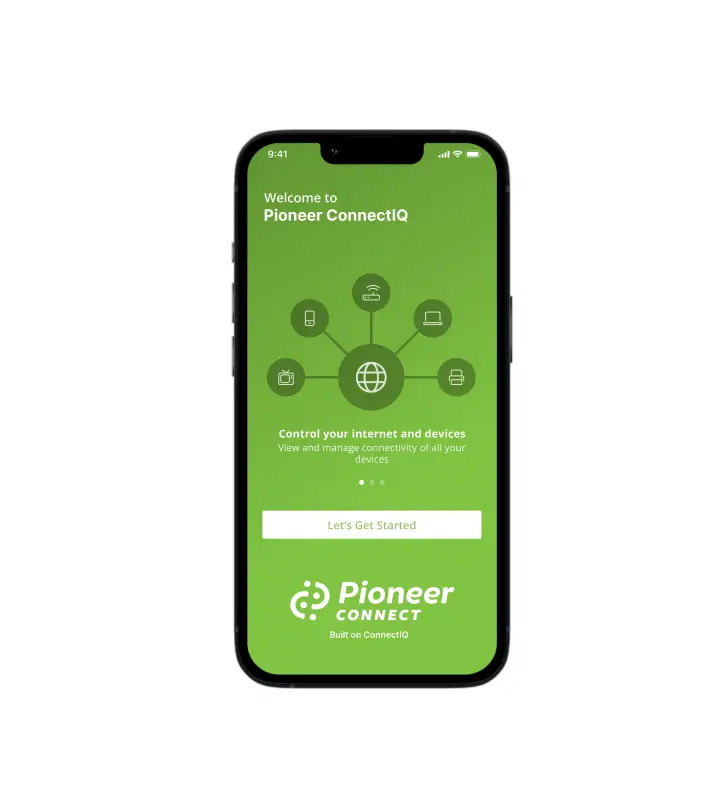
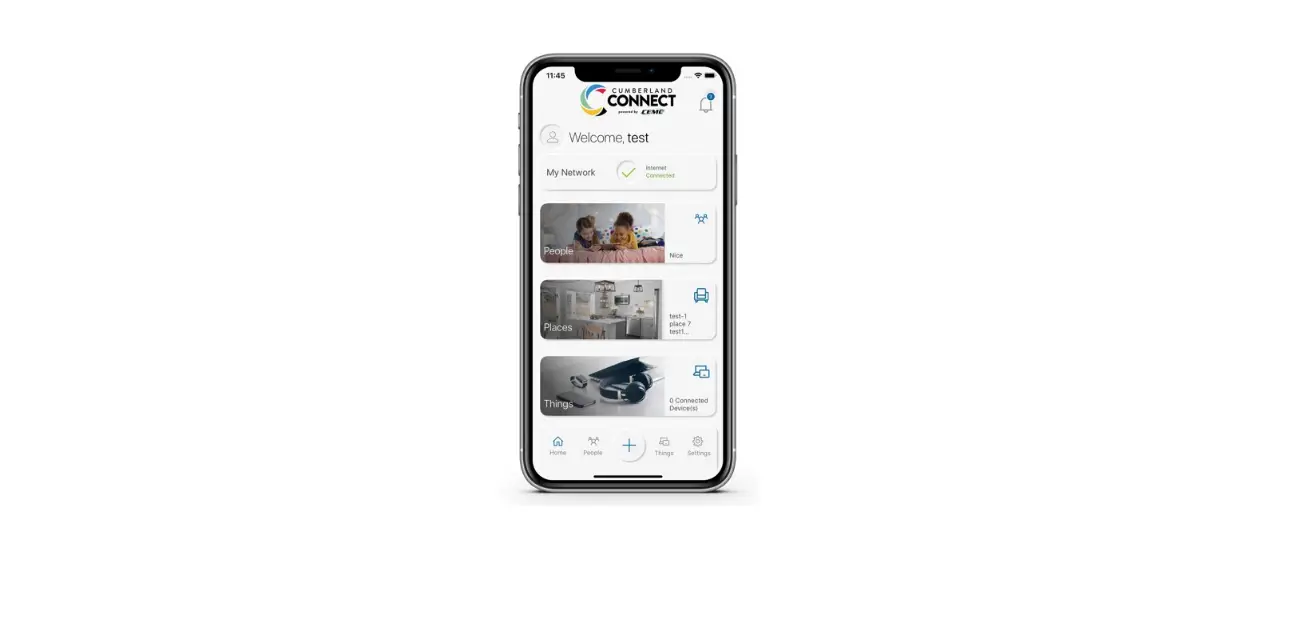
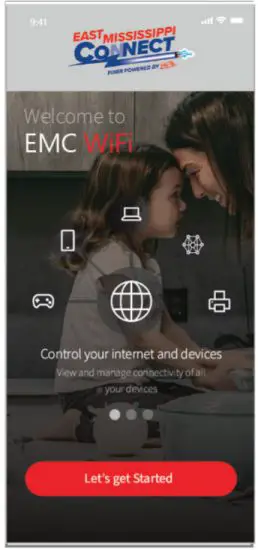
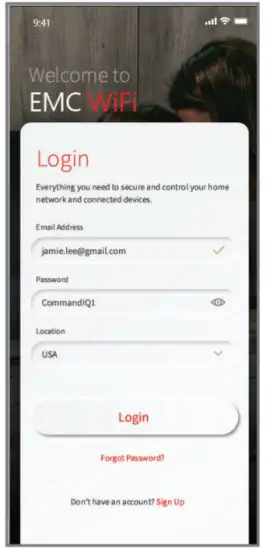
- Download the app. You can search either the Apple App Store or Google Play Store for:
‘EMC WiFi, then install it on your mobile device.
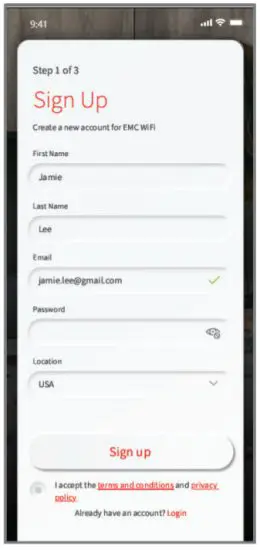
- Select “SIGN UP” towards the bottom of the screen.

- Enter your personal information. The password you enter here will be used to access the app.

Note:
Please wait at least 10 minutes after your BLAST System has been ‘turned up’ before attempting step 4. - If your system is plugged in and connected select “Yes” to continue.
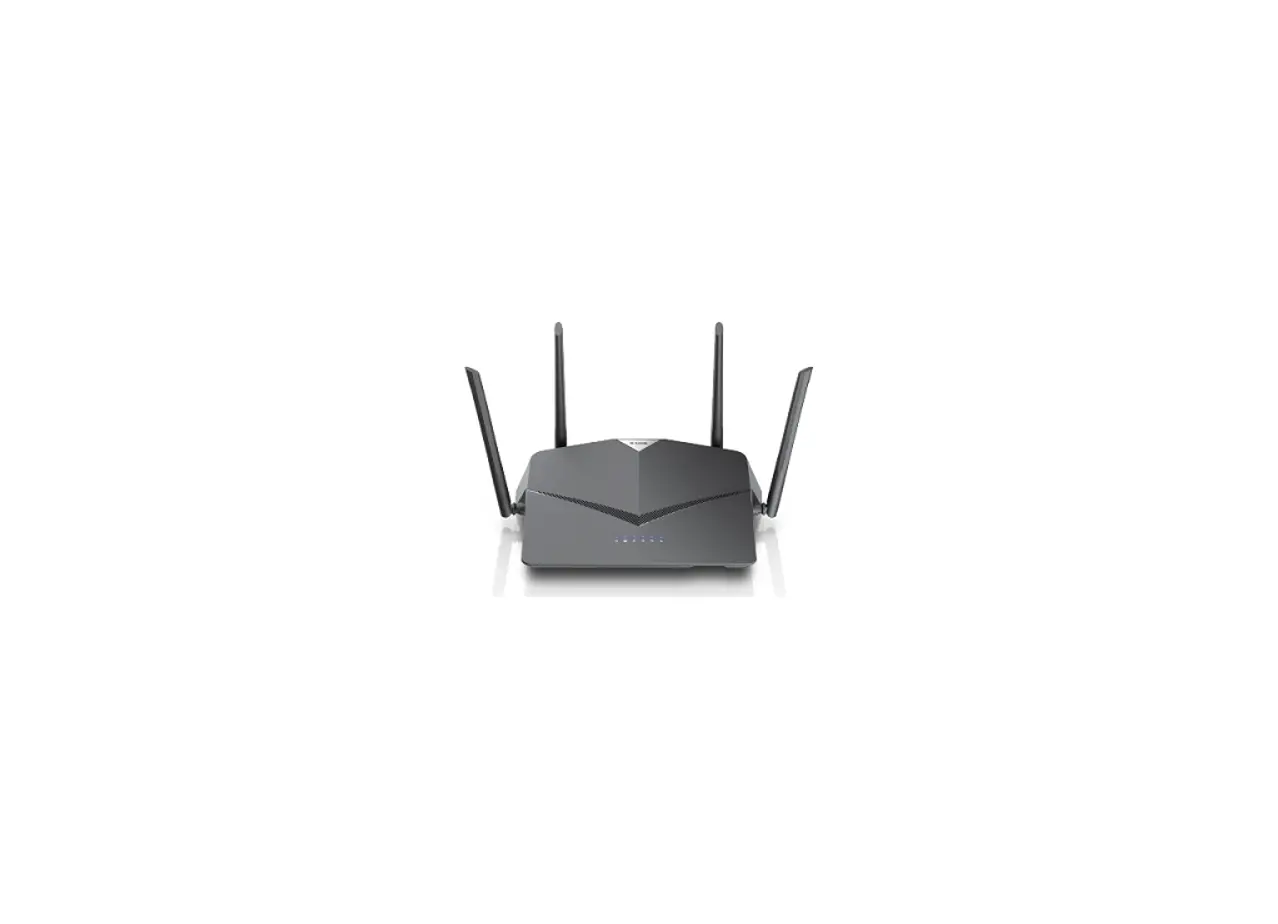
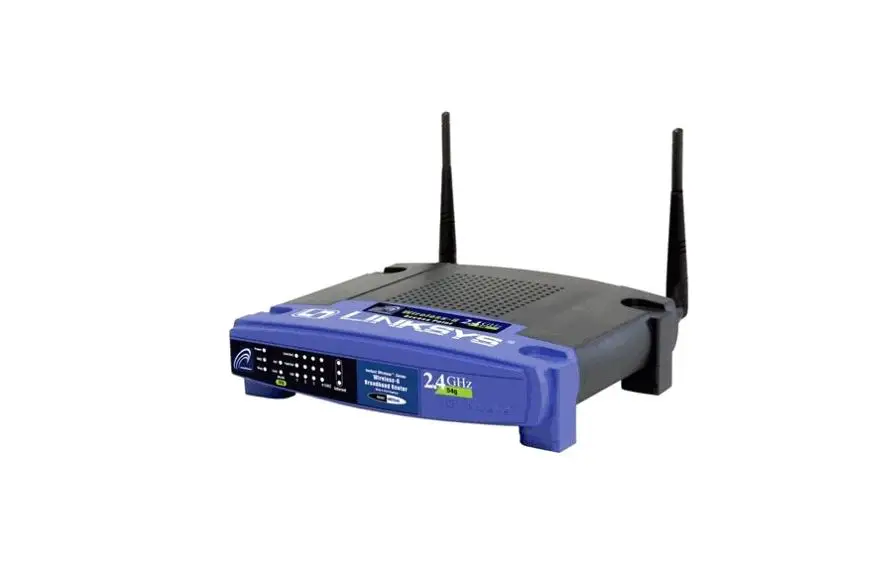
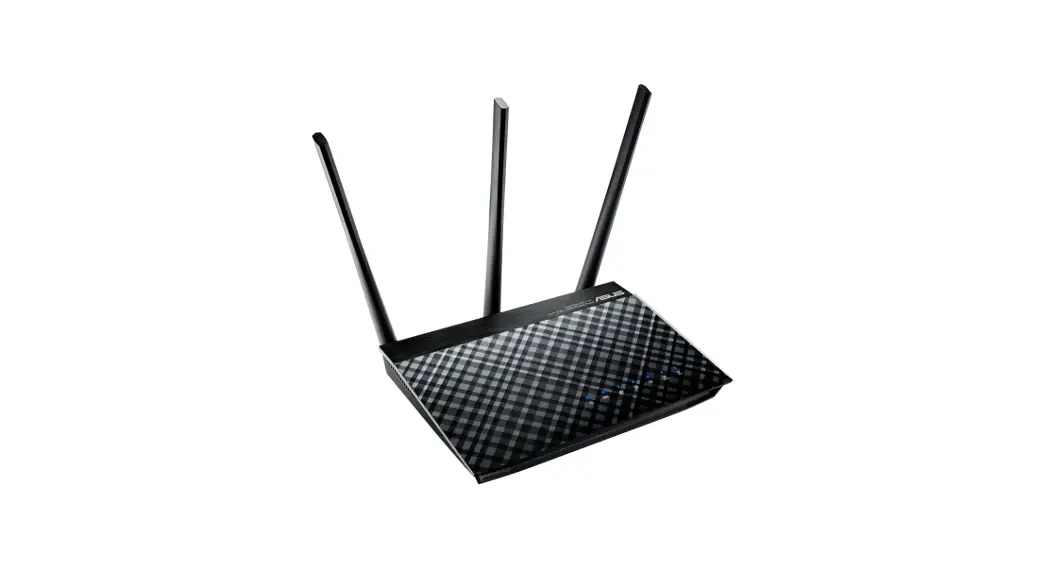
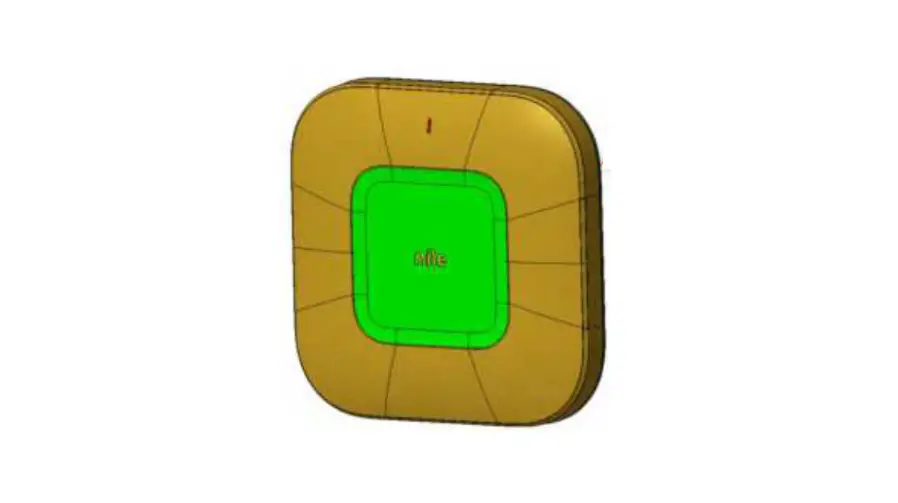
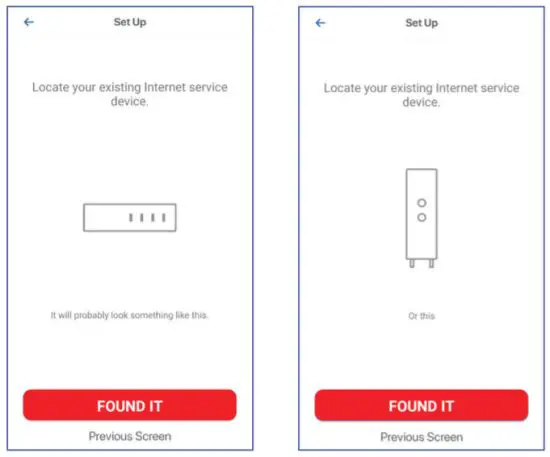
Otherwise, select “Not Sure?” at the bottom of the screen and skip to steps 4a-4e on the next page to get things connected. 4a. It’s time to set up your new system. Locate your existing internet service device. This is typically known as a modem or ONT. It may look like one of these.
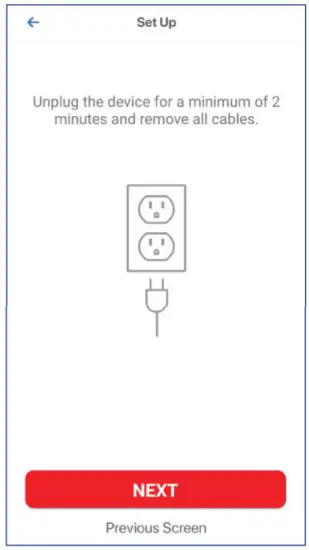
 4b. Unplug the device and remove all cables. Wait 2 minutes.
 4c. After 2 minutes, plug the device back in and turn it on.
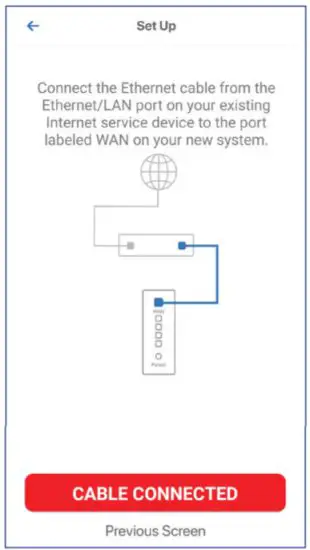
 4d. Connect the ethernet cable from the ethernet/LAN port on your existing internet service device to the port labeled WAN on your new system.
 4e. Now, connect your new system to a power outlet. It may take several minutes for the unit to be ready. It will show a solid blue light.
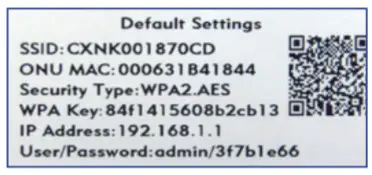
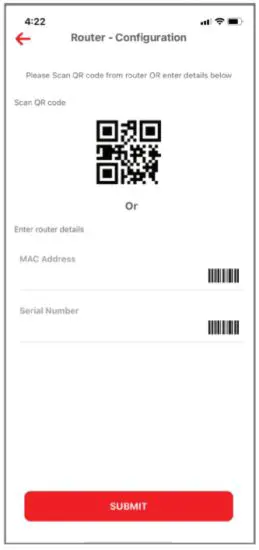
Once the device is connected, tap “Unit Ready.” Go back to step 5 on the previous page. - Tap the QR code that appears within the app. (You will be asked to allow the app to access your camera.) Point your camera at the QR Code found on the bottom of your BLAST System, or on the sticker that came in your box (example shown below).
Select OK. After you select “Submit”, you may be asked to enter your account number.

- Note:
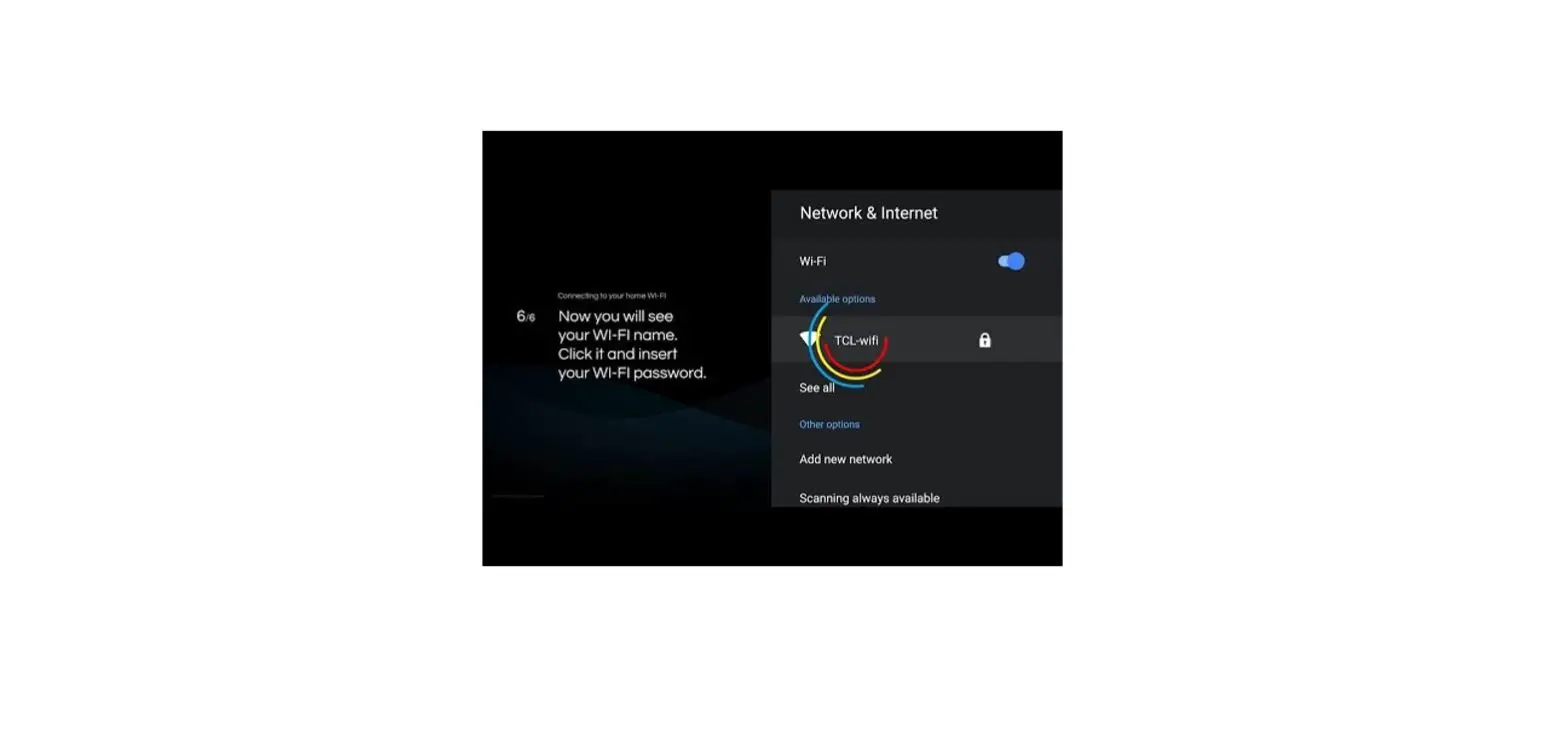
If your system is already operating with Wi-Fi, tap the “Click here to skip” text. Otherwise, complete these steps to set up your Wi-Fi. Name your network and create a password.
• The Router Name will be used throughout the app.
• The Network Name (SSID) is what you will use as your wireless connection name.
• Select a password for your wireless network, if you do not want to change it on all the devices in your home, use your existing wireless SSID and Password from your current router. Click Submit and you’re all done!
 4a. It’s time to set up your new system. Locate your existing internet service device. This is typically known as a modem or ONT. It may look like one of these.
 4b. Unplug the device and remove all cables. Wait 2 minutes.
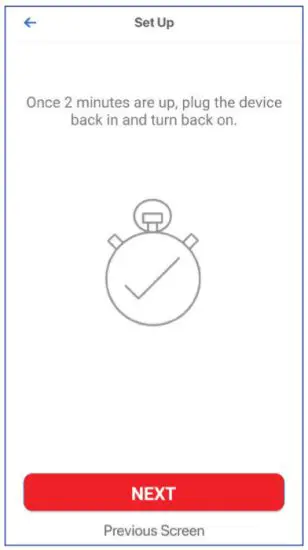 4c. After 2 minutes, plug the device back in and turn it on.
 4d. Connect the ethernet cable from the ethernet/LAN port on your existing internet service device to the port labeled WAN on your new system.
 4e. Now, connect your new system to a power outlet. It may take several minutes for the unit to be ready. It will show a solid blue light.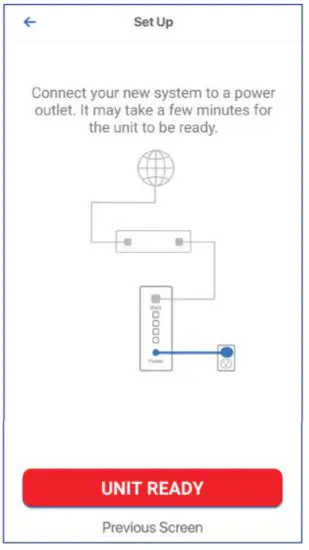
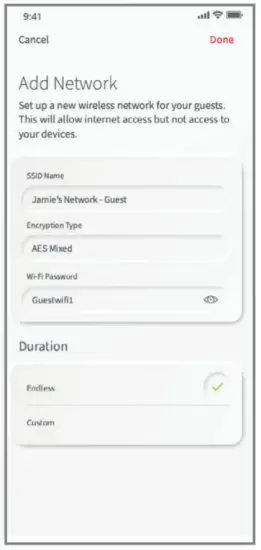 Click Submit and you’re all done!
Getting started with the App
The App allows you to manage your home or small business Wi-Fi network.
You can self-install and be managing your home or business within a few minutes.
Download the app and start managing your home network today!
Next:
Refer to the East Mississippi Connect Consumer Product Guide for details on how to use specific features.
Need help?
Contact support: EastMSConnect.com or call 601-581-8800.