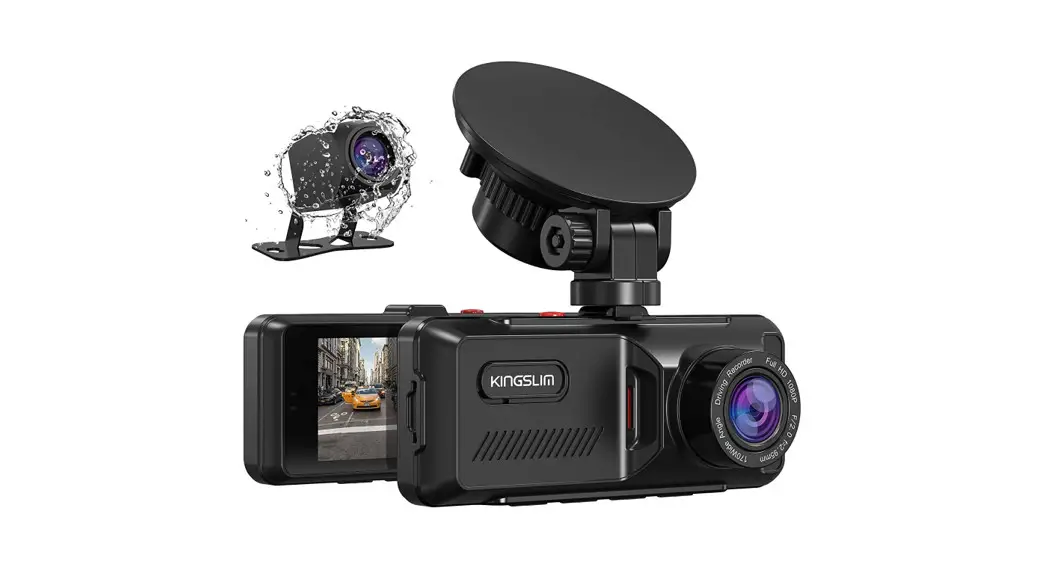
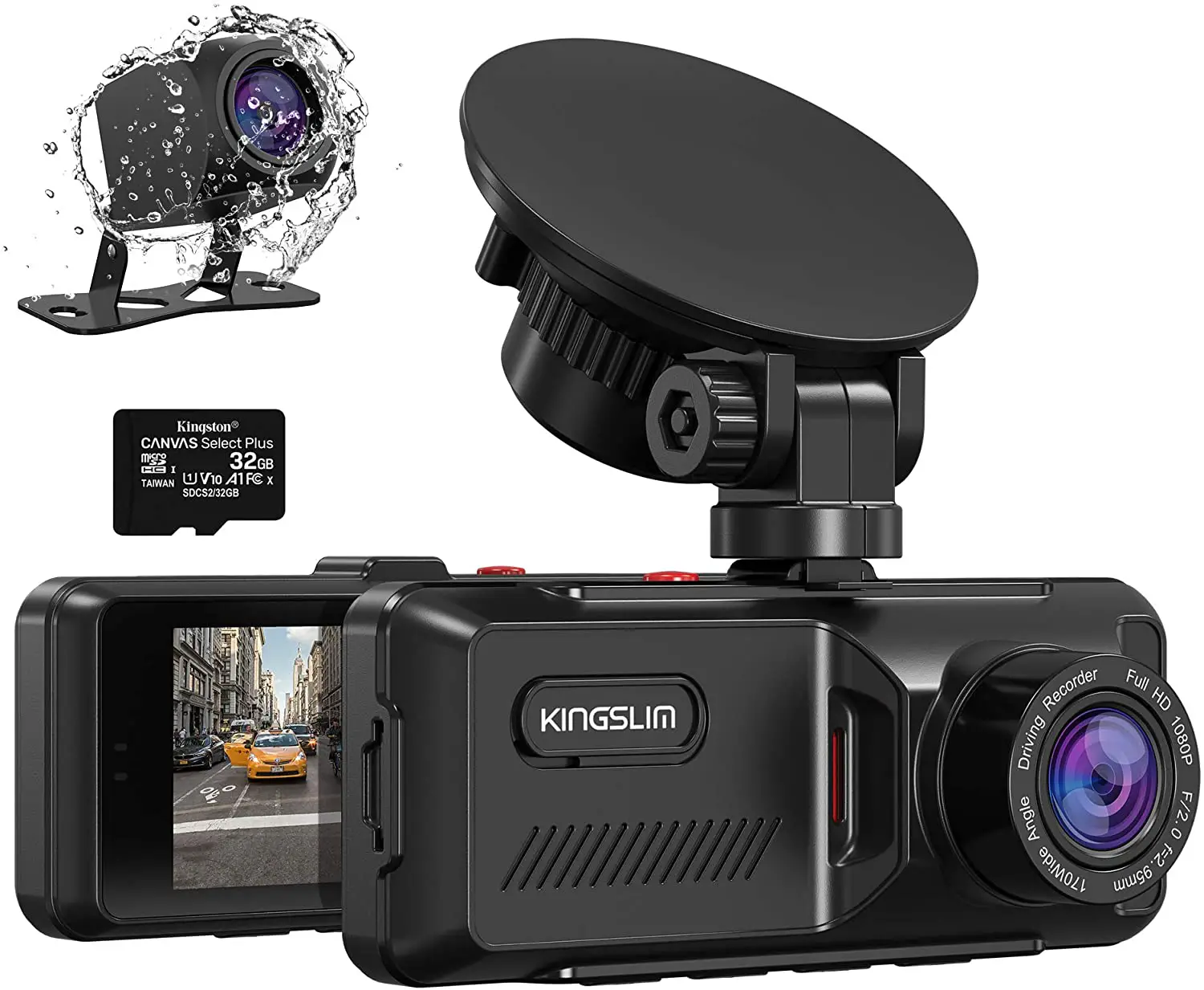
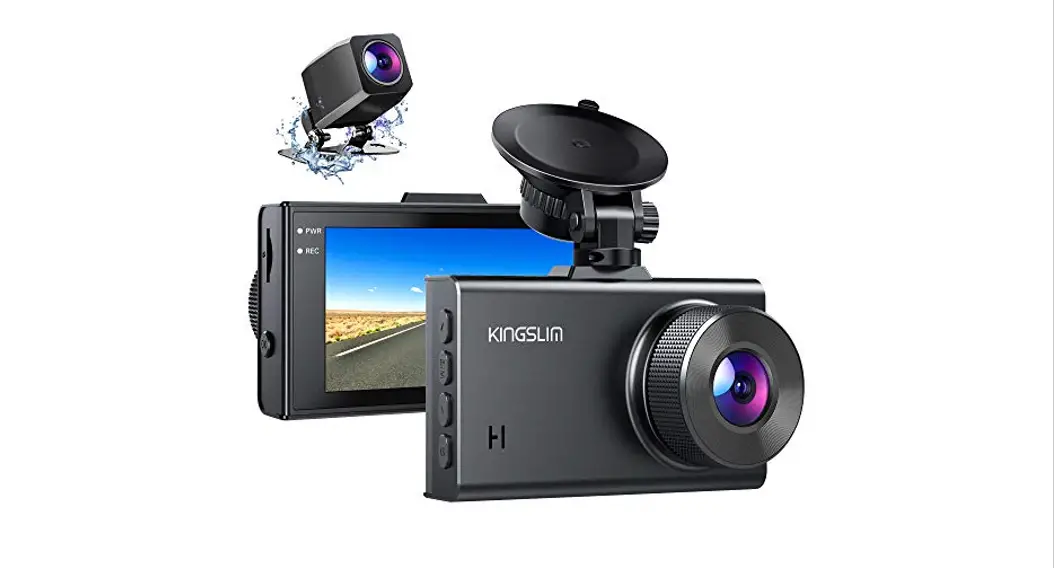
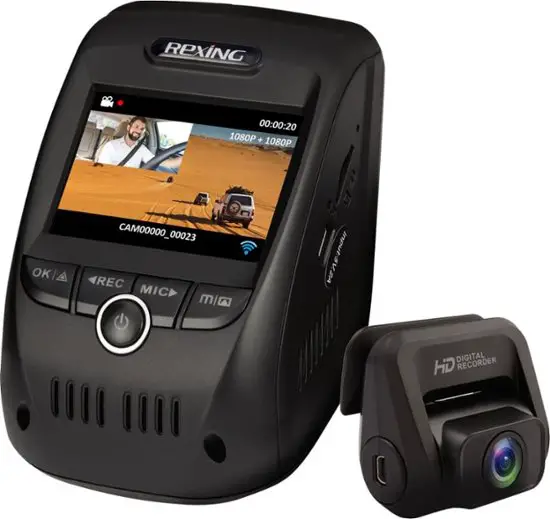
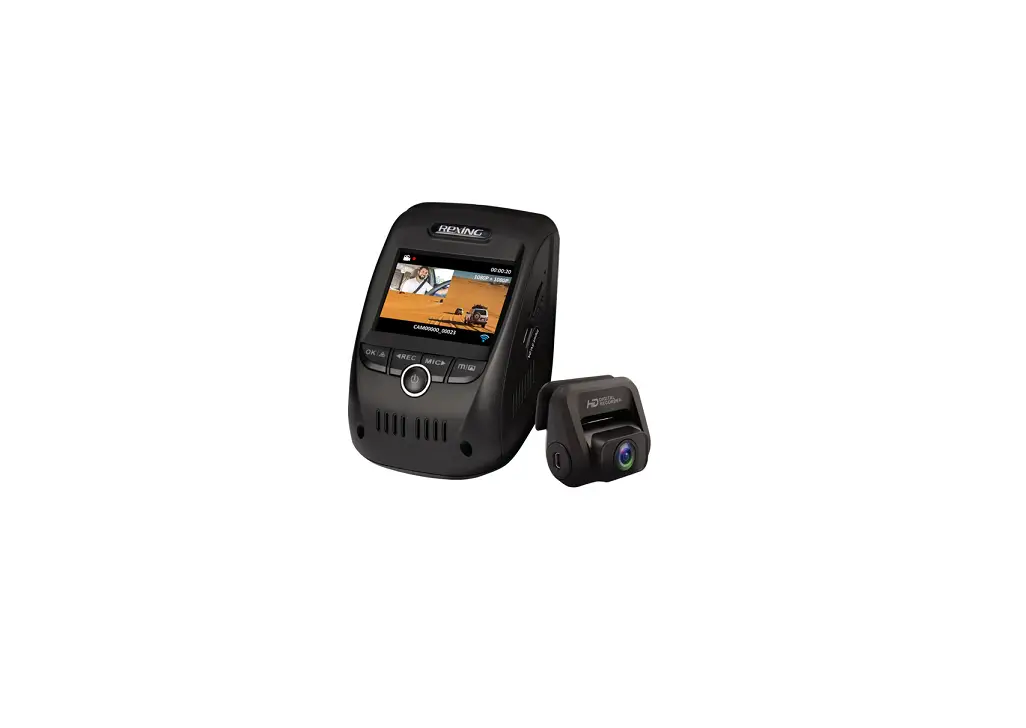
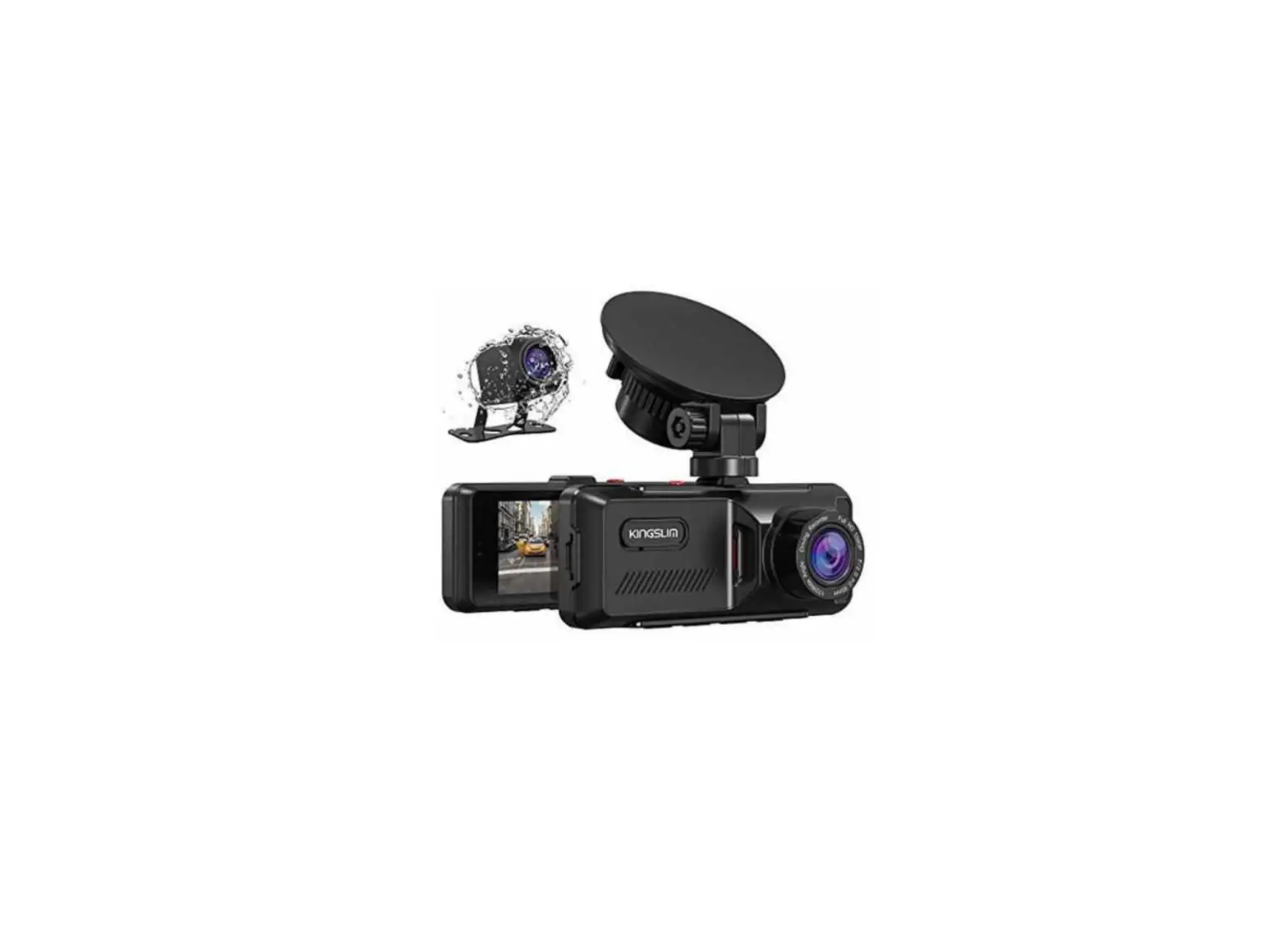
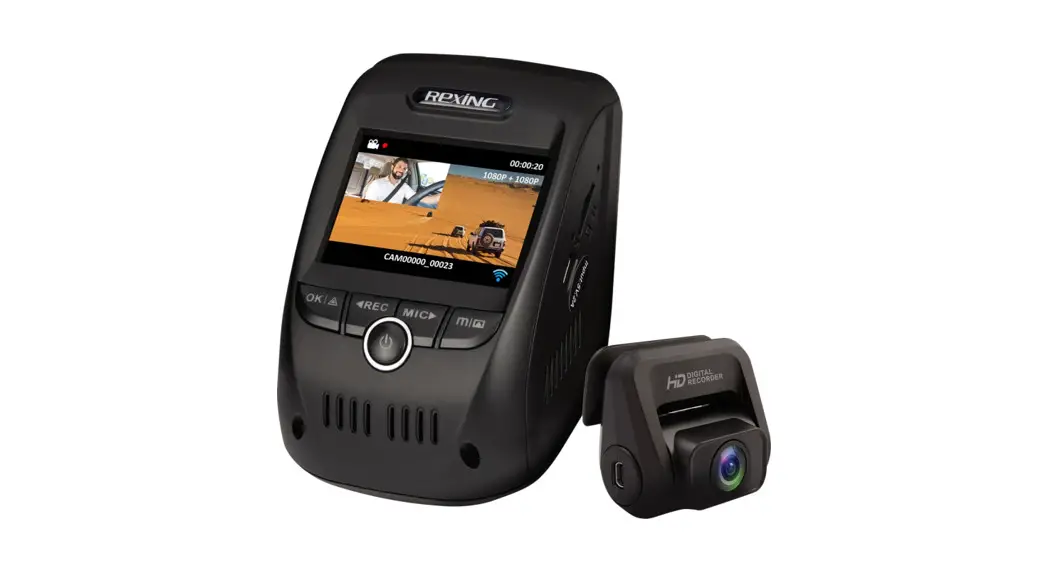
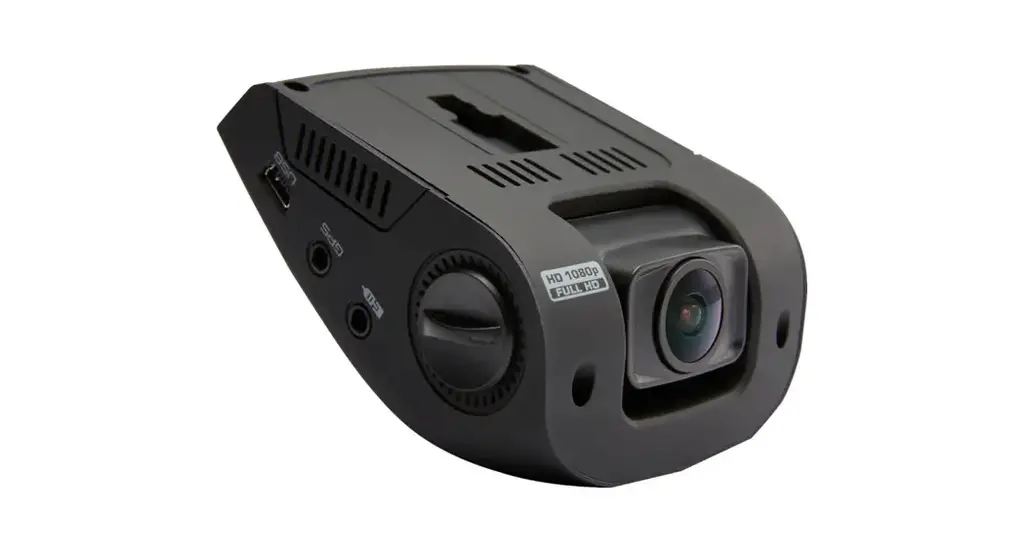
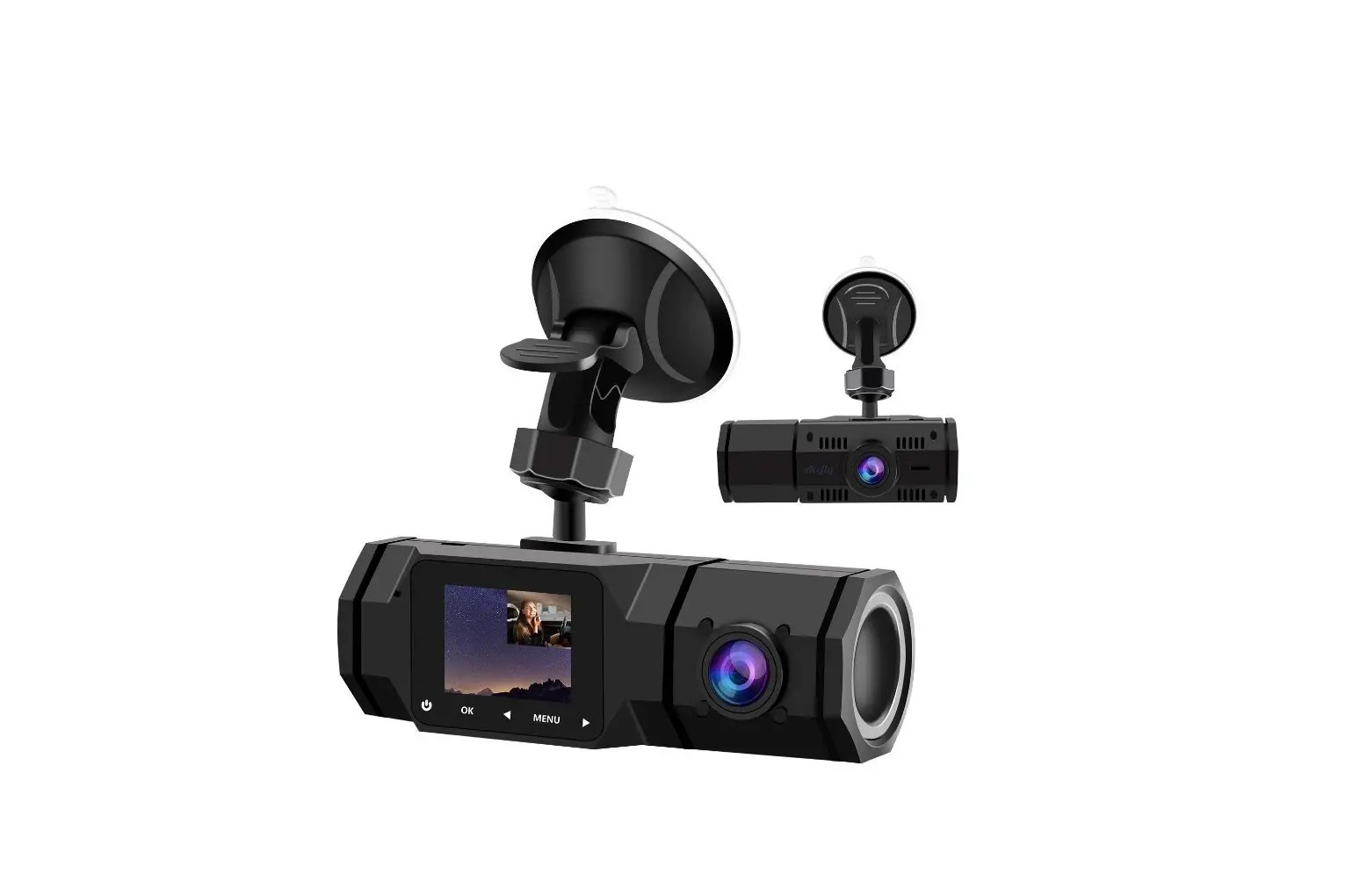
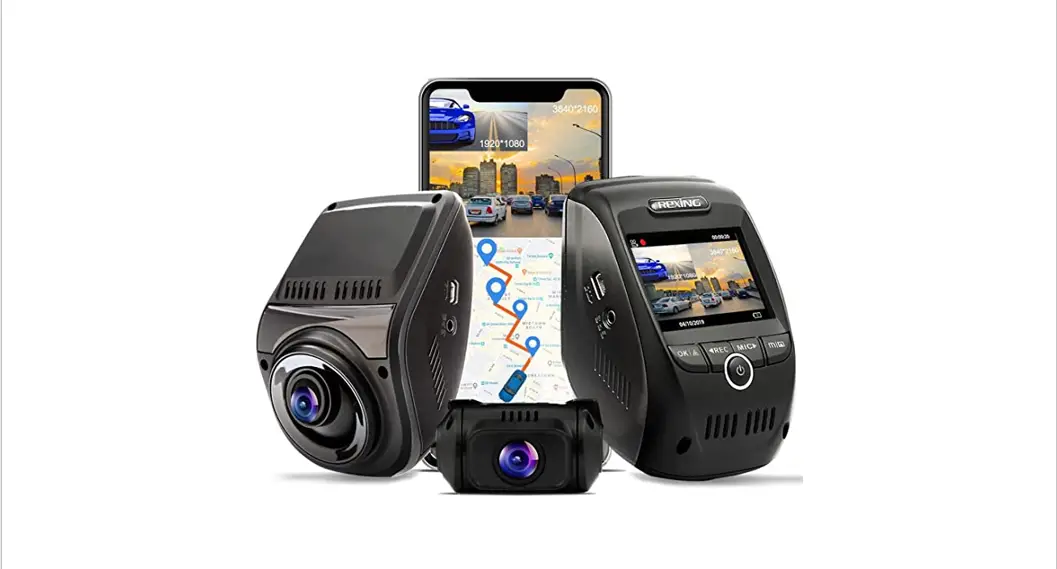
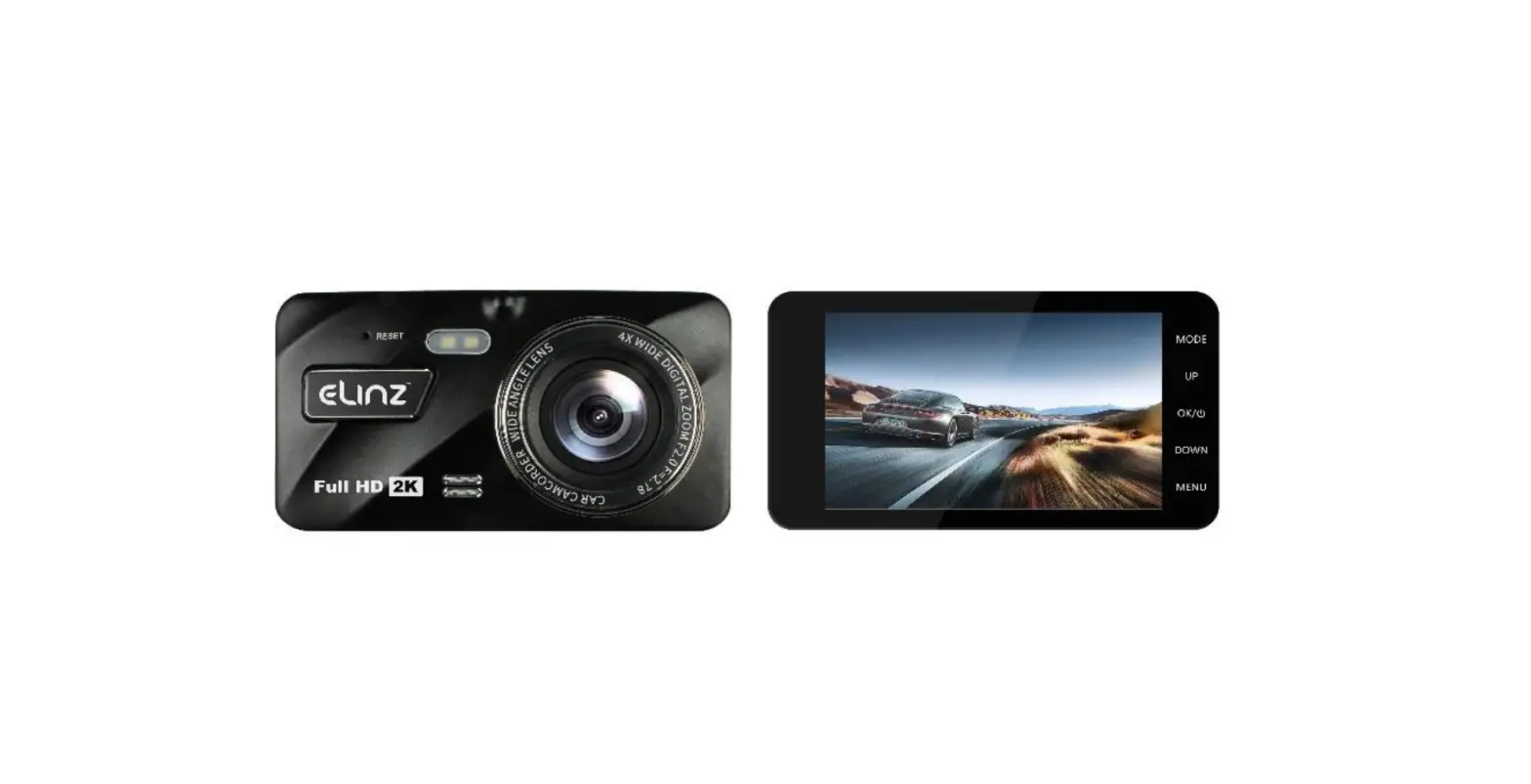
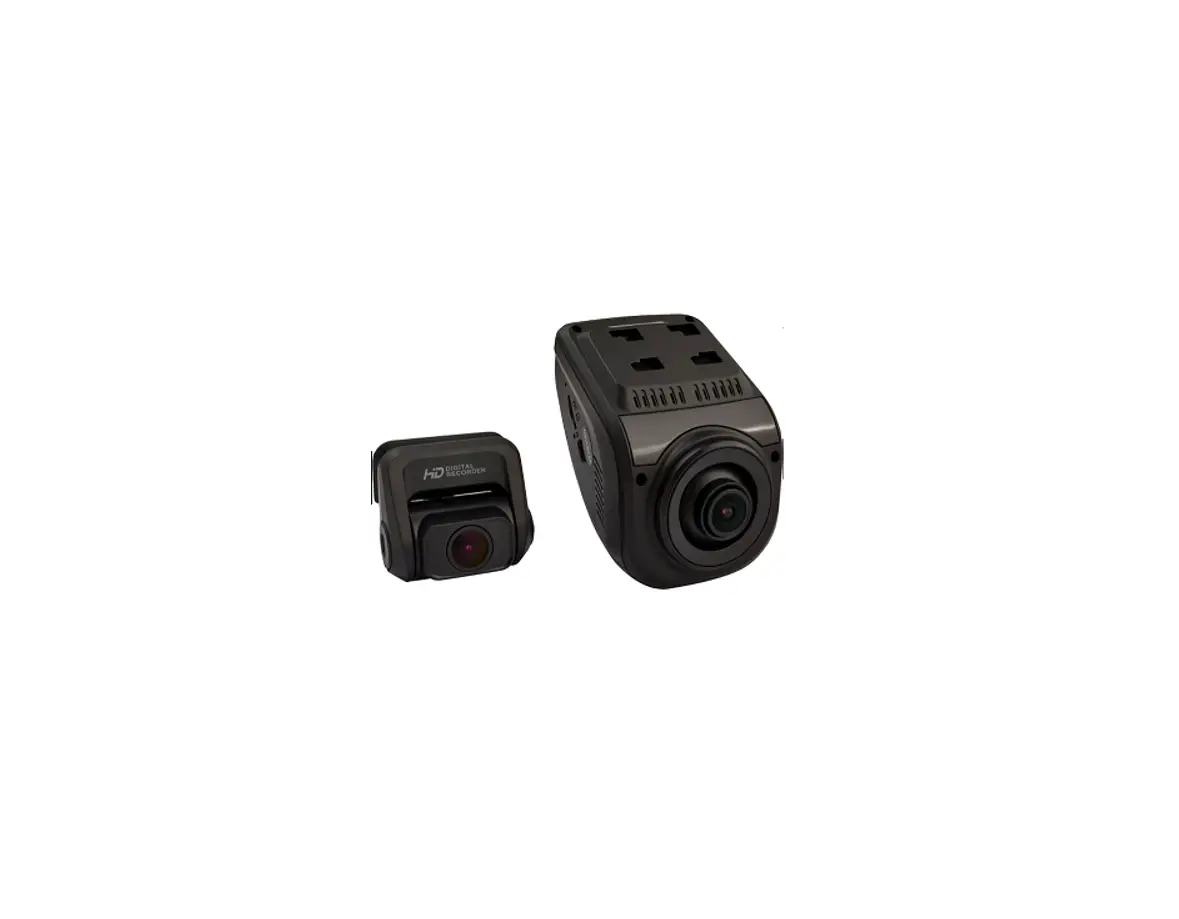
D1PRO Dual Dash Cam
Product Information
The D1 PRO Dash Cam is a high-quality camera designed for use in
vehicles. It comes with a variety of accessories to enhance its
functionality, including a car charger with an external GPS, a
suction cup mount, electrostatic stickers, a car crowbar, cable
clips, and a quick start guide. The dash cam features a front
camera, an inside camera, a mini USB power port, a memory card
slot, an IR LED and indicator light, a speaker, and various buttons
for screen settings and Wi-Fi connectivity.
Product Usage Instructions
Follow these instructions to properly install and use the D1 PRO
Dash Cam:
- Insert the memory card into the memory card slot.
- Remove the film from the suction cup.
- Use the car crowbar to remove the nameplate on the slot, then
insert the suction cup into the slot of the camera. - Clean the windshield with a dry cloth.
- Press and attach the suction cup firmly to the windshield,
ensuring there is no air trapped inside. Rotate the suction cup to
fix it securely. Note: Do not let the rearview mirror block the
camera’s infrared light. - Adjust the viewing angle of the dash cam to get a good
view. - Connect the car charger to the car cigarette lighter. Insert
the USB end of the charger into the USB power port of the dash
camera. - Attach the GPS electrostatic sticker to the top edge of the
windshield. Fix the GPS module on the electrostatic sticker. - Fix the cable with a cable clip at the designated place. Use
the yellow crowbar to hide the cable along the top edge of the
windshield. - After the dash cam is properly plugged in, it will
automatically turn on and start recording (if a memory card has
been inserted). To change settings, stop recording first. - Charge the dash cam for 30 minutes before initial use.
- It is recommended to power the dash cam using the car charger
plugged into the car cigarette lighter. The built-in battery is
mainly for enabling the Parking Monitor function and should not be
relied upon as the primary power source. - If desired, the dash cam can also be powered by connecting it
to a power source such as a DC 5V phone adapter using the USB
cable. When charging, long press the power button to turn off the
dash cam. - Use the cable clip to fix the outlet position of the USB cable
that connects to the dash camera’s power port. Hide the remaining
cable along the top edge of the windshield. - To ensure compatibility with the camera, format the memory card
on a computer first, and then format it again on the camera.
Note: The D1 PRO Dash Cam supports a class 10 or above memory
card up to 128G. If the memory card is not formatted, the camera
will display “Insert memory card” on the screen.
D1 PRO DASH CAM D1 PRO V2.1
English 01 – 16 Deutsch 17 – 32 Français 33 – 48
Contents
English
What’s in the Box ———————————————————————————— 02 Camera Overview ———————————————————————————— 03 Installation ——————————————————————————————— 04 Format Memory Card —————————————————————————— 04 Introduction of Function Buttons on Preview Interface——————————– 09 Introduction of Function Buttons on Recording Interface—————————– 09 Resolution Setting ———————————————————————————– 10 Time Zone Setting ———————————————————————————– 10 Download APP and GPS Player —————————————————————– 11 Frequently Q & A ————————————————————————————- 15 Contact Us———————————————————————————————- 16 User Manual ——————————————————————————————- 16
01
What’s in the box
D1 PRO
D1 Pro Dash Cam x 1
Car Charger with External GPS x 1
Suction Cup Mount x 1
Electrostatic Sticker x 2
Car Crowbar x 1
Cable Clip x 5
Quick Start Guide x 1
02
Camera Overview
Mini USB Power Port
D1 PRO 03
Bracket Slot Power Button
Microphone Memory Card Slot
Front Camera IR LED & Indicator Light
Speaker
Inside Camera
Screen Settings Button
/ Wifi Button
Reset
Note: 1. Long press the power button to turn the camera on or off. 2. Short-press to switch the view mode quickly between the full-screen display of
the front/inside camera and picture-in-picture display of both cameras.
Installation
1. Insert the memory card.
2. Remove the film from the suction cup.
04
3. Use the crowbar to remove the nameplate on the slot, then insert the suction cup into the slot of the camera.
D1 PRO
D1 PRO
D1 PRO
D1 PRO
05
4. Firstly clean the windshield with a dry cloth, secondly put and press the suction cup on the windshield to make sure there is no air inside the suction cup, finally rotate to fix the suction cup. (Note: When installing, please don’t let the rearview mirror block the camera’s infrared light.)
5. Adjust the viewing angle of the dash cam to get a good view. 6. Connect the car charger to the car cigarette lighter, then insert the USB end
of the charger into the USB power port of the dash camera, please refer to the below picture. 7. Attach the GPS electrostatic sticker to the top edge of the windshield, and then fix the GPS module on the electrostatic sticker, please refer to the below picture. 8. Fix the cable with a cable clip at the place where the icon is (please refer to the below picture), then use the yellow crowbar to hide the cable.
Cable clip GPS Electrostatic Stickers
Note: 1. After the dash cam is plugged in properly, it will automatically turn on and start
recording (if the card has been inserted). To change settings, please firstly stop recording.
06
2. Please charge for 30 minutes before using this dash cam.
3. The built-in battery is used to enable the Parking Monitor function only. In normal use, please plug the car charger into the car cigarette lighter of the to power the dash cam. The built-in battery is not recommended as a normal power supply for the dash cam. This is to avoid parking monitoring failure caused by running out of battery while the car is parked.
4. The camera can also be powered by connecting it to a power source such as your DC 5V phone adapter via the USB cable. When charging, please long press the power button to turn off the dash cam.
5. Regarding the usage of the cable clip, only one clip is needed to fix the outlet position of the USB cable which connects to the dash camera’s power port, the remaining cable must be hidden along the top edge of the windshield. Please hide the cable according to the above picture.
Formatting the Memory Card
The memory card needs to be formatted on the computer first and then formatted on the camera to make sure it can be more compatible with the camera.
Note: If the memory card is not formatted, the camera will show “Insert memory card” on the screen. This dash cam supports a class 10 or above memory card up to 128G.
1. Please format the card on the computer first.
2. After inserting the card into the camera and turning on the camera, press the
button
to stop recording.
3. Press the settings button to enter the settings interface, press to ,
and press the OK button
to enter the Setup interface.
07
4. Press
to choose the Format option, press the OK button
to enter the
formatting interface, then press the OK button
and
to choose “OK”,
and then press the OK button
again to format the card. After finishing
formatting, it will return to the Setup interface.
GPS information Format Default Setting Version Info
Setup
All date will be deleted Cancel OK
Note:
1. All data will be deleted after formatting. So before formatting your memory card, please remember to back up your important data on your other devices.
2. Every time you insert a memory card, please format it in the camera to ensure that the memory card is compatible with the camera.
08
Introduction of Function Buttons on Preview
Interface P
Short-press this button to enter Menu, and long press to enter the Wifi mode.
Short-press the Back button
to return to the preview mode.
Short-press this button to enter the playback interface. Short-press the Back
button
to return to the preview mode.
Press this button to start recording.
Introduction of Function Buttons on Recording Interface
P
Short-press this button to take photos. Short-press this button to turn the emergency recording mode on or off. Short-press to turn the audio on or off. Short-press this button to stop recording.
09
Resolution Setting
Two-Way Front and Inside Mode 4K+1080P (default) or 2K+1080P for front and inside cameras.. 4K for the front camera only.
4K 2K+1080P 4K+1080P
Time Zone Setting
Choose the time zone manually before starting recording. The dash cam will then display the time of the selected zone.
Speed Unit
Off GMT-11:00 GMT-10:00 GMT-09:00
Download APP and GPS Player
1. APP download Download the Kingslim APP on the App Store or Google Play.
Download the GPS player: www.kingslim.net/player 10
2. Connect to Kingslim APP
Long press
3 seconds to enter
the Wifi mode.
Wait for 1-2 seconds to enter the Wifi mode. (Once you quit, the Wifi will be disconnected.)
Go to your phone’s Wifi setting, search the Wifi SSID named NVT-****, enter the password: 12345678.
Warm tip: The camera Wifi will say “No Internet Connection” after being connected, but you can ignore it and continue the app connection process.
Note: Wifi is on, please connect
SSID:NVT-****
PWD:12345678
NVT-****
Open the Kingslim APP, tap the “New account” icon, enter your email and getthe verification code for login.
11
Tap “+” at the upper right corner to add your recorder model, and wait for a few seconds to enter the preview interface.
3. APP playback Connect your dash cam to phone Kingslim APP. Add your dash cam to Kingslim APP by tapping ‘+’. Enter the preview interface, tap the “Video set” icon to enter the recorded videos menu. Tap the video you want to watch to play it back. Please note: the Kingslim APP is used for Kingslim dash cams only.
NVT-****
12
4. Using Kingslim APP to download videos to your phone Tap the “Video set” icon to enter the recorded videos menu.
NVT-****
Tap the “Select” icon at the upper right corner and choose the video you want to download.
13
Tap the icon
at the bottom left corner to download the video.
Waiting for the completion of download progress, the video will be downloaded to phone photo album. Tap the video to play back or forward.
14
Frequently Q & A
Warm Tips: For any product issues, please feel free to contact us anytime for technical support.
1. What to do if the dash cam does not turn on anymore? Check if the indicator light on the car charger turns on when your dash cam is
plugged in. If not, plug the dash cam into another cigarette lighter or USB port for about one
hour to see if it finally turns on. If your issue remains, kindly contact customer support for further help.
2. What to do if the dash cam keeps turning on and off automatically? Check if the dash cam turns on normally when you remove the memory card and
plug it in with a USB cable. If so, turn off your dash cam and plug it in with the original 5V car charger for
about one hour, then turn it on manually to see if it works normally. If your issue remains, restore your dash cam to the factory settings.
3. What to do if the dash cam does not hold a charge anymore? Plug in your dash cam with the USB cable to see if it holds a charge normally. If not, kindly contact customer support for further help.
4. What to do if you fail to connect dash cam to Kingslim APP? Make sure the camera Wifi is connected normally before connecting the dash
cam to the app. Open the Kingslim APP, tap the New Account icon, enter your email and get a
verification code for login. Tap Add Recorder, and wait for a few seconds to enter the preview interface. If the app is stuck in the preview interface, kindly contact customer support for
further help.
15
English 5. What to do if the camera Wifi is disconnected? Check if your dash cam enters the Wifi mode and displays the Wifi information after you long press the Setup/Wifi button. Warm tip: Do not exit the Wifi screen, or it will be disconnected. Check if the camera Wifi appears in your phone’s Wifi list. If your issue remains, kindly contact customer support for further help.
6. What to do if the dash cam shows Slow Card or Please Insert Memory Card? Select the memory card according to the user manual, such as a U3 memory
card or above. Remember to format it on the computer first and then in the dash cam before
using.
7. What to do if the dash cam stop recording? Make sure the loop recording mode is enabled. Format the memory card or use another one. Make dash cam’s date and time synchronize with that on your cellphone. If your issue remains, kindly contact customer support for further help.
Contact Us
Mon-Fri (except holiday) 9am-5pm (EST)
For any inquiries about KINGSLIM products, please feel free to contact us. We will respond within 24 hours.
User Manual
Scan the following QR Code or visit the KINGSLIM website to download the detailed user manual. www.kingslim.net/manual/d1pro.pdf
16
Inhalte
Deutsch
Was ist in der Box———————————————————————————— 18 Kamera Übersicht ———————————————————————————– 19 Installation ——————————————————————————————— 20 Formatieren der Speicherkarte —————————————————————– 23 Einführung von Funktionsschaltflächen auf der Vorschauoberfläche ———– 25 Einführung von Funktionstasten auf der Aufzeichnungsschnittstelle————- 25 Auflösungseinstellung—————————————————————————— 26 Zeitzoneneinstellung ——————————————————————————- 26 APP und GPS-Player herunterladen ———————————————————– 27 Häufige Fragen und Antworten —————————————————————– 31 Kontaktiere uns————————————————————————————— 32 Benutzerhandbuch———————————————————————————- 32
17
Was ist in der Box
D1 PRO
D1 Pro Dash Cam x 1
KFZ-Ladegerät mit Externen GPS x 1
Saugnapf x 1
GPS Statischer Aufkleber x 2
KFZ-Brecheisen x 1
Kabelklemmen x 5
Schnellstartanleitung x 1
18
Kamera Übersicht
Mini-USB Anschluss
D1 PRO 19
Halterung Steckplatz Power-Taste Mikrofon
MicroSD Kartensteckplatz Frontkamera
IR-LED & Kontrollleuchte Lautsprecher
Innenkamera
Bildschirm Einstellungs-Taste
/ Wifi-Taste
Rücksetzen
Hinweis: 1. Drücken Sie lange auf die Power-Taste, um die Kamera ein- oder auszuschalten. 2. Kurz drücken, um den Ansichtsmodus schnell zwischen der Vollbildanzeige der
vorderen/inneren Kamera und der Bild-in-Bild-Anzeige beider Kameras zu wechseln.
Installation
1. Setzen Sie eine microSD Karte in die Kamera ein.
2. Nehmen Sie die Folie vom Saugnapf ab.
20
3. Entfernen Sie mit dem Brecheisen das Typenschild am Steckplatz und setzen Sie dann die Halterung in den Steckplatz der Kamera ein.
D1 PRO
D1 PRO
D1 PRO
D1 PRO
21
4. Reinigen Sie zunächst die Windschutzscheibe mit einem trockenen Tuch, setzen Sie dann den Saugnapf auf die Windschutzscheibe und drücken Sie ihn an, damit keine Luft in den Saugnapf gelangt, und drehen Sie anschließend die Halterung um. (Achten Sie bei der Installation darauf, dass der Rückspiegel das Infrarotlicht der Kamera nicht blockiert).
5. Justieren Sie den Sichtbereich der Dashcam, um eine gute Sicht zu erhalten. 6. Schließen Sie das Kfz-Ladegerät an den Zigarettenanzünder des Fahrzeugs
an und stecken Sie dann das USB-Ende des Ladegeräts in den Mini-USBAnschluss der Dashcam (siehe Abbildung unten). 7. Bringen Sie den statischen GPS-Aufkleber am oberen Rand der Windschutzscheibe an und befestigen Sie dann das GPS-Modul auf dem statischen Aufkleber (siehe Abbildung unten). 8. Befestigen Sie das Kabel mit einer Kabelklemme an der Stelle, an der sich das Symbol befindet (siehe Abbildung unten). Verwenden Sie anschließend das gelbe Brecheisen, um das Kabel zu verbergen.
Kabelclip GPS Statischer Aufkleber
Hinweis: 1. Nach dem Anschluss der Dashcam über das Kfz-Ladegerät wird die Dashcamau-
tomatisch eingeschaltet und beginnt mit der Aufnahme (wenn die Karte eingelegt wurde). Um Einstellungen zu ändern, stoppen Sie bitte zunächst die Aufnahme.
22
2. Bitte laden Sie die Dashcam 30 Minuten lang auf, bevor Sie die Kamera mit dem eingebauten Akku betreiben.
3. Der eingebaute Akku wird nur zur Stromversorgung der “Parkmonitor”-Funktion verwendet. Bei normalem Gebrauch schließen Sie bitte das Kfz-Ladegerät an den Zigarettenanzünder des Autos an, um die Dashcam mit Strom zu versorgen. Der eingebaute Akku wird nicht als normale Stromversorgung für die Dashcam empfohlen. Dies soll verhindern, dass die Parküberwachung ausfällt, wenn die Batterie leer läuft, während das Fahrzeug geparkt ist.
4. Die Kamera kann auch mit Strom versorgt werden, indem Sie sie über das. USB-Kabel an eine Stromquelle wie z. B. Ihren DC 5V-Telefonadapter anschließen. Während des Ladevorgangs schalten Sie die Kamera bitte durch langes Drücken der Einschalttaste aus.
5. Bezüglich der Verwendung der Kabelklemmen wird nur ein Klemme benötigt, um die Ausgangsposition des USB-Kabels, das mit dem Stromanschluss der Dashcam verbunden ist, zu fixieren. Das restliche Kabel muss entlang des oberen Randes der Windschutzscheibe verdeckt werden. Bitte verdecken Sie das Kabel entsprechend der obigen Abbildung.
Formatieren der Speicherkarte
Die speicherkarte muss zunächst auf dem Computer und dann auf der Kamera formatiert werden, damit sie mit der Kamera besser kompatibel ist. Hinweis: Wenn die Speicherkarte nicht formatiert ist, zeigt die Kamera “Speicherkarte einlegen” auf dem Bildschirm an. Diese Dashcam unterstützt eine Speicherkarte der Klasse 10 oder höher mit bis zu 128 GB. Diese Dashcam unterstützt eine speicherkarte, bis zu 128G mit Klasse 10 & darüber.
1. Bitte formatieren Sie die Karte zunächst auf dem Computer.
2. Nachdem Sie die Karte in die Kamera eingelegt und die Kamera eingeschaltet
haben, drücken Sie die Taste
um die Aufnahme zu stoppen.
3. Drücken Sie
um die Anzeige-Einstellungen zu öffnen, und drücken Sie
kurz auf
und drücken sie
drum die Einstellungen zu öffnen.
23
4. Drücken Sie
um “Formatieren” zu wählen, drücken Sie
um die
Formatierung zu starten, drücken Sie
und
wählen Sie “OK”, drücken
Sie dann
um die Karte zu formatieren. Nach Beendigung der Formatierung
kehrt das Gerät zur Anzeige-Einstellungen zurück.
Einstellungen GPS Geschwindigkeit Formatieren StandardEinstell Version
Alle daten werden gelöscht Abbrechen OK
Hinweis:
1. Alle Daten werden nach dem Formatieren gelöscht. Vergessen Sie also nicht, vor dem Formatieren Ihrer Speicherkarte eine Sicherungskopie Ihrer wichtigen Daten auf Ihren anderen Geräten zu erstellen.
2. Jedes Mal, wenn Sie eine Speicherkarte einlegen, formatieren Sie sie bitte in der Kamera. Dadurch wird sichergestellt, dass die Speicherkarte mit der Kamera kompatibel ist.
24
Einführung von Funktionsschaltflächen auf der Vorschauoberfläche
P
Drücken Sie kurz auf diese Taste, um das Menü aufzurufen, halten Sie sie gedrückt, um den WLAN-Modus aufzurufen, und drücken Sie kurz die Zurück-Taste , , um in den Vorschaumodus zurückzukehren.
Drücken Sie kurz auf diese Taste, um die Wiedergabe-Benutzeroberfläche
aufzurufen, und drücken Sie kurz auf die Zurück-Taste
, um in den
Vorschaumodus zurückzukehren.
Drücken Sie diese Taste, um die Aufzeichnung zu starten.
Einführung von Funktionstasten auf der Aufzeichnungsschnittstelle
P
Drücken Sie kurz auf diese Taste, um Fotos zu machen. 25
Drücken Sie kurz auf diese Taste, um den Notfall-Aufnahmemodus ein- oder auszuschalten. Drücken Sie kurz darauf, um den Ton ein- oder auszuschalten. Drücken Sie kurz auf diese Taste, um die Aufzeichnung zu stoppen.
Auflösungseinstellung
Zwei-Wege-Front- und Innenmodus 4K+1080P (Standard) oder 2K+1080P für Front- und Innenkameras. 4K nur für die Frontkamera.
Auflösung Loop-Aufnahme Dual-Cam Display
4K 2K+1080P 4K+1080P
Zeitzoneneinstellung
Wählen Sie die Zeitzone manuell aus, bevor Sie die Aufzeichnung starten. Die Dashcam zeigt dann die Zeit der gewählten Zone an.
Einstellungen Frequenz Fahrer-Ermüdungsalarm Zeitzone Geschwindigkeitseinheit
Aus GMT-11:00 GMT-10:00 GMT-09:00
26
APP und GPS-Player herunterladen
1. APP-Download Laden Sie die aktuelle APP Kingslim im App Store oder bei Google Play herunter.
Laden Sie den GPS-Player herunter, indem Sie den beigefügten Link besuchen: www.kingslim.net/player
2. Verbinden mit APP Kingslim
Halten Sie die Wifi-Taste
3 Sekunden lang
gedrückt, um WLAN einzuschalten.
Warten Sie 1-2 Sekunden, um den WLAN-Modus aufzurufen. (Sobald Sie den Modus verlassen, wird die WLAN-Verbindung unterbrochen.)
Note: Wifi is on, please connect
SSID:NVT-****
PWD:12345678
Gehen Sie zu den WLAN-Einstellungen Ihres Telefons, suchen Sie die WLAN-SSID namens NVT-**** und tippen Sie darauf. Geben Sie dann das Passwort ein: 12345678, um eine Verbindung herzustellen.
NVT-****
Freundlicher Tipp: Das WLAN der Kamera wird nach der Verbindung die Meldung ,,Keine Internetverbindung” anzeigen, aber Sie können dies ignorieren und den Verbindungsprozess der App fortsetzen.
27
Öffnen Sie die APP Kingslim, tippen Sie auf das Symbol Neues Konto, geben Sie Ihre E-Mail-Adresse ein, um den Bestätigungscode für die Anmeldung zu bekommen.
Tippen Sie auf ,,Recorder hinzufügen”, um Ihr Kameramodell hinzuzufügen, warten Sie ein paar Sekunden, um die Vorschau-Benutzeroberfläche aufzurufen.
28
3. App-Wiedergabe Verbinden Sie Ihre Dashcam mit der Handy-App Kingslim. Fügen Sie Ihre Dashcam zur App Kingslim hinzu, indem Sie auf,,+” tippen. Rufen Sie die Vorschau-Benutzeroberfläche auf, tippen Sie auf das Symbol Video
einstellen, um das Videomenü aufzurufen. Tippen Sie auf das Video, das Sie sich ansehen möchten, um es abzuspielen. Hinweis: Die APP Kingslim wird nur für Kingslim Dash Cams verwendet.
NVT-****
4. Verwendung der APP zum Herunterladen von Videos auf Ihr Smartphone für die lokale Wiedergabe
Tippen Sie auf das Symbol Video
NVT-****
einstellen, um das Menü aufzurufen.
29
Tippen Sie auf das Symbol Auswählen in der oberen rechten Ecke und wählen Sie das Video, das Sie herunterladen möchten.
Tippen Sie auf das Symbol in der unteren linken Ecke, um das Video herunterzuladen.
Warten Sie, bis das Herunterladen fertiggestellt ist. Das heruntergeladene Video sollte sich im Fotoalbum des Telefons befinden, tippen Sie auf das Video, um es abzuspielen oder vorwärts zu gehen.
30
Häufige Fragen und Antworten
Freundliche Tipps: Wenn Ihnen keine der folgenden Antworten bei Ihrem Problem weiterhilft, können Sie sich jederzeit an uns wenden, um technische Unterstützung zu erhalten.
1. Was tun, wenn sich die Dashcam nicht mehr einschaltet? Prüfen Sie, ob die Kontrollleuchte am Autoladegerät leuchtet, wenn Ihre
Dashcam eingesteckt ist. Wenn nicht, stecken Sie die Dashcam für etwa eine Stunde in einen anderen
Zigarettenanzünder oder USB-Anschluss, um zu sehen, ob sie sich einschaltet. Sollte Ihr Problem weiterhin bestehen, wenden Sie sich bitte an den
Kundendienst, um weitere Hilfe zu erhalten. 2. Was tun, wenn sich die Dashcam immer wieder automatisch ein- und
ausschaltet? Prüfen Sie, ob sich die Dashcam normal einschaltet, wenn Sie die Speicherkarte
entfernen und sie mit einem USB-Kabel einstecken. Wenn dies der Fall ist, schalten Sie die Dashcam aus und stecken Sie sie für
etwa eine Stunde mit dem Original 5 V Autoladegerät ein. Schalten Sie sie dann manuell ein, um zu sehen, ob sie normal arbeitet. Sollte Ihr Problem weiterhin bestehen, stellen Sie Ihre Dashcam auf die Werkseinstellungen zurück. 3. Was tun, wenn die Dashcam keine Ladung mehr hält? Stecken Sie Ihre Dashcam mit dem USB-Kabel ein, um zu sehen, ob sie normal geladen werden kann. Wenn nicht, wenden Sie sich bitte an den Kundendienst, um weitere Hilfe zu erhalten. 4. Was tun, wenn die APP Kingslim sich nicht mit der Dashcam verbinden kann? Stellen Sie sicher, dass die WLAN der Kamera normal verbunden ist, bevor Sie die Dashcam mit der App verbinden. Öffnen Sie die APP Kingslim, tippen Sie auf das Symbol Neues Konto, geben Sie Ihre E-Mail-Adresse ein und Sie bekommen einen Verificationscode zum Anmelden. Tippen Sie auf Recorder hinzufügen und warten Sie ein paar Sekunden, um die Vorschau-Benutzeroberfläche aufzurufen.
31
Deutsch
Wenn die App in der Vorschau-Benutzeroberfläche stecken bleibt, wenden Sie sich bitte an den Kundendienst, um weitere Hilfe zu erhalten.
5. Was tun, wenn die WLAN der Kamera nicht verbunden ist? Überprüfen Sie, ob Ihre Dashcam den WLAN-Modus aufruft und die WLAN-Daten
anzeigt, nachdem Sie die Taste Einrichtung / WLAN gedrückt gehalten haben. Freundlicher Tipp: Verlassen Sie den WLAN-Bildschirm nicht, sonst wird die Verbindung unterbrochen. Überprüfen Sie, ob die WLAN der Kamera in der WLAN-Liste Ihres Telefons erscheint. Sollte Ihr Problem weiterhin bestehen, wenden Sie sich bitte an den Kundendienst, um weitere Hilfe zu erhalten.
6. Was tun, wenn die Dashcam sagt: Langsame Karte oder Bitte Speicherkarte einfügen?
Wählen Sie die Speicherkarte gemäß dem Handbuch aus, z.B. eine U3-Speicherkarte oder höher.
Denken Sie daran, die Karte vor der Verwendung zunächst auf dem Computer und dann in der Dashcam zu formatieren.
7. Was tun, wenn die Dashcam nicht mehr aufzeichnet? Stellen Sie sicher, dass der Loop-Aufzeichnungsmodus aktiviert ist. Formatieren Sie die Speicherkarte oder verwenden Sie eine andere. Stellen Sie sicher, dass Datum und Zeit der Dashcam mit denen Ihres
Mobiltelefons synchronisiert sind. Sollte Ihr Problem weiterhin bestehen, wenden Sie sich bitte an den
Kundendienst, um weitere Hilfe zu erhalten.
Kontaktiere Uns
Wenn Sie Fragen zu KINGSLIM-Produkten haben, können Sie sich gerne an uns wenden. Wir werden innerhalb von 24 Stunden antworten.
Benutzerhandbuch
Scannen Sie den folgenden QR-Code oder besuchen Sie die KINGSLIM-Website, um das ausführliche Benutzerhandbuch herunterzuladen. www.kingslim.net/manual/d1pro.pdf
32
Contenu
Français
Contenu de la Boîte ——————————————————————————— 34 Aperçu de la caméra ——————————————————————————- 35 Installation ——————————————————————————————— 36 Formatage de la Carte Mémoire—————————————————————- 39 Introduction des Touches de Fonction sur l’Interface de Pré-visualisation —– 41 Introduction des Touches de Fonction sur l’Interface d’Enregistrement——— 41 Paramètre de Résolution————————————————————————– 42 paramètre de Fuseau Horaire —————————————————————— 42 Télécharger APP et GPS Player —————————————————————– 43 Q & R Courantes ————————————————————————————- 47 Contactez-nous ————————————————————————————– 48 Manuel Utilisateur ———————————————————————————– 48
33
Contenu de la Boîte
D1 Pro Caméra Dual Dash x 1
Chargeur de voiture avec GPS externe x 1
Support à ventouse x 1
Autocollants électrostatiques pour GPS x 2
Outil de levier x 1
Clips pour câbles x 5
Guide de démarrage rapide x 1
34
Aperçu de la caméra
Mini port d’alimentation USB
D1 PRO
Fente de support Bouton d’alimentation
Microphone Fente de carte mémoire
Caméra avant LED IR et indicateur lumineux
Haut-parleur
Caméra intérieure
Écran Bouton de Paramètres
/ Bouton Wifi
Réinitialisation 35
Remarque: 1. Appuyez longuement sur le bouton d’alimentation pour allumer ou éteindre
l’appareil photo. 2. Appuyez brièvement pour basculer rapidement le mode d’affichage entre
l’affichage plein écran de la caméra avant / intérieure et l’affichage image dans l’image des deux caméras.
Installation
1. Insérez la carte mémoire.
2. Retirez le film de la ventouse.
36
3. Utilisez l’outil de levier pour retirer la plaque signalétique sur la fente, puis insérez le support dans la fente de la caméra.
D1 PRO
D1 PRO
D1 PRO
D1 PRO
37
4. Premièrement nettoyez le pare-brise avec un chiffon sec, puis placez et appuyez la ventouse sur le pare-brise pour vous assurer qu’il n’y a pas d’air à l’intérieur de la ventouse, enfin faites tournez le support pour le fixer. (Lors de l’installation veillez à ne pas laisser le rétroviseur bloquer la lumière infrarouge de la caméra).
5. Ajustez l’angle de vision de la dashcam pour obtenir une bonne vue. 6. Connectez le chargeur de voiture à l’allume-cigare de la voiture, puis insérez
l’extrémité USB du chargeur dans le port d’alimentation USB de la dashcam, veuillez-vous référer à l’image ci-dessous. 7. Fixez l’autocollant électrostatique du GPS sur le bord supérieur du pare-brise, puis fixez le module GPS sur l’autocollant, veuillez-vous référer à l’image ci-dessous. 8. Fixez le câble à l’aide d’un serre-câble à l’endroit où se trouve l’icône (voir l’image ci-dessous), puis utilisez l’outil de forçage jaune pour cacher le câble.
Câble clips Autocollants électrostatiques GPS
38
Remarque: 1. Après avoir allumé la dashcam par le biais du chargeur de la voiture, la dashcam
s’allume automatiquement et commence à enregistrer (si la carte a été insérée). Pour modifier les paramètres, veuillez ensuite arrêter l’enregistrement.
2. Veuillez recharger pendant 30 minutes avant d’utiliser cette dashcam de bord alimentée par la batterie intégrée.
3. La batterie intégrée sert uniquement à alimenter la fonction “moniteur de stationnement”. En utilisation normale,veuillez brancher le chargeur de voiture dans l’allume-cigare de la voiture pour alimenter la dashcam. La batterie intégrée n’est pas recommandée comme source d’alimentation normale pour la dashcam. Ceci afin d’éviter une panne de la fonction de surveillance du stationnement causée par une batterie déchargée lorsque la voiture est garée.
4. La caméra peut également être alimentée en la connectant à une source d’alimentation telle que votre adaptateur téléphonique DC 5V via le câble USB. Lors du chargement, veuillez éteindre l’appareil photo en appuyant longuement sur le bouton d’alimentation.
5. Concernant l’utilisation du clip de câble, un seul clip est nécessaire pour fix la position de sortie du câble USB qui se connecte au port d’alimentation de la dashcam, le reste du câble doit être caché le long du bord supérieur du pare-brise. Veuillez dissimuler le câble conformément à l’image ci-dessus.
Formatage de la Carte Mémoire
La carte mémoire est nécessaire pour la formater en premier sur l’ordinateur, puis la formater sur la caméra pour s’assurer qu’elle est compatible avec l’appareil.
Remarque: Si elle n’est pas formatée, la caméra affichera « Insérer une carte mémoire » à l’écran. Cette caméra de tableau de bord prend en charge une carte mémoire, jusqu’à 128G avec une classe 10 et plus.
1. Veuillez d’abord formater la carte sur l’ordinateur.
2. Après avoir inséré la carte dans la caméra et allumé la caméra, appuyez sur le bouton pour arrêter l’enregistrement.
3. Appuyez sur
pour entrer dans l’interface de paramétrage, appuyez sur
et
appuyez sur
pour entrer dans l’interface de configuration.
39
4. Appuyez sur
pour choisir “Format”, appuyez sur
pour entrer dans
l’interface de formatage et appuyez sur
et
choisissez “OK”, puis
appuyez sur
pour formater la carte. Après avoir terminé le formatage, il
sera retour à l’interface de configuration.
Vitesse du GPS Format Regl.Defaut Version
Reglages
Toutes les données seront supprimées
Annuler
OK
Remarque:
1. Toutes les données seront supprimées après le formatage. Donc, avant de formater votre carte mémoire, n’oubliez pas de sauvegarder vos données importantes sur vos autres appareils.
2. Chaque fois que vous insérez une carte mémoire, veuillez la formater dans l’appareil photo pour vous assurer que la carte mémoire est compatible avec l’appareil photo.
40
Introduction des Touches de Fonction sur l’Interface de Pré-visualisation
P
Appuyez brièvement sur cette touche pour accéder au Menu, maintenez-la enfoncée pour accéder au mode Wifi, et appuyez brièvement sur la touche Retour , pour retourner au mode de pré-visualisation.
Appuyez brièvement sur cette touche pour accéder à l’interface de lecture,
et appuyez brièvement sur la touche Retour
pour retourner au mode de
pré-visualisation.
Appuyez sur cette touche pour lancer l’enregistrement.
Introduction des Touches de Fonction sur l’Interface d’Enregistrement
P
Appuyez brièvement sur cette touche pour prendre des photos. 41
Appuyez brièvement sur cette touche pour activer ou désactiver le mode d’enregistrement d’urgence.
Appuyez brièvement sur cette touche pour activer ou désactiver l’audio.
Appuyez brièvement sur cette touche pour arrêter l’enregistrement
Paramètre de Résolution
Mode avant et intérieur à deux canaux 4K+1080P (par défaut) ou 2K+1080P pour les caméras frontales et intérieures. 4K pour la caméra frontale uniquement.
Vidéo Résolution Enregistrement en Boucle Dual Cam Display
4K 2K+1080P 4K+1080P
Paramètre de Fuseau Horaire
Sélectionnez le fuseau horaire manuellement avant de lancer l’enregistrement. La caméra embarquée affichera ensuite l’heure du fuseau sélectionné.
Fréquence Rappel du Conducteur Fatigué Fuseau horaire Unité de vitesse
Désactiver GMT-11:00 GMT-10:00 GMT-09:00
42
Télécharger APP et GPS Player
Téléchargement de App Téléchargez l’APP Kingslim sur l’App Store ou Google Play.
Téléchargez le lecteur GPS en visitant le lien ci-joint : www.kingslim.net/player
Connexion avec l’App Kingslim
Appuyez sur le bouton
Wifi et maintenez-le
enfoncé pendant 3 secondes pour activer le Wifi.
Patientez 1-2 secondes pour que le système passe au mode Wifi. (Vous serez déconnecté du Wifi si vous quittez.)
Note: Wifi is on, please connect
SSID:NVT-****
PWD:12345678
Accédez aux paramètres Wifi de votre téléphone, recherchez le SSID Wifi nommé NVT-**** et appuyez dessus, saisissez ensuite le mot de passe : 12345678 pour vous connecter.
NVT-****
Conseil : L’interface WiFi de la caméra affichera « Aucune connexion Internet » après la connexion, ignorez le message et poursuivez le processus de connexion avec l’App.
43
Ouvrez l’APP Kingslim, appuyez sur l’icône Nouveau Compte, saisissez votre adresse email afin d’obtenir le code de vérification pour connexion.
Appuyez sur « Ajout d’Enregistreur » pour ajouter le modèle de votre caméra, patientez quelques secondes pour que le système accède à l’interface de pré-visualisation.
44
3. Lecture dans l’APP Connectez votre caméra embarquée à l’App Kingslim sur votre téléphone. Ajoutez votre caméra embarquée à l’App Kingslim en appuyant sur « + ». Accédez à l’interface de pré-visualisation, appuyez sur l’icône de paramètres
Vidéo pour accéder au menu vidéo. Appuyez sur la vidéo que vous souhaitez relire. Note: l’APP Kingslim est uniquement destinée aux caméras embarquées Kingslim.
NVT-****
4. Téléchargement de vidéos vers votre smartphone à l’aide de l’APP pour une lecture locale
Appuyez sur l’icône de paramètres
NVT-****
Vidéo pour accéder au menu.
45
Appuyez sur l’icône Sélection dans le coin supérieur droit et sélectionnez la vidéo que vous souhaitez télécharger.
Appuyez sur l’icône dans le coin inférieur gauche pour télécharger la vidéo.
Patientez jusqu’à la fin du téléchargement, la vidéo téléchargée figurera dans l’album photo de votre téléphone, appuyez sur la vidéo pour la lire ou la transmettre.
46
Q & R Courantes
Conseils: Si aucune des réponses suivantes ne permet de résoudre votre problème, n’hésitez pas à nous contacter à tout moment pour une assistance technique.
1. Que faire si la caméra embarquée ne s’allume pas ? Vérifiez si le voyant sur le chargeur de bord s’allume quand votre caméra
embarquée est branchée. Si non, branchez la caméra embarquée sur un autre allume-cigare ou un port
USB et maintenez pendant une heure pour voir si elle s’allumera finalement. Si le problème persiste, veuillez contacter notre service client pour obtenir de l’aide.
2. Que faire si la caméra embarquée ne cesse pas de s’allumer et de s’éteindre automatiquement ?
Vérifiez si la caméra embarquée s’allume correctement quand vous retirez la carte mémoire et branchez la caméra avec un câble USB.
Si c’est le cas, éteignez votre caméra embarquée et branchez-la sur le chargeur de bord 5 V pendant environ une heure, puis allumez-la manuellement pour voir si elle fonctionne correctement.
Si le problème persiste, réinitialisez votre caméra embarquée aux paramètres d’usine.
3. Que faire si la caméra embarquée ne tient plus la charge ? Branchez votre caméra embarquée avec le câble USB pour voir si elle tient la
charge correctement. Si non, veuillez contacter notre service client pour obtenir de l’aide.
4. Que faire si l’APP Kingslim ne parvient pas à se connecter à la caméra embarquée ?
Assurez-vous que la caméra est correctement connectée au Wifi avant de la connecter à l’App.
Ouvrez l’APP Kingslim, appuyez sur l’icône Nouveau Compte, saisissez votre adresse email afin d’obtenir un code de vérification pour connexion.
Appuyez sur « Ajout d’Enregistreur », patientez quelques secondes pour que le système accède à l’interface de pré-visualisation.
Si l’App est bloquée dans l’interface de pré-visualisation, veuillez contacter notre service client pour obtenir de l’aide. 47
Français 5. Que faire si la caméra ne peut être connectée au Wifi ? Vérifiez si votre caméra embarquée est mise en mode Wifi et affiche les informations Wifi après l’enfoncement de la touche Configuration / Wifi. Conseil: Veillez à ne pas quitter l’écran Wifi, sinon vous serez déconnecté. Vérifiez si la caméra figure dans la liste Wifi de votre portable. Si le problème persiste, veuillez contacter notre service client pour obtenir de l’aide. 6. Que faire si la caméra embarquée affiche « Carte lente » ou « Insérez une carte mémoire » ? Sélectionnez une carte mémoire selon le manuel utilisateur, comme une carte U3 ou supérieure. Veillez à formater la carte sur votre ordinateur puis dans la caméra avant toute utilisation. 7. Que faire si la caméra embarquée n’enregistre plus ? Assurez-vous que le mode d’enregistrement en boucle est activé. Formatez la carte mémoire ou utilisez une autre carte. Synchronisez la date et l’heure de la caméra embarquée avec celles de votre téléphone portable. Si le problème persiste, veuillez contacter notre service client pour obtenir de l’aide.
Contactez-nous
Pour toute demande de renseignements sur les produits KINGSLIM, n’hésitez pas à nous contacter. Nous vous répondrons dans les 24 heures.
Manuel Utilisateur
Scannez le code QR suivant ou visitez le site Web de KINGSLIM pour télécharger le manuel d’utilisation détaillé. www.kingslim.net/manual/d1pro.pdf
48
Please read this guide before operating your dash cam, and keep it for future reference.
50005000104
A
B
C
D
E
F
Version
V1.0
1
1
2
2
120mm
3
Please read this guide before operating your dash cam, and keep it for future reference.
50005000104
NOTES():
1. 90*120mm
4
2. 4C
3. 157g () / 80g ()
4. /
5.
6. L()*W():±1.5mm
A
B
90mm
C
3
CUT LINE
4
BRAND NAME
KINGSLIM
FOLDING LINE
PRODUCT TYPE
PROJECT NO. D1 PRO
SALES CHANNEL Amazon
Item name
QSG
DESIGNED BY DATE
20221108
Part No. UNIT
50005000104 mm
ANGLE
SCALE 1:1 SHEET 2/52
D
E
F
 GPS Player & Kingslim APP