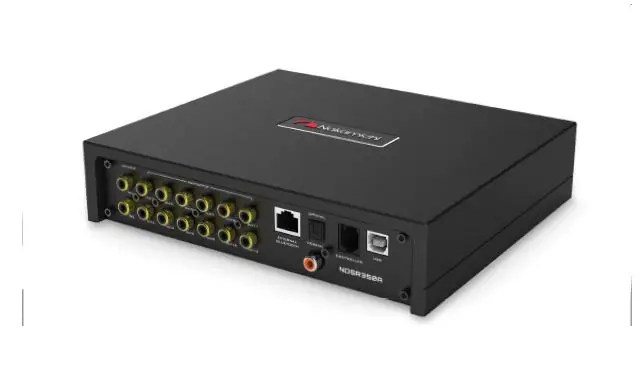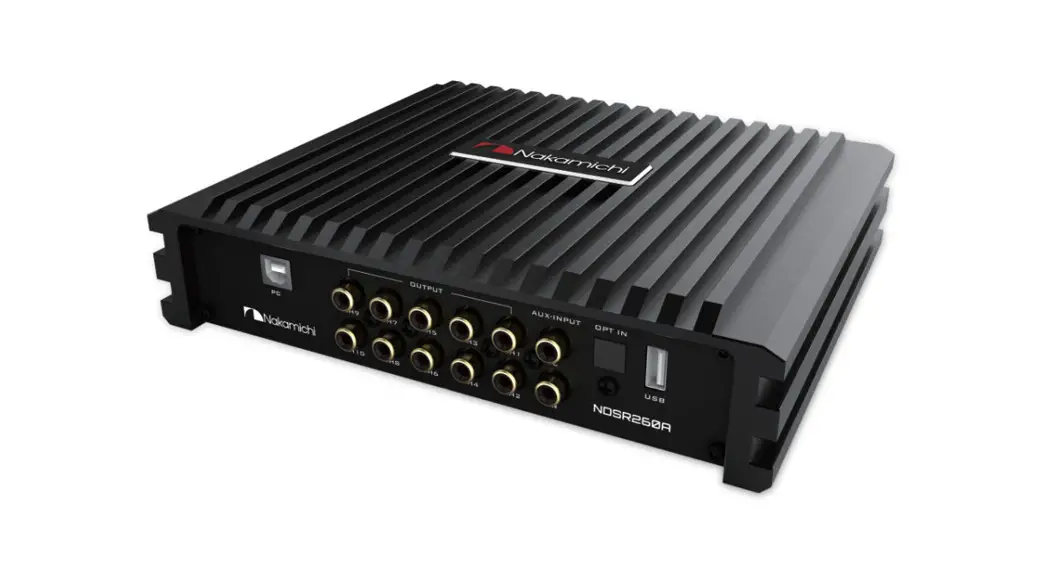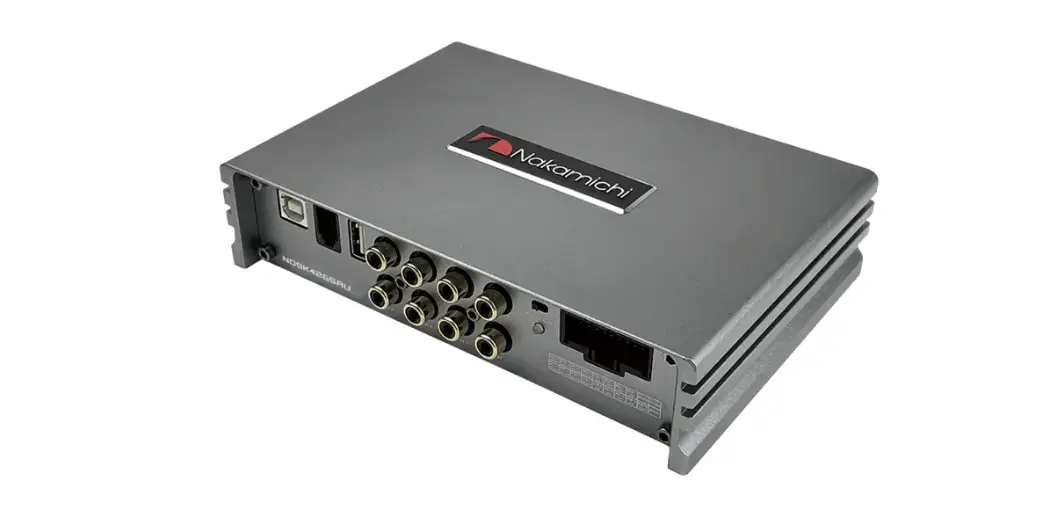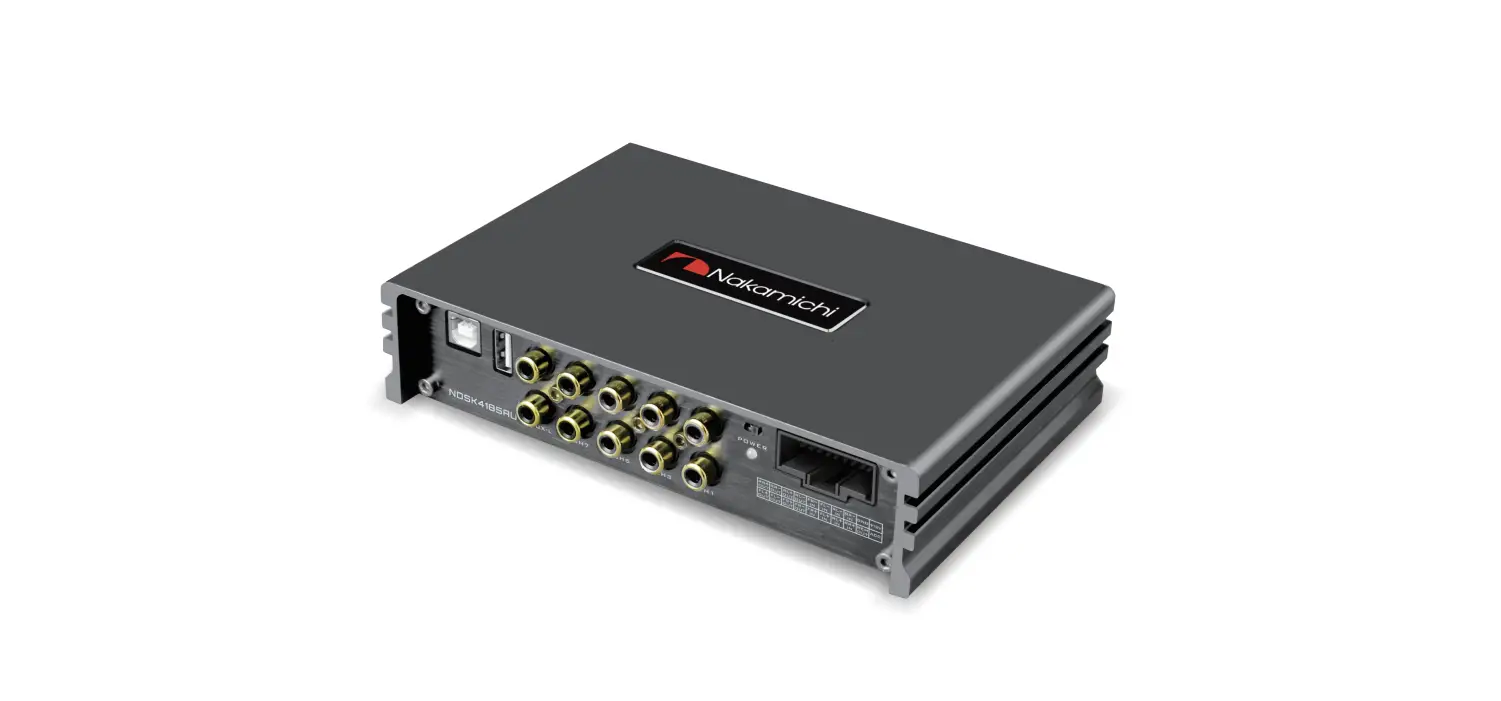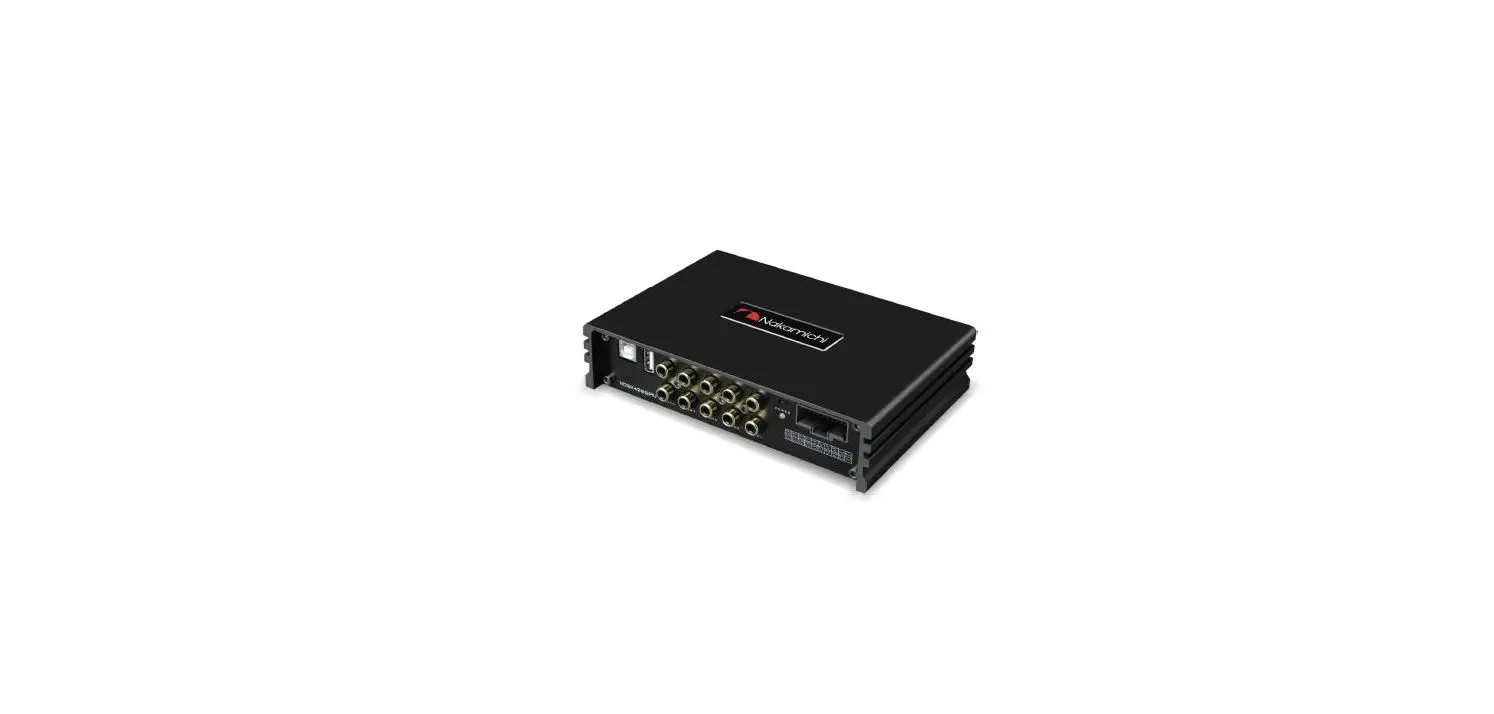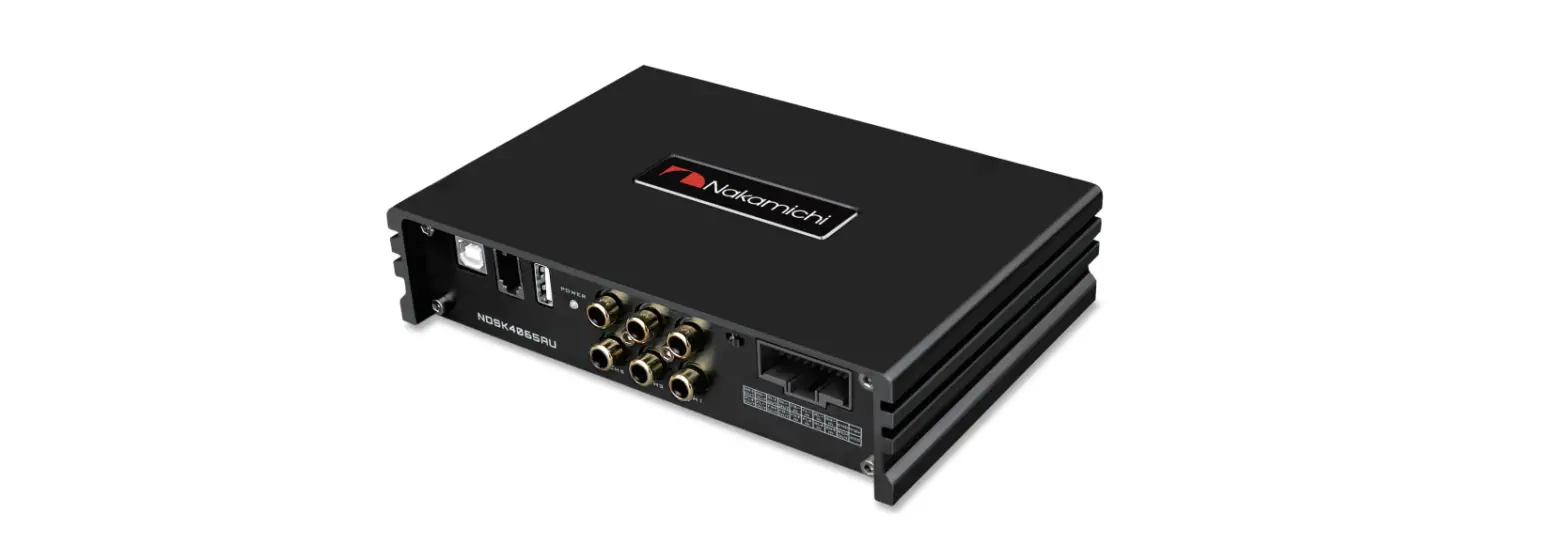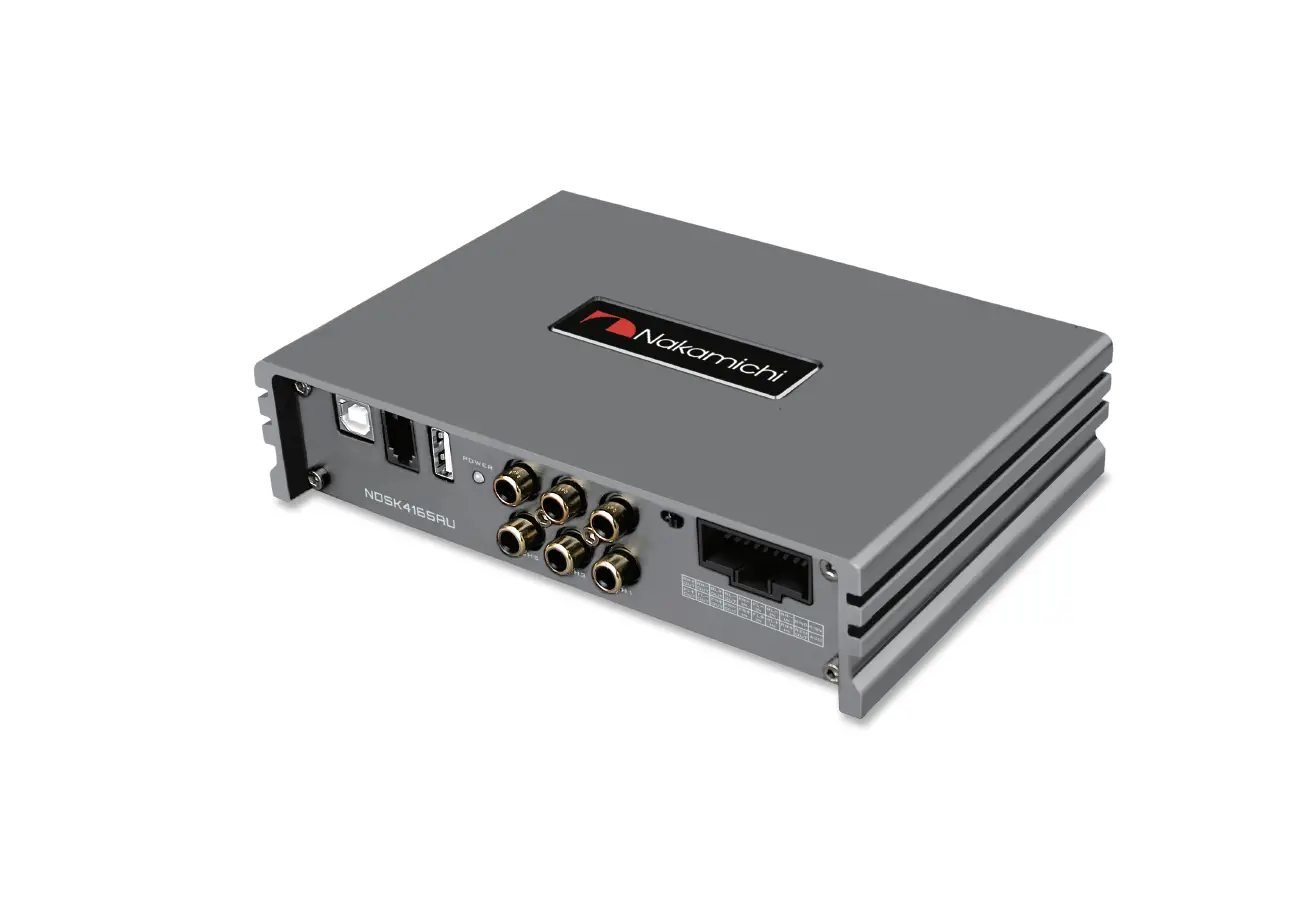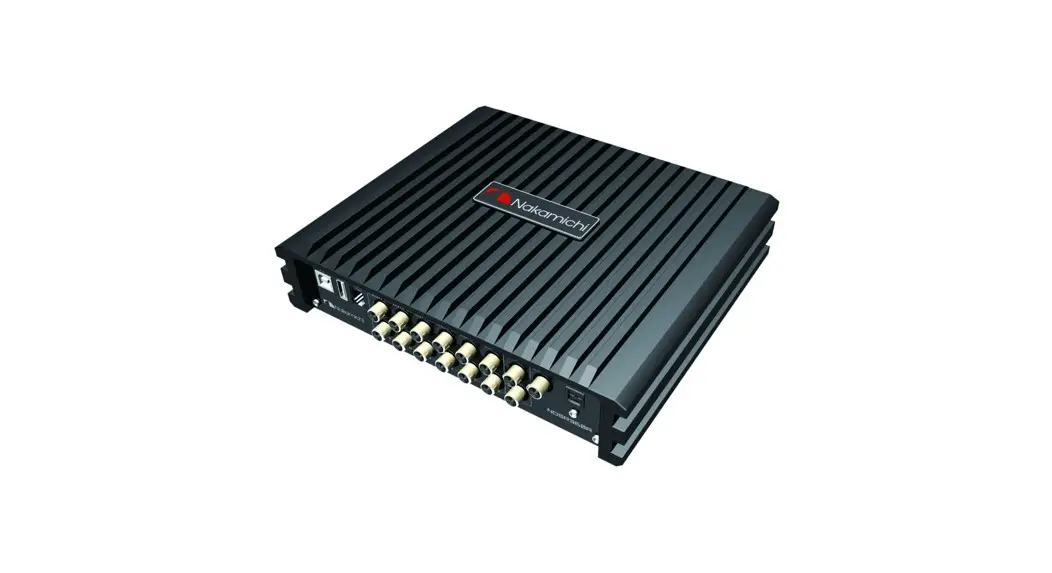

NDSR360A
User Manual
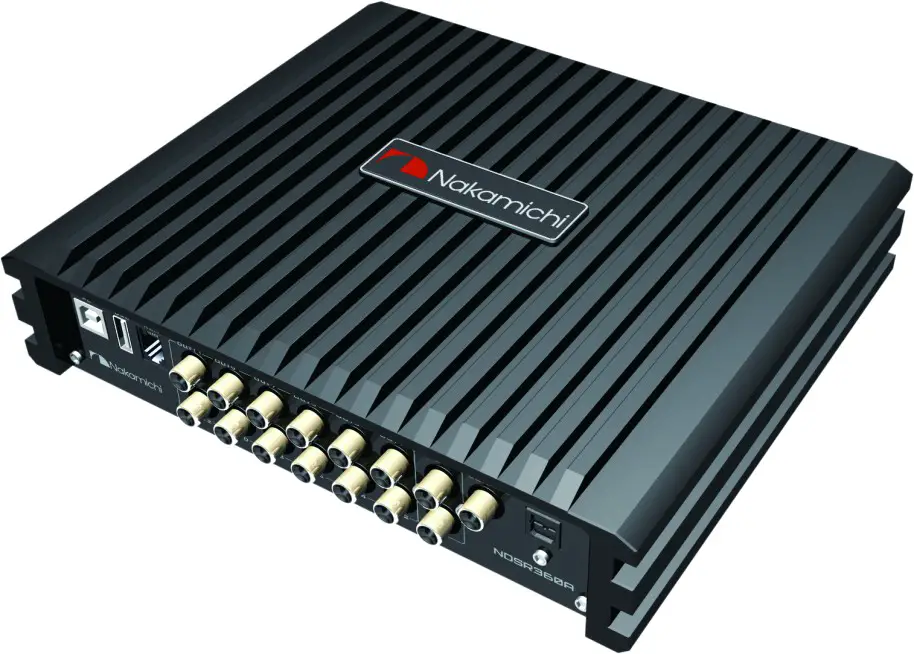
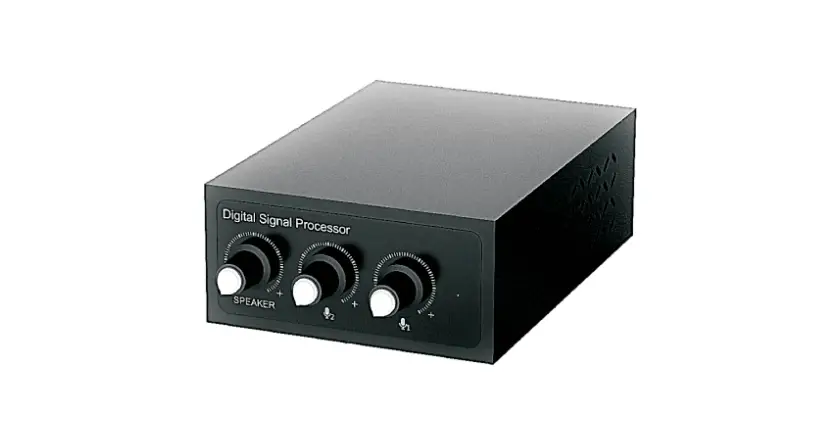
 Digital Signal Processor
INTROUCTION AND TROUBLESHOOTING
Thank you for your purchase and welcome to the world of Nakamichi! Please keep your original proof of purchase or invoice in a safe place in case of any warranty claims. Do also mail or register your warranty with the official Nakamichi service centers and/or agents to ensure that you are provided with the relevant technical support if required.
NOTICE
- To prevent short circuits, please keep the device away from water or damp places.
- If water or any other liquid enters the device, cut off the power immediately, and inform the nearest Nakamichi Service Center or Agent to inspect the product.
- Users are not recommended to disassemble the device as there are no user-serviceable parts inside, please contact the nearest Nakamichi Service Center if necessary.
TROUBLESHOOTING
Ensure all cables and parts are securely connected before turning on the power. Shown below is the basic troubleshooting procedure that you should follow.

Troubleshooting method:
| No. | Malfunction | Reason and Solution |
| 1 | No Power | •Check the power connection and make sure it’s secure. •Check the ACC connection and make sure it’s secure. |
| 2 | No Sound | •Double check if the unit is in MUTE mode. •Check if you have chosen the correct input channel. |
| 3 | Unable to connect through USB | •Check the USB connection and make sure it’s secure. •Check if the driver “HID-compliant device” has been properly installed on your PC. |
WHAT’S IN THE BOX
| NDSR360A | 1 pc |
| User Manual | 2pcs (1 Chinese, 1 English) |
| USB2.0 Cable(1.5m) | 1 pc |
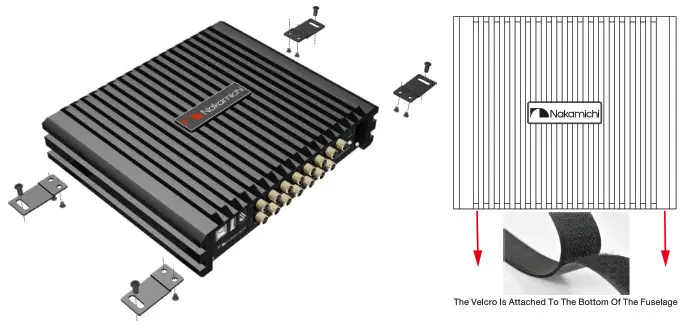
| Mechanical round head screws (PM3 x 6mm) | 8pc |
| Self-Tapping Oval Head Screws (PA4 x 40mm ) | 4pc |
| Mounting brackets | 4pcs |
| Velcro | 2Prs |
PRODUCT TECHNICAL DATA
Product Data
| Dynamic Range(RCA Input) | 100dB |
| S/N (RCA Input) | 918dB |
| THD | 0.05% |
| Frequency Response | 20Hz- 20KHz |
| Input Impedance | High Level: 51Ω |
| Low-Level Output Impedance | 51Ω |
| Signal Input Range | RCA: 7.5Vpp; High Level: 26Vpp |
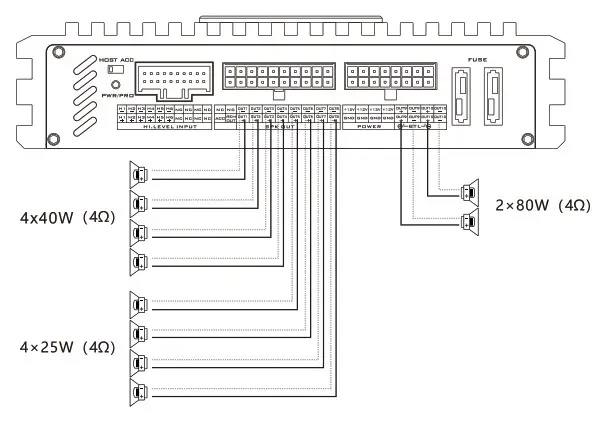
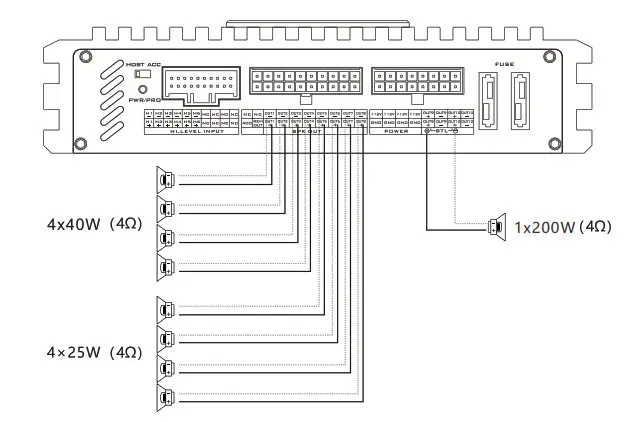
| Signal Output Range | RCA: 7.5Vpp; Amplifier Power : 2CHx8OW(Bridging 1x200W)+4CH x40W+4CHx25W |
| Working Temperature | -20- 70°C |
| Power | DC 9V-15V |
| REM Input | High-Level Input Signal: H 1 +/H1- or ACC control cable |
| REM Output | +12V Startup Voltage Output( 250mA) |
| Standby Power | ≤0.1W |
| Net Weight | Approx.1.85kg |
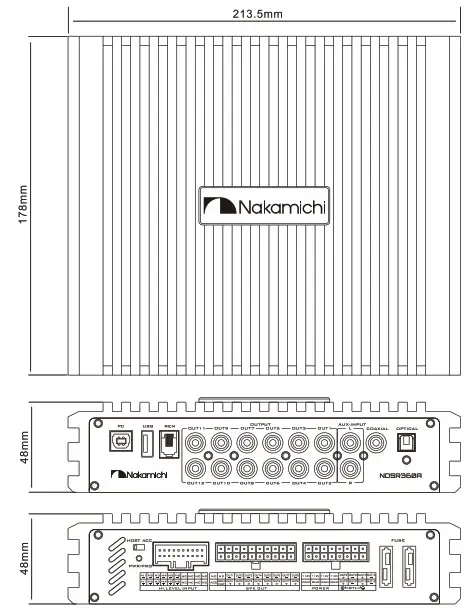
| Product Dimension | 213.5(14×178(W)x48(H)mm |
Technical Sheet
| Input Type | 6 Channels High Level, 2 Channels Low Level, Built-in Bluetooth, Optical /Coaxial |
| Output Type | 12 Channels Low Level, 2CHx8OW(Bridging lx200W)+4CHx4OW +4CHx25W Power |
| Output Gain | Gain Range: Mute,-59.9dB – 6dB |
| Output Signal EQ | 31 Band Equalizer Engine: 1. Frequency range: 20Hz-20KHz, 1Hz Accuracuy 2.Q value (slope): 0.404-28.852 3.Gain: -12.0dB – + 12.0dB, 0.1dB Accuracuy |
| Output Signal Crossover | Each output is equipped with multi-order high and low pass independent filters. 1.Filtering types: Link-Ril, Butter-W, Bessel 2. Filtering frequency division point: 20Hz -20KHz. Resolution 1Hz 3.Filter slope (slope) setting: 6dB / Oct to 48dB / Oct and OFF |
| Output Phase and Time Alignment | Each output channel can be adjusted for phase and delay, parameter range: Phase: in-phase or reverse-phase (07180°) Delay: 0.000 to 20.000ms, 0 to 692 cm, 0 to 273 inch |
| Presets | 6 Presets into the device |
PRODUCT DIMENSIONS
INSTALLATION INSTRUCTION
THE SPEAKER WIRING IN NORMAL MODE
THE SPEAKER WIRING IN BRIDGE MODE
INTRODUCTION
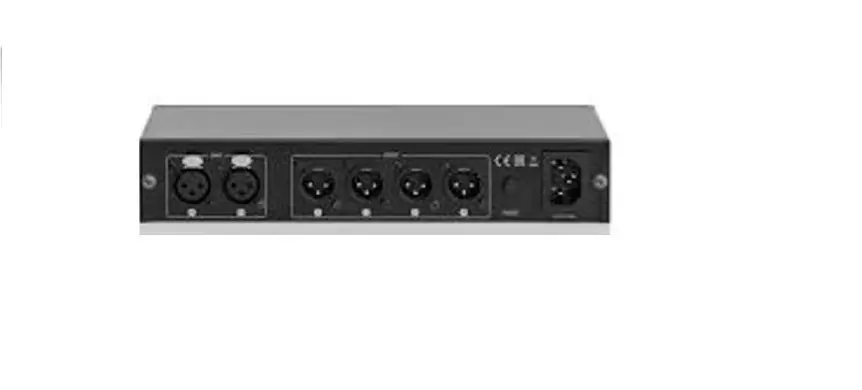
The machine interface diagram is as follows:
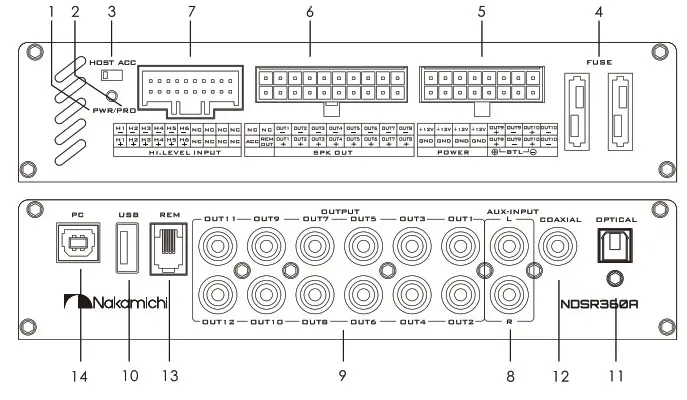
- Power indicator light
- Protection indicator light
- Machine start mode switch When the switch is turned to the “ACC” terminal, the machine is started by ACC, and when it is turned to the “HOST’ terminal, the machine is started by the high-level HI +/H1- input signal.
- The fuse Two 25A fuses.
- High-level output and power port
9,1 0 power amplifier output, can be bridged.
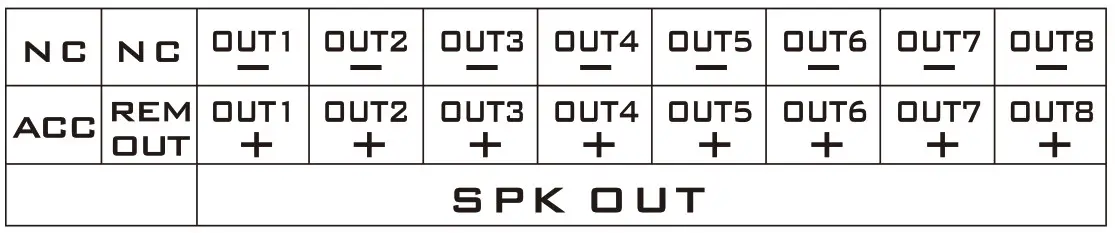
- High-level output port
1~8 power amplifier output.
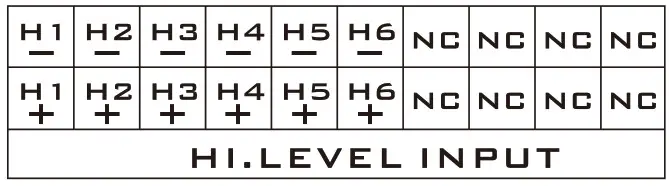
- High-level input port

a. “+” is positive or positive;” – “is negative or inverted (ground).
b. Before connecting the power supply, you must confirm that the power supply meets the designed power requirements and connect in strict accordance with the equipment instructions. Otherwise, the equipment may be damaged and may cause accidents such as fire, electric shock, etc. - Low-level input port Connect up to 2 channels low-level input.
Low-level output port Connect up to 12 channels low-level output.
- USB port Insert the USB flash drive and play the song in the USB flash drive under the player audio source.
- Optical input port When the optical input cable of the in-car CD or DVD player is connected, the sound source of the DSP is switched to digital input, and optical digital signals can be played.
- Coaxial input port When the Coaxial input cable of in-car CD or DVD player is connected,the sound source of the DSP is switched to digital input,and coaxial digital signals can be played.
- The controller port Data call and total volume adjustment can be performed by the line controller.
USB2.0 Port, Connect to the computer tuning software No need to download the driver installation, connected to the computer sound software installed automatically.

SOFTWARE INTRODUCTION
PC Software Operation Introduction (PC can be downloaded from the official website (http://www.nakamichicaraudio.com, CONTACT, Downloads)) Computer Configuration Requirements: Screen resolution higher than 1280 x 768, otherwise the software UI is incomplete, only suitable for windows operation system laptop, desktop and pads.
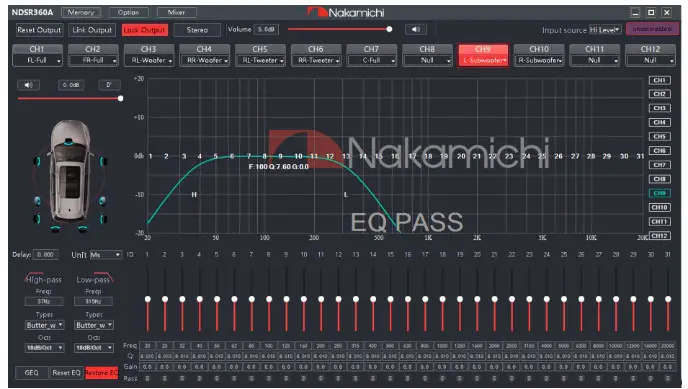
1. Menu editing area

Main functions: File, options operation.
a. Click the “File” pop-up window, and select to load the scene on your computer, save it as a scene on your computer, load the whole machine scene or save the whole machine scene.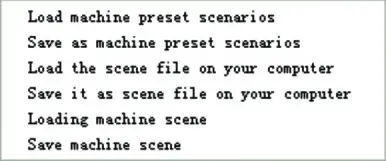
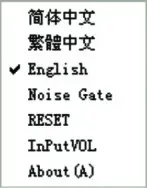
b. Click on “Option” to select Chinese and English switching, Noise Gate, RESET, InPutVOL and About(A)
SOFTWARE INTRODUCTION
2. Function editing area

Main functions: scene, master source, mixer source, channel type, link, mixer and mode settings.
a. Scene: 6 sets of scene data can be recalled or stored.
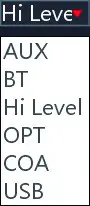
b. Master source: Click the input audio source drop-down list to select the input audio source. AUX,BT,Hi Level,OPT,COA and USB.
c. Reset: Click Reset to clear the channel type or restore the default channel type.
d. Link: Click the Link to set the Link synchronization mode: copy from left to right or copy from right to left.
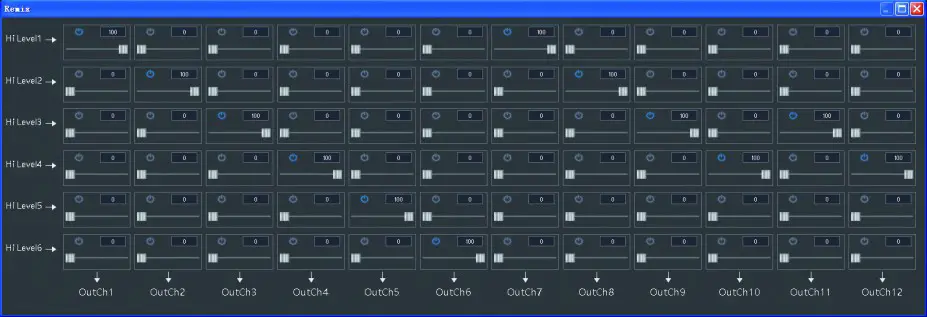
e. Click “Mixer” to enter the mixing interface, the interface is as shown below.
f. Click “Stereo” to switch between stereo or bridge.
3. Main volume and software connection editing area
SOFTWARE INTRODUCTION
Main functions: master volume and computer software connection settings.
a. Main volume adjustment range: off, -59.9-6dB. Click the speaker button to mute the main volume.
b. Click the “Not Connected” button to connect the host with a PC.

4. Output channel type editing area

Main function: configure the type of output channel.
5. Channel delay, volume, phase editing area
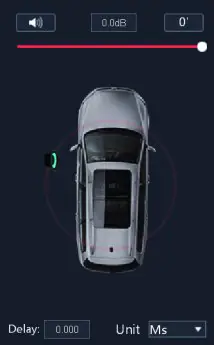
a. Push the fader left or right to adjust the sound size, or enter a value or roll the mouse wheel in the volume input box to adjust the sound size. Click the speaker button to switch mute.
b. Positive phase adjustment: Click [01 or [1801 to switch between positive phase and reverse phase.
c. Delay: set the delay value by scrolling the mouse wheel in the delay input box, or entering the value to set the delay value.
d. Delay Unit button: Click the drop-down list to select milliseconds, centimeters, and inches.
6. Channel divider editing area
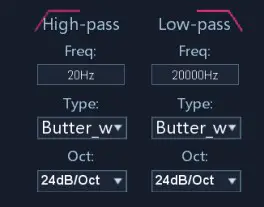
Main Function Setup: Channel High & Low Pass Filter Setup. Adjustable: Filter Type, Frequency point and Q Value (Gradient or Slope).
SOFTWARE INTRODUCTION
7. Equalizer editing area

a. Reset EQ: It is used to restore the parameters of the all equalizer to the original pass-through mode (the frequency of the equalizer, the Q value, and the gain are restored to the initial value).
b. Restore EQ: Switch between the currently designed equalizer state parameters and the pass-through mode (the gain of all equalization points is restored to 0 dB, the frequency and value are unchanged).
c. Click PEQ Mode to switch GEQ Mode. The Q value and frequency cannot be adjusted in the PEQ Mode interface.
8. Channel EQ editing area
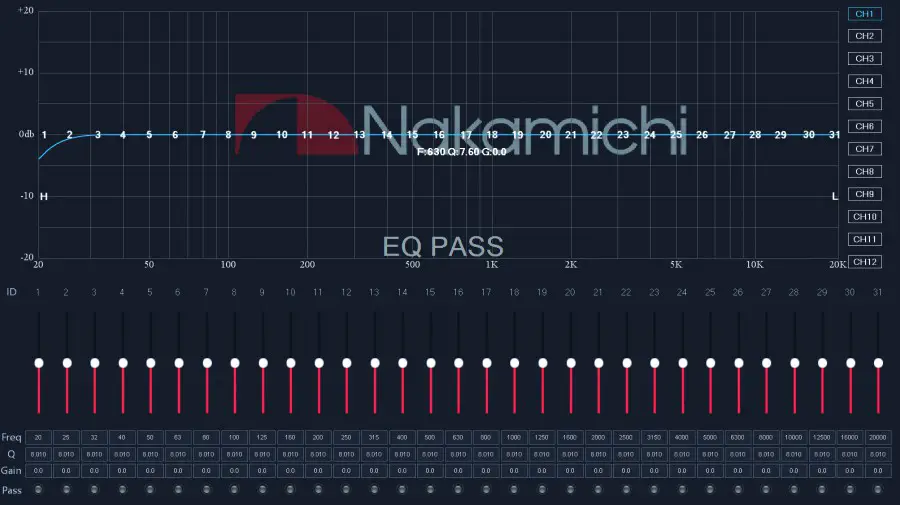
Main function configuration: Equilibrium design of current output channel, 31-band equalization adjustable: frequency, Q value (response bandwidth) and gain (increasing or decreasing the frequency response amplitude near the frequency point).
SOFTWARE INTRODUCTION(SMARTPHONE)
Smart-phone Software Operation instruction
(APP can be downloaded from the official website(http://www.nakamichicaraudio.com, CONTACT, Downloads))
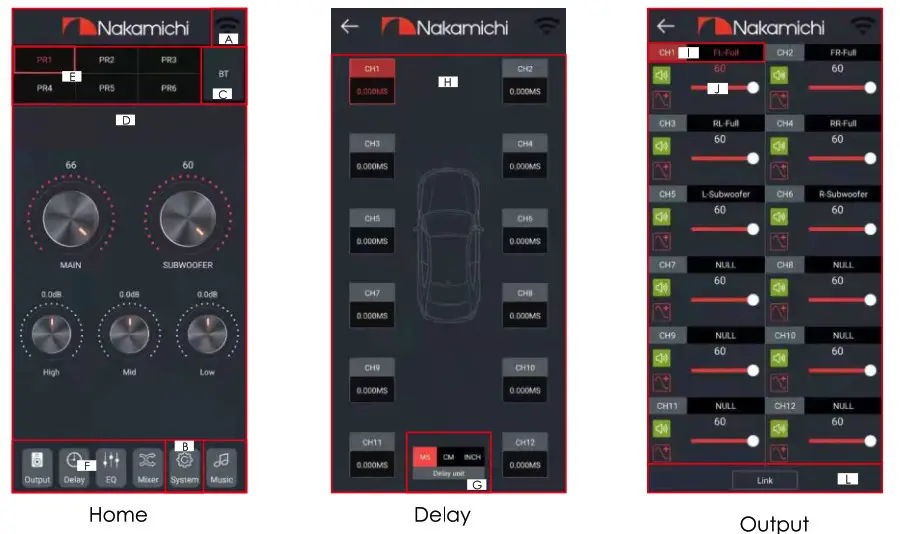
1. Home interface
It can restore factory settings, share sound effects, save sound effects, turn on local sound effects, check the model and version number of the unit, and exit the software operation; volume, master source, storage and recall of 6 sets of preset scenes.
A. Connection Status: Red means not connected, green means connected.
B. Menu:
You can restore factory settings, share sound effects, save sound effects, turn on local sound effects, view the model and version number of the machine, and exit the software operation.
C. Master source: Master source: S/PDIF, Phone, AUX, and Hi.Level to choose from.
D. Volume adjustment: Press and hold the volume scale clockwise or counterclockwise to adjust the volume. The main volume range is 0 – 66, The subwoofer range is 0 – 60, The medium, high
and low volume range is-12dB – + 12dB.
E. Scene preset: There are 1-6 presets to choose from.
F. Advanced settings: Click (Advanced Settings] to enter the settings of the delay interface, channel interface, EQ interface and mixing.
2. Delay interface
Sound field positioning output delay adjustment.
G.Unit switching: Switch between milliseconds, centimeters, and inches.
H.Delay setting: Click the setting window of the corresponding channel. Slide the dots left and right to set the delay value. Delay settings can be made for CH 1- CH 12 speakers. Delay range: millisecond range: 0.000 – 20.000; cm range: 0 -692; inch range:0-273.
3. Channel interface
Channel high-low-pass crossover setting with high-low-pass independent filtering.
Adjustable: Filter type, frequency, and Q value (slope or slope).
I. Output channel selection: Twelve channels are available.
J. Output channel volume setting: You can adjust the volume by sliding left and right. The volume range is 0-60. Click the speaker button to mute. Configurable output channel type, forward and reverse switching.
K. Channel divider selection: Channel type: Choose from Link-Rill, Butter-W, and Bessel. Frequency Range:20Hz-20KHz. Slope selection: 6dB/Oct,12dB/Oct,18dB/Oct,24dB/Oct, 30dB/Oct,36dB/Oct,42dB/Oct,48dB/Oct and OFF can be selected.
L. Joint tuning and channel type settings: Click [Reset] to reset the output channel type so that the output type can be customized. Click [Stereo] to switch between stereo mode and bridge mode. Click [Link] , the joint debugging window will pop up, and select the joint debugging method.
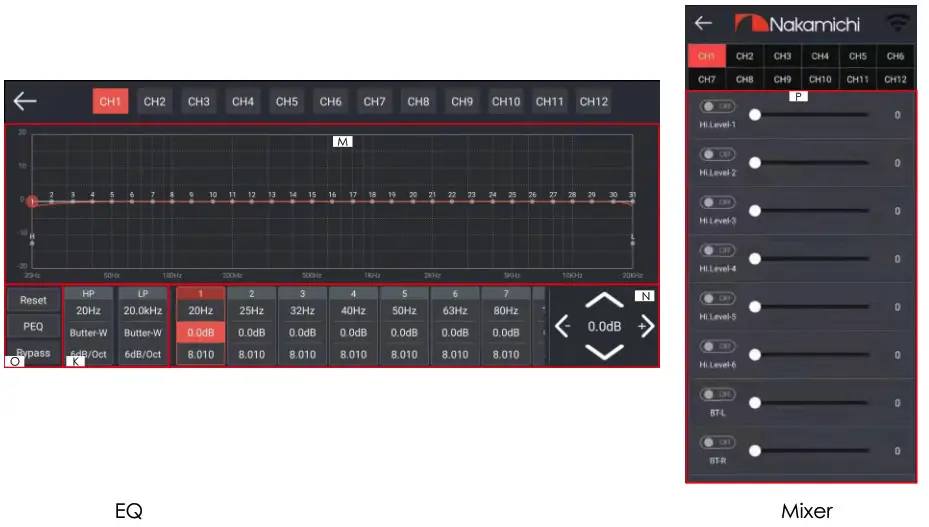
4. EQ interface
Corresponding to the adjustment of the output channel EQ curve (gain, Q value and frequency); reset equalization, pass-through equalization or parametric equalization operation settings.
M. EQ display: Edit the display area.
N. Output EQ gain, Q value and frequency settings:
Output EQ gain setting: A total of 31 EQ, left and right sliding screen can select EQ, you can drag the slider up and down. Select the first line value, and drag the slider bar left and right in the pop-up dialog box to adjust the adjustment range: -12dB-+12dB. Q value: Click the second line value, and drag the slider bar left and right in the pop-up dialog box to adjust, the adjustment range is 0.404-28.852. Frequency setting: Click the third line value, and drag the slider bar left and right in the pop-up dialog box to adjust it. The adjustment range is 20Hz-20KHz.
O. Reset equalization, restore equalization, pass-through equalization settings: Click [Reset EQ] to restore the parameters of the 31-band equalizer to the original pass-through mode (the equalizer frequency, Q value, and gain are restored to their initial values). When there is channel adjustment, display [straight-through equalization], click [straight-through equalization], click [OK], all values (frequency, Q value and gain) will return to the initial value. At this time, the [straight-through equalization] button will become [recovery
equalization]. Press the button and click [Resume Equilibrium], all values (frequency, Q value, and gain) will be restored to the value before the pass-through. Click [P.EQ Mode], click [OK] to switch to Graphic Equalization, click [G.EQ Mode], click [OK] to switch to Parametric Equalization.
5. Mixing interface
Five sound source modes can be selected. It includes the mixing selection and adjustment of 6 groups of high-level, Bluetooth left and right channels, optical fiber left and right channels, coaxial left, and right channels, and aux left and right channels. The adjustment range is 0-100.

CONNECT WITH US ONLINE TO EXPLORE NAKAMICHI’S COMPLETE RANGE, INSTRUCTIONS & SOFTWARE DOWNLOADS AND WARRANTY REGISTRATION.
WWW.NAKAMICHICARAUDIO.COM
 Nakamichi.global
  nakamichi.caraudio
Made in China