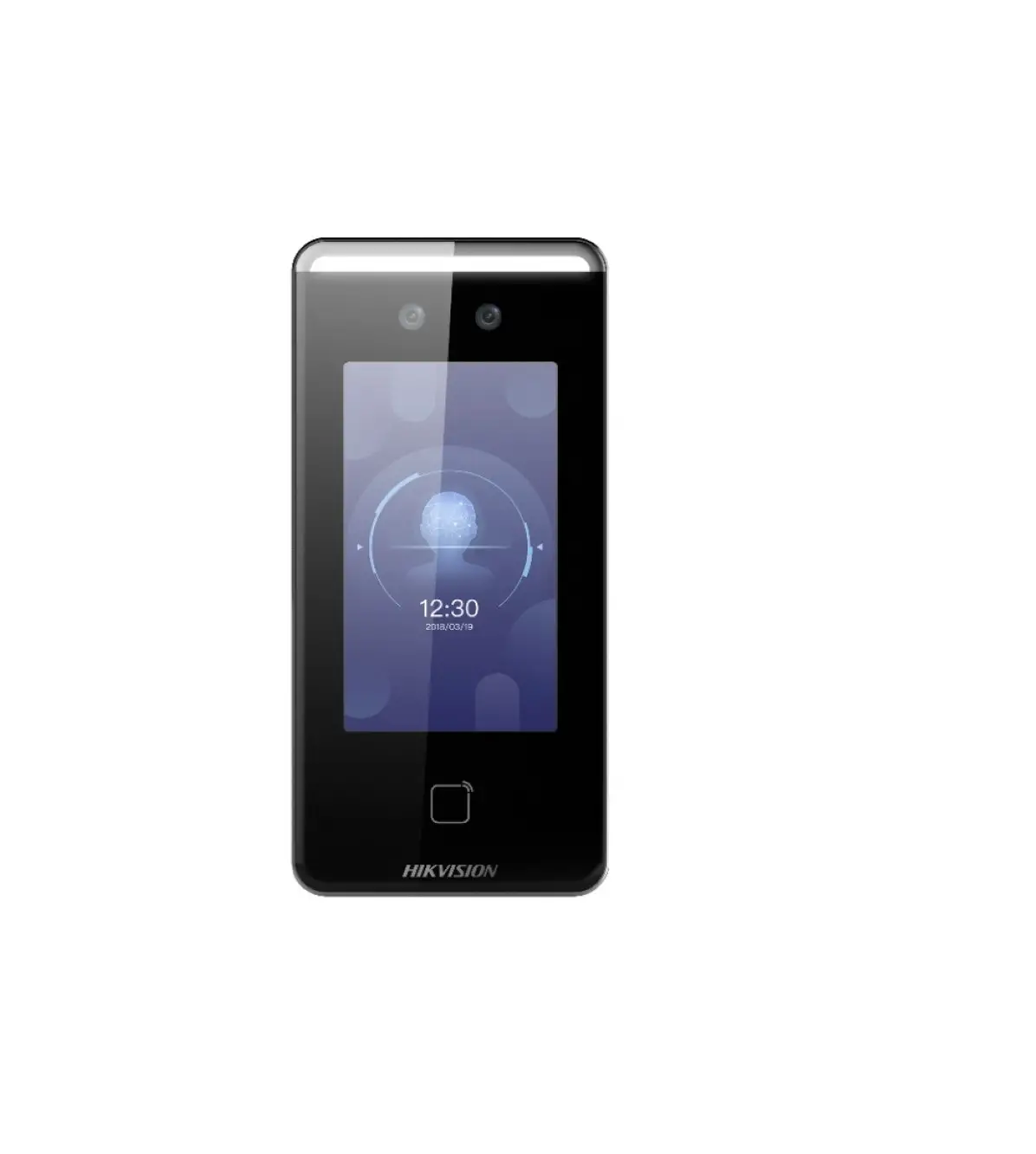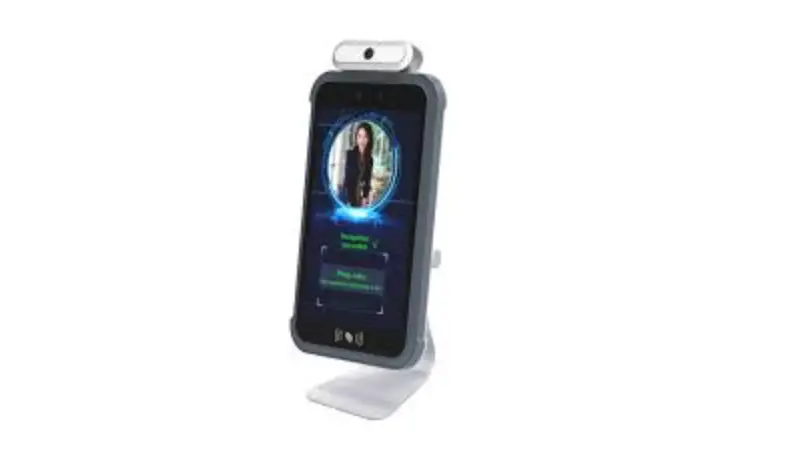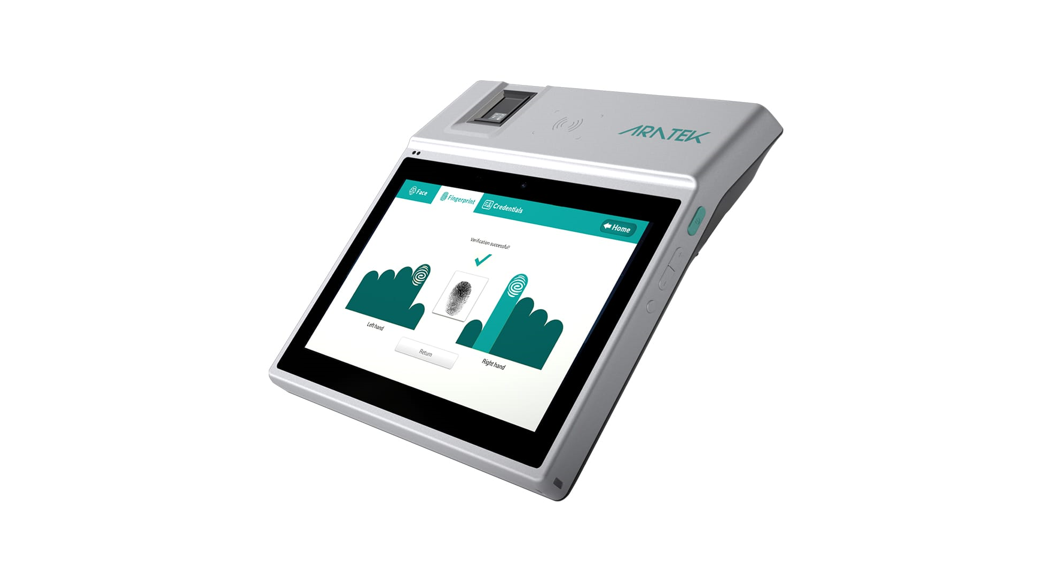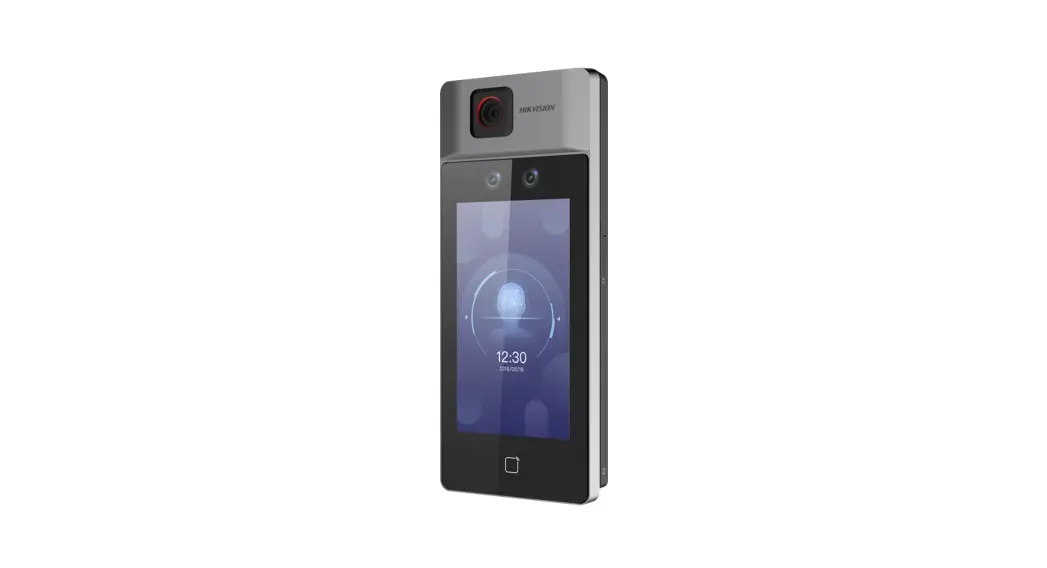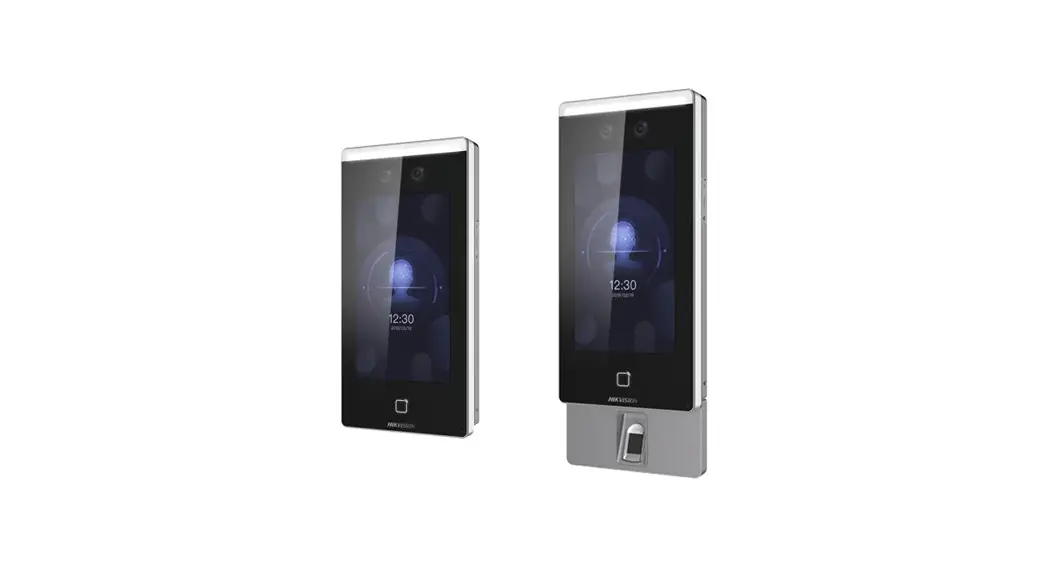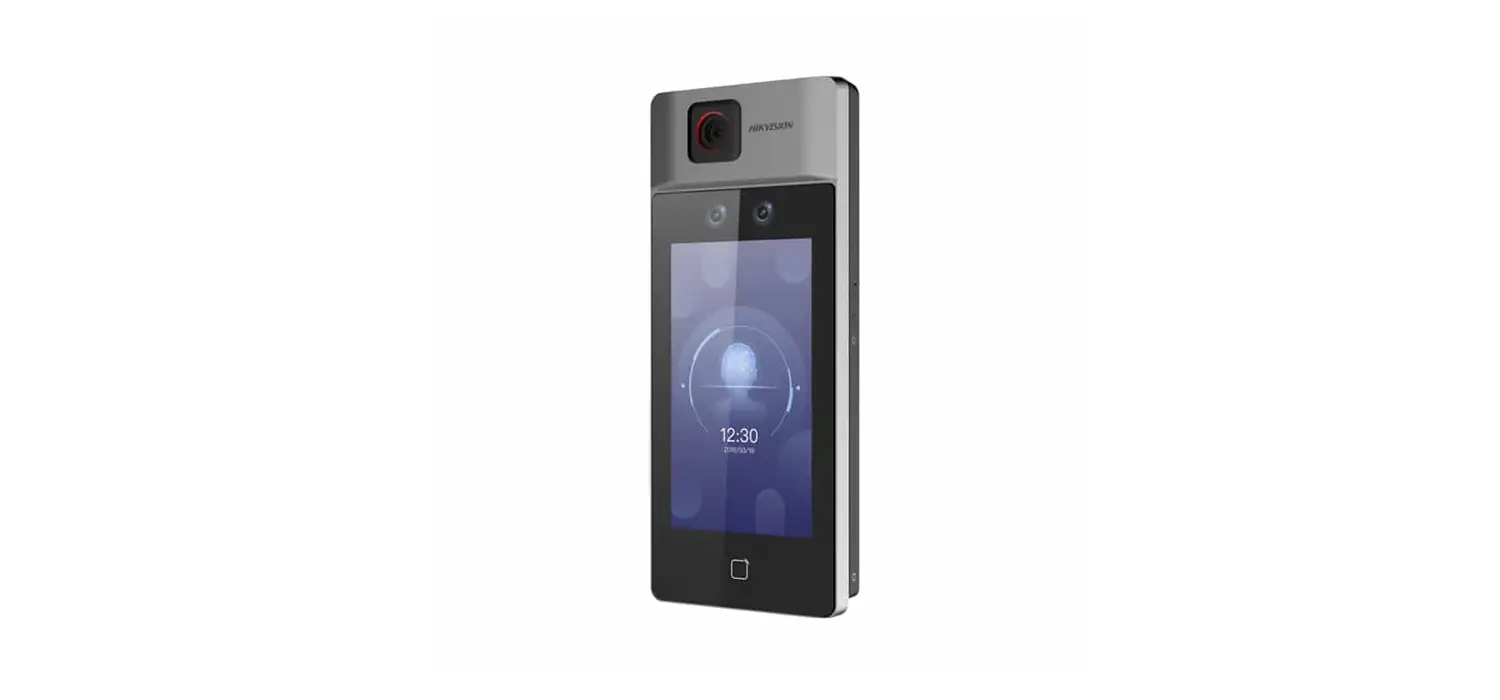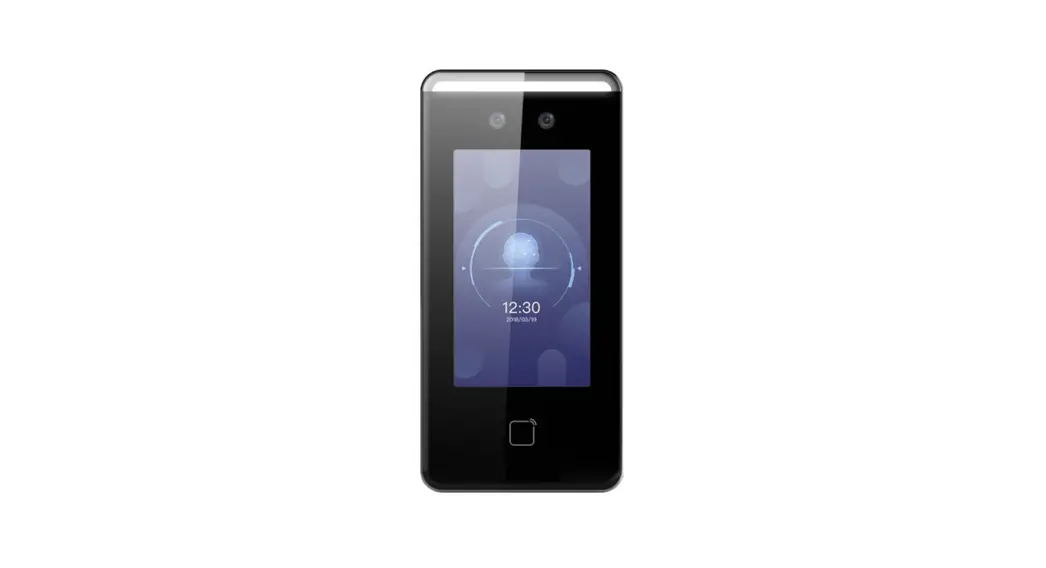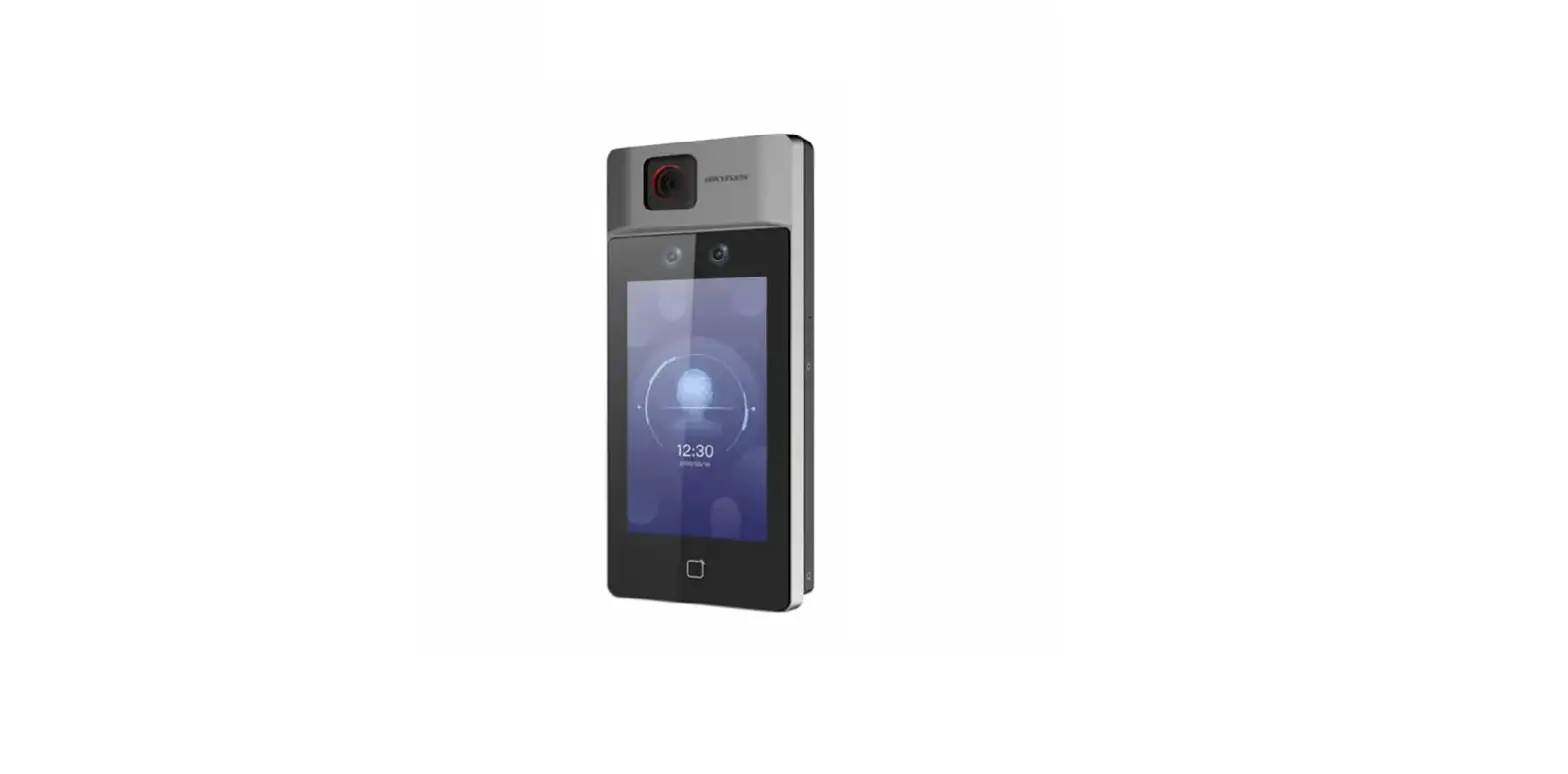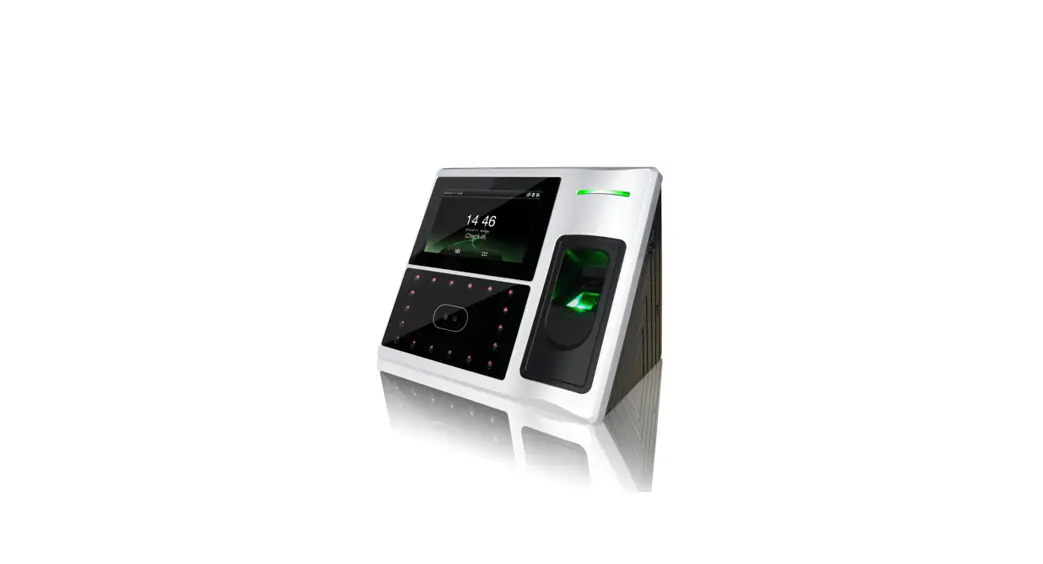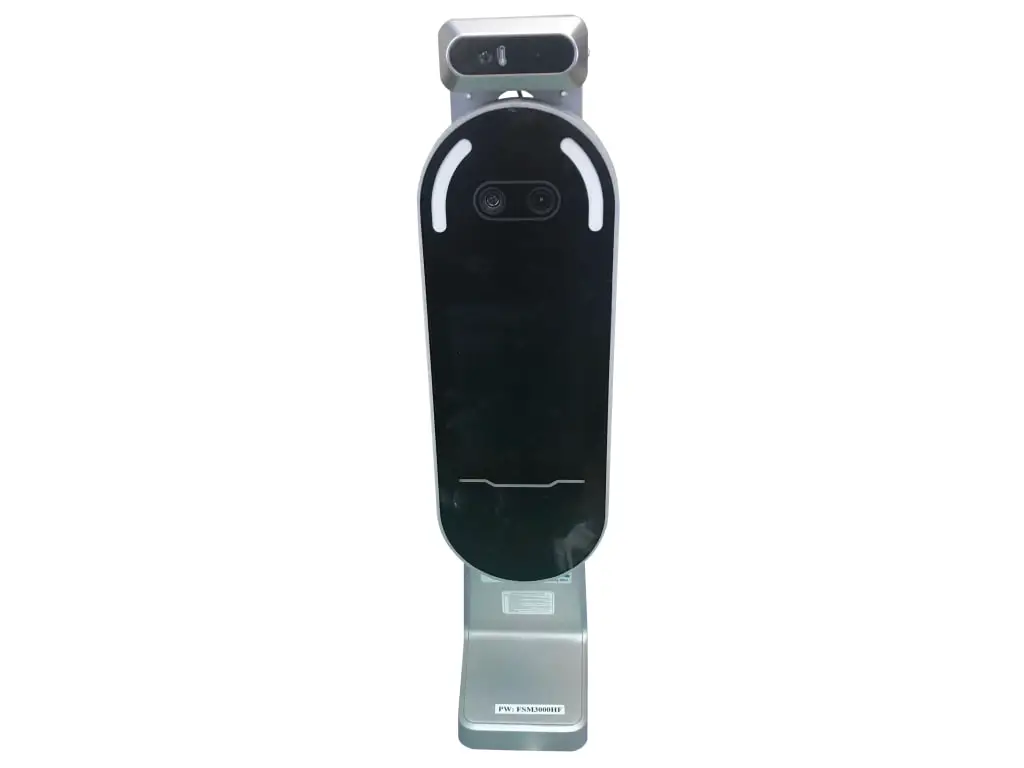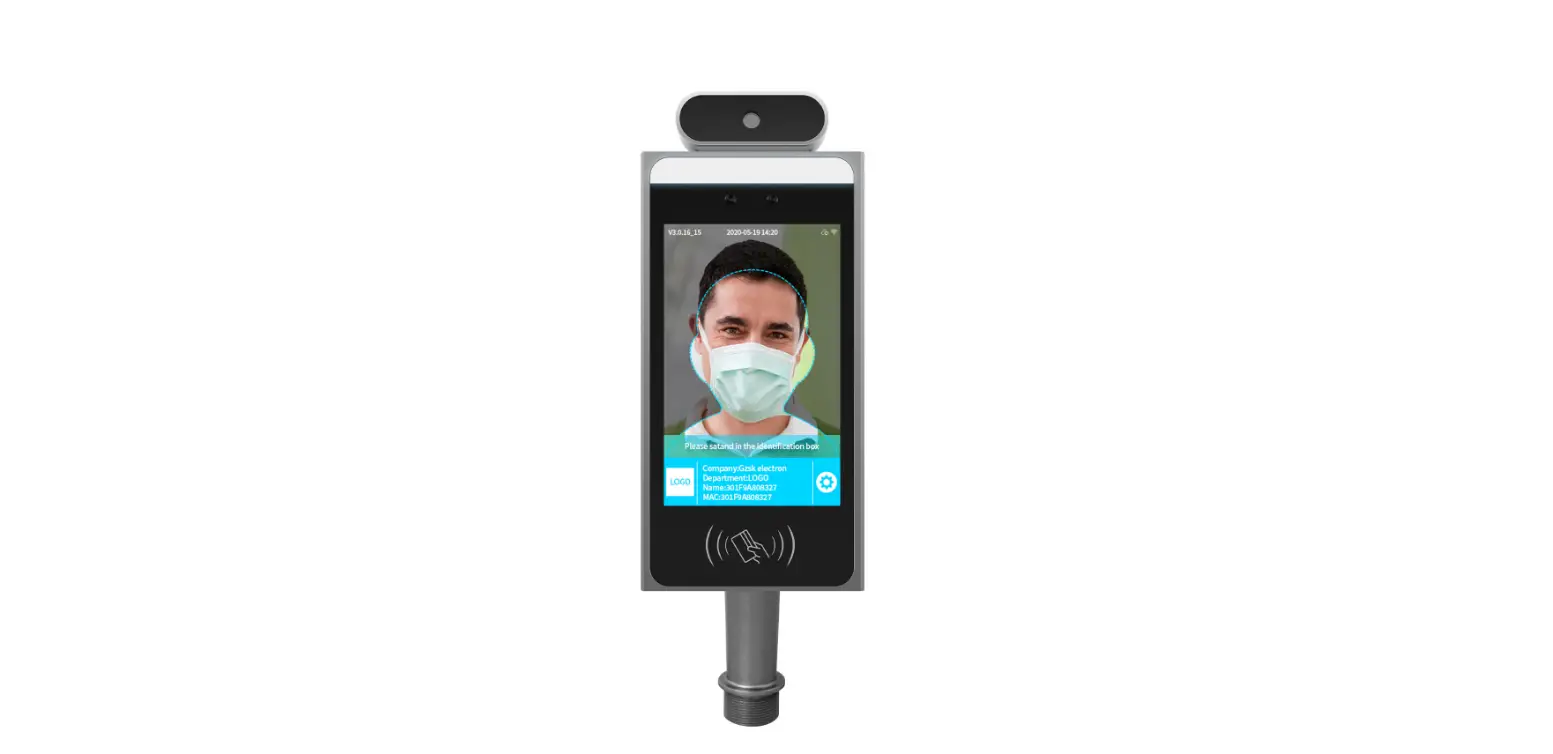

JVC SensePass Pro Face Recognition Integrated Terminal
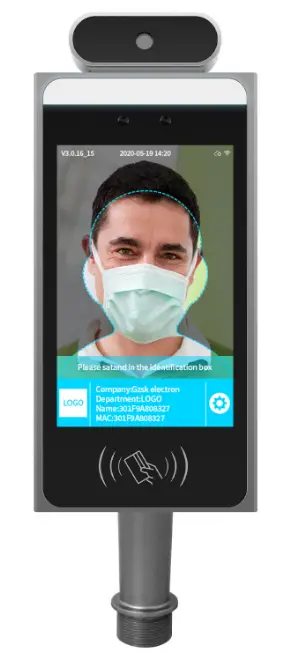
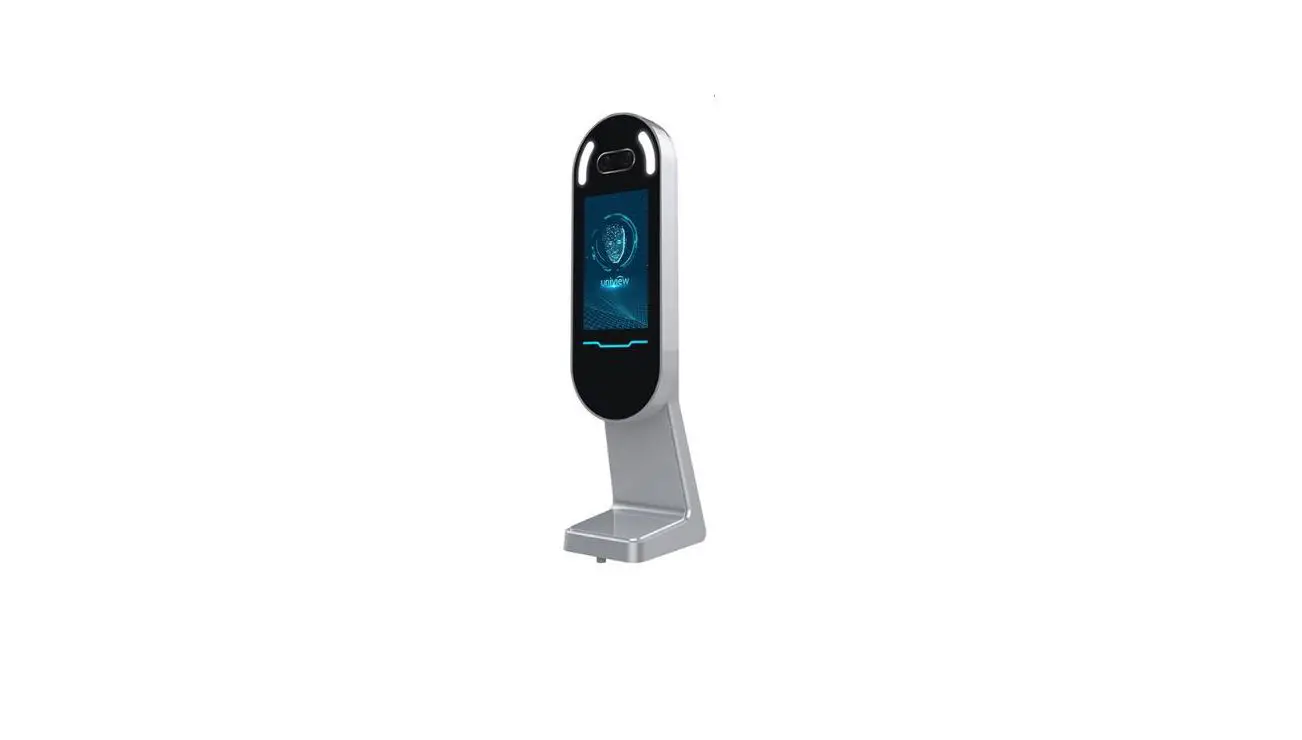
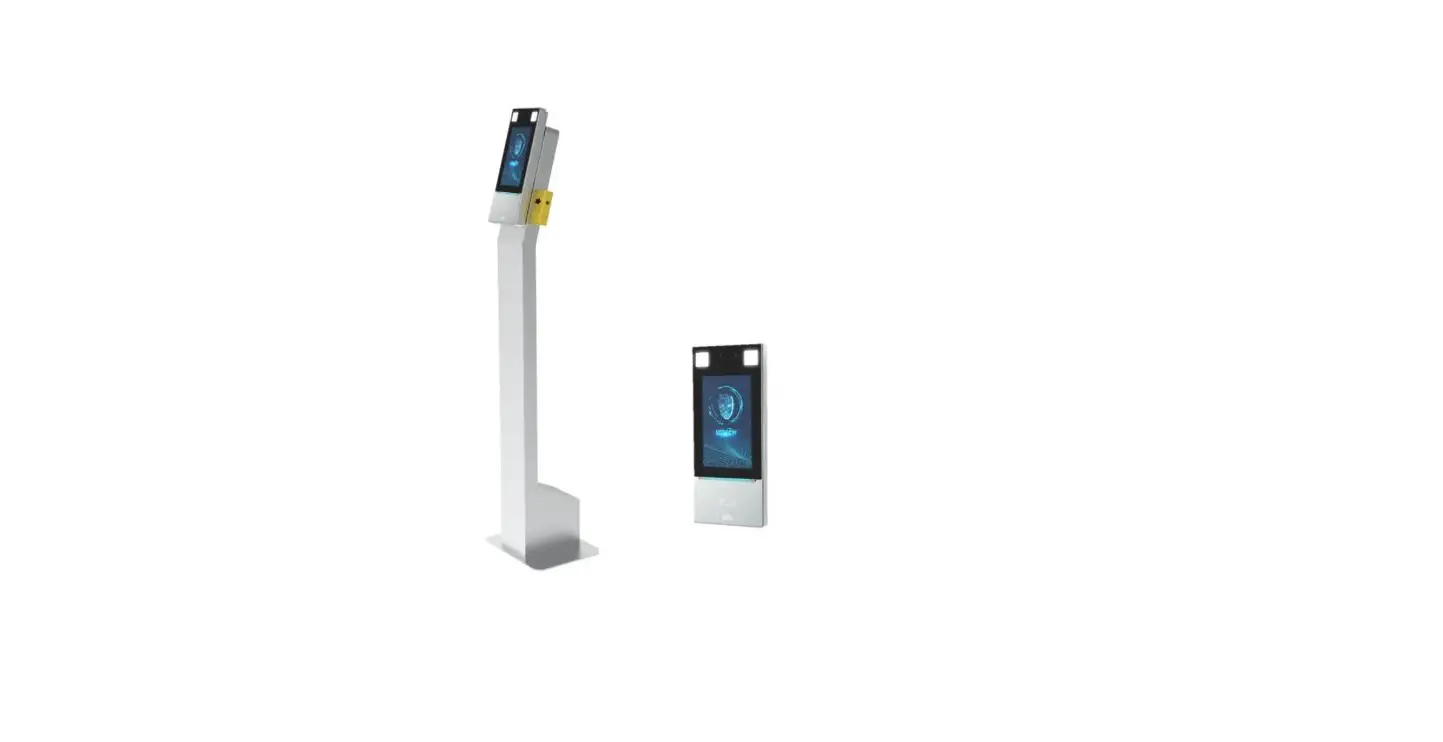
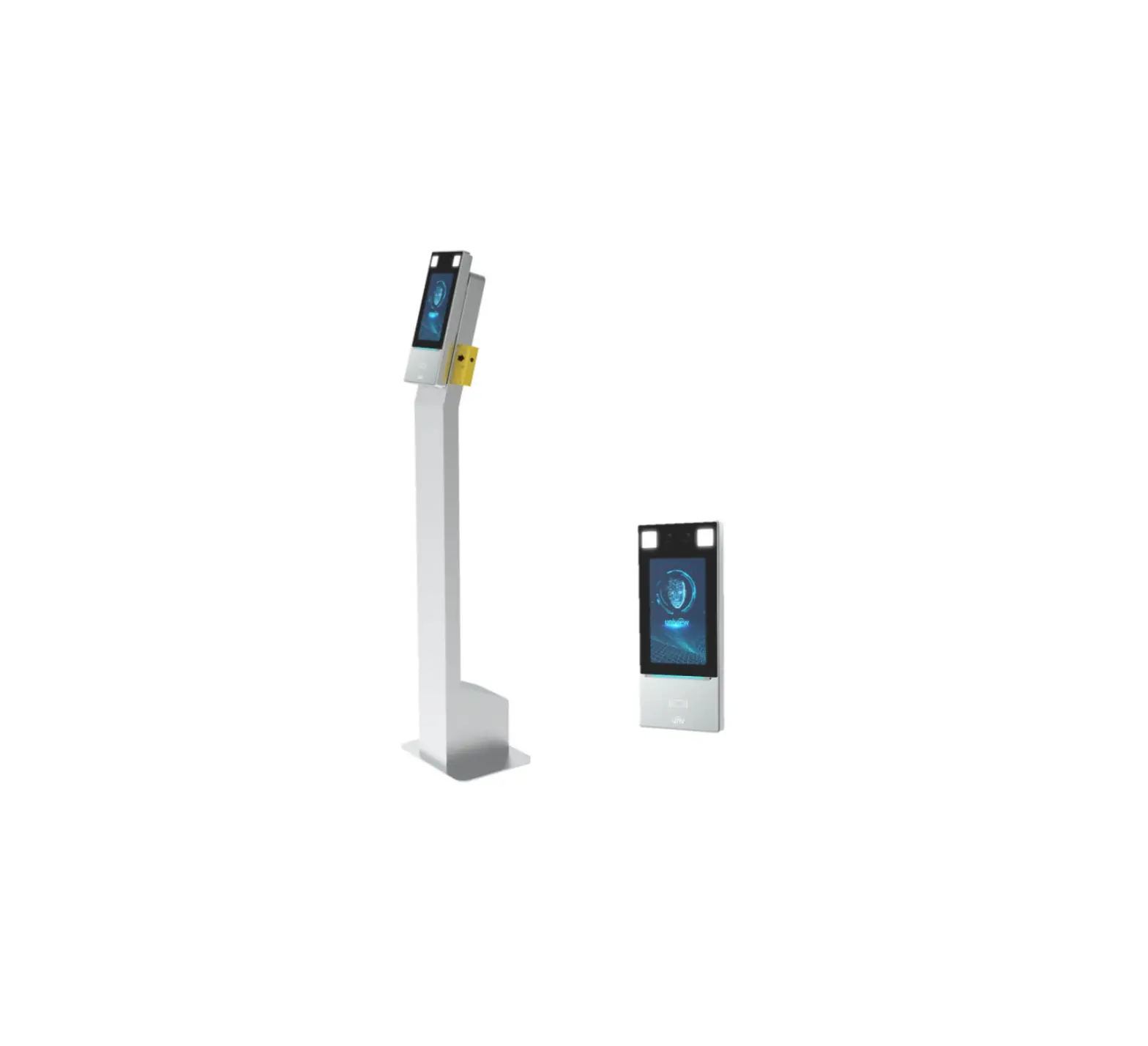
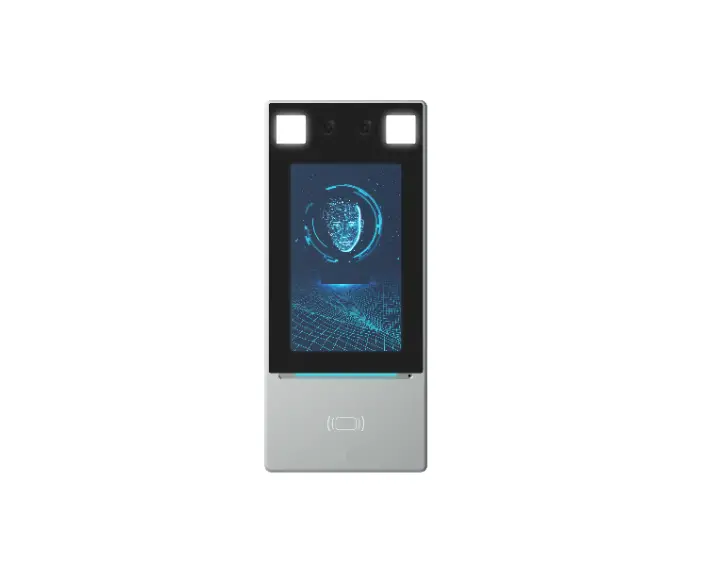
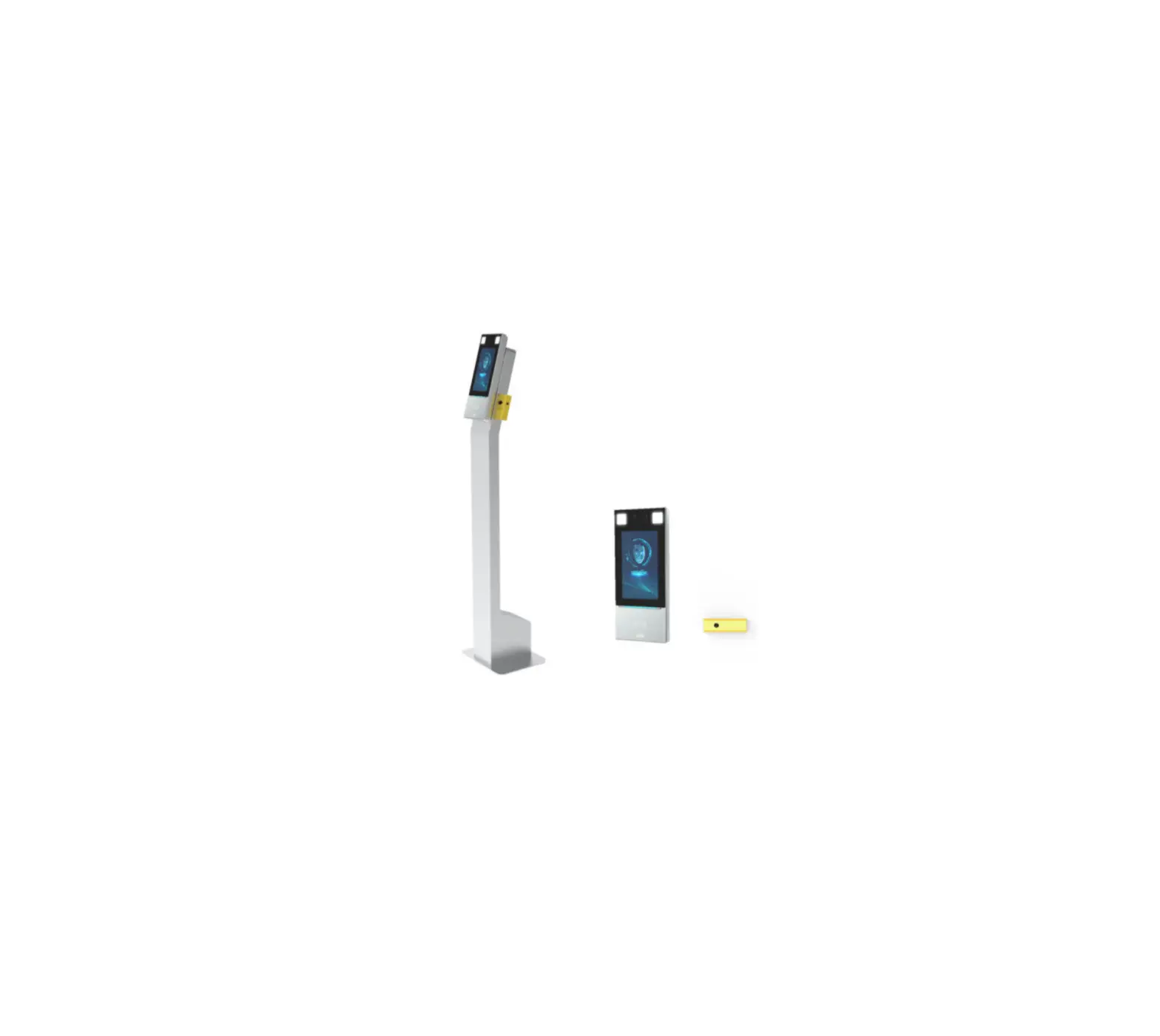
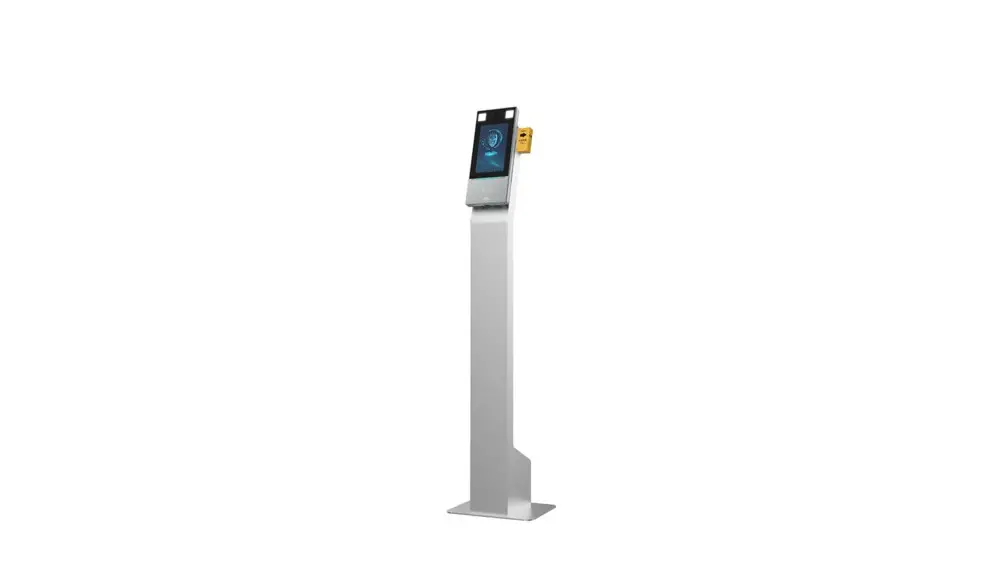
hardware appearance
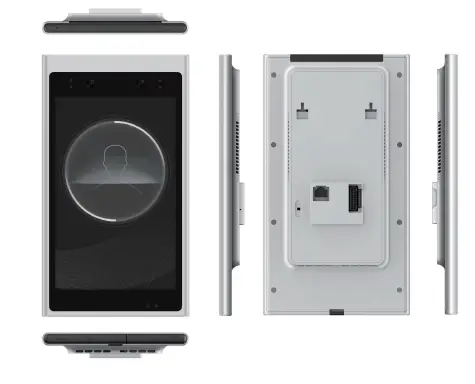
specifications

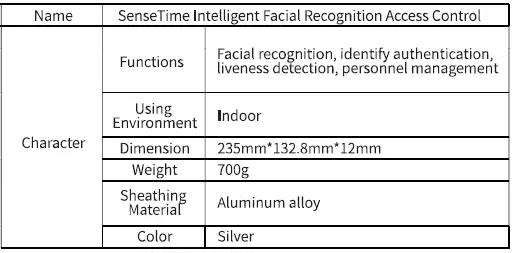
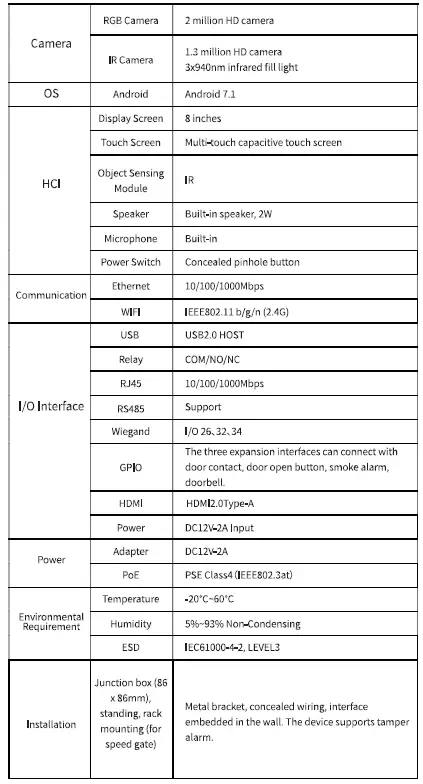
functions
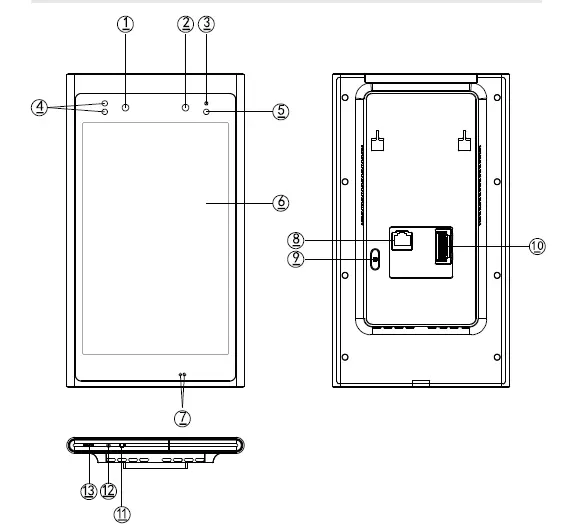
| P/N | Functions Description |
| 1 | IR Ca mera |
| 2 | RGB Ca mera |
| 3 | Ph otosensitive Se nsor |
| 4 | IR Suppl ement Light (left) |
| 5 | IR Supplement Light (right) |
| 6 | Touch Screen |
| 7 | Object Se nsin g Module |
| 8 | RJ45 Et hernet int erface |
| 9 | Tamp er alarm |
| 10 | Har dware Wiring Slot |
| 11 | USB2.0 Interface (fla sh disk, card reader) |
| 12 | Concealed Switch |
| 13 | HDMI |
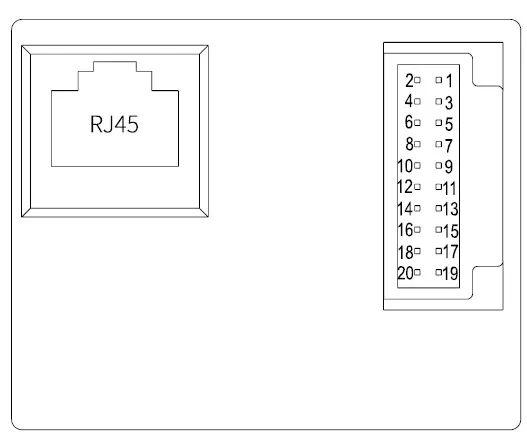
| Type | Iinterface | Description | |||||
| Powerl | PoE+(R J 45) | PoE (IEEE 802.3at) powe r supply | |||||
| 1(12V+) Red | |||||||
| p | ower | 2 | 2(12V+) Red 3(GND) Black | I | 12VDC In put | ||
| 4(GND) Black | |||||||
|
Relay | S(NC)Wh it e Ge nerally, the power+ of door lock is connected to the COM port, and the relay 7(COM)Yell ow power- is connected to th e NO port or the NC port accord ing to th e type of the door lock. 9(NO)Blue Note : relay contact maximu m load is 2A | ||||||
| RS485 | ll(RS485B) Yello w 13(RS485A) Blue 15(GND) Black | I | Supp ort RS485 extension | ||||
| Exit Button | 6(1N+) Yel l o w Door exit signal inpu t 12(GND) Black | ||||||
| Door Contact | 8(1N+) Wh it e 12(GN D) Black The status of th e door signal inpu t | ||||||
| Doorbell | lO(Doorbe ll) Greenl Doorbe ll contro l signal 12(GN D) Black Out p ut SmA | ||||||
| Output | 12 (GND) Black 14 (SV+) Pu rple | Support for external dev ices. DC 5V MAX 500mA |
| . Wiegand OUT | l 7(DATA0) Gray 19(DA TA1)Brown 20(GND) Black | 26bit/32b it /34 bit |
| Wiegand IN | 16(DATA0) Green 18(DATA1) Wh it e 20(GND) Black | 26bit /32b it /34 bit |
installation
You can install SensePass Pro via three methods: Wall-mounted [junction box (86 x 86mm)], standing or rack mounting (for speed gate).
Wall-mounted installation description
The equipment package contains a wall mount, as shown below. Wall-mounted backplane size 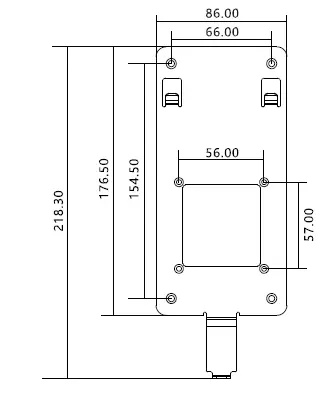
Wall-mounted backplane supports standard Asian back box[junction box (86 x 86mm)] for easy construction and installation.
Wall-mounted backplane supports standard Asian back box[junction box (86 x 86mm)] for easy construction and installation. 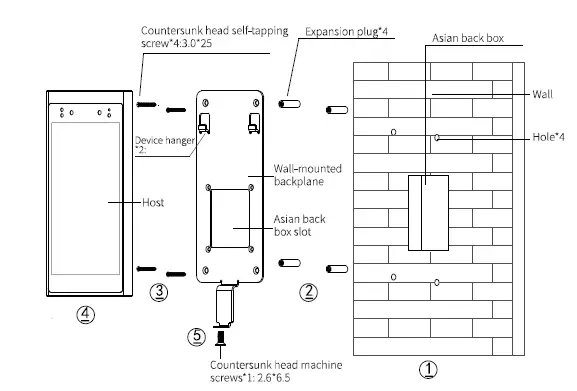
- CD drilling holes on the wall
- screwing in expansion plug
- installing backplane on the wall
- hanging host on the backplane
- Wall-mounted backplane
Note: Pis refer to speed gate and vertical installation description manual for more detail.
Software Introduction
Account Application
Please ensure you have a Senselink Cloud platform enterprise account before proceeding. If you do not have an account, please contact [email protected] for support.
The default initial login password is ‘adminl234’ for the enterprise account, please change your password at your first login.
Please refer to our website for more details.
https://link.bi.sensetime.com/docs/
Login and registration
login
- Switch on the SensePass. Ensure internet connectivity is available. Input Senselink Enterprise account and password if this is your first login. There will be an error prompt if login fails.
 Figure 1-1 Login
 - The default server selection is Senselink Public Cloud. In this case,you can log in directly t otheSenselinkaccount. lf you need to use the private cloud server, you will need to click the settings button in the upper right corner to configure the private cloud server address and log in again.
- Server IP address change: To change the server IP address, you need to exit the APP to enter the login page, click the configuration button in the upper right corner of the login page to change the address.
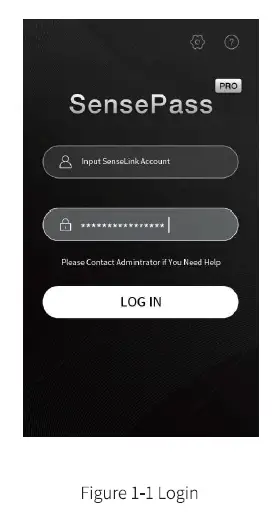 Figure 1-1 Login
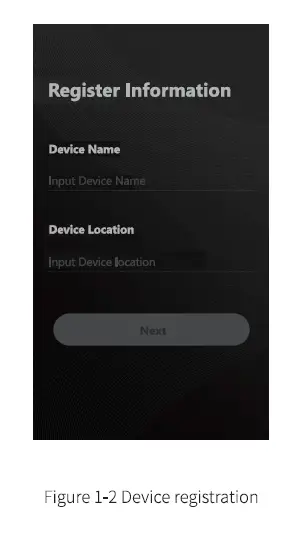
Device registration
- After the first login, you need to register the device. Enter the device name (maximum 50 characters, required) and installation location (maximum 50 characters, required)