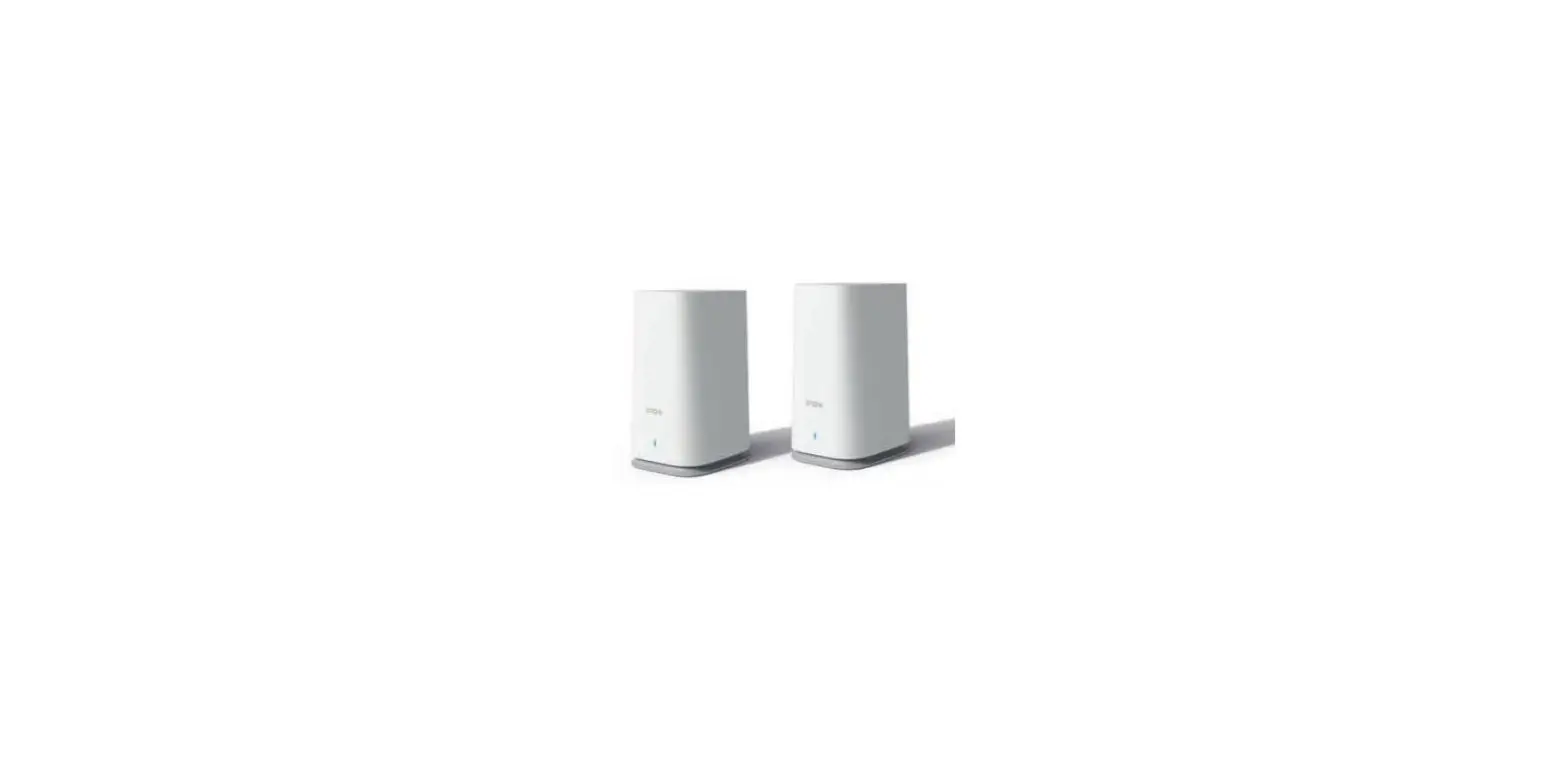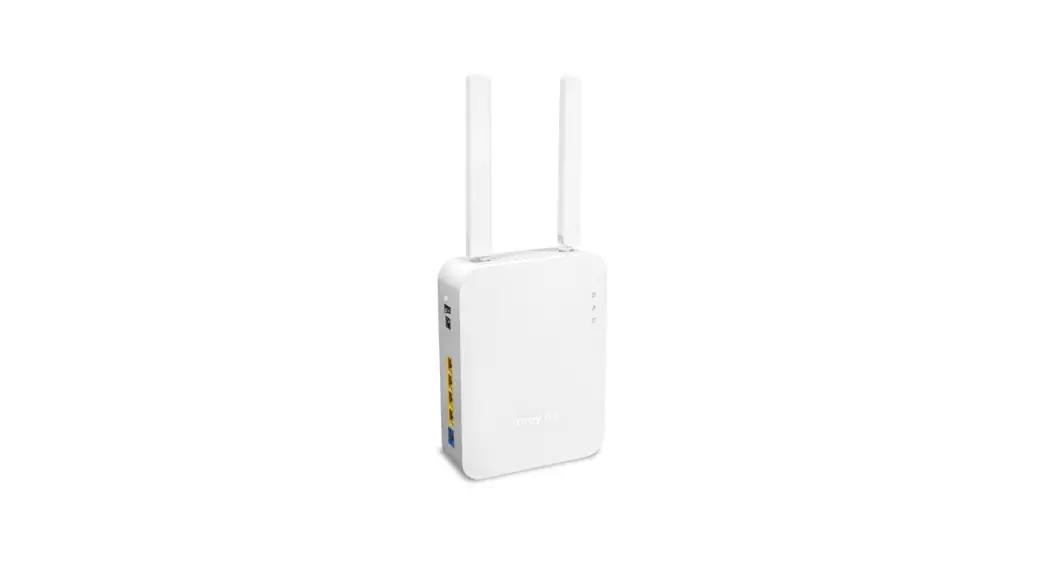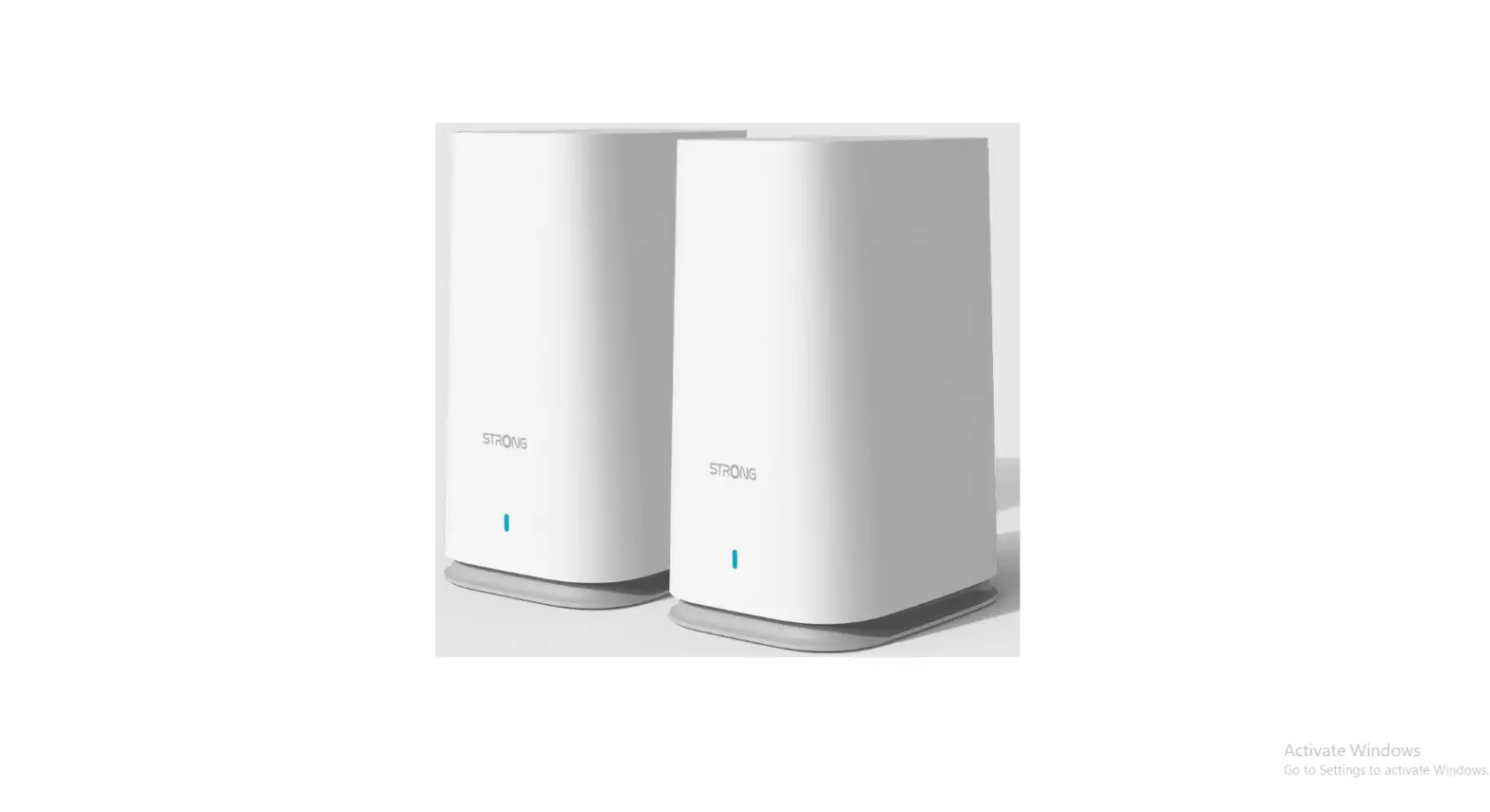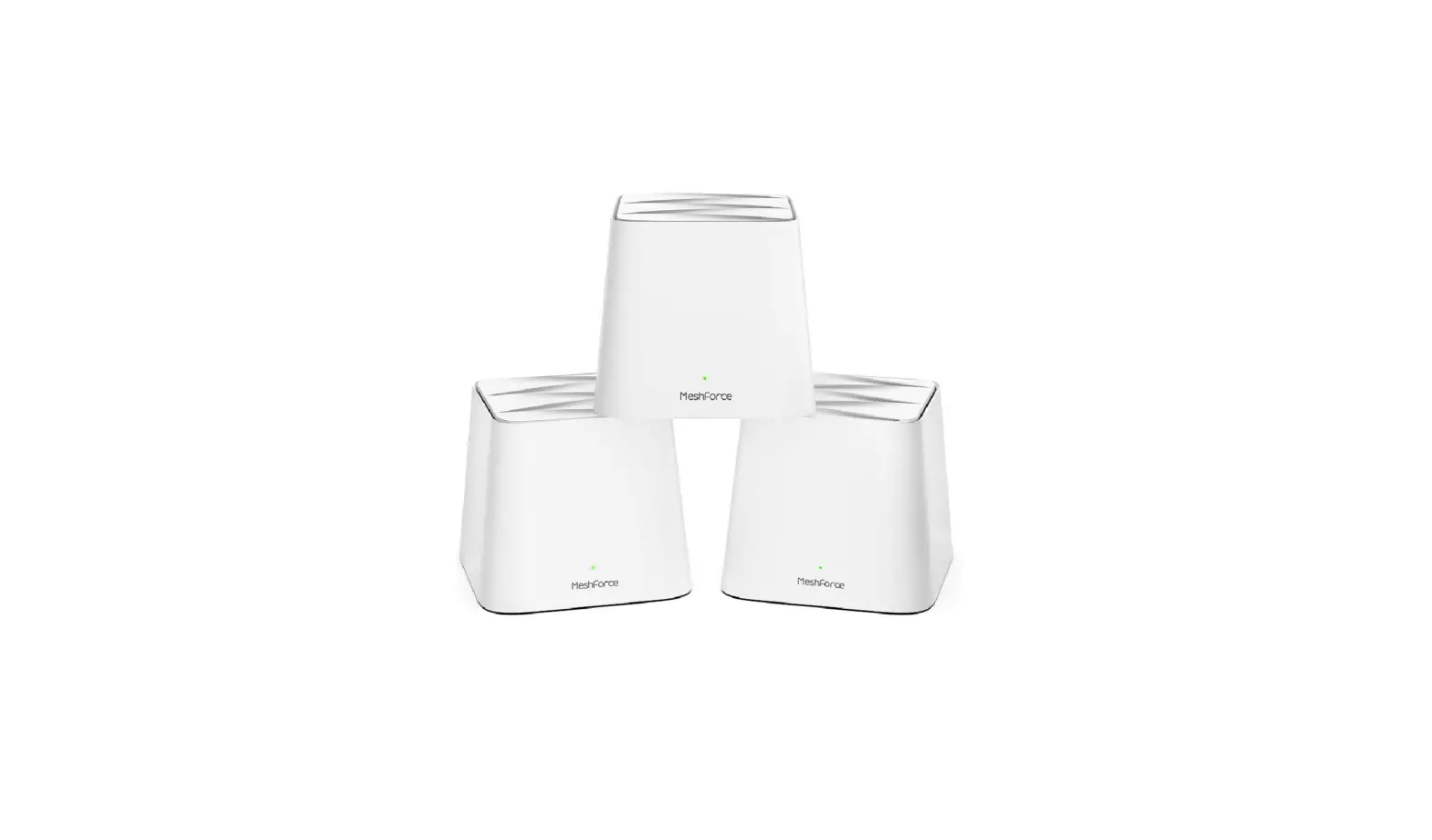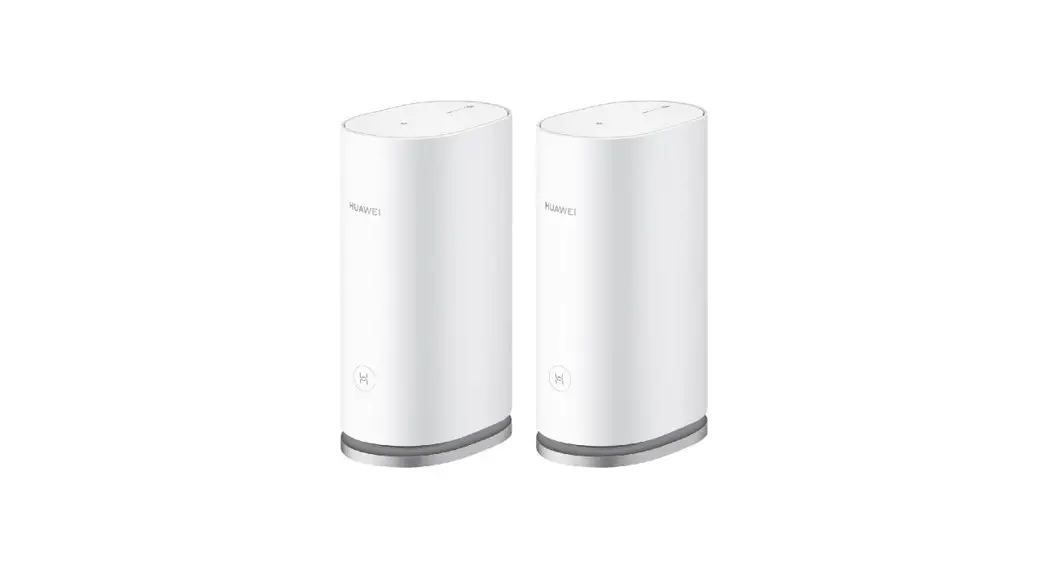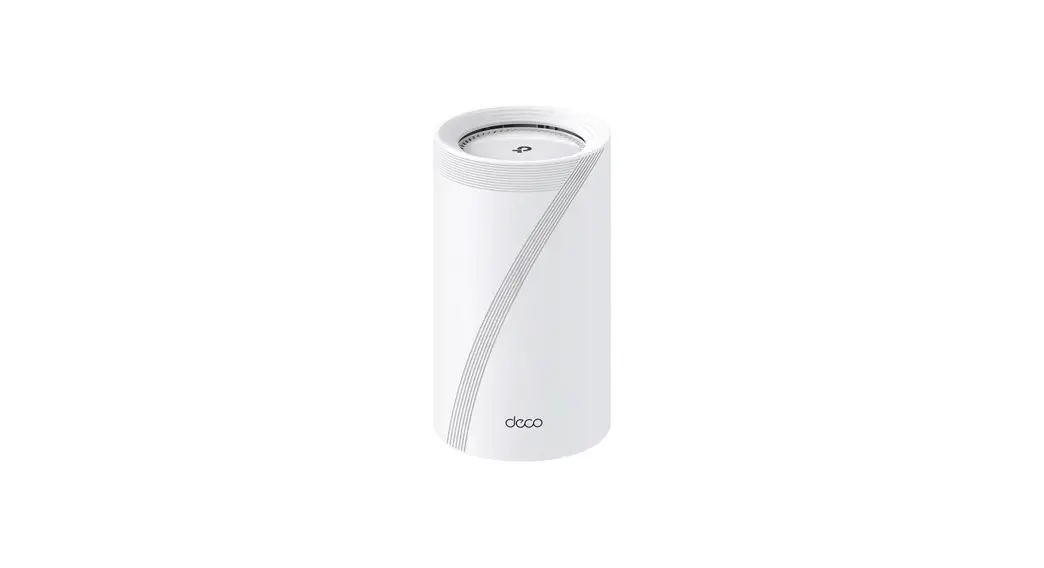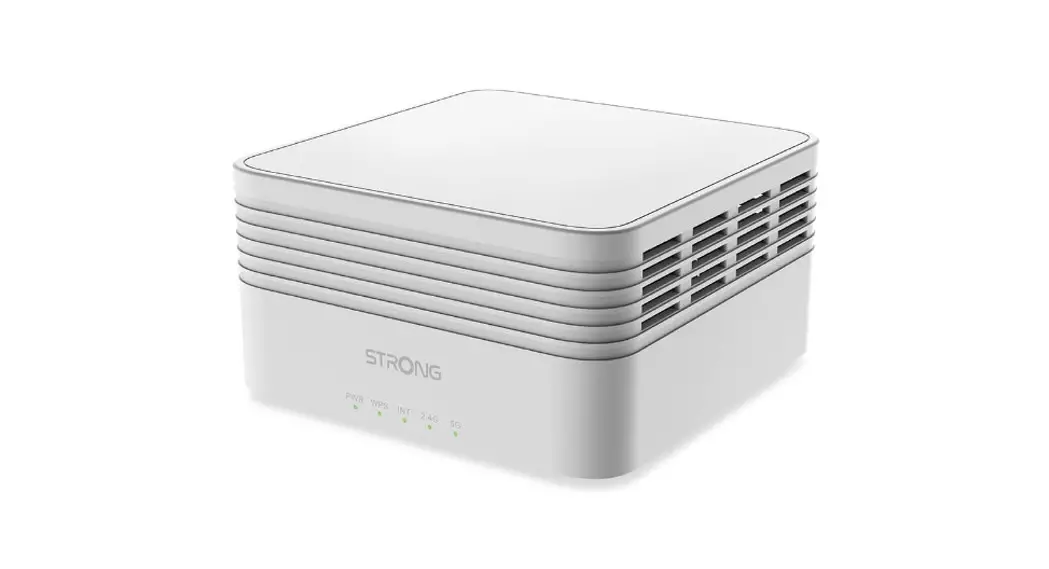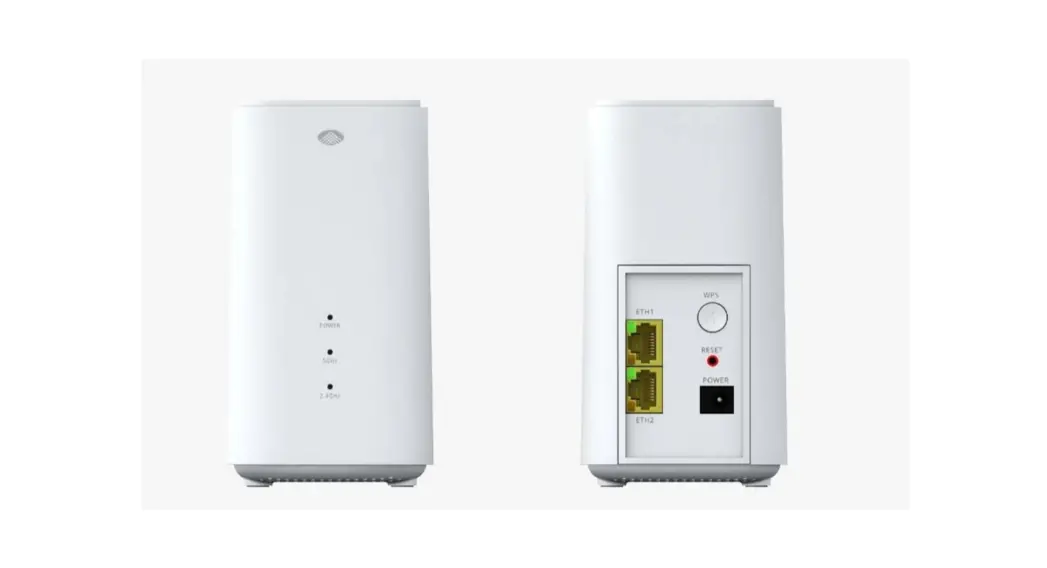
 AP2100W Askey S V7 WiFi Mesh
User Guide
Before You Start
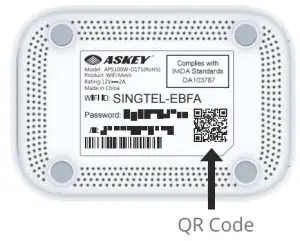
A. Check that you have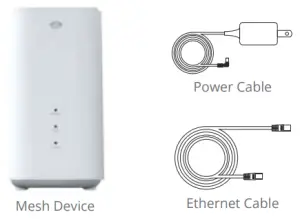 B. Locate the QR Code at the bottom of the device; you will be asked to scan it during installation.
Download & Install the Askey WiFi Mesh App

The Askey WiFi Mesh App is available for iOS® or AndroidTM.
Simply scan the QR Code below to download now!

https://play.google.com/store/apps/details?id=crop.computer.askey.askeymeshwifi
https://itunes.apple.com/us/app/askey-wifi-mesh/id1340061927?l=zh&ls=1&mt=8
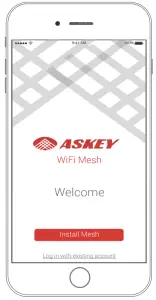
Launch the App and Follow the Installation Instructions
Overview
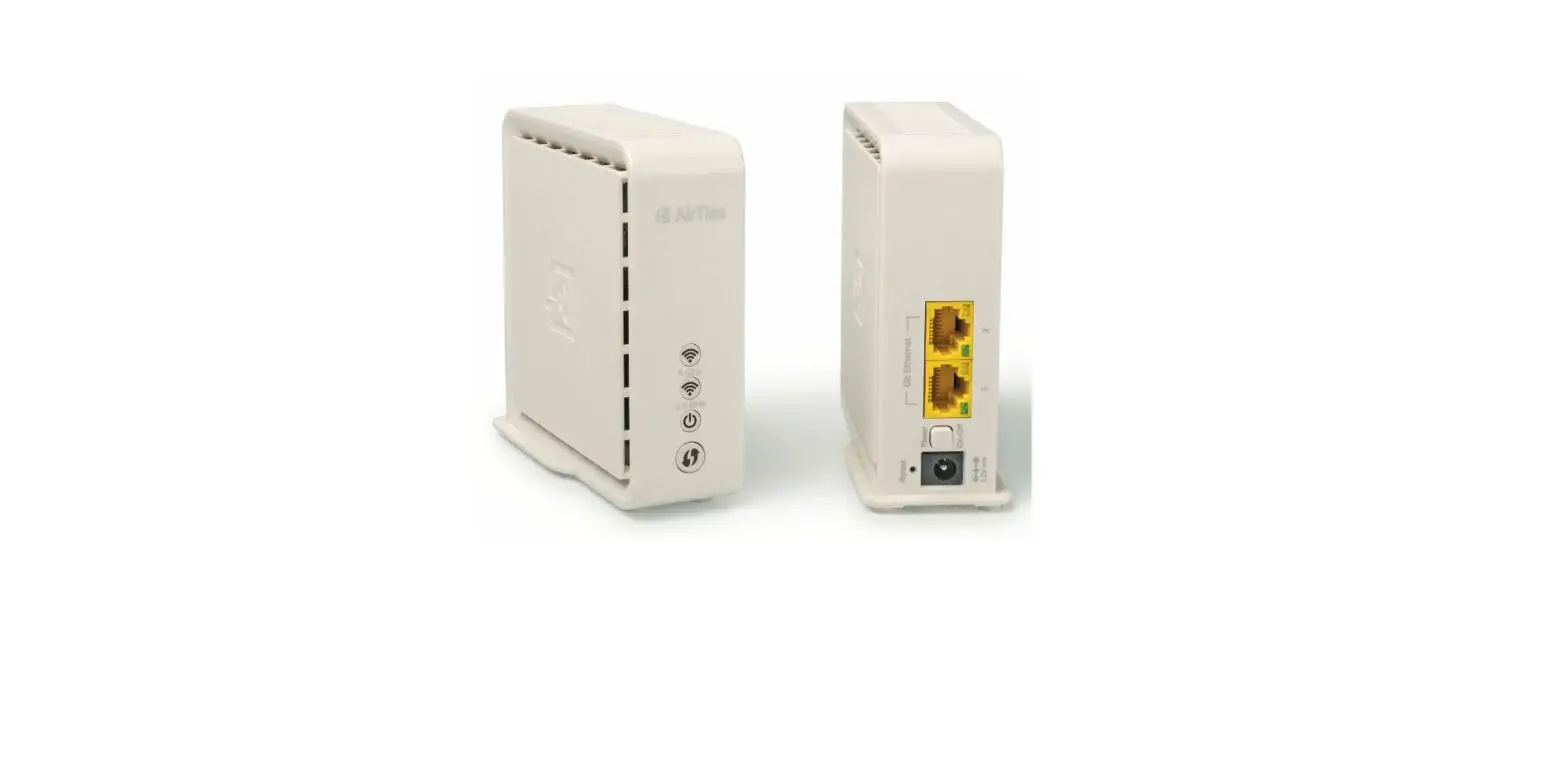
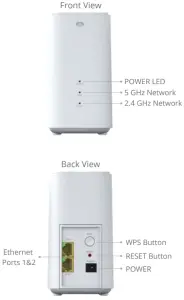
Device Buttons and Indicators
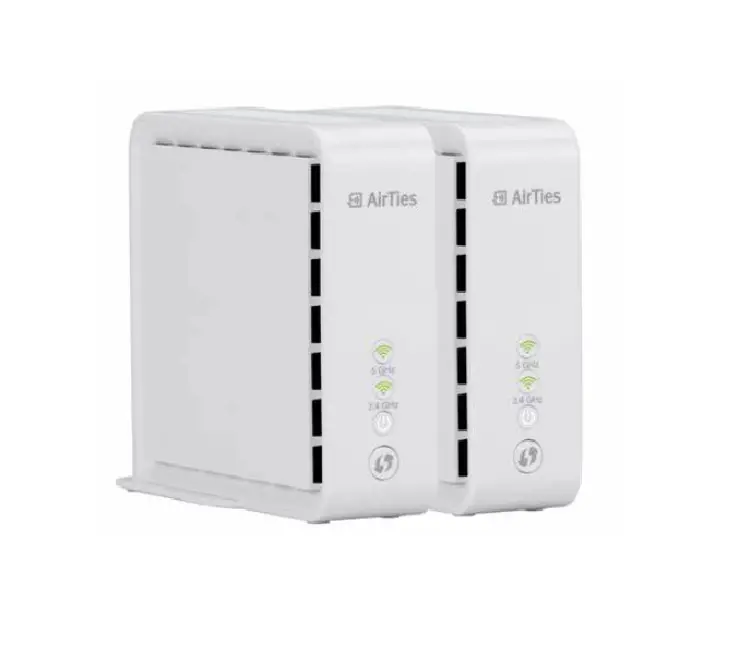
Status Check via LED
When the 5Ghz LED indicator turns RED, it means your Mesh devices are out of range. They are either positioned too far apart or obstructed.
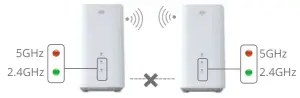
Move your Mesh devices closer to each other or realign to avoid obstacles until the 5Ghz LED indicator turns GREEN.
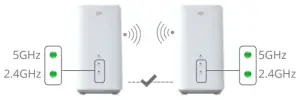
For troubleshooting, please use the Askey WiFi Mesh Apps.