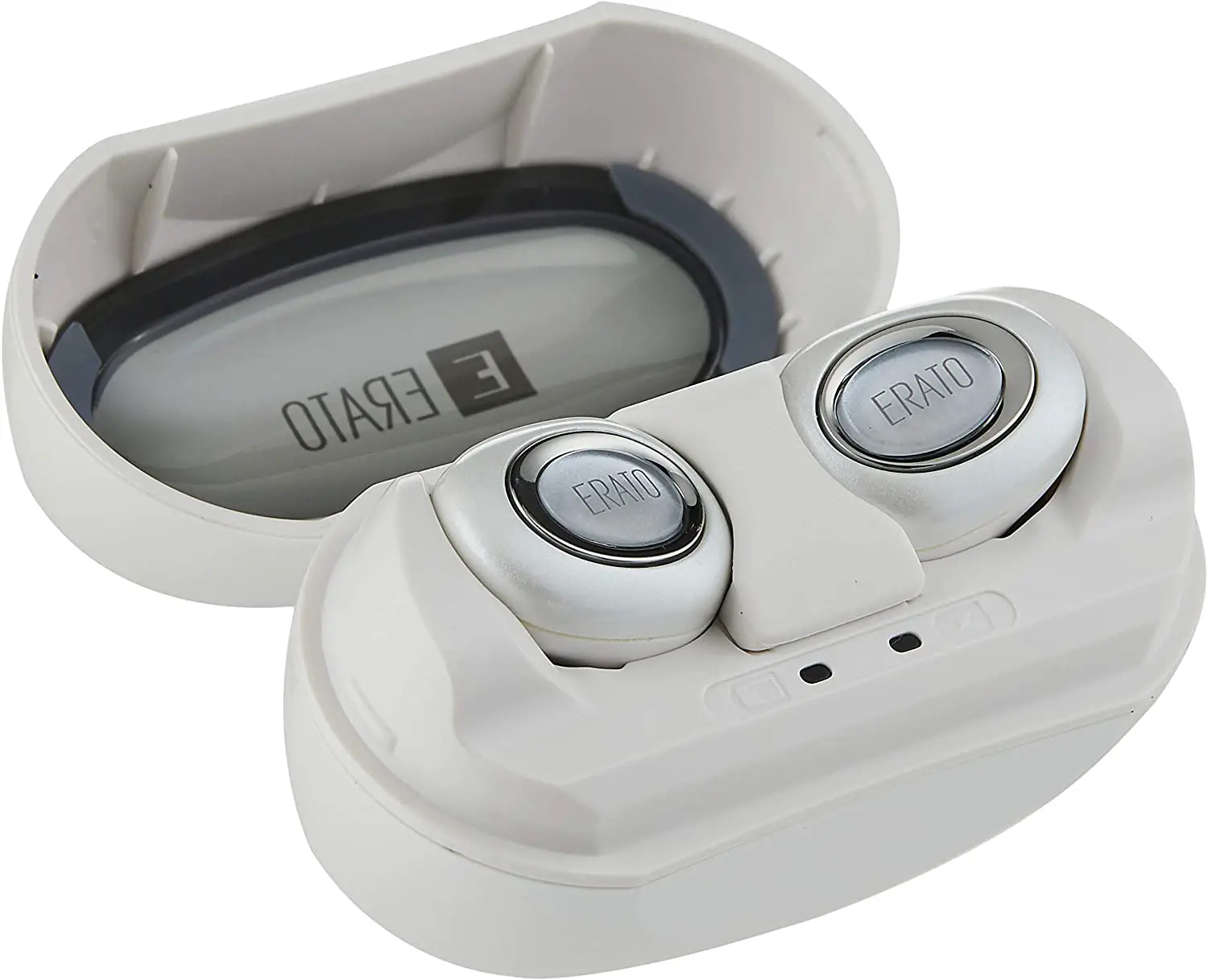
MUSE 5 USER’S MANUAL
BEFORE YOU START
When using for the first time, please fully charge earphones for approx. 2 hours.
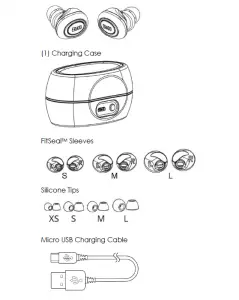
WHAT’S IN THE BOX
Check that all items are included in the package. If items are missing, please contact [email protected].
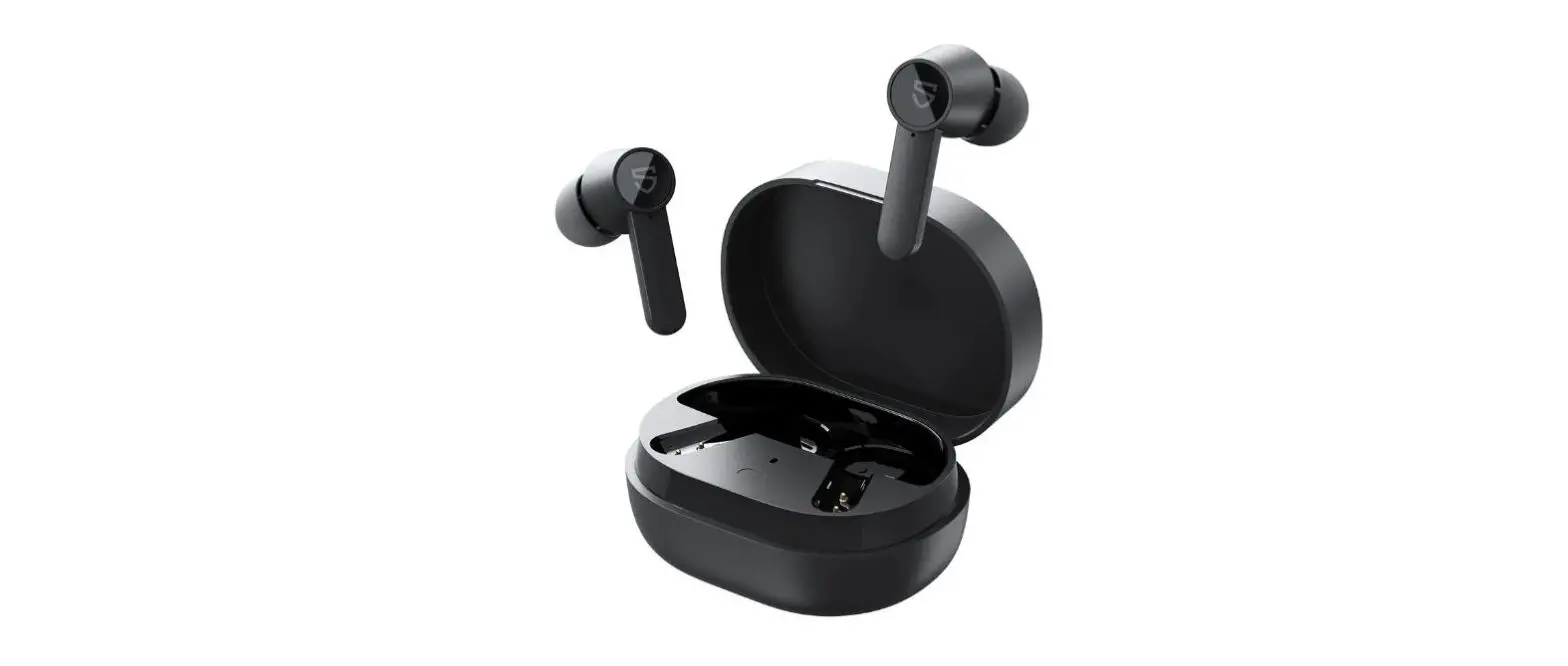
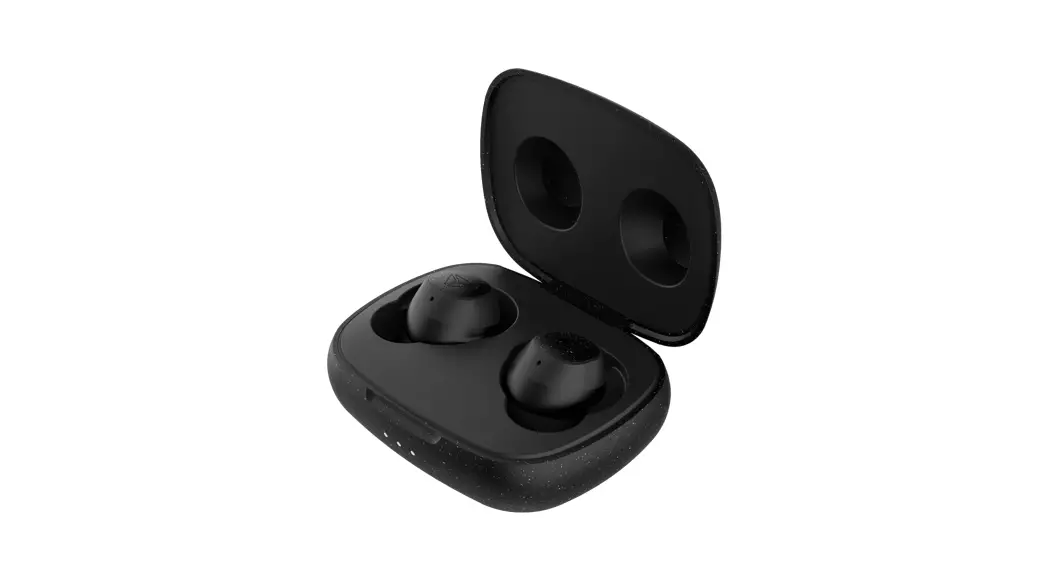
Muse 5 Earphones (L & R Channels)
PERFECT FIT
For the best comfort and sound quality please select the FitSealTM sleeves and silicone tips that best suit your ears. Please match the FitSealTM sleeve to the corresponding earphones, “L” for left and “R” for right.
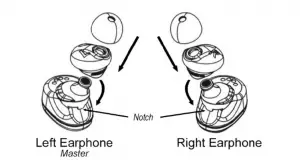
TIP: The FitSealTM sleeve will need to hook under the earphone notch to be secured.
NOTE:
- You may need to try different size combinations for your left and right ear.
- Within the FitSealTM sleeves will notate the various sizes: “S” for small, “L” for large, and blank indicates medium.
WEARING
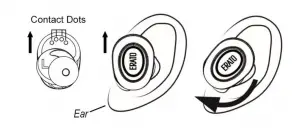
Check both earphones and locate the “R” for right and “L” for left, and take notice of the 4 contact dots. Gently insert one earphone into your ear with the 4 contact dots pointing upwards toward your ear and gently twist the earphone down towards your earlobe, do the same for the second earphone. The fit should be snug and secure in your ear.
CONNECTING
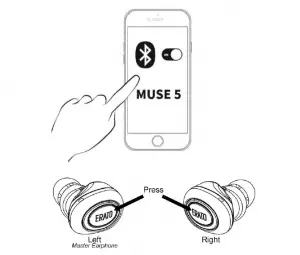
- On your device
• Verify Bluetooth is ON
• Verify Bluetooth is actively scanning for devices. - LEFT earphone, long press button for 5 seconds to start Pairing Mode. Listen for:
 “Power on”“Pairing”
 - On your device select “Muse 5”
- LEFT earphone listen for:“Paired”“Your headset is connected”
- RIGHT earphone, long press button for 2 seconds. Listen for:“Power on” followed by a beep“True wireless stereo connected” – indicating successful pairing to left earphone.
 “Power on”
NOTE: Only the left earphone will connect to your device. The right will connect to the left earphone. Only the left may be used as a single headset.
CONTROLS
The Muse 5 can perform a wide range of functions with just one button on each earphone, you can freely control your device without taking it out of your pocket.
Modes
- Stand-by Mode – When no audio is active or music is paused.
- Media Mode – When music or video are active.
- Hands-free Mode – during a phone conversation only the LEFT earphone will only be active.
Powering On
Pair earphones to device first. See connecting instructions.
- Long press LEFT button for 2 seconds, listen for:“Power on” followed by a single beep“Your headset is connected”
- Long press RIGHT earphone for 2 seconds, listen for:“Power on” followed by a single beep“True wireless stereo connected”
Powering Off
- Insert into charging case and earphones will automatically power off.
- From Stand-by or Hands-free Mode, long press for 2 seconds either LEFT or RIGHT buttons.
Answering Incoming Call
- Press LEFT button once
Rejecting and Ending Call
- Long press LEFT button for 2 seconds
Increase/Decrease Hands-Free Volume
- Can only be adjusted by the host device.
Activating Siri/Google Now (for supported devices only)
- From Stand-by Mode, double press LEFT or RIGHT button
Playing and Pausing Music
- During Media Mode, press LEFT or RIGHT button to play/pause media
Increase/Decrease Media Volume
- Increase: During Media Mode, double press RIGHT button.
A double beep indicates volume is at maximum level.
- Decrease: During Media Mode, double press LEFT button.
- A beep indicates volume is at minimum level.
Next
- Next Song: During Media Mode, long press RIGHT button for 2 seconds
RESTART/PREVIOUS SONG
- Restart/Previous Song: During Media Mode, long press LEFT button for 2 seconds to restart the song, then again to go to the previous song.
TIP: It is recommended to set volume at a moderate level for longer battery life. Using the earphones at a high level will result in shorter battery life.
NOTE:
- For Android: Increasing or decreasing volume on your Muse 5 does not affect your device’s volume, please increase the host device’s volume in conjunction with Muse 5 to desire safe level.
- The Muse 5 is optimized for the latest iOS and Android devices. Functionality will vary from device and app.
ERATOSURROUNDTM
Using DSP (Digital Sound Processing) technology in our true wireless earphones, we can restore the spatial distance missing in traditional earphones. Calibrated with our micro-driver and its acoustic chamber, ERATOSURROUND™ can reduce sound image distortion to create a more accurate sound.
- 3D Normal – simulates surround sound of a typical room
- 3D Wide – simulates surround sound of a concert hall
Changing ERATOSURROUNDTM Modes
From Stand-by Mode, press LEFT button 4 times. The modes will cycle starting from 3D Normal to 3D Wide to 3D Disable.
| Modes | LED Notification/Sound |
| 3D Normal (Default) | 2 red flashes/2 beeps |
| 3D Wide Enable | 3 red flashes/3 beeps |
| 3D Disable | 4 red flashes/4 beeps |
WATCHING VIDEOS
Although the Muse 5 are mainly designed for listening to music, it is compatible with certain iOS and Android apps for watching videos. We use the latest CSR technology and aptX codec in our earphones, however in True Wireless stereo earphones, data has to be transmitted to each earphone simultaneously instead of just once like traditional Bluetooth earbuds. This can cause latency during video playback on devices and apps.
To improve latency, disable ERATOSURROUNDTM by changing mode to 3D Disable for a better viewing experience. See instructions above.
*Results will vary from device and app.
CHARGING
To charge your charging case, simply insert the micro USB cable into the back of the charging case, and the USB into a USB power supply (not included).
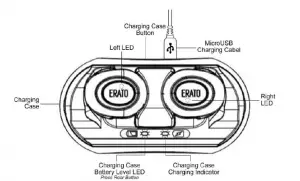
- Earphones: 4 hours of media playtime/ 6 hours talk time
- Charge time: approx. 2 hours to fully charge earphones and charging case
- Charging case capacity: 2 full charges for both earphones while on the go
LED INDICATORS
Earphones
| Actions | LED Notifications |
| Powering on | Left earphone: Flashes blue once Right earphone: Flashes red once |
| Pairing mode | Flashes red and blue alternating |
| Searching for device | Flashes red twice / 10 sec interval |
| Powering off | Flashes once purple |
| Stand-by mode | Flashes blue 3 times / 5 sec interval |
| Media/Hands-free mode | Flashes twice blue/ 10 sec interval |
| Incoming call | Constantly flashes blue |
| Charging | Steadily flashes red |
| Fully charged | Stays blue for 1 minute |
Charging Case
| Actions | LED Notifications |
| Charging | Steadily flashes red |
| Fully charged | LED powers off |
| Battery indicator button | Blue LED: fully charged Red LED: 30% or less charged |
RE-SYNCING EARPHONES
In cases where your RIGHT earphone does not automatically pair to the LEFT (master) earphone.
- Long press LEFT button for 5 seconds to enter Pairing Mode. Listen for voice prompts and look for red and blue flashing LEDs.
- Long press RIGHT button for 10 seconds. Listen for 2 beeps and look for red and blue flashing LEDs.
- Press LEFT button 3 times.
- Press LEFT button 3 times, again.
- Listen for voice prompt and look for 3 flashing blue LEDS for successful pairing.
FACTORY RESET
Erases all Bluetooth profiles and reset back to factory specification.
- Long press LEFT button for 5 seconds to enter Pairing Mode.
- Double press LEFT button and listen for 2 beeps.
CARING FOR YOUR MUSE 5
- Avoid storing your earphones in extreme temperatures (below -10°C/14°F or above 65°C/149°F) or high humidity, which may shorten the battery life and damage the earphones/charging case.
- Always store your earphones in the protective charging case.
- Please routinely clean and maintain FitSealTM and silicone tips.
Specifications
| Bluetooth Version | 4.1 |
| Bluetooth Profile | A2DP 1.2, AVRCP 1.4, HFP 1.6, HSP 1.2 |
| Supported Audio Codecs | aptX / AAC / SBC |
| Bluetooth Range from Device | 10 meters (30 feet) |
| Battery Capacity | 100 mAh (per earphone) 700 mAh (charging case) |
| Earphone Driver Size | Ø 5.8mm |
| Sensitivity | 101dB @ 1kHz |
| Frequency | 20Hz ~ 20KHz |
| Impedance | 16 Ohm |
| MEMS Omni Direction Microphone Input Sensitivity | -42dB(±3dB) |
| Waterproof | Nano Coating IPX5 |
| Dimensions | Earphones: 25.2mm(L) x 20mm(D) x 30mm(H) Charging case: 78.1mm(L) x 39.2mm(D) x 39.77mm(H) |
| Weight | Earphones 8.5g x 2 Charging case 46g |
Read More About This Manual & Download PDF:
ERATO Muse 5 True Wireless 3D Surround in-Ear Bluetooth Earphones User Manual – Optimized PDF
ERATO Muse 5 True Wireless 3D Surround in-Ear Bluetooth Earphones User Manual – Original PDF