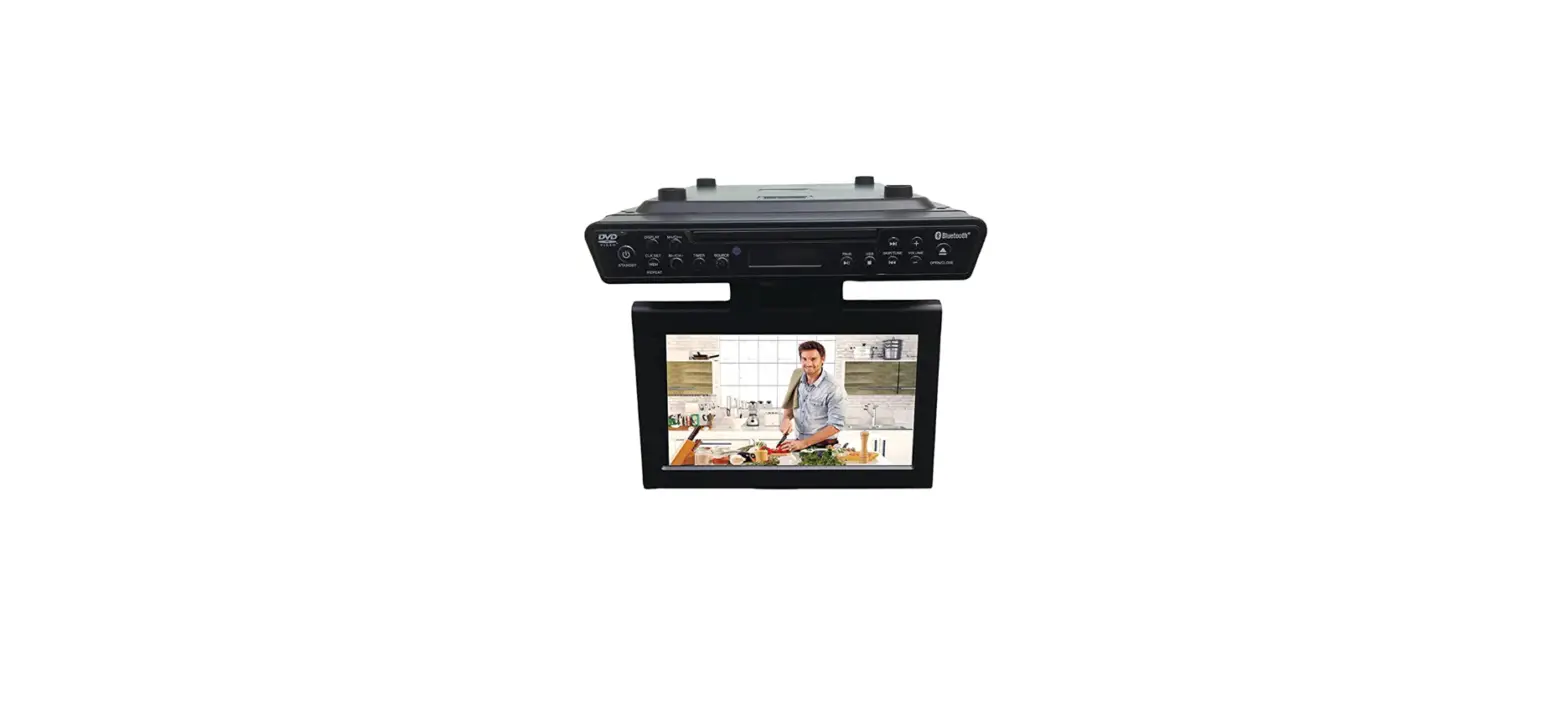
 SYLVANIA SKCR2706BT 10.2 Under-Counter Bluetooth
 SYLVANIA SKCR2706BT 10.2 Under-Counter Bluetooth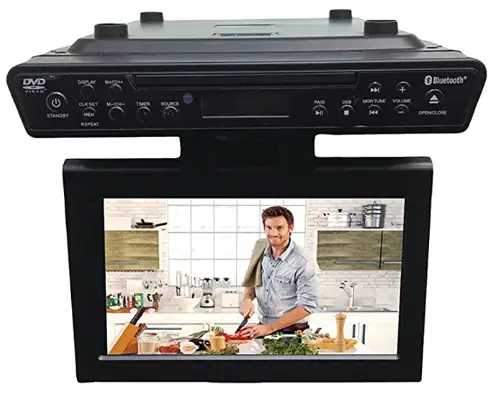
Warnings and Precautions
TO PREVENT FIRE OR SHOCK HAZARDS, DO NOT EXPOSE THIS UNIT TO RAIN OR MOISTURE.
This symbol, located on the back or bottom of the unit, is intended to alert the user to the presence of uninsulated “dangerous voltage” within the product’s enclosure that may be of sufficient magnitude to constitute a risk of electric shock to persons.
This symbol, located on the back or bottom of the unit, is intended to alert the user to the presence of important operating and maintenance (servicing) instructions inthe literature accompanying the appliance.
This product utilizes a Class 1 laser to read Compact Discs. This laser Compact Disc Player is equipped with safety switches to avoid exposure when the CD dooris open and the safety interlocks are defeated. Invisiblelaser radiation is present when the CD Player’s lid is open and the system’s interlock has failed or been defeated. It is very important that you avoid direct exposure to the laser beam at all times. Please do not attempt to defeat or bypass the safety switches.
CAUTION
TO PREVENT ELECTRIC SHOCK, MATCH WIDE BLADE OF PLUG TO WIDE SLOT, FULLY INSERT.
To reduce the risk of electric shock, do not remove cover (or back). There are no user-serviceable parts inside. Please refer any servicing to qualified service personnel.
WARNING Changes or modifications to this unit not expressly approved by the party responsible for compliance could void the user’s authority to operate
the equipment.
Do not mix old and new batteries.
Do not mix alkaline, standard (carbon-zinc), or rechargeable (ni-cad, ni-mh, etc) batteries.
NOTE
This equipment has been tested and found to This device complies with part 15 of the FCC rules. operation is subject to the following two conditions:
- This device may not cause harmful interference, and
- this device must accept any interference received, including interference that may cause undesired operation. comply with the limits for a Class B digital device, pursuant to Part 15 of the FCC Rules.
These limits are designed to provide reasonable protection against harmful interference in a residential installation. This equipment generates, uses, and can radiate radio frequency energy and, if not installed and used in accordance with the instructions, may cause harmful interference to radio communications. However, there is no guarantee that interference will not occur in a particular installation. If this equipment does cause harmful interference to radio or television reception, which can be determined by turning the equipment off and on, the user is encouraged to try to correct the interference by one or more of the following measures:
- Reorient or relocate the receiving antenna.
- Increase the separation between the equipment and the receiver.
- Connect the equipment to an outlet on a circuit different from that to which the receiver is connected.
- Consult the dealer or an experienced radio/TV technician for help.
Important Safety Instructions
- Read Instructions – All the safety and operating instruction should be read before the product is operated.
- Retain Instructions – The safety and operating instruction should be retained for future reference.
- Heed Warnings – All warning on the product and in the operating instructions should be adhered to.
- Follow instructions – All operating and use instructions should be followed.
- Cleaning – Unplug this product from the wall outlet before cleaning. Do not use liquid cleaners or aerosol cleaners. Clean only with a dry cloth.
- Attachments – Do not use attachments not recommended by the product manufacturer as they may cause hazards.
- Water and Moisture – Do not use this product near water – for example, near a bathtub, wash bowl, kitchen sink, or laundry tub; in a wet basement, or near a swimming pool, and the like. The apparatus shall not be exposed to dripping or splashing and no objects filled with liquids, such as vases, shall be placed on the apparatus.
- Accessories – Do not place this product on an unstable cart, stand tripod, bracket, or table. The product may fall, causing serious injury to a child or adult, and serious damage to the product. Use only with a cart, stand, tripod, bracket, or table recommended by the manufacturer, or sold with the product. Any mounting of the product should follow the manufacturer’s instructions and should use a mounting accessory recommended by the manufacturer.
- A product and cart combination should be moved with care. Quick stops, excessive force, and uneven surfaces may cause the appliance and cart combination to overturn.
- Ventilation – Slots and openings in the cabinet are provided for ventilation and to ensure the reliable operation of the product and to protect it from overheating and these openings must not be blocked or covered. The openings should never be blocked by placing the product on a bed, sofa, rug, or another similar surface. This product should not be placed in a built-in installation such as a bookcase or rack unless proper ventilation is provided or the manufacturer’s instructions have been adhered to.
- Power Sources – This product should be operated only from the type of power source indicated on the marking label. If you are not sure of the type of power supply to your home, consult your product dealer or local power company. For products intended to operate from battery power, or other sources, refer to the operating instruction.
- Grounding or Polarization – This product may be equipped with a polarized alternatingcurrent line plug (a plug having one blade wider than the other). This plug will fit into the power outlet only one way. This is a safety feature. If you are unable to insert the plug fully into the outlet, try reversing the plug. If the plug should still fail to fit, contact your electrician to replace your obsolete outlet. Do not defeat the safety purpose of the polarized plug. Alternate Warnings – This product is equipped with a three-wire grounding-type plug, a plug having a third (grounding) pin. This plug will only fit into a grounding-type power outlet. This is a safety feature. If you are unable to insert the plug into the outlet, contact your electrician to replace your obsolete outlet. Do not defeat the safety purpose of the grounding-type plug.
- Power-Cord Protection – Power supply cords should be routed so that they are not likely to be walked on or pinched by items placed upon or against them, paying particular attention to cords at plugs, convenience receptacles, and point where they exit from the product.
- Protective Attachment Plug – The product is equipped with an attachment plug having overload protection. This is a safety feature. See Instruction Manual for replacement or resetting of protective device. If replacement of the plug is required, be sure the service technician has used a replacement plug specified by the manufacturer that has the same overload protection as the original plug.
- Outdoor Antenna Grounding – If an outside antenna is connected to the receiver, be sure the antenna system is grounded so as to provide some protection against
voltage surges and built-up static charges. Article 810 of the National Electrical Code, ANSI/NFPA 70, provides information with regard to proper grounding of the mast and supporting structure, grounding of the mast and supporting structure, grounding of the lead-in wire to an antenna-discharge unit, size of grounding conductors, location of antenna discharge unit, connection to grounding electrodes, and requirements for the grounding electrode. - Lightning – For added protection for this product during a lightning storm, or when it is left unattended and unused for long periods of time, unplug it from the wall outlet and disconnect the antenna or cable system. This will prevent damage to the product due to lightning and power-line surges.
- Power Lines – An outside antenna system should not be located in the vicinity of overhead power lines or other electric light or power circuits, or where it can fall into such power lines or circuits. When installing an outside antenna system, extreme care should be taken to keep from touching such power lines or circuits as contact with them might be fatal.
- Overloading – Do not overload wall outlets, extension cords, or integral convenience receptacles as this can result in a risk of fire or electric shock.
- Object and Liquid Entry – Never push objects of any kind into this product through openings as they may touch dangerous voltage points or short-out parts that could result in a fire or electric shock. Never spill liquid of any kind on the product.
- Servicing – Do not attempt to service this product yourself as opening or removing covers may expose you to dangerous voltage or other hazards. Refer all servicing to qualified service personnel.
- Damage Requiring Service – Unplug this product from the wall outlet and refer servicing to qualified service personnel under the following conditions:
- When the power-supply cord or plug is damaged,
- If liquid has been spilled, or objects have fallen into the product,
- If the product has been exposed to rain or water,
- If the product does not operate normally by following the operating instructions.
Adjust only those controls that are covered by the operating instructions as an improper adjustment of other controls may result in damage and will often require extensive work by a qualified technician to restore the product to its normal operation. - If the product has been dropped or damaged in any way, and
- When the product exhibits a distinct change in performance – this indicates a need for service.
- Replacement Parts – When replacement parts are required, be sure the service technician has used replacement parts specified by the manufacturer or have the same characteristics as the original part. Unauthorized substitutions may result in fire, electric shock, or other hazards.
- Safety Check – Upon completion of any service or repairs to this product, ask the service technician to perform safety checks to determine that the product is in proper operating condition.
- Wall or Ceiling Mounting – The product should be mounted to a wall or ceiling only as recommended by the manufacturer.
- Heat – The product should be situated away from heat sources such as radiators, heat registers, stoves, or other products (including amplifiers) that produce heat. The battery shall not be exposed to excessive heat such as sunshine, fire, or the like. The main plug is used a disconnect the device and it should remain readily operable during intended use. In order to disconnect the apparatus from the mains completely, the mains plug should be disconnected from the mains socket outlet completely.
- Excessive sound pressure from earphones and headphones can cause hearing loss.
ACCESSORIES
Before you start setting up please make sure you have all the accessories in the box.
- User Manual
- Power Adapter
- Remote Control
- Mounting Bolts & Spacers
- Cable Pack
- Mounting Template
TV FRONT VIEW & INPUT CONNECTIONS
Front view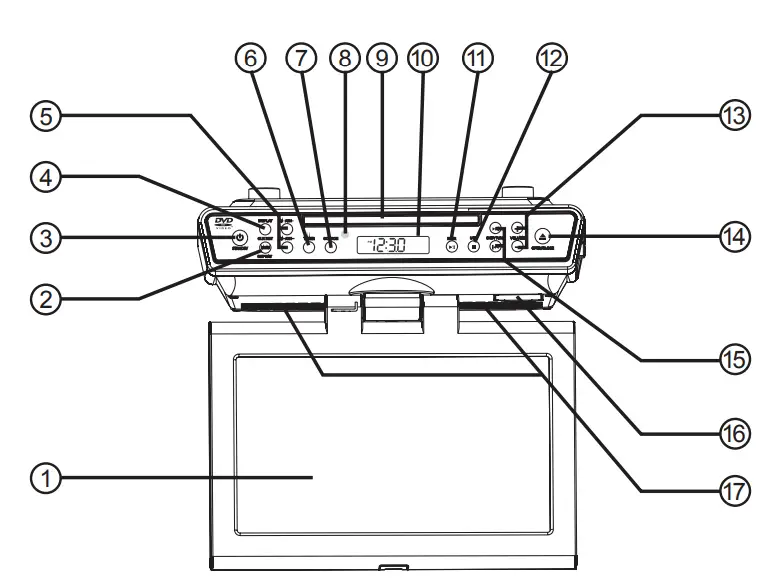
- LED SCREEN 10” screen size display.
- CLK SET / MEM / REPEAT Press to set the clock or save a radio station or choose repeat mode.
- STANDBY Press to power the system on or off.
Press this button to show the clock a few time on the LCD display.
Press to choose one of the program numbers in radio mode. - DISPLAY
- M+/CH+, M-/CH-
- TIMER Press to set the countdown timer.
- SOURCE Press to switch to DVD/USB, TV, Bluetooth, Radio, HDMI, AV, LINE IN in modes.
- REMOTE SENSOR Detected the command signal from remote control.
- DISC COMPARTMENT
- LCD DISPLAY
- PLAY/ PAUSE, PAIR Press to play or pause a loaded DVD, USB or Bluetooth.
- STOP/USB In DVD Mode, Press and hold to switch USB mode.In DVD or
USB Mode, press to stop during play. - VOLUME+, VOLUME- Press to increase or decreasing the volume.
- OPEN/CLOSE When in DVD mode,press this botton to open/close the disc compartment door.
- SKIP+/TUNE+, SKIP-/TUNE-Press to go forward or go back chapter.
- BATTERY COMPARTMENT Insert 2 AA size batteries (not included) for backup the clock and radio presets are preserved.
- SPEAKERS
INPUT CONNECTIONS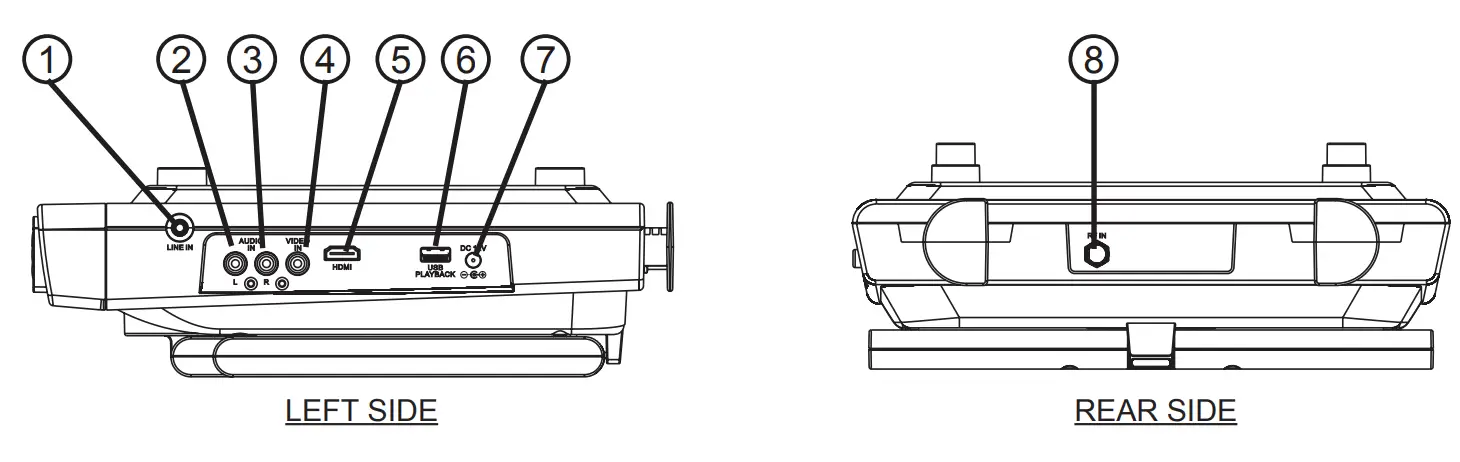
- LINE IN Connected to an external device by 3.5mm stereo plug audio input cable (not included).
- AUDIO L. IN C omposite Audio Left-White
- AUDIO R. IN C omposite Audio Right-Red
- VIDEO IN Composite Video-Yellow
- HDMI PORT
- USB PORT
- DC 12V
- RF IN
REMOTE CONTROL
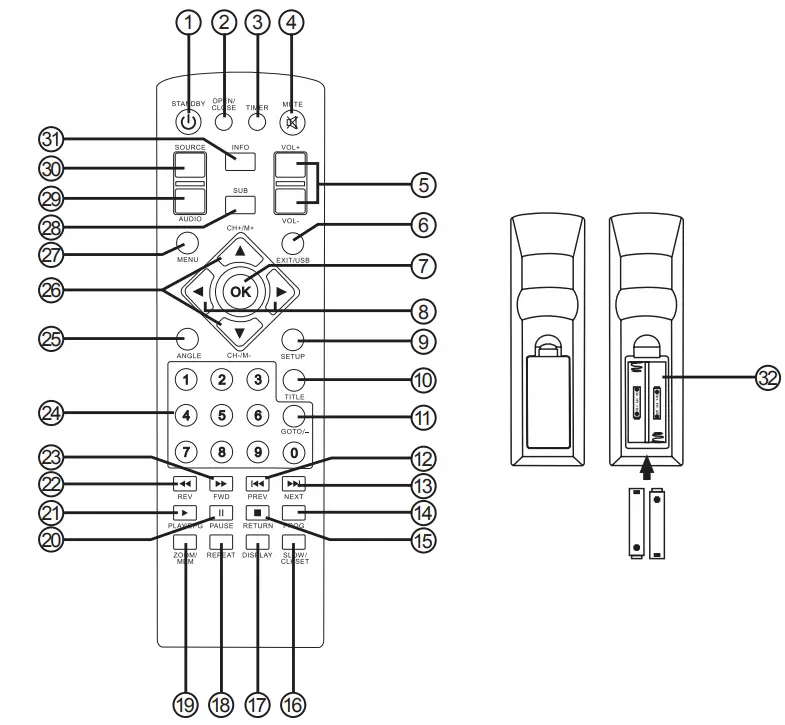
- STANDBY For switching On or switching Off.
- OPEN/CLOSE When in DVD mode, press this botton to open/close the disc compartment door.
- TIMER Press to set the countdown timer.
- MUTE Press to turn off or on the sound.
- VOL +/- Press to increasing or decreasing the volume.
- EXIT/USB In DVD Mode, press to switch USB mode.
- OK Select/Confirm: For selecting a Menu or confirm a selected Option.
Under DTV and TV Mode press once to display the Channels List. - Press to choose one of items on-screen and to adjust one of its related values.
- SETUP In DVD Mode and TV Mode, press to access DVD/TV system menu.
- TITLE In DVD Mode, press to shows the title of the disk.
- GOTO In DVD and USB Mode, press to show the operation icon of the disk.
- In DVD and USB Mode, this button will move you back to playB the previous program in you list.
- In DVD and USB Mode, this button will move you forward to play the next program in you list.
- PROGRAM In DVD or USB Mode, press to come into program status.
- RETURN In DVD and USB Mode, you can stop items playing that you have previously recorded.
- SLOW/CLKSET Press to enjoy the slow motion at a 1/2x, 1/3x, 1/4x, 1/5x, 1/6x, 1/7x, normal. In STANDBY Mode, press and hold to set the clock.
- DISPLAY Press to display the clock time information 2 seconds.
- REPEAT For DVD disc playing, press to repeat title, chapter, all or close repeat. For USB mode playing, press to repeat1, dir,all or close repeat.
- ZOOM/MEM DVD Mode, the picture may be enlarged by up to 4 itemspicture. Press this button repeatedly, the zoom scales will be 2x, 3x, 4x, 1/2, 1/3, 1/4, OFF.In FM Mode, press to save the radio station.
- In DVD and USB Mode, you can pause items that are playing that you recorded previously.
- In DVD and USB Mode, press this button will start to play the programme.
- In DVD and USB Mode, press this button will start to fast rewind motion at a x2, x4, x8 and x20 speed.
- In DVD and USB Mode, press this button will start to fast forward motion at a x2, x4, x8 and x20 speed.
- 0–9 Press to enter the title/chapters numbers, etc.
- ANGLE During athletic match, contect or the atrecal program, press this button continually on remote controller to select various angle to view the same image (this operation works only for the disc with multi angle encoded).
- Press to choose one of items on-screen and to change its values.
- MENU In DVD Mode, press to return to the MENU.
In TV Mode, press to open and close the MENU. - SUB This function may enable you to select multi subtitle language.
- AUDIO Press this button to select Stereo, Mono L, Mono R, Mix Mono, audio output in USB Mode.
- SOURCE Press this botton repeatedly to switch through the modes:
DVD/USB, TV, Bluetooth, Radio, HDMI, AV, LINE IN. - INFO
- Batteries installation
OPERATING INSTRUCTIONS
POWER CONNECTION
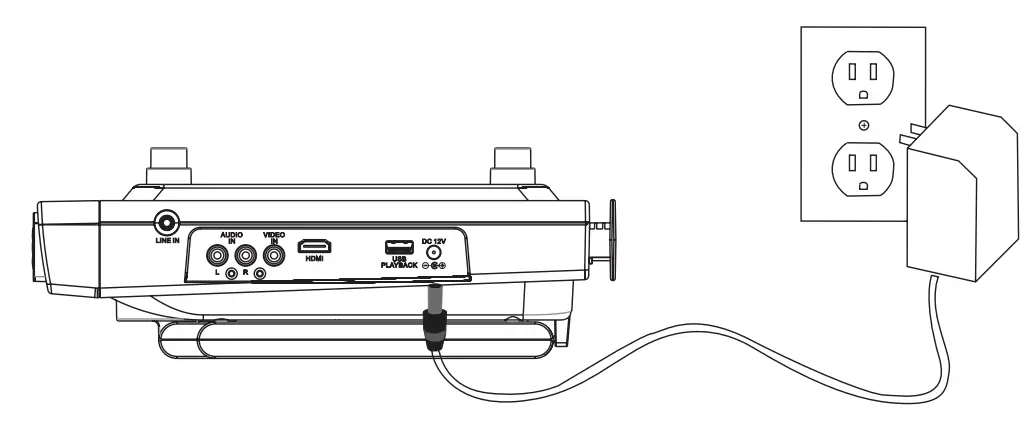
This product operates on 120V~ 60Hz power supply. Plug the AC Adaptor into a household outlet AC source.
CONNECTING THE AC ADAPTER
- Insert the DC plug of the AC adapter (included) into the DC Jack of the unit.
- Fully insert the blades of the AC adapter (included) into the slots of a working wall socket as shown.
- The LCD DISPLAY of the unit will show a flashing time of “12:00” prompting you that the time is not valid and needs to be adjusted to the right time as soon as possible.
- After correctly setting up the time (as described in the next section), your unit is now in standby mode.

BATTERY BACKUP
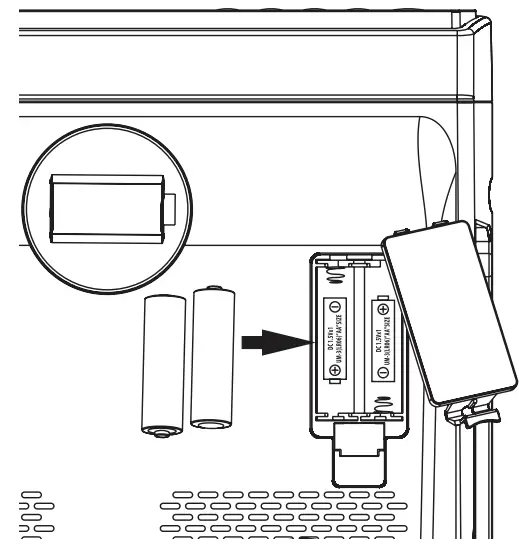
This unit is equipped with a battery back-up system, requiring two DC 1.5V UM-3 type batteries (not included). Insert the battery in the BATTERY COMPARTMENT, making certain that the positive and negative (+ and -) sides are properly aligned. If power failure occurs, the clock automatically switches to the battery power supply, the clock continue running internally and the radio presets are preserved. When power returns, the unit switches back to AC adaptor again.
NOTE: The display will not exhibit time during power failure but the clock will keep correct time internally.
BATTERY CARE
- Use only the size and type of batteries specified.
- If the unit is not to be used for an extended period of time, remove the battery.
- Old or leaking batteries can cause damage to the unit and may void the warranty.
- Do not try to recharge batteries not intended to be recharged; they can overheat and rupture (Follow battery manufacturer’s directions).
- Do not dispose of batteries in fire, batteries may leak or explode.
SETTING THE DIGITAL CLOCK
- In standby mode, press and hold the CLK SET / MEM / REPEAT button.
The hour time digitswill blink. - Press the SKIP / TUNE or buttons to set the current hour. Press and hold the button for fast to setting.Press the CLK SET / MEM / REPEAT button again to confirm and the minute time digits will blink.
- Press the SKIP / TUNE or buttons to set the current minute.
Press and hold the button for fast to setting. - Press the CLK SET / MEM / REPEAT button again and confirm the current time is set.
NOTE:The PM icon will light when the hour is set in the PM
SETTING TIMER
In any mode, press the TIMER button, the TIMER icon with time “180” will displayed and flash.
- Press the TIMER button again, the timer time will count down 10 minute.
Repeat to press this button to adjust the timer in decrements of 10 minutes. - Press the SKIP / TUNE or to adjust the timer in increments/decrements of 1 minute.Press and hold the button for fast to setting.
- After the set time has expired, the under counter music system will alarm.
- To cancel the alarm after it has sounded, press the button.
DVD OPERATION
- Press the DVD OPERATION STANDBY button on the main unit or remote control to turn on the unit.
- Press the SOURCE button on the main unit or remote control repeatedly to select DVD mode and the “dvd” will appear on LCD display and LED screen turn on.
- Press the OPEN/CLOSE button to open the disc compartment, insert disc into the disc compartment
Note: OPEN/CLOSE button only operated in DVD mode. with the title side upwards. - Press again the OPEN/CLOSE button to close the disc compartment and playback automatically.
Note: This unit can identify different disk formats. DVD disk formats which are compatible: CD, CD-R, CD-RW, MP3, MP4, DVD, DVD+/-R, DVD+/-RW.
SETUP
The unit has a separate menu system to set up the DVD playback. When in DVD Mode, press the SETUP button on the remote control to enter the main menu of the system setup.
- When you have entered the menu setup system press the direction button marked or to move the cursor. When in this system you need to setup the following four sections:
- SYSTEM
- DISPLAY
- SOUND
- VIDEO
- Press the direction button or on the System Setup page and move the cursor to the selected item. Press OK to confirm the item selected. Use or to adjust and use SETUP button to return to the previous item.
- On the System Setup page press SETUP button to exit.
SYSTEM
- TV SYSTEM – Choose the TV operating system to suit the playback type. Select from : NTSC / AUTO / PAL.
- SCREEN SAVE – Choose ON to saving the screen.
- ASPECT RATIO – Select from: 16:9 / 4:3PS / 4:3LB
PS: The screen will display the picture in 4:3 ratio leaving a black border to either side of the picture.
LB: The screen will display the picture in a more suitable 16:9 ratio which is more appropriate for this model. - RESUME – Select ON or OFF.
- RESET-Return to Factory default.
DISPLAY
LANGUAGE – Choose the language for the operation system. Select from: ENGLISH / CHINESE / DEUTSH / SPANISH / FRENCH / PORTUGUESE. HORA OSD – Choose the setup menu show on the screen of the time. Select from : 5 seconds / 10 seconds / 30 seconds / 60 seconds / Never. AUDIO LANGUAGE – Choose the language for playing of disks, subject to the DVD being in one of the language listed. Select from: ENGLISH / JAPANESE / FRENCH / SPANISH / PORTUGUESE / LATIN / GERMAN / CHINESE.
SUBTITLE LANGUAGE – Choose the language for on screen subtitles. Subject to the DVD having this feature in one of the language listed. Select from: ENGLISH / JAPANESE / FRENCH / SPANISH / PORTUGUESE / GERMAN / OFF / CHINESE.
MENU LANGUAGE – Choose the language for disc menu, subject to the DVD having this feature in one of the language listed. Select from: ENGLISH / JAPANESE / FRENCH / SPANISH / PORTUGUESE / LATIN / GERMAN / CHINESE.
SOUND
SOUND MODE – Choose the sound effect for playback .
Select from: STANDARD / MUSIC / SPEECH / MOVIE. DOWN MIX – You can select three different audio outputsSTEREO / VSS / LT/RT. DYNAMIC RANGE – Choose dynamic range OFF / 1/8 / 2/8 / 3/8 / 4/8 / 5/8 / 6/8 / 7/8 / FULL.
VIDEO
PICTURE MODE – Choose the picture SOFT / OPTIMAL / STANDARD. COLOR TEMP – STANDARD / WARM / COOL. In DVD Mode, press the USB button on main unit or Remote control to switch between DVD or USB Mode. If Memory Stick inserted the USB port, it can playback automatically. Press PLAY/PAUSE button to pause or STOP button to stop the track.
USB OPERATION
Press/buttons on either the unit or Remote control to select previous or next track and press OK button to confirm.
PROGRAMMING USB PLAYBACK
This unit can be programmed to play up to 16 tracks/files in USB mode. Press the PROGRAM button on remote control to come into program status; using direction button or move the cursor to select the desired track, then press OK button to enter the program lists. When playback the program lists, press or buttons to enter program menu, and press again this button to playback programmed list.
TV OPERATION
How to Navigate Source
- Press the STANDBY button to turn on the unit.
- Press the SOURCE button to repeatedly to select TV mode and the “tv” will appear on LCD display and turn on.

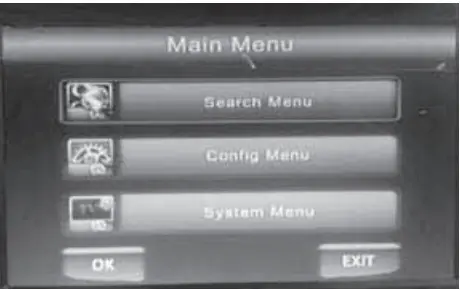
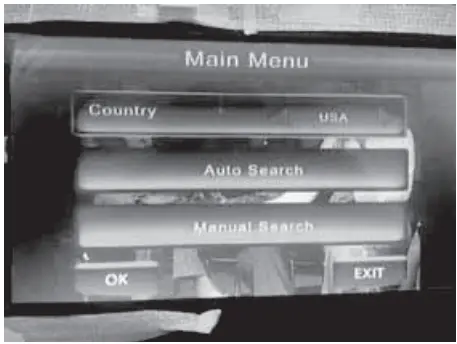
- Press the SETUP button on the remote control to display the Main Menu on LED screen.

TV Channel
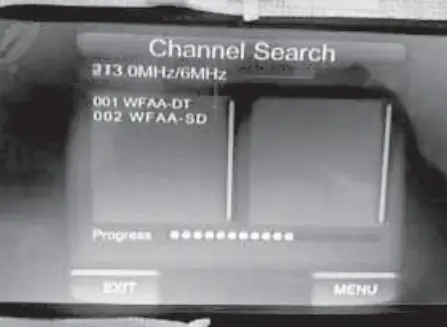
- Press the M+/CH+ or M-/CH- buttons on Main unit or Remote control to select Search Menu, then press OK button to enter the following sub menus.

- Press M+/CH+ or M-/CH-buttonson Main unit or Remote control select Auto Search to scan your available channels and auto-saving.

Picture
- Press the M+/CH+ or M-/CH- buttons on Main unit or Remote control to select Config Menu, then press OK button to enter the following sub menus.

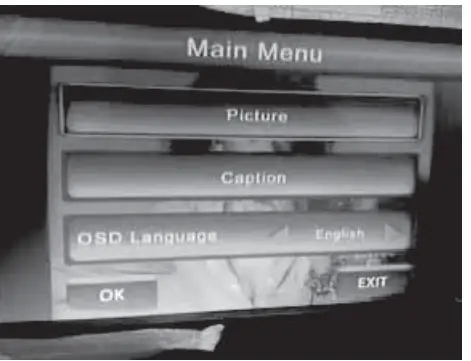
- Press M+/CH+ or M-/CH-buttons on Main unit or Remote control select Picture, then press OK button to enter the following sub menus and press buttons on Remote control to adjust the value in the sub menu.
Aspect Ratio : The LED screen will display the picture in 16:9 Wide screen(Default) /AUTO/ 16:9 Pillar Box / 16:9 Pan & Scan / 4:3 Letter Box / 4:3 Pan & Scan / 4:3 Full ratio leaving a black border to either side of the picture.
TV Format:NTSC type.
(Default) / PAL TV operating system to suit the playback
Caption
- Press the M+/CH+ or M-/CH- buttons on the Main unit or Remote control to select Caption, then press OK button to enter the following sub-menus.
- Press M+/CH+ or M-/CH-buttons on Main unit or Remote control select CC Display, then press OK button to enter the following sub-menus and press the buttons on the Remote control to adjust the value in the sub-menu.
- Press M+/CH+ or M-/CH-buttons on Main unit or Remote control select Auto Search to scan your available channels and auto-saving.
CC Display : Select CC OFF(Default) / CC1 / CC2 / CC3 / CC4 / CC5 /CC6 to displayed on screen.
CC Position: Select AUTO (Default)/ Top / Bottom to displayed on screen.
Font Color :Select Default / White / Black / Red / Green / Blue / Yellow / Magenta / Cyan font colorto displayed on screen.
OSD Language
Choose the language for the operating system.
- Press the M+/CH+ or M-/CH- buttons on Main unit or Remote control to select Config Menu, then press OK button to enter the following sub menus.
- Press M+/CH+ or M-/CH-buttonson Main unit or Remote control select OSD Language, then press OK button to enter the following sub menus and press buttons on Remote control to select English(Default) / French / Portuguese / Spanish from the sub menu.
Restore Factory Default
- Press the M+/CH+ or M-/CH- buttons on Main unit or Remote control to select System Menu, then press OK button to enter the following sub menus.
- Press M+/CH+ or M-/CH-buttons on Main unit or Remote control select Restore Factory Default, then press OK button to enter the following sub menus and press OK button again to confirm restore the TV to factory default settings.
BLUETOOTH OPERATION
ABOUT PAIRING
Pairing is the term used when two Bluetooth devices are connected wirelessly for the first time. This allows the devices to see each other and sets up a one to one communication channel between both devices.
To begin pairing with a Bluetooth device
- Press the STANDBY button to turn on the unit.
- Press the SOURCE button to repeatedly to select Bluetooth mode and the icon will displayed and flash on LCD, you will start pairing process to connect to your Bluetooth device.
- Turn on Bluetooth function of your device and enable the search or scan function to find SKCR2706BT-B (see your device’s instructions to add or setup a Bluetooth device).
- Select SKCR2706BT-B from the device list when it appears on you device screen. If required, enter the pass code “0000” to pair (link) SKCR2706BT-B with your device.
- Once paired with a device, the icon will light steadily and your will hear a sound confirms that pairing is completed.
- If you want SKCR2706BT-B change to pair with another Bluetooth device.
Press and hold the PLAY/PAUSE, PAIR button for about 4~5 seconds.
The icon will flash, a tone beep soundwill be heard to confirm the unit will go into Pairing/Discoverable mode again. Repeat steps 3 and 5.
To connect previously paired Bluetooth device
SKCR2706BT-B can store one previously paired device for quick pairing during power on. When the unit is powered on and the previously paired device is found within the operating range, the unit will pair the device automatically.
NOTE:
- Due to different operating system of Bluetooth devices, the time takenby pairing process might be different. If the pairing cannot be successful in the first time, please try to restart the pairing process by pressing and holding the PLAY/PAUSE, PAIR button again until the icon flash.
- The pairing time might be longer for the first-time pairing or pairing a new Bluetooth device.
- Make sure you have the latest firmware for your Bluetooth mobile devices.
- Make sure your device is working properly. Check your device’s manual for details on Bluetooth pairing and linking.
- Refer to the manual of your cell phones, tablet PC, computer or other Bluetooth enabled device for Bluetooth operation since it may vary from model to model.
You can play music from your Bluetooth device wirelessly to SKCR2706BT-B after pairing.
PLAYING FROM A BLUETOOTH DEVICE
- Press the PLAY button on your Bluetooth device
- Select your favorite song by press the SKIP/TUNE or buttons on SKCR2706BT-B, or use the native controls on the connected Bluetooth Device to skip forward or back to selected track. or the PLAY/PAUSE, PAIR button on SKCR2706BT-B to play or pause the Bluetooth device playback.
- Adjust both the volume +/- buttons of your SKCR2706BT-B and your Bluetooth device until you reach a comfortable listening level.
Notes:
- Your Bluetooth-enabled device will not play the music through the speaker, even if connected (linked), if the device does not support A2DP profile.
- Remember to turn off the SKCR2706BT-B when you have finished listening, set the button to the STANDBY mode.
- Don’t forget to switch off the power of your external audio device as well.
LISTENING TO THE RADIO
- Press the STANDBY button to turn on the unit.
- Press the SOURCE button to repeatedly to select FM mode, the FM frequency will show on LCD display.
- Press the SKIP / TUNE or buttons to select the desired radio station. If you press and hold the SKIP / TUNE buttons for 2 seconds, then release, the unit will automatically scan to the next broadcasting station.
- Press the button to turn the radio OFF.
TO SET/RECALL RADIO PRESETS
- In FM mode, press the SKIP / TUNE or buttons to select the desired radio station.
- Press the CLK SET / MEM button to enable the program function and the program number “P01” will appear on the LCD display and “MEM” icon flashing.
- Press the M+ / CH+ or M- / CH- buttons to select the desired program number of program.
- Press the CLK SET / MEM button to confirm.
- Repeat above steps #1 thru #4 to preset up to 20 stations.
- To retrieve one of the preset stations already programmed, press M+ / CH+ or M- / CH- buttons until you reach the desired program number of the station.
LINE IN OPERATION
This unit provides an auxiliary audio signal input jack for connecting external audio devices like MP3 players, CD players and listen to them through the speakers of this unit.
- Use an audio cable (not included) with one 3.5 mm stereo plug on each end of the cable.
- Plug one end into the LINE IN Jack on the main unit and the other end of the cable into the Line-out Jack or Headphone Jack of your external audio device.
- Turn on the unit and external audio device.
- To select auxiliary audio input, tap the SOURCE button to select LINE IN mode. “LINE IN” icon appears on display.
- The volume level can now be controlled through the main unit. Operate all other functions on the auxiliary device as usual.
NOTE:
If you connect this unit to the Line-Out Jack of your external device then you only need to adjust the volume control of this unit. If you connected the Headphone Jack of your external device then you may need to adjust both the volume control of your external device and the volume control of this unit to find the most desirable volume setting.
RESETTING YOUR CLOCK RADIO
If the system does not respond or exhibits erratic or intermittent operation, you may have experienced an electrostatic discharge (ESD) or a power surge that triggered the internal microcontroller to shut down automatically If this occurs, simply disconnect the AC Adaptor and remove the system back-up battery, wait for at least 3 minutes and then setup the unit again as if you were using it for the very first time.
SPECIFICATIONS
- Power Adaptor: AC input 120V~ 60Hz 15W
- DC Output 12V 1.5A
- Battery Back-up: 2x DC 1.5V UM-3 AA type batteries (not included)
- Remote Control : 2x DC 1.5V UM -4 AAA type batteries (not included)
- Bluetooth: Bluetooth Specification version 2.1
- Support profile A2DP
- Frequency Range: FM 87.5 – 108 MHz
- TV Channel: CH.2 – 69
- Audio Power output: 2W (RMS) x2
- Dimensions: 9 .4 cm (H) x 27.5 cm (L) x 28.8 cm (D)
- Weight: 1.7 Kgs.
LIMITED PRODUCT WARRANTY
This quality product is warranted to be free from the manufacturer’s defects in material and workmanship, provided that the unit is used under the normal operating conditions intended by the manufacturer. Should you have any problem with this product, please and it is highly recommended to visit our website at www.curtisint.com before you take any other steps as we have additional copies of instruction manuals, operating manuals and troubleshooting tips on our website which gives you the answer on most of the questions you could have in operating the unit.
TERMS OF WARRANTY
C.I. Service Dept. warrants this product to be free from defects in materials and workmanship for 90 days on parts and 90 days on labor. If you originally purchased your product more than 90 days ago, a repair fee may apply. Nothing within this warranty shall imply that C.I. will be responsible or liable for any damage to any items placed in this product, whether due to any defect of the product, or its use, whether proper or improper.
EXCLUSIONS
Save as herein provided, C.I. Service Dept. (Canada) or C.I. Service Dept. (USA), there are no other warranties, conditions, representations or guarantees, express or implied, made or intended by C.I. or its authorized distributors and all other warranties, conditions, representations or guarantees, including any warranties, conditions, representations or guarantees under any Sale of Goods Act or like legislation or statue is hereby expressly excluded. Save as herein provided, C.I. Service Dept. (Canada) or C.I. Service Dept. (USA), shall not be responsible for any damages to persons or property, including the unit itself, howsoever caused or any consequential damages arising from the malfunction of the unit and by thepurchase of the unit, the purchaser does hereby agree to indemnify and save harmless C.I. from any claim for damages to persons or property caused by the unit.
TO OBTAIN REPAIRS UNDER THE TERMS OF THIS WARRANTY
- The original purchaser must present a copy of the original bill of sale and the service warranty card.
- Any alterations, abuse, misuse, battery corrosion or accidental damage voids the warranty.
- The warranty does not cover cabinets and accessories.
- No warranty or insurance contained or set out shall apply when damage or repair is caused by power failure; damage in transit or when moving the unit; improper power supply; use for commercial or industrial purposes; service calls resulting in customer education, etc.
- The defective product should be mailed to:
- Canada
C.I. Service Dept. Cur s Interna onal Ltd 315 A well Drive Toronto, ON M9W 5C1 - The U.S.A.
Cur s International Ltd c/o Lotus International Company 6880 Commerce Blvd. Canton MI 48187The U.S.A.
For service assistance and product information, please call 1-800-968-9853.
If mailing the product, the freight must be prepaid and a money order for $7.00 should be included to cover the cost of insurance and the return of the product.
- Canada
- C.I. reserves the right to repair or replace the parts which have become defective.
Model No. Date Purchased Serial No.
FAQS
Is it safe to buy Sylvania SKCR 2706 BT 10 2 Under Cabinet Kitchen TV With Built In DVD Player HDMI Bluetooth on desertcart?
Yes, it is absolutely safe to buy Sylvania SKCR 2706 BT 10 2 Under Cabinet Kitchen TV With Built In DVD Player HDMI Bluetooth from desertcart, which is a 100% legitimate site operating in 164 countries. Since 2014, desertcart has been delivering a wide range of products to customers and fulfilling their desires. You will find several positive reviews by desertcart customers on portals like Trustpilot, etc. The website uses an HTTPS system to safeguard all customers and protect financial details and transactions done online. The company uses the latest upgraded technologies and software systems to ensure a fair and safe shopping experience for all customers. Your details are highly secure and guarded by the company using encryption and other latest softwares and technologies.
Does desertcart have 100% authentic Sylvania SKCR 2706 BT 10 2 Under Cabinet Kitchen TV With Built In DVD Player HDMI Bluetooth online?
desertcart buys Sylvania SKCR 2706 BT 10 2 Under Cabinet Kitchen TV With Built In DVD Player HDMI Bluetooth directly from the authorized agents and verifies the authenticity of all the products. We have a dedicated team who specialize in quality control and efficient delivery. We also provide a free 14 days return policy along with 24/7 customer support experience.
Is Sylvania SKCR 2706 BT 10 2 Under Cabinet Kitchen TV With Built In DVD Player HDMI Bluetooth available and ready for delivery in Lusaka, Ndola, Kitwe, Mazabuka, Kasama in Zambia?
desertcart ships the Sylvania SKCR 2706 BT 10 2 Under Cabinet Kitchen TV With Built In DVD Player HDMI Bluetooth to Lusaka, Ndola, Kitwe, Mazabuka, Kasama, and more cities in Zambia. Get unlimited free shipping in 164+ countries with desertcart Plus membership. We can deliver the Sylvania SKCR 2706 BT 10 2 Under Cabinet Kitchen TV With Built In DVD Player HDMI Bluetooth speedily without the hassle of shipping, customs or duties.
Where can I buy Sylvania SKCR 2706 BT 10 2 Under Cabinet Kitchen TV With Built In DVD Player HDMI Bluetooth online at the best price in Zambia?
desertcart is the best online shopping platform where you can buy Sylvania SKCR 2706 BT 10 2 Under Cabinet Kitchen TV With Built In DVD Player HDMI Bluetooth from the renowned brand(s). desertcart delivers the most unique and largest selection of products from across the world especially from the US, UK and India at best prices and the fastest delivery time.
SYLVANIA SKCR2706BT 10.2 Under-Counter Bluetooth
Sylvania SKCR2706BT 10.2″ Under Cabinet Kitchen Bluetooth TV w Built-In DVD Player & HDMI