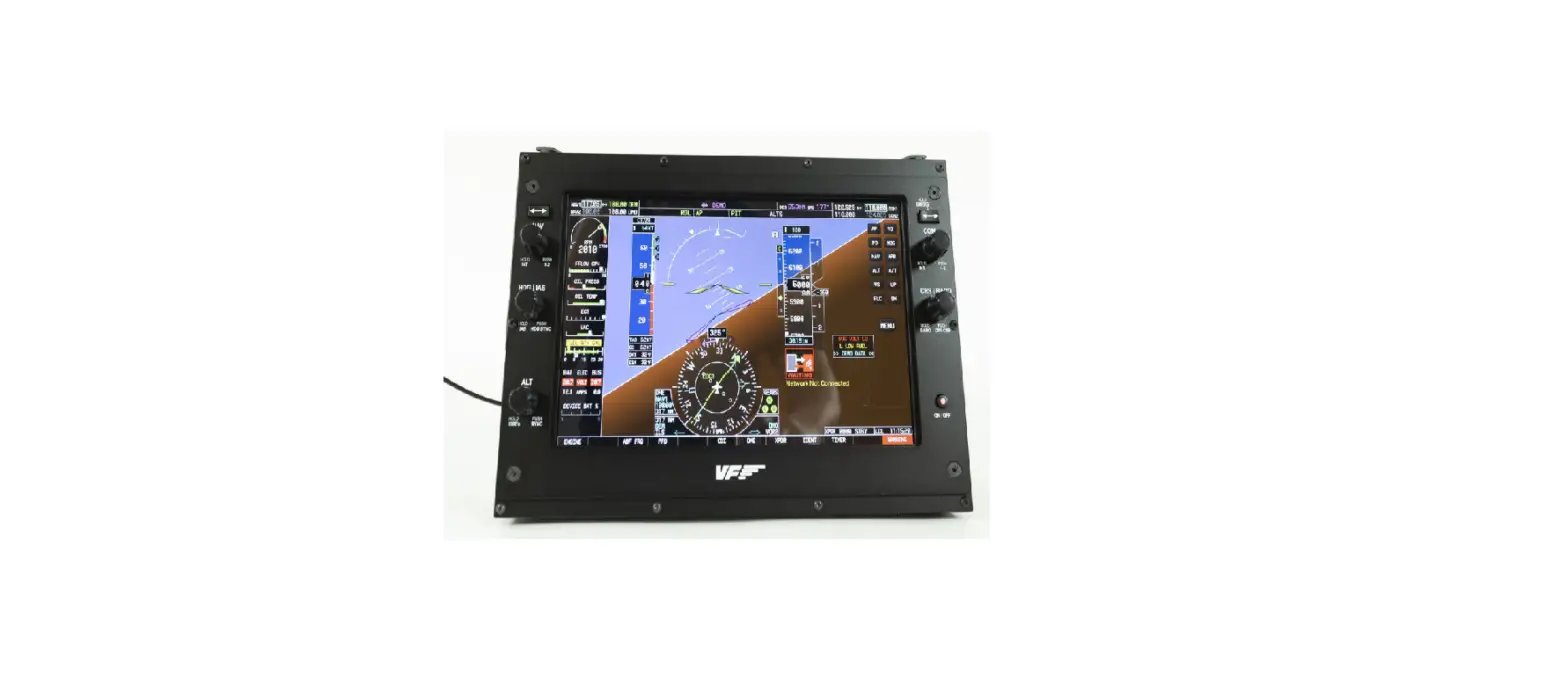
AF-6600 Series EFIS Software
Product Information
The AF-6600 / AF-5000 series EFIS (Electronic Flight Instrument
System) is a software that provides updates for the flight
instruments. It can be updated using a USB memory stick plugged
into the back of the screen. The software updates can be downloaded
from the Advanced Flight Systems website.
Product Usage Instructions
- Download the software file with the latest version from
https://www.advancedflightsystems.com. - Plug the USB memory stick into your computer and ensure it has
a volume name. - Locate the downloaded EFIS software file on your computer.
- Eject the USB memory stick from your computer.
- Place the USB memory stick in the PFD EFIS USB Socket (back of
EFIS or extension cord on the panel). - Power the PFD EFIS screen using Master Power.
- If prompted, select “YES” to upgrade the system software. If
not prompted, force a software load from the SET > CAL >
ADMIN Settings > 26. Upgrade System Menu. - Use the lower right knob to select the EFIS software.
- After the software installs, a warning message will appear and
the EFIS should reboot. - If a RED X over the airspeed and altimeter appears with a
“Network Needs Updating” message, update the software on the
connected Dynon devices. - Touch the “Network Needs Updating” message on the PFD EFIS or
select SET > CAL > 2. Advanced SV-Network. - Press the UPDT button on the PFD EFIS.
- After the software finishes loading on all the connected
SV-Network devices, power down the system. - Once all the EFIS screens have turned off, repower the system
and verify that all the EFIS screens are running the latest
software from the CHECK > ABOUT > SYSTEM menu.
Upgrading to AF-6600/AF-5000 Version 16.10.25 Software (High
Speed ARINC and Dual COM Radio Support)
The new Version 16.10.25 software has several improvements and
changes:
Installation Procedure
- If you have a Dynon SV-COM Radio, record your current Squelch,
Sidetone, and Mic Gain settings from the SET > CAL > COM
Radio Menu. - Download the new EFIS software onto your existing EFIS USB
memory stick. - Install the new software on all EFIS screens in the
aircraft. - Update the SV-Network from the Pilot EFIS (PFD) using the SET
> CAL > 2. Advanced SV Network menu and press UPDT
button. - Power down and restart the system when instructed.
- Reconfigure any RS-232 serial port that is wired to a COM
radio.
APPENDIX E: AF-6600 / AF-5000 Software Updates
The AF-6600 / AF-5000 series EFIS software can be updated using a USB memory stick plugged into the back of the screen. The USB Memory stick must have a volume name or the EFIS will not install the software.
PROCEDURE 1. Download the software file with the latest version of software from: https://www.advancedflightsystems.com
Select SUPPORT > SOFTWARE UPDATES > AF-6600 / AF-5000 Series
CLICK on SOFTWARE DOWNLOAD
2. Plug the USB memory stick into your computer and verify that the USB memory stick has a volume
name. In this example the volume name is “AFS_DATA”, the name does not matter it just must have one.
Version 16.10
AF-6600 AF-5000 Series Install Manual
235
3. Locate the downloaded EFIS software file on your computer, most likely in your Downloads folder. Downloads Folder EFIS Software File in the folder
4. Move the EFIS software file from your computer to the USB Memory stick. · Right Click on the EFIS software file in your downloads folder and select Copy · Click on the USB Memory stick icon on your computer, Right Click and then select Paste
5. Eject the USB Memory stick from your computer. 6. Place the USB Memory stick in the PFD EFIS USB Socket (back of EFIS or extension cord on the
panel). Make sure you only have a single USB Memory stick plugged into the EFIS. 7. Power the PFD EFIS screen using Master Power 8. When the EFIS boots you should get a prompt to UPGRADE SYSTEM SOFTWARE ?
Select YES
If you did not get the UPGRADE SYSTEM SOFTWARE prompt you can force a software load from the SET > CAL > ADMIN Settings > 26. Upgrade System Menu
Version 16.10
AF-6600 AF-5000 Series Install Manual
236
9. Use the lower right knob to select the EFIS software
10. You should get a screen that looks like this as the system software is installed.
11. After the software installs you will get a warning message and the EFIS should reboot.
12. Repeat steps 6 11 for all EFIS screens in the aircraft. 13. If after installing the new software you get
a RED X over the airspeed and altimeter and a Network Needs Updating message you will need to update the software on the connected Dynon devices.
14. Touch the Network Needs Updating message on the PFD EFIS or select the following menu: SET > CAL > 2. Advanced SV-Network
Version 16.10
AF-6600 AF-5000 Series Install Manual
237
15. Press the UPDT button on the PFD EFIS
16. After the software is finished loading on all the connected SV-Network devices you will be instructed to power down the system.
17. Once all the EFIS screens have tuned off you can repower the system and verify that all the EFIS screens are running the latest software from the CHECK > ABOUT > SYSTEM menu.
Version 16.10
AF-6600 AF-5000 Series Install Manual
238
Upgrading to AF-6600/AF-5000 Version 16.10.25 Software (High Speed ARINC and Dual COM Radio Support)
The new Version 16.10.25 software has several improvements and changes that make the installation more complicated when upgrading:
· If you are using our Advanced Control Module (ACM) or Dynon SV-ARINC-429 module to interface to a GPS Navigator you will need to change the ARINC-429 OUT speed to HIGH SPEED for any attached GPS Navigator (GTN, IFD, GNS, GPS175) before flying with this software. The ARINC IN speed will stay set to LOW.
· If you are using our older serial RS-232 AF-ARINC module DO NOT change the ARINC 429 speed in any attached GPS Navigator (GTN, IFD, GNS, GPS175). The AF-ARINC module only works in Low Speed.
· You will need to reconfigure the EFIS COM radio settings to support the new EFIS Dual COM radio tuning. You should configure the COM1 and COM2 radio settings to match how the radios are wired to your Audio Panel.
Installation Procedure
1. If you have a Dynon SV-COM Radio record your current Squelch, Sidetone and Mic Gain settings. From the SET>CAL>COM Radio Menu Squelch Level _________ Sidetone Level ________ Mic Gain _________
2. Download the new EFIS software onto your existing EFIS USB memory stick. 3. Install the new Software on all EFIS screens in the aircraft. 4. Update the SV-Network from the Pilot EFIS (PFD)
SET > CAL > 2. Advanced SV Network menu, press UPDT button 5. Power down and restart the system when instructed. 6. Reconfigure any RS-232 serial port that is wired to a COM radio.
If you have an Avidyne IFD radio connected to our Advanced Control Module the PFD EFIS serial port #3 is wired to the IFD serial port #3. This connection can be used to supply ADS-b data to the Avidyne or used to support EFIS COM radio tuning on the IFD. For EFIS IFD Radio tuning configure the PFD EFIS serial port #3 to IFD COM
7. Configure the COM Radio Menu on the PFD for COM 1 and COM 2 If you have a Dynon SV-COM Radio enter the settings for Squelch, Sidetone and Mic Gain. If you have an IFD COM Radio connected to our Advanced Control Module configure COM 1 to IFD COM and the Wired to setting to SERIAL PORT #3.
8. Configure the COM Radio Menu on the MFD EFIS for COM 1 and COM 2. If you have an IFD COM Radio wired to PFD Serial Port #3 you should configure the COM 1 Wired To setting to AFS NETWORK
9. Change the IFD Serial Port 3 setting to vhfcntrl to enable COM radio tuning. 10. Update the ARINC OUT Speed on the GPS Navigator using these settings:
Avidyne IFD Settings
Only change Main ARINC 429 Config Out 1 and VOR/LOC/GS ARINC 429 TX to High Speed
Garmin GTN xi Settings
Only Change the ARINC 429 Out 1 and VOR/LOC/GS Tx Speed to High
 Advanced Flight Systems