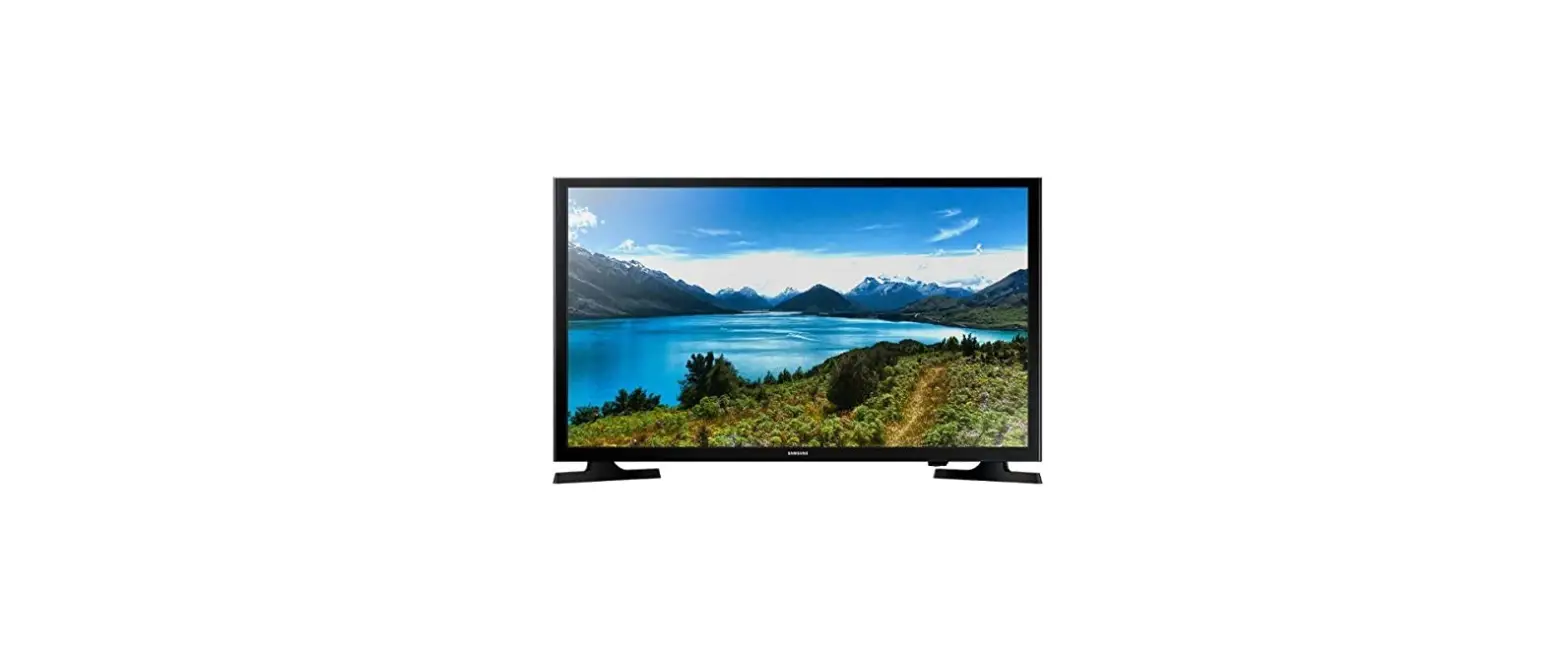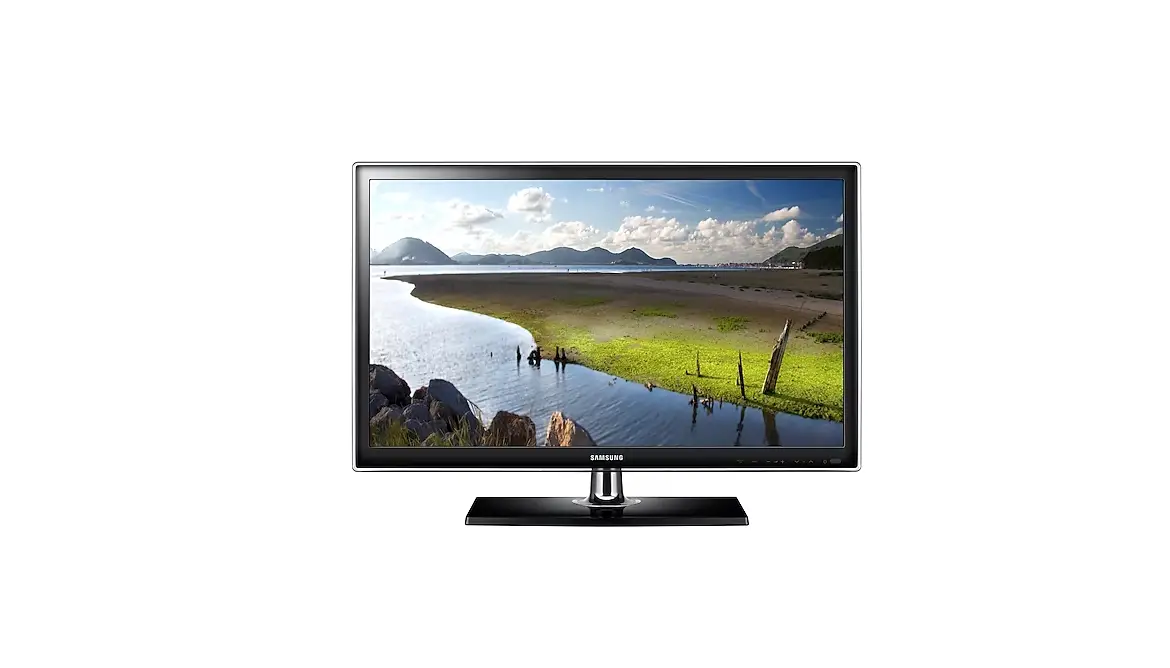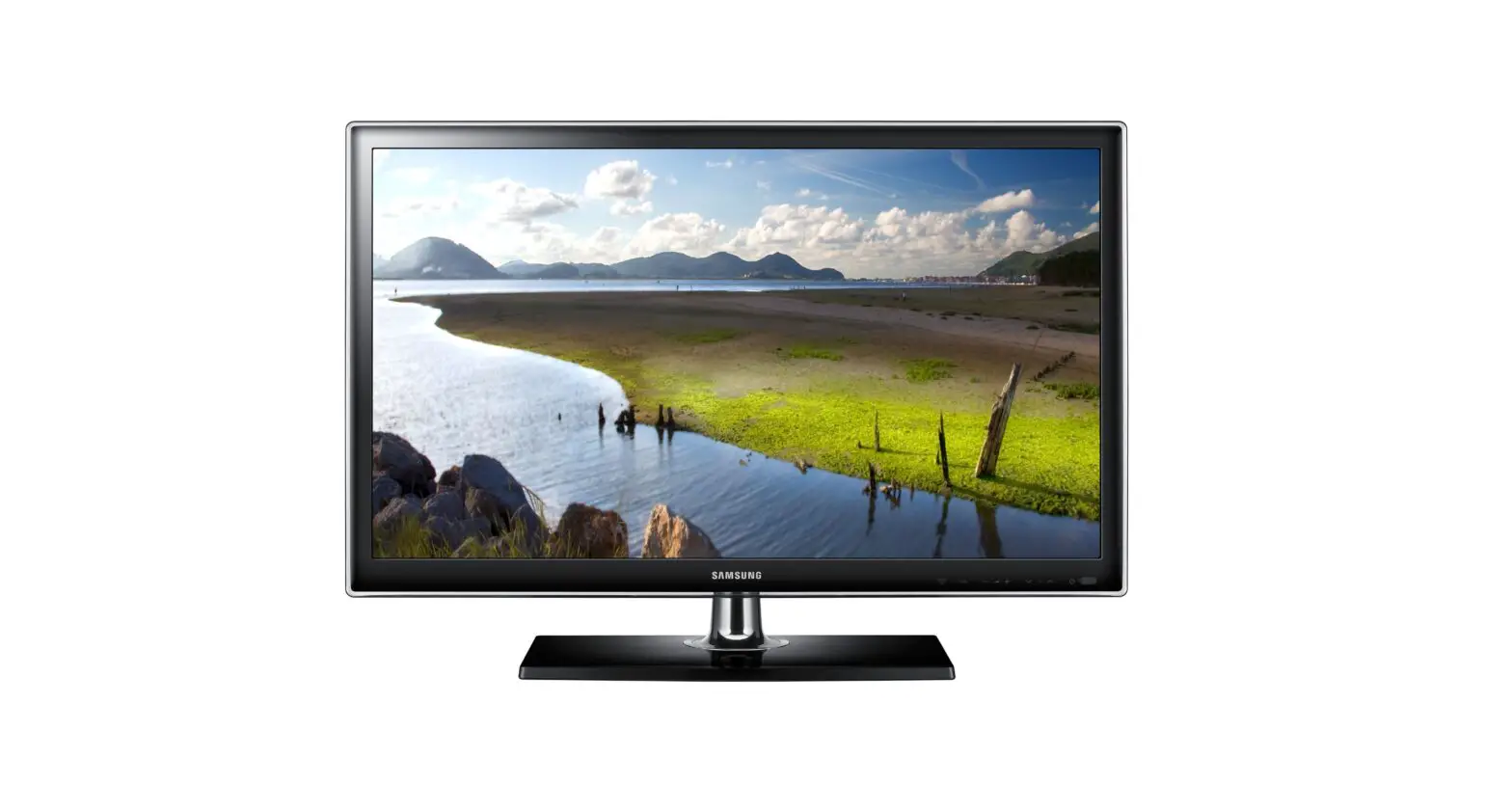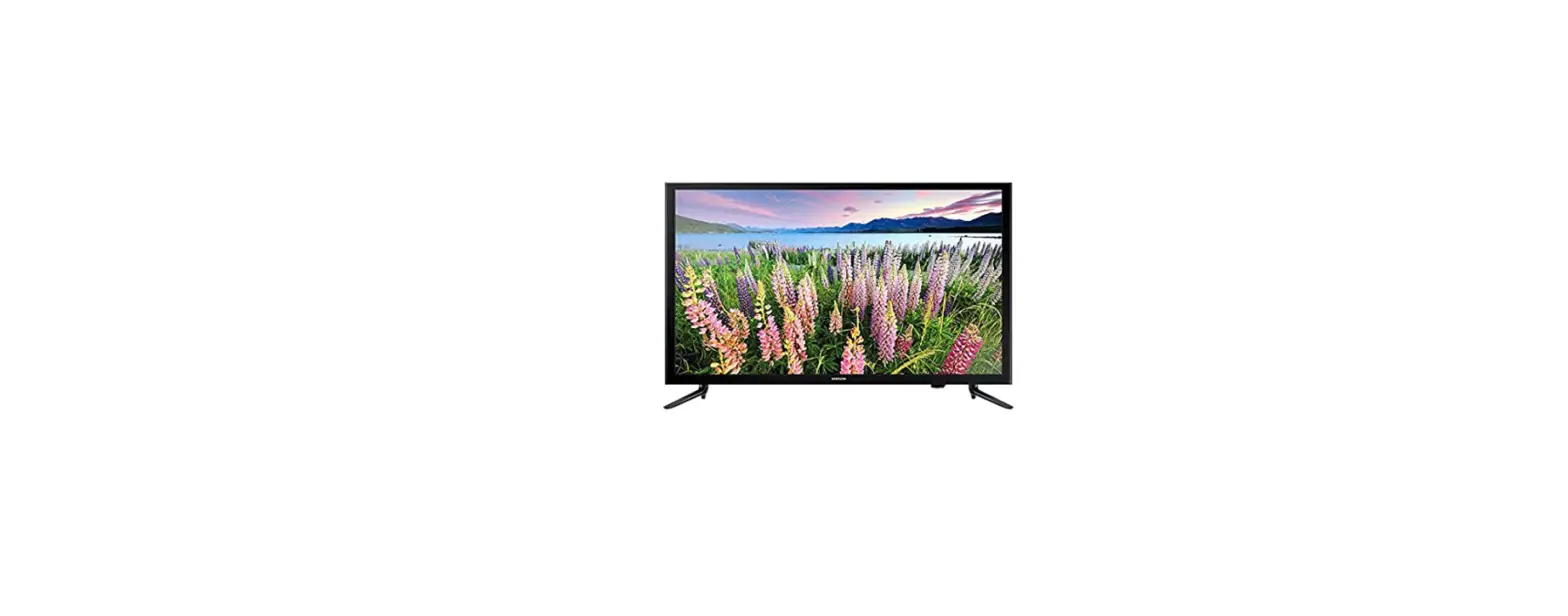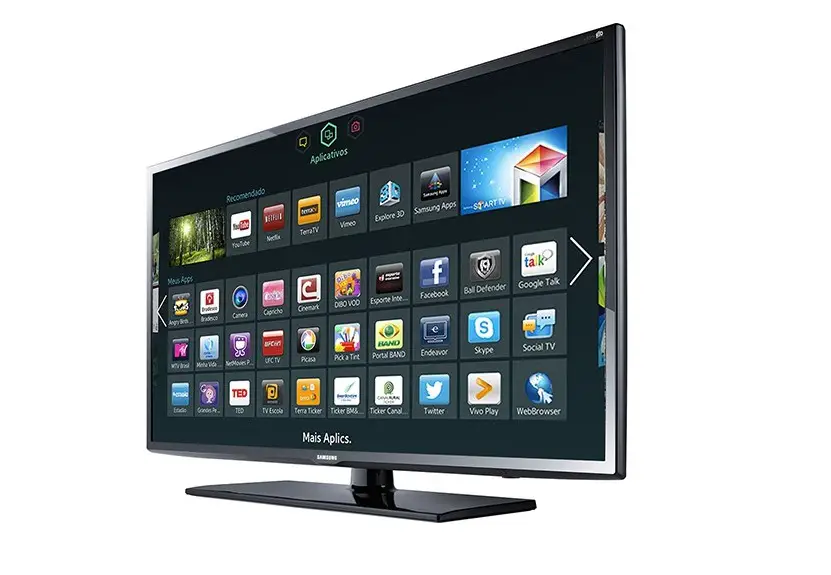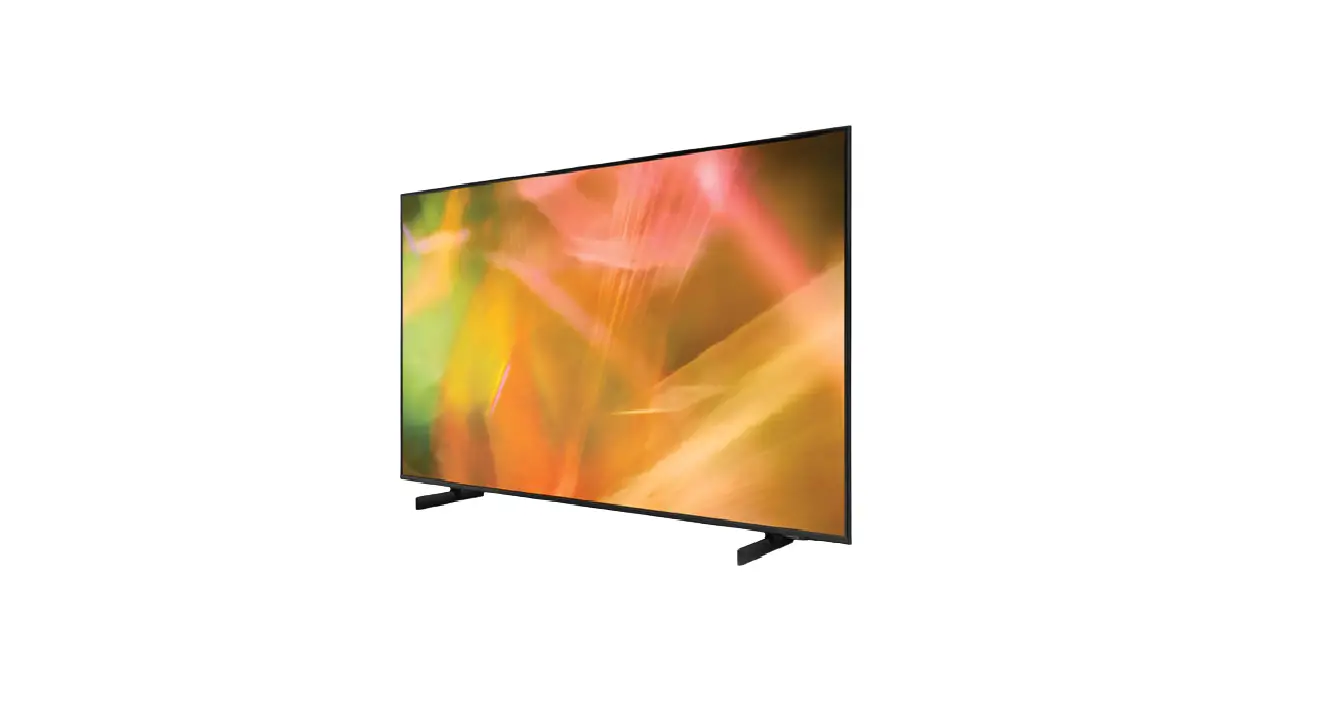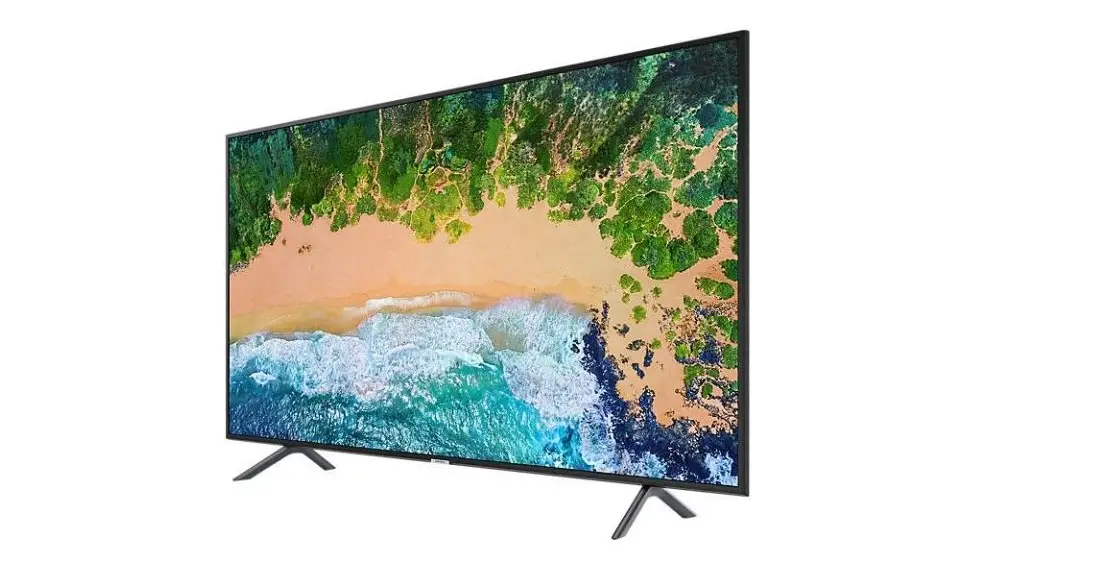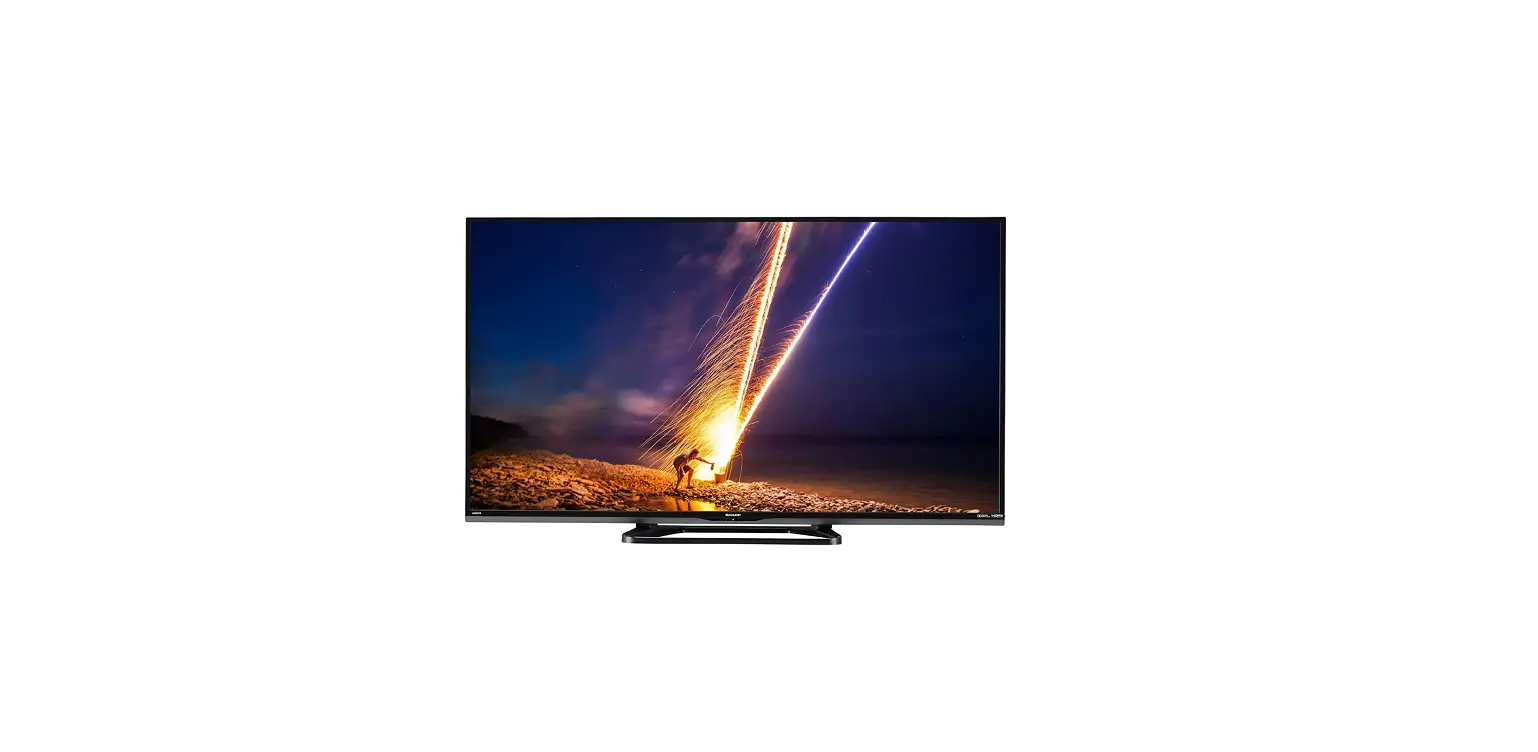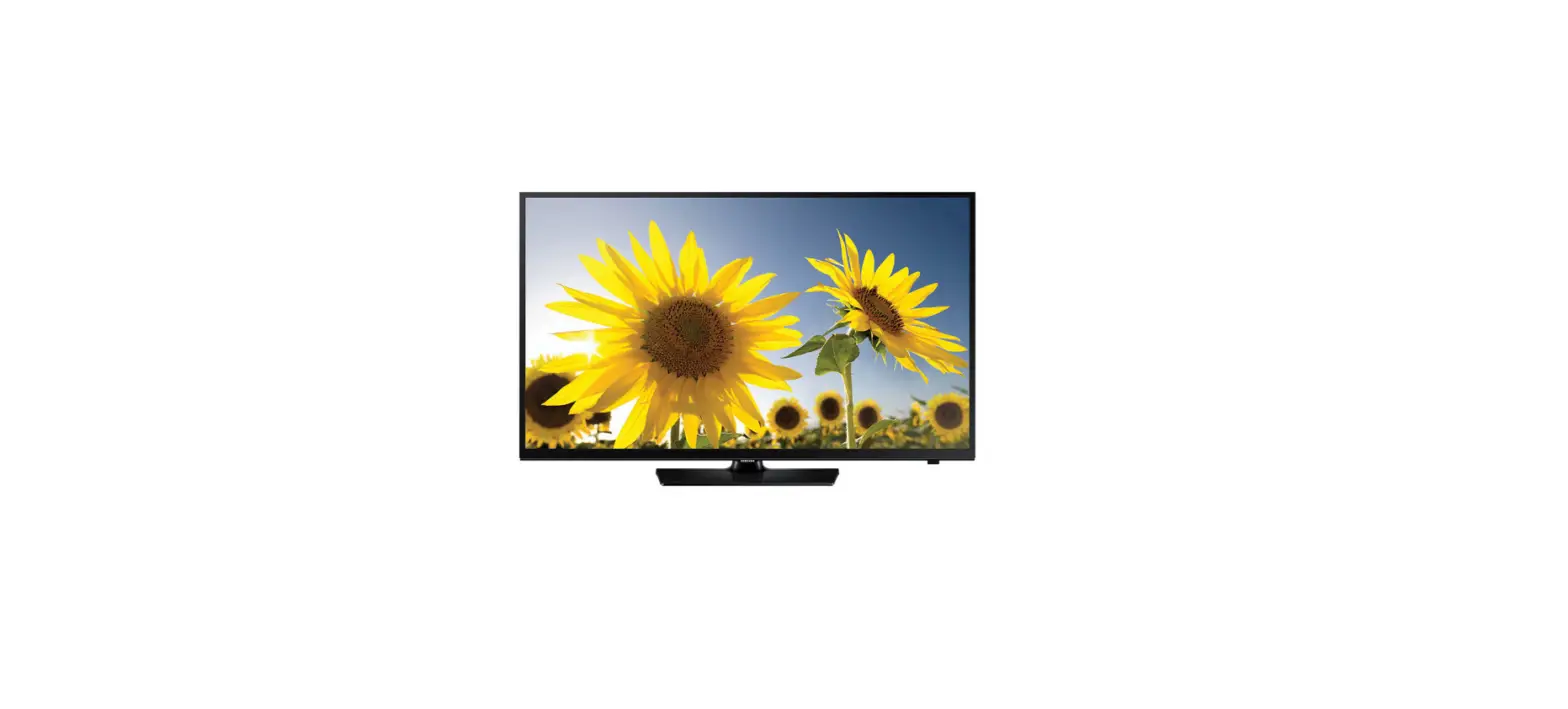

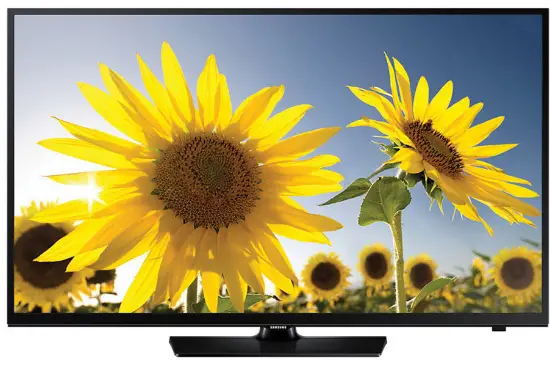
Samsung UA-48H4203 HD Smart Wi-Fi LED TV
What’s in the Box?
- Remote Control & Batteries (AAA x 2)
- Regulatory Guide
- User Manual
- Power Cord
- Warranty Card (Not available in some locations)
IMPORTANT INSTRUCTION
- Do not expose this apparatus to rain or place it near water (near a bathtub, washbowl, kitchen sink, or laundry tub, in a wet basement, or near a swimming pool etc.).
- If this apparatus accidentally gets wet, unplug it and contact an authorised dealer immediately.
- Make sure to pull out the power cord from the outlet before cleaning.
- This apparatus use batteries. In your community there might be regulations that require you to dispose of these batteries properly under environmental considerations.
- Please contact your local authorities for disposal or recycling information.
- Do not overload wall outlets, extension cords or adaptors beyond their capacity, since this can result in fire or electric shock.
- Power-supply cords should be routed so that they are not likely to be walked on or pinched by items placed upon or against them, paying particular attention to cords at plug end, adaptors and the point where they exit from the appliance.
- To protect this apparatus from a lightning storm, or when it is left unattended and unused for long periods of time, unplug it from the wall outlet and disconnect the antenna or cable system.
- This will prevent damage to the set due to lightning and power line surges.
- Before connecting the AC power cord to the DC adaptor outlet, make sure the voltage designation of the DC adaptor corresponds to the local electrical supply. Never insert anything metallic into the open parts of this apparatus.
- Doing so may create a danger of electric shock.
- To avoid electric shock, never touch the inside of this apparatus.
- Only a qualified technician should open this apparatus.
- Make sure to plug the power cord in until it is firmly inserted.
- When removing the power cord, make sure to hold the power plug when pulling the plug from the outlet.
- Do not touch the power cord with wet hands.
- If this apparatus does not operate normally – in particular, if there are any unusual sounds or smells coming from it – unplug it immediately and contact an authorised dealer or service centre. Be sure to pull the power plug out of the outlet if the TV is to remain unused or if you are to leave the house for an extended period of time
| Product Family | Inches | VESA Spec.(A * B) | C (mm) | Standard Screw | Quantity |
| LED-TV | 32 | 200 X 200 | 10.0 ~ 28.0 | M6 | 4 |
| 40 | M8 | ||||
| 48 |
Attaching the TV to the Stand
Make sure you have all the accessories shown, and that you assemble the stand following the provided assembly instructions.
Mounting the TV on the Wall Using the Wall Mount Kit (Optional)
If you mount this product on a wall, it should be mounted only as recommended by the manufacturer. Unless it is correctly mounted, the product may slide or fall, causing serious injury to a child or adult, and serious damage to the product
Installing the Wall Mount Kit
The wall mount kit (sold separately) lets you mount the TV on the wall. For detailed information about installing the wall mount, refer to the instructions provided with the wall mount. We recommend that you contact a technician for assistance when installing the wall mount bracket. We do not advise you to do it yourself. Samsung Electronics is not responsible for any damage to the product or injury to yourself or others if you select to install the wall mount on your own.
LED 4203 Series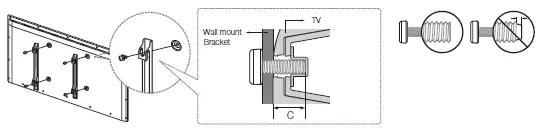 LED 4303 Series
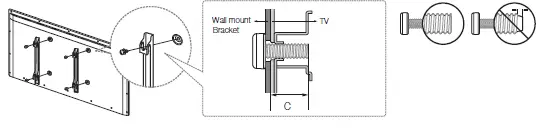
Wall Mount Kit Specifications (VESA)
The wall mount kit is not supplied, but is sold separately. Install your wall mount on a solid wall perpendicular to the floor. When attaching the wall mount to other building materials, please contact your nearest dealer. If the product is installed on a ceiling or slanted wall, it may fall and result in severe personal injury. Standard dimensions for wall mount kits are shown in the table below.
Providing Proper Ventilation for Your TV
When you install your TV, maintain a distance of at least 10 cm between the TV and other objects (walls, cabinet sides, etc.) to ensure proper ventilation. Failing to maintain proper ventilation may result in a fire or a problem with the product caused by an increase in its internal temperature. If you use parts provided by another manufacturer, it may cause difficulties with the product or result in injury caused by the product falling. Whether you install your TV using a stand or a wall-mount, we strongly recommend you use parts provided by Samsung Electronics only.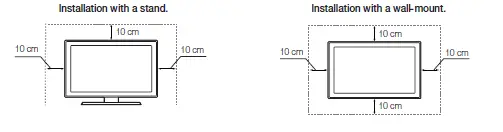
Securing the TV to the Wall
Pulling, pushing, or climbing on the TV may cause the TV to fall. In particular, ensure that your children do not hang on to or destabilize the TV. Doing so may cause the TV to tip over, resulting in serious injuries or death. Follow all safety precautions provided in the Safety Flyer included with your TV. For added stability and safety, you can purchase and install the anti-fall device as described below.
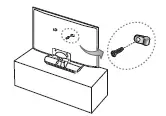
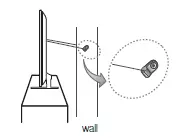
To Avoid the TV from Falling
- Put the screws into the clamps and firmly fasten them into the wall. Confirm that the screws have been firmly installed into the wall.
- You may need additional material such as anchors depending on the type of wall.
- Since the necessary clamps, screws, and string are not supplied, please purchase these additionally.
- Remove the screws from the centre back of the TV, put the screws into the clamps, and then fasten the screws into the TV again.
- Screws may not be supplied with the product. In this case, please purchase screws of the following specifications.
- Screw Specifications: For a 32 inches: M6 / For a 40 ~ 48 inches: M8
- Connect the clamps fixed into the TV and the clamps fixed onto the wall with a strong cable and then tie the string tightly.
- Install the TV close to the wall so that it does not fall backwards.
- It is safe connecting the string so that the clamps fixed onto the wall are equal to or lower than the clamps fixed on the TV.
- Untie the string before moving the TV.
- Verify that all connections are properly secured. Periodically check connections for any sign of damage. If you have any doubt about the security of your connections, contact a professional installer.


Arrange the cables using the Cable Holder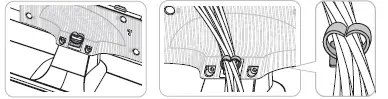
Connecting devices to your TV
You can connect various external devices using the connectors located at the back of the product. Check the connectors and then refer to the assembly instructions provided for more information on supported external devices.
Using the “CI or CI+ CARD”
To watch paid channels, the “CI or CI+ CARD” must be inserted. — If you don’t insert the “CI or CI+ CARD”, some channels will display the “Scrambled Signal” message. — The pairing information containing a telephone number, the “CI or CI+ CARD” ID, the Host ID, and other information will be displayed in about 2~3 minutes. If an error message is displayed, please contact your service provider. — When the configuration of channel information has finished, the message “Updating Completed” is displayed, indicating the channel list is updated.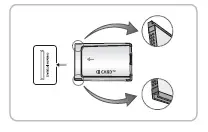
Connecting to a Network
Connecting the TV to a network gives you access to online services such as the Smart Hub, as well as software updates.
Network Connection – Wireless
LED 4303 Series
Connect the TV to the Internet using a standard router or modem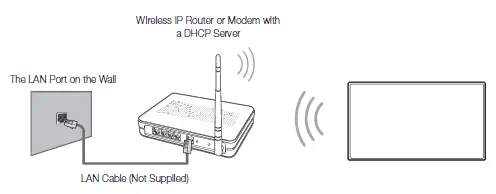
LED 4203 Series
Connect the TV to the Internet using a standard router or modem. To connect wirelessly, you must first attach a “Samsung Wireless LAN Adapter” (WIS12ABGNX – sold separately) to the USB port on your TV. See the illustration below.
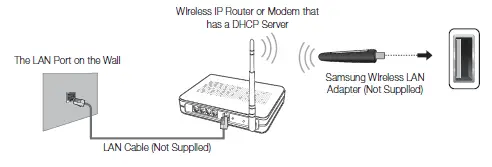
Wireless Network Precautions
Samsung’s Wireless LAN adapter supports the IEEE 802.11a/b/g and n communication protocols. Samsung recommends using IEEE 802.11n. When you play the video over a IEEE 802.11b/g connection, the video may not play smoothly. — To use a wireless network, the TV must be connected to a wireless router or modem. If the wireless router supports DHCP, the TV can use a DHCP or static IP address to connect to the wireless network. — Select a channel that is not currently in use for the wireless router. If the channel set for the wireless router is currently being used by another device, the result is usually interference and/or a communications failure. — Most wireless networks have an optional security system. To enable a wireless network’s security system, you need to create a security key using characters and numbers. This security key is then needed to connect to the wireless network.
Network Connection – Wired
Mobile Network
- While connecting to the mobile network, some functions might be unavailable.
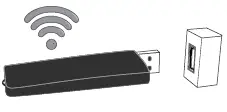
- Refer to the diagram and insert the Mobile Dongle (sold separately) into the USB port.
- The Mobile Dongle must be connected to the TV in order to connect to the mobile network. However, the Mobile Dongle is sold separately and is not available from Samsung.
- If you have any problems using online services, please contact your Internet service provider.

Remote Control
Learn where the function buttons are on your remote, such as: SOURCE, MUTE, Y, < P >, MENU, TOOLS, E, INFO, CH LIST, RETURN, GUIDE and EXIT. — This remote control has Braille points on the Power, Channel, and Volume buttons and can be used by visually impaired persons.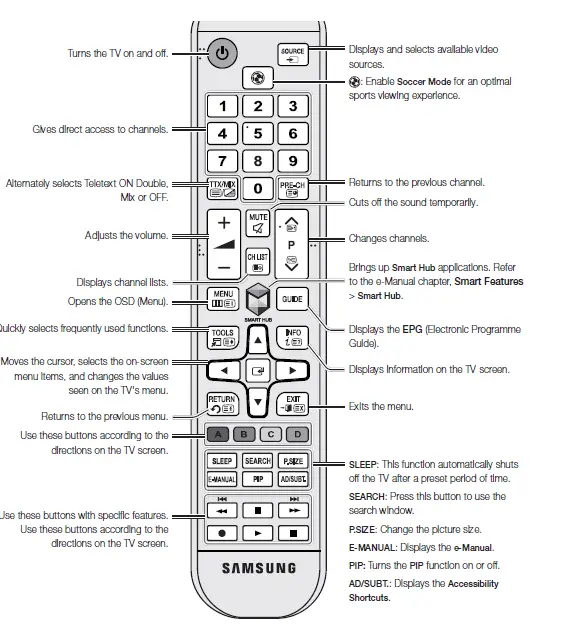
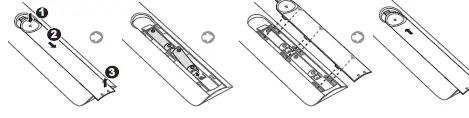
Installing the batteries (Battery size: AAA
- Use the remote control within 7m of the TV.
- Bright lights may affect the performance of the remote control. Avoid using the remote control near special fluorescent lights or neon signs.
- The colour and shape may vary depending on the model.

Turning on the TV
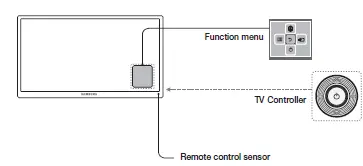
- Turn on the TV using the P button on the remote control or TV panel.
- The product colour and shape may vary depending on the model.
- The TV’s Controller, a small joystick-like button at the right back of the TV, lets you control the TV without the remote control.

Initial setup
The initial setup dialogue box appears when the TV is first activated. Follow the on-screen instructions to finish the initial setup process, including the selecting the menu language, scanning channels, connecting to the network, and more. During each step, either make a choice or skip the step. You can manually perform this process at a later time in the System > Setup menu. — If you connect any device to HDMI1 before starting the installation, the Channel Source will be changed to Settop box automatically. — If you do not want to select Set-top box, please select Aerial.
Troubleshooting
| Issues | Solutions and Explanations |
| The TV won’t turn on. | Make sure the AC power cord is securely plugged into the wall outlet and the TV. Make sure the wall outlet is working. Try pressing the P button on the TV to make sure the problem is not the remote. If the TV turns on, refer to the “Remote control does not work” item below. |
| There is no picture/video. | Check the cable connections. Remove and reconnect all cables connected to the TV and external devices. Set the video outputs of your external devices (Cable/Sat Box, DVD, Blu-ray etc) to match the TV’s input connections. For example, if the output of an external device is HDMI, it should be connected to an HDMI input on the TV. Make sure your connected devices are powered on. Be sure to select the correct input source. Reboot the connected device by unplugging it, and then reconnecting the device’s power cable. |
| The remote control does not work. | Replace the remote control batteries. Make sure the batteries are installed with their polarities (+/–) in the correct direction. Clean the sensor’s transmission window on the remote. Try pointing the remote directly at the TV from 1.5 ~ 1.8 m away. |
| The remote control of the cable/ set top box doesn’t turn the TV on or off or adjust the volume. | Programme the Cable/Set remote control to operate the TV. Refer to the Cable/Set- Top-Box user manual for the SAMSUNG TV code. |
Cautions about the Eco Sensor and Screen Brightness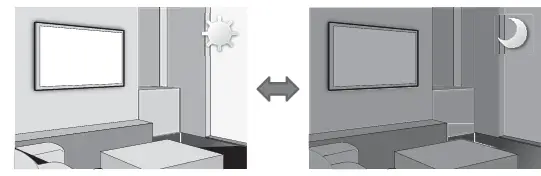
What is Remote Support?
Samsung’s Remote Support service offers you one-on-one support with a Samsung Technician who can remotely:
- Diagnose your TV
- Adjust your TV settings
- Perform a factory reset for your TV
- Install recommended firmware updates
How Does it Work?

Storage and Maintenance
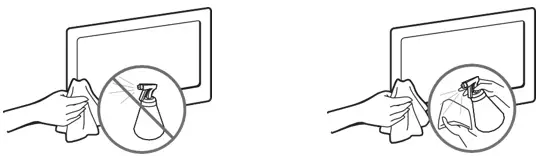
- If a sticker was attached to the TV screen, some debris may remain after you remove the sticker. Please clean the debrisoff before watching TV.
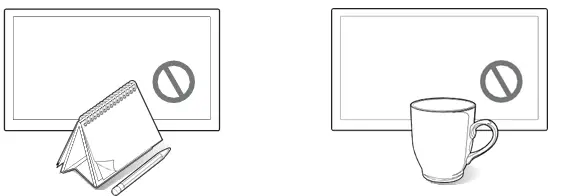
- The exterior and screen of the product can get scratched while cleaning it. Be sure to wipe the exterior and screen carefully using a soft cloth to prevent scratches.

Specifications
| Display Resolution | 1366 x 768 | |
| Environmental Considerations Operating Temperature Operating Humidity Storage Temperature Storage Humidity | 50°F to 104°F (10°C to 40°C) 10% to 80%, non-condensing -4°F to 113°F (-20°C to 45°C) 5% to 95%, non-condensing | |
| Stand Swivel (Left / Right) | 0˚ | |
| Model Name | UA40H4203 | UA48H4203 |
| Screen Size (Diagonal) | 40 inches | 48 inches |
| Sound (Output) | 10W X 2 | |
| Dimensions (W x H x D) Body With stand | 914.2 x 547.9 x 90.9 mm 914.2 x 586.4 x 196.4 mm | 1083.2 x 637.8 x 90.9 mm 1083.2 x 677.0 x 203.9 mm |
| Weight Without Stand With Stand | 7.0 kg 8.0 kg | 9.1 kg 10.2 kg |
| Model Name | UA32H4303 | |
| Screen Size (Diagonal) | 32 inches | |
| Sound (Output) | 5W X 2 | |
| Dimensions (W x H x D) Body With stand | 738.4 x 441.7 x 93.2 mm 738.4 x 497.7 x 191.7 mm | |
| Weight Without Stand With Stand | 5.4 kg 6.0 kg | |
Licences
Still image warning
Avoid displaying still images (such as jpeg picture files), still image elements (such as TV channel logos, stock or news bars at the bottom of the screen etc.), or programmes in panorama or 4:3 image format. Constantly displaying still pictures can cause image burn-in on the LED screen, which will affect the image quality. To reduce risk of this occurring please follow the recommendations below:
- Avoid displaying the same TV channel for long periods.
- Always try to display any image in full screen. Use the TV set’s picture format menu for the best possible match.
- Reduce brightness and contrast to avoid the appearance of after-images.
- Use all TV features designed to reduce image retention and screen burn. Refer to the e-Manual for more details.
FAQS
Do Samsung smart TVs have WiFi built-in?
All Samsung Smart TVs come with built-in WiFi connectivity. This allows them to provide you with a variety of streaming services and content.
Is HD LED TV a Smart TV?
LED TV is one whose backlight technology is LED (light-emitting diode)
Why Samsung TV cannot connect to Wi-Fi?
If your Samsung TV isn’t detecting a wireless network (or continuously loses its network connection), the problem might be that your TV simply isn’t properly connected to your network.
What is the difference between a smart TV and a Wi-Fi TV?
Voice Search & AI Integration – A major point which differentiates an average internet-ready TV from a smart TV is that the latter has Voice Search and Artificial Intelligence capabilities
How do I connect my Samsung TV to WiFi without cable?
Use the directional pad on your TV’s remote to select Settings, select General, and select Network.
What is the difference between full HD smart TV and HD smart TV?
An HD Ready TV consist of a TV that can display 720p images (1280 x 720 pixels). On the other hand, FullHD TVs are those capable of displaying 1080p (1920×1080 pixels)
How many years do Samsung TVs last?
“The reality is, your screen can often last significantly longer than 100,000 hours,” says Kevin Izatt, a senior product manager in Samsung’s Display division
How many years should a smart TV last?
The average lifespan of an LED at maximum or close-to-maximum brightness is 40,000 to 60,000 hours, or roughly 4.5 to 6.8 years
Why won’t my smart TV connect to my wireless internet?
Unplug the power cable to your modem/router and wait about 60 seconds. Reconnect the power cable to your modem/router and make sure it’s turned on
Why smart TV cannot connect to Wi-Fi?
The easiest one-size-fits-all troubleshooting step is to restart the device you’re having issues with, and the same goes for your smart
How do I turn my LED TV into a smart TV?
You may convert TV to smart TV in several methods, the best of which is to purchase an intelligent media player (also known as a streaming device) and connect it to your TV’s HDMI connector.
How can I watch regular TV for free?
You can get an HD TV antenna, subscribe to a specific channel’s app, subscribe to a live TV streaming service, watch the live stream of your local news station’s newscast on their website, watch your local news channel on their YouTube page, or watch Pluto TV.
Can you use a smart TV without a router?
You can use a smart TV without the internet but it’s harder to access the content you want, especially from streaming applications that won’t work without a connection.
Which is better Full HD or HD?
Full HD, or FHD, refers to the image resolution of a display panel. FHD delivers 1080p image resolution and is an impressive step up from the typical High
Which is better LED or 4K TV?
While the traditional HD (high-definition) standard is 1080 pixels measured vertically, 4K TVs have a resolution of at least 3840 x 2160 pixels.
Can I watch TV with just Wi-Fi?
You don’t have to have a Smart or Internet TV to watch streaming television over the Internet.