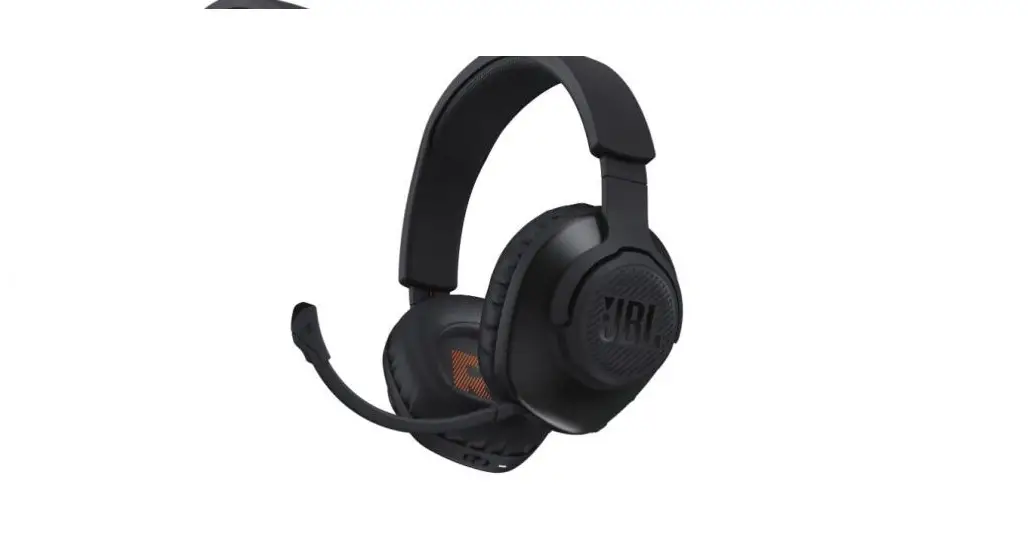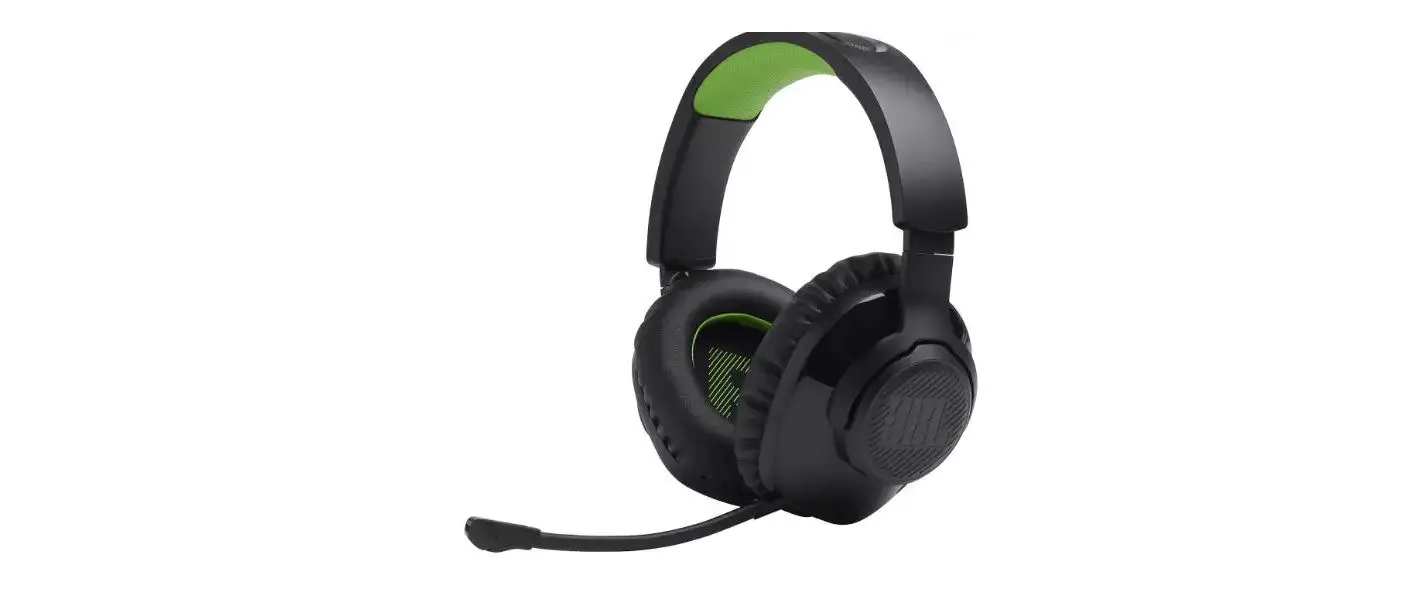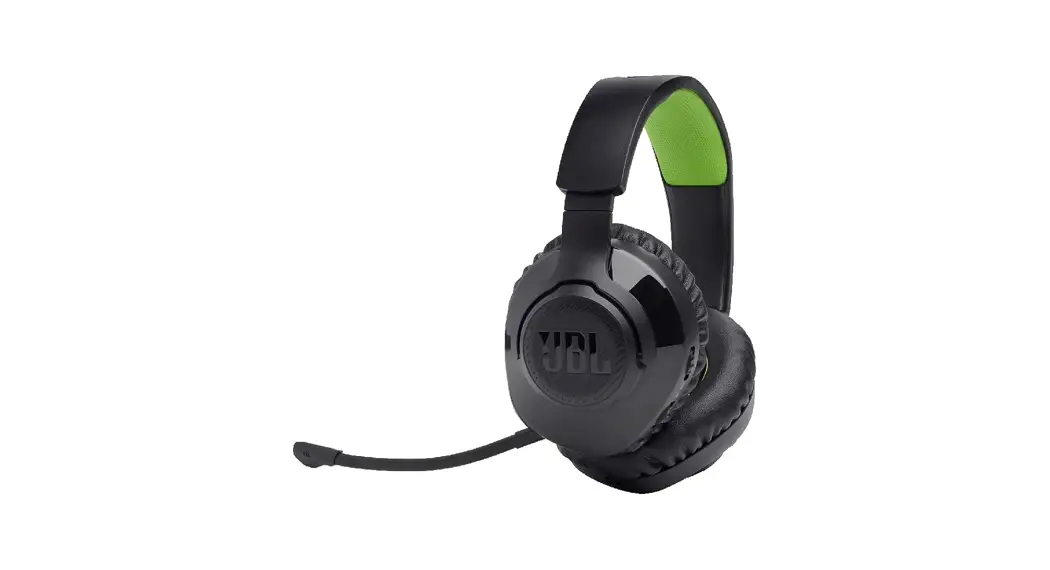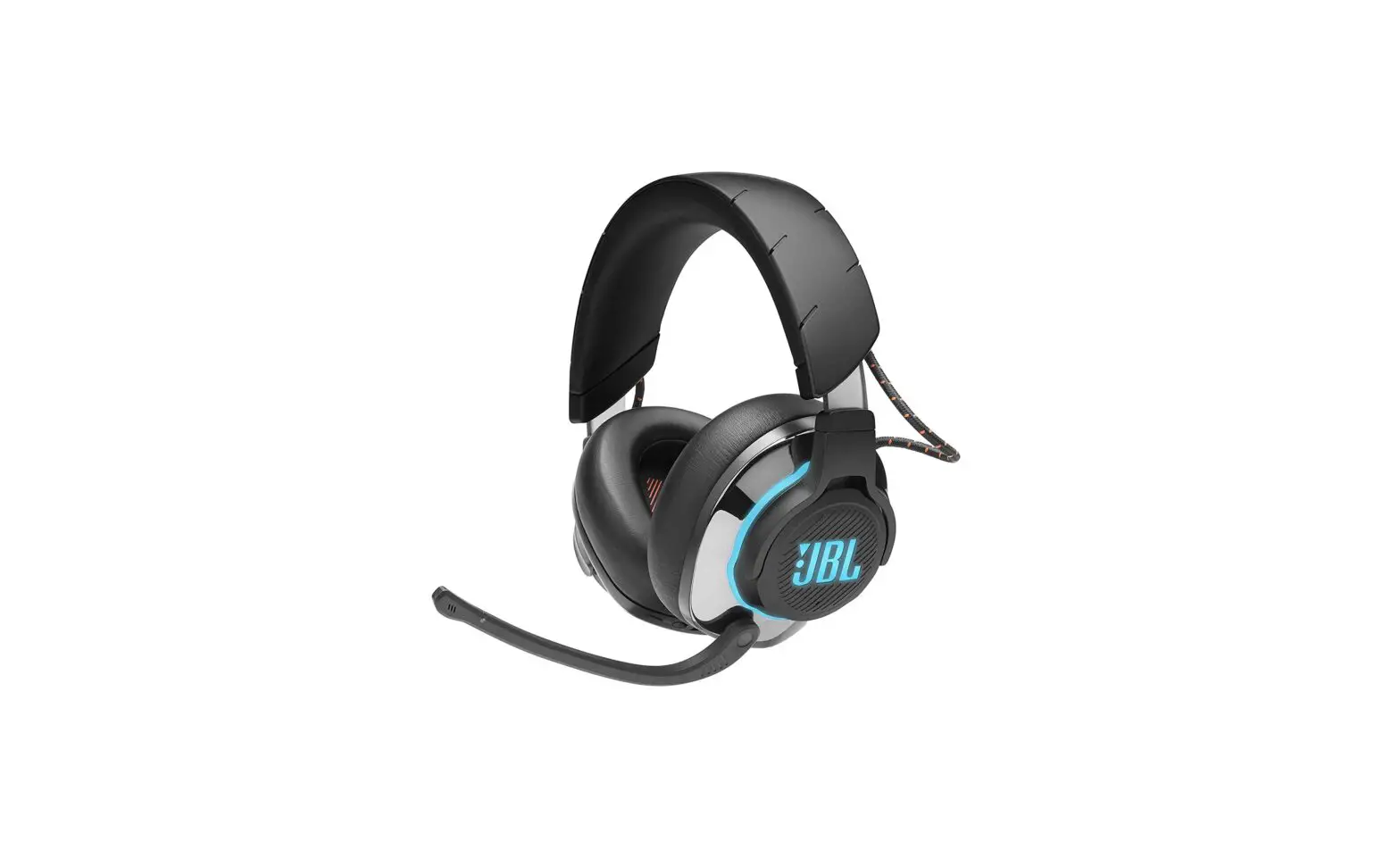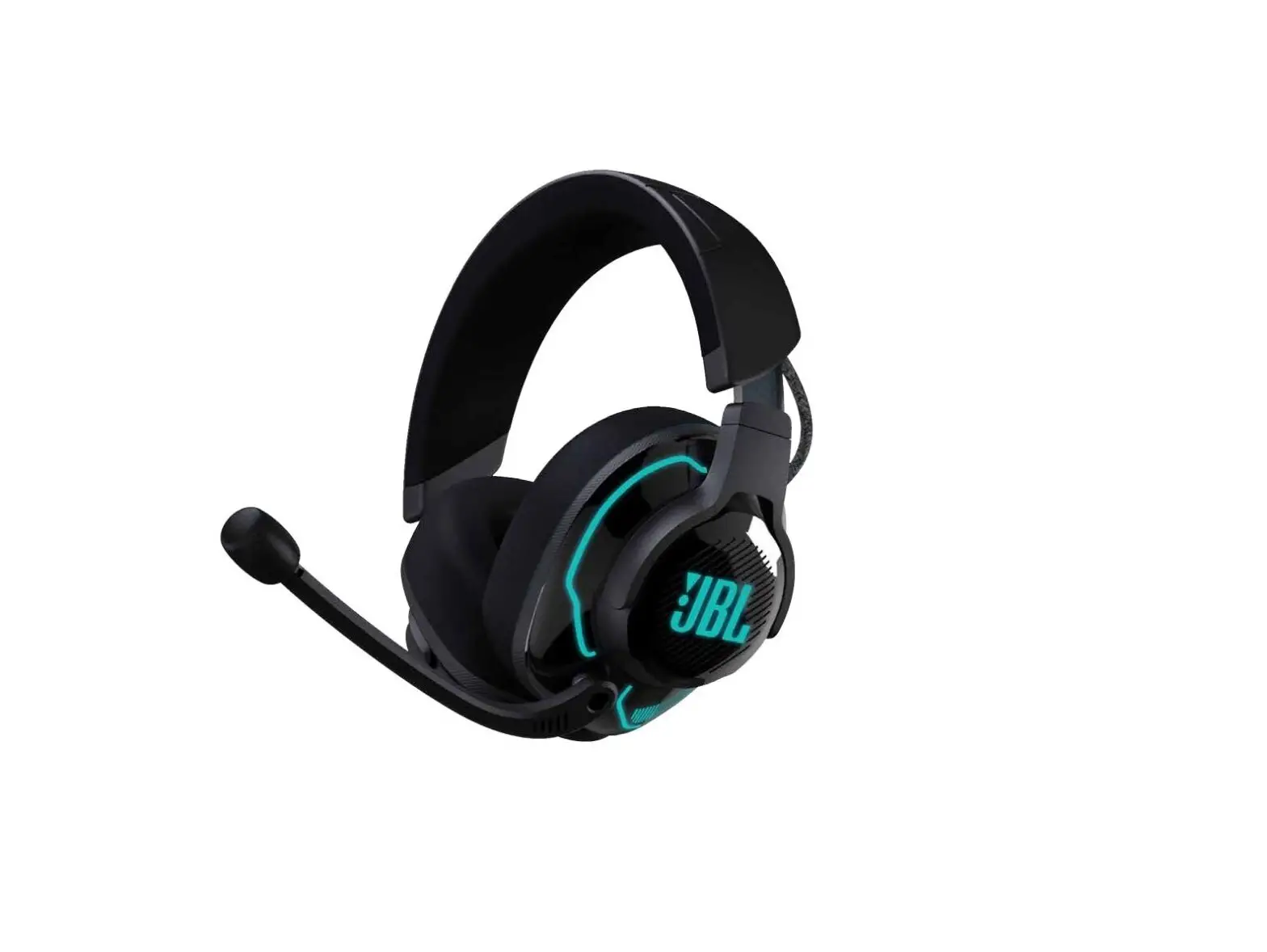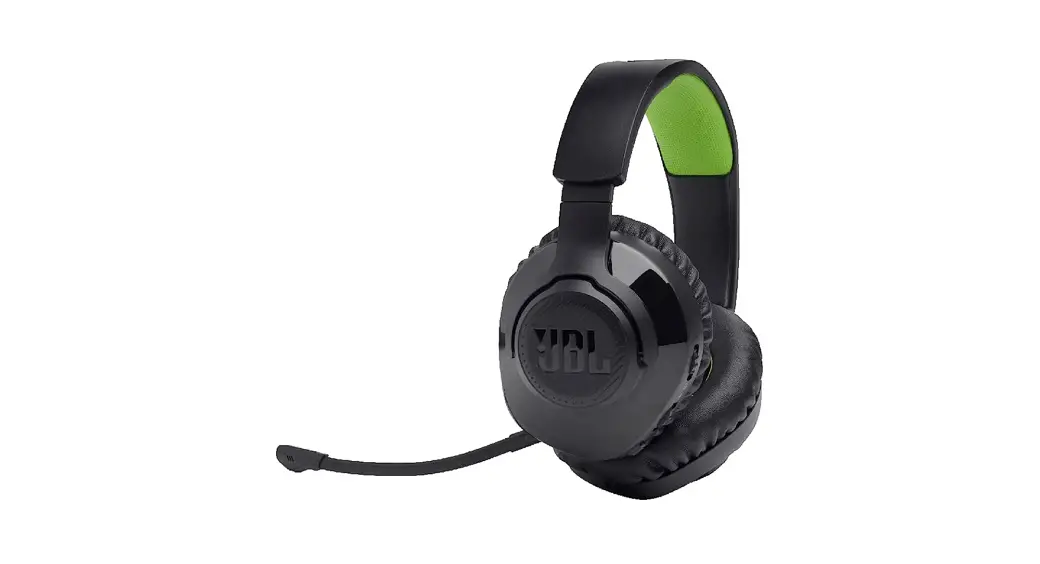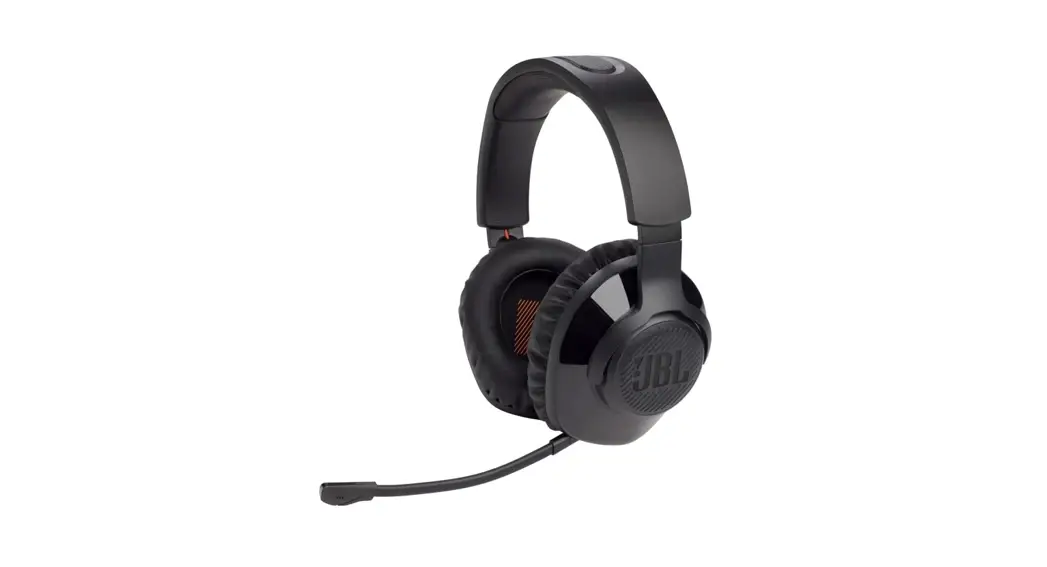

JBL Quantum350 WIRELESS
QUICK START GUIDE

JBL QuantumENGINE
DOWNLOAD JBL QUANTUM ENGINE TO GAIN ACCESS TO QUANTUM 3D AUDIO TECHNOLOGIES.
JBLquantum.com/engine
Software requirements
Platform: Windows 7 (64 bit) / Windows 10 (64 bit) only
500MB of free hard drive space for installation
*Always use the latest version of Windows 10 for the most optimal experience on JBL QuantumENGINE
*JBL QuantumSURROUND available on Windows only.
Software installation required.
 WHAT’S IN THE BOX
 WHAT’S IN THE BOX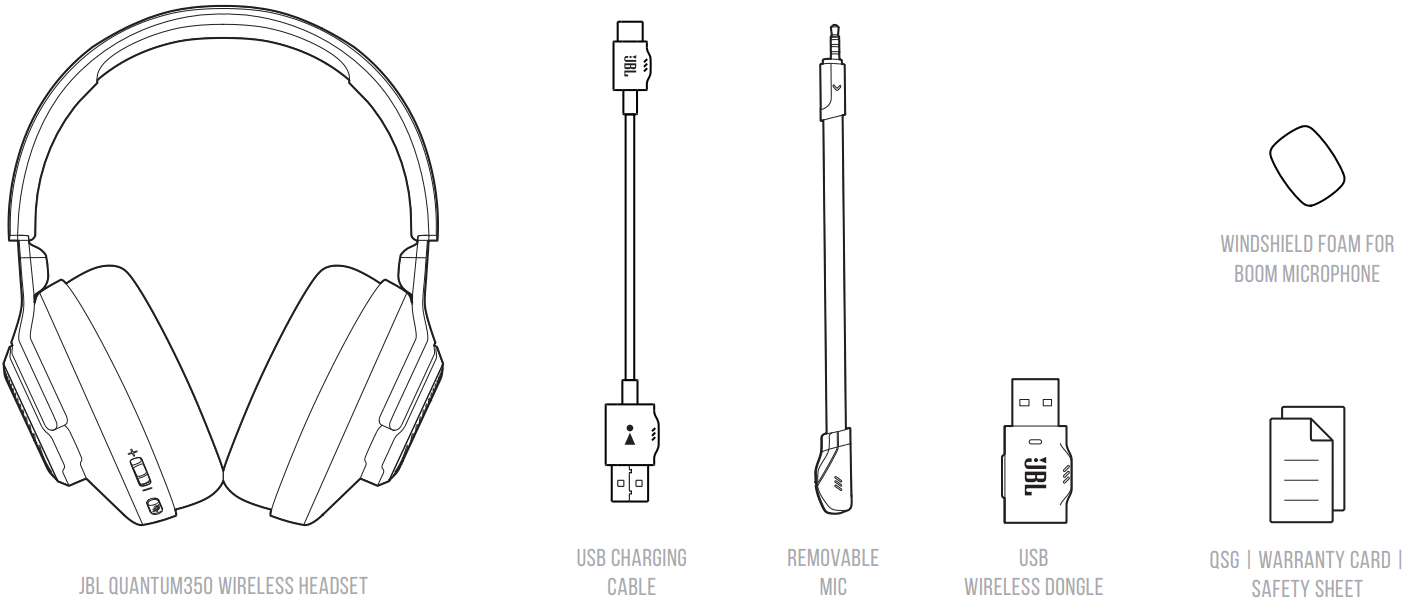
 REQUIREMENTS
 REQUIREMENTS
JBL QuantumENGINE SOFTWARE REQUIREMENTS
PLATFORM: Windows 7 (64 bit) / Windows 10 (64 bit) only
500MB OF FREE HARD DRIVE SPACE FOR INSTALLATION
System compatibility
PC | PlayStation™ | Nintendo Switch™ | MAC
| Connectivity | PC | PS4/PS5 | Nintendo Switch™ | MAC |
| 2.4G Wireless |  JBL QuantuumSURROUND™ JBL QuantuumSURROUND™ | Stereo | Stereo | Stereo |
 OVERVIEW
 OVERVIEW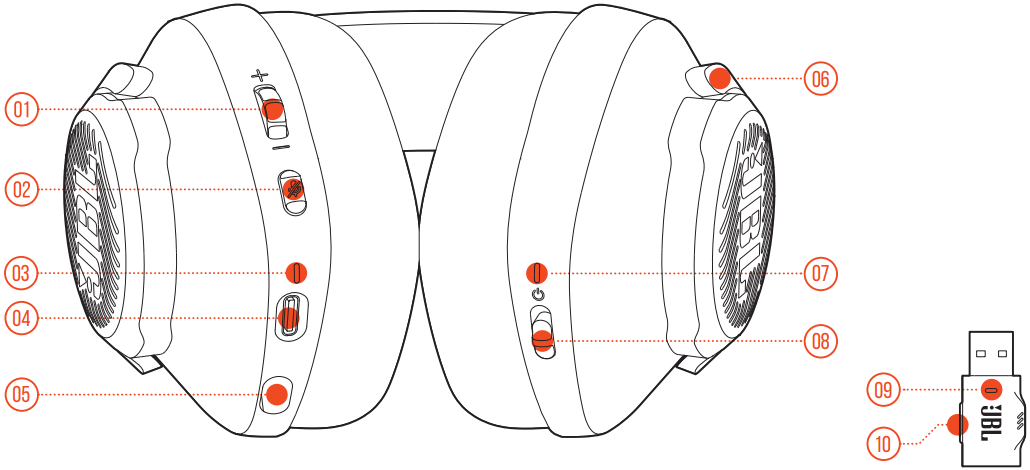
| 01 Volume Control 02 Microphone Mute / unMute 03 CHARGING LED 04 USB-C port 05 2.5mm jack for a boom microphone | 06 Flat-fold ear cup 07 POWER / 2.4G LED 08 POWER ON / OFF slider 09 2.4G LED 10 2.4G PAIRING BUTTON |
 POWER ON & CONNECT
 POWER ON & CONNECT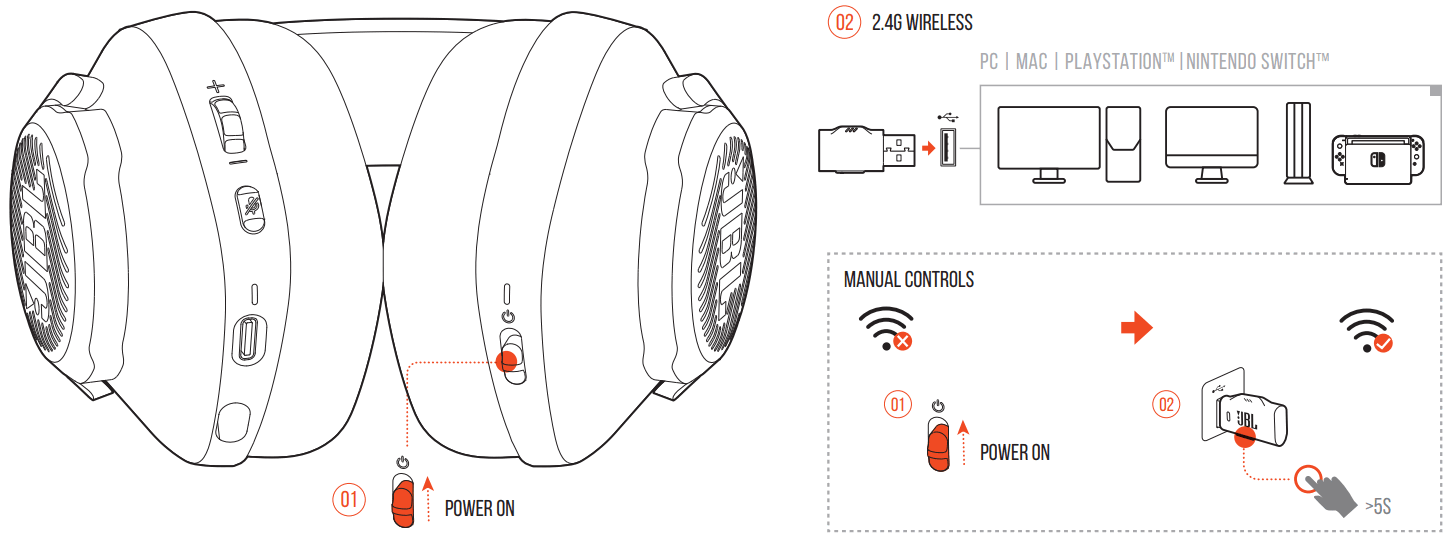
 BUTTON COMMAND
 BUTTON COMMAND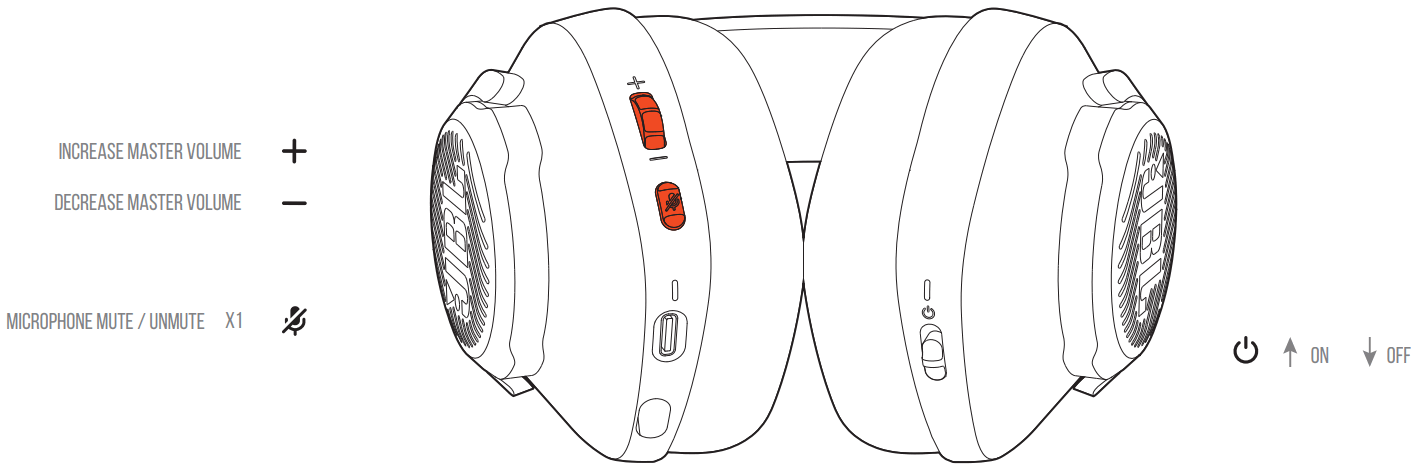
 FIRST TIME SETUP
 FIRST TIME SETUP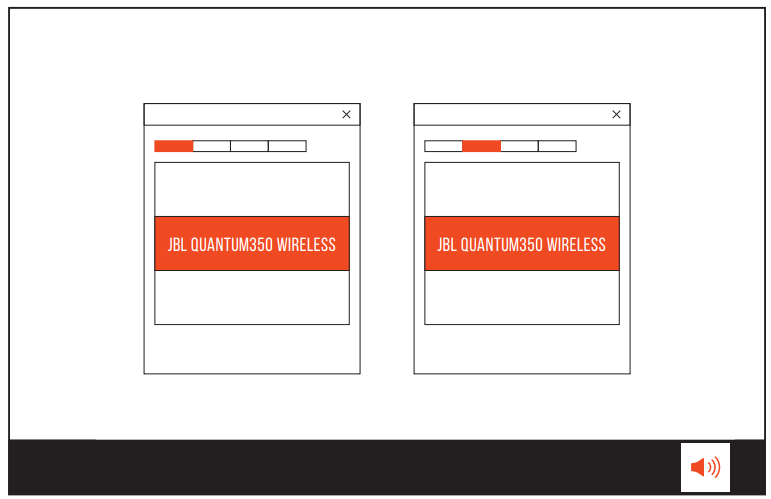
6A Connect the dongle to a USB A port on your PC.
6B Power on the headset, which will connect with the dongle automatically via a 2.4G wireless connection.
6C Go to “Sound Settings” -> “Sound Control Panel”.
6D Under “Playback” highlight “JBL Quantum350 WIRELESS” and select “Set Default”.
6E Under “Recording” highlight “JBL Quantum350 WIRELESS” and select “Set Default”.
6F Follow the onscreen instructions to personalize your sound settings.
 MICROPHONE
 MICROPHONE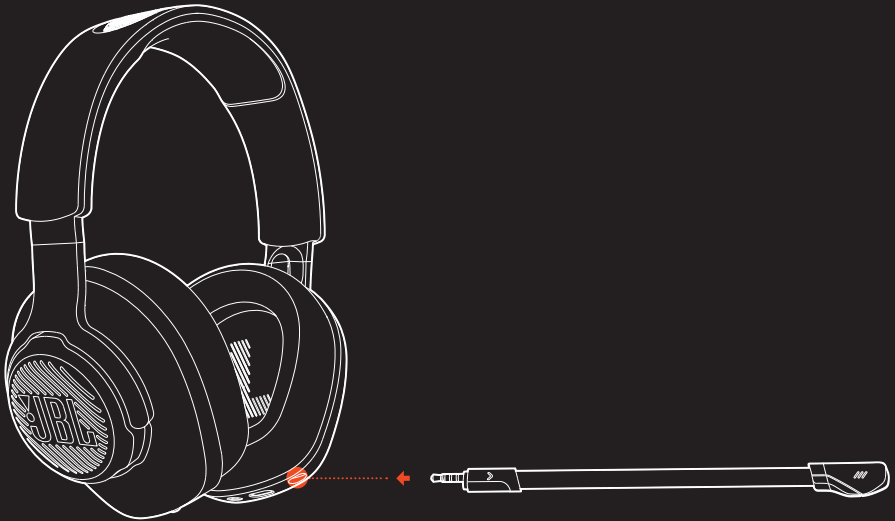
 CHARGING
 CHARGING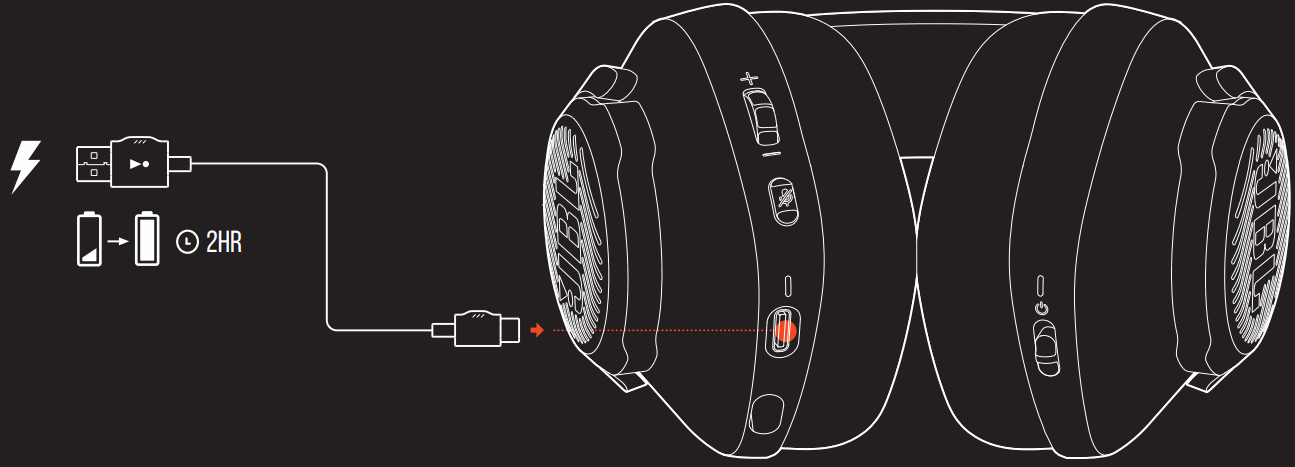
 LED BEHAVIOURS
 LED BEHAVIOURS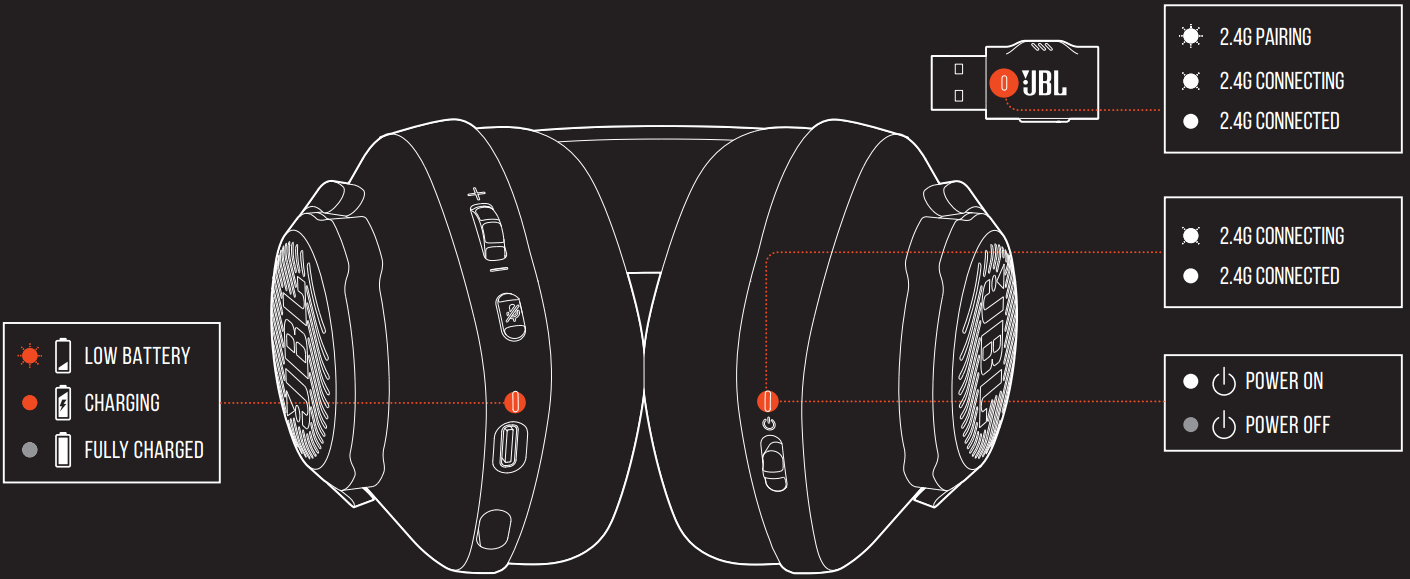
TECH SPEC
| Driver size: | 40 mm dynamic drivers |
| Frequency response: | 20 Hz – 20 kHz |
| Microphone frequency response: | 100 Hz – 10 kHz |
| Sensitivity: | 115 dB SPL @1 kHz |
| Maximum SPL: | 93 dB |
| Microphone sensitivity: | -42 dBV/Pa @1 kHz |
| Impedance: | 32 ohm |
| 2.4G Wireless transmitter power: | <10 dBm/MHz & <20 dBm |
| 2.4G Wireless modulation: | GFSK |
| 2.4G Wireless carrier frequency: | 2402 MHz – 2480 MHz |
| Battery type: | Li-ion battery (3.7 V / 500 mAh) |
| Power supply: | 5 V 1A |
| Charging time: | 2 hrs |
| Music play time: | 22 hrs |
| Microphone pickup pattern: | Omni-directional |
| Weight: | 252 g |
| Maximum operation temperature: | 45 °C |