
BenQ DEY21 Android Box
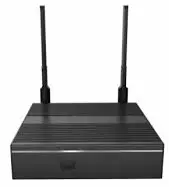
Introduction
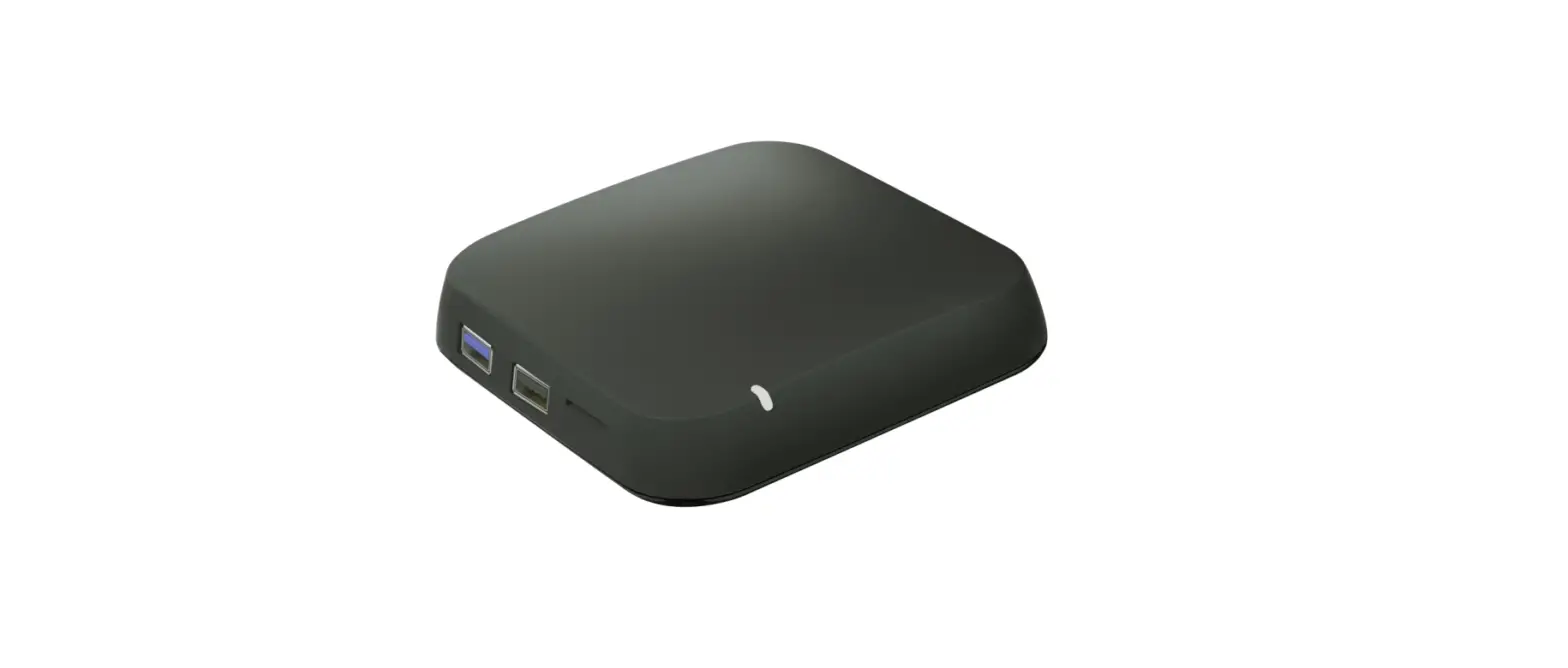
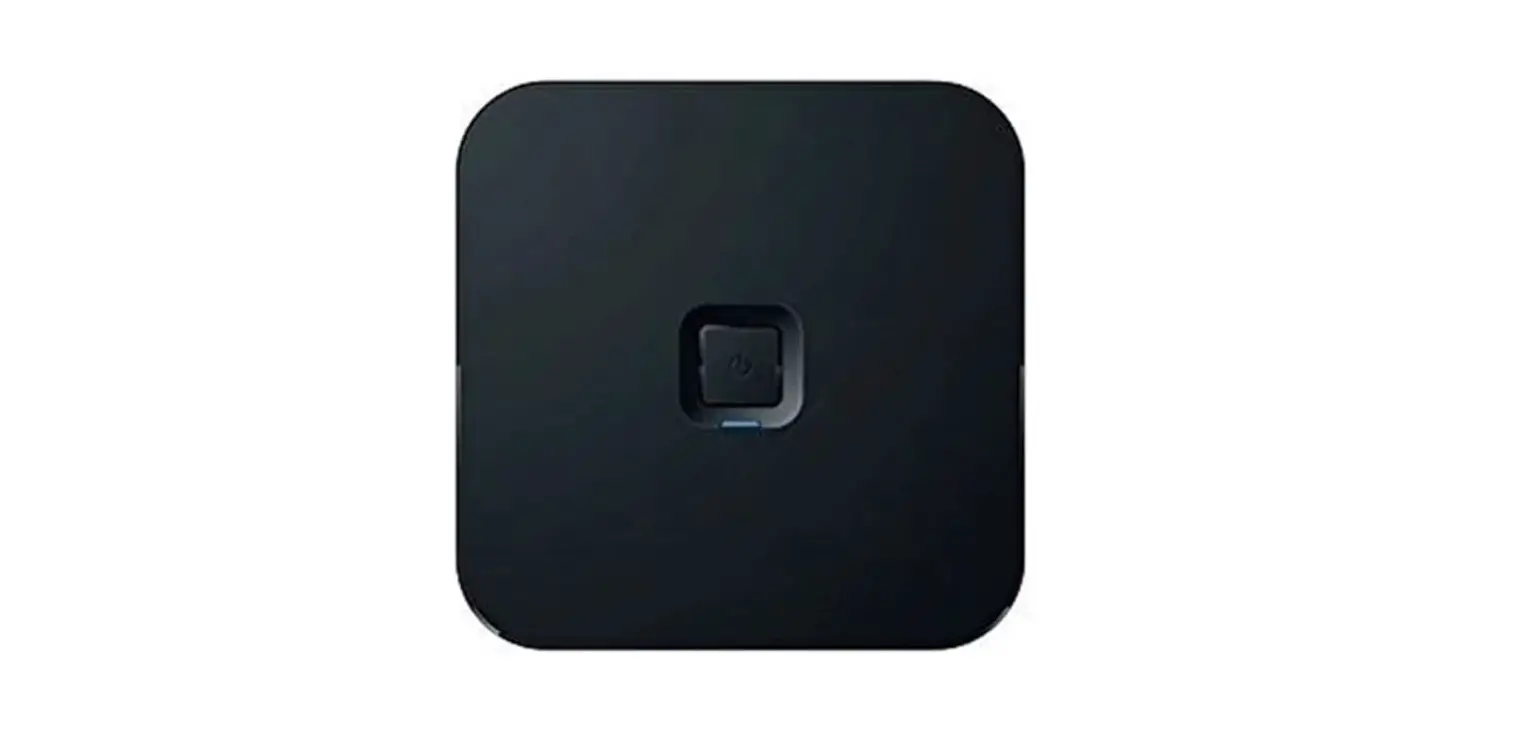
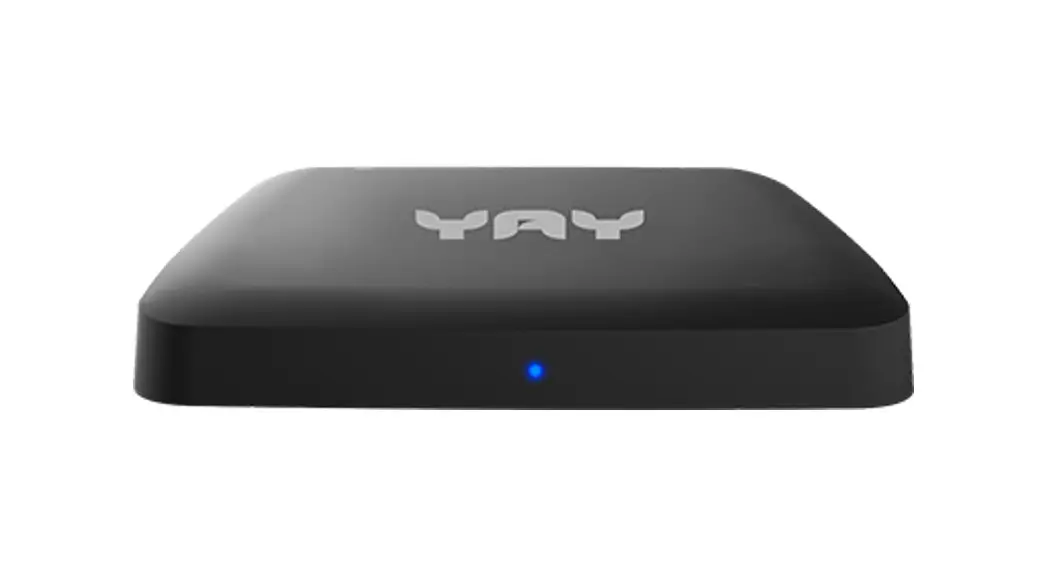
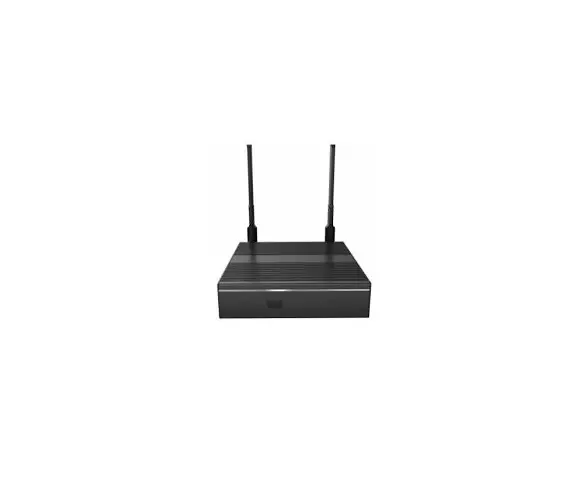
Product appearance
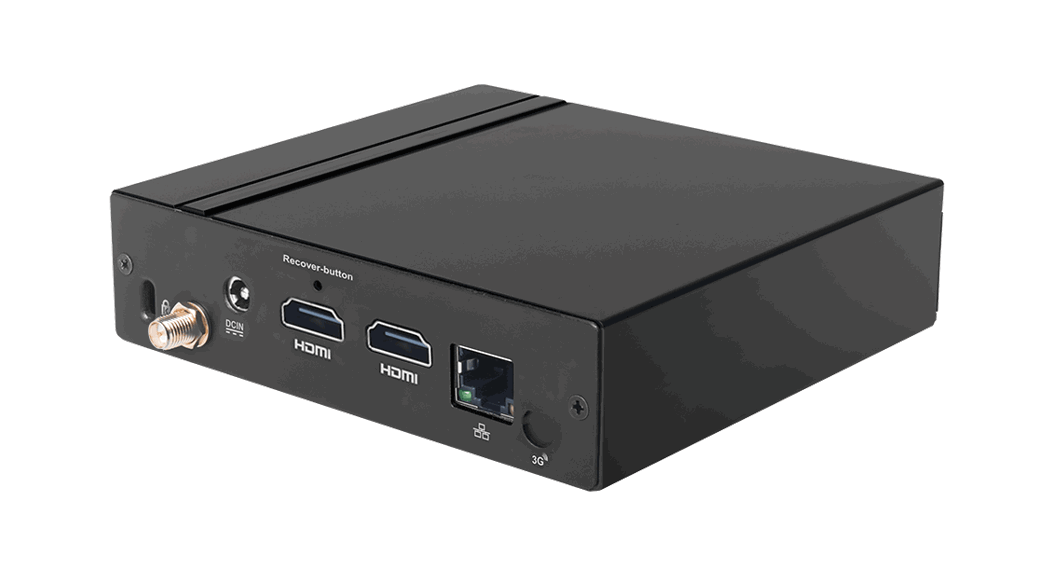
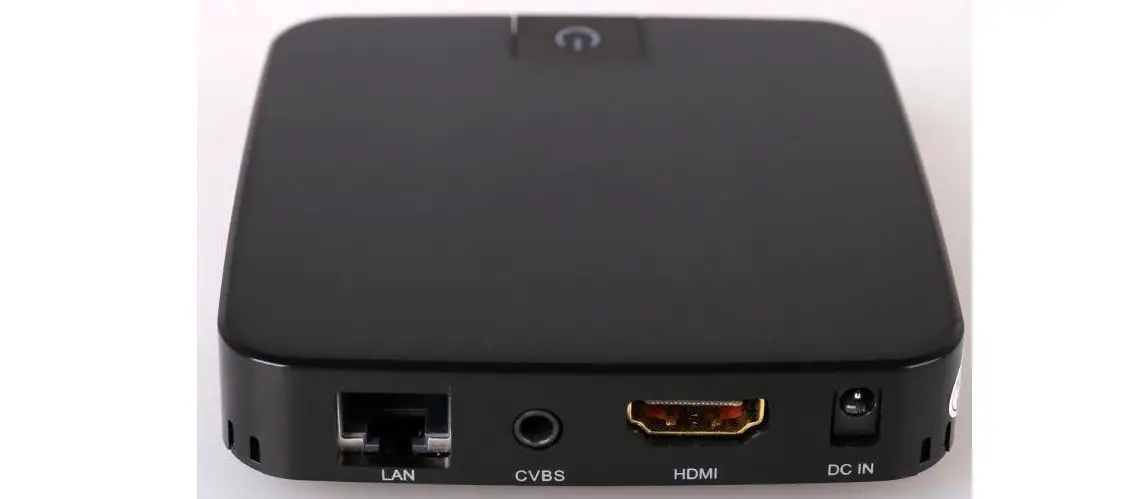
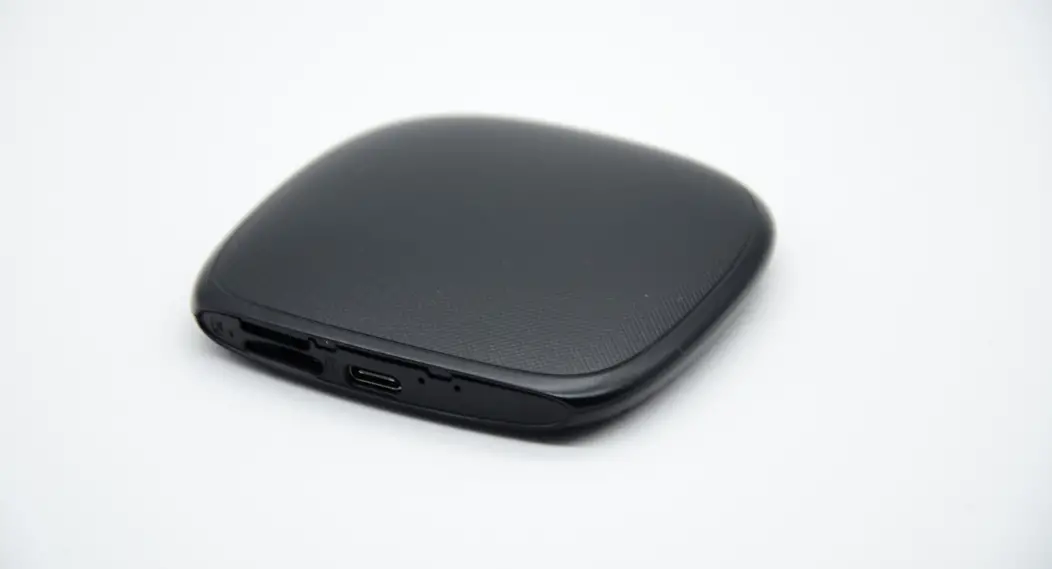
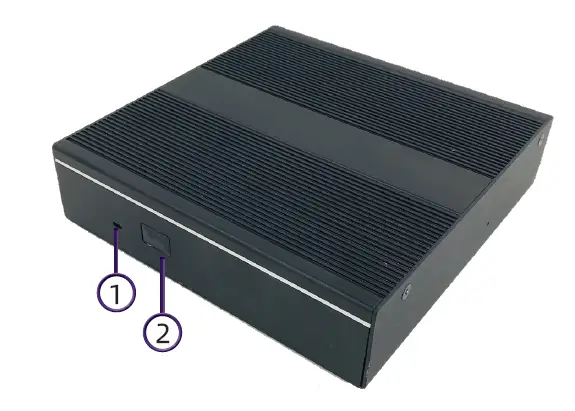 1.2 Input/Output Ports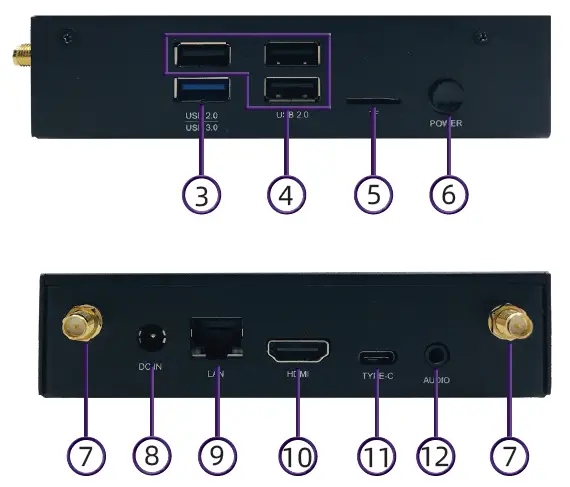
| No. | I/O | Description |
| 1 | POWER_LED | This is a PWR status indicator. |
| 2 | IR_LED | Infrared LED. |
| 3 | USB3.0 | USB 3.0 connector, backwards compatibility USB 2.0/1.1. |
| 4 | USB2.0 | USB 2.0 connector, backwards compatibility USB 1.1. |
| 5 | TF | TF slot. |
| 6 | POWER BUTTON | Pressing the power button, the machine is turned on. |
| 7 | WIFI | WIFI antenna interface. |
| 8 | DC IN | DC power interface. |
| 9 | LAN | RJ-45 network connector. |
| 10 | HDMI | High-definition multimedia display interface(output 4K@25Hz). |
| 11 | TYPE-C | Type-c output only supports FHD, and it is a HDMI mirrored signal only when HDMI cable is connected. |
| 12 | AUDIO | Source input and output. |
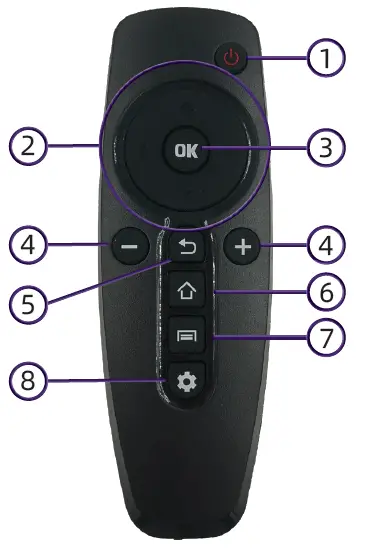
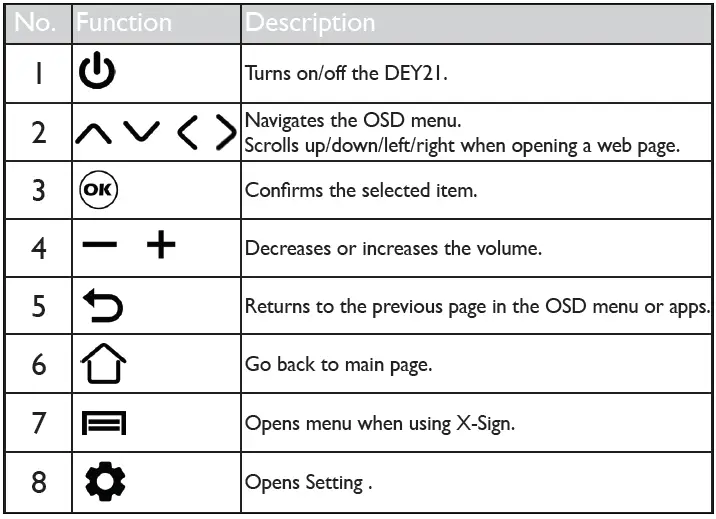
Remote control
Remote Control Instruction
Installing remote control batteries
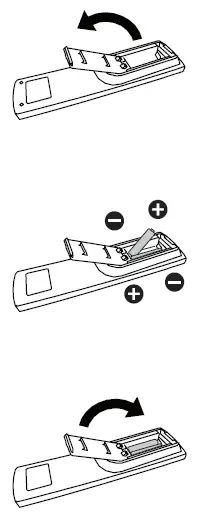 Press and flip the battery cover.
Insert two AAA batteries and ensure that the (+) and (-) signs match the (+) and (-) indications on the battery slot.
Flip and slide the cover for locking.
Wifi setup
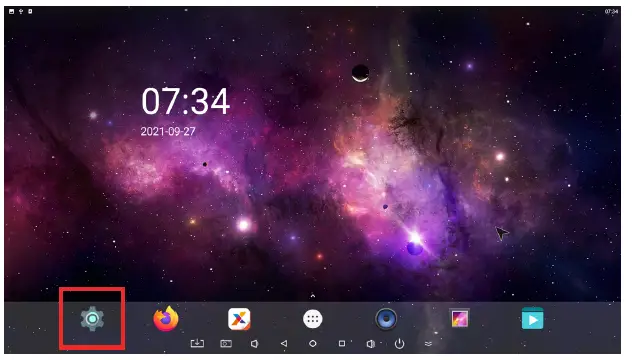
- Setup wireless in DEY21.
- On the main screen, select Settings.

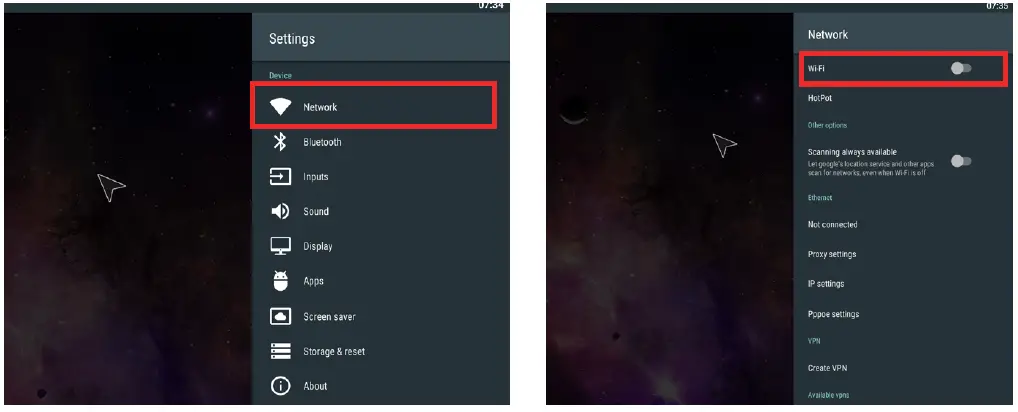
- Go to Network > Wi-Fi.

- Enable Wi-Fi. The available networks will appear on the screen.
- Select the wireless network you want to connect to.
- Follow the on-screen instructions to input the password and connect the DEY21 to the wireless network.
System setting
Device
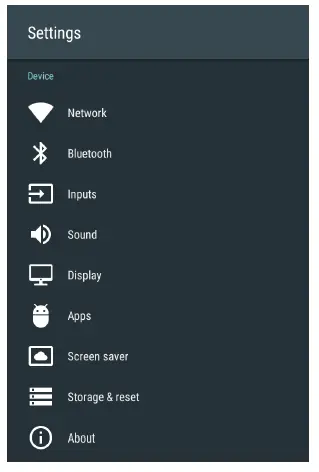
| No. | Menu |
| 1 | Network |
| 2 | Bluetooth |
| 3 | Inputs |
| 4 | Sound |
| 5 | Display |
| 6 | Apps |
| 7 | Screen saver |
| 8 | Storage&reset |
| 9 | About |
Sound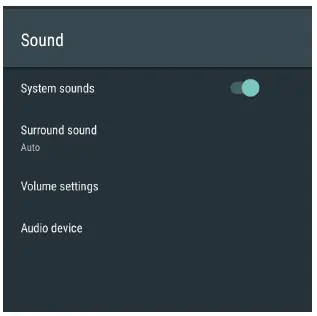
| Menu | Description |
| System sounds | Turn On/Turn Off the system sounds. |
| Surround sound | Set the audio output type(Auto/ Always/Never). |
| Volume settings | Adjust the volume of the audio output (0 to 100). |
| Audio device | Sound output devices(Default Output/Spdif Passthrough/HDMI Bitstream). |
Display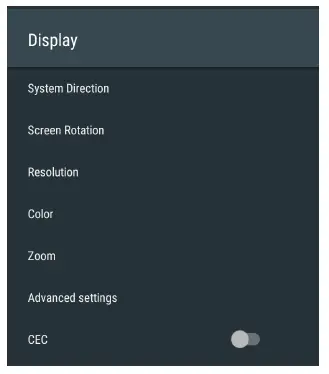
| Menu | Description |
| System Direction | Sets system orientation(0/90/180/270). |
| Screen Rotation | Sets system orientation(0/90/180/270). |
| Resolution | Adjusts the resolution of the display(3 840×2160p25.00/3840×2160p24.0 0/1920×1080p60.00/1920×1080i60 .00/1920×1080p30.00/1920×1080 p24.00/1920×720p60.00/1920×48 0p59.94). |
| Color | Adjusts the saturation of the display(Auto/RGB-8bit/RGB-10bit/ YCBCR444-8bit/YCBCR444- 10bit/YCBCR422-8bit/ YCBCR422-10bit/YCBCR420- 8bit/YCBCR420-10bit). |
| Zoom | Sets the zoom level. |
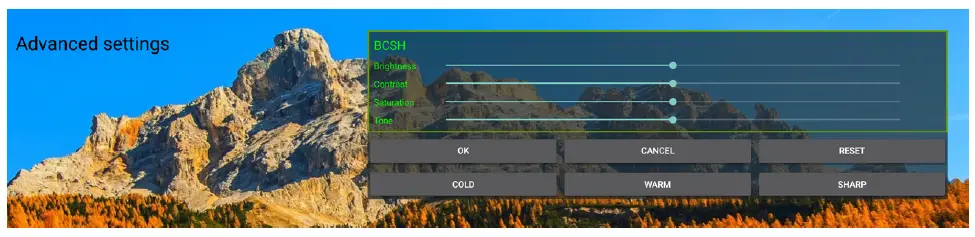
| Advanced settings | Adjusts the Brightness/Contrast/ Saturation/Tone of the display. |
| CEC | Consumer Electronics Control. |
Zoom
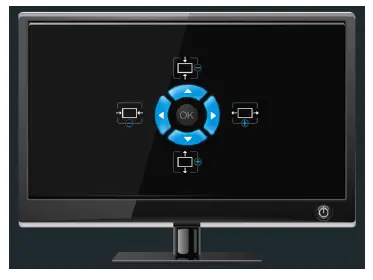 Advanced settings
 Apps
Apps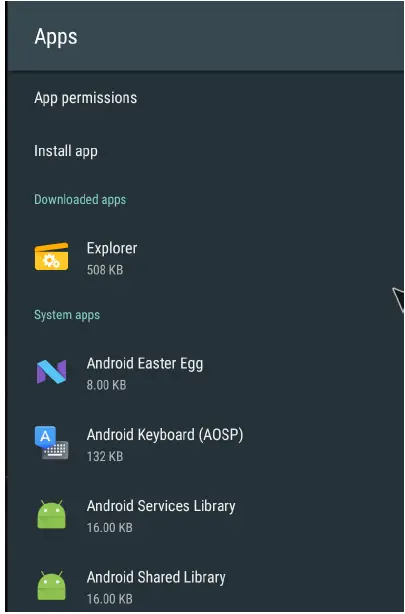
| Menu | Description |
| App permissions | Sets App permissions(Body Sensors/Calendar/Camera/Contats/ Location/Microphone/Phone/SMS/ Storage). |
| Install app | Installs new apps. |
| Downloaded apps | Shows Downloaded apps. |
| System apps | Shows System apps. |
Screen saver
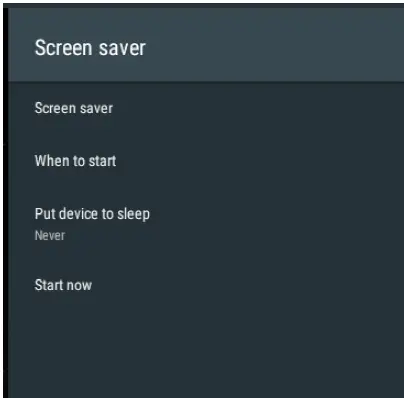
| Menu | Description |
| Screen saver | Sets screen saver(Turn screen off/Color/Photo Frame/Photo Table). |
| When to start | Sets start time(5 minutes/15 minutes/30 minutes/1 hour/2 hours). |
| Put device to sleep | Sets sleep state time(30 minutes/1 hour/3 hours/6 hours/12 hours/Never). |
| Start now | Sets Start now. |
Storage & reset
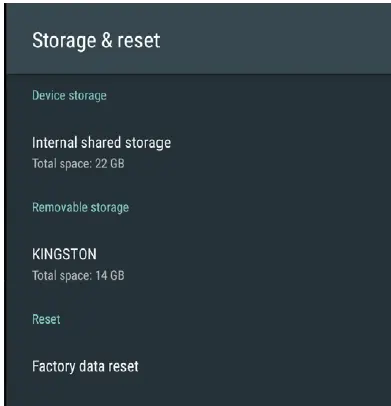
| Menu | Description |
| Device storage | Shows internal shared storage allocation(Apps/Photos & videos/ Audio/Downloads/Cached data/ Misc/Available). |
| Removable storage | Shows removable storage allocation. |
| Reset | Factory data reset. |
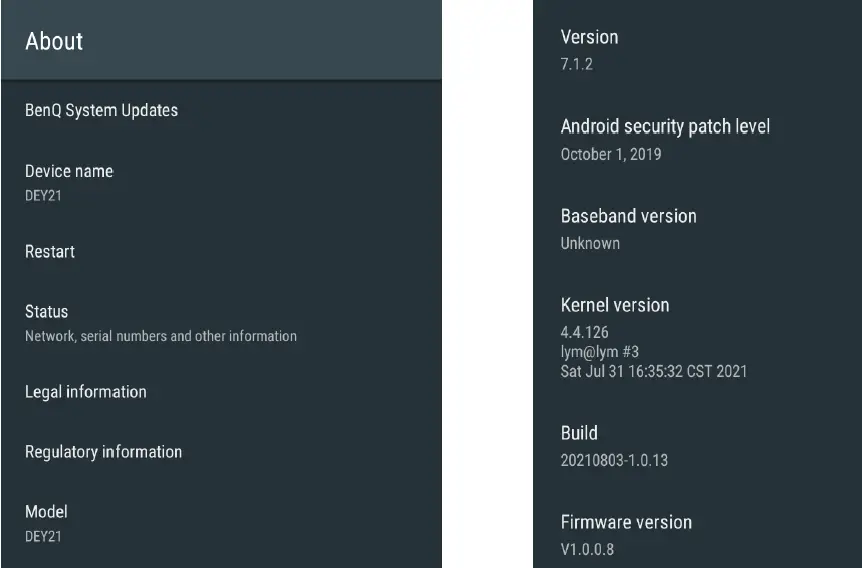
About
 Preferences
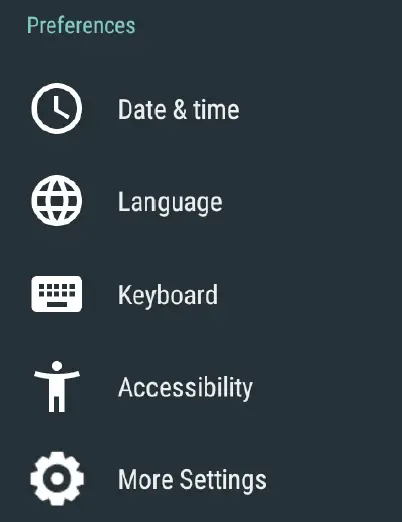
| No. | Menu | Description |
| 1 | Date & time | Setup date / time zone |
| 2 | Language | Setup language |
| 3 | Keyboard | Setup keyboard |
| 4 | Accessibility | Setup accessibility |
| 5 | More Settings | Setup advanced setting |
App list
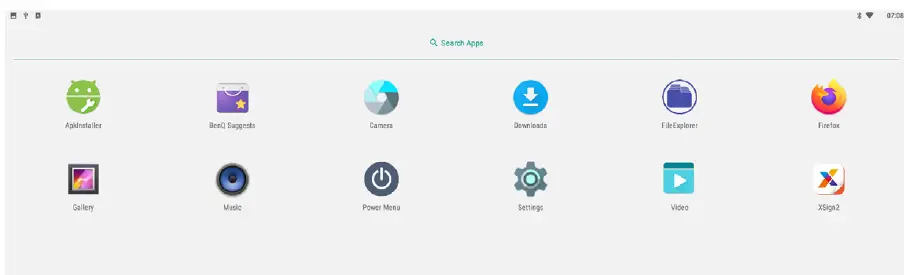 The following apps can be accessed from the main screen:
| Application Name | Description |
| Apklnstaller( ) | Install Android APK |
| BenQ Suggests( ) | Download available BenQ apps |
| Camera( ) | Open external camera if connected |
| Downloads( ) | Check downloaded file |
| FileExplorer( ) | Check and manage files |
| Firefox( ) | Web browser |
| Application Name | Description |
| Gallery( ) | Photo viewer |
| Music( ) | Audio file player |
| Power Menu( ) | Instant power selection (sleep / restart / power off) |
| Settings( ) | System setup |
| Video( ) | Video file player |
| XSign2( ) | BenQ content management system |
Media codec
| Type | Format |
|
Video | H.264/AVC, Base/Main/High/HighlO profile @ level 5.1; up to 3840×2160@ 30fps H.265/HEVC, Main/MainlO profile @ level 5.1 High-tier; up to3840x2160@ 30fps VP9, profile 0, up to 3840×2160@ 30fps MPEG-1 up to 1080P @ 30fps MPEG-2 SP@ML, MP@HL, up to 1080P @ 30fps MPEG-4 SP@L0-3,ASP@L0-5, up to 1080P @ 30fps VC-1, SP@ML, MP@HL,AP@L0-3, up to 1080P @ 30fps |
| Images | BMP/PNG/JPG up to 3840×2160 |
Warning
Safety Information
Read and understand all instructions before using this product. If damage is caused by failure to follow the instructions, the warranty does not apply.
Warning
To reduce the risk of electric shock, DO NOT remove the cover (or back).
DO NOT attempt to repair the product, this could lead to the risk of injury, damage to the product .
To reduce the risk of fire or electric shock, keep this product away from exposed direct sunlight, naked flames or heat, large amounts of moisture, dust, and sand.
Caution
Risk of explosion if the battery is replaced by an incorrect type; disposal of a battery into fire or a hot oven, or mechanically crushing or cutting of a battery, that can result in an explosion;
leaving a battery in an extremely high temperature surrounding environment that can result in an explosion or the leakage of flammable liquid or gas; a battery subjected to extremely low air pressure that may result in an explosion or the leakage of flammable liquid or gas.
FCC Note (for U.S.A)
This equipment has been tested and found to comply with the limits for a Class B digital device, pursuant to Part 15 of the FCC rules.
These limits are designed to provide reasonable protection against harmful interference in a residential installation. This equipment generates, uses and can radiate radio frequency energy and, if not installed and used in accordance with the instructions, may cause harmful interference to radio or television reception, which can be determined by turning the equipment off and on.
The user is encouraged to try to correct the interference by one or more of the following measures.
- Reorient or relocate the receiving antenna.
- Increase the separation between the equipment and receiver.
- Consult the dealer or an experienced radio/TV technician for help.
- Connect the equipment into an outlet on a circuit different from that to which the receiver is connected.
This equipment complies with FCC radiation exposure limits set forth for an uncontrolled environment. This equipment should be installed and operated with minimum distance 20 cm between the radiator & your body.
You are cautioned that changes or modifications not expressly approved by the party responsible for compliance could void your authority to operate the equipment. The distance between user and products should be no less than 20 cm.