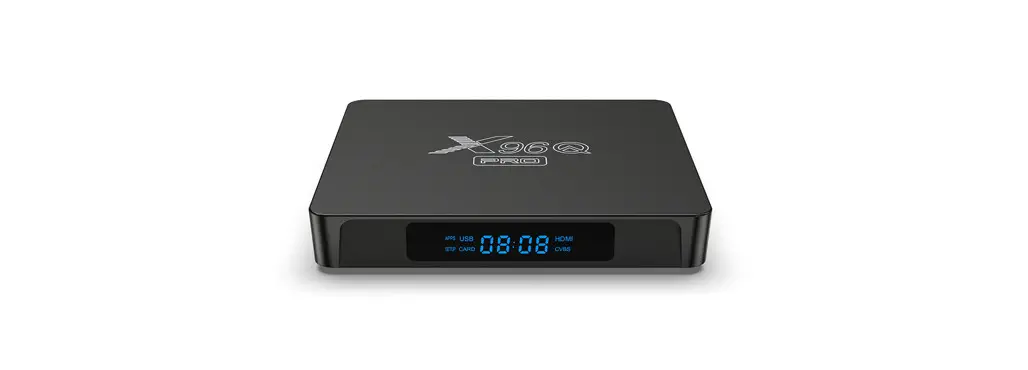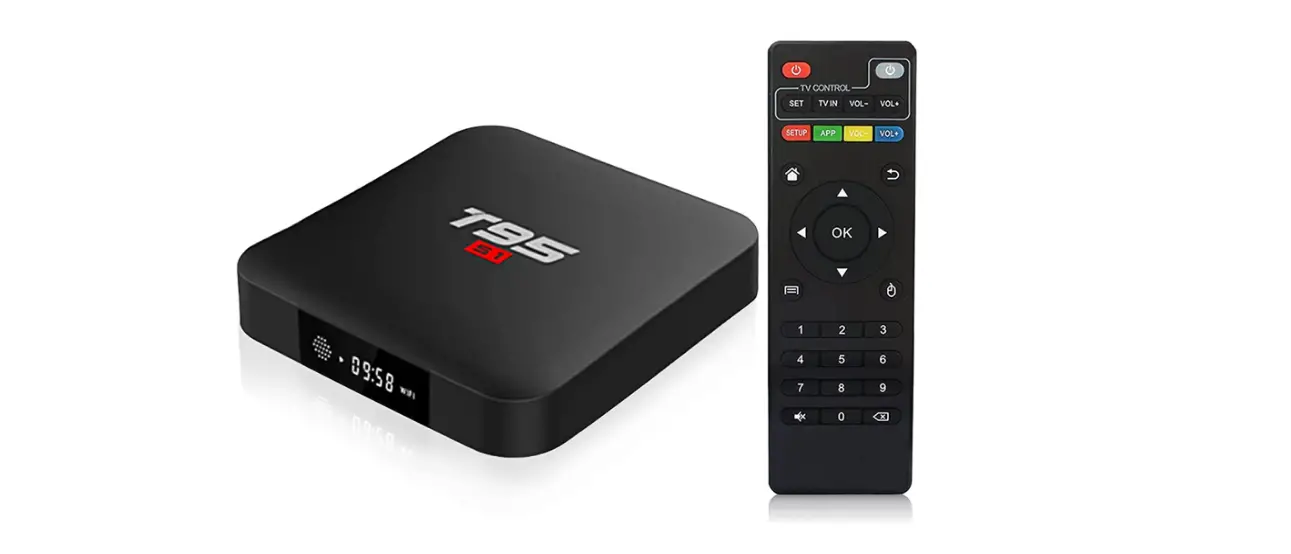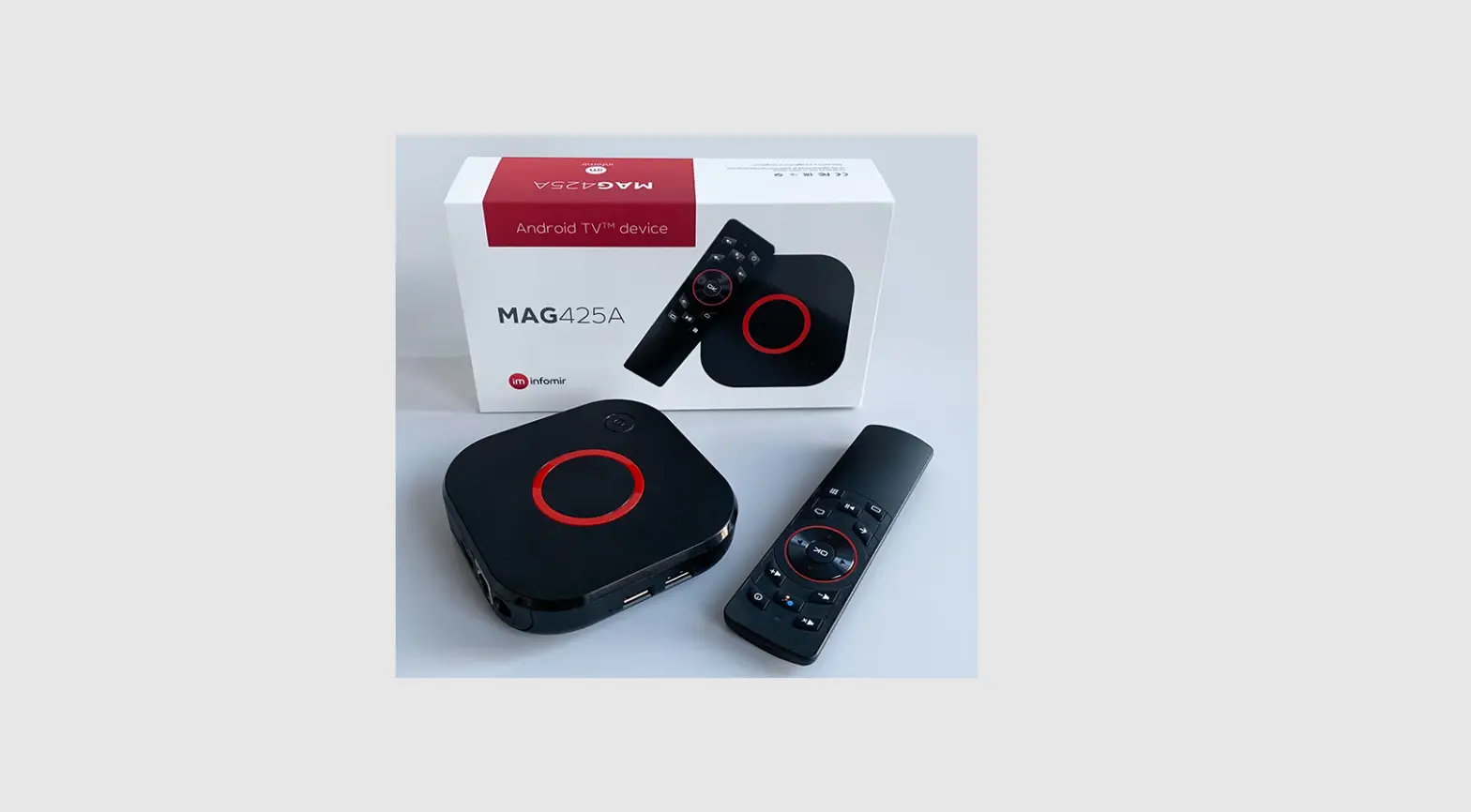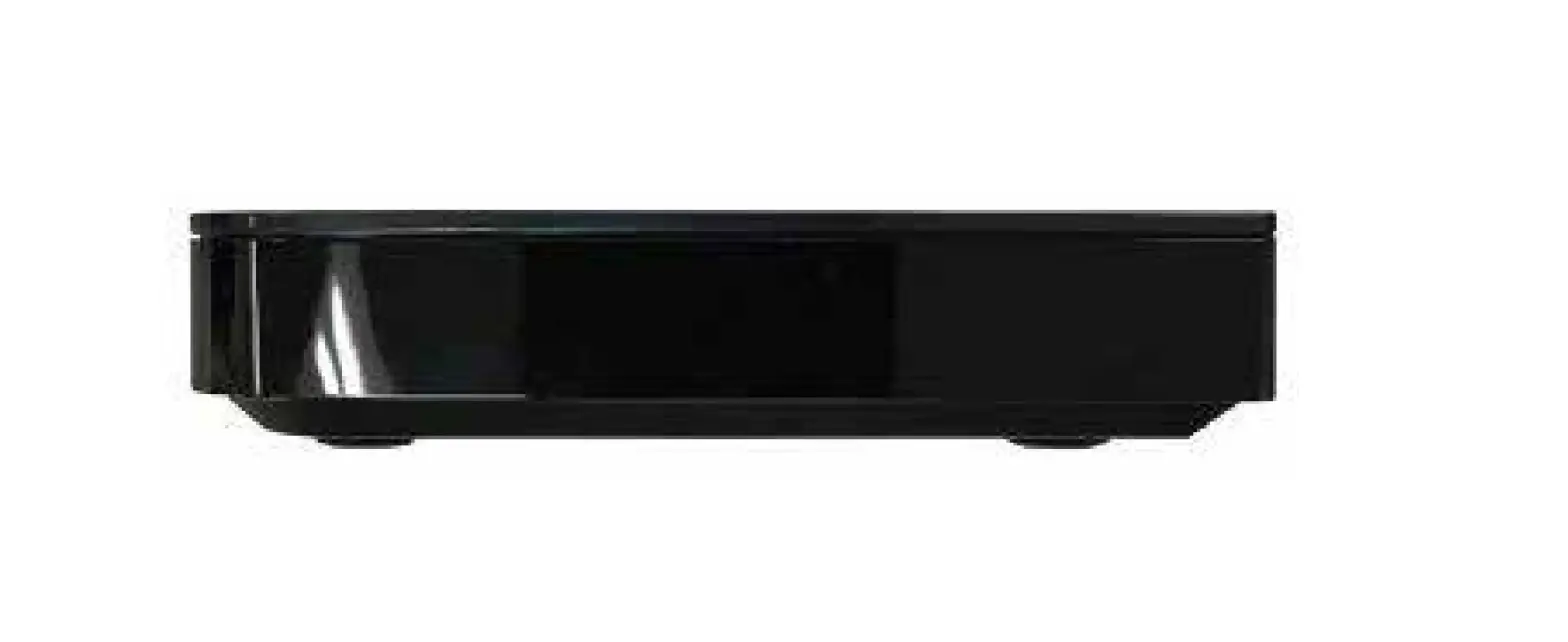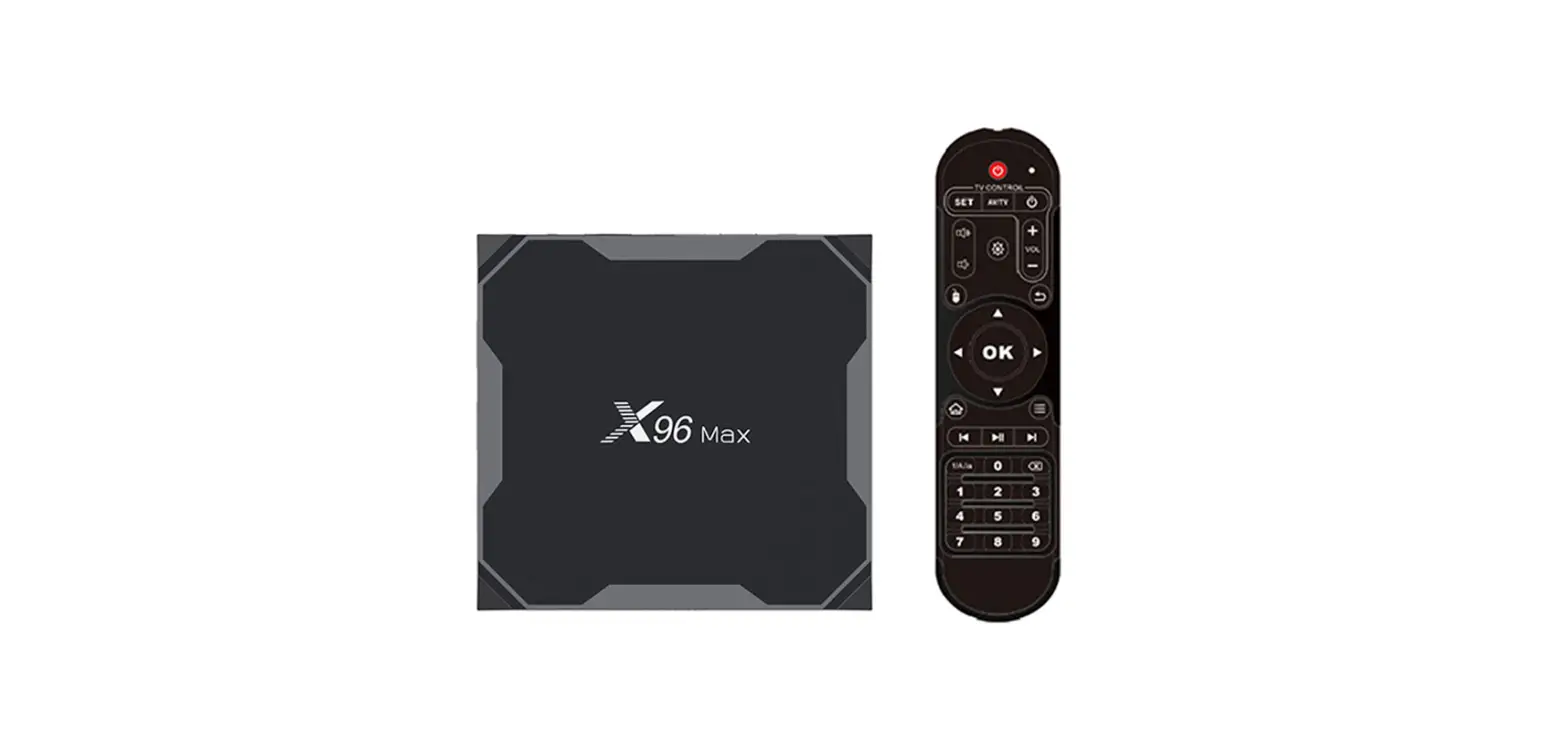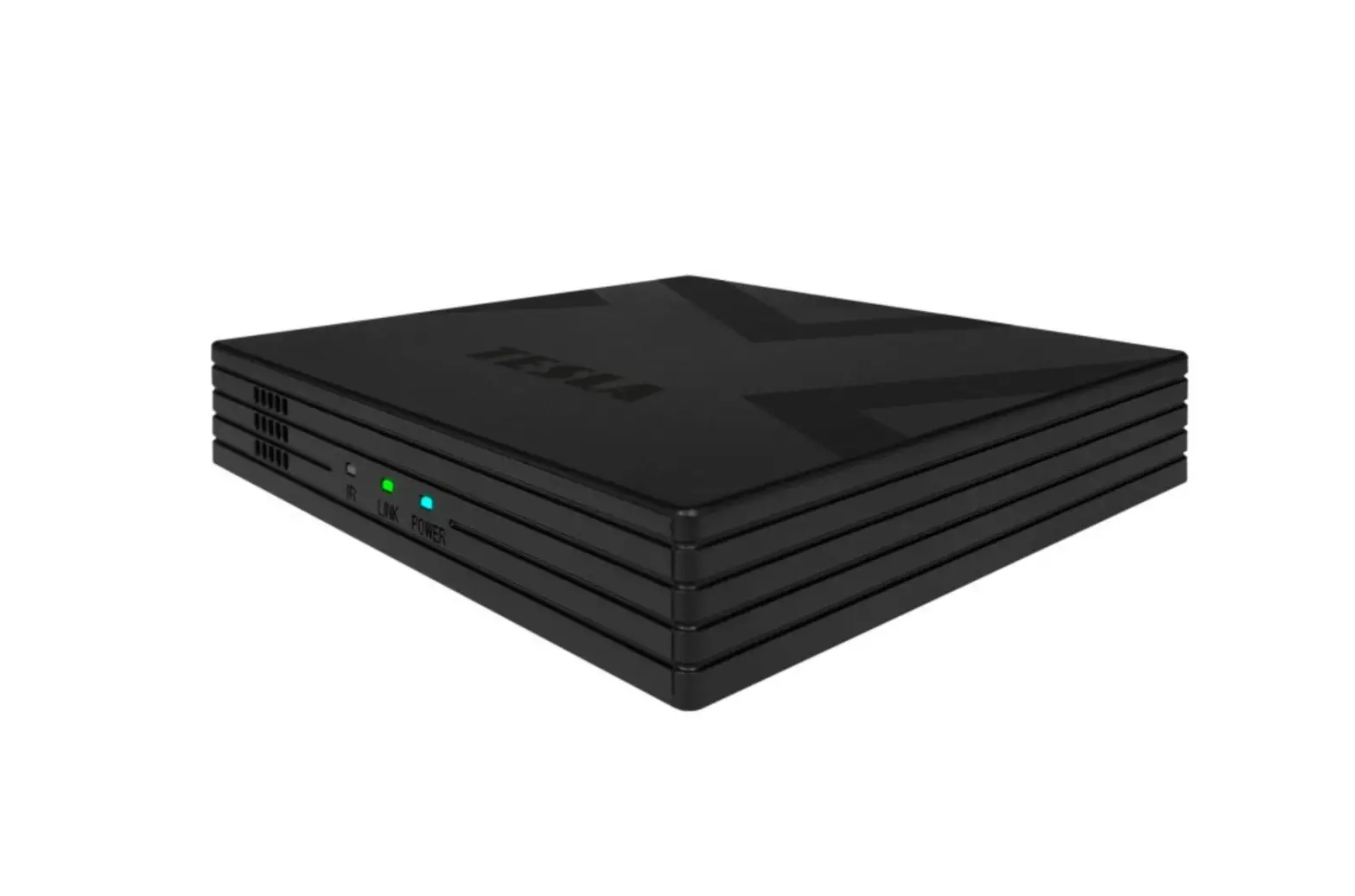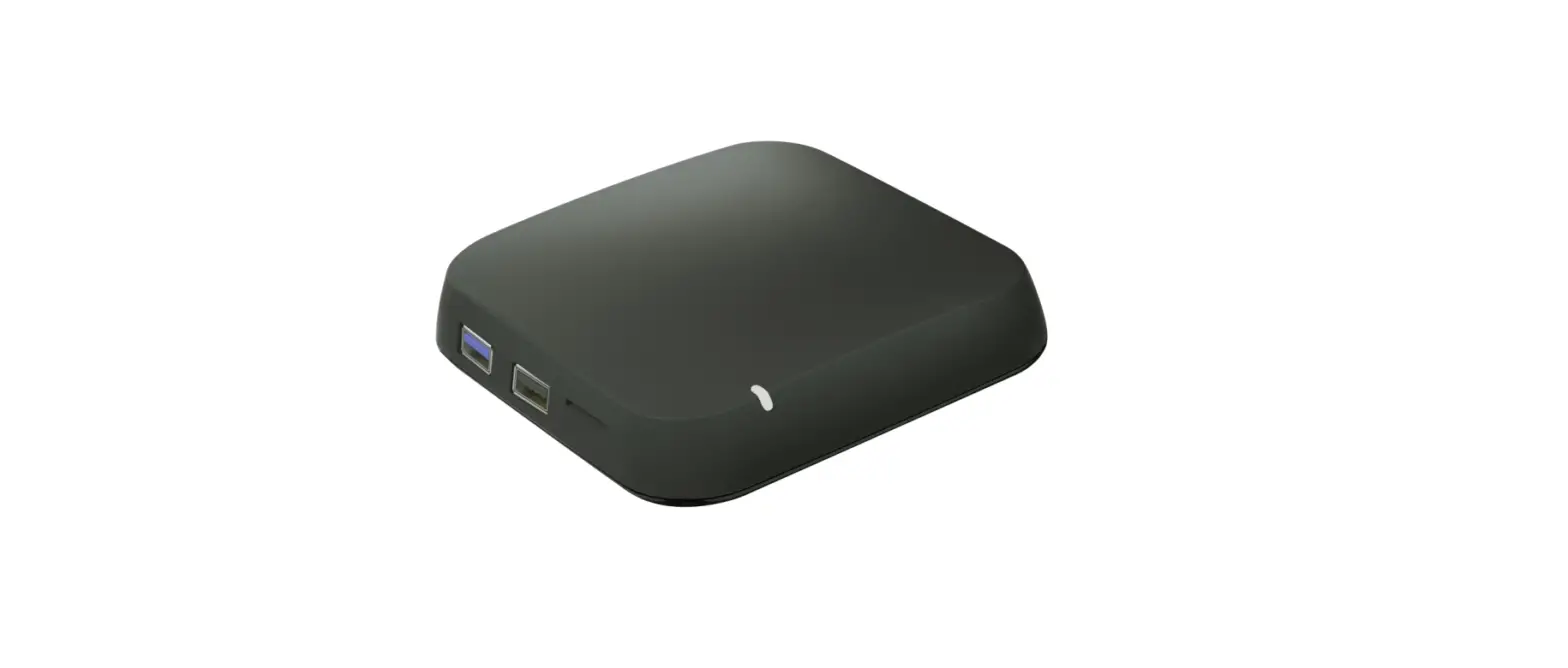

mware MW809 Android TV Box
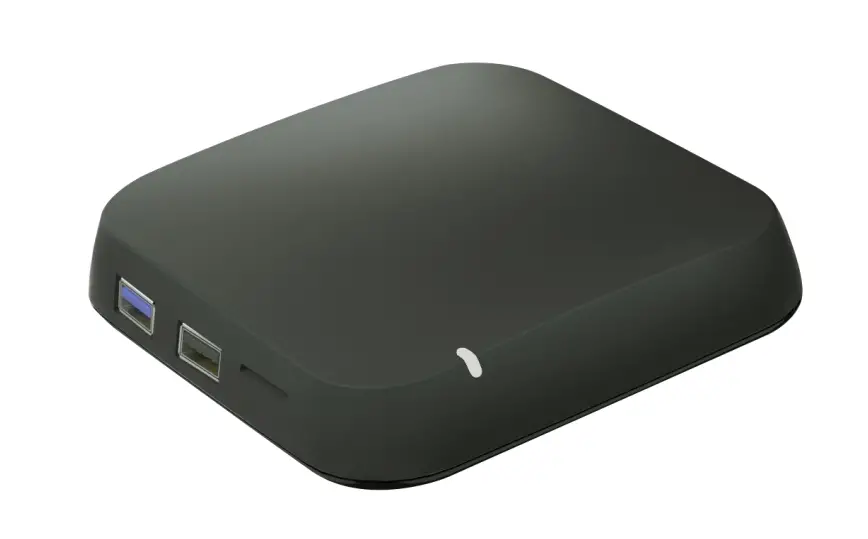
Chapter 1 Overview
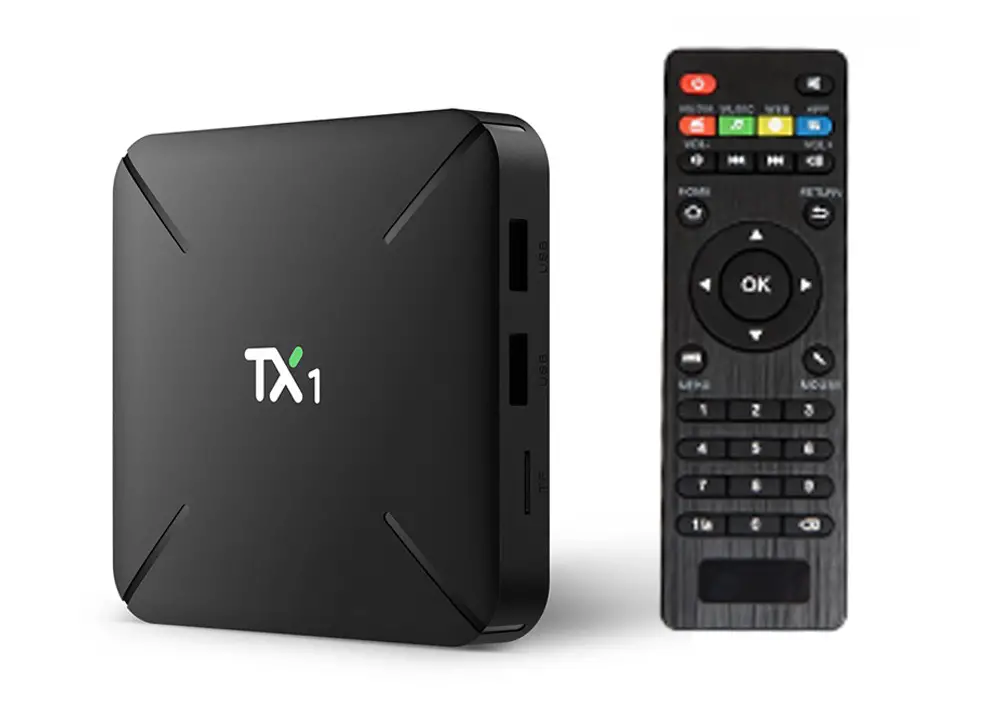
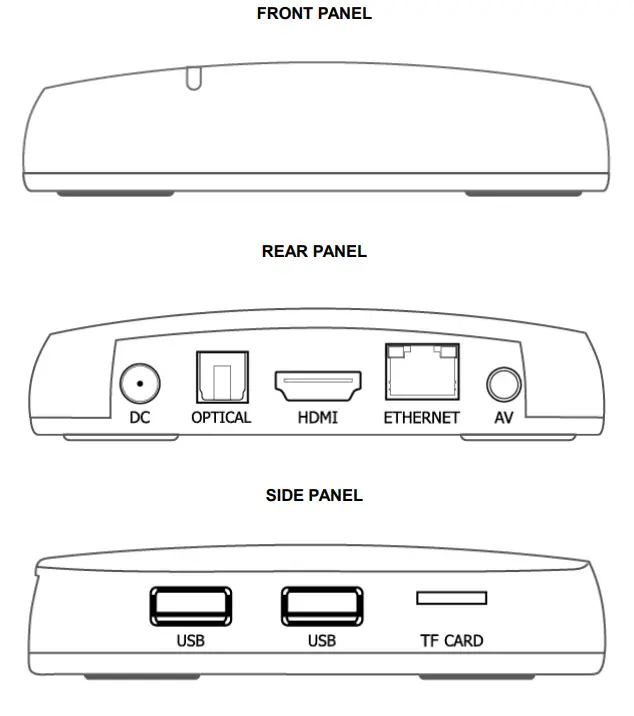
Appearance and interface
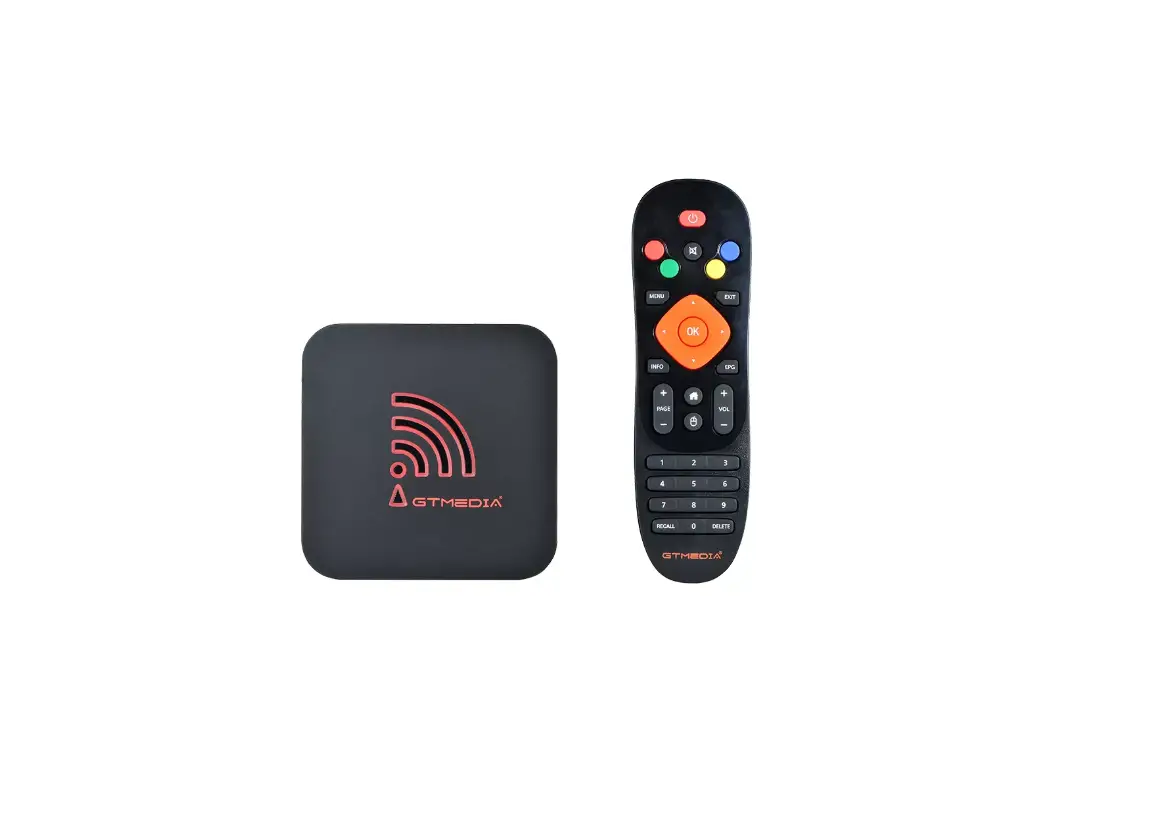
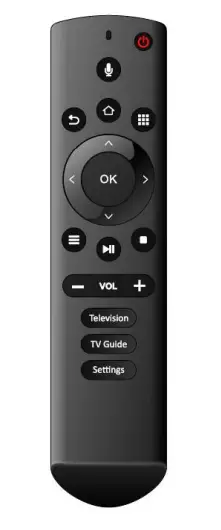
BT VOICE REMOTE
| NO. | BUTTON NAME | ID |
| 1 | POWER |
|
| 2 | VOICE | |
| 3 | BACK | |
| 4 | HOME | |
| 5 | APPS | |
| 6 | UP | |
| 7 | DOWN | |
| 8 | LEFT | |
| 9 | RIGHT | |
| 10 | OK | |
| 11 | MENU | |
| 12 | PAUSE/PLAY | |
| 13 | STOP | |
| 14 | VOL- | |
| 15 | VOL+ | |
| 16 | TELEVISION | |
| 17 | TV GUIDE FOR EPG SECTION | |
| 18 | SETTINGS |
How to pair bluetooth?
- Press”Settings”button in launcher;
- Select “Remote&Acccessories”,press”OK” button searching for accessories;
- Press “OK” and “VOL-” at the same time about 4 seconds until the red LED will flash quickly;
- Press”OK”on bluetooth device name “R18B-P” option to enter“pair mode”
Noted: if paired successful ,LED will be off; otherwise,the LED will be always flashing. - After the connection is successful, you can choose”unpair” on “R18B-P” option.
Chapter 2 Initial configuration
Standard UI interface
- Power on, enter into main menu.
- Click ”Welcome/language/Resolution/Screen Zoom/Network.
- Click ”Open Android Setting Menu”, or “Settings” on remote, to access the Set-top box Settings menu.
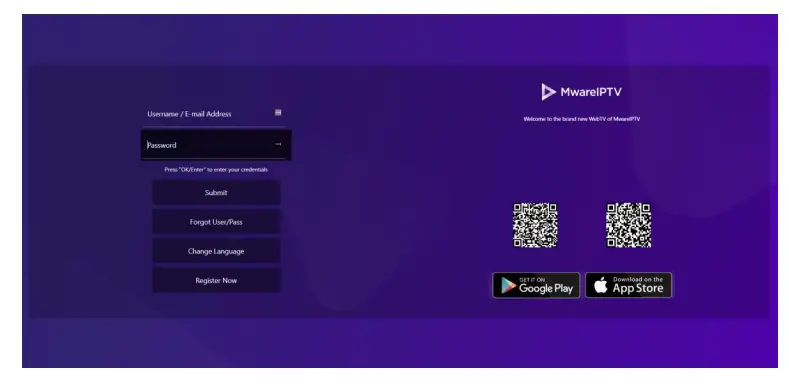
- Login with Username and Password to access the TV service.

Apps
Select ”Settings”->”Apps”->”See all apps” for opening or delete other apps. 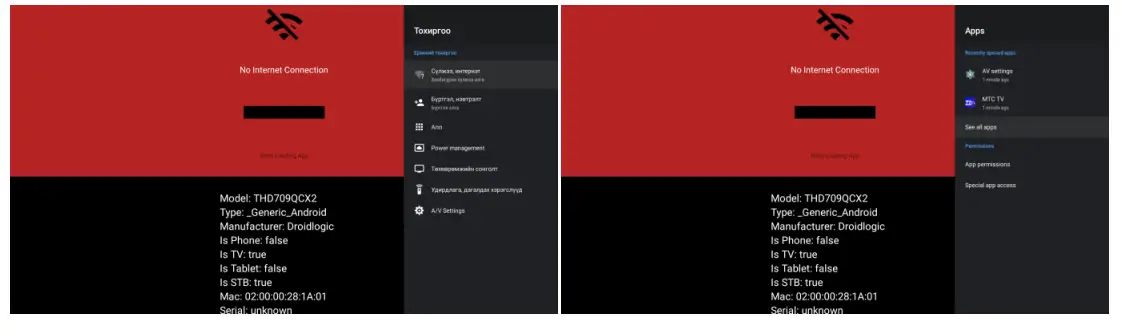
Chapter 3 Local media play
Select “File Browser” from apps->”Open”.
Select “Local Disk” or “USB” driver, press ”OK” button to enter. 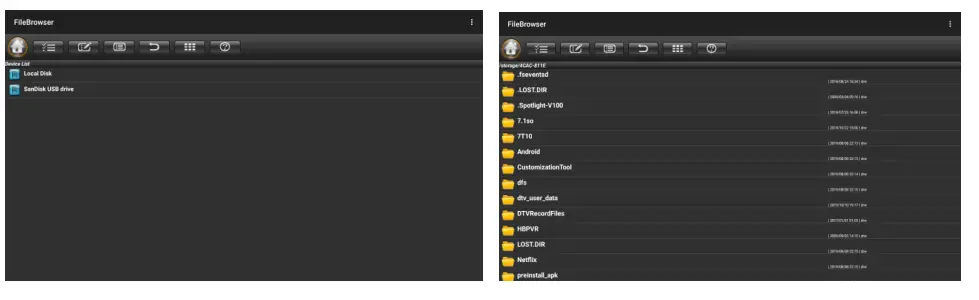
Click the video, an option menu will pop up. Select your favorite video player to start playing video. 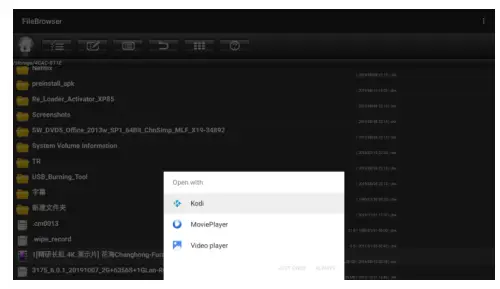
Click the music, an option menu will pop up.
Select your favorite music player to start playing music. 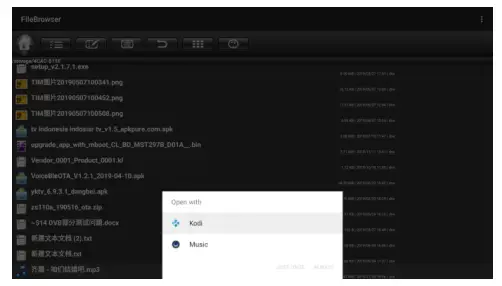
Click the photo, an option menu will pop up.
Select your favorite photo player to start playing photo. 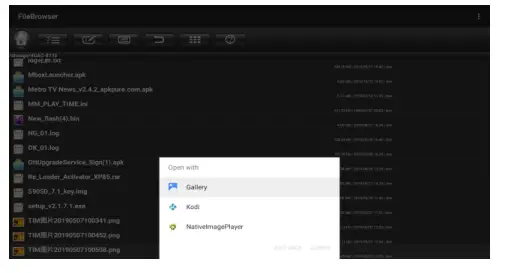
Chapter 4 App Installer
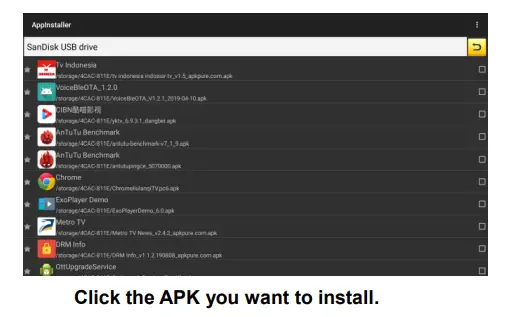
About AppInstaller 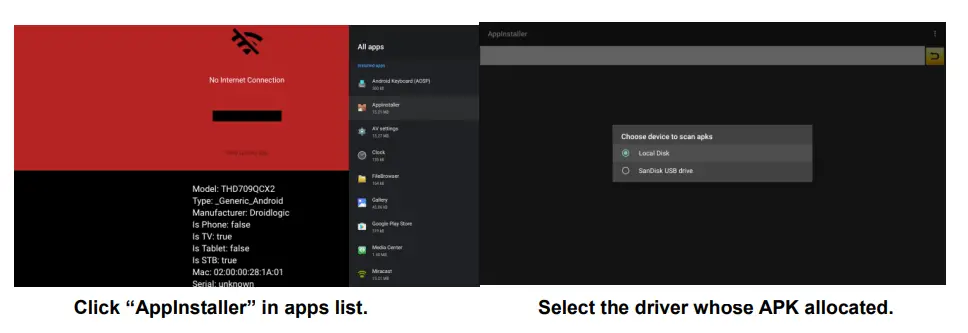
About multi-screen communication 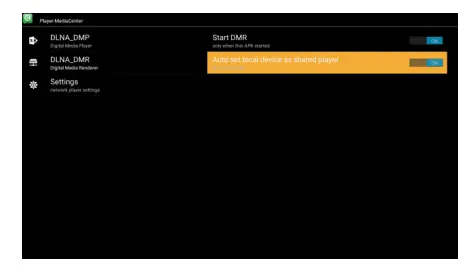
DLNA
- Click “Media Center” in Apps list.
- Turn on DLNA DMP” and “DLNA DMR”.
- Turn on DLNA in your android mobile device.
- Start playing the video, music and photo in your android mobile device.
Chapter 5 Settings
You can use setting to re-configure your network, display, language and etc.
Network &Time settings
Wifi Settings
- Network-> Wi-Fi/Ethernet, by “IP settings: DHCP”, when plug ethernet cable, ethernet settings will display “Connected”.
- If select “Static IP”, click “static” in IP settings, revise address in IP address bar, network gateway bar and DNS bar, click “Save”.
Time Settings
Select ”time and date” and ”Time Zone from Settings.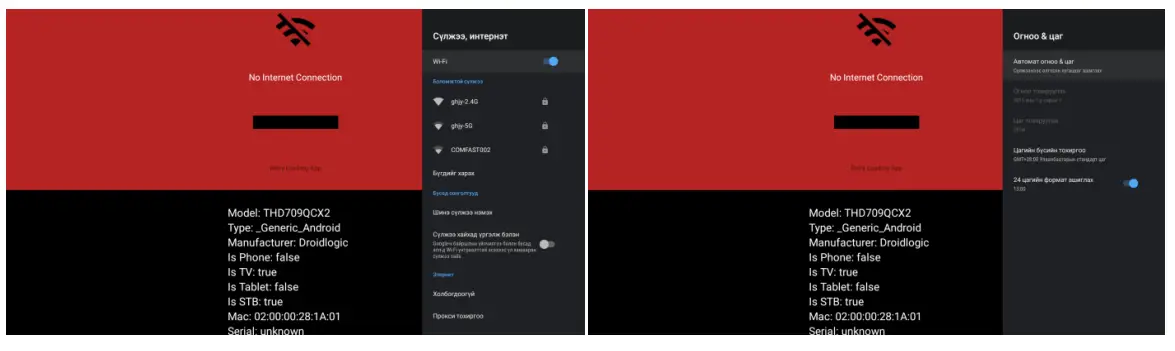
Sound settings
System sounds
The standard setting is switch on.
Surround sound
Click “Surround sound”, there are (Auto/Always/Never) 3 options for choosing.
Language settings
OSD language settings
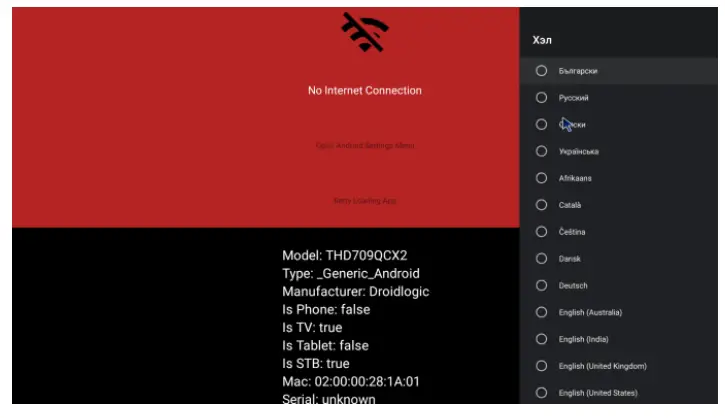
Click “Language Setting”, select the language as OSD language from language list, click “ok” to save and back.
Input method settings
Click “Input Settings”, input method from the list, click “OK” to save and back, then you can use new input method. 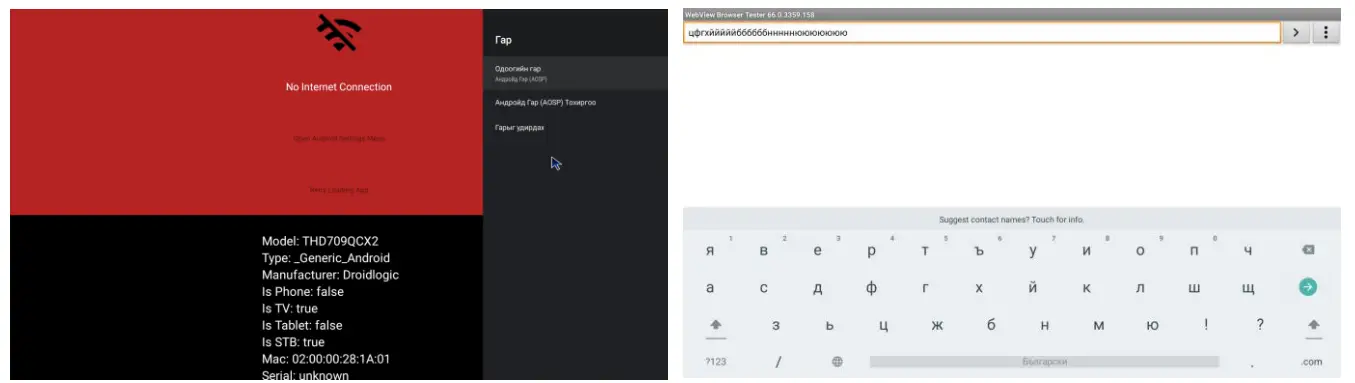
System upgrade
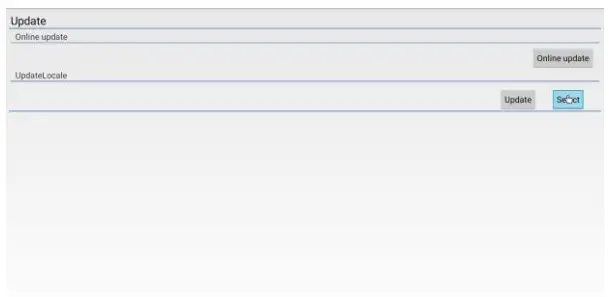
Local Update
- Press “Settings” at remote, click ”OTA Upgrade”.
- Select “Local Update”, click ”OK” to enter.
- Click “Select” button, select the new software,
- Select “Wipe Data” and “Wipe Media”.
- Click ”Update” to start update.
System information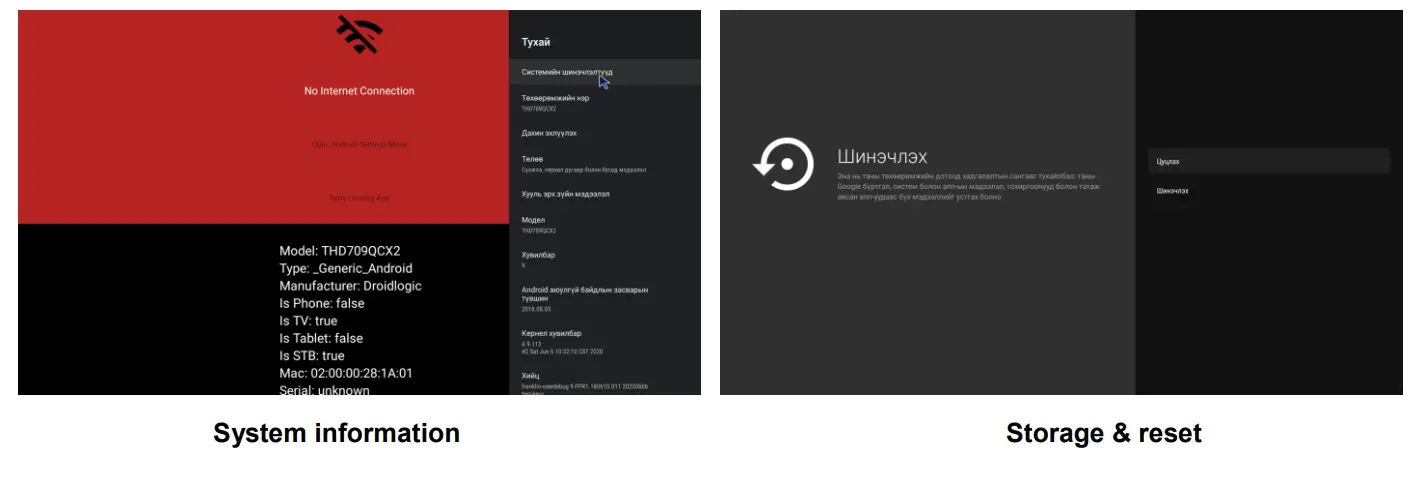
FCC WARNING
Labeling requirements.
This device complies with part 15 of the FCC Rules. Operation is subject to the following two conditions: (1) This device may not cause harmful interference, and (2) this device must accept any interference received, including interference that may cause undesired operation.
Information to user.
Any Changes or modifications not expressly approved by the party responsible for compliance could void the user’s authority to operate the equipment.
Information to the user.
Note: This equipment has been tested and found to comply with the limits for a Class B digital device, pursuant to part 15 of the FCC Rules. These limits are designed to provide reasonable protection against harmful interference in a residential installation. This equipment generates uses and can radiate radio frequency energy and, if not installed and used in accordance with the instructions, may cause harmful interference to radio communications. However, there is no guarantee that interference will not occur in a particular installation. If this equipment does cause harmful interference to radio or television reception, which can be determined by turning the equipment off and on, the user is encouraged to try to correct the interference by one or more of the following measures:
- Reorient or relocate the receiving antenna.
- Increase the separation between the equipment and receiver.
- Connect the equipment into an outlet on a circuit different from that to which the receiver is connected.
- Consult the dealer or an experienced radio/TV technician for help.
This equipment complies with FCC radiation exposure limits set forth for an uncontrolled environment.
This equipment of Wireless Router should be installed and operated with minimum distance 20cm between the radiator & your body.
The remoter can be use without any restrictions
Troubleshooting
| Problem | Possible cause | What to do |
| Power light not lit | Mains lead unplugged Mains fuse blown | Check mains lead Check fuse |
| Network doesn’t work | Network cable not connected or bad network cable Wi-Fi not connected wifi | Connect/replace network cable Check Wi-Fi account/setting |
| No picture or sound | HDMI/AV is not selected on your TV | Reduce to another channel |
| No sound distort | Volume off Speaker not connected The audio codec may not be supported | Adjust the voice volume Check Speaker connection Refer to the user manual |
| No response to remote | Receiver off Handset not aimed correctly Front panel obstructed Hand set batteries exhausted | Aim handset at front panel Check for obstructions Replace handset batteries |
| USB can not be read | USB driver format not compatible or Broken USB Large file in USB driver to slowly read USB | Replace USB driver Remove large file in USB |
| Video playing abnormal | Video source is abnormal Network abnormal Video codec may not supported | Change video source Check Wi-Fi or Ethernet status Refer to user manual |
Specification
| CPU | AMLOGIC S905X2 QUAD-CORE 64-BIT CORTEX-A53 UP TO 1.8GHz |
| GPU | ARM Mali-G31 |
| MEMORY | 2G DDRIII 8G EMMC FLASH |
| OS | ANDROID 9.0 |
| DECODER VIDEO DECODER AUDIO DECODER PHOTO DECODER VIDEO FORMATS | 4K2160P 60FPS H.265,[email protected],[email protected] MP3,AAC,HE-AAC,WMA,RM,FLAC,Ogg JPG,JPEG,MJPEG,PNG MPEG2,MPEG4,H.264(AVC),H.265(HEVC),VC1,WMV,VP9,MKV ,MPG,MPEG,DAT,AVI,MOV,ISO,MP4,RM,JPG |
| CONNECTION MAIN POWER CABLE DATA PORT HDMI OPTICAL AV ETHERNET | FIXED TYPE USB 2.0*1/USB3.0*1/ TF X1 HDMI OUTPUT x1 SPDIF x1 AV OUTPUTx1 RJ45x1 |
| POWER SUPPLY INPUT VOLTAGE POWER CONSUMPTION | 12V/1A MAX. 12W |