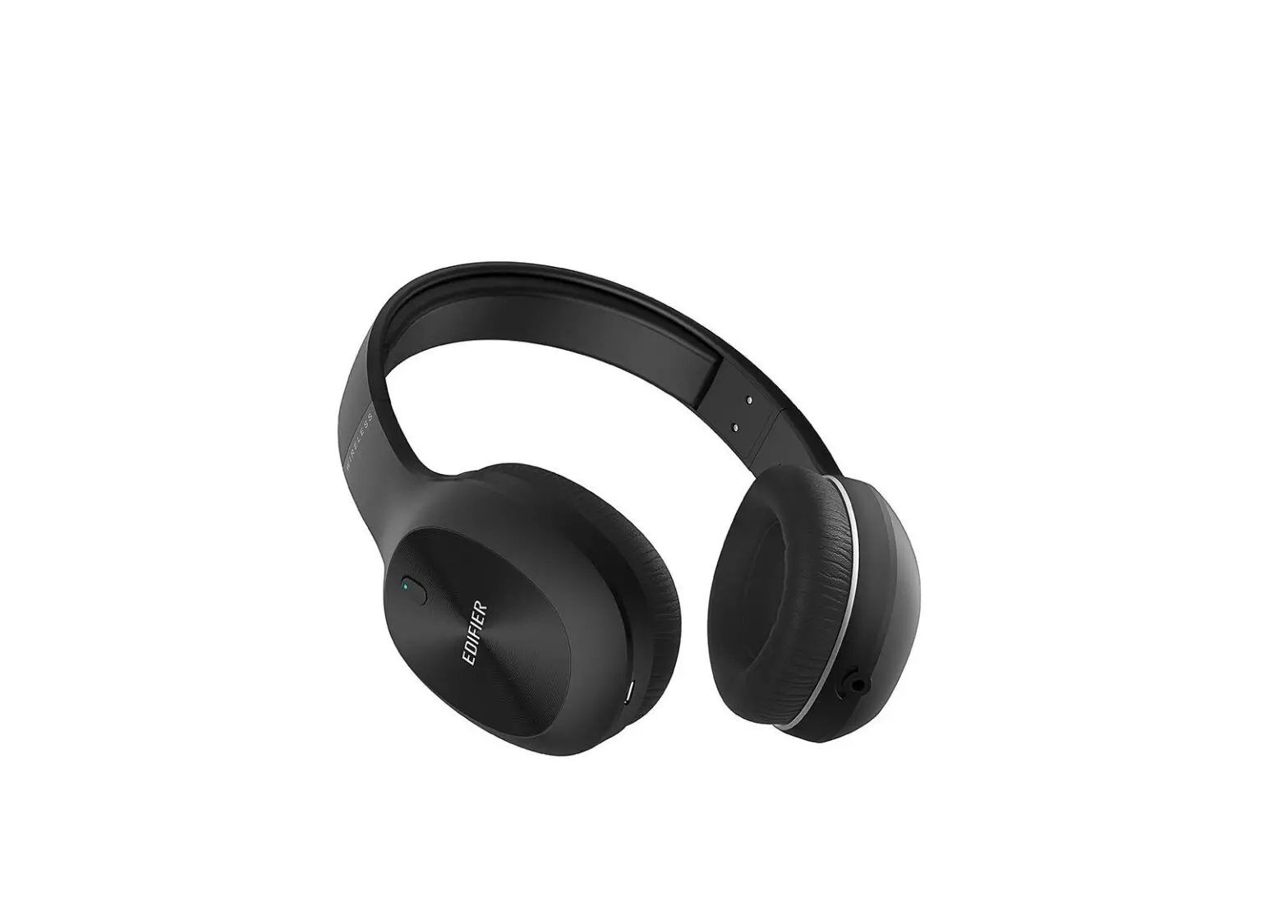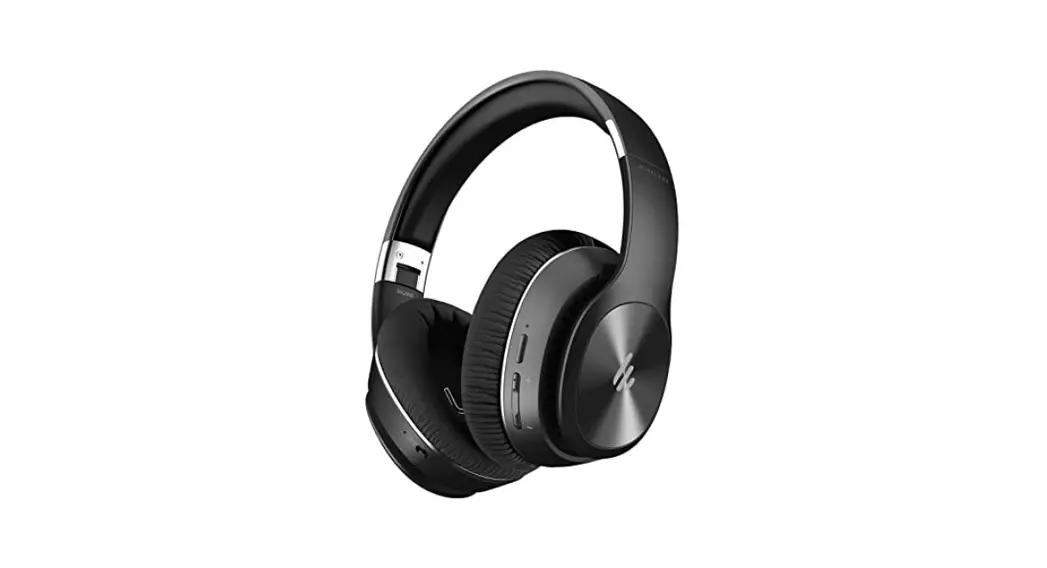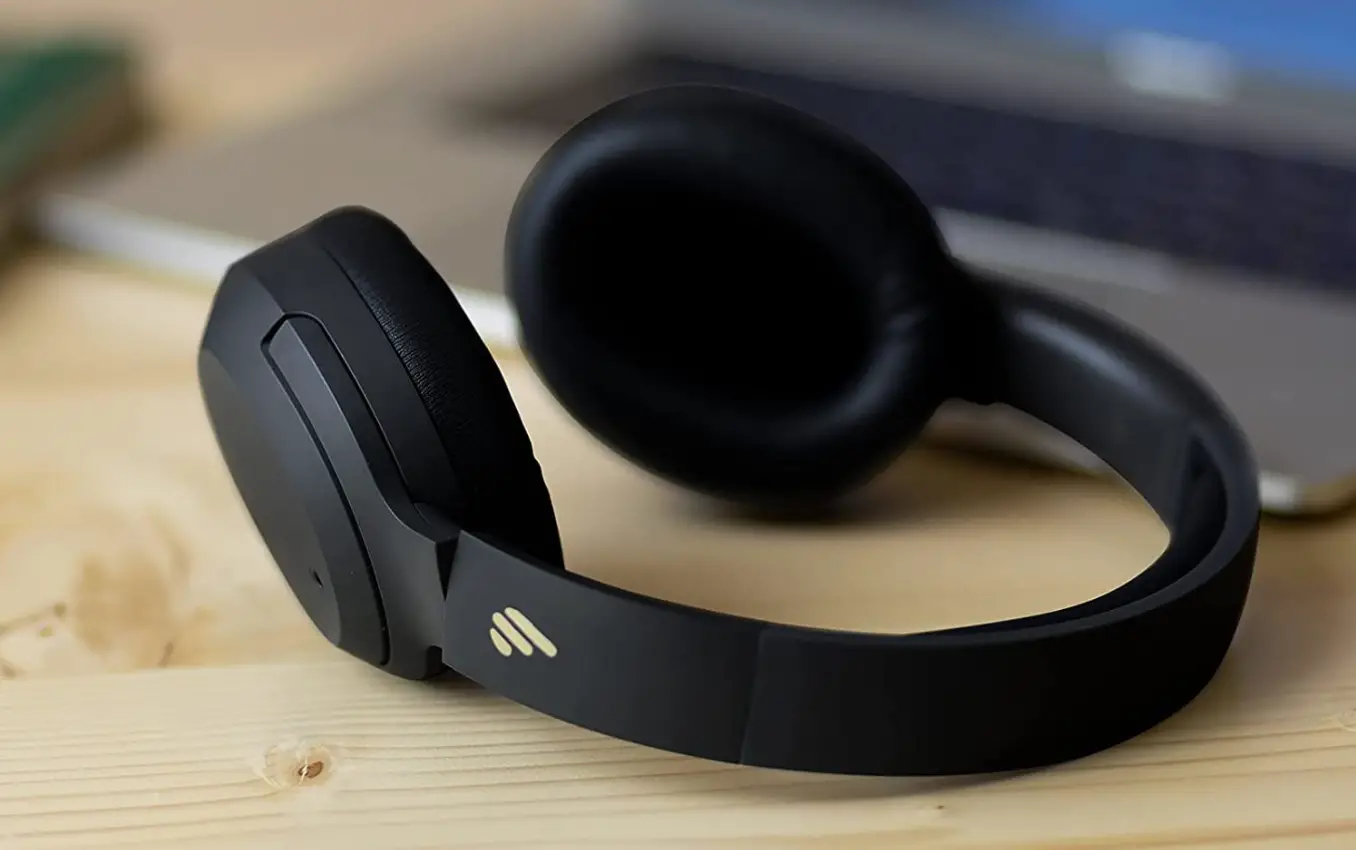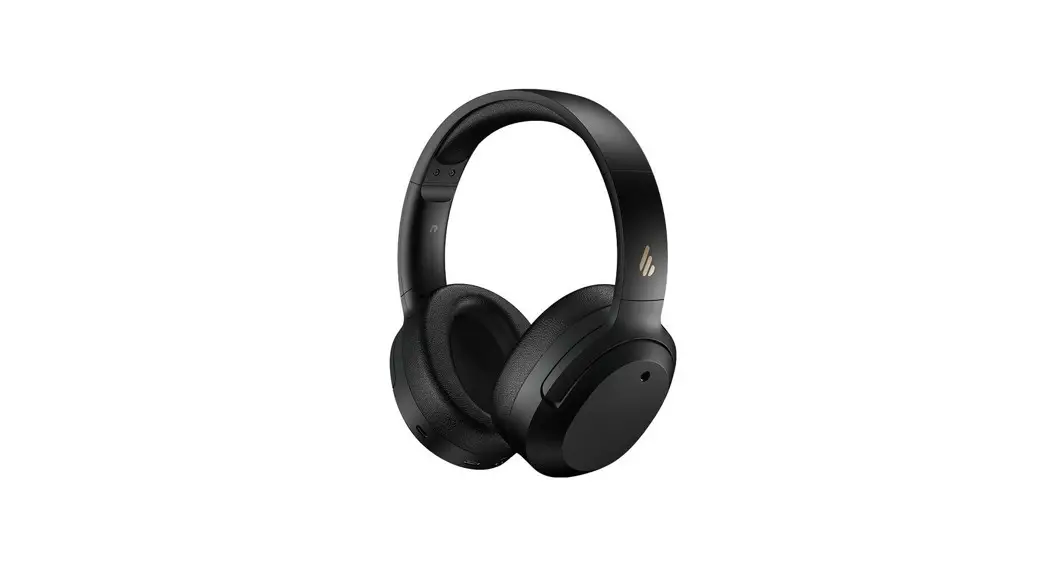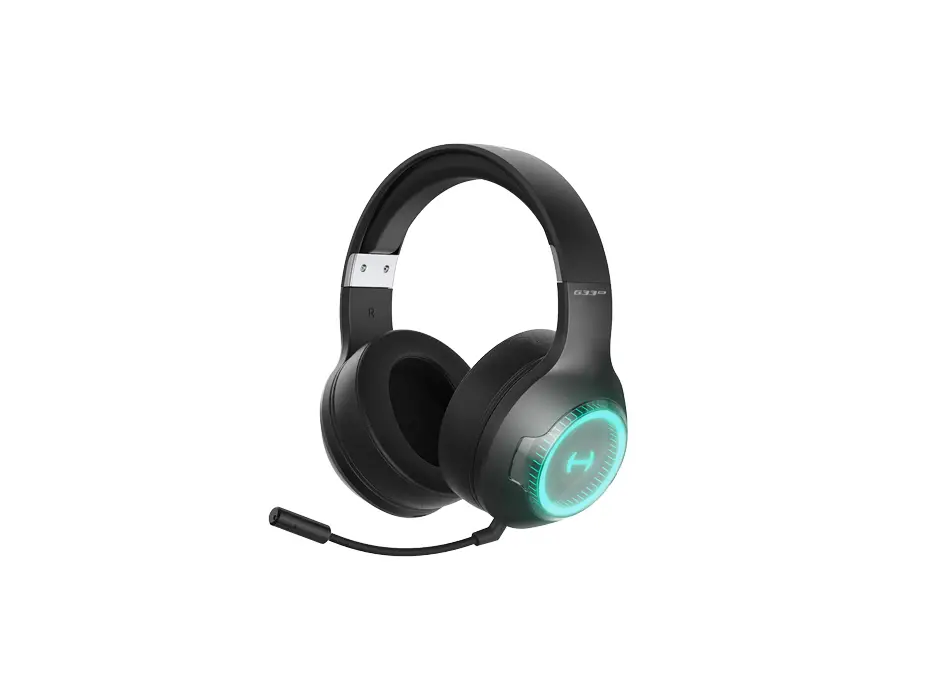

W820NB Plus
Wireless Noise Cancellation Over-Ear Headphones

– Manual –

1. Power ON/OFF
- Power ON: press and hold the “
 ” key for about 3s when powered OFF until the LED blinks blue.
 - Power OFF: press and hold the “” key for about 3s when powered ON until the LED blinks red.
 ” key for about 3s when powered OFF until the LED blinks blue.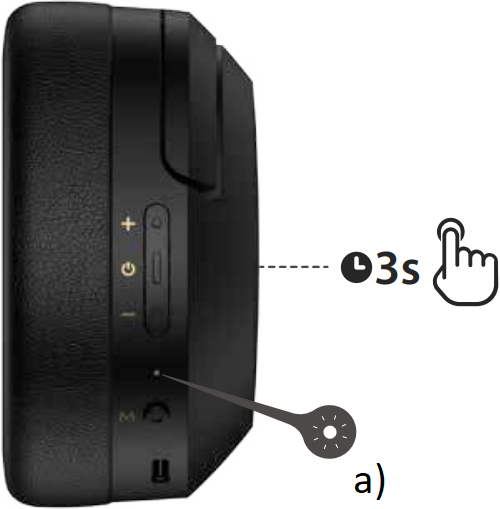
a) Indicator
Note:
Under wireless mode: 1. If there is no Bluetooth connection for 5 minutes after power on, the headphones will turn off automatically. 2. If there is no Bluetooth connection when the noise cancellation is on, the headphones will turn off automatically after 4 hours.
2. Pairing
Pairing for the first time
- Press and hold the “” key for about 3s when powered off. Blue and green LED will blink alternately and rapidly.
- Select “EDIFIER W820NB Plus” in your device setting to connect. Blue LED will blink twice after connected.

a) Indicator
Note:
For subsequent use, the headphones will automatically connect to the device used last time.
Pairing for new device
- Press and hold the “” key for about 6s when powered off to skip the latest connected device and pair the new Bluetooth device. Blue and green LED will blink alternately and rapidly.
- Select “EDIFIER W820NB Plus” in your device setting to connect. Blue LED will blink twice after connected.
3. Reset
Simultaneously press and hold the “+” “–” keys for about 5s when powered on to clear pairing records. Blue LED will blink 6 times rapidly when successful.

a) Indicator
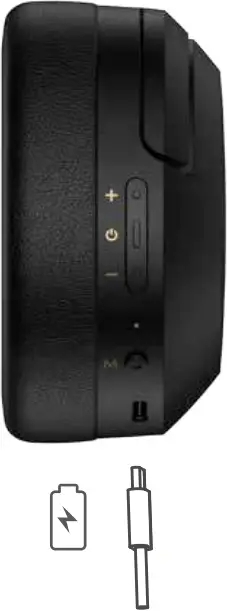
4. Charging
- Connect the small end of the included USB cable to the USB-C port of the headphones and connect the other end to a USB-A power supply or wall charger (not included).
- Orange LED is steady lit when charging and off when fully charged.
Note:
Please do not charge the headphones when there is sweat or other liquids inside the charging port, which may damage the headphones.
Input: 5V ⎓ 1A
5. Connecting to PC as wired headphones
- Connect the small end of the included USB cable to the USB-C port of the headphones and connect the other end to the USB-A port of the PC. You can listen to music, talk and charge the headphones after the connection is successful.
- Orange LED is steady lit when charging and green LED is steady lit when fully charged.
Note:
It is recommended to use the included USB cable, and other cables may have compatibility issues that prevent them from working properly.
6. Controls

Note:
 : Press and hold.
- Default sound control: noise cancellation & ambient sound.
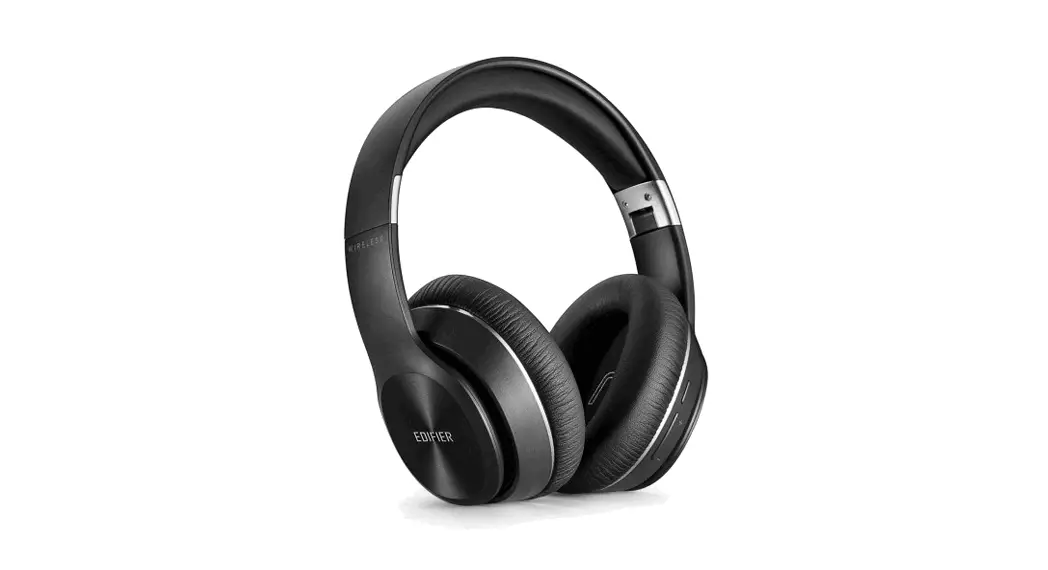
- Images are for illustrative purposes only and may differ from the actual product.
- Download Edifier Connect App for more customizable control settings.
 : Press and hold.
For more information, please visit our website:




@Edifierglobal @Edifier_Global @Edifier_Global
Model: EDF200118
Edifier International Limited
P.O. Box 6264
General Post Office
Hong Kong
www.edifier.com
2022 Edifier International Limited. All rights reserved.
Printed in China
NOTICE:
For the need of technical improvement and system upgrade, information contained herein may be subject to change from time to time without prior notice.
Products of EDIFIER will be customized for different applications.
Pictures and illustrations shown on this manual may be slightly different from actual product.
If any difference is found, the actual product prevails.
 er.com is for sale | www.oxley.com
 IER | Solutions d'optimisation des flux des biens et des personnes
 Anatel — Agência Nacional de Telecomunicações
 Edifier | A Passion for Sound | Headphones, Earphones, Speakers