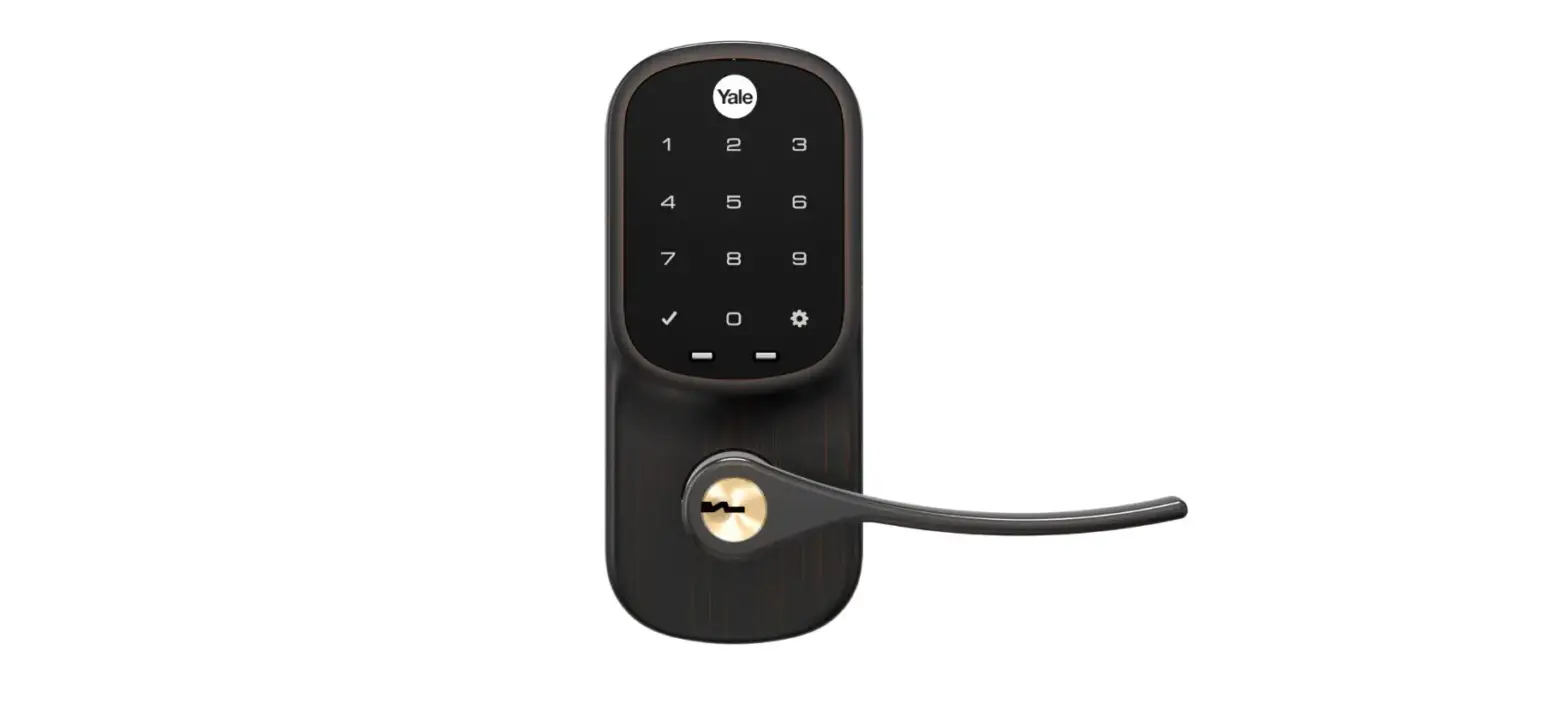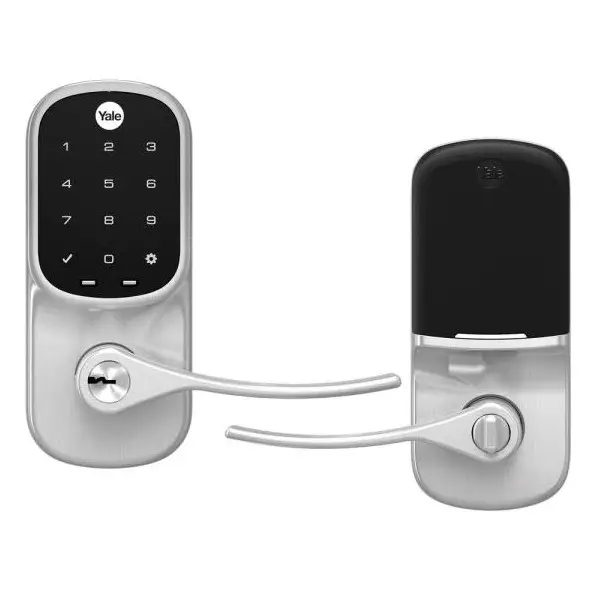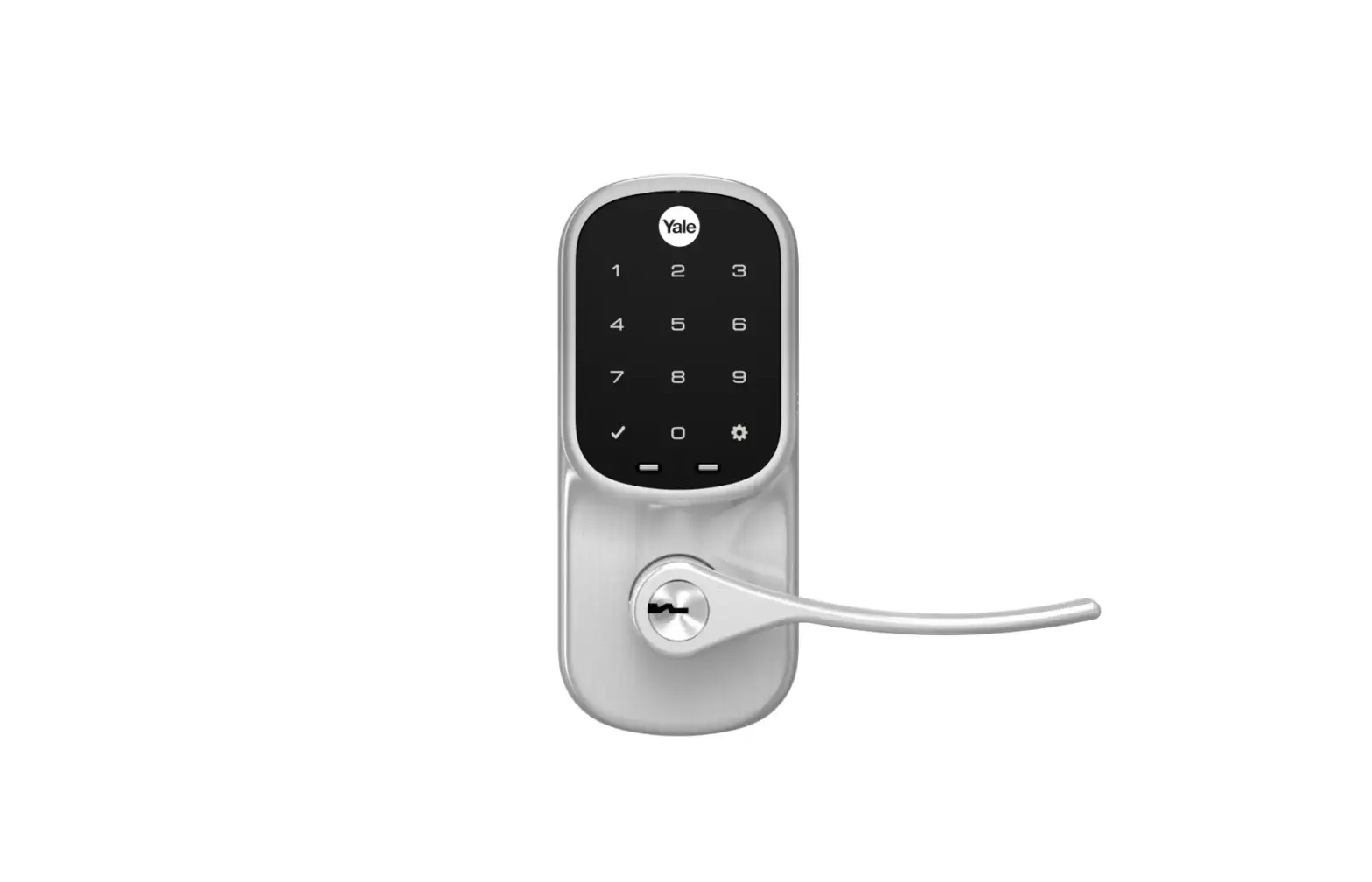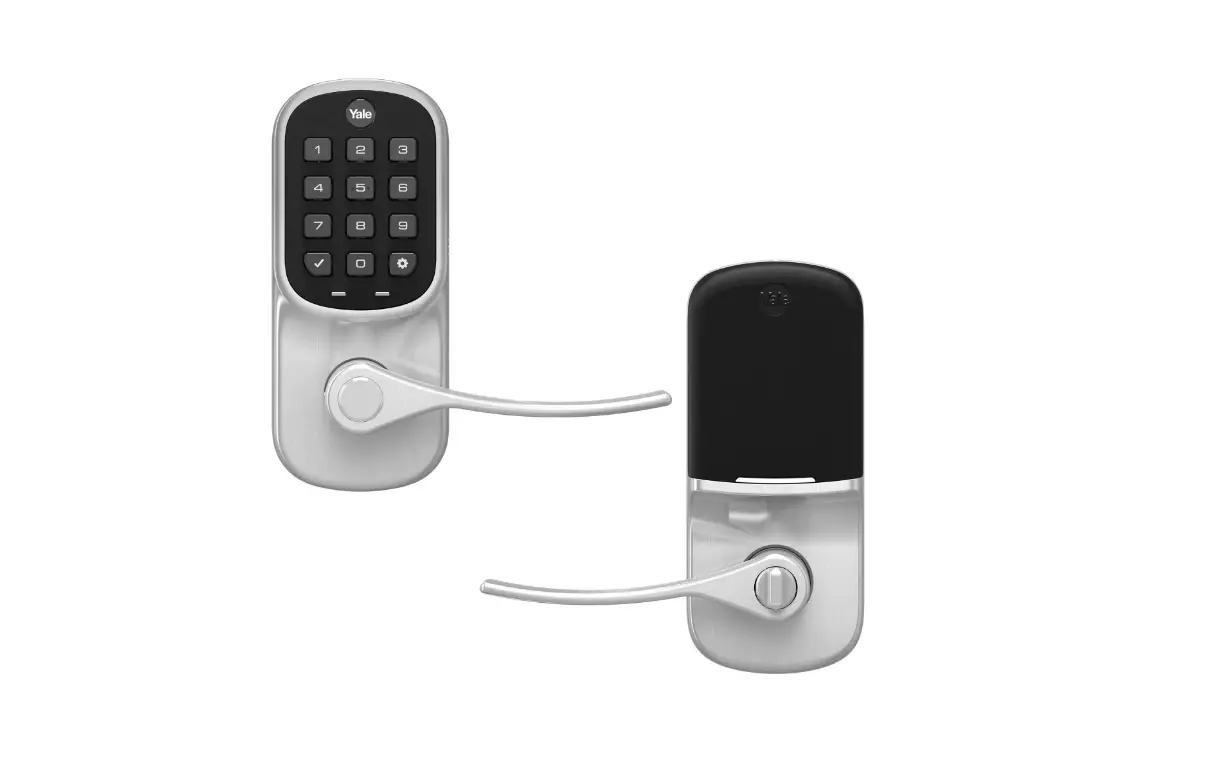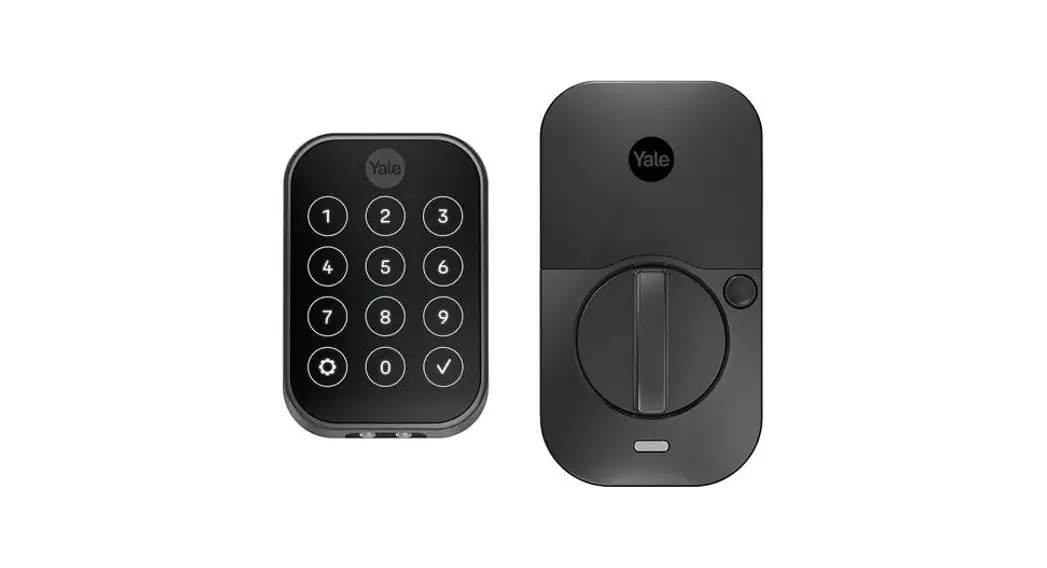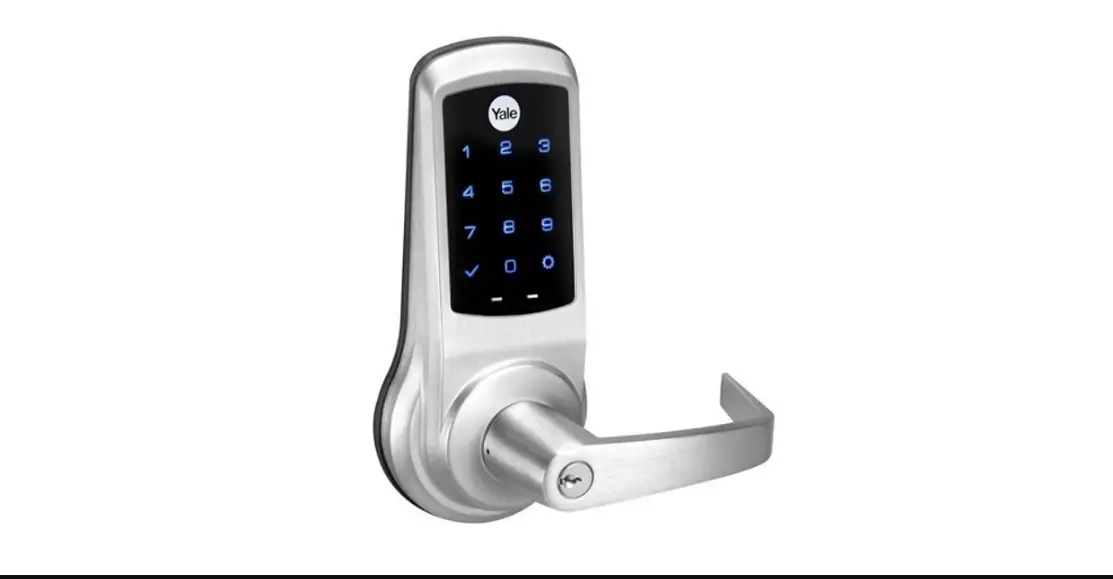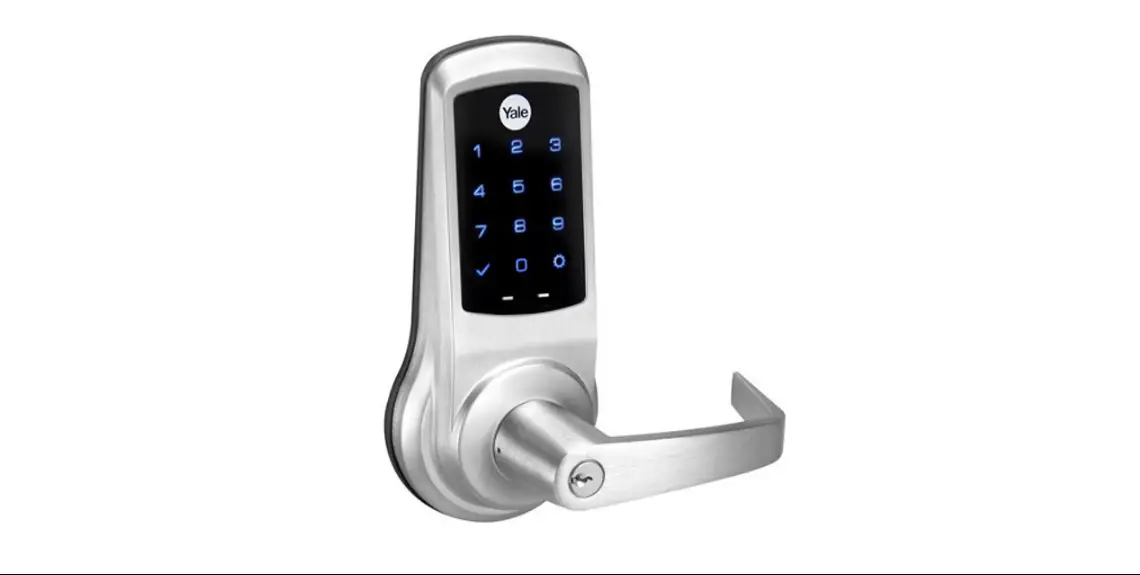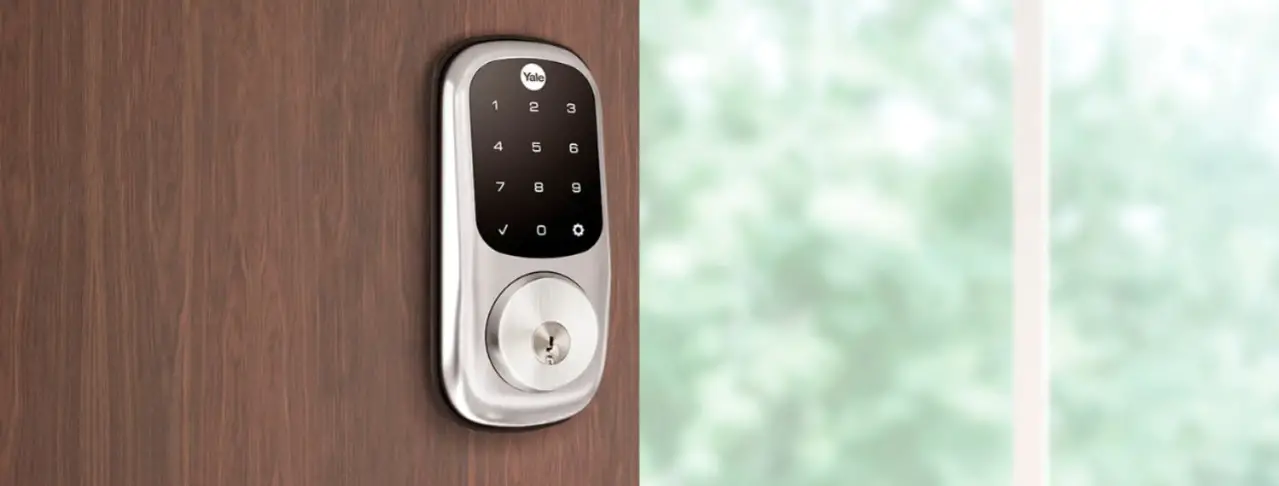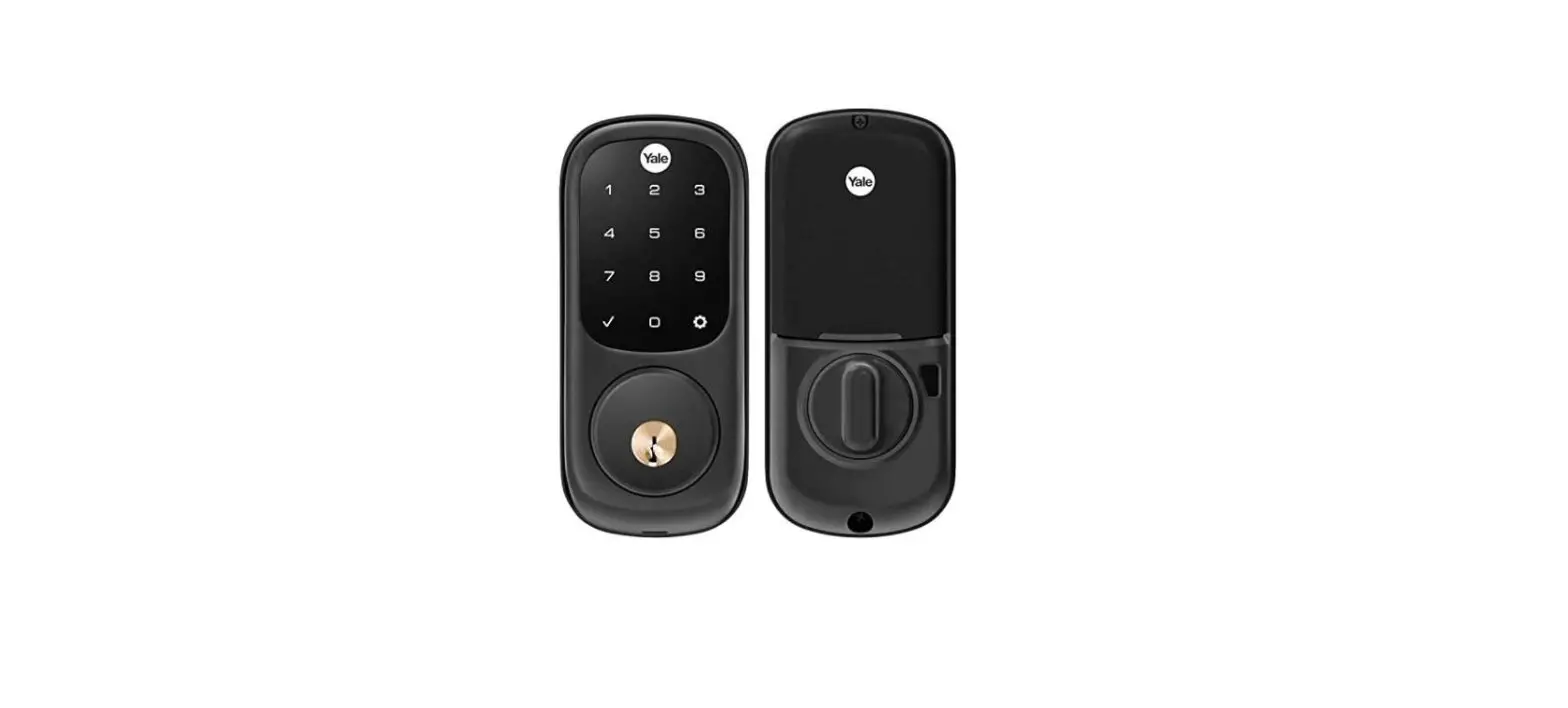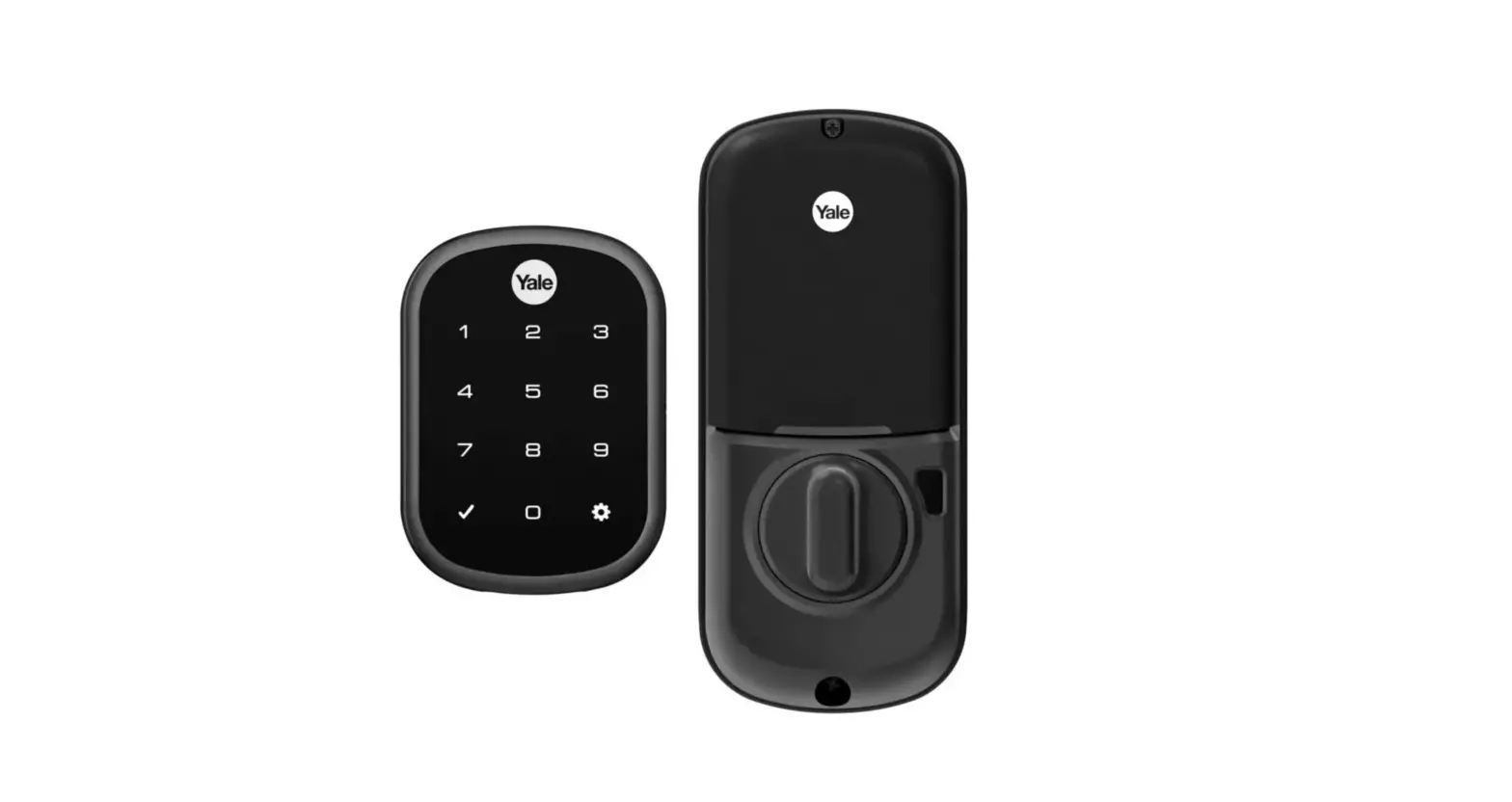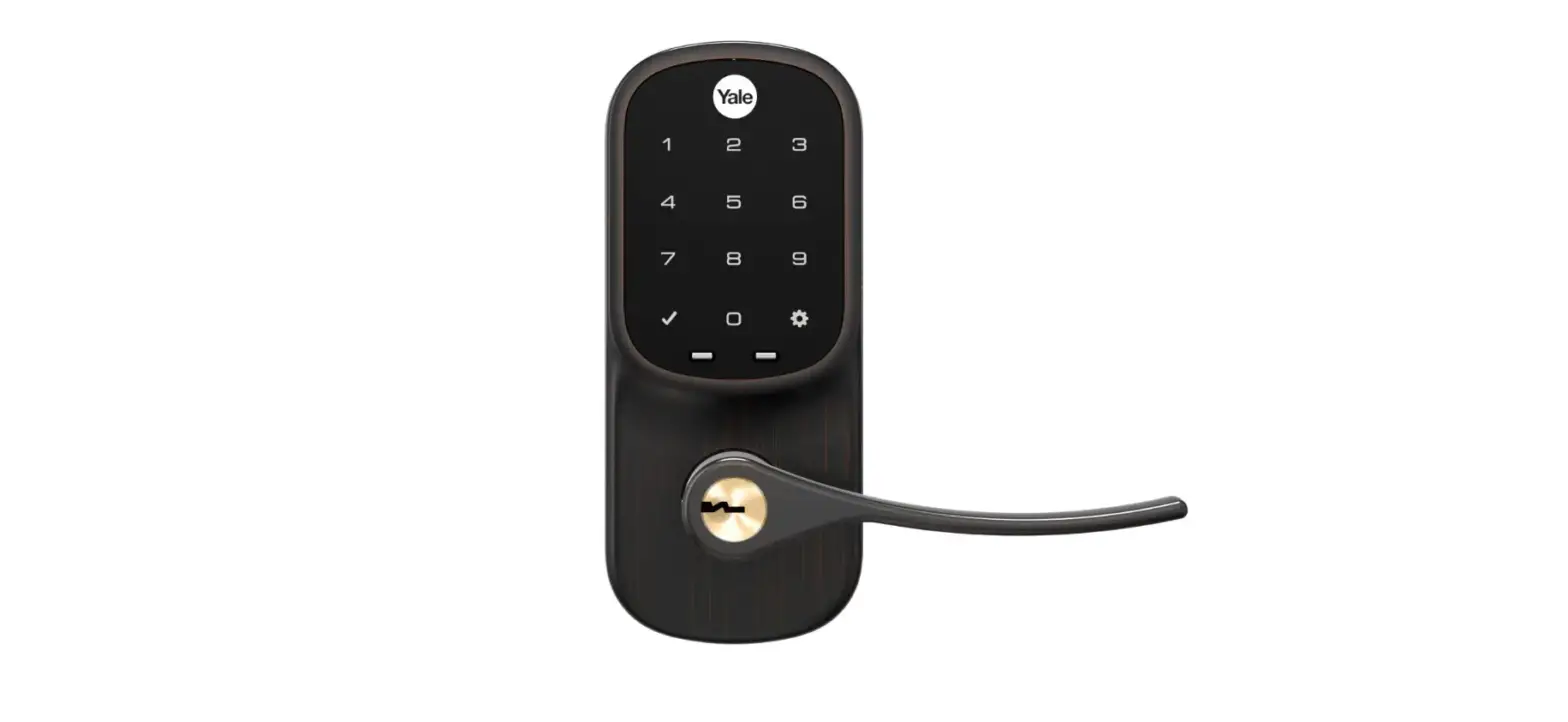

Yale YRL226-ZW2-0BP Assure Lever Touchscreen
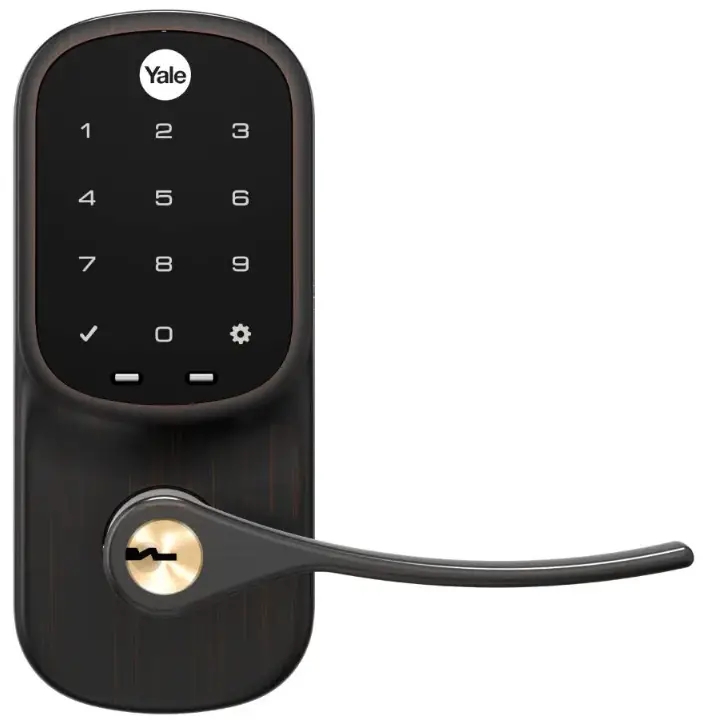
This manual will walk you through all the required steps to add your new Yale Assure Lever to your door.
- Remove existing door knob or lever
- Double check door measurements
- Install your Assure Lever
- Program your Assure Lever
- Add your Assure Lever to your smart home system or Yale Access app if purchased with Yale Smart Module or Yale Access Upgrade kit

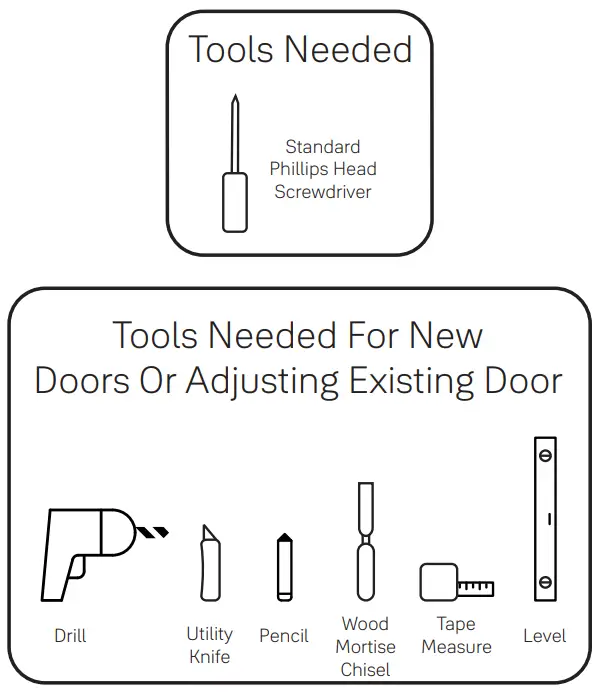
Before you begin
Using the app on your smartphone, scan this QR for step-by-step installation instructions & to register your lock.
WARNING
This product can expose you to lead which is known to the state of California to cause cancer and birth defects or other reproductive harm.
For more information go to www.P65warnings.ca.gov.
Failure to follow these instructions could result in damage to the product, voiding the factory warranty, and could lead to failure of the product to provide access.
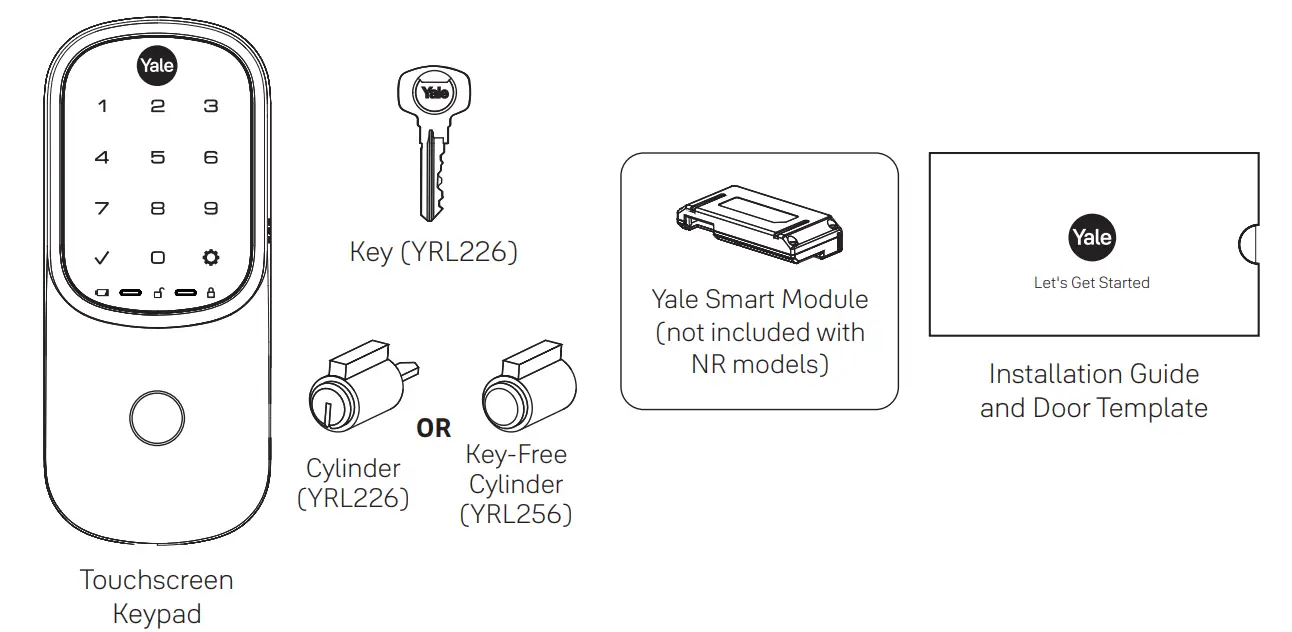
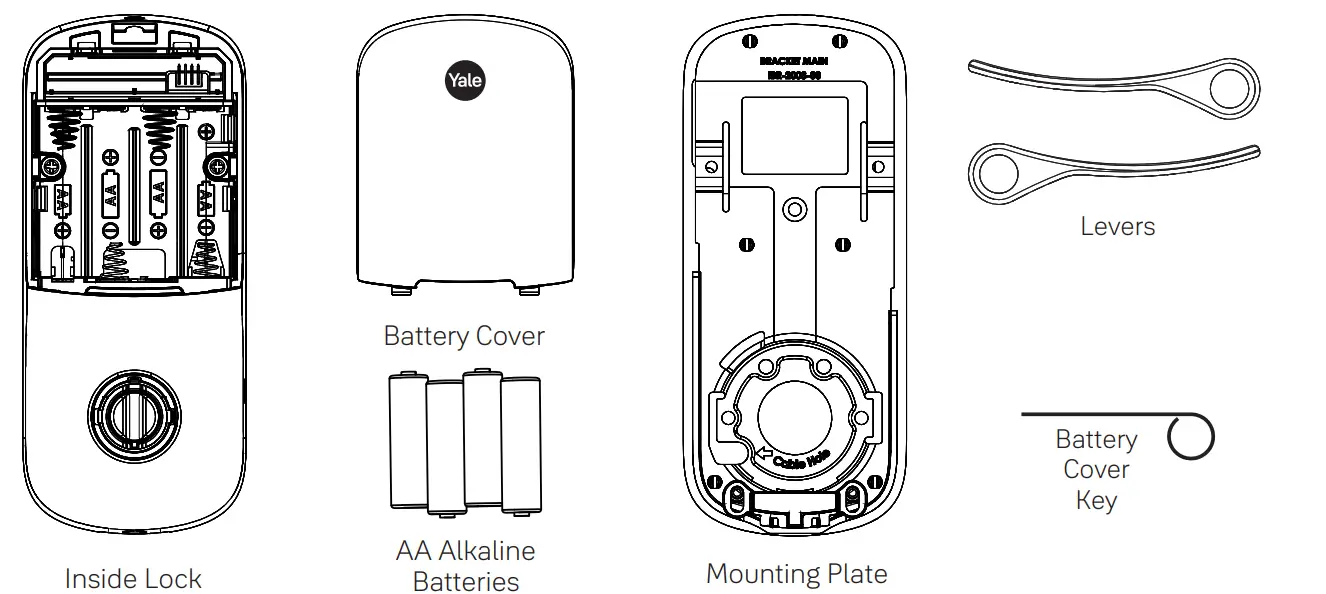
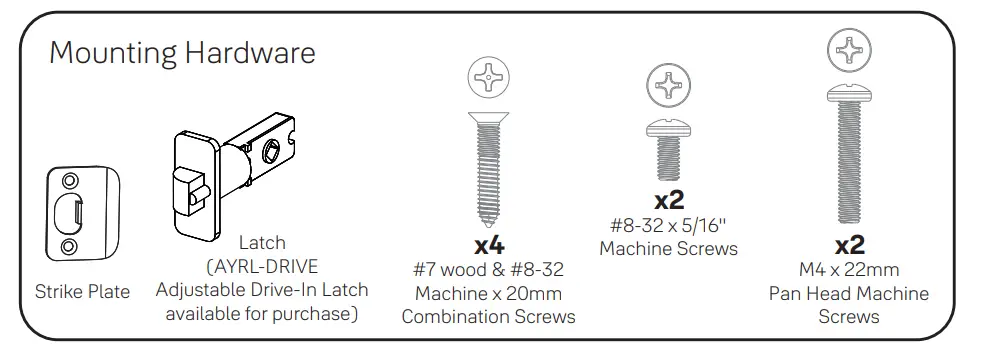
What’s In The Box


Remove Existing Door Knob or Lever
Do not discard old lock hardware until Assure Lever has been successfully installed.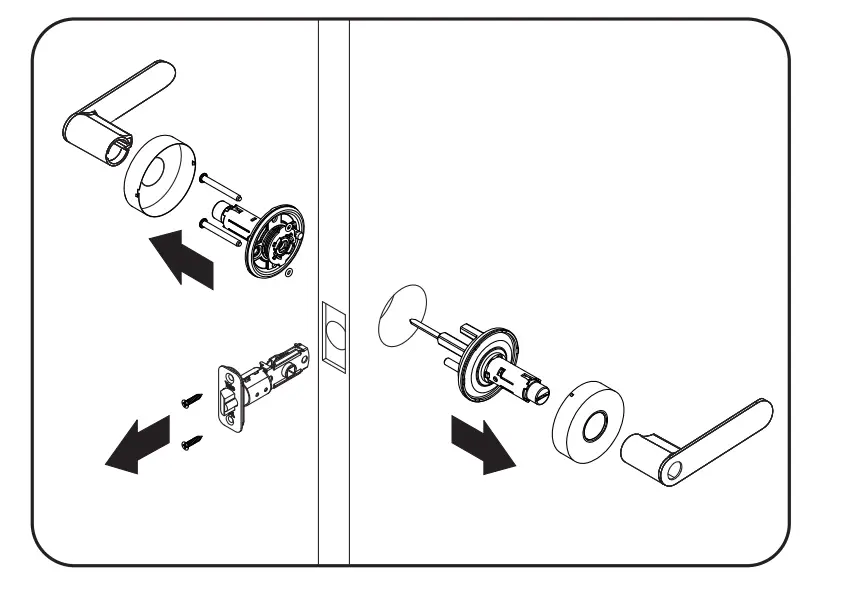
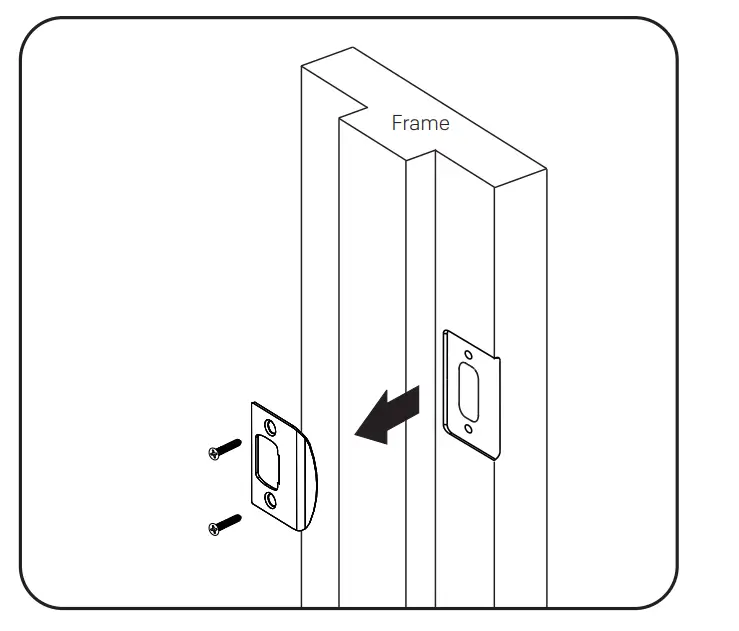
Check Door Measurements And Make Adjustments If Needed
- Door Checker
Use door checker from the installation guide envelope to verify your door measurements and make any needed adjustments.
- New Door Marking Template
With the door checker, use the template from the installation guide envelope to prep a new door that has not been predrilled for hardware.

SETTING
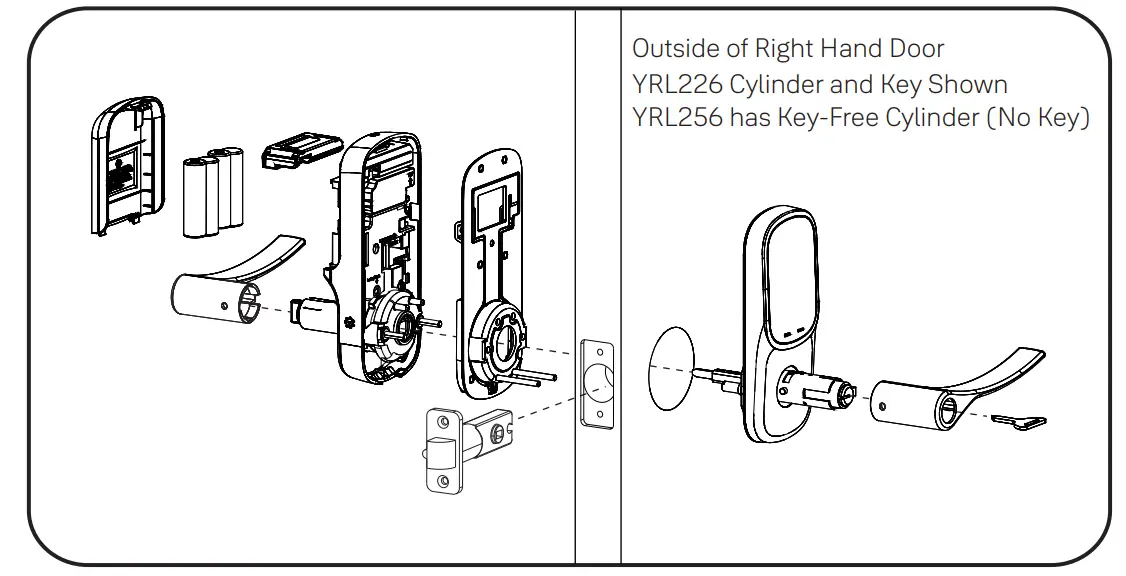
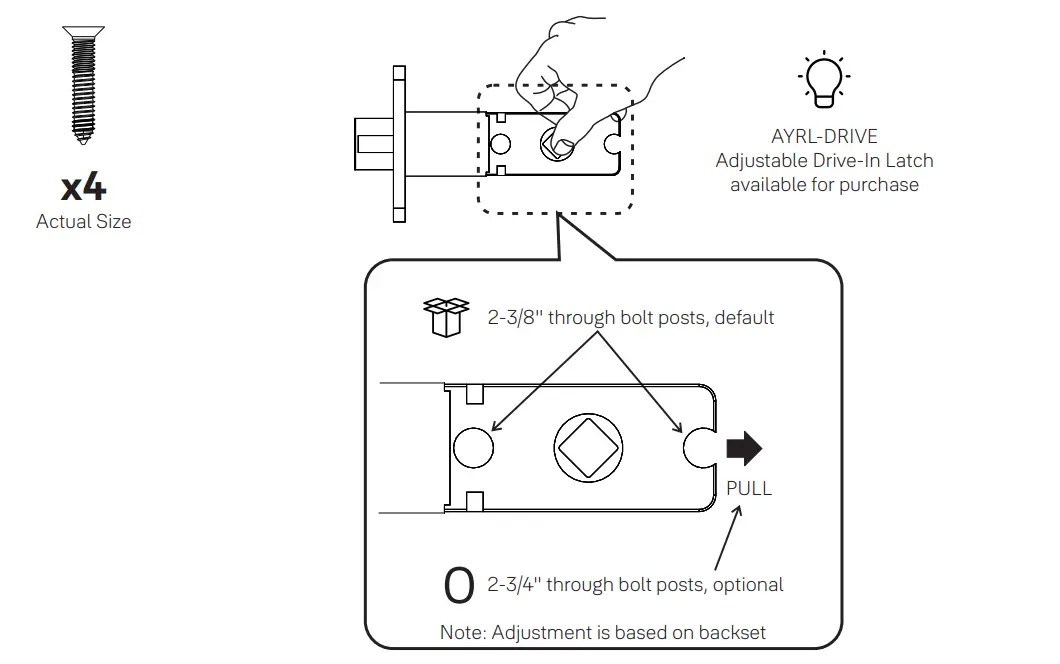
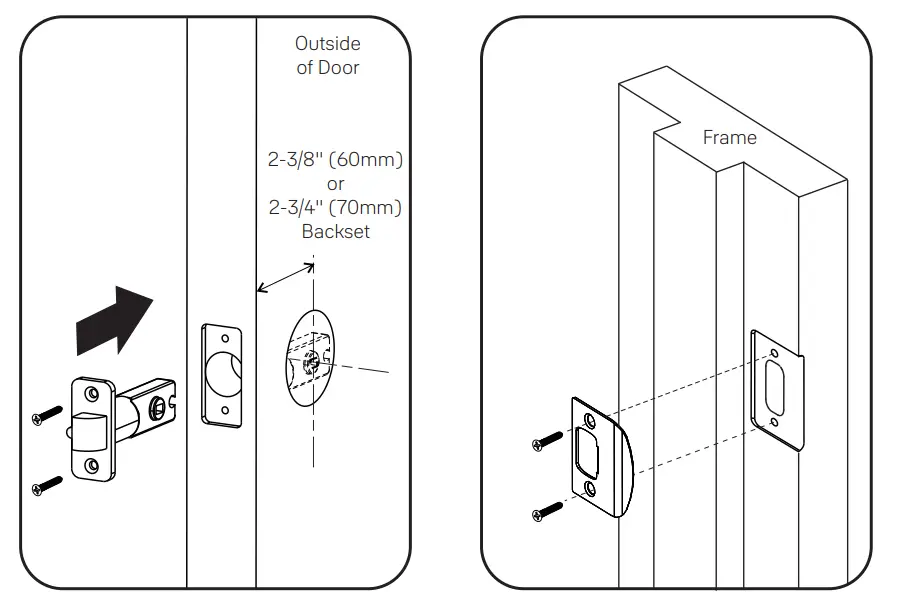
- Install Latch and Strike Plate Right Hand Installation Shown


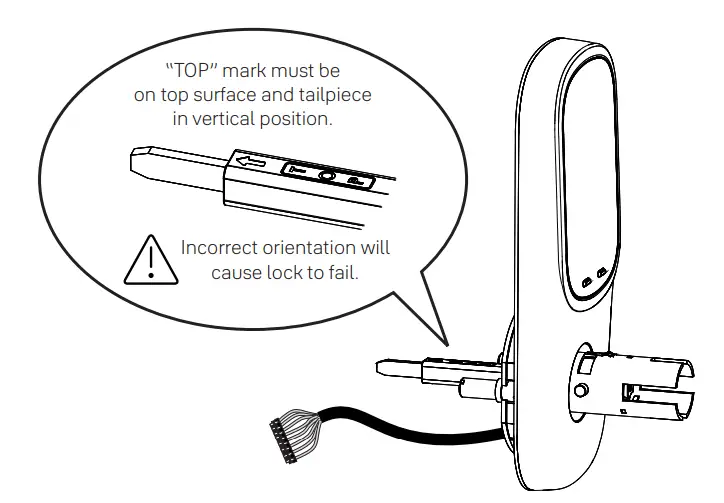
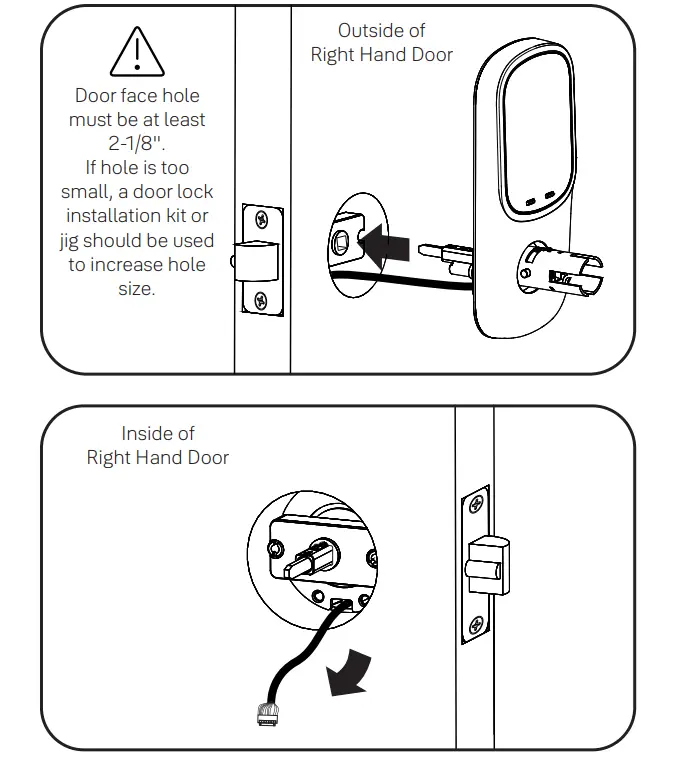
- Install Touchscreen Keypad Right Hand Installation Shown


- Install Inside Mounting Plate Right Hand Installation Shown


- Attach Cable Right Hand Installation Shown


- Install Inside Lock Right Hand Installation Shown
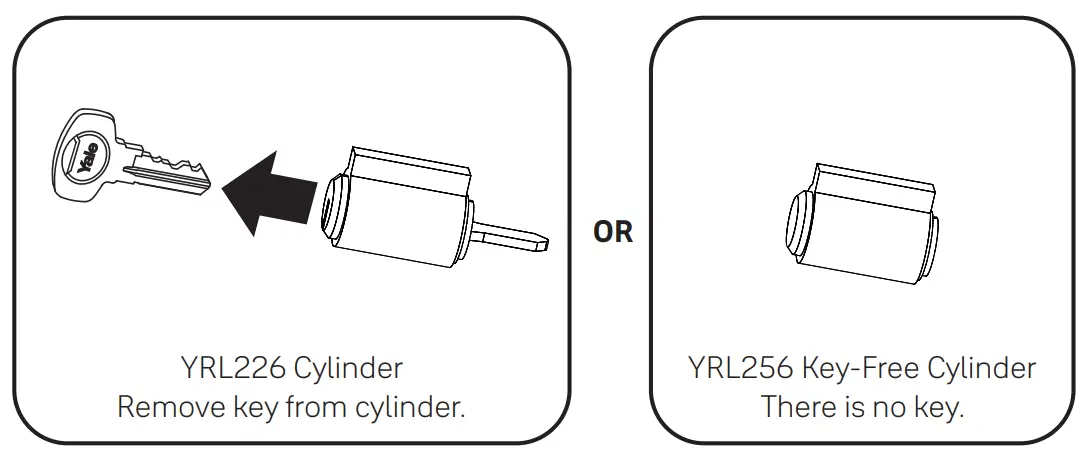
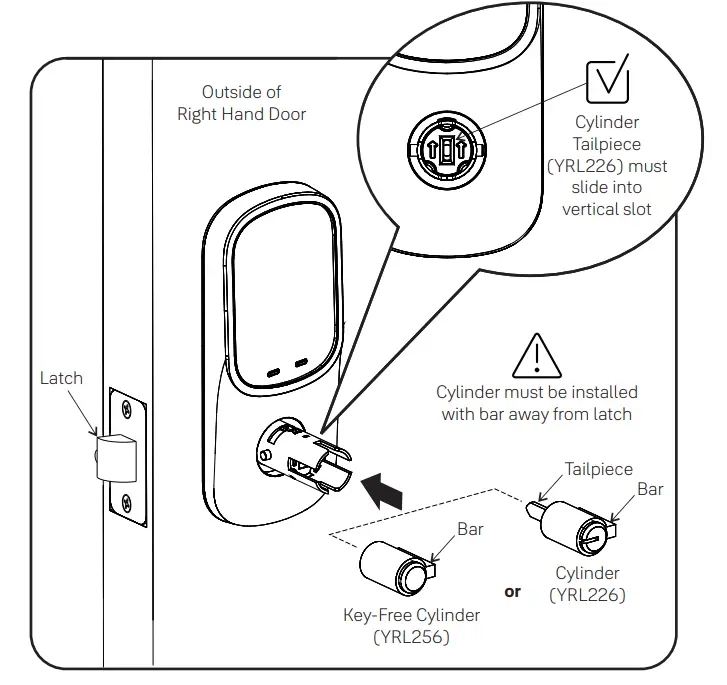
- Install Cylinder (YRL226) or Key-Free Cylinder (YRL256)


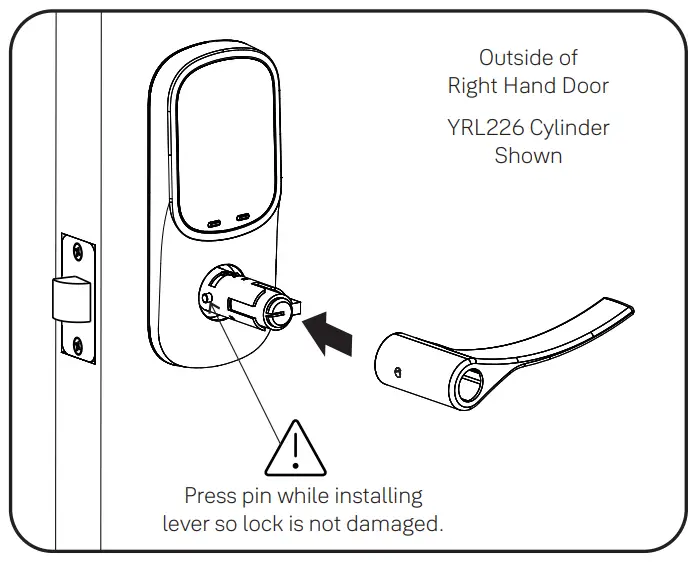
- Install Outside Lever

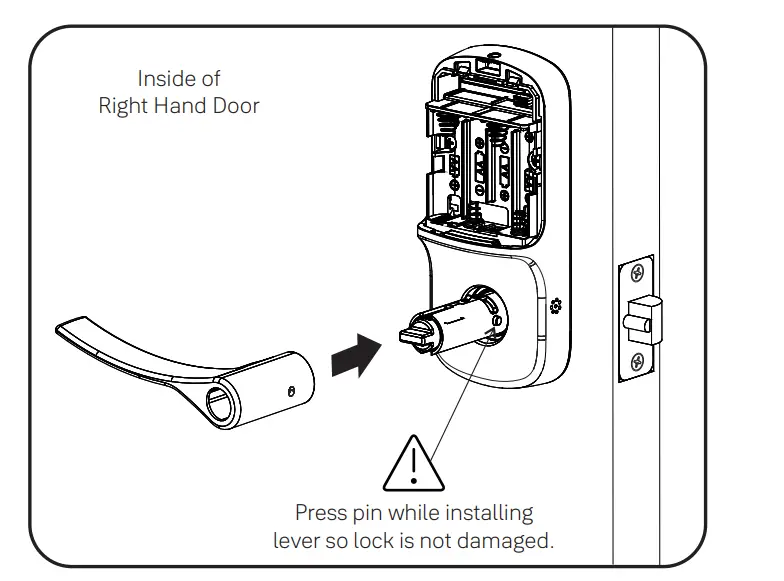
- Install Inside Lever
 Test Thumbturn Operation with Door Open
 WARNING
Test thumbturn and both levers in locked and unlocked positions. If the operation fails, check the installation beginning with Step 4 and refer to Hardware Troubleshooting.
Test Key Operation with Door Open (YRL226)

If key operation test fails, check the installation beginning with Step 8. - Install Yale Smart Module Not included with NR models
 NOTE: If a Smart module was included with your lock, it is in a separate box with additional module installation instructions.
For more information about Yale Smart modules and smart home features visit: US.YaleHome.com/Smart. - Install Batteries and Cover
Congratulations, you’ve installed the Yale Assure Lever® Touchscreen (YRL226) or Key-Free Touchscreen (YRL256)! Using Your Lock instructions will help you customize your lock.
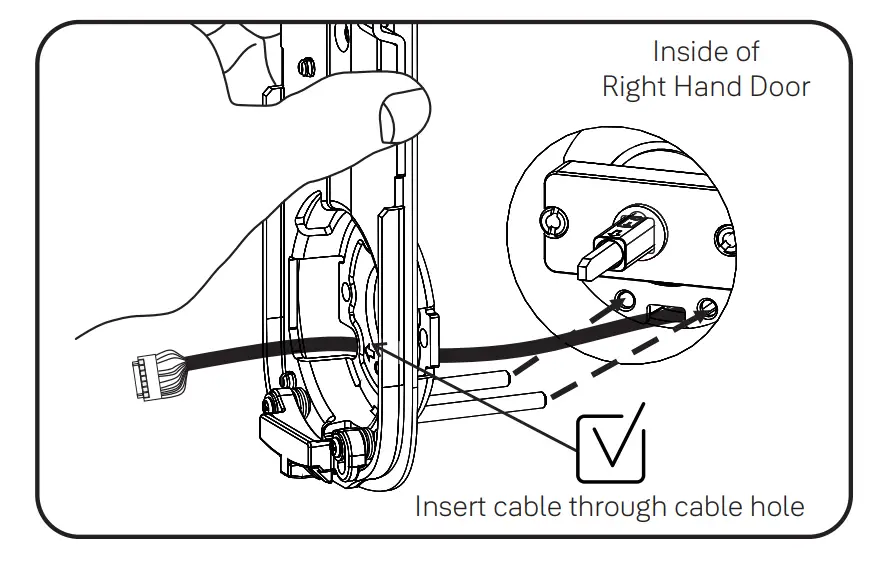
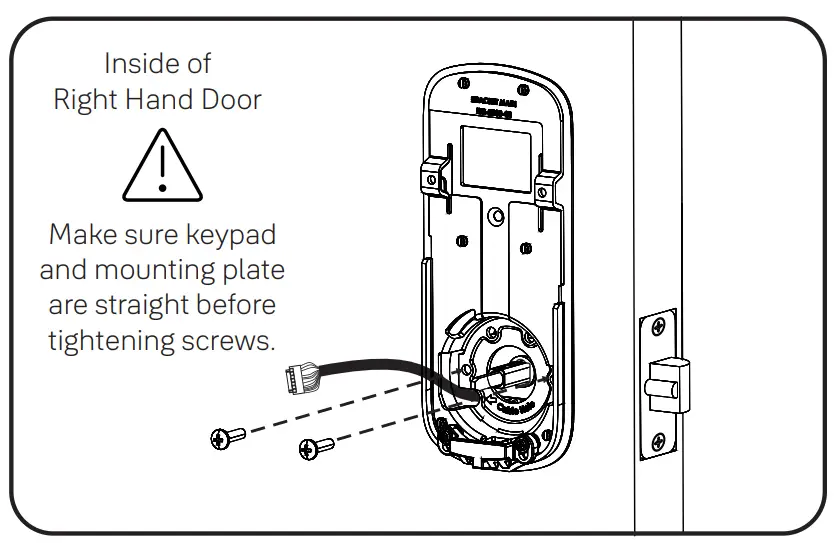
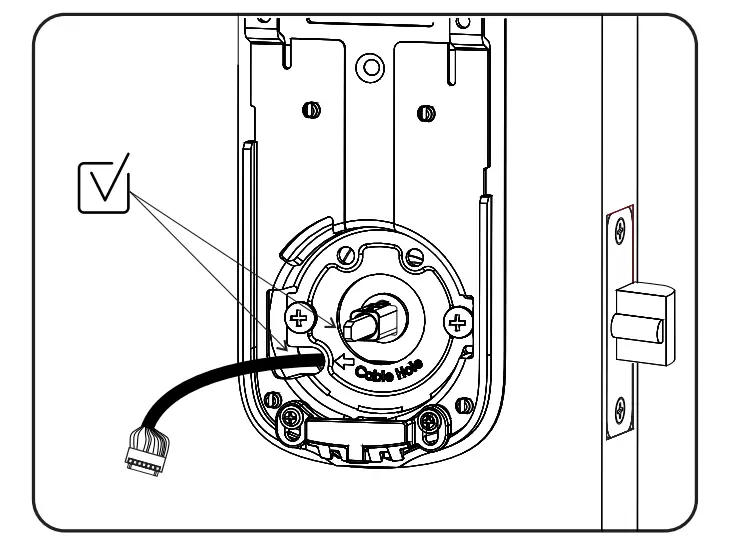
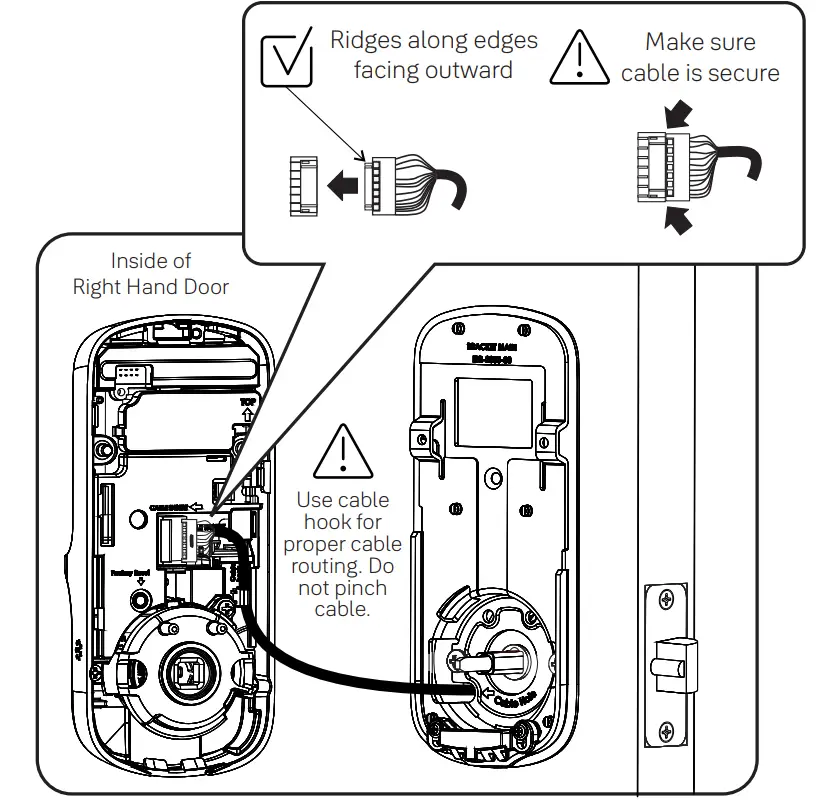
 Test Thumbturn Operation with Door Open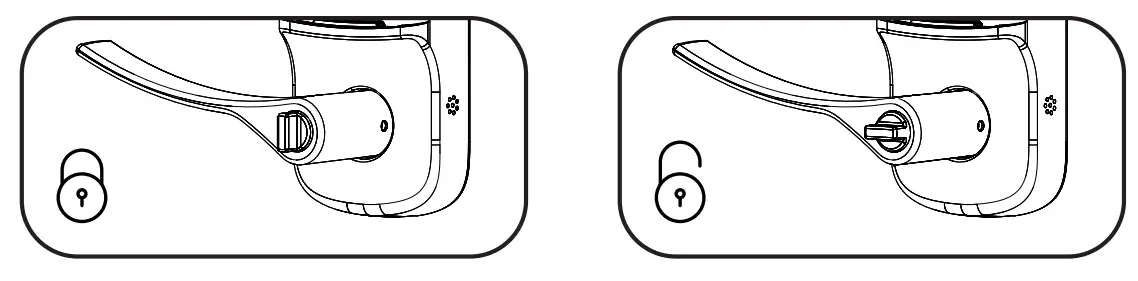
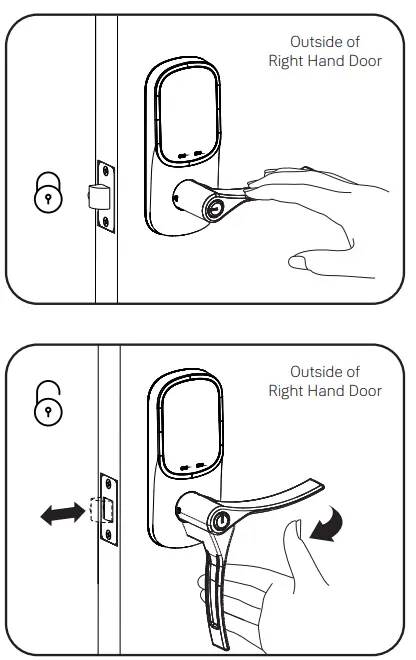 WARNING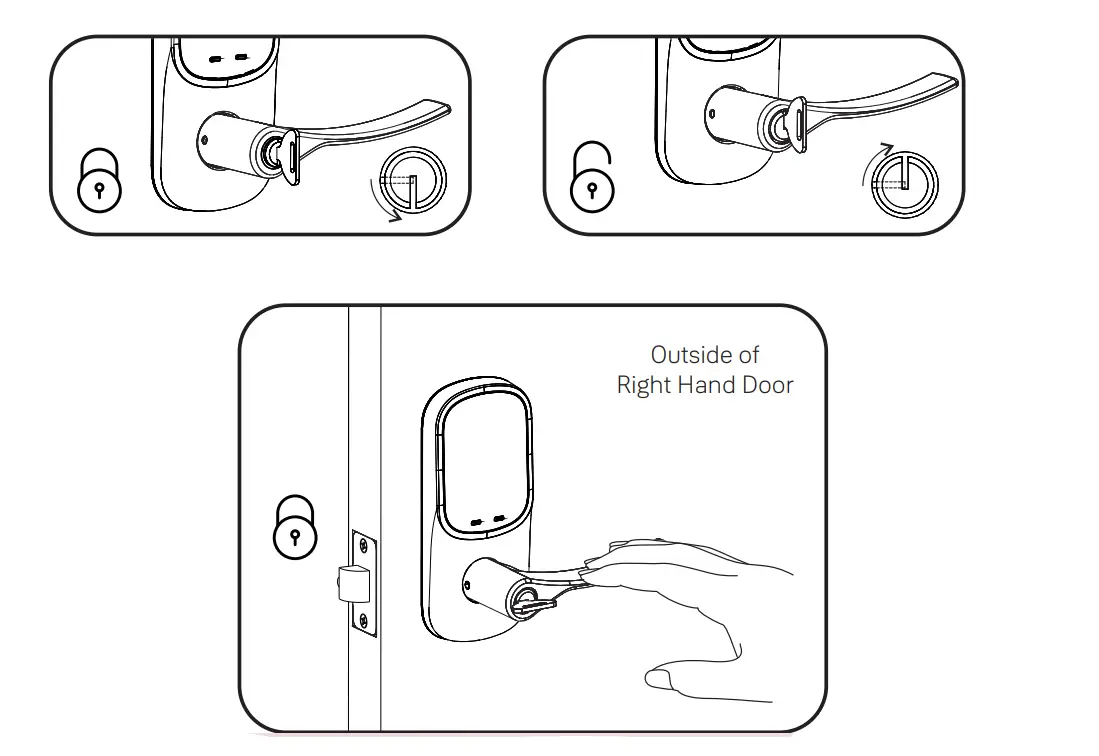
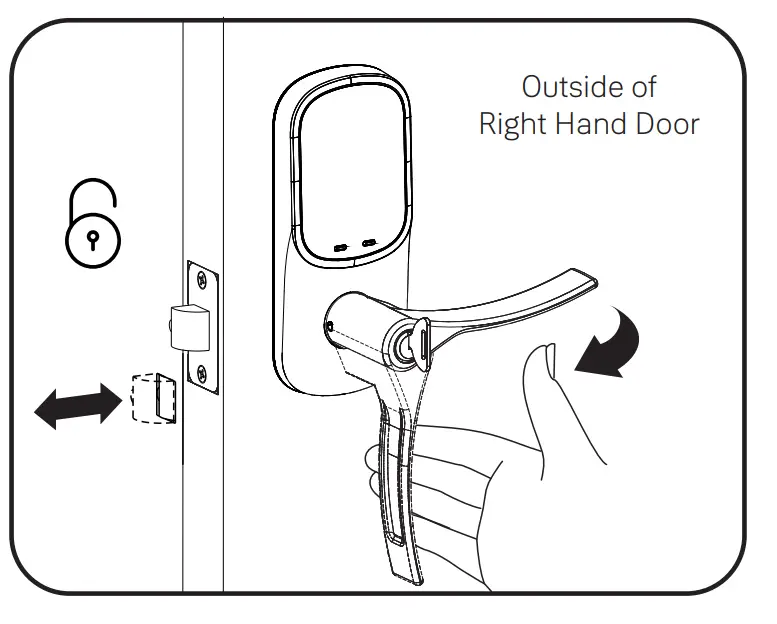
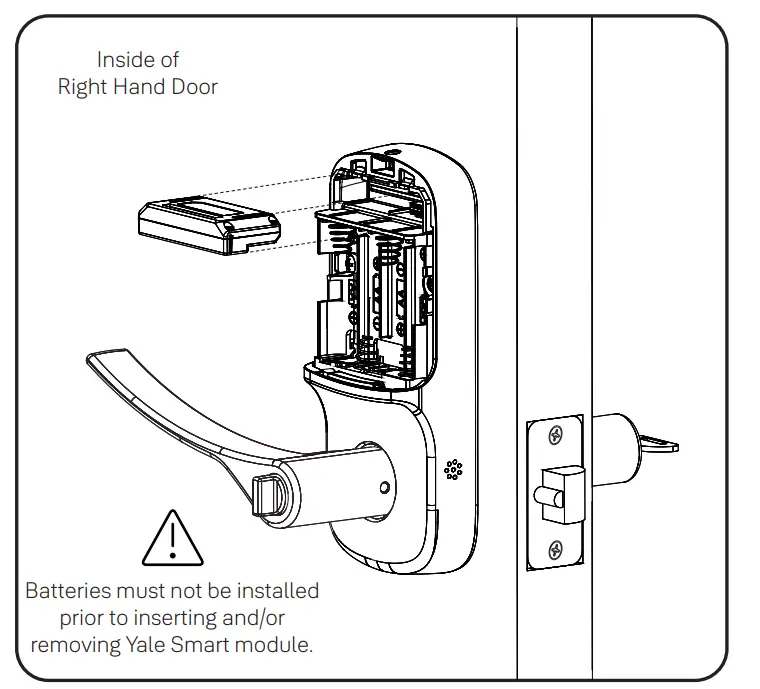 NOTE: If a Smart module was included with your lock, it is in a separate box with additional module installation instructions.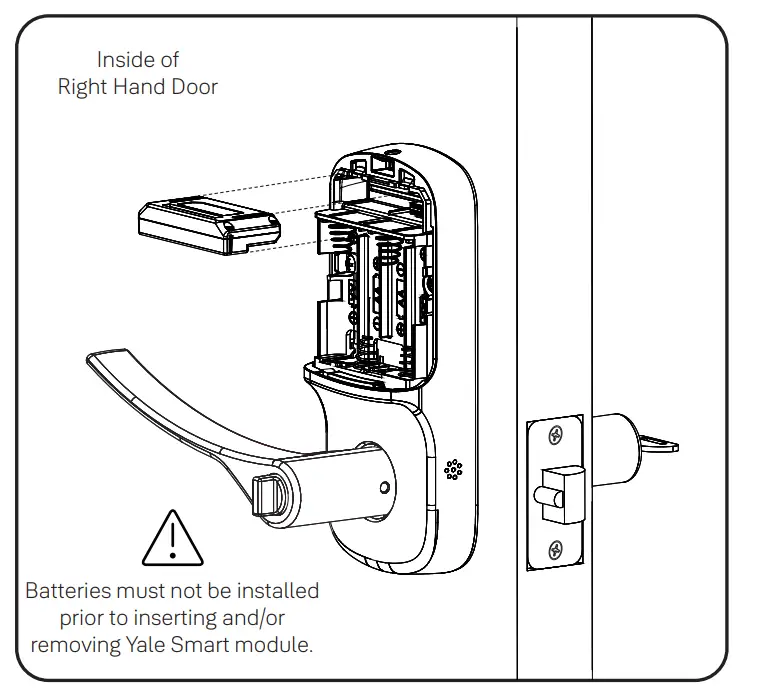
Test Touchscreen Operation with Door Open
A Master Entry Code must be created upon installation or after resetting the lock to factory default.
Programming and use of lock is not possible until this step has been successfully completed.
See Using Your Lock instructions.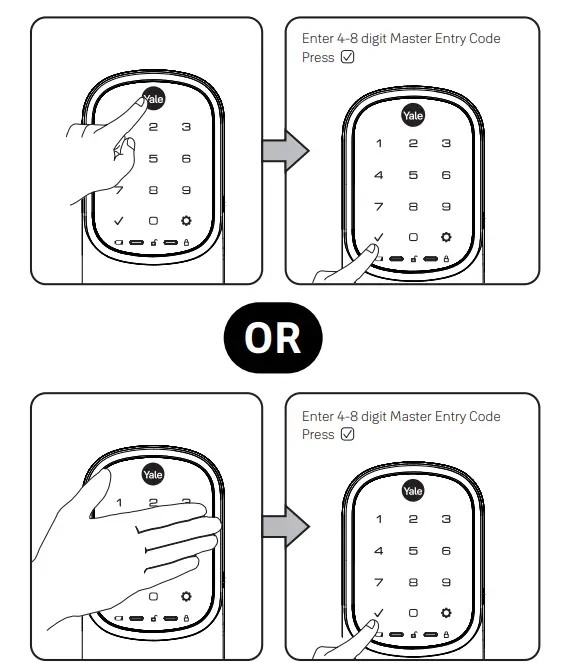
If the touchscreen operation test fails, check installation beginning with Step 3.
Resetting Lock to Factory Defaults
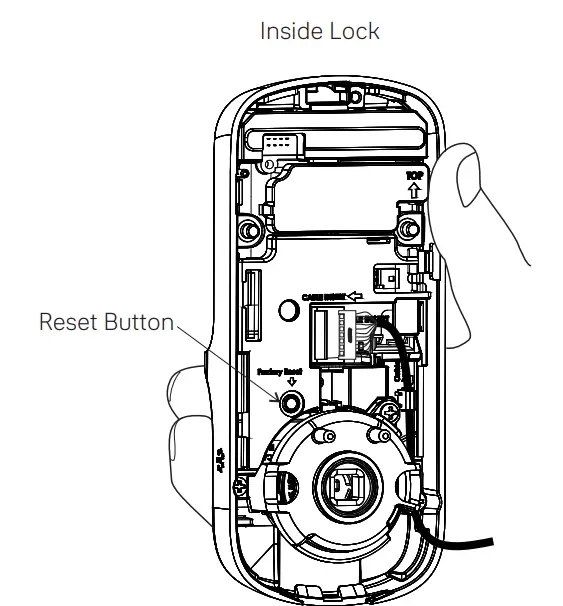
When resetting the lock, all Entry Codes, including the Master Entry Code*, are deleted.
All programming features are reset to original default settings. See “Setting Definitions”.
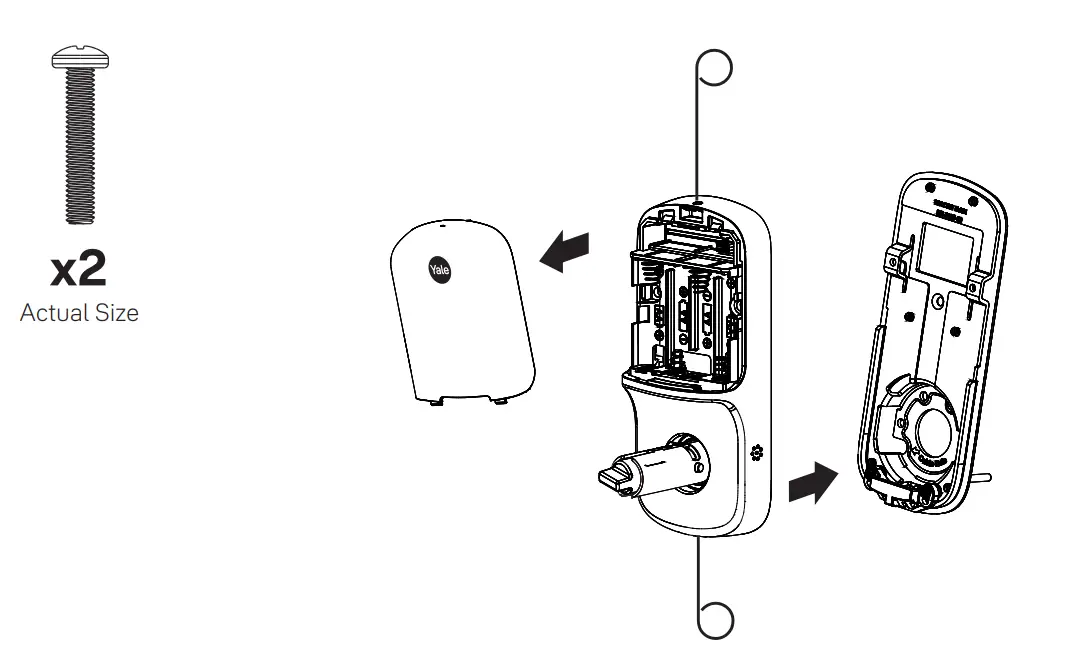
- Remove the battery cover and batteries.
- Remove the inside lock to access the reset button.
- The reset button (see image above) is marked.
- Re-insert 3 batteries and hold the reset button for 3 seconds.
- While still holding the reset button, insert the 4th battery, and hold the reset button for an additional 3 seconds.
- Release the reset button.
- Re-install the inside lock onto the door.
*Upon reset, Master Entry Code creation is the only option available and must be performed prior to any other programming of the lock.
Hardware Troubleshooting
Cycle lock in both the locked and unlocked positions. If problems are found:
| Tailpiece and spindle will not mate and fit into the inside lock a. Make sure that your door is between 1-3/8″ and 1-3/4″ thick b. Make sure that the square shaped spindle has “Top” writing and arrow facing upwards c. Place the tailpiece in the vertical position d. Verify that the thumbturn is in the horizontal (unlocked) position |
| Thumbturn does not rotate electronically or physically a. Verify that inside of the lock is properly seated on the mounting bracket b. Make sure that the square shaped spindle has “Top” writing and arrow facing upwards c. Place the tailpiece in the vertical position d. Verify that the thumbturn is in the horizontal (unlocked) position |
| I’m getting an alert when I try to lock or unlock the door electronically a. Do not turn or depress the lever during operation, this could cause a jam alarm b. Check that thumbturn does not have anything preventing it from physically rotating c. Verify that you can rotate thumbturn freely |
| My lock is not making any sound when I touch numbers or icons on the keypad a. Use the programming tree in this manual to verify that Audio is enabled b. If Audio is enabled, make sure that the white cable that connects the keypad to the inside lock is not pinched or broken |
| When rotating the thumbturn I hear noise a. A little bit of noise is normal when operating the thumbturn b. If cranking, grinding or clicking occurs please verify your installation |
| The locking pins will not retract when I try to install the levers a. If the thumb turn is in the vertical (locked) position, rotate the thumb turn to the horizontal (unlocked) position and it will retract |
Replacing Cylinder (YRL226)
- To Remove Cylinder:
See installation Steps 7 and 8. Reverse appropriate actions to remove the outside lever handle and cylinder. - To Install New Cylinder:
- Follow appropriate actions of installation Steps 7 and 8 to replace the cylinder and outside lever handle.
- Test operation of new cylinder and key by following “Testing Operation”.
Setting Definitions
| Settings | Default Setting | Definition |
|
Master Entry Code | Creation required* | The Master Entry Code is used for programming and for feature settings. It must be created prior to programming the lock. The Master Code will also operate (unlock/lock) the lock. |
|
All Code Lockout |
Disabled | This feature is enabled by the Master Entry Code. When enabled, it restricts all Entry Code access except Master. When attempting to enter a code while the lock is in All Code Lockout mode, the RED locked padlock will appear on the screen. |
|
Auto Re-lock |
Disabled | After a successful code entry or manual unlock with the key (YRL226), the lock will automatically re-lock after each unlock in an effort to keep your home secure. This feature is optional, and can be turned off. In the ON mode, the lock will automatically re-lock after thirty (30) seconds. |
|
Inside Indicator Light |
Disabled (Off) | Located on the interior lock. Shows active status (Locked) of lock and can be enabled or disabled in the Advanced Lock Settings (Main Menu selection #3). |
| Language | English | Choosing English (1), Spanish (2) or French (3) becomes the (default) setting for the lock voice prompts. |
|
One Touch Locking |
Enabled | When the latch is retracted, activating the touchscreen will extend the latch (during Auto Re-lock duration or when Auto Re-lock is disabled). When One-Touch Re-lock is not in use (disabled), any valid Entry Code will re-lock the lock. |
| Shutdown Time | 60 Seconds | The lock will shutdown (flashing RED) for sixty (60) seconds and not allow operation after the Wrong Code Entry limit (5 attempts) has been met. |
| Volume | Enabled (Low) | The volume setting for Entry Code verification is set to Low (2) by default; otherwise it can be set to High (1) or Silent (3) for quiet areas. |
| Wrong Code Entry Limit | 5 Times | After five (5) unsuccessful attempts at entering a valid Entry Code, the lock will shut down and not allow operation for sixty (60) seconds. |
*The Master Entry Code must be created prior to any other programming of the lock.
Using Your Lock

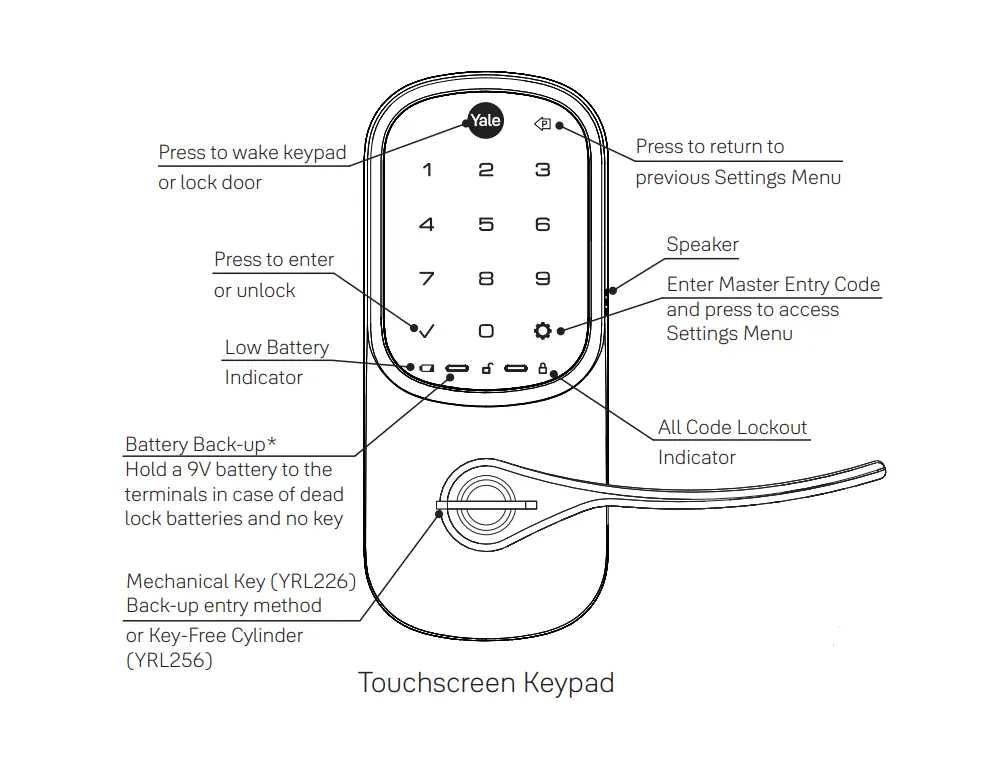
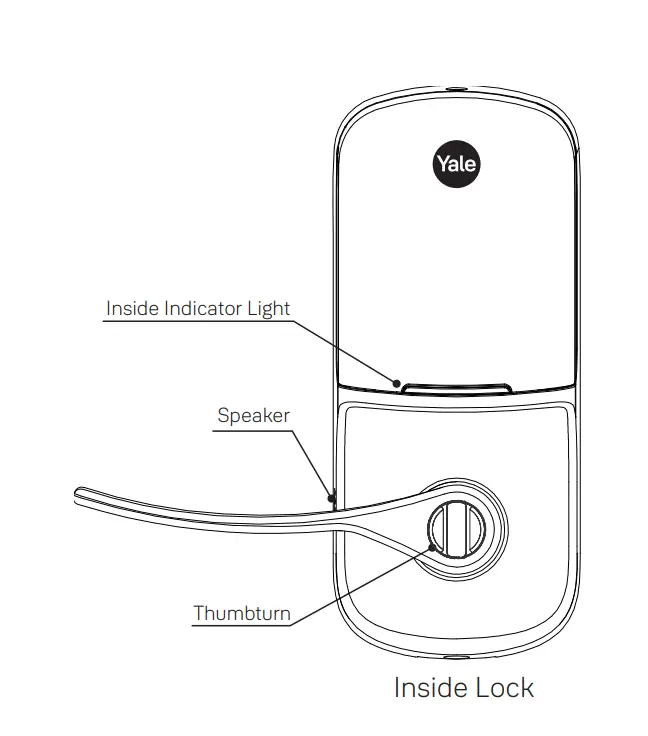
*NOTE TO INSTALLER AND CONSUMER
While Yale® has included several features to prevent lockout (9-Volt battery jumper, low battery warnings), it is still possible for a lockout situation to occur. Because the YRL256 does not have a key, Yale® recommends using YRL256 in an environment where there are additional entry points into a dwelling.
Creating Master Entry Code
The Master Entry Code is used to change lock settings.
A security best practice is to set your Master Entry Code with 6 or more digits and create a separate code that is used daily to lock and unlock the door.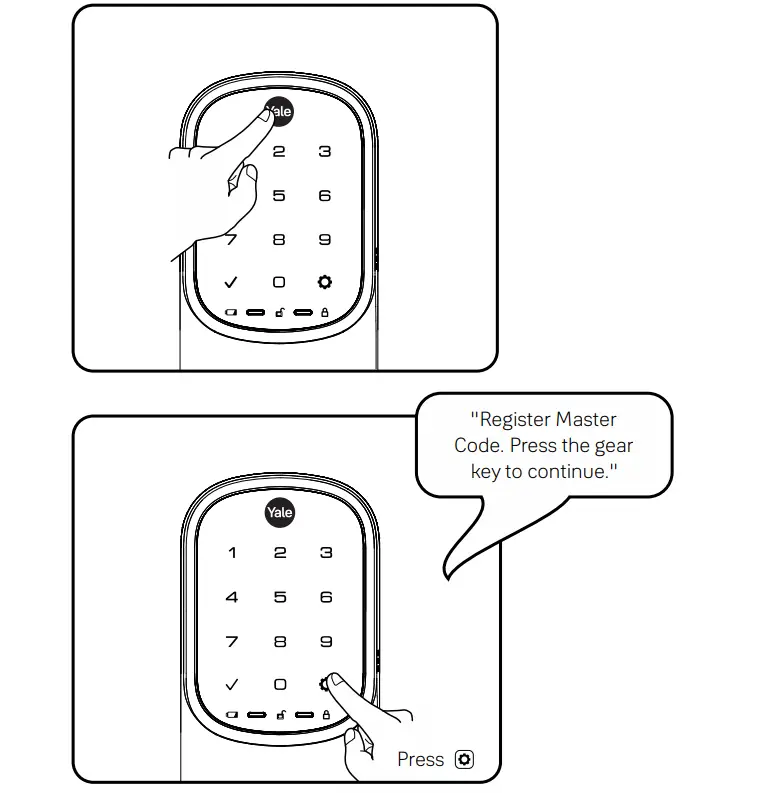
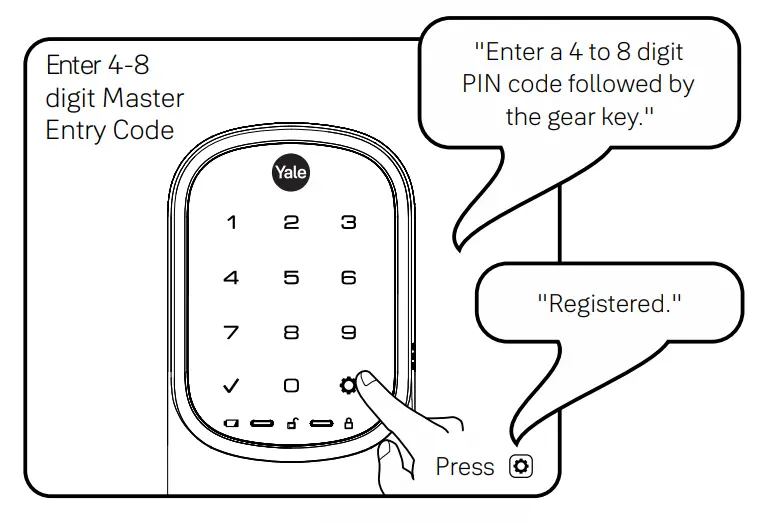
Creating Entry Codes
Master Entry Code must be created first.
*Max Entry Codes = 250 with Smart Module; 25 without.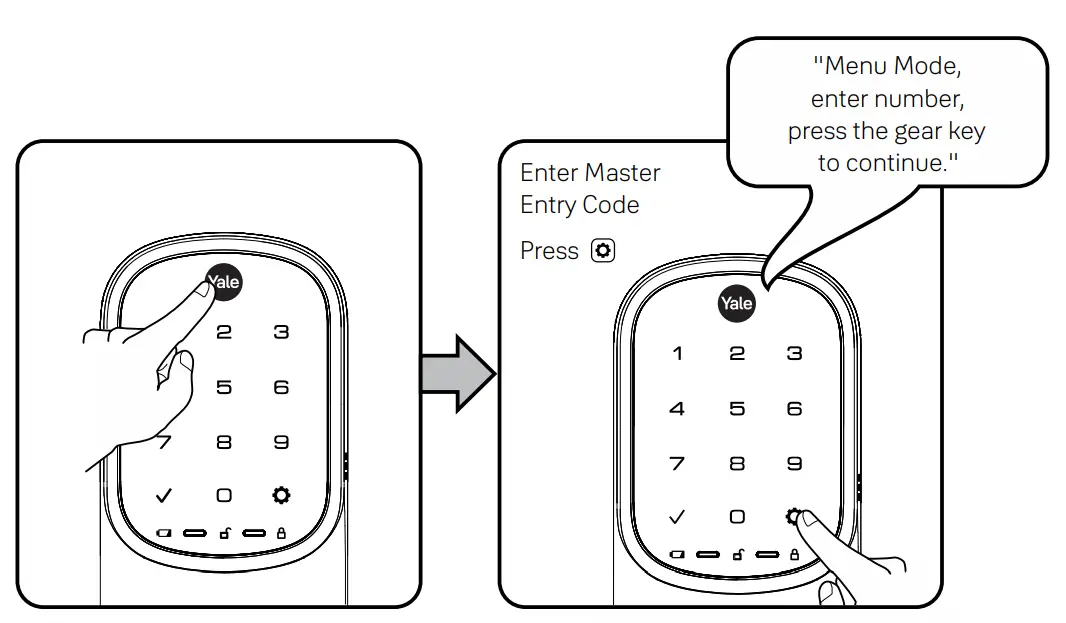
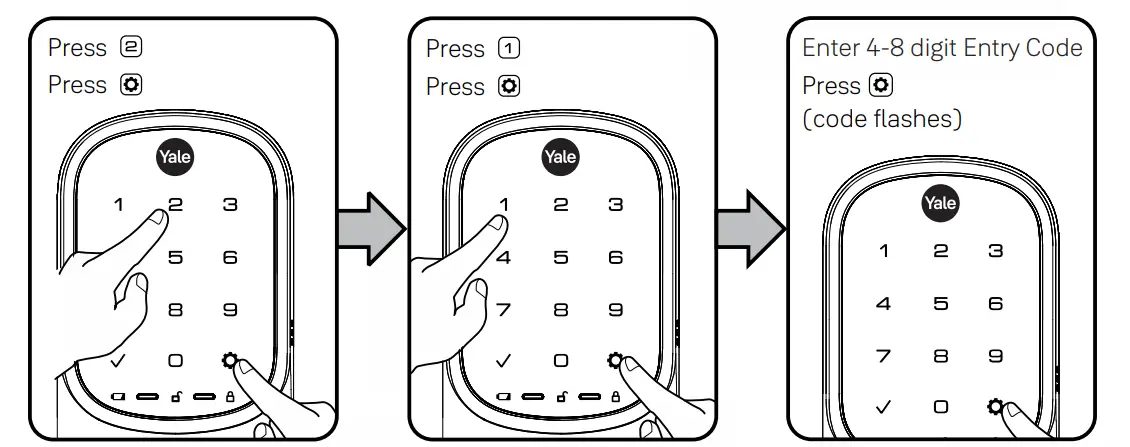
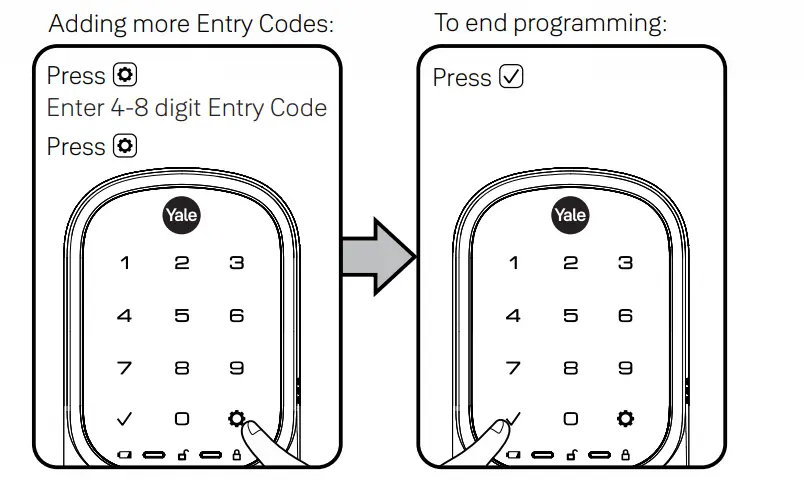
Deleting Entry Codes
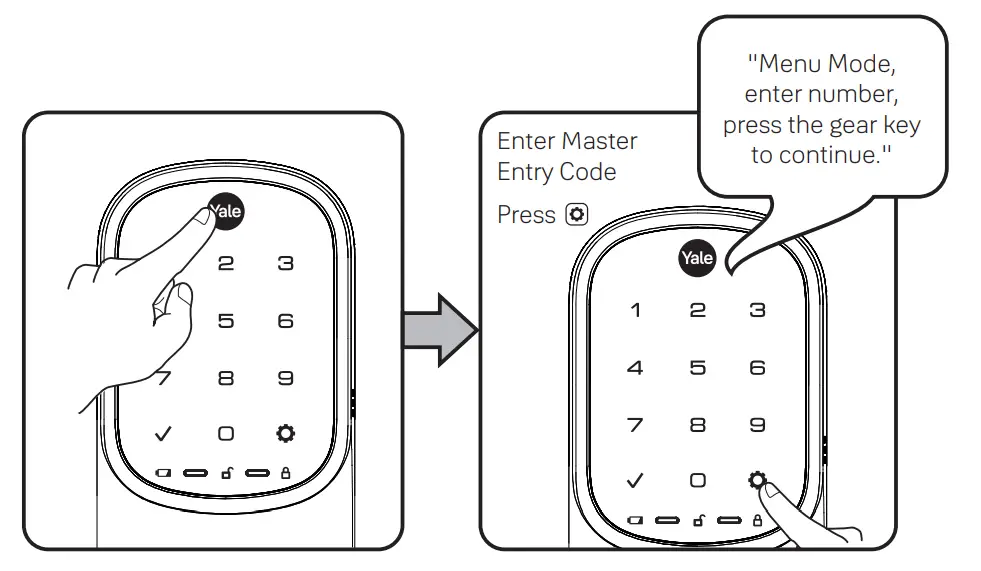
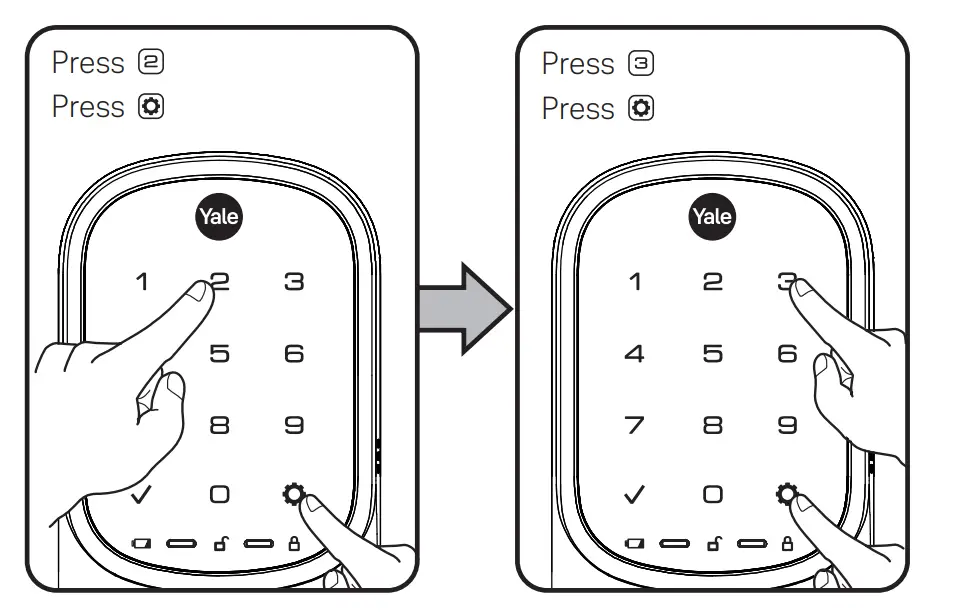 Deleting one Entry Code:
- To delete one Entry Code, you must enter the Entry Code you wish to delete.
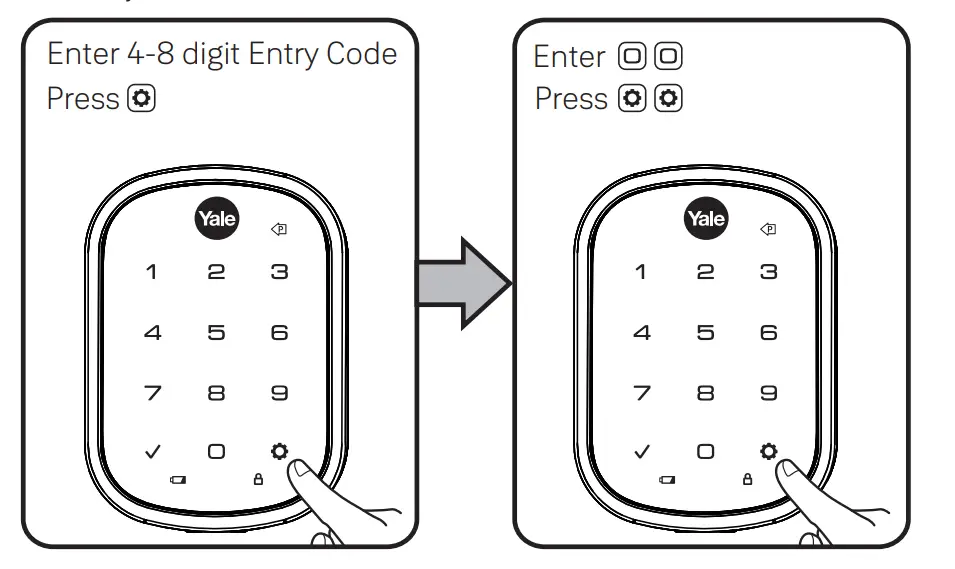
- To delete all Entry Codes (Does not delete
Master Entry Code):
Unlocking Door with Entry Codes
Code Chart
Duplicate if necessary
| Entry Code Management | Entry Code |
| Master: Homeowner | |
| User Name: Babysitter | |
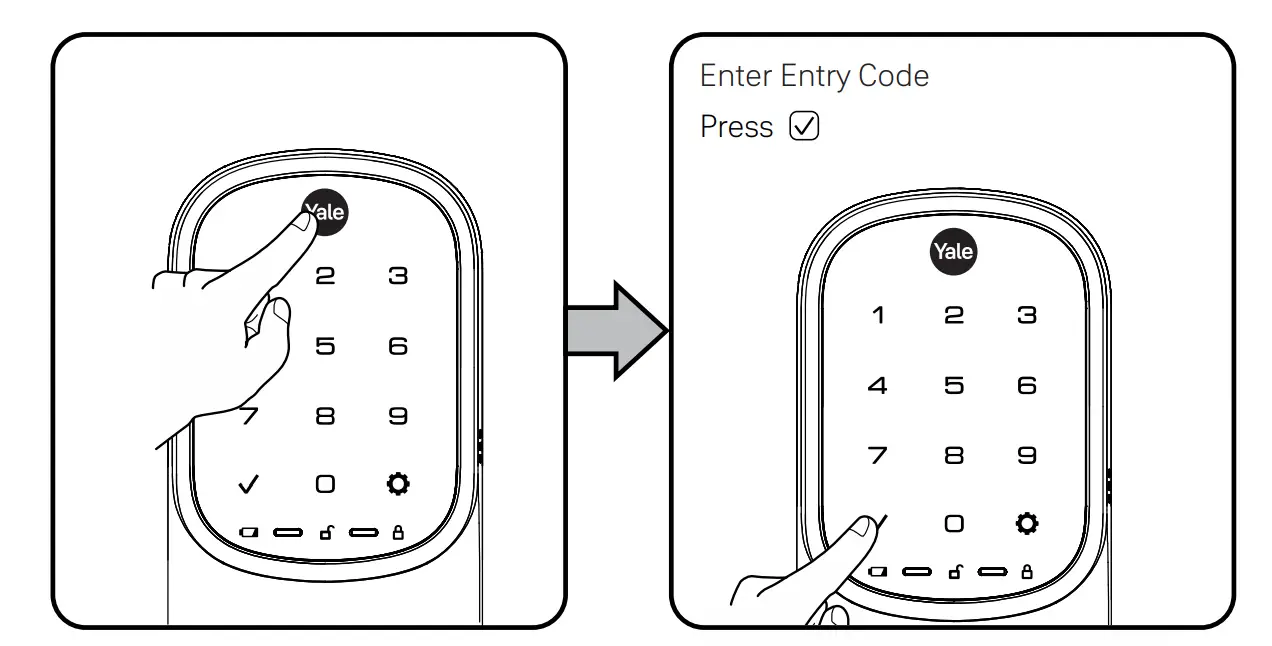
- Press Yale logo to wake up lock.
- Enter Master Entry Code* followed by icon.
Lock Response: “Welcome to the Settings Menu. Press each number to hear available settings and then press the settings icon to enter.” - Enter digit corresponding to the function to be performed followed by the icon. Follow the voice commands.
Here is an example of how to set Auto-Lock to 30 seconds:
Master Entry Code
- The Master Entry Code must be created prior to any other programming of the lock.
- The network Module Setting function appears only with Yale Smart module installed.
Troubleshooting
| Symptom | Suggested Action |
|
Lock does not respond – door is open and accessible. | • Keypad becomes active when the Yale logo is pressed. Verify contact with the logo. • If keypad numbers are visible, check they respond when pressed. • Check batteries are installed and oriented correctly (polarity) in battery case. • Replace batteries* if batteries are dead. • Check keypad cable is fully connected and not pinched. |
| Lock does not respond – door is locked and inaccessible. | • Batteries may not have enough power. Replace batteries*. • Apply a 9V battery to terminals below the keypad for backup power option. |
| Lock is on for a while then shows no reaction. Lights dim. | • Batteries do not have enough power. Replace batteries*. |
| Lock chimes indicating code acceptance, but door will not open. | • Check for any foreign objects between door and frame. • Check that the cable is firmly connected to inside lock. |
| Lock operates to allow access, but will not automatically re-lock. | • Check to see if Auto Re-lock is enabled. • Disable Auto Re-lock to lock the door (manually). |
|
Entry Codes will not register. | • If low battery indicator is lit, change batteries*. • Entry Codes must consist of 4 to 8 digits. • The same Entry Code cannot be used for multiple users. • Entry Codes are set by the Master Entry Code, which is set first. Contact the Master user. • Entry Codes must be entered within 5 seconds (while keypad is active) or process will have to be restarted. • Check or gear cannot be part of the Entry Code. |
| Upon entering an Entry Code and pressing key, the lock displays “invalid code” error or lock times out without responding. | • Verify entered code is a valid, previously programmed, 4 to 8 digit code. • All Code Lockout is enabled. Only the Master Entry Code can change All Code Lockout. Contact the Master user. |
| Upon entering an Entry Code and pressing the key, red padlock icon appears and there are different tones. | • Check that All Code Lockout is disabled (see Feature #6). Only the Master Entry Code can change All Code Lockout. Contact the Master user. |
| Lock operates, but makes no sound. | • Check that Volume is enabled (see Feature #4). Only the Master Entry Code can change Volume. Contact the Master user. |
| Lock responds “Low Battery” | • This is the alert to replace the batteries. Replace all four (4) batteries* with new AA Alkaline batteries. |
| Upon entering an Entry Code and pressing the key, lock responds “Wrong number of digits”. | • The digits entered were incorrect or incomplete. Re-enter the correct code followed by the key. |
| Lock shows an X on keypad after entering a code. | • Bolt failed to fully retract. Refer to “Hardware Troubleshooting”. • Entry Code has not been scheduled for use at time of day it is tried. Try Entry Code again during scheduled time. |
| Deadbolt does not extend when locking the door with keypad. | • Lock was not handed properly. Rehand lock through Settings Menu. |
* When batteries are replaced, Smart Module locks have a real time clock that will be set through the User Interface.
It is recommended to verify correct date and time; particularly those locks operating under Daylight Savings Time.
FCC
Class B Equipment
This equipment has been tested and found to comply with the limits for a Class B digital device, pursuant to Part 15 of the FCC Rules. These limits are designed to provide reasonable protection against harmful interference in a residential installation. This equipment generates, uses, and can radiate radio frequency energy and, if not installed and used in accordance with the instructions, may cause harmful interference to radio communications. However, there is no guarantee that interference will not occur in a particular installation. If this equipment does cause harmful Interference to radio or television reception, which can be determined by turning the equipment off and on, the user is encouraged to try to correct the interference by one or more of the following measures:
- Reorient or relocate the receiving antenna.
- Increase the separation between the equipment and receiver.
- Connect the equipment into an outlet on a circuit different from that to which the receiver is connected.
- Consult the dealer or an experienced radio/TV technician for help.
Warning: Changes or modifications to this device, not expressly approved by Yale Home could void the user’s authority to operate the equipment.
Industry Canada:
This Class A digital apparatus meets all requirements of the Canadian Interference Causing Equipment Regulations.
Yale® and Assure Lever® have registered trademarks of Yale Home. Other products’ brand names may be trademarks or registered trademarks of their respective owners and are mentioned for reference purposes only. © Copyright 2021.
All rights reserved. Reproduction in whole or in part without the express written permission of Yale Home is prohibited.
Yale HOME
24/7 Product Support : 1-855-213-5841 • US.YaleHome.com
Yale® and Assure Lever® have registered trademarks of Yale Home. Other products’ brand names may be trademarks or registered trademarks of their respective owners and are mentioned for reference purposes only. © Copyright 2021.
All rights reserved. Reproduction in whole or in part without the express written permission of Yale Home is prohibited.
FAQS
Is there a Mul-T-Lock cylinder that can be installed in place of the standard cylinder that comes in the deadbolt system?
You can touch the keypad with the back of your hand and it will lock automatically, or you can lock it remotely with your cell phone.
How do you lock it ?
The 220 is an older model and uses an older version of Z-Wave. The 226 uses our generation 2 network modules for Z-Wave and Zigbee.
What’s the difference between yrd220 and yrd226? https://www.amazon.com/gp/product/b06wrv97hz
You need a home automation controller. I use VERA LITE which runs about $100 and has no monthly fees. However, the Schlage and other products do.
What else do you need to buy to make this wireless? I want to be able to lock it from my phone, ect. Also is there any monthly fees with this?
In fact it is. The homepage of Control4 even depicts Yale locks as example.
Is there a way to turn off the (30 sec) auto relock so it stays unlocked when you are outside and want to come in and out without the door locking?
yes , you can adjust it from setting and cancel “auto lock”
Is there Left & Right opening option?
Not sure what the person below meant by “handed” but no, they are RH only unfortunately. The Camelots by Schlage are both.
Can this be used standalone without any additional system or technology?
All z-wave-enabled locks (Yale, Schlage, Kwikset) can be programmed and operated manually with combination keys.
No additional technology is needed for this purpose.
If these locks have to be operated remotely (for example from a smartphone or computer), then a z-wave controller will be needed.
Does the touchpad work with gloves on?
Yes, it does with the normal gloves we use. There may be some that don’t but we have driving and snow gloves that both worked.
What features are available without hooking this lock up to a hub? Can I still use multi-codes and one-time-use codes?
Yes
Any chance it works with the Philips Hue Bridge hub?
No, it doesn’t, but if you have SmartThings, Philips Hue and Yale Z-Wave or Zigbee locks (the model you asked about is a Zigbee lock) work with the SmartThings Hub, so you would be able to create automation for the two.
What is the difference between this model and the Assure?
This model (YRD226) uses Z-Wave rather than the newer Z-Wave Plus that is available in our Assure series of locks. Also, the Z-Wave radio in the YRD226 can’t be swapped out for a different radio. Whereas our Assure line (which includes several models) uses plug-in modules (Network Modules) for Z-Wave Plus, Zigbee, and HomeKit.
Is the Yale YRL226-ZW2-0BP for a typical right-handed inswing door?
The lock is handed for the left or right swings doors.