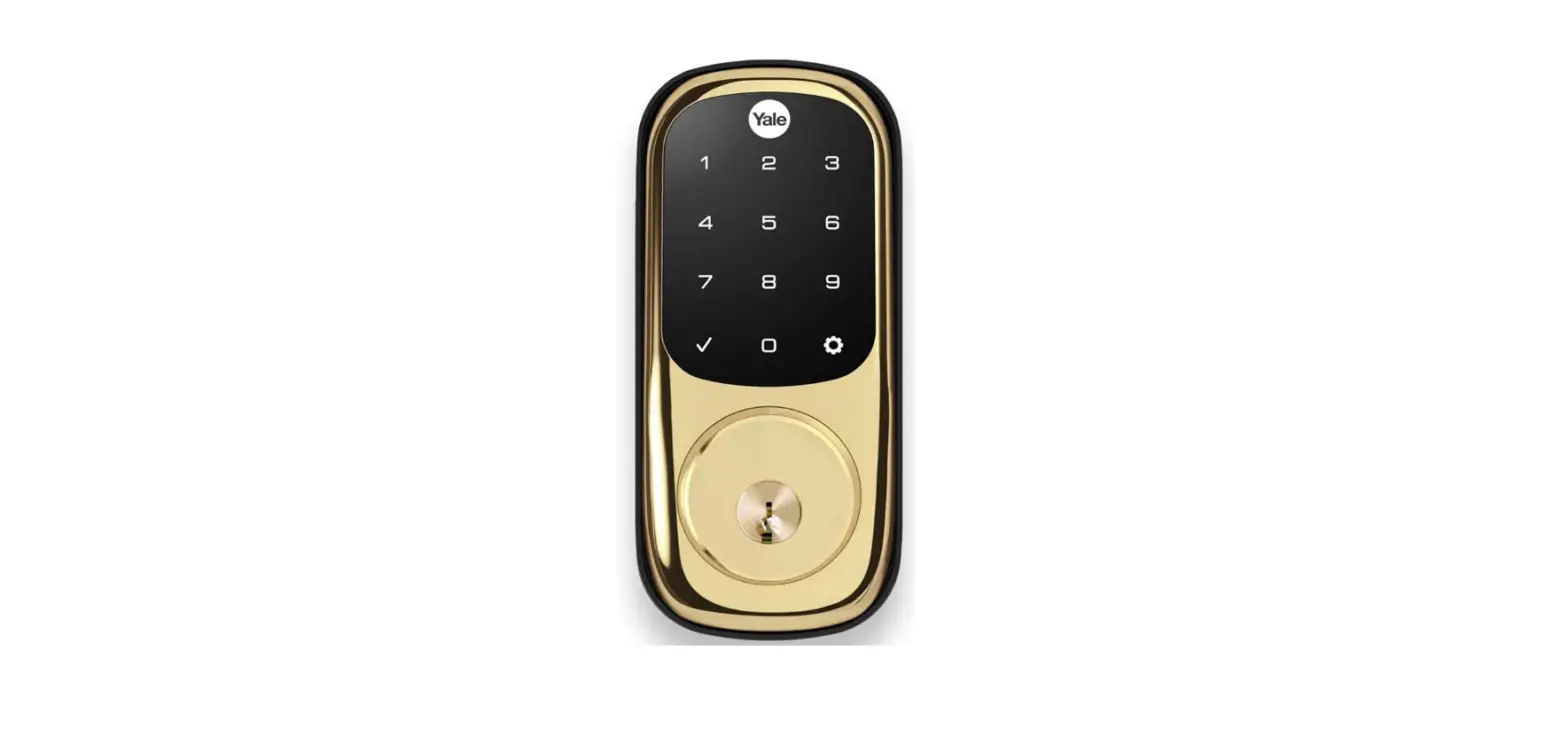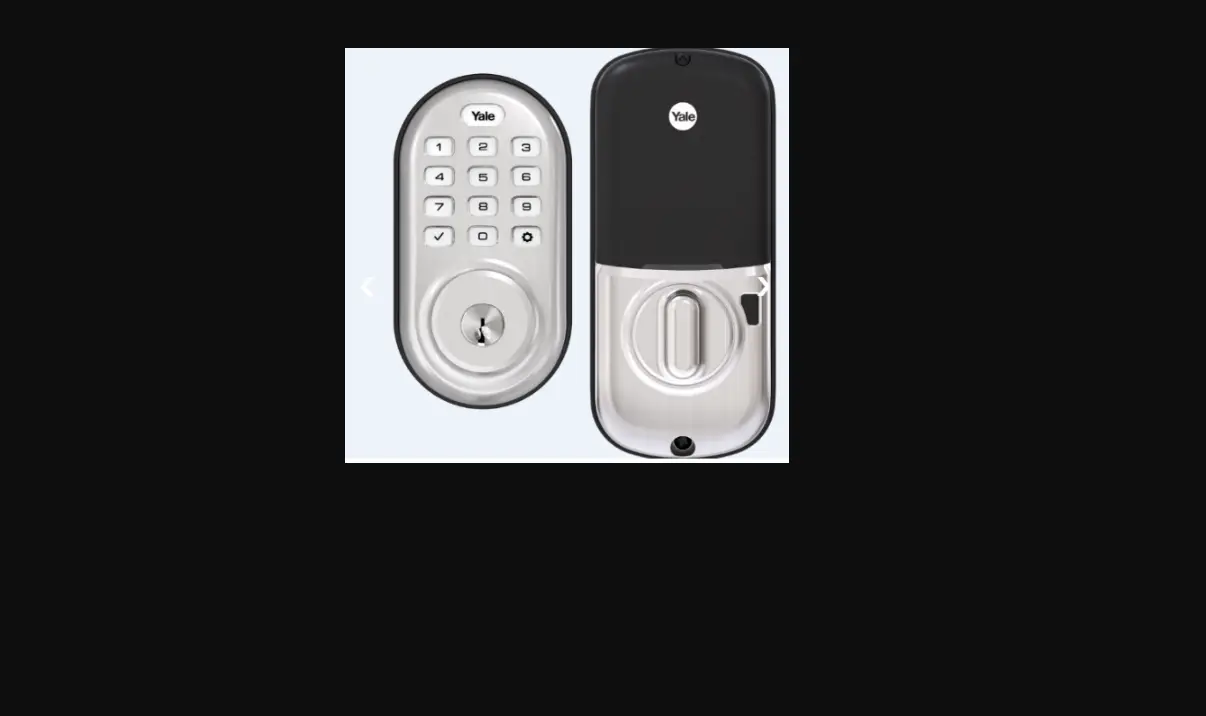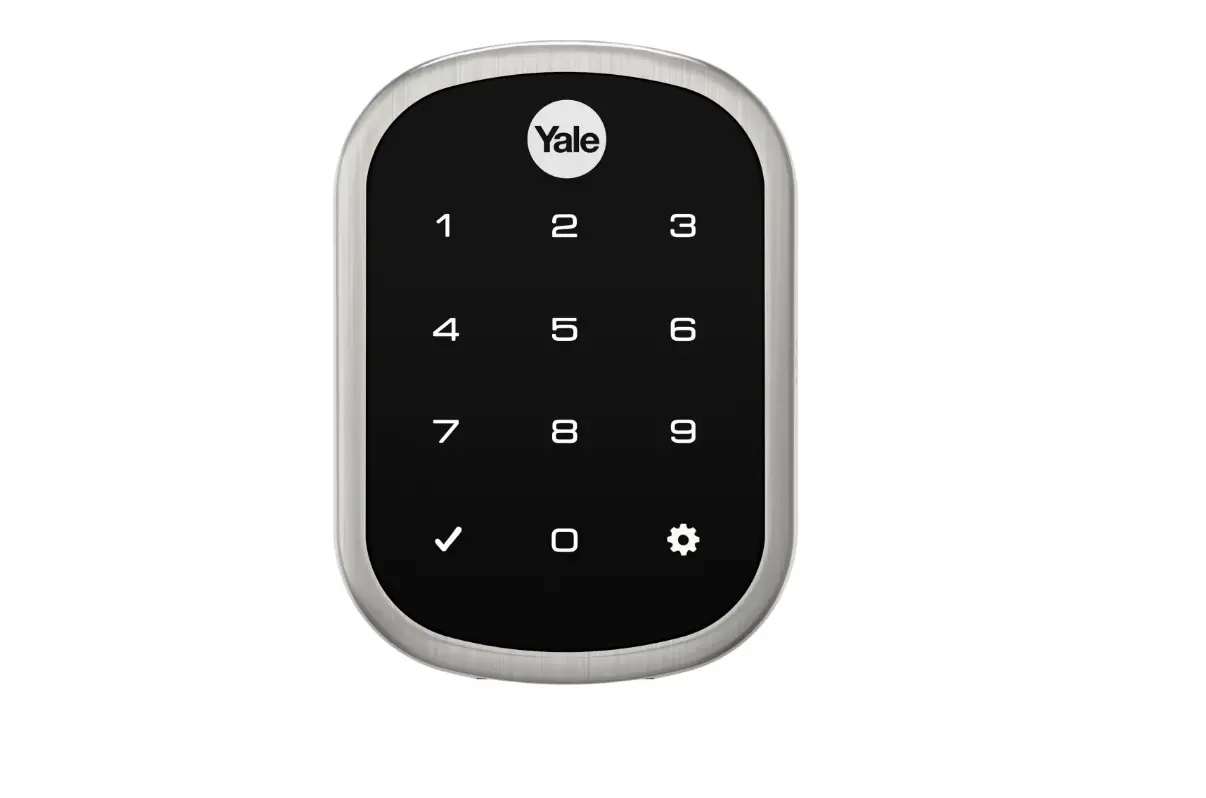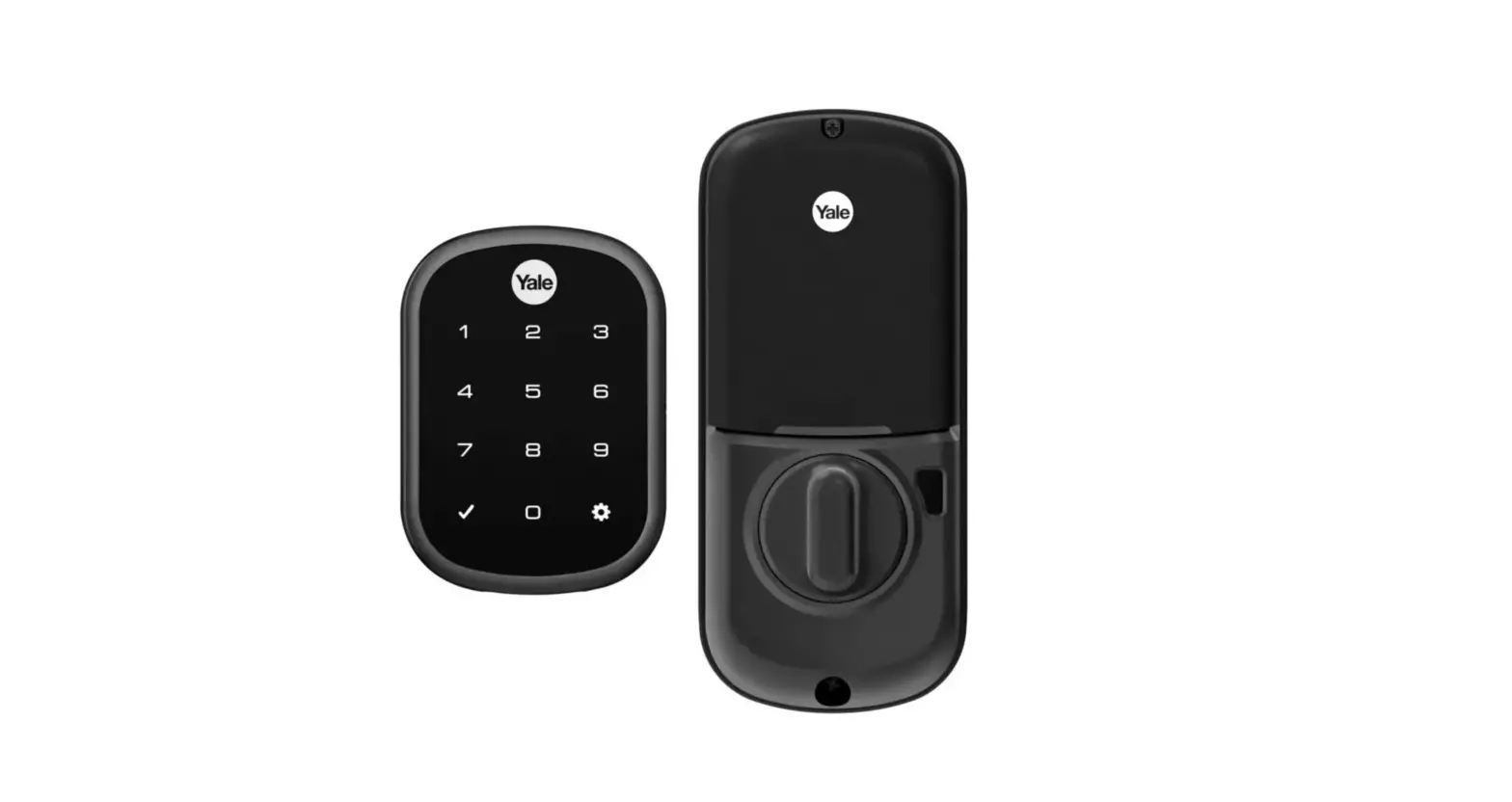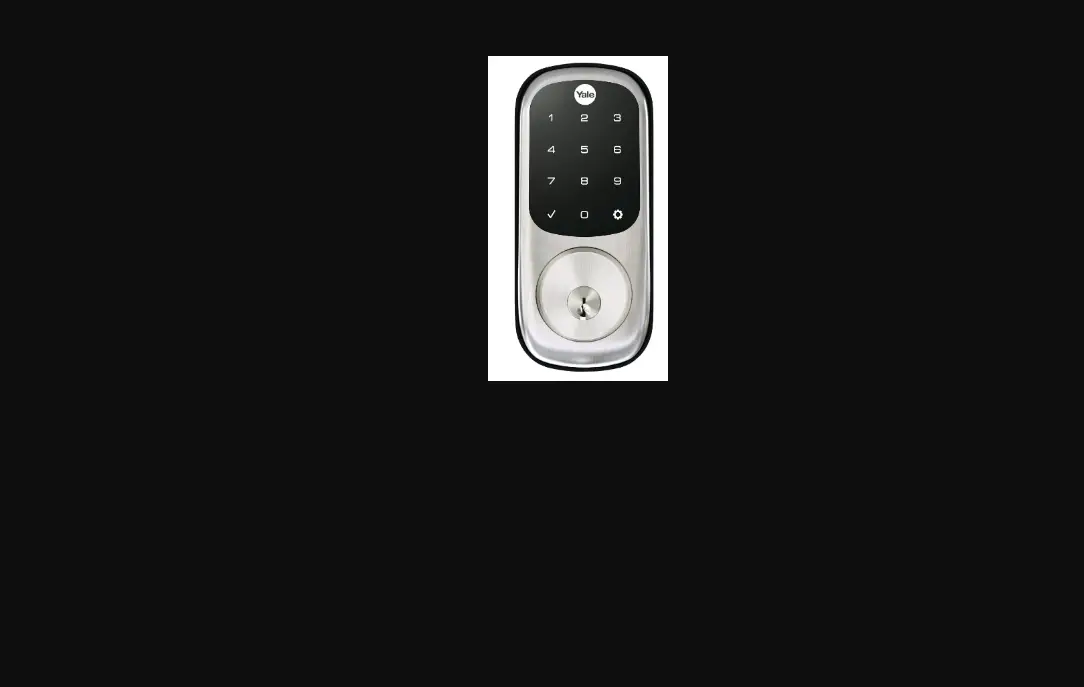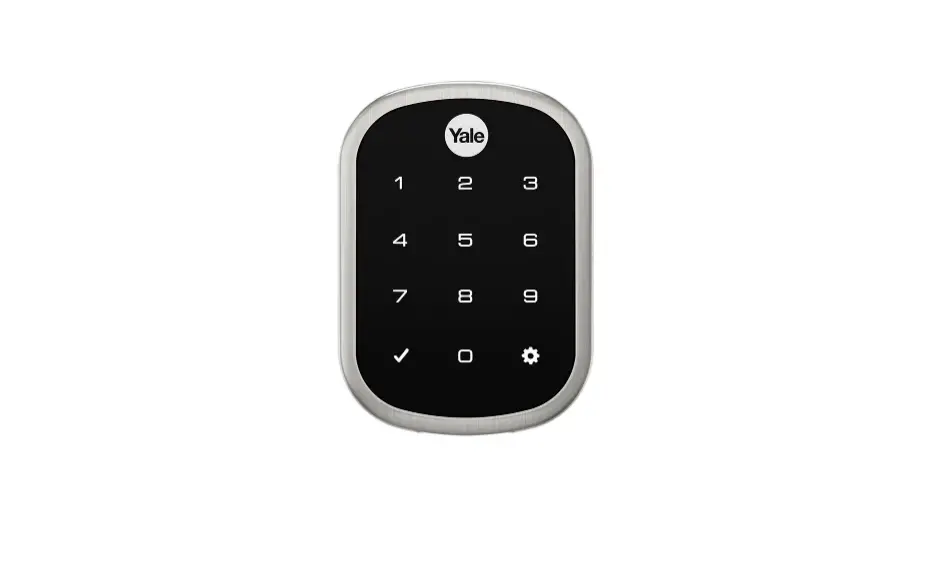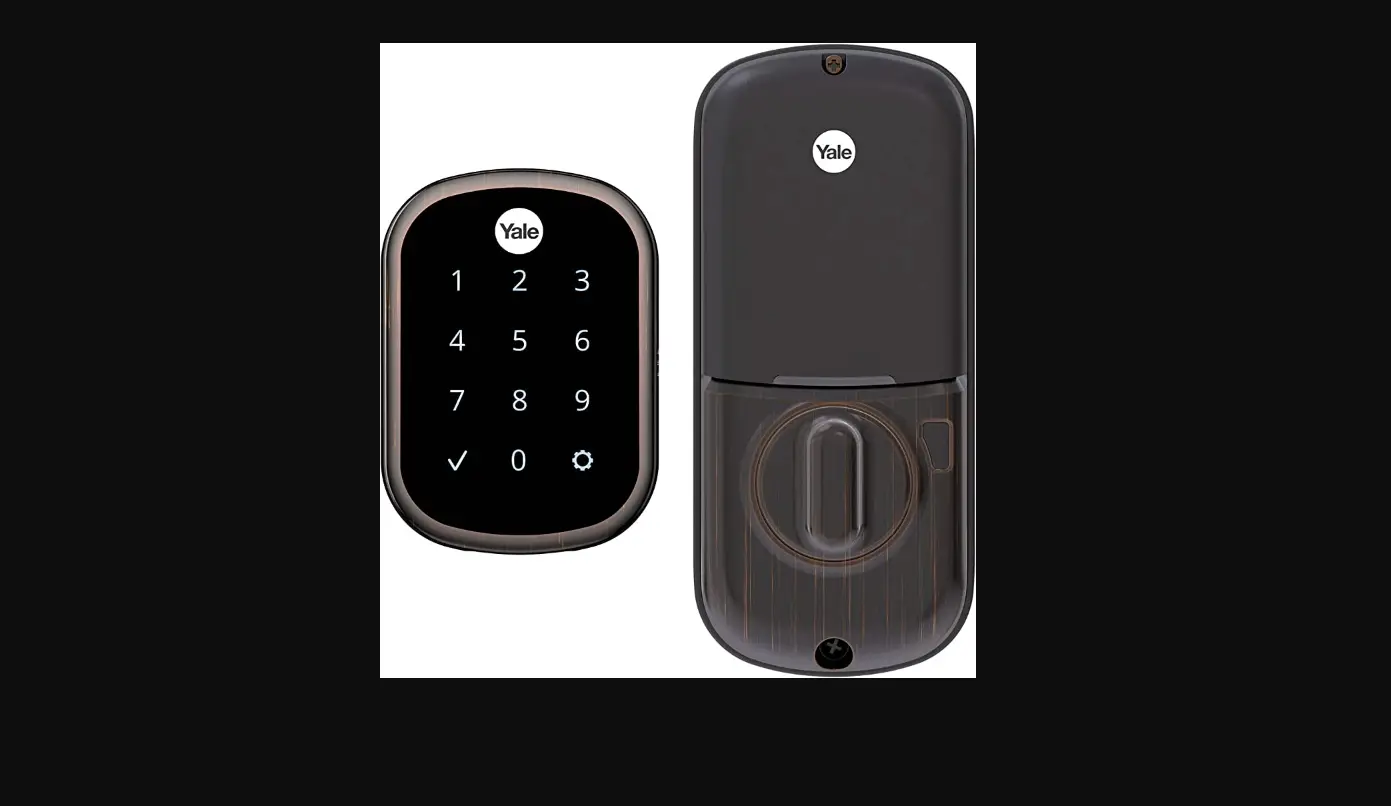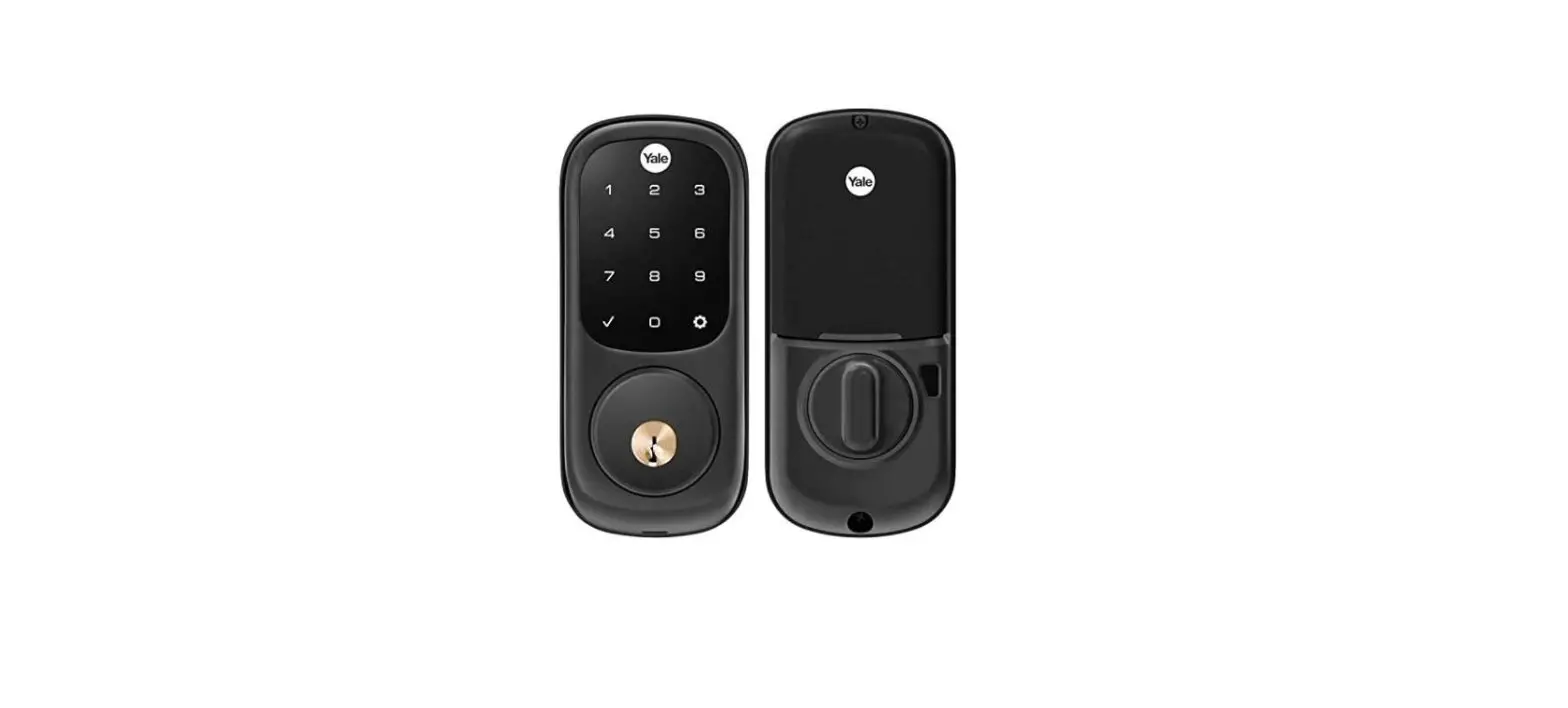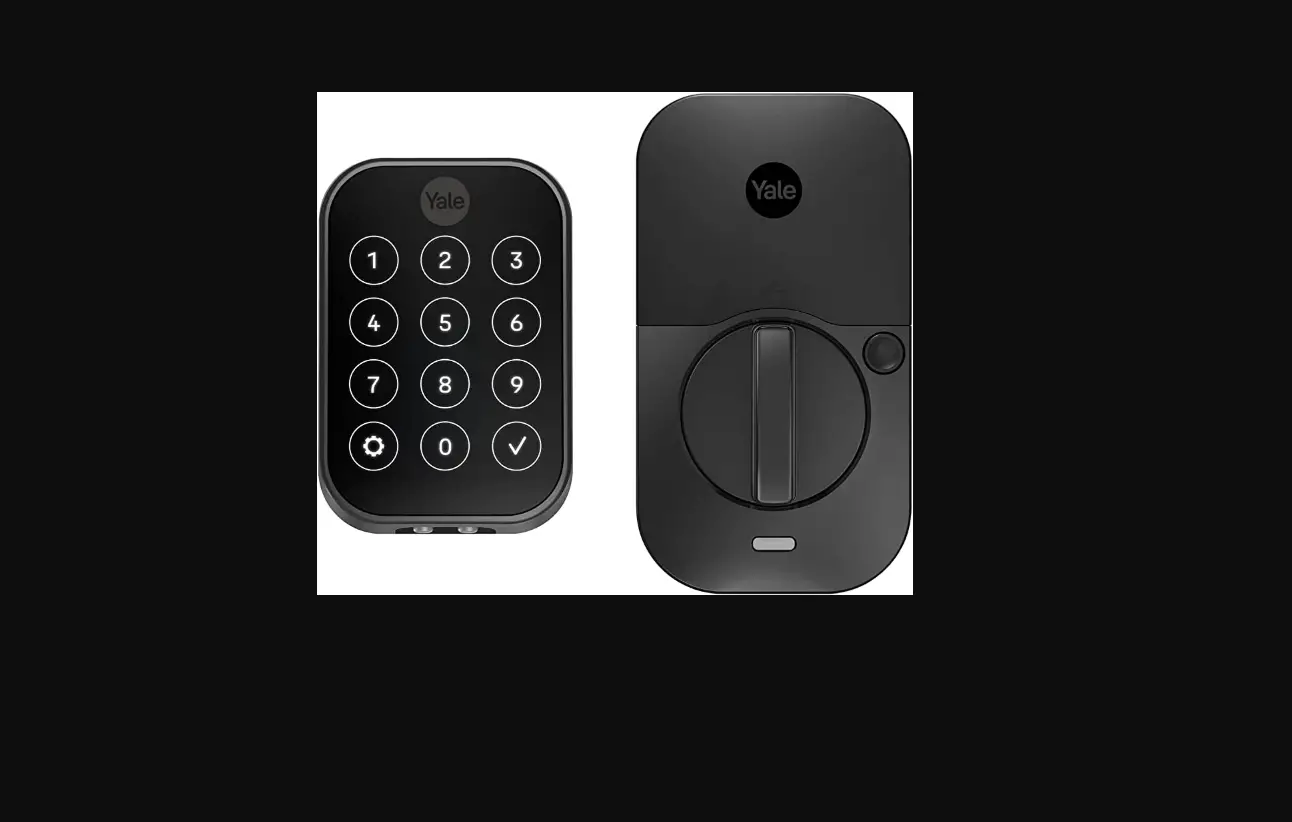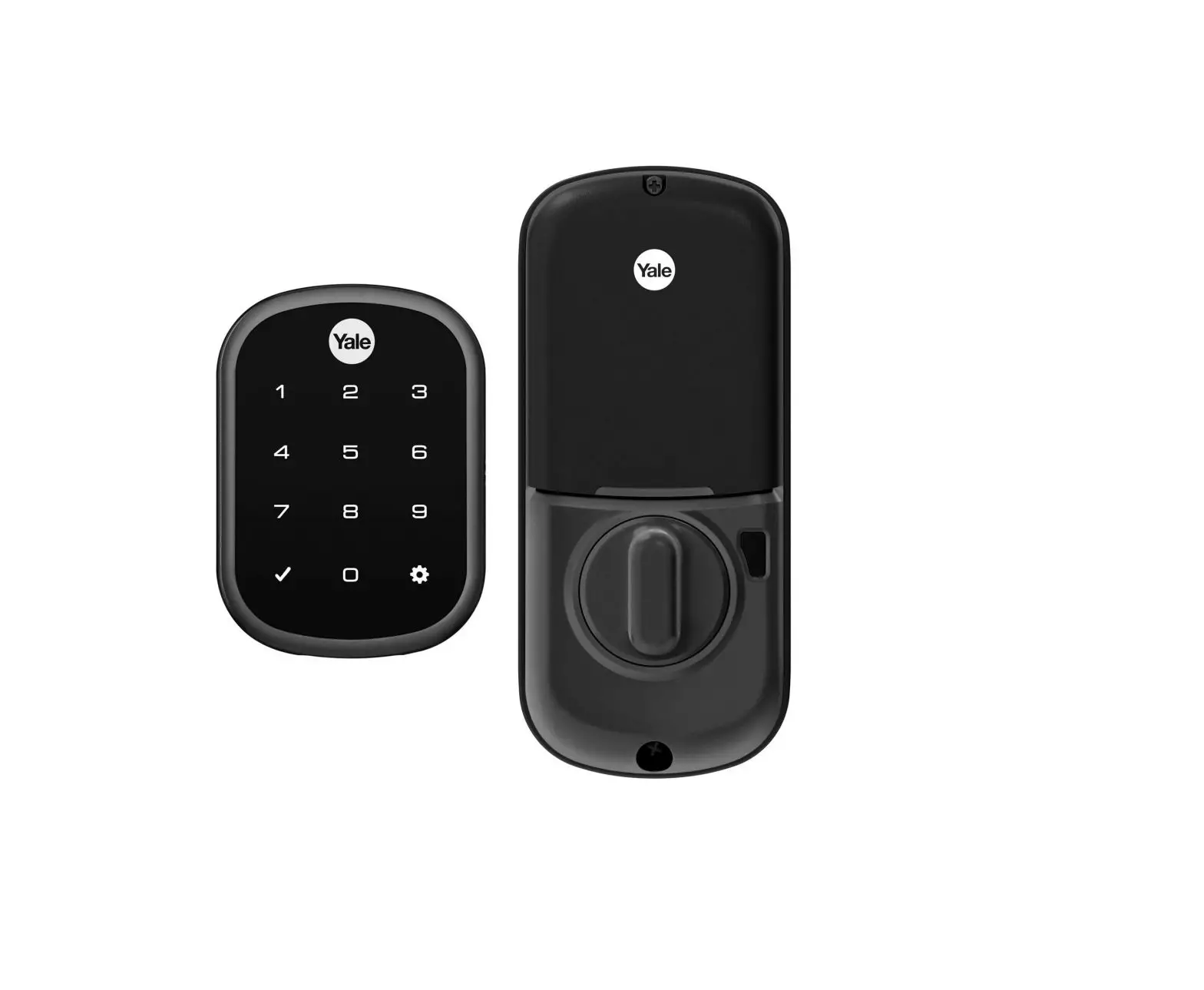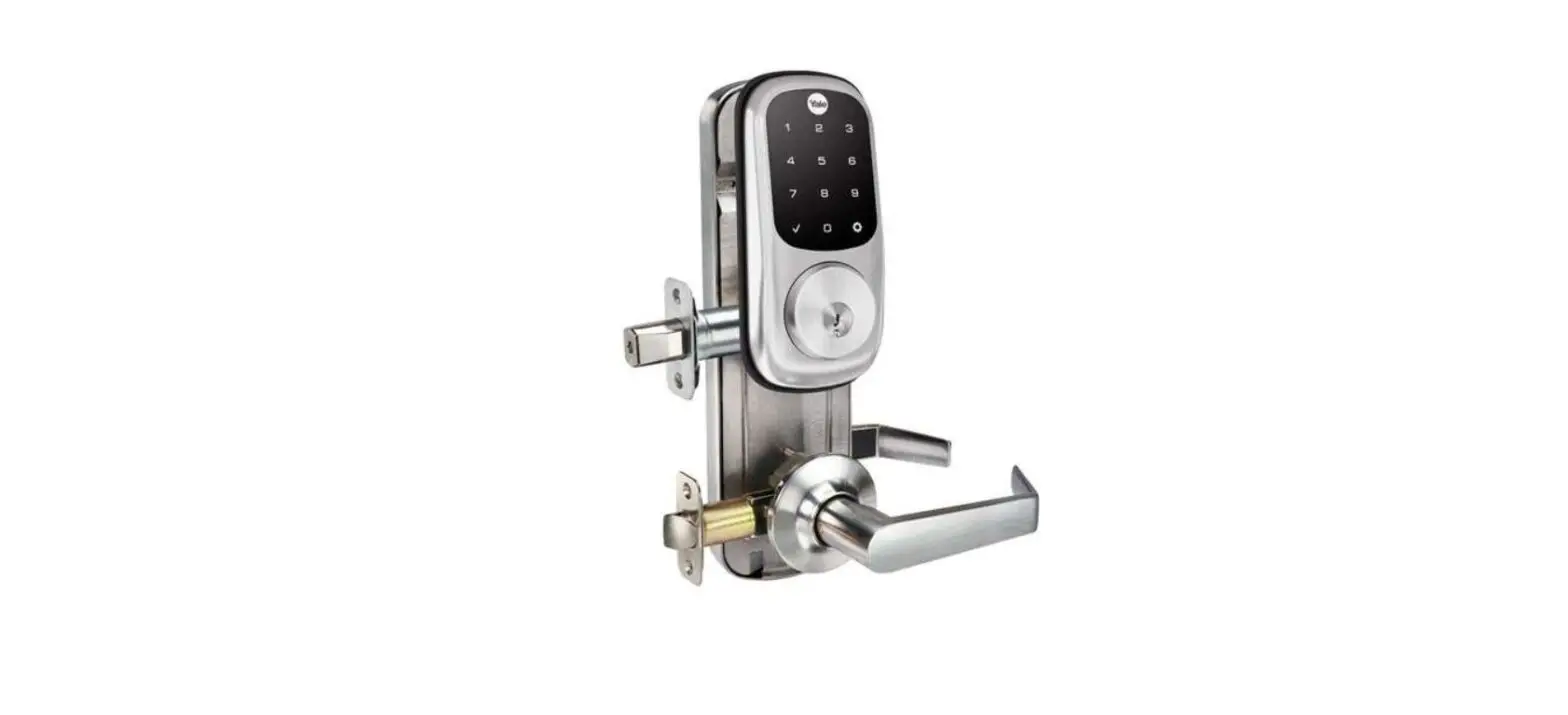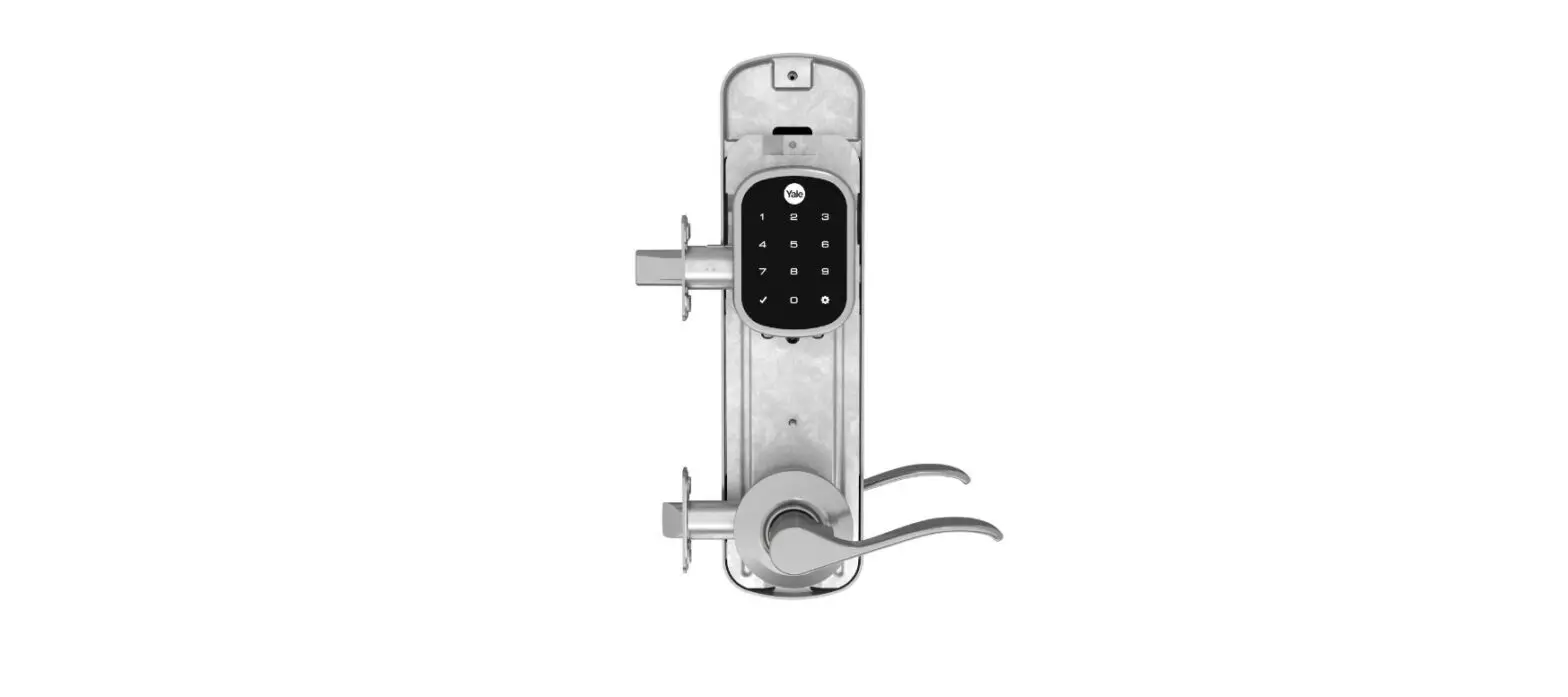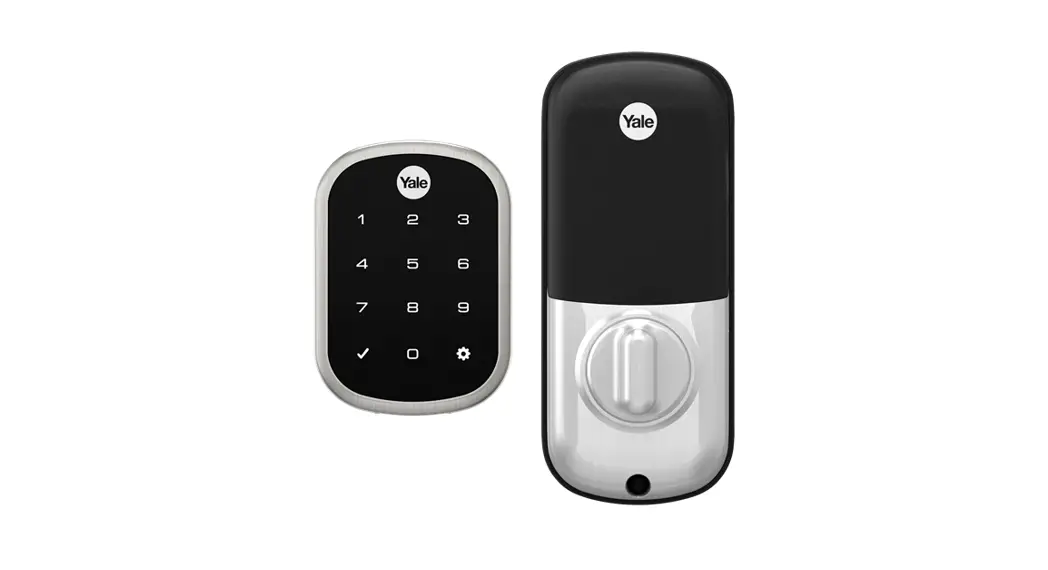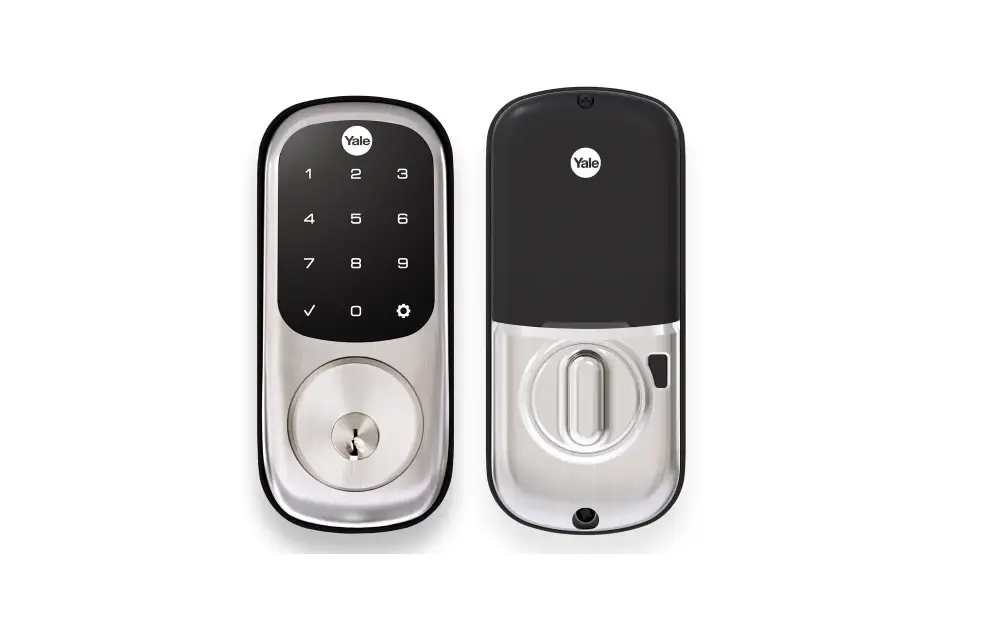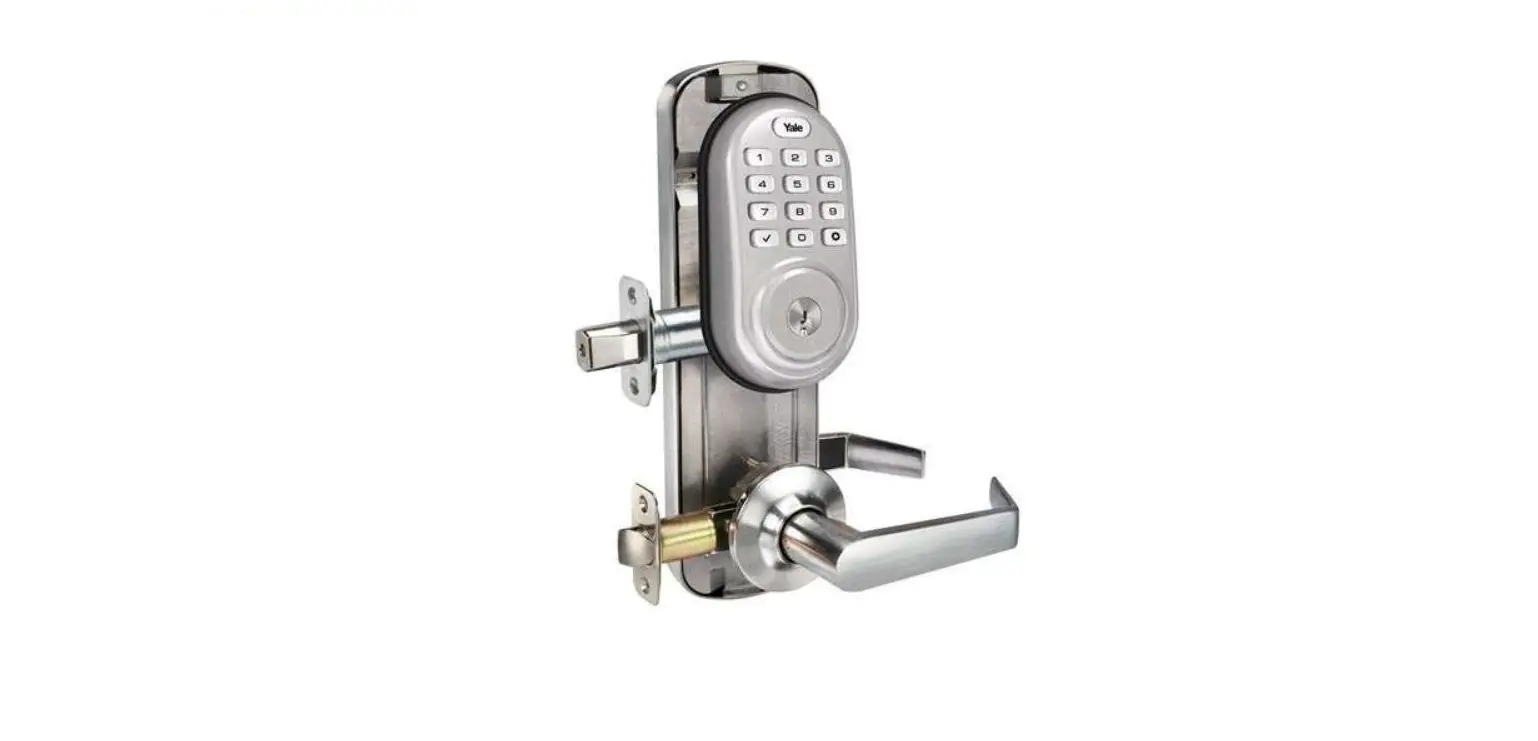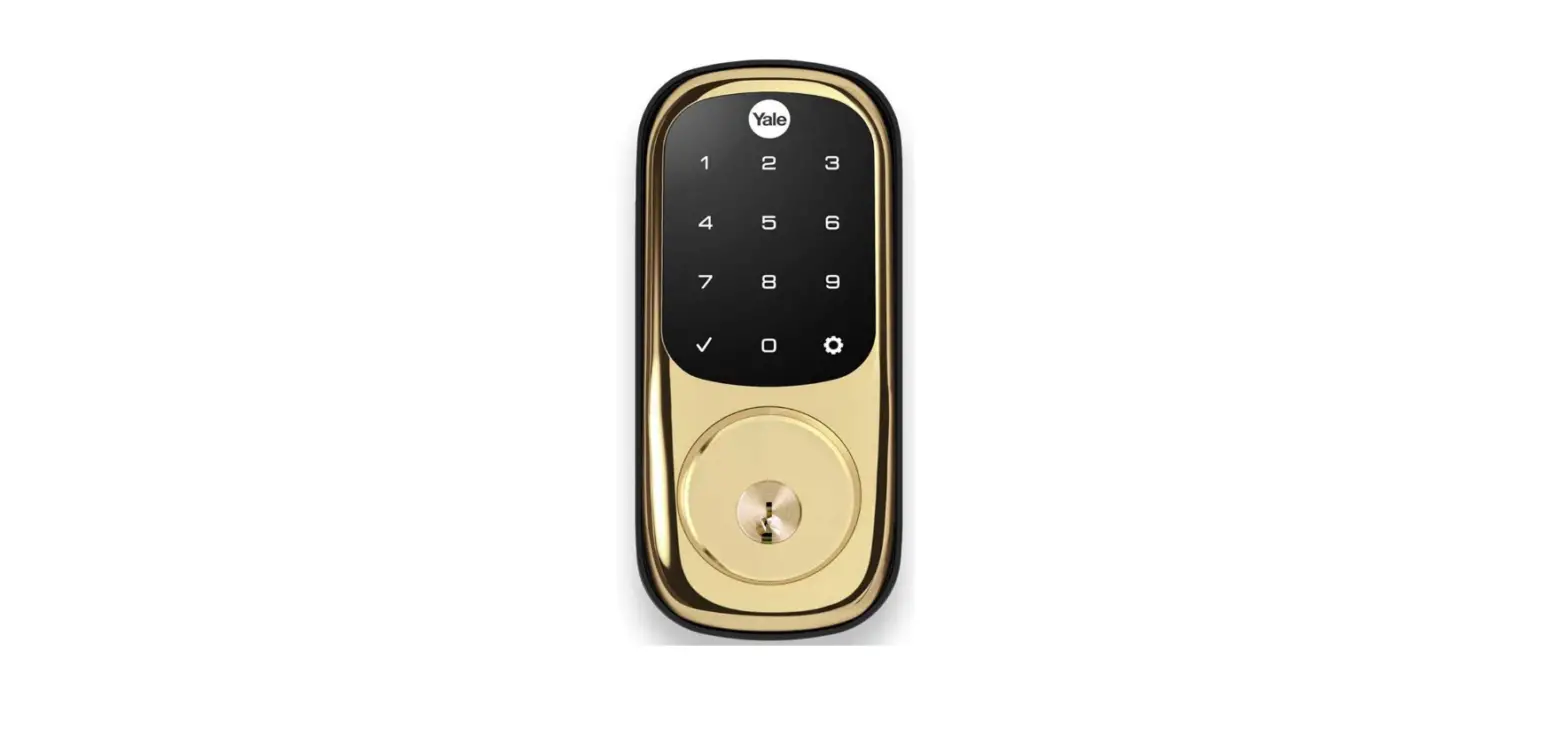

Yale Security YRD446-ZW2-605 Touchscreen Electronic Deadbolt
Installation and Programming Instructions
Yale Real Living™ Touchscreen Deadbolt Installation and Programming Instructions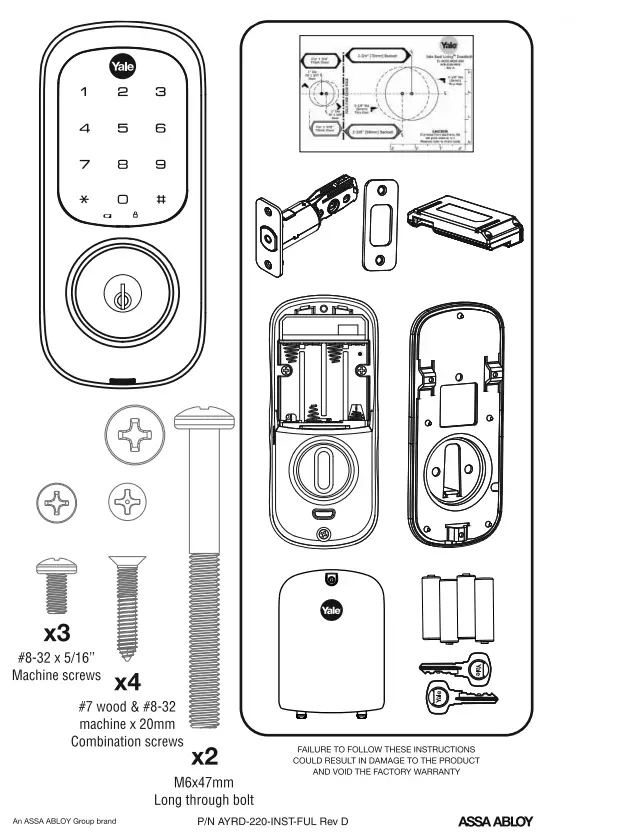 Preparing Door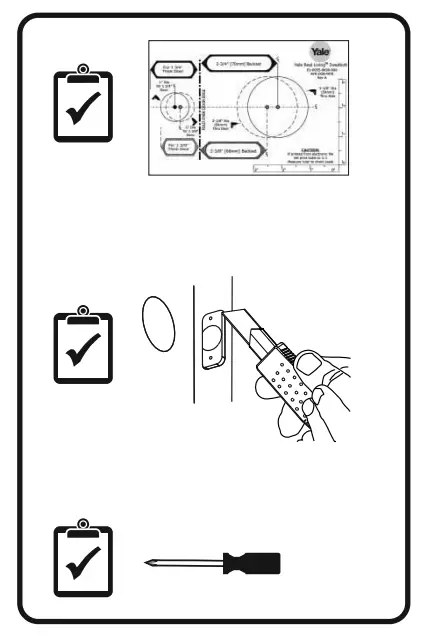
INSTALLATION
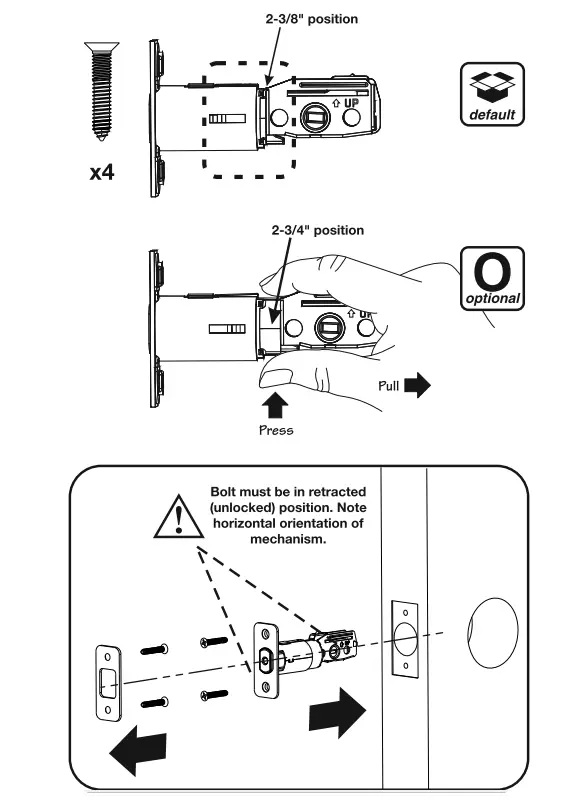
- Installation of Latch and strike plate

- Installing Touchscreen Escutcheon

- Installing Interior Mourrting Plate

- Attaching the Cable Assembly

- Installing Interior Escutcheon

- Installing Batteries/Handing the Lock
 Lock automatically adjusts for proper handling.
 - Installing Optional Network Module

- Installing Cover
Congratulations, you’ve installed the Yale Real Living™ Touchscreen Deadbolt! Turn sheet over for Programming Instructions to customize your product.
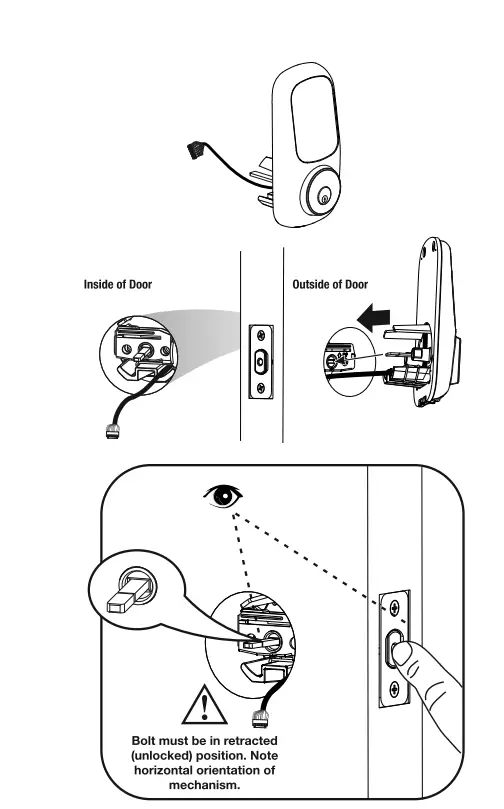
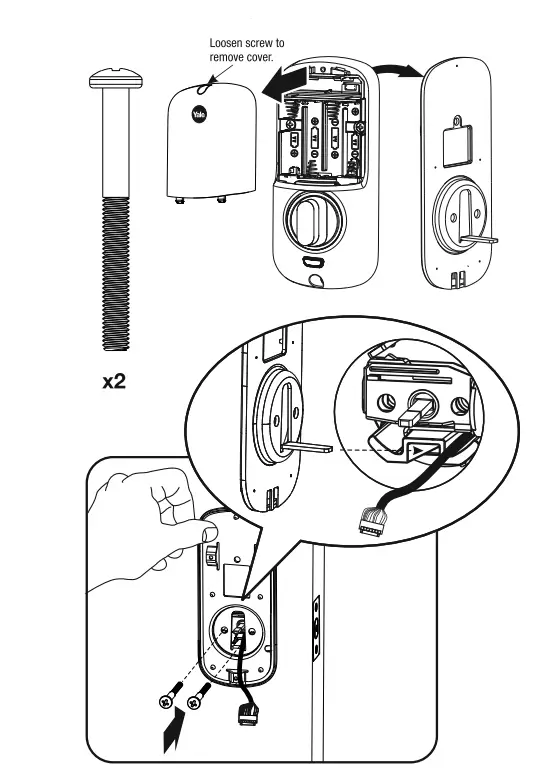
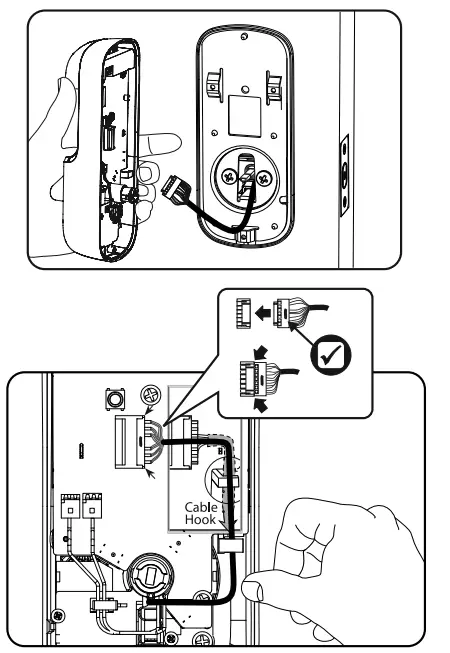
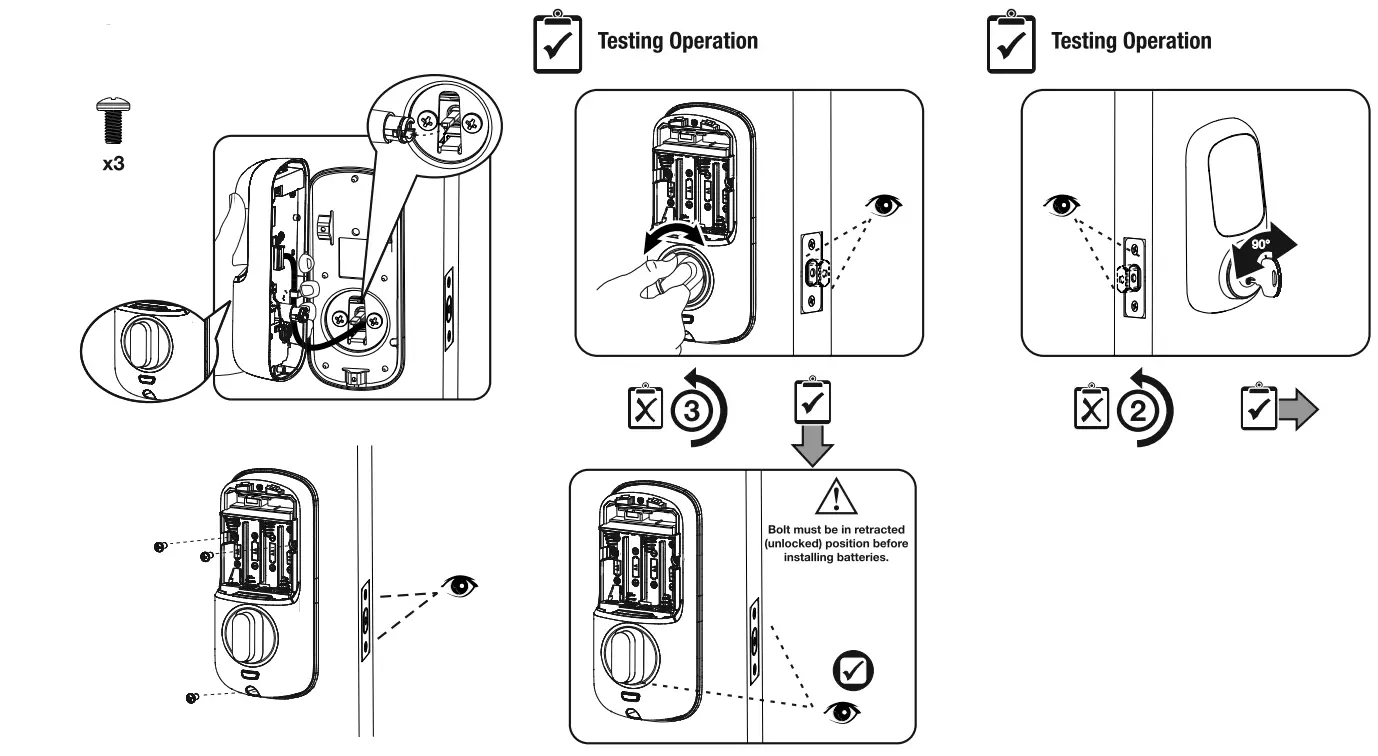
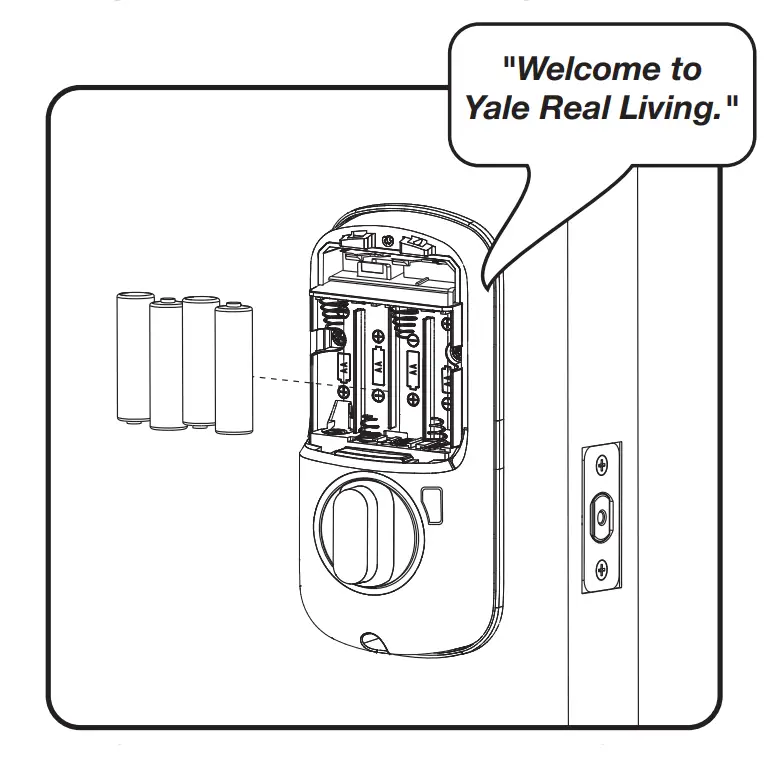 Lock automatically adjusts for proper handling.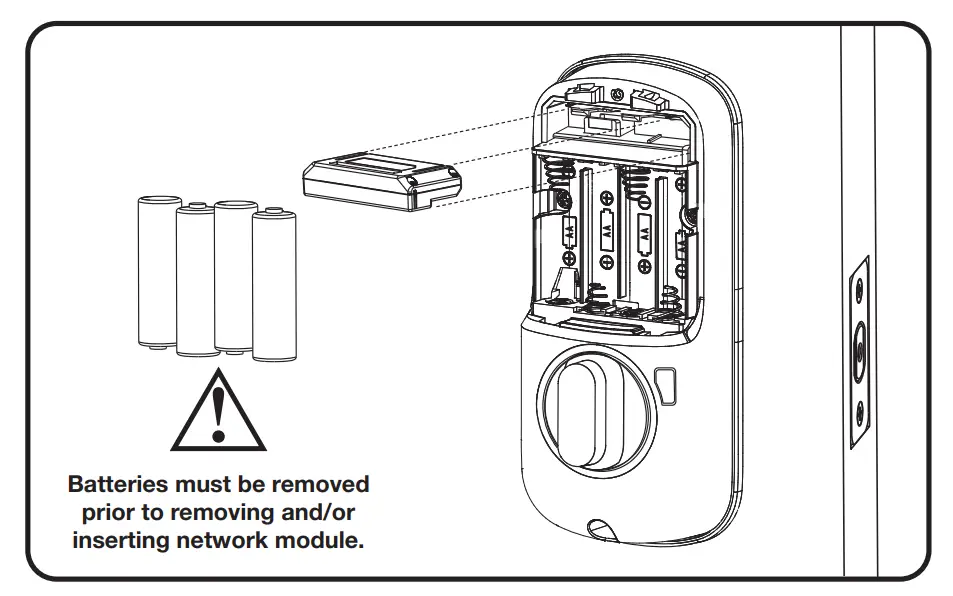
Programming Instructions
exterior Escutcheon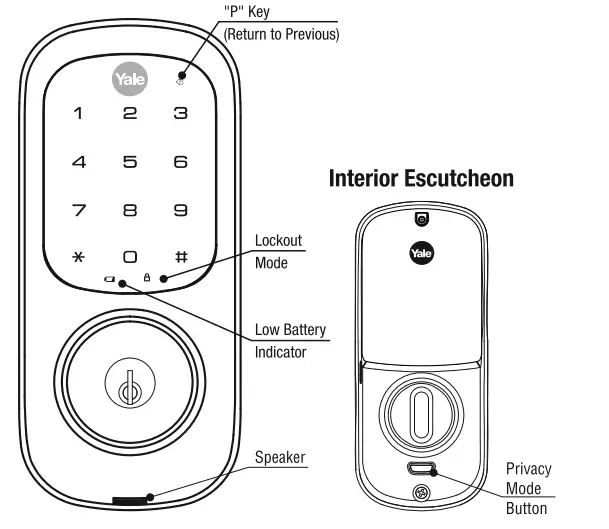
Lock Activation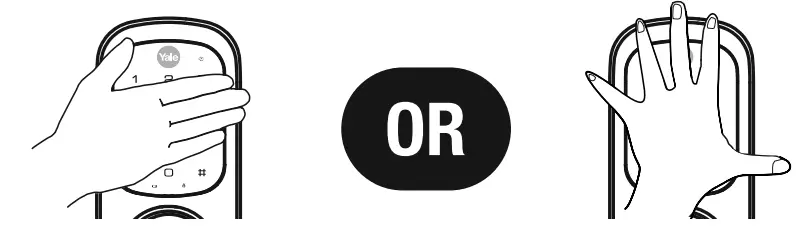
Master PIN Code must be created before any further programming.
Max User Codes = 250 with Network Module.
YRD246 Max User Codes = 25 without. YRD446 Max User Codes = 12 without.
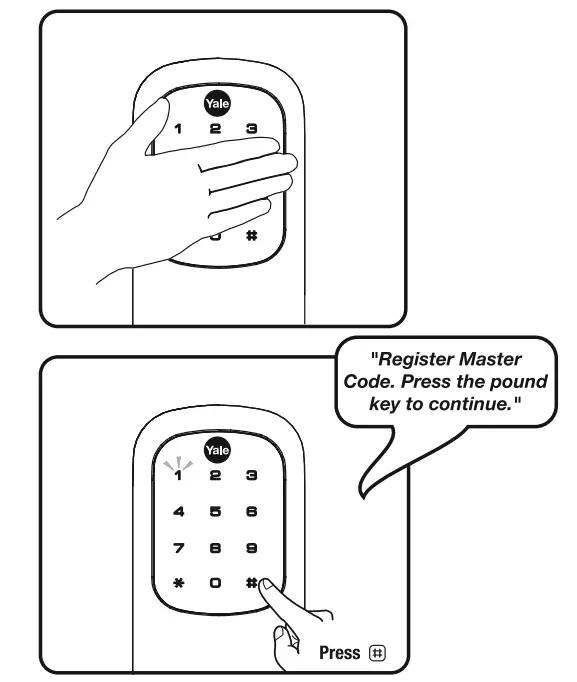
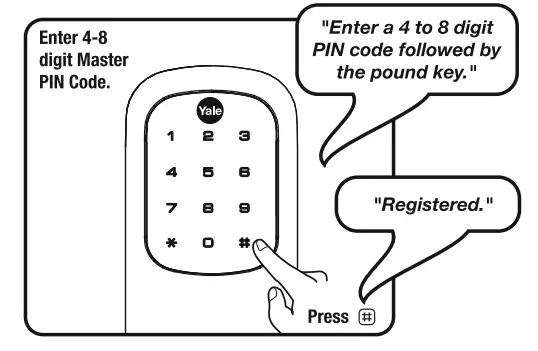
- Creating Master PIN Code
Creating a Master PIN Code must be performed upon installation or after resetting the lock to factory default. Programming and use of the lock are not possible until this step has been successfully completed.

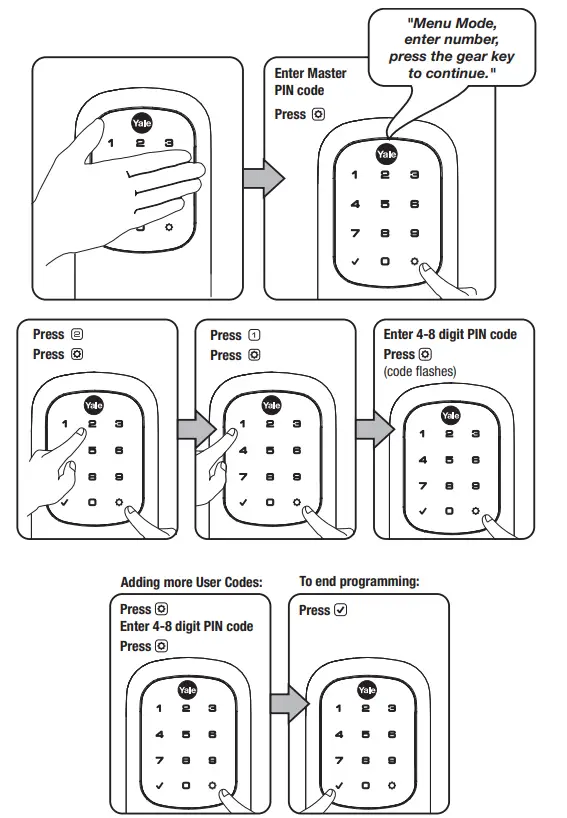
- Creating User PIN Codes
A master PIN code must be created first.
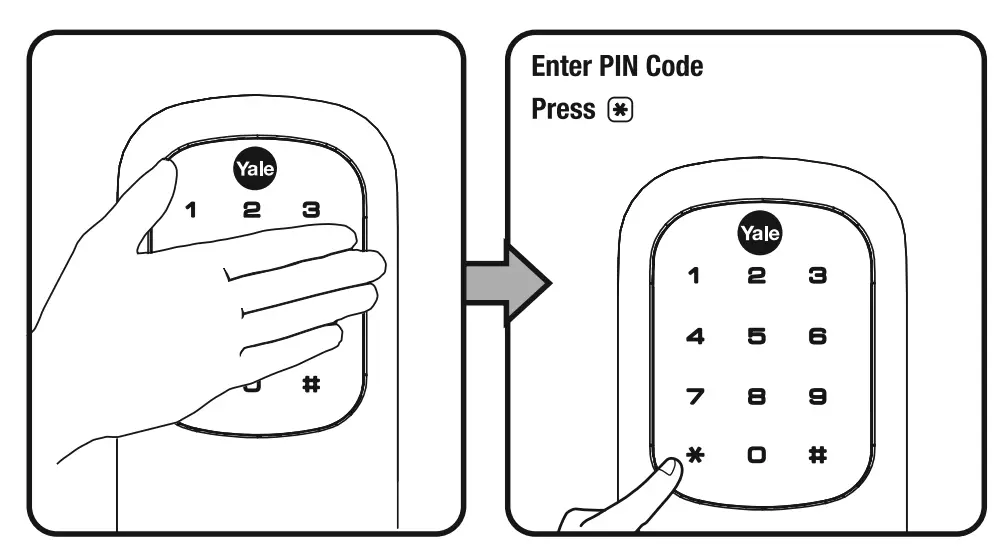
- Unlocking Door with PIN code

code chartPIN Code Management (With Network Module – Up to 250 Users) User Type User Name User # PlN Code Master User User User User User User User User User User User User User User User
Resetting Lock to Factory Default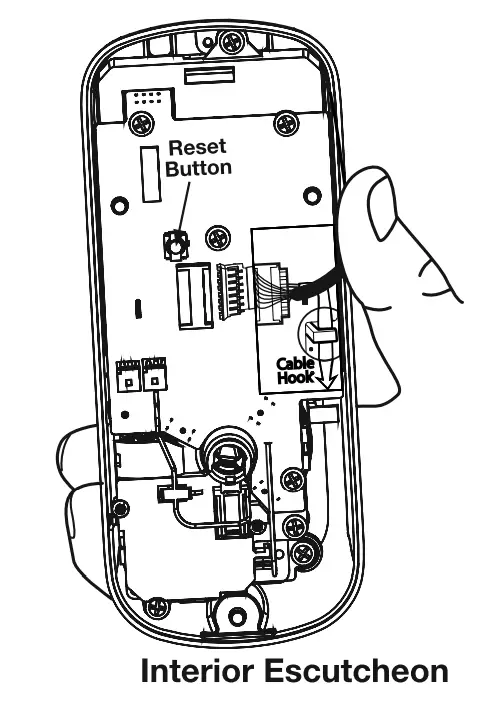
When lock is reset to factory defaults all user codes (including the Master PIN code*) are deleted and all programming features are reset to the original default settings (see below).
- Remove the battery cover and batteries.
- Remove the interior escutcheon to access the reset button.
- The reset button (see image at right) is located above the PCB cable connector.
- While pressing the reset button (minimum of 3 seconds) reinstall the batteries. Release the reset button.
- Replace battery cover.
Upon reset, Master PIN Code creation is the only option available and must be performed prior to any other programming of the lock.
Factory Settings
| Settings | Factory Setting |
| Master PIN Code | Registration required* |
| Automatic Re-lock | Disabled |
| Inside Indicator Light | Disabled (Off) |
| One Touch Locking | Enabled |
| Privacy Button Setting | Disabled |
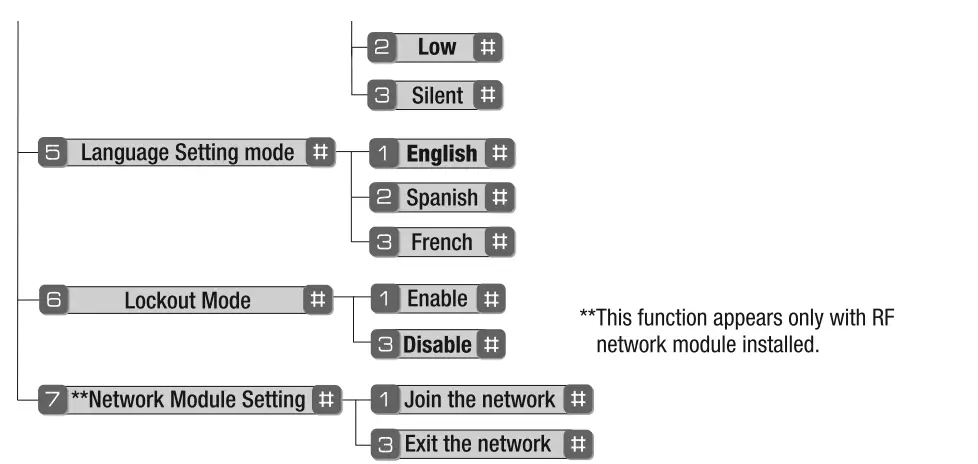
| Volume Setting | Enabled (Low) |
| Language Setting | English |
| Lockout Mode | Disabled |
| Automatic Re-lock Time | 30 Seconds |
| Wrong Code Entry Limit | 5 Times |
| Shutdown Time | 60 Seconds |
*The Master PIN code must be registered prior to any other programming of the lock.
Definitions
- All Code Lockout Mode: This feature is enabled by the Master code. When enabled, it restricts all user (except Master) PIN code access. When attempting to enter a code while the unit is in Lockout, the RED locked padlock will appear on the screen.
- Automatic Re-lock Time: After a successful code entry and the unit unlocks, it will automatically re-lock after thirty (30) seconds.
- Inside Indicator Light: Located on the interior escutcheon. Shows active status (Locked) of lock and can be enabled or disabled in the Advanced Lock Settings (Main Menu selection #3).
- Language Setting Mode: Choosing English (1), Spanish (2) or French (3) becomes the (default) setting for the lock’s voice prompts.
- Low Battery: When battery power is low, the Low Battery Warning indicator flashes RED. If battery power is completely lost, use the cylinder key override.
- Master PIN Code: The Master PIN code is used for programming and for feature settings. It must be created prior to programming the lock. The Master code will also operate (unlock/lock) the lock.
- Network Module Setting: With the optional Network Module installed, this setting becomes available thru the Main Menu (7) and allows the lock to connect with a network controller.
- One Touch Locking: When the latch is retracted, activating the keypad will extend the latch (during Automatic Re-lock duration or when Automatic Re-lock is disabled). When One-Touch Re-lock is not in use (disabled), any valid PIN code will re-lock the lock.
- Previous: While in Menu Mode, pressing this icon cancels the current operation and returns the user to the previous step.
- Privacy Mode: Privacy mode is disabled by default. Enable Privacy mode by pressing the privacy button for 4 seconds to put the lock in do-not-disturb mode (all pin codes are disabled).
- Shutdown Time: The unit will shut down (flashing RED) for sixty (60) seconds and not allow operation after the wrong code entry limit (5 attempts) has been met.
- Tamper Alert: Audible alarm sounds if attempting to forcibly remove the outside lock from the door.
- User PIN Code: The User code operates the lock. The maximum number of user codes is 250 with Network Module; without Network Module, the maximum is 25 user codes. Note: When deleting User PIN code(s), the screen will display the User Number (not PIN code) being deleted.
- Volume Setting Mode: The volume setting for PIN code verification is set to Low (2) by default; otherwise it can be set to High (1) or Silent (3) for quiet areas.
- Wrong Code Entry Limit: After five (5) unsuccessful attempts at entering a valid PIN code, the unit will shut down and not allow operation.
- Touch the screen with the back of your hand or palm to activate it.■
- Enter 4-8 digit master PIN code* followed by the key.
Lock Response: “Menu mode, enter the number, press key to continue.” - Enter the digit corresponding to the function to be performed followed by the key. Follow the voice commands.
The Master PIN code must be registered prior to any other programming of the lock.

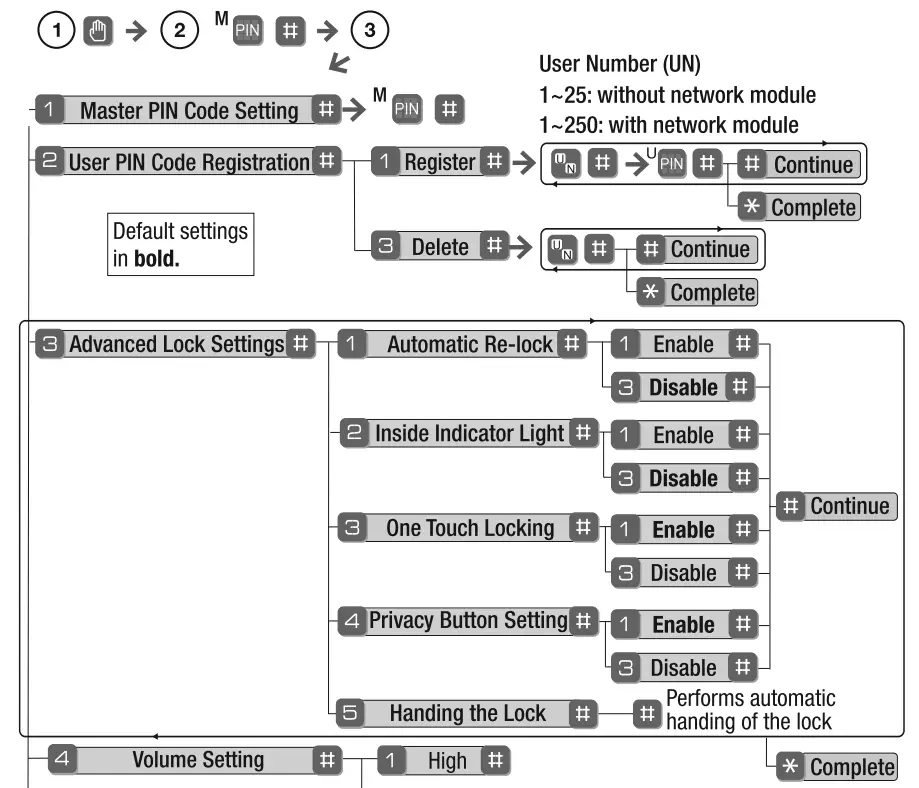
Factory Settings
| Settings | Factory Setting |
| Master plan Code | Registration required* |
| Automatic Re-lock | Disabled |
| Inside Indicator Light | Disabled (Off) |
| One Touch Locking | Enabled |
| Volume Setting | Enabled (Low) |
| Automatic Re-lock Time | 30 Seconds |
| Wrong Code Entry Limit | 5 Times |
| Shutdown Time | 60 Seconds |
Programming Troubleshooting
| Symptom | Suggested Action |
| Lock does not respond – door is open and accessible. | • Touchscreen becomes active when pressed the whole hand. Use a larger area of the hand or fingers and verify contact with at least 3 areas.
• If touchscreen numbers are visible, check to see if they respond when pressed. • Check batteries are installed and oriented correctly (polarity) in the battery case. • Check batteries are in good condition; replace batteries* i1 discharged. • Check to see if touchscreen harness is fully connected and not pinched. |
| Lock does not respond – door is locked and inaccessible. | • Batteries may be completely discharged.
• Use mechanical key to gain entry and replace batteries*. |
| Unit is on for a while then shows no reaction. Lights dim. | • Batteries do not have enough power. Replace batteries*. |
| Unit chimes to indicate code acceptance, but the door will not open. | • Check the door gaps for any foreign objects between door and 1rame.
• Check that the wire harness is firmly connected to the PCB. |
| Unit operates to allow access, but will not automatically re-lock. | • Check to see if Auto Re-lock Mode is enabled.
• Disable Auto Re-lock Mode to lock the door (automatically). • If low battery indicator is lit (see below), change batteries*. |
| PIN codes will not register. | • PIN codes must consist of 4 to 8 digits to register.
• The same PIN code cannot be used for multiple users. • Registration/management of PIN codes is set by the authority of the Master Code. which is set first. • Contact the Master user. • User codes must be entered within 5 seconds (while touchscreen is active) or process will have to be restarted. • Star■or pound■cannot be used as part of the PIN code. |
| Upon entering■a PIN code and pressing key, the
unit displays “invalid code” error or lock times out with out responding. | • Lockout Mode is enabled.
• Only the Mas r can enable/disable Lockout Mode. • Contact the Master user. |
| and pressing the ■key, Upon entering a P.l.fl! code the red padlock icon appears and thereare different tones. | Check to see if the lock is set to Lockout Mode. Setting/managing Lockout Mode Is done through Master Code only. Contact the Master user. |
| The unit operates, but it makes no sound. | • Check to see if Silent Mode is enabled (see Feature #4). |
| The unit responds “Low Battery” | • This is the alert to replace the batteries. Replace all four (4) batteries* with new AA Alkaline batteries. |
| and pressing the ■key, Upon entering a PIN codethe unit responds “Wrong number of digits”. | the correct code followed by the star■keyThe digits entered were incorrect or incomplete. Re-enter |
Hardware Troubleshooting
Cycle lock in both the locked and unlocked positions. If problems are found:
| Door is binding a. Check that door and frame are properly aligned and the door is free swinging. . Check They sh1ulll net l11se er w en knuckles. |
| Bolt will not deadlock a. Check for sufficient clearance of the bolt within the strike-side jamb. Correct this by increasing the depth of the pocket for the bolt. b. Check for misalignment of bolt and/or strike which may be preventing bolt from properly entering the strike. With the door open, extend and retract the bolt; if it is smooth, check the strike alignment. |
| Bolt does not extend or retract smoothly misalign re-1t1re heles or misaligned. is under the bolt (see Fig. A). Verify bolt is installed with correct side up (Fig. A). 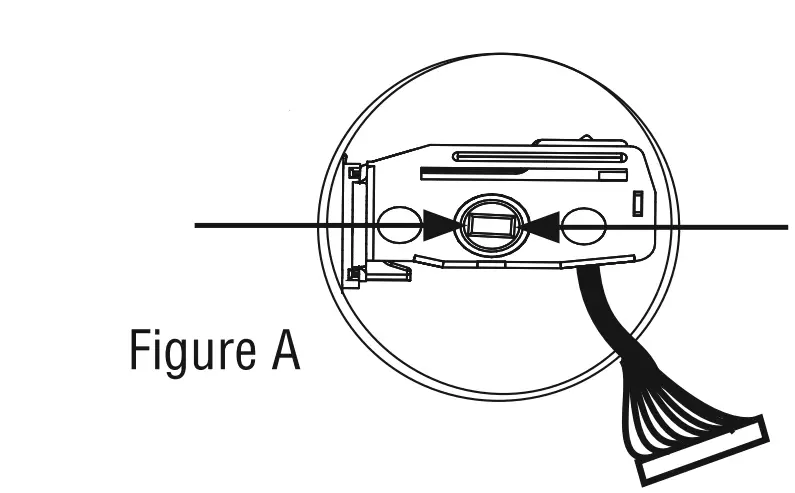 |
| Keypad numerics are scrolling Remove interior escutcheon and check to ensure that the wire harness lies flat against the back recessed area and is properly routed along the side of the escutcheon an tucked under the plastic cable guide. |
FCC statement
Class B Equipment
This equipment has been tested and found to comply with the limits for a Class B digital device, pursuant to Part 15 of the FCC Rules. These limits are designed to provide reasonable protection against harmful interference in a residential installation. This equipment generates, uses, and can radiate radio frequency energy and, if not installed and used in accordance with the instructions, may cause harmful interference to radio communications. However, there is no guarantee that interference will not occur in a particular installation. If this equipment does cause harmful interference to radio or television reception, which can be determined by turning the equipment off and on, the user is encouraged to try to correct the interference by one or more of the following measures:
- Reorient or relocate the receiving antenna.
- Increase the separation between the equipment and receiver.
- Connect the equipment into an outlet on a circuit different from that to which the receiver is connected.
- Consult the dealer or an experienced radio/TV technician for help.
Warning: Changes or modifications to this device, not expressly approved by Yale Security Inc. could void the user’s authority to operate the equipment.
Industry Canada:
This Class A digital apparatus meets all requirements of the Canadian Interference Causing Equipment Regulations.
Ce! appareillage numerique de la classe A repond a toutes les exigences de l’interference canadienne causant des reglements d’equipement.
Yale Locks & Hardware
Product SupportTel 800.810.WIRE (9473) • www.yalelocks.com
Yale Locks & Hardware is a division of Yale Security Inc., an ASSA ABLOY Group company.
Yale® is a registered trademark of Yale Security Inc., an ASSA ABLOY Group company.
Yale Real Living™ is a trademark of Yale Security Inc., an ASSA ABLOY Group company. Copyright© 2015, Yale Security Inc., an ASSA ABLOY Group company.
All rights reserved. Reproduction in whole or in part without the express written permission of Yale Security Inc. is prohibited.
YALE, with its unique global reach and range of products, is the world’s favorite lock the preferred solution for securing your home, family and personal belongings.
ASSA ABLOY is the global leader in door-opening solutions, dedicated to satisfying end-user needs for security, safety, and convenience.
FAQS
You can touch the keypad with the back of your hand and it will lock automatically, or you can lock it remotely with your cell phone.
Is there a Mul-T-Lock cylinder that can be installed in place of the standard cylinder that comes in the deadbolt system?
How do you lock it ?
The 220 is an older model and uses an older version of Z-Wave. The 226 uses our generation 2 network modules for Z-Wave and Zigbee.
What’s the difference between yrd220 and yrd226? https://www.amazon.com/gp/product/b06wrv97hz
You need a home automation controller. I use VERA LITE which runs about $100 and has no monthly fees. However, the Schlage and other products do.
What else do you need to buy to make this wireless? I want to be able to lock it from my phone, ect. Also is there any monthly fees with this?
In fact it is. The homepage of Control4 even depicts Yale locks as example.
Is there a way to turn off the (30 sec) auto relock so it stays unlocked when you are outside and want to come
in and out without the door locking?
yes , you can adjust it from setting and cancel “auto lock”
Is there Left & Right opening option?
Not sure what the person below meant by “handed” but no, they are RH only unfortunately. The Camelots by Schlage are both.
Can this be used standalone without any additional system or technology?
All z-wave-enabled locks (Yale, Schlage, kwikset) can be programmed and operated manually with combination keys.
No additional technology is needed for this purpose.
If these locks have to be operated remotely (for example from a smartphone or computer), then a z-wave controller will be needed.
Does the touchpad work with gloves on?
Yes, it does with the normal gloves we use. There may be some that don’t but we have driving and snow gloves that both worked.
What features are available without hooking this lock up to a hub? Can I still use multi-codes and one-time use codes?
Yes
Any chance it works with the Philips Hue Bridge hub?
No, it doesn’t, but if you have SmartThings, Philips Hue and Yale Z-Wave or Zigbee locks (the model you asked about is a Zigbee lock) work with the SmartThings Hub, so you would be able to create automation for the two.
What is the difference between this model and the Assure?
This model (YRD220) uses Z-Wave rather than the newer Z-Wave Plus that is available in our Assure series of locks. Also, the Z-Wave radio in the YRD220 can’t be swapped out for a different radio. Whereas our Assure line (which includes several models) uses plug-in modules (Network Modules) for Z-Wave Plus, Zigbee, and HomeKit.
Is the Yale YRD220-ZW-605 for a typical right-handed inswing door?
The lock is handed for the left or right swings doors.