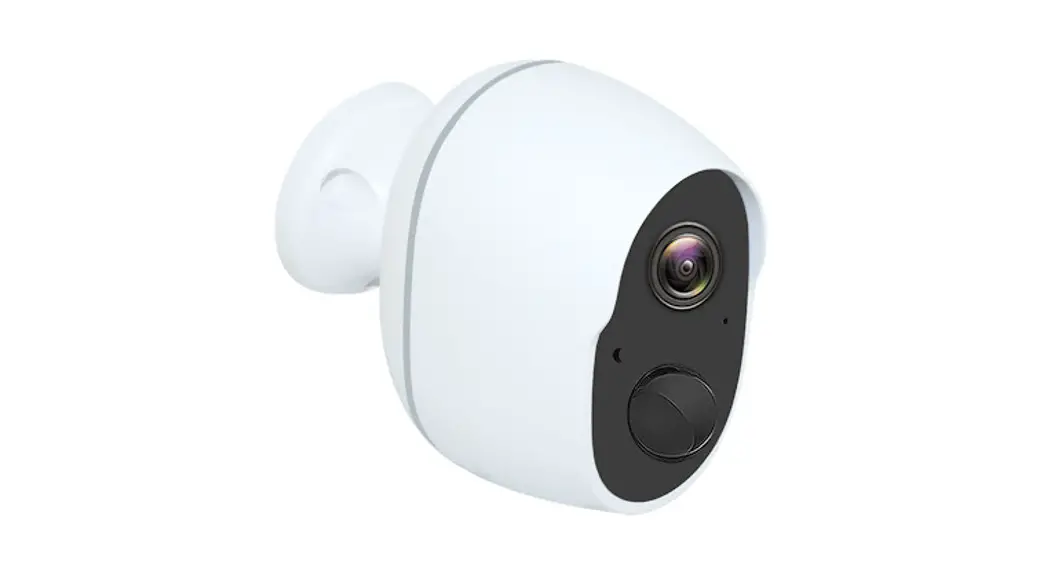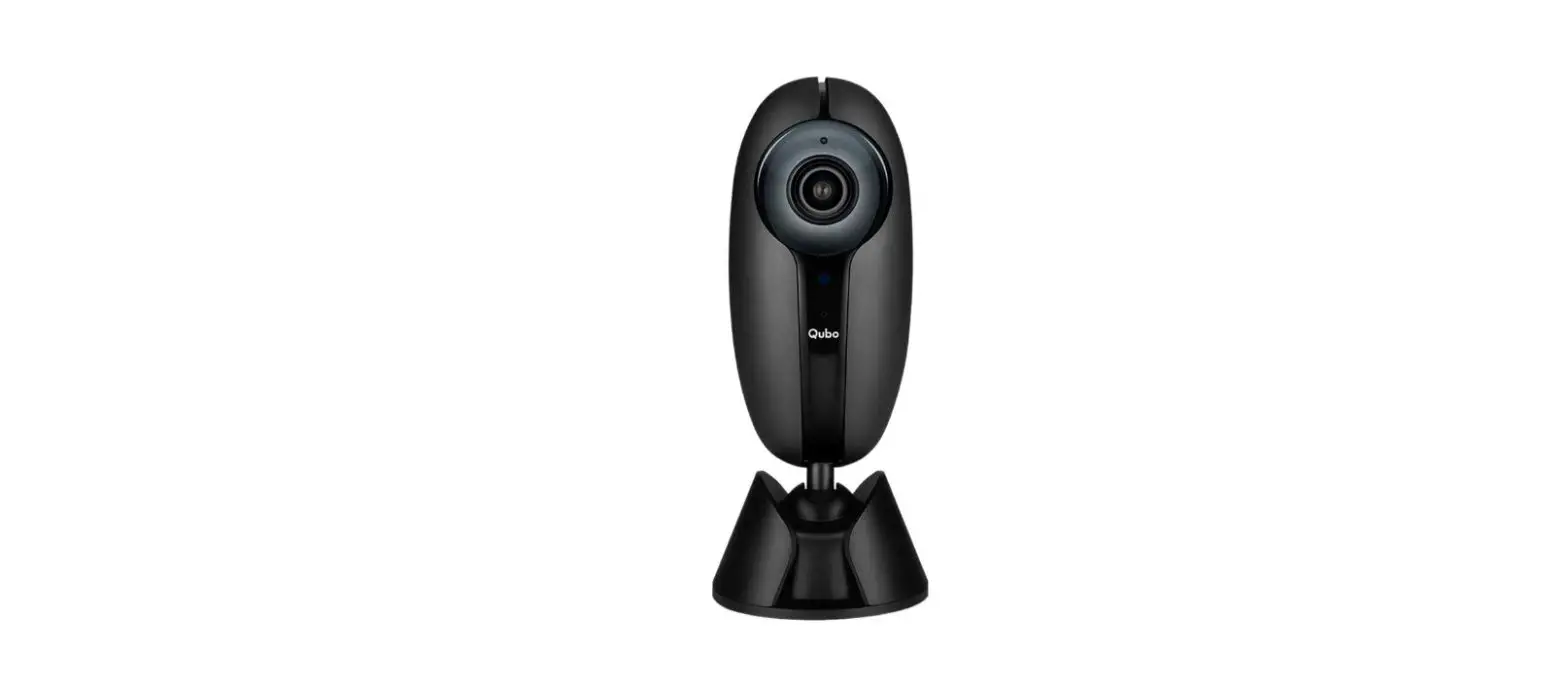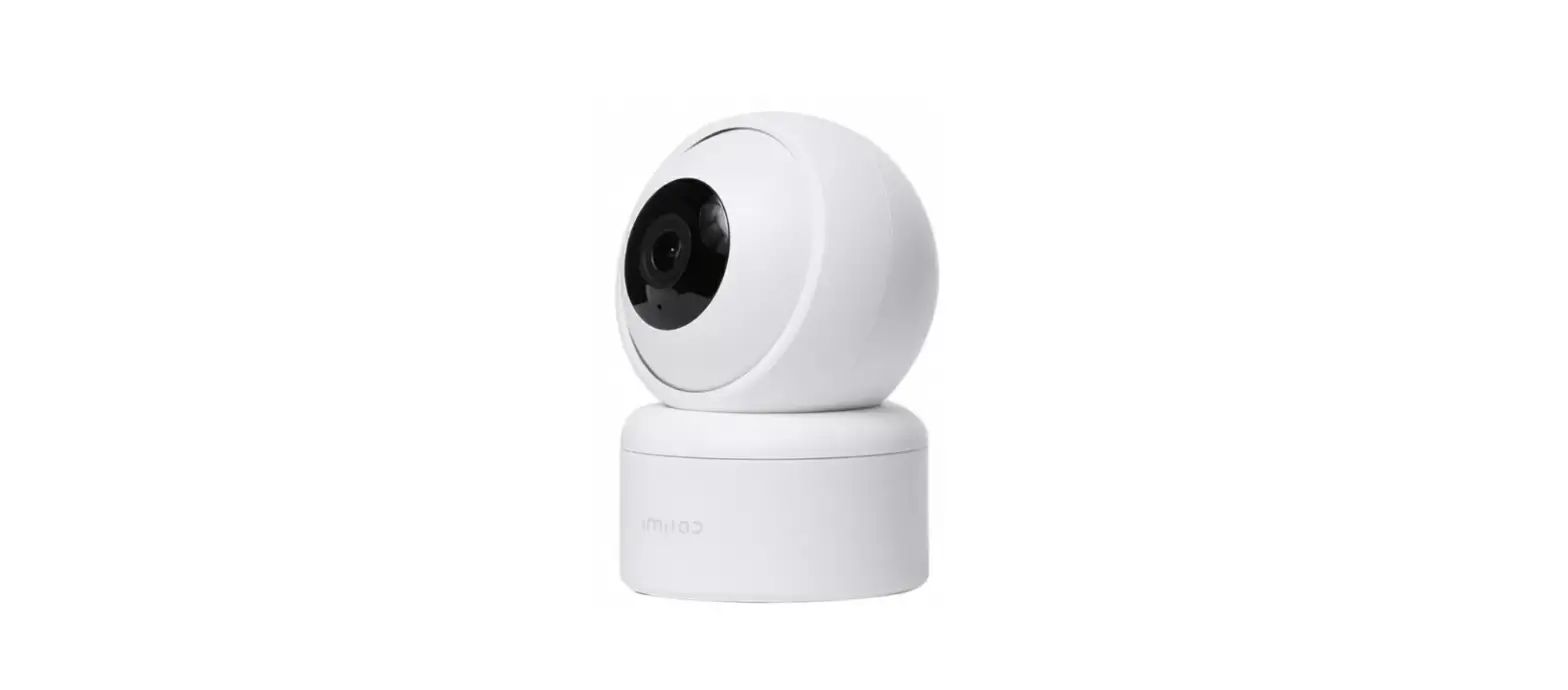

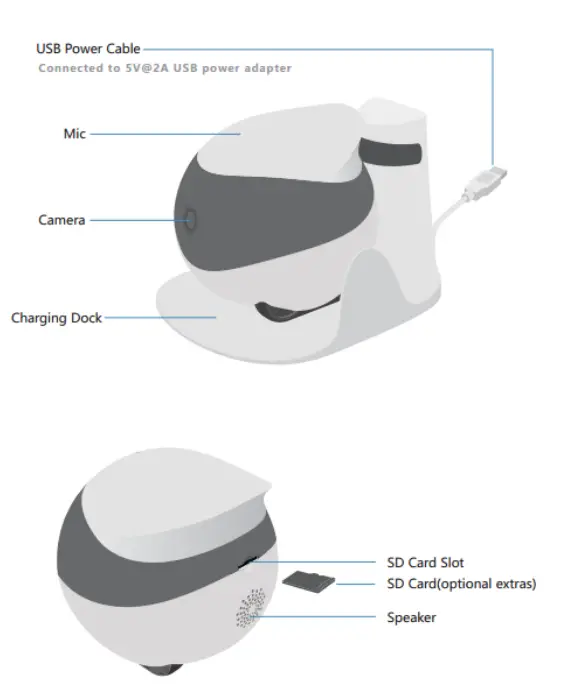
enabot B093ZQTGLQ ebo se Moving Home Security Camera
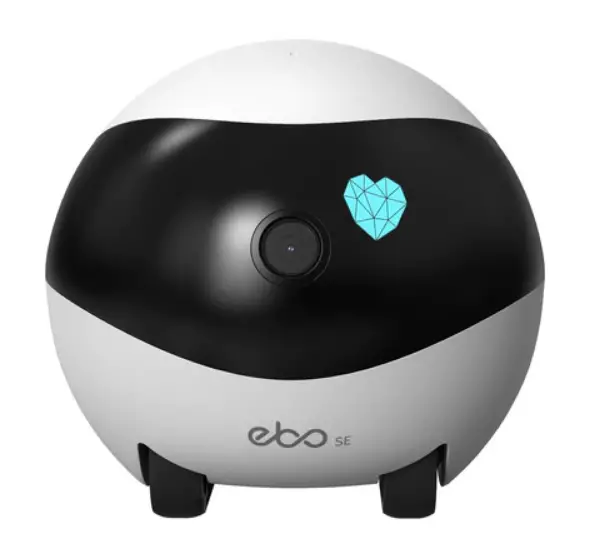
Overview
Download the Ebo App
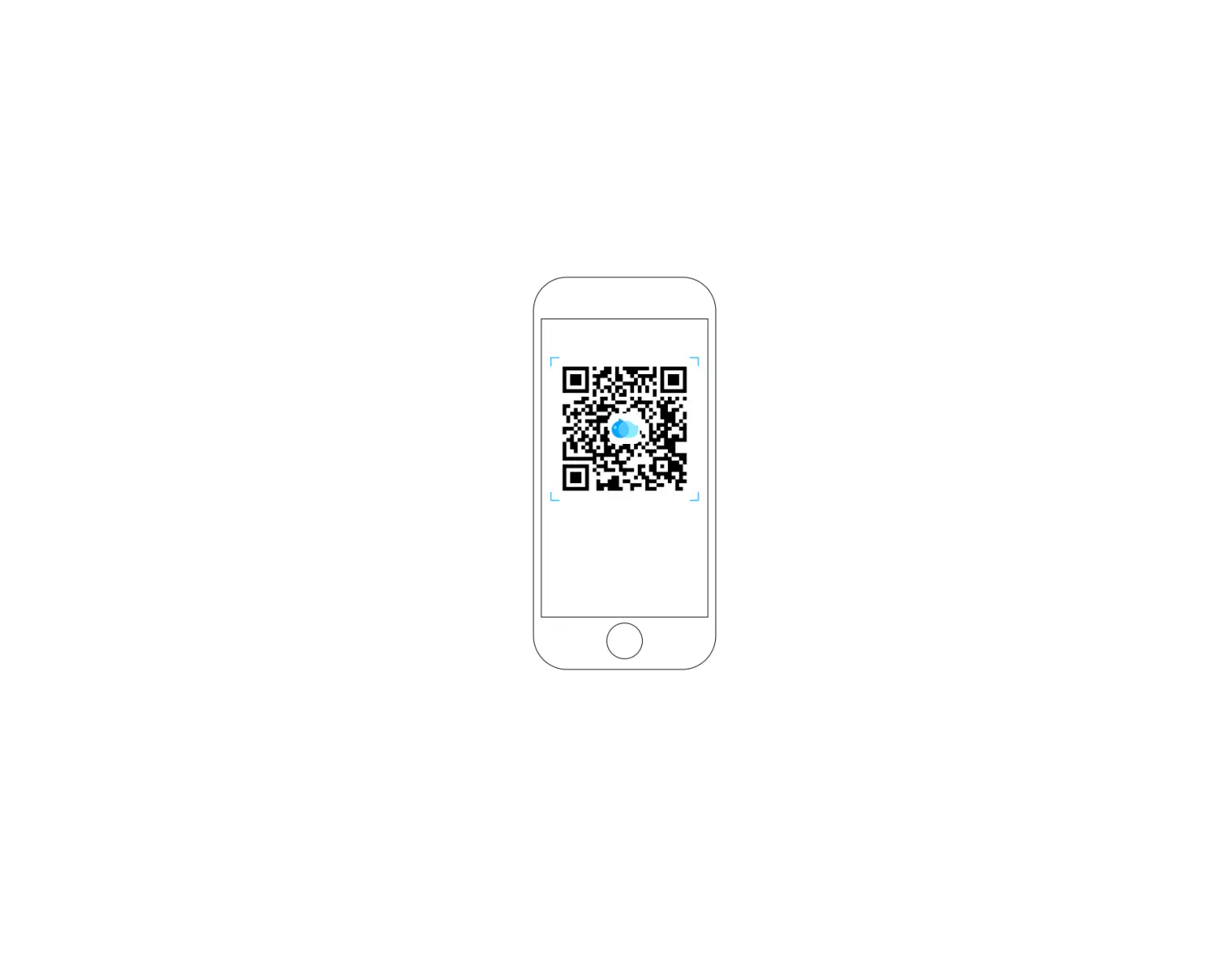
Scan the QR code.download the Ebo App and complete registration
Place the Charging Dock
Place the charging dock in an open space.Connect the USB power cable wit the SV@2A USO adapter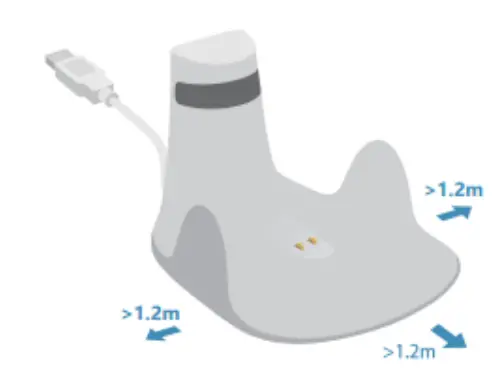
Initialize Ebo
Place Ebo 
Network Configuration
Follow the instructions on the Ebo App and generate the QR code. Scan the., , JR code w t Ebo’s camera
Note: Compatible with both l.4G and 5G WiA networks. Your Ebo ;ind smartphone must be connected to the WiFl pairing. 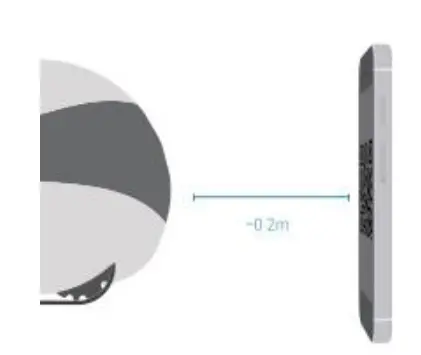
Network Connected
Congratulations! Your Ebo is connected to the internet when the “WiFi” light is off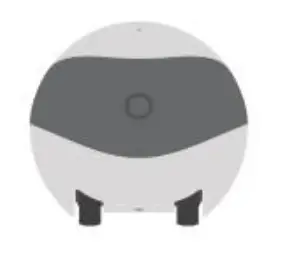
Enjoy your Ebo
Control Ebo with your smartphone.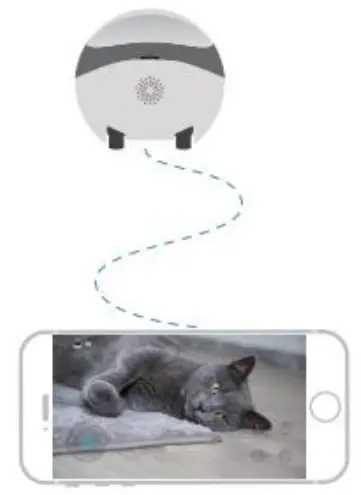
The Ebo App
- User
- Ebo card
- Click to Connect to Ebo © Ebo SE Moments
- Add your Ebo cards
- Smart Video Editor
- More (Settings/Channge WiFi/About Ebo SE)

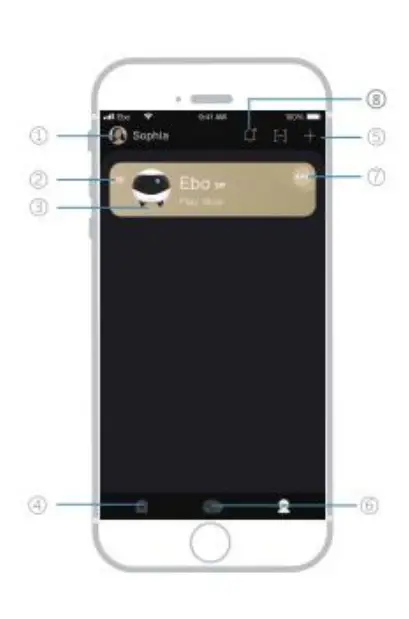
The User Interface
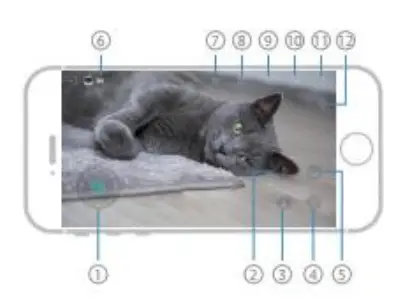
- Steering Wheel
- Move forward
- Move Backward
- laser On/off
- Circle
- Battery level
- Settings
- Photo
- Video
- Mic On/Off
- Speaker On/Off
- Al Tracking and Capturing
Charge
Place Ebo in the position sho• wn in the diagram. Make sure the connector pins on the bo• ttom of your Ebo are in cont• act with the connector pins on the base of the charging dock.

Check Charging Status
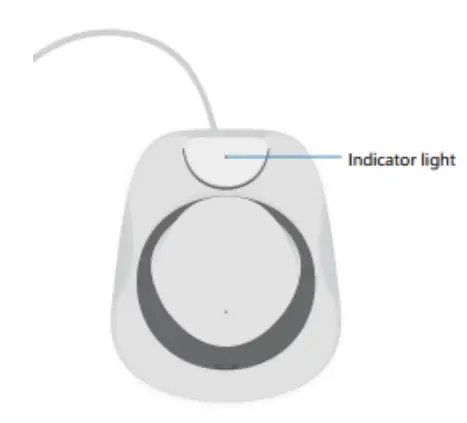
The light indicator is red while charging. The light indicator is green when your Ebo is fully charged.
Restart/Turn Off/Factory Reset
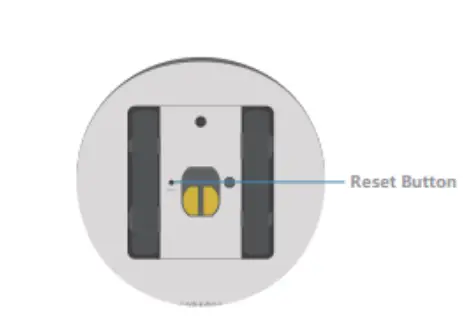
- Restart: Press the Reset button
- Turn Off: Press the Reset Button twice
- Factory Reset: Press and hold the Reset Button for 5 seconds

For more information, please visit our YouTube channel and website. Enabot E-Hub, O,Nanhai Shenzhen, Guangdong, P.R.C. Designed by Enabot Made in China, All rights reserved. www.enabot.com