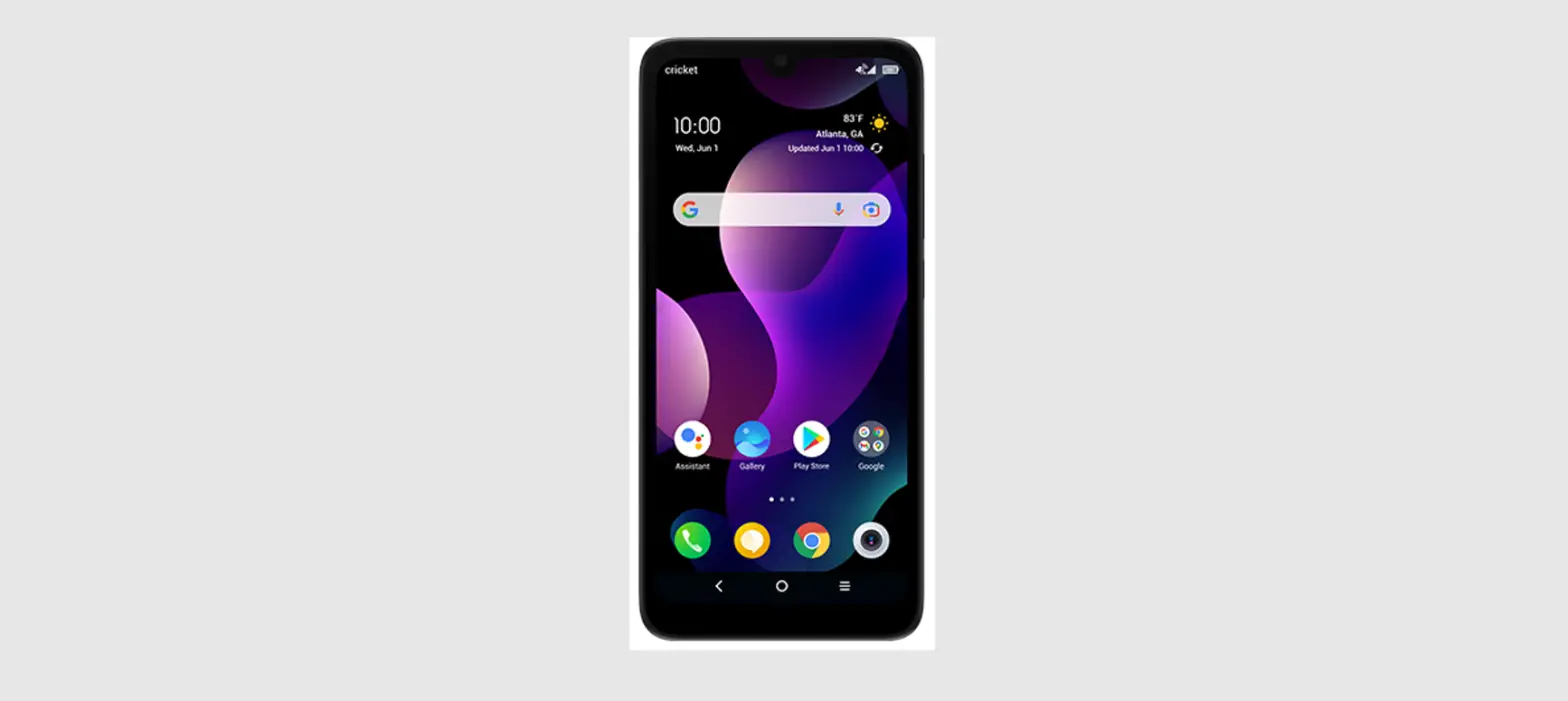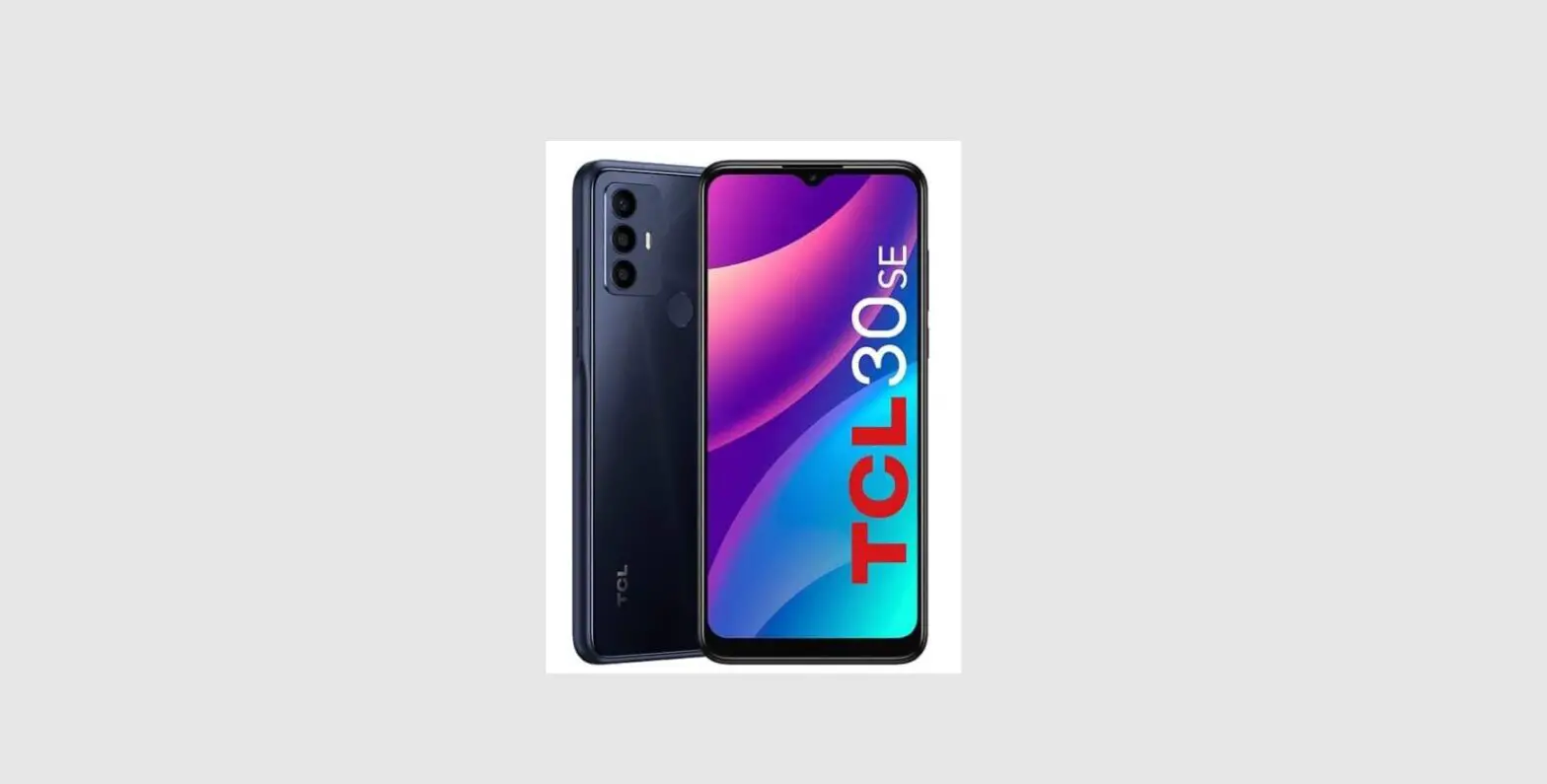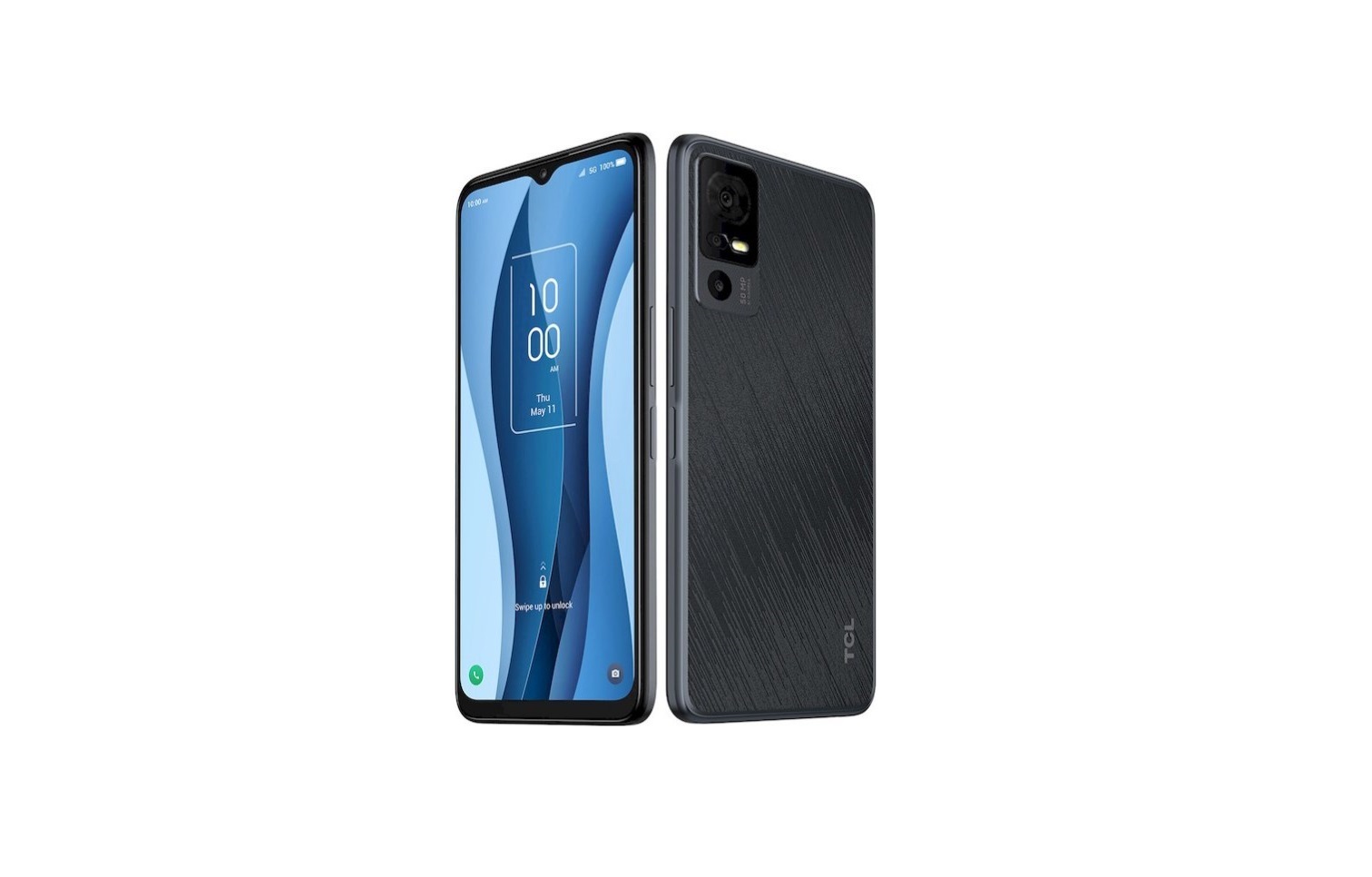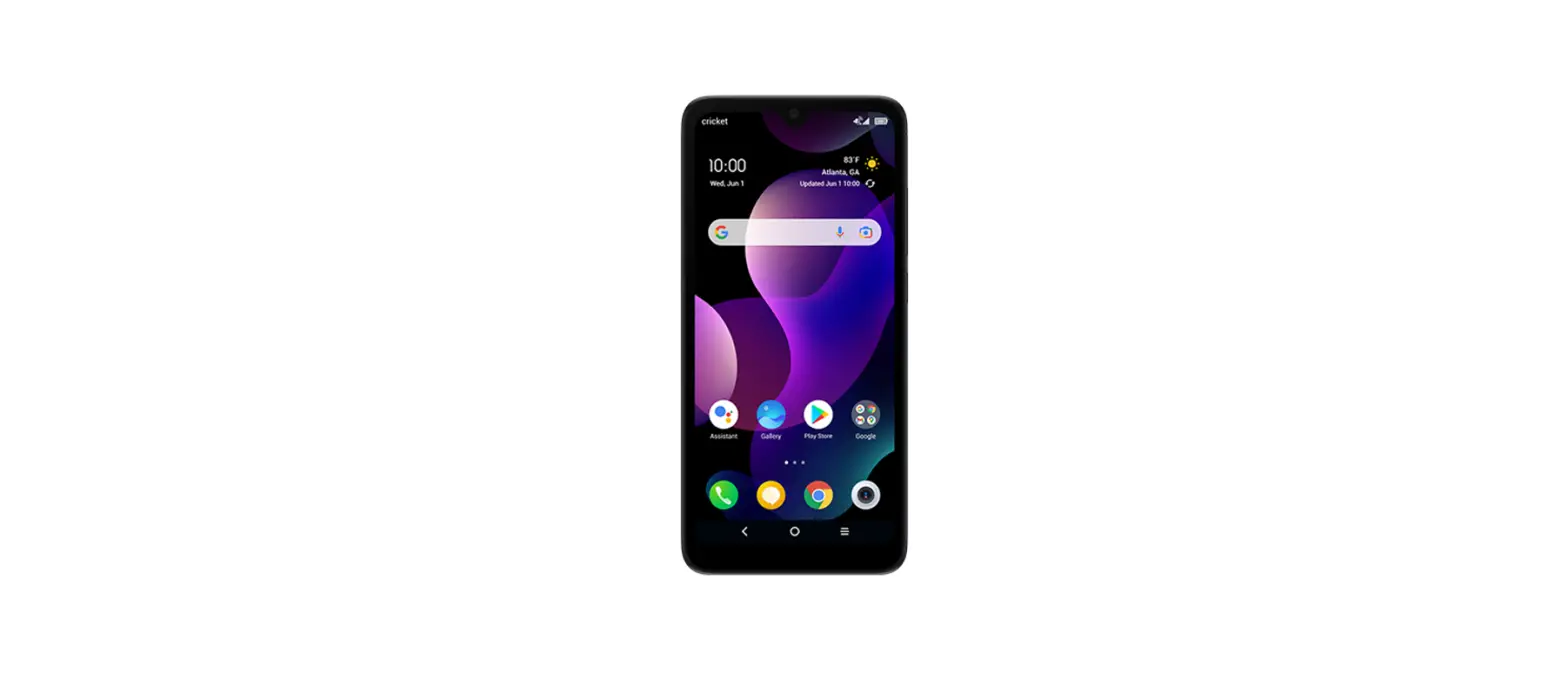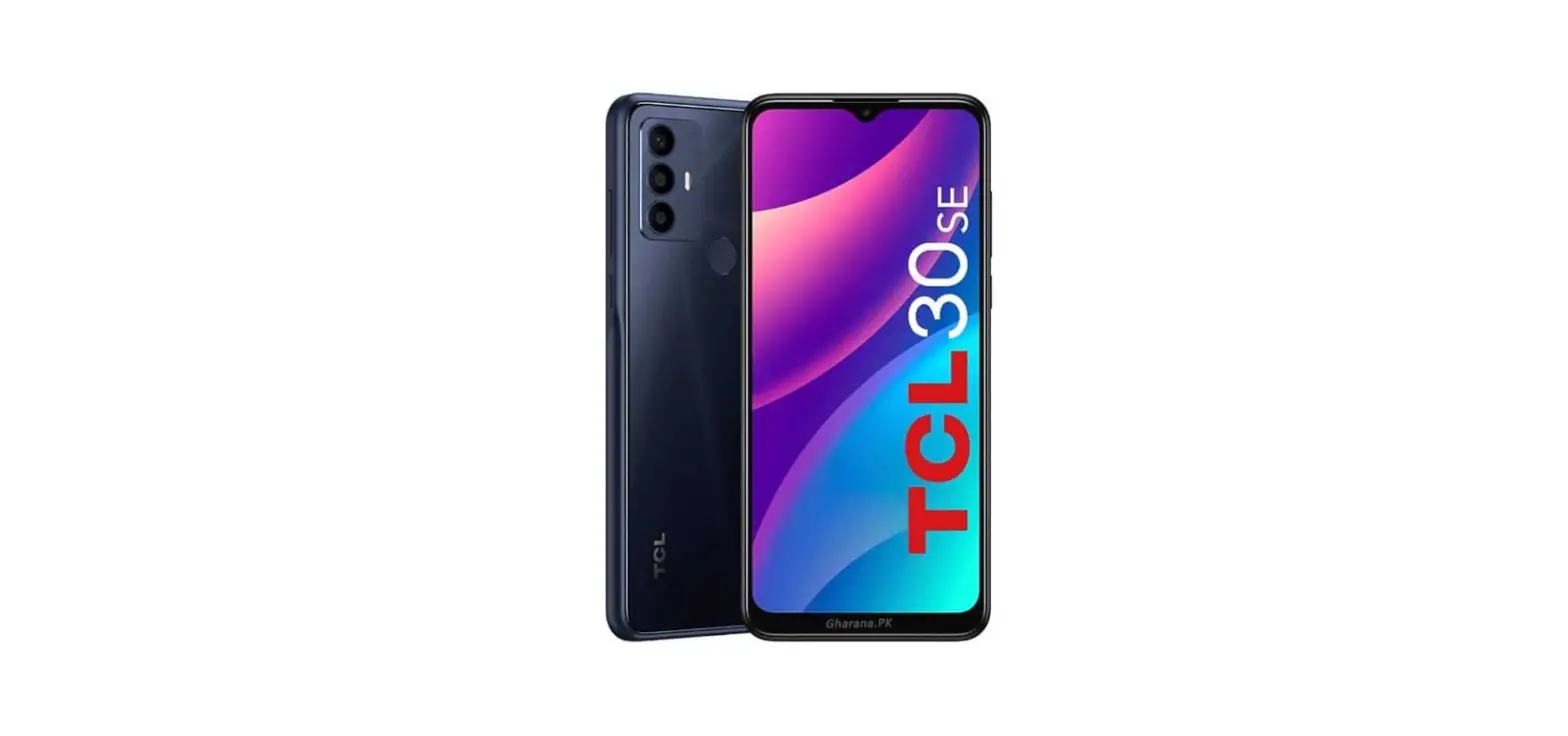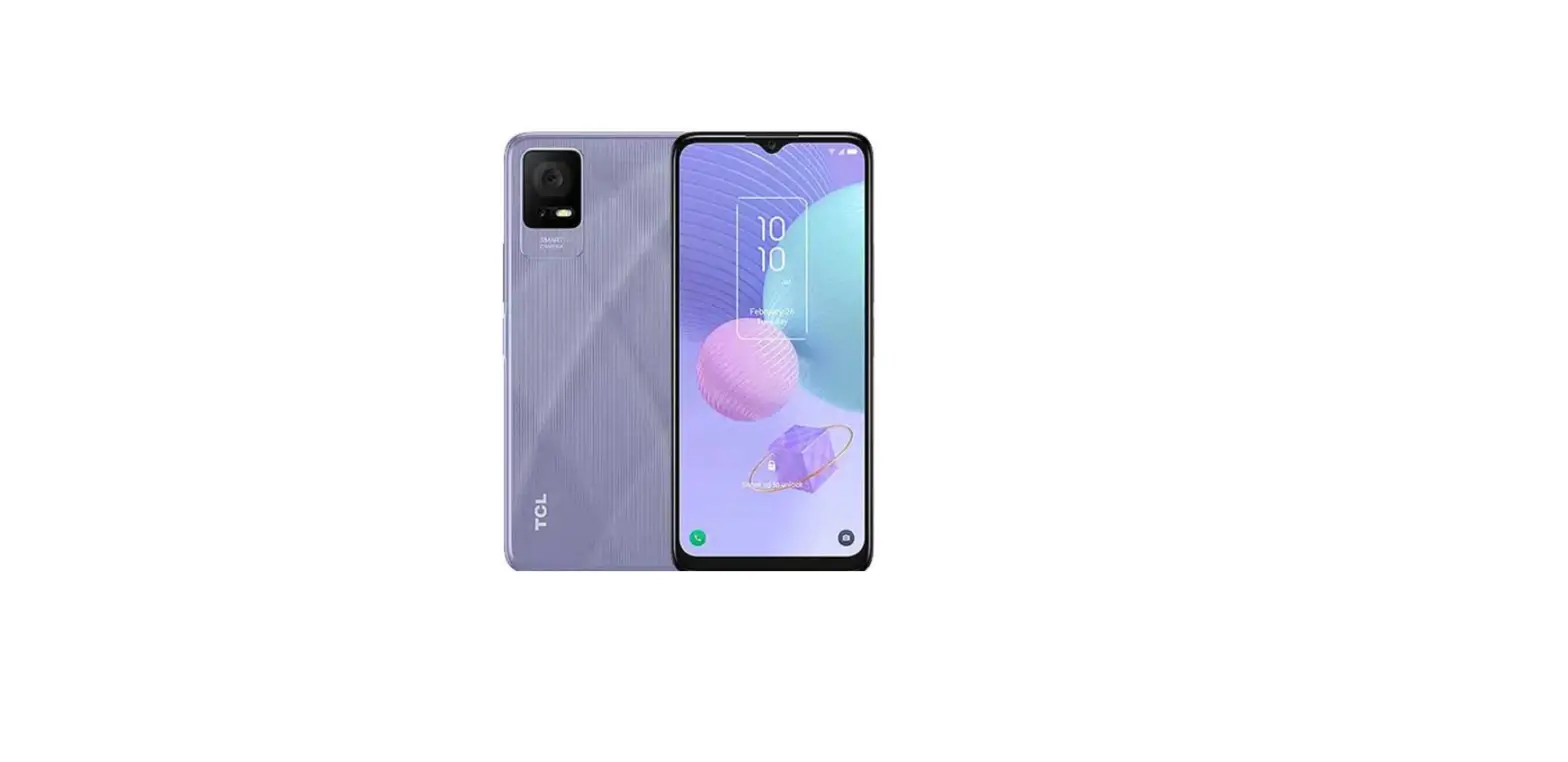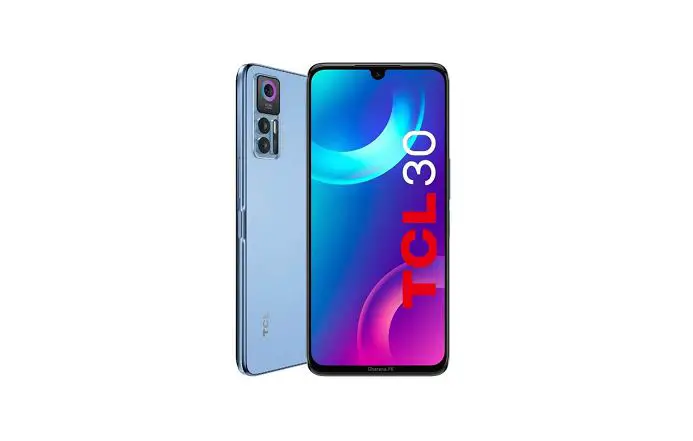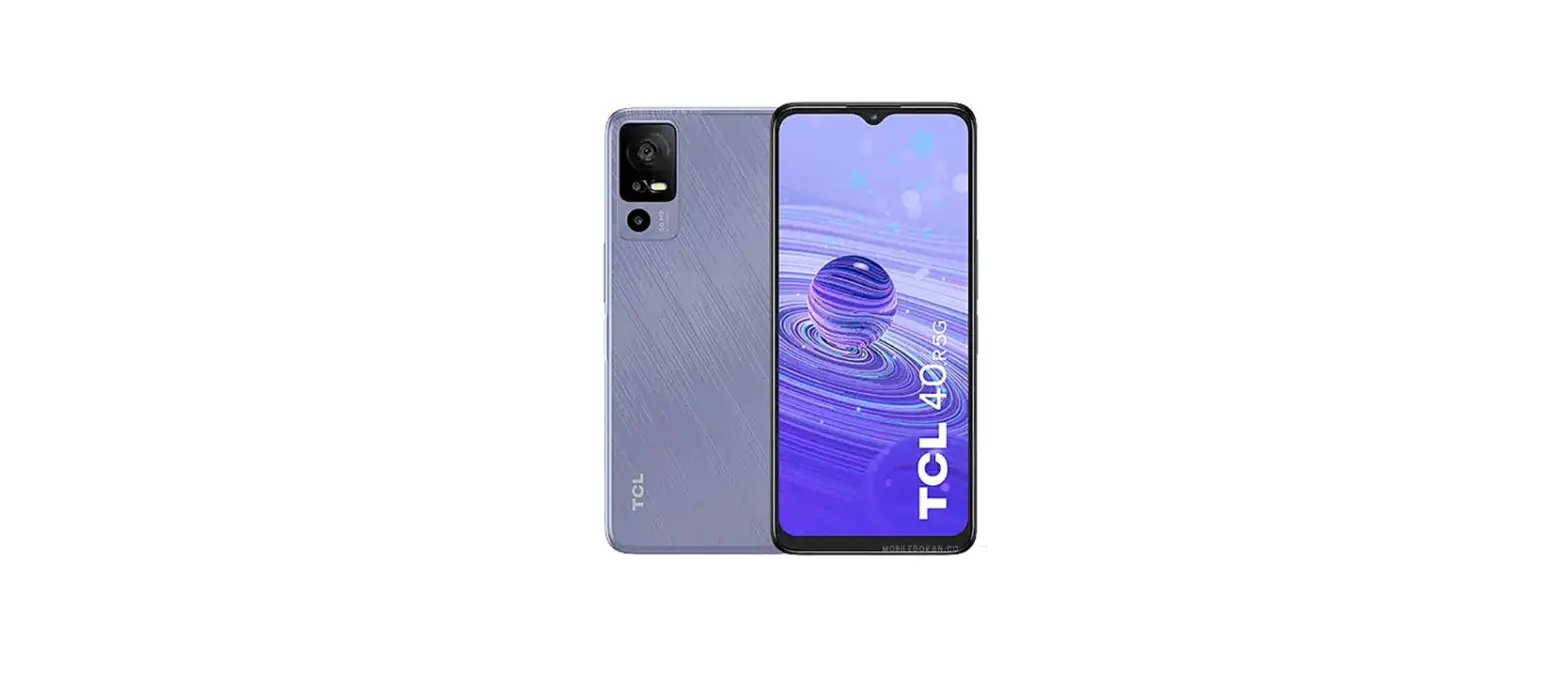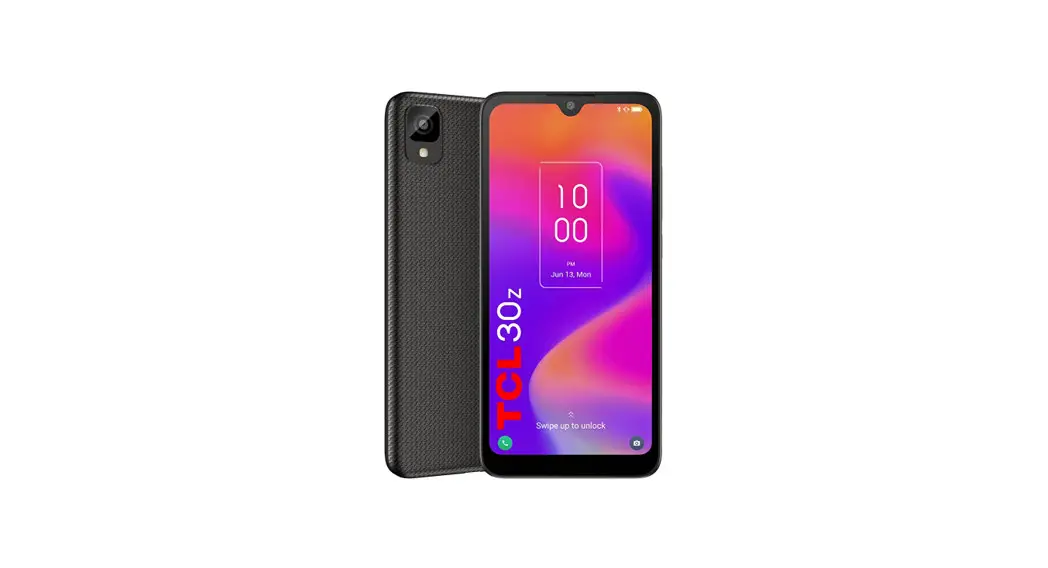

30z
QUICK START GUIDE
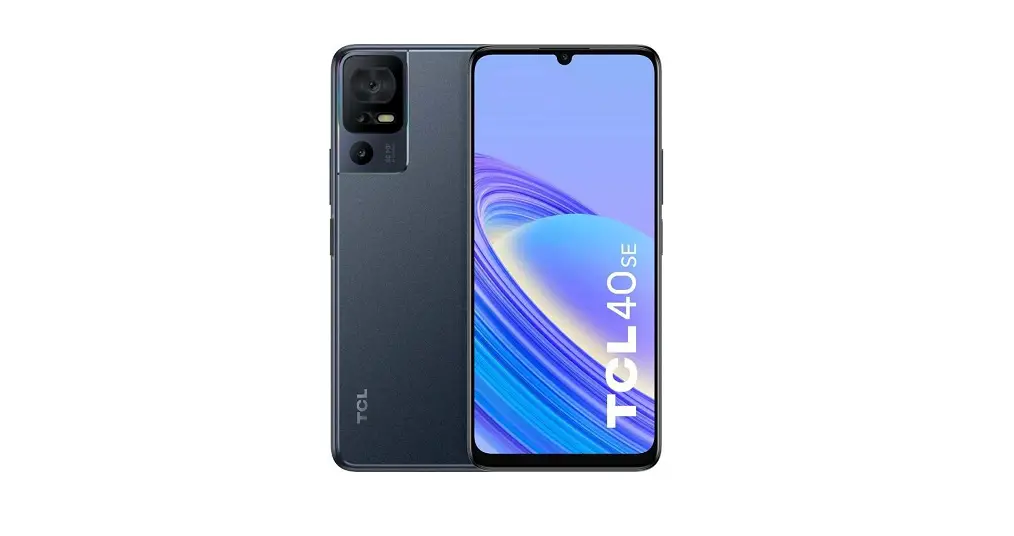
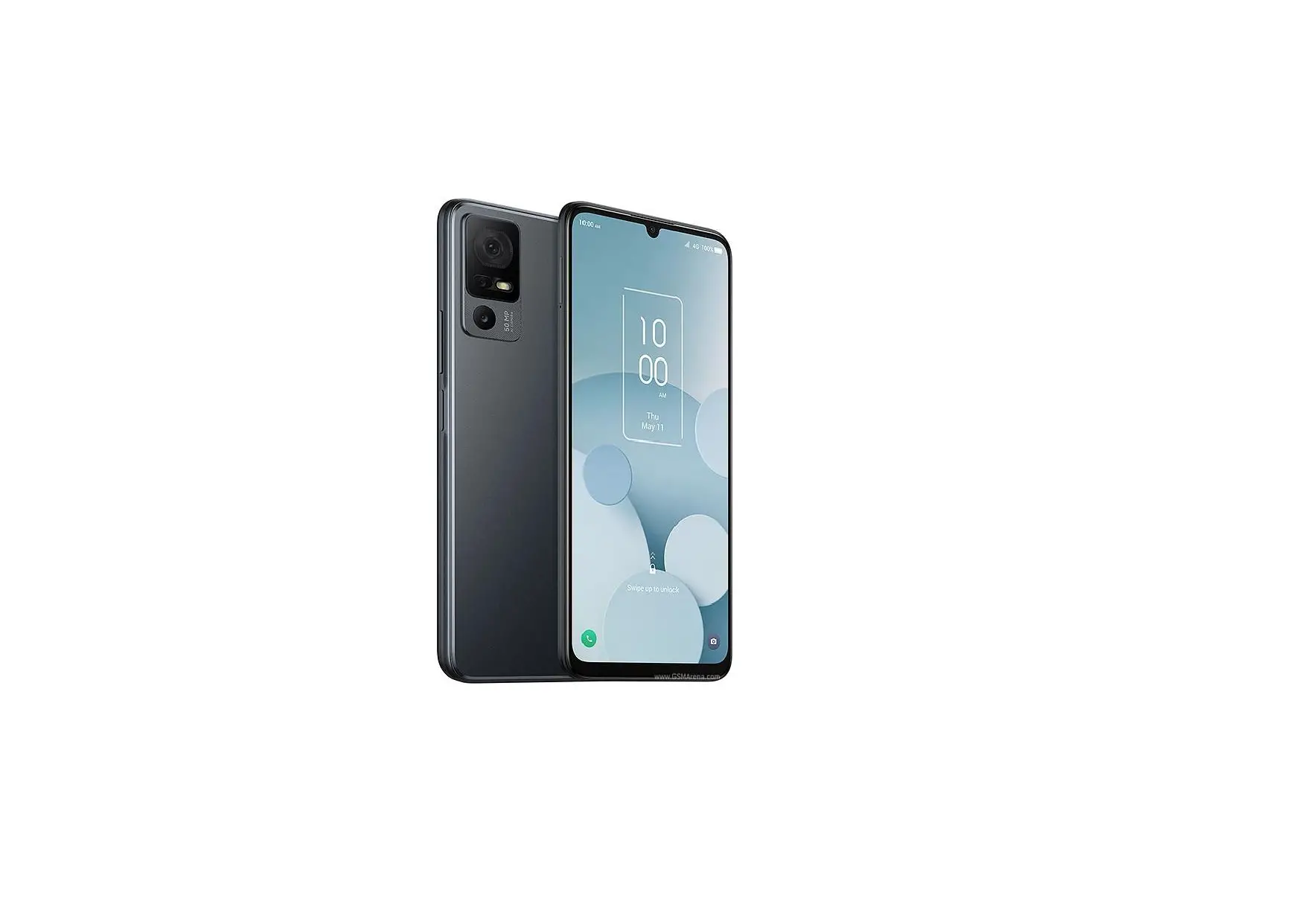
Your Mobile
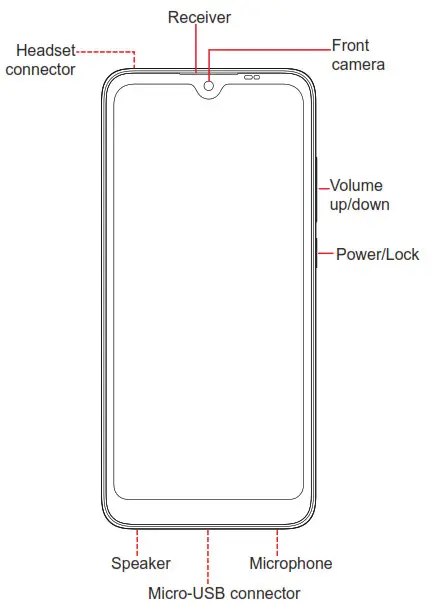
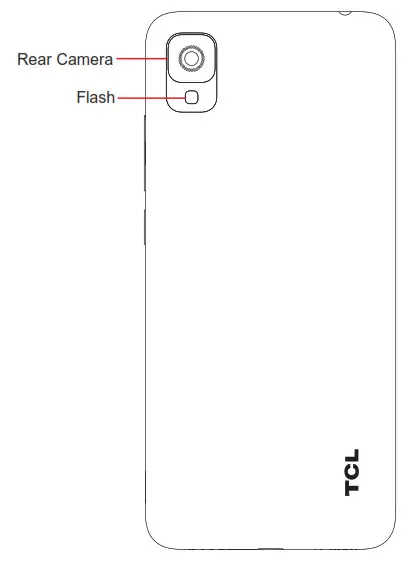
Keys and connectors
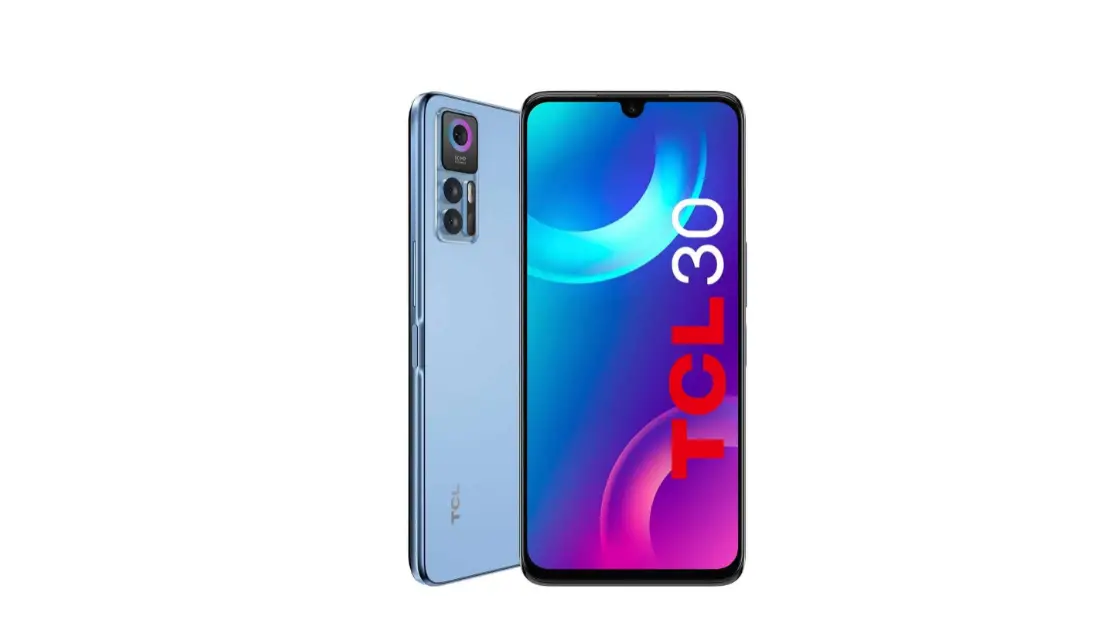
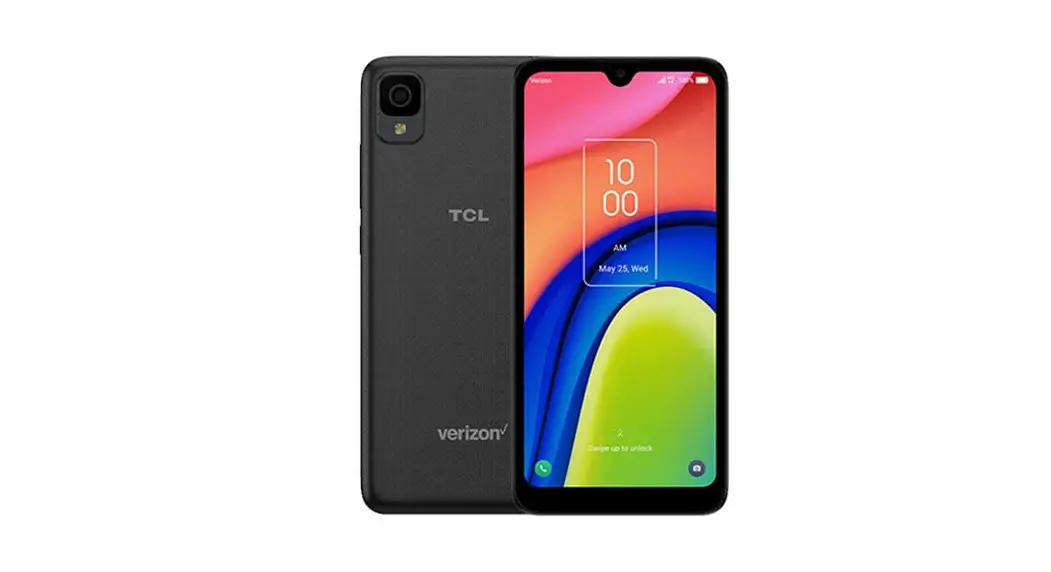
4188O 30 Z Display Smartphone Android
Getting started
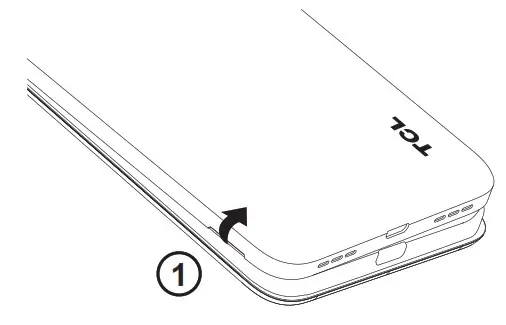
- With the phone face down, remove the back cover by gently pulling up on the indentation on the bottom left of the cover.

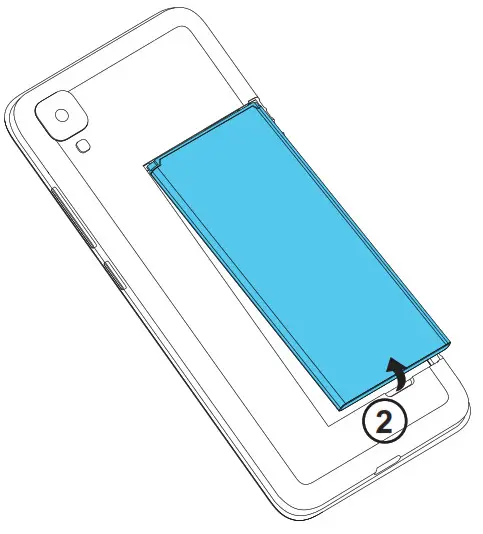
- Insert the battery by connecting the gold contacts in the device battery cavity. The battery will only fit one way.

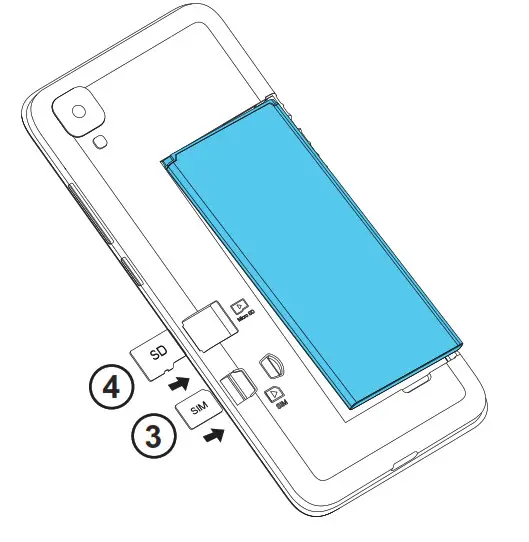
- Place the Nano SIM card into the slot labeled “SIM”.
- If applicable, insert the microSD TM card into the slot labeled “SD”.
Note: microSDTM cards are sold separately. Only use Nano SIM cards with your phone.
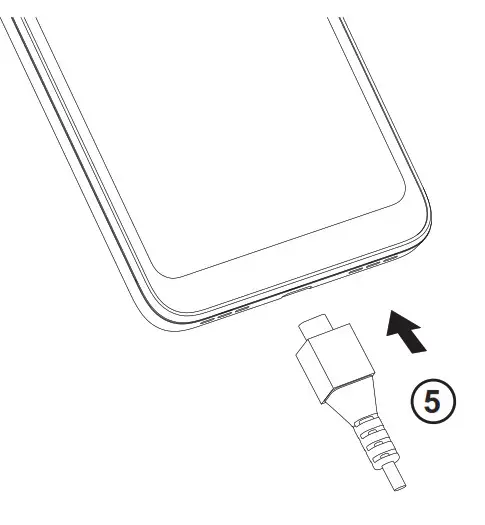
- Your new phone is partially charged. Charge the battery by using the Micro-USB cable and charger provided.

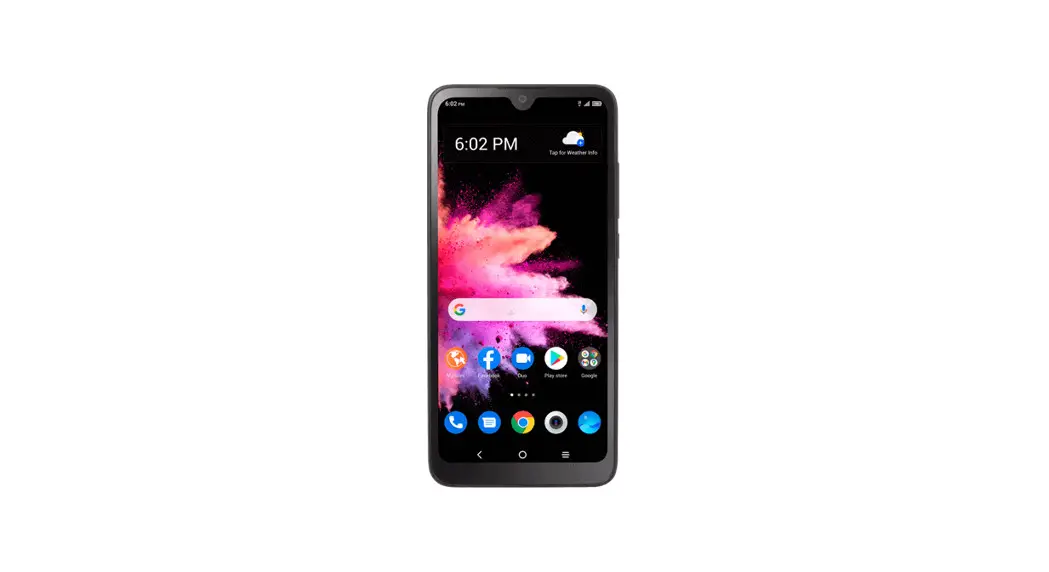
Home screen
You can bring all of the items (applications, shortcuts, folders) that you use most frequently to your Home screen for quick access.
Tapping Home always takes you back to the main Home screen.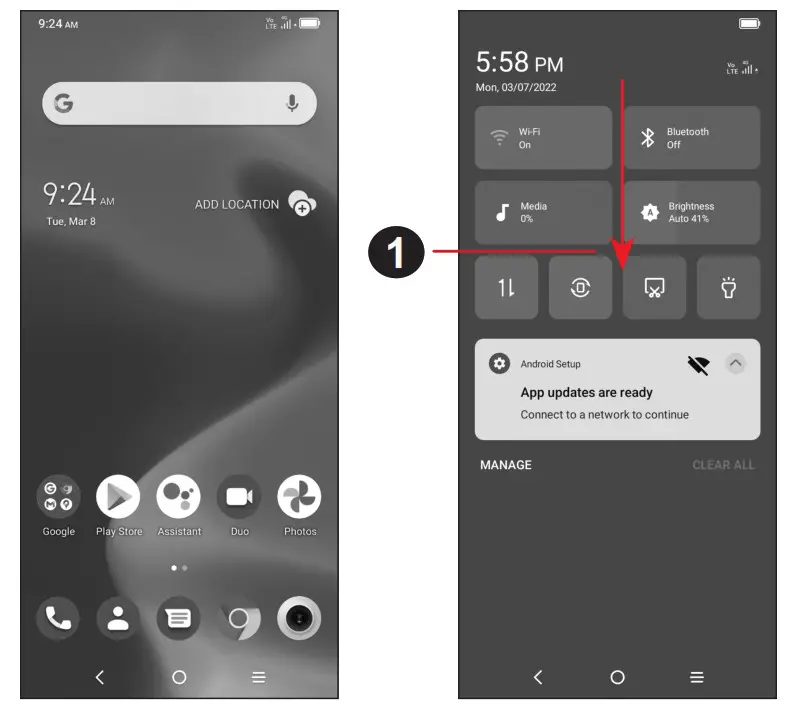
- Drag down from the status bar to open the Notifications and Quick settings panel.
Phone call
Making a call
From the Phone app,  use the keypad to enter the phone number, or keyboard to enter the contact name. Then tap to place the call.
Answering a call When you receive a call:
- Tap ANSWER, or swipe up
 to answer;
 - Tap DECLINE, or swipe down to reject;
- Tap
 to reject the call by sending a preset message.
 to reject the call by sending a preset message.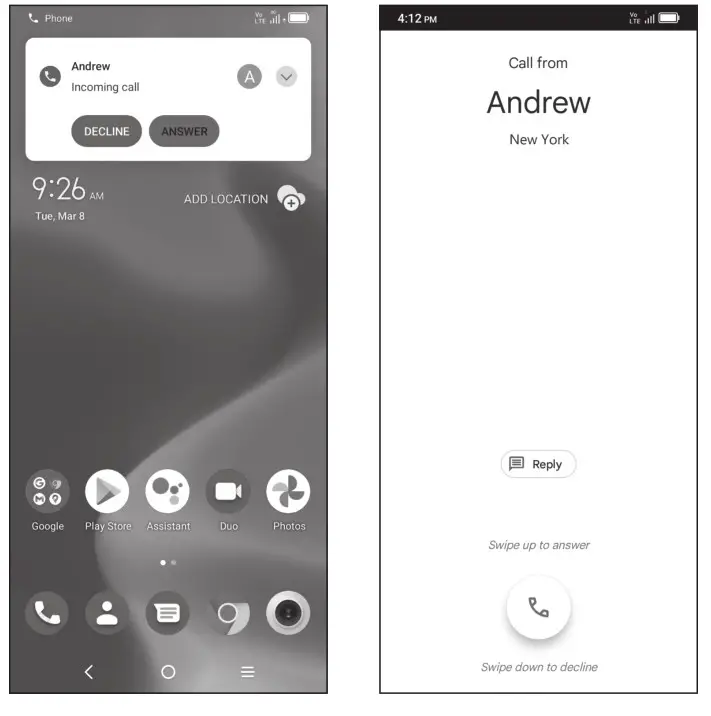
Contacts
Use Contacts to view your saved contacts or create a new contact. Synchronize your contacts from your email account(s) and other applications to your phone.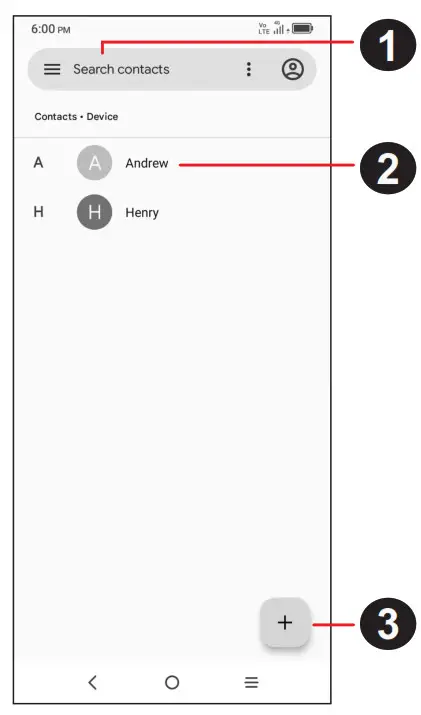
- Tap to search Contacts.
- Tap on the contact name or icon to open the contact card, where you can edit their information, call them, and more.
Touch and hold to share or delete the selected contact(s). - Tap to create a new contact.
Messages
Create, edit, and receive SMS and MMS.
An SMS will be converted to MMS automatically when media files (such as image, video, audio) are attached, when a subject is added to the message, or an email is used for a recipient.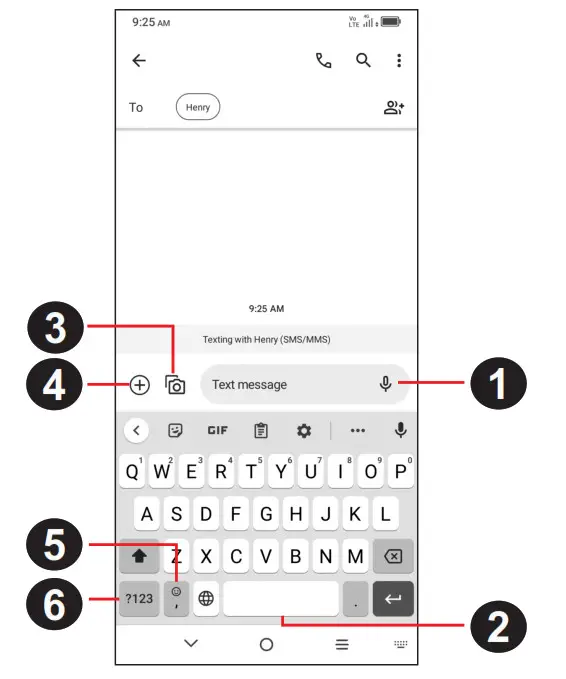
- Touch and hold to record audio.
- Touch and hold to switch language (if additional language keyboards are activated).
- Insert a picture from gallery or shoot one directly.
- Insert a GIF, contact, location, or other file.
- Tap to input a comma. Touch and hold to access keyboard settings or enter left or right hand input mode.
- Tap to access the symbols and numbers keyboards.
Gmail
Use Gmail to create, send, and receive emails directly on your phone. The Gmail app will allow you to add several email accounts.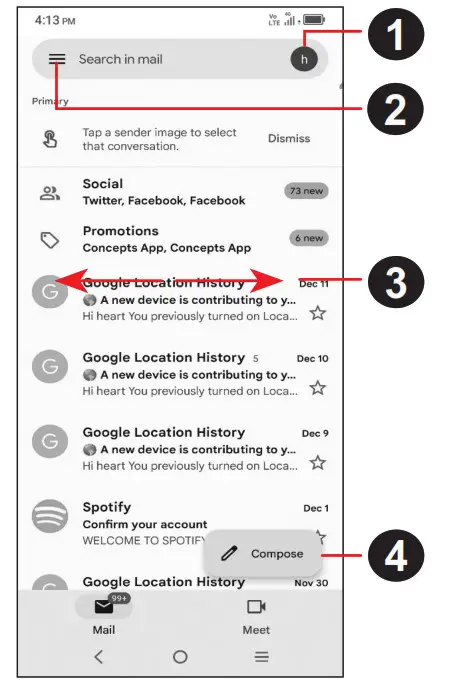
- Tap to view the email accounts on your device.
- Tap to access email folders, settings, and more.
- Swipe right or left to archive the email.
- Tap to create an email.
Help
- Check out the TCL website at www.tcl.com for tutorials and answers to frequently asked questions, and to download the User Manual.
- To get support for your phone, visit the TCL website (www.tcl.com) or dial the number listed below: Canada- 1-855-224-4228 United States- 1-855-224-4228
- Update your phone’s software Go to Settings > System > System Update to check software updates.
- Back up your personal data Go to Settings > System > Backup > Back up to Google Drive and turn it on.
- Reset your phone Go to Settings > System > Reset > Erase all data (factory reset) > Erase all data.
SAVE PAPER SAVE TREES

PLEASE CONSIDER THE
ENVIRONMENT BEFORE PRINTING
English – CJB2JW0LCAAB
Printed in China
4188O
 TCL USA | TVs, Sound Bars, Phones, Appliances