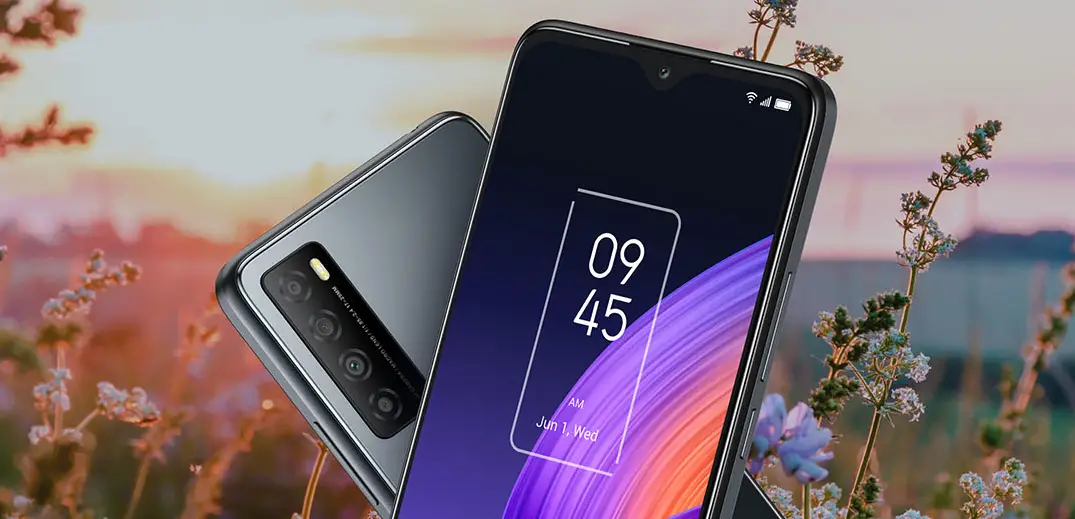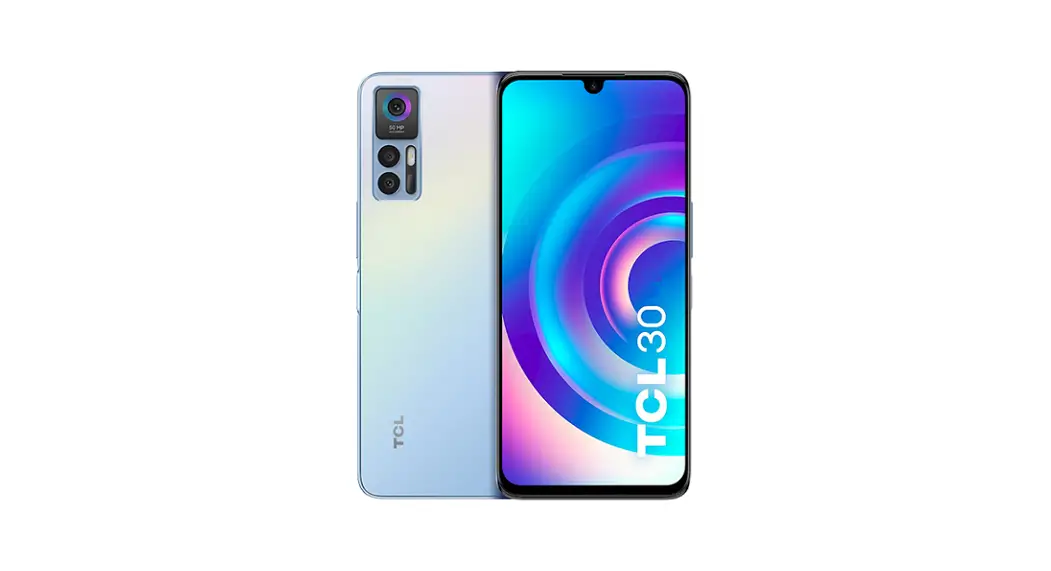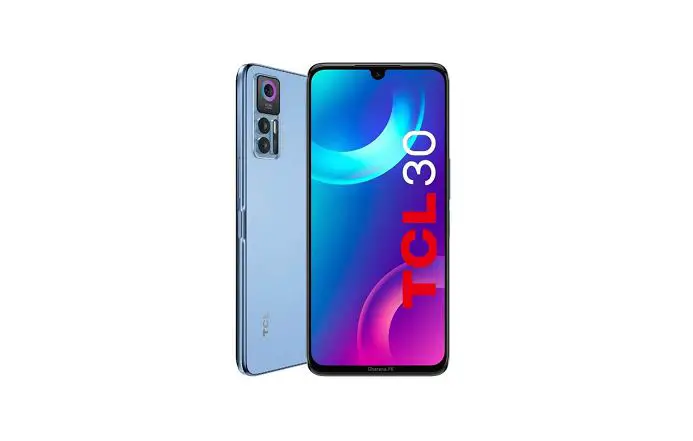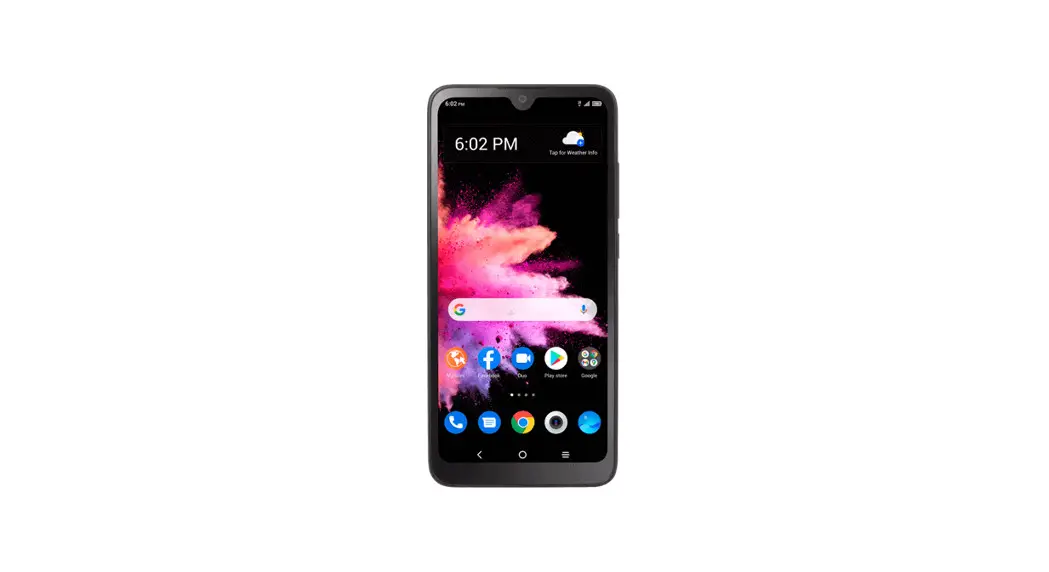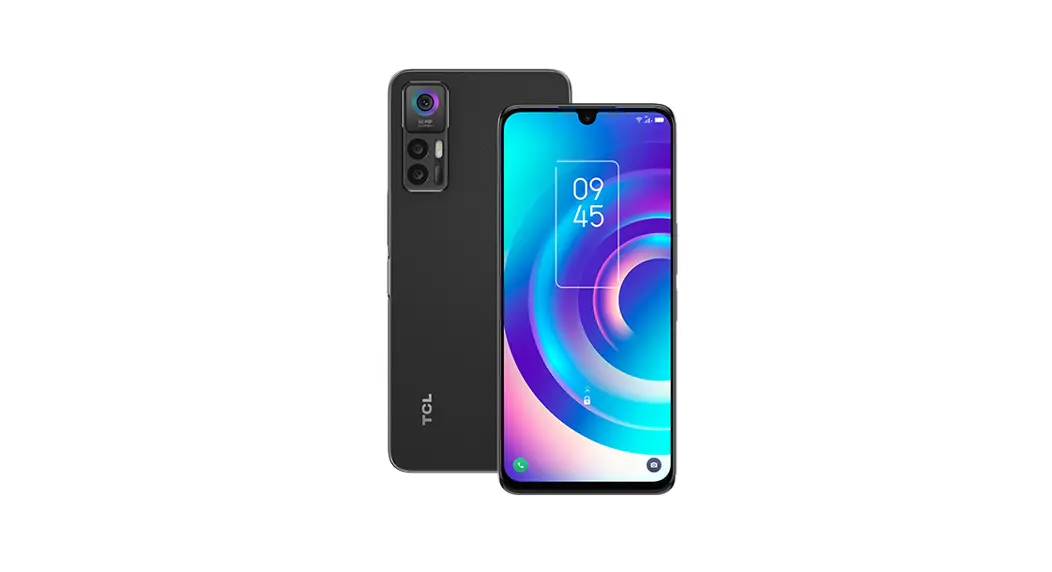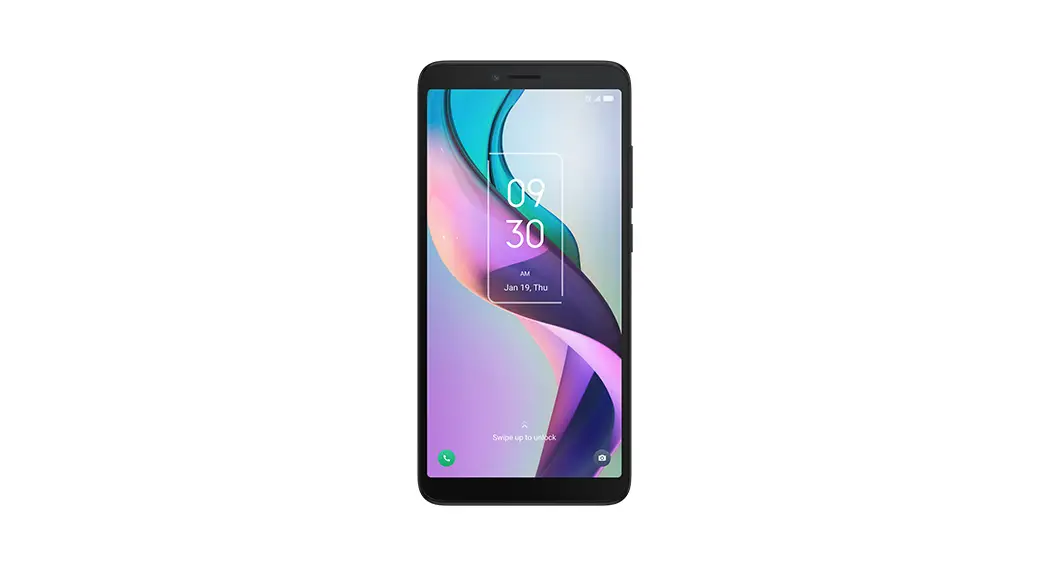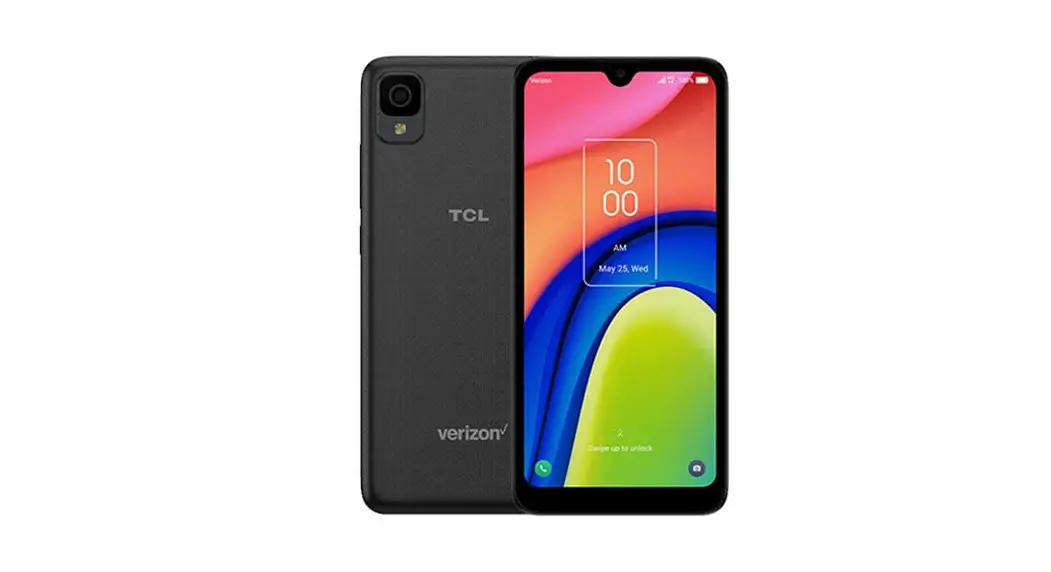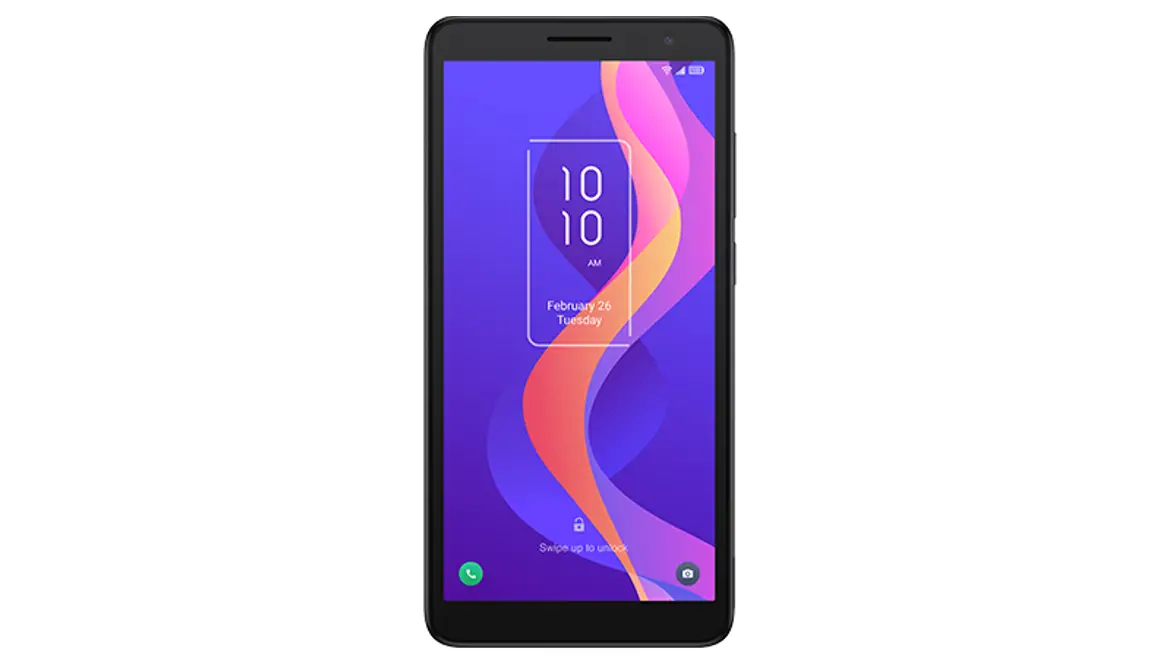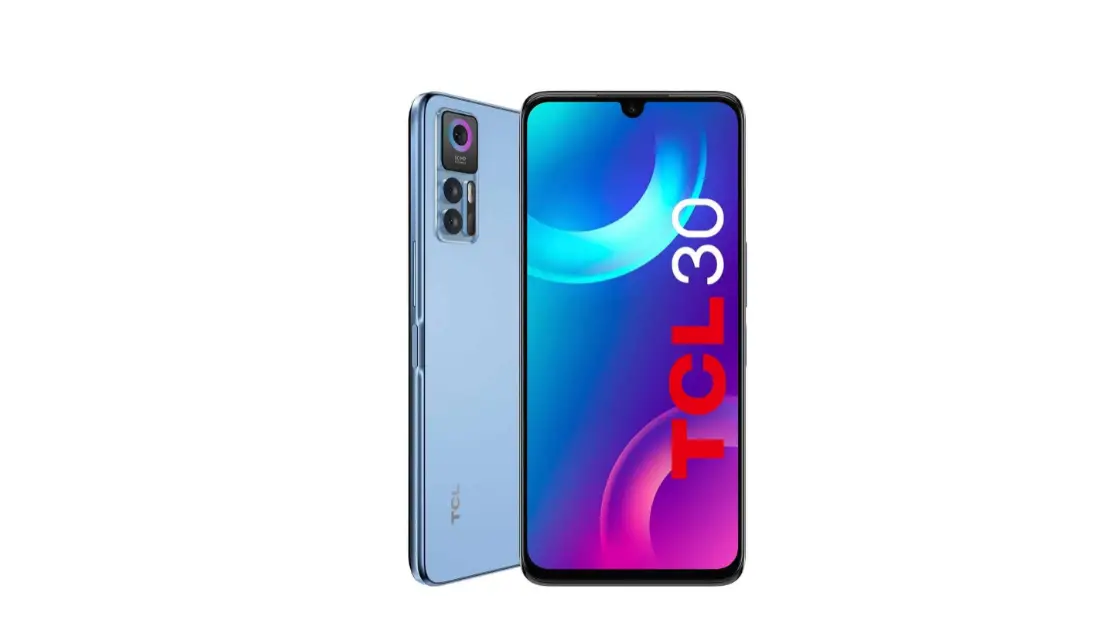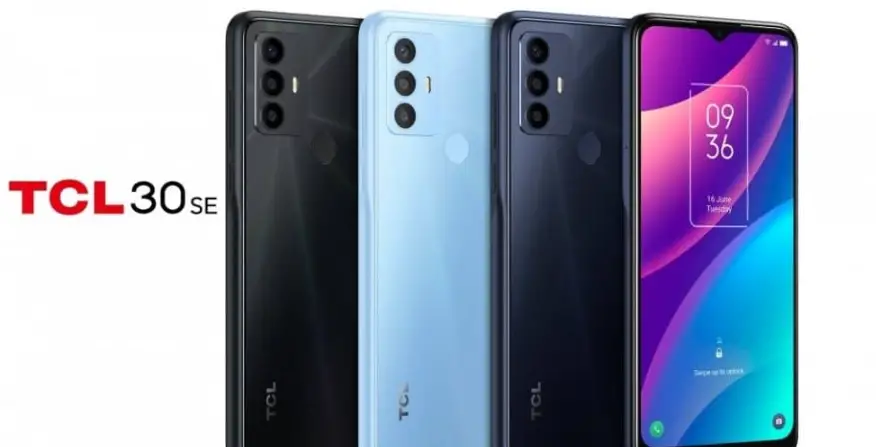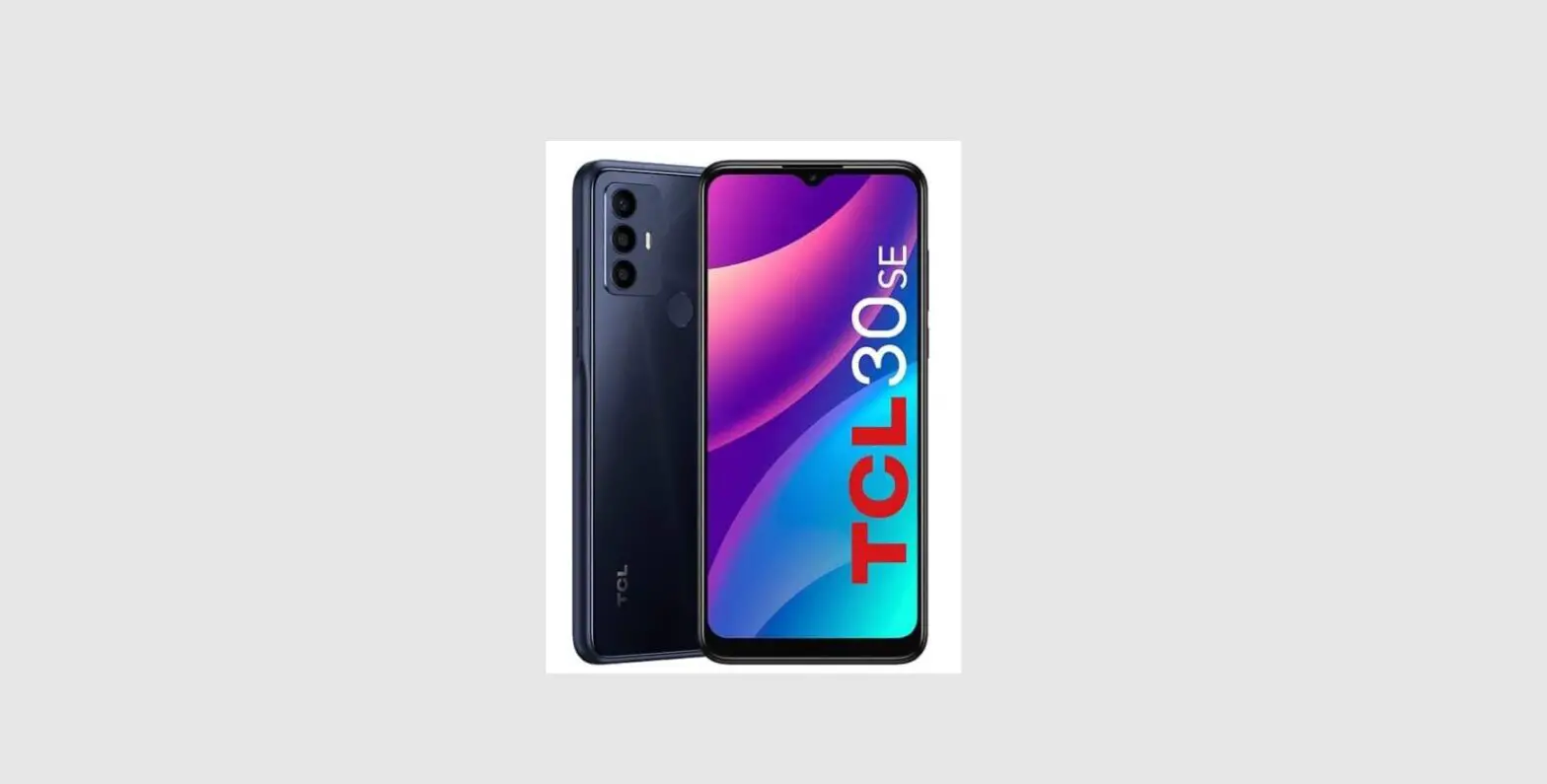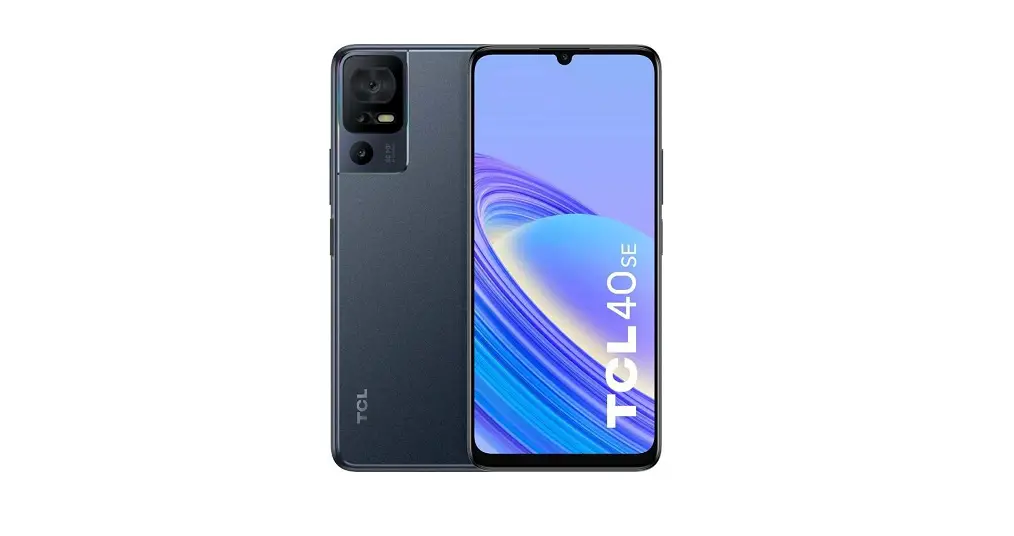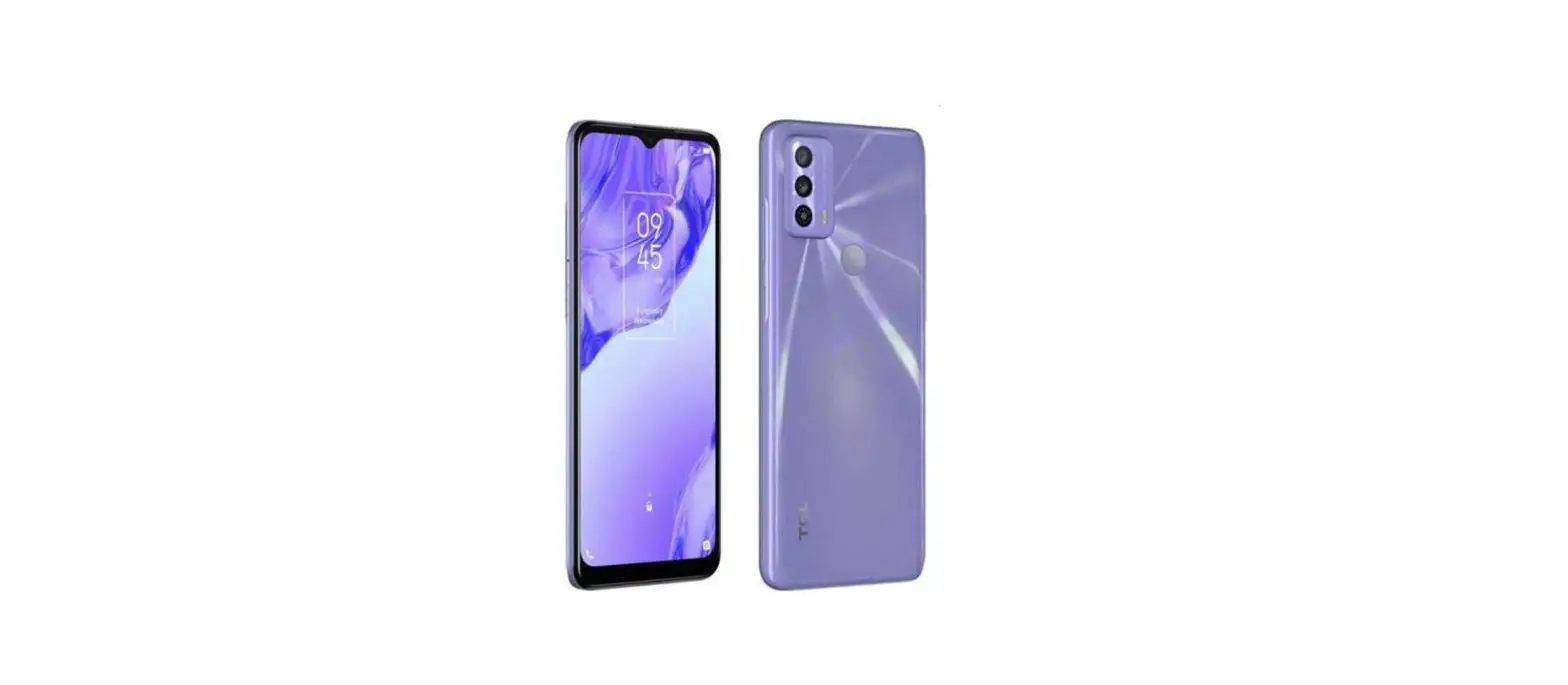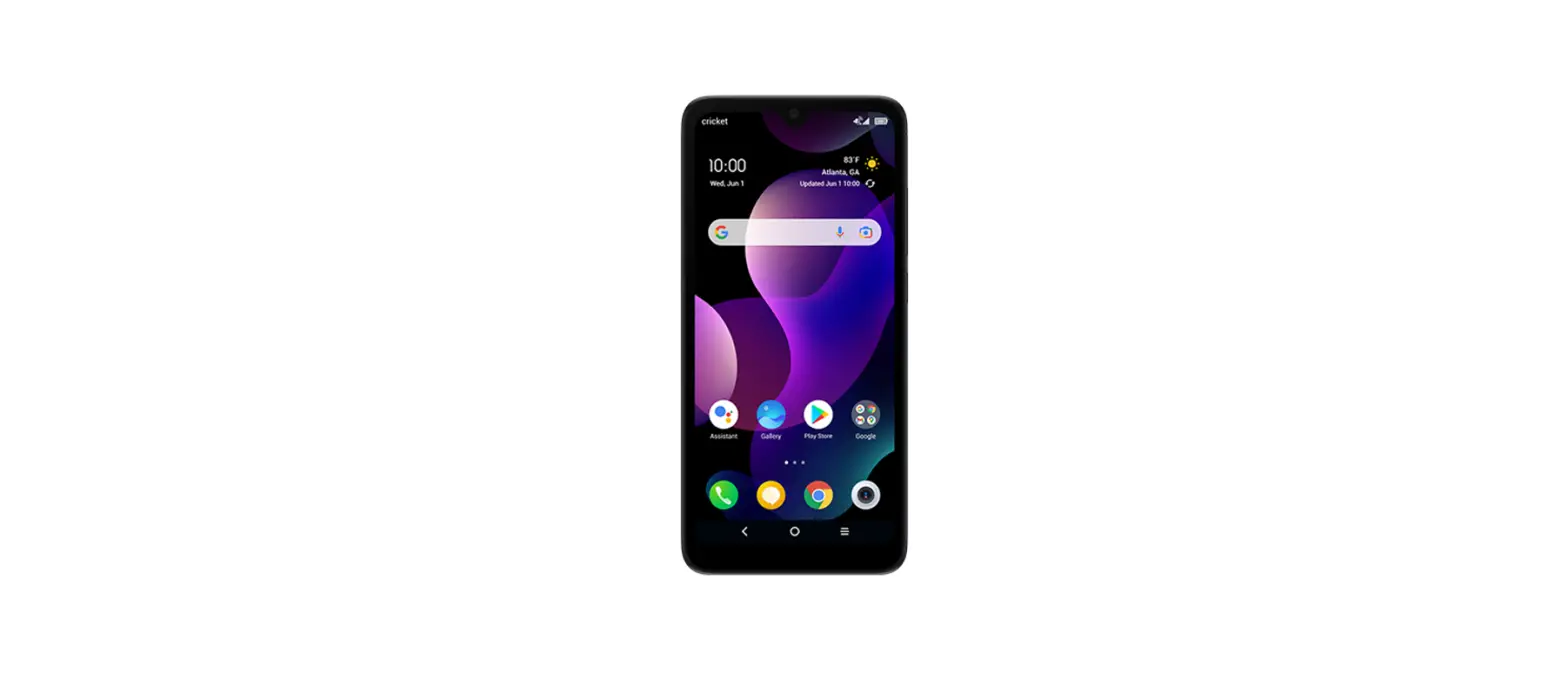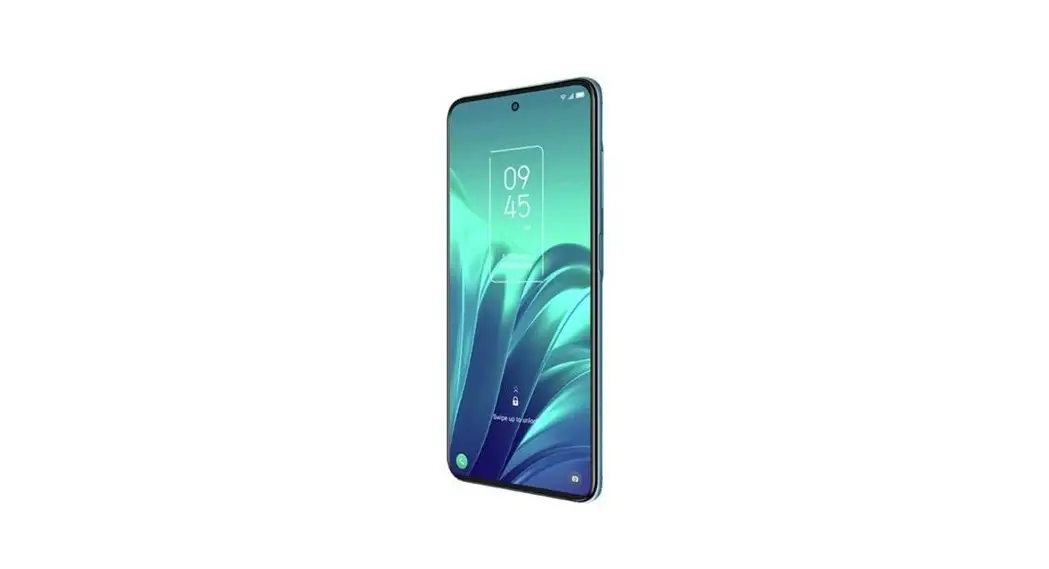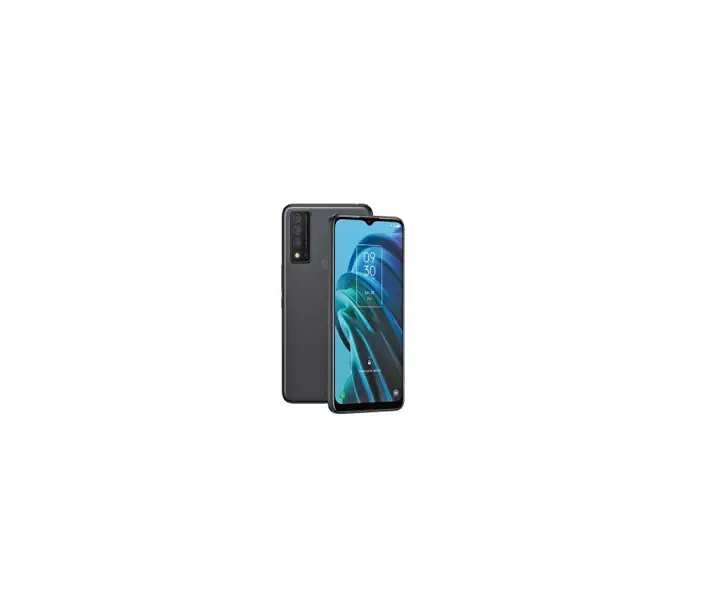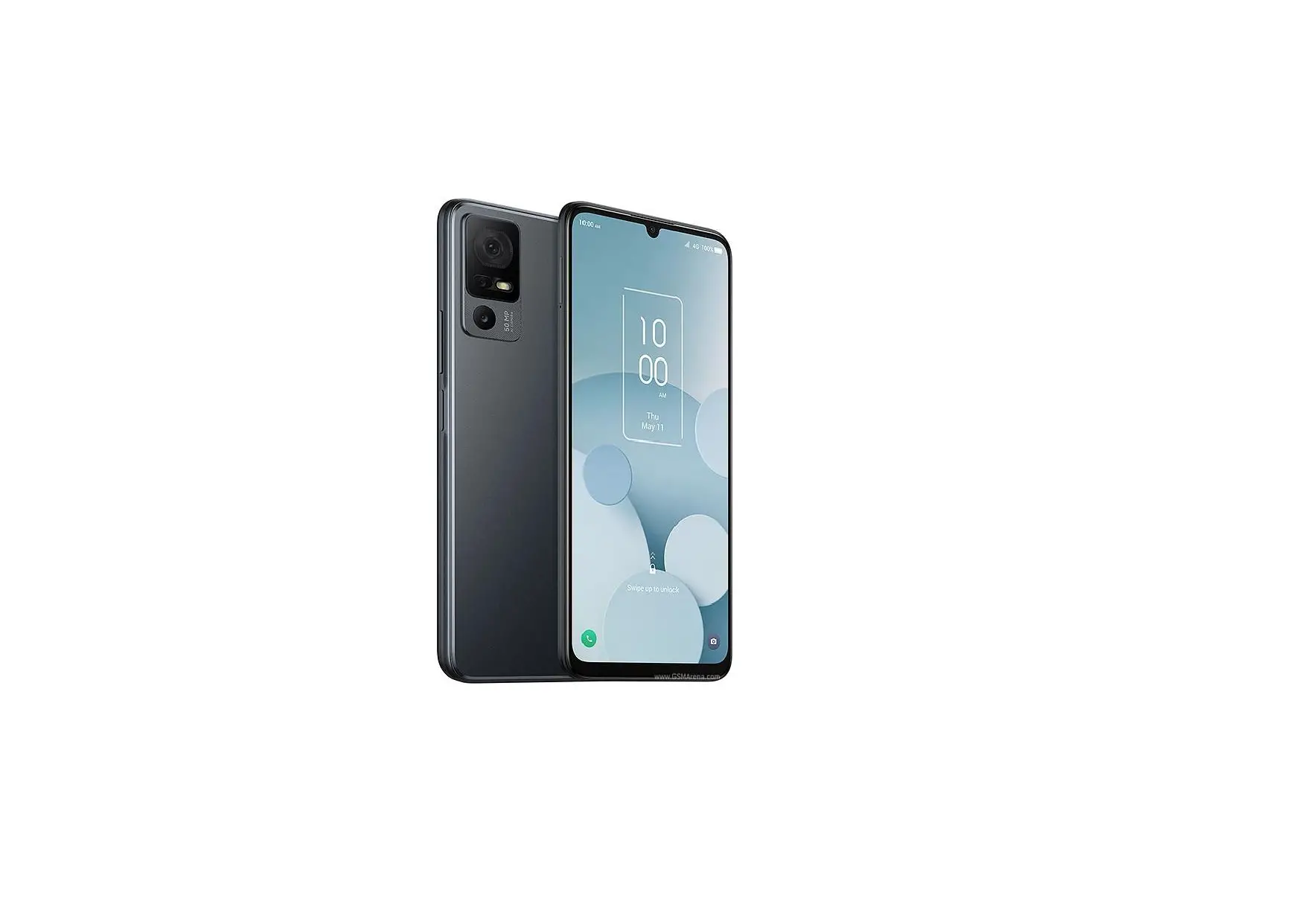

TCL 30 Z Smartphone
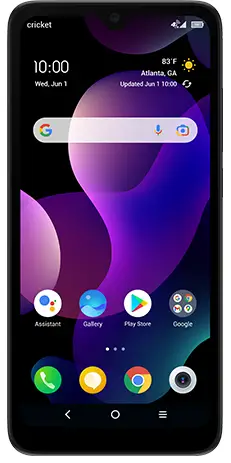
What else is in the box?
- TCL 30 Z
- Micro-USB cable
- Wall charger
- Pre-installed SIM card
- Safety and warranty information
- Lithim-ion battery
Messaging & Email Email setup
- From the Home screen > Google
 > Gmail
- Select Got It > Add an email address, then select an email provider.
- Enter your account credentials, such as email address and password. Tap NEXT to continue.
- Confirm email account settings, tap NEXT.
- Enter your name which will be displayed on outgoing emails, tap NEXT.
 > Gmail
Text and Picture Messaging
- From the Home screen > Messages

- Tap
 to begin a new message.
 - In the To field, enter a number or a contact name, or tap Favorites or All Contacts to select a contact from the address book.
- Tap “Text Message” field and enter your text.
- Touch
 to send smileys & emotions, give access to Location, select
 to send photos, videos, contact information, files, or sound recordings.
 - Tap
 to send the message

 to begin a new message.
 to send smileys & emotions, give access to Location, select
 to send photos, videos, contact information, files, or sound recordings.
 to send the message
Visual Voicemail
Receive voicemail messages in an email-like inbox. You can easily play and delete messages, return calls, and manage voicemail features.
Find More Information
Manage Your Account with myAT&T
- On your phone: Swipe up from the Home screen
 > myAT&T
 - On the web: att.com/myATT
- Compatible device and online account required. Data and messaging rates may apply for download and app usage.
 > myAT&T
Need More Help?
- On your phone: Swipe up from the Home screen > ATT >Device Help
- On the web: att.com/DeviceHowTo Give us a call
- 611 from any AT&T wireless phone
- 800.331.0500 or prepaid 800.901.9878
Your New Phone
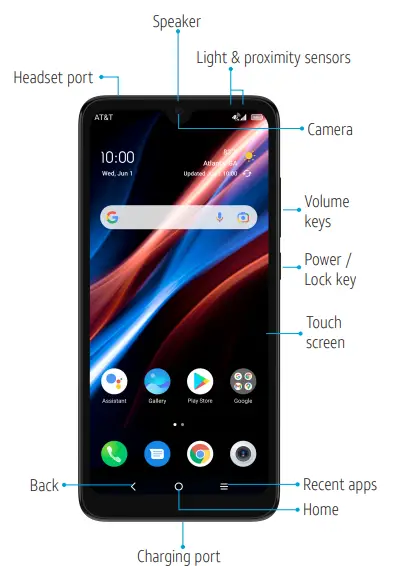
Easily Adjust Settings
Quick Settings
- From the Home screen, drag your finger down to view the Notifications panel.
- With the Notifications panel open, drag your finger down again to open the Quick Settings menu.
- Tap Settings
 on the bottom middle to access the full Settings menu.
 on the bottom middle to access the full Settings menu.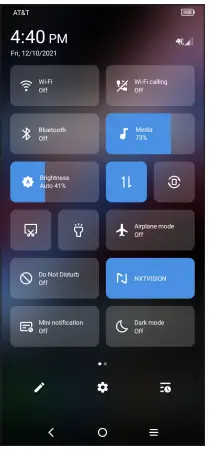
Secure Your Phone
- From Settings menu, tap Security & biometrics.
- Enable your lock/unlock method: Swipe, Pattern, PIN, Password, or Face Unlock.*
- Face Unlock will unlock your phone using the front camera to register your face.
Capture Life’s Moments
Take a Picture or Record a Video
- From the Home screen > Camera
 .
.- To take a photo: Tap
 or press the Volume up/down key to take a photo.
 - To take a video: From Camera > Video >
- Record
 to start recording. Tap
 to stop recording.
- To take a photo: Tap
 .
. or press the Volume up/down key to take a photo.
 to start recording. Tap
 to stop recording.
Camera features and settings
- To select a different camera mode, tap the option above
 :
:- Video: Shoot and record videos.
- Auto: The default camera mode will automatically adjust the focus, lighting, and more.
- Portrait: Create a depth of field effect.
- Pano: Capture a horizontally elongated field of view.
- At the top of the camera screen, you can access camera settings , image, and video size
 , High-Dynamic-Range
 , enable a timer
 , apply a real-time filter
 , or enable flash
 :
: , High-Dynamic-Range
 , enable a timer
 , apply a real-time filter
 , or enable flash
How to replace the SIM
Install a SIM/microSDTM Card
1. With the phone face down, remove back cover by gently pulling up on the indentation on the bottom left of the cover.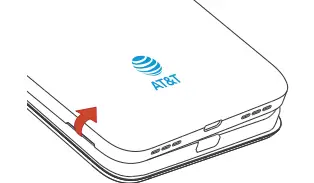 2. Insert the SIM card and microSDTM card* with gold contacts facing down.
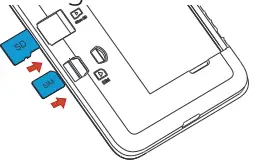 3. Ensure that SIM and microSDTM cards have been properly secured.
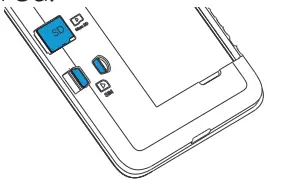
4. Put the back cover on.
Turn on your new phone
Press and hold the Power/Lock key to turn on your phone.
Call Family & Friends
Make a Call
- From the Home screen >
 .
. - Tap Dialer
 to access the keypad, or select one of the following:
- Choose frequently called or favorite contacts in Favorites
 .
. - Choose recently called numbers and contacts in Recents.

- Choose a saved contact in Contacts.

- Choose frequently called or favorite contacts in Favorites
- Tap to place the call

 .
. to access the keypad, or select one of the following:
 .
.

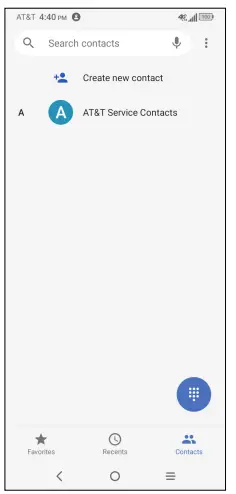
Your phone is equipped with Real-Time Text (RTT) settings. To enable, swipe up to go to Apps > Settings > Accessibility > Call accessibility > RTT Call Button > RTT operation mode.
Surf & Stream in no time
Connect to Wi-Fi
- From the Home screen, swipe down once.
- Press and hold Wi-Fi to
 open the Wi-Fi menu.
 - Tap
 to turn on Wi-Fi.
 - Tap a network name. Enter a password, if required, then tap CONNECT.

 open the Wi-Fi menu.
 to turn on Wi-Fi.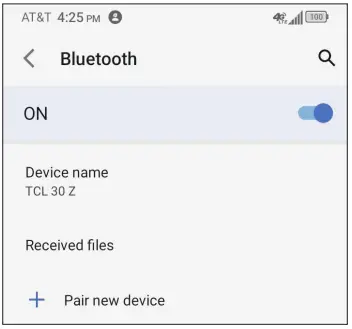
Use Bluetooth
- From the Home screen, swipe down once.
- Press and hold Bluetooth to open the Connected Devices menu.
- Tap Pair new device to turn Bluetooth
 on and display a list of available devices.
 - Tap the name of the device to initiate pairing.

 on and display a list of available devices.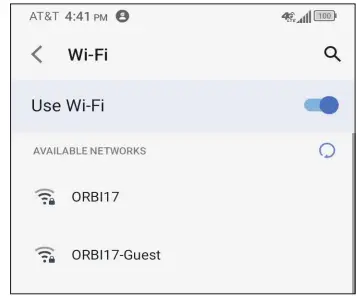
The Bluetooth word mark and logos are registered trademarks owned by the Bluetooth SIG, Inc. and any use of such by TCL Communication Technology Holdings Limited is under license.
AT&T Eco-Rating
AT&T Eco-Rating 2.0 only applies to TCL 30 Z. For limited factors evaluated visit att.com/EcoSpace. Wireless Emergency Alerts is a registered Trademark and Service Mark of CTIA. TCL is a registered trademark of TCL Technology Group Corporation. LTE is a trademark of ETSI.4G LTE not avail. everywhere. Contains lithiumion battery – recycle or dispose of properly. 2021 AT&T Intellectual Property. All rights reserved. AT&T, the AT&T logo and all other AT&T marks contained herein are trademarks of AT&T Intellectual Property. All other marks are the property of their respective owners.
 att.com/DeviceHowTo
 Cell Phone Accessories: Cases, Chargers & More | Cricket Wireless
 TCL Support