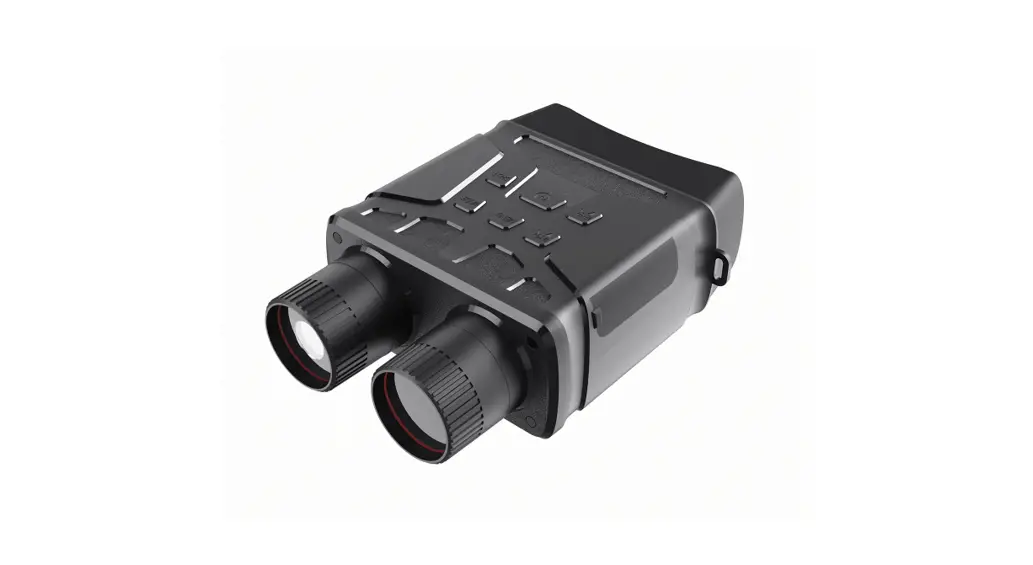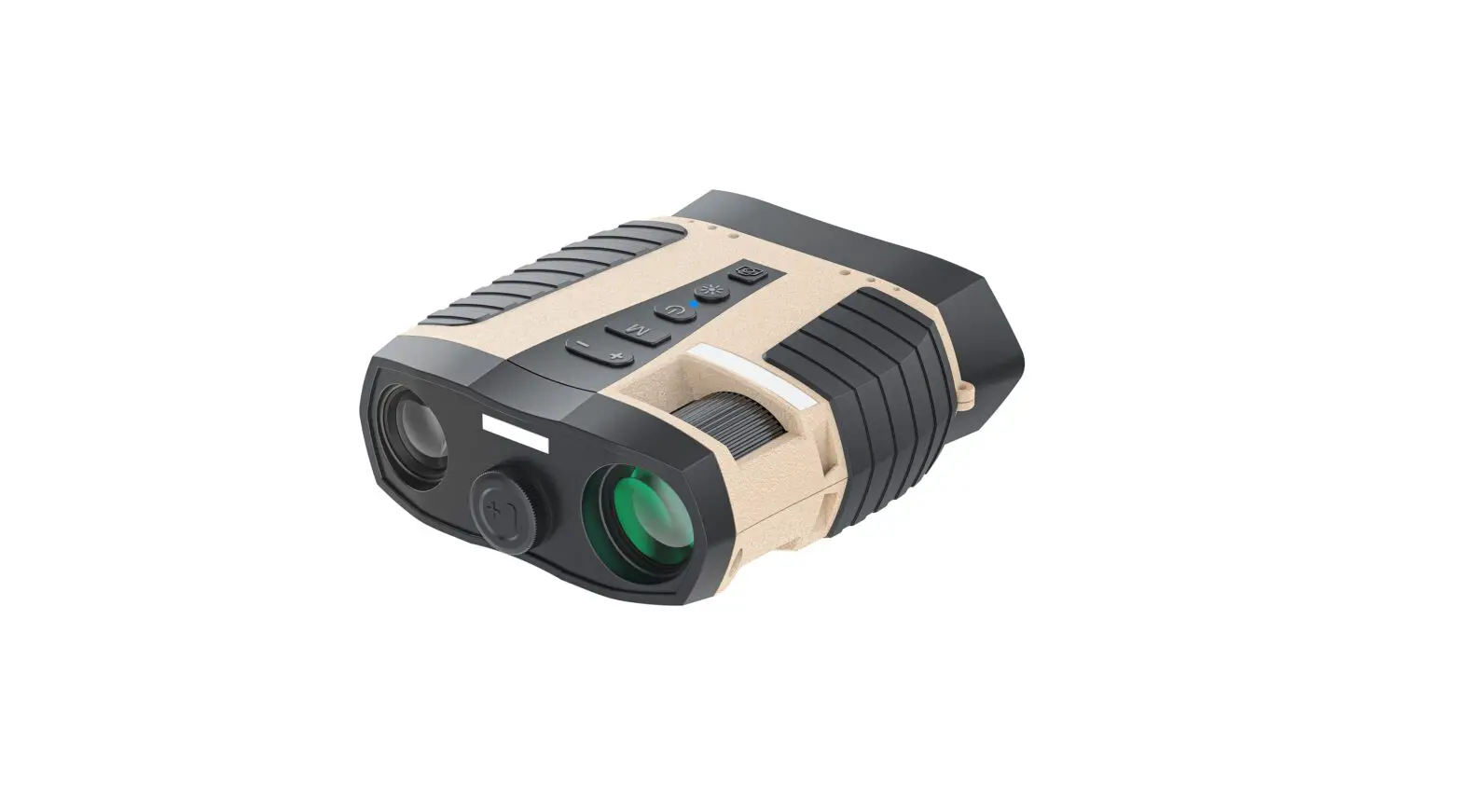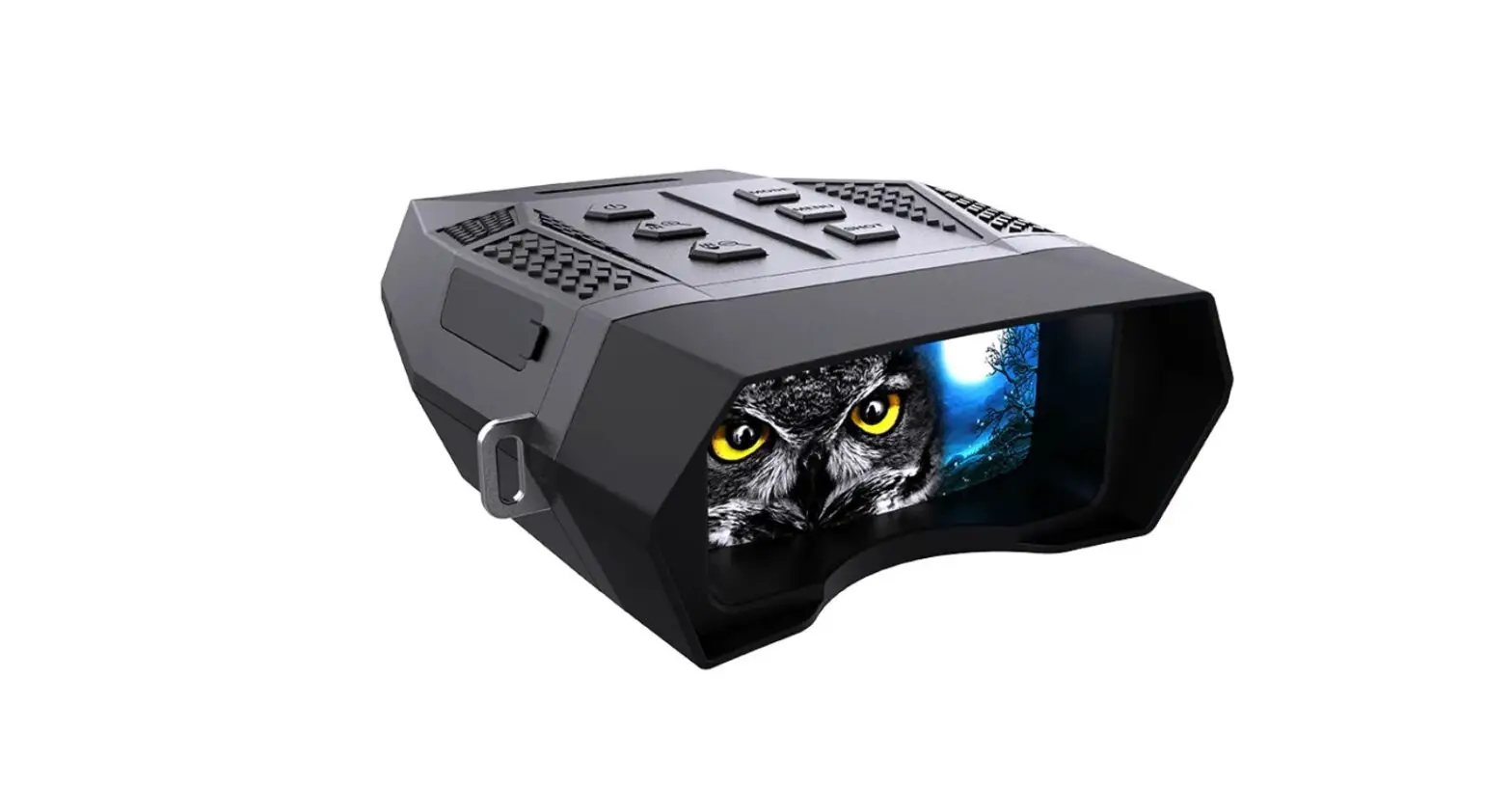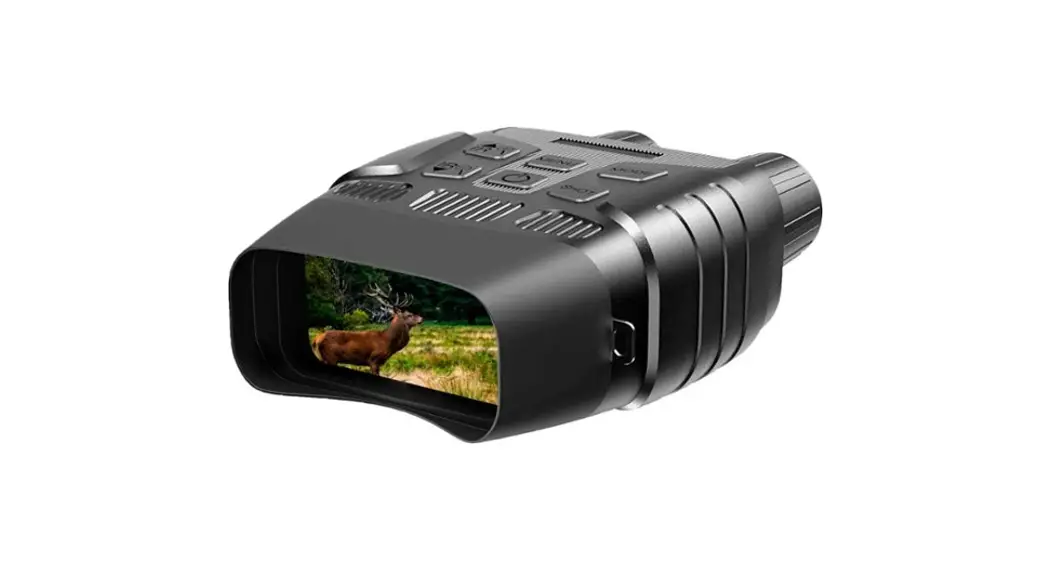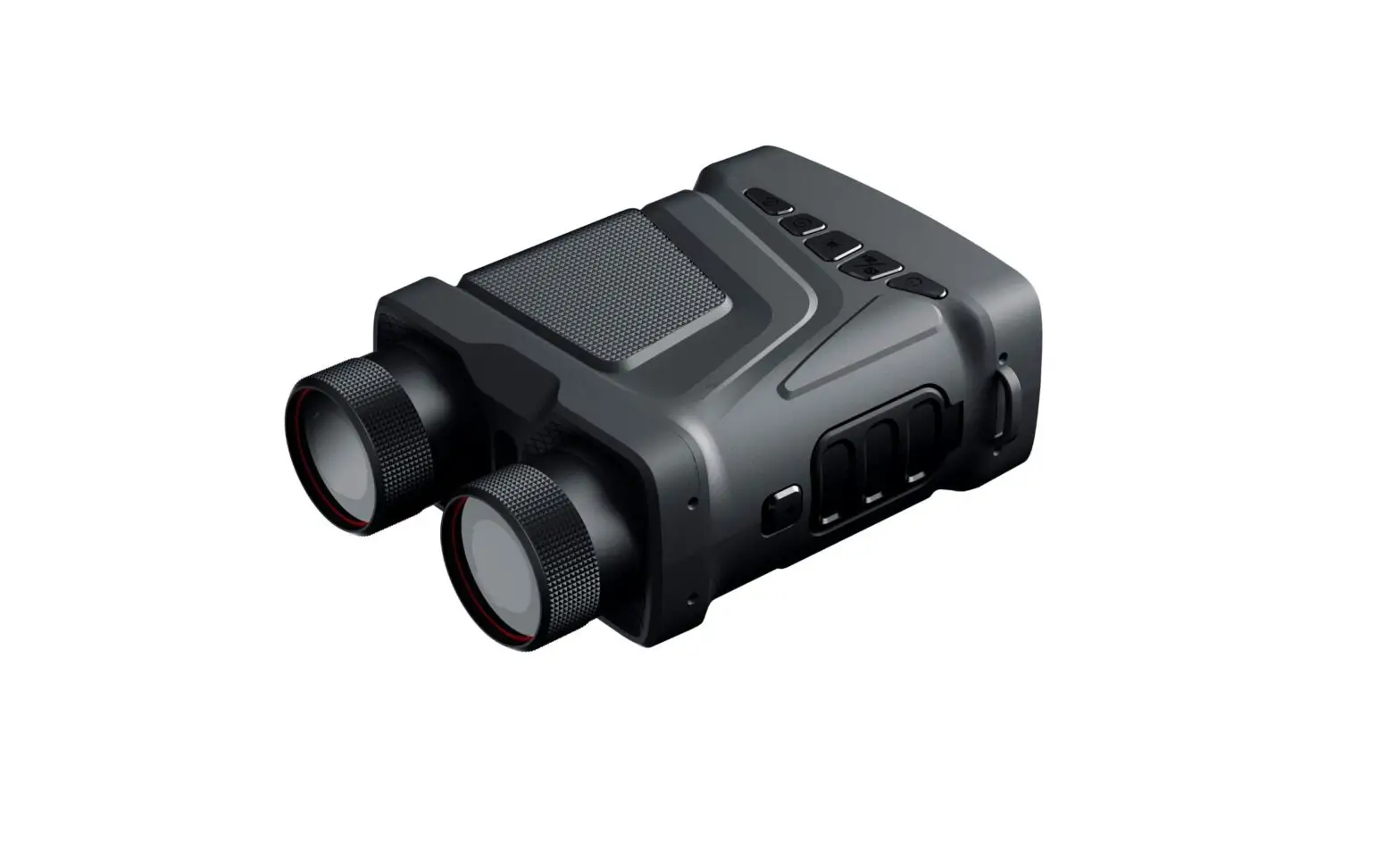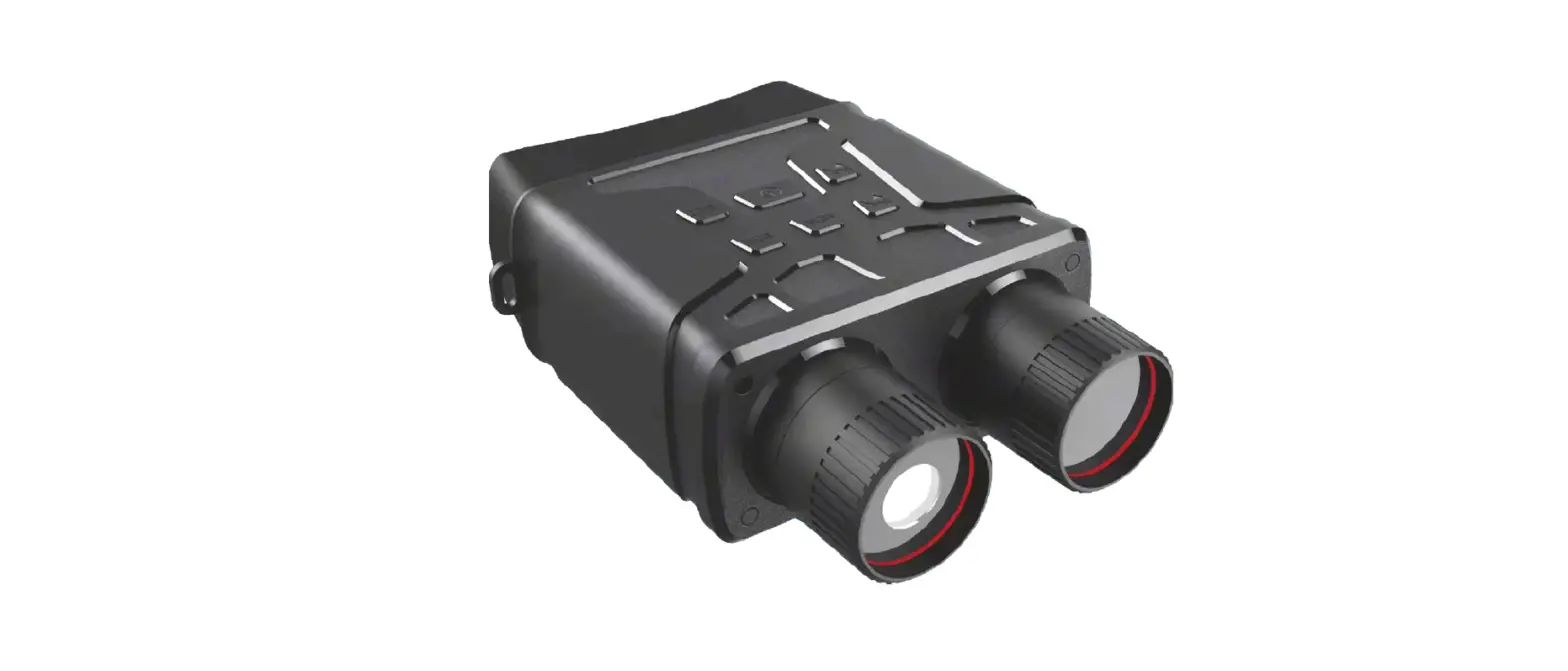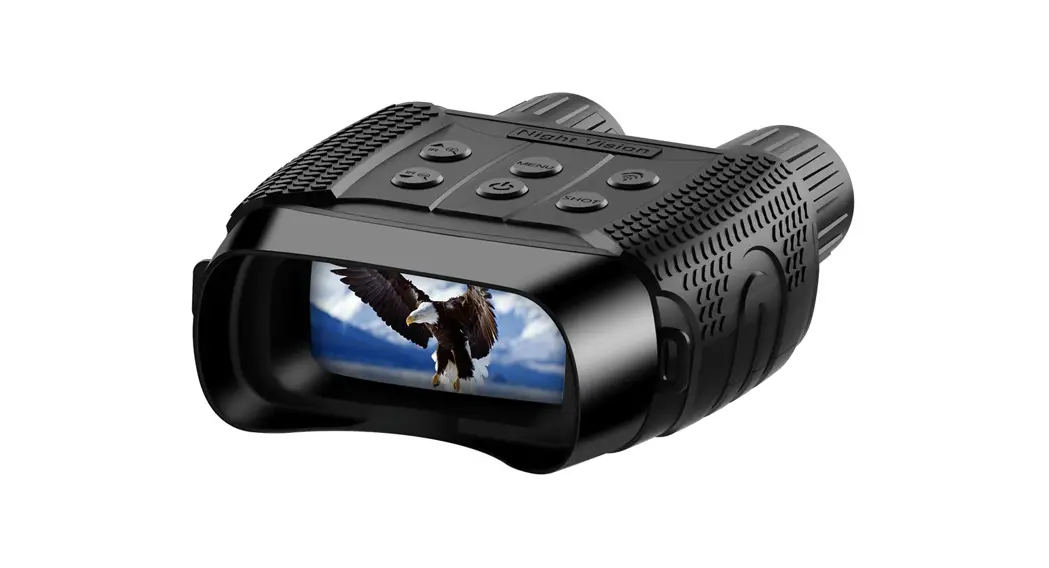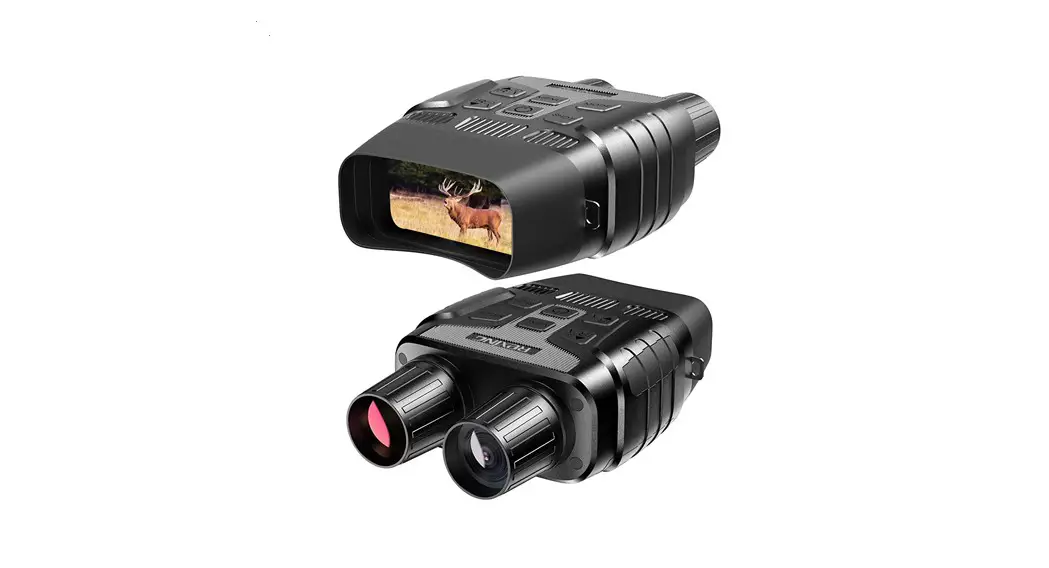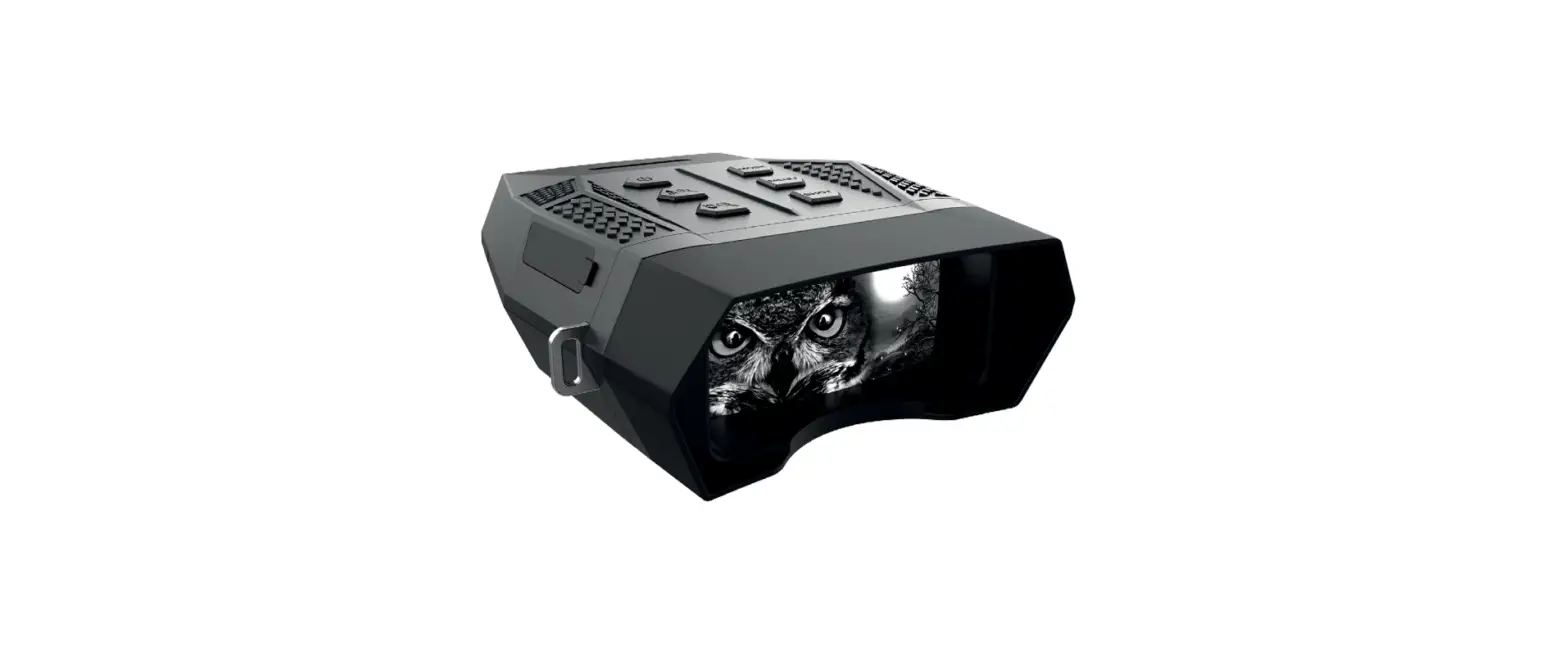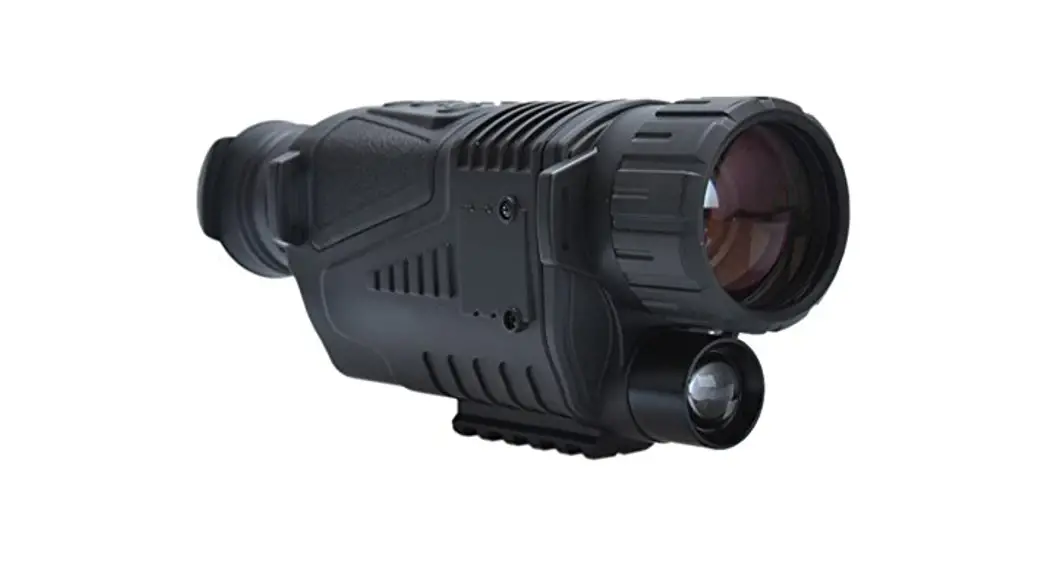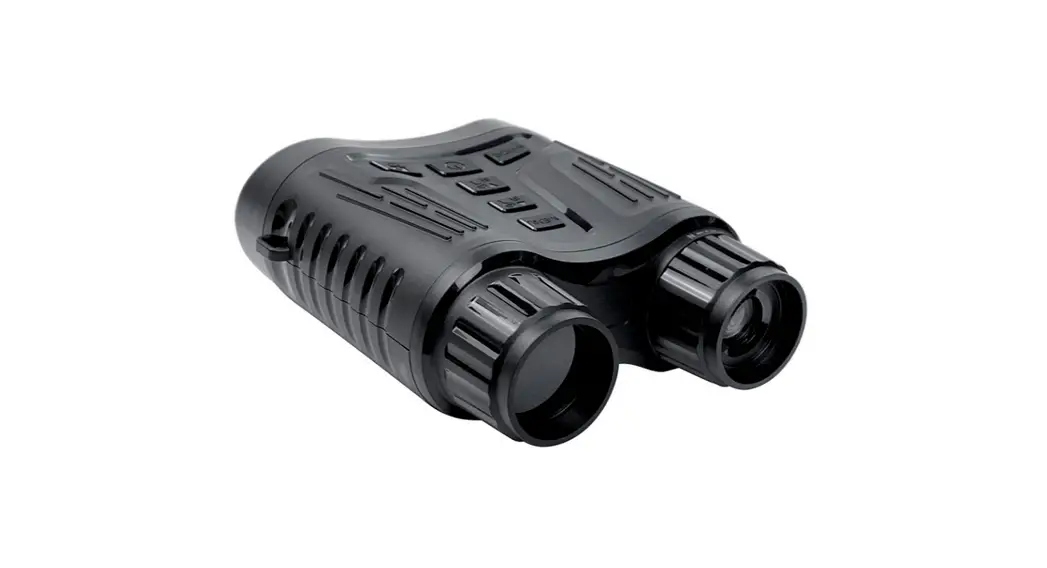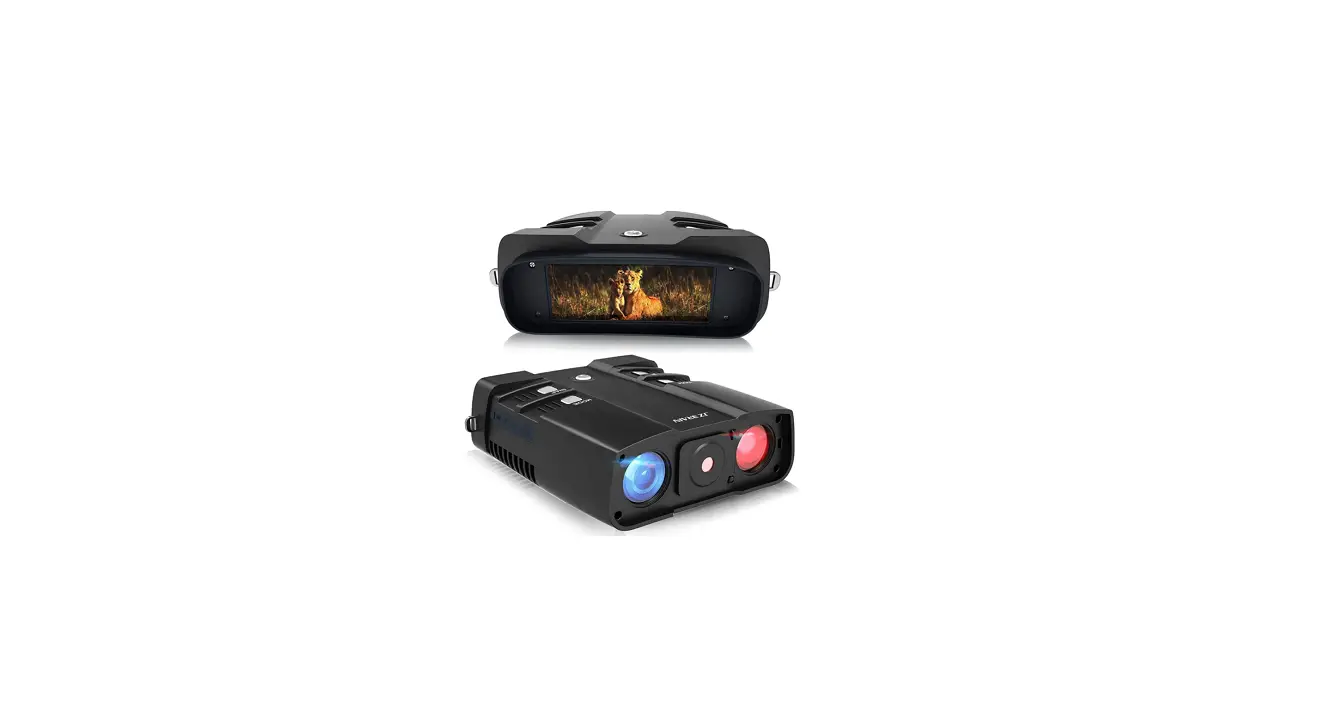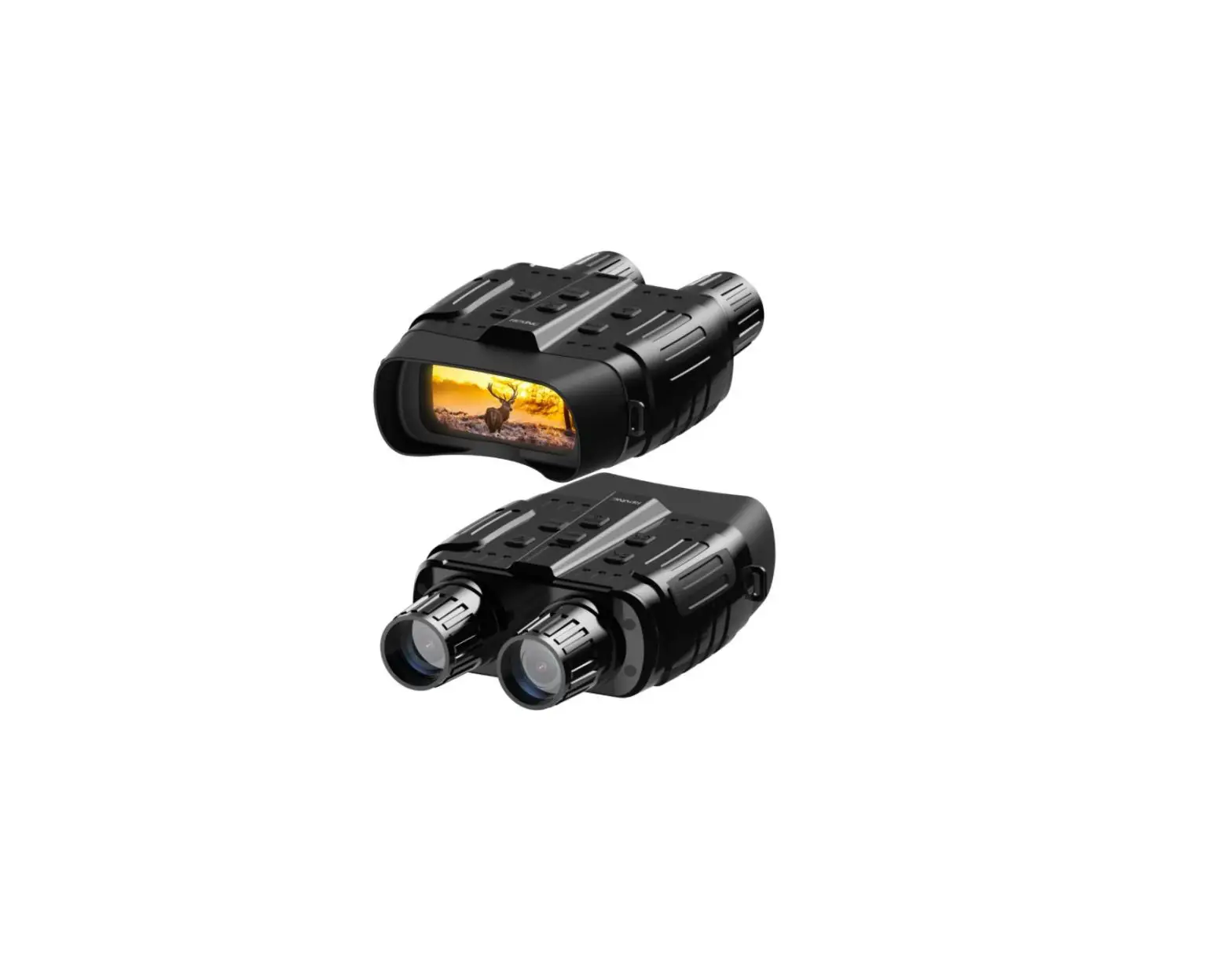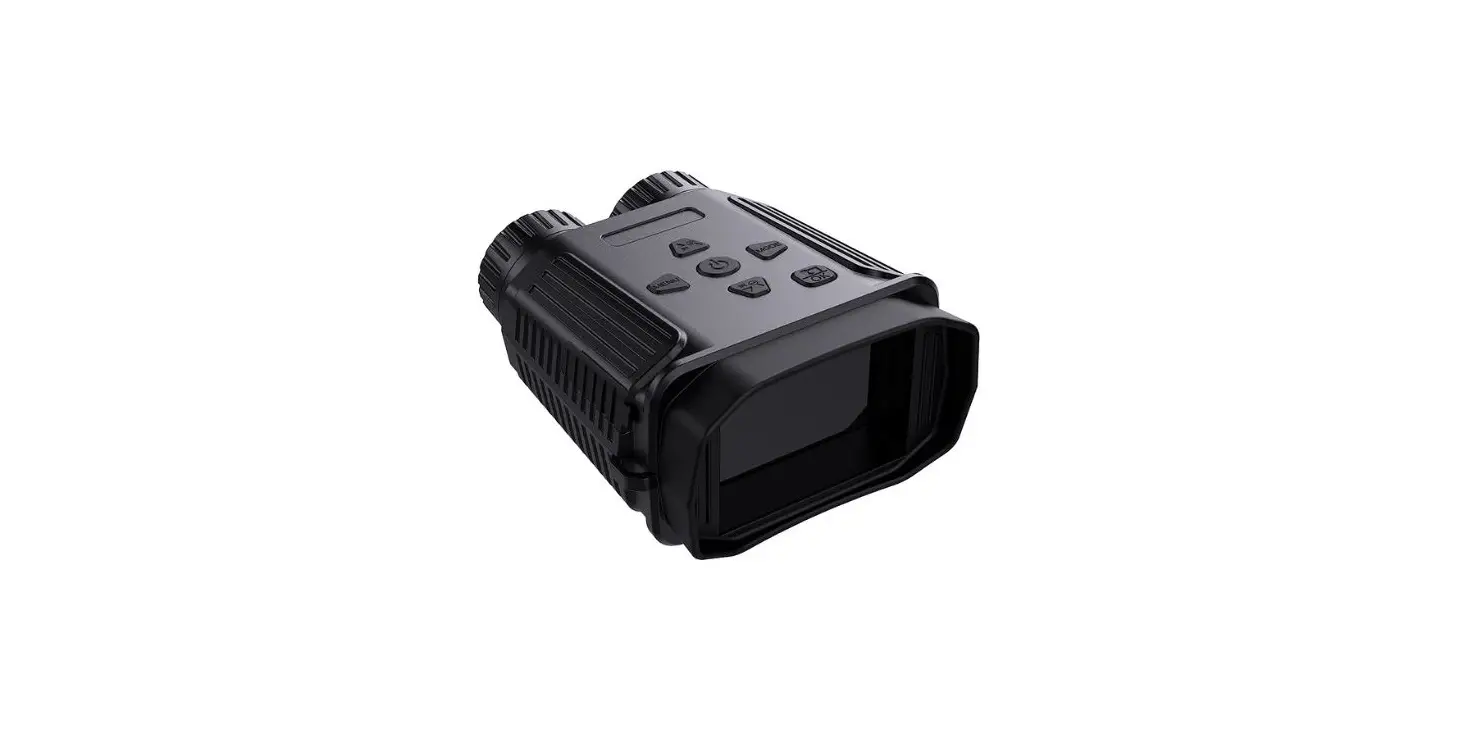

Dsoon NV1180 Mini Night Vision Binoculars
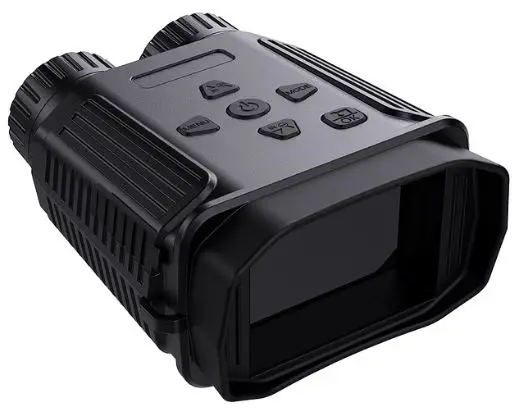
PRODUCT OVERVIEW
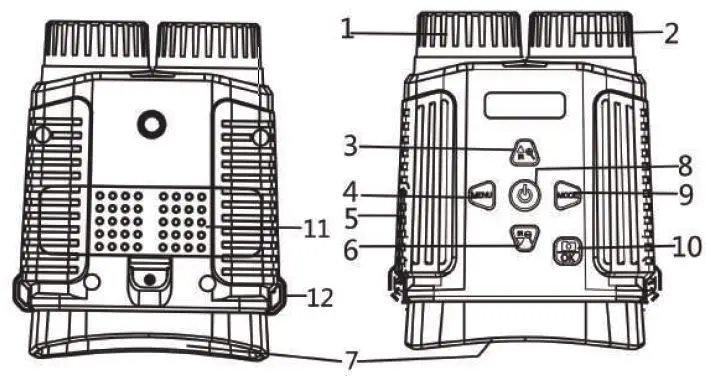
| 2. IR LEDs |
| 3. IR Up/Zoom in/Up Button | 4. Menu Button |
| 5. USB port/Micro SD card slot Cover | 6. IR Down/Zoom out/ Down Button |
| 7. View Area | 8. Power Button |
| 9. Mode Button | 10. Shot/OK Button |
| 11. Battery Cover | 12. Strap Hole |
SPECIFICATION
| Still Image Size: | 12M(4000×3000)/8M(3264×2488)/5M(2592×1944)/3M(2048×1536)/2M(1600×1200)/1.3M(1280×960)VGA(640×480) |
| Video Resolution | 1080P(1440×1080@30FPS)/960P(1280 x 960@30FPS)/VGA(640×480@30FPS) |
| Aperture: | F 1.2 f=25mm |
| Lens Angle | F 1.2 f=25mm,automatic IR filter |
| Display Screen: | Inner screen is 2.4 inches 720*320 TFT LCD |
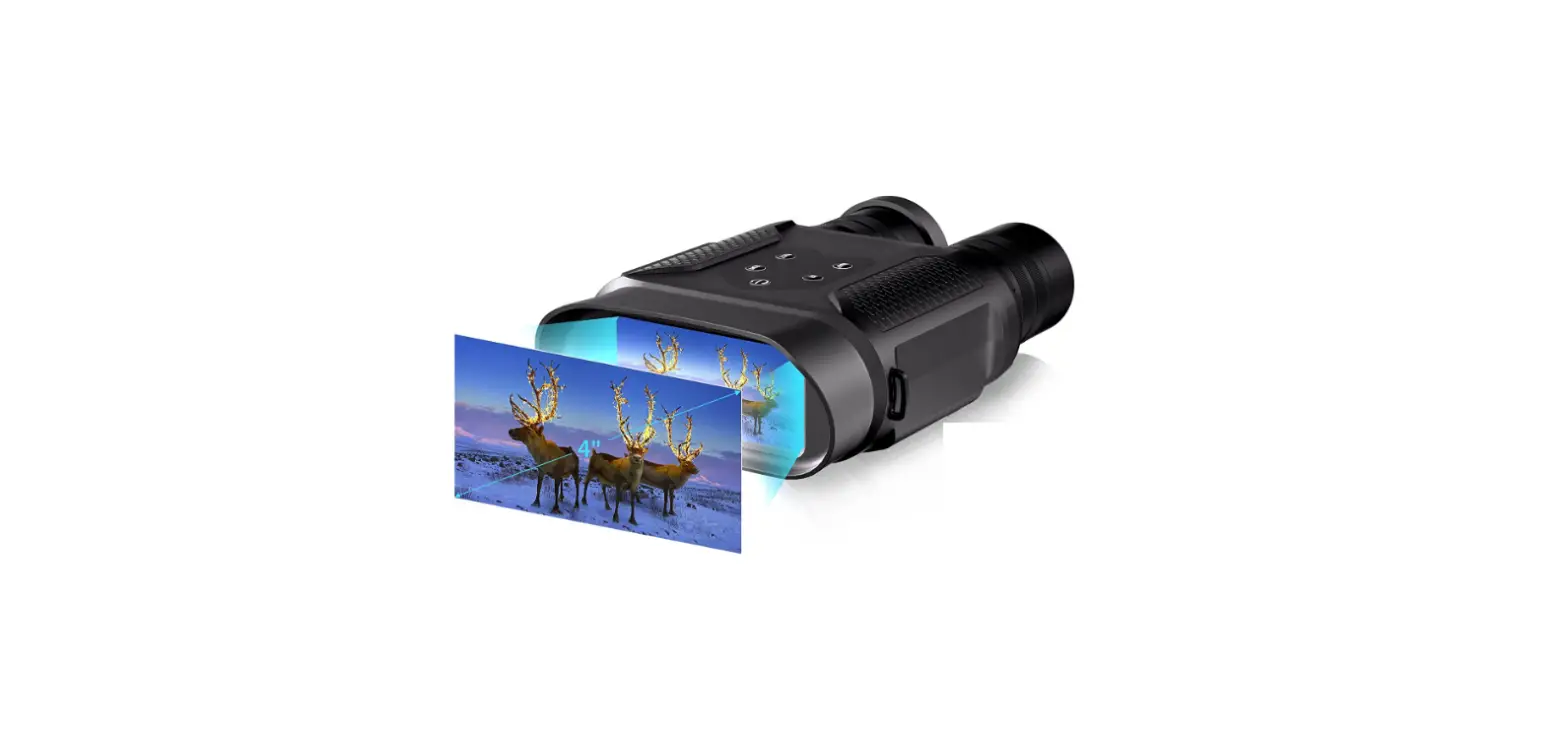
| Digital Zoom: | 4X |
| Storage Media: | Micro SD card, up to 32GB |
| Viewing Distance in complete darkness: | 200M-300M |
| Viewing Distance in weak light: | 3M~infinity |
| IR LED: | 3W, 850nm |
| USB Port: | Type-C |
| Power Source: | 18650, 2500MAH lithium battery |
| Operating Temperature: | -20℃ to +60℃ |
| Storage Temperature: | -30℃ to +70℃ |
| Color Special Effects | Color, black and white, luminous green, infrared light |
| Language | Multiple languages available |
INSTALLATION
Install Battery
Please install batteries into the device before using it.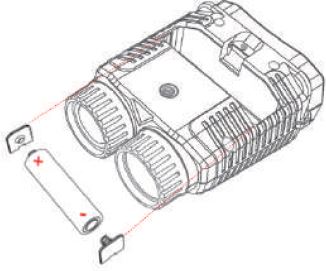
- Open the battery cover on the back of the device.
- Insert 2500MAH lithium battery into the battery compartment. Make sure the polarity is correct.
- Close the battery cover.
Inserting Memory Card
*There is a 32G Micro SD Card included in the package.
- Open the card slot cover, you will see the card slot.
- Insert the Micro SD card into the slot. Make sure the direction is right. Never insert the card forcibly.
- Format the Micro SD card, this can improve the compatibility of the Micro SD card.
- To remove the card from the memory card slot, press the edge of the memory card gently, the card will pop out. Then remove the card.
Note:
- a. The device will prompt ‘Please insert the Micro SD Card’ if the TF card is not being installed.
Formatting Memory Card
If you want to clear the data on the memory card, you can solve it by formatting. In the photo/video mode, press Menu Button to enter the menu. Using the “IR Up” or “IR Down” button to select up and down, press the Shot Button to confirm.
Note: All data will be lost after formatting, please pay attention to backup!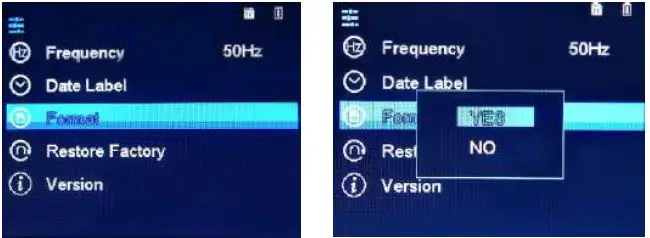
Function & Operation
- Turn On and Turn OFF
Long press the Power Botton for 3 seconds to turn on the device. Long press the Power Botton to turn off the device. - Switch Between 3 Modes
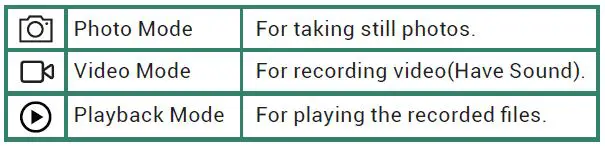
The product to has 3 different modes: photo mode, video mode, and playback mode. Press the Mode Botton to change mode.
Note: When the capacity of the Micro SD card is full, the machine will stop recording automatically.
Three Modes
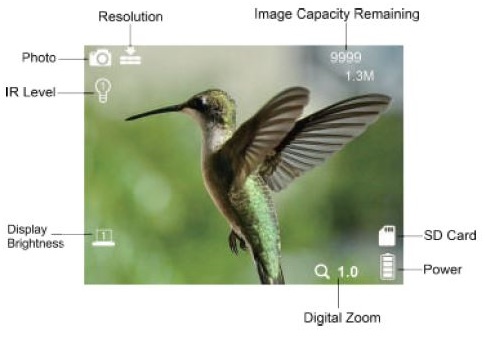
- Photo Mode
- a. Press the Mode Botton to switch to the photo mode.
- b. Press the Shot Botton to take a photo.

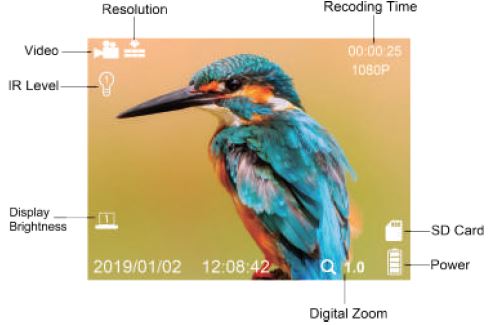
- Video Mode
- a. Press the Mode Botton to switch the Video mode.
- b. Press the Shot Botton to start record the video.
- c. Press the Shot Botton again to stop recording.

- Playback Mode
Turn on the device, press the Mode Botton to switch to playback mode.- a. Press Up/Down Botton to view photos and video files.
- b. Press the Shot Botton to start playing the video files.
- c. Press the Shot Botton again to have a pause.
- d. Press Menu Botton to stop the current video from playing.
- e. Playback Menu-Lock & Delete
Menu Function Operation Lock or unlock the current Press Menu Botton in Lock one file or all files in memory card. playback mode.Press Up/Down Botton to Options: [Lock This]/ scan and press Shot [Unlock This] [Lock All]/ [Unlock All]. Botton to choose lock. Delete Delete the current one file or delete all files in Press Menu Botton in playback mode.Press memory card. Up/Down Botton to scan Options: [Delete This]/ and press Shot Botton to [Delete All]. choose delete.
- Photo Mode
- Zoom
- Manual Zoom
Adjust the focus by turning the focus wheel. If the observation distance is far, please rotate the lens to left. If the distance is near, please rotate the lens to right. - Digital Zoom
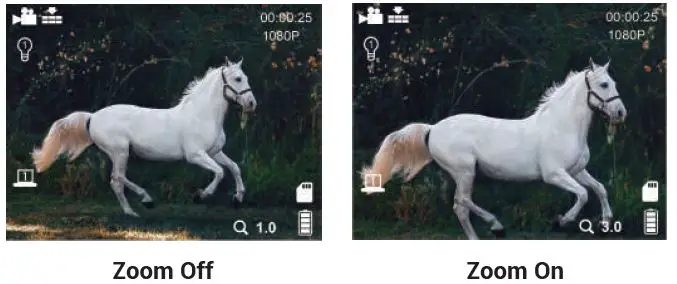
Keep pressing the “IR Up” or “IR Down” Botton to zoom in or zoom out the image. The value of the magnification level appears on the LCD screen, the maximum support 4 x zoom.
- Manual Zoom
- IR-LED Night Vision Function
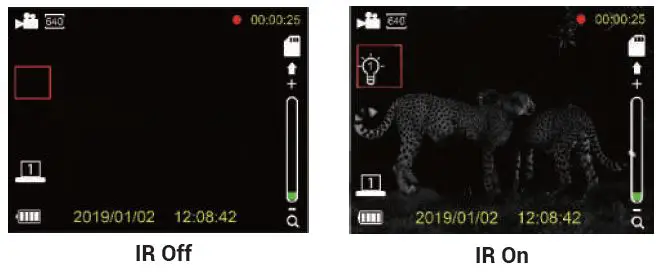
In photo/video mode, if you have to view the dark environment, please short press IR UP Botton to activate the IR LED, the screen will change to black and white. The IR LED has seven levels, short press “IR Up” Botton to up the level, short press “IR Down” Botton to down the level.Battery Power IR Levels Available 100% 7 50% 5 25% 3 <25% 0 
Note: If the battery voltage is not enough, the IR LED level will get lower automatically. - Menu Function
Press Menu Button in photo or video mode to enter the menu, use the “IR Up” or “IR Down” Button to select up and down, and then select the item you want to change. Menu Function Photo Resolution Set the photo resolution. Options:12M(4000×3000)/8M(3264×2488)/ 5M(2592×1944)/3M(2048×1536)/2M(1600×1200)/ 1.3M(1280×960)VGA(640×480)
Video Resolution Set the video resolution. Options:FHD1080P(1440x1080P@30FPS)/ (1280×960@30FPS) /VGA(640×480@30FPS). Night Vision Sensitivity Choose the night vision sensitivity. Options:[Low]/[Middle]/[High]. Power Frequency Set the light source frequency to match frequency of electricity supply in local region to prevent interference.Options:[50Hz]/[60Hz]. Date Setting Please press the Up and Down button to adjust, press the OK button to confirm then will jump to the next one. Date Label Add the date stamp on the photo or video files. Options:[Yes]/[No]. Language Set OSD (on-screen) language. Options:[English] / [Simplified Chinese / [Traditional Chinese] / [French] / [Dutch] / [Spanish] / [Italian] / [Portuguese] / [German] / [Pусский]/[Nederlands] / [Japanese] / [Korean]. Auto Power-Off Options:[Off]/[1min]/[3min]/[5min]/[10min]. Format Format your TF card. Format TF card will delete all files including the protected files. Please copy the important files before confirm.
Options:[Yes]/[No].Restore Factory Restore the to factory default settings. Options:[Yes]/[No]. Version User can see the firmware version information. Screen Brightness Options:[Level 1]/[Level 2]/[Level 3]/ [Level 4]/ [Level 5]/[Level 6]/[Level 7]
New and Special Color Effects:
Note: Long press the Menu Button to switch the luminous green effect, and IR infrared light color effect. These two color effects are available in normal mode and infrared night vision mode.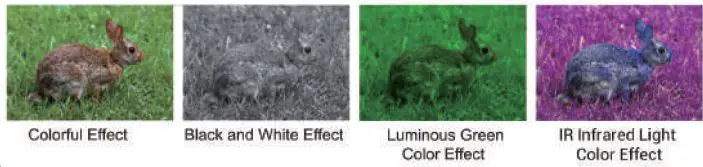
WARNING
Unclear Image Reasons
- Keep the product away from WATER and FIRE.
- Prevent children from swallowing small accessories
- Make sure the direction of the Micro SD card (TF card) is right. Never insert the card forcibly. Please FORMAT the Micro SD card, or it will affect the compatibility of the Micro SD card.
- Device Power Off
- a. CHECK for defective, missing, or improperly installed BATTERIES. Replace or install batteries correctly.
- b. The device will stop recording automatically once the capacity of the memory card is full.
- Poor Image
- a. If you wear glasses, please keep them on while using the device.
- b. If at day, make sure the IR is off (if IR is on, screen will turn from colored to black and white ).
- c. If at night, make sure you have turned on the IR, press IR up (if IR is on, screen is black and white).
- d. Adjust the focus by slowly turning the Focus wheel . Make sure the picture is clear.

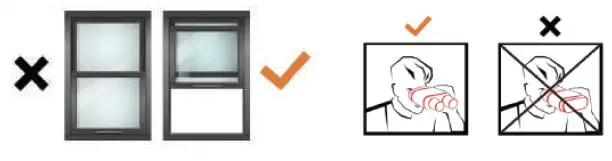
- e. Please do not use it through windows.
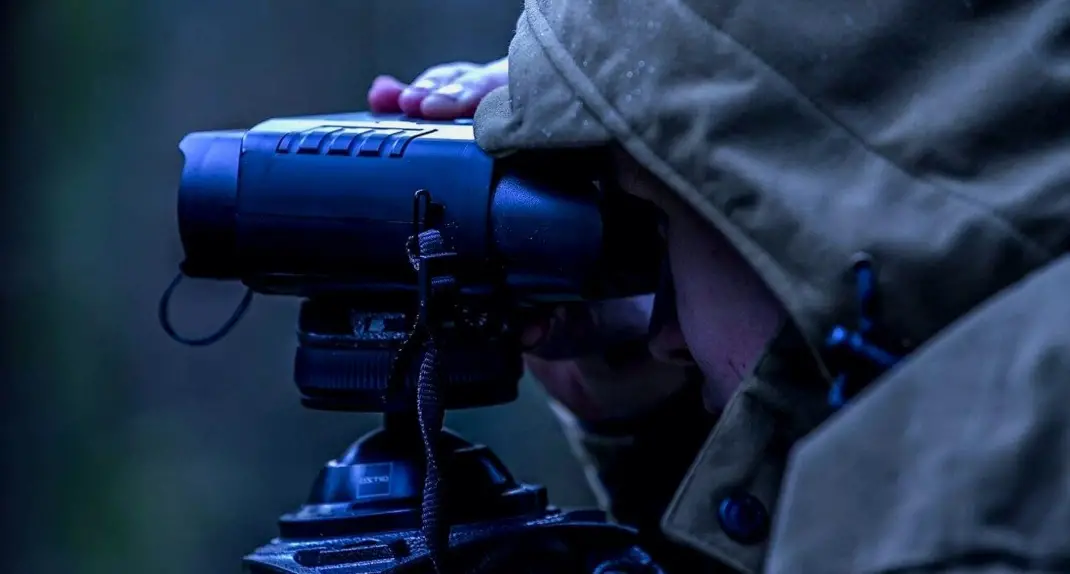
- f. Please use the device in the correct direction as shown in the figure
Download files to PC
- Using a Card Reader
- Connecting the Device to a PC through the USB Cable
Maintenance
- a. Before cleaning the device, disconnect it from the power supply (remove batteries)!
- b. Only use dry cloth to clean the exterior of the device. To avoid damaging the electronics, do not use any cleaning fluid.
- c. Clean the eyepieces and/or lenses only with a soft, lint-free cloth, (e.g. Microfiber cloth).
- d. To avoid scratching the lenses, use only gentle pressure with the cleaning cloth. Protect the device from dust and moisture.
- e. Store it in a bag or box.
- f. Remove the batteries from the device if it is not used for a long time.
FAQ
| Battery Type | 18650, 2500MAH lithium battery |
| Waterproof Rating | IP54 |
| Product Contains | Binoculars x1 / USB Cable x1 32G TF Card x1 / User Manual x1 / Anti-Static Wiping Cloth x1+ |
WARRANTY
After-sale email: [email protected] Once received your message, we’ll reply in 24 Hours.
Note: When applying for after-sales service, please be sure to provide us with your purchase certificate (such as the order number) and describe the problem you encountered in detail to us.
MANUFACTURER: OMG ELECTRONIC LTD.
ADDRESS: LEFUSHAN INDUSTRY ZONE, YOUGANPU VILLAGE, FENGGANG DONGGUAN GUANGDONG
AC WORKS CONSULTING SRL
ADDRESS: VIA VILFREDO PARETO 125, CESENA (FC), 47521, ITALY EMAIL: [email protected]
TEL: +39 054729444
HUA TENG LIMITED
ADDRESS: 3 GLASS STREET, HANLEY, STOKE ON TRENT, ST1 2ET, UK EMAIL: [email protected]
TEL: +44 2035824092
Customer Service: [email protected]
Web: www.dsoonhunt.com
 Trail Cameras| Night Vision Binoculars| Dsoon
 Info-tri | Ministères Écologie Énergie Territoires