GUD3C8K2P USB-C 8K Nano Dock Pro
Product Information:
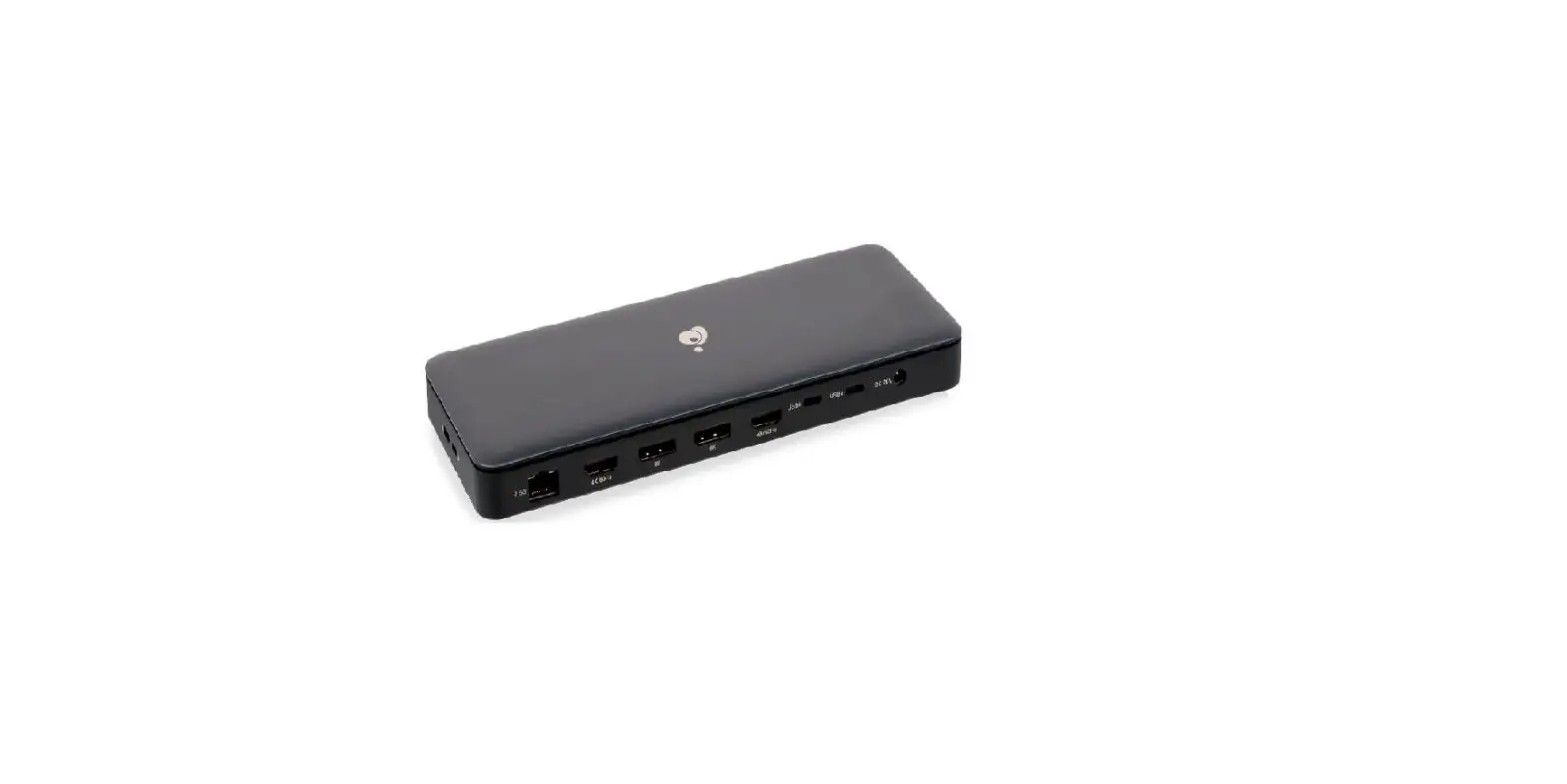
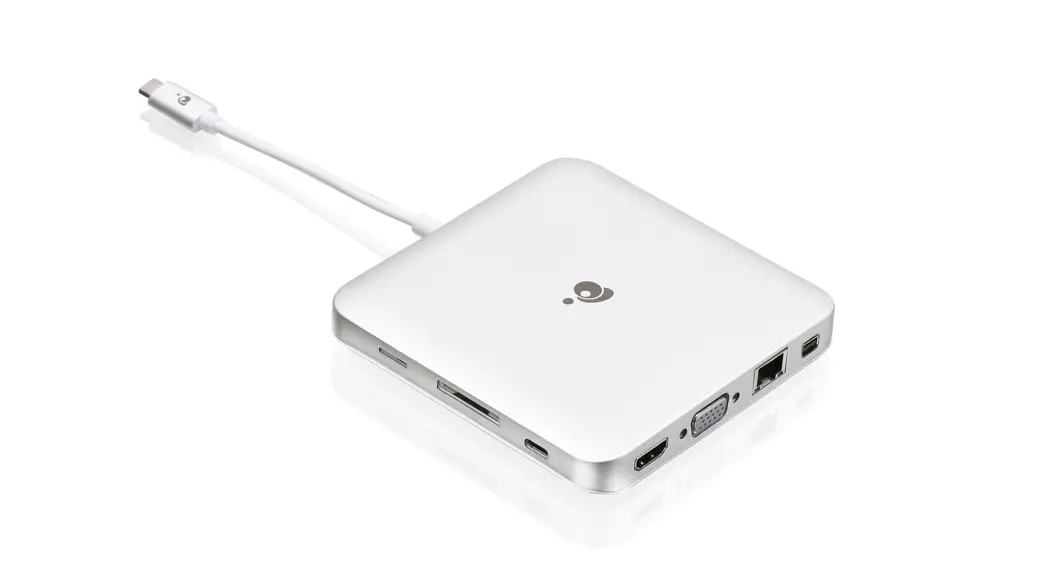
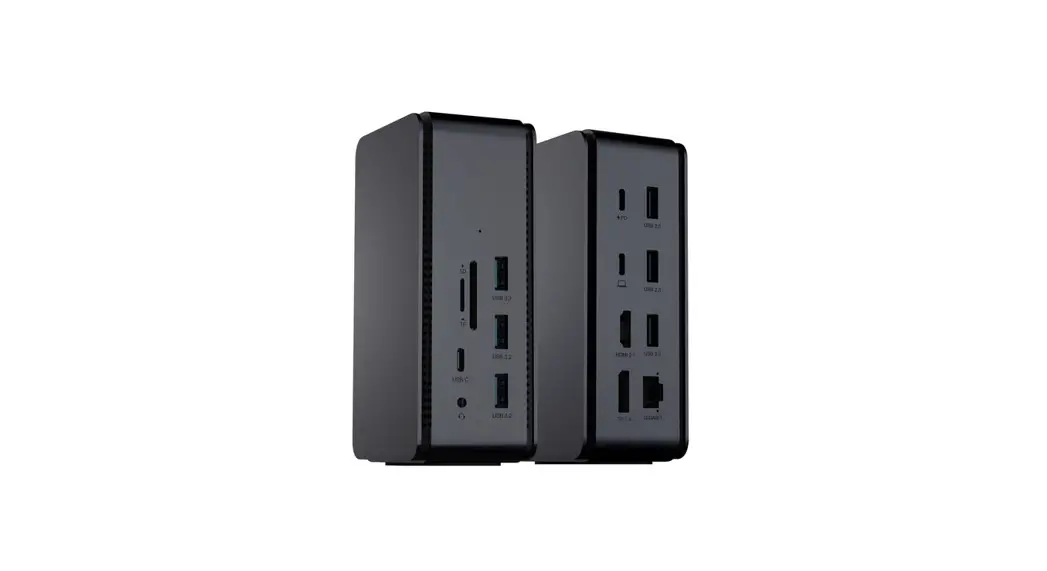
The USB-CTM 8K Nano Dock ProTM (GUD3C8K2P) is a multi-functional
docking station designed to enhance connectivity and expand the
capabilities of your laptop. With USB-C connector compatibility, it
offers a seamless connection between your laptop and various
external devices.
The dock features a USB-C PD Pass-through port that allows for
up to 100W pass-through charging. It also includes an HDMI 2
output, supporting resolutions of up to 8K @30Hz, providing
high-quality display output for your connected monitor.
Package Contents:
- 1 x GUD3C8K2P docking station
- 1 x Quick Start Guide
- 1 x Warranty Card
System Requirements:
The USB-CTM 8K Nano Dock ProTM is compatible with laptops that
have a USB-C connector and support USB Power Delivery (PD). The
dock is compatible with both macOS and Windows operating
systems.
Monitor Configuration:
The dock supports single and dual monitor configurations. The
supported resolutions for different operating systems are as
follows:
| Monitor Configuration | HDMI 1 | HDMI 2 |
|---|---|---|
| Single Monitor (macOS) | 3840×2160 @30Hz (DP 1.4 host) | 7680×4320 @30Hz (DP 1.4 host) |
| Single Monitor (Win OS) | 3840×2160 @30Hz (DP 1.4 host) | 7680×4320 @30Hz (DP 1.4 host) |
| Single Monitor (macOS – Mirror) | 3840×2160 @30Hz (DP 1.4 host) | 3840×2160 @30Hz (DP 1.4 host) |
| Single Monitor (Win OS – Extended) | 3840×2160 @30Hz (DP 1.4 host) | 3840×2160 @60Hz (DP 1.4 host) |
| Single Monitor (Win OS – Mirror) | 3840×2160 @30Hz (DP 1.4 host) | 3840×2160 @30Hz (DP 1.4 host) |
| Dual Monitor | 3840×2160 @30Hz (DP 1.4 host) | |
Product Usage Instructions:
Hardware Installation:
- Connect the external USB devices (keyboard, mouse, etc.) to the
appropriate ports on the GUD3C8K2P docking station as needed. - Connect the tethered USB-C cable on the GUD3C8K2P to the USB-C
port on the host computer. The computer screen may appear to
flicker a few times before the GUD3C8K2P recognizes the connected
devices.
Note:
- The GUD3C8K2P can still function without the external power
adapter; however, it will not provide power to charge the
laptop. - Please refer to the monitor configuration table above for
resolution settings based on your operating system.
Limited Warranty:
This product carries a 1 Year Limited Warranty. For the terms
and conditions of this warranty, please visit https://www.iogear.com/support/warranty.
To register your product online, visit https://www.iogear.com/register.
Contact:
If you need assistance setting up this product, please:
- Visit www.iogear.com for
more product information. - Visit www.iogear.com/support for
live help and product support. - Contact IOGEAR support via email at [email protected].
Compliance Information:
Federal Communication Commission Interference Statement:
- Reorient or relocate the receiving antenna.
- Increase the separation between the equipment and
receiver. - Connect the equipment into an outlet on a circuit different
from that to which the receiver is connected. - Consult the dealer or an experienced radio/TV technician for
help.
FCC Caution: Any changes or modifications not
expressly approved by the party responsible for compliance could
void the user’s authority to operate this equipment.
Quick Start Guide
USB-CTM 8K Nano Dock ProTM
GUD3C8K2P PART NO. Q1650
www.iogear.com
Package Contents
1
1 x GUD3C8K2P 1 x Quick Start Guide 1 x Warranty Card
System Requirements
· USB-CTM compatible laptops with DP Alt-Mode support · USB-C AC Adapter from Laptop is needed for Power
Delivery Pass-Through Function · Compatible with ThunderboltTM 3 or 4 laptops · OS Support
-Windows® 10 and 11 -macOS® 13+ (MST is not supported by mac OS)
Overview
A. USB-C connector to host laptop B. USB-C PD Pass-through port (Up to 100W pass-through) C. HDMI 2 output (Up to 8K @30Hz)
A
C B
2
D. HDMI® 1 output (Up to 4K @30Hz) E. USB-A 2.0 port F. USB-A 2.0 port G. USB-A 3.0 port
G F
D
E
Monitor Configuration
3
Single Monitor
HDMI 1
macOS 3840×2160 @30Hz (DP 1.4 host)
Win OS 3840×2160 @30Hz (DP 1.4 host)
HDMI 2
macOS 7680×4320 @30Hz (DP 1.4 host)
Win OS 7680×4320 @30Hz (DP 1.4 host)
HDMI 1
macOS (mirror) 3840×2160 @30Hz (DP 1.4 host) Win OS (extended) 3840×2160 @30Hz (DP 1.4 host)
Win OS (extended) 3840×2160 @30Hz (DP 1.4 host)
HDMI 2
macOS (mirror) 3840×2160 @30Hz (DP 1.4 host) Win OS (extended) 3840×2160 @60Hz (DP 1.4 host)
Win OS (mirror) 3840×2160 @30Hz (DP 1.4 host)
Dual Monitor
Hardware Installation
1. Turn on the host laptop then connect the laptop’s USB-C power adapter to the USB-C PD3.0 port on the GUD3C05B (optional)¹.
2. Connect the external USB devices (Keyboard, Mouse, etc.) to the appropriate ports on the GUD3C8K2P as needed.
3. Connect the external monitor(s) to the appropriate video outputs².
4. Connect the tethered USB-C cable on the GUD3C8K2P to the USB-C port on the host computer. The computer screen may appear to flicker a few times before the GUD3C8K2P recognizes the connected devices.
Note 1. The GUD3C8K2P can still function without the external power adapter;
however, the GUD3C8K2P would not provide power to charge the laptop 2. Please refer to monitor configuration table for resolution
www.iogear.com
4
4
3 1
3
2
Limited Warranty
Warranty Information This product carries a 1 Year Limited Warranty. For the terms and conditions of this warranty, please go to https://www.iogear.com/support/warranty
Register online at https://www.iogear.com/register
Important Product Information Product Model ______________________ Serial Number ______________________
Contact
WE’RE HERE TO HELP YOU! NEED ASSISTANCE SETTING UP THIS PRODUCT?
Make sure you: 1. Visit www.iogear.com for more product information 2. Visit www.iogear.com/support for live help and
product support
IOGEAR https://iogear.custhelp.com [email protected] www.iogear.com
Compliance Information
Federal Communication Commission Interference Statement
This equipment has been tested and found to comply with the limits for a Class B digital service, pursuant to Part 15 of the FCC rules. These limits are designed to provide reasonable protection against harmful interference in a residential installation. Any changes or modifications made to this equipment may void the user’s authority to operate this equipment. This equipment generates, uses, and can radiate radio frequency energy. If not installed and used in accordance with the instructions, may cause harmful interference to radio communications. However, there is no guarantee that interference will not occur in a particular installation. If this equipment does cause harmful interference to radio or television reception, which can be determined by turning the equipment off and on, the user is encouraged to try to correct the interference by one or more of the following measures:
– Reorient or relocate the receiving antenna – Increase the separation between the equipment and
receiver – Connect the equipment into an outlet on a circuit
different from that to which the receiver is connected – Consult the dealer or an experienced radio/TV
technician for help
FCC Caution: Any changes or modifications not expressly approved by the party responsible for compliance could void the user’s authority to operate this equipment.
 IOGEAR :: HDMI Switch, PC to TV, Wireless Audio Video, KVM Switch, KVM, USB Switch, Video Splitter, Video Switch, KVM DVI, LCD KVM, Rackmount KVM
 Support Home Page