 TECHNOLOGY Nodestream RiS Nodecom Device
User Guide
Overview
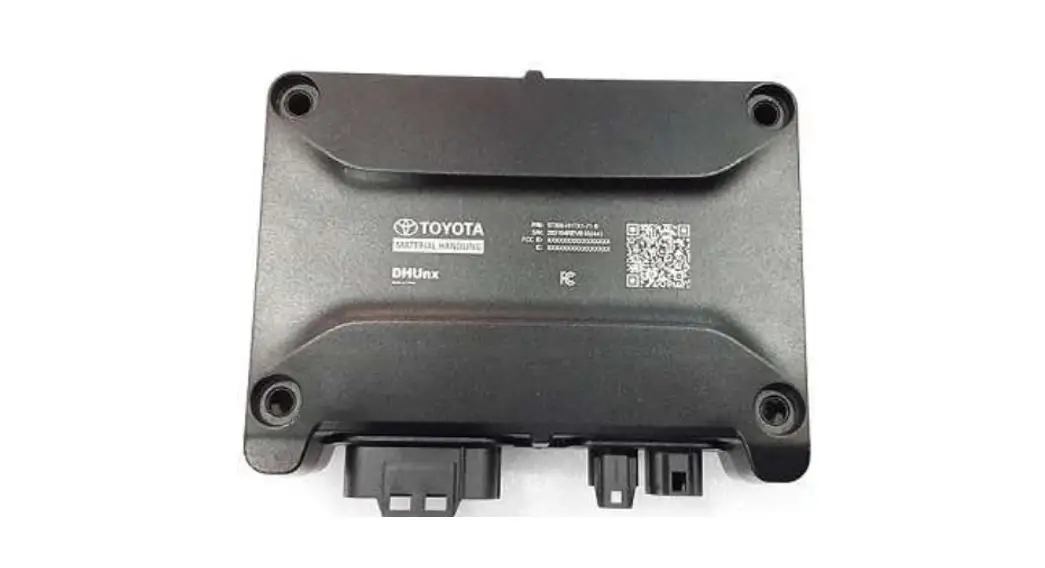
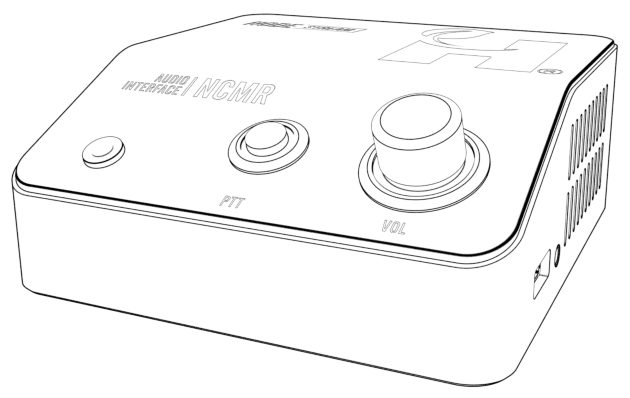
Welcome to the Nodestream RiS Nodecom (NCMR)
Please read these instructions carefully before using this product, and save this quick start guide for future use. See the User Manual for full details via the QR code on the back page.
Two-way audio streaming solution

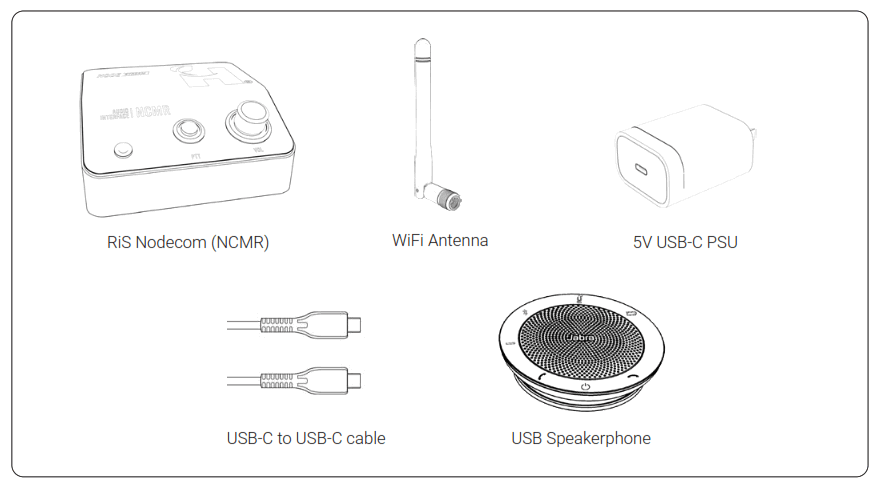
In the Box
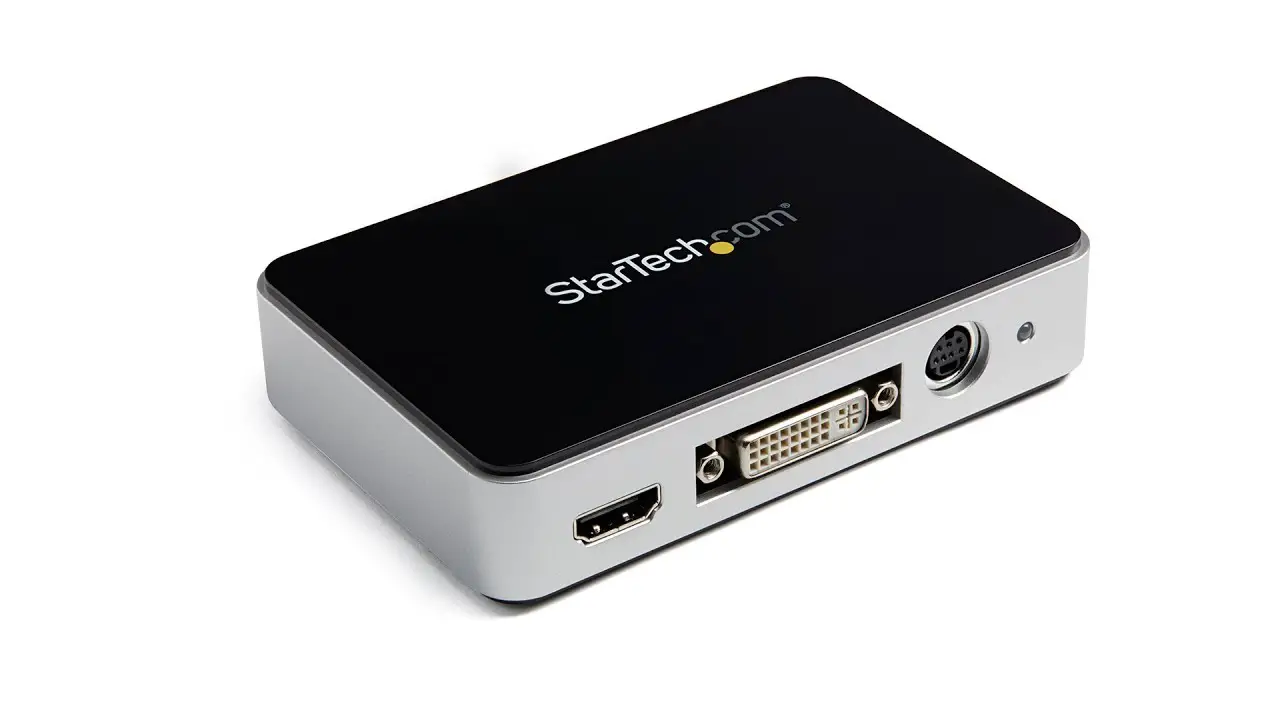
Rear Connections
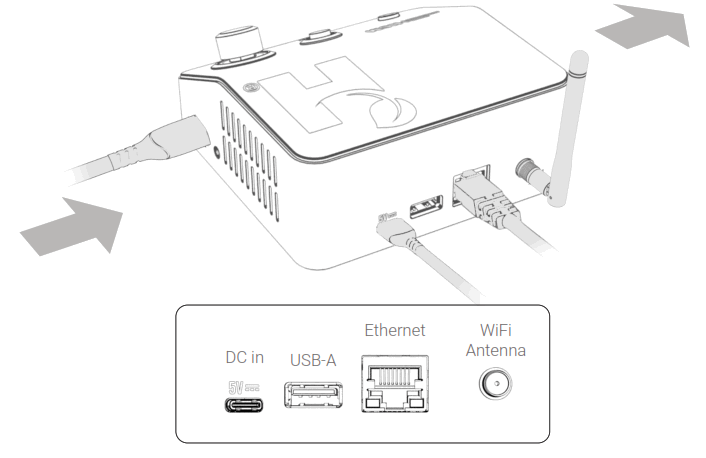
 Ensure adequate spacing to allow cooling air to travel through vents as shown by the arrows
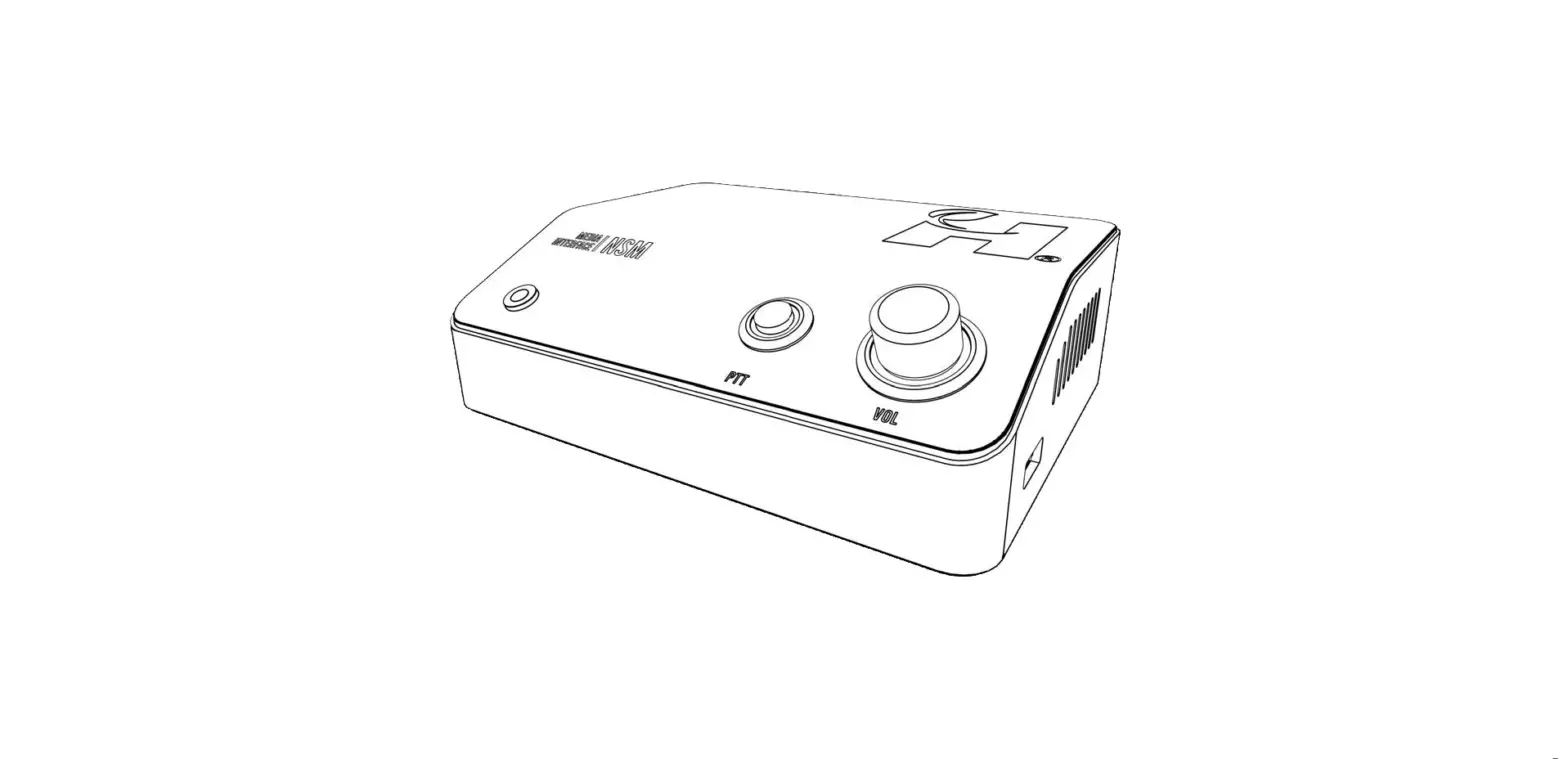
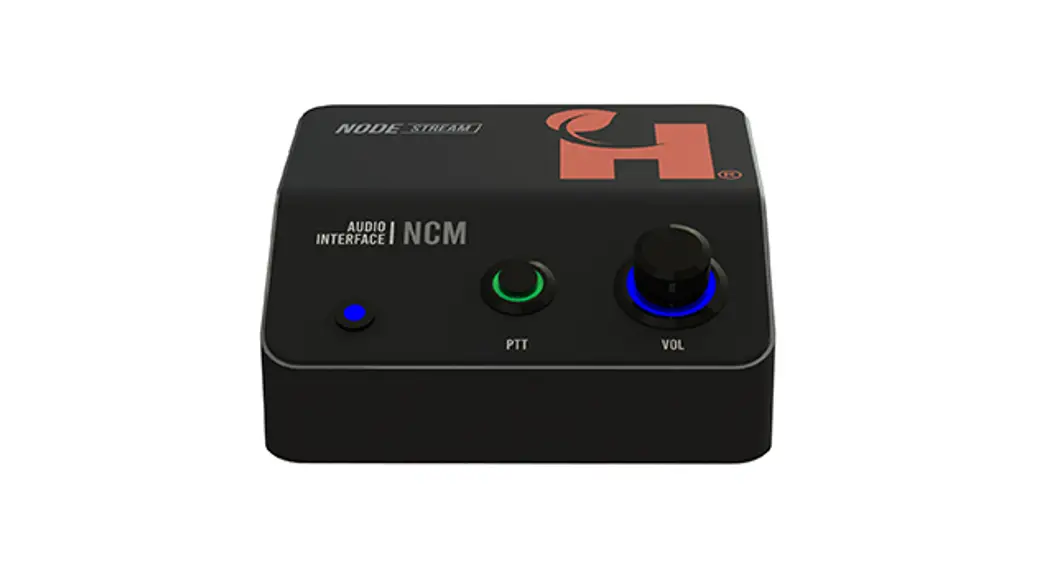
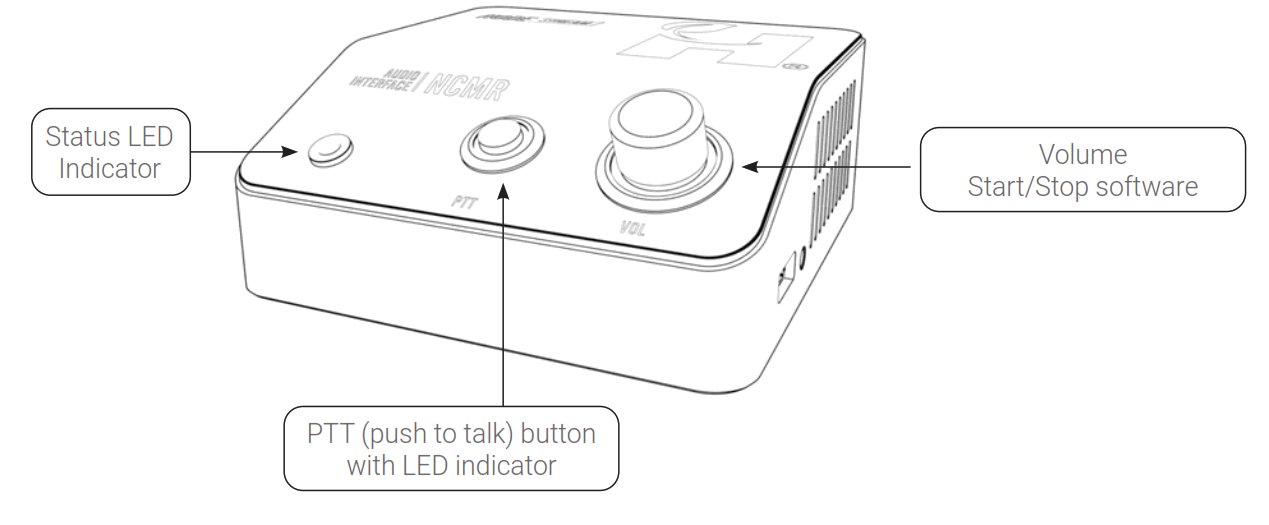
User Interface
Configuration
Via web browser
- Connect the RIS Nodecom device to your LAN via the Ethernet port and power the device
- Configure the IPv4 settings of a computer connected to the same network
IP 192.168.2.x Subnet 255.255.255.0 Gateway 192.168.2.1 - Navigate to http://192.168.2.1 from a web browser and login with admin
User admin Pasword admin - When prompted, enter a new password
- Configure device network settings as provided by your Network Administrator
- Once connected and configured on your local network, the RiS Nodecom device will show online in the Harvest RiS Deliverer application and will be ready for connection to another device.
 Due to the possibility of conflicting IP addresses, only 1 device can be configured at a time. Once network settings have changed, the device can remain connected
 User Manual
 Refer to the RIS Nodecom user manual for additional information.
- RiS networks require specific port settings, see user manual for details
- Devices need to be manually added to the Deliverer application. See Deliverer User Manual for more information
Operation
Status LED

AUDIO
INTERFACE NCMR
PTT (Push To Talk)
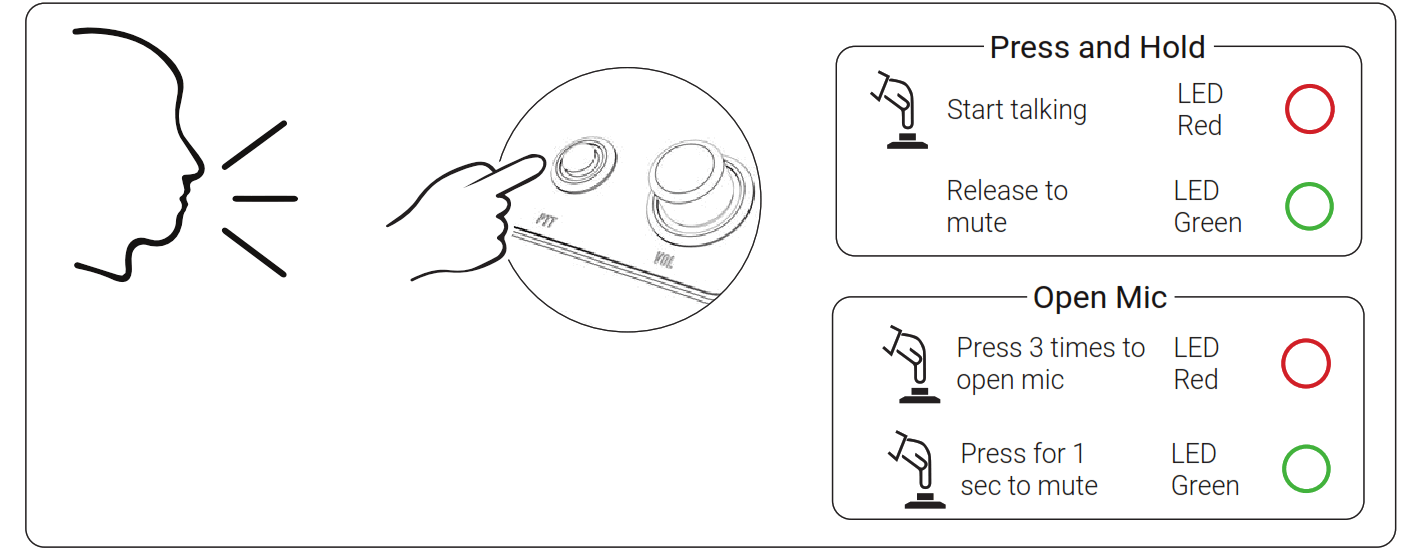
 | (Off) | Software not running |
 | (Blue) | Software running |
 | (Green) | Audio connection active, mic muted |
 | (Red) | Audio connection active, mic open |
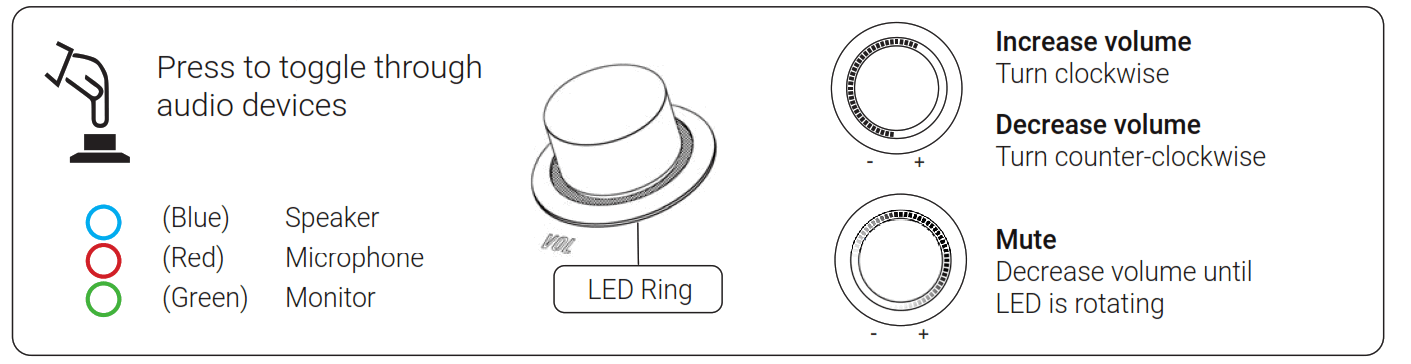
VOL (Volume)
Factory Reset
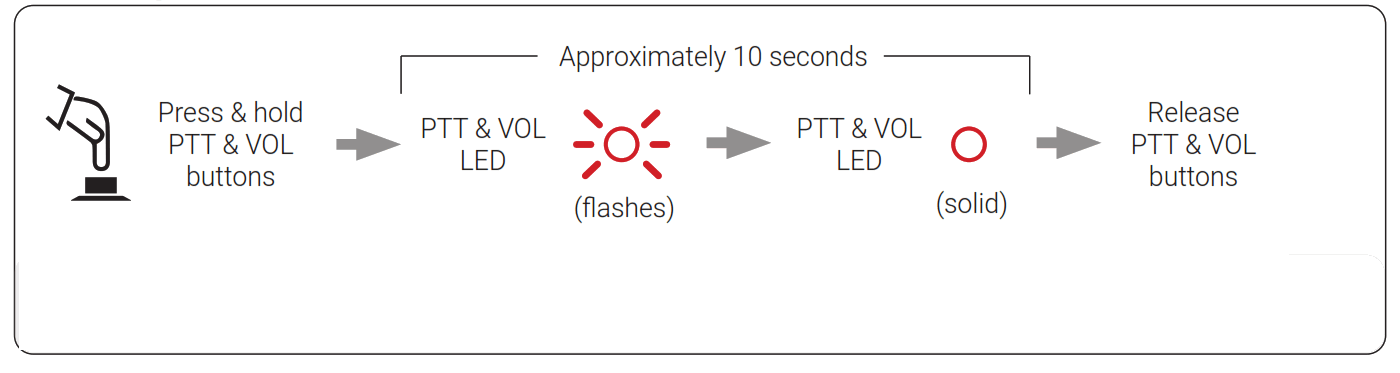
Device will reset to factory default user login and network settings
 |  |
| https://qrco.de/bcmrFV | Contact and Support [email protected] |
Troubleshooting
| Issue | Cause | Resolution |
| Device not powering | AC or DC not connected. Faulty or incompatible PSU | Confirm PSU in plugged in and AC supply on Confirm USB- cable is connected correctly Test with alternative PSU If using an alternative PSU ensure it meets required specifications, see User Manual |
| Network issue (Device showing “offline” in Deliverer application) | Network not connected or out of range Network settings incorrectDevice IP address incorrect in Deliverer application | Check Ethernet cable or WiFi is connected Ensure antenna is orrectly installed Check network settings, contact your network administrator to diagnose network Confirm IP ddress of device matches that set in Deliverer |
| Forgot login or networkdetails | N/A | Factory reset to defaults (see “Factory Reset” on page 5) |
Harvest Technology Pty Ltd
7 Turner Ave, Technology Park
Bentley WA 6102, Australia
www.harvest.technology
®All rights reserved. This document is the property of Harvest Technology Pty Ltd. No part of this publication may be reproduced, stored in a retrieval system or ransmitted in any form or by any means, electronic, photocopy, recording or otherwise without the written consent of the Managing Director of Harvest Technology Pty Ltd.
HTG-TEC-GUI-018_0
 Turner Rooms for Rent