 Acoustic Audio AA5170 Home Theater Bluetooth Speaker System
 Acoustic Audio AA5170 Home Theater Bluetooth Speaker System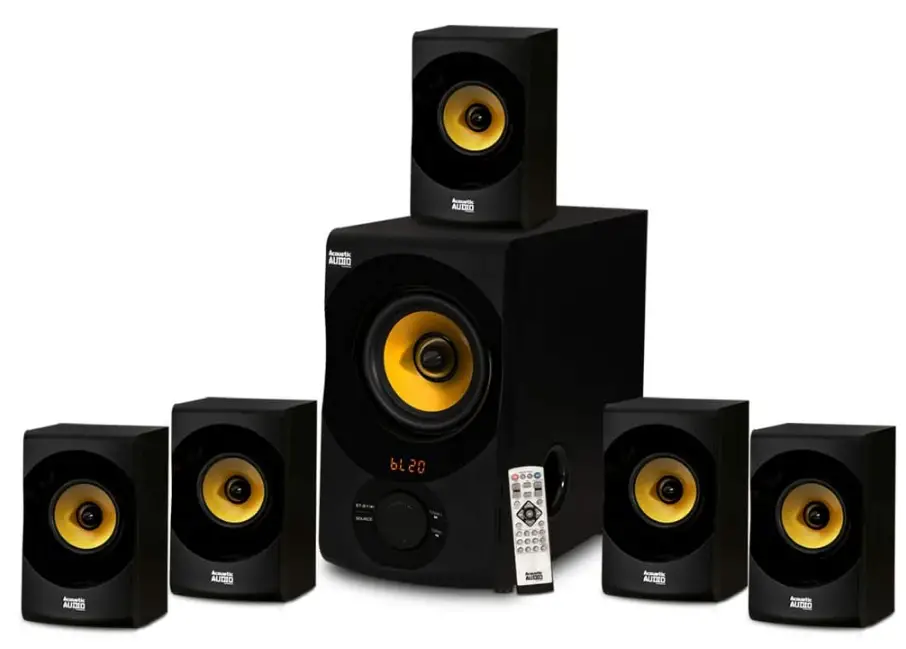
INTRODUCTION
Thank you for buying this Acoustic Audio System. Prior to first use, please read the manual carefully. If you ever have questions on your system, please contact your authorized dealer and their highly experienced staff will be more than willing to help.
PLEASE NOTE: THIS UNIT IS SET ON 2.1 MODE UPON STARTUP, PLEASE PRESS THE VOLUME DIAL ONCE FOR 5.1 SURROUND SOUND. TO PROPERLY CONNECT MP3, PC ,YOU MUST USE THE ENCLOSED 3.SMM TO RCA CABLE.
PACKAGE CONTENTS
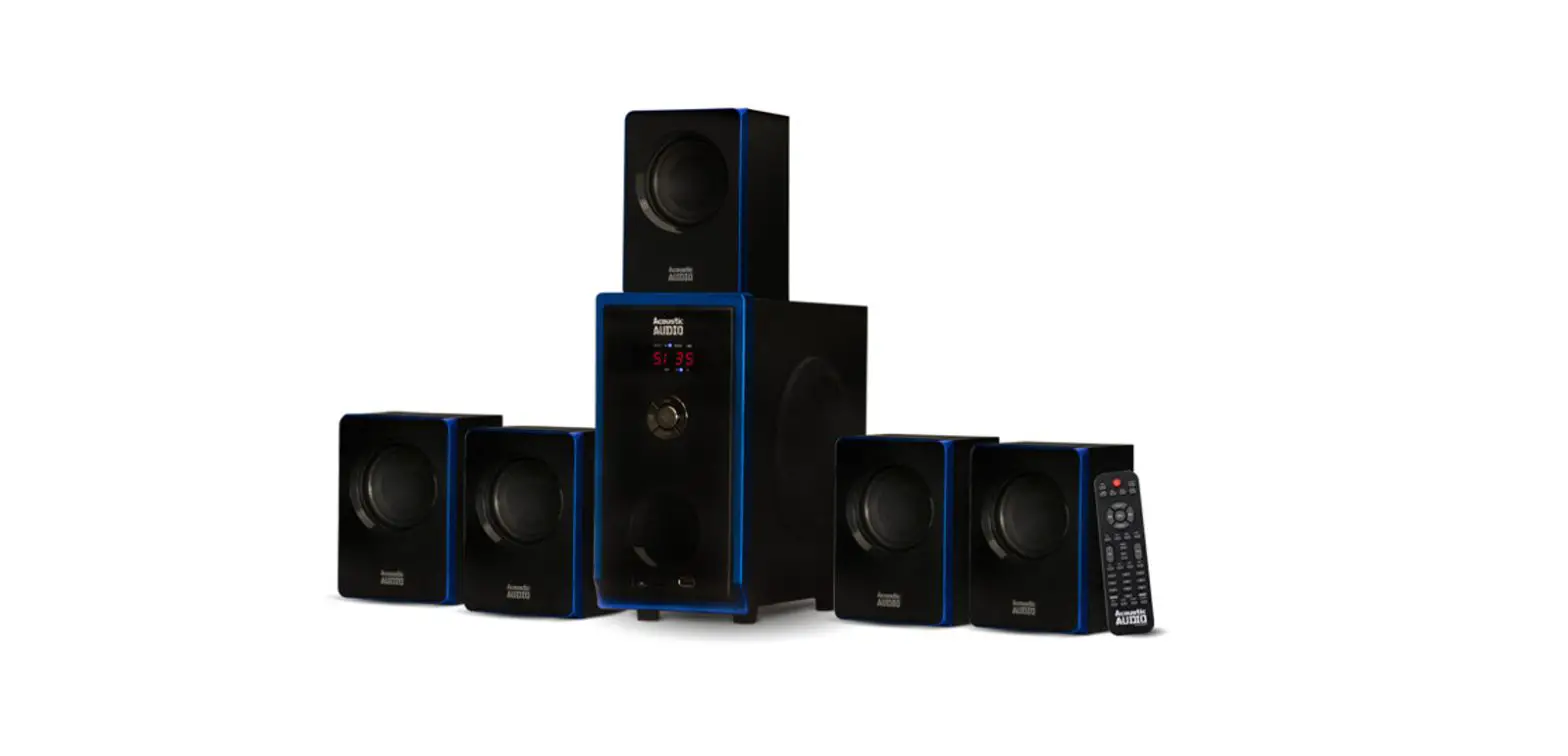
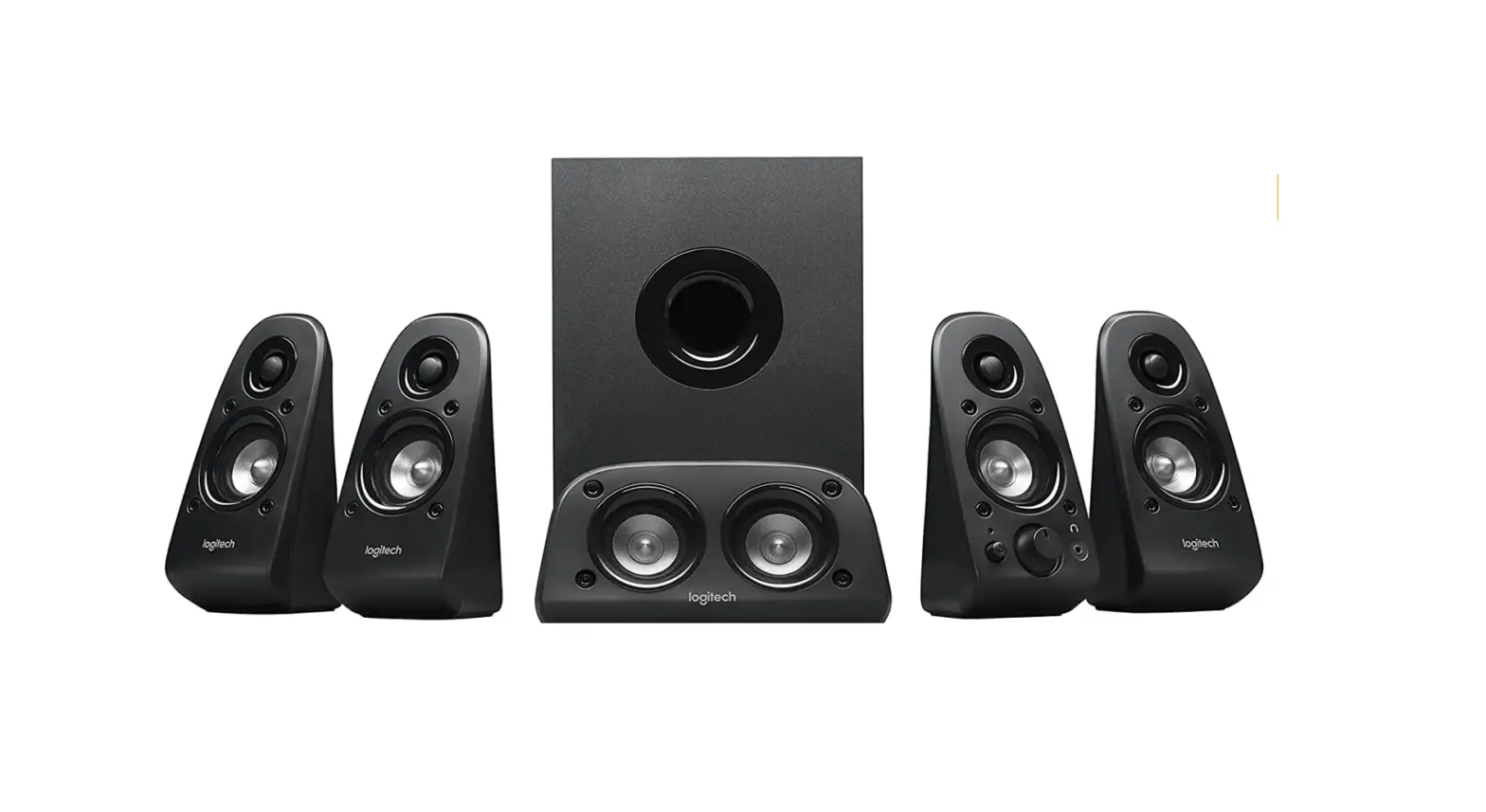
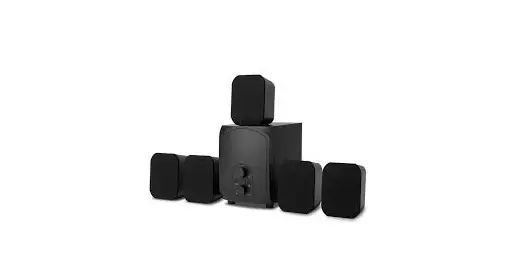
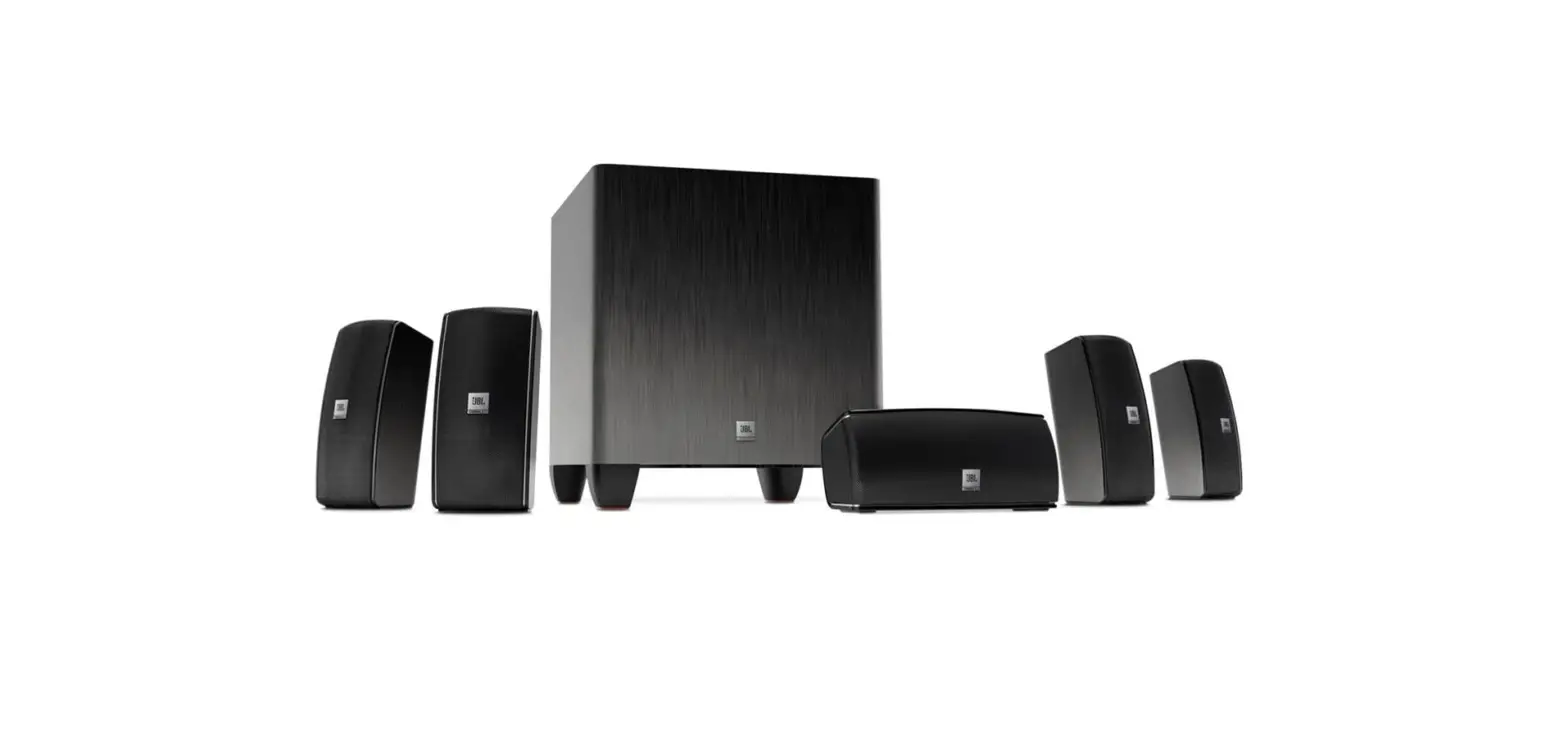
- (1) Sub-woofer Cabinet
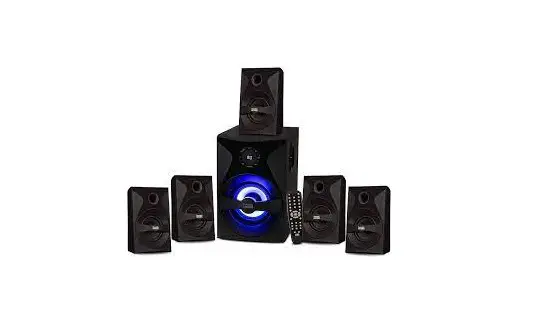
- (5) Satellite Speakers
- (1) Remote Control
- (1) User Manual
- (1) RCA Cable
- (1) 3.5mm RCA Cable
- (1) FM Antenna
SPECIFICATIONS
- POWER AUDIO: 700 Watts Total System Power
- DRIVE UNITS: 3″x 5 full range magnetically shielded satellite speakers and powered sub-woofer
- FREQUENCY RESPONSE: 20 – 20,000 Hz
- POWER SUPPLY: 120V
- DIMENSIONS (W X H X D): Sub-woofer – 6.7in x l 2.3in x 13.1 in Satellites – 4.1 in x 6.8in x 4.0in.
FEATURES
- 1 channel multimedia speaker for computer or home system
- Full audio spectrum performances, ideal for your favorite entertainment such as MP3, MP4, CD/DVD movies and digital playbacks
- Specially designed woofer cabinet for bass and resolution
- Comes with remote control and RCA stereo connection cable
FRONT PANEL
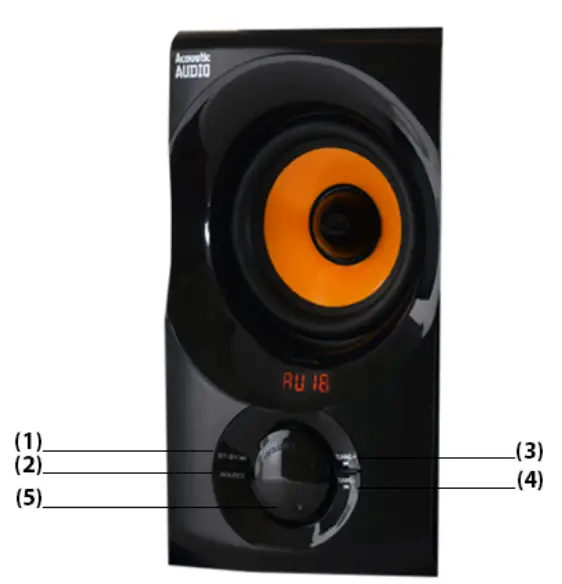
- ST-BY/ ► 11
- SOURCE
- TUNING+ / ►
- TUNING- / 1◄◄
- -VOL +
- The system is on Stand By (ST-BY) mode when you switch on the power supply. The LED display will read”—-”. Press “ST-BY/PLAY/PAUSE” button once and it will default to DVD input mode and the LED display will read “DU 18″;”DU” being DVD input mode and “18” being the default volume at 18dB. Change back to “ST-BY” in any mode by pressing and holding the “ST-BY I PL AY/ PAUSE” button. In U SB/SD mode, press the “ST-BY/ PLAY/ PAUSE” button once to play or pause the music.
- The SOURCE button allows you to switch between 4 different modes. Press once in DVD mode to get to USB/SD mode, twice to get to FM mode and 3 times to get to Aux mode. The LED display will read “dUl 8” in DVD mode, “Ud 18” in USB/SD mode, “89.1” (or current radio station) in FM mode and”AU18″ in AUX mode. If using the USB function the LED display will read “usbl 8” and if using the SD function it will read “sd 18”.
- Press “TUNING+/NEXT” quickly to search ascending channel by channel (0.1 mHz per click) in FM mode. Hold down “TUNING+/NEXT” to scan through ascending channels, playing automatically once detected. Press “TUNING+/NEXT” once in USB/SD mode to play the next song.
- Press “TUNING-/PREV” quickly to search descending channel by channel (0.1 mHz per click) in FM mode. Hold down “TUNING-/PREV” to scan through descending channels, playing automatically once detected. Press “TUNING-/PREV ” once in USB/SD mode to play the previous song.
- Press the volume dial to change from 2.1 mode to 5.1 surround mode. The LED display will read “PL ON” in 5.1 mode and “PL OF” in 2.1 mode. In 2.1 mode the system will utilize the sub-woofer and 2 front satellite speakers only, and in 5.1 mode it will utilize the sub-woofer and all 5 satellite speakers. Turn the dial to the right to decrease the volume (0dB minimum) and turn the dial to the left to increase the volume (30dB maximum).
USING THE REMOTE CONTROL
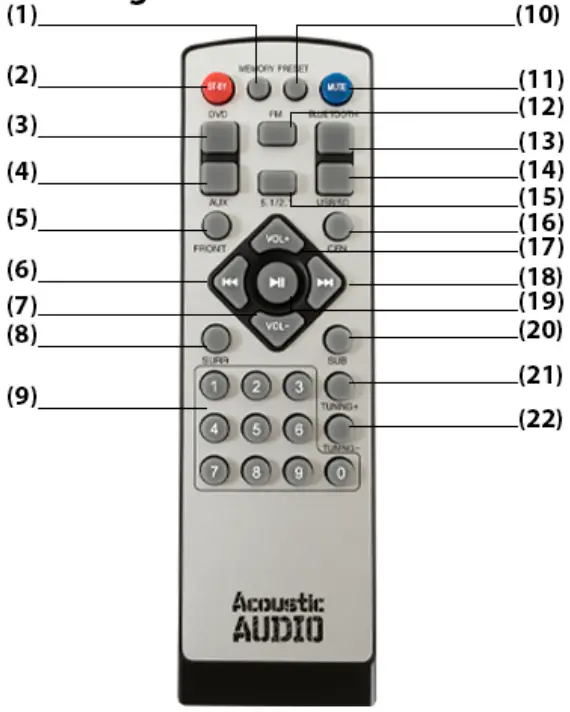
- MEMORY
- ST-BY
- DVD
- AUX
- FRONT
- PREVIOUS
- VOL-
- SURROUND
- 0-9 NUMBERS
- PRESET
- MUTE
- FM
- BLUETOOTH
- USB/SD
- 1/2.1
- CENTER
- VOL+
- NEXT
- PLAY/ PAUSE
- SUB-WOOFER
- TUNING +
- TUNING-
- MEMORY: In FM mode, using the “TUNING +/-“buttons choose a preferred station, press “MEMORY” once, choose the channel to coincide with this station (1-9) and press “MEMORY” again to program that station to that channel. Repeat this process with up to 9 different stations. To remove a channel, press “MEMORY” once, then use the “PREVIOUS” or “NEXT” button to find the channel you’d like to remove and press the “P LAY/ PA USE” button to remove it. Press and hold the “MEMORY” button to scan and save stations automatically.
- ST-BY: Use the “ST-BY” button to start the system.
- DVD: Press “D VD” once to use DVD input mode.
- AUX: Press “AUX” once to use the AUX input mode.
- FRONT: Press “FRONT” to select the front speakers. The output level can be adjusted using the “VOL -/+” buttons.
- PREVIOUS: In USB/SD mode, press to play the previous song. In FM mode, press to go to the previous radio station channel.
- VOLUME – : Press “VOL-“to decrease the volume.
- SURROUND Press “SUR R” to select the rear speakers. The output level can be adjusted using the “VOL -/+” buttons.
- 0-9 NUMBER BUTTONS: In US B/SD mode, use the number buttons to select the desired track. In FM mode, use the number buttons to select the desired radio station.
- PRESET: Press “PRESET” to go through previously saved radio station channels.
- MUTE: Press “MUTE” to suspend and activate all sounds. LED Display will blink in mute mode.
- FM: Press “FM” once to use FM input mode.
- BLUETOOTH: Press “BLUETOOTH” to use blue-tooth input mode. The LED Display will blink while searching for blue-tooth device. On your mobile device, pair with “BT SPEAKER” in your mobile device blue-tooth menu. Once you have successfully paired your mobile device to the system the LED Display will stop blinking. You can use your device for PREV/NEXT/PLAY/PAUSE/VOL +/- functions. Use the remote for MUTE/ VOL+/- functions. Press and hold for 3 seconds to force disconnect from blue tooth.
- USB/SD: Press “USB/S D” once to use USB/SD input mode.
- 1/2.1: Press “5.1/2.l”to change from 2.1 to 5.1 surround sound
- CENTER: Press “CEN” to select the center speaker. The output level can be adjusted using the “VOL-/+” buttons.
- VOLUME+: Press “VOL +”to increase the volume.
- NEXT: In US B/SD mode, press to play the next song. In FM mode, press to go to the next radio station channel.
- PLAY/PAUSE: Press to play or pause the music.
- SUB-WOOFER: Press “SUB” to select the sub speakers. The output level can be adjusted using the “VOL-/+” buttons.
- TUNING+: press once to ascend FM channels, press and hold to scan FM channels ascending
- TUNING- : press once to descend FM channels, press and hold to scan FM channels descending
Note: if remote loses function, please replace the 2 AA batteries.
REAR PANEL
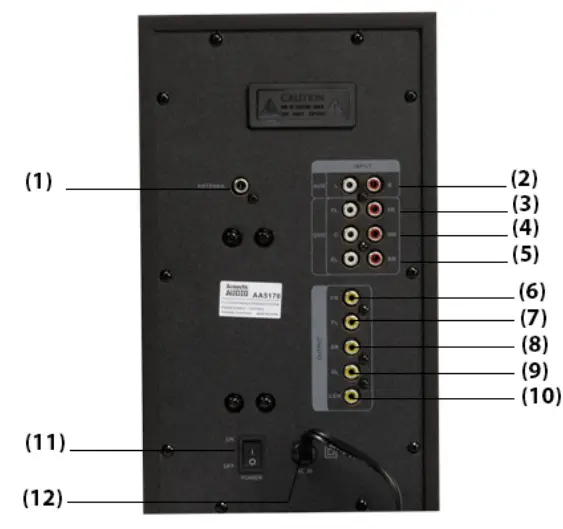
- ANTENNA
- AUX Input
- FL/FR Input
- C/SW Input
- SL/SR Input
- FR Output
- FL Output
- SR Output
- SL Output
- CEN Output
- POWER ON-OFF
- AC Power Supply Cord
SYSTEM CONNECTIONS
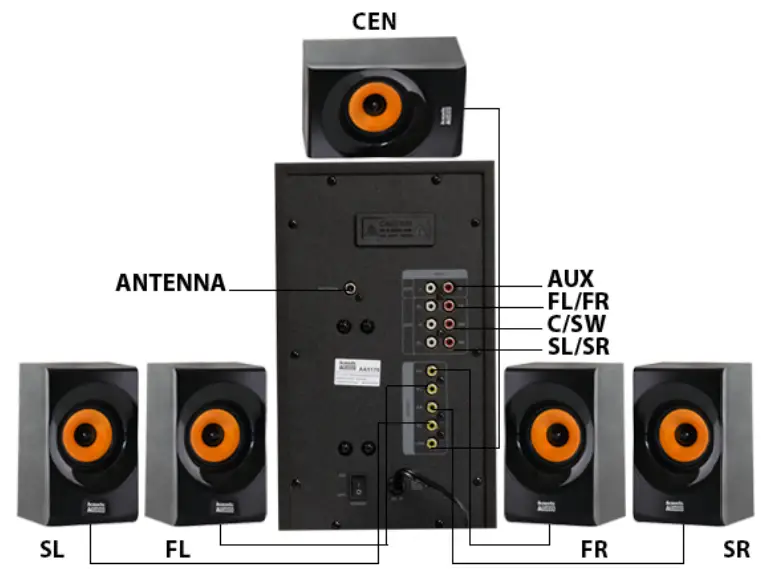
- Insert all satellite speaker cables into their respective output sockets located at the rear of the sub-woofer. (FL: Front Left Speaker, FR: Front Right Speaker, SL: Surround Left Speaker, SR: Surround Right Speaker, CEN : Center Speaker
- For 5.1 surround sound, insert audio cables from your device into the respective DVD speaker sockets located at the rear of the sub-woofer above the satellite speaker sockets.
- For dimensional sound, insert audio cable into respective AUX socket.
- For clearer, stronger FM signal, insert antenna cord into Antenna socket.
- Once you’ve connected the system in your preferred method, insert the power plug into -120V wall outlet and switch power to ON.
Note: Please avoid leaving magnetic objects near the system
FAQs
Can Bluetooth transmit 5.1 surround sound?
The truth is that 5.1 audio channels cannot be supported by Bluetooth. Playback through Bluetooth is not now equipped with this feature, and it won’t be any time soon. Although Bluetooth is fantastic for many things, wireless surround sound playback is not one of them. This is a Bluetooth flaw that is built-in.
How does Acoustic Audio AA5170 home theater Bluetooth work?
In order to broadcast the material, a wireless home theatre first converts the visual and audio signals into a radio frequency (usually 2.4GHz or 5GHz). The received screen and speakers can utilise the video and audio signals after the signal has been decoded once more.
What are the 3 major components of a Acoustic Audio AA5170 home theater systems?
A video display (such as a normal TV, plasma or LCD TV, a projector, etc.), a surround sound A/V receiver, and a video source are the three most fundamental parts of a home theatre system (DVD or Blu-ray player, cable or satellite box).
What is the voltage of Acoustic Audio AA5170 home theatre?
Standard 120V/15A outlets are found in most household homes, however if you’re building a new house, you can ask for dedicated 120V/20A lines for more power.
Can Acoustic Audio AA5170 home theatre be connected to TV?
The HDMI cable, TV, and Home Theatre System must all support ARC for the Home Theatre System to receive sound from the TV. You can hear the TV sound through speakers that are connected to a home theatre system when you connect the TV to the antenna or cable directly (without a set-top box).
What is the most important speaker in a Acoustic Audio AA5170 home theatre?
The most crucial speaker in a surround sound arrangement is the centre channel speaker because it handles the bulk of the work. The centre channel is the one that reproduces most of the dialogue and action in a movie because it is front and centre on your screen.
How many speakers do I need for Acoustic Audio AA5170 home theater?
A minimum of three speakers are required for real home theatre audio (left, right, and center). Five speakers are required for genuine surround sound (left, right, center, and two rear.)
How many watts is a good Acoustic Audio AA5170 home theater system?
The best power level to have without ever having to worry about running out is 125 watts per channel.
Is stabilizer required for Acoustic Audio AA5170 home Theatre?
To safeguard your home entertainment system from high voltage, you must install a stabiliser. Additionally, if you don’t utilise one, your home theatre could short circuit or burn out. Appliances that require more or less power than the input voltage typically benefit from stabilisers.
How do I connect two Acoustic Audio AA5170 home theater systems together?
As usual, attach your input device to your home entertainment receiver. Connect your HDMI matrix to the receiver’s output 1 port on the back. Connect the cords for your various output sources to the devices after plugging them in. Last but not least, test with media of your choice and address any problems.
What size should a Acoustic Audio AA5170 home Theatre room be?
Larger is preferable even though there isn’t a perfect size for your home theatre. The ideal size is 20 feet long by 15 feet wide, with high ceilings, for an entirely immersive experience. However, smaller family rooms that are about 10 feet square are also suitable for using with a big TV.
What is Dolby Atmos Acoustic Audio AA5170 home theater?
Incredibly realistic overhead sound is produced by speakers that support Dolby Atmos by directing sound upward and reflecting it off the ceiling. There are two types of speakers that support Dolby Atmos: units that are integrated and also include conventional, forward-firing speakers.
How high should a Acoustic Audio AA5170 home theater riser be?
Typically, in home theatres with one or two rows of recliners, it should be between 24 and 36 inches above the ground. Your home theatre will be roughly 40′′ to 48′′ above the floor if it has more than two rows of chairs. To be on the safe side, you should measure the height.
How does a Acoustic Audio AA5170 home theater work?
The receiver transmits the audio to the decoder and transmits the video to your television. The information is sent to amplifiers for each sound channel output after the decoder separates the various sound channels from the video stream. The suitable speaker or speakers are connected to these amplifiers.