 Getting started with
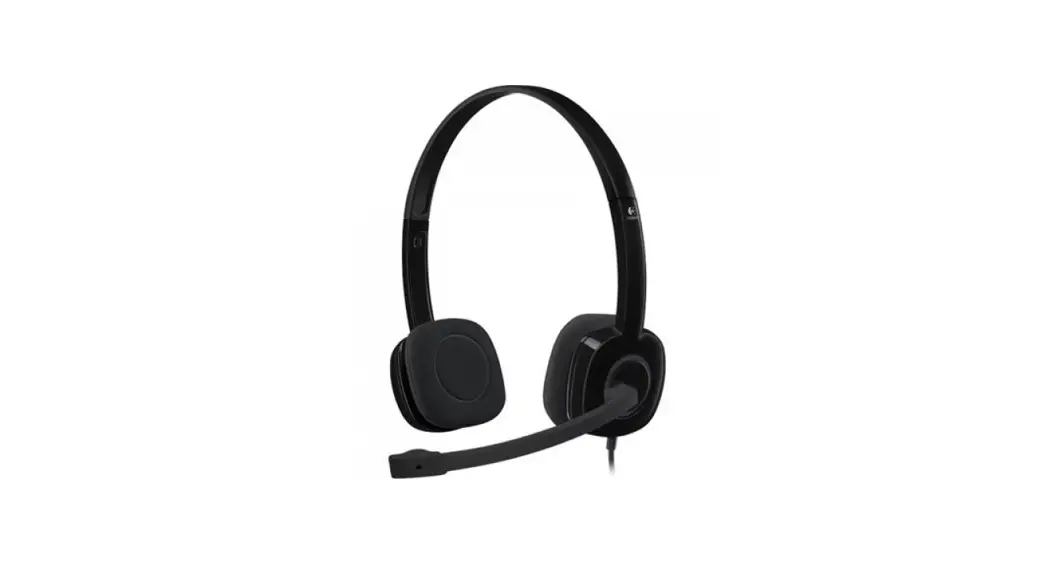
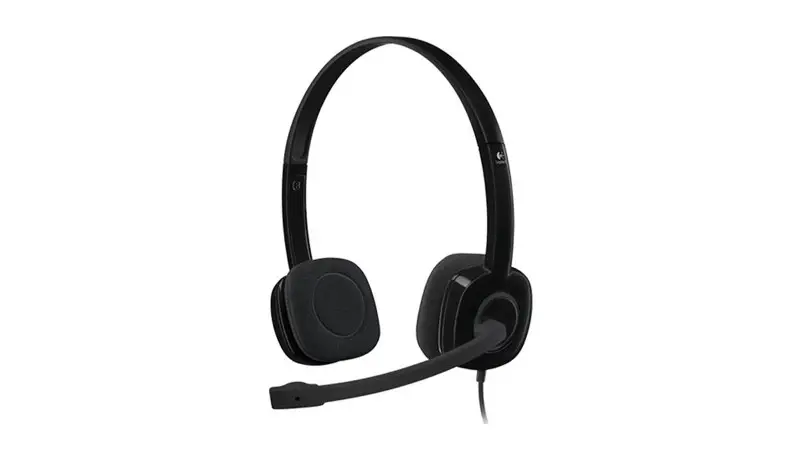
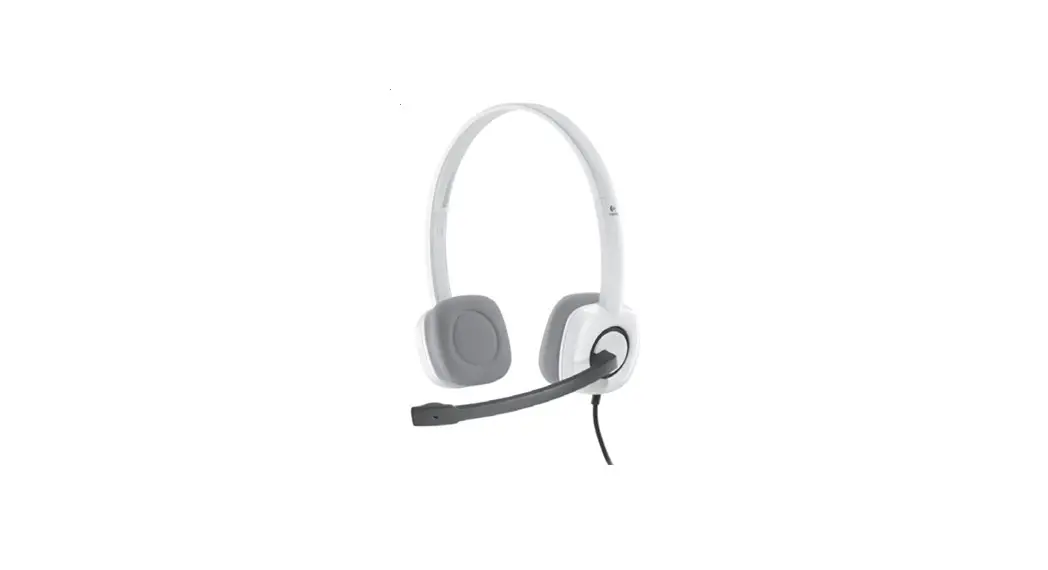
Logitech® Stereo Headset H151
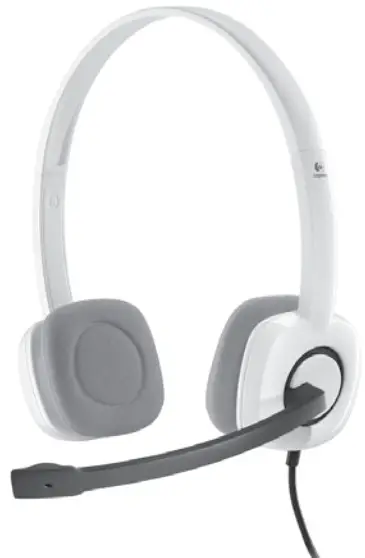
 What’s in the box
 What’s in the box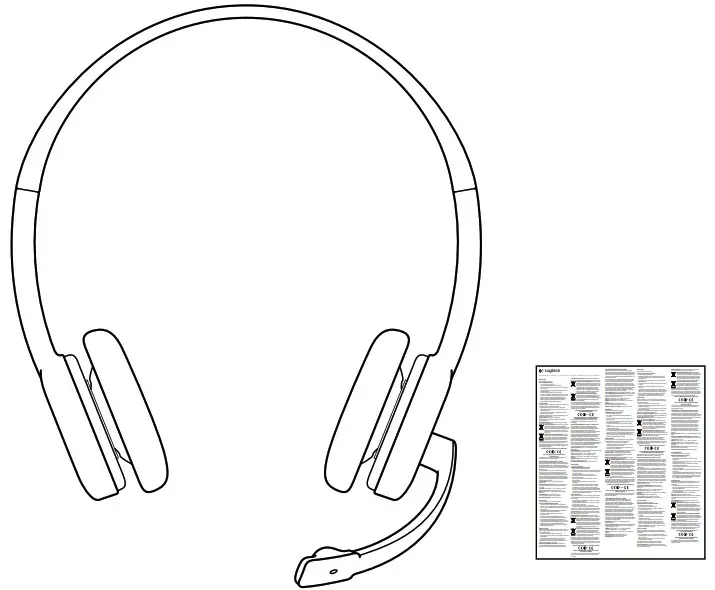
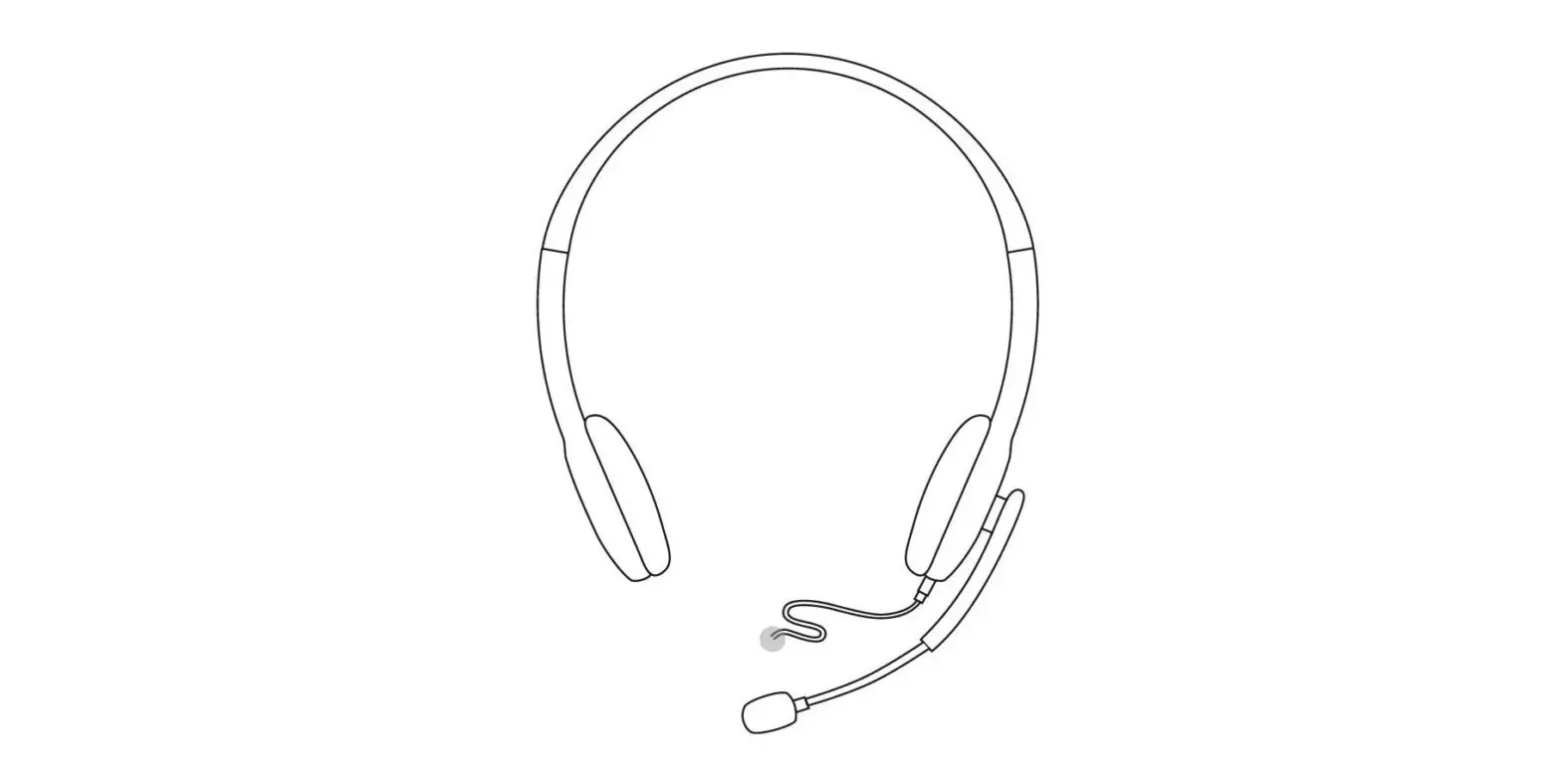
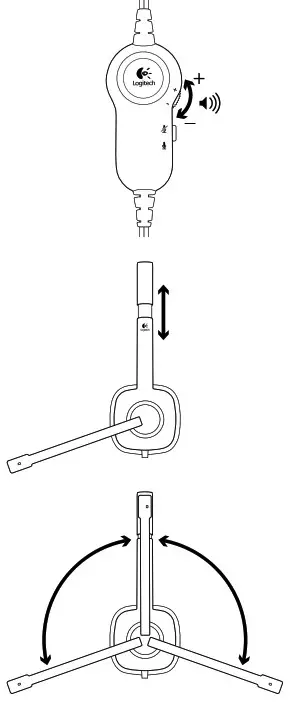
Headset features
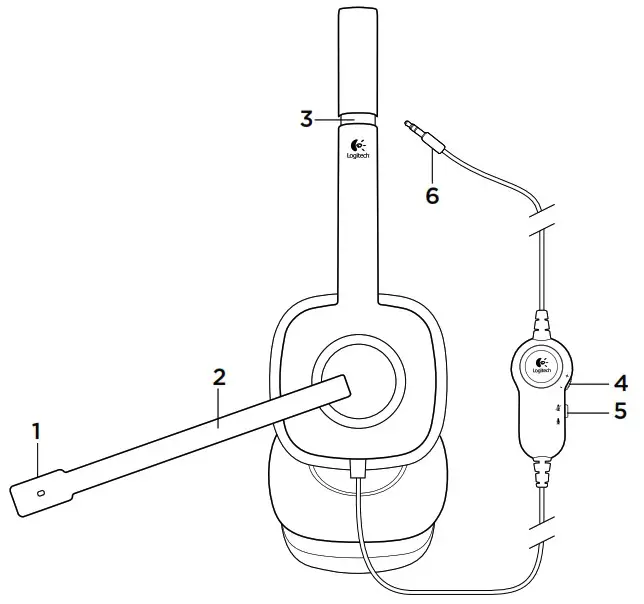
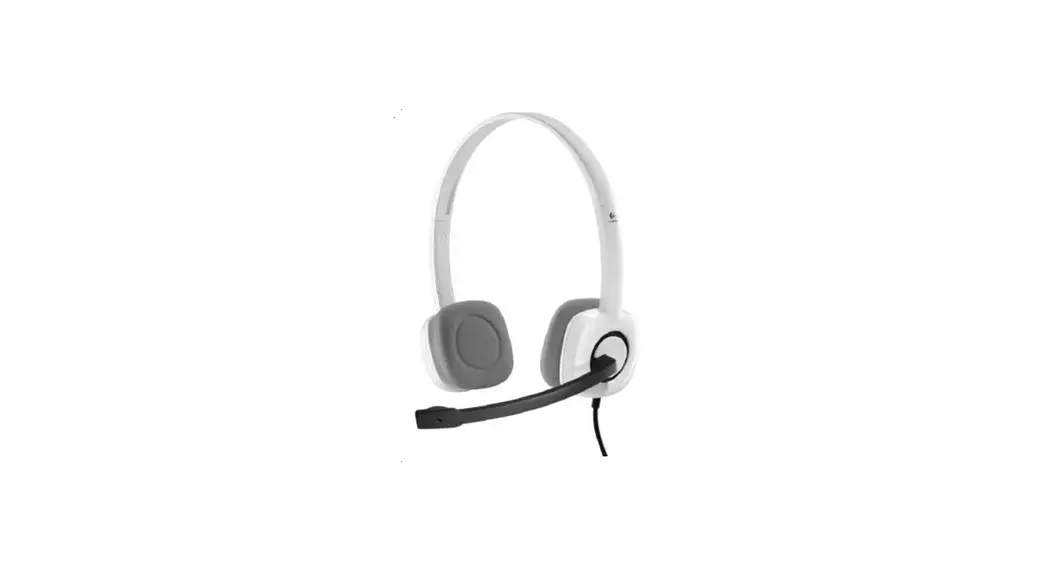
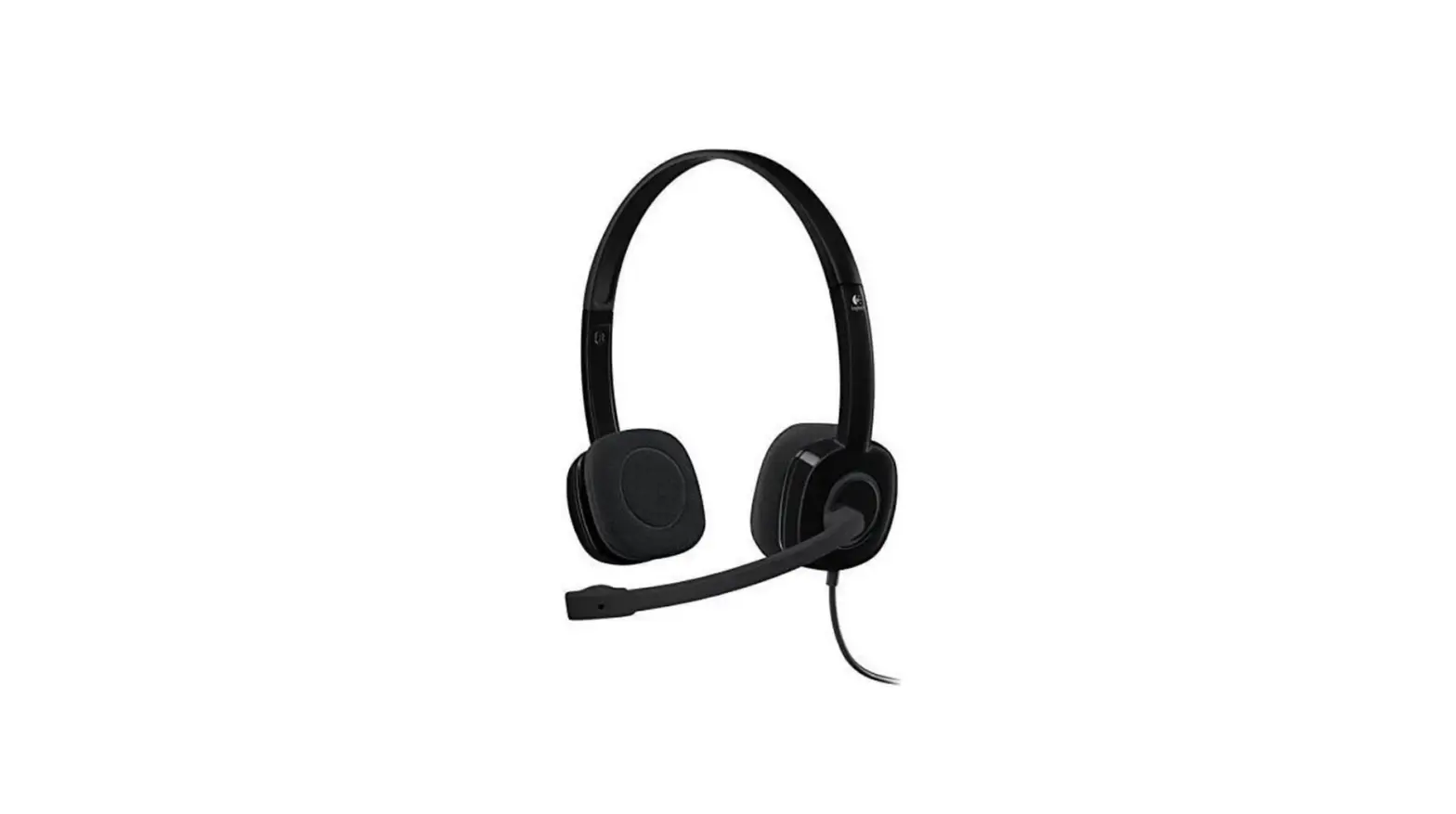
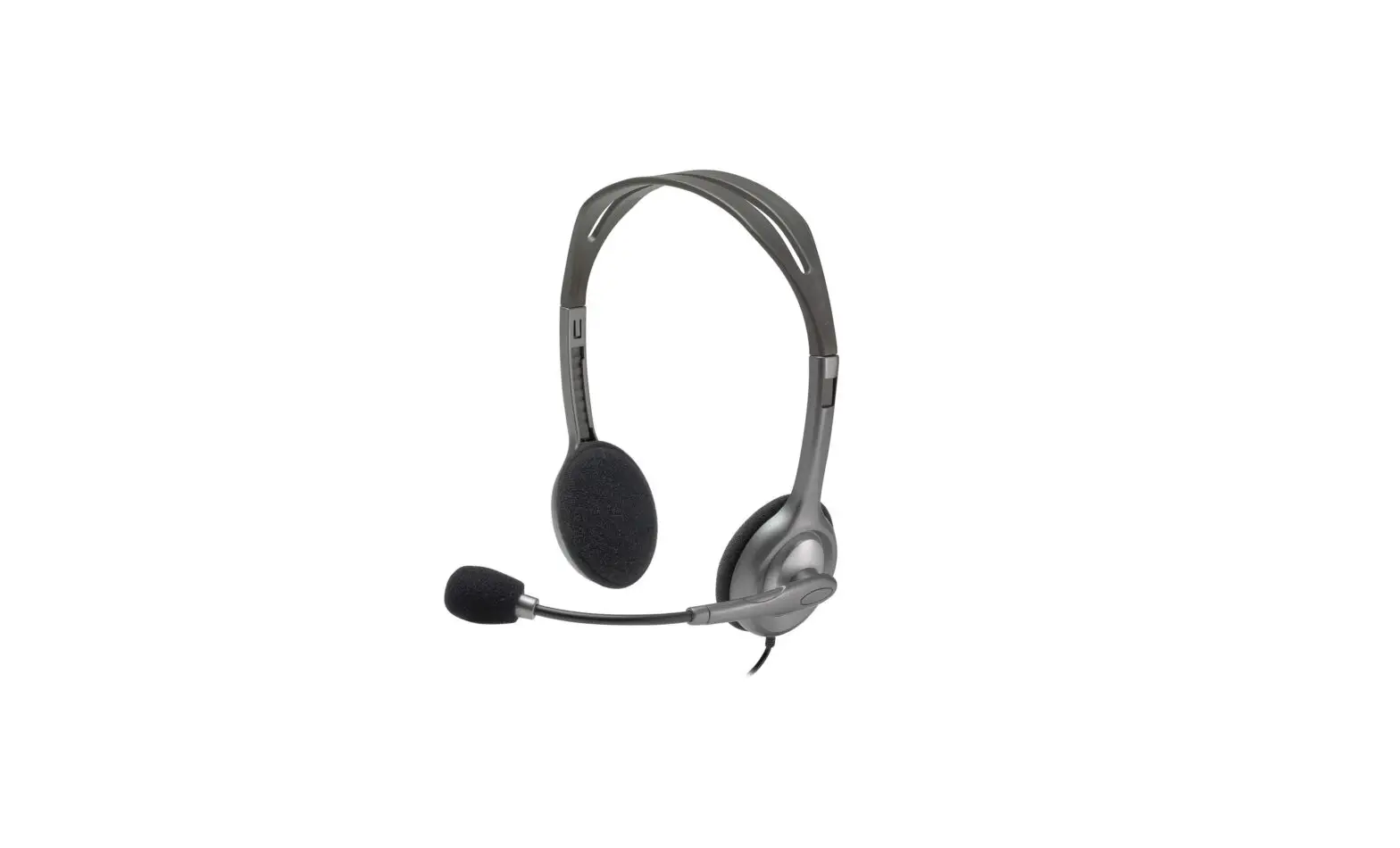
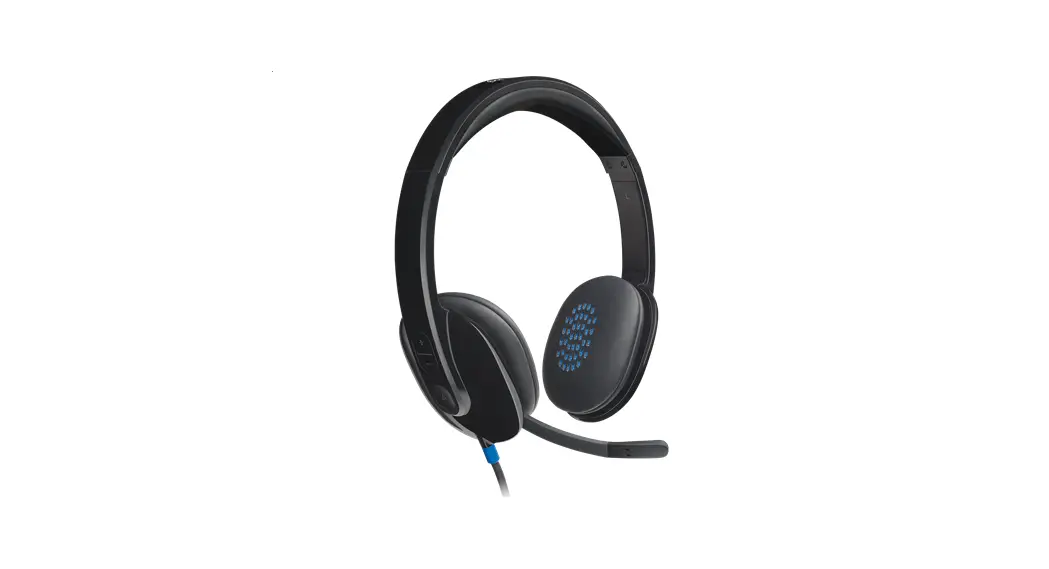
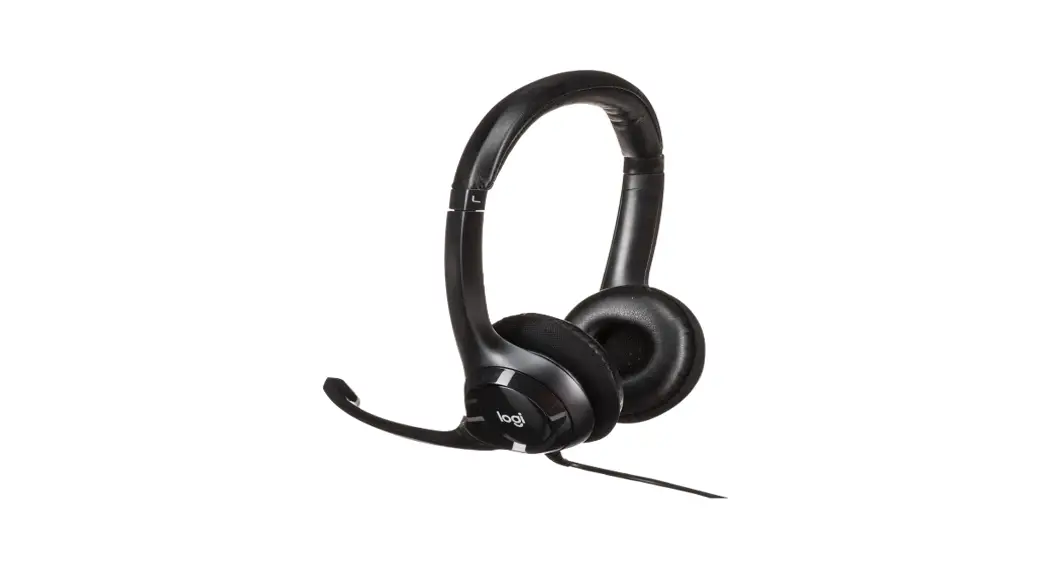
| 1. Noise-canceling microphone 2. Rotating microphone boom 3. Adjustable headband | 4. Volume control 5. Mute switch 6. Single Headphone and Microphone plug |
 Setup
Setup
 Setup
Setup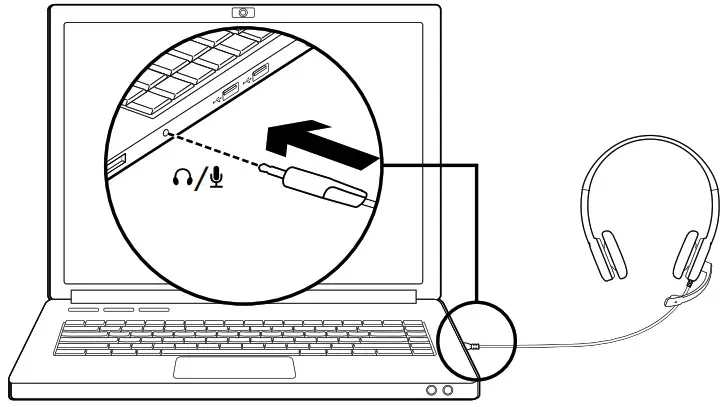
Connect the headset
Insert the 3.5 mm plug into the single headphone & microphone jack on your computer, tablet or smartphone.
Help with setup: headset not working?
- Check cable connection between the headset and your computer.
- If your computer is using two separate jacks for microphone and headphone, a 1-to-2 adapter is necessary to use all the features of this headset
• Adjust the volume and microphone settings to an audible level in the application and operating system. - Try restarting the media application.
- Close all media applications and check whether your computer soundcard has been selected in your Windows operating system for playback
and voice.
Windows Vista and Windows 7: Go to Start/Control Panel/Sounds/Playback Devices tab. Choose your sound card and click OK. Go to the Recording devices tab, choose your sound card, and click OK. Restart the media application.
Windows 8: From Start Menu, select Desktop tile. From Charms menu, select Settings > Control Panel > Hardware and Sound. Go to Sound > Playback tab. Choose your sound card and click OK. Go to the Recording devices tab, choose your sound card, and click OK. Restart the media application.
For additional assistance, please visit www.logitech.com/support.
© 2015 Logitech. All rights reserved. Logitech, the Logitech logo, and other Logitech marks are owned by Logitech and may be registered. All other trademarks are the property of their respective owners. Logitech assumes no responsibility for any errors that may appear in this manual. Information contained herein is subject to change without notice.
621-000490.002
 Logitech Support + Download
 Logitech | Defy Logic - Tools to Create a Better Tomorrow