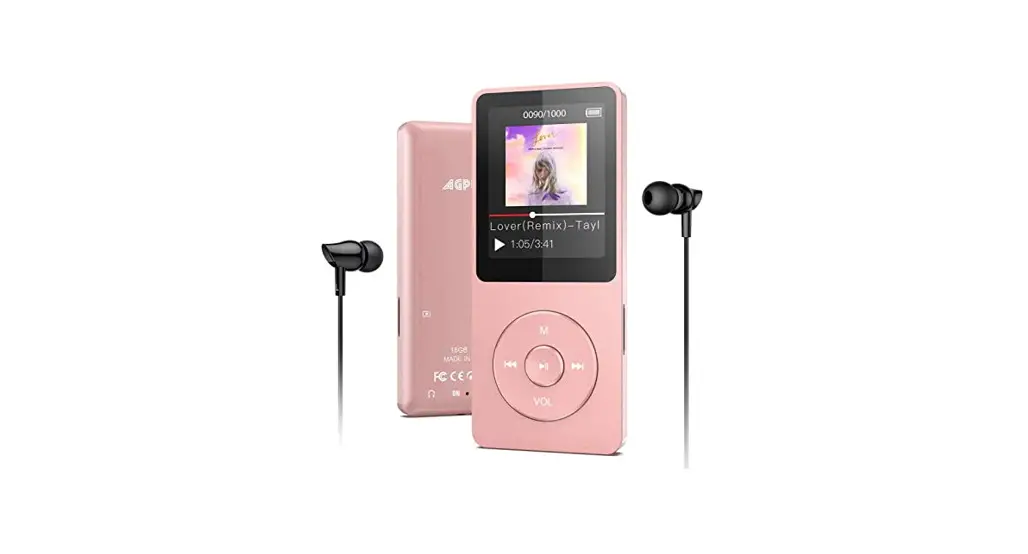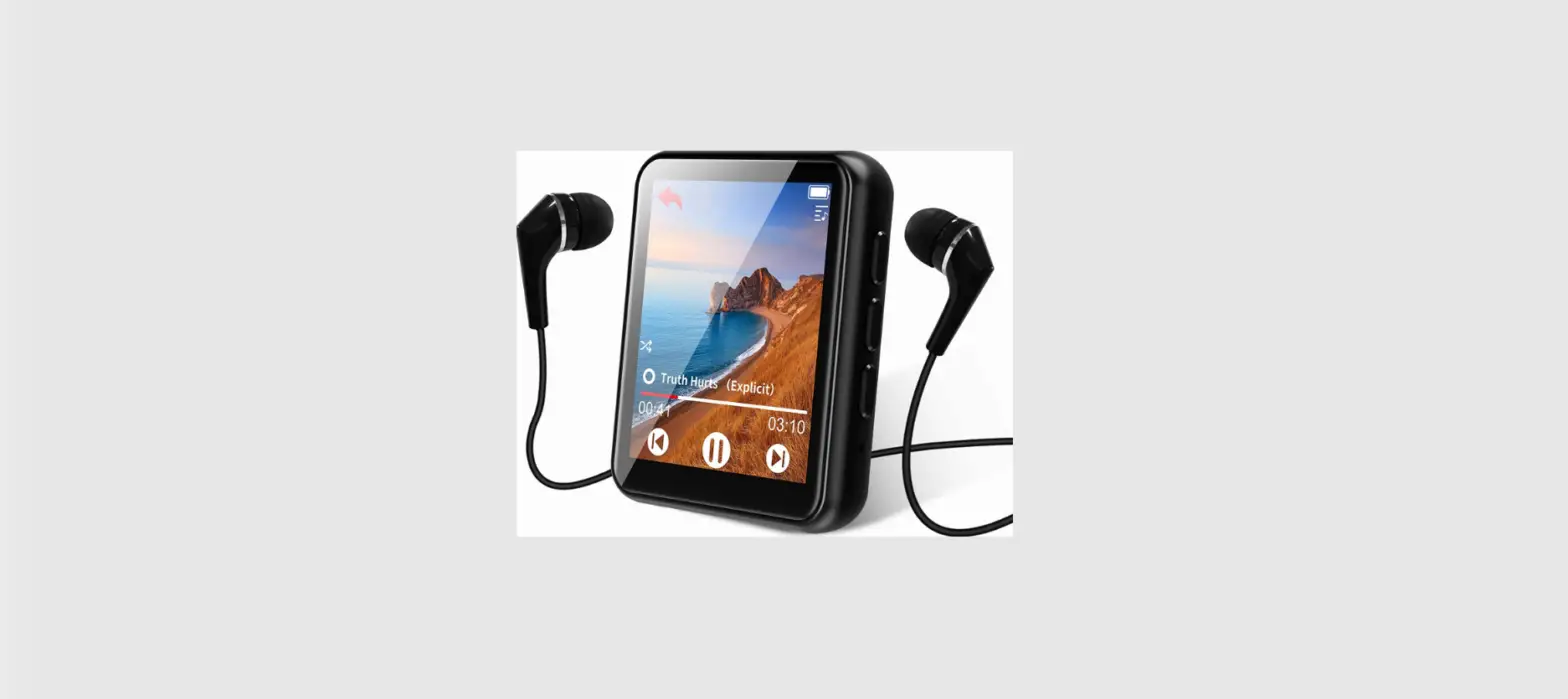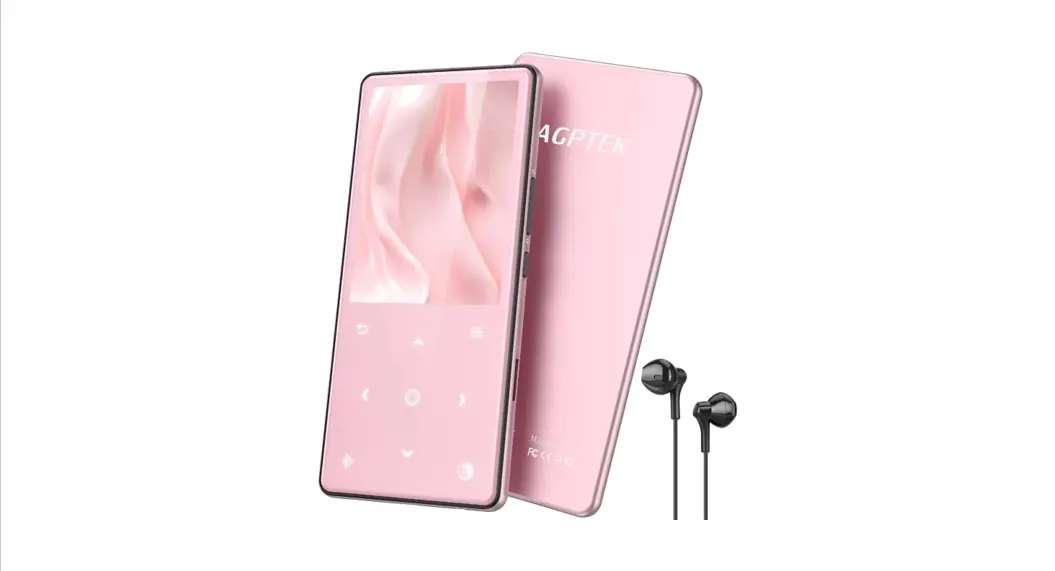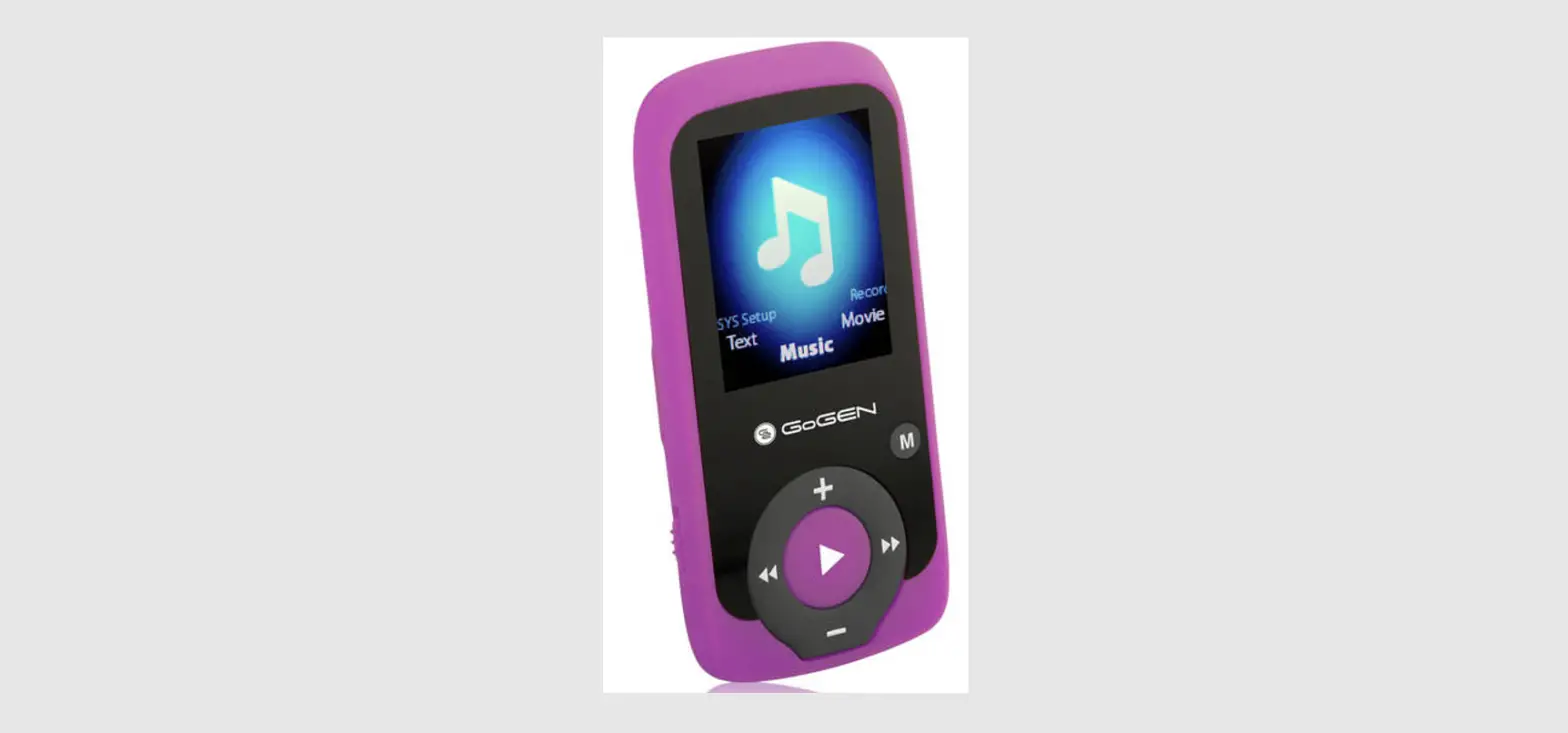

GoGEN MAXI MP3 PLAYER
FEATURES
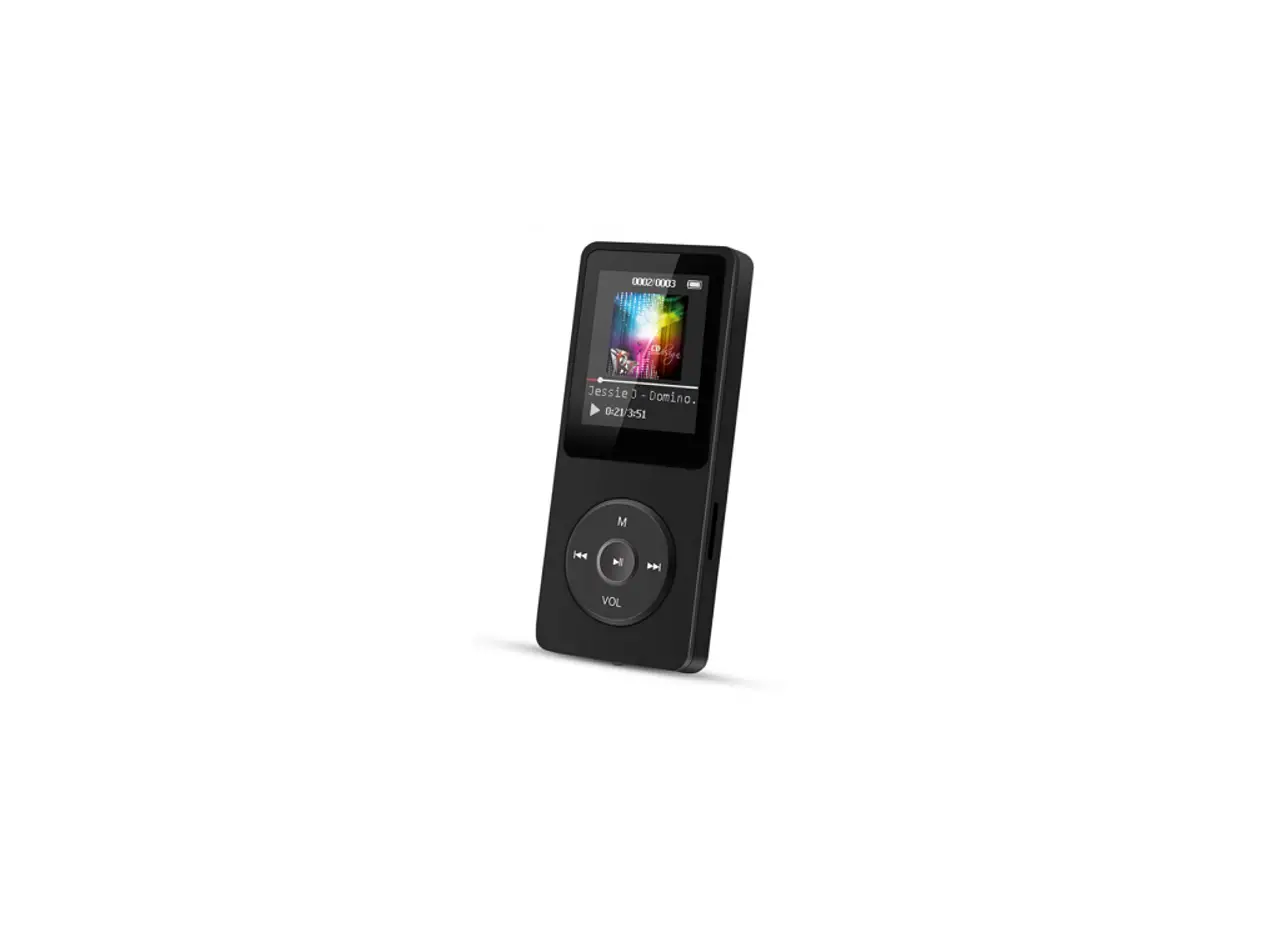
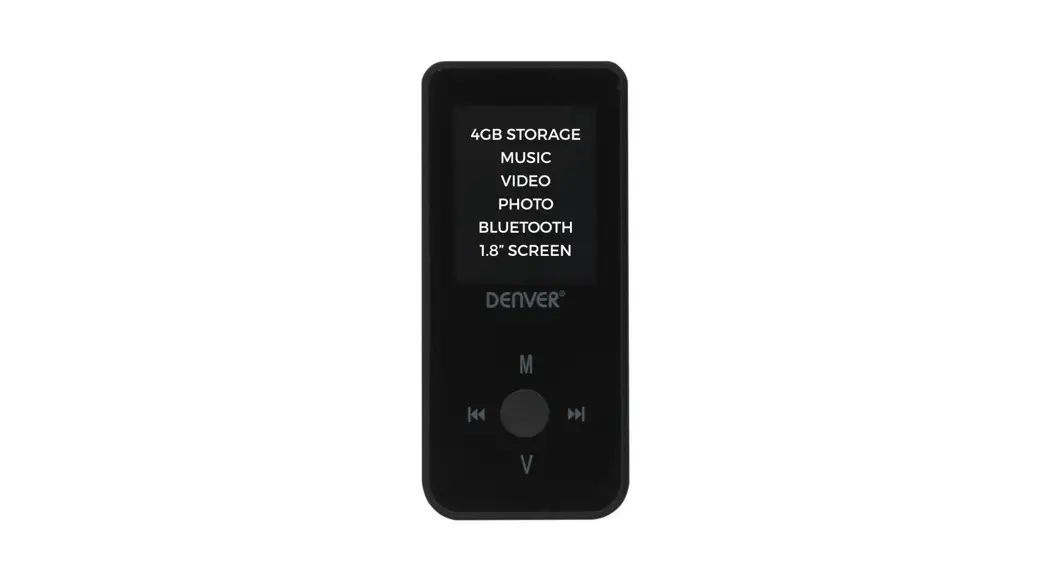
- 1.8-inch TFT display
- 128 x 160 pixels display resolution
- Plays AMV video format files
- Plays MP3, WMA, WAV audio format files
- Picture browsing of JPEG format files
- Built in Micro-SD card slot, supports up to 16GB
- Built-in 180mAh Li-poly battery
- Built-in FM Radio
- Specification and appearance are subject to change without further notice.
PRECAUTIONS
- Follow these tips to preserve the operational lifespan of your Digital Media Player:
- It is recommended that you allow the battery to fully charge before using the device for he first time. Do not recharge unattended for longer than 4 hours.
- Do not hang the player by its earphones or cables
- Never force any cable connectors into the ports of your Digital Media Player or computer. Always make sure that your cable connectors are identical in shape and size before attempting to connect.
- When disconnecting your digital media player from a computer, use the Safely Remove Device function on your computer. Do not disconnect your digital media player while transmitting data.
WARNING
- Do not use this player in extreme temperatures. Keep away from extreme hot, cold, dry, or damp areas. Also keep away from water, fire, and radiation.
- Do not disassemble your digital media player.
- Do not allow young children to use your player unsupervised.
- Do not install foreign software onto your digital media player.
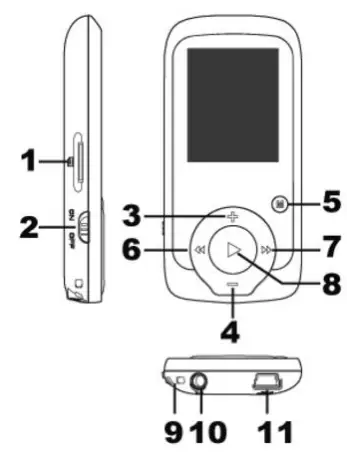
- Micro SD Card slot
- ON/OFF power switch
- VOL+
- VOL-
- Enter menu and exit from sub-menu, confirm selection (under any status, hold [MENU] will enter main menu)
- Last/ Backward
- Next/Forward
- Play/Pause Power ON/ OFF the player
- Hand strap Hole
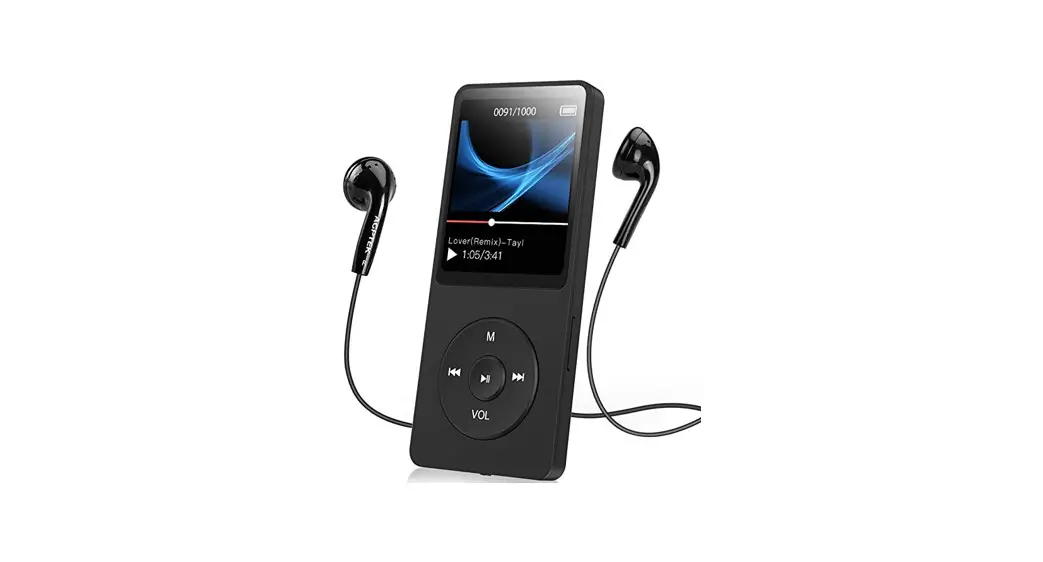
- Earphone socket
- USB socket

BASIC OPERATION
Power On/Power off
To switch on/off the device. Push [ON/OFF] button. You can also Press “[>II](play/stop)” and hold 3 seconds to switch on and switch off the device.
Expansion Card:
- Insert the TF card to the Micro SD card slot. You could see the Card folder in the menu. If not with the TF card , There is no card folder in the menu .
Charge/Connect/Disconnect from PC
- Connect the device to PC via USB Cable to use it as a Removable Disk.
- To charge the device or disconnect the device. Press “Menu button” under USB connected.
MAIN MENU
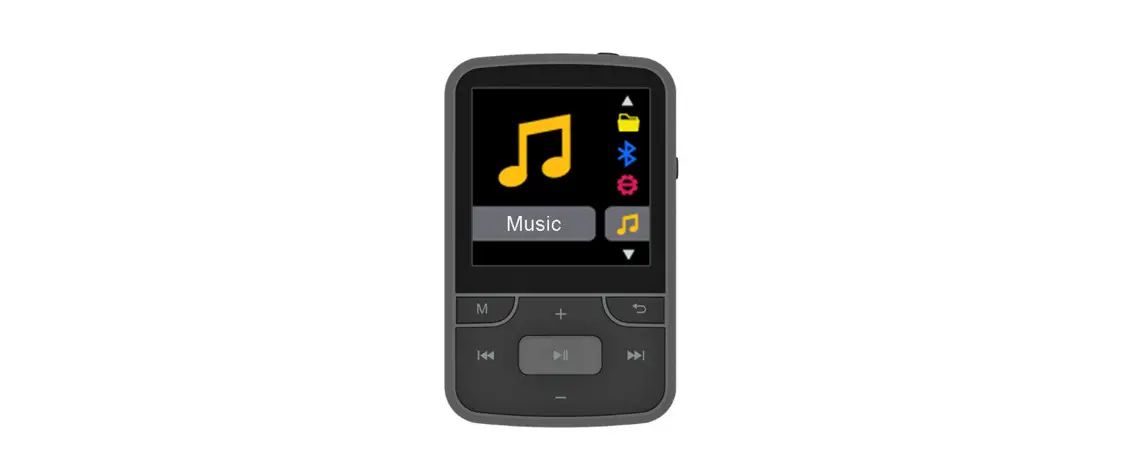
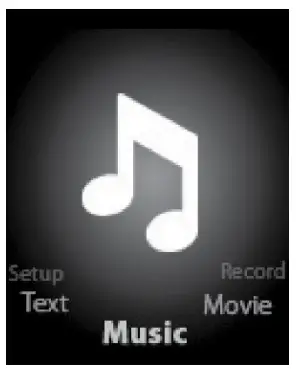
Hold [MENU] to enter main menu. Press [PRE] or [NEXT] to switch the modes.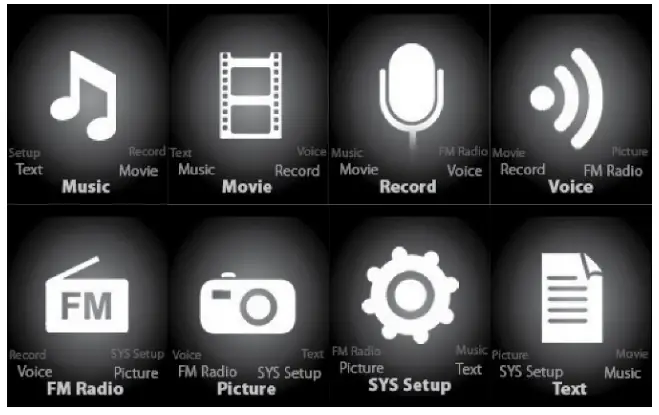
MUSIC
- Select “Music” in the main menu

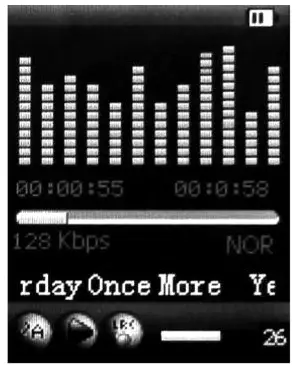
- Press [MENU] to confirm selection and then press PLAY/STOP [>II] button to play the song. While music playing, press [MENU] button to enter sub-menu

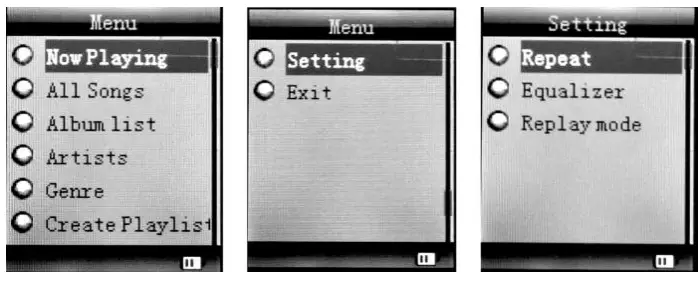
- Select MUSIC mode in main menu, press [MENU] to confirm selection and then press PLAY/ STOP [>II] button to play the song. While music playing, press [MENU] button to enter submenu:

All Songs Display all the songs Album list Display the album Artists Display the singer of the song Genre Display the genre of the song Create Playlist Create the playlist Setting Repeat Normal, Repeat one; Folder; Repeat Folder; Repeat All; Random; Intro. Equalizer NATURAL,ROCK,POP,CLASSIC,SOFT,JAZZ, DBB Replay mode Replay A-B repeat, when “A” in the icon blinks, swing [NEXT] to confirm start point, swing [NEXT] as “B” point . The player will replay from A to B according to the setting in the replay times. (Return to A-B replay mode by swing [PRE] button in such status) Replay times Set how many times the A-B point replay Maximum is 10 times (1-10) Replay gap set replay time gap between every replay Exit Exit from sub-menu - This device support Lyrics display. To fully display the contents of the song, you must make sure the name of the song under the music folder should be exactly the same one under LRC file.e.g You put a “song.mp3” in music folder, a same name “song.lrc” should be placed under LRC file.
Local folder Indicate the folder of present playing file Delete file Delete the present playing song Delete All Delete All songs If you want to delete a song while it is playing, press [>II] to stop playing, then press Mode button). select “Delete file”, choose the file you want to delete, confirm “Delete”, then the screen shows below:

MOVIE
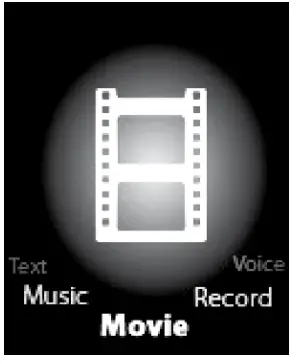
Select “Movie” in the main menu Press [MENU] to confirm selection and then press PLAY/STOP [>II] button to play the video. While playing video. press [MENU] button to enter sub-menu. All the operation is same as Music..
RECORD MODE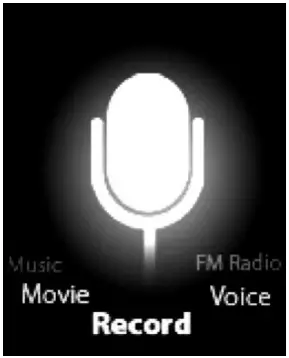
Press [MENU] button to select Record mode in main menu, then press [MENU] again enter into recording sub-menu.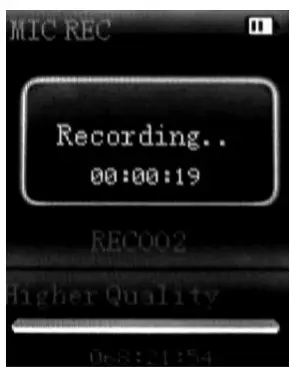
| Local folder | Indicate the folder of present recording file |
| REC type: | 32K BPS, 64K BPS, 128K BPS, 256K BPS |
| Exit | Exit form sub-menu |
VOICE
Press [PRE] or [NEXT]to select the Voice mode, then press [MENU] to confirm the selection, press [>II] to play the recording file.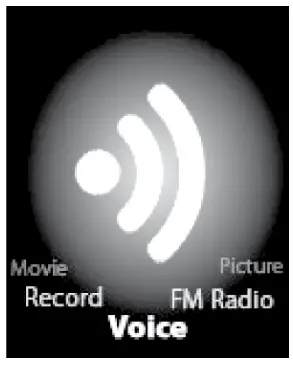
Press [>II] button to pause playback, swing [PRE] or [NEXT] button to select recording files.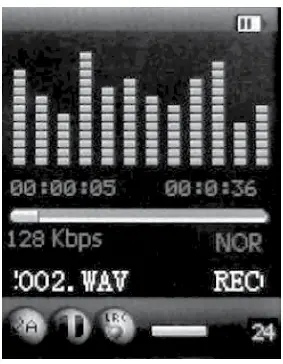 Sub-menu while stop status:
| Local folder | Indicate the folder of present recording file |
| Delete | Delete recording song |
| Delete All | Delete all recording files |
| exit | Exit from the sub-menu |
FM MODE
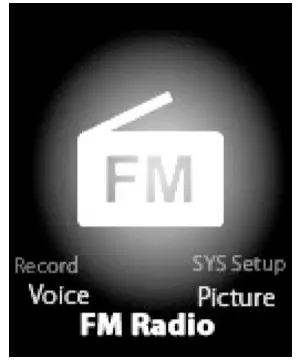
- Select [PRE] or [NEXT] button to choose FM mode and press [MENU] to confirm.

- Press [>II] (play/stop) to save channel. If no channel is saved, you can look for channels by auto or manual searching. Press [MENU] again to get sub-menu as below:

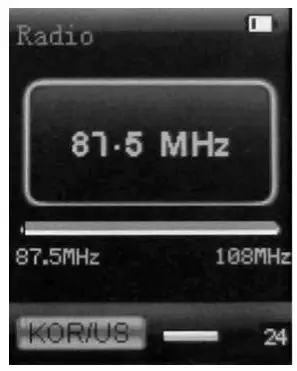
| Save | Save currently tuned frequency; |
| Record | Record current preset channel; |
| Delete | delete current preset channel; |
| Delete All | delete all saved channels; |
| Auto Search | Auto search FM channel |
| Normal Band | Frequencies from 87.5MHz—108MHz; |
| Japan Band | frequencies from76.5MHz—90MHz; |
| Exit | exit from FM sub-menu |
PICTURE
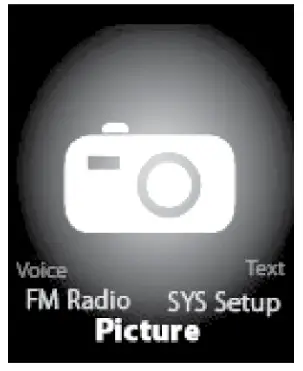
- Select [PRE] or [NEXT] button to select Picture mode, then press [MENU] to confirm,

- Press [MENU] button again to enter sub-menu:

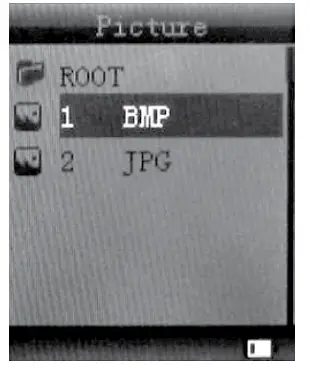
| local folder | choose the folder where picture is saved; |
| playback set | manual play or auto play(there is a time gap for auto play from 1-10 seconds) |
| Delete file | Delete picture; |
| Delete All | Delete all pictures |
| exit | Exit from sub-menu |
SYS SETUP
- Select [PRE] or [NEXT] button to select SYS Setup, then press [MENU] to confirm,

- Press [MENU] button again to enter sub-menu:

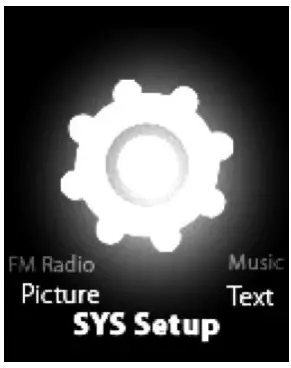
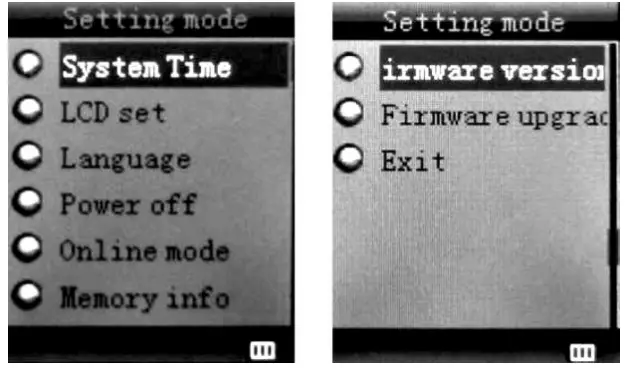
| Record time | Press [MENU] to edit recording time. Swing [NEXT] button and the digit of year will increase; swing [VOL+] button to edit next digit, push [PRE] or [NEXT] button to adjust the digit. Press [MENU] to confirm the setting |
| Main Style | Blue, Green, Orange, Pink, Red, Yellow |
| LCD set | Always light 10 Sec 20 Sec 30 Sec |
| Language | Simple Chinese, English, Trad Chinese, Japanese, French, German, Italian, Dutch, Portuguese, Spanish, Swedish, Czech, Denmark, Polish etc. |
| Power off | Off time: set self-power off time when the player is stopped and no button is pressed. The time unit is seconds. 0 means set off the function. Sleep time: set self-power off time after last key pressed, regardless of whether the player is active or stopped. The time unit is minutes |
| Online mode | Multi Drive; Normal only; Encrypted only |
| Memory info. | Check the memory size and the remaining memory |
| Firmware version | Display the player’s firmware version |
| Firmware upgrade | Firmware can be upgraded via connection to PC |
| Exit | Exit from the sub-menu |
TEXT
Select [PRE] or [NEXT] button to select Text, then press [MENU] to confirm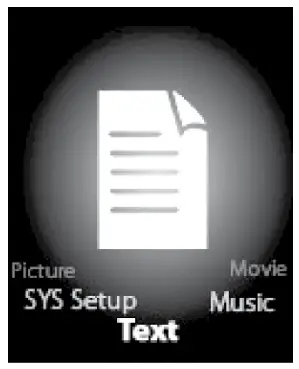 Enter TEXT mode by pressing Mode button, then you can read and edit the article in the device. The device only can recognize the article in “txt.” Format. Press [MENU] button again to enter sub-menu:
| Record time | Press [MENU] to edit recording time. Swing [NEXT] button and the digit of year will increase; swing [VOL+] button to edit next digit, push [PRE] or [NEXT] button to adjust the digit. Press [MENU] to confirm the setting |
| Main Style | Blue, Green, Orange, Pink, Red, Yellow |
| LCD set | Always light 10 Sec 20 Sec 30 Sec |
| Language | Simple Chinese, English, Trad Chinese, Japanese, French, German, Italian, Dutch, Portuguese, Spanish, Swedish, Czech, Denmark, Polish etc. |
| Power off | Off time: set self-power off time when the player is stopped and no button is pressed. The time unit is seconds. 0 means set off the function. Sleep time: set self-power off time after last key pressed, regardless of whether the player is active or stopped. The time unit is minutes |
| Online mode | Multi Drive; Normal only; Encrypted only |
| Memory info. | Check the memory size and the remaining memory |
| Firmware version | Display the player’s firmware version |
| Firmware upgrade | Firmware can be upgraded via connection to PC |
| Exit | Exit from the sub-menu |
VIDEO CONVERSION TOOL
Please follow the steps here below to install the video conversion tool. Please make sure you have installed Windows media player 9.exe and Directx9.0 before you start. Put CD drive into computer and open the drive Run Setup.exe to install the software, then restart the computer Choose menu: start program mp3 player utilities AMV/AVI convert tool There’s a window appears, choose the file you want to convert, then choose the folder you want to put the new converted file, click “start converting”
TROUbLE SHOOTING
| No power | Check battery level. |
| Recharge as per directions in User Manual | |
| Unable to locate or play files | Check that the file is in a compatible format |
| Check to see if the file is stored in a different directory. | |
| No music is heard in the earphones | Check the volume level |
| Check the connection (earphone to the earphone jack) | |
| Check if your music file is compatible with your MP3 player. | |
| Not charging | Check to make sure that your Digital Media Player is connected to a USB port on your computer. |
| Unable to download music. | Check if you have enough space on your Digital Media Player to download the music file. |
| Check to make sure that the USB cable is connected to the PC and to the Digital Media Player. | |
| Computer not recognizing Digital Media Player | Check that the USB cable is properly connected to your computer. |
| Try plugging the USB cable into one of the back ports of your computer. |
WARNING:
Do not use this product near water, or in wet areas to avoid fire or injury of electric current. Always turn off the product when you don’t use it or before a revision. There aren’t any parts in this appliance which are reparable by consumer. Always appeal to a qualified authorized service. The product is under a dangerous tention. Old electrical appliances, used batteries and accumulators disposal This symbol appearing on the product, on the product accessories or on the product packing means that the product must not be disposed as household waste. When the product/ battery durability is over, please, deliver the product or battery (if it is enclosed) to the respective collection point, where the electrical appliances or batteries will be recycled. The places, where the used electrical appliances are collected, exist in the European Union and in other European countries as well. By proper disposal of the product you can prevent possible negative impact on environment and human health, which might otherwise occur as a consequence of improper manipulation with the product or battery/ accumulator. Recycling of materials contributes to protection of natural resources. Therefore, please, do not throw the old electrical appliances and batteries/ accumulators in the household waste. Information, where it is possible to leave the old electrical appliances for free, is provided at your local authority, at the store where you have bought the product. Information, where you can leave the batteries and accumulators for free, is provided to you at the store, at your local authority. We reserve the right to change technical specifications
 ASEKOL
 Serwis Digison
 Úvod - ECOBAT
 Gogen.cz - Úvodní stránka | Gogen.cz
 OZV SEWA | elektroodpad | batérie | obaly | zákon o odpadoch