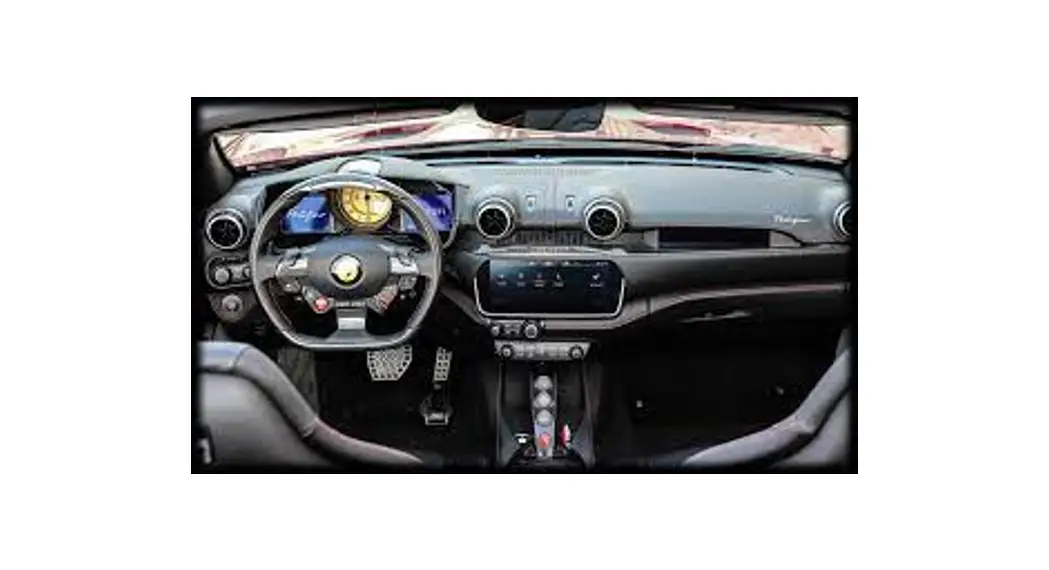


Ferrari Portofino M.O.S.T. 150 to 12-channel Analog & Digital sound processor
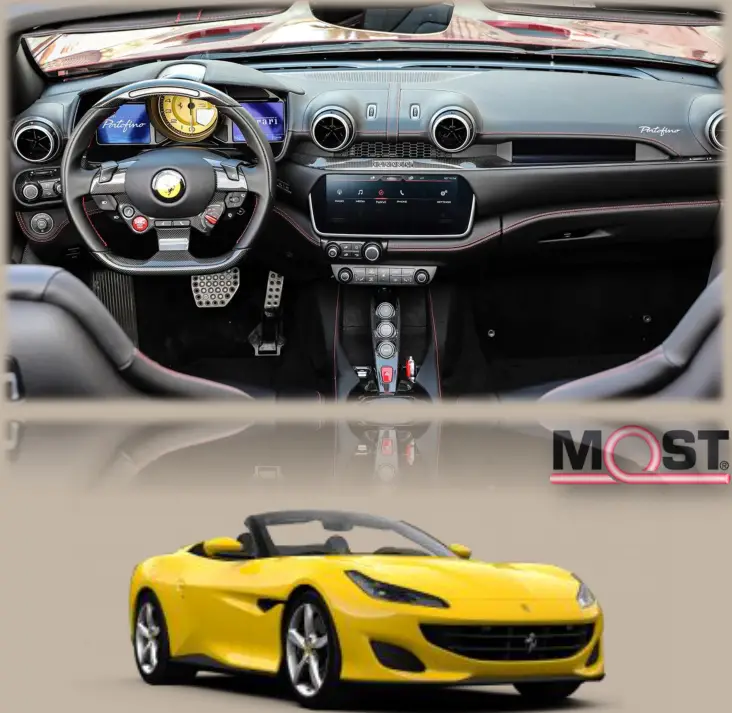
NTV-KIT987
DES
12/01/2020
NTV-DOC367
WARNING: Do not connect any RCA cables to the ZEN-F interface or additional processors prior to properly grounding aftermarket amplifier(s)!
Overview
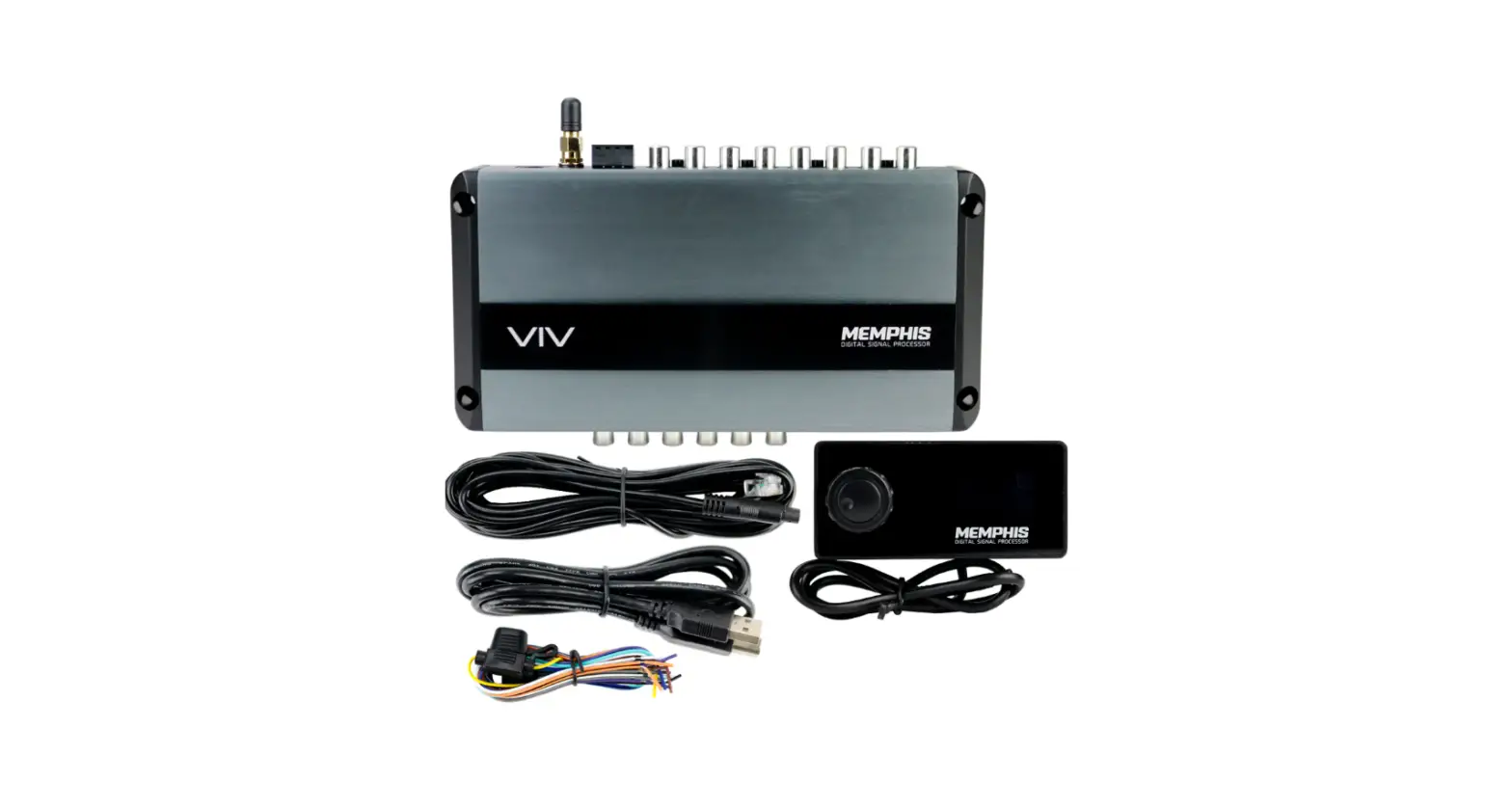
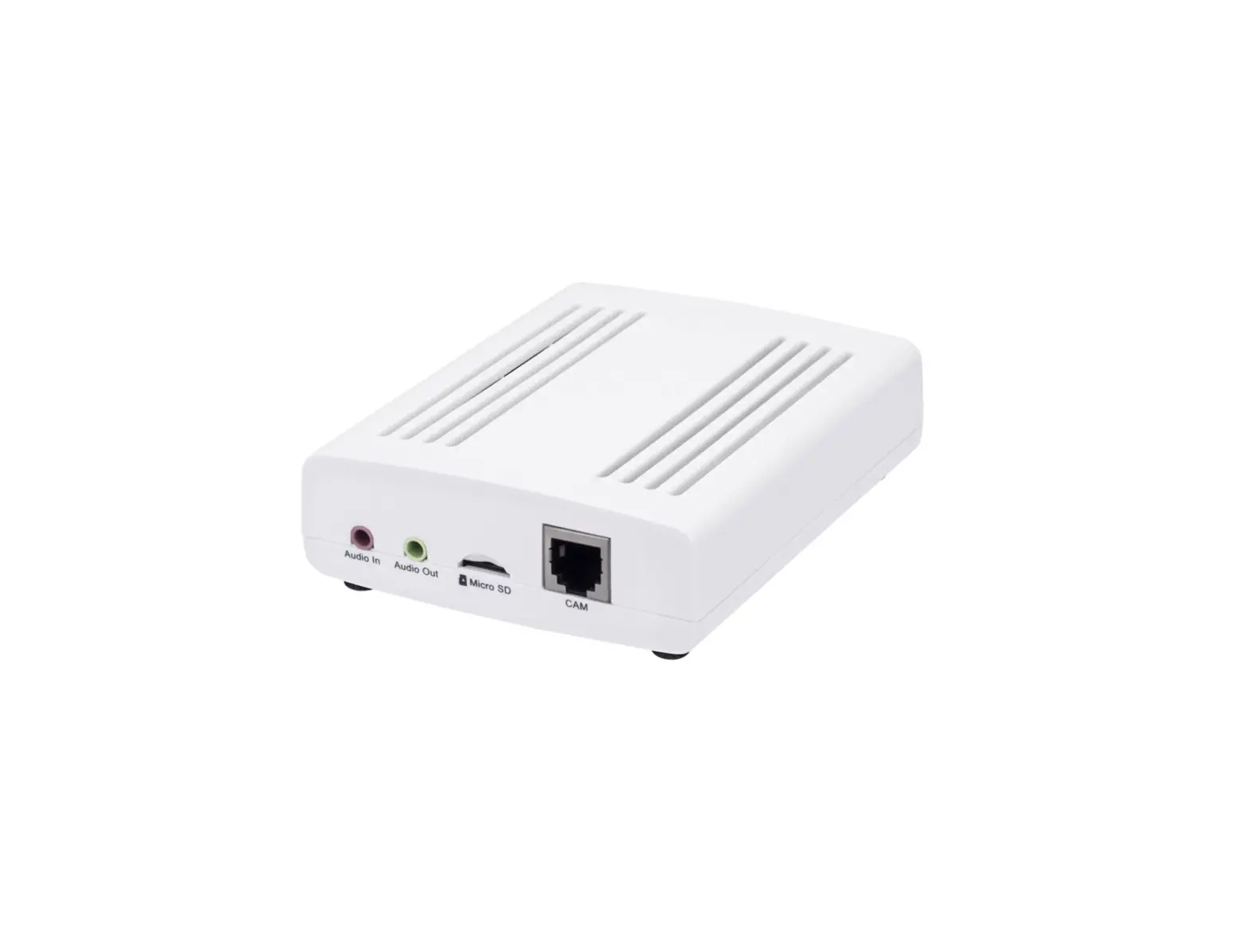
The NAV-TV ZEN-F processor seamlessly converts Ferrari Portofino factory MOST-150 audio bus to 12-channel analog RCA and TOSLink output. Adding aftermarket amplifiers to the OE Ferrari system has never been so simple. This kit integrates with the OEM M.O.S.T.® bus to retain volume control, full fade (and balance: analog only), treble, mid-range & Bluetooth voice calls with no external speaker (true OEM integration). NOTE: OEM radio systems not equipped with a fiber optic amplifier are not compatible.
Kit Content
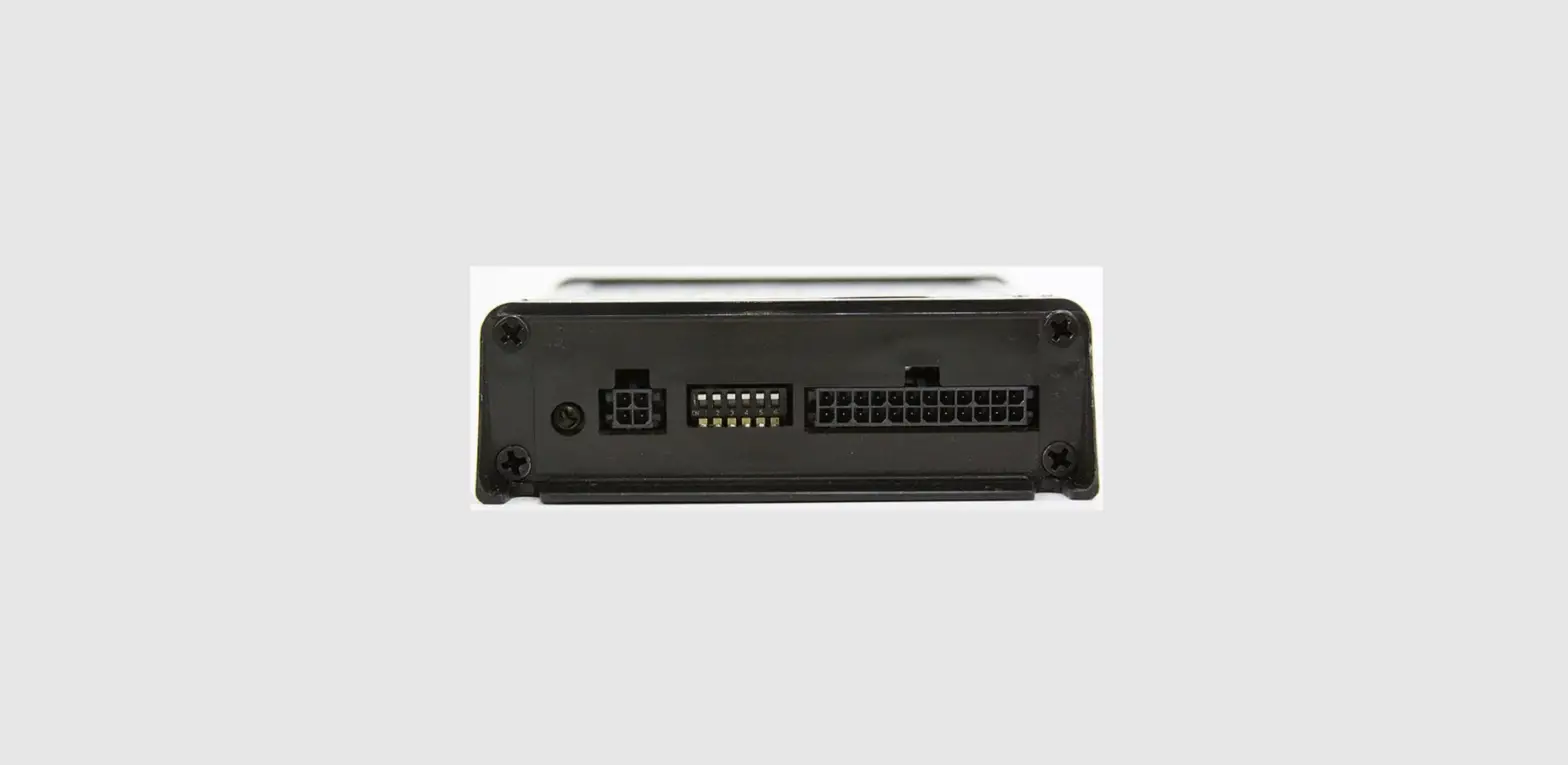
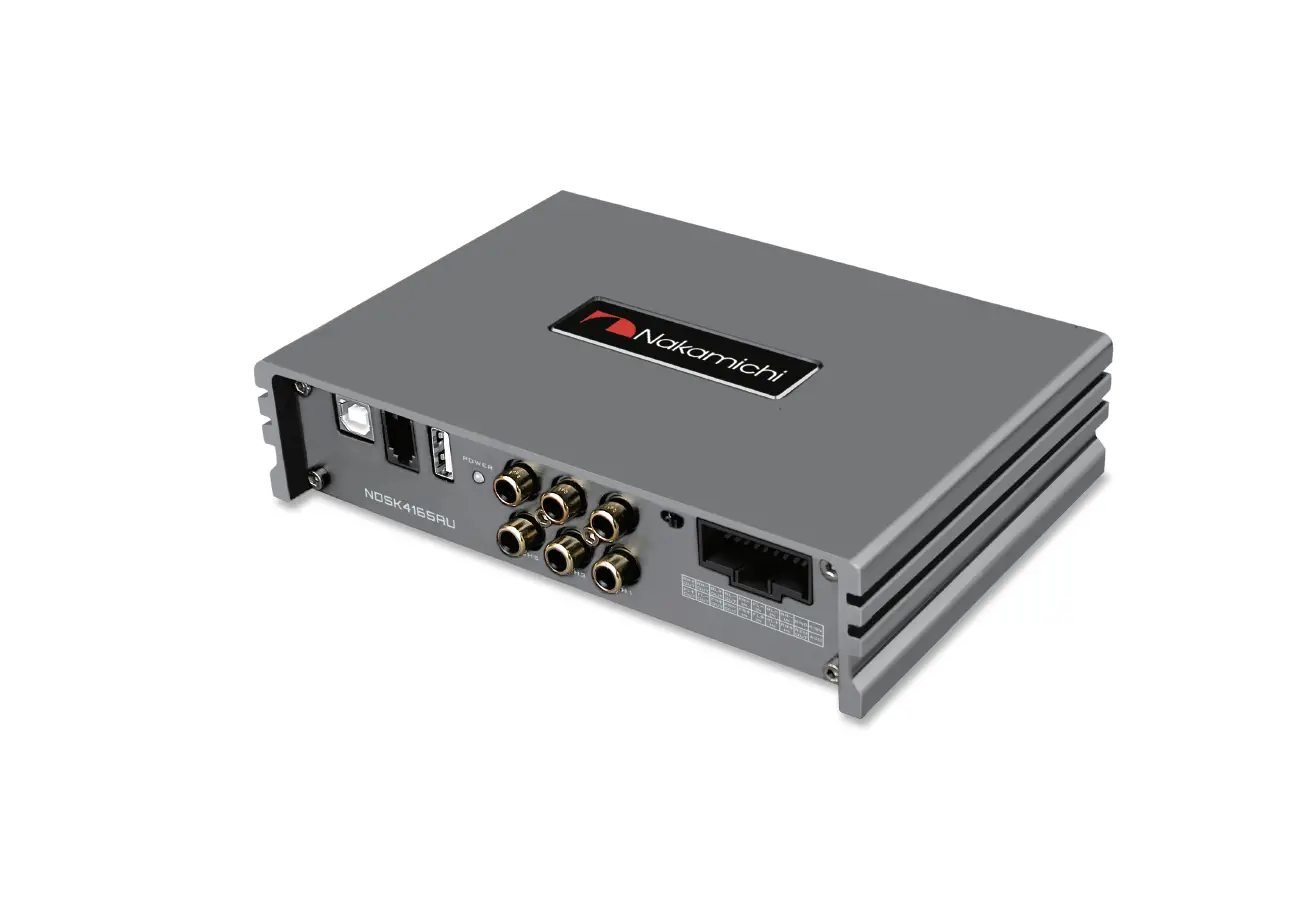
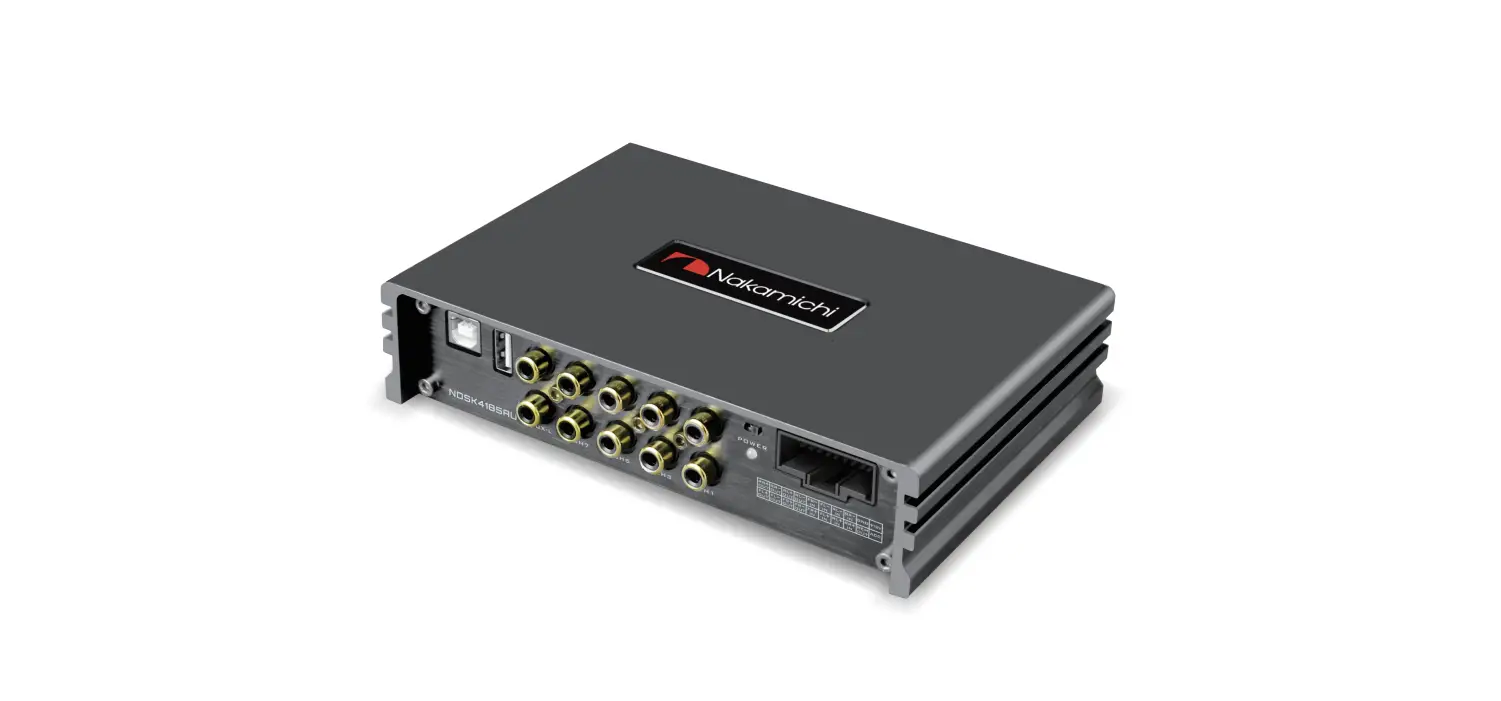
 ZEN-F overview
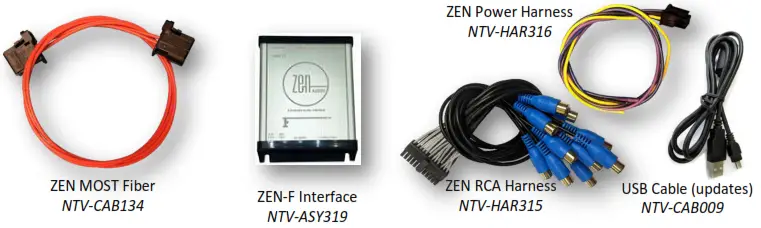 ZEN-F overview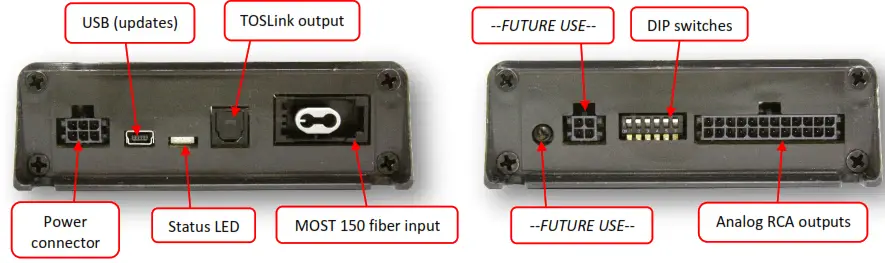
ZEN-F CompatibilityFerrari Portofino with MOST 150 fiber optic amplifier
| Year(s) | Make | Model |
| 2017+ | Ferrari | Portofino with MOST 150 fiber optic amplified audio system |
ZEN-F Installation
- If this vehicle has a factory amplifier, it must be removed and the ZEN-F can be installed in its place. If this vehicle is not amplified from the factory, it is not compatible with the ZEN-F.
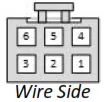
- Connect the following wires from the provided power harness:

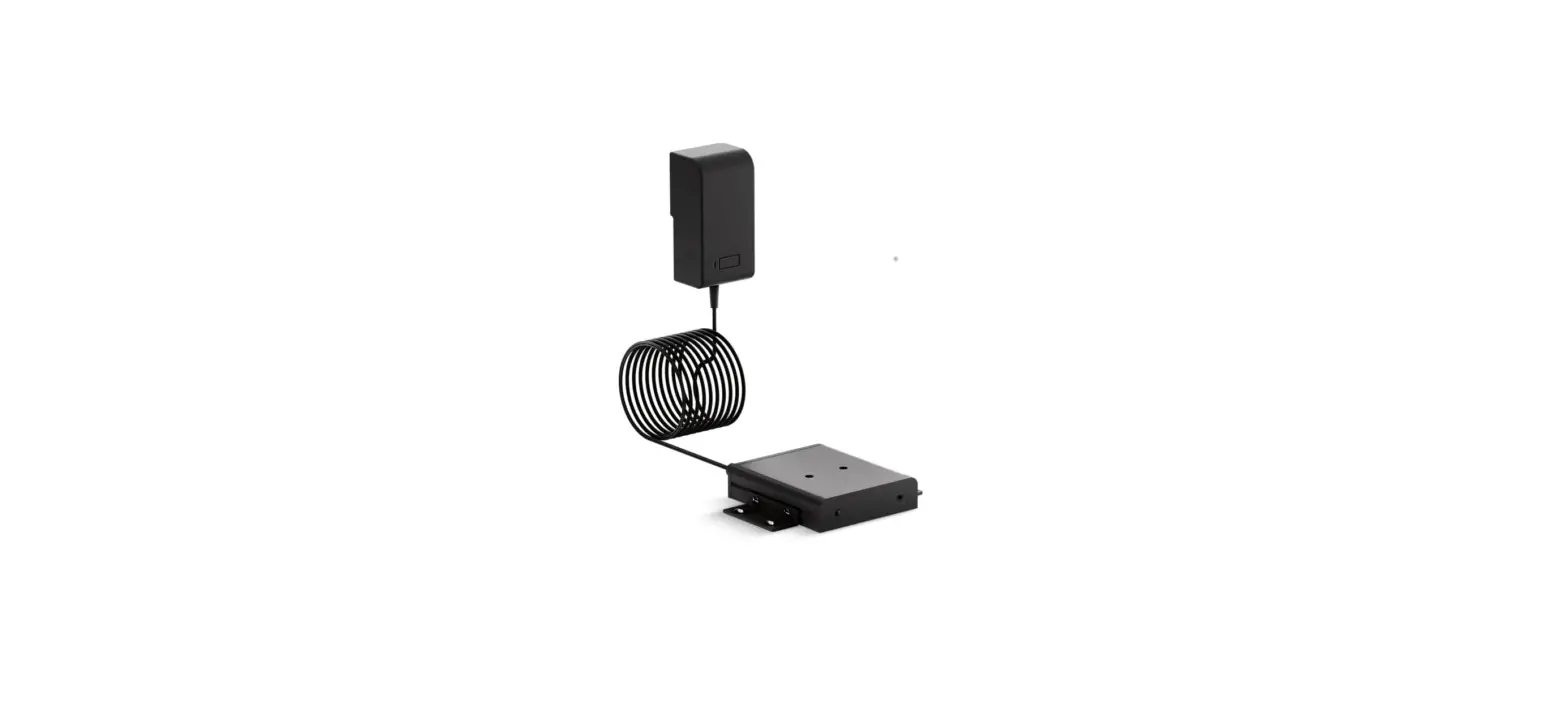
ZEN-F pin Color To vehicle: 1 Yellow 12v (+) Constant 3 Violet –Reserved, NOT USED– 4 Black Ground (-) 6 Blue 12v (+) remote output* *This remote wire must be used for the aftermarket amplifier remote for proper functionality. If installing more than one amplifier/DSP, a relay must be used for reliable turn-on (500mA max).
- Before connecting power to the ZEN-F, adjust dip-switch settings for the desired options:
Time Alignment Attenuation TOSLink DownMix Loudness Vehicle Settings Position DIP 1 DIP 2 DIP 3 DIP 4* DIP 5 DIP 6 UP
(off)Front Row Full Scale
output (0 dB)Not used Loudness OFF Keep in
factory
defaultDOWN
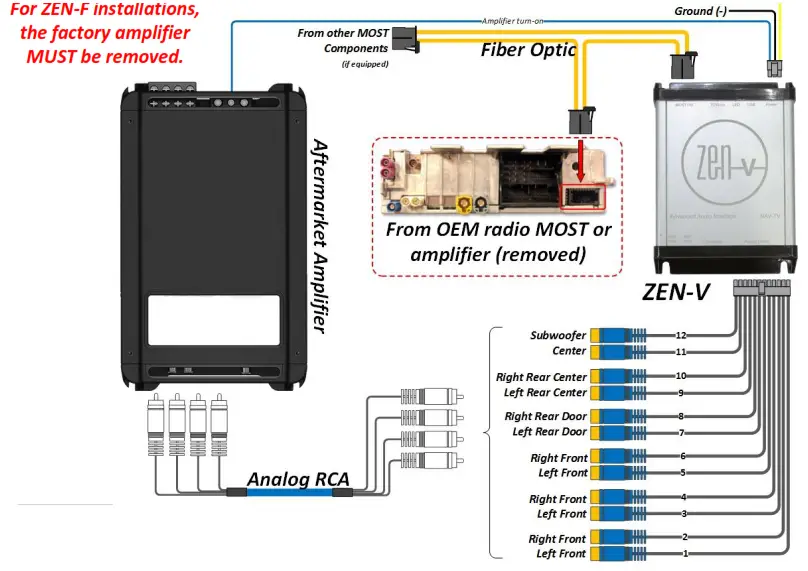
(on)Driver-Focused -12 dB output Not used Loudness ON - If using analog RCAs for the signal to the amplifier, connect according to the reference chart below.
WARNING: Do not connect RCA cables to this interface until all amplifiers/external processors are properly grounded. Failure to do this may cause damage to the interface and VOID the warranty!1 2 3 4 5 6 7 8 9 10 11 12 Left
FrontRight
FrontLeft
FrontRight
FrontLeft
FrontRight
FrontLeft Rear
DoorRight Rear
DoorLeft Rear
CenterRight Rear
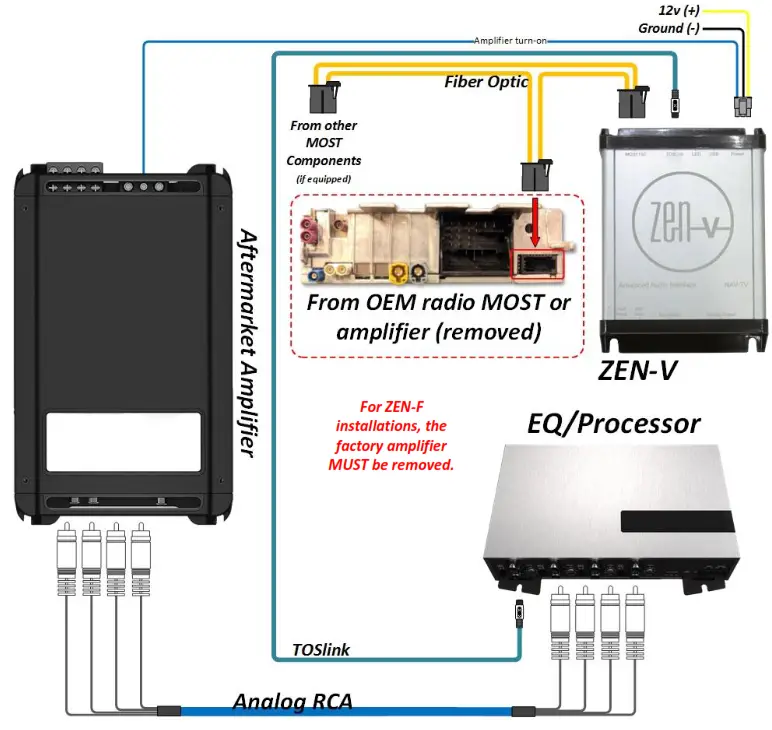
CenterCenter Sub - If using TOSLink for the signal to the amplifier, connect the cable to the TOSLink port shown on page 2.
NOTE: both Analog and Digital output sound simultaneous, regardless of which type is used. - Connect the provided MOST Fiber Cable from the (previously removed) amplifier, or from the radio’s fiber port to the MOST port on the ZEN-F.
ZEN-F General Installation Notes
- This interface can only be installed in vehicles with a factory MOST fiber optic amplifier.
1. The factory amplifier must be removed. Connect the OEM fiber previously connected to the amp, directly into the ZEN-F. - Tuning tips:
1. Before beginning the tuning process (especially with external EQ/Processors), set Bass & Treble on the head unit for each source to flat (0).
2. Begin with amplifier/EQ gains all the way down.
3. With dynamic music playing, adjust the radio volume to maximum.
4. Adjust the amplifier/EQ gains to desired maximum level. - From the factory, some vehicles’ audio will attenuate when in reverse. Simply set the ‘reverse volume’ to the desired level while in reverse to adjust this. The ZEN-F will retain its method. The same is true for NAV guidance audio and BT voice calls.
Multi-Color LED Status Indication
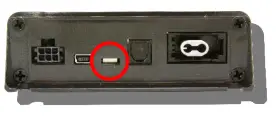
| LED Status | Indication |
| Solid Red | MOST Active |
| Violet | MOST traffic commands |
| Blinking Red | Peaking (maximum digital signal level achieved) |
| Blinking Blue | PC Link with the app (future use) |
ZEN-F System Layout (analog)
ZEN-F System Layout (digital TOSLink)
ZEN-F Technical Specifications
| Hardware & Software | |
| Current HW version: | –1r0– |
| Current SW version: | ZEN-F-1.6.26-3-19-19 |
| Compatible SW (update) OS: | Windows 7 (64 bit), 8, 10 |
| INPUT | |
| Digital Input | MOST 150 Fiber Optic |
| OUTPUT | |
| Digital Outputs: | TOSLink |
| Digital Outputs supported: | 24bit/48kHz |
| Frequency Response (digital): | 18Hz — 24kHz |
| Analog Outputs: | 12 channels (RCA) |
| Output Voltage Peak: | 6v |
| Output Voltage RMS: | 2.1v |
| Analog Output Type: | Single-Ended |
| S/N Ratio (analog): | 114dB |
| Frequency Response (analog): | 18Hz — 24kHz |
| THD+N @ -1dBFS | -94dB |
| DAC | 48kHz 32bit |
| DSP | 32bit Floating Point |
| Delay (Time Alignment) | Selectable |
| Power Supply | |
| Current Consumption Stand-by | <1 mA |
| Current Consumption Operational | 350 mA MAX |
| Operational Voltage | 7V — 20V DC |
| Amp Turn-On Output | Automatic |
| Amp Turn-On Voltage | V-batt |
| Amp Turn-On Current Limitation | 500mA |
| Other | |
| Dimensions: | 4″x5″x1 3/8″ |
| Weight: | 10 oz |
| Country of Origin: | USA |
FAQ
- For installations with this ZEN processor, make certain that any added amplifier’s ground resistance (reference vehicle battery ground) does not exceed 1 ohm.
- If you’ve installed a third-party DSP (receiving a signal from the ZEN, before the amplifier) and you’re having issues with audio bleeding from one channel to another, choosing Bluetooth phone calls, or any other signal processing issues, rule out the ZEN first by temporarily bypassing the third-party DSP and running signal directly from he ZEN to the amplifier(s) and verify the problem still exists before calling technical support.