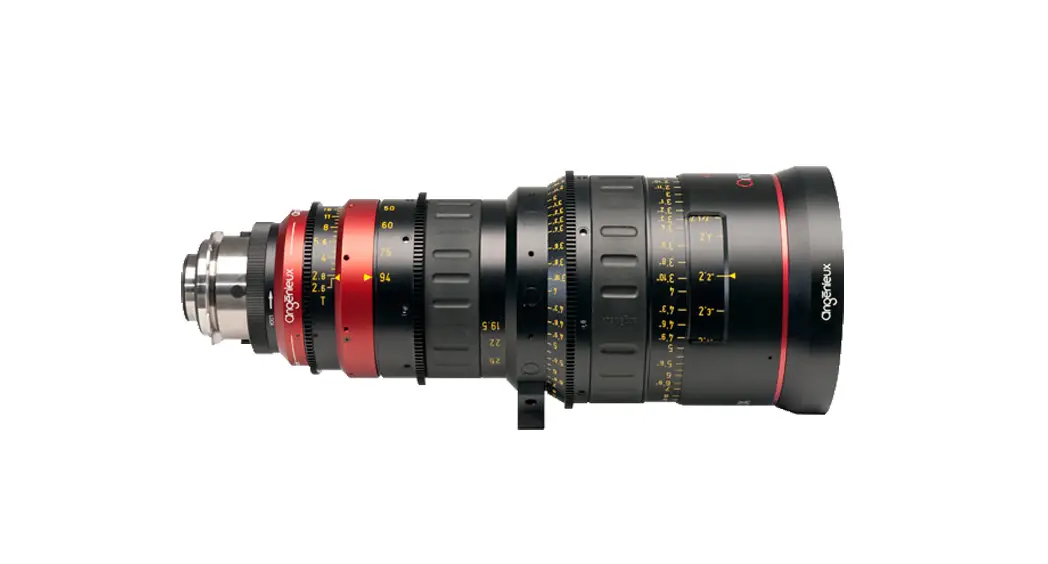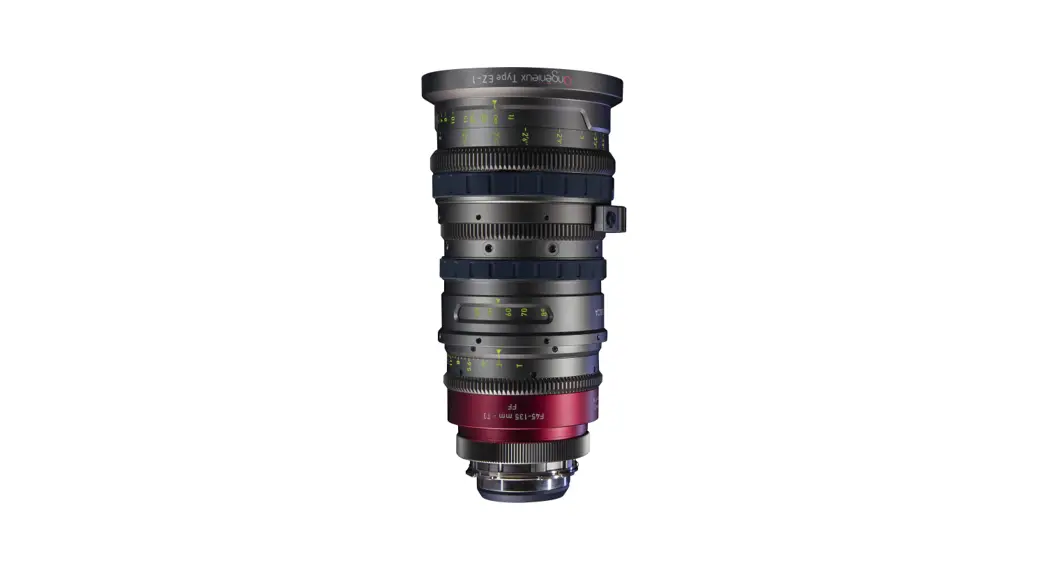

Type EZ Series
USER’S MANUAL
January 2017: © THALES ANGENIEUX. Photos and illustrations are not contractual. The data is provided for information. THALES ANGENIEUX reserves the right to modify the performance of its products without prior notice. This document is the exclusive and sole property of THALES ANGENIEUX. Any reproduction, rights of reproduction, translation, modification, or publication on a physical or digital medium, partial or complete, is strictly forbidden.
USER MANUAL
PRECAUTIONS FOR USE
Read this manual carefully
Warnings
- Do not look at a light source directly through the lenses
- Handle the lens carefully
- Do not put the lens in contact with water
Storage conditions
Store the lens in a dry place where the temperature is between -40°C and +70°C.
Temperature
- The lens is designed to be used between -20°C and +45°C.
- A change in temperature may cause a slight shift in focus
Advanced Maintenance
Complete maintenance of this type of objective can only be carried out by highly qualified personnel. We recommend that you contact us to have your lens serviced (see Advanced maintenance page 20)
Recycling and Environment
The lenses do not contain any chemical substance covered by the European REACH Regulation in proportions exceeding the defined thresholds.
CONFIGURATION
This user manual describes the following products:
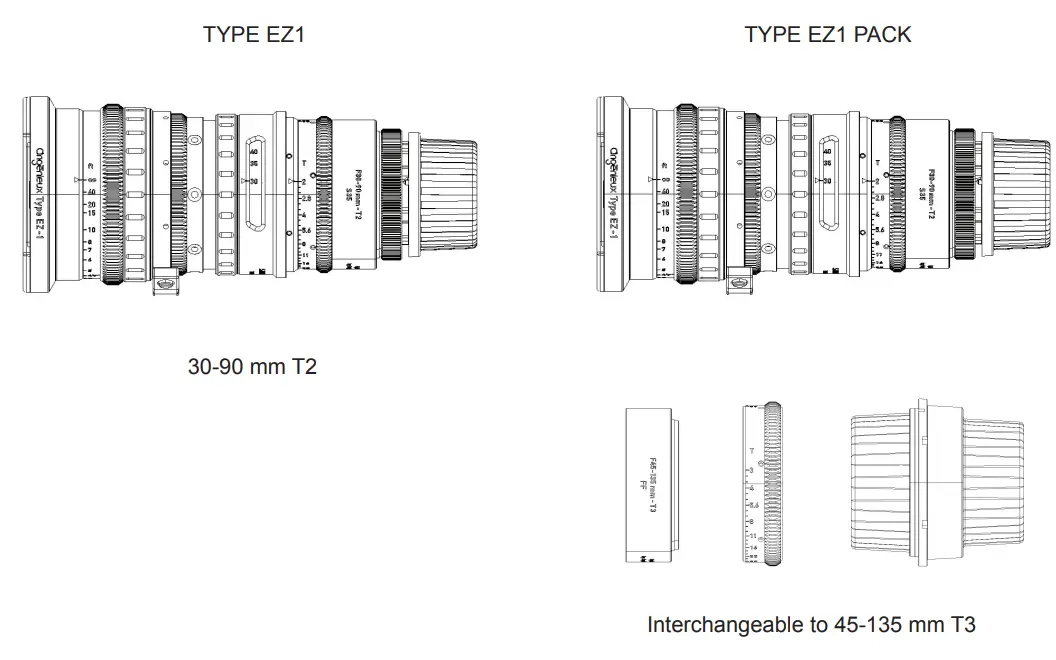
- Zoom EZ1-S35 PL (foot and meter)
- Zoom EZ1 Pack (foot and meter)
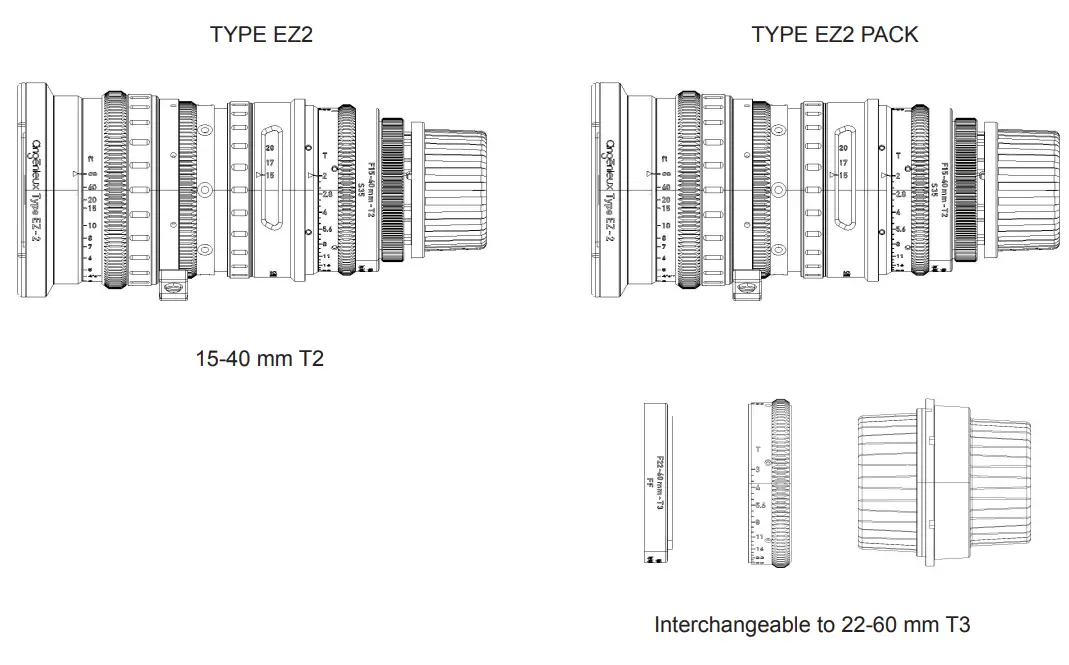
- Zoom EZ2-S35 PL (foot and meter)
- Zoom EZ2 Pack (foot and meter)
The configuration of the EZ1 Pack allows, via a change of the FF / Vista Vision rear subassembly and clamping rings, to switch from an EZ1-S35 PL (30-90) zoom to a FF (45-135 zoom)
The configuration of the EZ2 Pack makes it possible to change the FF / Vista Vision rear subassembly and clamping rings from a zoom EZ2-S35 PL (15-40) to a zoom FF (22-60)
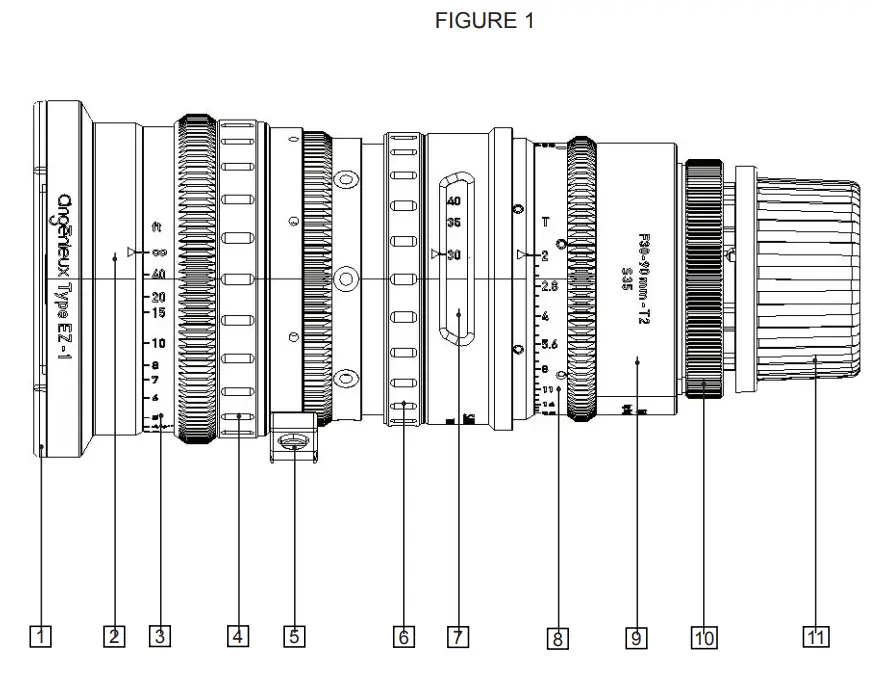
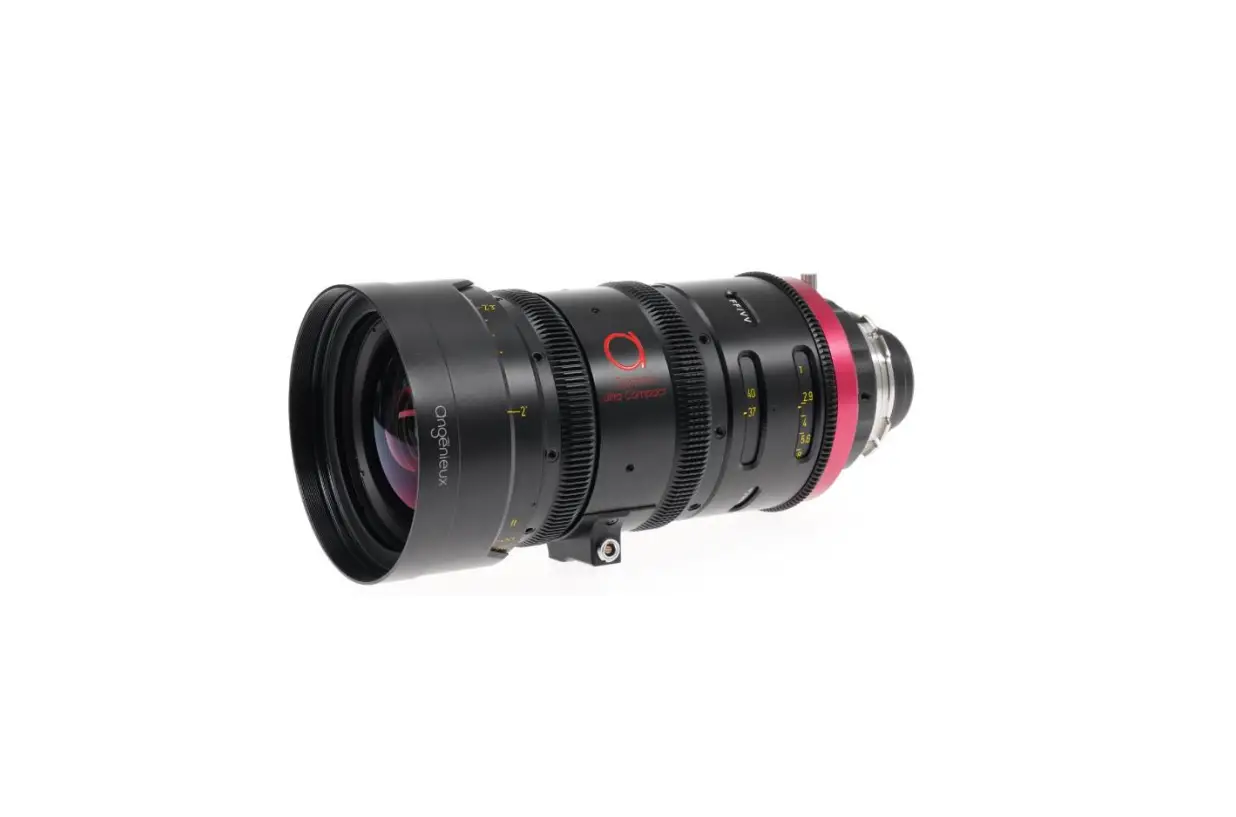
The zoom box EZ1 (EZ2) -S35 PL (foot or meter) includes (cf sheet 1):
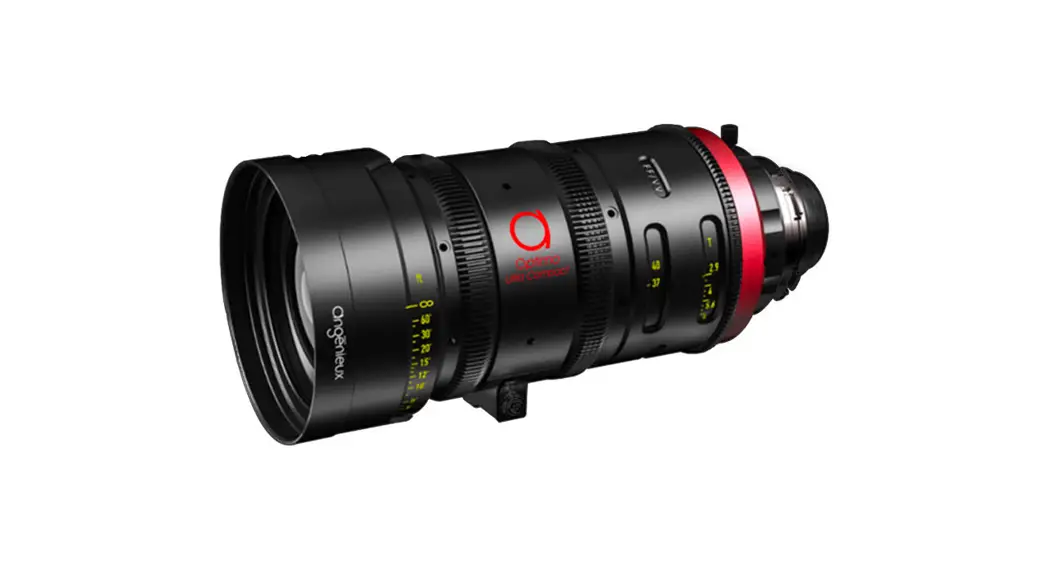
- A zoom type EZ1 (EZ2) -S35 PL
- Its documentation
- A shim set box
- Two Lens brackets support
- An optical rear group FF/VV
- An iris engraved ring
| Reference | Description | Quantity |
| 1 | Front cap | 1 |
| 2 | Fixed focus mark | 1 |
| 3 | Engraved focus ring | 1 |
| 4 | Focus rubber ring | 1 |
| 5 | Support | 1 |
| 6 | Zoom rubber ring | 1 |
| 7 | Zoom mark window | 1 |
| 8 | Engraved iris ring | 1 |
| 9 | Red ring | 1 |
| 10 | PL mount sub-assembly | 1 |
| 11 | Rear cap | 1 |
Technical specification
| Type EZ1 S35 (Standard) | ilm FFNista Vision | ||
| S35-3 perf | |||
| Imaging coverage | Up to 30 | Up to 46 | |
| Zoom ratio | 3x | 3x | |
| Focal length | 30-90 | 45 – 135 | |
| Aperture | f/1.9 – T2.0 | f/2.8 – T3.0 | |
| MOD | 2ft – 0.6m | 2ft – 0.6m | |
| Reference image size | 24 x 13.5 | 37.7 x 24.9 | |
| Horizontal angular FOV | 43.6° – 15.2° | 45.6° – 15.9° | |
| Vertical angular FOV | 25.1° – 8.8° | 30.8° – 10.7° | |
| FOV at MOD at focal min | 334 x 184 mm | 351 x 228 mm | |
| FOV at MOD at focal max | 110 x 63 mm | 115 x 77 mm | |
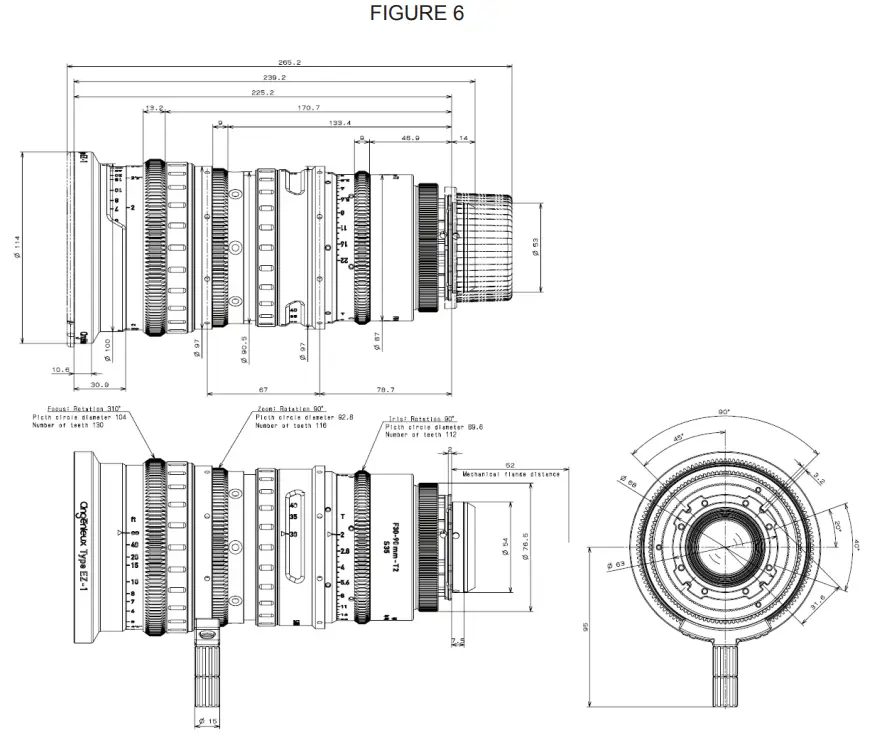
| Front diameter | 114 mm | 114 mm | |
| Length | 226 mm | 226 mm | |
| Weight | 4.7Ib – 2.15kg | 4.51b – 2.05kg | |
| Type EZ2 (Wide) | ||
| S35-3 perf | FF/Vista Vision | |
| Imaging coverage | Up to 30 | Up to 46 |
| Zoom ratio | 2.7x | 2.7x |
| Focal length | 15-40 | 22 – 60 |
| Aperture | f/1.9 – T2.0 | f/2.8 – T3.0 |
| MOD | 2ft – 0.6m | 2ft – 0.6m |
| Reference image size | 24 x 13.5 | 37.7 x 24.9 |
| Horizontal angular FOV | 77.6° – 33.7° | 80.2° – 35° |
| Vertical angular FOV | 44.5° – 19.6° | 57.4° – 24° |
| FOV at MOD at focal min | 628 x 342 mm | 658 x 426 mm |
| FOV at MOD at focal max | 235 x 134 mm | 245 x 145 mm |
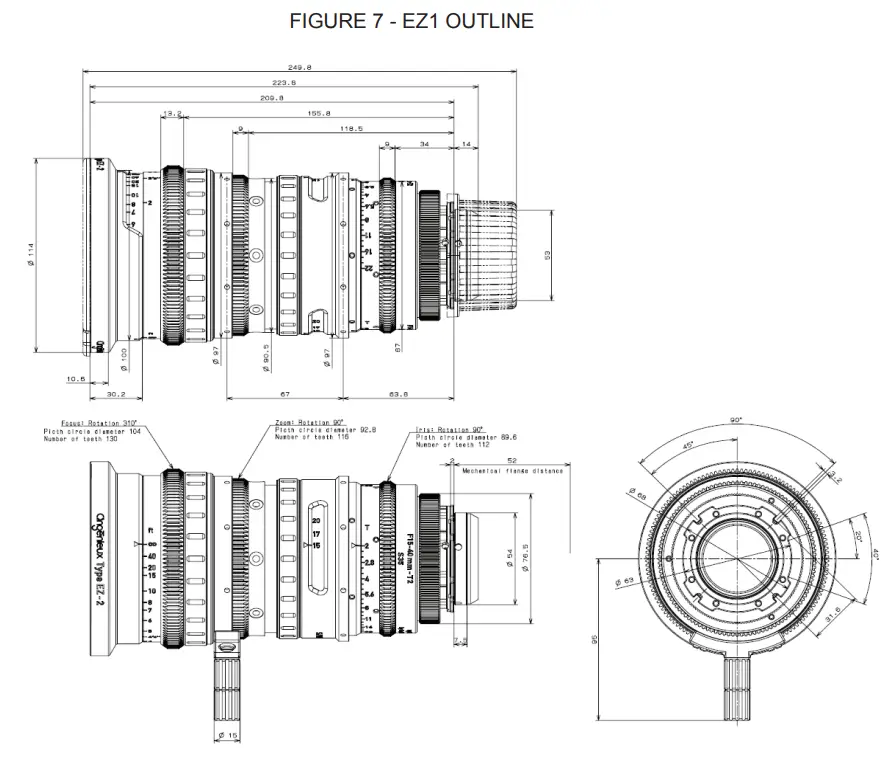
| Front diameter | 114 mm | 114 mm |
| Length | 210 mm | 210 mm |
| Weight | 4.71b – 2.12kg | 4.61b -2.07kg |
INSTALLATION ON CAMERA AND ACCESSORIZATION
3.1 Installation
- Remove the rear cap (11)
- Make sure the rear element is clean
- Mount the zoom on stand with standard support
- Make sure the camera mount and the lens mount match and are clean
- Locate the index finger on the camera
- Align the index of the zoom lens with the index of the camera
- Insert the lens into the camera mount and lock the camera mount
- Remove the front cap (1)
- Install other optional accessories
3.2 Accessories
The lenses of the EZ-Series Type family are delivered as standard with a PL mount.
Optional frames can be purchased separately:
- 0320810: E mount
- 0320811: EF mount
- 0320812: PL mount
Motors developed by MOVCAM are also available
- 0321114: MSU-1 (3 motors, iris, focus, and focus)
- 0321116: MSU-1A (1 focal motor)
3.3 User settings
Warnings:
Perform all user adjustments in a clean and dry place.
Use the specified tools.
Pay attention to the optical and mechanical elements when handling them to avoid degradation.
3.3.1 Flange/Back-focus adjustment
Although the mechanical flange is factory set for standard PL-mount at 52.00 mm in the air, the flange can be adjusted to fit more accurately to the position of the sensor on the camera by modifying the thickness of the flange shim.
The flange can be adjusted using a collimator or a projector.
When using a projector, proceed as follows:
- Mount the lens on a projector with a PL-mount tester
- Put the projector at a distance of about 1.8m from the screen
- Set the iris at full aperture
- Optimize the focus at a long focal length.
- Then zoom to wide-angle:
- If the best focus plan is between the screen and the lens, it is necessary to decrease the thickness of the shim
- If the best focus plan is behind the screen, it is necessary to increase the thickness of the shim.
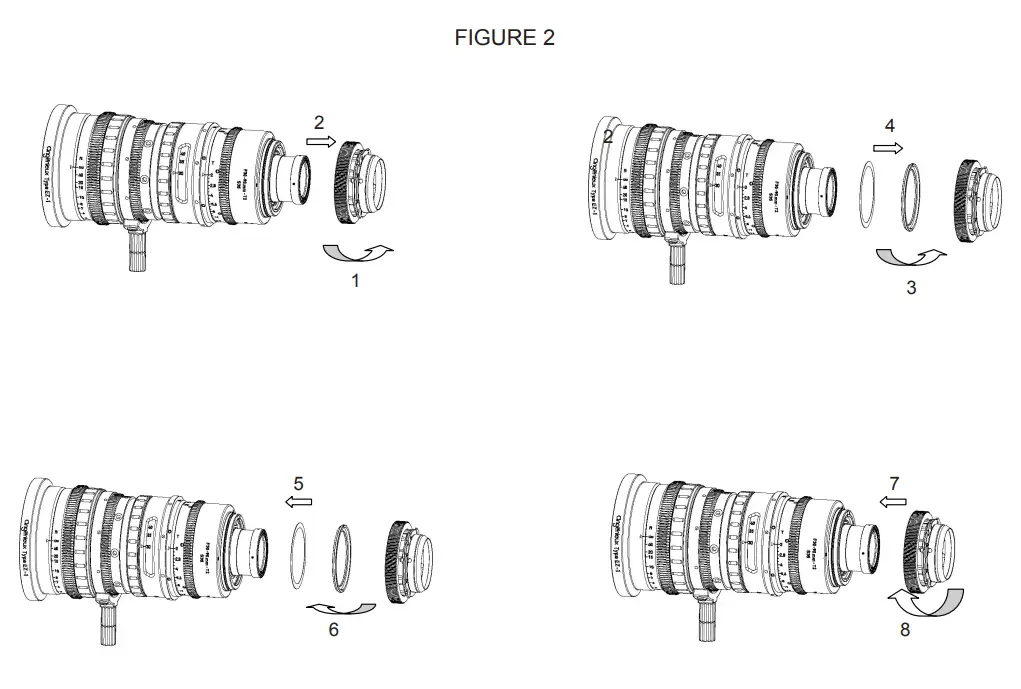
To replace the flange shim : (see FIGURE 2)
- Unscrew the PL mount (1) and remove it (2)
- Unscrew the nut of the washers (3) with an adjustable wrench
- Remove the washer (4)
- Changing the thickness of the chock
- Place the chock (5) and fit the nut (6)
- Reassemble the PL mount (7) (8)
3.3.2 Tracking adjustment
Tracking corresponds to the difference in the pointing of the optical axis between the short focal length and the long focal length.
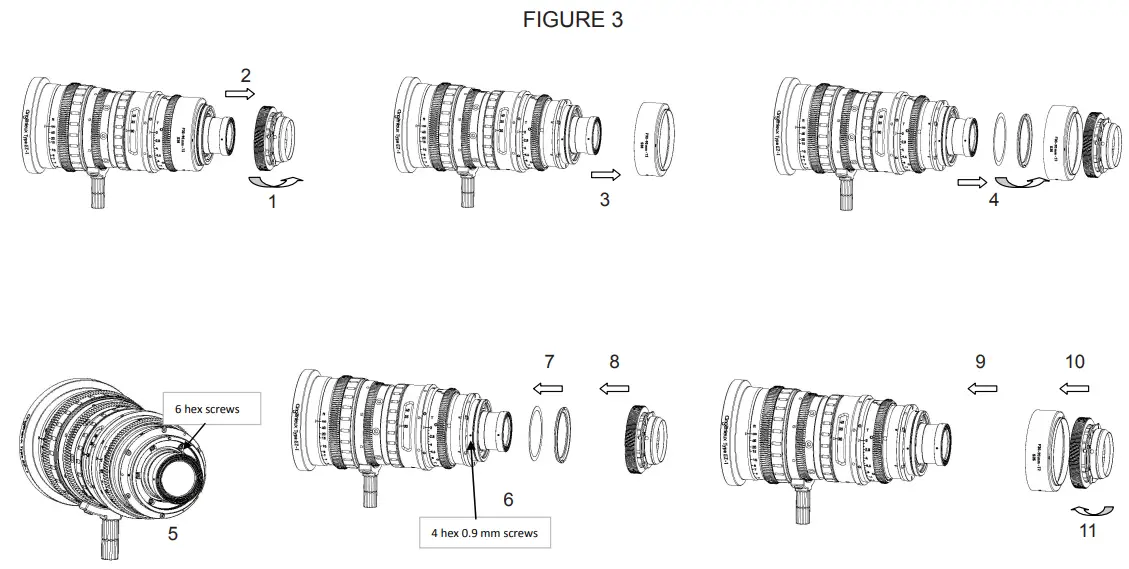
This parameter can be evaluated in projection or on camera by pointing a fixed object at the center of the image. To evaluate the tracking, place it in a short focal length and note the position of the center of the image. Go to a long focal length and note the difference in position of the center of the image. To adjust the tracking setting, perform the following actions: (see FIGURE 3 at the end of the manual.
- Unscrew the PL mount (1) and remove it (2)
- Remove the red ring using a Phillips screwdriver (3 screws) (3)
- Remove the retaining nut of the draft shim and the shim (4)
- Loosen without removing the 6 hexagonal screws 1.5mm placed behind the shim (5)
- The tracking adjustment is made by playing on the 4 hexagonal screws of 0.9 mm placed at the periphery of the lens (6)
- Reassemble the shim, and its holding nut (7)
- Reassemble the PL mount (8)
- Adjust tracking
- Disassemble the PL mount
- Remove the shims and tighten the 6 hexagonal screws 1.5mm
- Reassemble the shims and reinstall the red ring (9)
- Reassemble the PL mount (10) (11)
REPLACEMENT OF MOUNT
The procedure described below provides the information needed to change the camera mount of an EZ-Series lens. It is independent of the image format of the lens (S35 or FF / Vista Vision).
Warnings:
- Carry out the change of frame in a clean and dry place.
- Pay attention to optical and mechanical elements when handling them to avoid any degradation.
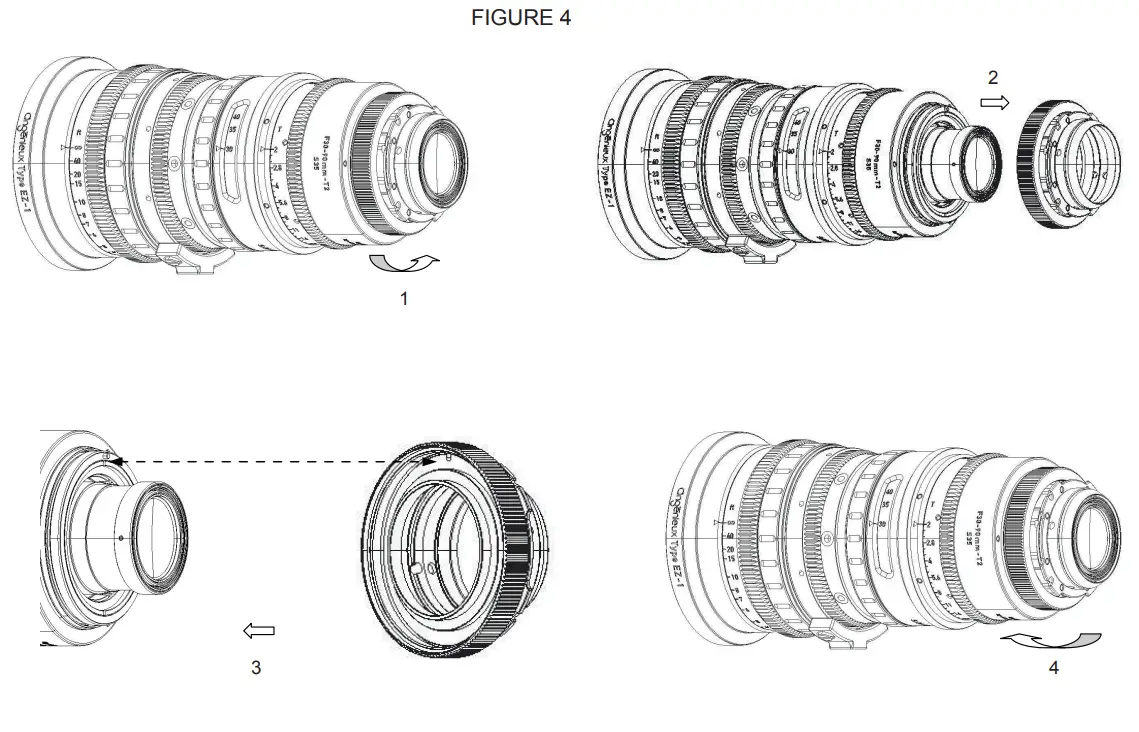
Changing the mount doesn’t require any tool. For illustrations, refer to FIGURE 4 at the end of the manual.
- Unscrew the mounting ring (1)
- Gently remove the mount from the rear (2)
- Position the new mount with careful orientation. The hole on the mounting face must face the indexing pin (3)
- With a slight twist, check that the new mount is in place
- Screw the retaining ring of the new mount (4)
CONVERSION S35 ↔ FF/Vista Vision
The conversion procedure described below provides the information needed to transform an EZ-Series S35 lens into EZ-Series FF / Vista Vision lens and vice versa. This procedure is only applicable if you have an EZ-Series package. The rear optics S35 and FF / VistaVision are factory set and paired with the optics. They have the same serial number. Always use the corresponding optical blocks on the lens body.
Warnings:
- Carry out the change of the optical rear in a clean and dry place.
- Pay attention to optical and mechanical elements when handling them to avoid any degradation.
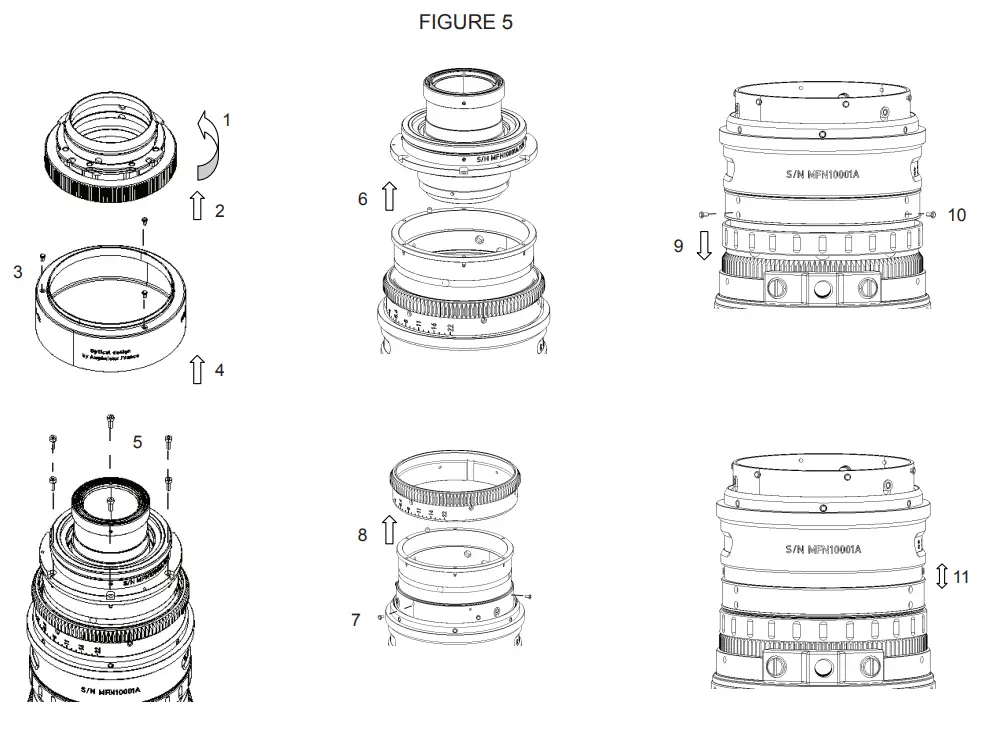
For illustrations, refer to FIGURE 5 at the end of the manual
- Before starting the procedure, make sure that you have all the necessary parts: EZ-Series lens and optical rear with the same serial number, engraved iris ring, red focal marking ring, Phillips screwdriver, hexagon key of 1, 5mm.
- Position the lens vertically on your work table.
- Bring the iris to a mechanical stop on the side of the smallest opening (T22 or T32)
- Unscrew the protective caps of the rear block to be fitted
- Unscrew the mounting ring and remove the mount from the rear (1) (2)
- Using a Phillips screwdriver, unscrew the 3 retaining screws of the red ring (3) and remove the ring (4)
- Using a hexagonal wrench (1.5mm), unscrew the 6 screws of the optical unit (5) and gently remove it (6) using the rear protective cap of the optical unit and taking care not to hurt it on the mechanics of the lens nor on the work table.
- Using a Phillips screwdriver, unscrew the 6 screws from the iris ring (7) and remove them from the back of the lens (8).
- Now slide the corresponding engraved iris ring to the optical unit to be installed and screw it onto the lens body with the previous 6 screws. Check its position by turning the ring gently from stop to stop.
- Carefully position the new rear optical unit with the index pin. Reassemble the 6 hexagon screws.
- Reassemble the red ring
- Reassemble the rear mount
- Slide the rubber of the focal ring onto the front of the lens (9)to release the three retaining screws of the ring
- Unscrew the three screws (10) and slide the ring up or down to display the corresponding focal length engravings at the rear group (11)
- Screw the focus ring back in place and return the rubber to the focal ring.
MAINTENANCE
6.1 ADVANCED MAINTENANCE
The complete maintenance of such a lens should be performed by highly qualified people or factory-trained technicians.
If you are uncertain of your capabilities to do the repair, feel free to send the lens to our After Sales Service. Our qualified technician will ensure the proper handling of all maintenance and repair-related items.
Please contact us at :
France and International customer support at :
[email protected]
America customer support at :
Bandpro
[email protected]
Asia customer support at :
Jebsen
[email protected]
6.2 – CLEANING
For maximum image quality, check the lens cleanliness regularly. If a large amount of dust is on the lenses, use a blower system before cleaning to remove them. Use an optical cloth and an isopropyl alcohol liquid. For optimum cleaning, start at the center and clean by turning outwards
6.3 – LUBRICATION
The zoom, focus, and iris mechanisms are factory lubricated. If the lens has been stored for a long time or when used in a cold environment, move each function several times before using the lens.
6.4 – HUMIDITY
To prevent humidity from getting inside the lens, protect the lens to keep it dry.
PRODUCT NUMBER
| Item number | Description |
| 320798 | EZ1-S35 PL (feet) |
| 320799 | EZ1-S35 PL (meter) |
| 320800 | EZ1 Pack (feet) |
| 320801 | Pack (meter) |
| 320802 | EZ2-S35 PL (feet) |
| 320803 | EZ2-S35 PL (meter) |
| 820804 | EZ2 Pack (feet) |
| 820805 | EZ2 Pack (meter) |
| 320810 | EZ E-mount |
| 320811 | EZ EF-mount |
| 320812 | EZ-PL-mount |
| 321114 | MSU1 |
| 321116 | MSU1A |

0321209-108-A
 Thales - Building a future we can all trust

![Zeiss Compact Prime And Zoom Lenses [cp.2, Cz.2] User Manual](https://static-data1.manualsee.com/1/img/176/20329/2020/12/Zeiss-Compact-Prime-and-Zoom-lenses.png "Zeiss Compact Prime And Zoom Lenses [cp.2, Cz.2] User Manual")