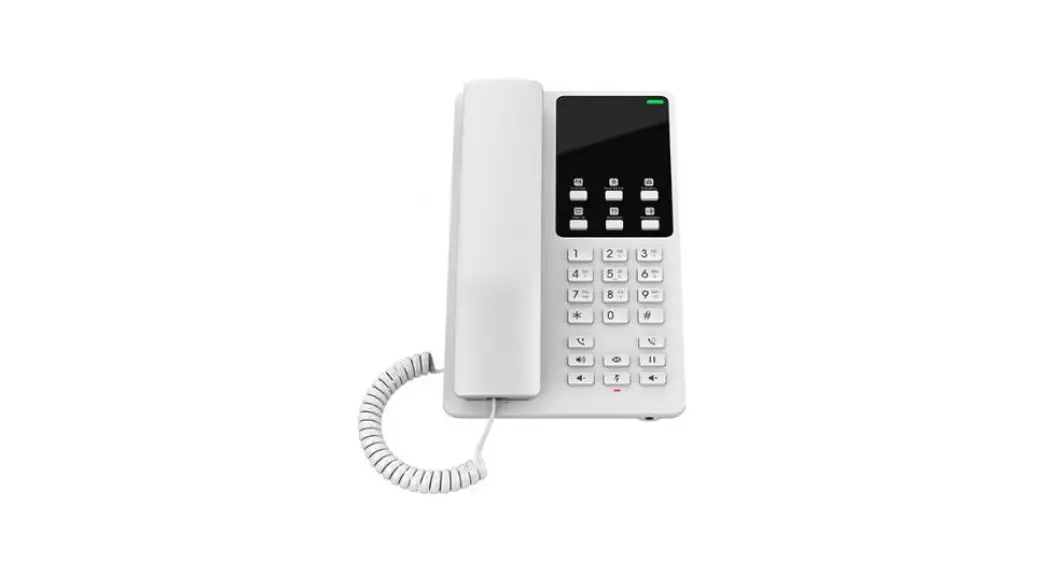
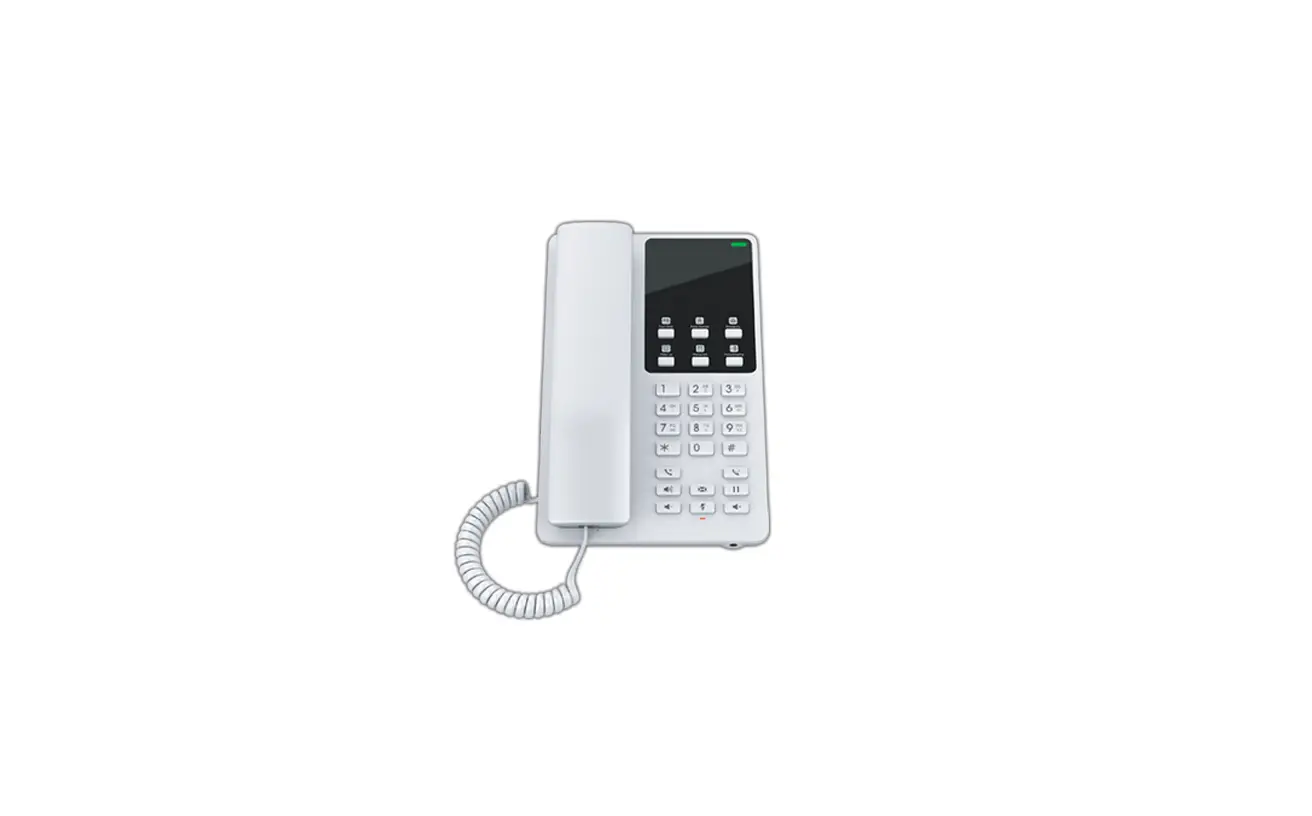
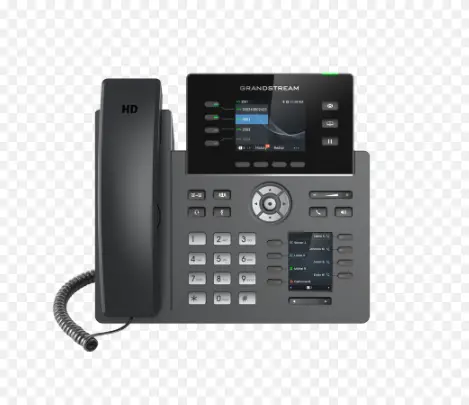
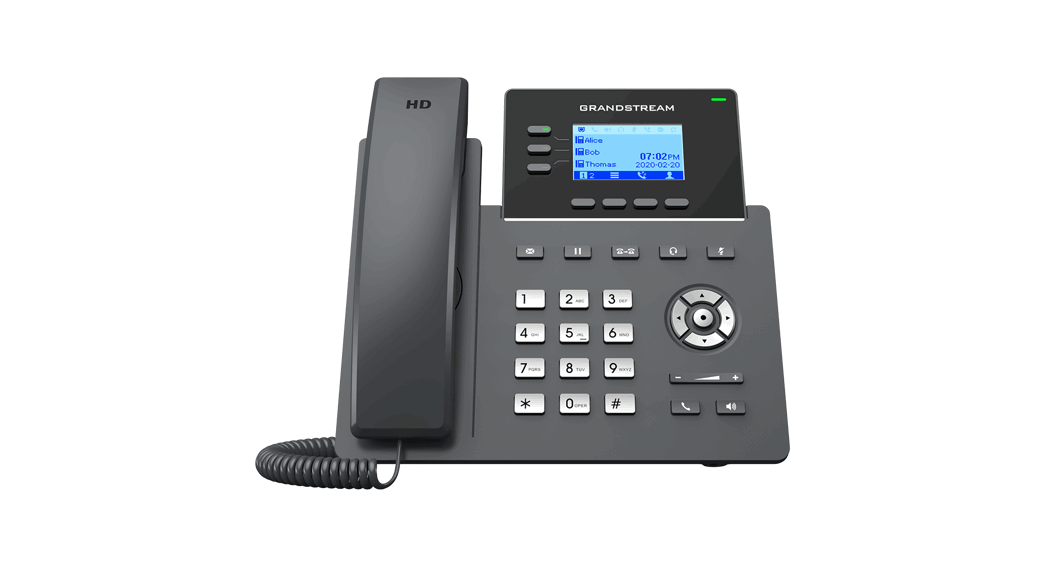
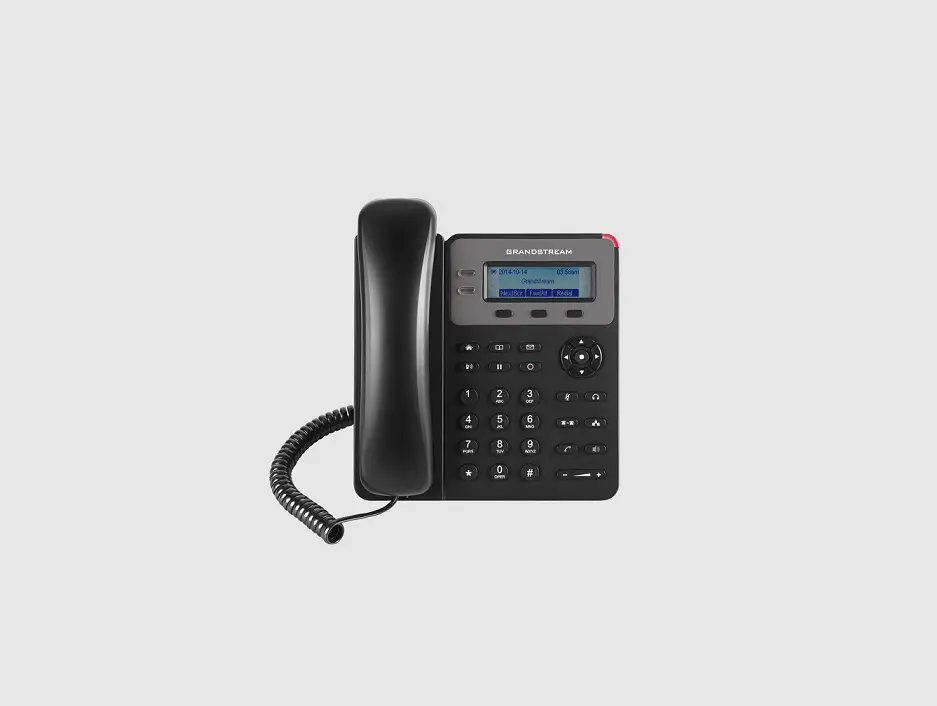
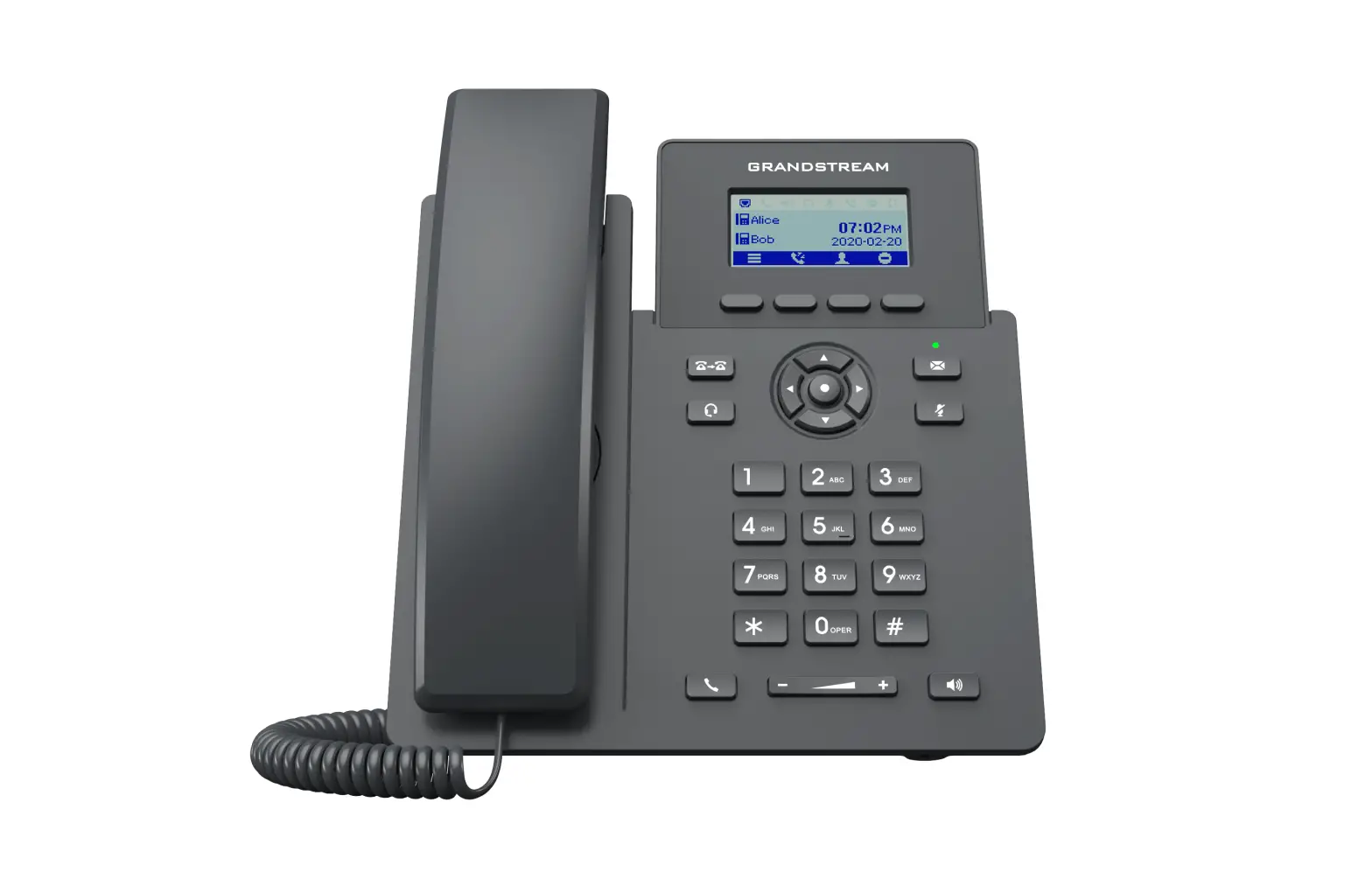
GHP6XX Series Hotel Phones
Product Information
Welcome to the GHP6XX User Guide by Grandstream Networks, Inc.
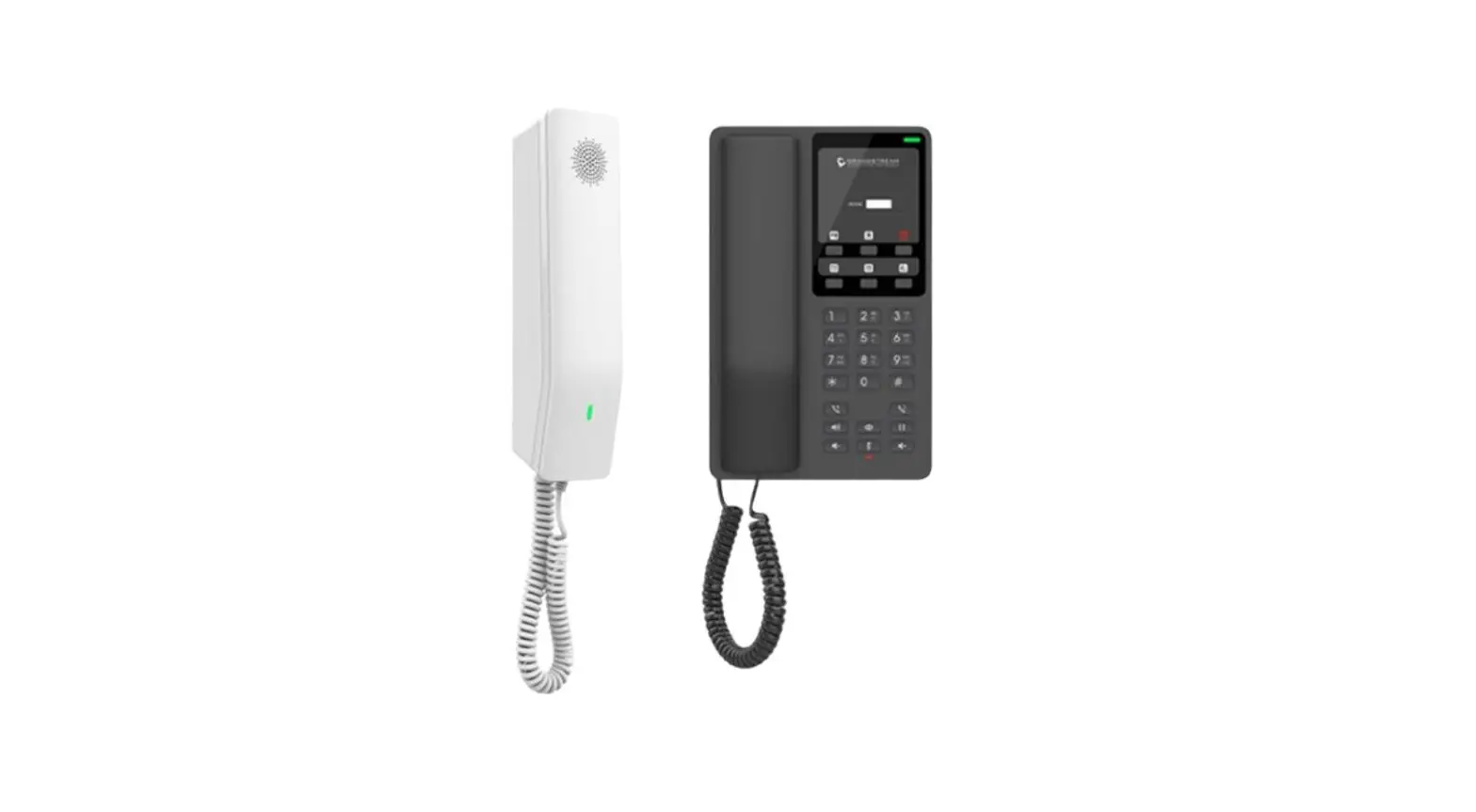
The GHP series of hotel phones consists of two models:
GHP610(W)/GHP620(W) and GHP611(W)/GHP621(W). These IP phones are
designed for hotel rooms and can be programmed and customized to
meet the specific needs of hotels and their guests. The devices are
equipped with integrated dual-band Wi-Fi.
The GHP series features an HD speaker, 2 SIP accounts/lines, 6
programmable keys (3 programmable keys for GHP61X), 10-speed dial
keys, 3-way voice conferencing, full band Opus voice codec, and an
advanced jitter-resilience algorithm that can tolerate up to 30%
packet loss without impacting voice quality.
The GHP series is supported by the Grandstream Device Management
System (GDMS), which provides a centralized interface for
configuring, provisioning, managing, and monitoring the deployment
of Grandstream endpoints.
The GHP series IP phones can be installed on a desktop or
wall-mounted. They can be powered by PoE
(GHP610/GHP611/GHP620/GHP621), power adapter
(GHP610W/GHP611W/GHP620W/GHP621W), or USB Type-C charger
(GHP620/GHP621/GHP620W/GHP621W). The elegant and compact design of
these phones makes them suitable for not only hotels but also
hospitals, apartments, dormitories, and more.
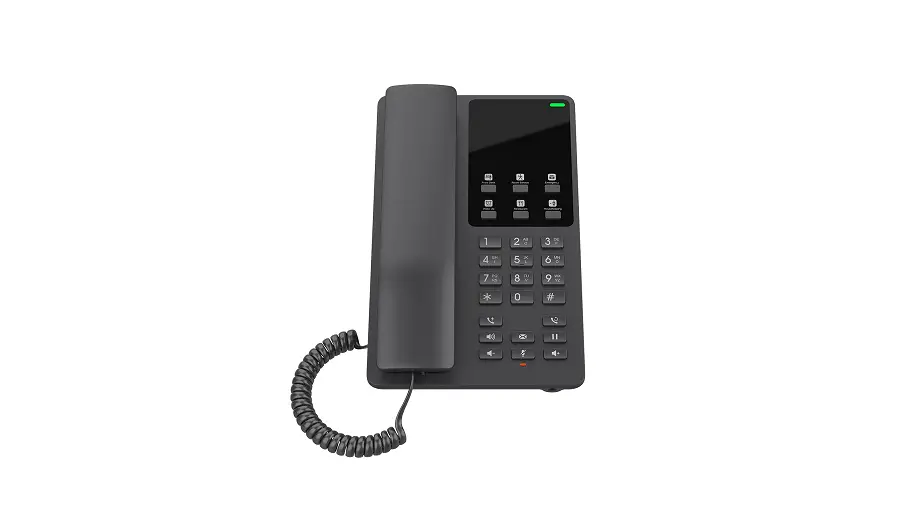
Feature Highlights – GHP61X/W
- TrimStyle phone with a small footprint and fashion design
- 2 SIP lines with wideband Opus codec
- 6 programmable keys (3 programmable keys for GHP61X) and
10-speed dial keys for customizing different services - One 100Mbps network port with PoE (available on
GHP610/GHP611/GHP620/GHP621) - Integrated dual-band 2.4Ghz & 5Ghz 802.11 a/b/g/n/ac
Wi-Fi - Desk/Wall mounted
- Tolerates up to 30% packet loss without impacting voice
quality - Supports provision and management via GDMS
- Customizable faceplate and speed dial label (Speed Dial label
for GHP61X only) - New voice message and mute LED indicator
- HAC/VCH (ADA) compliant handset volume boost
- Magnetic Hook Switch feature
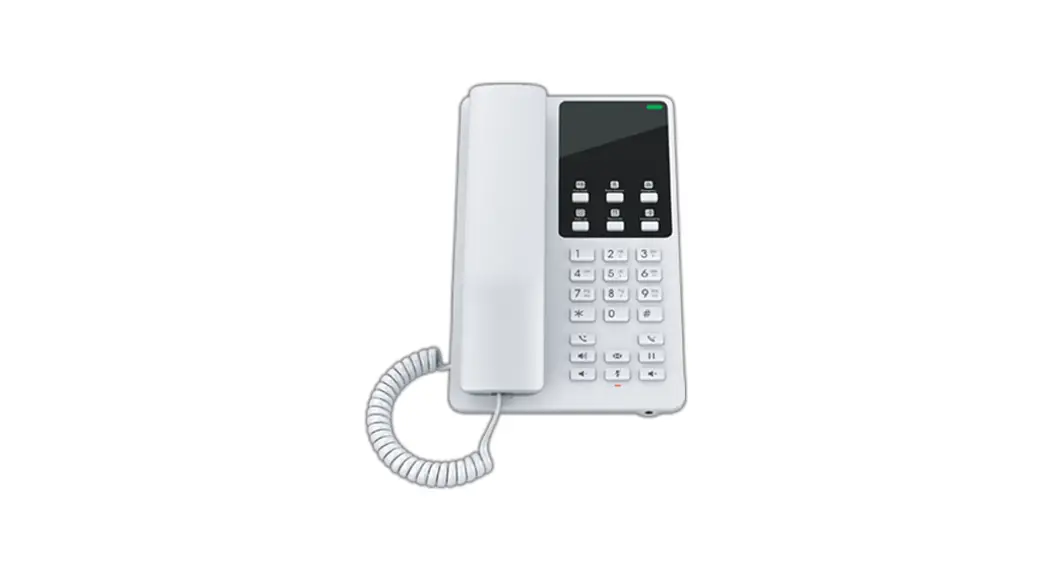
Feature Highlights – GHP62X/W
Technical Specification:
- Protocols/Standards: SIP RFC3261, TCP/IP/UDP, RTP/RTCP,
RTCP-XR, Simple, TLS, SRTP - Network Interface: One Auto-Negotiation 10/100Mbps ethernet
port, integrated PoE (Only GHP61X) GHP610W/GHP611W integrated
dual-band 2.4Ghz & 5Ghz 802.11 a/b/g/n/ac - Keypad: 26 keys, including 6 Programmable keys, 12 standard
phone digit keys (0-9: speed dial keys configuration on web page,
*,#), 5 function keys (Flash, Redial, Hands-free, Voice Mail,
Hold), and 3 volume control keys (up/down/mute with red color
LED)
Telephony Features
The GHP series offers various telephony features, including:
Dial, Answer, Redial, Flash, Hands-free, Voice mail (with the
server), Hold/Unhold, Mute/Unmute, flexible dial plan, Speed dial
server redundancy, and fail-over Call out.
Product Usage Instructions
To use the GHP series IP phones:
- Choose a suitable location for the phone, either on a desktop
or wall-mounted. - Connect the phone to the power source. Use PoE
(GHP610/GHP611/GHP620/GHP621), power adapter
(GHP610W/GHP611W/GHP620W/GHP621W), or USB Type-C charger
(GHP620/GHP621/GHP620W/GHP621W) to power the phone. - Connect the phone to the network using an ethernet cable.
- If using Wi-Fi, ensure that the phone is within range of a
Wi-Fi network and configure the network settings accordingly. - Once powered on and connected, follow the instructions in the
user manual to configure and customize the phone based on your
specific needs. - Utilize the programmable keys, speed dial keys, and other
telephony features to enhance your communication experience. - If required, manage and monitor the phone’s deployment using
the Grandstream Device Management System (GDMS).
For more detailed instructions on configuring and using the GHP
series IP phones, please refer to the complete user guide provided
by Grandstream Networks, Inc.
Grandstream Networks, Inc.
GHP6XX Series GHP6XX User Guide
Welcome to GHP6XX User Guide
The GHP series of hotel phones feature the GHP610(W)/GHP620(W) and the GHP611(W)/GHP621(W), easy-to-use IP phones for any hotel room that can be programmed and customized based on the needs of the hotel and its guests. These devices feature are equipped with integrated dual-band Wi-Fi (GHP6XX/W).
The features of the GHP series include an HD speaker, 2 SIP accounts/lines, 6 programmable keys (3 programmable keys for GHP61X), 10-speed dial keys, 3-way voice conferencing, full band Opus voice codec, an advanced jitter-resilience algorithm that tolerates up to 30% packet loss without impacting voice quality.
The GHP series is supported by the Grandstream Device Management System (GDMS), which provides a centralized interface to configure, provision, manage and monitor the deployment of Grandstream endpoints.
The GHP series IP phones can be installed on a desktop or wall-mounted and can be powered by PoE (GHP610/GHP611/GHP620/GHP621), power adapter (GHP610W/GHP611W/GHP620W/GHP621W) and USB Type-C charger(GHP620/GHP621/GHP620W/GHP621W).
Its elegant and compact design makes it perfect for not only hotels but also hospitals, apartments, dormitories, and much more.
PRODUCT OVERVIEW
Feature Highlights
GHP61X/W
TrimStyle phone, small footprint and fashion design. 2 SIP lines with wideband Opus codec. 6 programmable keys (3 programmable keys for GHP61X) and 10-speed dial
keys to customize different services. One 100Mbps network port with PoE (PoE available on
GHP610/GHP611/GHP620/GHP621). Integrated dual-band 2.4Ghz & 5Ghz 802.11 a/b/g/n/ac Wi-Fi. Desk/Wall mounted. Tolerate up to 30% packet loss without impacting voice quality. Supports provision and management via GDMS. Customizable faceplate and speed dial label (Speed Dial label for GHP61X
only). New voice message and mute LED indicator. HAC/VCH (ADA) compliant handset volume boost. Magnetic Hook Switch feature.
GHP62X/W
Technical Specification
GHP61X
Protocols/Standards
SIP: SIP RFC3261, TCP/IP/UDP, RTP/RTCP, RTCP-XR, Simple, TLS, SRTP.
1/13
Network Interface Wi-Fi
Keypad
HD Audio Voice Conference Voice Codecs Voice Capabilities Telephony Features Advanced Features Base Stand QoS Security
GHP62X Protocols/Standards Network Interface Wi-Fi
Keypad
HD Audio Voice Conference Voice Codecs Voice Capabilities
One Auto-Negotiation 10/100Mbps ethernet port, integrated PoE (Only GHP61X) GHP610W/GHP611W integrated dual-band 2.4Ghz & 5Ghz 802.11 a/b/g/n/ac.
23 keys, including: – 3 Programmable keys. – 12 standard phone digit keys (0-9: speed dial keys configuration on web page, *,#). – 5 function keys (Flash, Redial, Hands-free, Voice Mail, Hold). – 3 volume control keys, up/down/mute (with red color LED). One HD handset, support for wide band audio. 2 SIP accounts and lines, up to 3-way conference. Support for the G.729A/B, G.711µ/a-law, G726, G.722(wide band), G723, iLBC, full band OPUS. In-band and out-of-band DTMF (in audio, RFC2833, SIP INFO), VAD, AEC, CNG, PLC, AGC, AJB. Dial, Answer, Redial, Flash, Hands-free, Voice mail (with the server) Hold/Unhold, Mute/Unmute, flexible dial plan, Speed dial server redundancy, fail-over Call out. Support for multicast paging and E911 service. Support for advanced jitter resilience algorithm. 1 wall-mountable base stand, can be put on a desk. Layer 2 QoS (802.1Q, 802.1p) and Layer 3 (ToS, DiffServ, MPLS) QoS Secure boot, random default, unique security certificate per device, administrator level passwords, 256-bit AES encrypted configuration file, SRTP, TLS, 802.1x media access control.
SIP: SIP RFC3261, TCP/IP/UDP, RTP/RTCP, RTCP-XR, Simple, TLS, SRTP. One Auto-Negotiation 10/100Mbps ethernet port, integrated PoE (Only GHP62X) GHP620W/GHP621W integrated dual-band 2.4Ghz & 5Ghz 802.11 a/b/g/n/ac. 26 keys, including: – 6 Programmable keys. – 12 standard phone digit keys (0-9: speed dial keys configuration on web page, *,#). – 5 function keys (Flash, Redial, Hands-free, Voice Mail, Hold). – 3 volume control keys, up/down/mute (with red color LED).
One HD handset, support for wide band audio. 2 SIP accounts and lines, up to 3-way conference. Support for the G.729A/B, G.711µ/a-law, G726, G.722(wide band), G723, iLBC, full band OPUS. In-band and out-of-band DTMF (in audio, RFC2833, SIP INFO), VAD, AEC, CNG, PLC, AGC, AJB.
2/13
Telephony Features
Advanced Features Base Stand QoS Security
Dial, Answer, Redial, Flash, Hands-free, Voice mail (with the server) Hold/Unhold, Mute/Unmute, flexible dial plan, Speed dial server redundancy, fail-over Call out.
Support for multicast paging and E911 service. Support for advanced jitter resilience algorithm.
1 wall-mountable base stand, can be put on a desk.
Layer 2 QoS (802.1Q, 802.1p) and Layer 3 (ToS, DiffServ, MPLS) QoS
Secure boot, random default, unique security certificate per device, administrator level passwords, 256-bit AES encrypted configuration file, SRTP, TLS, 802.1x media access control.
GETTING STARTED
This chapter provides basic installation instructions including the list of the packaging contents and also information for obtaining the best performance with the GHP6XX/W.
Equipment Packaging
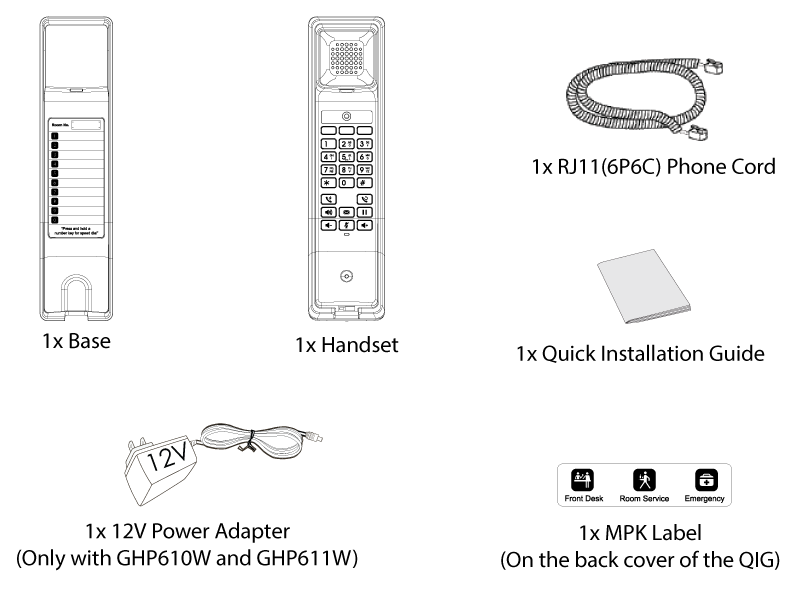
GHP61X
GHP61X/W
1x Base 1x Handset 1x RJ11 (6P6C) Phone Cord 1x Quick Installation Guide 1x 12V Power Adapter (Only with GHP610W and GHP611W) 1x MPK Label (On the back cover of the QIG)
GHP62X
GHP61X Package Content
GHP62X/W
1 x GHP62X Phone
3/13
1 x Handset 1 x Base Stand 1 x Faceplate 1 x 12V Power Adapter (GHP620W and GHP621W) 1 x RJ9(4P4C) Phone Cord 1 x Quick Installation Guide
GHP62X Package Content Note Please check the package before installation. If you find any one of the components missing, please contact your system administrator.
GHP6XX/W Phone Setup
The GHP6XX/W can be installed on the desk or can be mounted on the wall. To mount the phone on the wall please follow the instructions below. GHP61X/W
GHP61X Wall Mount Mark two dots horizontally with a 100 mm distance in between where to wall mount the GHP610/W & GHP611/W. Using a drill, make a hole on each marked dot. Put a plastic expansion bolt and screw (not provided) on each hole. Leave enough space to mount the GHP610/W & GHP611/W. Mount the GHP610/W & GHP611/W on the screws using the Wall Mount Slots. GHP62X/W
GHP61X Wall Mount 1. On the wall where the GHP62X/W will be mounted, mark two dots with 100 mm distance in-between vertically.
4/13
2. Using a drill, make a hole on each marked dot. Put a plastic expansion bolt and screw (not provided) into each hole. Leave enough space on the screws to mount the GHP62X.
3. Attach the wall mount spacers to the slot for the wall mount spacer on the back of the phones. 4. Mount the GHP62X on the screws using its “Wall Mount Slots”.
Connecting the GHP6XX/W
To set up the phone, follow the steps below: 1. Connect the phone cord with the handset (RJ-11 port) and the base. 2. Connect the LAN port of the phone to the RJ-45 socket of a hub/switch on a router ( LAN side of the router) using the Ethernet cable. This step can be skipped if using GHP6xxW with Wi-Fi. 3. Powering the phone: For GHP6XX/W: Connect the 12V DC output plug into the power jack if the phone; plug the power adapter into the electrical outlet. For GHP6XX & GHP6XX: A PoE switch must be used in step 2. Note For easy deployment, the GHP6xxW is out-of-the-box pre-configured to connect to default SSID named wp_master with a password (WPA/WPA2 PSK) equal to wp!987@dmin, users can adapt these settings from the web UI as well to make it easier for deployment on a customer’s site.
Phone Configuration Via Web Browser
1. Ensure your phone is powered up and connected to the internet. 2. Locate the MAC address on the MAC tag of the unit which is on the underside of the device, or on the package. 3. From a computer connected to the same network as the GHP6XX, type in the following address using GHP6XX’s MAC address on your
browser: https://<mac>.local Example: https://c074adffffff.local Note: The user can dial **47# and the IP address will be read by the IVR. 4. Enter the admin’s username and password to access the configuration menu. (The factory default username is “admin” while the default random password can be found on the sticker at the back of the unit).
Getting To Know The GHP6XX/W
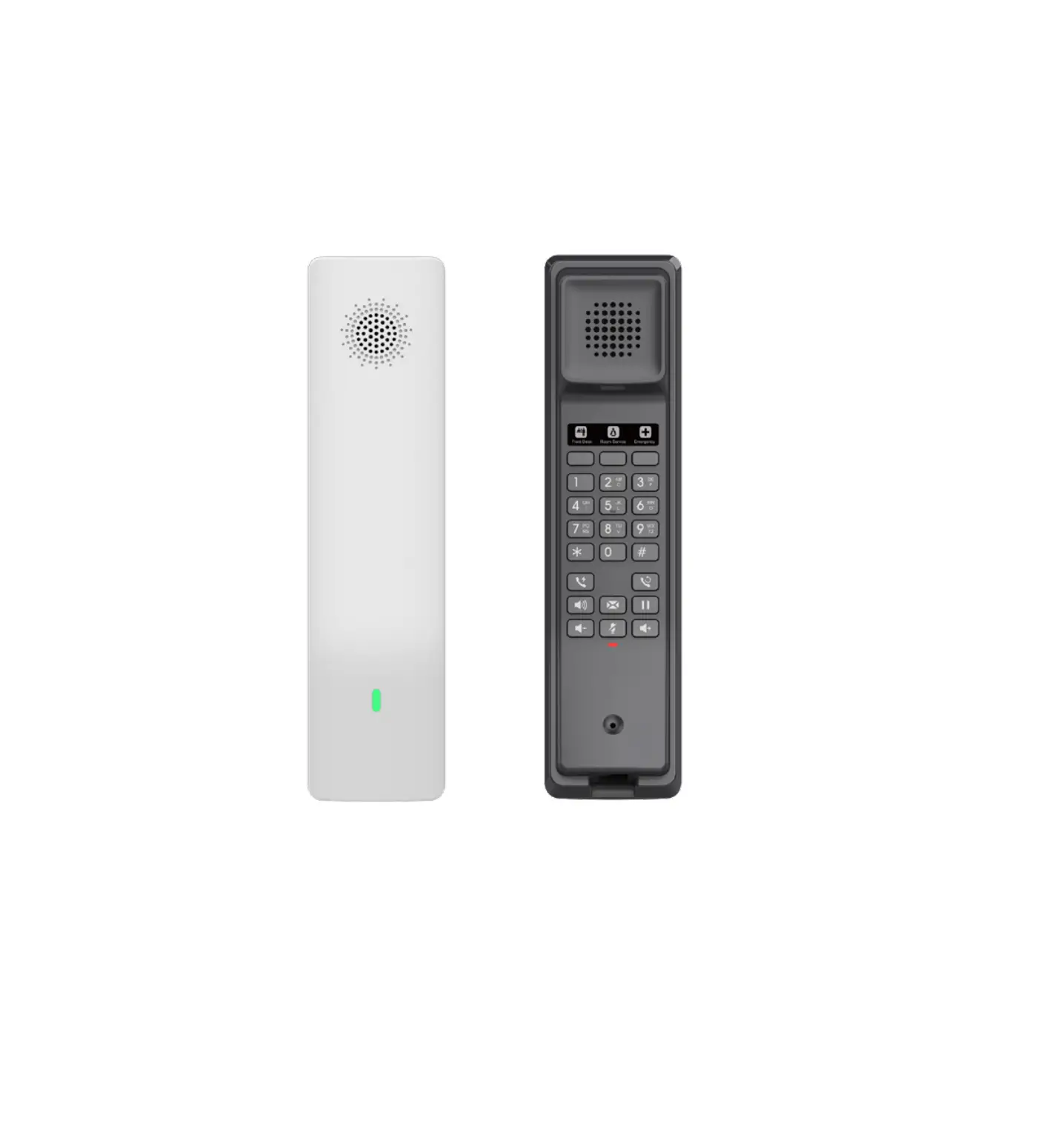
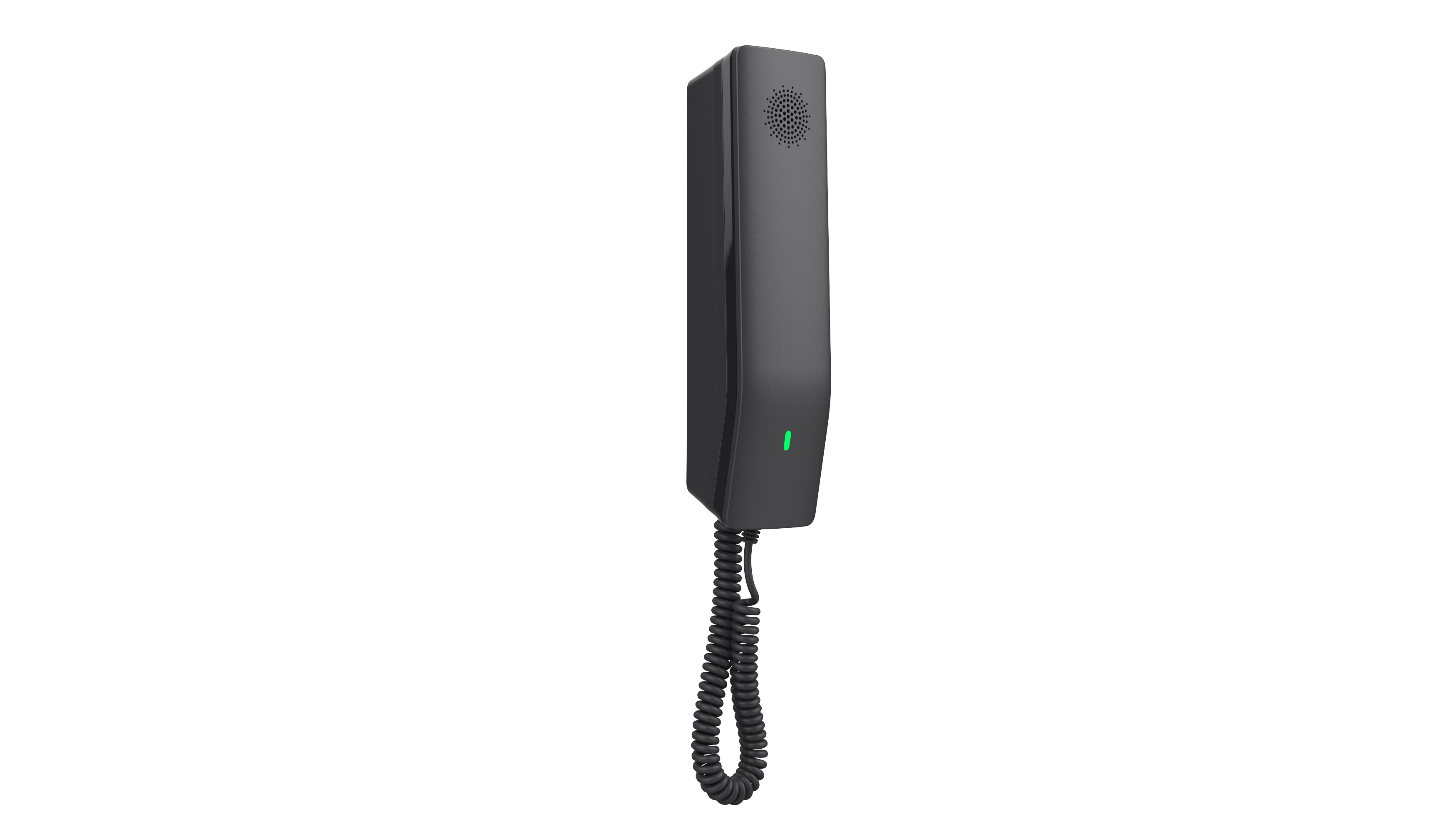
GHP61X/W
5/13
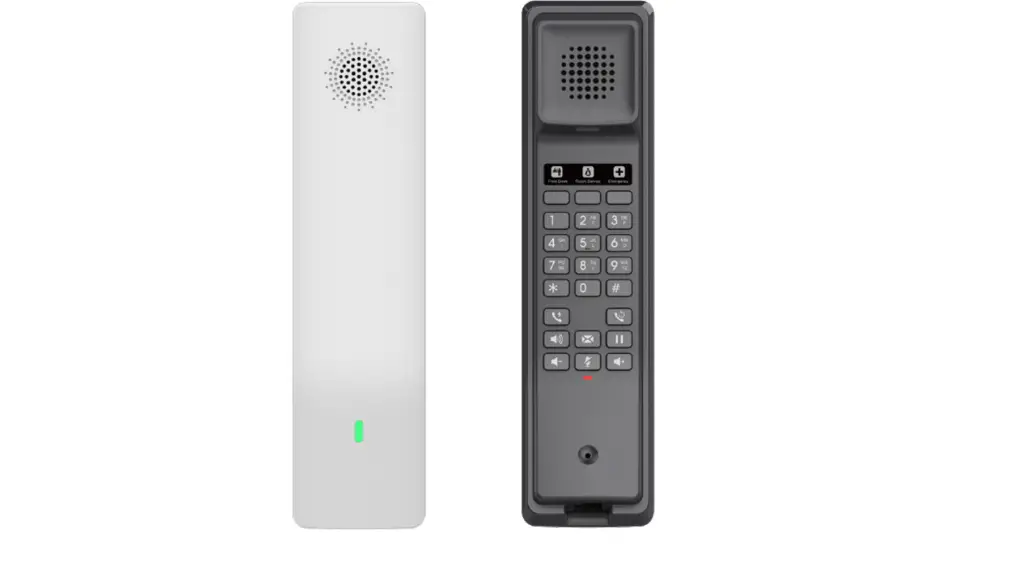
GHP61X Handset
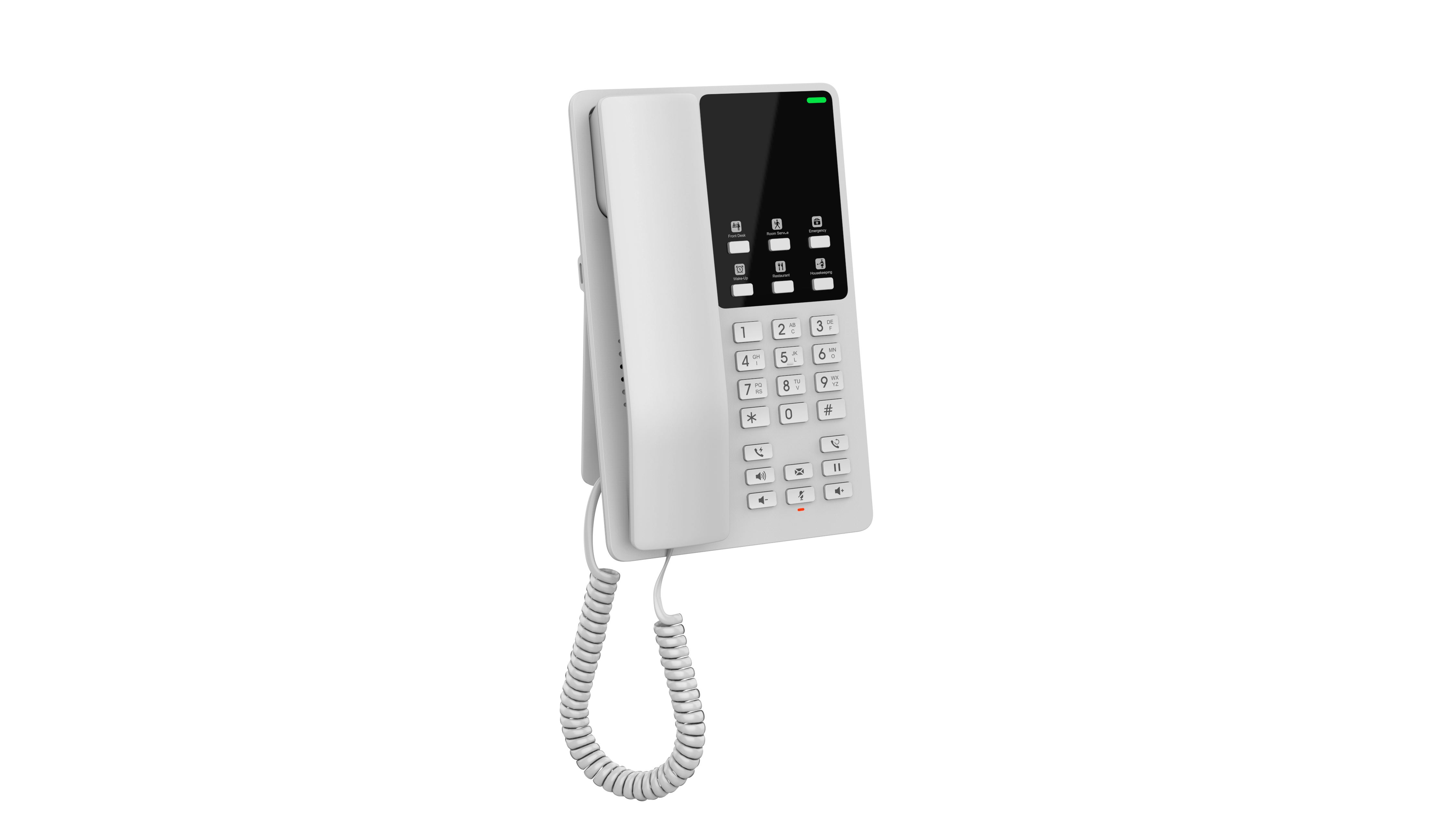
GHP62X/W
GHP61X Back Panel of the Handset and the Base
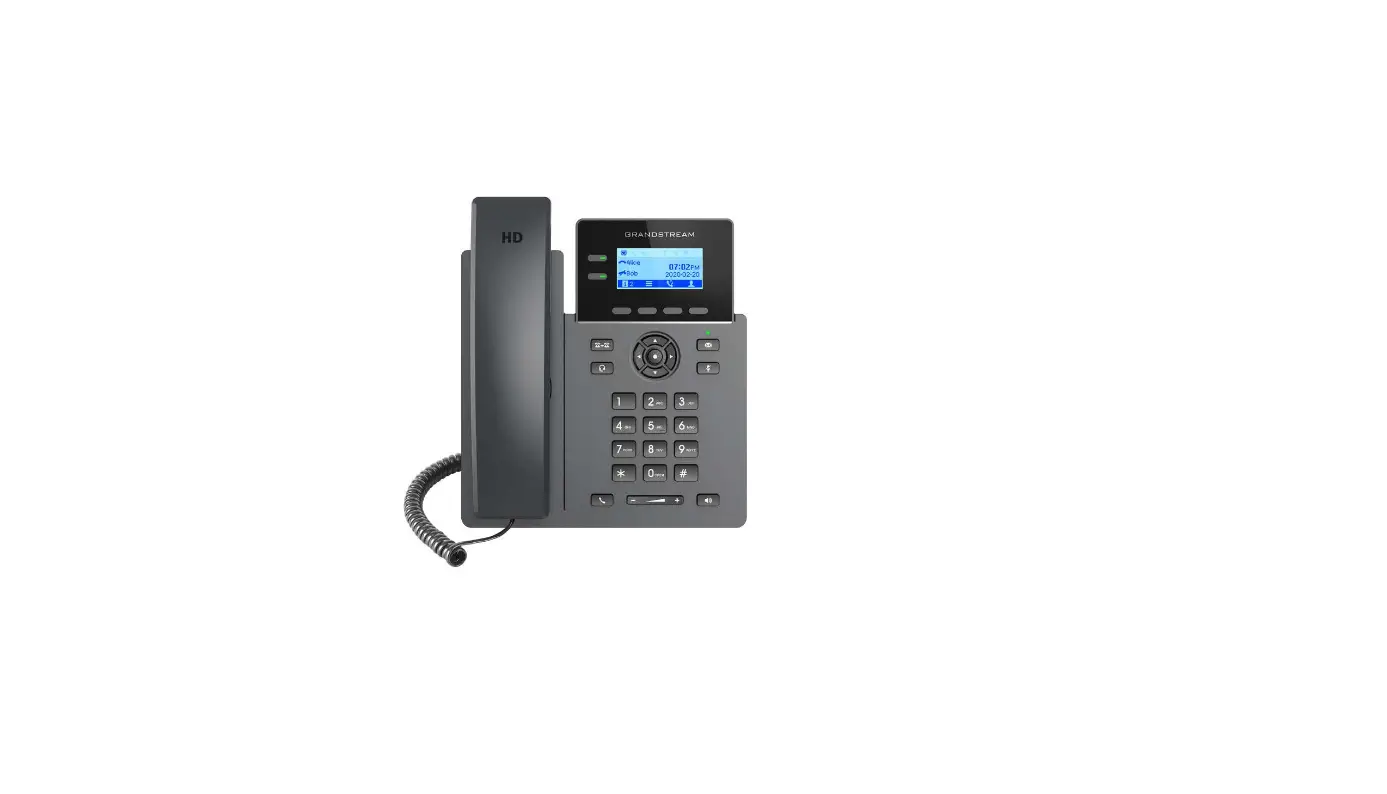
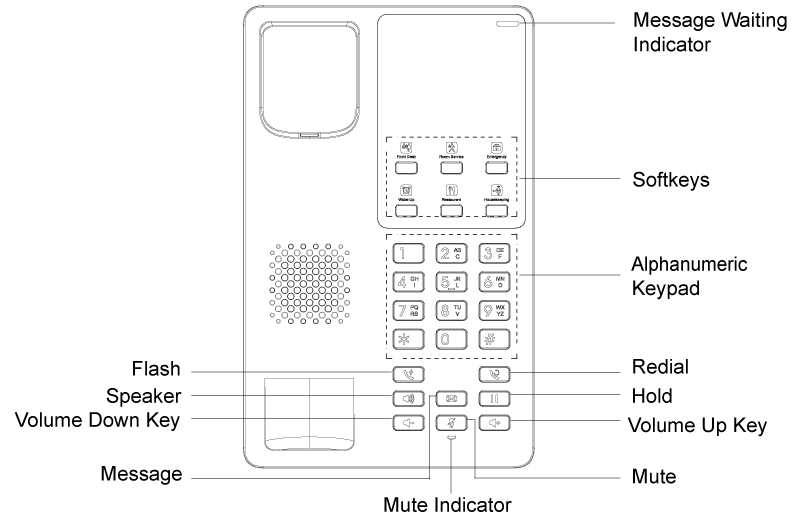
GHP62X Front Panel
TELEPHONY FEATURES
GHP62X Back Panel
Making Phone Calls
Handset and Speaker Mode
The GHP6XX allows switching between the handset and the speaker when making calls. Please press the speaker button to start using the
speaker
. If you wish to switch to the handset after activating the speaker, just unhook the handset and the audio will be emitted
through the handset’s speaker.
6/13
Dial the number that you wish to call and press # to send the call, or wait for a second for the number to be sent.
SIP Accounts and Lines
The GHP6XX supports 2 SIP accounts and 2 lines; Each account is capable of independent SIP servers, and users. One account is configured by the administrator to initiate calls and receive calls. While the other account is configured to receive calls. The default account can be switched only by the administrator.
Completing Calls
There are several ways to complete a call.
On-hook dialing. Enter the number when the phone is on-hook and then send it out.
1. When the phone is idle, enter the number to be dialed out; 2. Take the handset off-hook, Press the Speaker button, or Press the Headset button with the headset plugged in. 3. The call will be dialed out.
Off-hook and dial. Off-hook the phone, enter the number, and send it out.
1. Take handset off-hook; or Press the Speaker button You shall hear the dial tone after off-hook
2. Enter the number; 3. Press the # key to dial out.
Redial. Redial the last dialed number.
1. Take handset off-hook Press the Speaker button, or Press the Headset button with the headset plugged in, or Press an available LINE key to activate the speaker, or When the phone is in an idle state
2. In Order to redial a number you can either : press the redial key, this will compose the last entered number Press the # key, this will trigger a DTMF call to the last composed number
Multi-Purpose Keys: Multi-purpose keys can be configured to quickly dial a certain extension. When the MPK has been pressed the number will be quickly dialed and the call sent out.
Answering Phone Calls Receiving Calls
The phone rings with the selected ringtone. Unhook the handset or press the speaker button
to answer the call.
Note Please note that due to the nature of environment that this phone is deployed on, it’s not possible to reject a call.
During a Phone Call
7/13
Call Waiting/Hold Call
User can use the hold button
to put the call on hold.
When receiving a call on the second line, the user can use the Flash key
to hold the call on the first line and switch to the call on the
second line. If the user wants to unhold the first call, the user may press the Flash key again to recover the call.
Mute
During an active call, press the MUTE button microphone is muted.
to mute/unmute the microphone. The LED will light up in red to indicate that your
Call Transfer
Attended Transfer 1. Alice is talking with Bob. 2. Alice press Flash to initiate a new call to Carl, and Bob is held automatically. 3. Carl answers the call, and Alice talks with Carl about Bob, then Alice hangs up the call, and Bob will be transferred to Carl. 4. If Carl rejects or does not answer the call, Alice could press Flash to retrieve the call with Bob. 5. If the call is still ringing, Alice could cancel the new call by pressing “FLASH”, and retrieve the call with Bob automatically.
Three-way Conference
If there is one line in use, press the Flash button answered:
1. Alice is talking with Bob
to start a new call, and long-press Flash to set up a conference after the new call is
2. Alice starts a new call with Carl by pressing Flash, and Bob is held
3. There are three situations: If Carl does not answer the call, Alice could press Flash to retrieve Bob.
Alice also could press Flash to cancel the call, and back to the call with Bob.
Once Carl answer the call, Alice could long-press Flash to set up the conference
4. If Alice wants to end to call with Carl on the conference, she could press Flash. 5. If Alice wants to end the conference and keep calls, she could long press Flash, then Bob will be held, and Alice will back to the call with
Carl. 6. If Bob or Carl hangs up his call, Alice will back to the call with whoever stayed on the line. 7. Once Alice hangs up the phone, all calls and the conference are ended.
If there are two lines in-use, to set up a conference: 1. If Alice holds Bob and is talking with Carl
8/13
Alice could press Flash to switch lines, and also could long press Flash to set up a conference. 2. If Alice holds Bob and Carl’s calls
Alice could press Flash to switch the line, and also could long press Flash to set up a conference. Bob and Carl will be unheld automatically
Voicemail
The Waiting Message Indicator will blink in a green color when there is a new voicemail. To listen to the voicemail, please press the Voicemail button on the phone.
IVR Button Function
GHP6XX supports keypad codes to perform a number of actions like retrieving information or configuring the phone. An IVR will respond to the codes dialed accordingly. Please refer to the table below to see all the possible functions that can be performed.
Function
Operation
Phone Feedback
Get IP address (IP)
Modify IP address (IP) Get Subnet Mask (SM) Modify Subnet Mask (SM) Get Gateway (GW) Modify Gateway (GW) Get DNS Servers (DNS) Modify DNS Server (DNS) Get Firmware (FW) View the hardware part number (HN) Get MAC (MA) Get Account Directory Number (DN) Reboot (RB) Factory Reset (FR)
VLAN ID (VI) Firmware Upgrade (FU)
1. **47#(When IPv4 and IPv6 coexist, broadcasts IPv4 by default)
2. **474# broadcasts IPv4 3. **476# broadcasts IPv6
The phone broadcasts the current IP address
**47*{IP}#
Phone changes IP
**76#
Phone broadcasts subnet mask
**76*{SubnetMask}#
Phone modifies subnet mask
**49#
Phone broadcast gateway
**49*{Gateway}#
Phone modify gateway
**367#
Phone broadcast DNS server address
**367*{DNS}#
Phone modify DNS server address
**39#
The phone announces the current firmware version
**46#
Phone broadcast hardware PN
**62#
Phone broadcast MAC address
**36#
The phone announces the account number
**72#
The phone performs a restart
**37*{keypad password}#(Password is required for this operation)
The phone performs factory recovery
**84*{keypad password}*{VLAN ID}# (Password is required for this operation)
Configure VLAN ID: 0-4094, 0 means off
**38*{keypad password}#
Trigger a firmware upgrade
9/13
Firmware Upgrade 2 (FU) Get Firmware Upgrade Server Address (FA) Configuration File Download 1 (CU) Configuration File Download 2 (CU) Configuration File Download 3 (CU) Configuration File Download 4 (CU)
Configuration File Download 5 (CU)
Configuration File Download 6 (CU)
View Profile Server Address (CA) Get TR069 Status (TR) Reset Network (NR) Set Profile Download Protocol Type
Set the firmware upgrade protocol type Get HAC On Status (HAC) Set HAC on or off (HAC) Set Room number Get Room number Reset Room number Enable the UCM zero-configuration number selection process
(Password is required for this operation)
**38*{keypad password}*{server IP address}# (Password is required for this operation)
Trigger the upgrade of the specified upgrade firmware path
**32#
Broadcast firmware server URL addr
**28*{keypad password}#(Password is required for this operation)
The phone downloads the configuration
**28*{keypad password}**{prefix}# (Password is required for this operation)
The phone downloads the configuration
**28*{keypad password}**{prefix}*{postfix}# (Password is required for this operation)
The phone downloads the configuration
**28*{keypad password}*{server IP address}# (Password is required for this operation)
The phone downloads configuration from the specified server
**28*{keypad password}*{server IP address}* {prefix}# (Password is required for this operation)
The phone downloads configuration from the specified server
**28*{keypad password}*{server IP address}* {prefix}*{postfix}# (Password is required for this operation)
The phone downloads configuration from the specified server
**22#
URL address of phone broadcast configuration file server
**87#
Phone broadcast TR069 is available
**67*{keypad password}#
The phone resets the network configuration
**28x#
Set and broadcast the current protocol nameThe values of X can be: 1, 2, 3, 4, 5TFTP [1]; HTTP [2]; HTTPS [3]; FTP [4]; FTPS [5]
**38x#
Set and broadcast the current protocol nameThe values of X can be: 1, 2, 3, 4, 5TFTP [1]; HTTP [2]; HTTPS [3]; FTP [4]; FTPS [5]
**422#
Broadcast number: 0 (off), 1 (on)
**422*x#
Set HAC on or off: 0 (off), 1 (on)
**766*{room number}
Set Room number to be added under : Hotel Service =>Hotel Room Number
**766#
Return the room number that has been defined
**766*{keypad password}+ {room number}#
Reset the hotel room number if number is already in use , the default keypad password is 123
**82#
UCM delivers the configuration and sets the room number as the preferred account to complete the selection process.
10/13
Notes The phone supports input timeout (about 3s). Entering only **47 and waiting for 3s has the same function as entering **47#. The default password of the keypad is: 123
RESTORE FACTORY DEFAULT SETTINGS
Restore to Factory Default via Keypad
To restore the GHP6XX phone using the keypad, enter the code **37*{keypad password}#. The default keypad password is: 123
Restore to Factory Default via Web GUI
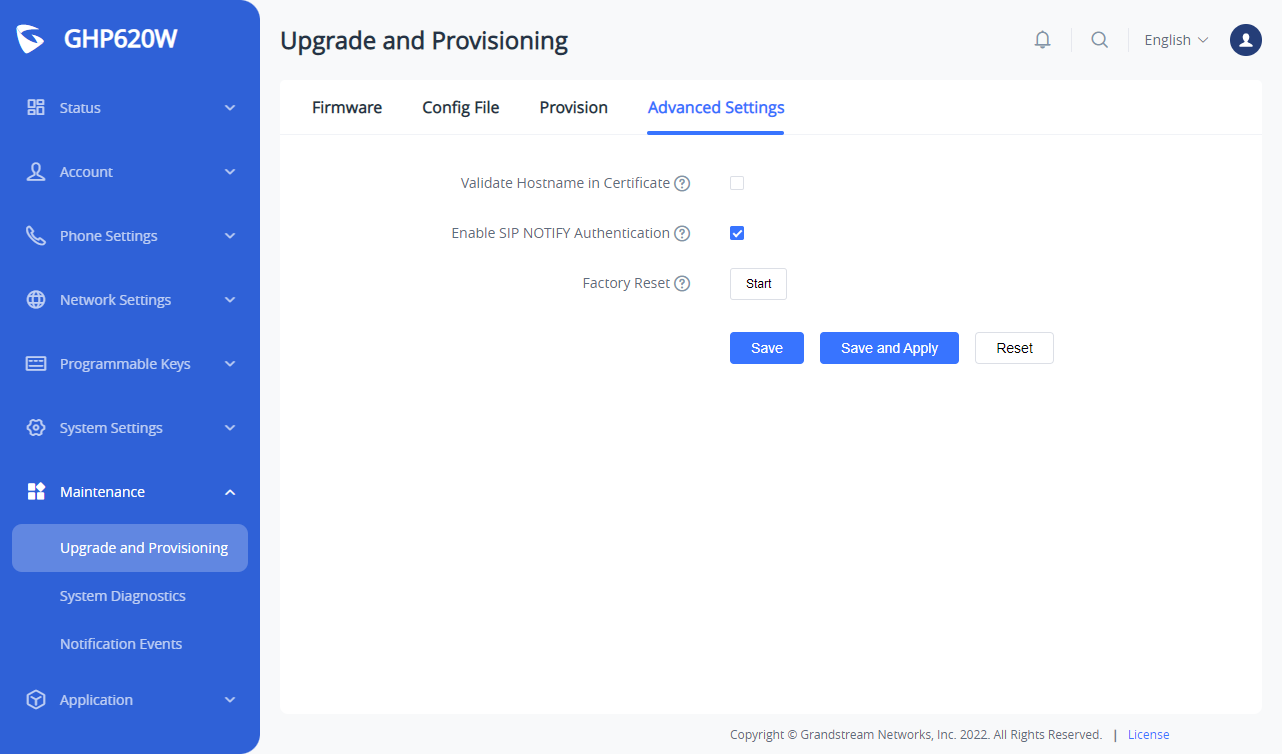
To reset the GHP6XX to its factory settings using the web GUI, please navigate to Upgrade and Provisioning Advanced Settings then click on the Start button to start the factory reset process.
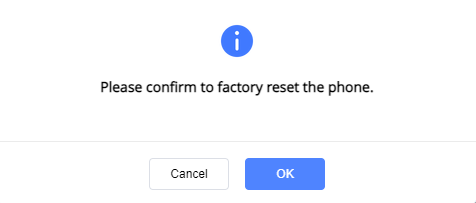
The factory reset will immediately start after you click OK.
Factory Reset via Web GUI
Factory Reset Confirmation
Warning:
11/13
Once the process of resetting to factory settings has started, it cannot be canceled and all the configuration will be lost. To avoid losing your configuration, please back it up first.
CHANGELOG
Firmware 1.0.1.33 · No Major changes.
Firmware 1.0.1.29 · No Major changes.
COPYRIGHT ©2022 Grandstream Networks, Inc. https://www.grandstream.com All rights reserved. Information in this document is subject to change without notice. Reproduction or transmittal of the entire or any part, in any form or by any means, electronic or print, for any purpose without the express written permission of Grandstream Networks, Inc. is not permitted. Grandstream is a registered trademark and the Grandstream logo is the trademark of Grandstream Networks, Inc. in the United States, Europe, and other countries.
CAUTION Changes or modifications to this product not expressly approved by Grandstream, or operation of this product in any way other than as detailed by this guide could void your manufacturer warranty. WARNING Please do not use a different power adaptor with devices as it may cause damage to the products and void the manufacturer’s warranty.
CERTIFICATION If any trouble is experienced with this equipment, please contact (Agent in the US): Company Name: Grandstream Networks, Inc. Address: 126 Brookline Ave, 3rd Floor Boston, MA 02215, USA Tel: 1-617-5669300 Fax: 1-617-2491987 If the trouble is causing harm to the telephone network, the telephone company may request you remove the equipment from the network until the problem is resolved. This equipment uses the following USOC jacks: RJ45C. It is recommended that the customer install an AC surge arrester in the AC outlet to which this device is connected. This is to avoid damaging the equipment caused by local lightning strikes and other electrical surges. Since this device has the HAC function, the earpiece is easy to absorb small, please take care to avoid scratching. Caution: Exposure to Radio Frequency Radiation This equipment complies with EU radiation exposure limits set forth for an uncontrolled environment. This equipment should be installed and operated with a minimum distance of 20 cm between the radiator and your body.
CE Authentication
Hereby, Grandstream Networks, Inc. declares that the radio equipment GHP6XX/W are in compliance with Directive 2014/53/EU. The full text of the EU declaration of conformity is available at the following internet address: https://www.grandstream.com/support/resources/ GNU GPL INFORMATION GHP6XX firmware contains third-party software licensed under the GNU General Public License (GPL). Grandstream uses software under the specific terms of the GPL. Please see the GNU General Public License (GPL) for the exact terms and conditions of the license. Grandstream GNU GPL-related source code can be downloaded from the Grandstream website: https://www.grandstream.com/legal/open-source-software
file:///C:/Users/Abdelwahab/Desktop/Private_ GHP6XX_W User Guide – Documentation Center.mhtml
13/13
References
 Grandstream Networks - Networking & Unified Communications
-
Home Page - Documentation Center
 documentation.grandstream.com/knowledge-base/ghp6xx-w-user-guide/?hkb-redirect&nonce=01f7f736e6&check=13bk6&redirect=helpdesk.grandstream.com&otype=ht_kb_article&oid=55749&source=widget
-
documentation.grandstream.com/wp-content/uploads/2022/09/GHP610-black.png
-
documentation.grandstream.com/wp-content/uploads/2022/10/back-panel-final.png
-
documentation.grandstream.com/wp-content/uploads/2022/10/GHP61X-Handset-Description.png
-
documentation.grandstream.com/wp-content/uploads/2022/10/GHP61X-Package-Content-1.png
-
documentation.grandstream.com/wp-content/uploads/2022/10/GHP61X-Wall-Mounting.png
-
documentation.grandstream.com/wp-content/uploads/2022/10/GHP620-%E6%8C%82%E5%A2%992%E7%99%BD%E8%89%B2.png
-
documentation.grandstream.com/wp-content/uploads/2022/10/GHP62X-Front-Panel.png
-
documentation.grandstream.com/wp-content/uploads/2022/10/image-30.png
-
documentation.grandstream.com/wp-content/uploads/2022/10/image-31.png
-
documentation.grandstream.com/wp-content/uploads/2022/10/PS3-1024x272.png
-
Grandstream Networks - Networking & Unified Communications
-
Open Source Software
-
Home Page - Documentation Center
 Grandstream Networks - Networking & Unified Communications
 documentation.grandstream.com/knowledge-base/ghp6xx-w-user-guide/?hkb-redirect&nonce=01f7f736e6&check=13bk6&redirect=helpdesk.grandstream.com&otype=ht_kb_article&oid=55749&source=widget
 documentation.grandstream.com/wp-content/uploads/2022/09/GHP610-black.png
 documentation.grandstream.com/wp-content/uploads/2022/10/back-panel-final.png
 documentation.grandstream.com/wp-content/uploads/2022/10/GHP61X-Handset-Description.png
 documentation.grandstream.com/wp-content/uploads/2022/10/GHP61X-Package-Content-1.png
 documentation.grandstream.com/wp-content/uploads/2022/10/GHP61X-Wall-Mounting.png
 documentation.grandstream.com/wp-content/uploads/2022/10/GHP620-%E6%8C%82%E5%A2%992%E7%99%BD%E8%89%B2.png
 documentation.grandstream.com/wp-content/uploads/2022/10/GHP62X-Front-Panel.png
 documentation.grandstream.com/wp-content/uploads/2022/10/image-30.png
 documentation.grandstream.com/wp-content/uploads/2022/10/image-31.png
 documentation.grandstream.com/wp-content/uploads/2022/10/PS3-1024x272.png