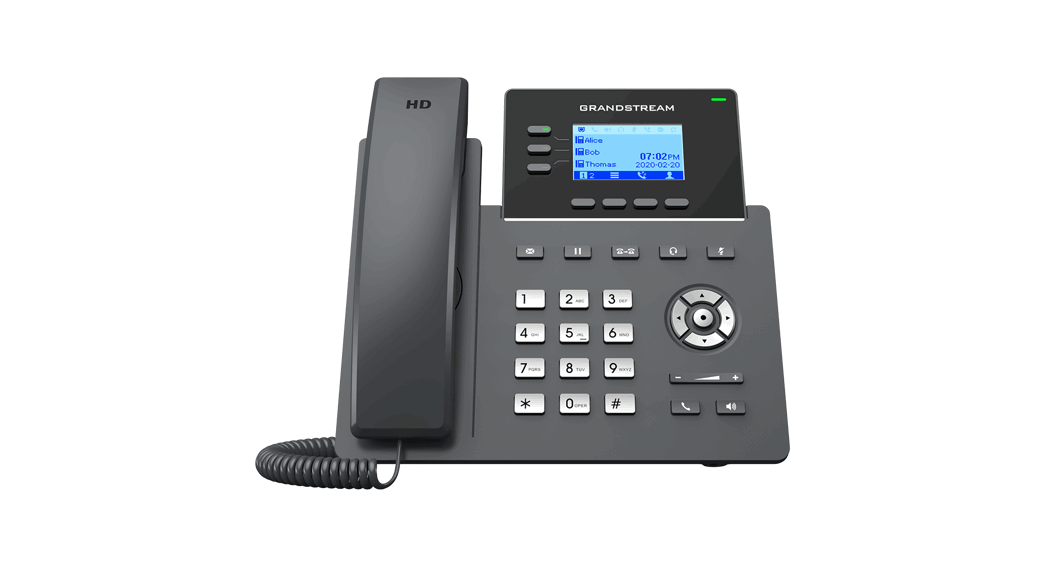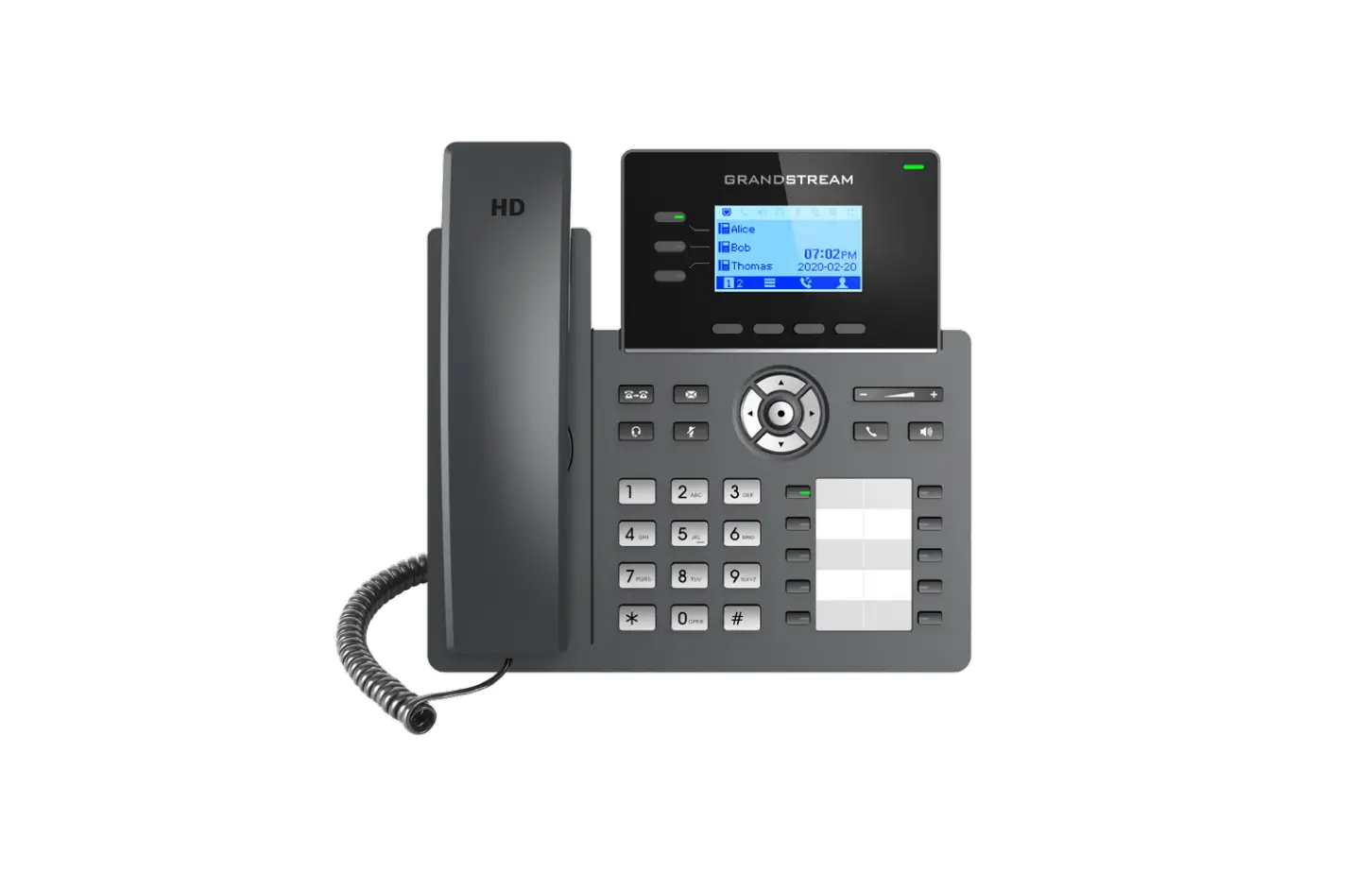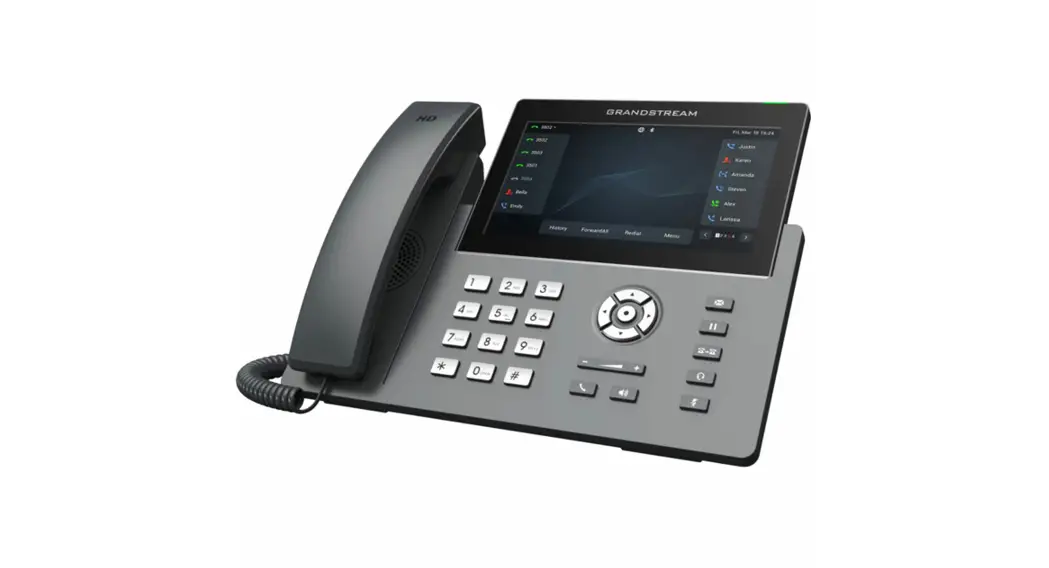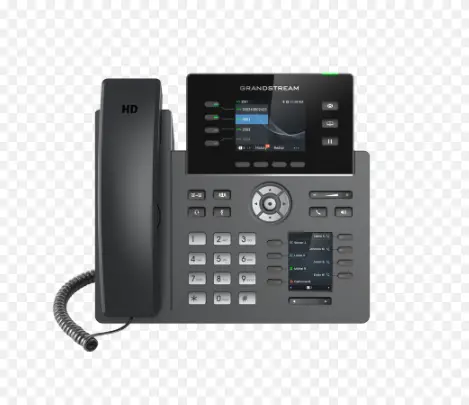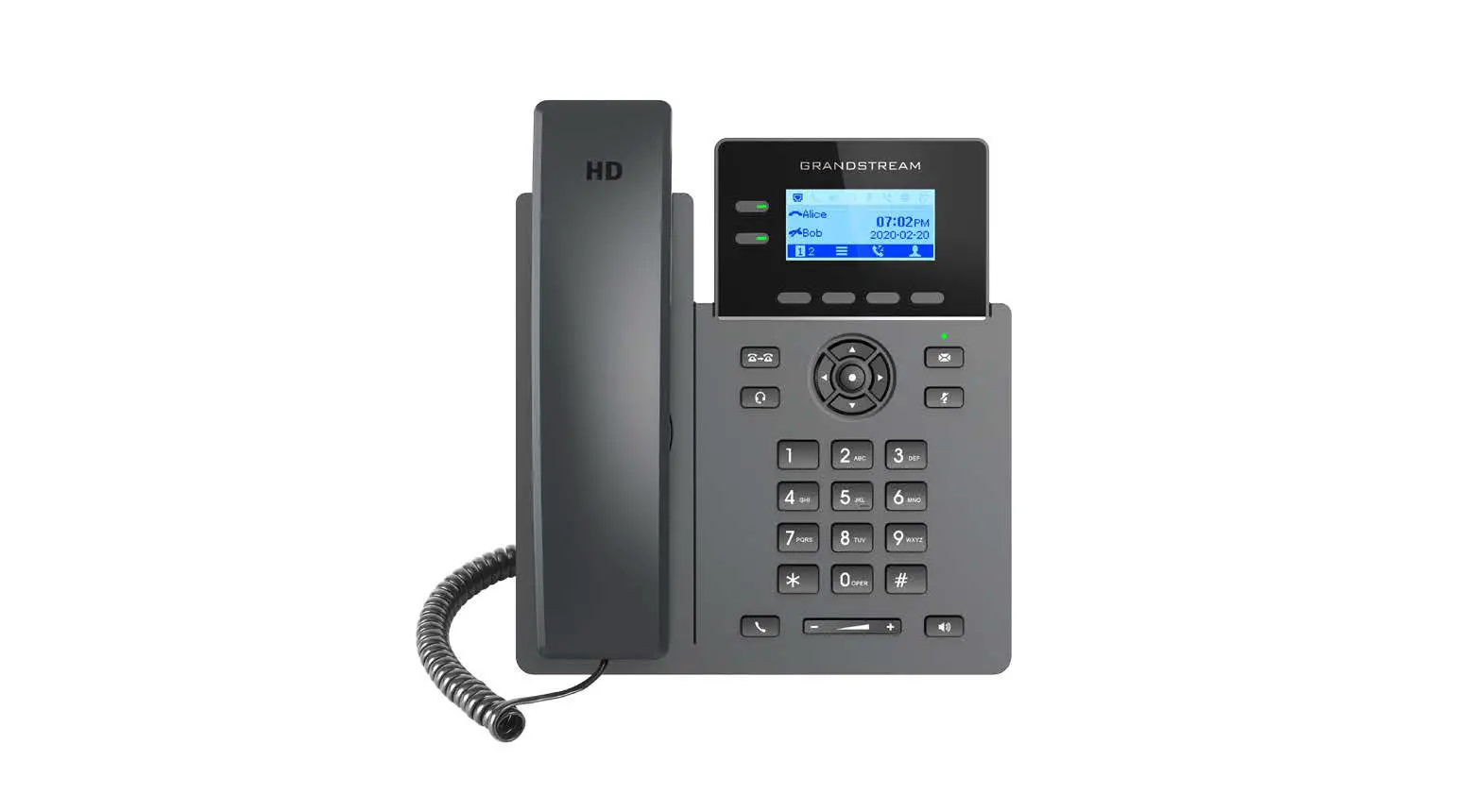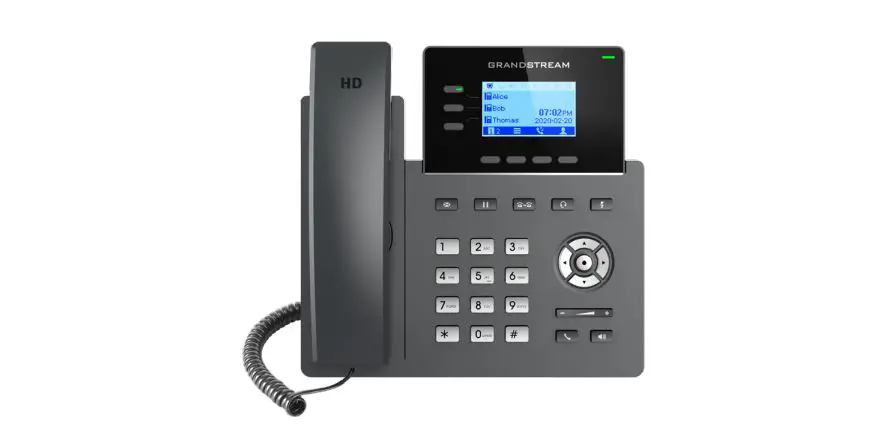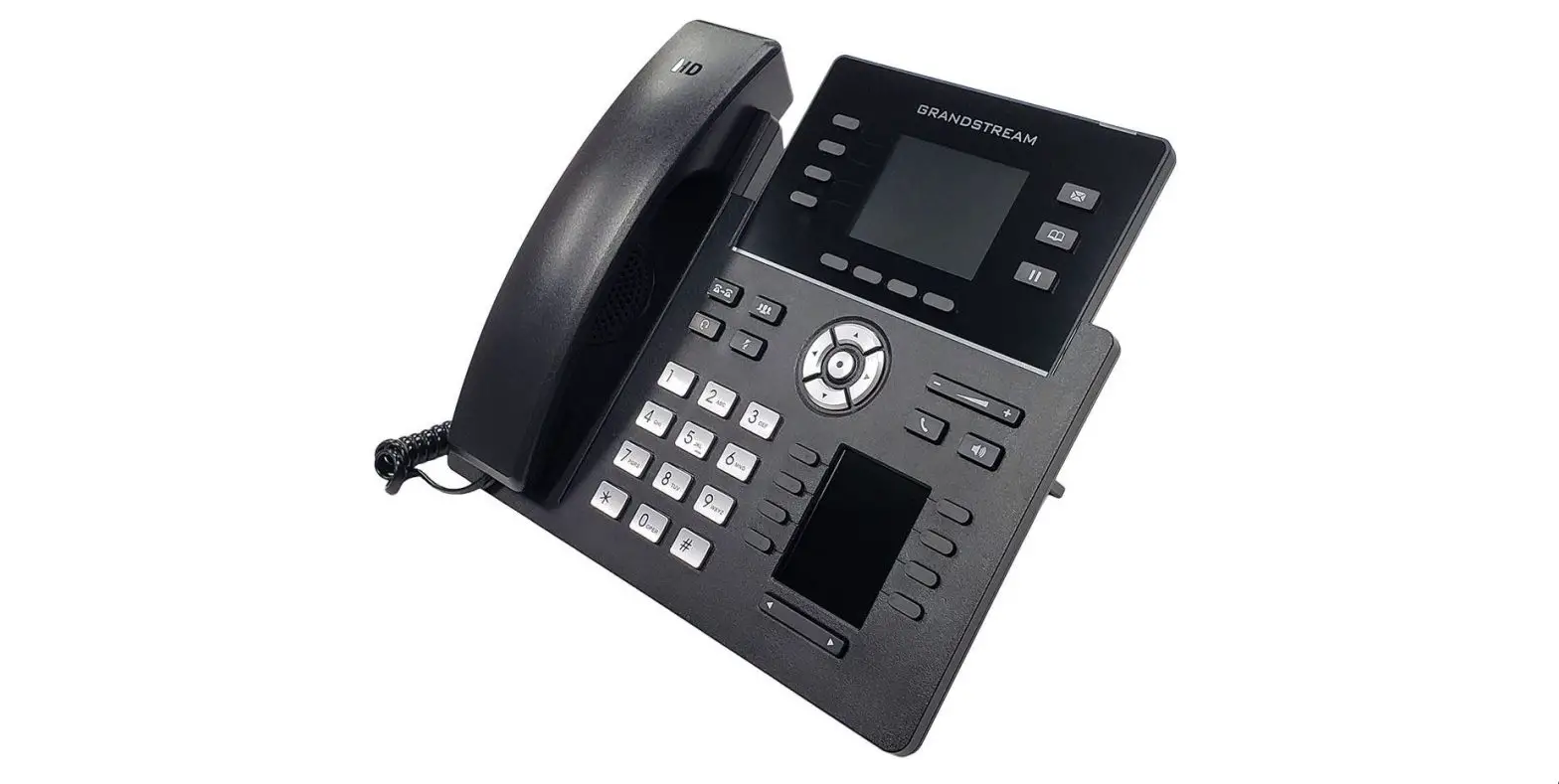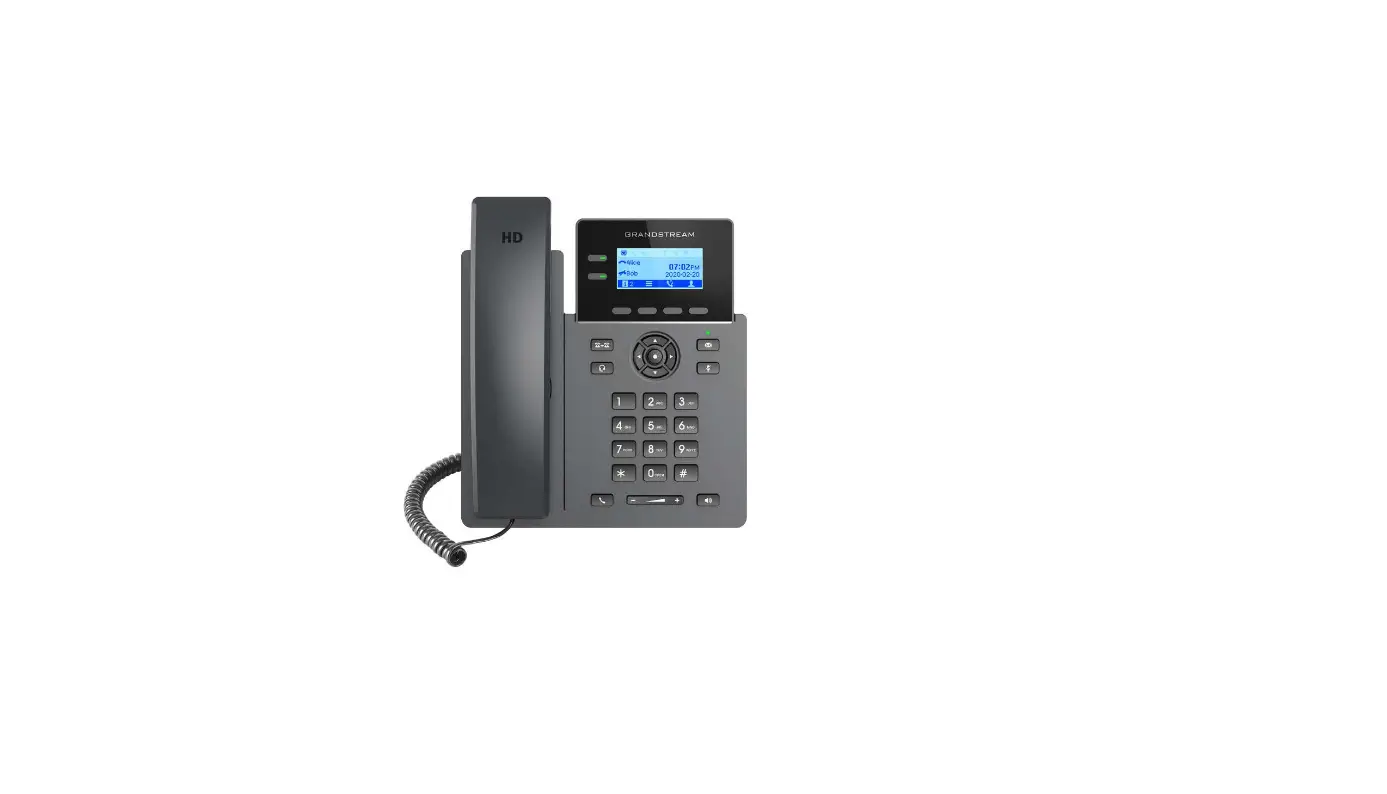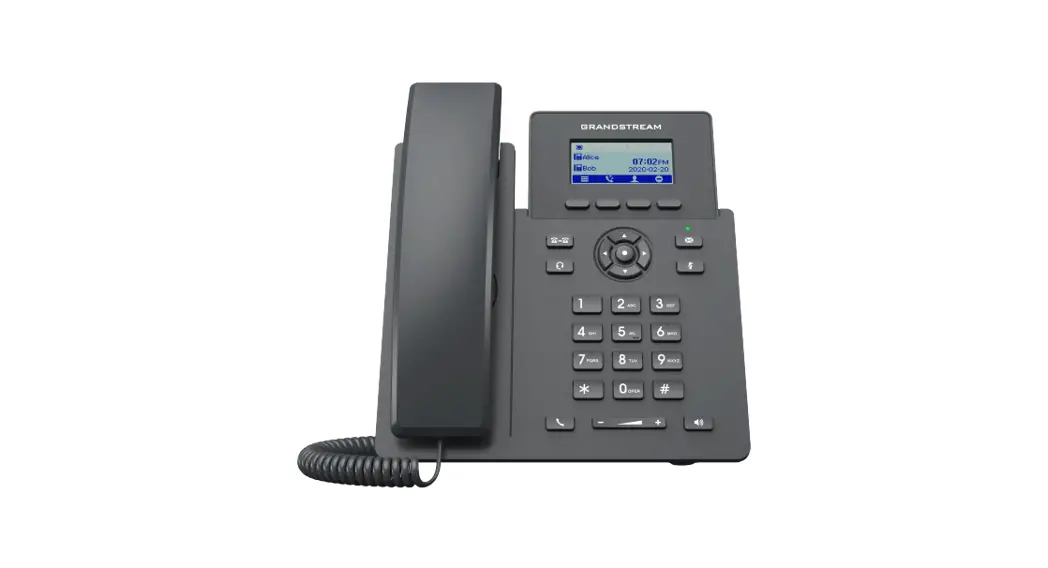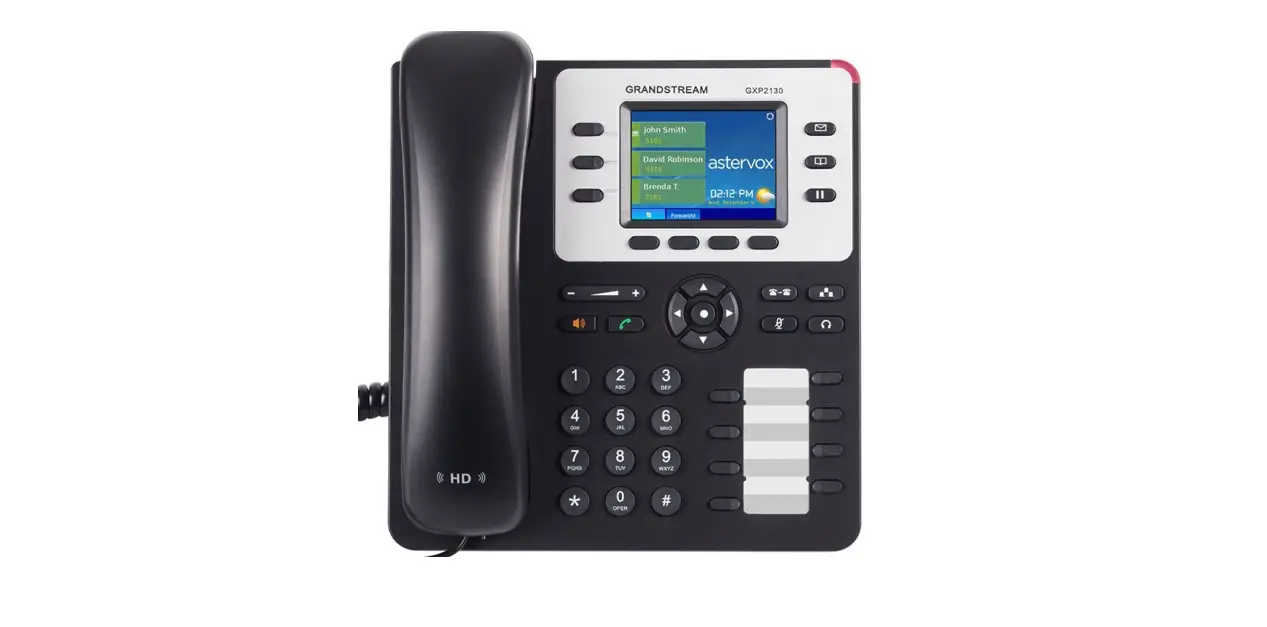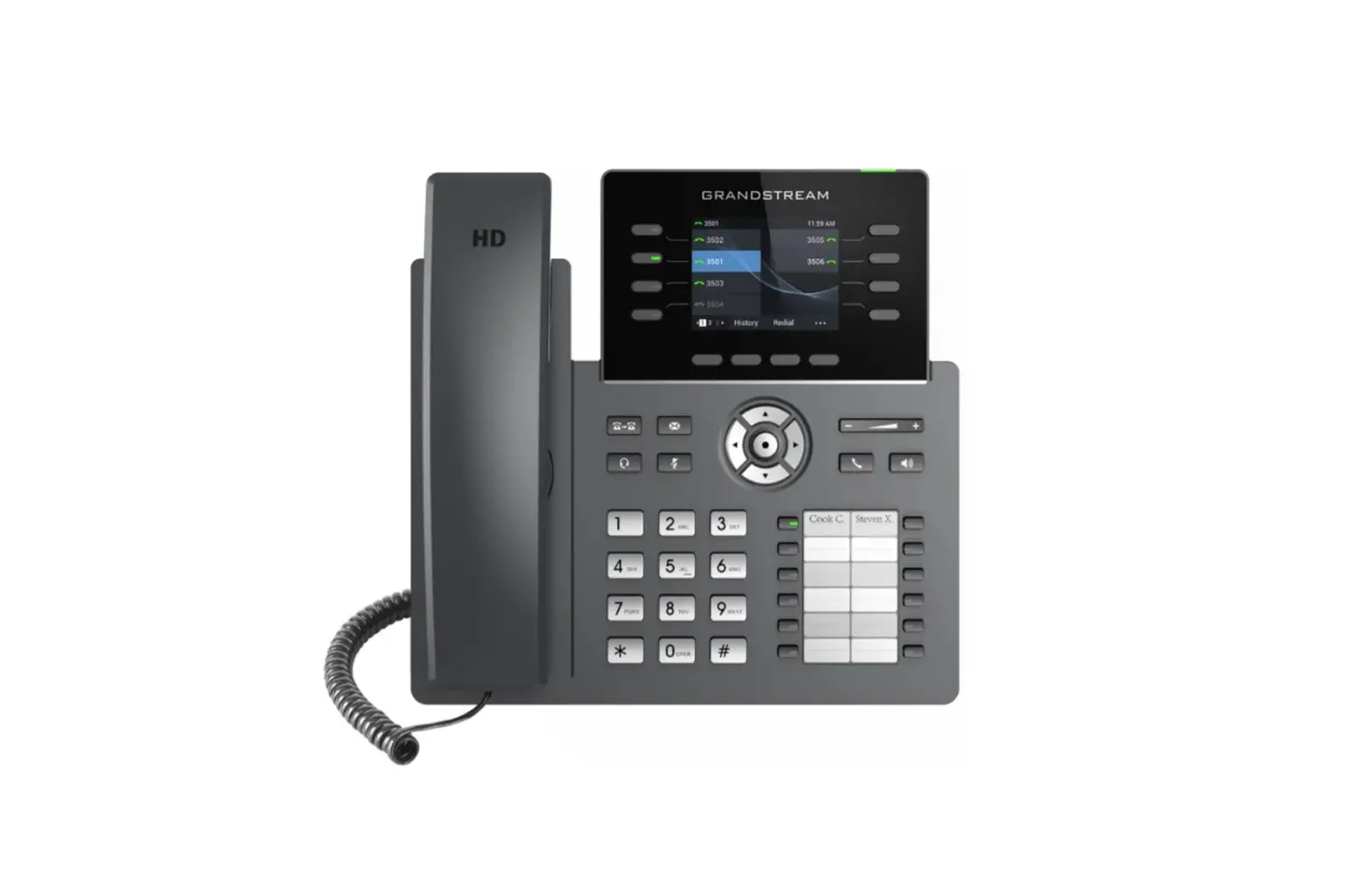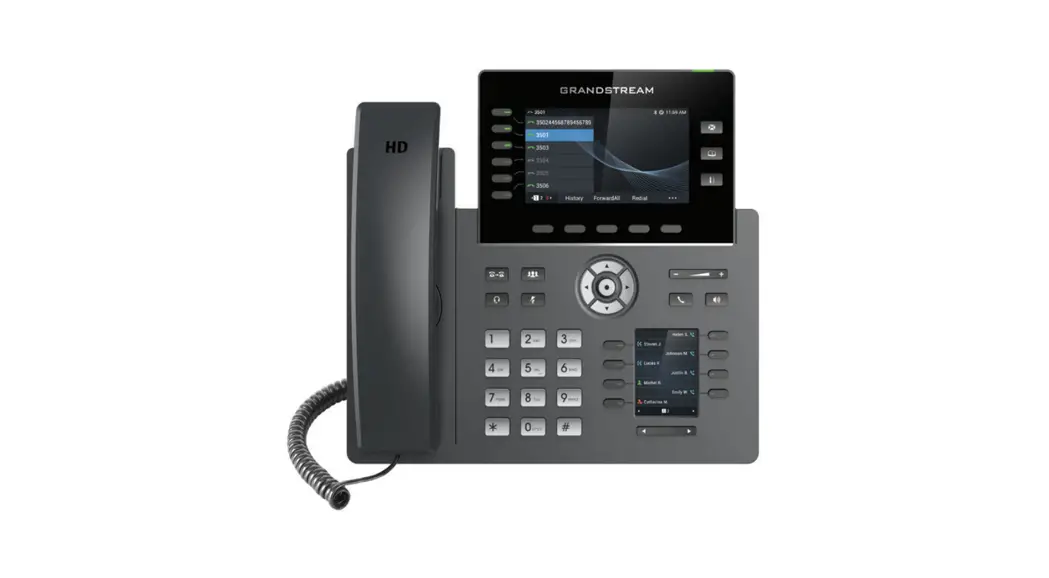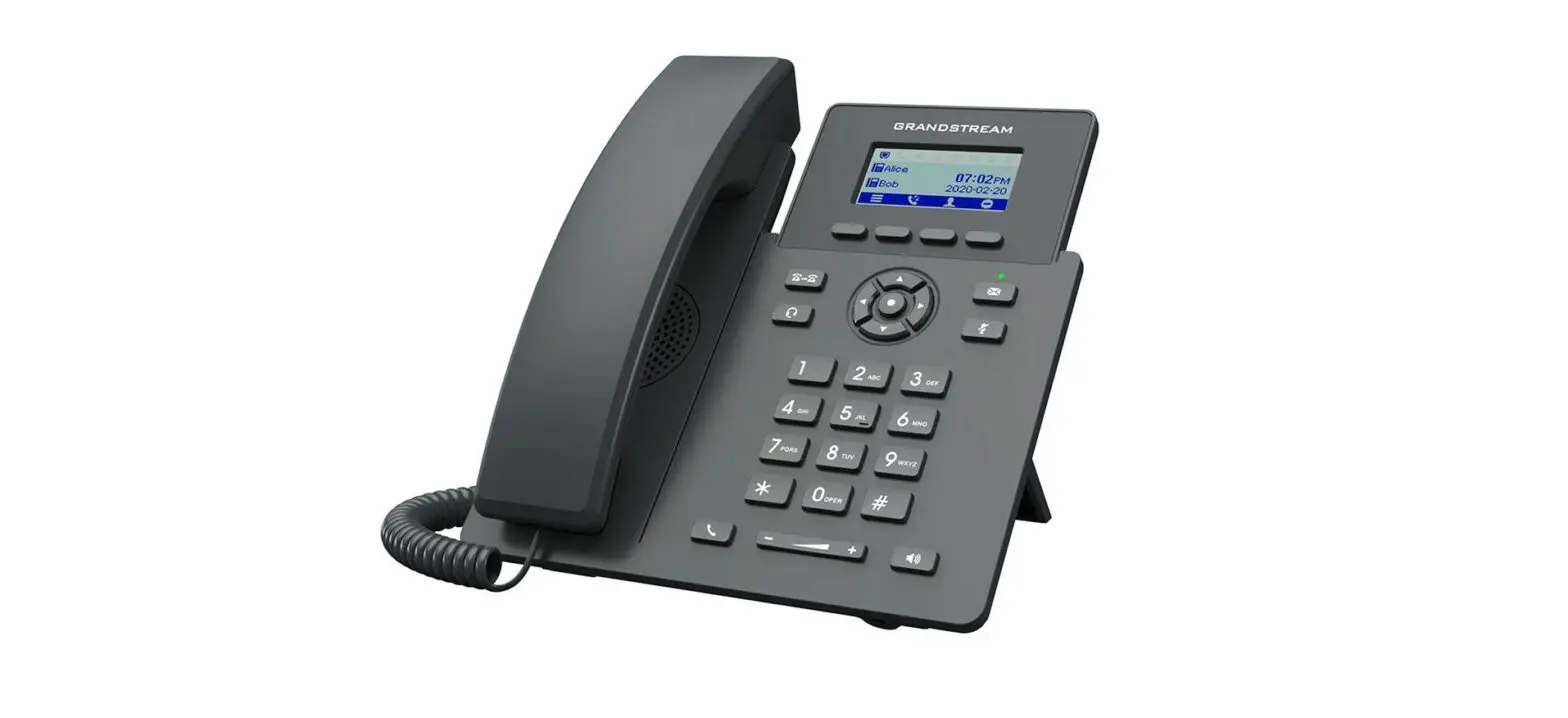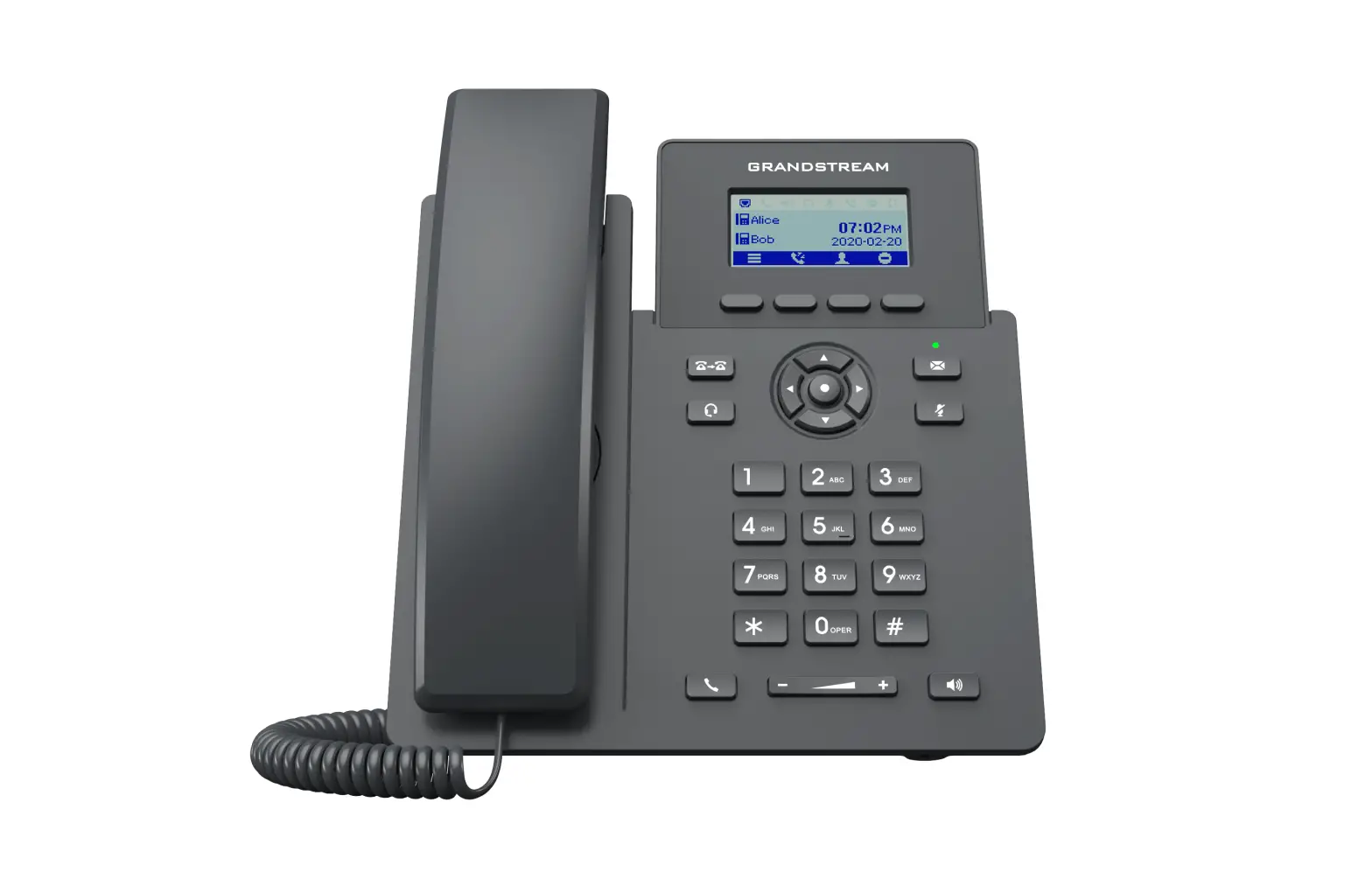
GRANDSTREAM GRP260X Essential IP Phone User Guide
USING THE HEADSET OR SPEAKER
- Use the Speaker
 Button to turn speaker ON/OFF.
 - Use the Headset
 button to use the headset once it had been connected.
 Button to turn speaker ON/OFF.
 button to use the headset once it had been connected.
MAKING A CALL
- Take Handset/Headset off-hook or press Speaker button or an available LINE key (activates speakerphone) .
- The line will have dial tone and the corresponding line’s LED will turn green.
- If you wish, select another LINE key or another alternative SIP account.
- Enter the phone number.
- Press the SEND
 button or press the “DIAL” soft key.
REDIAL
Press the SEND  button when the phone is in idle state to call the last dialed number.
Note: The phone will redial using the same SIP account as was used for the last call.
ANSWERING CALLS
Single Incoming Call
Answer call by taking Handset/Headset off hook or pressing SPEAKER or by pressing the corresponding account LINE button.
Multiple Incoming Calls
- When there is a call waiting, users will hear a Call Waiting tone .
- The next incoming call will appear on screen.
- Answer the incoming call by pressing the Answer softkey.
- The current call will be put on hold.
- Toggle between the calls using the UP or down button.
ENDING A CALL
End a call by pressing the end call  softkey or hang up the phone.
CALL HOLD/RESUME
- Hold: Place a call on ‘hold’ by pressing the hold
 Softkey.
 - Resume call by pressing the the unhold
 softkey or corresponding blinking line.
 Softkey.
 softkey or corresponding blinking line.
CALL TRANSFER
Assuming that you are in a call and wish to transfer the call to another party.
Blind Transfer:
- press TRANSFER
 button and choose Blind Transfer.
 - Dial the transfer destination.
- Press on transfer
 softkey.
 button and choose Blind Transfer.
Attended Transfer:
- press TRANSFER button and choose Attended transfer.
- Dial Transfer destination number and press on dial
 softkey
 - The first call will be put on Hold and a new call will be initiated with the transfer destination.
- When the second call is answered, Users could press on Switch
 softkey to switch to the initial call (The second call will be put on hold) or press on transfer softkey to complete the transfer.
 softkey
 softkey to switch to the initial call (The second call will be put on hold) or press on transfer
 5-WAY CONFERENCE
The GRP260x can host up to 5-way conference calls.
Initiate a Conference Call:
- Establish the first call.
- While 1 call is active, press on conference/ Invite
 softkey and dial the second conference number.
 - The conference will be established as soon as the dialed number answers the call.
- During the conference , The host can add other conference members by pressing on Invite Softkey.
 softkey and dial the second conference number.
View Conference members.
Users can view conference members by pressing on the group members  softkey , Information related to conference members will then be shown
Kick Conference members.
During conference, press on conference info softkey to view conference members. Then use UP/DOWN softkey to select a member and press on kick  softkey.
Hold The Conference
- During active conference , press on hold softkey to hold all conference parties.
- Press on Unhold softkey to resume the conference call.
End The Conference:
The conference will be terminated for all parties if the conference initiator hangs up or presses end call softkey
Forward Calls
When there is an incoming call, users could choose to not take call and forward it to another number instead by pressing on the Forward/ Transfer  softkey and then dial the forward target number and press on again, the call will be then immediately forwarded to that number.
VOICEMAIL MESSAGE
A blinking green MWI (Message Waiting Indicator) indicates a message is waiting.
- Press the Message
 button to retrieve the message.
 - Use UP/Down keys to choose the account you want to access its voicemail and then dial the voicemail access number.
- An IVR will prompt the user through the process of message retrieval.
 button to retrieve the message.
Note: Each account requires a voicemail portal number to be configured in the “voicemail access number” field in WEB interface.
MUTE/DND
The mute button can be used to either set the phone on mute or on DND depending on how “Mute key function while idle” option is configured on the web interface. If it’s set to “DND”, clicking the mute  button while idle will put the phone in DND mode and DND
  icon will be displayed on top of LCD screen .
If set to “Idle Mute”, Pressing on mute key will set the phone on mute. DND can be enabled when the phone is on idle state by pressing the DND softkey
VOLUME ADJUSTMENTS
Use the volume  button to adjust the ring volume when the phone is idle. Press the volume button during an active call to adjust the call volume.
CUSTOMER SUPPORT
For detailed information please consult the GRP260X User Manual available at:
www.grandstream.com
©2020 Grandstream Networks, Inc.
All rights reserved.
Reproduction or transmittal of the entire or any part, in any form or by any means, electronic or print, for any purpose without the express written permission of Grandstream Networks, Inc. is not permitted. Information in this document is subject to change without notice.

 Grandstream Networks - Networking & Unified Communications