poly BT700 Bluetooth USB Adapter User Guide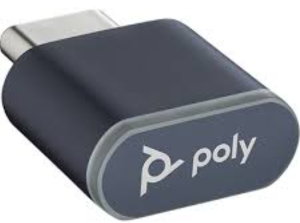
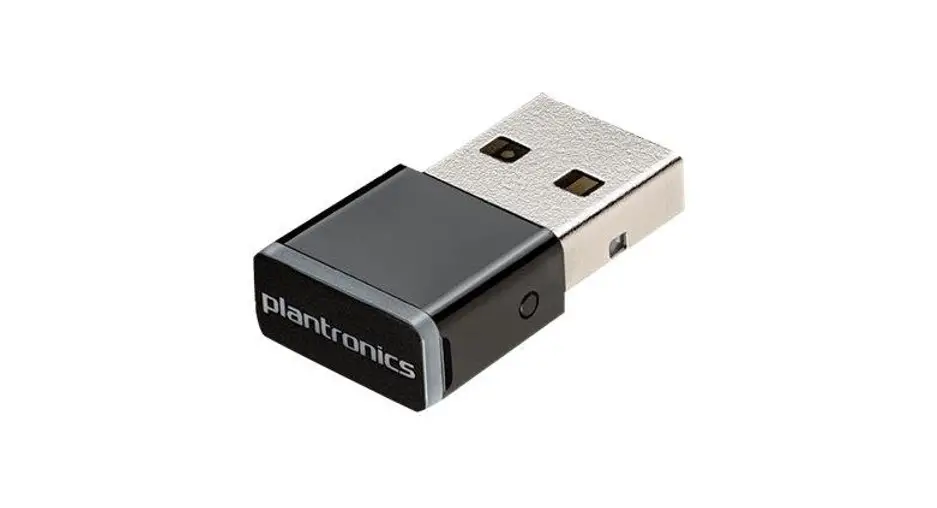
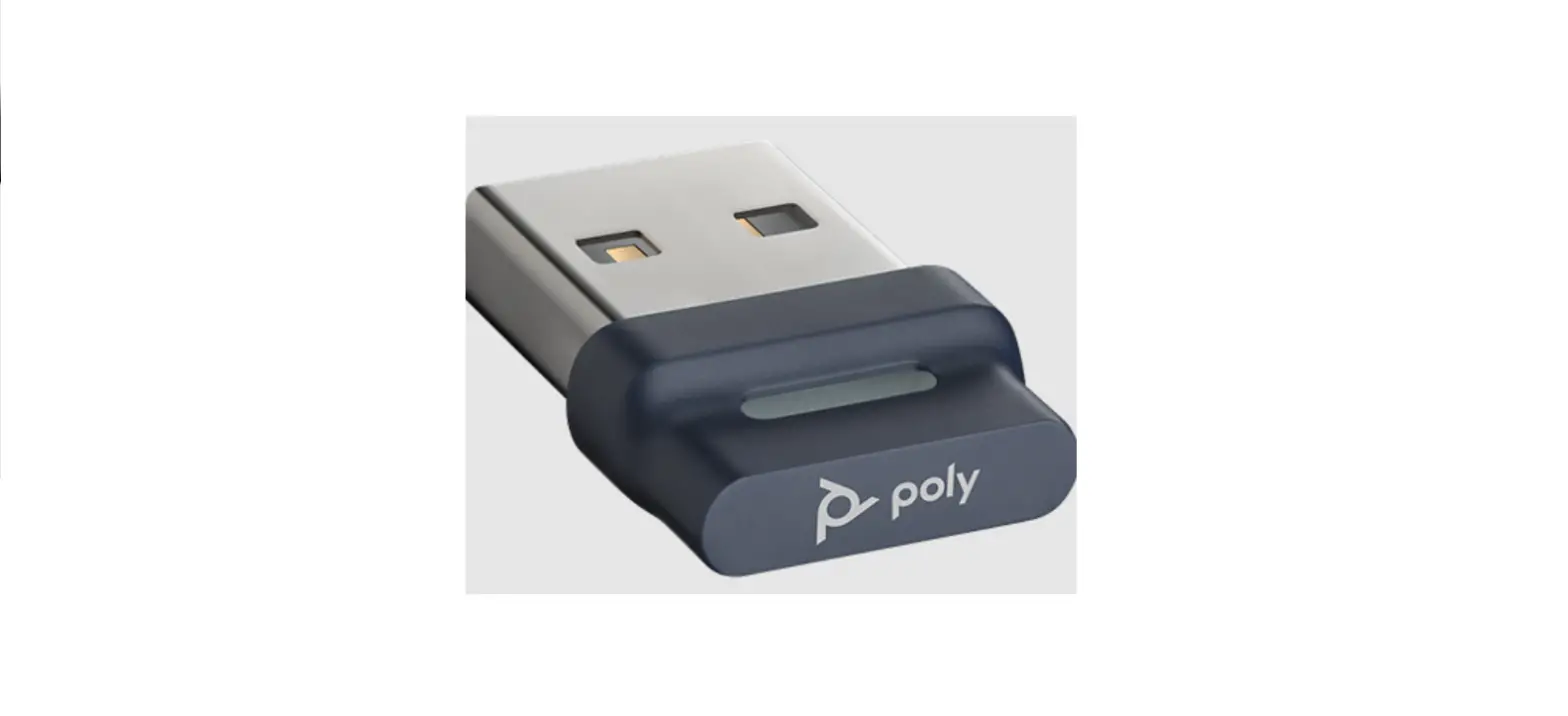
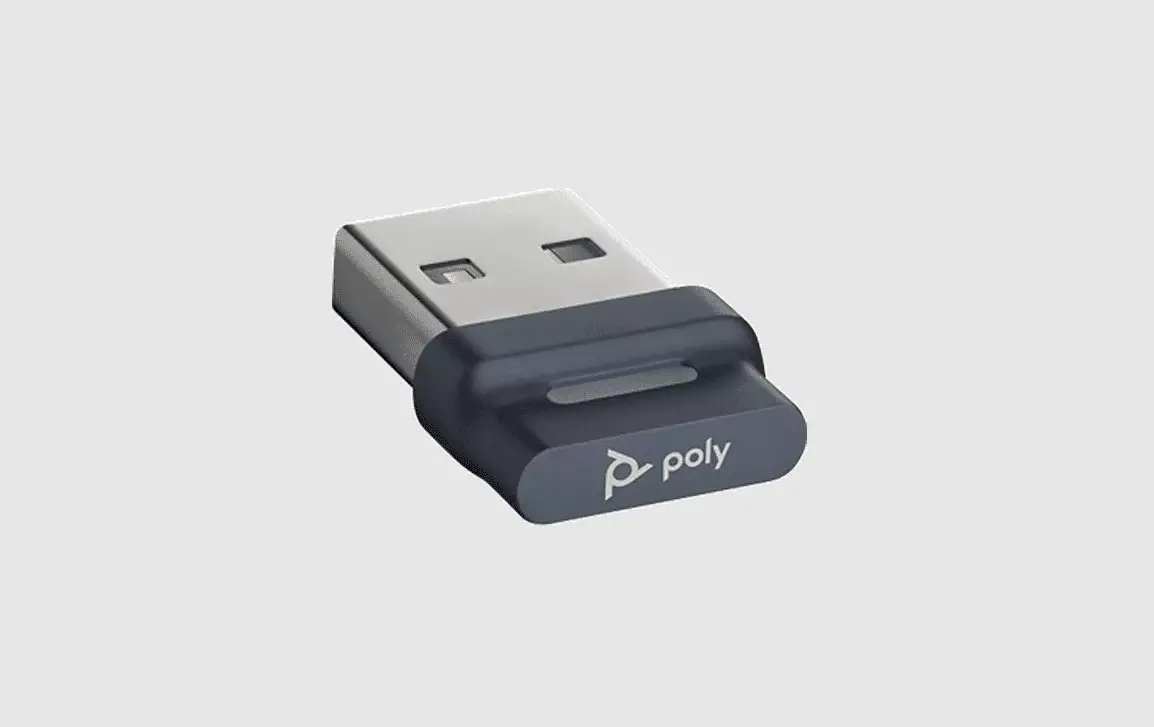
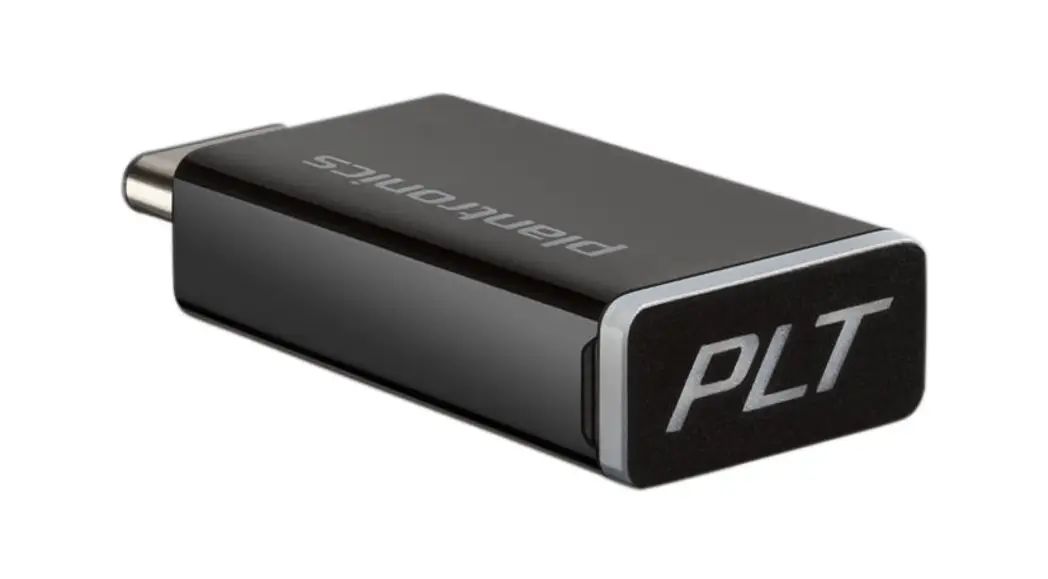
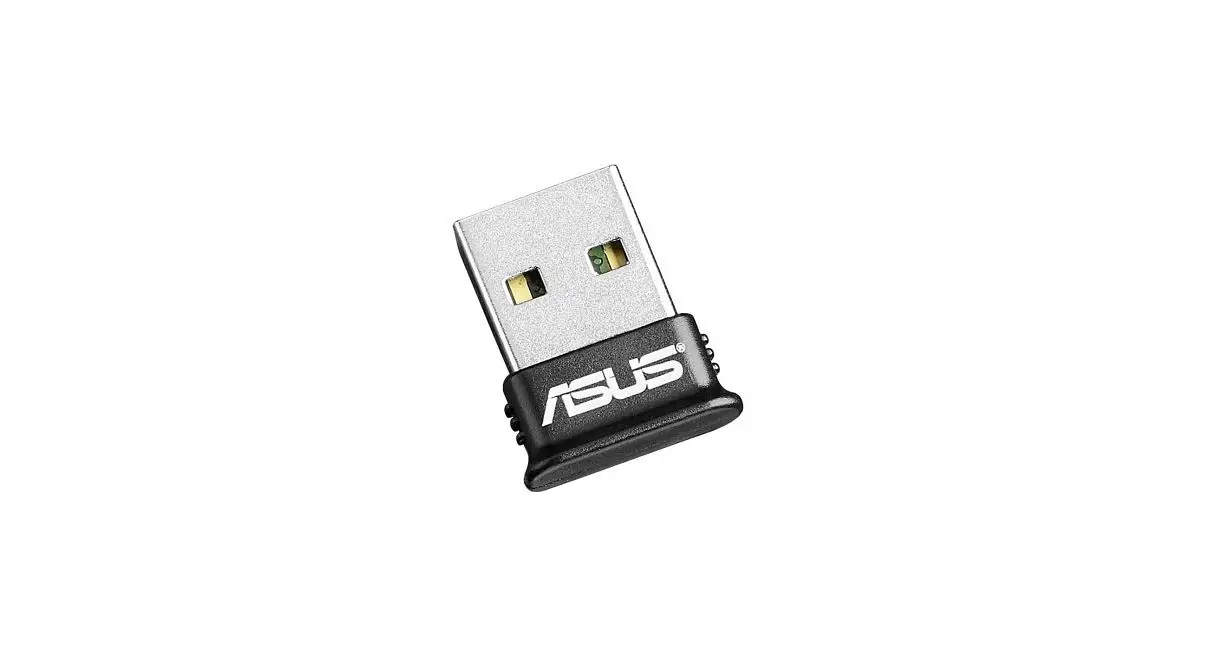
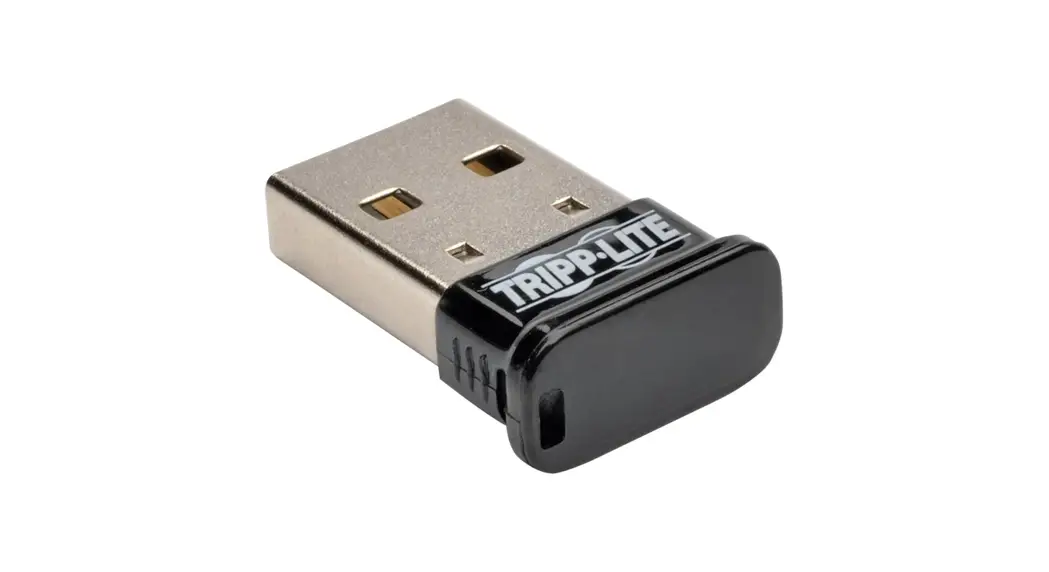
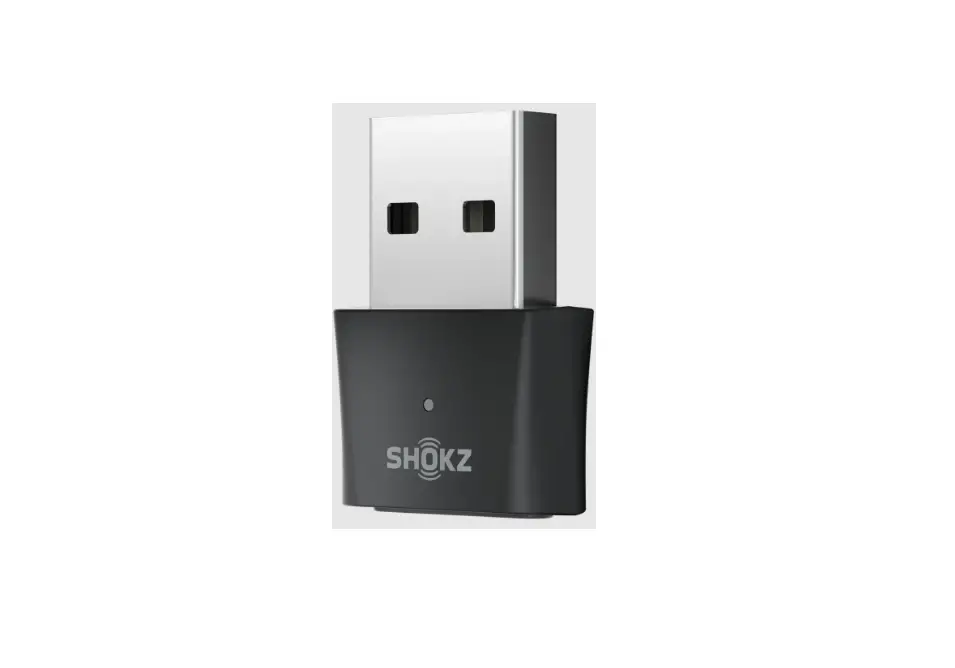
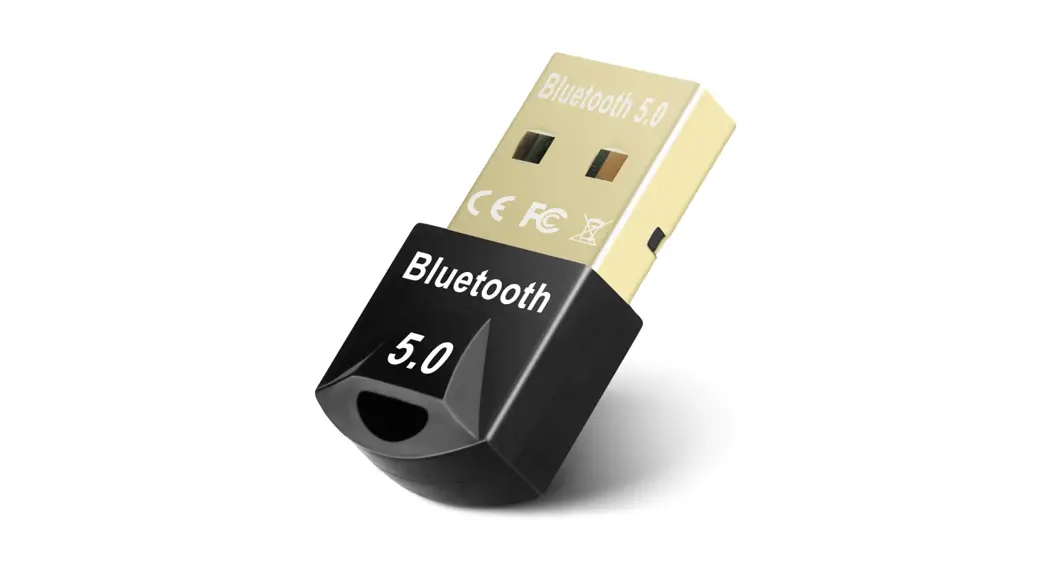
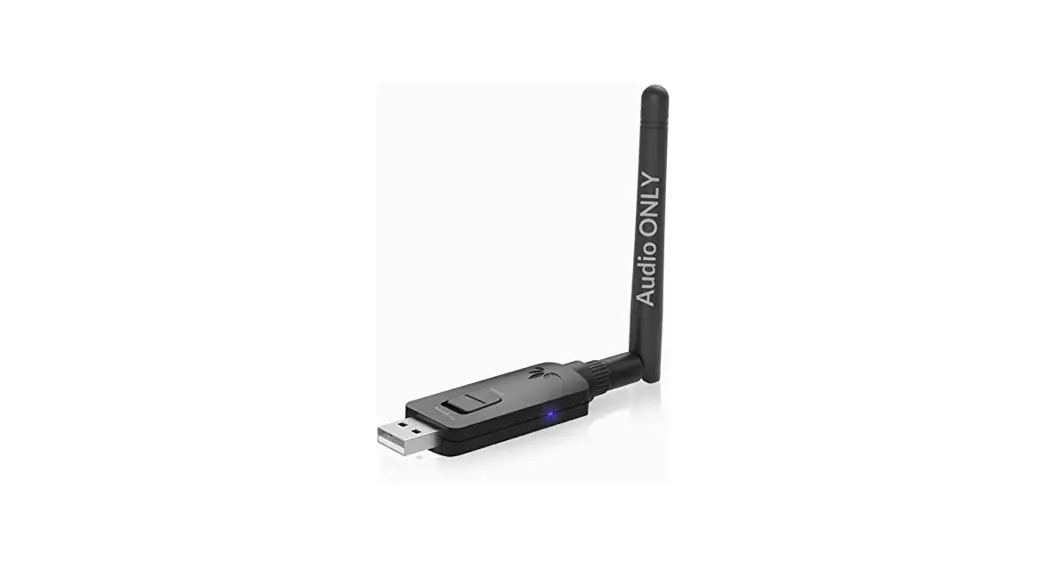
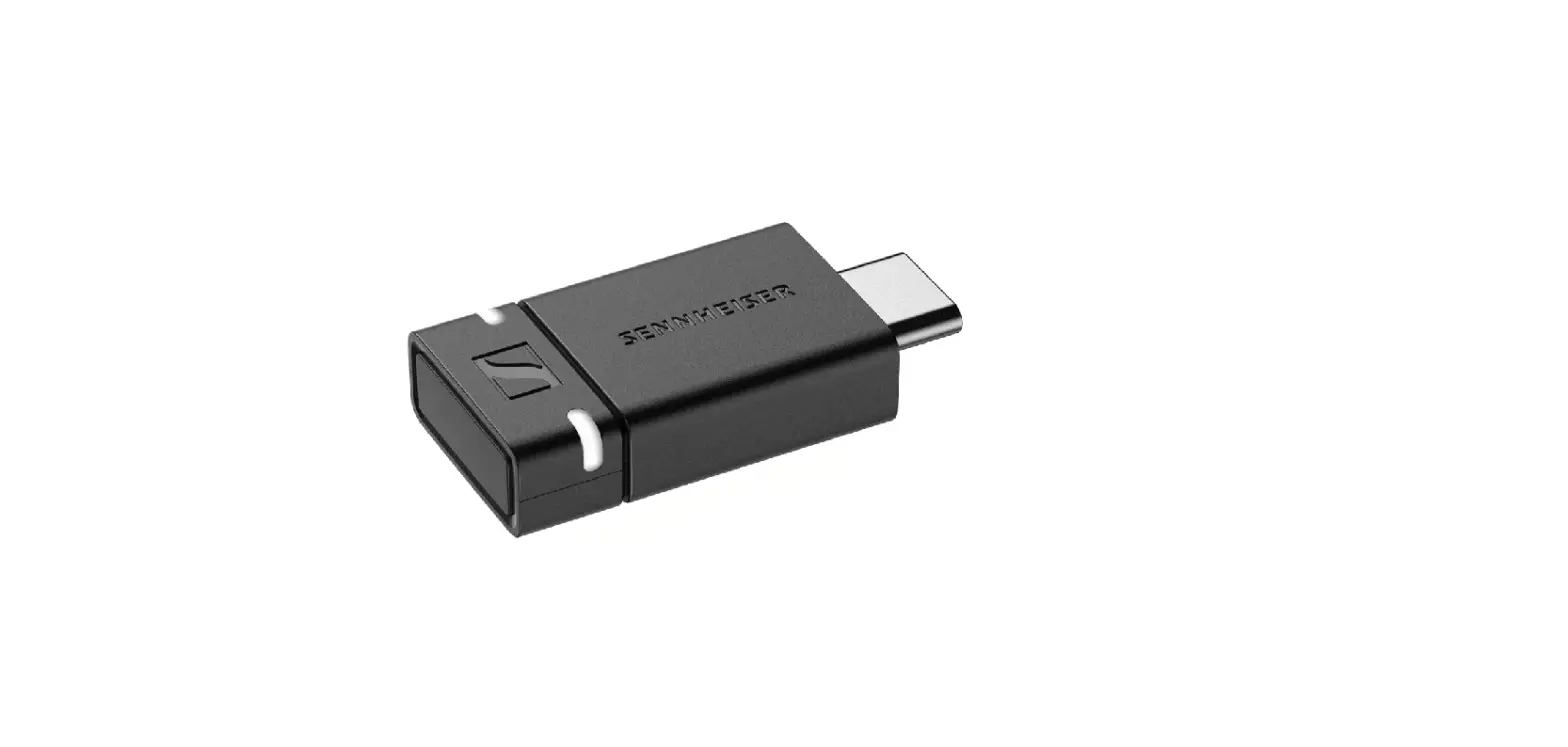
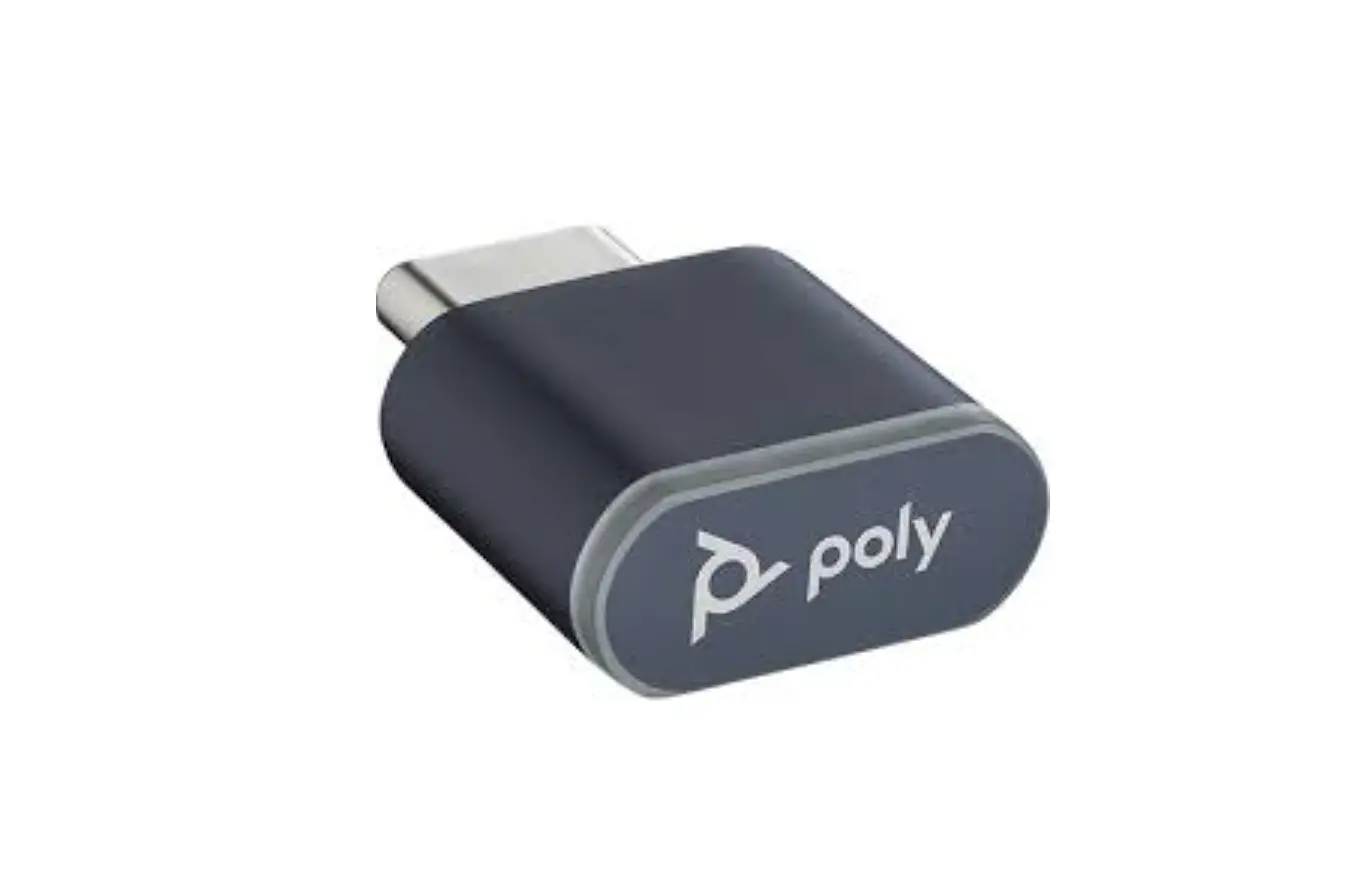
USB Bluetooth adapter
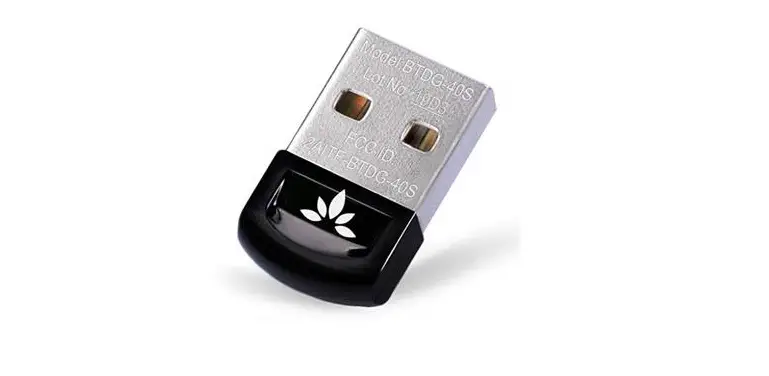
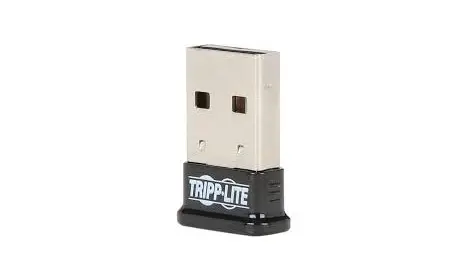
NOTE Adapter design may vary
| Standard LEDs | |
| USB LEDs | What they mean |
| Flashing red and blue | Pairing |
| Solid blue | Headset connected |
| Flashing blue | On a call |
| Solid red | Mute active |
| Flashing purple | Streaming media from computer |
| LEDs when Microsoft Teams* is detected | |
| USB LEDs | What they mean |
| Flashing red and blue | Pairing |
| Solid purple | Headset connected |
| Flashing blue | On a call |
| Solid red | Mute active |
| Pulsing purple | Microsoft Teams notification |
NOTE *Requires Microsoft Teams application
Connect to PC
Your Bluetooth USB adapter comes pre-paired to your headset.
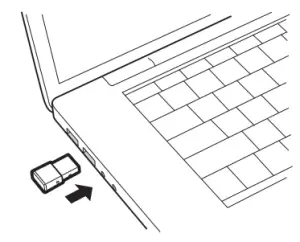
- Turn on your headset and insert the Bluetooth USB adapter into your laptop or PC.

- The USB adapter LED flashes and then turns solid to indicate the headset is connected to the USB adapter. If you are wearing your headset you hear “PC connected” to indicate the connection has been established. When on a call, the LED on the USB adapter flashes blue. When not on a call the LED is solid.
- Load Plantronics Hub for Windows/Mac by visiting plantronics.com/software. This allows you to customize your headset behavior through advanced settings and options.
Pair USB adapter again
Typically, your USB adapter is pre-paired to your headset. In the event that your adapter is disconnected or bought separately, you will need to pair the adapter to your headset.
- Insert the high-fidelity Bluetooth USB adapter into your laptop or computer and wait for your computer to recognize it.
- Put your headset in pair mode.
- Put your Bluetooth USB adapter into pair mode by selecting “Pair” in Plantronics Hub. Your adapter flashes red and blue. Pairing is successful when you hear “pairing successful” and “PC connected” and the Bluetooth USB adapter LED is solid.
Configure USB adapter
Your high-fidelity Bluetooth USB adapter comes ready to take calls. If you want to listen to music, you will need to configure your Bluetooth USB adapter.
Windows
- To configure your Bluetooth USB adapter to play music, go to Start menu > Control Panel > Sound
> Playback tab. Select Plantronics BT700, set it as the Default Device and click OK. - To pause music when you place or receive calls, go to Start menu > Control Panel > Sound > Communications tab and select the desired parameter.
Mac
- To configure the Bluetooth USB adapter, go to Apple menu > System Preferences > Sound. On both the Input and Output tabs, select Plantronics BT700.
Support
NEED MORE HELP?
Plantronics, Inc.
345 Encinal Street Santa Cruz, CA 95060 United States
Plantronics B.V.
Scorpius 171 2132 LR Hoofddorp Netherlands
 Poly Lens App - Make it your own | Poly, formerly Plantronics & Polycom
 Poly Lens App - Make it your own | Poly, formerly Plantronics & Polycom
 Downloads & Apps | Poly, formerly Plantronics & Polycom