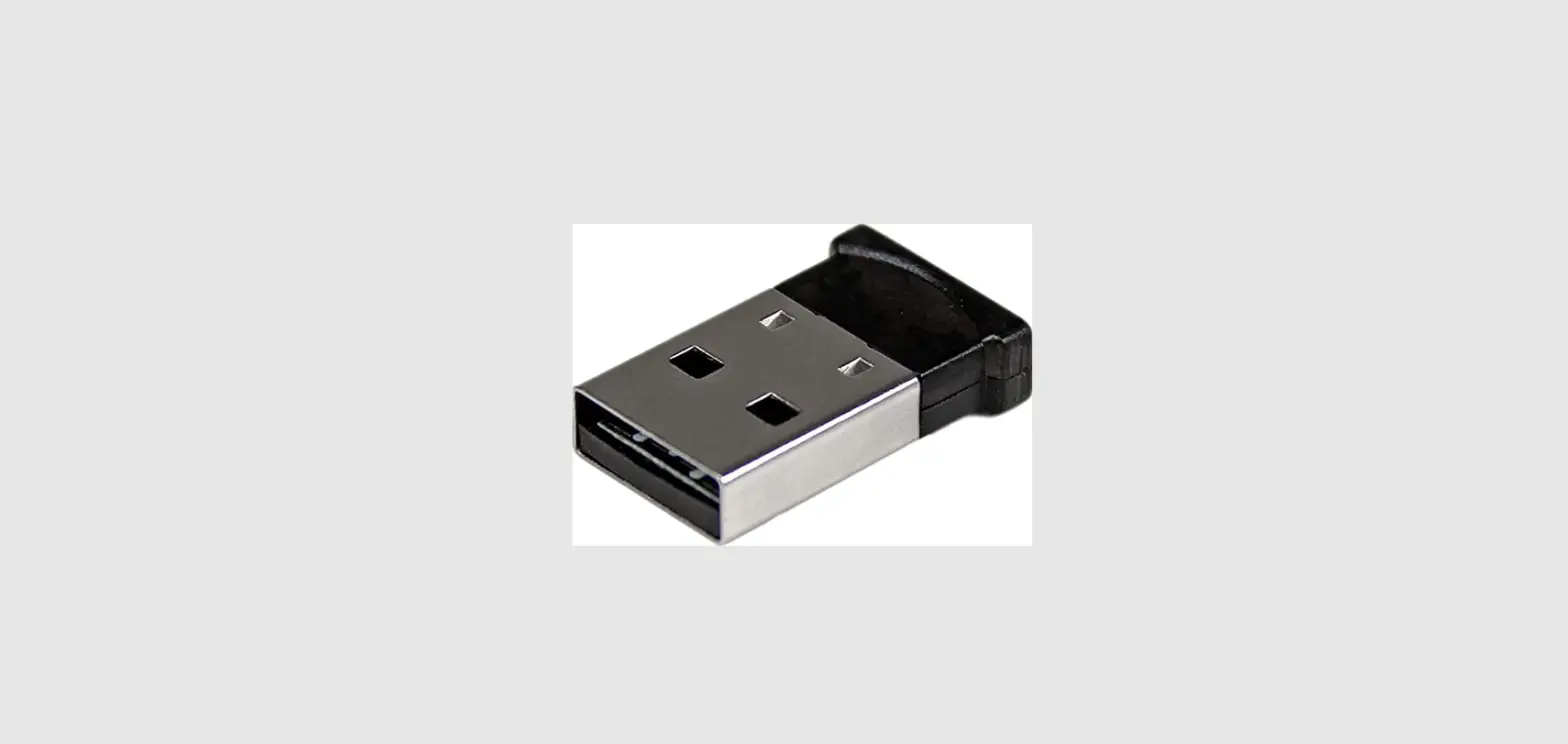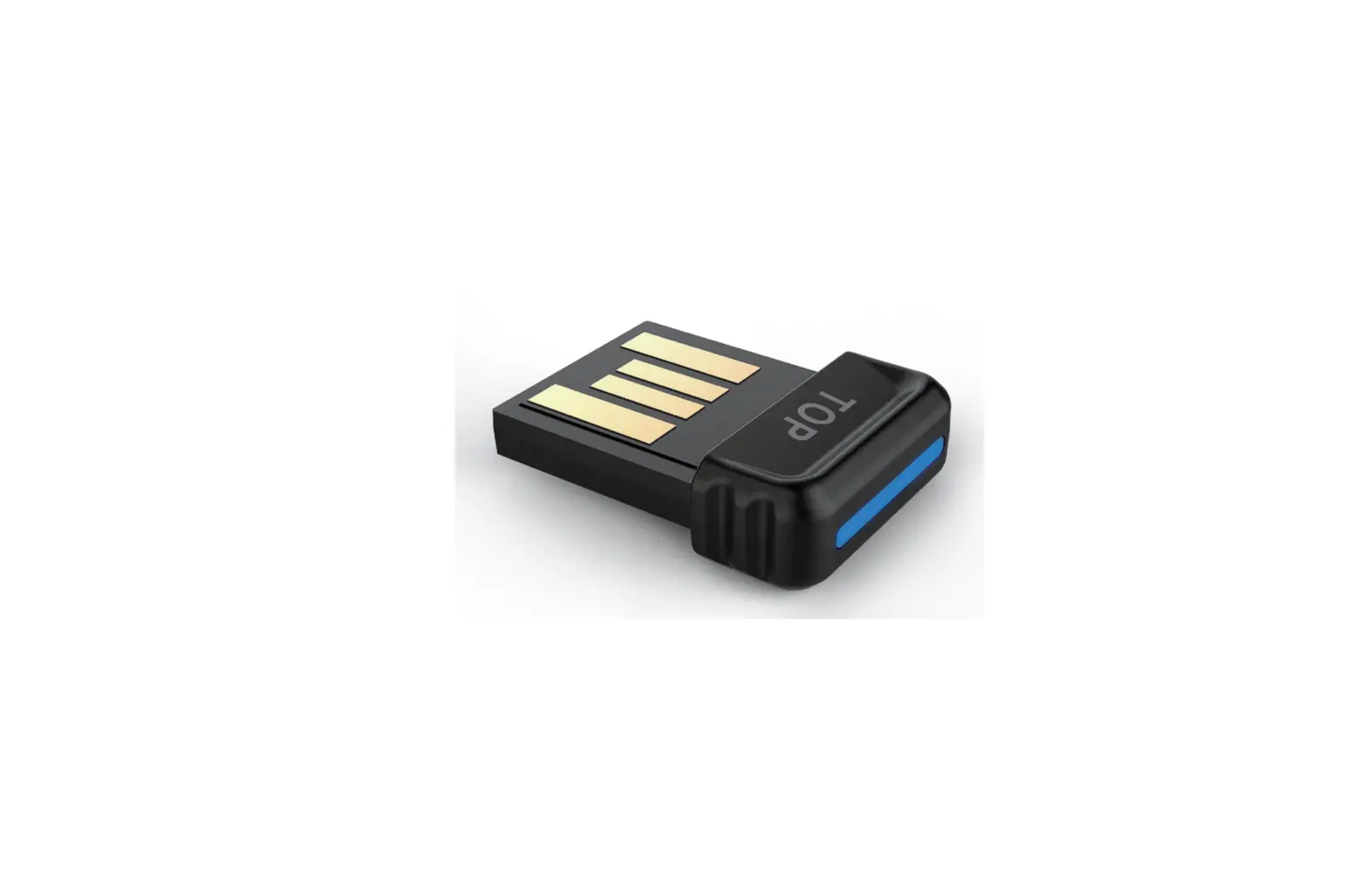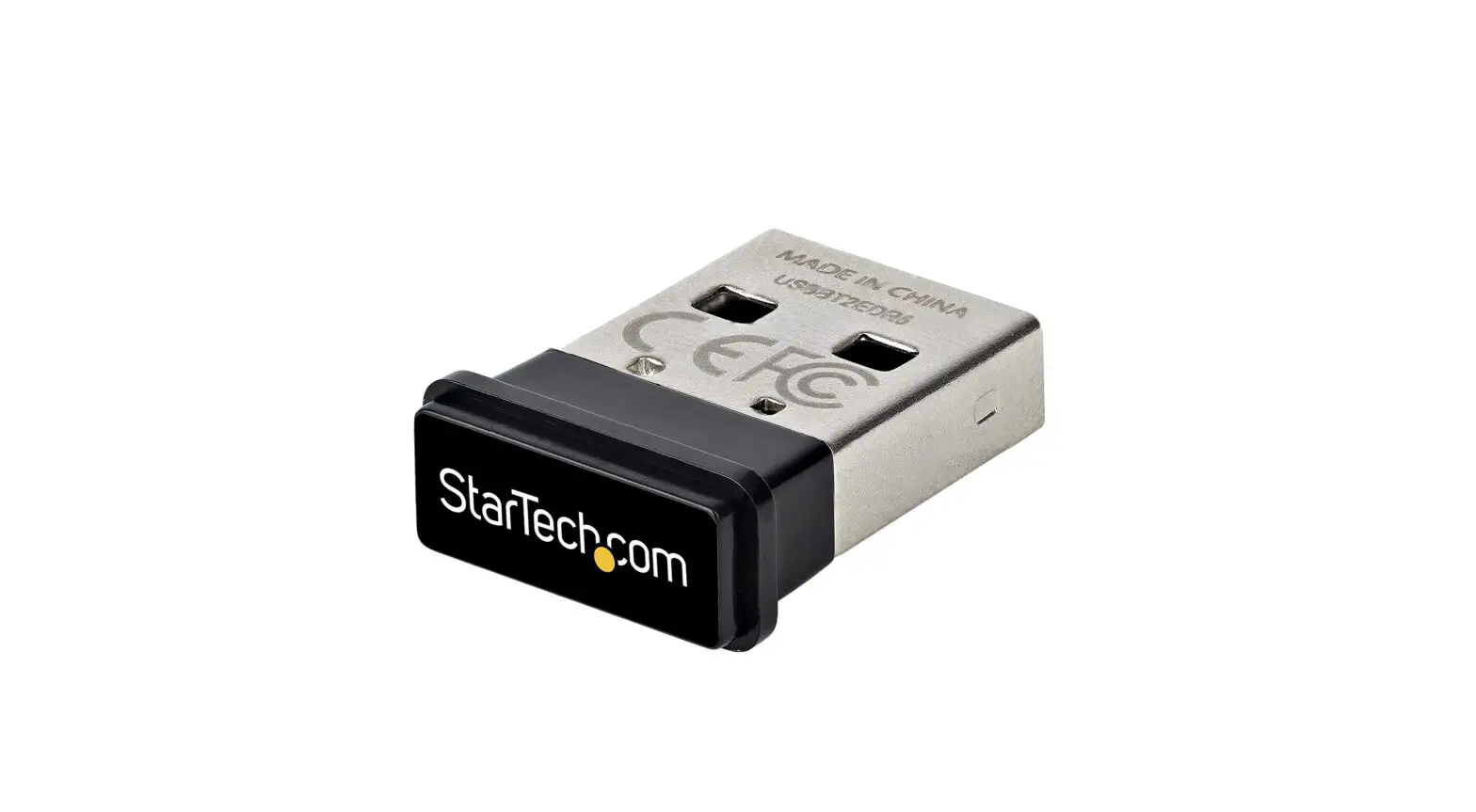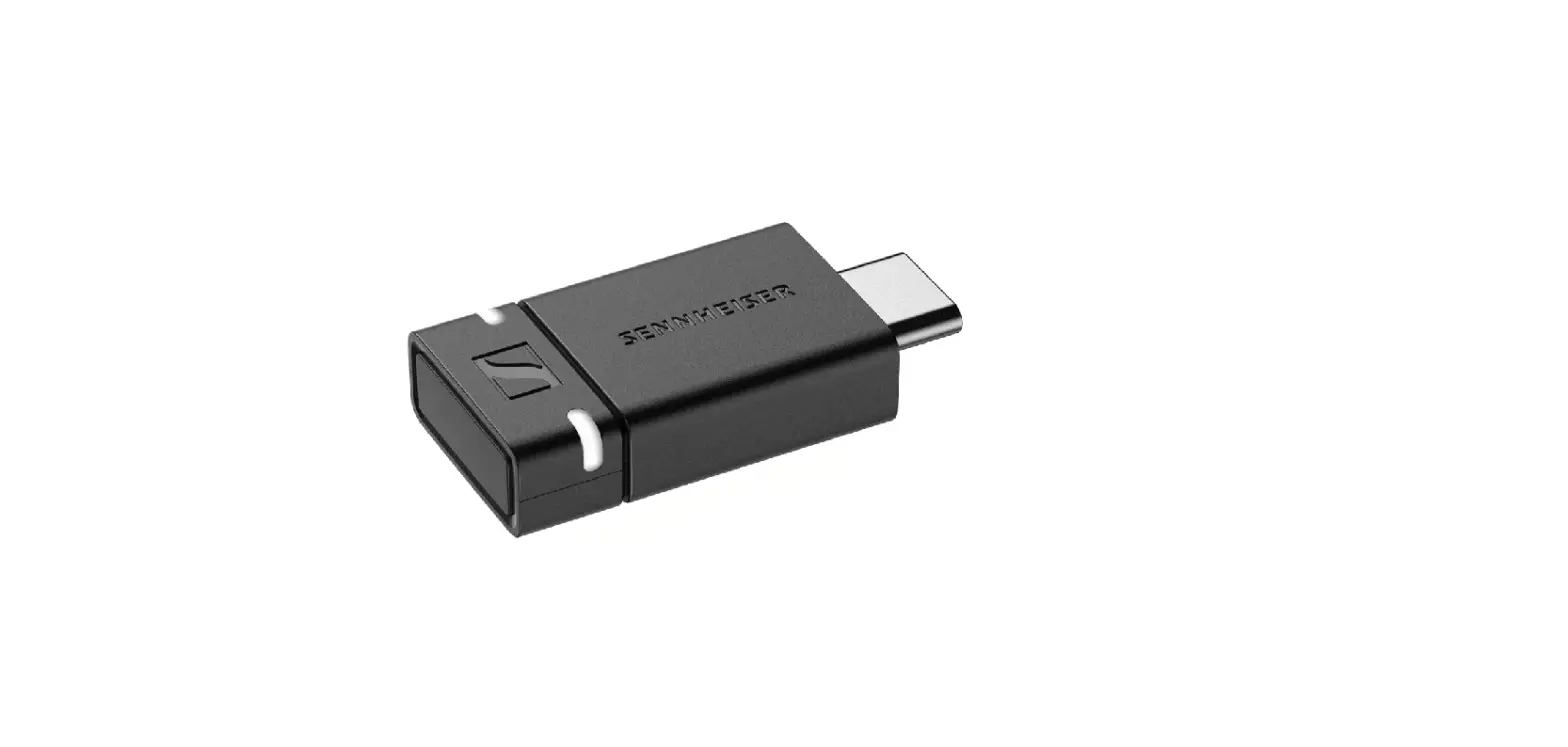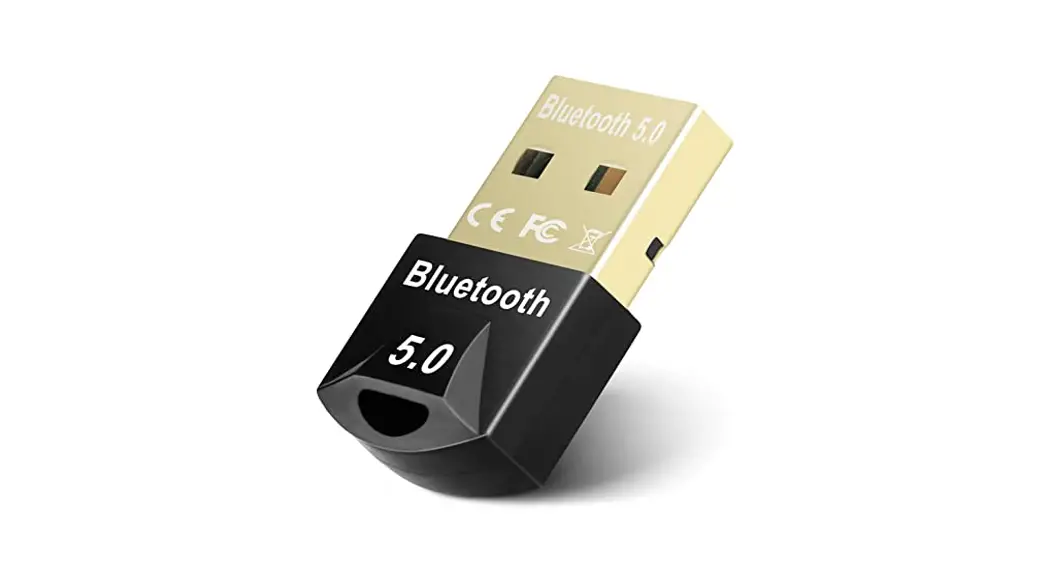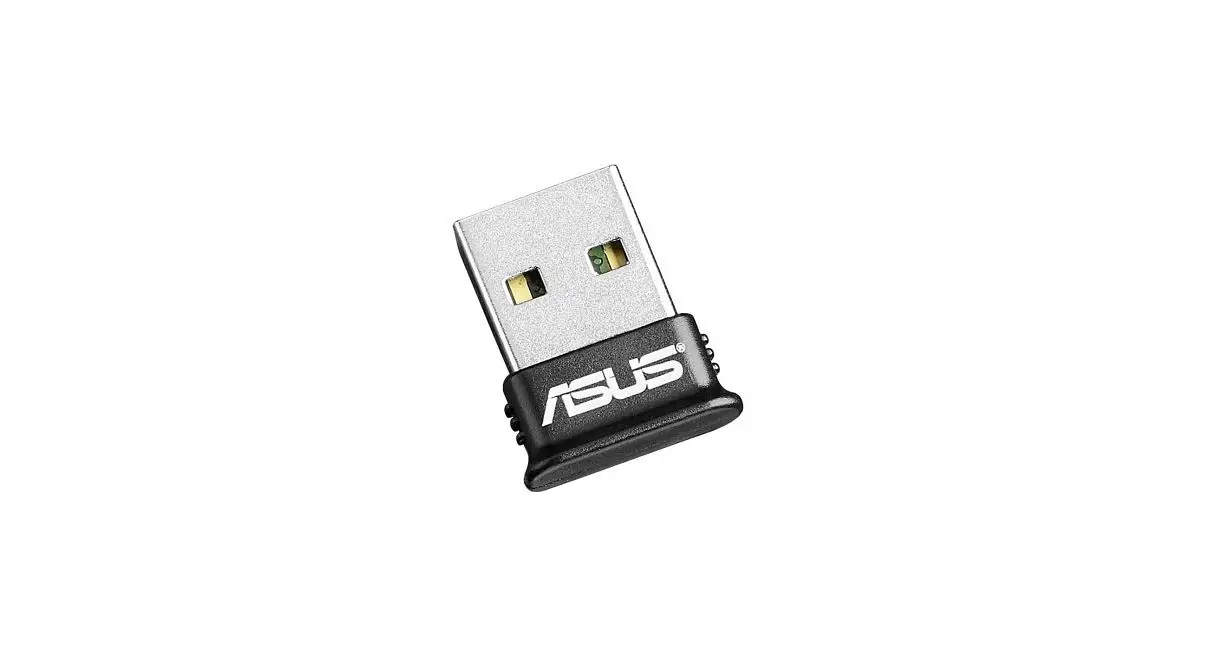

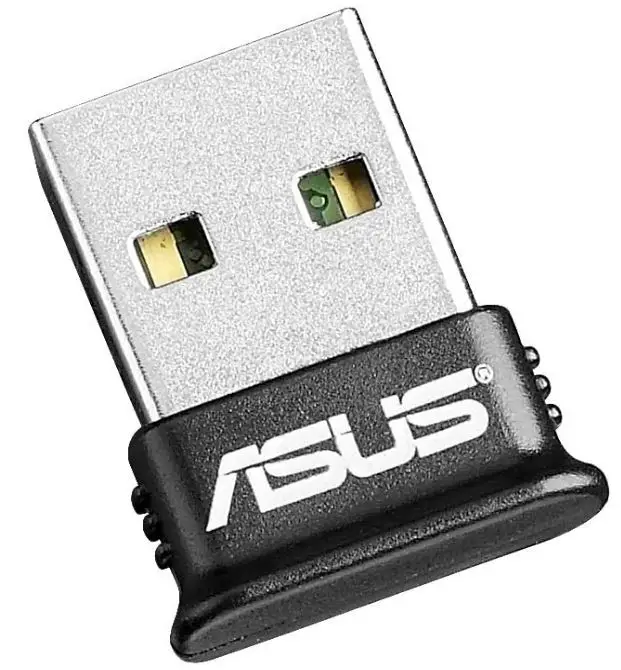
ASUS USB-BT400 USB Adapter with Bluetooth Dongle Receiver
© All rights reserved. All trade names are registered trademarks of their respective manufacturers. The Bluetooth name and the Bluetooth trademarks are owned by Bluetooth SIG, Inc.
Before you proceed
NOTE: Remove any previously installed Bluetooth software on your computer.
- Windows® XP SP3: Click Start > Control Panel > Add or Remove Programs.
Windows® 7: Click Start > Control Panel > Programs > Programs and Features > Uninstall a program.
Windows® 8: Click + I > Control Panel > Programs > Programs and Features > Uninstall a program.
 - Remove any Bluetooth software on the list of applications.
 + I > Control Panel > Programs > Programs and Features > Uninstall a program.
Installing the Bluetooth driver
- Insert the support CD into the optical drive of your computer. If the CD does not run automatically, browse the contents of the support CD and double-click the Autorun.exe file.
- On the Bluetooth Software installation screen, click Agree and Install Bluetooth Software.
- Follow the onscreen instructions and insert the Bluetooth 4.0 USB Dongle once prompted.
- Once the setup process is complete, click Finish. Reboot the system to complete the installation.
Using the Bluetooth 4.0 USB Dongle
- Insert the Bluetooth 4.0 USB Dongle into your computer’s USB port.
- To begin pairing Bluetooth devices, do one of the following:
- Right-click on the Bluetooth icon on the System Tray and select Add a device.
- Windows® XP SP3: Click Start > Control Panel > Bluetooth Devices > Add
- Windows® 7: Click Start > Control Panel > Hardware and Sound > Add a Bluetooth device
- Windows® 8:
- Click+ I and then click Change PC settings. Click Devices > Add a device
- Click + W, type “Bluetooth” in the search box, and click Add Bluetooth device
FAQs
Bluetooth is a short-range wireless communication technology that enables you to connect devices within a 10-meter range.
The following are the advantages of using Bluetooth:
· Wireless communication between devices
· Low power consumption
· Easy setup and use
· Compatibility with most operating systems and devices
The following are the types of Bluetooth devices:
· Bluetooth headsets or headphones (for hands-free operation)
· Bluetooth speakers (for wireless music streaming)
· Bluetooth keyboards (for wireless typing)
· Bluetooth mice (for wireless mouse operation)
The following are the requirements for using Bluetooth:
1. A computer with a built-in or external Bluetooth adapter. You can also use a USB dongle to add Bluetooth capability to your computer. For more information, refer to “Installing the Bluetooth driver” in this chapter.
2. A Bluetooth device such as a headset, speaker, keyboard, mouse, or printer.
3. The latest version of the Windows® operating system installed on your computer.
They often don’t need any driver software installation and are compatible with anything that can output audio through its USB ports. You won’t notice a “Bluetooth icon” appearing on your computer or laptop since the Bluetooth connection takes place “outside” of your audio device.
A Bluetooth dongle’s magnetic field isn’t powerful enough to harm your computer. Since the gadget is intended to be hooked directly into your computer, it has likely undergone safety testing.
There are many different Bluetooth adapters available, and many of them have unique chipsets and specs (including support for distance (Class) EDR and other things) as well.
Without the need to connect to Wi-Fi, you can access internet services with the help of a small USB device called a wifi dongle. For convenient access to the internet while travelling, these pocket-sized gadgets can be connected to your smartphone, tablet, or laptop.
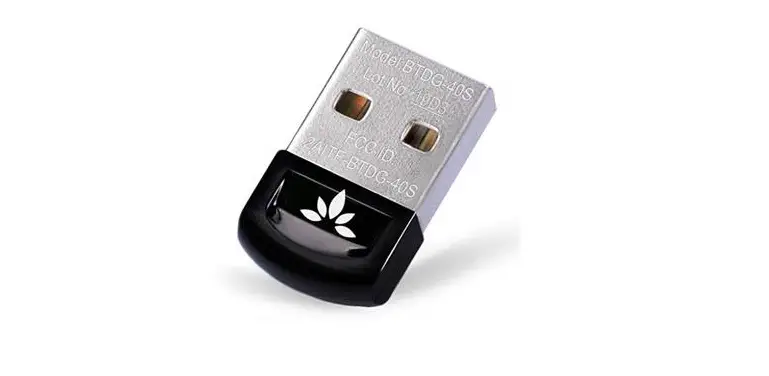
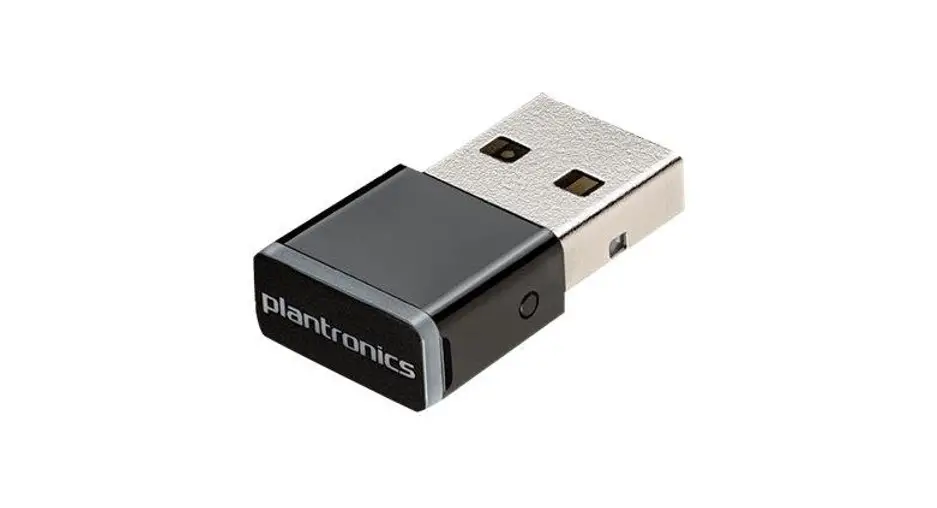
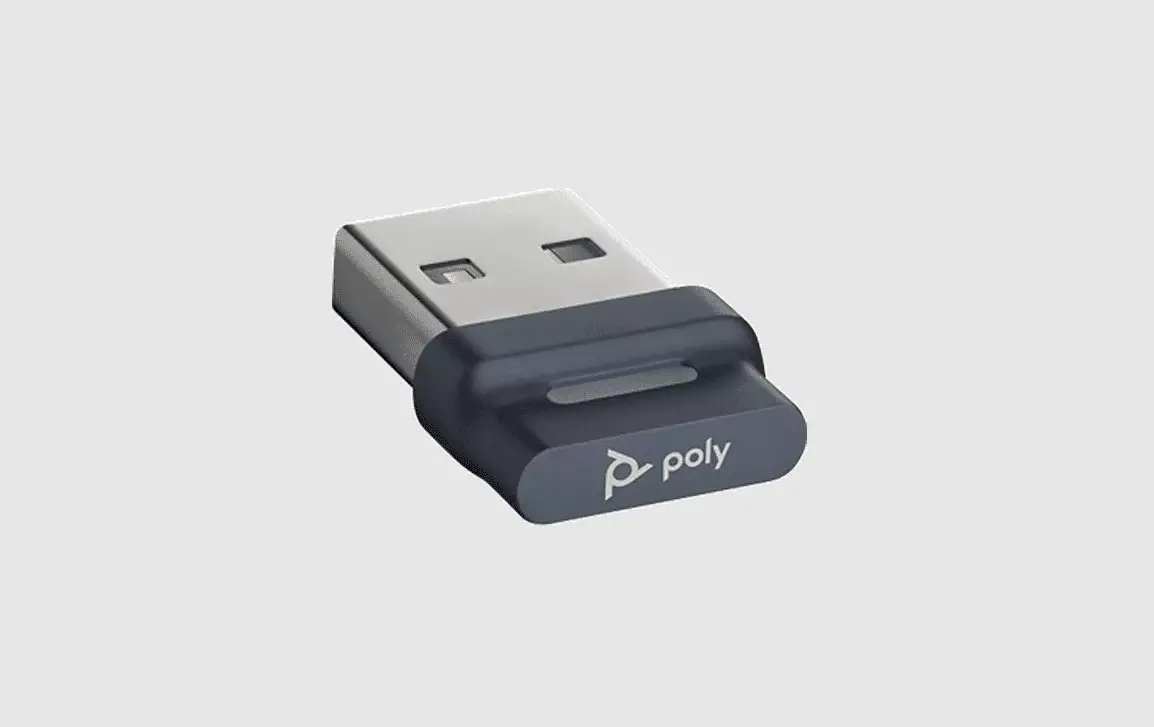
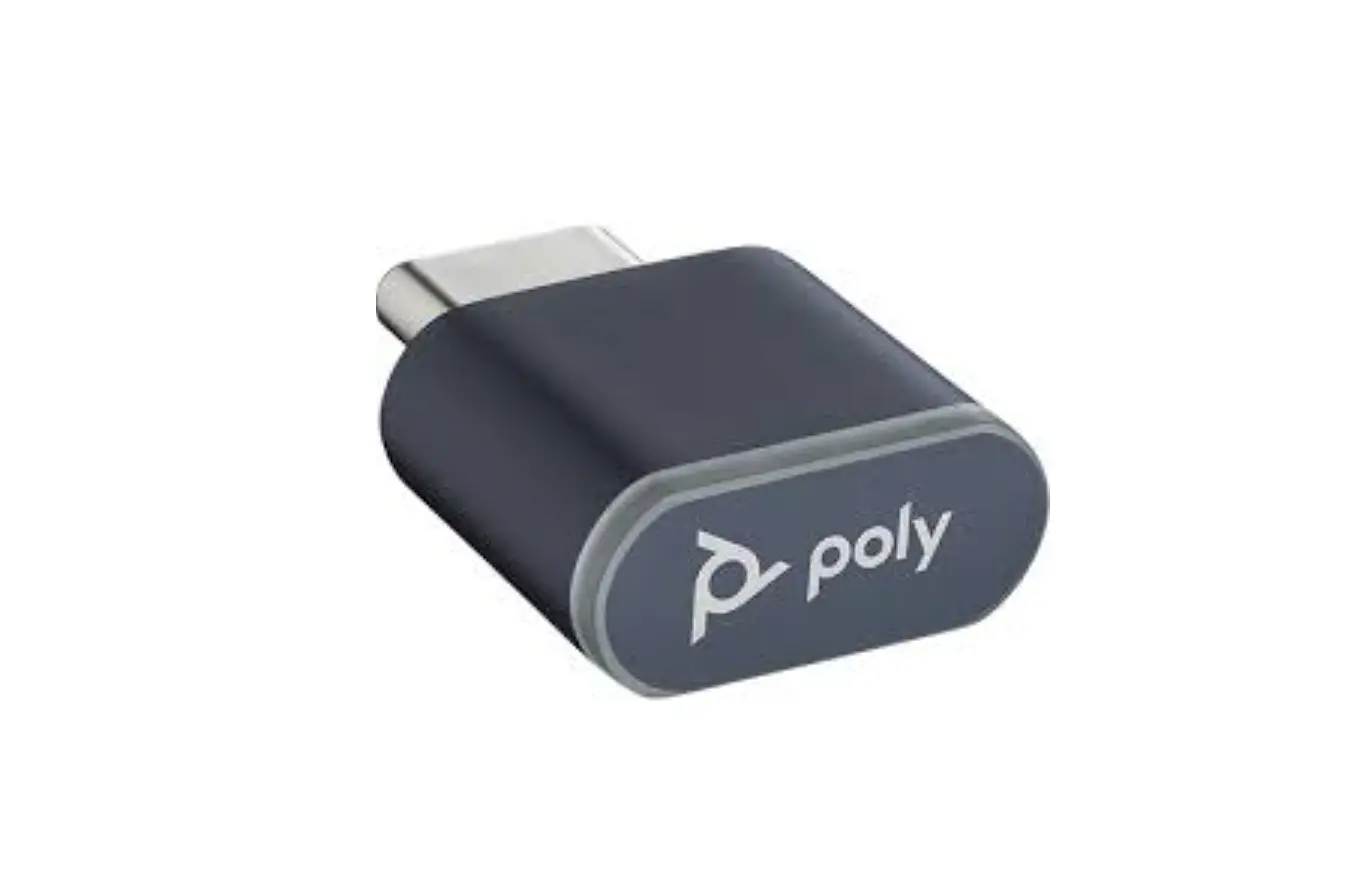
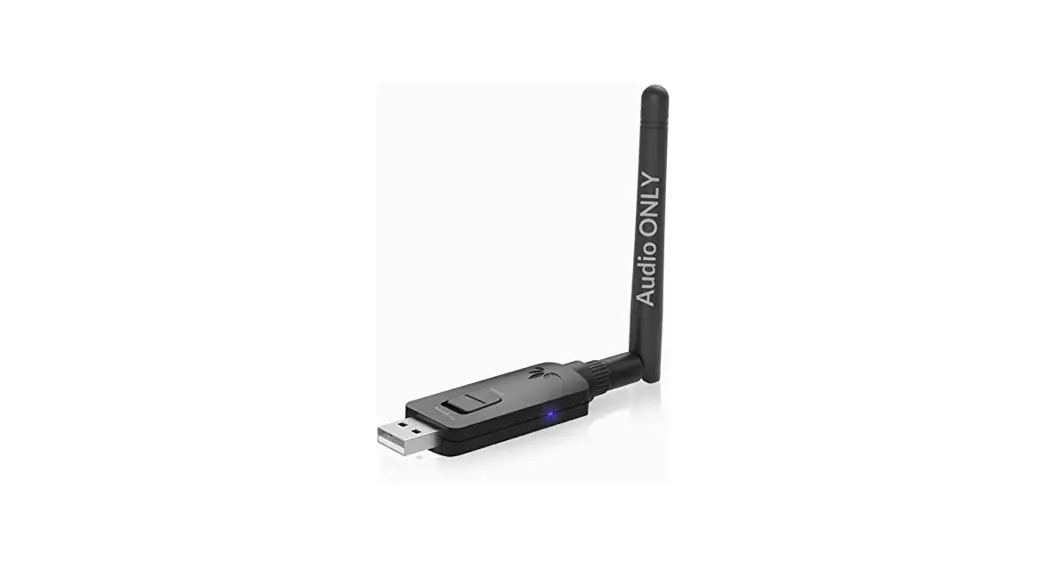
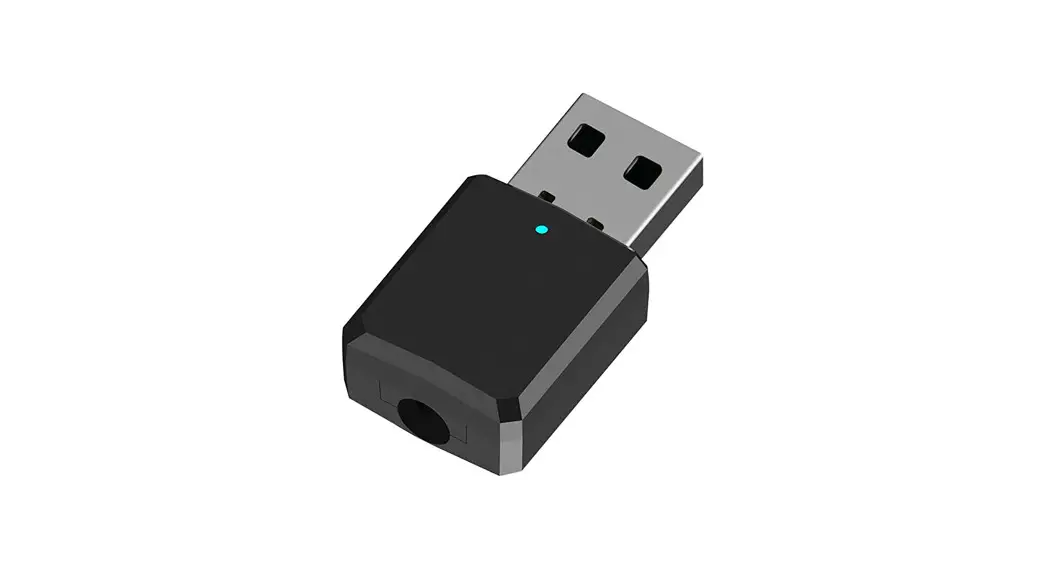
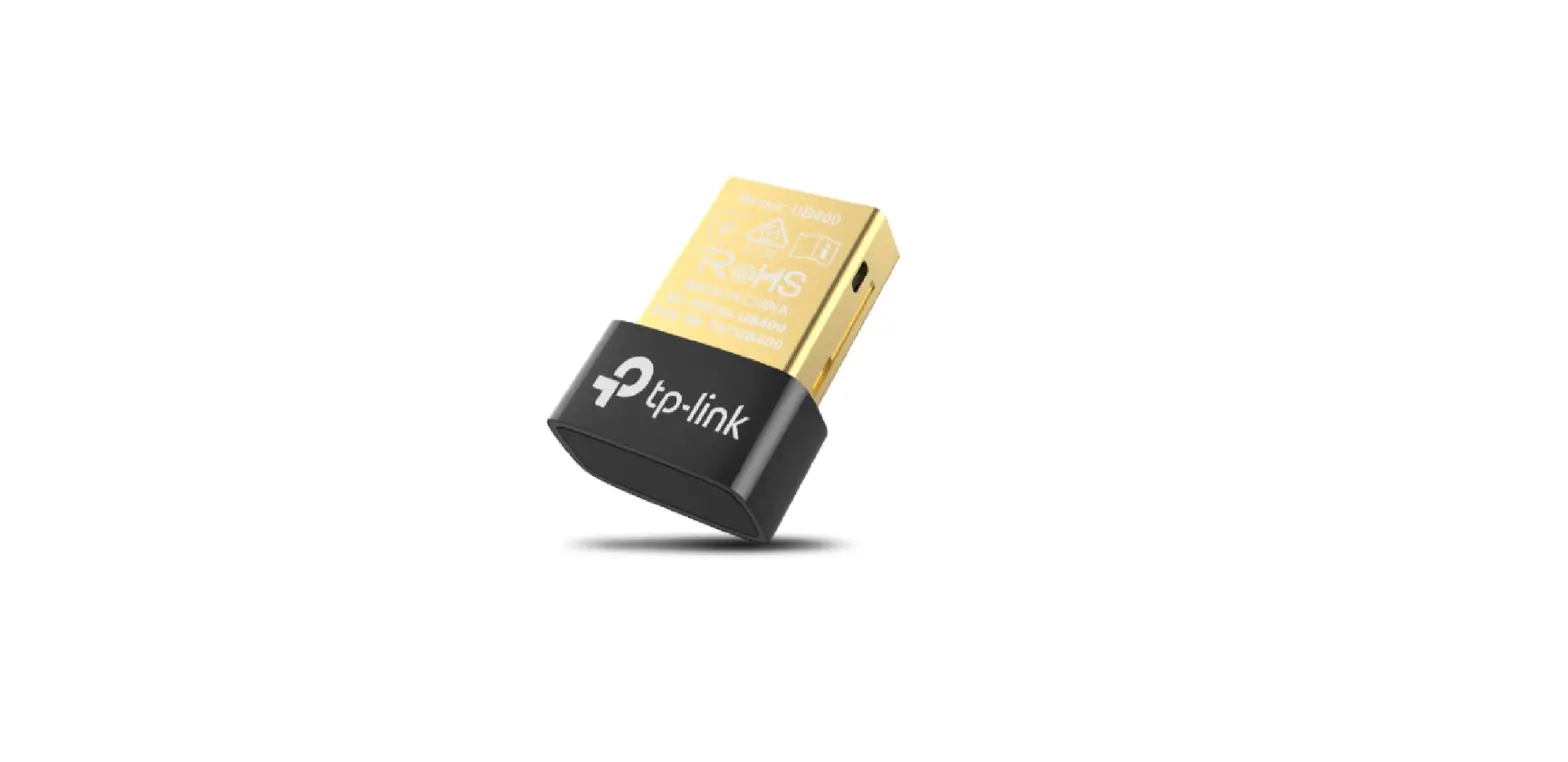
A Bluetooth wireless signal transmitter and receiver with a USB base. To support Bluetooth mice, keyboards, and other Bluetooth devices, it plugs into the USB port. Likewise known as a “Bluetooth dongle.” view dongle
A replacement USB dongle is not available since it is programmed to only function with your particular device.
There are a few drawbacks to using a dongle over a built-in Bluetooth connection on your smartphone, thus it’s generally preferable to do so: Typically, a Bluetooth dongle uses up one of your USB ports and is only compatible with one device. If your wireless gadgets are out of range, they will not function.
As a “one-to-many” device, a typical Bluetooth dongle can accommodate anywhere between 5-7 devices. (In contrast, 2.4 GHz receivers only support one device because they are “one-to-one” devices.)
Video
Download PDF Link; ASUS USB-BT400 USB Adapter with Bluetooth Dongle Receiver pdf