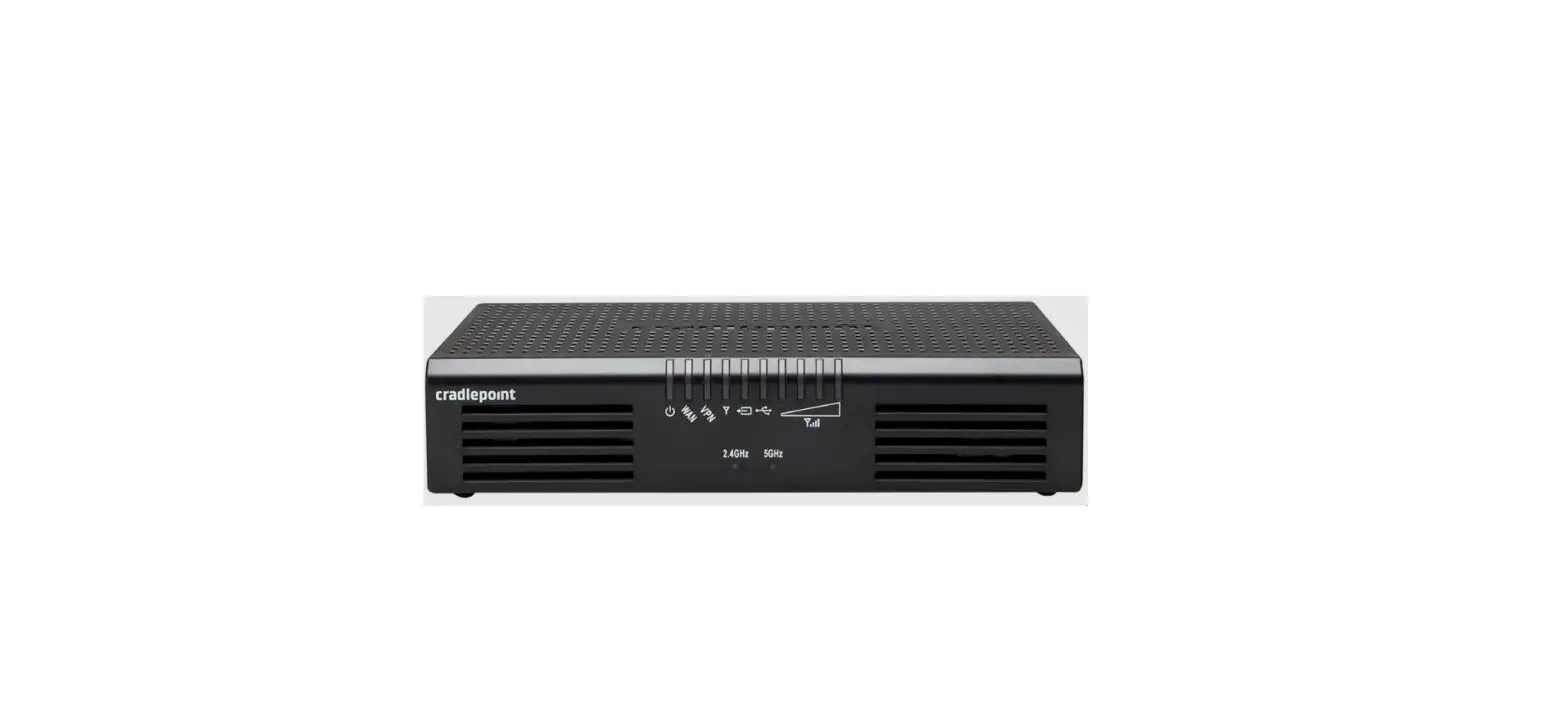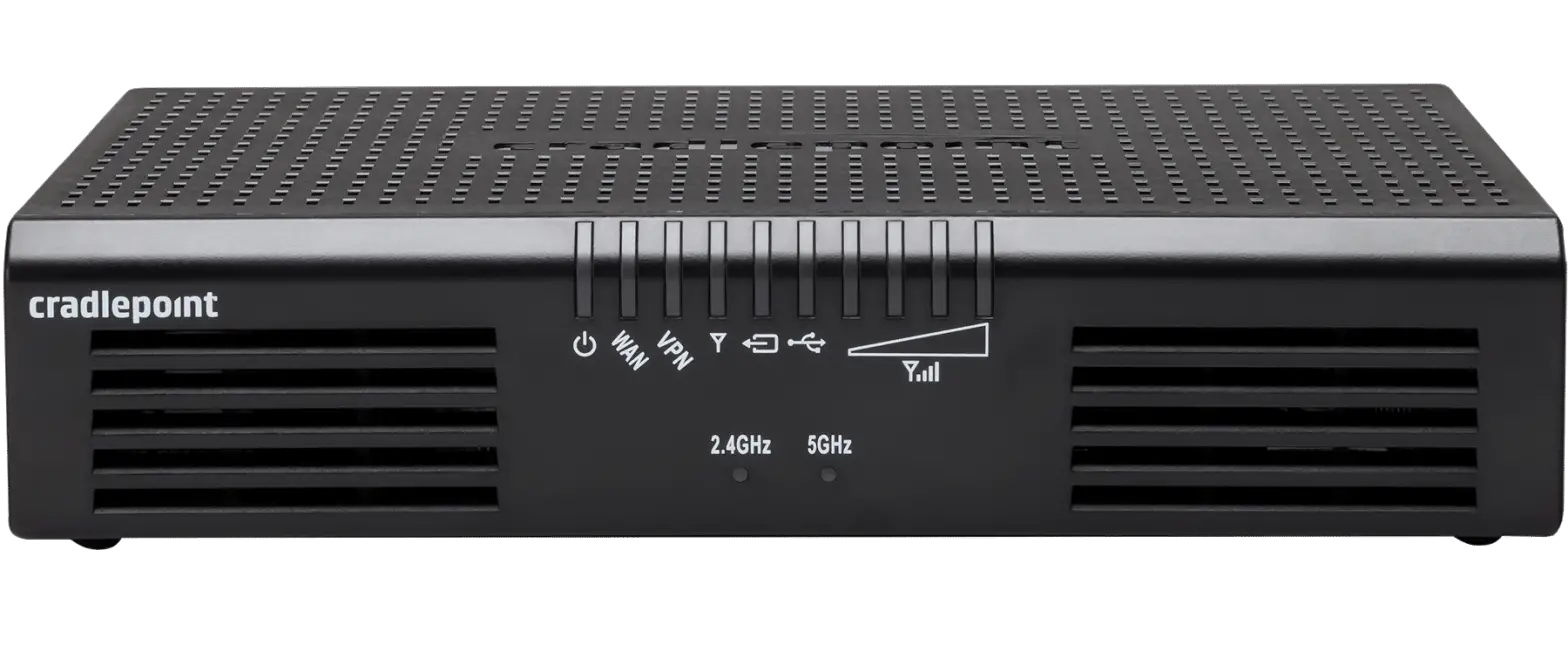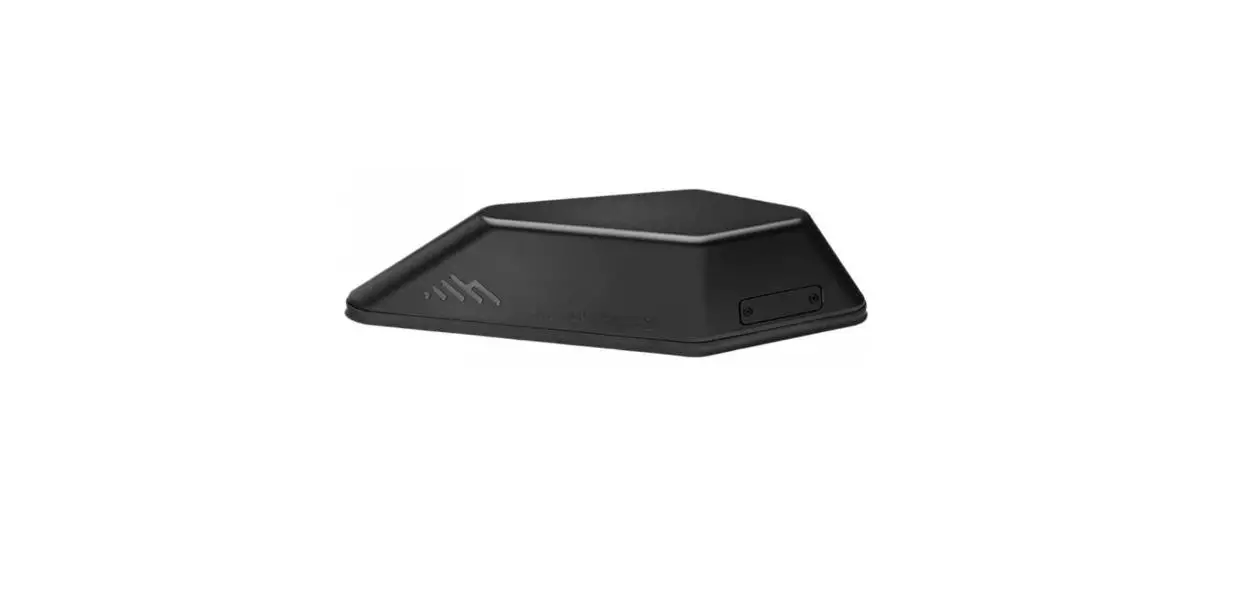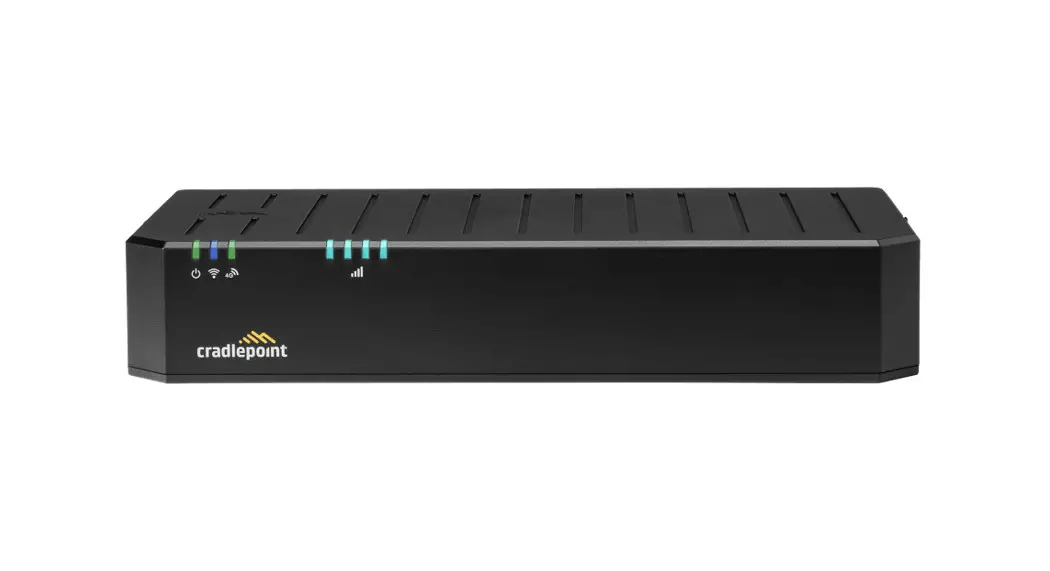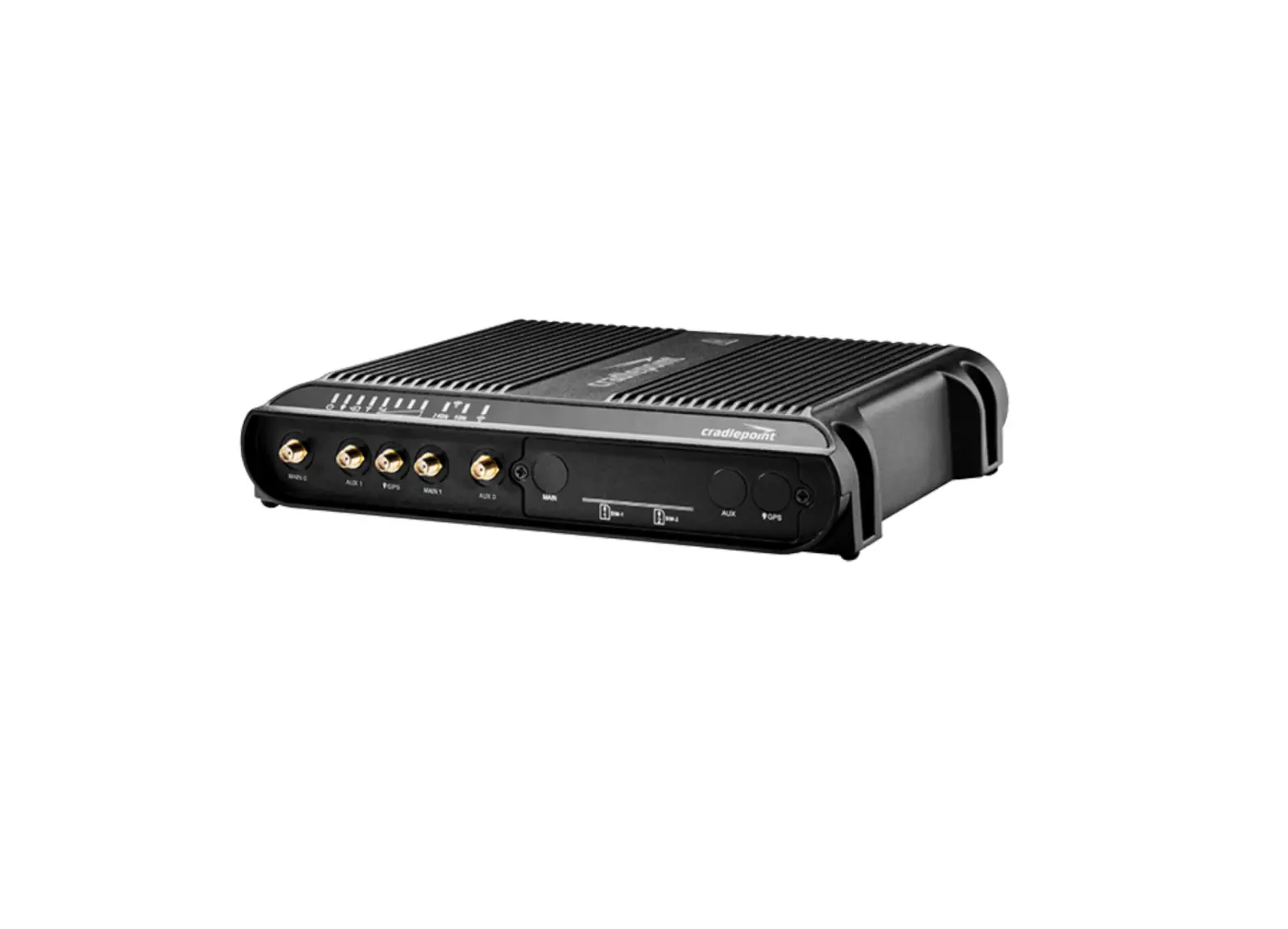
cradlepoint IBR1700 Mobile Router
Introduction
This guide provides instructions for the basic set up of your COR IBR1700 mobile router as well as discusses what’s inside the box and optional accessories to enhance the router’s functionality. For instructions on installing the router in your vehicle, refer to the Vehicle Installation Guide for COR Series Mobile Routers (https://customer.cradlepoint.com/s/article/Vehicle-Installation-Guide-for-COR-Series-Mobile-Routers) or email our Professional Installer Network to locate a professional installer in your service area at [email protected] (mailto: [email protected]).
Navigation
What’s in the Box
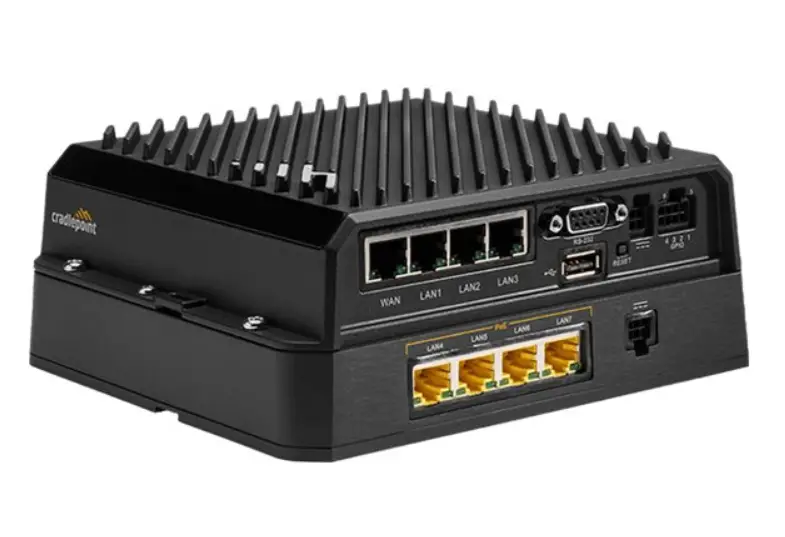
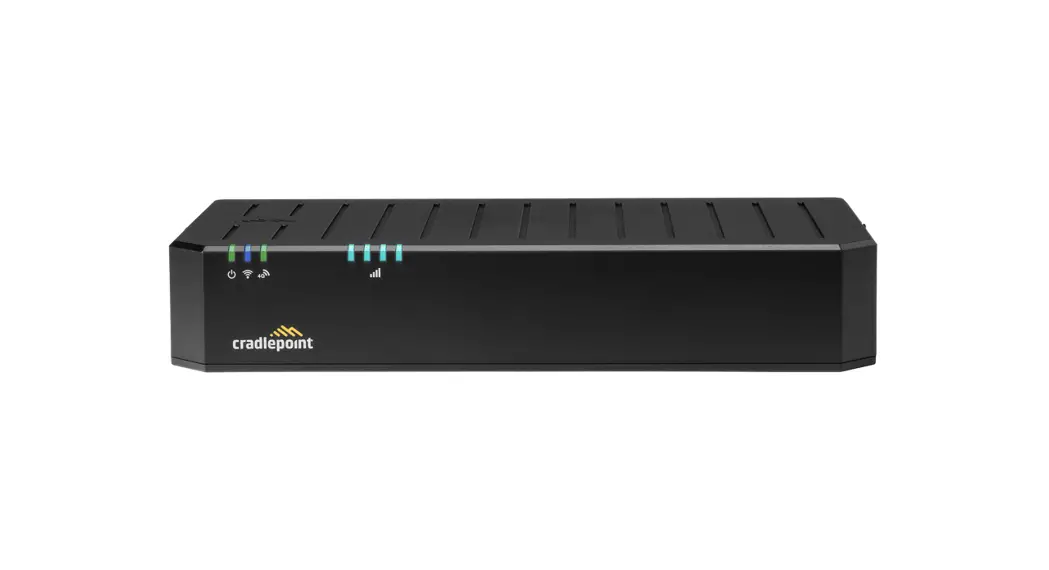
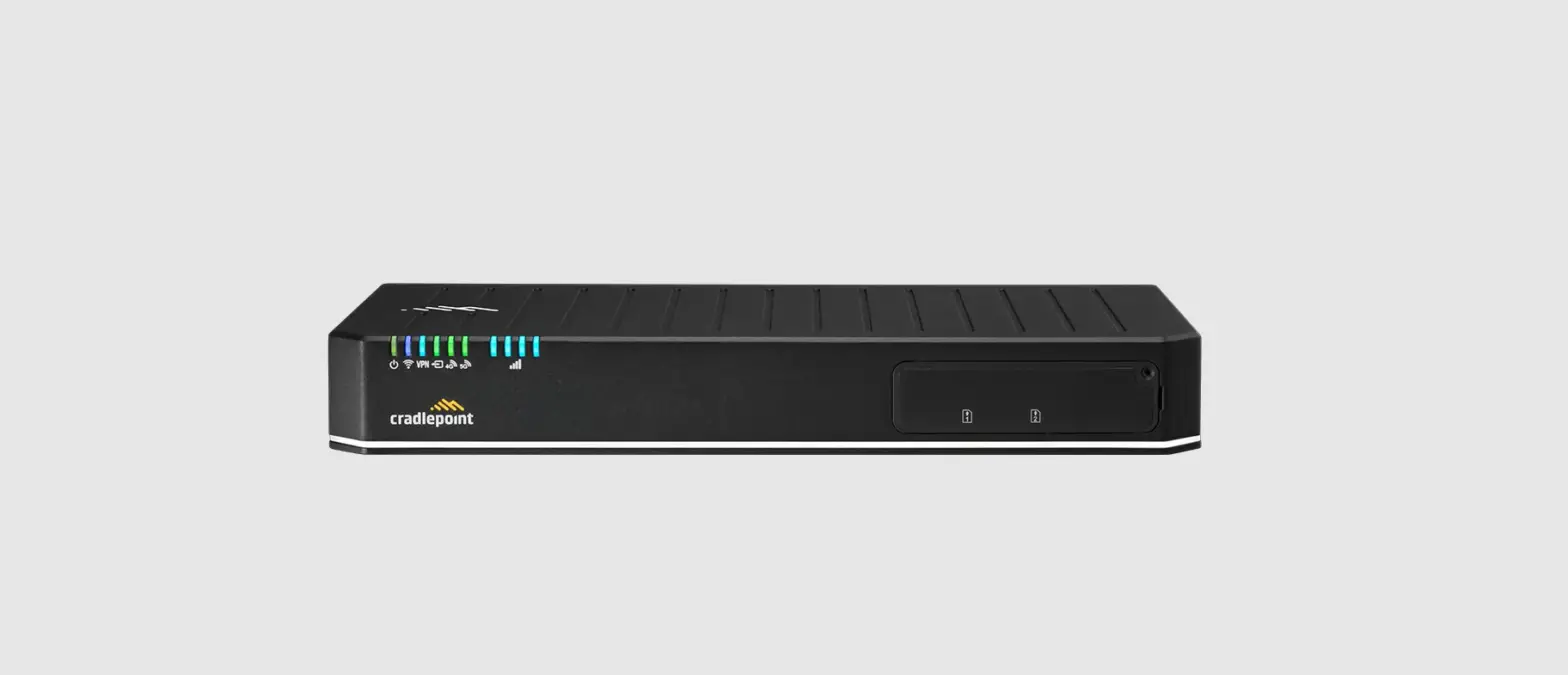
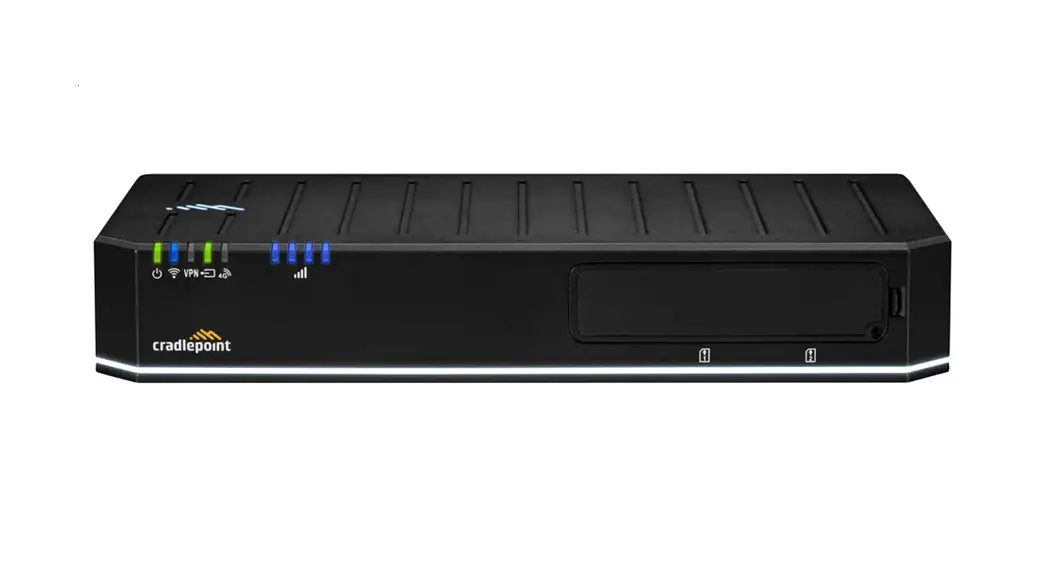
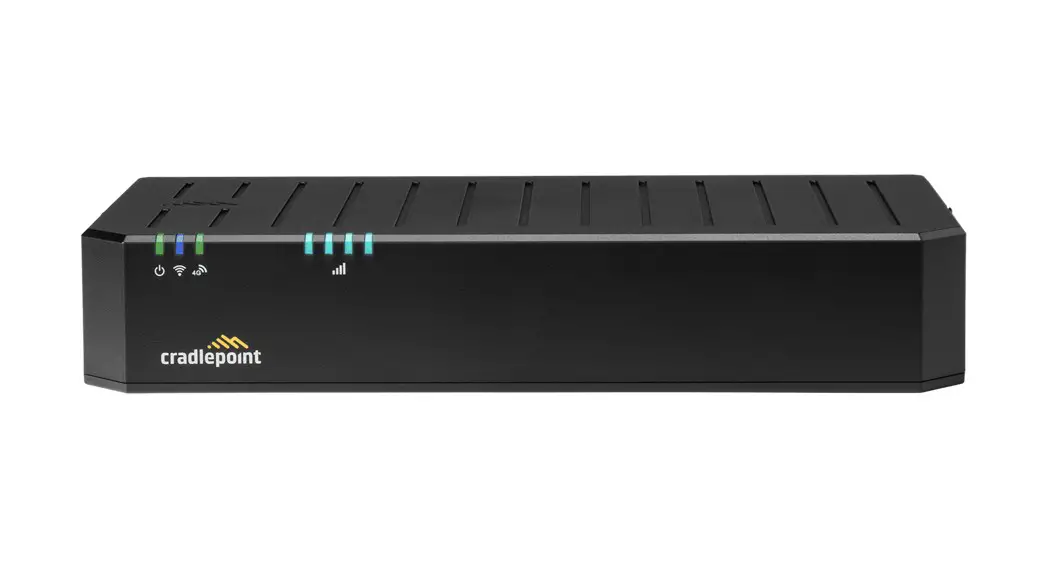
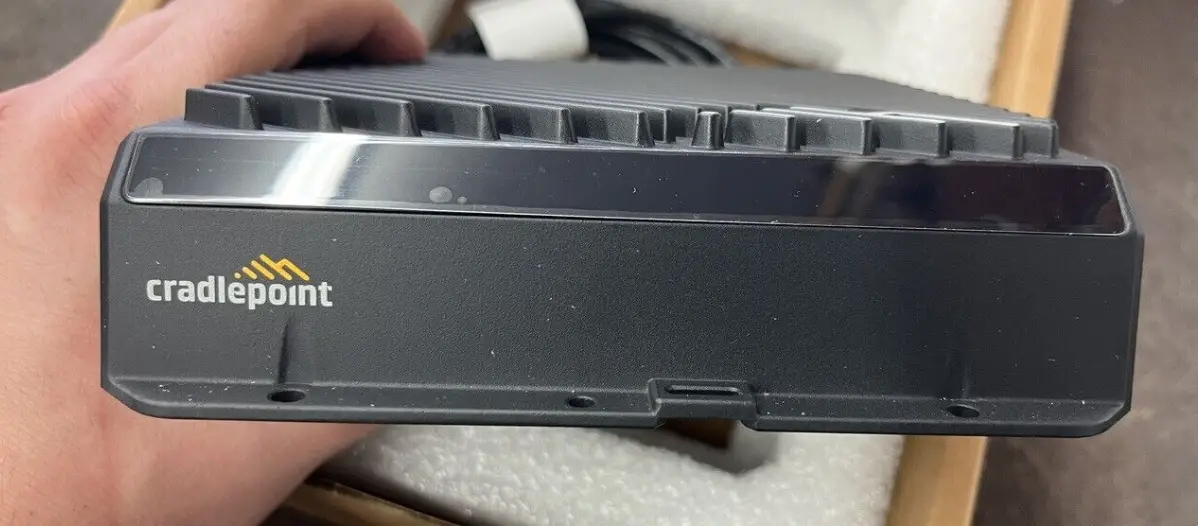
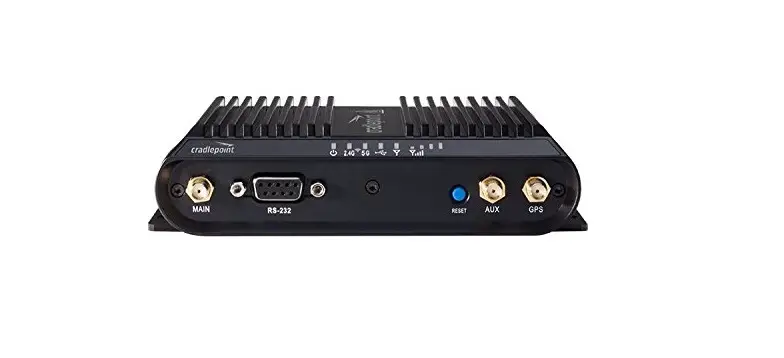
- IBR1700 high-performance, hardened metal router with embedded, business class 3G/4G modem; includes integrated mounting plate
- DC GPIO/power cable
- Safety, Regulatory, and Warranty guide
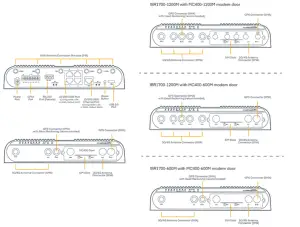
Hardware
COR IBR1700 Mobile Router Quick Start Guide
Accessories
The IBR1700 series mobile routers are designed for installation in vehicles and therefore require additional accessories for optimal performance.
- For antennas, refer to the Cradlepoint Approved Antennas information on the Cradlepoint Antennas (https://cradlepoint.com/products/antennas/) webpage.
- For accessories, refer to the Cradlepoint Accessories webpage (https://cradlepoint.com/products/accessories/).
Required
Antennas and associated cables will need to be purchased separately. Refer to the webpage for more information.
Optional
Refer to the Accessories (https://cradlepoint.com/products/accessories/) page on the Cradlepoint website to learn more about optional accessories for enhancing the IBR1700 series router. These optional accessories include:
- COR Extensibility dock
- 2×10 GPIO cable Secondary MC400 LTE modem
- Barrel to 4-pin power adapter
- Extended temperature AC power supply
Before You Begin
Read through the following before you set up your Cradlepoint COR IBR1700 router(s).
Location Considerations
The IBR1700 series routers are built for installation in vehicles of all varieties. Refer to the Vehicle Installation Guide for COR Series Mobile Routers (https://customer.cradlepoint.com/s/article/Vehicle-Installation-Guide-for-COR-Series-Mobile-Routers) for more information.
SIM Card for Wireless Connectivity
A wireless broadband data plan must be added to your Cradlepoint IBR1700 for wireless broadband connectivity. Wireless broadband data plans are available from wireless carriers such as Verizon, AT&T, Sprint, EE, and Vodafone. The SIM must be provisioned by the carrier. Contact your carrier for details about selecting a data plan and about the process for provisioning your SIM. To configure the router for failover and failback functionality, refer to the article, Effectively Utilizing 2-SIM Modems (https://customer.cradlepoint.com/s/article/NCOS-Effectively-utilizing-2-SIM-modems).
Setup
Read through the following to set up your IBR1700 series mobile router.
- Insert an activated 2FF-sized SIM into the router.

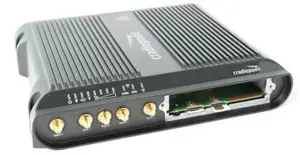
● Unscrew and remove the MC400 modular modem door from the router.
● Insert the card into the SIM1 slot, metal contacts up and notch in. It will click into place. Depress again to remove.
●Insert the secondary SIM card into the SIM2 slot if desired. - If using a MC400 modular modem, insert activated 2FF-sized SIM card(s) into the modem.
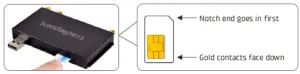
● Insert the card into the SIM1 slot, metal contacts down and notch in.
● Insert the secondary SIM into the SIM2 slot, if desired.
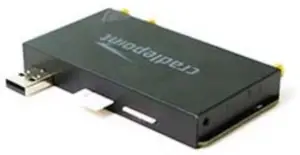
● Slide the MC400 modular modem into the IBR1700, Cradlepoint logo side up, USB plug first.
● Replace the modem door and secure with the screws.
● Remove the plastic port covers from the modem door before returning the cover to the router.
Note: The MODEM COVER must be replaced, or the modem will not power on. - Set up the Antenna and WiFi Configuration.
● The IBR1700 includes three (3) independent WiFi radios, allowing for a much more customizable and robust experience when using WiFi. For more information on configuring and using the IBR1700’s WiFi, please view this article: NCOS: 6.5 IBR1700 WiFi Radio Setup (/s/article/NCOS-6-5-IBR1700WiFi-Radio-Setup?r=110&ui-knowledge-components-auraactions.KnowledgeArticleVersionCreateDraftFromOnlineAction.createDraftFromOnlineArticle=1).
● There are many antennas options for the IBR1700. Refer to the Vehicle Installation Guide for COR Series Mobile Routers (https://customer.cradlepoint.com/s/article/Vehicle-Installation-Guide-for-COR-Series-Mobile-RoutersO) for information about selecting an antenna option that works best for you. - Connect the power source.

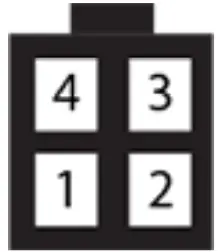
PIN Wire Color Definition Details 1 Black Ground Ground to the vehicle chassis 2 Red Power VDC battery constant 3 Orange Input VDC ignition sensing accessory input 4 Blue Output General purpose I/O (GPIO) - Activate the device through NetCloud Manager.
Refer to the Connecting to NetCloud (https://cradlepoint.lightning.force.com/lightning/r/Knowledge__kav/ka9380000004EVvAAM/view#NetCloud) section of this document.
Return to Top
Understanding LEDs
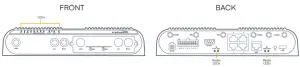
| INDICATOR | BEHAVIOR |
 | POWER: The Cradlepoint IBR1700 must be powered using an approved 9–36 V DC power source.
|
 | GPS: Indicates the status of GPS connection.
|
 | MC400 MODEM: Indicates information about the optional MC400 modem.
|
 | INTEGRATED MODEM Indicates information about the integrated modem.
|
 | SIGNAL STRENGTH Blue LED bars indicate the active modem’s signal strength.
|
 | WiFi STATUS: Indicates information about WiFi channels.
|
 | WiFi AS WAN: Indicates WiFi as WAN status.
|
| Other | ADDITIONAL LED INDICATIONS
|
Connecting to NetCloud
Activate your device through NetCloud Manager (NCM). Your device is packaged with NetCloud services, and activation requires that you log into your NetCloud account. Refer to the following for more information:
Troubleshooting
If the device takes longer than 5 minutes to connect to the Internet, you may need to log into the local UI of the device to make configuration changes or start the troubleshooting process. You must be physically co-located with the device in order to do this. Refer to the following document for more information:
Once the device connects to the Internet, it should then connect to your NetCloud Manager account and start its configuration download.
Resources
Help and Support
COR IBR1700 Mobile Router Models
This guide applies to the following COR IBR1700 Mobile router models.
CRADLEPOINT IBR1700-1200M-B S5A844A
CRADLEPOINT IBR1700-1200M S5A844A
CRADLEPOINT IBR1700-600M S5A741A
Terms of Service
Return to Top
Title
COR IBR1700 Mobile Router Quick Start Guide
URL Name
IBR1700-Getting-Started
No related lists to display
Follow
Ask a Question
Vehicle Installation Guide for COR Series Mobile Routers (/s/article/Vehicle-Installation-Guide-for-COR-Series-Mobile-Routers) 
NCOS: VPN Quick Start Guide for Capable Cradlepoint Products (/s/article/NCOS-VPN-Quick-Start-Guide-for-capable-Cradlepoint-products) 
IBR900 Mobile Router Quick Start Guide (/s/article/IBR900-Getting-Started) 
Quick Start Guide Index (/s/article/Quick-Start-Guides) 
Getting Started With Ignition Sensing (/s/article/Getting-Started-With-Ignition-Sensing) 
Trending Articles
Accessing the Setup Pages of a Cradlepoint Endpoint (/s/article/NCOS-Accessing-the-Setup-Pages-of-a-CradlePoint-router)
How to Do Port Forwarding To Multiple Devices on the Same Port (/s/article/How-to-Do-Port-Forwarding-To-Multiple-Devices-on-the-Same-Port)
IBR600C Series Quick Start Guide (/s/article/COR-IBR600C-Series-Quick-Start-Guide)
Getting Started with NetCloud Manager (/s/article/Getting-Started-with-NetCloud-Manager)
How To Set Custom DNS Servers Over a Routed OpenVPN Tunnel (/s/article/How-To-Set-Custom-DNS-Servers-Over-a-Routed-OpenVPN-Tunnel)
References
 📧%[email protected]
-
Terms of Service - Cradlepoint
-
Privacy Policy - Cradlepoint
-
IBR1700 Series Endpoints | NetCloud Equipment | Cradlepoint
-
NetCloud Equipment Accessories | Cradlepoint
-
Netcloud Equipment Antennas | Cradlepoint
-
Customer Support & Live Chat | Cradlepoint
 cradlepoint.lightning.force.com/lightning/r/Knowledge__kav/ka9380000004EVvAAM/view#NetCloud
-
Customer Connect
-
Customer Connect
-
Customer Connect
-
Customer Connect
-
Customer Connect
-
Customer Connect
-
Customer Connect
-
Customer Connect
-
Customer Connect
-
Customer Connect
-
Customer Connect
-
Customer Connect
-
Customer Connect
-
Customer Connect
-
Customer Connect
-
Customer Connect
-
Customer Connect
-
customer.cradlepoint.com/s/contactsupport
-
Customer Connect
-
Customer Connect
-
Customer Connect
 IBR1700 Product Brief
 📧%
📧% cradlepoint.lightning.force.com/lightning/r/Knowledge__kav/ka9380000004EVvAAM/view#NetCloud
 Customer Connect
 IBR1700 Product Brief