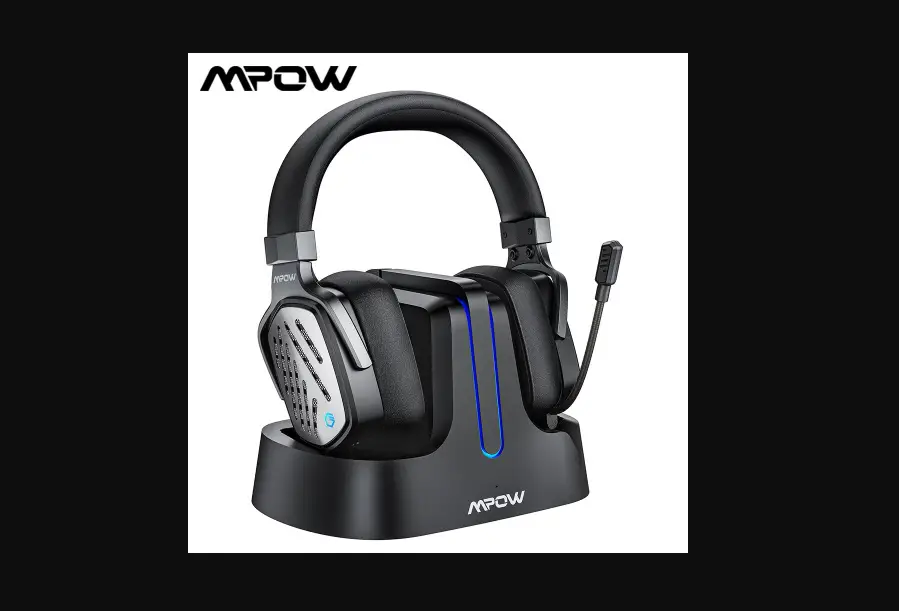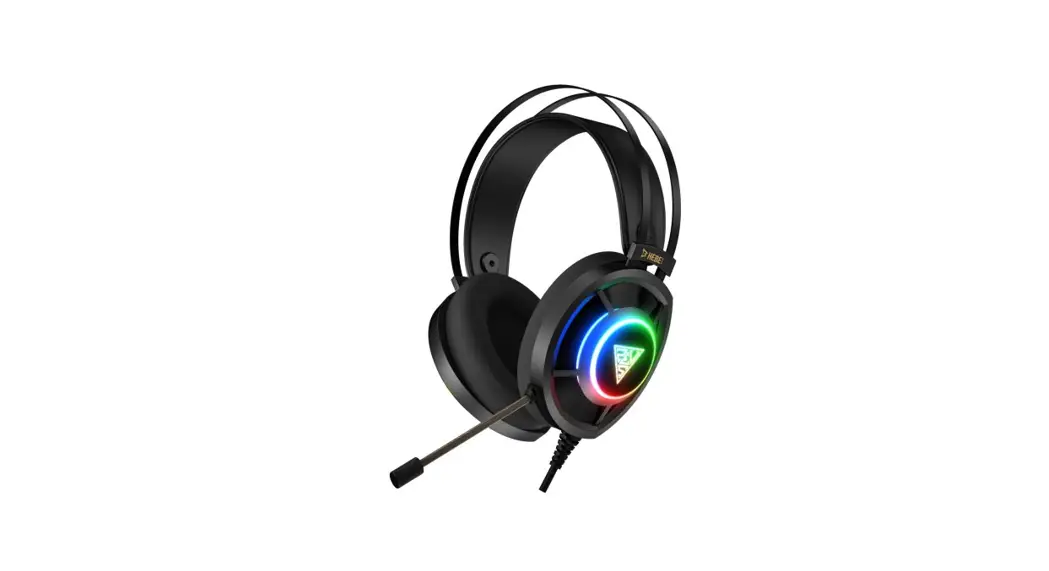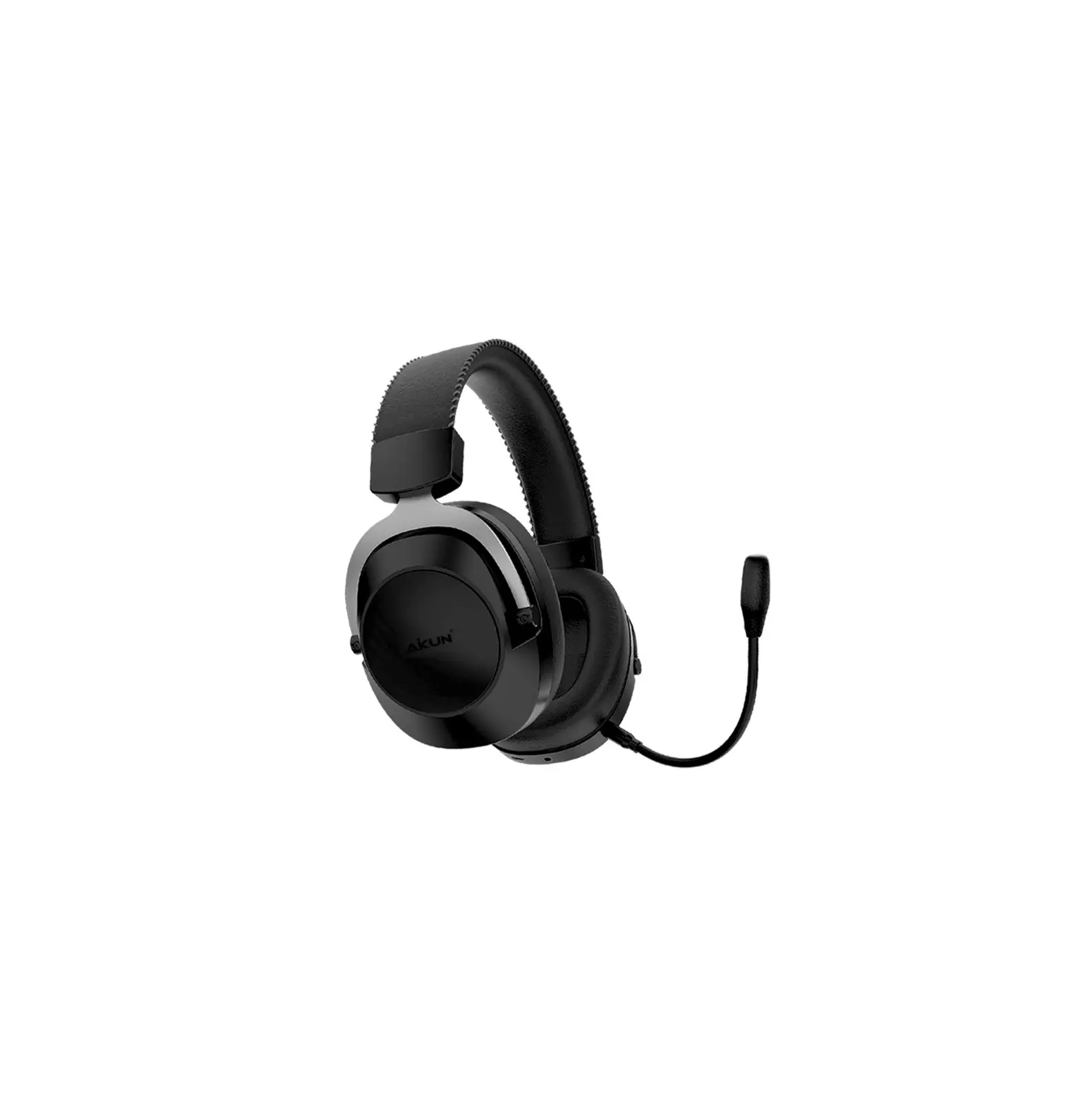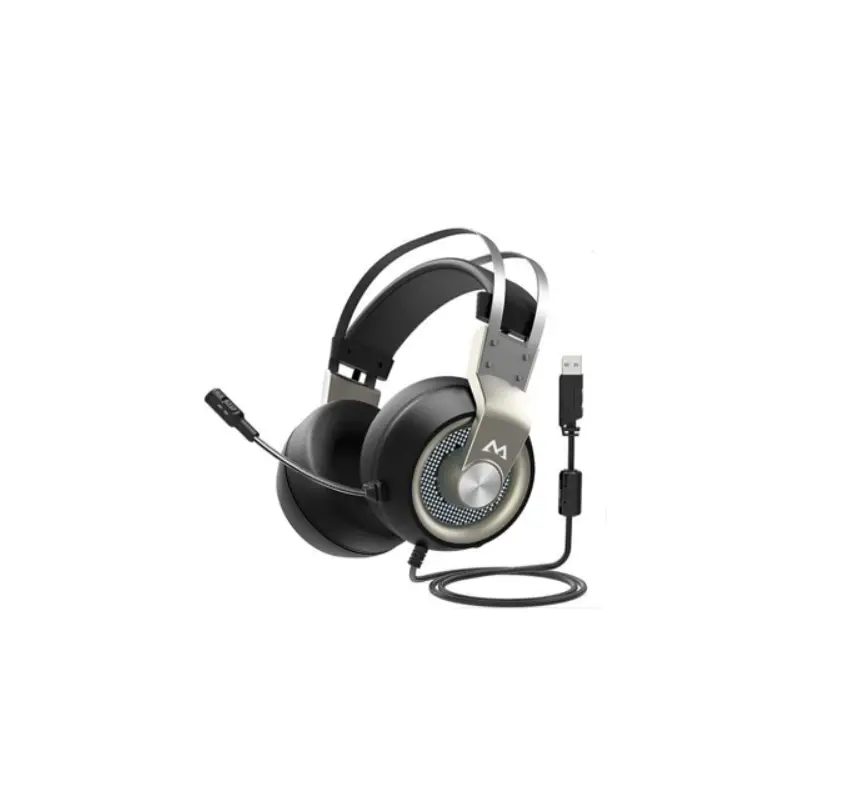
MPOW Surround Sound Gaming Headset User Guide

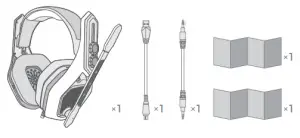
Packing List
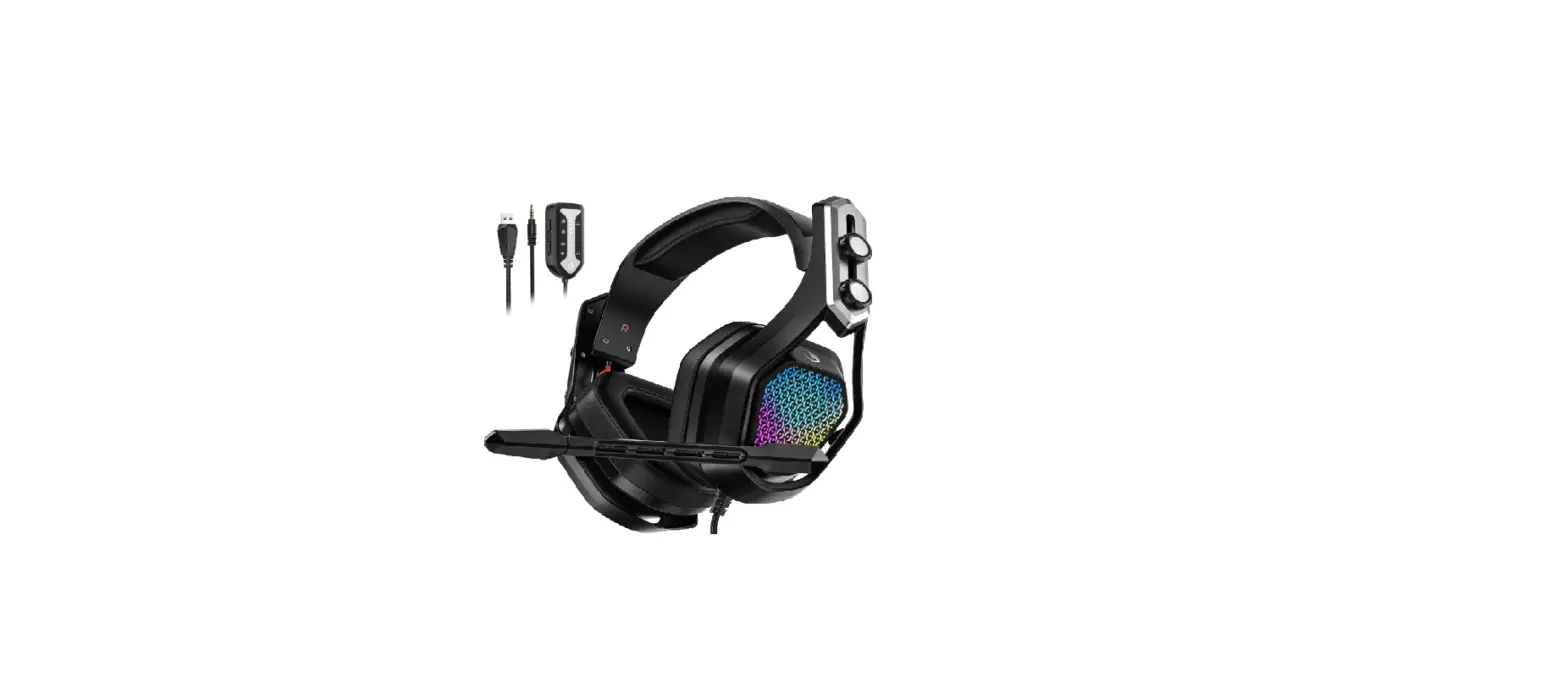
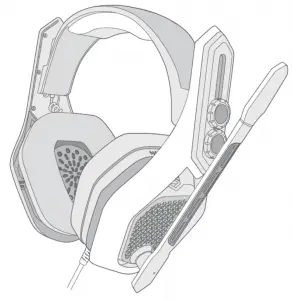
Diagram
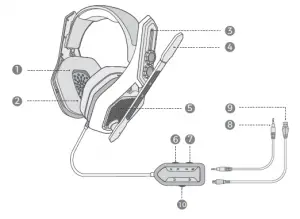
- Glasses-Friendly Groove
- Soft Memory-Protein Earpad
- Adjustable Headband
- Flip-up Mic
- RGB Light
- LED ON/OFF
- Mic ON/OFF
- 3.5mm Audio Plug
- USB Plug
- Volume Control
Compatible Devices
PC/PS4/PS4 PRO/PS4 SLIM/MAC OS/Xbox one/Xbox One X
Note
- You need an extra Microsoft Adapter (NOT INCLUDED) when connect with an old version Xbox One controller.
- The microphone is UNAVAILABLE on Nintendo Switch
Instructions of Virtual 7.1Surround Sound
Instructions of Virtual 7.1Surround Sound
Go to https://www.xmpow.com/drivers to download Mpow Iron’s software. Model: BH336A Using the software will enable the full feature set of Mpow Iron Surround Headset.
Note: The virtual 7.1 surround sound is available only on windows PC
Instructions about ENC (Environmental Noise Cancellation)
Instructions about ENC (Environmental Noise Cancellation)
- You can enable this function after successfully installed the driver software and it is available ONLY on Windows 7/8/8.1/10.
- Please adjust the microphone 30~50mm (1.18~1.97in) to your mouth to pick up your voice more clearly and accurately.
PC Setup
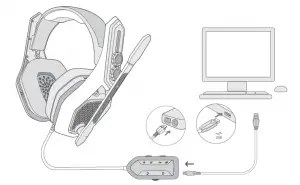
Open your sound settings from Control Panel >Sound. Set“USB-BH336A” to be the default device to play and record sounds.
IMac / Macbook Pro Setup
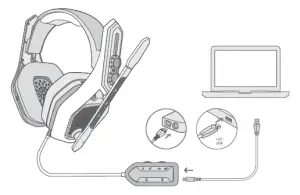
Ps4 Setup
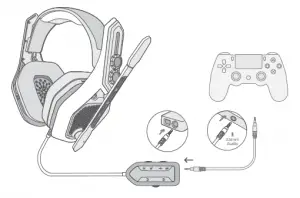
Connect the headset to the audio port of PS4 controller.
- Go to the PS4 Settings
- Devices
- Audio Devices
- Set Input & Output to headset connected to controller
- Set Output to Headphones to All Audio
Xbox Setup
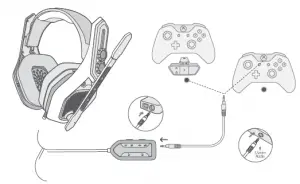
Connect the headset to the audio port of Xbox Controller.
Note: You need an extra Microsoft Adapter (NOT INCLUDED) when connect with an old version Xbox One controller
 download
– MPOW web-brand-mpow
download
– MPOW web-brand-mpow