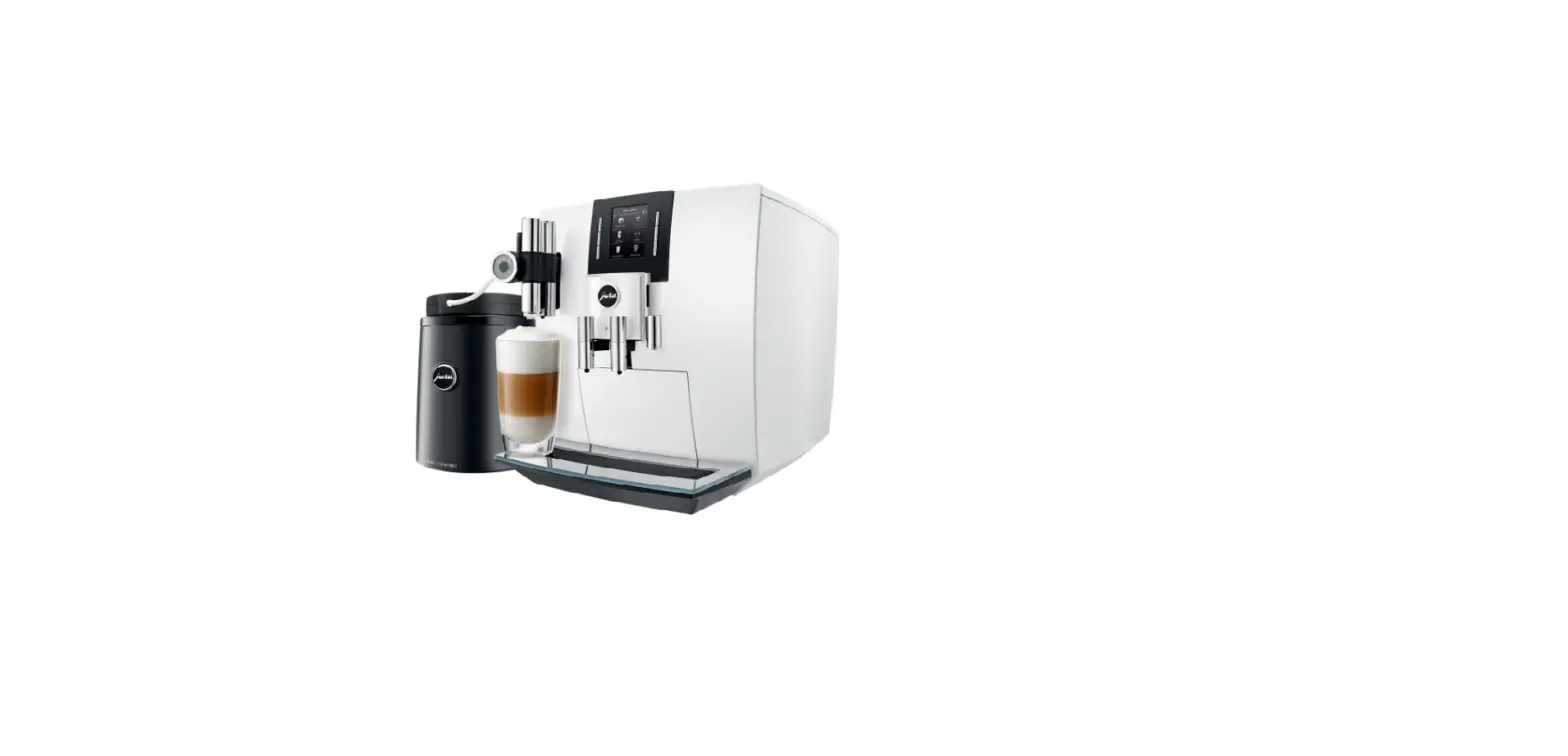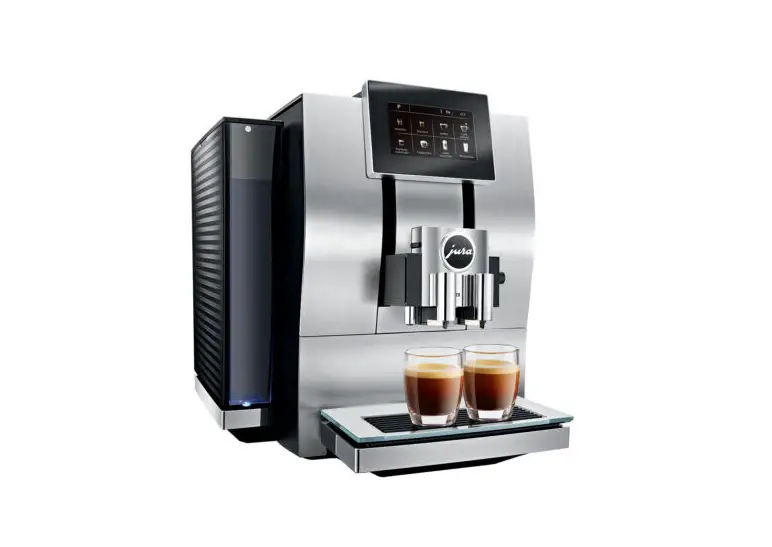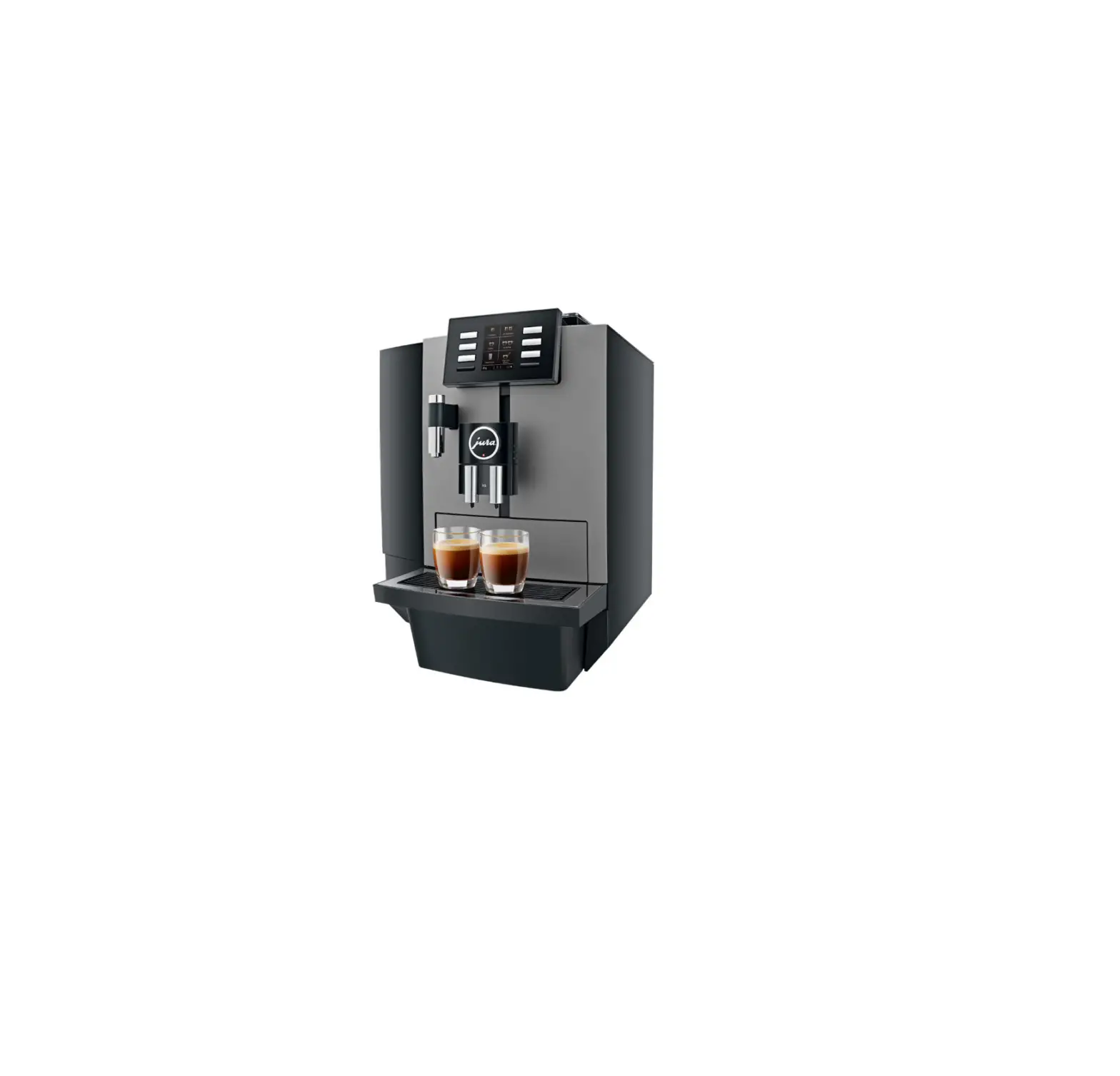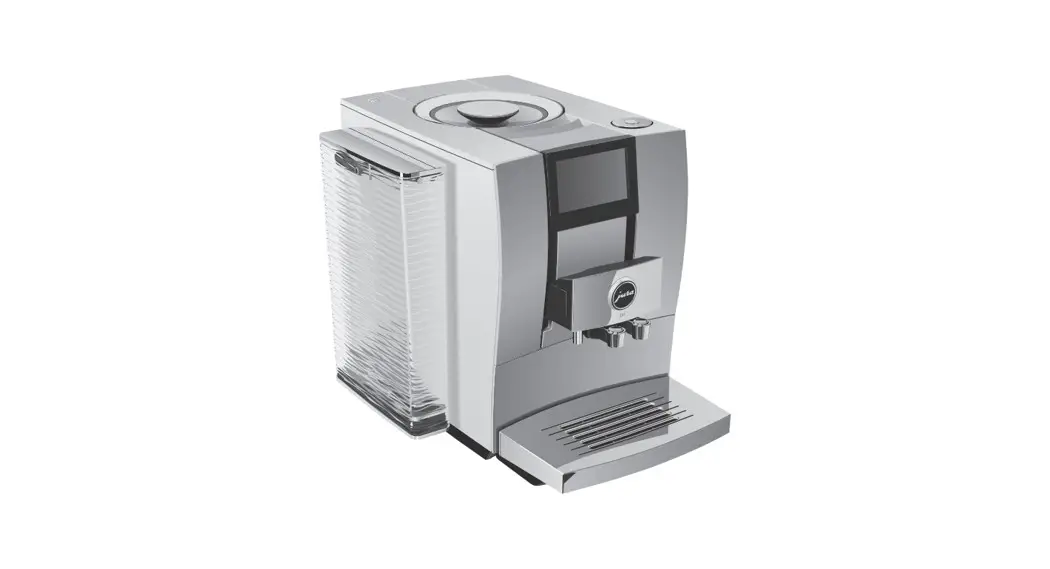
 Z10 Aluminium Dark Stainless Steel
Instructions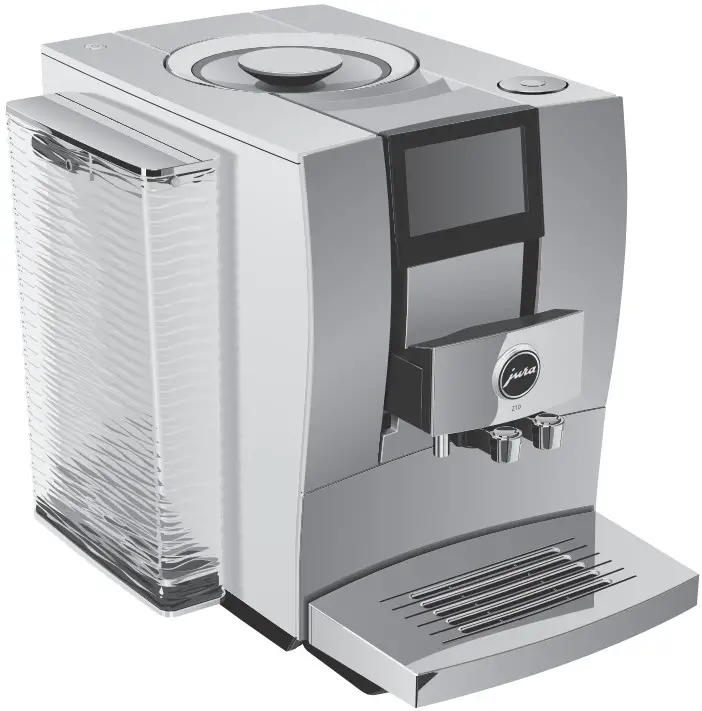
Control elements
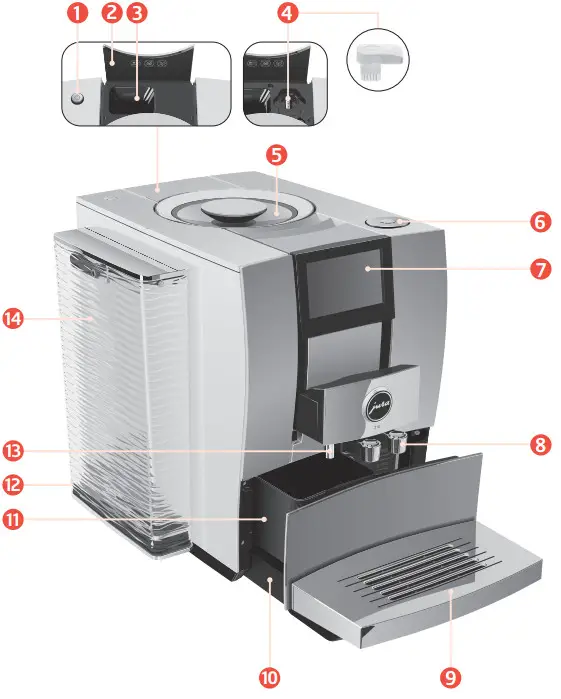
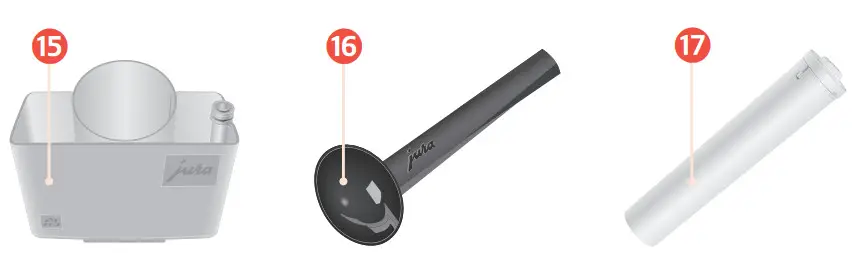
| 1 | On/Off button Q | 9 | Cup grille |
| 2 | Cover for powder chute for ground coffee | 10 | Drip tray |
| 3 | Powder chute for ground coffee | 11 | Coffee grounds container |
| 4 | Service socket with JURA WiFi Connect (under cover) | 12 | Mains cable (permanently connected or plug-in) |
| 5 | Bean container with aroma preservation cover | 13 | Hot-water spout |
| 6 | Rotary Switch | 14 | Water tank |
| 7 | Touchscreen display | 15 | Container for milk system cleaning |
| 8 | Height- and width-adjustable dual spout | 16 | Measuring spoon for ground coffee |
| 17 | Filter casing |
For your safety
Comply with the instructions for use
Before using the machine, read these instructions for use thoroughly and completely and comply with the instructions they contain. Keep these instructions for use close to the machine and pass them on to the next user.
Failure to observe the instructions for use may result in serious injuries or damage to property.
Safety information is therefore indicated as follows: WARNING
Indicates circumstances that may result in serious injuries or death. CAUTION
Indicates circumstances that may result in minor injuries.
CAUTION
Indicates circumstances that may result in damage to property.
Proper use
The machine is intended for private domestic use. It should only be used for coffee preparation and to heat milk and water. Use for any other purpose will be deemed improper.
User limitations
People, including children, who
- do not have the physical, sensory or mental capabilities to use the machine safely or
- are inexperienced or lack knowledge must be supervised by a responsible person when using it, or must be instructed in how to use it correctly.
When using the CLARIS Smart filter cartridge or a JURA WiFi Connect, wireless connections are established. Specific details on the frequency band used and the maximum transmission power can be found in the ‘Technical data’ section.
Use by children
Children must be able to recognise and understand the potential dangers arising from incorrect use:
- Keep children under the age of 8 away from the machine, or supervise them constantly.
- Children aged eight and over may only operate the machine without supervision if they have been instructed in how to use it safely.
- Children may not clean or service the machine unless supervised by a responsible person.
- Do not allow children to play with the machine.
What to do in the event of damage
Never use a damaged machine or mains cable.
This could result in fatal electric shock.
- In the event of signs of damage, disconnect the machine from the mains. To do this, first switch the Z10 off with the On/Off button Q. Only then should you remove the mains plug from the power socket.
- Replace a damaged plug-in mains cable with an original JURA mains cable. Unsuitable mains cables may result in consequential damage.
- Only permit authorised JURA service centres to carry out repairs to the machine and the permanently connected mains cable.
Unsuitable repairs may result in consequential damage.
Preventing damage
To avoid damage to the machine and the mains cable:
- Do not use the Z10 and the mains cable near hot surfaces.
- Do not allow the mains cable to rub against sharp edges and ensure that it does not become trapped.
- Never allow the mains cable to loosely hang down. The mains cable could pose a tripping hazard or become damaged.
- Protect the Z10 from weather and direct sunlight.
- Only connect the Z10 to a mains voltage corresponding to that stated on the rating plate. The rating plate is located on the underside.
- Connect the Z10 directly to a domestic power socket. Using multi-socket adapters or extension cords may cause overheating.
- Do not use alkaline or alcohol-based cleaning agents; only use mild cleaning agents and a soft cloth.
- Do not use any coffee beans treated with additives or caramelized coffee beans.
- Only fill the water tank with fresh, cold, non-carbonated water.
- Switch the machine off with the On/Off button
 if you are going to be absent for a longer period of time and remove the mains plug from the power socket.
 - Only use original JURA maintenance products. Use of products that are not explicitly recommended by JURA could damage your Z10.
 if you are going to be absent for a longer period of time and remove the mains plug from the power socket.
Danger of electric shock
Water conducts electricity. Do not bring water and electricity into contact with one another:
- Never touch the mains plug with wet hands.
- Do not immerse the Z10 and/or mains cable in water.
- Do not put the Z10 or any individual parts in the dishwasher.
- Before cleaning, switch the Z10 off with the On/Off button Q. Always wipe the Z10 with a damp cloth rather than a wet one, and protect it from prolonged exposure to water splash. The Z10 must not be cleaned with a jet of water.
- The Z10 is not suitable for installation on a surface where a jet of water can be used.
Danger of burns, scalding and injury
- Do not touch the spouts during operation. Use the handles provided.
- Optionally, your Z10 can be remotely operated using mobile devices. When preparing a product or initiating a maintenance programme, make sure that other people are not put at risk – for example, through contact with the spouts.
- Be careful to ensure that the dual spout is correctly installed and clean. Otherwise parts may come loose. There is a danger of parts being swallowed.
Preparing and using for the first time
Operation with touchscreen display and Rotary Switch
You can operate your Z10 in two ways:
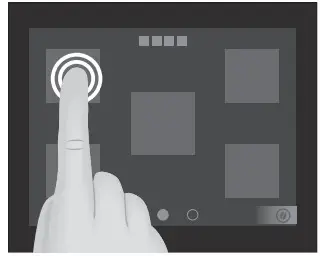
- Your Z10 has a touchscreen display. Tap or swipe the display to trigger an action.

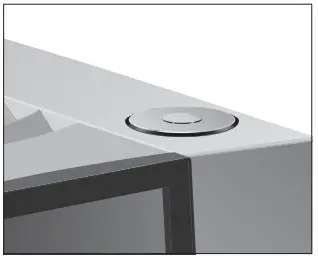
- Use the Rotary Switch, which can be turned or pressed.

Setting up the machine
When setting up your Z10, please note the following: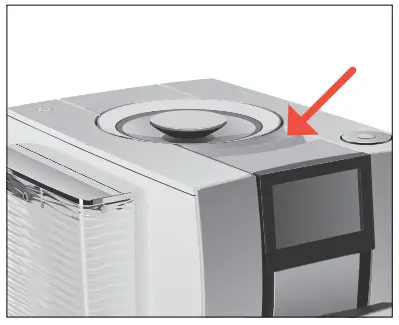
- Choose a spot for your Z10 which protects the machine against overheating. Ensure that the ventilation slots are not covered.
- Place the Z10 on a horizontal surface that is not sensitive to water.
Filling the bean container
The bean container has an aroma preservation cover. This will ensure that your coffee beans retain their aroma for longer.
CAUTION
Coffee beans which have been treated with additives (e.g. sugar), ground coffee or freeze-dried coffee will damage the grinder.
- Only use roasted, untreated coffee beans to fill the bean container.
- Remove the aroma preservation cover.
- Remove any dirt or foreign objects from inside the bean container.
- Fill the bean container with coffee beans and close the aroma preservation cover.
Determining the water hardness
When you use the machine for the first time, you must set the water hardness. If you do not know the hardness of your water, you can find this out first. Use the Aquadur® test strips supplied with the machine.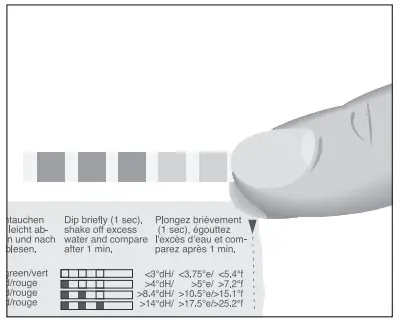
- Hold the test strip under flowing water for one second. Shake off the water.
- Wait for about 1 minute.
- You will then be able to read the degree of water hardness from the discolouration of the Aquadur® test strip and the description on the packaging.
First-time use WARNING
If the machine is operated with a defective mains cable, there is a danger of potentially fatal electric shock.
- Never use a machine which is damaged or has a defective mains cable.
CAUTION
Milk, sparkling mineral water or other liquids can damage the water tank or the machine.
- Only fill the water tank with fresh, cold water.
Precondition: The bean container has been filled.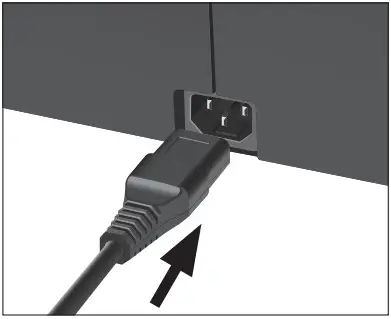
- For machines with a plug-in mains cable: Connect the mains cable to the machine.
- Insert the mains plug into a power socket.
- Press the On/Off button Q to switch the Z10 on.
‘Sprachauswahl’ To display more languages, touch 9 or 0 until the desired language comes into focus (e.g. ‘English’).
 - Touch ‘Save’.
‘Saved’ appears briefly on the display.
‘Water hardness’ If you do not know the hardness of your water, you must find this out first (see chapter 3 ‘Preparing and using for the first time – Determining the water hardness’). - Touch 〈 or 〉 to change the water hardness setting.
- Touch ‘Save’.
‘Saved’ appears briefly on the display.
‘Insert filter’ - Place a receptacle under the hot-water spout and dual spout.
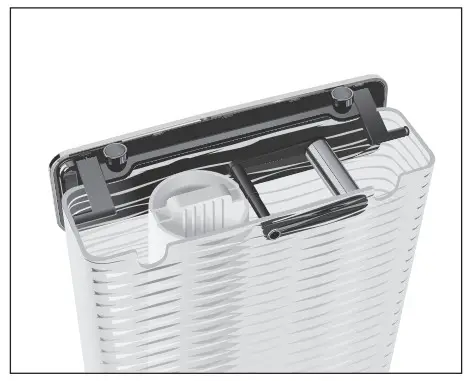
- Remove the water tank and rinse it with cold water.

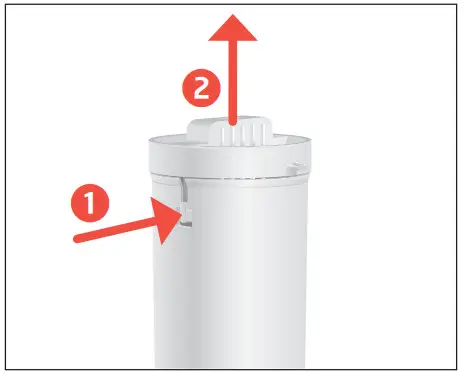
- Open the filter casing.

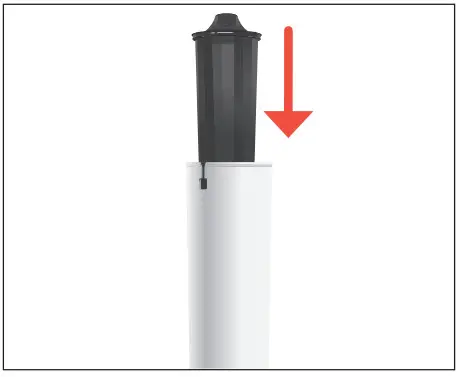
- Insert the CLARIS Smart filter cartridge.
- Close the filter casing.
- Insert the filter casing into the water tank.

- Turn the filter casing clockwise until it audibly clicks into place.
- Fill the water tank with fresh, cold water and reinsert the tank.
 The machine automatically detects that you have just inserted the filter cartridge.
‘Saved’
‘Filter is being rinsed’
‘System is filling’
‘Empty drip tray’ - Empty the drip tray and put it back into the machine.
‘Accessory’ - Touch ‘Connect’ to connect your Z10 to your network.
- If necessary, scan the QR code with your mobile device to download the JURA app (J.O.E.®).
- Touch ‘Connect’.
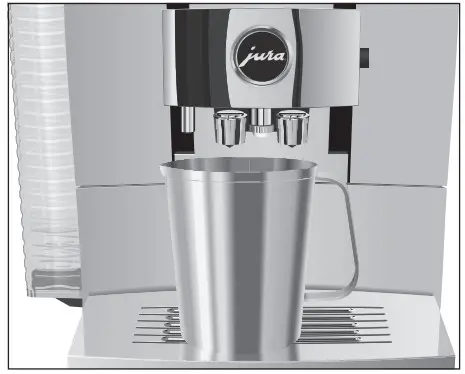
- Place a receptacle under the dual spout.
‘Machine is rinsing’
The start screen is displayed. Your Z10 is ready for use. https://www.jura.com/app

Managing your Z10 – the JURA Cockpit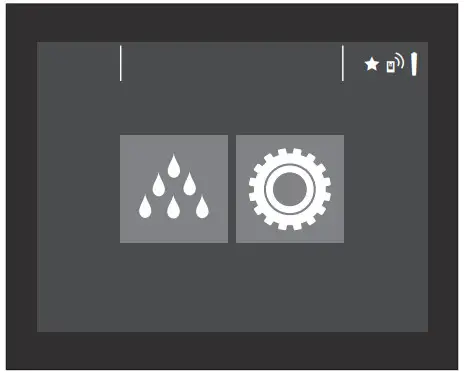
You can manage your Z10 with the JURA Cockpit. Press the Rotary Switch to open the JURA Cockpit.
| Symbol | Meaning |
 | ‘Maintenance’ section (blue) |
 | ‘Machine setting’ section (green) |
 | ‘Smart mode’ active |
 (white) (white) | Your Z10 is connected with the network and/or Cool Control via JURA WiFi Connect. |
| (red) | No connection to the WiFi network |
 | Filter mode |
Connecting milk
Your Z10 creates fine, creamy, feather-light milk foam with a perfect consistency. The most important requirement for frothing milk is a milk temperature of 4–8 °C. We would therefore recommend using a milk cooler or a milk container.
- Connect the milk pipe to the dual spout.
- Connect the other end of the milk pipe to a milk container or a milk cooler.
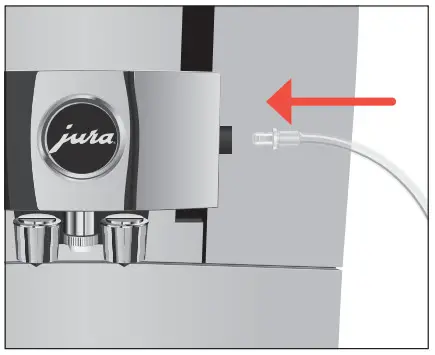
Connecting the Cool Control milk cooler wirelessly
Your Z10 can be connected with your Cool Control milk cooler.
Precondition: The JURA WiFi Connect is inserted into the service socket of your Z10.
- Press the Rotary Switch.
- Touch the ‘Machine setting’
 symbol.
 - Touch ‘1/2’ to go to the next page.
- Touch ‘Connect accessory’.
- Touch ‘Connect’.
‘Saved’
Establishing a WiFi connection
Your Z10 can be connected with your JURA app (J.O.E.®).
Precondition: J.O.E.® is installed on your mobile end device and you have logged into your home network. The JURA WiFi Connect is inserted into the service socket of your Z10.
- Press the Rotary Switch.
- Touch the ‘Machine setting’ symbol.
- Touch ‘Wi-Fi connection’.
- Touch ‘Connect’.
- Add a new network in your JURA app (J.O.E.®) and follow the instructions.
Preparation
Basic information about preparing drinks:
| Aim | What to do |
| Change the coffee strength of a single product | During the grinding operation, move your finger across the display or turn the Rotary Switch |
| Change the amount for a single product | During preparation, move your finger across the display or turn the Rotary Switch |
| Change the consistency of grind, coffee strength, quantity and temperature for any given product | Tap and hold a product for around 2 seconds and configure the settings under ‘Product settings’ |
| Display more products | Turn the Rotary Switch to access the product selector view or move your finger across the display |
| Stop preparation | Touch ‘Cancel’ or press the Rotary Switch |
| Place a product on the start screen as a favourite | Tap and hold a product for around 2 seconds and place another product under ‘Replace product’ |
 If no actions are performed on the machine for 9 minutes, your ‘Z10’ will switch to standby mode. Touch the display or press or turn the Rotary Switch to take it out of standby mode. Coffee tastes best served hot. A cold porcelain cup cools the beverage – and impairs the taste. We therefore recommend prewarming the cups. You can purchase a JURA cup warmer from your specialised dealer.
Aroma Selection
You can use Aroma Selection on your Z10 to change the consistency of grind and coffee strength of any product:
Example: Espresso with higher coffee strength
- Place a cup under the dual spout.
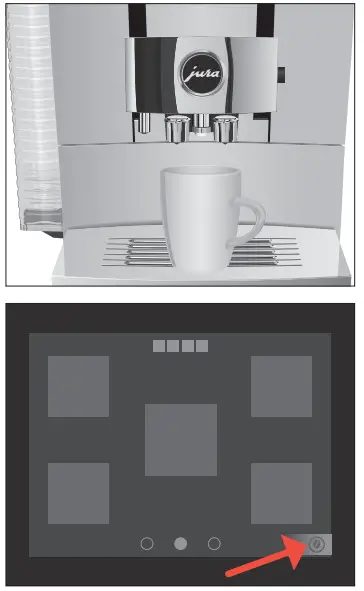
- Touch the ‘Aroma Selection’ symbol (bottom right).
- Touch ‘Espresso’.
- Touch
 to increase the coffee strength.
 - Touch ‘Start’.
The preset amount of water for coffee flows into the cup.
Preparation with preselection (Speciality Selection)
Touch  to call up the Speciality Selection and activate the desired preselection for your next product:
| Speciality Selection | Meaning |
`Cold Brew’  (espresso, coffee, latte macchiato, cappuccino, flat white, café au lait, cortado, macchiato) | The product is prepared as a cold beverage. |
`Extra Shot’ (latte macchiato, cappuccino, flat white, café au lait) | The product is prepared with two brewing operations, each with half the amount of water – for a speciality coffee with a particularly intense taste. |
Double product  | The product is prepared 2x in succession (2 strokes). |
`Ground coffee’  | The product is prepared with ground coffee. |
The Speciality Selection closes after 10 seconds. If you press your preselection briefly, the next product will be prepared according to your preselection. If you press and hold your preselection (for 2 seconds), the preselection will be active until you switch off your Z10.
Cold Brew
The ‘Cold Brew’ preselection is used to prepare a cold speciality coffee.
Example: Coffee with ‘Cold Brew’ preselection
- Fill the water tank with cold water. You can influence the brewing result: The colder the water in the water tank, the colder the brewed beverage will be.
- Place a cup under the dual spout.
- Add ice cubes to the cup according to your own preferences.
- Touch
 to call up the Speciality Selection. The Speciality Selection closes after 10 seconds.
 - Touch
 to activate the ‘Cold Brew’ preselection.
 - Touch ‘Coffee’.
The preset amount of water for coffee flows into the cup.
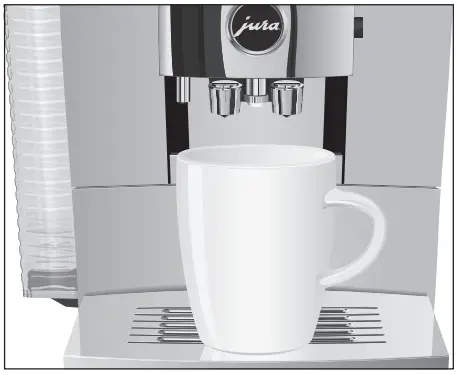
Espresso and coffee
Example: Coffee
- Place a cup under the dual spout.
- Touch ‘Coffee’.
The preset amount of water for coffee flows into the cup.
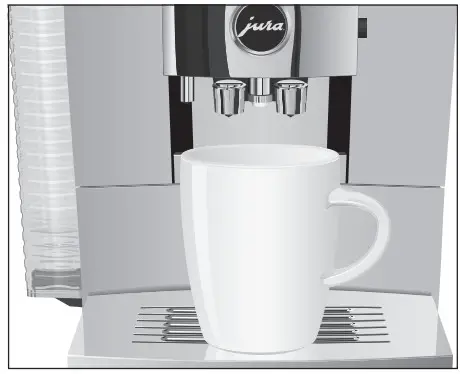
Latte macchiato, cappuccino and other speciality coffees with milk
Your Z10 prepares the following speciality coffees with milk at the touch of a button:
- Cortado
- Latte macchiato
- Macchiato
- Flat white
- Cappuccino
- Café au lait
Example: Latte macchiato
Precondition: Milk is connected to the dual spout.
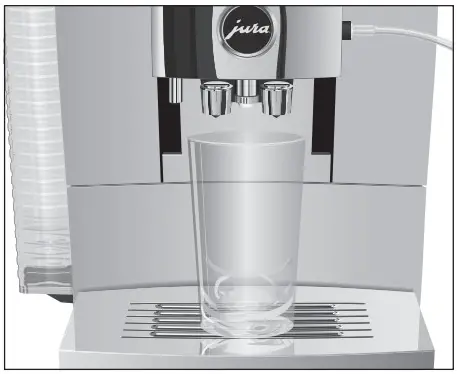
- Place a glass under the dual spout.
- Touch ‘Latte macchiato’.
The preset amounts of milk and milk foam flow into the glass.
There is a short interval while the hot milk separates from the milk foam. This allows the typical layers of a latte macchiato to form.
The preset amount of water for espresso flows into the glass. 8 minutes after preparation, the milk system is automatically rinsed. Therefore always place a receptacle under the dual spout after preparing milk.
To ensure that the milk system in the dual spout always works properly, you must clean it daily (see chapter 7 ‘Maintenance – Cleaning the milk system’).
Milk and milk foam
Your Z10 prepares hot milk and milk foam. 8 minutes after milk preparation, the milk system is automatically rinsed. Therefore always place a receptacle under the dual spout after preparing milk.
Espresso doppio
‘Doppio’ is Italian for ‘double’. When you select Espresso doppio, two espressi are prepared one after the other. The result is an extra full-bodied and aromatic speciality coffee.
Caffè Barista and lungo Barista
For the ‘caffè Barista’ and ‘lungo Barista’, the Z10 blends the coffee with hot water using a special preparation method. This results in a full-bodied speciality coffee which is particularly easy to digest. You can change the amount of this additional water (see chapter 4 ‘Preparation – Adjusting the product settings’).
Pot of coffee
Relive the good old days – a ‘pot of coffee’, traditionally made from porcelain, is perfect when you want to slow things down and catch up with friends or family. The ‘pot of coffee’ function provides a large portion of black coffee which is generally served at breakfast or to accompany a piece of cake. Fill the pot with 1–5 strokes of black coffee.
Ground coffee
You can choose to use a second coffee variety, for example decaffeinated coffee, with the filter funnel for ground coffee.
- Never add more than two level measuring spoons of ground coffee.
- Use ground coffee which is not ground too finely. Very fine coffee can block up the system so that the coffee only comes out in drips.
- If you did not fill the machine with a sufficient amount of ground coffee, ‘Not enough ground coffee’ is displayed and the Z10 stops the operation.
- The desired speciality coffee must be prepared within approximately one minute after filling with the ground coffee.
Otherwise the Z10 stops the operation and is once more ready for use.
All speciality coffees with ground coffee are always prepared following the same model.
Example: Proceed as follows to prepare one espresso using ground coffee.
- Place an espresso cup under the dual spout.
- Touch to call up the Speciality Selection.
- Touch
 .
. - Touch ‘Espresso’.
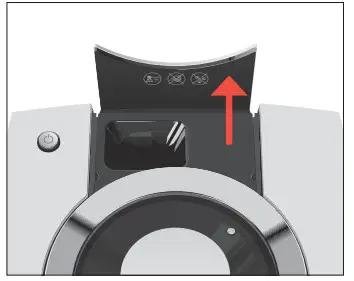
‘Please add ground coffee’ - Open the powder chute cover.
- Place one level measuring spoon of ground coffee into the filler funnel.
- Close the cover of the powder chute.
- Touch ‘Next’.
- Touch ‘Espresso’.
The preset amount of water for espresso flows into the cup.
Hot water
The Z10 allows you to prepare different variants of hot water:
- ‘Hot water’
- ‘Hot water for green tea’
CAUTION
There is a danger of scalding from hot water splashes.
- Avoid direct contact with the skin.
Example: Hot water
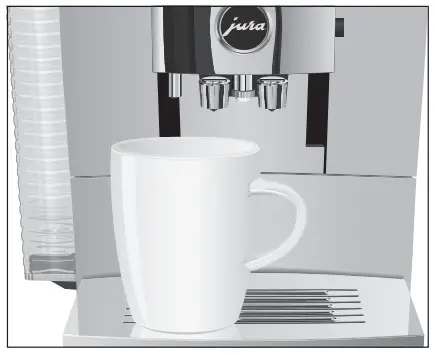
- Place a cup under the dual spout.
- Touch ‘Hot water’.
The preset amount of water flows into the cup.
Adjusting the product settings
Touch a product for approximately 2 seconds to access the settings:
- ‘Product settings’: Specify individual settings such as coffee strength, amount of water, etc.
- ‘Initials’: Change the name of the product.
- ‘Permanent preselection’: Specify a permanent preselection (Speciality Selection).
- ‘Replace product’: Replace the products on the start screen with your favourites.
The settings always follow the same model.
Example: Proceed as follows to change the coffee strength for one coffee.
- Touch ‘Coffee’ for approximately 2 seconds.
- Touch ‘Product settings’. Depending on the selected product, there will be different settings available which are represented by symbols on your display.
- Touch the
 symbol.
The symbol appears in white. - Turn the Rotary Switch to change the setting.
- Touch ‘Save’.
- Touch ‘Back’ to return to the start screen.
 symbol.
Daily operation
Switching the machine on and off
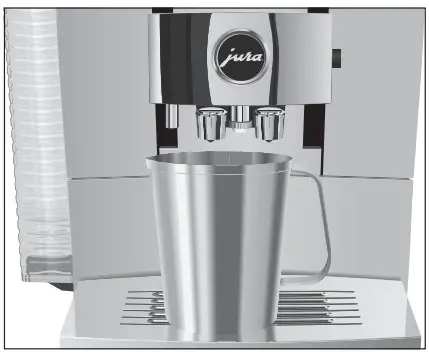
- Place a receptacle under the dual spout.
- Press the On/Off button Q.
‘Machine is rinsing’
Your Z10 is switched on or off.
When the machine is switched off, the system is only rinsed if a speciality coffee has been prepared. If milk has been prepared before switching off, you will be prompted to carry out milk system cleaning (‘Clean the milk system’). After 30 seconds the switch-off process continues automatically.
Filling the water tank
Daily maintenance of the machine and hygiene when handling milk, coffee and water are key to a perfect coffee result in the cup every time. You should therefore change the water daily.
CAUTION
Milk, sparkling mineral water or other liquids can damage the water tank or the machine.
- Only fill the water tank with fresh, cold water.
- Remove the water tank and rinse it with cold water.
- Fill the water tank with fresh, cold water and reinsert the tank.
Maintenance actions
Optimal coffee quality depends on many factors. One important prerequisite is regular maintenance of your Z10. Carry out the following steps:
| Maintenance action | Daily | If necessary | Note |
| Empty the drip tray and coffee grounds container and rinse with warm water (The insert for the drip tray, including the drip tray itself, and the coffee grounds container are dishwasher-safe) | ■ | Always empty the coffee grounds container when the machine is switched on. This is the only way of resetting the coffee grounds counter. | |
| Clean the milk system (if heavily soiled, also dismantle it) | ■ | (see chapter 7 ‘Maintenance — Dismantling and rinsing the dual spout’) | |
| Rinse the milk pipe | ■ | ||
| Rinse the water tank | ■ | ||
| Wipe the surface of the machine with a clean, soft, damp cloth (e.g. micro fibre cloth) | ■ | ||
| Change the milk pipe HP3 | approx. every 3 months | ||
| Change the interchangeable milk spout CX3 | approx. every 3 months | ||
| Clean the inside of the water tank with a brush | ■ | ||
| Clean the top and bottom of the cup grille | ■ | ||
| Clean the drip tray and coffee grounds container | ■ | The message ‘Maintenance information’ appears in the ‘Maintenance’ section within the Cockpit. |
You will find more information about maintenance of your Z10 in the ‘Maintenance’ section in the programme item ‘Maintenance information’
Machine settings
Press the Rotary Switch to open the Cockpit. In the ‘Machine setting’ section, you can make the following settings:
| Programme item | Explanation |
| ‘Smart mode’ | Arrange products by preparation frequency on the start screen after a certain amount of time (the symbol in the Cockpit shows that ‘Smart mode’ is activated) |
| ‘Product name’ | Display product images with/without product names on the start screen |
| ‘Add start screen’ | Define number of start screens (1-4) |
| ‘Number of products’ | Set the number of products on the start screen: 2 products, 5 products or automatic (‘Smart mode’) |
| ‘Wi-Fi connection’ | Z10 connect wirelessly with the JURA app 0.0.E.) or disconnect again (see chapter 3 ‘Preparing and using for the first time – Establishing a WiFi connection’) |
| ‘Switch off after’ | Set the automatic switch-off time to save energy (switch-off after 15 minutes, 30 minutes or 1 – 9 hours after the last action on the machine) |
| ‘Choose language’ | Set language |
| ‘Factory setting’ | Z10 Restore factory settings (your Z10 will switch off after this) |
| ‘Water hardness’ | Set the hardness of the water used (1 °dH to 30 °dH) to prevent calcification of your machine. |
| ‘Units’ | Set the unit for the amount of water (ml or oz) |
| ‘Information’ | View software version |
| ‘Connect accessory’ | Wirelessly connect your Z10 with your JURA app 0.0.E.-) or with the Cool Control milk cooler, or disconnect again |
| ‘Display’ | Change display brightness (in 10% increments) |
| ‘Empty system’ | Empty the system to protect the Z10 from frost during transport (see chapter 10 ‘Transport and environmentally friendly disposal – Transport / Emptying the system’) |
| ‘Product counter’ | View product counter |
| ‘Maintenance counter’ | View the maintenance counter |
Maintenance
Basic information about maintenance:
- Press the Rotary Switch to open the Cockpit. This area consists of a ‘Maintenance status’
 section and a ‘Machine setting’ section. You can manage the maintenance of your Z10 in the section.
 - If a maintenance programme needs to be initiated, the symbol appears with a red background. Press the Rotary Switch to open the Cockpit. The Cockpit shows maintenance programmes that need to be carried out in the form of messages with red backgrounds. Press the button that corresponds to the message to go straight to the maintenance programme. Maintenance programmes that are due imminently are indicated on your Z10 by means of a bar display within the message.
- Carry out each maintenance programme when you are prompted to do so.
Rinsing the machine
You can start coffee system rinsing manually at any time.
Precondition: The start screen is displayed.
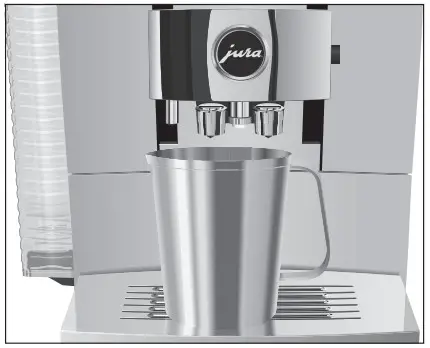
- Place a receptacle under the dual spout.
- Press the Rotary Switch.
- Touch .
- Touch ‘Rinse’ to start the rinse operation.
The operation stops automatically.
Automatic milk system rinsing
8 minutes after milk preparation, the milk system is automatically rinsed. Therefore always place a receptacle under the dual spout after preparing milk.
Cleaning the milk system
To ensure that the milk system in the dual spout always works properly, you must clean it daily when you have been preparing milk.
CAUTION
If the wrong cleaning agent is used, the machine could be damaged and/or traces could be left behind in the water.
- Use only original JURA maintenance products.
JURA milk system cleaner is available from specialised dealers. To clean the milk system, use the container supplied.
Precondition: The start screen is displayed.
- Press the Rotary Switch.
- Touch .
- Touch ‘Clean the milk system’.
- Touch ‘Next’.
‘Cleaning agent for milk system’ / ‘Connect the milk tube’ - Remove the milk pipe from the milk container or milk cooler.
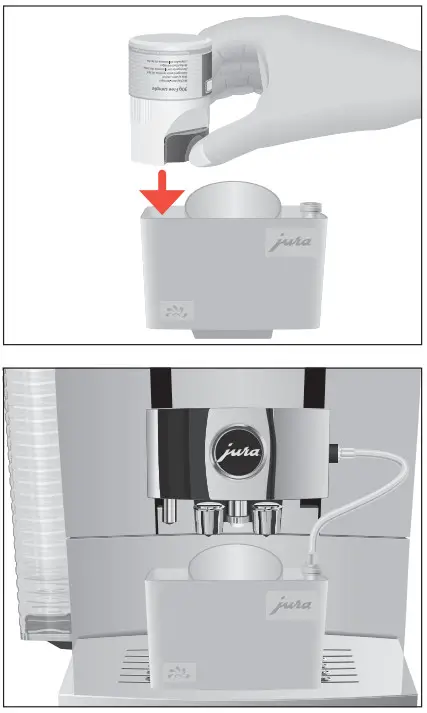
- Pour one dosing unit of milk system cleaner into the container for milk system cleaning.

- Place the container under the dual spout and connect the milk pipe with the container. To connect the milk pipe to the container correctly, the pipe must be fitted with a connector.
- Slide the dual spout down to fix the container in place.
- Touch ‘Start’.
The dual spout and the milk pipe are cleaned.
The operation stops automatically.
Dismantling and rinsing the dual spout
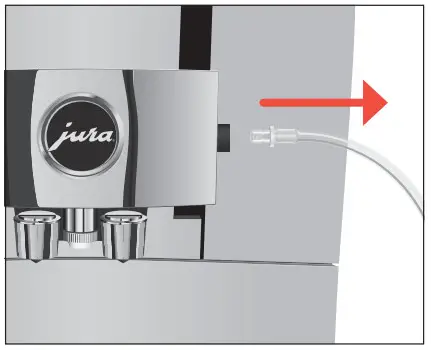
If insufficient foam is produced when the milk is frothed or milk sprays out of the dual spout, the spout may be dirty. If this happens, dismantle and rinse the dual spout.
- Remove the milk pipe and rinse it thoroughly under running water.

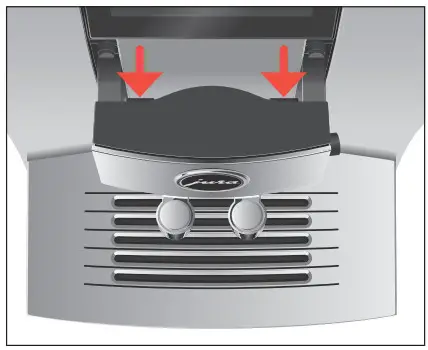
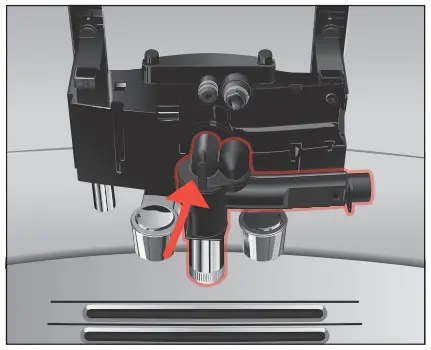
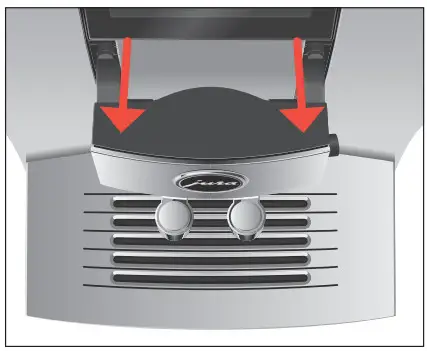
- Press the releasing devices and pull the cover of the dual spout up and off.

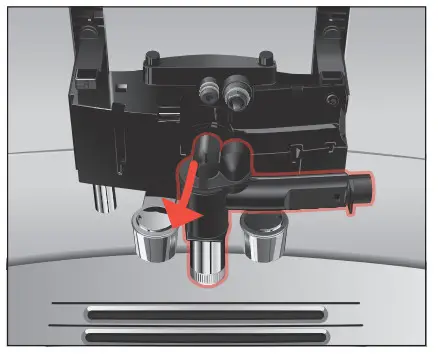
- Remove the milk system from the dual spout. Do not lever the milk system back and forth to disconnect it from the milk pipe connection. Remove the milk system firmly to prevent it from tilting.

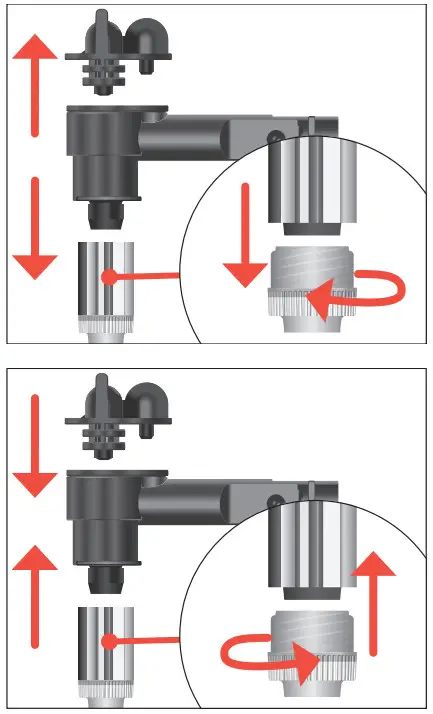
- Dismantle the milk system into its individual parts.
- Rinse all the parts under running water. If there are severely dried-on milk residues, firstly immerse the individual parts in a solution of 250 ml water and one dosing unit of JURA milk system cleaner. Then rinse the individual parts thoroughly.

- Reassemble the milk system.
- Fit the assembled individual parts back in the dual spout and press it firmly.

- Fit the cover of the dual spout. Make sure the cover of the dual spout is correctly engaged.
Inserting/changing the filter
Once the filter cartridge stops working (depending on the water hardness setting), the Z10 will prompt you to change the filter. Your Z10 no longer has to be descaled if you are using the CLARIS Smart filter cartridge. CLARIS Smart filter cartridges are available from specialised dealers.
Precondition: The start screen is displayed. (Or ‘Change the filter’ is displayed in the Cockpit if you are already using a filter.)
- Remove and empty the water tank.
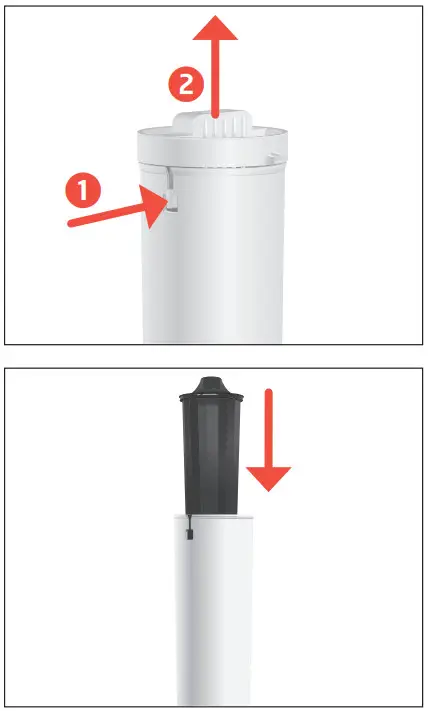
- Turn the filter casing anti-clockwise and remove it from the water tank.
- Open the filter casing.
- Remove the old CLARIS Smart filter cartridge.

- Insert a new CLARIS Smart filter cartridge.
- Close the filter casing.
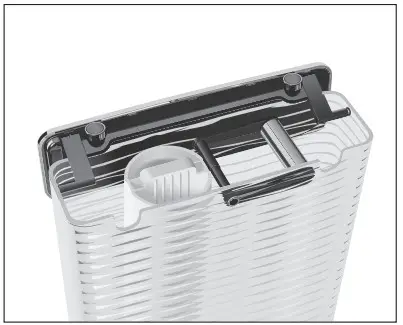
- Insert the filter casing into the water tank.

- Turn the filter casing clockwise until it audibly clicks into place.
- Fill the water tank with fresh, cold water and reinsert the tank.
The machine automatically detects that you have just inserted/ changed the filter cartridge.
‘Filter is being rinsed’
‘Empty drip tray’ - Empty the drip tray and coffee grounds container and put them back into the machine.
The start screen is displayed.
Cleaning the machine
After 180 preparations or 80 switch-on rinses, the Z10 will prompt you to clean it.
CAUTION
If the wrong cleaning agent is used, the machine could be damaged and/or traces could be left behind in the water.
- Use only original JURA maintenance products.
The cleaning programme lasts approximately 20 minutes. Do not interrupt the cleaning programme. The quality of cleaning will be impaired if you do so. JURA cleaning tablets are available from specialised dealers.
Precondition: ‘Clean’ is displayed in the Cockpit.
- Touch ‘Clean’.
- Touch ‘Start’.
‘Empty coffee grounds container’ - Empty the drip tray and coffee grounds container and put them back into the machine.
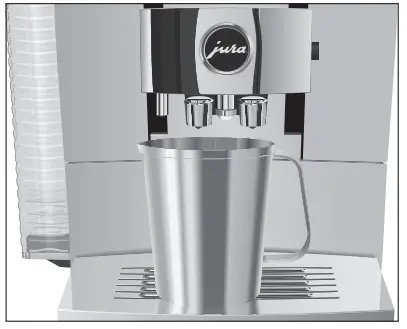
‘Press the Rotary Switch’ - Place a receptacle under the dual spout.
- Press the Rotary Switch.
‘Machine is being cleaned’, water flows out of the dual spout.
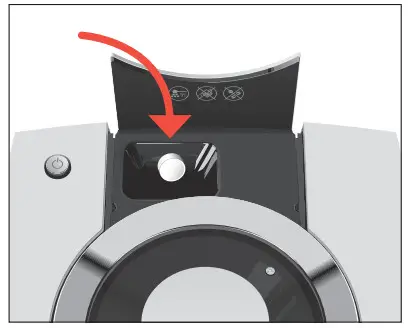
The operation is interrupted, ‘Add cleaning tablet’. - Open the cover of the filler funnel for ground coffee.

- Insert a JURA cleaning tablet into the filler funnel.
- Close the cover of the filler funnel.
- Touch ‘Next’.
‘Machine is being cleaned’, water flows out of the dual spout repeatedly.
‘Empty coffee grounds container’ - Empty the drip tray and coffee grounds container and put them back into the machine.

Descaling the machine
The Z10 builds up deposits of limescale over time and automatically prompts you to descale it when necessary. The degree of calcifica- tion depends on the hardness of your water. If you are using a CLARIS Smart filter cartridge, you will not be prompted to descale.
CAUTION
If the descaling agent comes into contact with the skin or eyes, this can cause irritation.
- Avoid contact with the skin or eyes.
- Rinse off the descaling agent with clean water. Should you get any descaling agent in your eye, see a doctor.
CAUTION
If the wrong descaling agent is used, the machine could be damaged and/or traces could be left behind in the water.
- Use only original JURA maintenance products.
CAUTION
If the descaling operation is interrupted, there may be damage to the machine.
- Allow the descaling programme to run to the end.
CAUTION
If the descaling agent comes into contact with sensitive surfaces (e.g. marble), damage cannot be ruled out.
- Clean up any splashes immediately.
The descaling programme lasts approximately 45 minutes. JURA descaling tablets are available from specialised dealers.
Precondition: ‘Descale’ is displayed in the Cockpit.
- Touch ‘Descale’.
- Touch ‘Start’.
‘Empty drip tray’ - Empty the drip tray and coffee grounds container and put them back into the machine.
‘Pour descaling agent into water tank’ - Remove and empty the water tank.
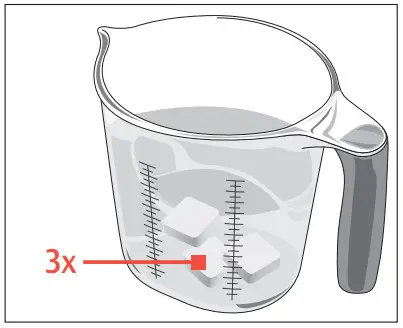
- Completely dissolve 3 JURA descaling tablets in a receptacle holding 600 ml of water. This may take several minutes.
- Pour the solution into the empty water tank and insert it into the machine.
‘Press the Rotary Switch’
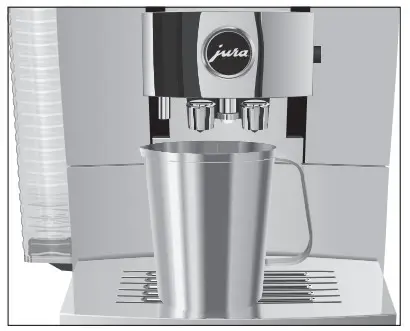
- Place a receptacle under the hot-water spout and dual spout.
- Press the Rotary Switch.
‘Machine is being descaled’, water flows straight into the drip tray and out of the hot-water spout and dual spout repeatedly. ‘Empty drip tray’. - Empty the drip tray and coffee grounds container and put them back into the machine.
‘Fill water tank’ - Empty the receptacle and place it under the hot-water and dual spouts.
- Remove the water tank and rinse it thoroughly.
- Fill the water tank with fresh, cold water and reinsert the tank. ‘Press the Rotary Switch’
- Press the Rotary Switch.
Water flows straight into the drip tray and out of the hot-water spout and dual spout repeatedly.
‘Empty drip tray’ - Empty the drip tray and coffee grounds container and put them back into the machine. If the descaling operation stops unexpectedly, rinse the water tank thoroughly.
Descaling the water tank
Limescale deposits may form in the water tank. To ensure correct function of the machine, descale the water tank from time to time.
- Remove the water tank.
- If you use a CLARIS Smart filter cartridge, remove this.
- Completely fill the water tank and dissolve 3 JURA descaling tab- lets in it.
- Leave the water tank with the descaling solution for several hours (e.g. overnight).
- Empty the water tank and rinse it thoroughly.
- If you use a CLARIS Smart filter cartridge, insert this again.
- Fill the water tank with fresh, cold water and reinsert the tank.
Cleaning the bean container
Coffee beans may be covered with a slight oil film which remains on the walls of the bean container. These traces may negatively affect the coffee result. For this reason clean the bean container from time to time.
Precondition: ‘Fill bean container’ is displayed.
- Switch the machine off with the On/Off button Q.
- Remove the aroma preservation cover.
- Clean the bean container with a soft, dry cloth.
- Fill the bean container with coffee beans and close the aroma preservation cover.
Display messages
Messages on the start screen
| Message | Cause/Result | Action |
| `Fill water tank’ | The water tank is empty. You cannot prepare any products. | ► Fill the water tank (see chapter 5 ‘Daily operation – Filling the water tank’). |
| `Empty coffee grounds container’ / `Empty drip tray’ | The coffee grounds container is full. The drip tray is full. You cannot prepare any products. | ► Empty the coffee grounds container and the drip tray (see chapter 5 ‘Daily operation – Maintenance actions’). |
| `Drip tray not fitted’ | The drip tray is not inserted correctly or is not inserted at all. You cannot prepare any products. | ► Fit the drip tray. |
| `Fill bean container’ | The bean container is empty. You cannot prepare any specialty coffees, but you can prepare hot water and milk. | ► Fill the bean container (see chapter 3 ‘Preparing and using for the first time – Filling the bean container’). |
| `Not enough ground coffee’ | There is insufficient ground coffee in the machine; the 110 stops the operation. | ► The next time you prepare a beverage, add more ground coffee (see chapter 4 ‘Preparation – Ground coffee’). |
| `Spout is not fitted’ | The cover of the dual spout has not been fitted. | ► Correctly fit the cover of the dual spout. |
Messages in the Cockpit
| Message | Cause/Result | Action |
| The filter symbol lights up red. `Change the filter’ | The filter cartridge no longer works. | ► Replace the CLARIS Smart filter cartridge (see chapter 7 ‘Maintenance – Inserting/changing the filter’). |
| `Clean’ | The Z10 is prompting you to clean it. | ► Perform cleaning (see chapter 7 `Maintenance – Cleaning the machine’). |
| Descale’ | The Z10 is prompting you to descale it. | ► Perform descaling (see chapter 7 ‘Maintenance – Descaling the machine ‘). |
| `Clean the milk system’ | The Z10 prompts you to clean the milk system. | ► Perform milk system cleaning (see chapter 7 ‘Maintenance – Cleaning the milk system’). |
Troubleshooting
| Problem | Cause/Result | Action |
| Insufficient foam is produced when the milk is frothed or milk sprays from the dual spout. | The dual spout is dirty. | ► Make sure the cover of the dual spout is correctly fitted. ► Clean the milk system in the dual spout (see chapter 7 ‘Maintenance – Cleaning the milk system’). ► Dismantle and rinse the dual spout (see chapter 7 ‘Maintenance – Dismantling and rinsing the dual spout’). |
| The milk and milk foam temperature is set too high. | ► Set a lower milk and milk foam tempera-ture for the product. | |
| With speciality coffees with a finer grinder setting, the coffee only flows in drips. | The coffee has been ground too finely and is blocking the system. | ► If possible, set the consistency of grind for the speciality coffee 1-2 levels coarser (see chapter 4 ‘Preparation – Adjusting the product settings’). |
| Coffee only comes out in drips when it is being prepared. | The coffee has been ground too finely and is blocking the system. | ► Use more coarsely ground coffee (see chapter 4 ‘Preparation – Ground coffee’). |
| The water hardness may not have been correctly set. | ► Perform descaling (see chapter 7 ‘Maintenance – Descaling the machine ‘). | |
| There is dry ground coffee behind the coffee grounds container. | The beans used are resulting in an above- average volume of ground coffee. | ► Reduce the coffee strength or choose a finer grinder setting (see chapter 4 ‘Preparation – Adjusting the product settings’). |
| ‘Fill water tank’ is not displayed although the water tank is empty. | There is a lot of limescale in the water tank. | ► Descale the water tank (see chapter 7 ‘Maintenance – Descaling the water tank’). |
| Grinder is making a very loud noise. | There are foreign objects in the grinder. | ► Contact customer support in your country (see chapter 13 ‘JURA contact details / Legal information’). |
| ‘Error 2’ or ‘Error 5’ is displayed. | If the machine has been exposed to the cold for a long period of time, heating may be disabled for safety reasons. | ► Warm the machine at room temperature. |
| Problem | Cause/Result | Action |
| Other ‘Error’ messages are displayed. | – | ► Switch the Z10 off with the On/Off button Q. Contact customer support in your country (see chapter 13 ‘JURA contact details / Legal information’). |
| Little or no steam comes out of the dual spout. The pump is very quiet. | The connector of the milk system in the dual spout may be blocked by milk residues or limescale fragments loosened during descaling. | ► Press the releasing devices and pull the cover of the dual spout up and off. ► Remove the milk system from the dual spout. ► Unscrew the black connector with the aid of the hexagonal hole on the measuring spoon for ground coffee. ► Clean the connector thoroughly. ► Screw the connector back on by hand. ► Carefully tighten it using the hexagonal hole on the measuring spoon, turning by no more than a quarter of a rotation. |
If you were unable to solve the problem, contact customer support in your country (see chapter 13 ‘JURA contact details / Legal information’).
Transport and environmentally friendly disposal
Transport / Emptying the system
Keep the packaging for your Z10. It should be used to protect the machine during transport.
In order to protect the Z10 from frost during transport, the system must be emptied.
Precondition: The start screen is displayed.
- Remove the milk pipe from the dual spout.
- Place a receptacle under the dual spout.
- Press the Rotary Switch.
- Touch the ‘Machine setting’ f symbol.
- Switch to the ‘2/2’ page.
- Touch ‘Empty system’.
- Remove and empty the water tank.
- Press the Rotary Switch.
Steam will continue to be discharged from the dual spout and the hot-water nozzle until the system is empty.
Your Z10 is switched off.
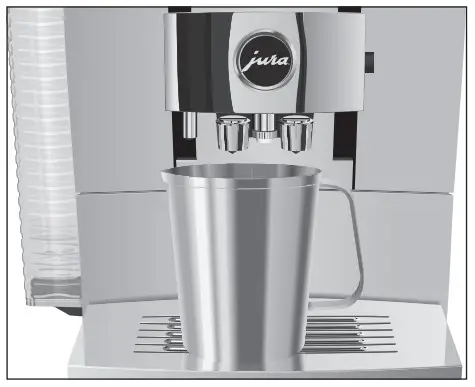
Disposal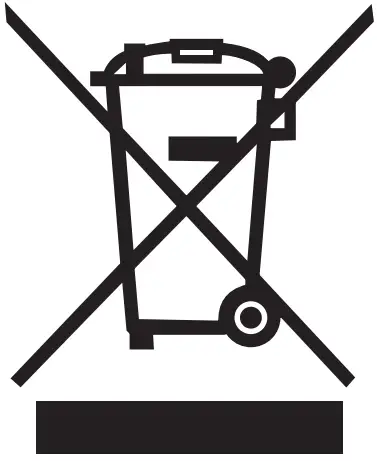 Please dispose of old machines in an environmentally neutral way.
Old machines contain valuable, recyclable materials which should be recycled. Please therefore dispose of old machines via suitable collection systems.
Technical data
| Voltage | 220-240 V -, 50 Hz |
| Power | 1450 W |
| Conformity mark |  |
| Energy consumption | approx. 6 Wh |
| Pump pressure | static, max. 15 bar |
| Holding capacity of water tank | 2.4 I |
| Holding capacity of bean container | 280 g |
| Holding capacity of coffee grounds container | max. 20 portions |
| Cable length | approx.1.1 m |
| Weight | 12-13 kg (depending on machine version) |
| Dimensions (W x H x D) | 32 x 36 x 47 cm |
| Milk system | HP3 |
| Interchangeable milk spout | CX3 |
| CLARIS filter cartridge Smart (RFID technology) | Frequency band 13.56 MHz Max. transmission power <1 mW |
| JURA WiFi Connect (Bluetooth connection) | Frequency band 2.4 GHz Max. transmission power <1 mW |
| JURA WiFi Connect | Frequency band 2.4 GHz Max. transmission power <100 mW |
| JURA type | 759 |
Information for testers (repeat test in accordance with DIN VDE 0701-0702): The central grounding point (CGP) is located on the back of the machine, right next to the mains cable’s connection point.
JURA contact details / Legal information
JURA Elektroapparate AG
Kaffeeweltstrasse 10
CH-4626 Niederbuchsiten
Tel. +41 (0)62 38 98 233 You can find additional contact details for your country at jura.com. If you need assistance with using your machine, you can find this at jura.com/service. Your opinion is important to us! Use the contact details at jura.com.
Directives
The machine complies with the following directives:
- 2014/35/EU – Low Voltage Directive
- 2014/30/EU – Electromagnetic Compatibility
- 2009/125/EC – Ecodesign Directive
- 2011/65/EU – RoHS Directive
- 2014/53/EU – Wireless Voltage Directive
A detailed EU Declaration of Conformity for your Z10 can be found at jura.com/conformity.
Technical changes
We reserve the right to make technical changes. The diagrams used in these instructions for use are for illustration purposes only and do not represent the original colours of the machine. Some details of your Z10 may vary.
J74488/Z10(EA/SA/INTA)/en/202205
 JURA Coffee Machines: Latte Macchiato, Cappuccino, Espresso and Coffee - JURA USA