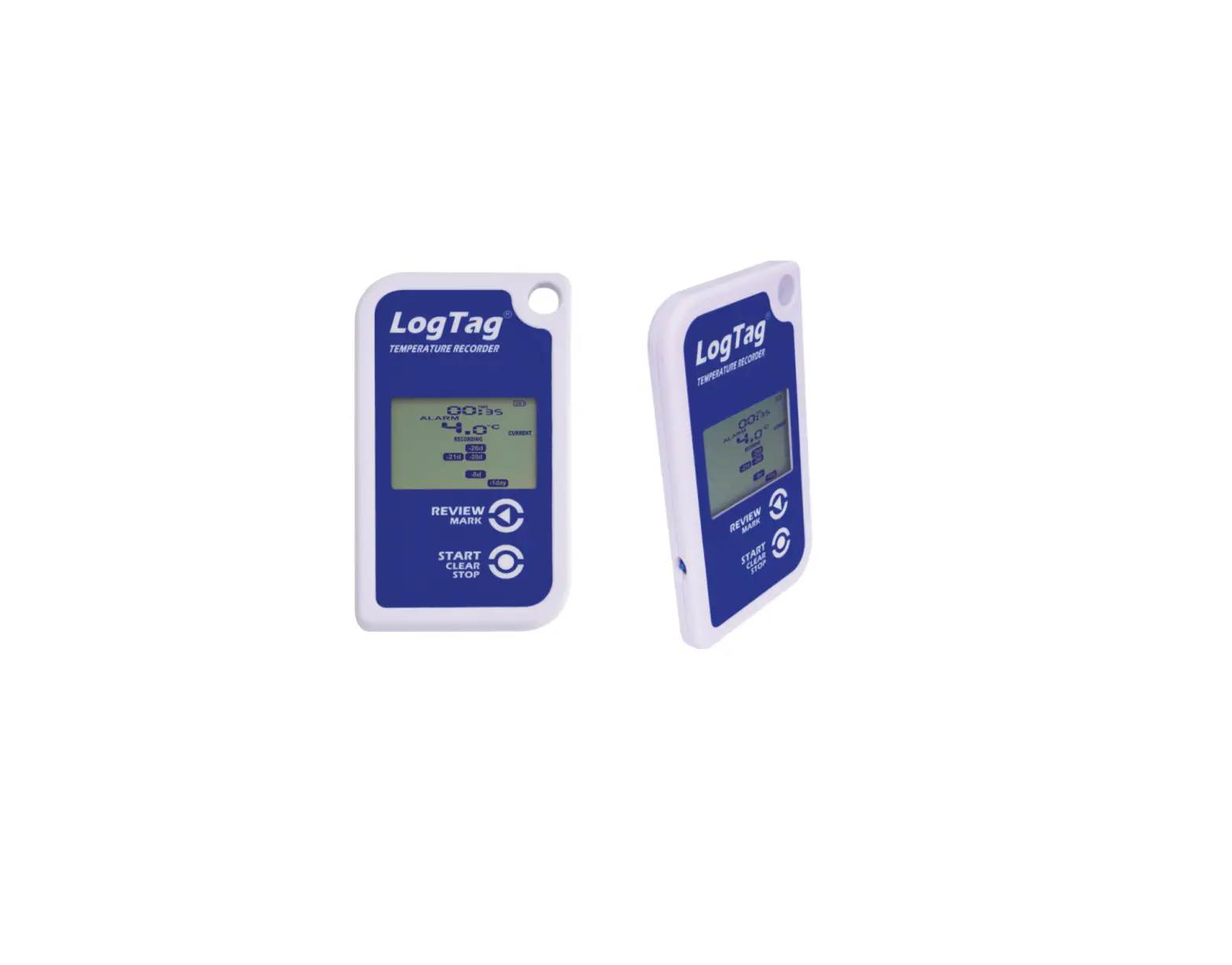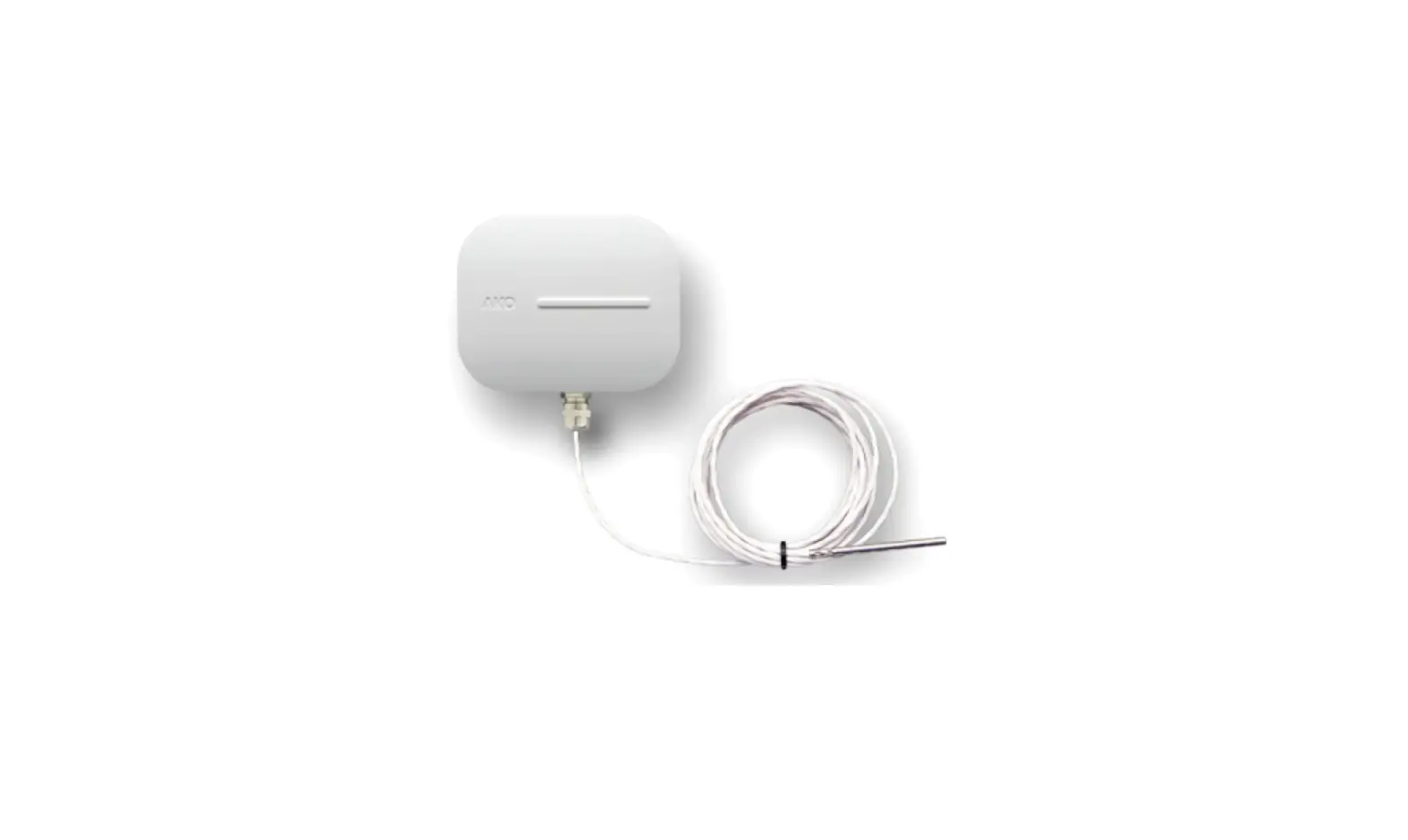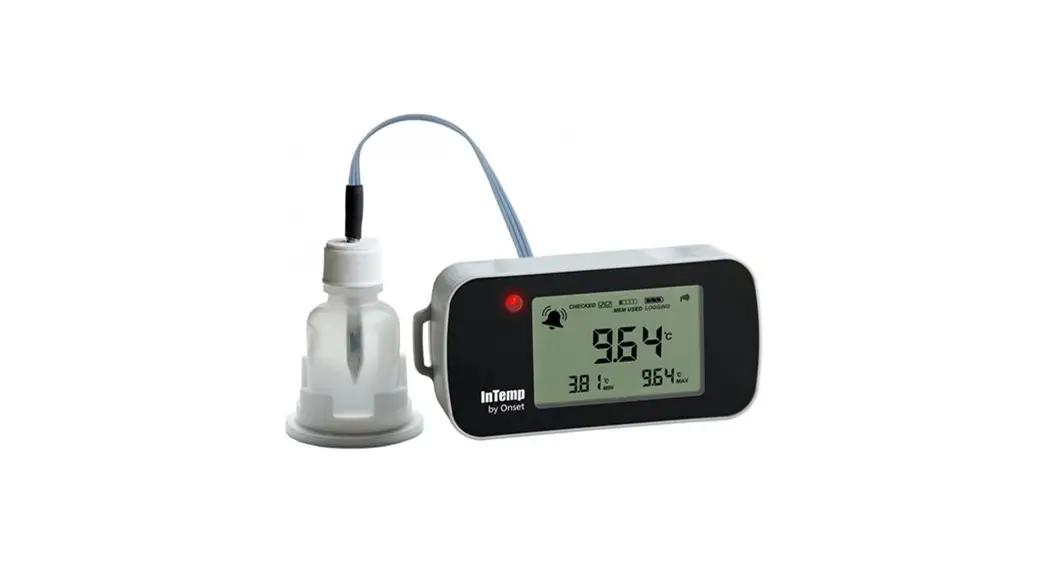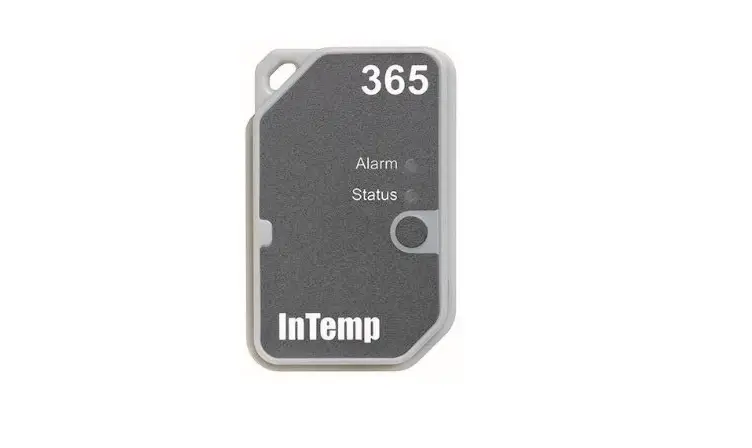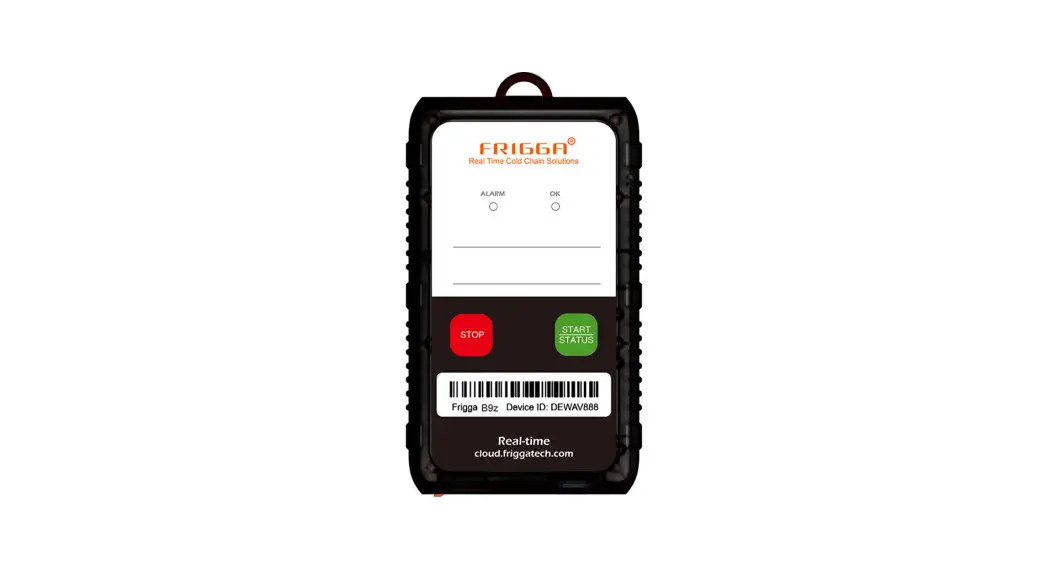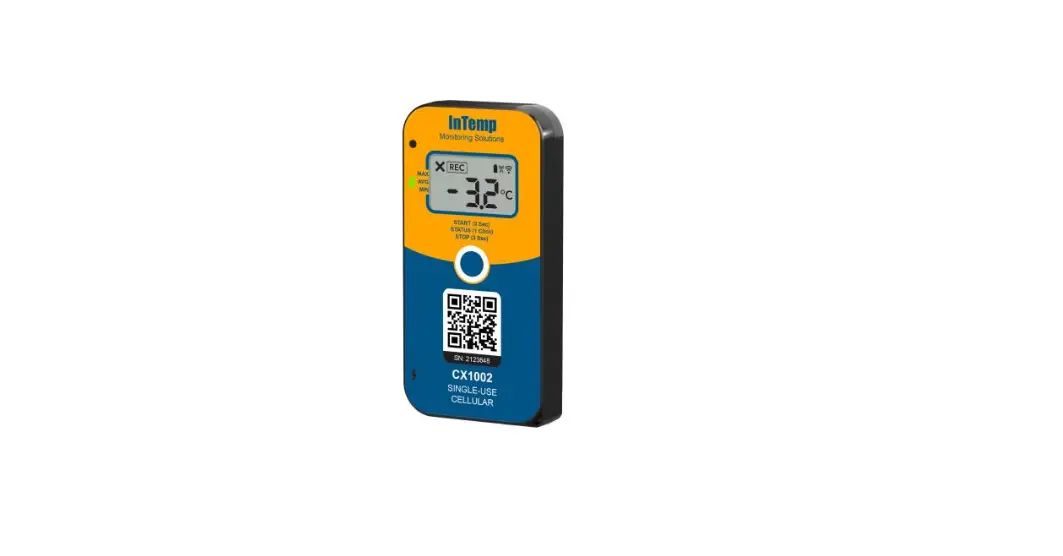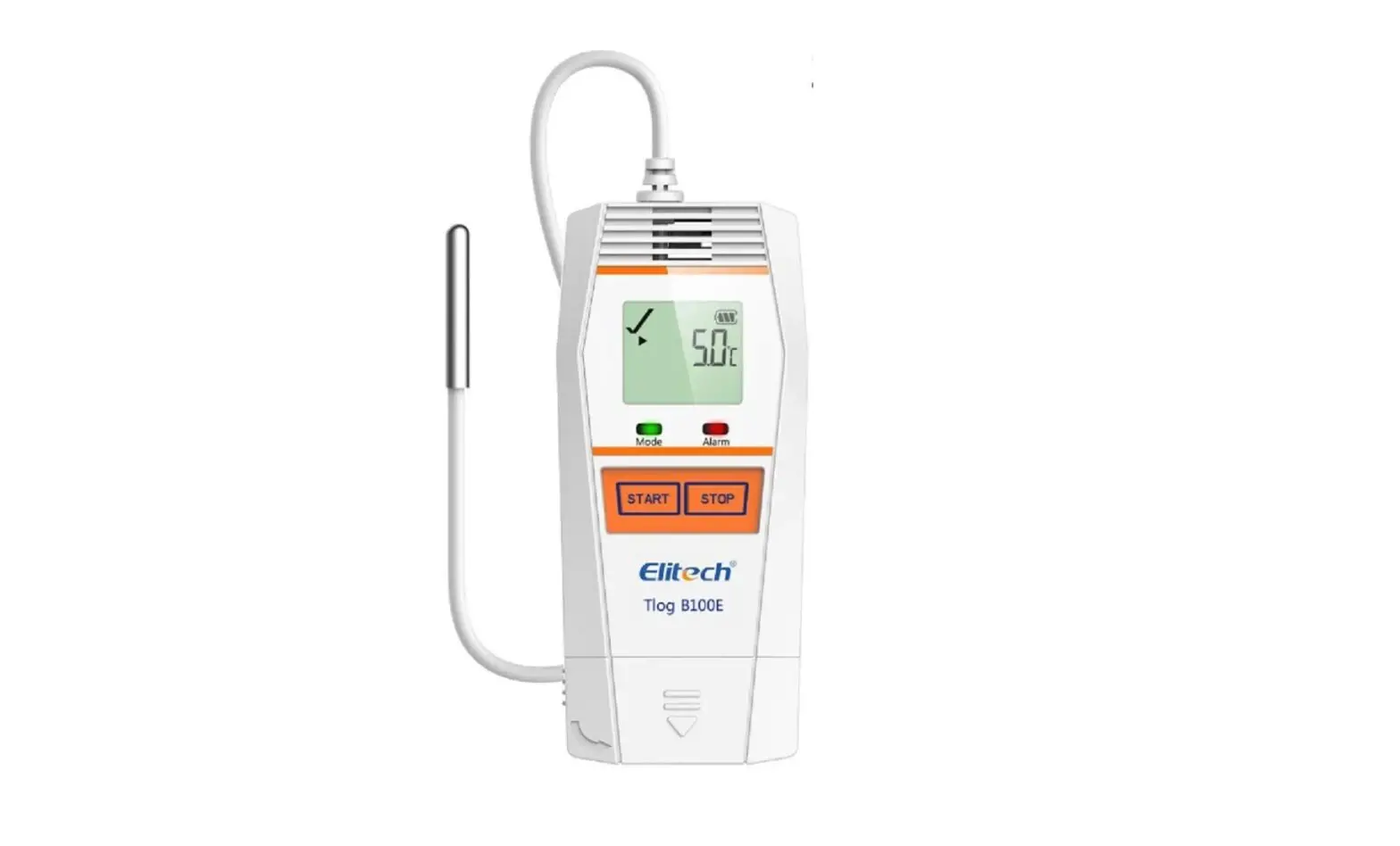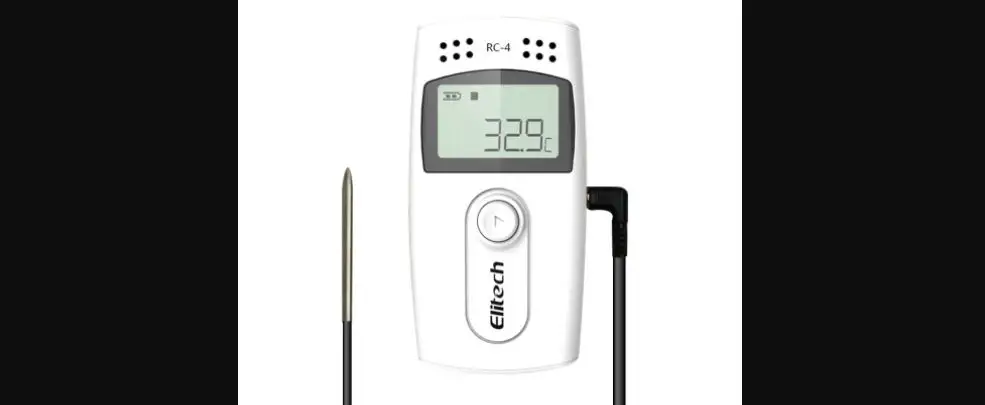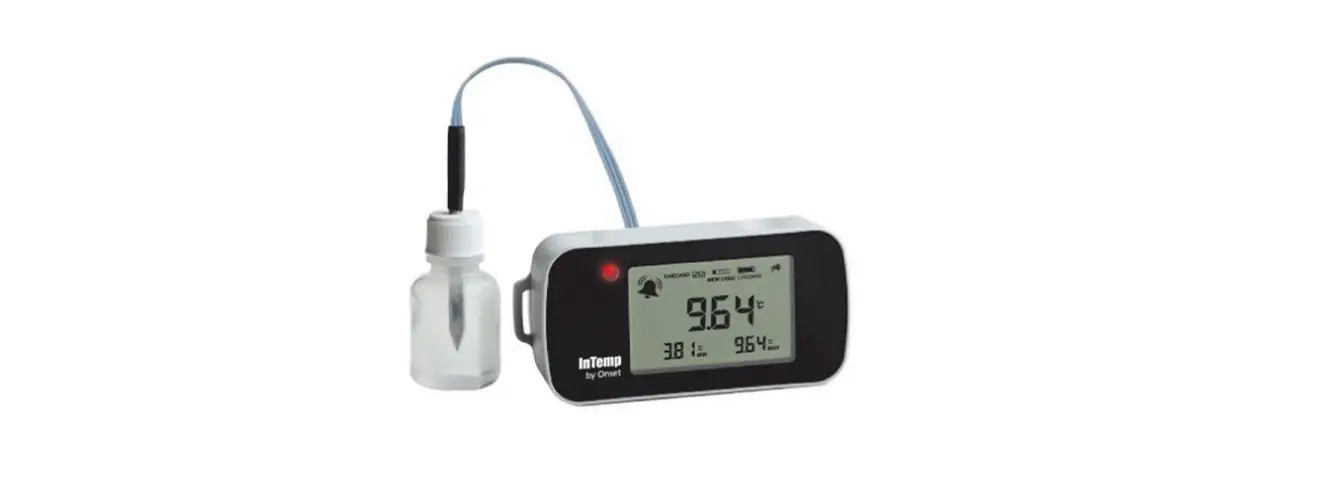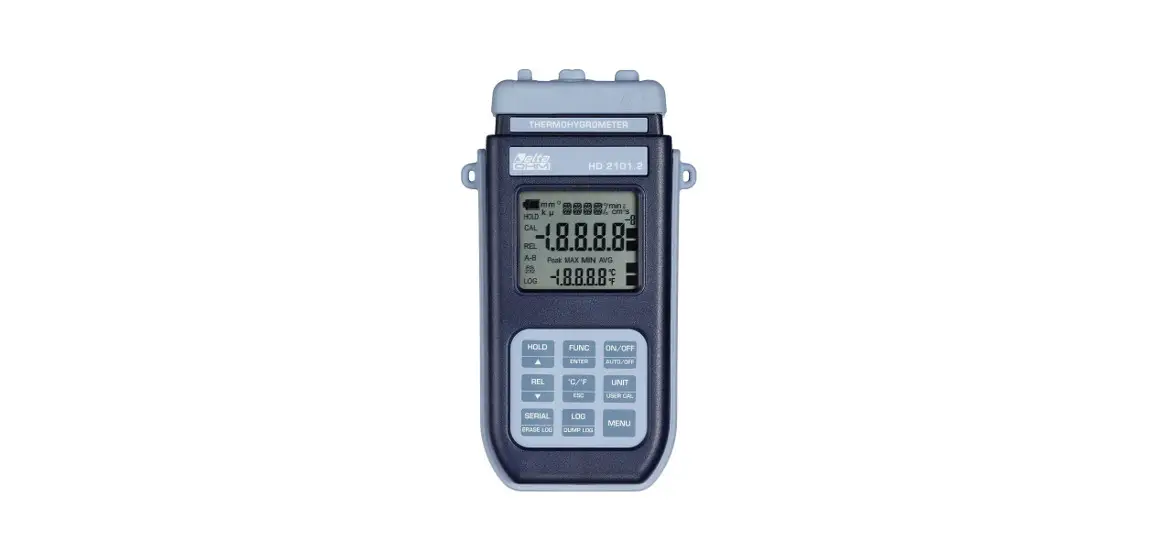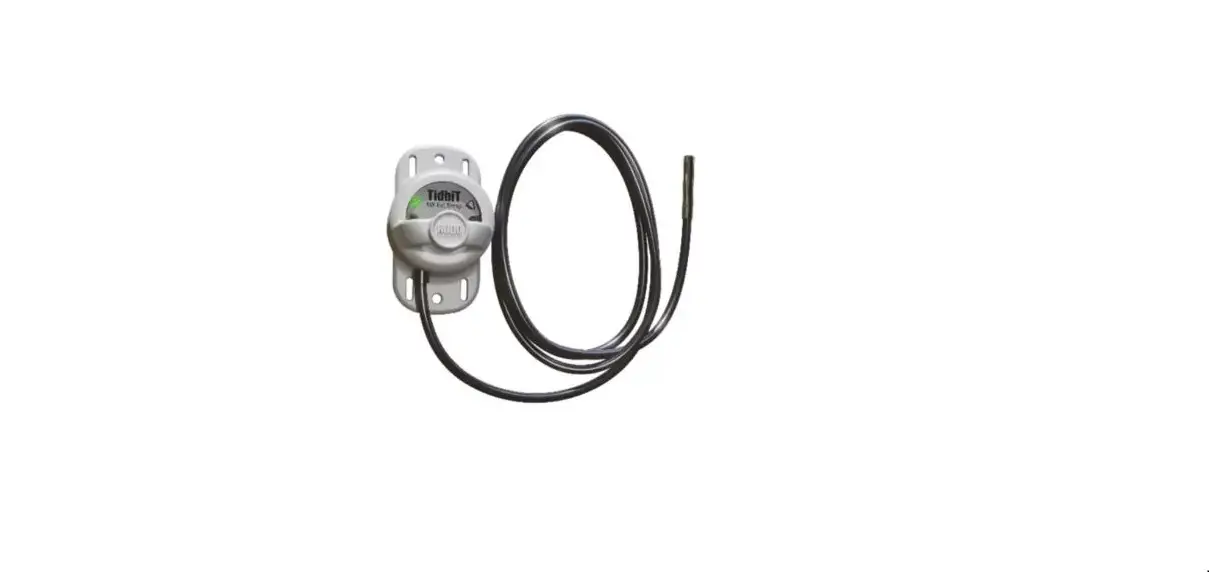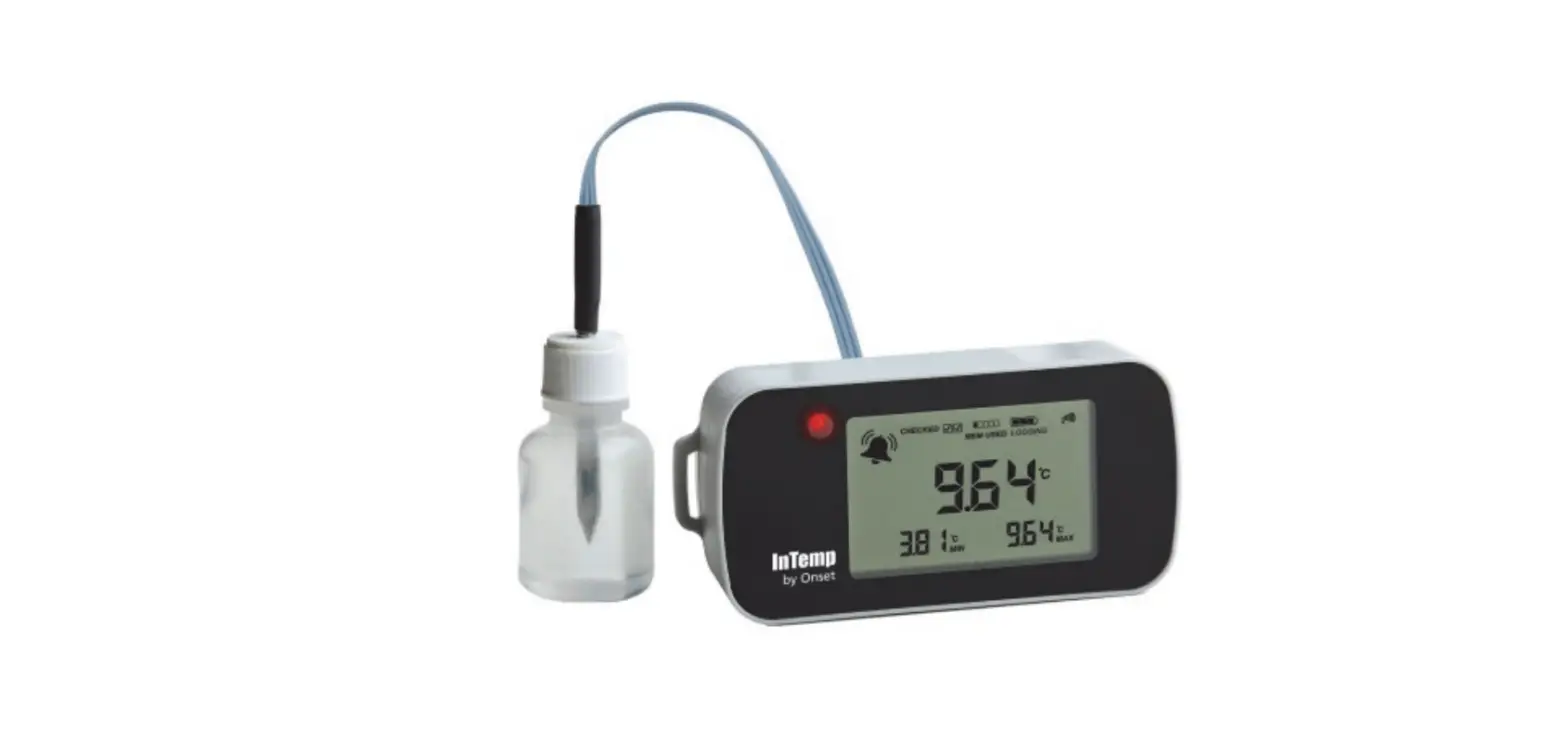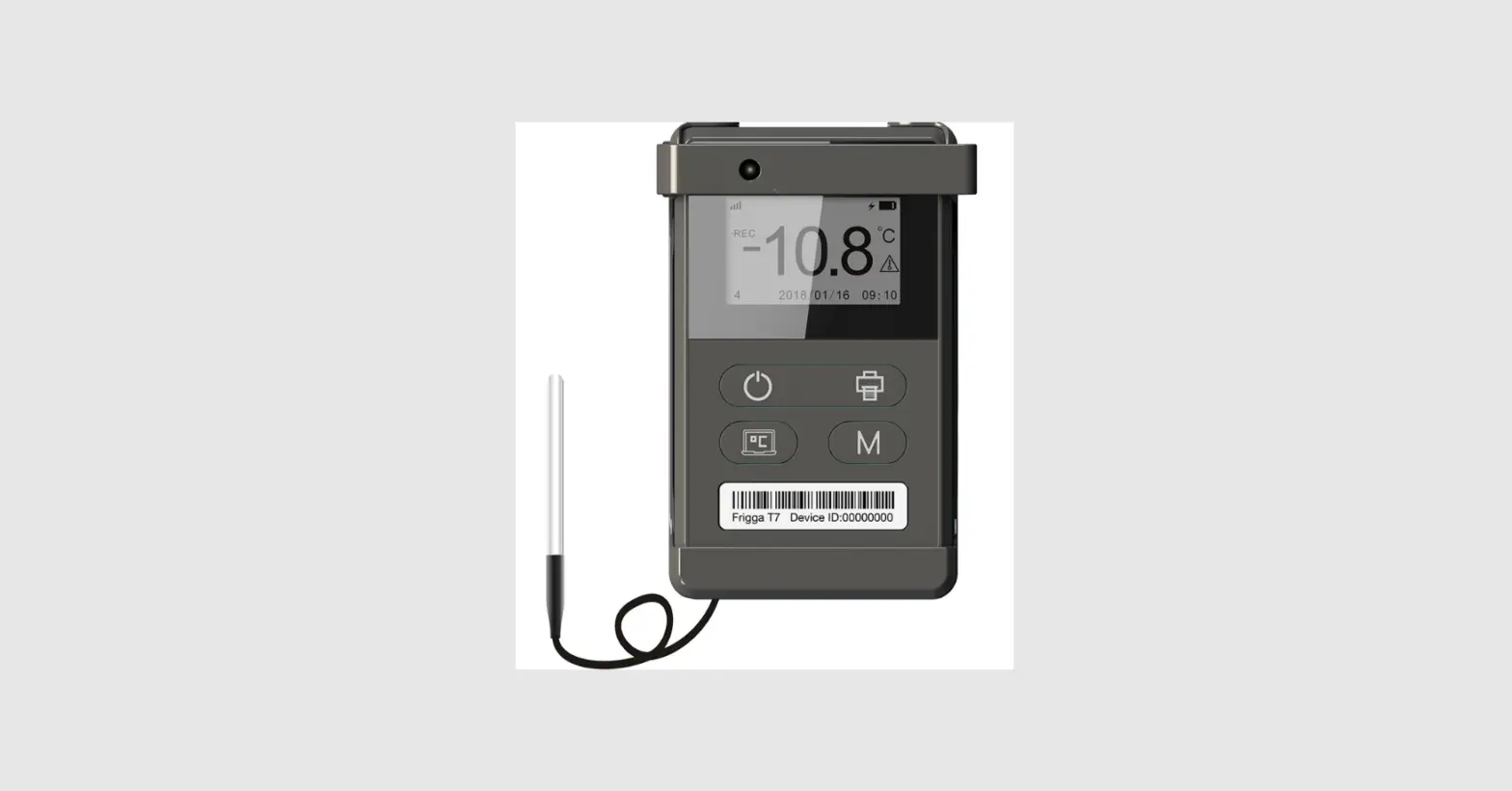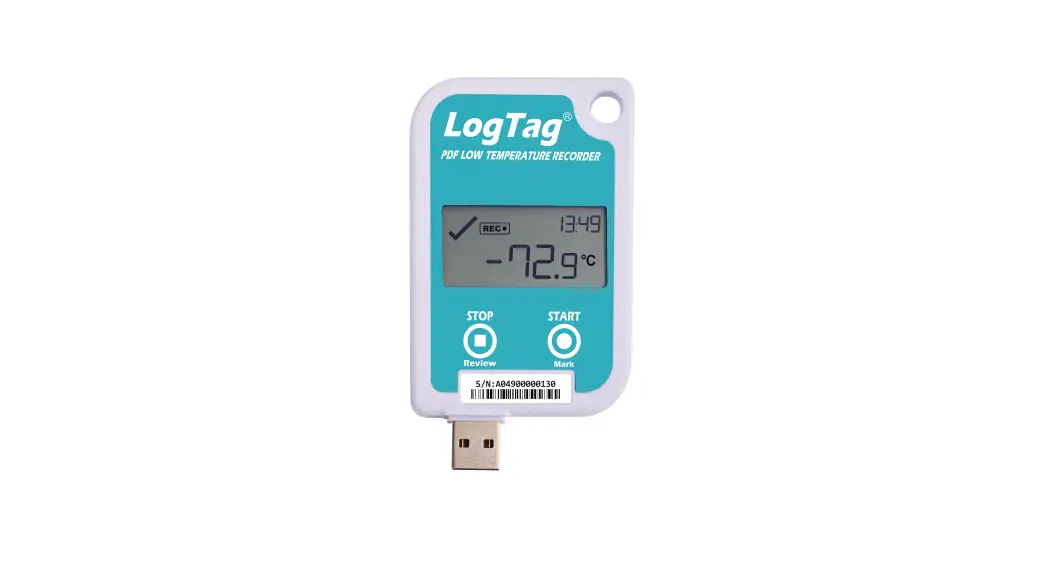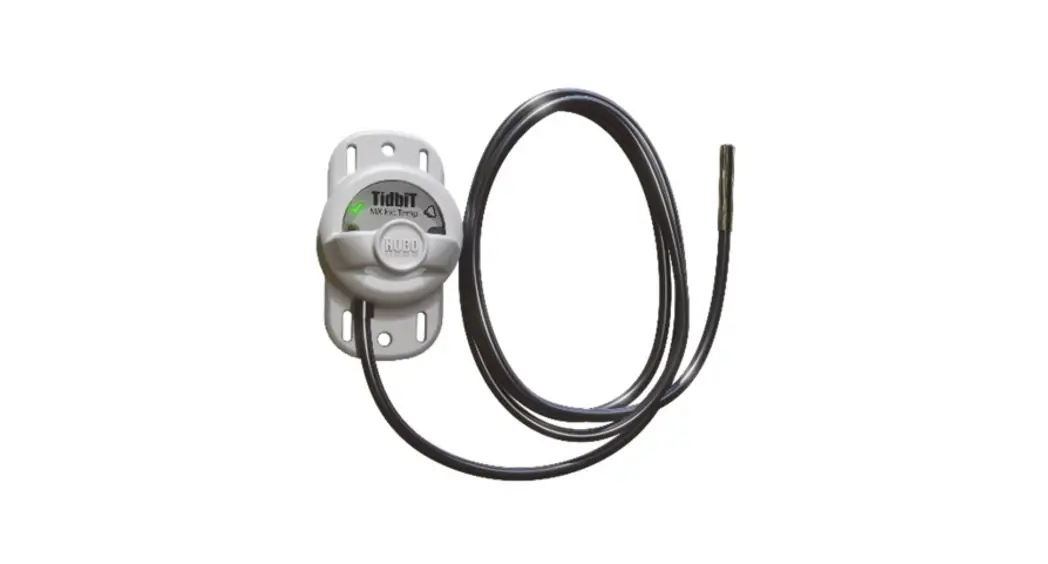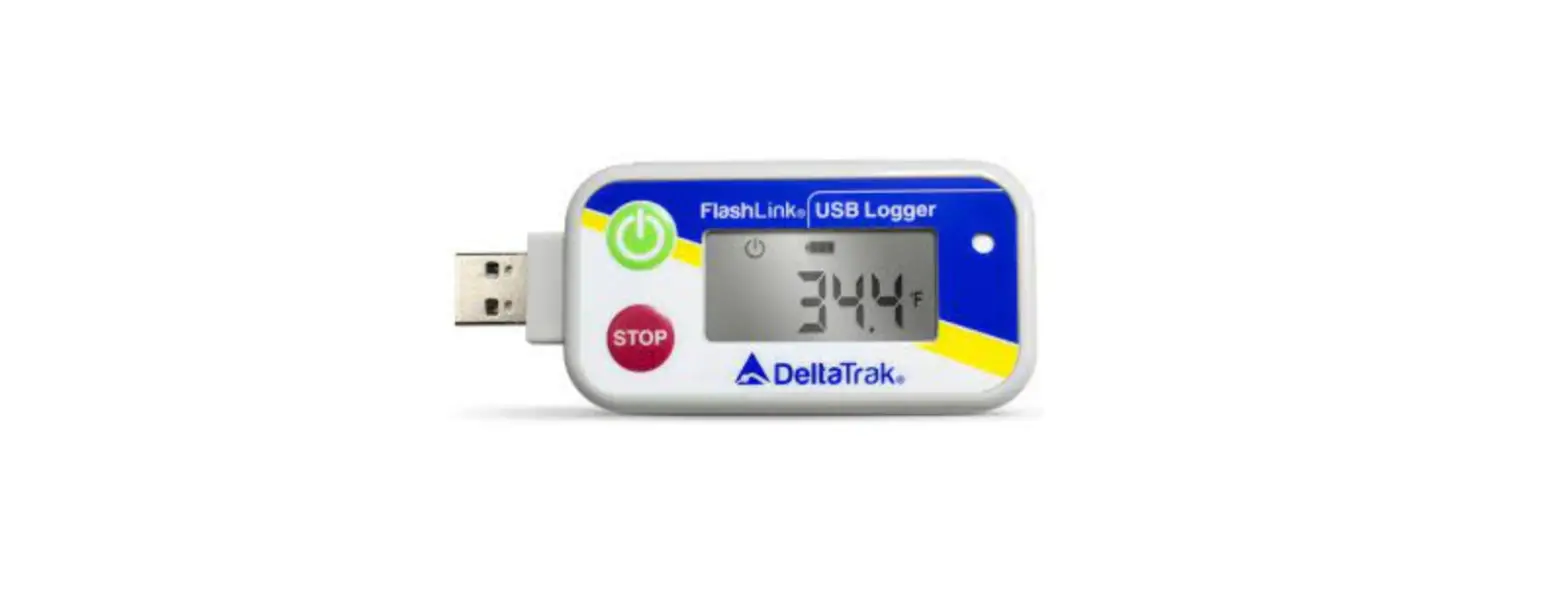

Deltatrak 2233X Real-Time Temperature Logger 
LED instruction
| NO | Test item | Instruction | Result |
| 1 |
LED in Idle Mode | Press start button for 1 second when the power of the logger is normal | LED toggle red/blue twice |
| 2 | Press start button for 1 second when the power of the logger is low | No LED light under any condition | |
| 3 | Press and hold Flight button for 5 seconds | No LED light and logger can not enter Flight Mode | |
|
4 | Press and hold start button for 5 seconds then logger from Idle mode to Recording mode | The status LED flash Blue every 10 seconds for 30 minutes to indicate it has started properly After 30 minutes this flash sequence will stop |
| NO | Test item | Instruction | Result |
| 5 |
LED | Press start button for 1 second when the power of the logger is normal | Blue flash indicates logger is recording |
| in | Press start button for 1 | No flash means low | |
| 6 | Recording | second when the power | battery (no LED) Battery |
| Mode | of the logger is low | is dead | |
| 7 | press Flight button for 1 second | No Flash means logger is not enable Flight Mode |
| NO | Test item | Instruction | Result |
| Press and hold Flight | Flight Mode LED blink | ||
| 8 | button for 5 seconds then logger from Recording | Red LED 5 times to indicate logger has | |
| LED | Mode to Flight Mode | entered Flight Mode | |
| 9 | in Flight Mode | Singlepress Flight button for 1 second and a Red LED light indicates | Red LED light indicates it is in flight mode |
| Press and hold flight | Red LED go solid for 5 | ||
| 10 | mode button for 5 | seconds and exit Flight | |
| seconds | Mode |
Key function instruction
| NO | Test item | Instruction | Result |
| Press and hold start | Logger data upload to | |||
| 1 | Start | button for 5 seconds enable logger to record | platform,read interval is 10mins and report interval | |
| data | is 60mins |
| NO | Test item | Instruction | Result |
| In Recording Mode,Press | Logger continue to record | ||
| 2 | and hold Flight button for 5 seconds enable logger | data but will stop uploading data to platform | |
| Flight Mode | to Flight Mode | until it exit Flight Mode | |
|
3 | press and hold Flight button for 5 seconds exit Flight Mode after logger in Flight Mode for 12 |
platform and device data are not lost | |
| hours |
| NO | Test item | Instruction | Result |
| 4 |
Stop | In recording mode, connect usb cable to logger | logger stop then user can view PDF or export PDF to PC |
| 5 | In Flight Mode, Connect usb cable to logger | logger will stop then user can view PDF or export PDF to PC |
User experience instruction
| NO | Test item | Instruction | Result |
|
1 | Capacity display | Check whether the Capacity display match with real battery capacity. | The Capacity display match with real battery capacity. |
| 2 | Reporting stable | Check the Reporting performance in different environment. | Reporting normally in different environment. |
| 3 | PDF function | Stop logger then export PDF | PDF content is displayed correctly and data is not lost |
| 4 | Power consumption | Enble logger then set the report interval to 20min | Meet company quality standard |
Usage scenarios
Put the device in the container with the goods together.
FCC STATEMENT
This device complies with Part 15 of the FCC Rules. Operation is subject to the following two conditions: (1) this device may not cause harmful interference, and (2) this device must accept any interference received, including interference that may cause undesired operation. Changes or modifications to this unit not expressly approved by the party responsible for compliance could void the user’s authority to operate the equipment.
NOTE: This equipment has been tested and found to comply with the limits for a Class B digital device, pursuant to Part 15 of the FCC Rules. These limits are designed to provide reasonable protection against harmful interference in a residential installation. This equipment generates, uses and can radiate radio frequency energy and, if not installed and used in accordance with the instructions, may cause harmful interference to radio communications. However, there is no guarantee that interference will not occur in a particular installation. If this equipment does cause harmful interference to radio or television reception, which can be determined by turning the equipment off and on, the user is encouraged to try to correct the interference by one or more of the following measures:
- Reorient or relocate the receiving antenna.
- Increase the separation between the equipment and receiver.
- Connect the equipment into an outlet on a circuit different from that to which the receiver is connected.
- Consult the dealer or an experienced radio/TV technician for help.
This device and its antenna(s) must not be co-located or operated in conjunction with any other antenna or transmitter. To maintain compliance with FCC’s RF exposure guidelines, This equipment should be installed and operated
with a minimum distance of 20cm from your body.