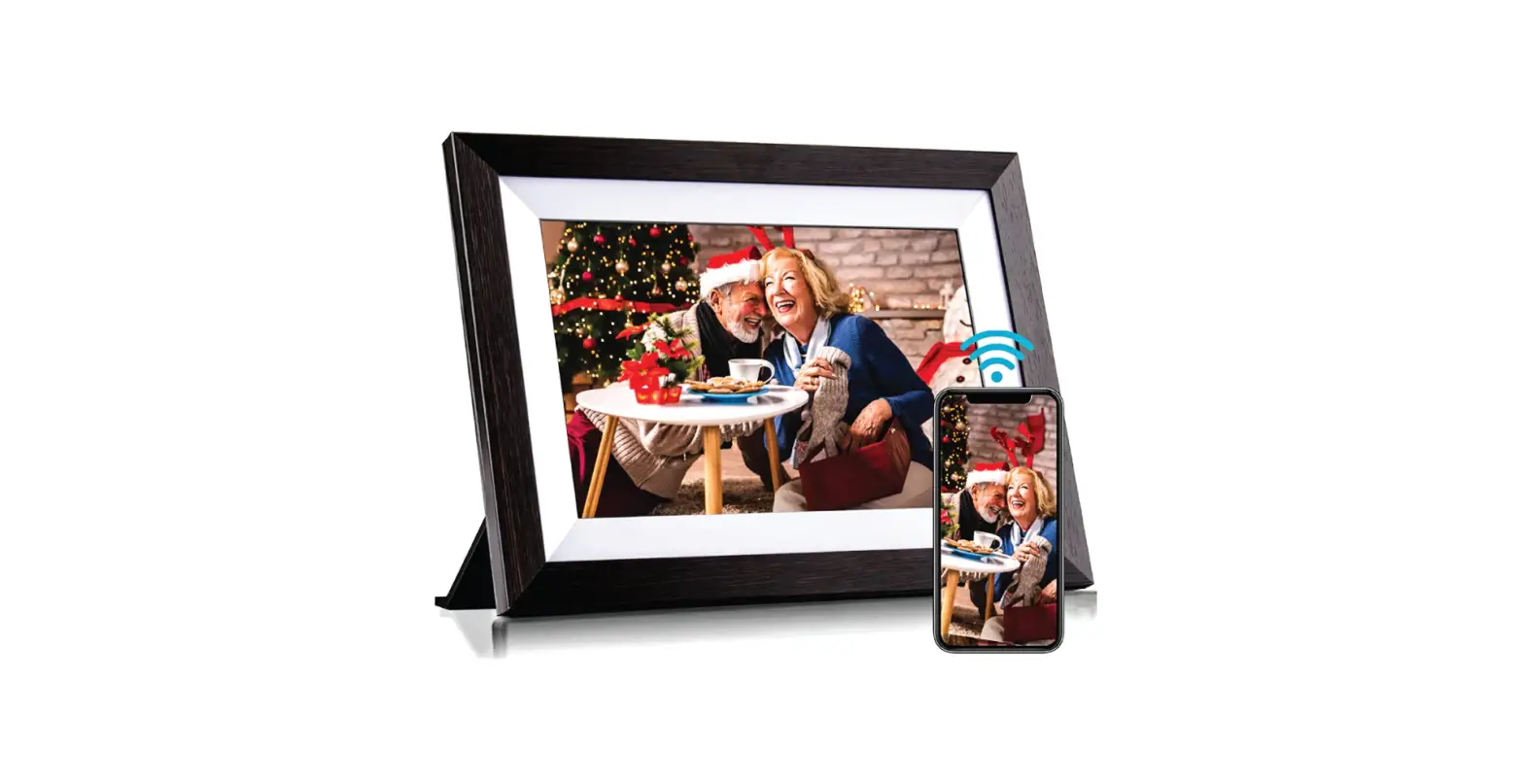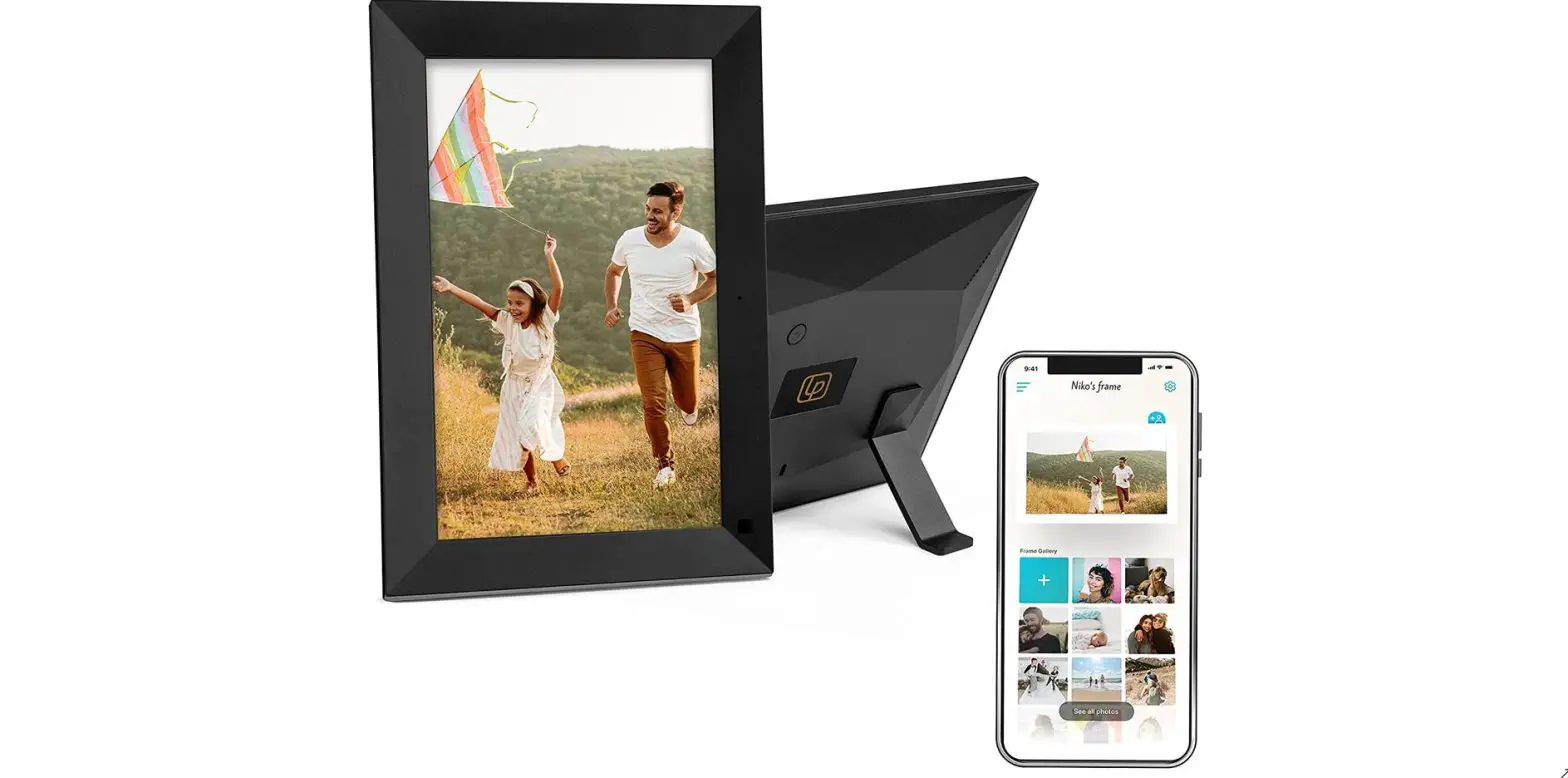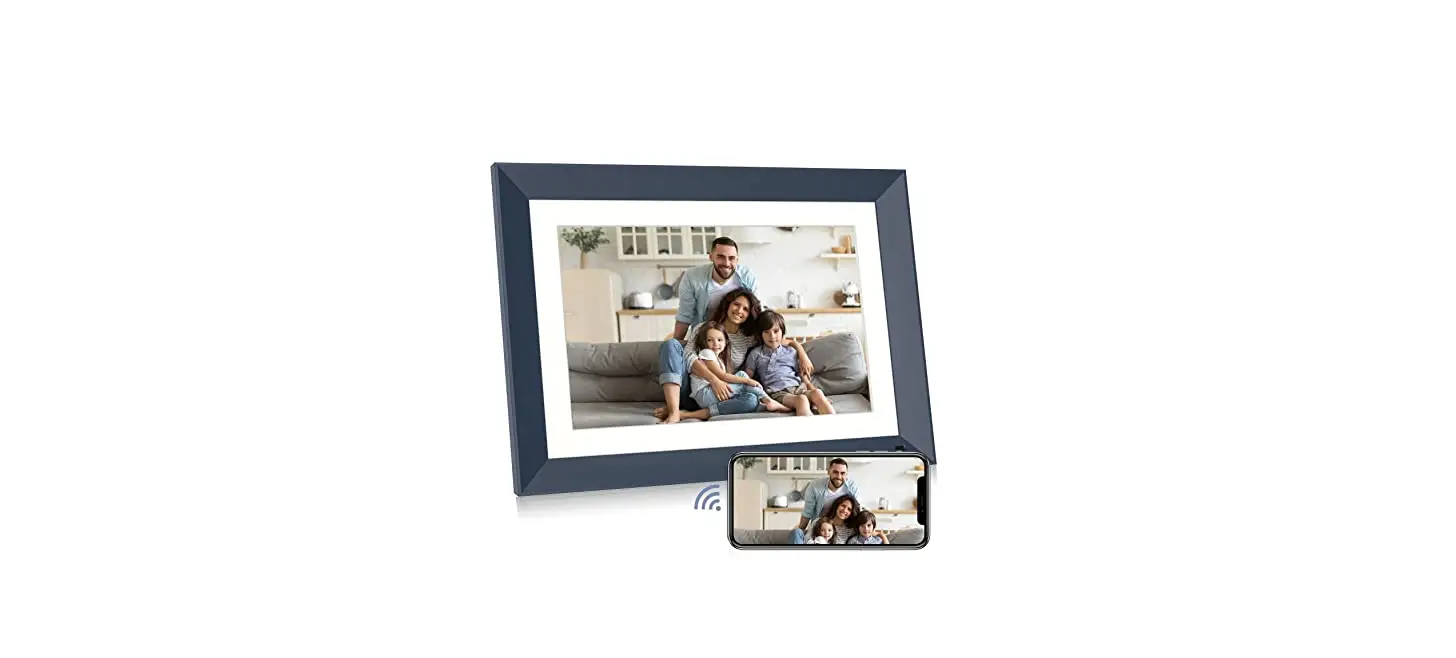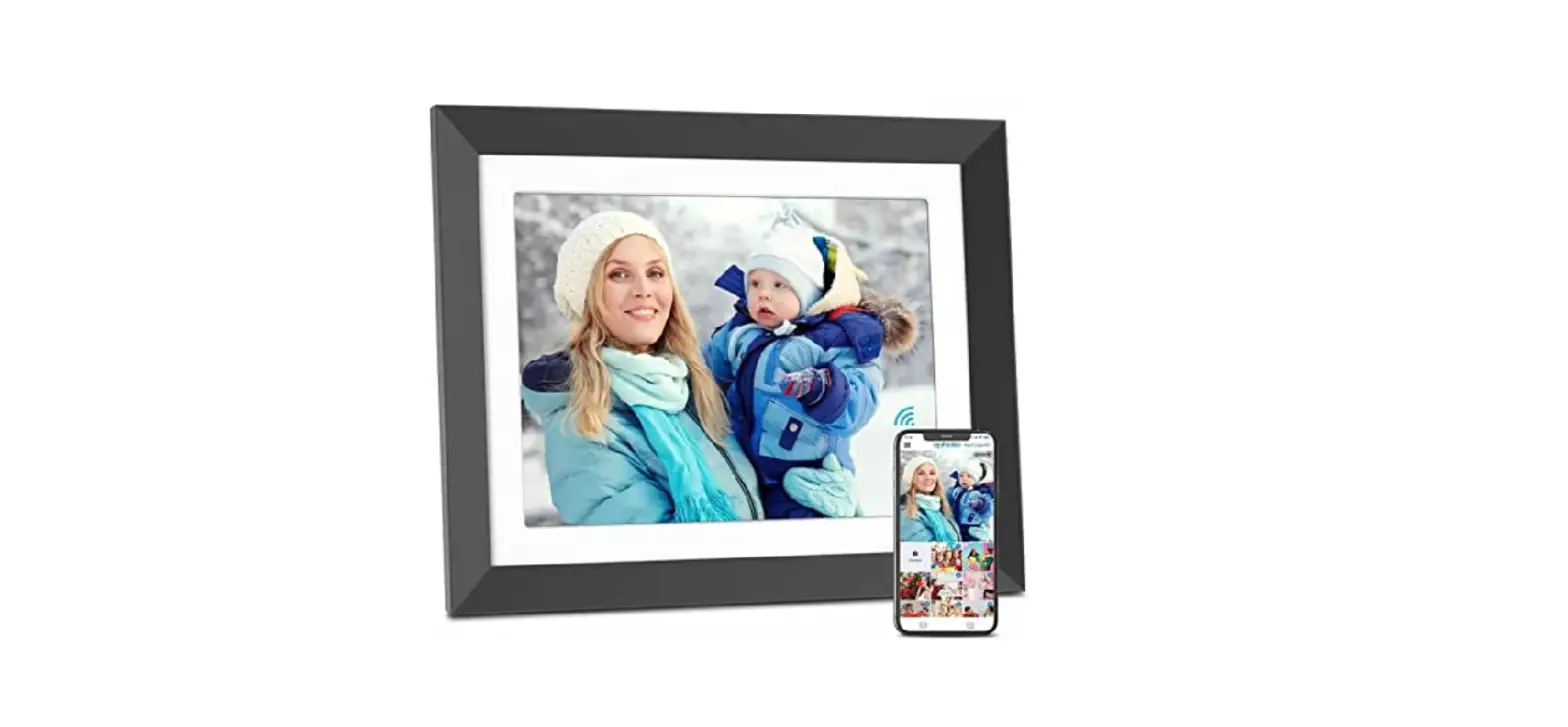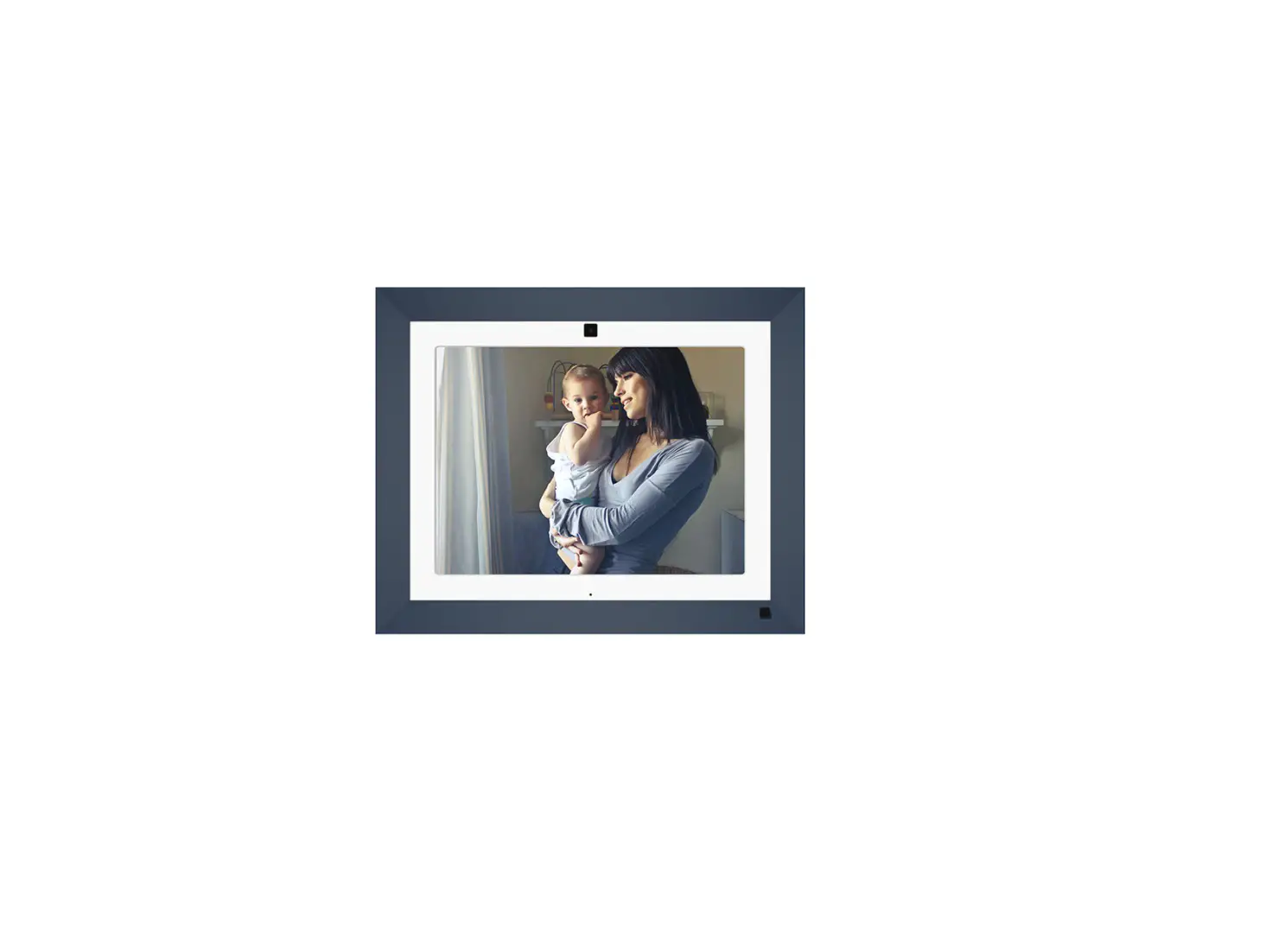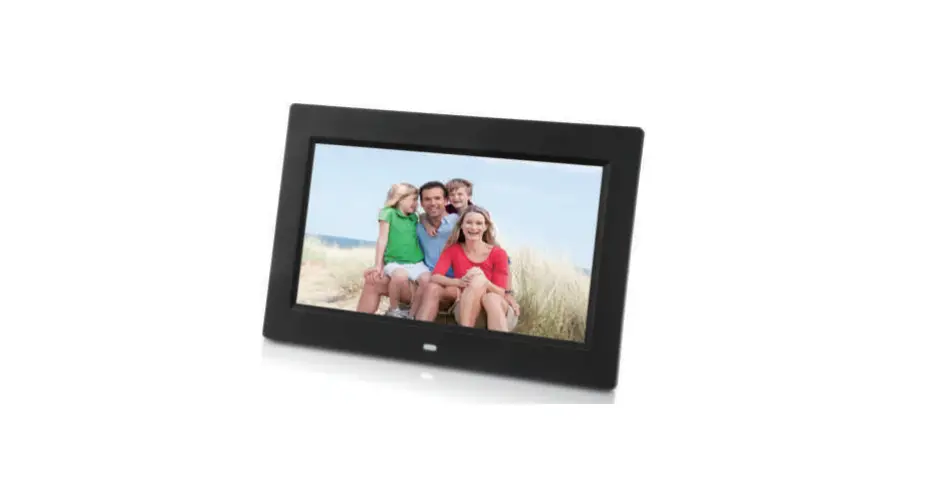

MSF-2110 Smart Home 16 GB Digital Photo Frame
User Manual
Smart Frames FAQ’s
– Yes, once you have the app downloaded and you must register an account. You will need to have the frame owner’s email address associated with their account in order to set up sharing.
– Double tap the screen bring you to all your pictures that you have uploaded into the frame, from there you will also have access to settings, the alarm clock, etc.
– Yes, once the photos are uploaded into the picture frame, they must be manually deleted.
– Actual image count will may vary depending on the individual file size of the photos and videos. On average, up to 4,000 photos can be stored on the frame’s 16GB of internal storage plus the 6GB of free cloud storage.
– There is a wall mount hole on the 8-inch frame, but this is not available on the 10-inch frame.
– No, there is not a sleep mode, but you can dim the brightness of the frame under the settings icon, and the frame section. You can also set a schedule for the frame to turn on and off every day in the Monster Smart App. Just click the clock icon on the bottom and pick which time you would like the frame to turn on and off. Those who have access into the app are able to also set a schedule.
– Yes, you can connect a USB flash drive, or a Micro SD Card to easily access and share photos and videos.
– No, not if you are connecting to the same device, the images should be kept in the frame as well as your app on your phone.
– Yes, in the Monster Smart app, you can share a link to anyone, but a user must have the app downloaded and an account created, from there you are able to accept the invitation and upload images as desired.
– Yes, you can set an alarm through the frame by going into the clock icon at the top of the frame screen and set an alarm. You are also able to adjust the volume in the frame’s settings.
– To get rid of the alarm that you may have set on the frame once it’s not needed anymore, double tap the alarm you would like to delete, and the option to delete it will pop up.
– Once you pick the image that you want to add into the smart frame, the app will bring you to the screen where all of the images you have uploaded into the frame will be. Then, click the image you want to send to the frame, click done at the bottom right of the app, and then click Upload. The image should then upload to the frame.