 Manager version 3.4.3 Release Notes
User Guide
Repository Manager version 3.4.3 Release Notes
This document aims at the new features, changed features, resolved issues, known issues, and limitations in Dell Repository Manager.
Current Release Version: 3.4.3
Release Type: Minor (MI)
Topics:
- Revision history
- Product description
- New features
- Resolved issues
- Known issues
- Limitations
- Environment and System Requirements
- Installation and upgrade considerations
Revision history
This section provides a description of document changes.
Table 1. Document Revision history
| Document Revision | Date | Description of changes |
| A00 | Jan 2023 | ● Dell Repository Manager can be installed with Restricted access or System Access on Windows Operating systems ● Extended support for Command line Interface (CLI) mode ● Support enabled for new Operating System (OS) versions |
Product description
This section aims at the summary of the Dell Repo
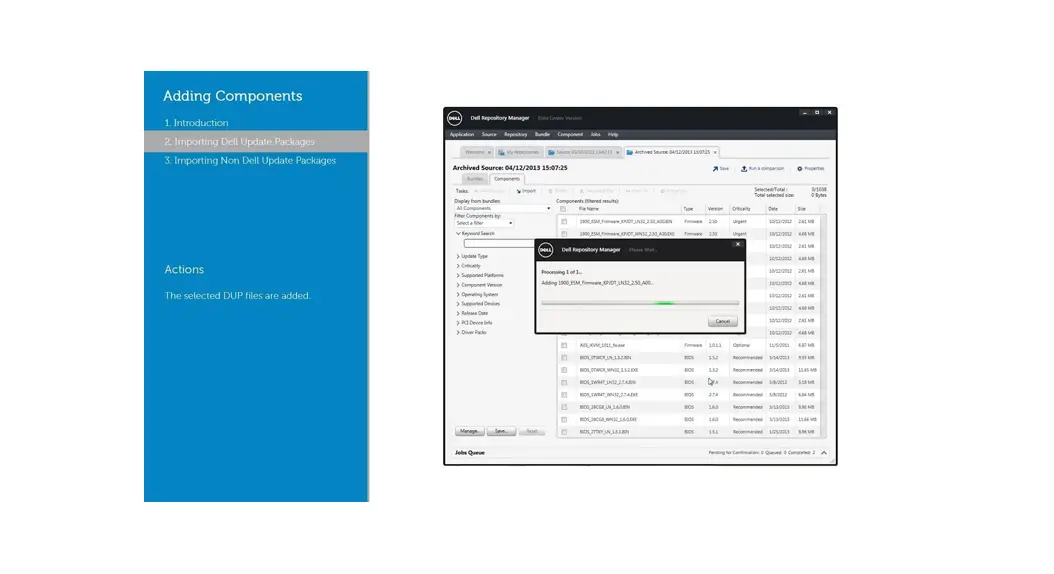
The Dell Repository Manager (DRM) ensures that the systems are up-to-date with the latest BIOS, driver, and firmware. DRM allows you to:
- Create repositories of customized components and updates.
- Create groups of related updates for systems running the Microsoft Windows and Linux operating system.
- Generate comparison reports and update baselines of custom repositories.
The customized repositories are made up of Dell Update Packages (DUPs) or Non-DUPs (such as .exemist, .bin or any other file formats) files. DUPs are software utilities that are provided to update specific software and firmware components. You can arrange these components to group the related updates together. You can import the repository content in all the three formats, however, you can export the repository content in catalog.xml format only.
Priority and recommendations
RECOMMENDED: Dell recommends applying this update during your next scheduled update cycle. The update contains feature enhancements or changes that will help keep your system software current and compatible with other system modules, including firmware, BIOS, drivers, and software.
For more information about the software requirements, see Software requirements section in Dell Repository Manager User’s guide.
New features
This section describes the features and enhancements that are introduced with Dell Repository Manager v3.4.3.
Table 2. New features in Dell Repository Manager v3.4.3
| Functional area | Feature description | Summary of benefits |
| Access privileges | Restricted access or System Access privileges | Dell Repository Manager can be installed with Restricted access or System Access on Windows operating systems. |
| Command line Interface (CLI) mode | Extended support for CLI mode | ● To edit repository name in CLI ● To list the integration groups in CLI ● To create repository for specific integration group(s) in CLI ● To provide passwords in interactive mode in CLI |
| Operating System (OS) | Support enabled for new Operating System (OS) versions | Operating System (OS) versions: ● RedHat Enterprise Linux 8.6 ● RedHat Enterprise Linux 9.0 ● SUSE Linux 15 SP4 ● Ubuntu 22.04 |
| Security | Security enhancements | ● Enhanced the security with upgraded DRM java Runtime Environment (JRE) ● Enhanced the other security aspects |
For more information about the user documentation, see the Dell Repository Manager v3.4.3 documentation on product page at dell.com/support.
Resolved issues
This section describes the issues that are resolved in Dell Repository Manager v3.4.
Table 3. Resolved issues in Dell Repository Manager v 3.4.3
| Issue ID | Functional area | Description |
| Not Applicable | Database Password | DRM installation using CLI, does not prompt for confirm DB password. |
| Not Applicable | Performance | Preference page keeps loading when you upgrade from DRM v3.3.2 or older version. |
| Not Applicable | Update Inventory | Unable to update the Inventory collection DUP when the export job status is partial success. |
| Not Applicable | Performance | DRM breaks user custom script after the IC module is upda |
| Not Applicable | Import | DRM fails to import Samsung SSD vDWLA DUP. |
Table 3. Resolved issues in Dell Repository Manager v 3.4.3 (continued)
| Issue ID | Functional area | Description |
| Not Applicable | Performance | DRM listing DUPs under “Date Mod” column with release dates, not updated date |
| Not Applicable | Upgrade | Unable to delete few repositories when you upgrade from DRM 3.2.x version. |
| Not Applicable | Proxy Password | Proxy password is not getting displayed for integration repositories under refresh inventory in GUI. |
| Not Applicable | DRM services | DRM Service stops after saving DRM logs to local/network paths. |
| Not Applicable | Edit labels | Unable to view Edited label in DRM repository with multiple versions. |
| Not Applicable | Uninstall | DRM database and artifacts are not getting deleted when you uninstall the application in console/silent mode. |
Known issues
This section comprises of the known issues and the relevant workaround or resolutions.
Table 4. Known issues in Repository Manager v3.4.3
| Issue ID | Functional area | Description | Workaround or Resolution |
| Not Applicable | Installation | You cannot downgrade to a lower version of DRM using the current DRM installer. | To install an earlier version of DRM, first uninstall the newer version manually through Add or Remove Programs in Windows Control Panel and then run the installer of the wanted version |
| Not Applicable | Network | Mapped network path for a user is not accessible in DRM as a location with Microsoft Windows. The mapped network path is only available to download the login .zip format. | Provide the network path along with authentication. |
| Not Applicable | Performance | Random program files of DRM are deleted when Microsoft Windows goes for a hard system reset. | Repair or reinstall the application to update the missing files. |
| Not Applicable | User Interface | If the application GUI is kept open during uninstallation, a message is displayed which indicates a system restart is required but system does not reboot even after consent for the same. | Uninstall DRM only after closing the application GUI. |
| Not Applicable | Upgrade | Unable to upgrade to DRM v3.4.0 from the older versions using VPN (Virtual private network) connection. | Disconnect from VPN connection and then try to upgrade and download DRM. |
| Not Applicable | Bin files | Bin files in the temporary folder are not getting deleted immediately. | The files get deleted once the service is idle. Alternately, you can delete the files manually from the folder. |
| Not Applicable | Components | Component is not deleted from a repository with the DRM delete command. | Ensure that there is no space between the comma and the component name in the command, and then run the command. |
| Not Applicable | Repository jobs | While scheduling a repository job, the time is displayed as “0-1:00” when the down arrow key is clicked. After clicking it again, it turns to “0-2:00” and so on. | Use the up arrow key to set the hour value. |
Table 4. Known issues in Repository Manager v3.4.3 (continued)
| Issue ID | Functional area | Description | Workaround or Resolution |
| Not Applicable | Performance | After repair when you chose to restart the system, the system does not restart automatically. | Restart the system manually. |
| Not Applicable | Performance | If you are using home path as your target location for exporting a file from DRM in Linux operating system, the browse window becomes unresponsive. | Remove the trailing slash, and then export the file. |
| Not Applicable | Performance | If you have already used /home/ for exporting a file and the browse window becomes unresponsive. | Delete the directory: /var/ dell/drm/config, and then continue using DRM. |
| Not Applicable | Performance | DRM application does not launch using the created shortcut icon in Linux Operating Systems after install or upgrade of DRM to the latest version. | Launch DRM using CLI command or ● For RHEL: 1. chown <user> drm. Desktop (Currently logged-in user) 2. chmod +x drm.Desktop 3. Double-click the icon. Then click Trust Launcher. ● For Ubuntu or SLES: 1. Copy the drm.Desktop file to the Desktop directory of the user. NOTE: Desktop icons must be enabled from the system settings. 2. Right Click the icon and then select Allow Launching. |
| Not Applicable | Performance | Share folders of an SMB 2 server cannot be enumerated in browse for location windows. | Provide the share name along with an IP or system name, and the folders can be browsed. |
| Not Applicable | Performance | OLH does not work in DRM, when launched through CLI on Linux operating system. | Recommends you to launch DRM through CLI using the same user session as the logged-in user. |
| Not Applicable | Performance | DRM Logs are getting saved in any of the user defined file formats such as .rar, or .zip, or .txt in local or network share location. | Ensure the DRM logs are downloaded only in .zip format in local or network share location, irrespective of the available and downloaded file formats. |
| Not Applicable | Create Repository | Some of the repositories from DRM 2.x may not be migrated to DRM 3.x, if the DRM 2.x application is up and running during DRM 3.x installation. | Remove the database files, close the DRM 2.0 application, and then install DRM 3.0. |
| JIT-242093 | Update plugin jobs | DRM shows incomplete Plugin update job messages on CLI window when all plugins are updated together. | Use list jobs command to view the plugin details and status. |
| JIT-247057 | nstallation | Unable to install DRM because the DRM Installer progress bar stopped responding at 8% that impacts service initialization | Force close the DRM installer process and then retry the DRM installation again. |
Limitations
Table 5. Limitations in Dell Repository Manager v3.4.3
| Functional area | Limitations |
| Refresh or Compare Repository | The Open Manage Server Administrator (OMSA) tar.gz Dell update package (DUP) does not support the latest DUP updates(Refresh or Compare Repository) with the latest available version in catalogs. |
| Refresh repository | Repository refresh shows dates 1 to 30 for all months. For February if 30 is selected, the refresh happens on the last day of the month. |
| Refresh repository | If you refresh a repository that is created using Non-enterprise catalogs (vSAN catalog, or MX validated stack catalog), refers to Enterprise catalog and then perform updates based on the data available in Enterprise catalog. However, does not use the latest version of catalog which was used to create repository. |
| Create repository | The size of a repository is not compatible with the size of bundle that exists within the same repository because of the dependent Dell Update Packages (DUPs) which are part of the same repository. |
| Create repository | The size of the repository that is created is not displayed in the output if the catalog usefor creation does not contain the size information for DUPs. |
| Create repository | Repository creation using integration fails when password contains special character. |
| Create repository | Creating a repository from inventory file and with available catalog using CLI is not supported when catalog and inventory are placed in different network location. |
| Create repository | Multiple DRAC versions are displayed when creating a manual repository through GUI on 13G servers using the IDSDM DUPs. |
| Create repository | IDSDM DUPs are not listed when creating a repository on 13G servers having IDSDM firmware DUPs. |
| Localization | DRM supports English US. No locale formats or other languages are supported. |
| Special characters for password Special characters for password | Proxy password does not support special characters (“@” and “:”) to set the proxy in CLI. Special character ” must be used with an escape character \ as \” to set any passwords through CLI. |
| Install DRM | DRM should not be installed on a network share. |
| DRM support | On Linux Operating Systems, DRM cannot be installed on a custom folder or location other than /opt/dell. |
| DRM support | Remote access to DRM is not supported. |
| Microsoft exchange URL | DRM does not support multiuser execution. If DRM is installed for all users, it can be launched and used only in one of the user sessions. |
| Launch DRM | DRM current version cannot discover the Microsoft Exchange Web Service URL from the email ID. User has to manually update the data for email configuration. Consult Users Guide for process of finding the Microsoft Exchange Web URL. |
| Update DUPs | t is recommended not to launch the DRM application from multiple user contexts. Occasionally there is certain unexpected GUI behavior because of insufficient permissions to the temp folder(C:\windows\temp or /tmp). |
| Refresh inventory | Comparison shows some downgrades and upgrades for DUPs incorrectly. Check the properties of DUPs in the right pane of the UI for devices supported before revising the component. |
| Import DUPs | In DRM GUI, using the import feature, you can import only one DUP at a time, whereas in CLI, you can import multiple DUPs. |
| Import Repository | Import repository job fails if you have selected the FX2 Chassis System Management DUPs. |
Environment and System Requirements
For the complete list about supported devices, protocols, hardware, and web browsers, see Dell Repository Manager User’s
Guide available at dell.com/support/repository-manager/docs.
Installation and upgrade considerations
Installation instructions
For more information on installation, see the Dell Repository Manager version 3.4.3 User’s guide on the dell support site .
Upgrade instructions
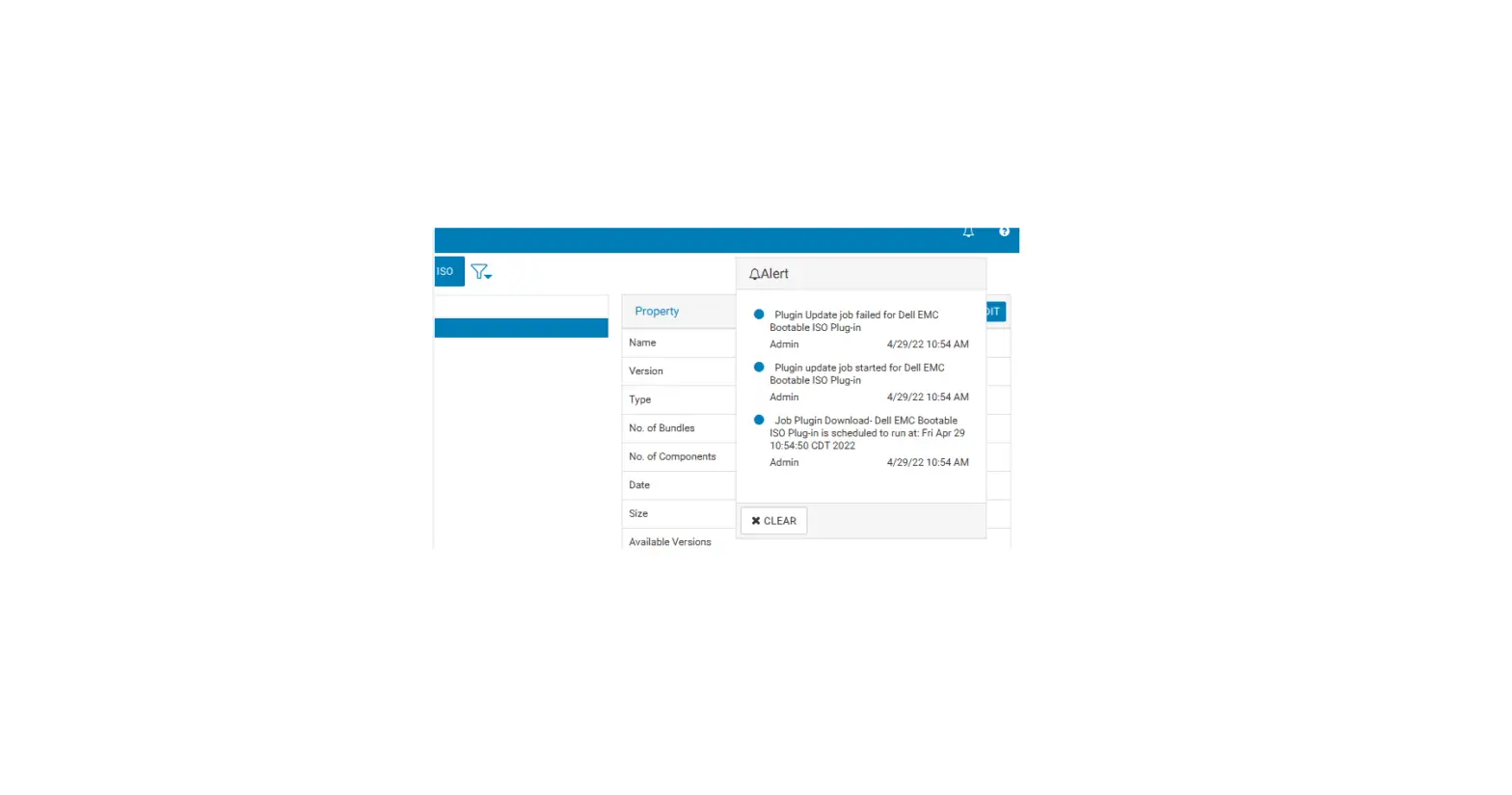
When a new version of DRM is released, a bell alert is displayed on the Graphical User Interface (GUI).
NOTE:
- In Windows Operating systems, while upgrading to DRM v3.4.3 or above, If the store path location is set as any of these custom locations (Windows, Program Files, Program Files x86) in local drive, irrespective of the selected service access privilege type, the store path will reset again to default after upgrade.
NOTE: The content available in the custom store locations such as (Windows, or Program Files, or Program Files x86) must be copied to the new default location which is set by DRM while upgrading. - When you are migrating from DRM 2.x version to DRM 3.x version, ensure that you upgrade to 3.0 and then upgrade to the specific DRM 3.x version.
- When you upgrade to DRM version 3.4.3 and above, the installation path cannot be altered in Windows and Linux OS. The Choose Install Folder and Choose Shortcut Folder options are disabled during DRM upgrade.
- On the Dell Repository Manager drop-down list, in the Manage section, click Check for New Version to download and install to the latest version of the repository manager.
The Set DRM database password option is enabled for DRM 3.4.x and above to install or upgrade DRM as part of security enhancements.
NOTE: Recommends you to relaunch the DRM after a successful upgrade operation.
After upgrade, to view the Online help (OLH) files, clear the browser’s cache and then relaunch the OLH During DRM upgrade on Microsoft Windows Server 2019, or Microsoft Windows Server 2022, the installer
may not run automatically due to windows security policies. Hence, manually run the installer file from C : \Users\username\ App Data\Local \Temp location.
Notes, cautions, and warnings
 A NOTE indicates important information that helps you make better use of your product.
 A CAUTION indicates either potential damage to hardware or loss of data and tells you how to avoid the Problem.
 : A WARNING indicates a potential for property damage, personal injury, or death.
©2018 – 2023 Dell Inc. or its subsidiaries. All rights reserved.
Dell Technologies, Dell, and other trademarks are trademarks of Dell Inc. or its
subsidiaries. Other trademarks may be trademarks of their respective owners.