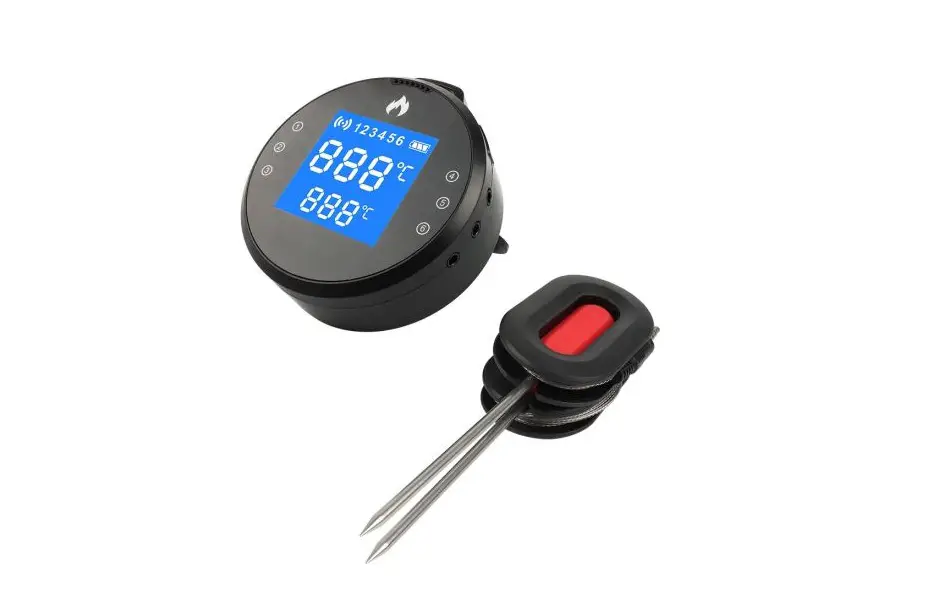
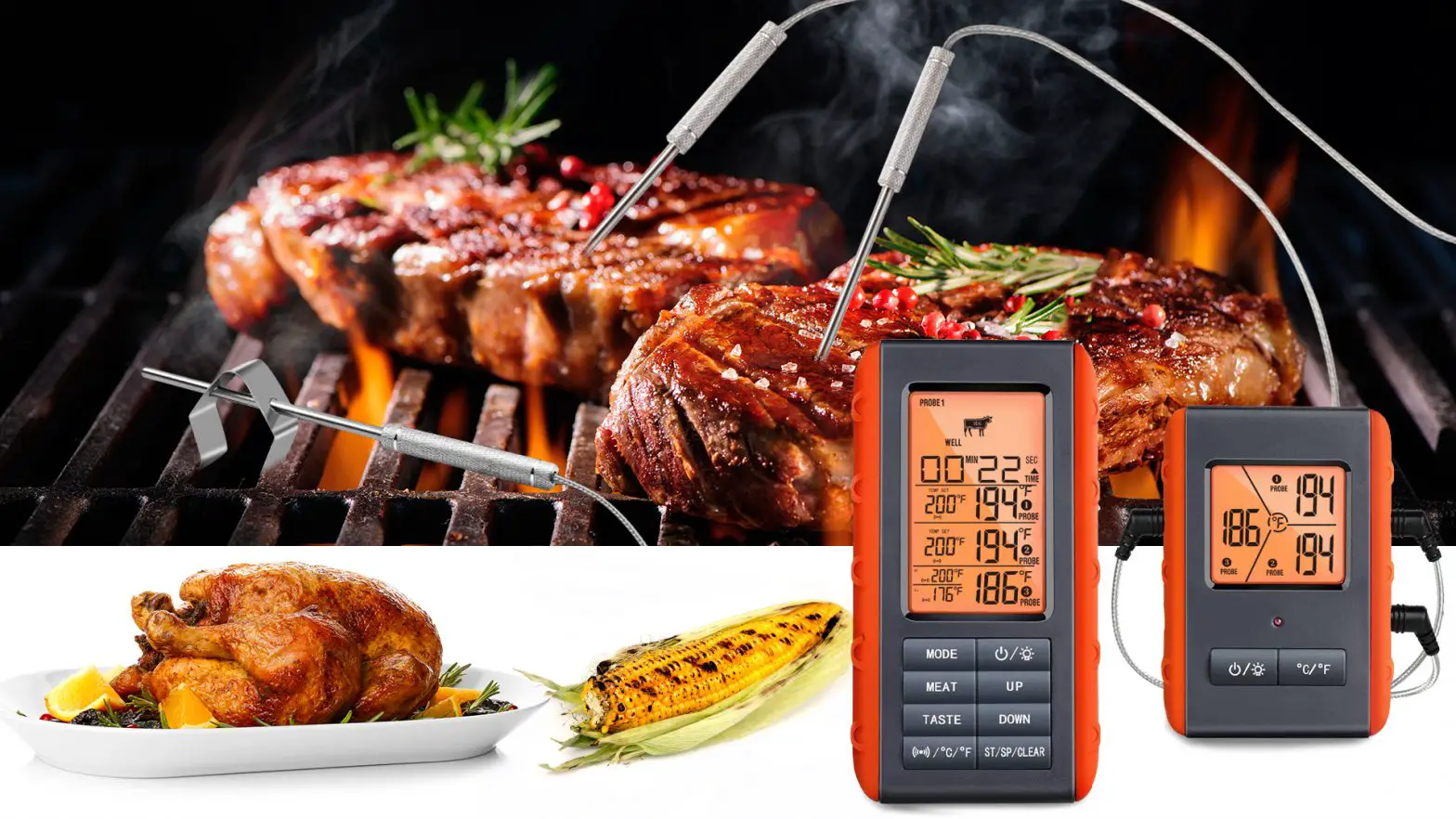
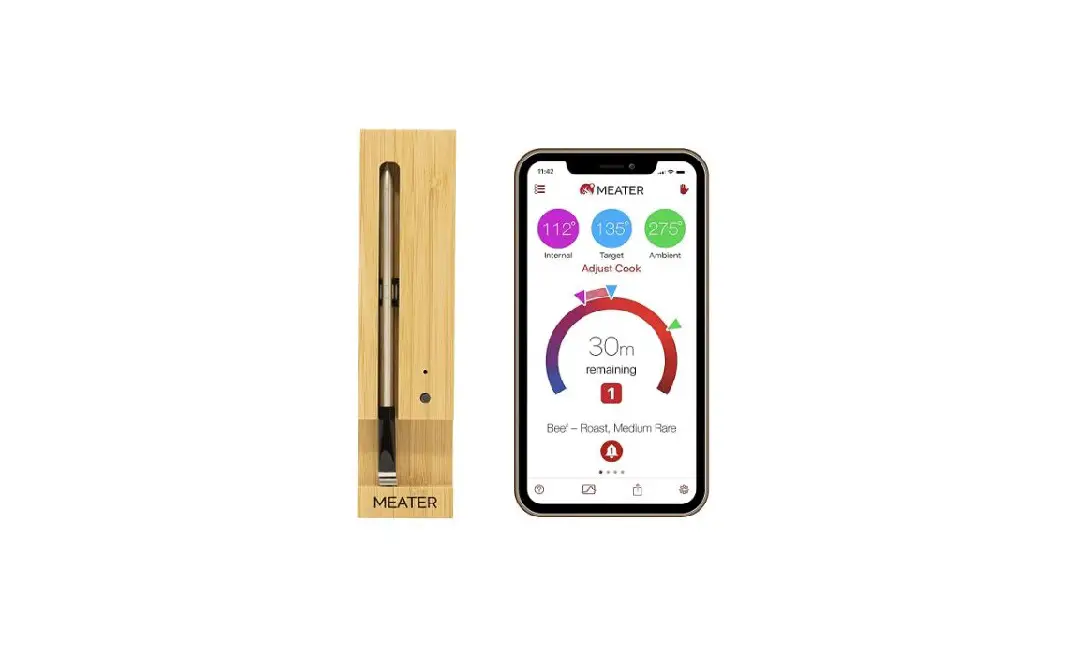
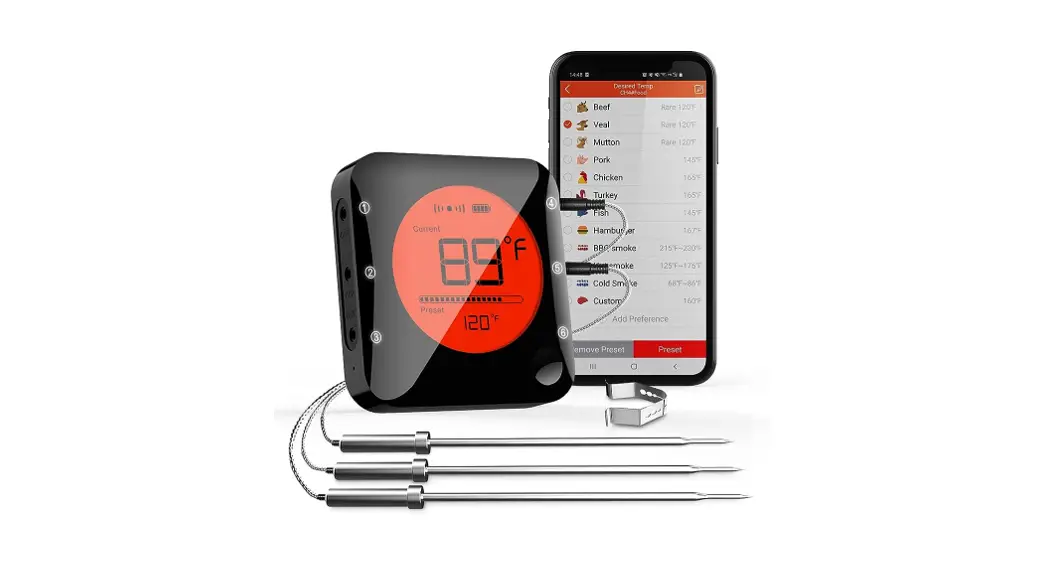
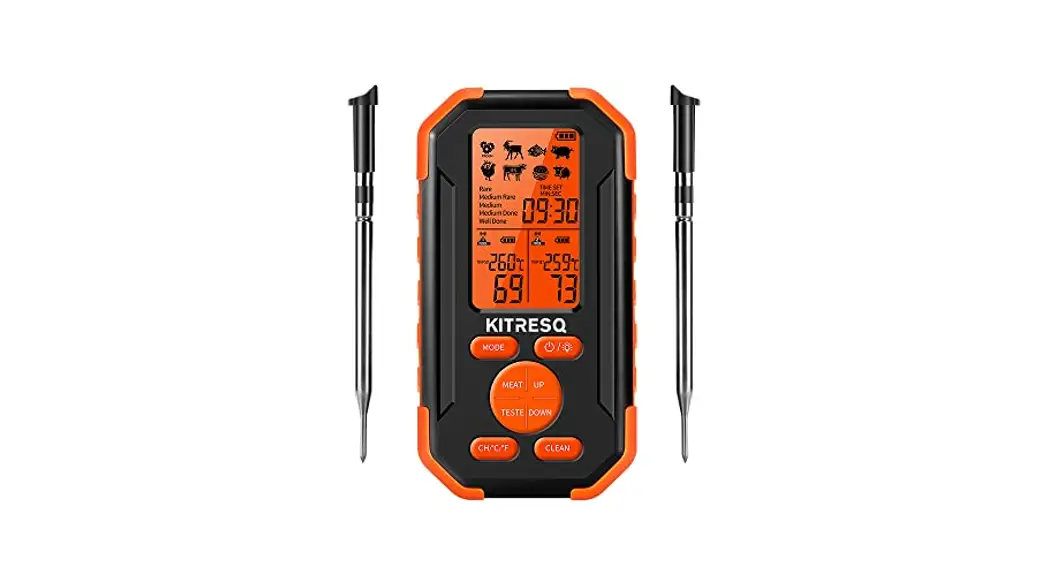
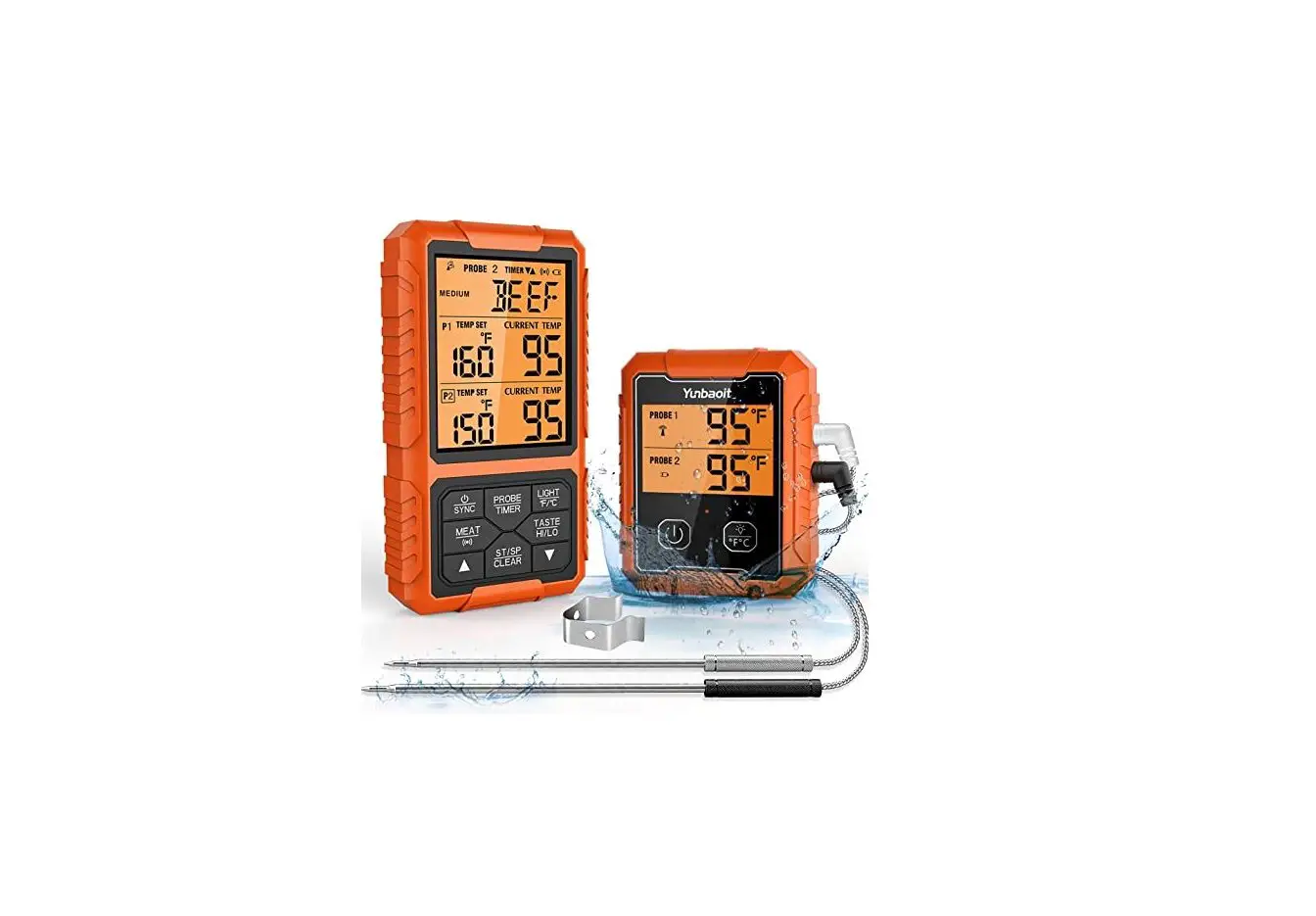
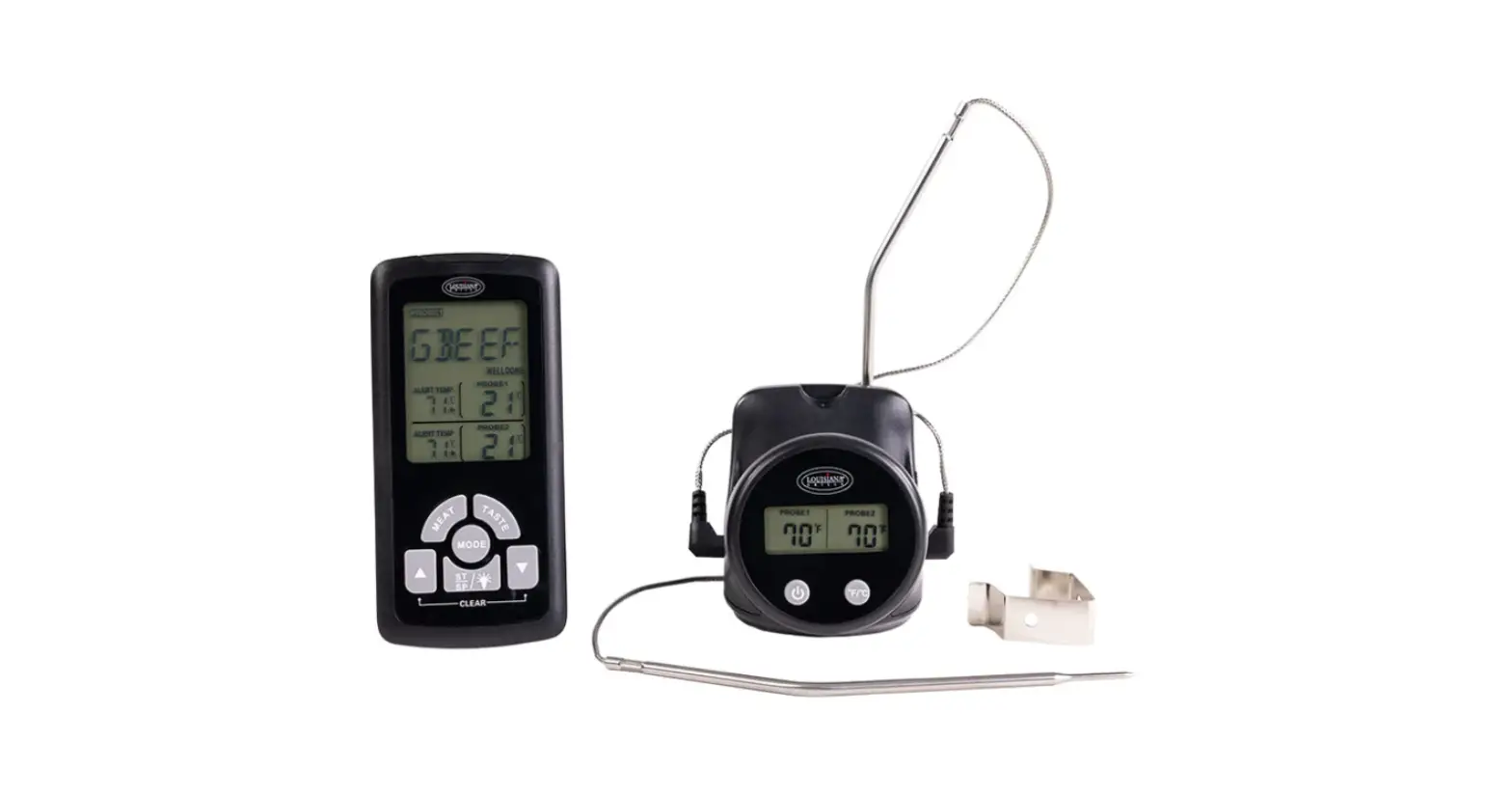
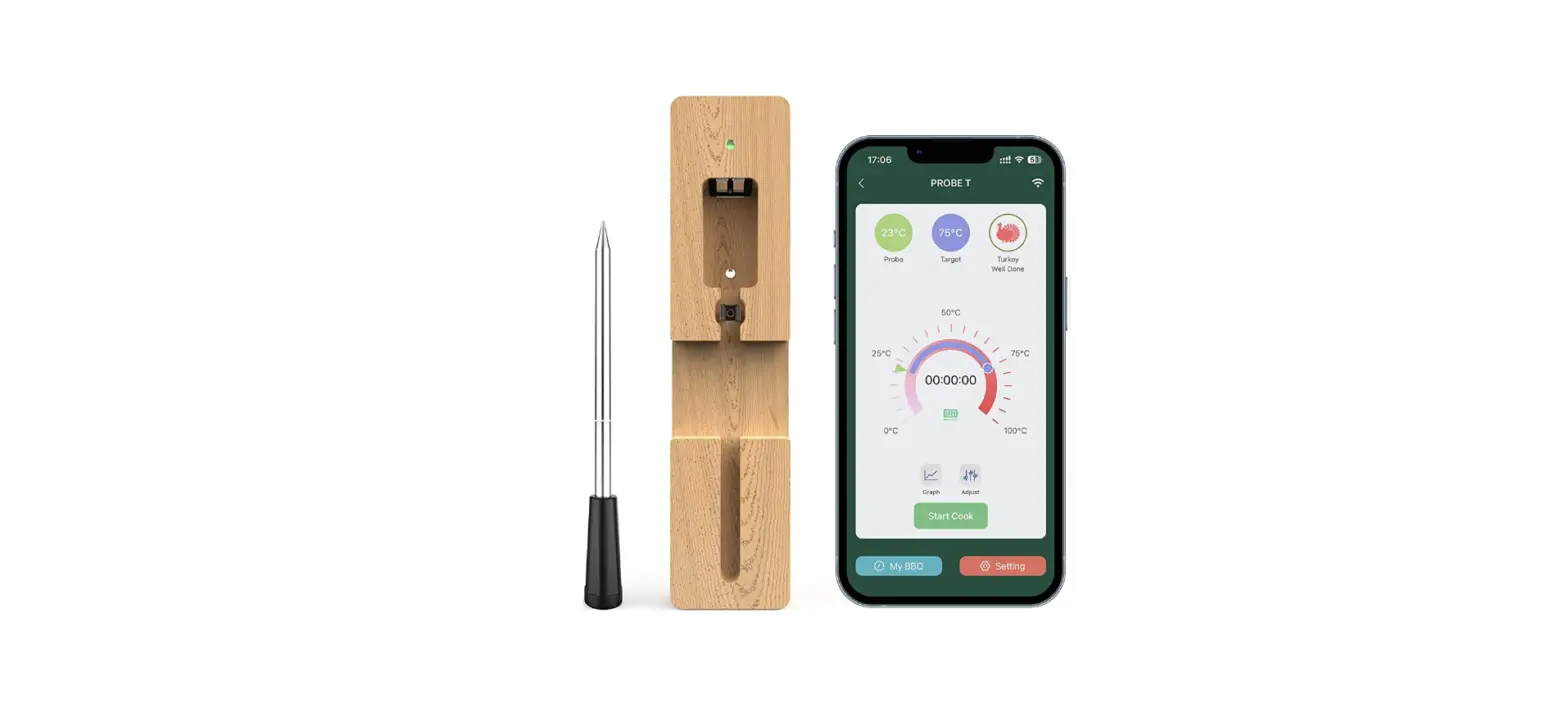
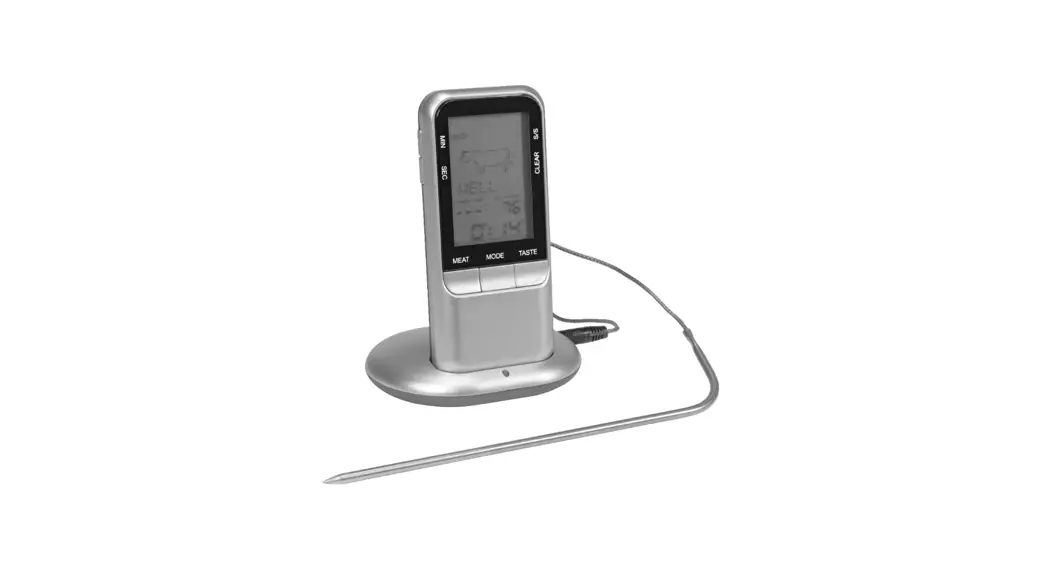
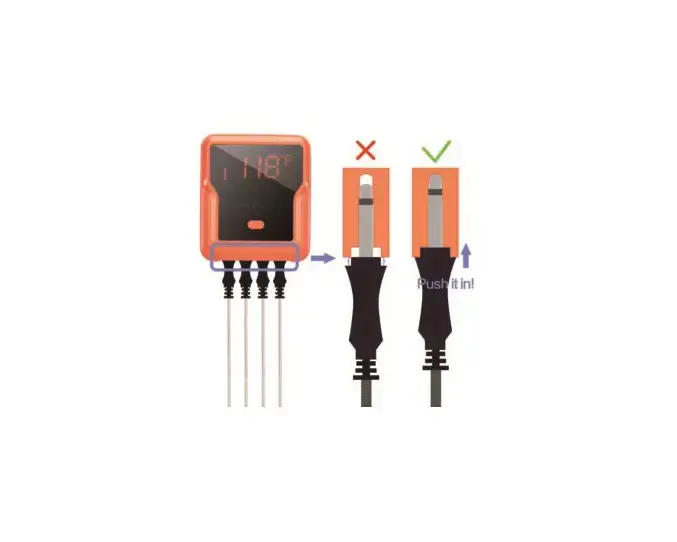
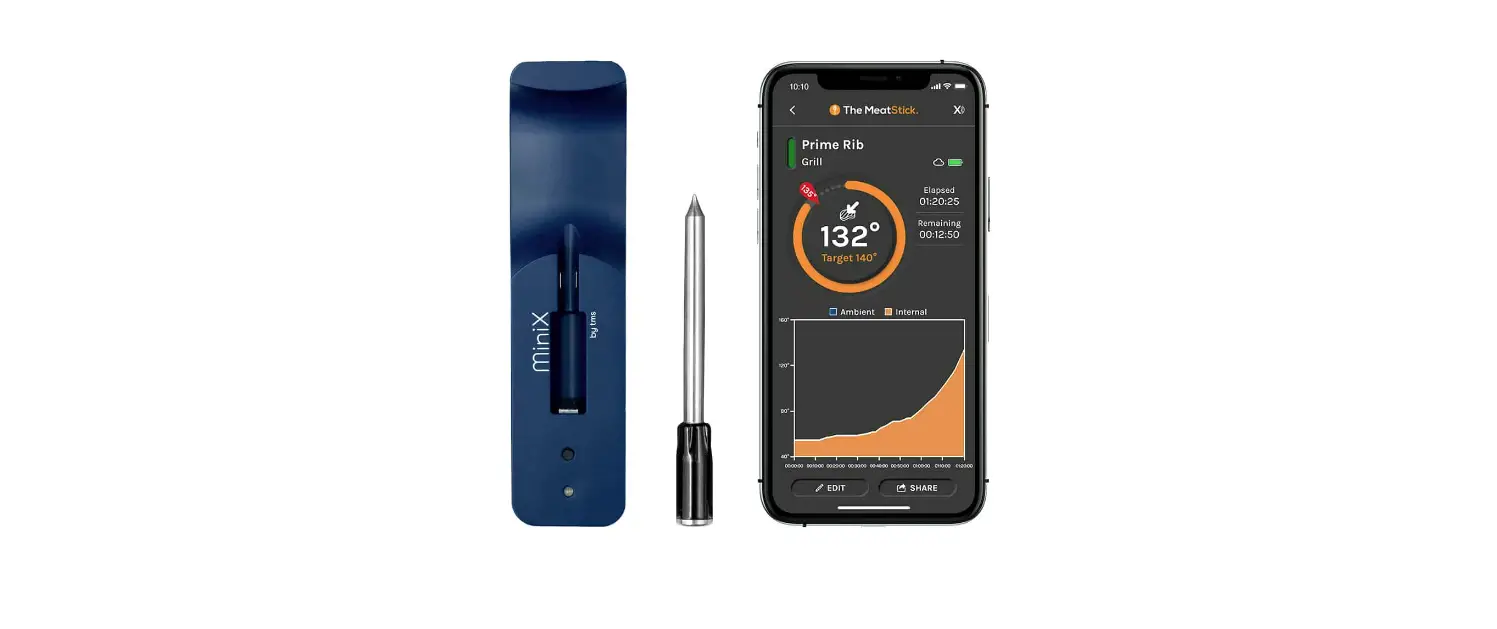
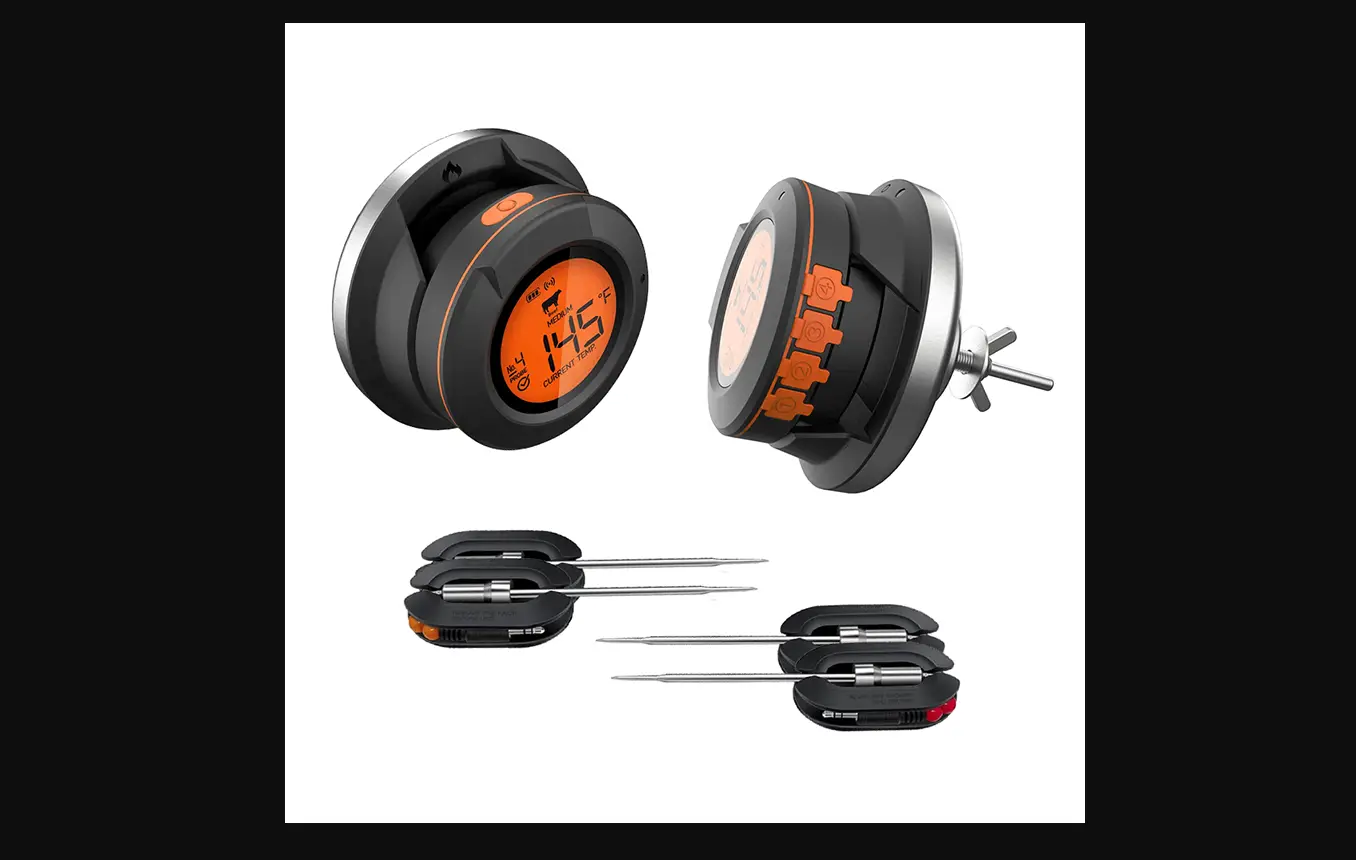
FS01 Wireless Meat and Barbecue Thermometer
Product Information:
The Wireless Meat and Barbecue Thermometer (Model: FS01) is a
smart device that allows you to monitor the temperature of your
meat and barbecue wirelessly. It comes with multiple probes, a
silicone handle, and a cord winder for easy handling and storage.
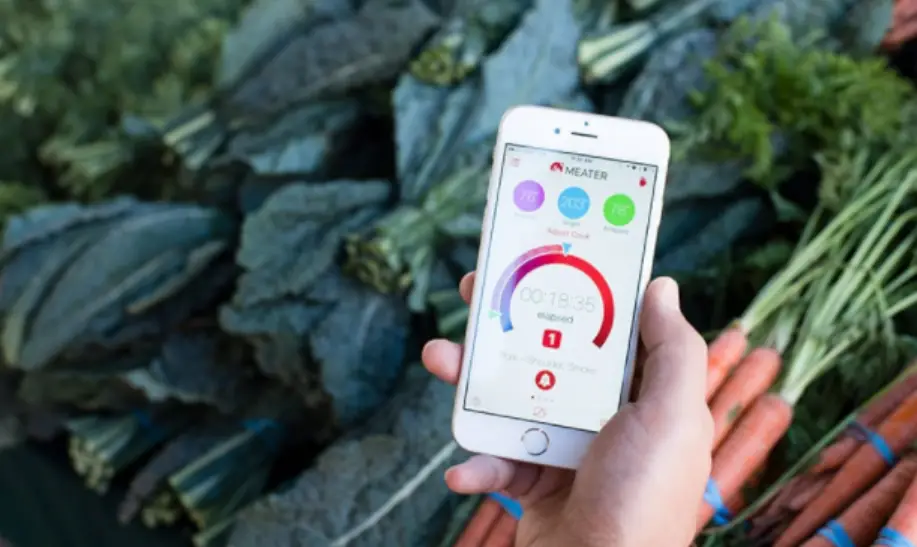
The thermometer can be connected to a mobile app called Yun Home,
which provides real-time temperature readings, notifications, and
control options.
Product Usage Instructions:
- Before using the thermometer for the first time, download the
Yun Home App from the App Store or Google Play Store. - Connect the thermometer to a power source using the Micro USB
port (DC IN 5V). - Press the Power / Pairing / Stop Alarm Button to turn on the
thermometer. - To pair the thermometer with your smart device, switch on
Bluetooth/WLAN/GPS on your device and launch the Yun Home app. - Your smart device will automatically recognize the thermometer
and display it in the “Devices to be added” dropdown. - Select the thermometer from the list and follow the on-screen
instructions to complete the pairing process. - Once paired, the thermometer will stay powered on indefinitely
if at least one probe is installed and if it is paired with a smart
device. - To turn off the thermometer, press the Power / Pairing / Stop
Alarm Button again. - If you want to disconnect the thermometer from your smart
device, go to the app’s “All Devices” section, tap the three dots
or hold the product name, and select “Remove Device”.
Wireless Meat and Barbecue Thermometer
user manual
FS01
Warning
This wireless meat and barbecue thermometer, is designed to measure and monitor the internal temperature of food being cooked, roasted, baked or barbecued. Any other use or modificaon of the thermometer will be deemed to be unintended, may damage the thermometer and may pose significant accident risks. This thermometer is exclusively designed for private use. It is not designed for use in commercial or industrial environments. The manufacturer cannot accept any liability for any damage resulng from unintended use, incorrect use or a failure to obey the instrucons in this operang manual. NEVER use the thermometer in a MICROWAVE. Route the cable for the temperature measuring probe away from the food and the heat source (max. 300). Keep the thermometer away from hot surfaces since they could, otherwise it may be irreparably damaged. The appliance is not to be used by children or persons with reduced physical, sensory or mental capabilies or lack of experience and knowledge, unless they have been given supervision or instrucon. Children should be supervised and instructed not to play with the appliance.
Product Overview
45 6
9
1
12
10
8
2
c
11
c
3
7
Before Using for the First Time
Download the Yun Home App Please visit the App Store or Google Play Store and search Yun Home to download the free Yun Home App.
Connect
1 DC IN 5V port (Micro USB) 2 Current temperature 3 Target temperature
4 Network noficaon
5 Probes noficaon
6 Remaining baery
7 Probe socket
8 Probe connector wire 9 Silicone handle
10 Cord winder
11 Probe
12 Power /Pairing / Stop Alarm Buon
Read and follow these instrucons carefully before using
Press it to turn on/off the thermometer.
it, and keep these instrucons.
Press and hold it for 3 seconds for pairing. Stop a sounding alarm.
EN-1
EN-2
Add Room
Registr/aonand Login
Open the Yun Home app and tap `Sign Up’ . In the User Agreement and Privacy Policy dialog box, carefully read the privacy policy and agreement and tap `NEXT’ to go to the account registraon page.
PowerON/OFF
Press the Power / Pairing / Stop Alarm Buon located at the front of the faceplate, the LCD display will show ON, indicang that SW WIFI BBQ has powered on.
123456
Follow the steps to complete registraon and login.
Press this buon again, the LCD display will show OFF, indicang that SW WIFI BBQ has powered off.
123456
Auto Shut-Off
The SW WIFI BBQ will stay powered on for five minutes before automacally turning off if it is not paired to a smart device. The SW WIFI BBQ will stay powered on indefinitely if at least one probe is installed and if it is paired with a smart device.
Pair with Your Smart Device
Switch on Bluetooth/WLAN/GPS (Locaon Services) of your smart device, launch the Yun Home app.
Your smart device will automacally recognize any available products and display them in the `Devices to be added’ dropdown.
Connected successfully.
Make sure your smart device meets the requirements: · iPhone(4S and later) · iPad(3rd generaon and later) · iPad mini (All generaons) · iPod touch(5th generaon and later) · Many Android devices equipped with
Bluetooth 4.2 and running Android soware version 4.3 or later
Turn on your SW WIFI BBQ nd follow instrucons to pair and acvate the device: Press and hold the Pairing / Stop Alarm Buon for more than 3
seconds, you will hear a beep sound.
Beep~
123456
Tap `Go to add’ and follow the steps.
Go to add
About Auto Scan In order to scan available devices connected in the same network automacally, you need to switch on the Bluetooth/WLAN/GPS (Locaon Services) all together on your smart device.
Requirements for Wi-Fi routers
Important: SW WIFI BBQ requires a 2.4 GHz Wi-Fi network to connect the device to your app. Most consumer Wi-Fi routers on the market today are `dual band’ which means they feature both a 2.4 GHz and 5.0 GHz network. The name of the network you’re using may not indicate whether it’s 2.4 GHz or 5.0 GHz. If you are having trouble geng your SW WIFI BBQ connected, please verify that you are trying to connect to a 2.4 GHz network.
EN-3
EN-4
EN-5
EN-6
EN-7
Once Connected Successfully Once paired the device with your smart device, your smart device will automacally recognize any available and previously connected products, and you don’t need to do it again unless you change to other smart devices.
Disconnecng If your SW WIFI BBQ is connected, it will be listed under `All Devices’ If you would like to disconnect your SW WIFI BBQ, you can tap the 3 dots at the right of the screen or tap and hold the product name (i.e. SW WIFI BBQ) to expose the `Remove Device’ opon. Tap `Remove Device’ .
Enjoy Your Barbecue Time
Probe Use Probes should always be inserted into the thickest, center part of the item being cooked for an accurate temperature reading. The Probes, also sold separately, should be clipped between two grates inside your grill, smoker or oven. Ensure the p of the probe does not touch the grates. Also, be sure to route the probe wire where it will not be exposed to flames or temperatures exceeding 572 (300), and avoid temperatures below -58(-50).
EN-8
SAFETY INSTRUCTIONS Wrap your cables around the cord winder when not in use. Prevent wire cable from knong. Never touch the cable or the measuring probe with your bare hands. Storage environment from -10 to 40, with relave humidity of 75%. Keep the measuring probe away from children. Do not clean the thermometer with abrasive or corrosive materials. High-temperature sterilizaon or alcohol sponges help to clean the probe. Do not beat or bend the probe, otherwise it may be irreparably damaged. Keep it away from other electronic devices.
Preset Alarms for Different Types of Meats The Yun Home App includes preset temperatures that allow you to select the desired temperature and doneness of your meat. Tap the product name (i.e. SW WIFI BBQ).
EN-9
This will bring you to the cook screen, Tap `Set up the probe’ , where you can choose the type of meat you are cooking.
Set up
Once the meat is selected, you can `Choose the degree of ripeness’ .
Enjoy your barbecue me now!
EN-10
Timer Tool The mer tool allows users to set up mers. An alert will appear when the mer runs out. Tap ‘ Time Alarm’ to create a new mer. Set your desired me length using the scroll wheels. Tap `Save’ to start the mer.
* NOTES Make sure the volume seng for your smart device is properly set and your device’s vibrate switch is not enabled. If your sounds are off or set at a low seng, you may not hear the alarm properly.
EN-11
Troubleshoong
Please check the following before requesng support services.
Problems
Nothing happens when pressing the `Power’ buon
There is no temperature display on the LCD display
Incorrect display
As no contact between the thermometer and the food, a beep tone is heard.
Soluons
Check if the baery is wearing out, and charge it in me.
Check if there is any loose between the plug and the thermometer.
Check the cord and probe, and make sure they are not damaged in any way. If damaged, do not use it.
Check the contact of the plug to the socket, wipe dry if necessary.
Check if there is any source of interference.
Restart the thermometer.
You must be running iOS 7+ or Android version 4.3 or later on your device to use the Yun Home App.
In order to scan available devices connected in the same network automacally, you need to switch on Bluetooth/WLAN/GPS all together on your smart device.
Pairing failed with Yun Home
Check your network connecon. Only support 2.4 GHz network, and the 5.8 GHz band Wi-Fi network is not supported so far.
Reduce the distance between the thermometer and the WiFi router.
Due to a meout, the pairing could not be completed. You’d beer to complete each pairing in 3 minutes, otherwise you need to restart the pairing.
If the progress bar shows 60% for a long me, please reset the thermometer, check your
network and restart the pairing.
EN-12
Specificaon
Model Wi-Fi Connecvity Bluetooth
Effecve working distance
Measurable temperature range Temperature Display Measuring probe material Baery
Charging Product Dimensions Weight
FS01 Single-band 2.4 GHz IEEE 802.11 b/g/n Bluetooth 4.2 About 10 meters, it depends on the distance between the thermometer and the WIFI router or the portable wifi hotspot on the another smartphone.
-58 ~ 572 (-50 ~ 300)
in or
Stainless steel (SS304)
2000mA
DC 5V 1A 90*98*34.5 mm 11.3 oz. (about 316 grams)
What’s In the Box
1
2
3
1 Wireless thermometer *1
2 Probes *2
3 User guide *1
Made in China
EN-13
EN-14