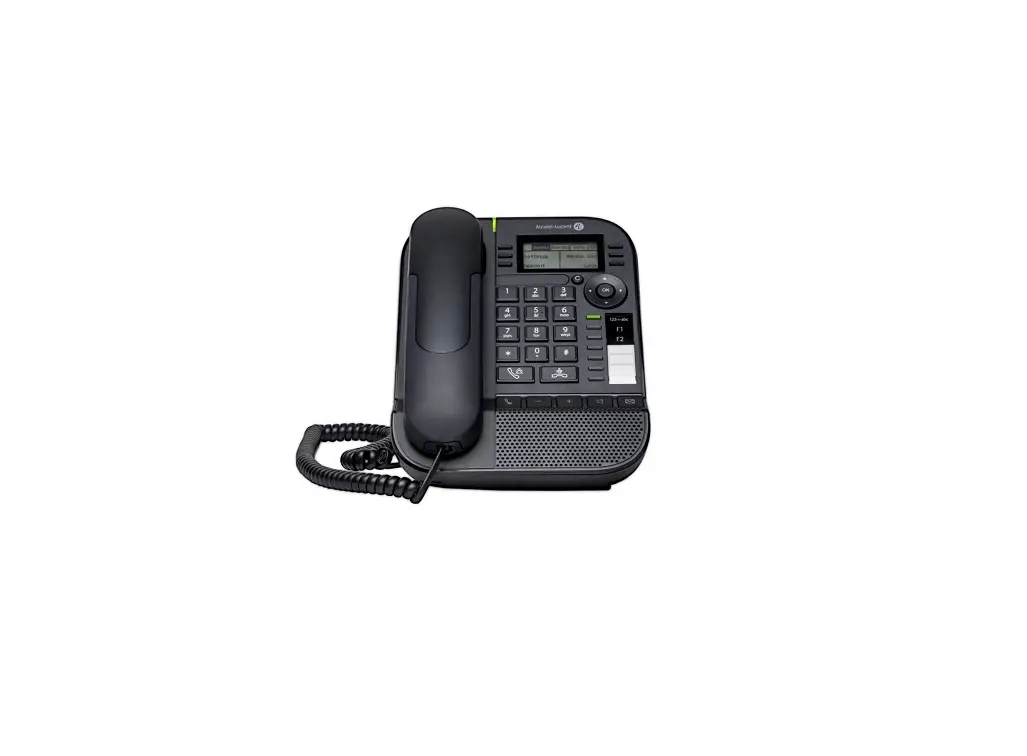
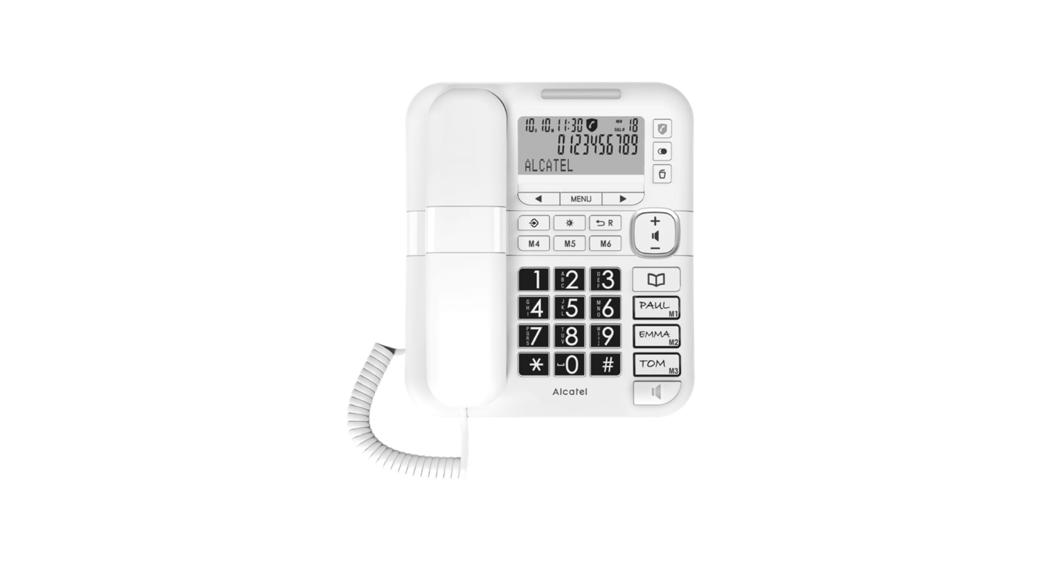
ALE-30h Essential DeskPhone
Product Information: Alcatel-Lucent Enterprise Desk Phones
The Alcatel-Lucent Enterprise (ALE) Essential DeskPhone range
offers a rich communication experience with Alcatel-Lucent
Enterprise solutions, thanks to a compact design and an intuitive
navigation. The range includes the ALE-30h Essential DeskPhone, the
ALE-20h Essential DeskPhone, and the ALE-20 Essential DeskPhone.
These models offer enhanced ergonomic features for more effective
communication and can be deployed in any business environment, from
on-premises PBX to cloud deployment on Alcatel-Lucent Enterprise
servers, at home or in the office.
The ALE-20h and ALE-30h are hybrid phones that offer digital and
IP mode on the same network interface via a single Digital or Fast
Ethernet port. They can migrate seamlessly from Digital to IP
network and are powered by Power Over Digital Line or Power Over
Ethernet or by connecting an external power supply sold separately.
The ALE-20 is an IP phone including 2 RJ-45 Gigabit Ethernet ports.
It can be powered by Power Over Ethernet or by connecting an
external power supply sold separately.
The labels and icons displayed depend on the model of your desk
phone. The label is not displayed if the corresponding feature is
not configured on your telephone system. Depending on the size of
the display, some labels may be truncated. All labels are displayed
in color and are italicized.
Product Usage Instructions
Install your desk phone
- Install the foot on your desk phone.
- Connect your comfort wired handset to the desk phone.
- Connect the device to your network using a Digital or Fast
Ethernet port or 2 RJ-45 Gigabit Ethernet ports, depending on your
model. - Power on the desk phone.
Using your telephone
To make a call:
- Identify the terminal you are on.
- Enter the number you wish to call using the alphanumeric
keyboard. - Press the green call button to initiate the call.
To receive a call:
- When your desk phone rings, press the green call button to
answer the call.
To ignore a call:
- When your desk phone rings, press the red ignore button to
decline the call.
To switch between audio modes:
- During a call, press the speakerphone button to switch to
speakerphone mode. - Press the speakerphone button again to switch back to handset
mode.
User Manual
OPENTOUCH® SUITE FOR MLE
ALE-30h Essential DeskPhone ALE-20h Essential DeskPhone ALE-20 Essential DeskPhone User Manual
8AL91433ENAAed01 w2137
1 /72
User Manual
Introduction
Thank you for choosing an Alcatel-Lucent Enterprise desk phone.
This document describes the services offered by the following desk phones in connection with an OmniPCX Enterprise system.
· ALE-30h Essential DeskPhone (ALE-30h). · ALE-20h Essential DeskPhone (ALE-20h). · ALE-20 Essential DeskPhone (ALE-20).
These desk phones are part of the Essential DeskPhone range.
The Essential DeskPhone range provides a rich communication experience with Alcatel-Lucent Enterprise (ALE) solutions, thanks to a compact design and an intuitive navigation. These models offer enhanced ergonomic features for more effective communication.
Enjoy wideband audio quality in IP mode from the handset or speakerphone (narrow band in Digital mode). This technology allows outstanding communication quality. Programmable keys and intuitive navigation simplify the user experience.
These phones can be deployed in any business environment, from on-premises PBX, to cloud deployment on Alcatel-Lucent Enterprise servers, at home or in the office.
The ALE-20h and ALE-30h are hybrid phones. They offer digital and IP mode on the same network interface via a single Digital or Fast Ethernet port, and allow you to leverage your existing infrastructure. Hybrid Phone can migrate seamlessly from Digital to IP network thus protecting your investment in ALE Deskphone. They can be powered by Power Over Digital Line or Power Over Ethernet or by connecting an external power supply sold separately.
The ALE-20 is an IP phone including 2 RJ-45 Gigabit Ethernet ports. It can be powered by Power Over Ethernet or by connecting an external power supply sold separately.
The labels and icons displayed depend on the model of your desk phone. The label is not displayed if the corresponding feature is not configured on your telephone system. Depending on the size of the display, some labels may be truncated. All labels are displayed in color and are italicized. This icon describes a succession of actions or labels you have to do or select: . This icon describes the consequence of an action: .
8AL91433ENAAed01
2 /72
User Manual
1
1.1 1.1.1 1.2 1.2.1 1.3 1.4 1.4.1 1.4.2 1.4.3 1.4.4 1.5 1.6 1.6.1 1.6.2 1.7 1.8 1.9 1.10
2
2.1 2.2 2.2.1 2.2.2 2.3 2.4 2.5 2.6 2.7 2.8 2.9 2.10 2.11 2.12 2.13 2.13.1 2.14 2.15 2.15.1 2.15.2 2.16 2.17 2.18 2.19 2.20 2.20.1 2.21 2.21.1 2.21.2 2.22 2.23 2.24 2.25
Getting to know your telephone
7
ALE-30h Essential DeskPhone
7
Phone description
7
ALE-20h Essential DeskPhone / ALE-20 Essential DeskPhone
8
Phone description
8
Unboxing
9
Install your desk phone
9
Install the foot
9
Install a comfort wired handset
10
Connect the device
10
First start-up
10
Description of the connectors
11
Main screens and navigation keys
12
Welcome screens
12
Call management screen
14
User local menu
15
Status icons / Call icons
16
Permanent features keys
17
Alphanumeric keyboard
18
Using your telephone
19
Identify the terminal you are on
19
Messaging portal
19
Accessing the messaging portal
19
Consulting the call log
19
Making a call
20
Receiving a call
20
Ignore the call
21
Switching between audio modes
21
Activating the loudspeaker during a conversation (handset lifted) – Group listening feature 22
Making calls by name (company directory)
22
Make calls via your programmed call keys (Perso page/F1 and F2 keys/Add-on module) 23
Redialing
23
Callback requests
23
Call back an unanswered call
23
Requesting automatic callback if internal number is busy
24
Cancelling an automatic callback
24
Receiving interphony calls
25
Mute, so that your contact cannot hear you
25
From the set
25
From the headset
25
Sending DTMF signals
25
Forwarding calls to your voice message service
26
Consulting your voice mailbox
26
Sending a text message to an internal contact
26
Consulting text messages
27
Lock / unlock your telephone
28
Placing a call on hold (hold)
28
Exclusive hold
28
Common hold
29
Call parking
29
Making a second call during a conversation
29
Answering a second call during a conversation
30
Switching between calls (Broker call)
30
8AL91433ENAAed01
3 /72
Obsah je uzamcen
Dokoncete, prosím, proces objednávky. Následn budete mít pístup k celému dokumentu.
Proc je dokument uzamcen? Nahnvat Vás rozhodn nechceme. Jsou k tomu dva hlavní dvody: 1) Vytvoit a udrzovat obsáhlou databázi návod stojí nejen spoustu úsilí a casu, ale i financní prostedky.
Dlali byste to Vy zadarmo? Ne*. Zakoupením této sluzby obdrzíte úplný návod a podpoíte provoz a rozvoj nasich stránek. Teba se Vám to bude jest nkdy hodit. *) Mozná zpocátku ano. Ale vzte, ze dotovat to dlouhodob nelze. A rozhodn na tom nezbohatneme. 2) Pak jsou tady ,,roboti”, kteí se pizivují na nasí práci a ,,vysávají” výsledky naseho úsilí pro svj prospch. Tímto krokem se jim to snazíme pekazit. A pokud nemáte zájem, respektujeme to. Urgujte svého prodejce. A kdyz neuspjete, rádi Vás uvidíme!