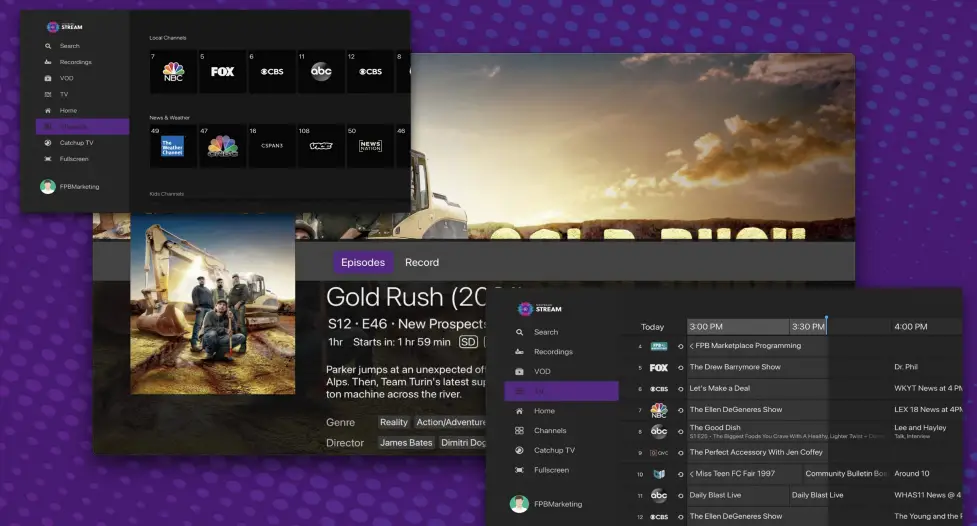

FPB Nextband Stream New Fiber Optic Internet Service
Welcome to FPB’s NEXTBAND Stream!
NEXTBAND Stream enables you to view Live TV, recordings and on-demand movies and shows on your smartphone, tablet, or streaming device.
Getting Star4ted
Log in using your my FPB information.
NEXTBAND Stream Home Screen
The NEXTBAND Stream Home screen displays the Content Area and the Navigation Panel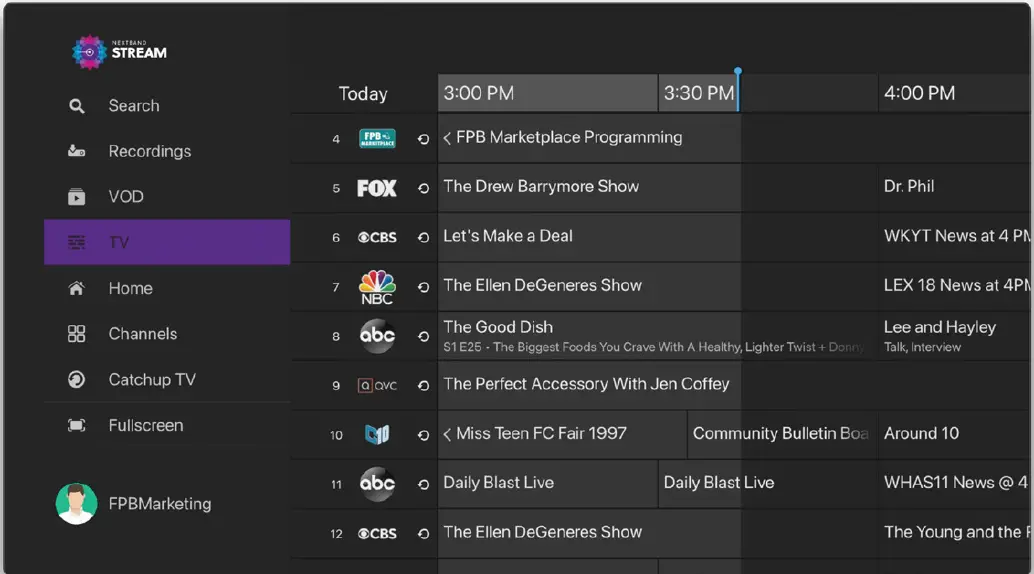 NEXTBAND Stream Home Screen Content Area
The Content Area of the NEXTBAND Stream Home screen displays “stripes” of categories with information and posters of the available programs, movies or series (if there is nothing available in a category, the stripe will not be displayed).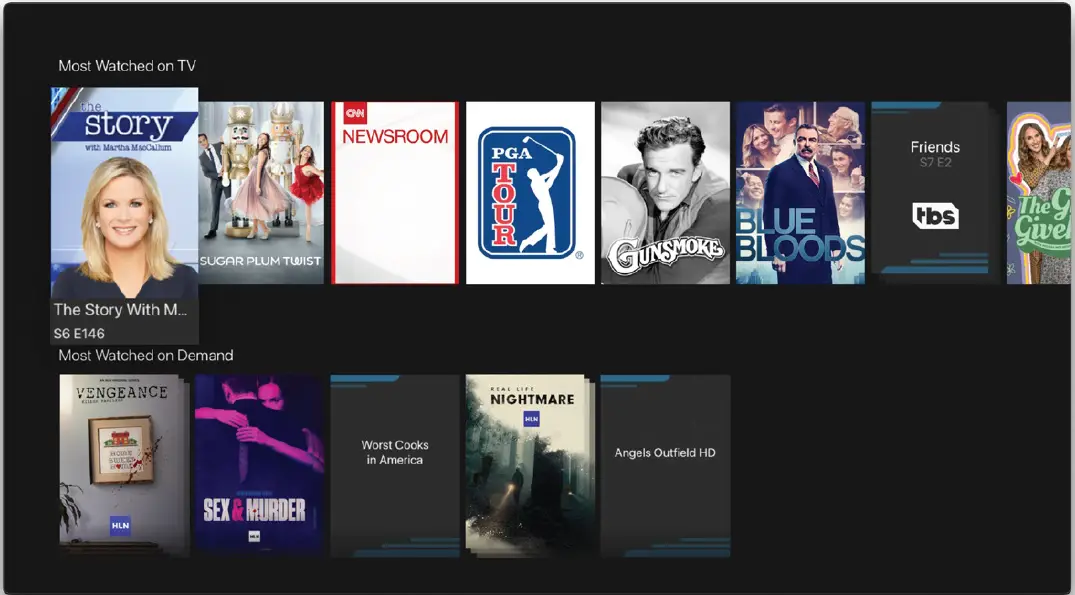 NEXTBAND Stream Home Screen displaying the Content Area
You can access the NEXTBAND Stream Home screen from anywhere/anytime by pressing the HOME key on the remote. The Navigation Panel will be displayed in the left-hand side of the screen and the Home screen will be automatically selected.
NEXTBAND Stream Stripes categories include:
| Stripe Title | Description |
| Live TV | Open the TV Grid. |
| Catch-Up TV | It returns a list of programs recently recorded as a Catch-Up TV playback for a single channel. The content is displayed from current time back through all recorded shows on that channel: the first poster is of the currently playing program on that channel, the second poster is of the most recently recorded program, the third poster is of recorded program before, and so on. Programs which have been expired or programs for which you are not entitled to, are subject to parental control restrictions and they are not displayed. |
| On Demand Catalog | Rent a movie to watch instantly on your TV. |
| Recordings | View and manage your recorded programs. |
| Continue Watching | Browse and continue watching on-demand movies and shows that you have begun watching but have not completed. |
| Favorites | Browse your favorite live programs, on-demand movies and series, and channel lists. |
| Settings | Set your preferences for the language of the application, parental control, accessibility, create sub-accounts, and manage your user profiles. |
| Apps | Access external applications such as Netflix, YouTube, etc. Upon launching the application, the current playback is stopped. |
The NEXTBAND Stream Navigation Panel is a quick and easy way to access many of the NEXTBAND Stream features.
To display the NEXTBAND Stream Navigation Panel, press the HOME key on your remote control (the Content Are and it’s stripes become inactive when the Navigation Panel is displayed). Use the navigation feature on your remote control to choose a menu option.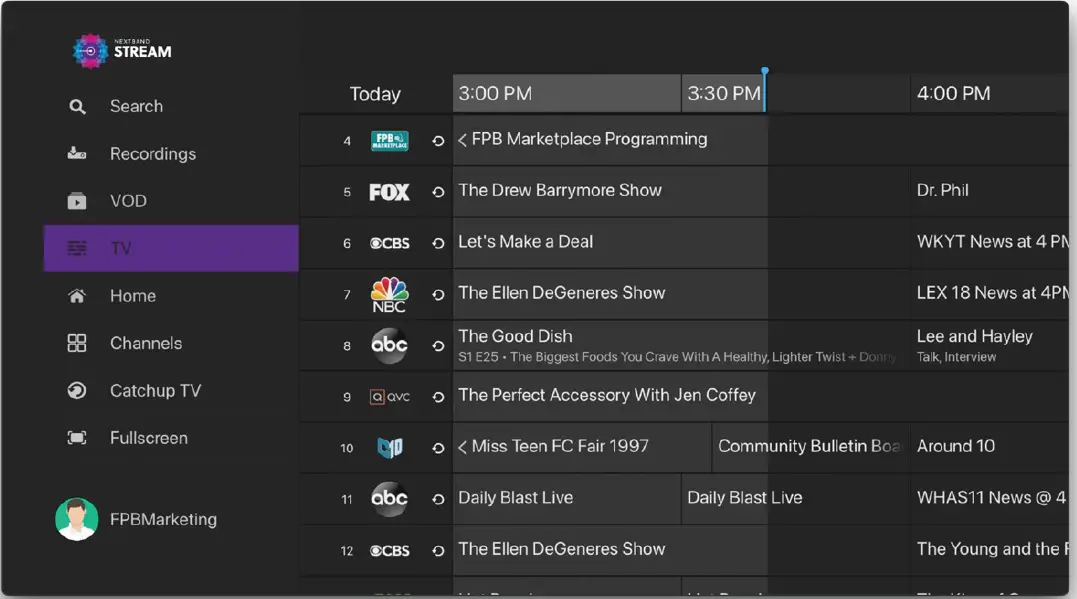 NEXTBAND Stream Home Screen displaying the Navigation Panel
Close the NEXTBAND Stream Navigation Panel by pressing the BACK button, or the HOME remote control key (or by pressing MENU on some remote controls).
NEXTBAND Stream Electronic Programming Guide
Use the NEXTBAND Stream Electronic Programming Guide (EPG) to find and watch TV programs and to view program details.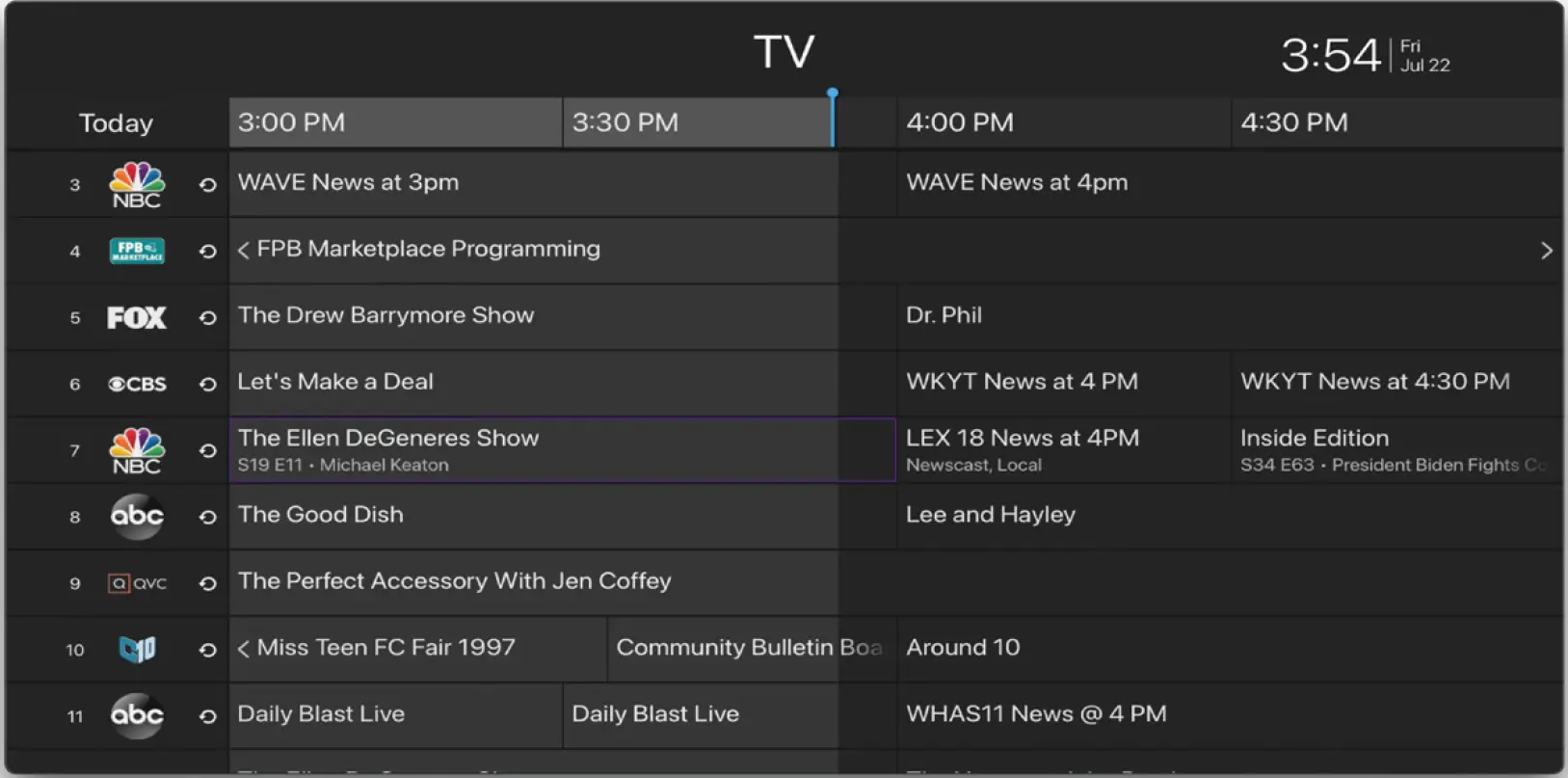 NEXTBAND Stream EPG
You can access the EPG by:
- Selecting the Live TV Recommendations stripe heading.
- Selecting the TV option from the Navigation Panel.
Watch a Program
To watch a program from the NEXTBAND Stream EPG:
- In the NEXTBAND Stream EPG, use the navigation feature on your remote to highlight a program.
- Press OK/SELECT. The program starts playing.
Playback Controls
- To pause/resume the currently playing video use the on-screen PAUSE/PLAY button, (or by pressing the PAUSE/PLAY key on some remote controls).
- To stop the currently playing video on-screen STOP button, (or by pressing the STOP or the BACK key on some remote controls.

NEXTBAND Stream Home Screen displaying the Content Area
Viewing a Program’s Details Screen
The NEXTBAND Stream Details Screen displays a program’s Title, Description, Genre, and more.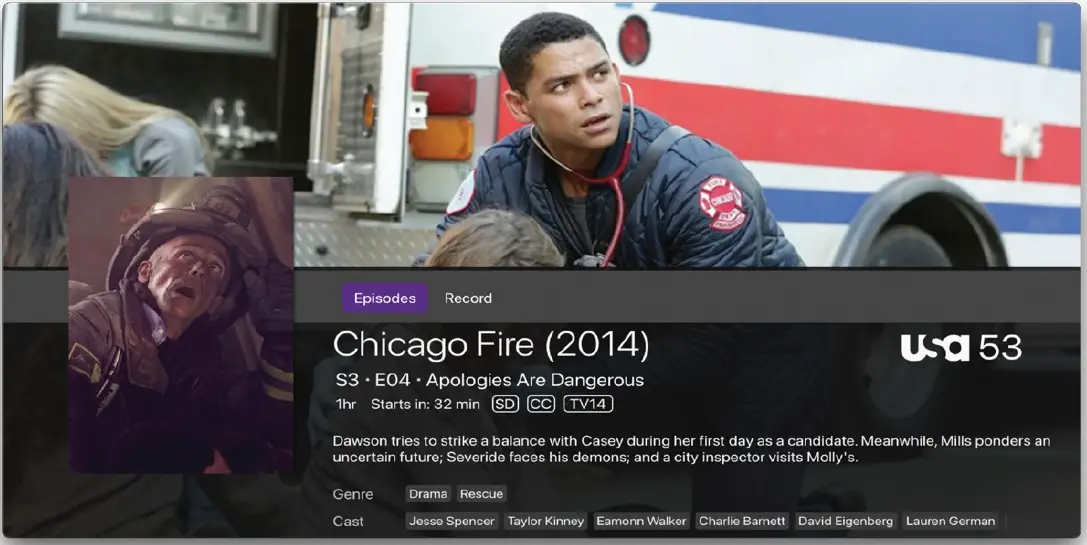 To view a program’s Details screen:
- In the EPG screen, use the remote to navigate to and highlight a program.
- Press the OK/SELECT key on your remote (or by pressing the INFO key on some remote controls).
Tip:
Click the buttons in the Action Bar (at the top of the description panel) to perform those actions.
Recording a Program
You can easily record a program you are currently watching, or schedule a recording for a future program. (Note: for various reasons, some programming may not be available for recording.)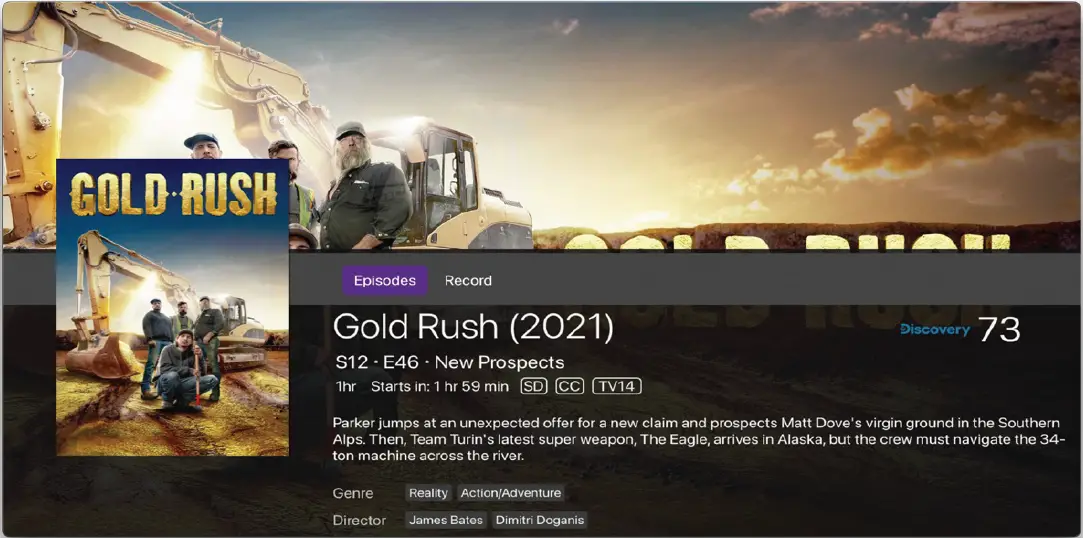 NEXTBAND Stream Recording Screen
Record What’s Currently Showing
To record a currently playing Live TV program, select the on-screen RECORD button (or press the RECORD key on some remotes) to start the recording.
Schedule a Future Recording
To schedule the recording of a future program:
- Use the remote control navigate to and select a program.
- Select the RECORD option to schedule a recording.
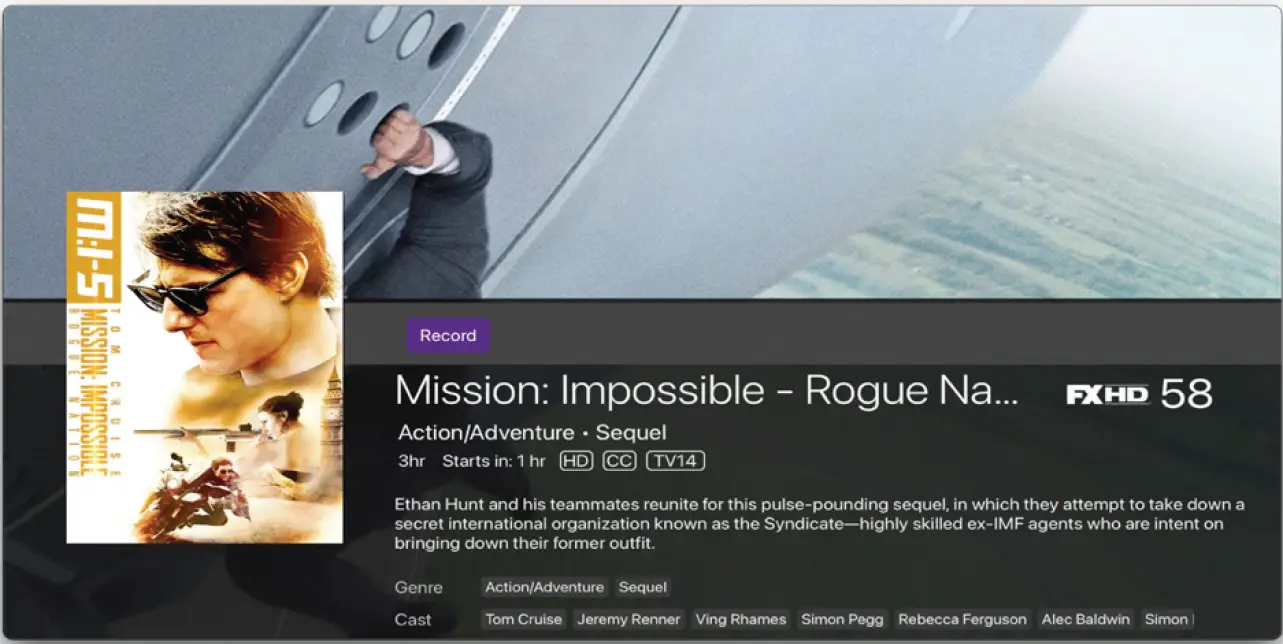
NEXTBAND Stream Future Recording Screen
Browse Recordings
The NEXTBAND Stream Recordings stripe on the Home page shows on-going and completed recordings recorded on the DVR.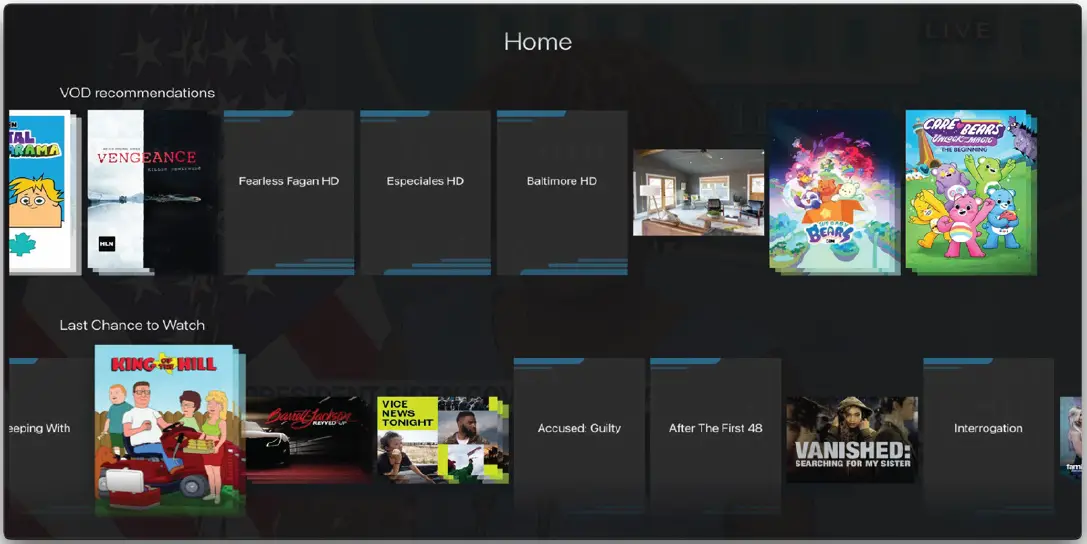 NEXTBAND Stream Recordings Screen
Playing a Recording
To play a recording:
- In the NEXTBAND Stream Recordings Stripe, select a recording to watch and press OK. The NEXTBAND Stream Details screen of the recording is displayed.
- In the NEXTBAND Stream Details screen
- For the recording, select the PLAY button
- In the Action Bar (the topmost horizontal bar) and press OK to play the recording.
Searching
You can search through all available movies, series, and Live TV programs by accessing the Search option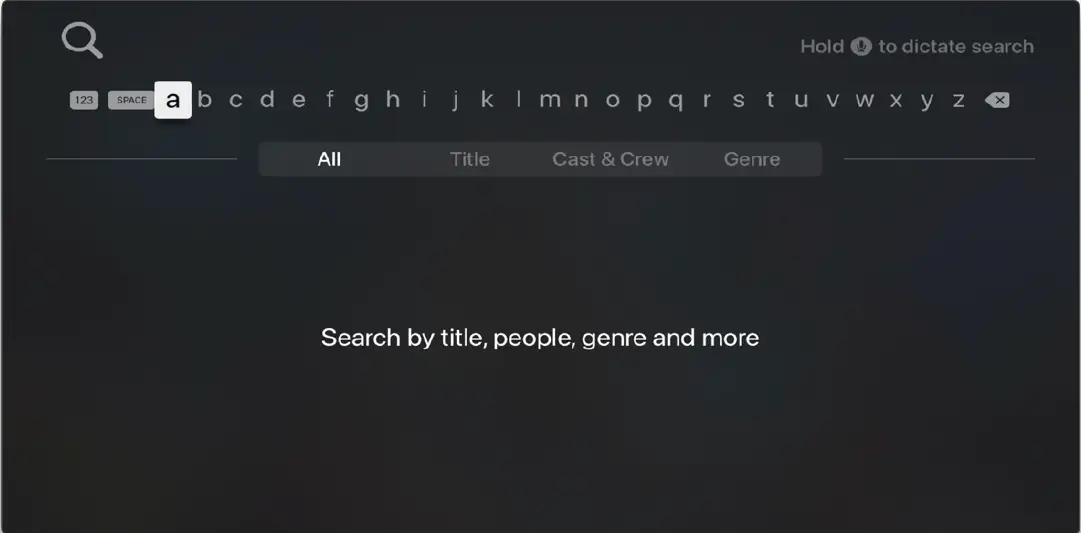 NEXTBAND Stream Search Screen
To search for programs:
Navigate to the NEXTBAND Stream Home Screen Navigation Panel and choose the “search” option. Enter the search text, using the on-screen keyboard and press OK.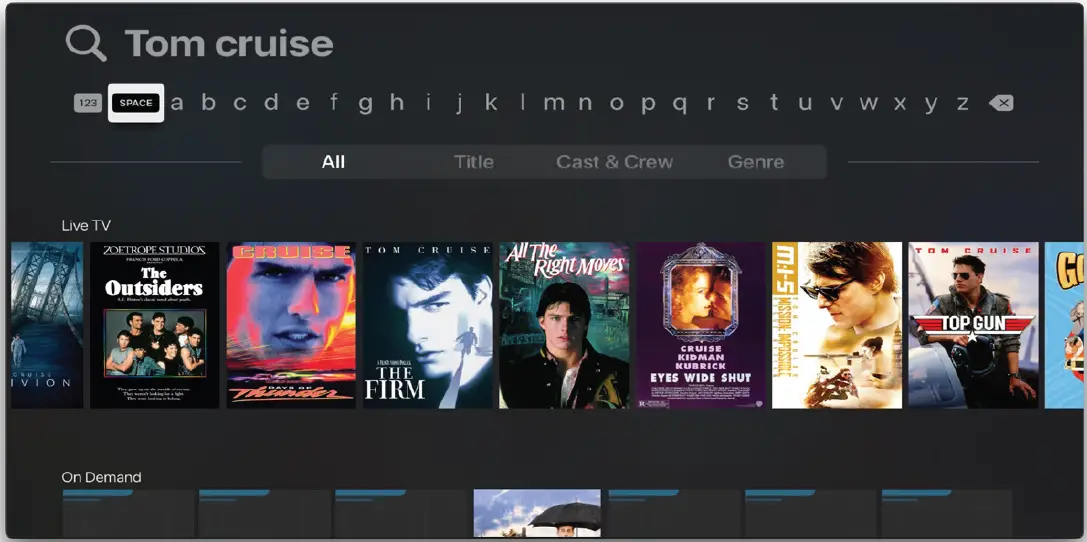 NEXTBAND Stream Search Results Screen
NEXTBAND Stream Parental Controls
NEXTBAND Stream Parental Controls allow you to restrict who can view TV programs, on-demand movies, and recordings considered inappropriate for viewing. When parental control is locked, the video will be unplayable and marked as restricted in the TV Grid, the quarter screen, and the full screen.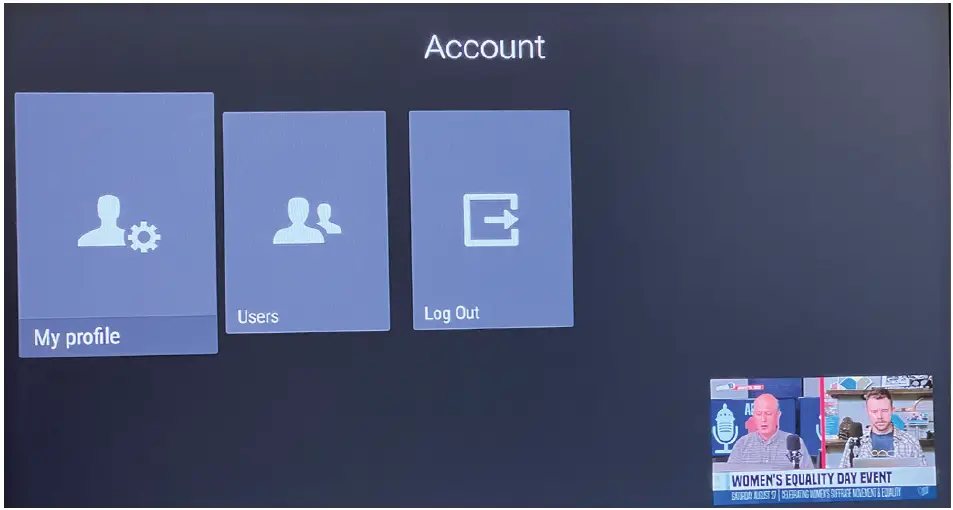
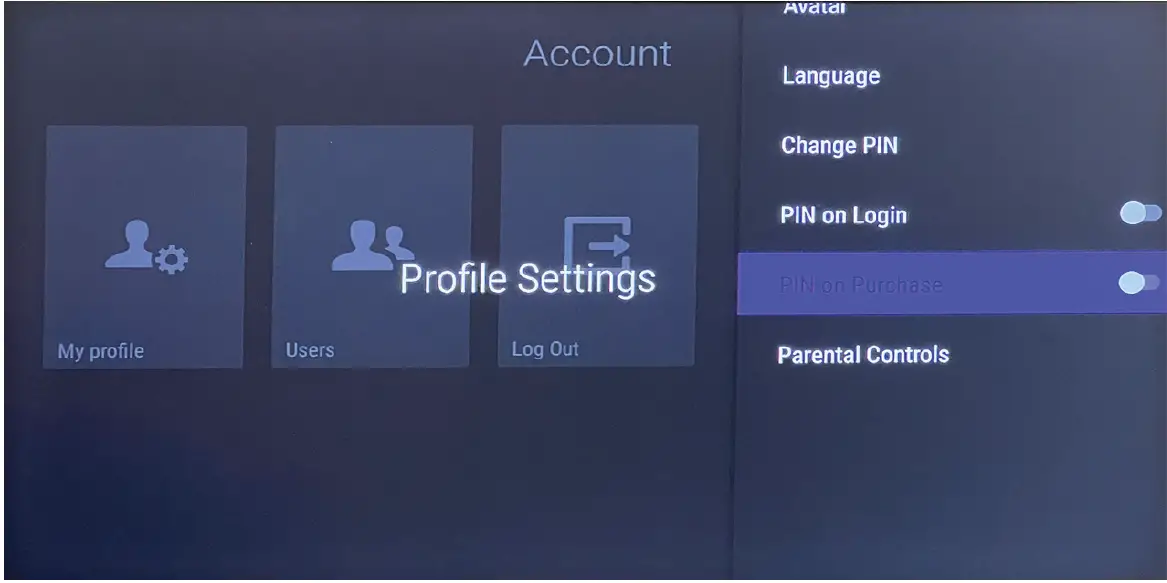 NEXTBAND Stream Parental Control Screen
To enable NEXTBAND Stream Parental Controls:
- Navigate to the NEXTBAND Stream Home Screen Navigation Panel.
- Select your username at the bottom of the navigation panel.
- Select “My Profile”.
- Scroll down and select “Parental Controls”.
- Press OK to eneable parental controls.
- Adjust settings as desired.
Troubleshooting
General Tips
- Restart your device.
- If you’re on WI-FI, make sure you are connected to the correct network.
- Try using an Ethernet cable
No Video, Out of Sync, Pixelation and other Video-Related Issues
- Restart your device.
- Turn your TV off and back on.
- Check to make sure your video input cable is securely connected between your device and television.
- Check to make sure you are on the correct input.
- Try another input.
No Audio, Out of Sync, Garbled Sounds and other Audio-Related Issues
- Check the volume level and mute options on your television.
- Check to make sure your HDMI cable or audio cable is securely connected between your device and television.
- Try another input.
Still Have Issues?
Contact customer support at 352-4372.
Apple TV Remote
| Name | Function |
| Touch Surface | Navigation, Playback Control, Select.
|
| MENU | Goes back one screen. |
| HOME | Returns to the Home screen of Apple TV |
| Voice Control | Launches the voice controls for Search and Playback (Pause, Skip, Forward, Backward). |
| Volume Up/Down | Controls the volume of TV. |
| Play/Pause | Plays or pauses content. |
Fire TV Remote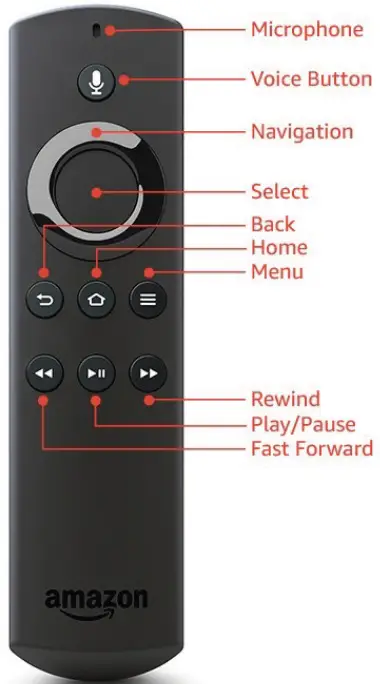
| Name | Function |
| Microphone | Used for voice commands. |
| Voice Button | Toggles voice command on and off. |
| Navigation | Navigates within the on-screen guide/menus. |
| Back | Goes back one screen. |
| Home | Goes to Home screen. |
| Menu | Displays the menu. |
| Rewind Play/Pause Fast Forward | Rewind: Rewinds video Play: Plays video or resumes a paused program Pause: Pauses video Fast Forward: Fast forwards video |