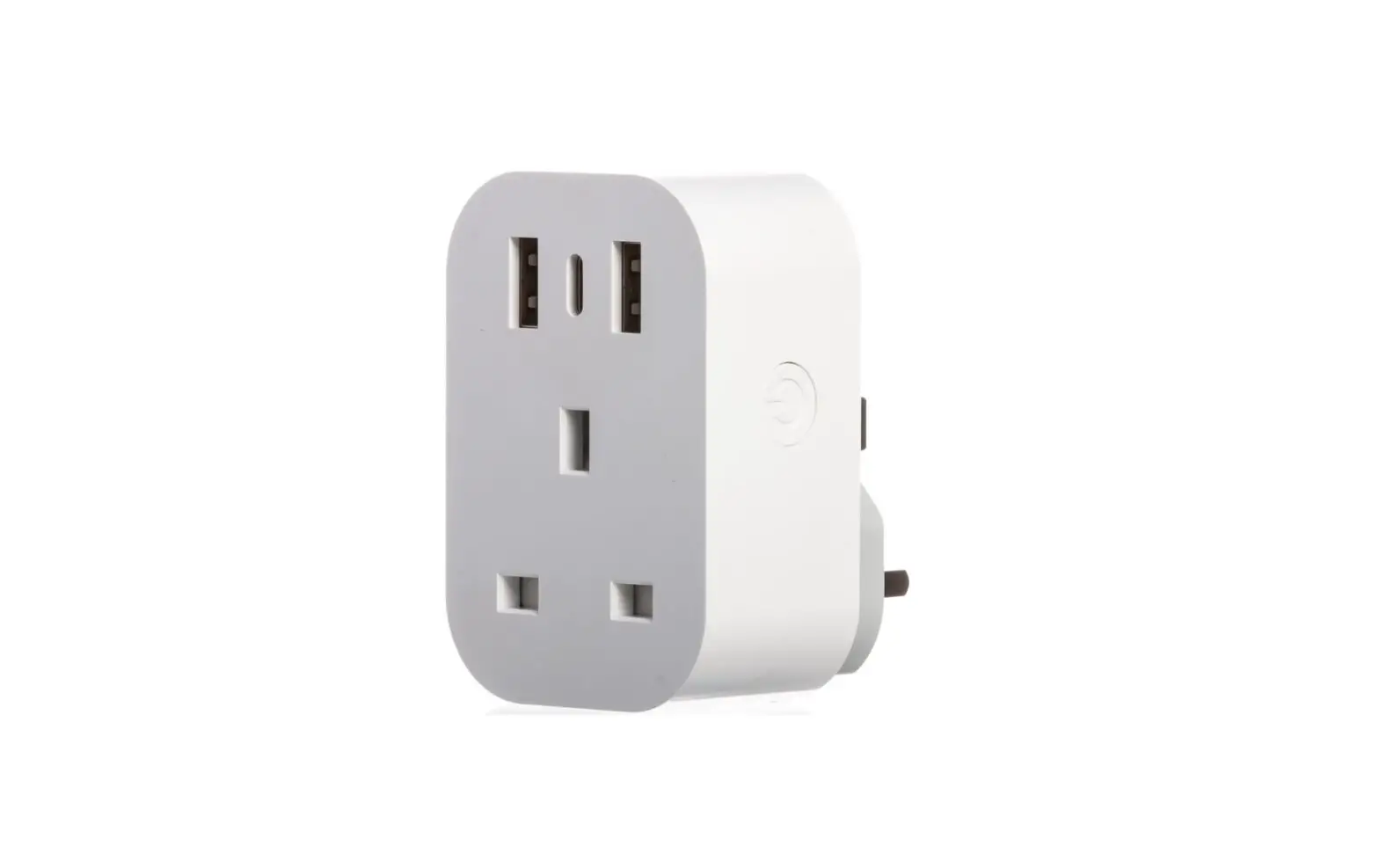
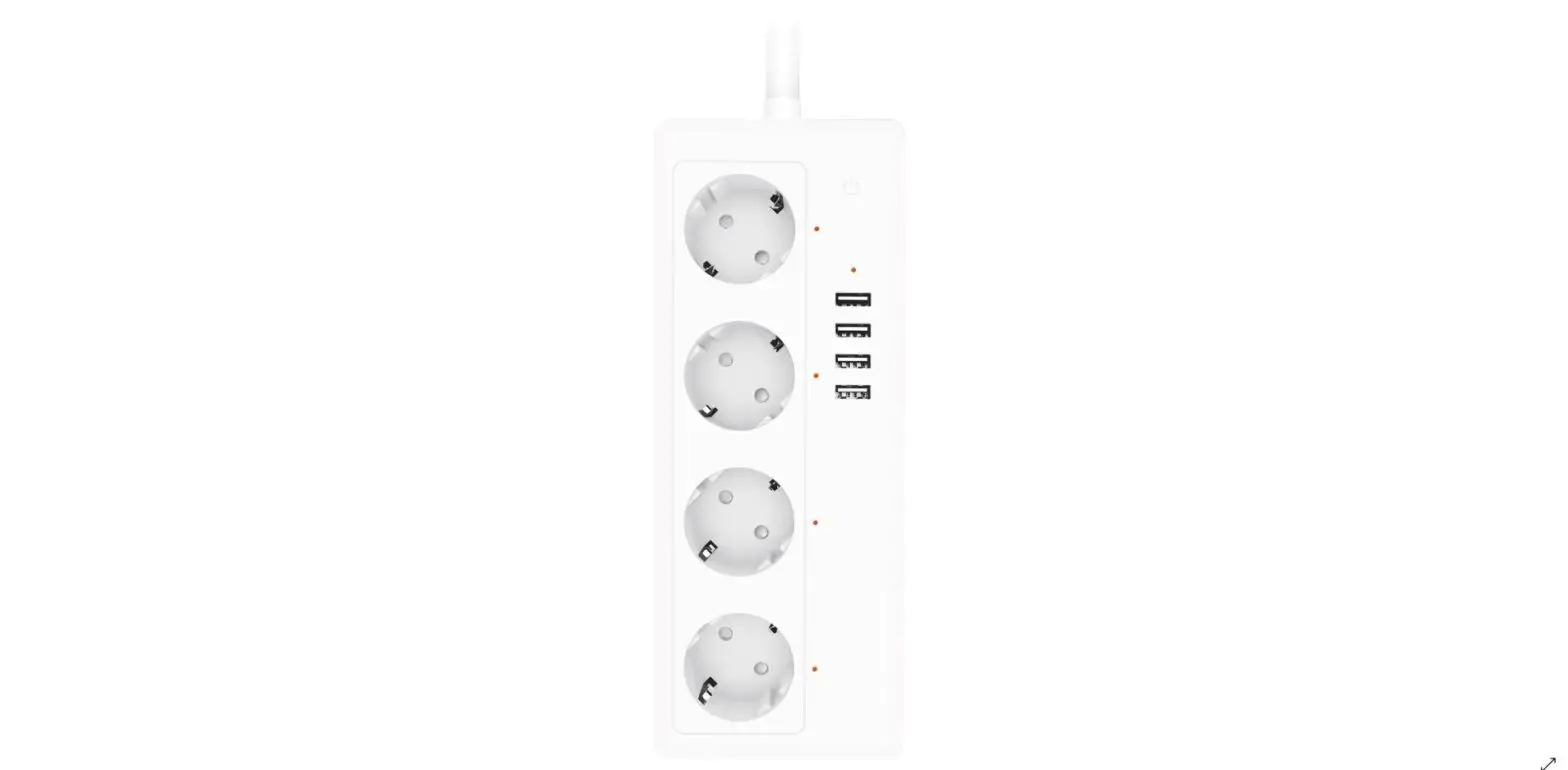
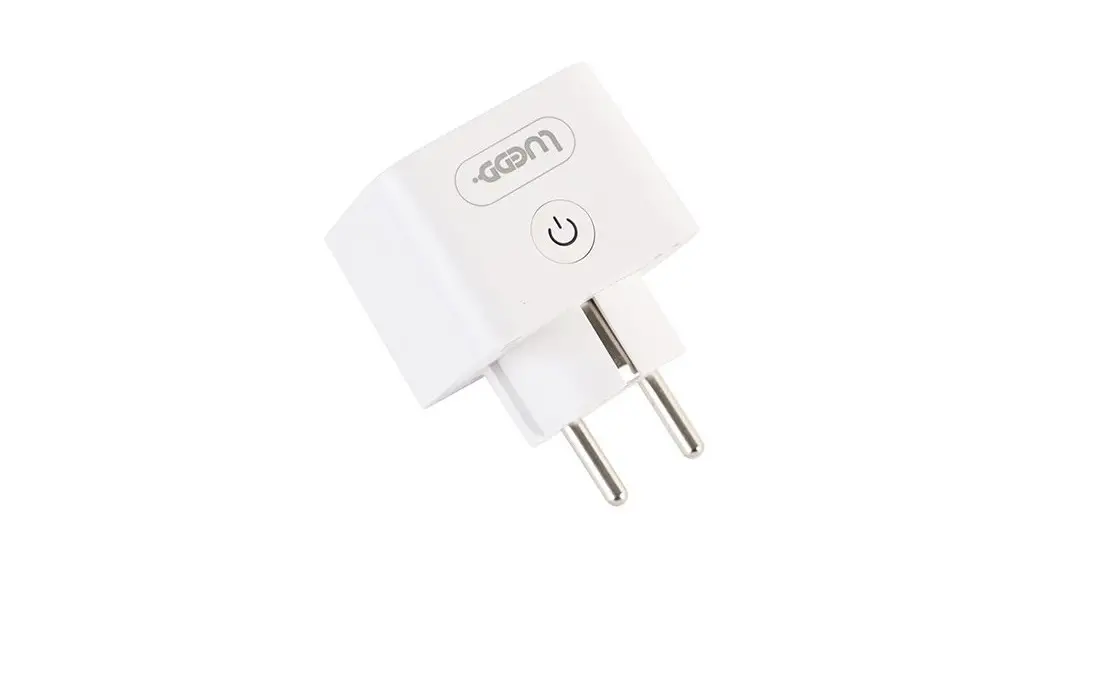
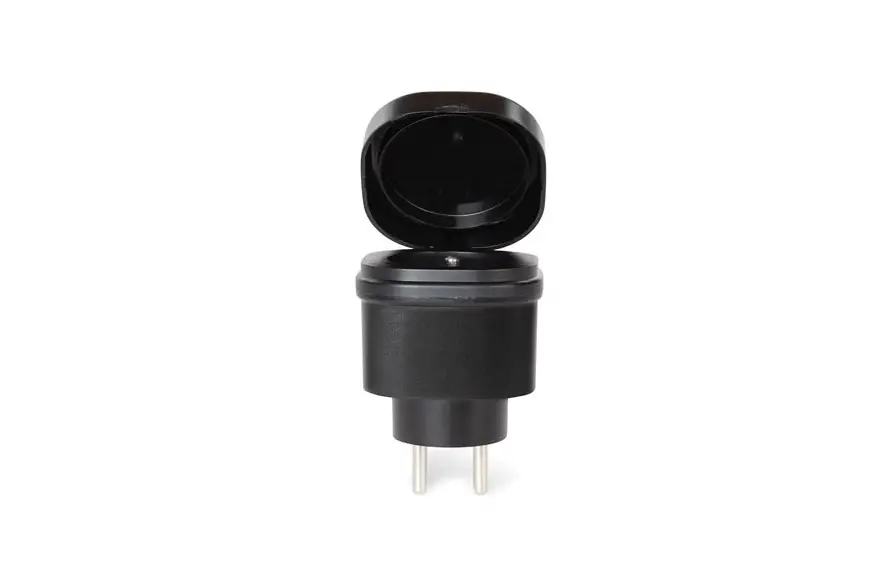
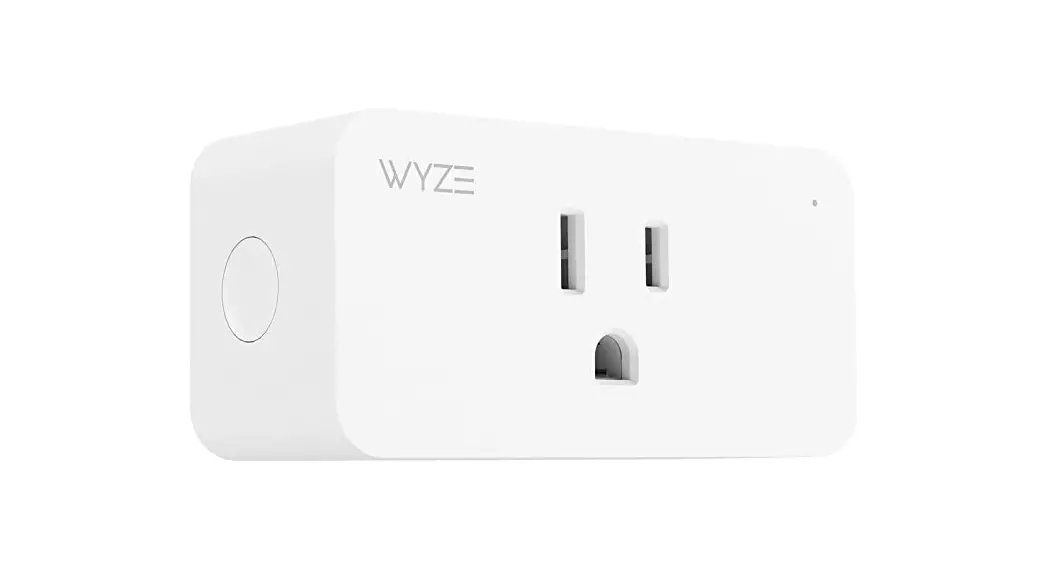
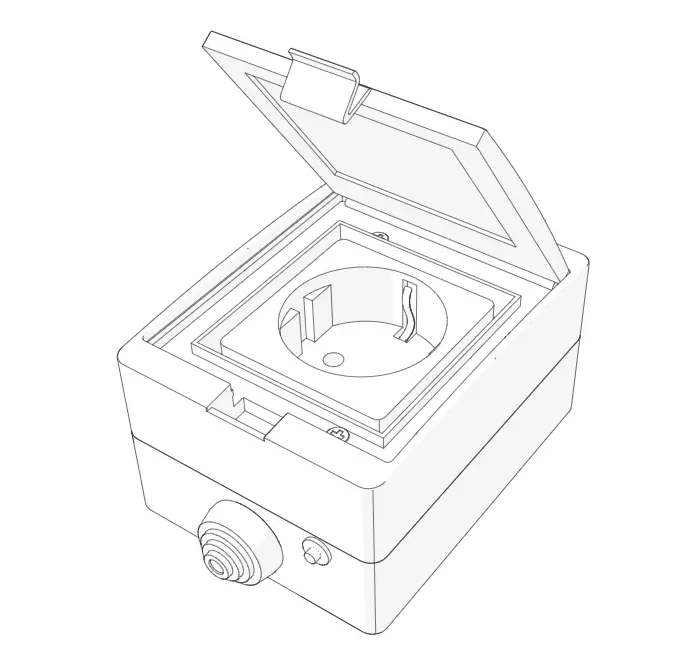
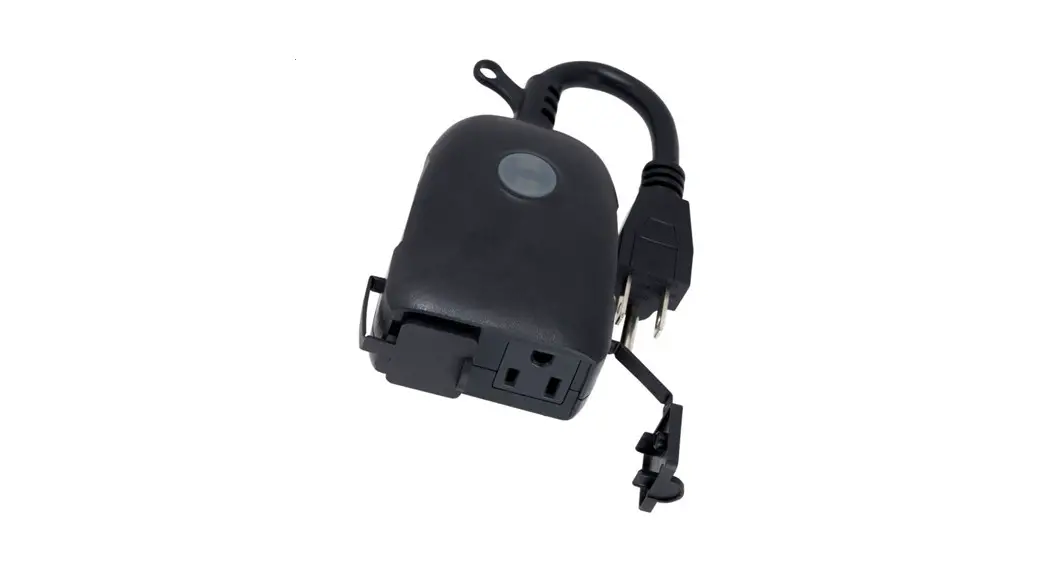
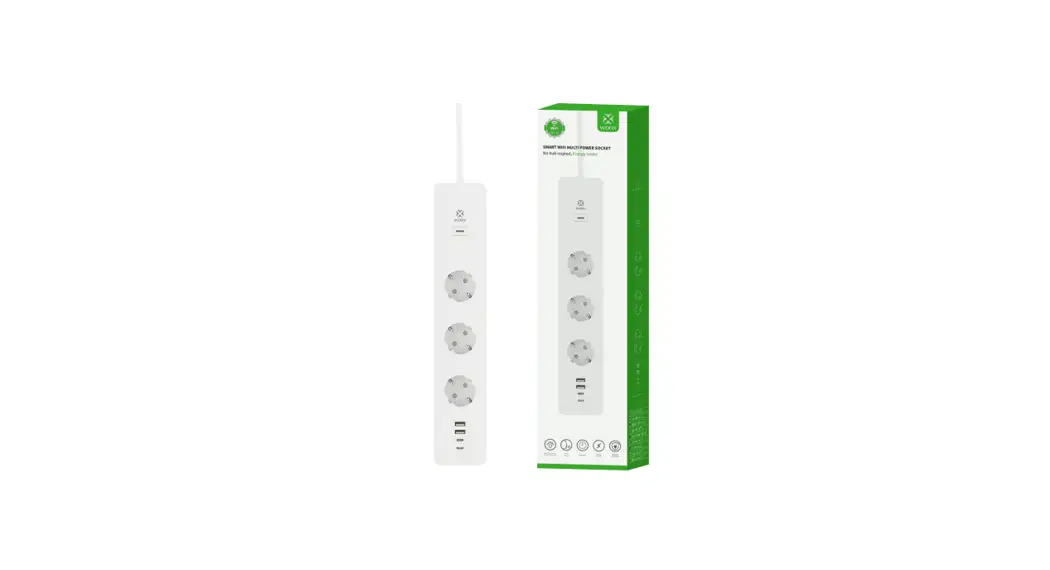
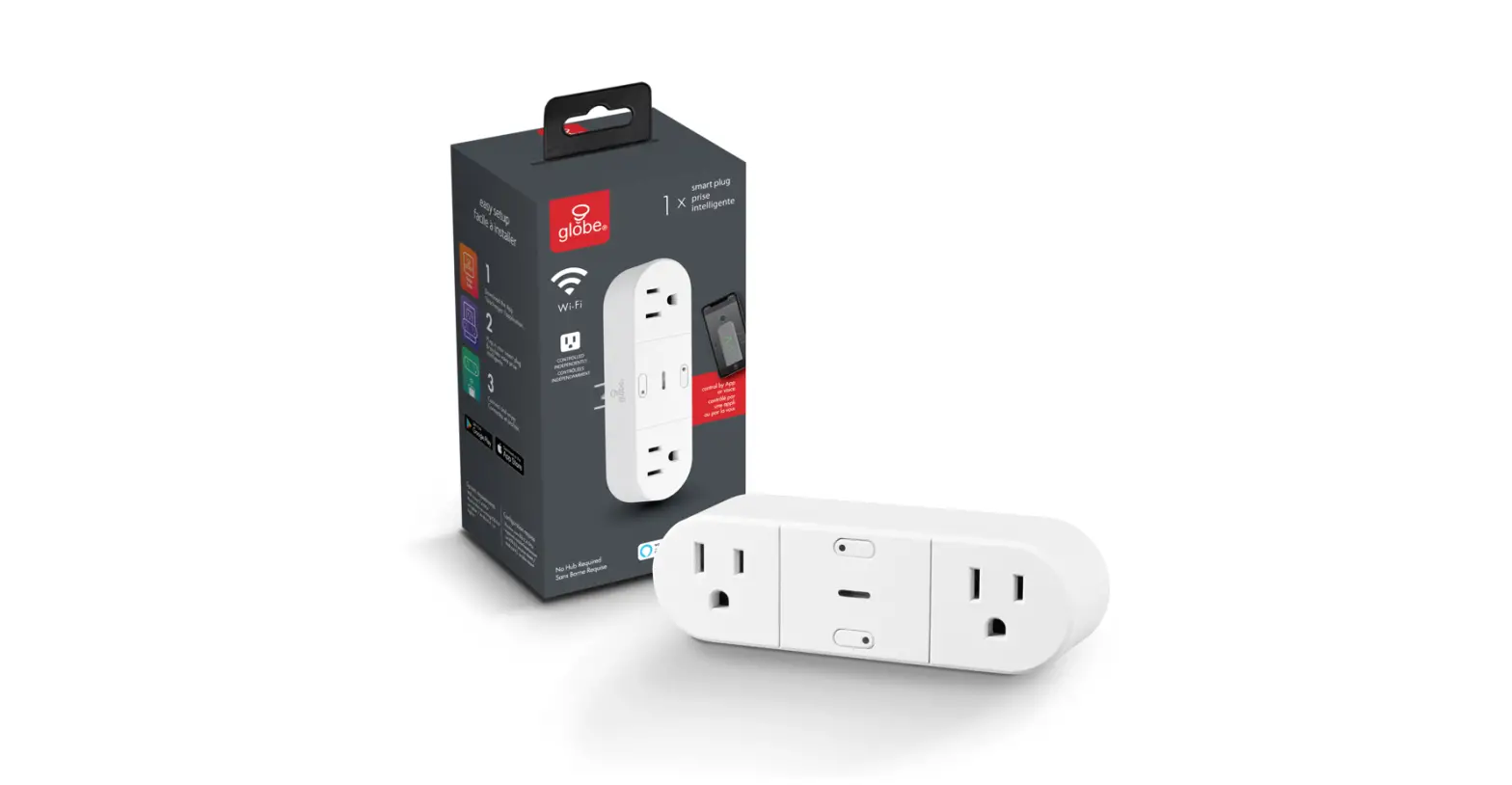
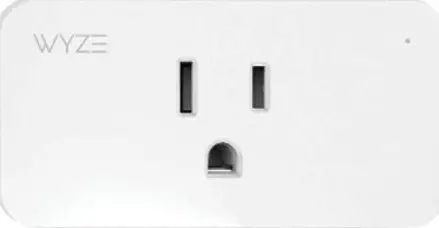
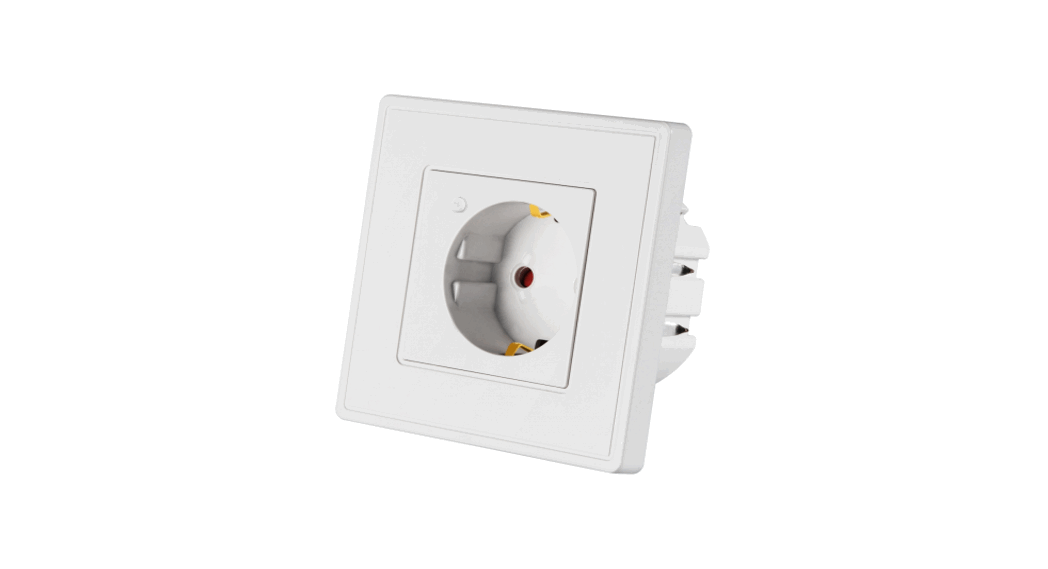
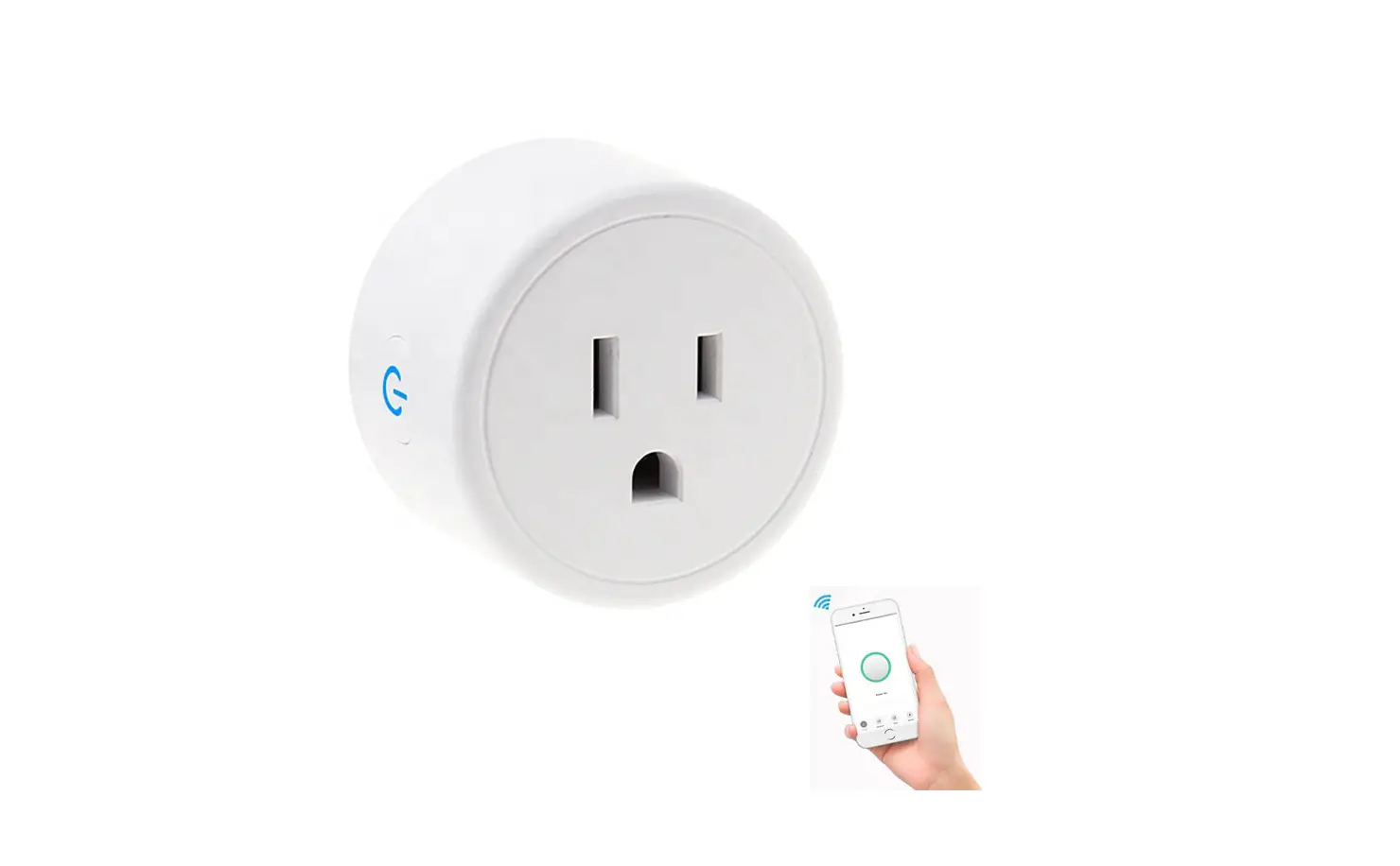
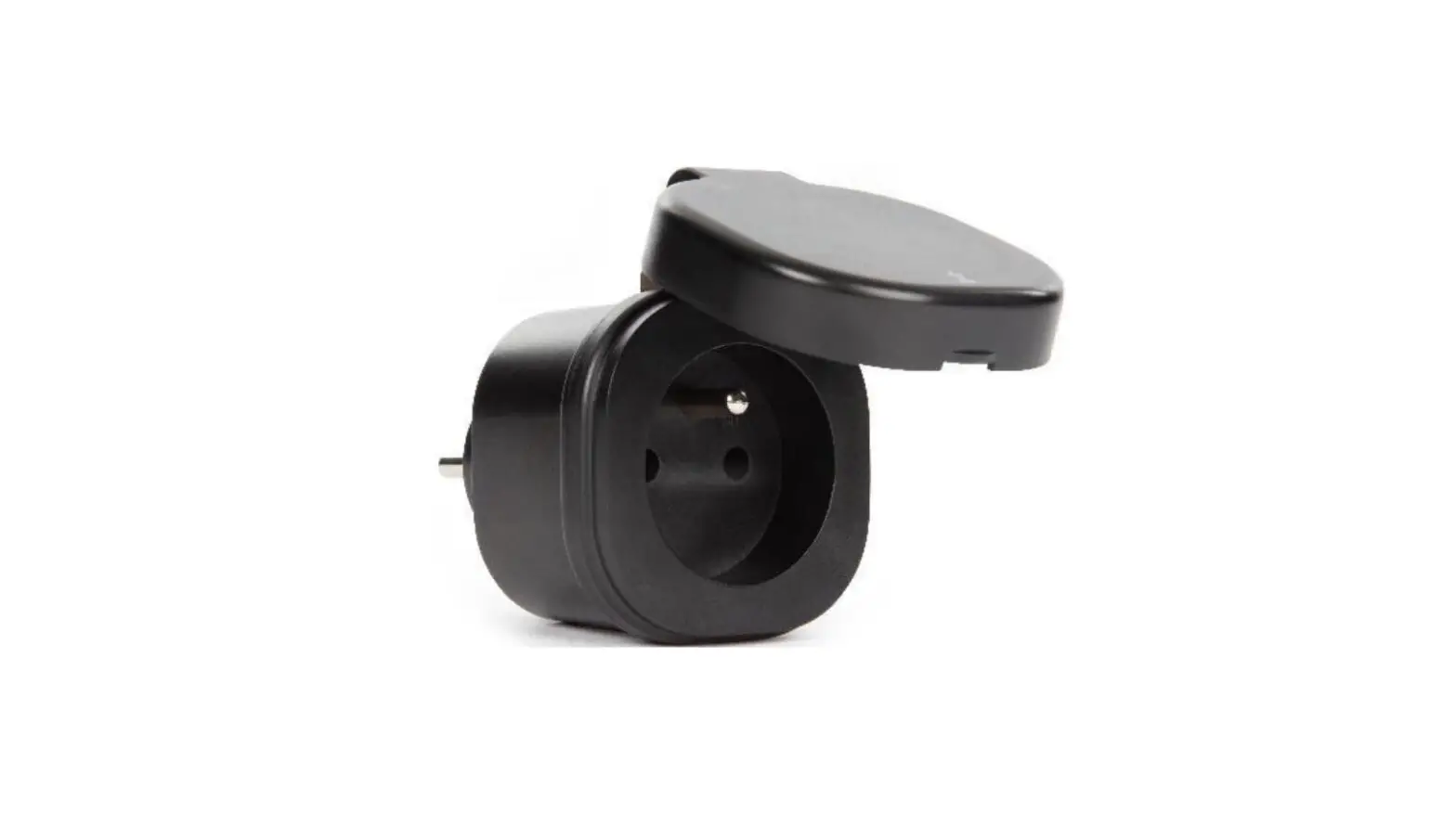
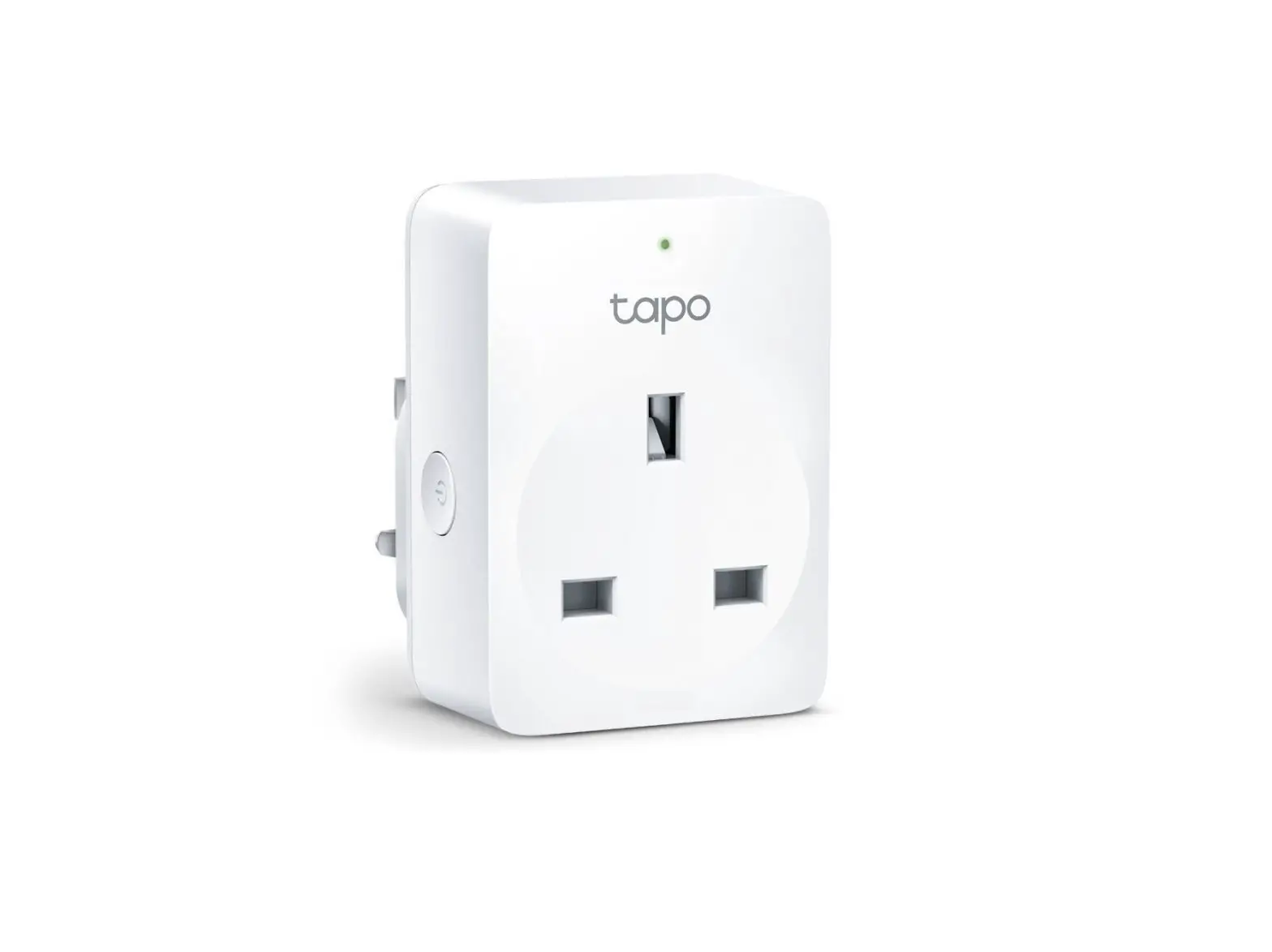
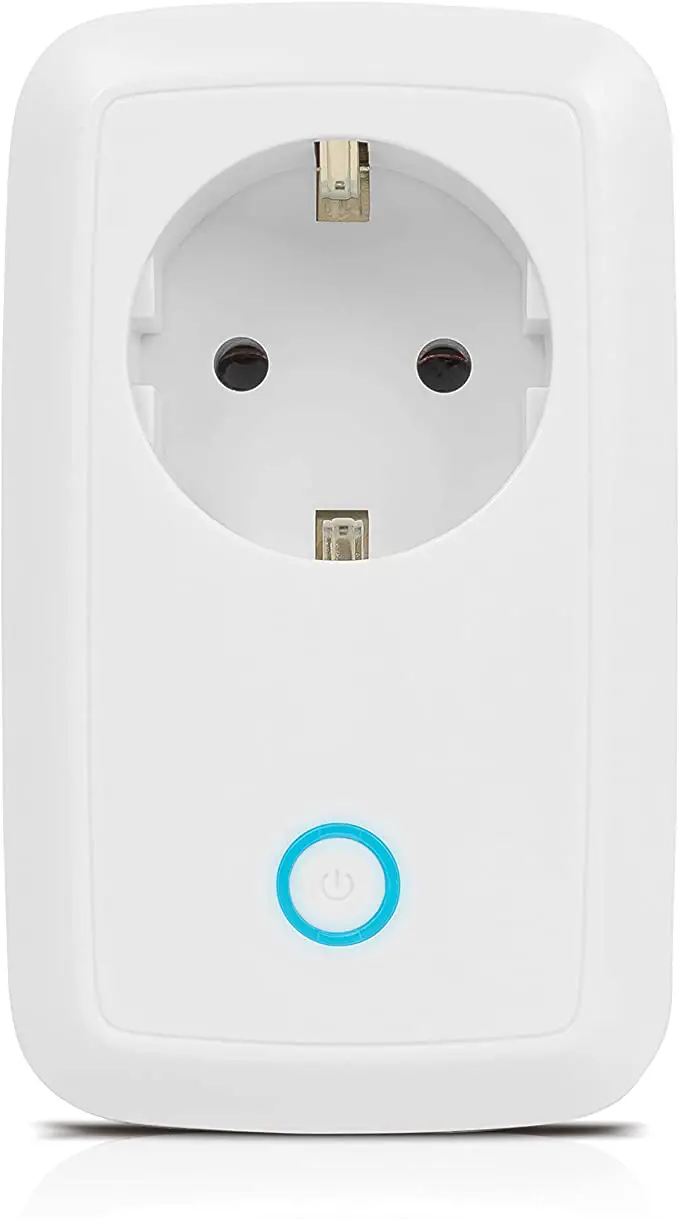
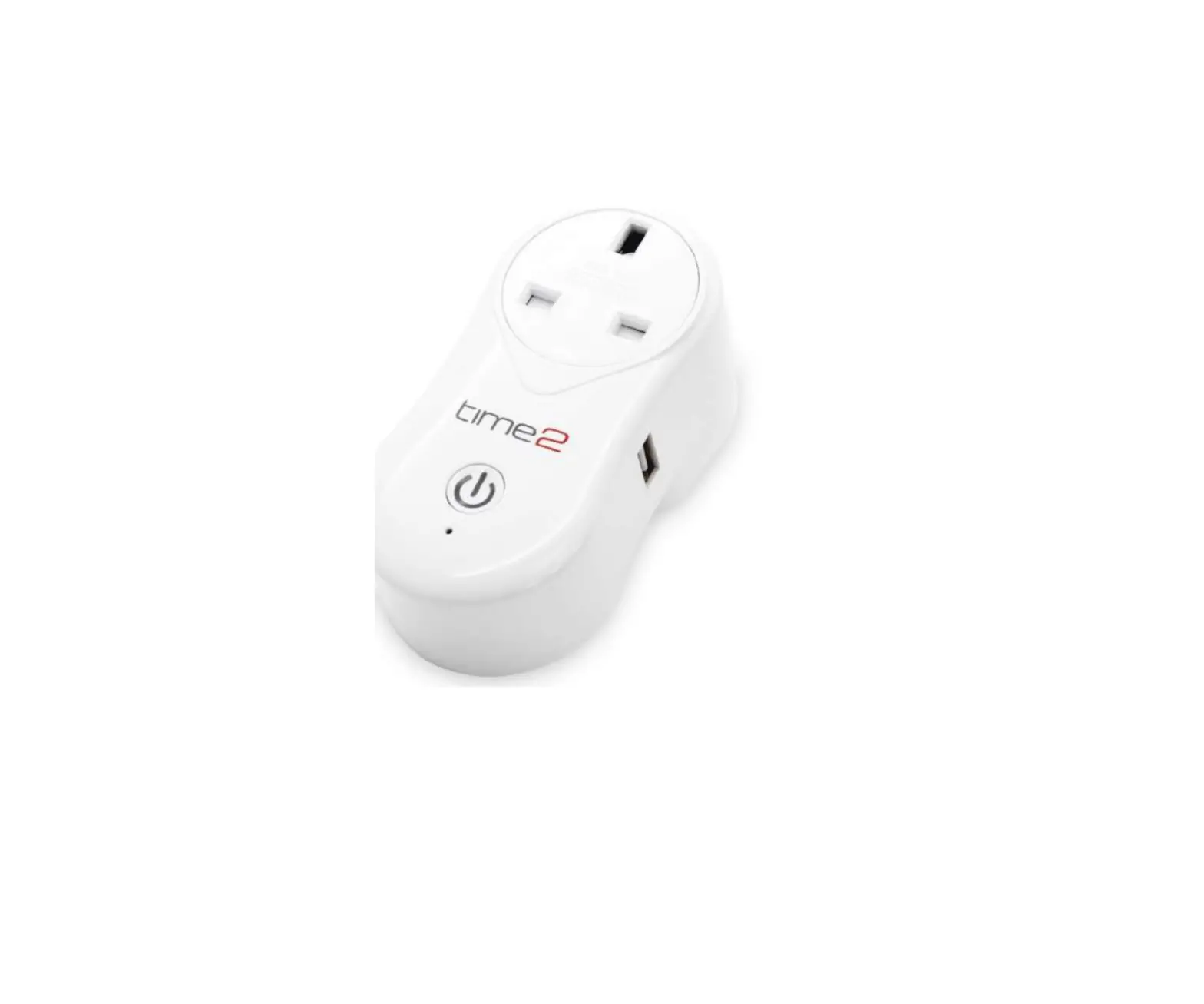
optimum OP-WFD WiFi Smart Double Socket
Product Information
The OPTIMUM OP-WFD Wi-Fi Smart Double Socket allows you to control your power usage manually or according to your schedule through the Smart Life – Smart Living app. You can turn your power on and off from anywhere with an internet or data connection. The socket also provides real-time power consumption monitoring, making it beneficial for both you and the environment.
Product Specifications
- AC Power: 13A (Total)
- Voltage: 220~240V
- Power: 2990W
- Operating Temperature: -20°C to +50°C
Product Usage Instructions
Configuration Preparation
- Download the Smart Life – Smart Living app from the Apple App Store for iPhones or Google Play for Android phones.
- Launch the app and log in or register a new account.
- Plug the Wi-Fi Smart Socket into a mains outlet and turn on the outlet power switch. The LED indicator should be green.
Auto Scan:
- While the green LED is flashing, open the Smart Life app.
- Search for the Wi-Fi hotspot and enter the hotspot password.
- Tap “Next” to connect the device to the application.
Add Manually:
- Tap “Add Device” or tap “+” on the top right corner of the app.
- Select device type “Socket (Wi-Fi)”.
- Search for the Wi-Fi hotspot and enter the hotspot password.
- Tap “Next” to connect the device to the application.
Reset:
If the Wi-Fi Smart Socket fails to respond, follow these steps to reset it:
- Unplug the socket from the mains outlet.
- Plug it back in and turn on the outlet power switch.
- Press and hold the Manual Control Button until the LED indicator flashes quickly (between 5 seconds and 10 seconds).
- Follow the configuration steps mentioned above to set up the device again.
Change Device Name:
- Tap “Device List” to see a list of connected devices in the app.
- Tap “Modify Device Name” and enter a new name for your Wi-Fi Smart Socket. Choose a clear and unambiguous name if it will be controlled by a Smart Speaker.
Share Devices:
- In the app’s profile section, tap “Device Sharing”.
- Tap “Add” and select the device you want to share.
- Enter the telephone number or email address of the person you want to share with.
- Tap “Confirm” to share the device.
Schedule:
You can create schedules to turn the devices connected to the Wi-Fi Smart Socket on or off at preset times and days of the week:
- From the Devices screen in the app, tap the Smart Socket and select “Schedule”.
- Tap “Add Schedule” to set up a new schedule.
- Configure the desired schedule settings.
Metering:
You can press the electric icon in the app to set up energy metering for the Wi-Fi Smart Socket.
Care and Maintenance:
To check for firmware updates that may add new features to your Wi-Fi Smart Socket, refer to the user manual or manufacturer’s instructions.