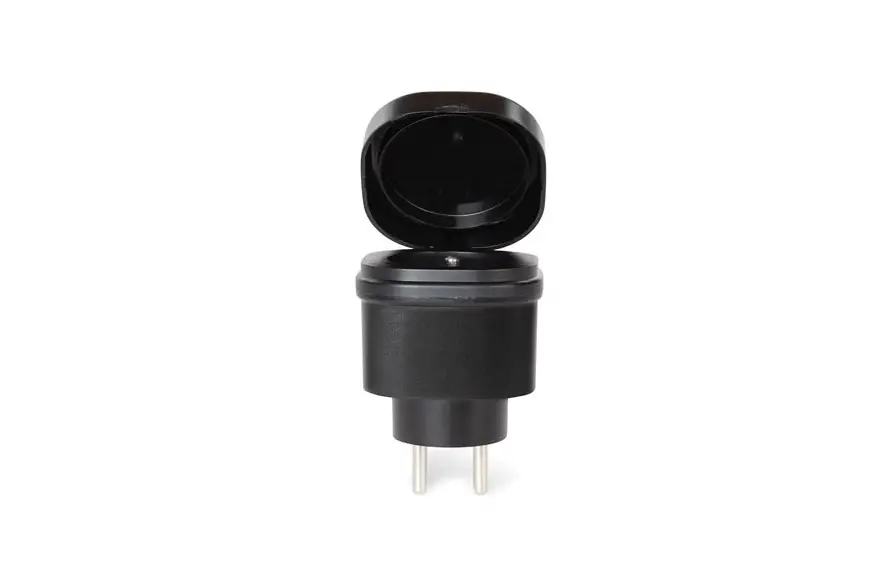
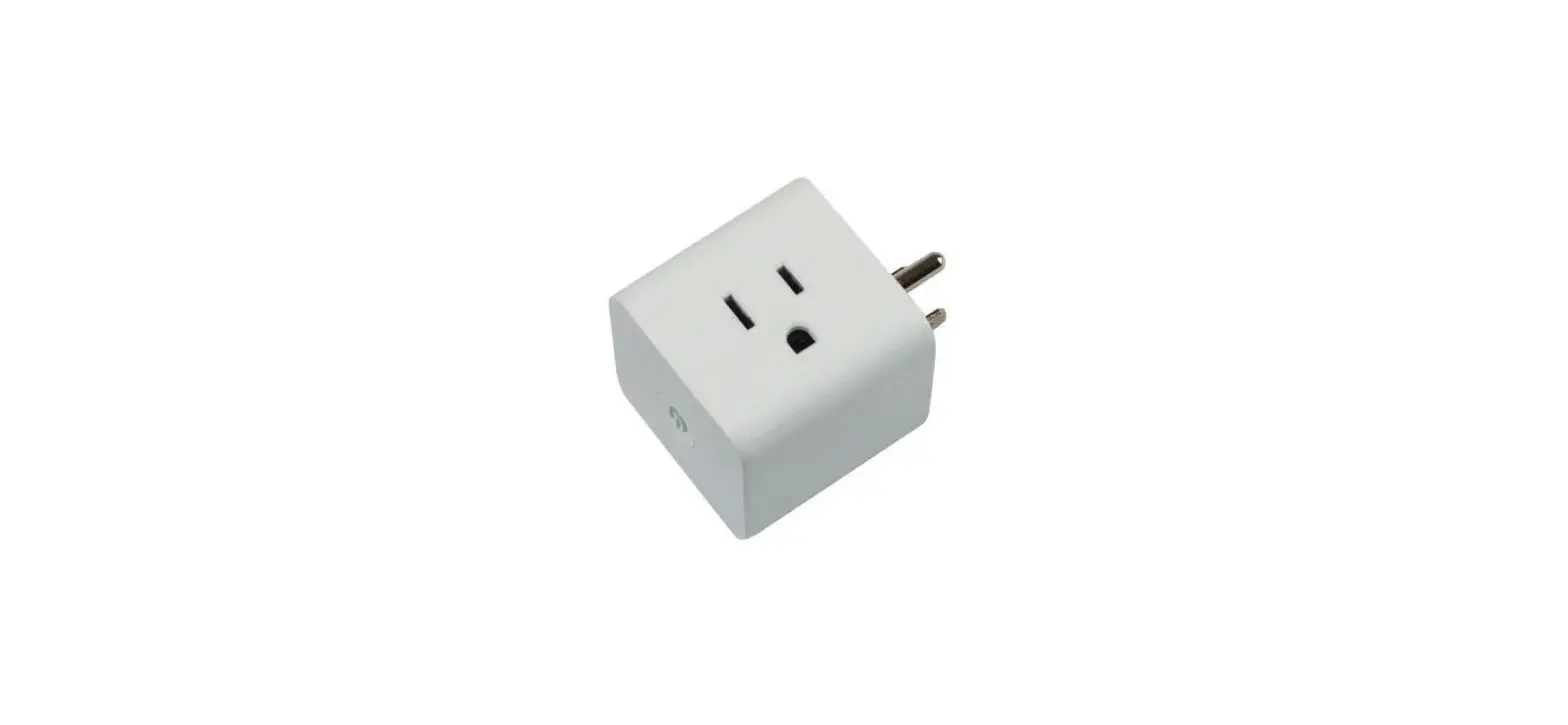
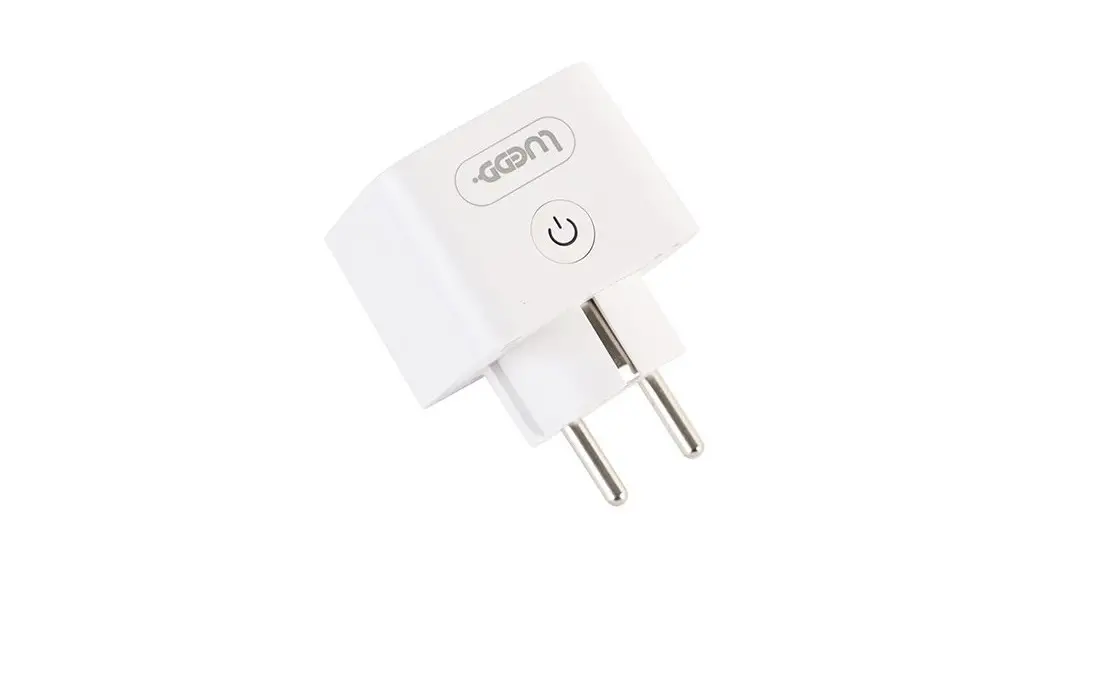
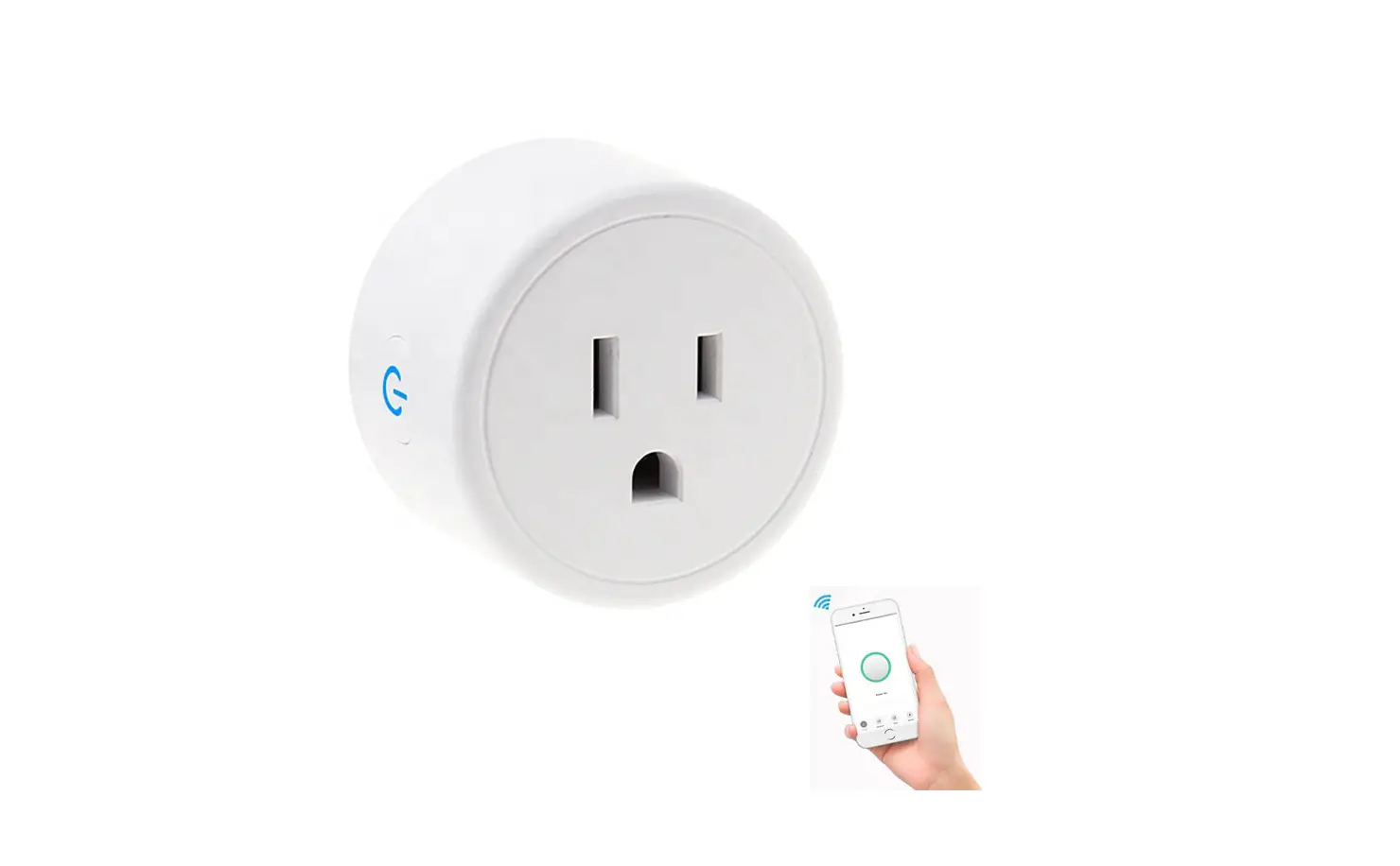
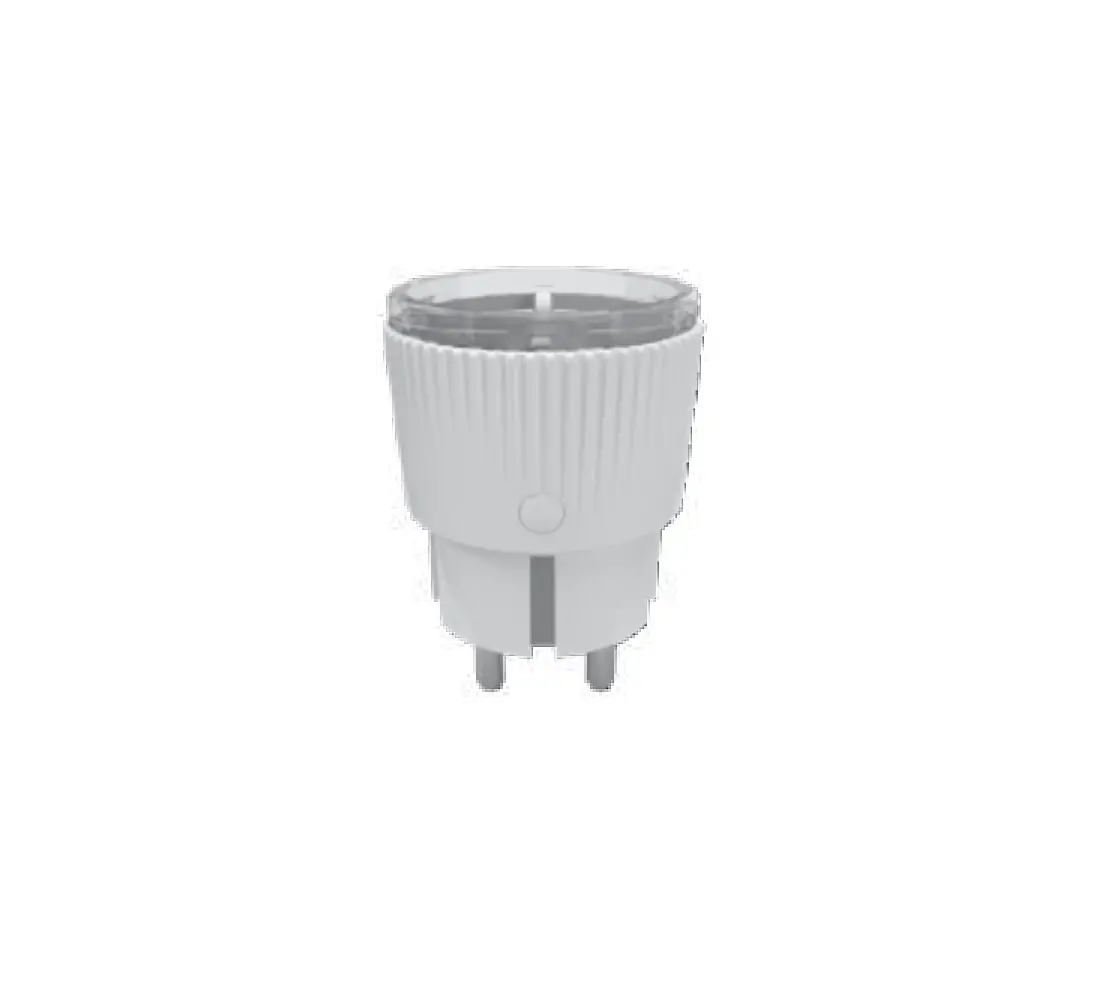
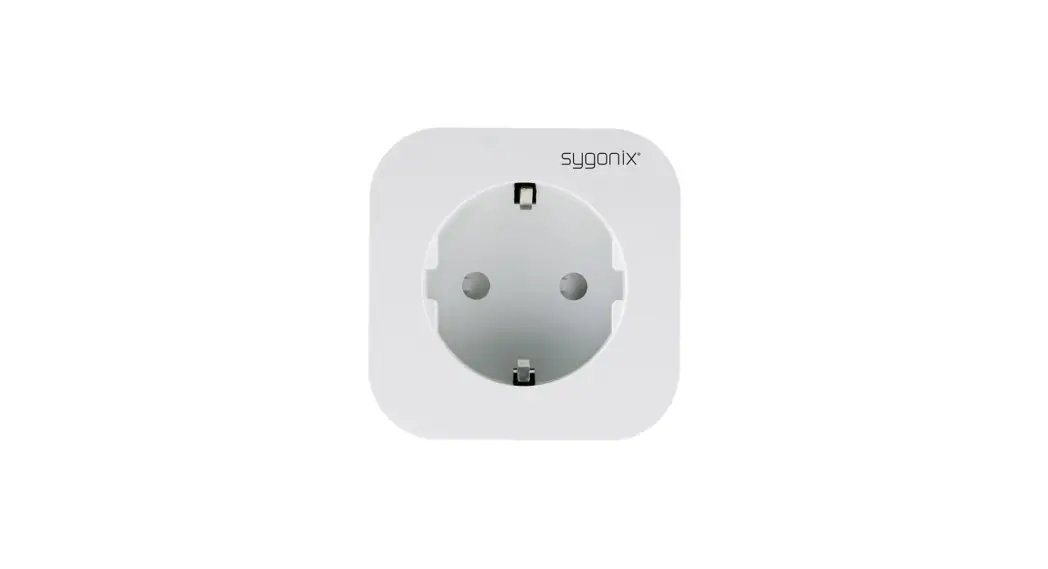
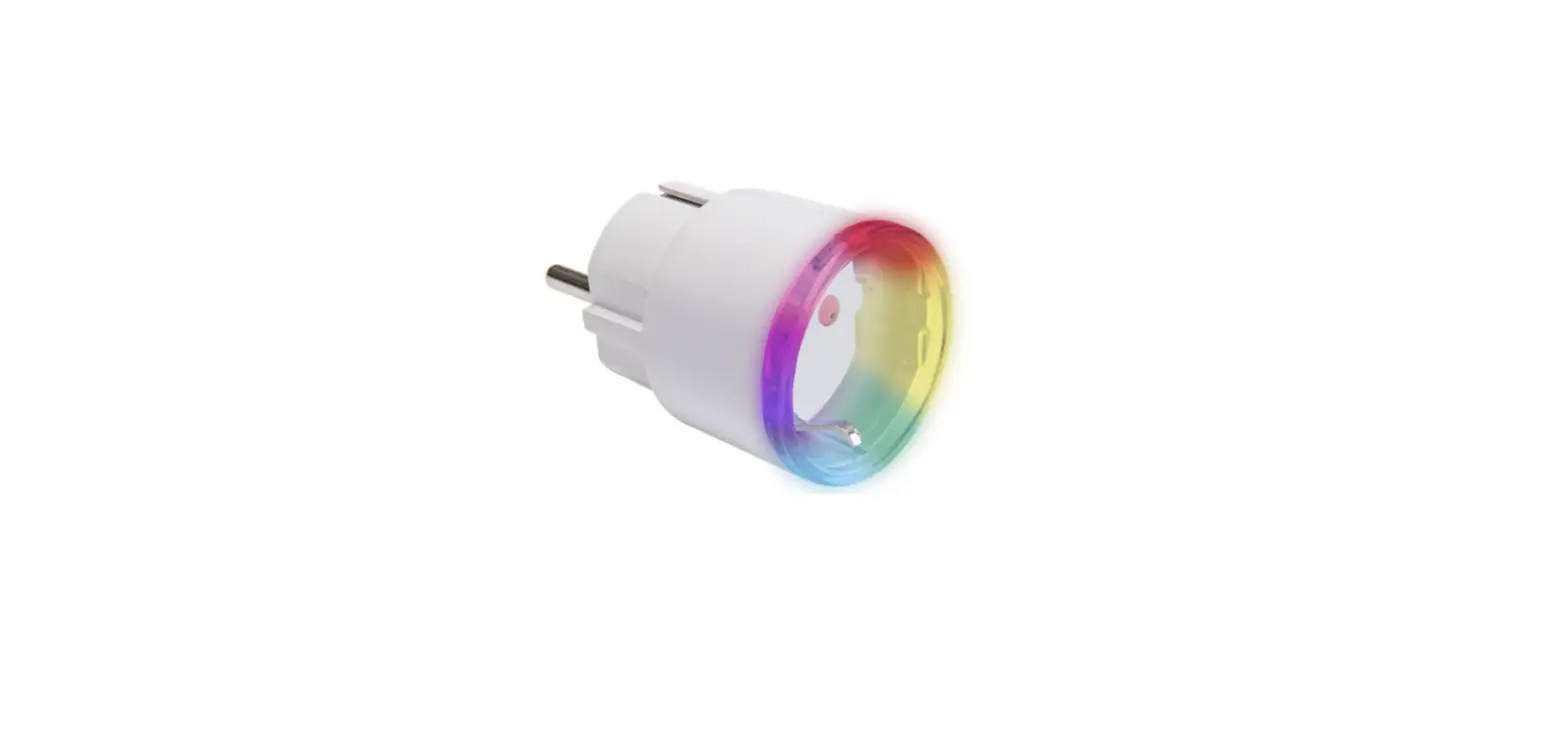
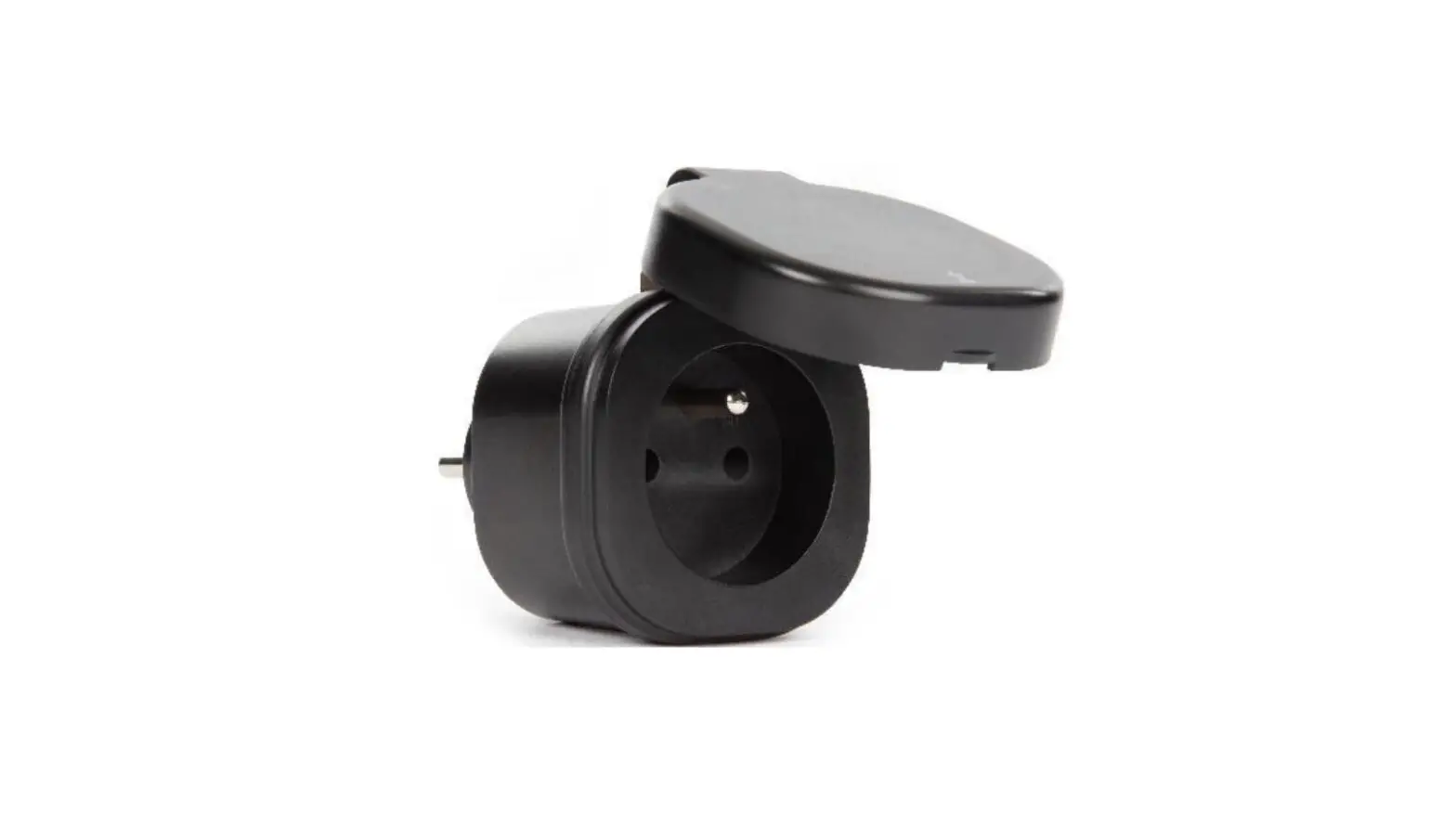
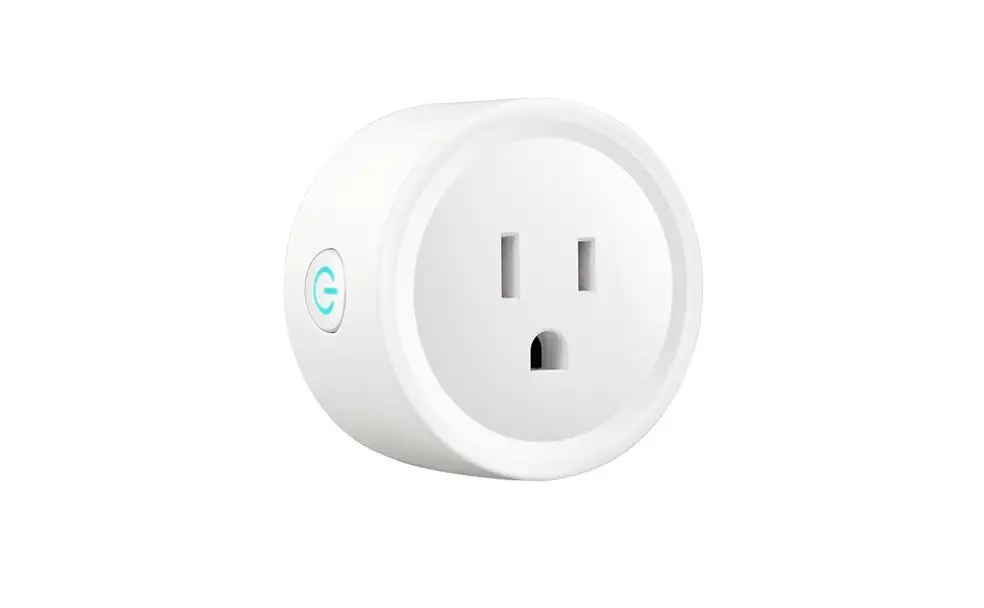
DTY02WIFI Smart WiFi Socket
Product Information: Smart WiFi Socket
The Smart WiFi Socket is a device that allows you to control the
power supply to any electrical appliance that is plugged into it.
It can be controlled manually or automatically through the Smart
Life mobile app. The socket can be connected to your home WiFi
network and controlled from anywhere with internet access. The
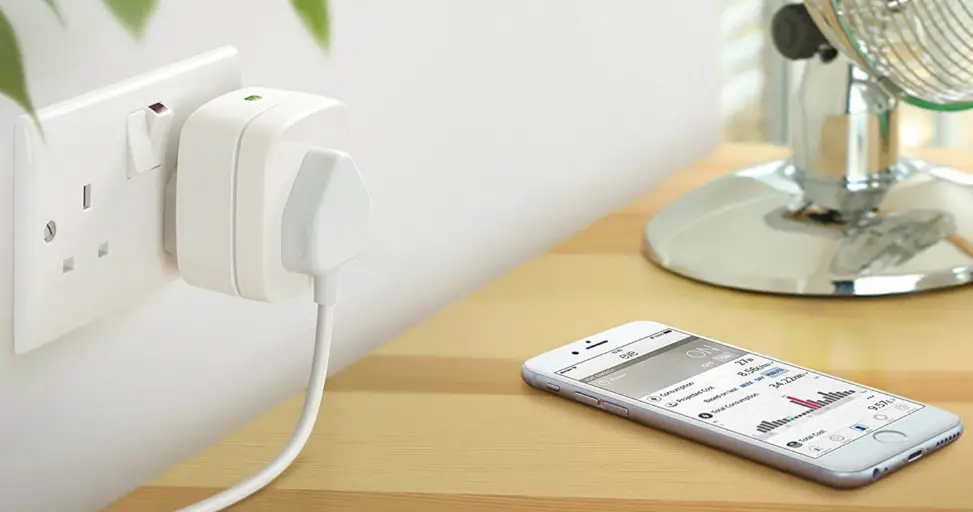
device also allows you to monitor your electricity consumption.
Technical Parameters
- Max. current: 10A
- Input voltage: AC 230, 50Hz
- Maximum load: 2300W/10A
- Wireless network type: WIFI 2.4GHz IEEE 802.11 b/g/n
- Controls: On/Off
- Working temperature: Not specified
- Working humidity: Not specified
Mobile Apps and Pairing
To use the Smart WiFi Socket, you need to download the Smart
Life Smart Living app from the AppStore (iOS) or GooglePlay
(Android). Once you have downloaded and installed the app, follow
these steps:
- Launch the mobile app and log in. If you don’t have an account,
click Register, enter your email address and enter the verification
code that will be sent to your email. - Plug the device into the socket, press the On/Off button and
the green indicator light will flash. Note: If the light does not
flash, reset the device (described below). - If the mobile app finds a device nearby, it will offer you to
add it directly – click Add to add it. If not, continue with the
manual pairing. - Click on Add Device, or click on the + in the upper right
corner. - Select the type of socket.
- Confirm in the mobile app that the green light on the device is
flashing. If not, reset the device and start again. - Confirm that the indicator light is flashing rapidly (as shown
in the application). - Select your 2.4Ghz Wi-Fi network and enter its password, click
next. - Once the connection to the device has been made, click
Done.
If the device does not respond to commands, perform a reset:
- Unplug the device from the power outlet.
- Plug the device back into the socket and switch it on.
- Press and hold the power button until the LED indicator turns
off and after a while starts flashing rapidly (this takes between
5-10s). - Pair the devices according to the manual.
For more detailed information about the application and the
product, visit www.youtube.com and search for Solight DTY02WIFI –
Application Instructions.
The Smart WiFi Socket complies with the requirements and
provisions of Directive 2014/53/EU. The equipment can be freely
operated in the EU. The Declaration of Conformity can be found at
www.solight.cz. The product may be operated under general
authorisation No.VO-R/10/05.2014-3.
USER MANUAL DTY02WIFI
Thank you for purchasing our Smart WiFi socket. It can be turned on and off manually or automatically based on the schedule settings in the Smart life mobile app. The outlet can be controlled from anywhere you have internet access. The mobile app allows you to monitor your electricity consumption.
TECHNICAL PARAMETERS
Max. current Input voltage Maximum load Wireless network type Controls Working temperature
Working humidity
10A AC 230, 50Hz 2300W/10A WIFI 2.4GHz IEEE 802.11 b/g/n On/Off
0°C – 50°C (0~95) %RH, noncondensing
MOBILE APPS AND PAIRING 1. To download the mobile app, scan the QR code or search the AppStore (iOS) or GooglePlay (Android) for the Smart Life Smart Living app.
2. Launch the mobile app and log in. If you don’t have an account, click Register, enter your email address and enter the verification code that will be sent to your email.
Note: Allow the mobile app to access WiFi and Bluetooth for proper functioning.
3. Plug the device into the socket, press the On/Off button and the green indicator light will flash.
Note: If the light does not flash, reset the device (described below).
AUTOMATIC PAIRING If the mobile app finds a device nearby, it will offer you to add it directly – click “Add” to add it. If not, continue with the manual pairing.
MANUAL PAIRING 1. Click on Add Device, or click on the “+” in the upper right corner.
2. Select the type of socket.
3. Confirm in the mobile app that the green light on the device is flashing. If not, reset the device and start again. 4. Confirm that the indicator light is flashing rapidly (as shown in the application). 5. Select your 2.4Ghz Wi-Fi network and enter its password, click next.
Once the connection to the device has been made, click “Done”.
RESET DEVICE If the device does not respond to commands, perform a reset. 1. Unplug the device from the power outlet. 2. Plug the device back into the socket and switch it on. 3. Press and hold the power button until the LED indicator turns off and after a
while starts flashing rapidly (this takes between 5-10s). 4. Pair the devices according to the manual.
On/Off
More detailed information about the application and the product can be found at www.youtube.com under the title “Solight DTY02WIFI – Application Instructions”.
Solight Holding s.r.o., declares that the product complies with the requirements and provisions of Directive 2014/53/EU. The equipment can be freely operated in the EU. The Declaration of Conformity can be found at www.solight.cz. The product may be operated under general authorisation No.VO-R/10/05.2014-3