CONFIDENTIAL

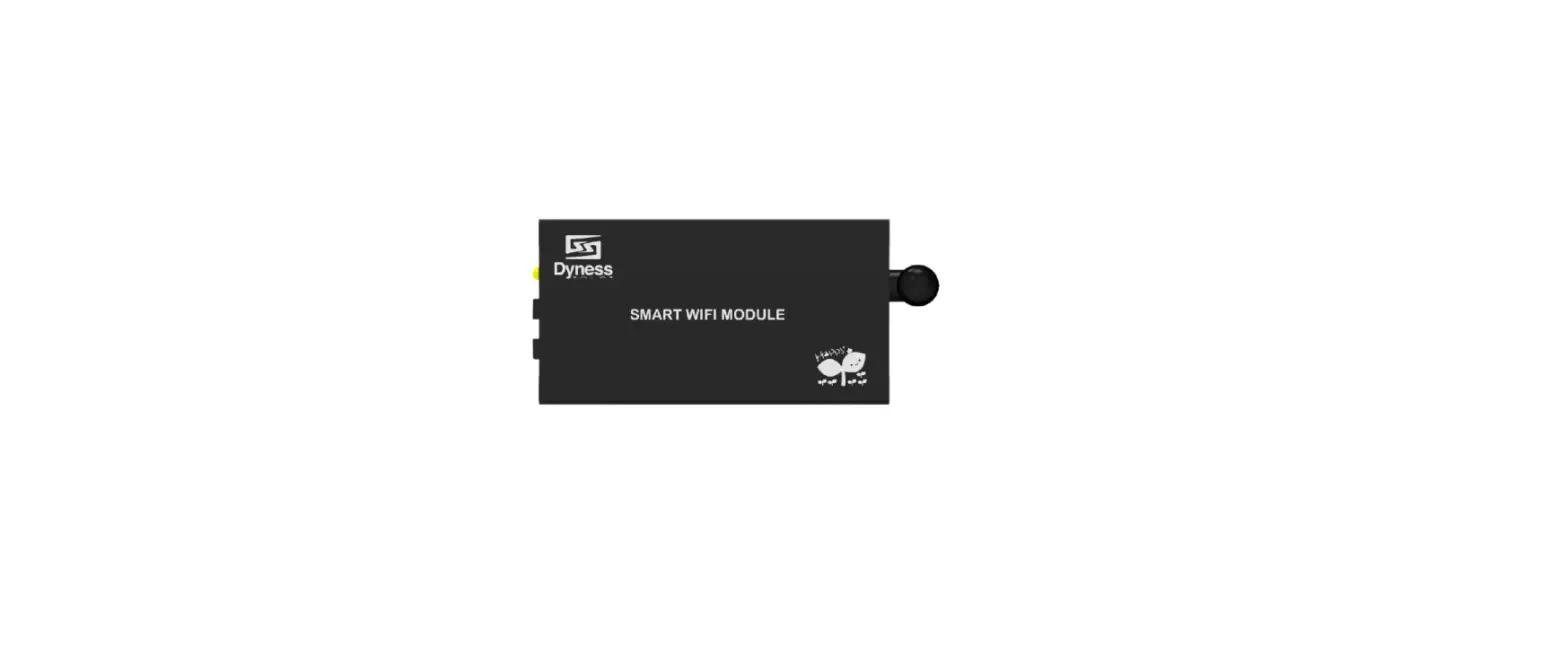
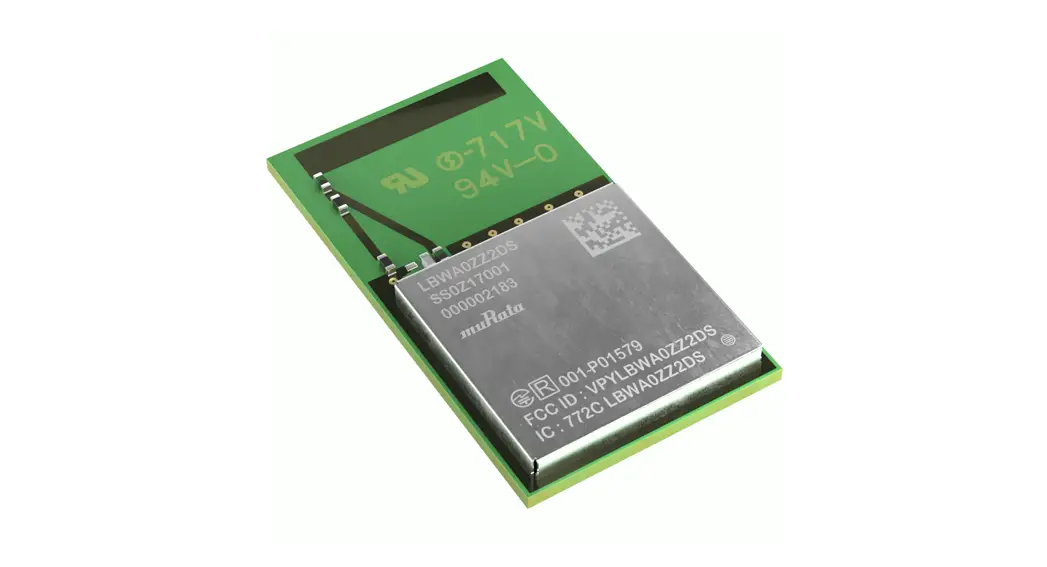
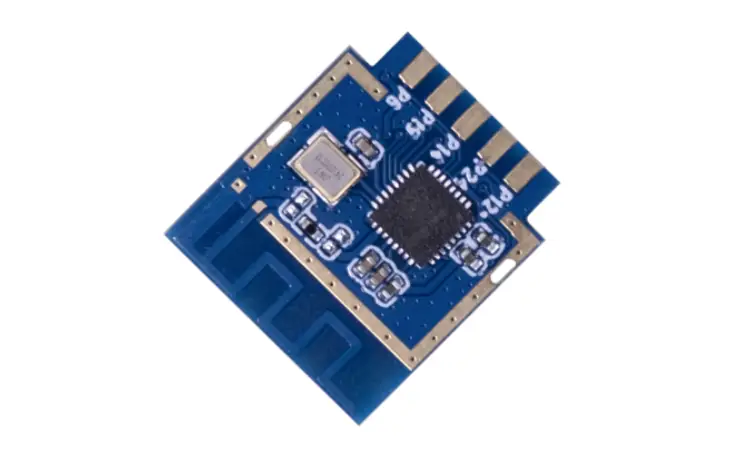
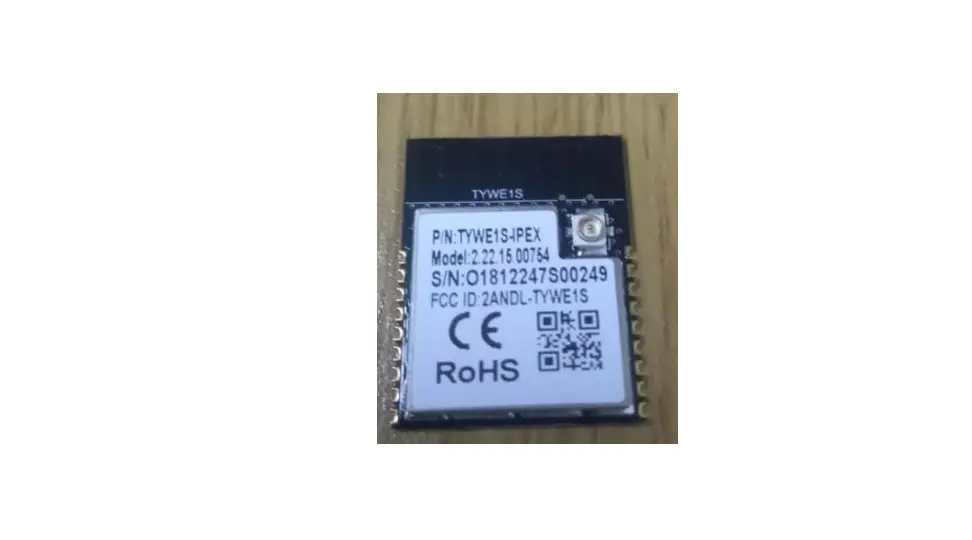
WB-20 SMART WIFI MODULE
Operation Manual
| Rev. | Description | Date |
| 1.0 | Preliminary release | 2019/12/13 |
| 1.1 | Define model name | 2020/2/6 |
Notice
This device complies with Part 15 of the FCC Rules. Operation is subject to the following two conditions:
(1) This device may not cause harmful interference, and
(2) This device must accept any interference received, including interference that may cause undesired operation.
Attention that changes or modification not expressly approved by the party responsible for compliance could void the user’s authority to operate the equipment.
Note: This product has been tested and found to comply with the limits for a Class B digital device, pursuant to Part 15 of the FCC Rules. These limits are designed to provide reasonable protection against harmful interference in a residential installation. This product generates, uses, and can radiate radio frequency energy and, if not installed and used in accordance with the instructions, may cause harmful interference to radio communications. However, there is no guarantee that interference will not occur in a particular installation. If this product does cause harmful interference to radio or television reception, which can be determined by turning the equipment off and on, the user is encouraged to try to correct the interference by one or more of the following measures:
–Reorient or relocate the receiving antenna.
–Increase the separation between the equipment and receiver.
–Connect the equipment into an outlet on a circuit different from that to which the receiver is connected.
–Consult the dealer or an experienced radio/TV technician for help.
FCC RF Safety Caution statement:
To satisfy FCC RF exposure requirements for mobile and base station transmission devices, a separation distance of 20 cm or more should be maintained between the antenna of this device and persons during operation. To ensure compliance, operation at closer than this transmitter must not recommended. The antenna(s) used for this transmitter must not be co-located or operating in conjunction with any other antenna or transmitter.
The device has been evaluated to meet general RF exposure requirement.
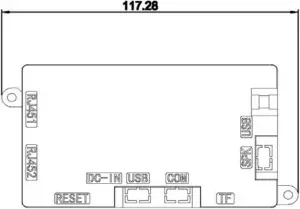
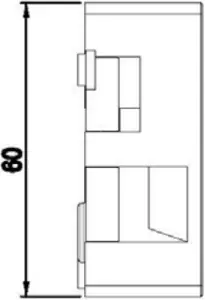
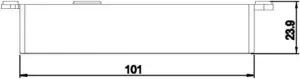
1. General Layout
Bridge Mode
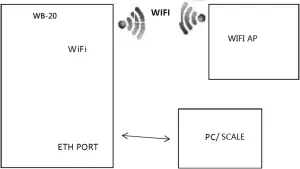
In this mode, module connects AP with WIFI and emission WIFI itself, the ETH port is LAN,PC and other device could connect module with Ethernet cable
2. Features
- Onboard A64 Quad-core ARM Cortex-A53 1.2GHz (Fanless)
- 1G DDR3L co-layout memory
- 8G co-layout eMMC NAND flash
- WIFI 2.4G/5G 802.11a/b/g/n/ac
- Bluetooth 4.2
- TF CARD
- OS: Android 6.0
3. Operating Conditions
- Power Source : DC5V/0.15A
- Operating Temperature : 0 ~ +50°C
- Operating Humidity : 15 ~ 85% RH
- Power Consumption : 0.75W
4. Connectors
- DC 5V input connector (Pin head)
- 1x RS-232C interface (Pin head)
- 2x USB2.0 interface (One is pin head, the other is Mirco-USB)
- 2x LAN interface (One is pin head, the other is RJ45)
- 1x TF card socket
5. Network Setup
5.1 Link with Wired Cable Only
Set as normal scale
- Set SPEC135=xxx (xxx is the last 3 digits of Lan IP)
- Set SPEC50=1 (usually act as server) SPEC50=0 (only for cloud)
- Set Rezero+0416=LAN IP
- Set Rezero+0418=LAN Subnet Mask
- Set Rezero+0421=LAN Gateway if necessary
- Make sure in Rezero+0457, WIFI switch= Inhibit
| First Line screen | Second Line Screen | Remark |
| S0.1 AMS HOST 0 | Host name which could by found by other device in LAN like computer name | |
| S0.2 AMS STATIC | SELECT ETHERNET TYPE | Please always use X key to set it as STATIC |
| S0.3 AMS 000000000000 | ENTER ETHERNET DNS1 | Reserved |
| S0.4 AMS 000000000000 | ENTER ETHERNET DNS2 | Reserved |
| S0.5 AMS INHIBIT | SELECT WIFI SWITCH | Use X key to set it to ALLOW |
5.2 Link with Wireless Only
5.2.1 Method 1: Set on Scale side
Set Rezero+0457 as below
| First Line screen | Second Line Screen | Remark |
| S0.1 AMS HOST 0 | Host name which could by found by other device in LAN like computer name | |
| S0.2 AMS STATIC | SELECT ETHERNET TYPE | Please always use X key to set it as STATIC |
| S0.3 AMS 000000000000 | ENTER ETHERNET DNS1 | Reserved |
| S0.4 AMS 000000000000 | ENTER ETHERNET DNS2 | Reserved |
| S0.5 AMS ALLOW | SELECT WIFI SWITCH | Use X key to set it to ALLOW |
| S0.6 AMS SSID 0 | Input SSID (Special symbol can be set by ASCII) P32 key to switch between local or ASCII | |
| S0.7 AMS NO | SELECT WIFI ENCRYPTION | NO/WEP/WPA-PSK |
| S0.8 CH-01 PWD 0 | Enter password of WIFI | |
| S0.9 AMS STATIC | SELECT WIFI TYPE | Please always use X key to set it as STATIC |
| S0.10 AMS 000000000000 | ENTER WIFI IP1 | Set WIFI IP address |
| S0.11 AMS 000000000000 | ENTER WIFI SUBNET MASK1 | Set WIFI subnet mask |
| S0.12 AMS 000000000000 | ENTER WIFI DNS1 | Set DNS if needed |
| S0.13 AMS 000000000000 | ENTER WIFI IP2 | Set only if customer use dual network segment |
| S0.14 AMS 000000000000 | ENTER WIFI SUBNET MASK2 | |
| S0.15 AMS 000000000000 | ENTER WIFI DNS2 | |
| S0.16 AMS 000000000000 | ENTER WIFI GATEWAY | Set WIFI gateway |
| S0.17 AMS ALLOW | SELECT AM FTP SWITCH | Please always use X key to set it as Allow |
| S0.18 AMS 3000 | SELECT AM FTP PORT | Port available : 3000-4000 except for 3721 |
| S0.19 AMS USER 5 | admin | Set FTP account |
| S0.20 AMS PWD 5 | admin | Set FTP password |
| S0.21 AMS INHIBIT | SELECT SM101 P SWITCH | Select whether support to accept SM-101 protocol |
5.2.2 Method 2: Send by AMS file
AMS file is the Android Module Setting file which contains the WIFI setting of scale.
A. Pull back AMS file
Below is a sample to pull back the AMS file from scale, then you got the template to modify to yours.
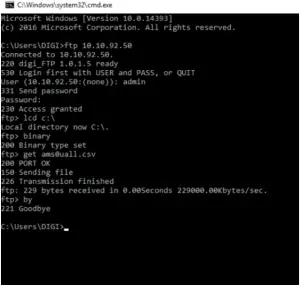
binary commend is very important here and can’t be omitted
| Commend Inputted | Explain |
| ftp 10.10.92.50 | Use FTP protocol to visit scale Lan IP 10.10.92.50 (Rezero+0416) |
| admin | Enter FTP account |
| admin (hidden here) | Enter FTP password |
| lcd c:\ | Set local path for transfer data |
| binary | Use binary to transfer data (Important and necessary) |
| get ams0uall.csv | Pull back AMS file |
| by | End the session |
B. Modify AMS file
Use Notepad++ to open the csv file to edit
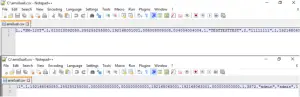
Below is the data content:
1,,“SM-120T”,1,010010092050,255255255000,192168001001,008008008008,004004004004,1,“TESTTESTTEST”,2,“11111111″,1,192168063050,255255255000,000000000000,000000000000,192168063001,192168063001,000000000000,1,3872,“admin”,“admin”,1
Below is the column definition
| <Android Module Setting>: “AMS0xyyy.CSV” | ||||
| # | Settings | Data Style | Number of digit | REMARKS |
| 1 | Code | 9 | 6 | Always 1 |
| 2 | Flag for delete | 9 | – | No data/0: Add or Change 1: Delete |
| 3 | Host name | X | 16 | |
| 4 | Eth type | 9 | 1 | 0:DHCP, 1:Static |
| 5 | Eth IP | X | ASCII=12 | Ip address(Ex. 192168001023) (read only) |
| 6 | Eth subnet mask | X | ASCII=12 | (read only) |
| 7 | Eth Gateway | X | ASCII=12 | (read only) |
| 8 | Eth DNS1 | X | ASCII=12 | |
| 9 | Eth DNS2 | X | ASCII=12 | |
| 10 | wifi switcher | 9 | 1 | 0:off, 1:on |
| 11 | Wifi ssid | X | Max.25 | |
| 12 | Wifi encryption | 9 | 1 | 0:no, 1:WEP, 2:WPA-PSK |
| 13 | Wifi password | X | Max.25 | |
| 14 | Wifi type | 9 | 1 | 0:DHCP, 1:Static |
| 15 | Wifi IP1 | X | ASCII=12 | |
| 16 | Wifi subnet mask1 | X | ASCII=12 | |
| 17 | Wifi IP2 | X | ASCII=12 | |
| 18 | Wifi subnet mask2 | X | ASCII=12 | |
| 19 | Wifi Gateway | X | ASCII=12 | |
| 20 | Wifi DNS1 | X | ASCII=12 | |
| 21 | Wifi DNS2 | X | ASCII=12 | |
| 22 | AM FTP switcher | 9 | 1 | 0:off, 1:on |
| 23 | AM FTP port | 9 | 8 | |
| 24 | AM FTP user | X | Max.25 | |
| 25 | AM FTP password | X | Max.25 | |
| 26 | SM101 protocol switcher | 9 | 1 | 0:off, 1:on |
| 27 | Bluetooth switcher | 9 | 1 | 0:off, 1:on |
| 28 | Bluetooth device name | X | Max.25 | |
So that means:
| Column | Column Value | Related Data Explaination |
| 1 | 1 | Code |
| 2 | (null) | No data = Add or Change |
| 3 | “SM-120T” | Host name |
| 4 | 1 | Ethernet type = Static |
| 5 | 010010092050 | Ethernet IP (read only) |
| 6 | 255255255000 | Ethernet Subnet Mask (read only) |
| 7 | 192168001001 | Ethernet Gateway (read only) |
| 8 | 008008008008 | Ethernet DNS1 |
| 9 | 004004004004 | Ethernet DNS2 |
| 10 | 1 | WIFI on |
| 11 | “TESTTESTTEST” | WIFI SSID |
| 12 | 2 | WIFI Encryption = WPA-PSK |
| 13 | “11111111” | WIFI Password |
| 14 | 1 | WIFI Type = Static |
| 15 | 192168063050 | WIFI IP1 |
| 16 | 255255255000 | WIFI Subnet Mask1 |
| 17 | 000000000000 | WIFI IP2 |
| 18 | 000000000000 | WIFI Subnet Mask2 |
| 19 | 192168063001 | WIFI Gateway |
| 20 | 192168063001 | WIFI DNS1 |
| 21 | 000000000000 | WIFI DNS2 |
| 22 | 1 | AM FTP Switch = On |
| 23 | 3872 | AM FTP Port = 3872 |
| 24 | “admin” | FTP Account |
| 25 | “admin” | FTP Password |
| 26 | 1 | SM101 Protocol Switch |
P.S. “” (Quotation mark) using for characters input, can’t be omitted.
Some WIFI SSID has special symbol which SM-120 keyboard do not support. And if you don’t use ACSII method to input in scale, you may modify the AMS file and send back to scale.
C. Send back modified AMS file
Same produce and change ‘get’ command to ‘put’ (file should be store in same folder as received)
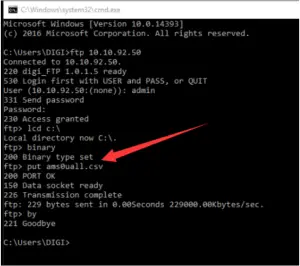
binary commend is very important here and can’t be omitted
D. Load AMS file on scale side
Under Z mode, use RZ+1457 (only effect after received AMS file)
| First Line screen | Second Line Screen | Remark |
| Z1.0 RESET SALE DAILY | RESET SALES DAILY REPORT | Rezero+1457 |
| AMS SAVE? Y-P N-C | SAVE? PRINT/CLEAR KEY | Click Print key to load |
Remember to Reboot scale by ON/OFF key
2.2.3 WB-20 PC Setting for Transfer AMS File
To WB-20, if scale side is not available to input related characters in Rezero+0457:
A. Single byte language countries can use P32 key to convert to ASCII code (countries use Standard version)
B. Double byte language countries could only use AMS file to set.
2.3.1 Upgrade APK by Lan
For example,
1. Rezero+0416=010010092050
2. Set or check AMS FTP status, port, account and password in Rezero+0457
| …… | |
| S0.17 AMS ALLOW | SELECT AM FTP SWITCH |
| S0.18 AMS 3872 | SELECT AM FTP PORT |
| S0.19 AMS USER 5 | admin |
| S0.20 AMS PWD 5 | admin |
3. Click keyboard ON/OFF to restart
4. Link scale with network cable and keep PC in same Lan with different IP
5. Use FTP utility to visit AMS FTP (here use filezilla, 10.10.92.50:3872, 3872 is the AMS port set in S0.18 in Rezero+0457)
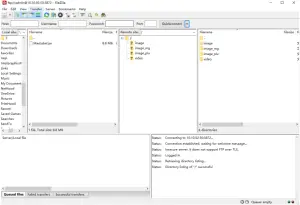
6. Put scale.apk to root folder
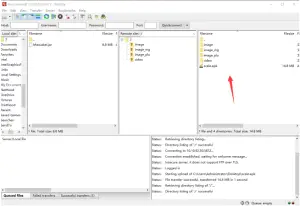
7. Wait for it disconnect, that means the upgrade has been finished.
The software is restarting.
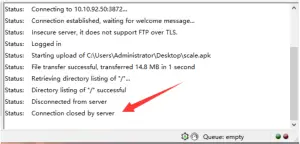
8. Use hardware switch to reboot scale. (Do not need to wait for apk restarting)
9. Check current Android apk version (ReZero+100 in Z mode)
| Z1.0 RESET SALES DAILY | RESET SALES DAILY REPORT |
| STE58 BOOT VR1.01 | |
| STE58 MAIN VR01.21 B08 | STD VERSION, COUNTRY:2 |
| STE58 CONST VR01.21 B08 | DESC01 |
| STE58 FONT VR1.02 | STD |
| STE58 BMAP VR1.01 | U1 |
| STE58 ANDROID MODULE | 001.000.001.006 |
Here 001.000.001.006 is current apk version.
2.3.2 Upgrade APK by WIFI
For example,
1. Rezero+0457
| …… | |
| S0.5 AMS ALLOW | SELECT WIFI SWITCH |
| S0.6 AMS SSID 12 | TESTTESTTEST |
| S0.7 AMS WPA-PSK | SELECT WIFI ENCRYPTION |
| S0.8 AMS PWD 8 | 11111111 |
| S0.9 AMS STATIC | SELECT WIFI TYPE |
| S0.10 AMS 192168063050 | EMTER WIFI IP1 |
| S0.11 AMS 255255255000 | ENTER WIFI SUBNET MASK1 |
| …… | |
| S0.16 AMS 192168063001 | ENTER WIFI GATEWAY |
| S0.17 AMS ALLOW | SELECT AM FTP SWITCH |
| S0.18 AMS 3872 | SELECT AM FTP PORT |
| S0.19 AMS USER 5 | admin |
| S0.20 AMS PWD 5 | admin |
2. Set LAN IP = WIFI IP (Important)
ReZero+0416=192168063050
3. Do not insert network cable (Important)
4. Use hardware switch to reboot scale.
5. Use FTP utility to visit AMS FTP (here use filezilla, 192.168.63.50:3872, 3872 is the AMS port set in S0.18 in Rezero+0457)
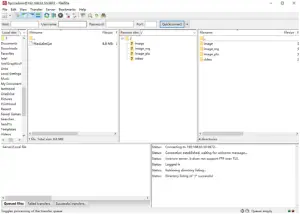
6. Put scale.apk to root folder
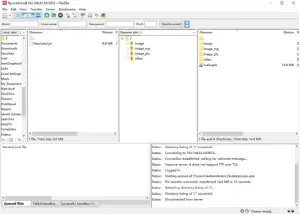
7. Wait for it disconnect, that means the upgrade has been finished.
The software is restarting.
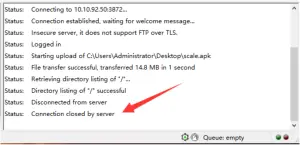
8. Use hardware switch to reboot scale. (Do not need to wait for apk restarting)
9. Check current Android apk version (REZERO+100 in Z mode)
| Z1.0 RESET SALES DAILY | RESET SALES DAILY REPORT |
| STE58 BOOT VR1.01 | |
| STE58 MAIN VR01.21 B08 | STD VERSION, COUNTRY:2 |
| STE58 CONST VR01.21 B08 | DESC01 |
| STE58 FONT VR1.02 | STD |
| STE58 BMAP VR1.01 | U1 |
| STE58 ANDROID MODULE | 001.000.001.006 |
Here 001.000.001.006 is current apk version.
PE Dept, SHANGHAI TERAOKA ELECTRONIC CO., LTD.