
Smart Body
Tape Measure
Quick Start Guide 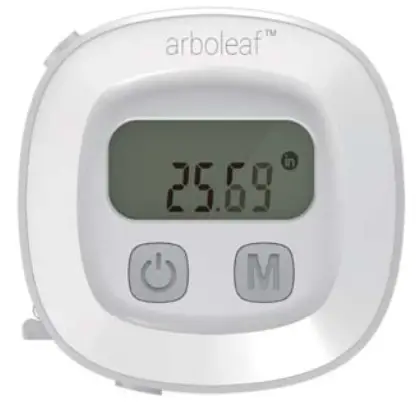 Model: CF10A
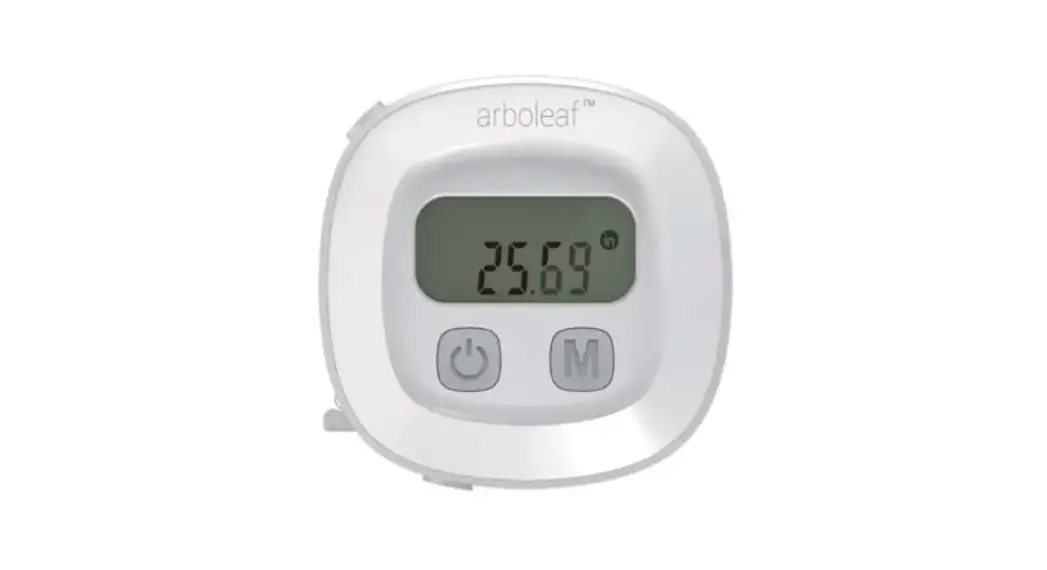
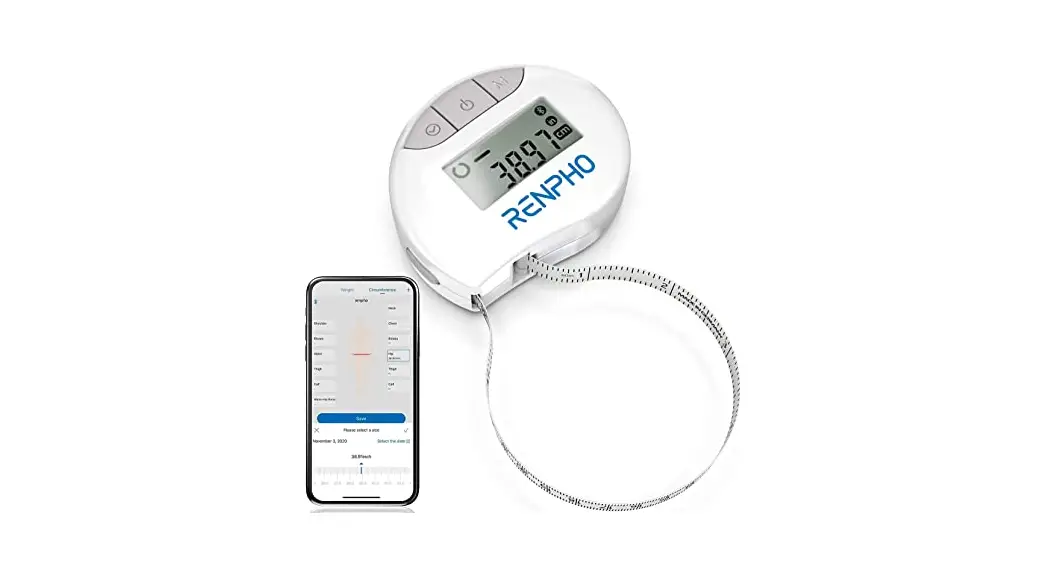
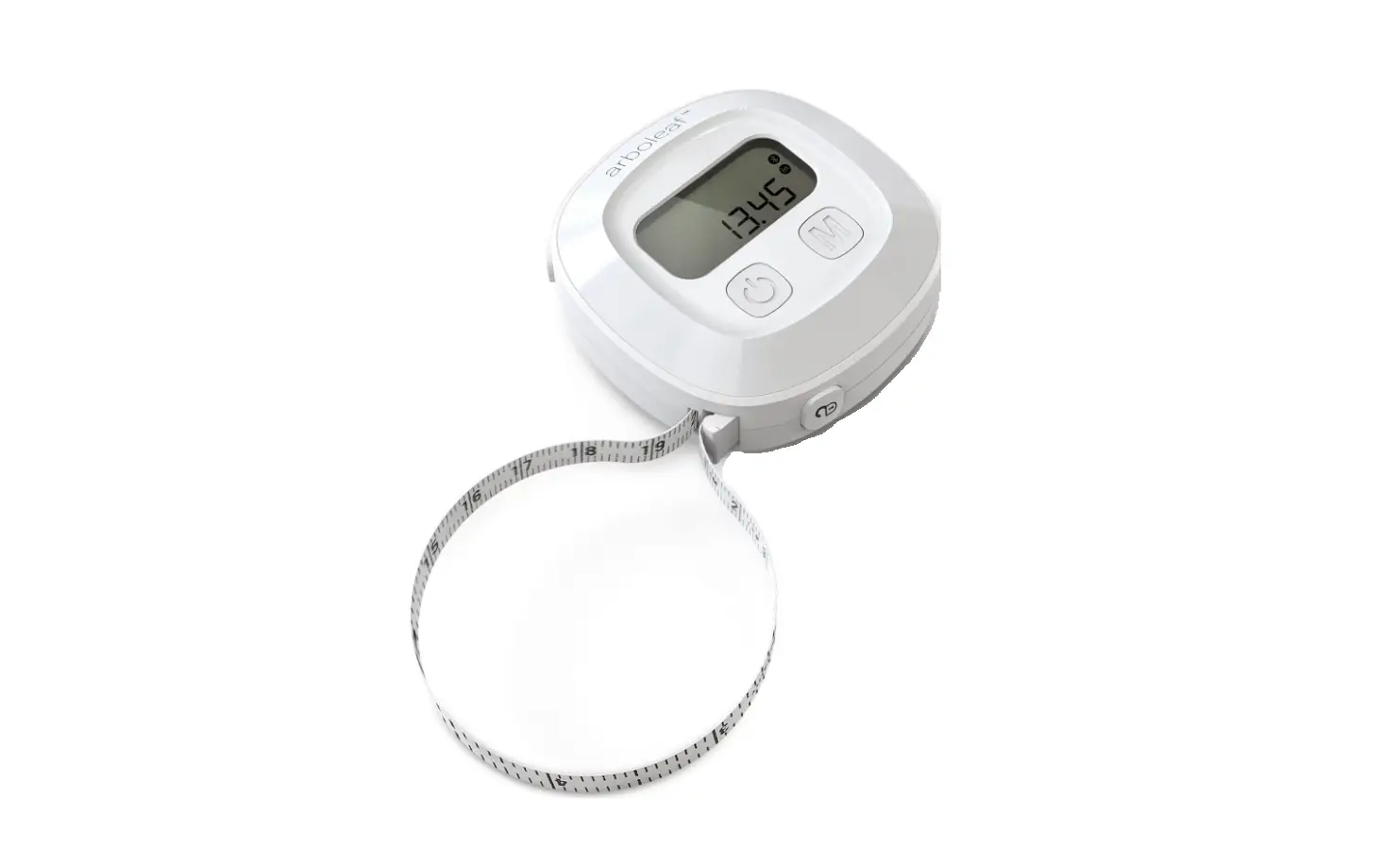
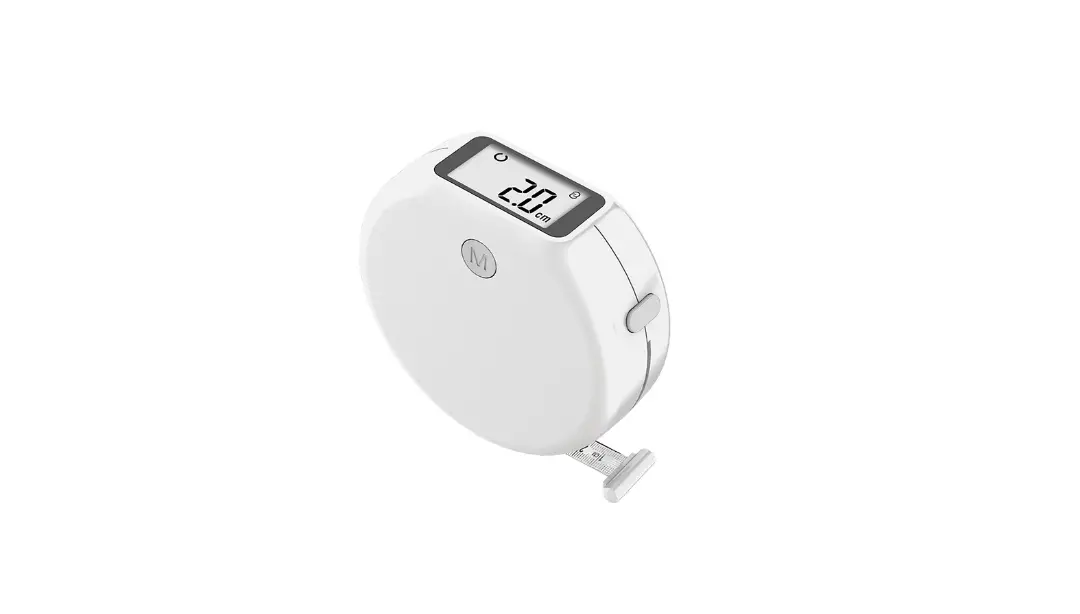
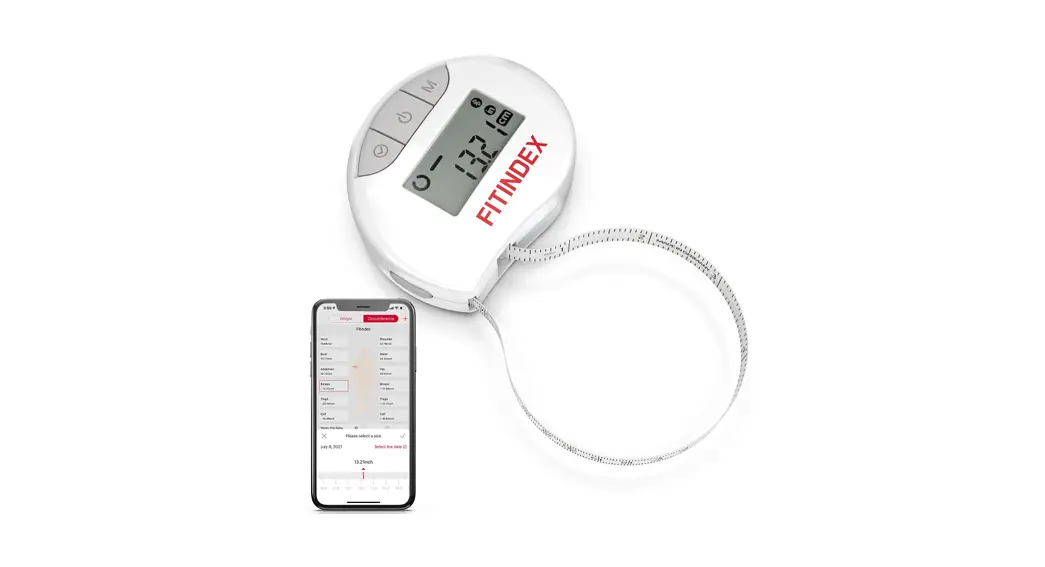
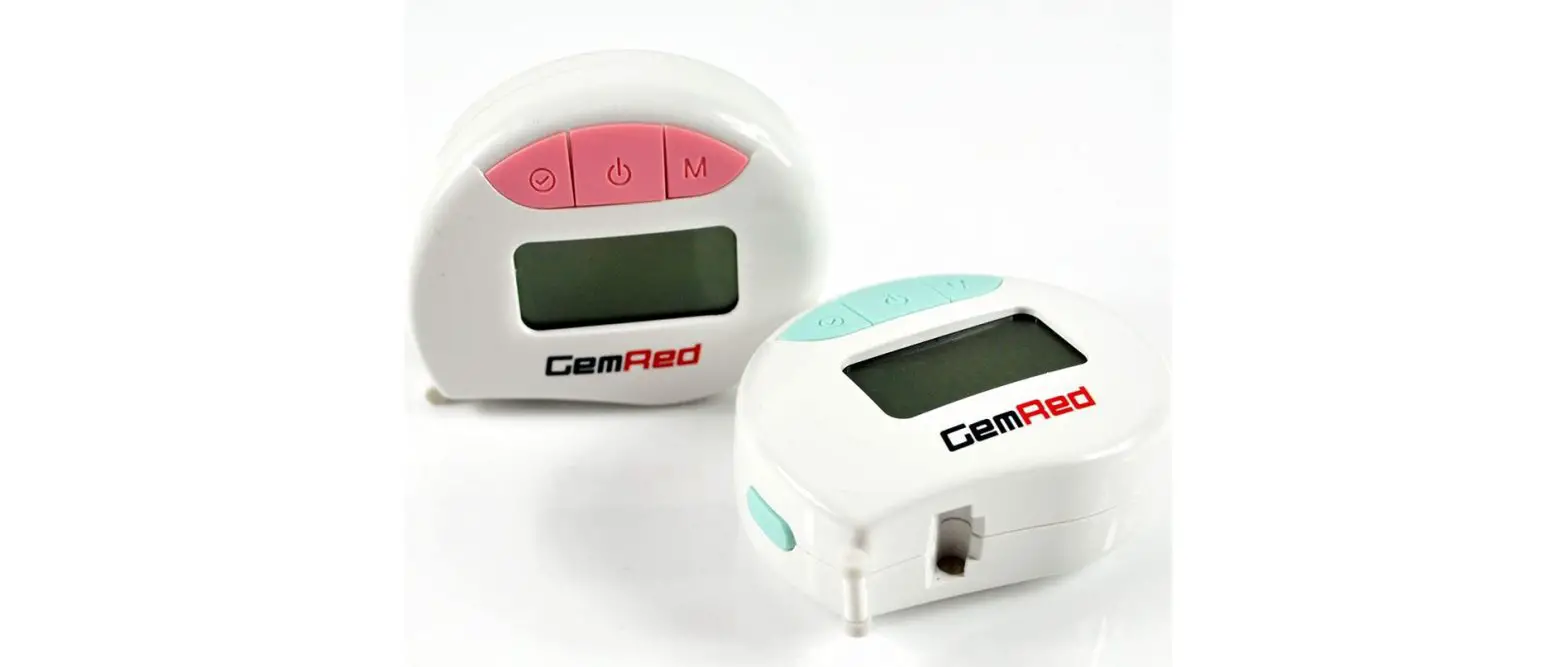
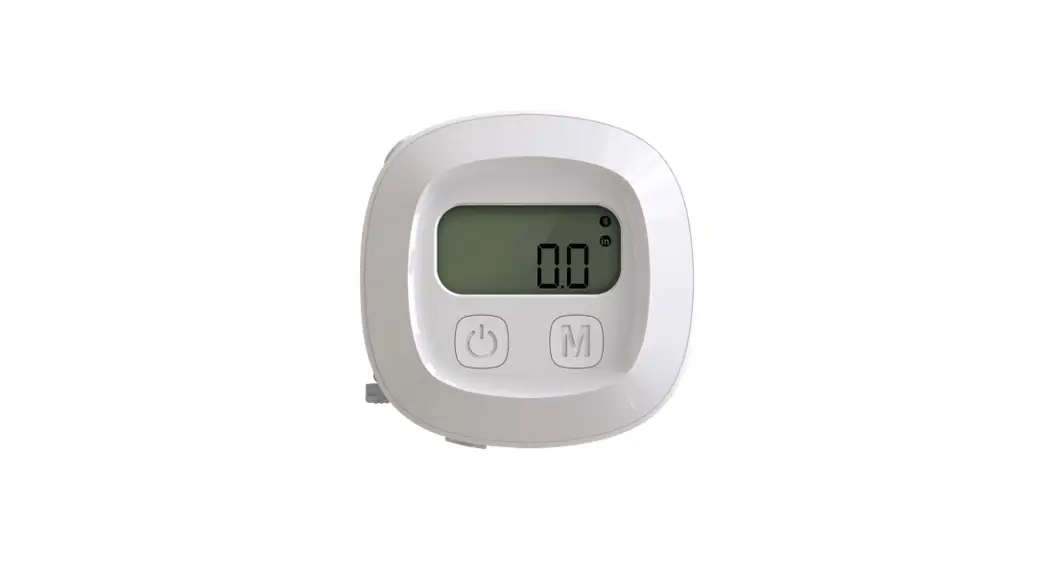
CF10A Smart Body Tape Measure
Download the App
Go to the app store on your device (App Store for iOS or Play Store for Android) and search for “arboleaf”.

Connection and use
Open the “arboleaf” App and follow set-up and pairing instructions:
- Register account in the ” arbole af ” App with your email. And you may also login a s Guest i f you do not want to register.
- Enable bluetooth on your smart phone:
* For Android users:
– Ensure location is turned ON for Android 6.0 or above.
*For ios users, iOS 13 requires bluetooth permission:
- Go to settings.
- Scroll down to find the ” arboleaf ” App.
- Switch on the bluetooth permission for the ” arbole af ” App.
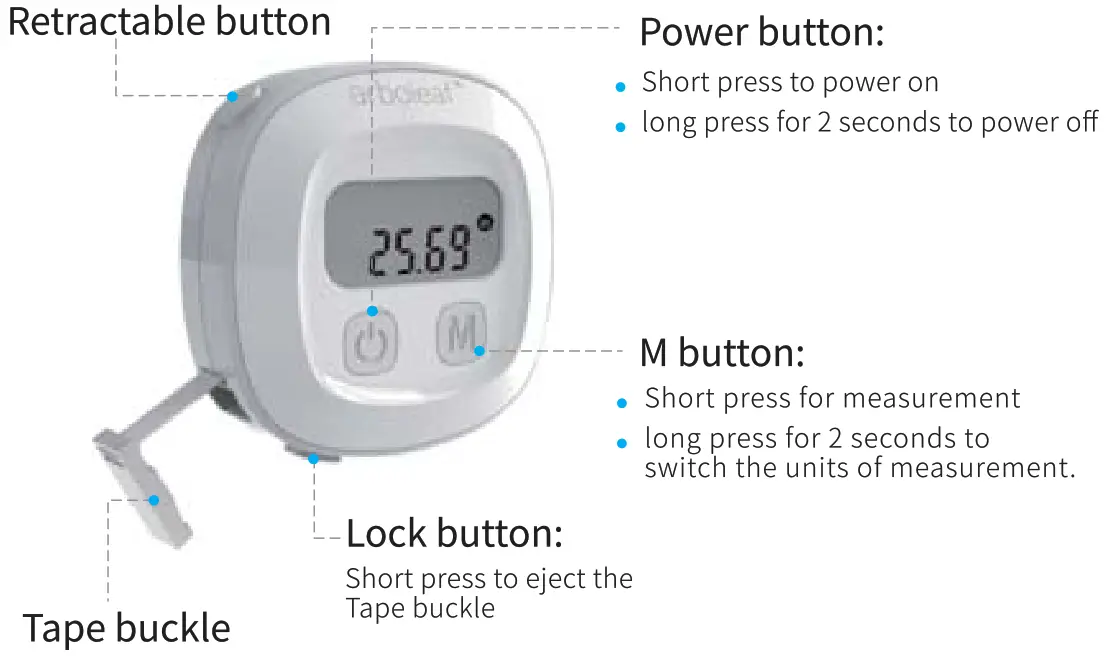
How to use
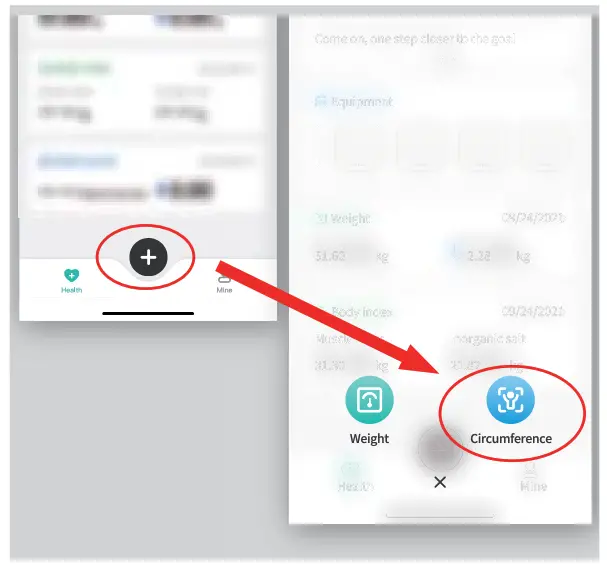
- Turn on the Bluetooth, and open the App, click”
 ” and ”
  ” onthe measuring page.
 - Open the App and and short press the tape’s Power Button to power on, the tape and the App pairs automatically.

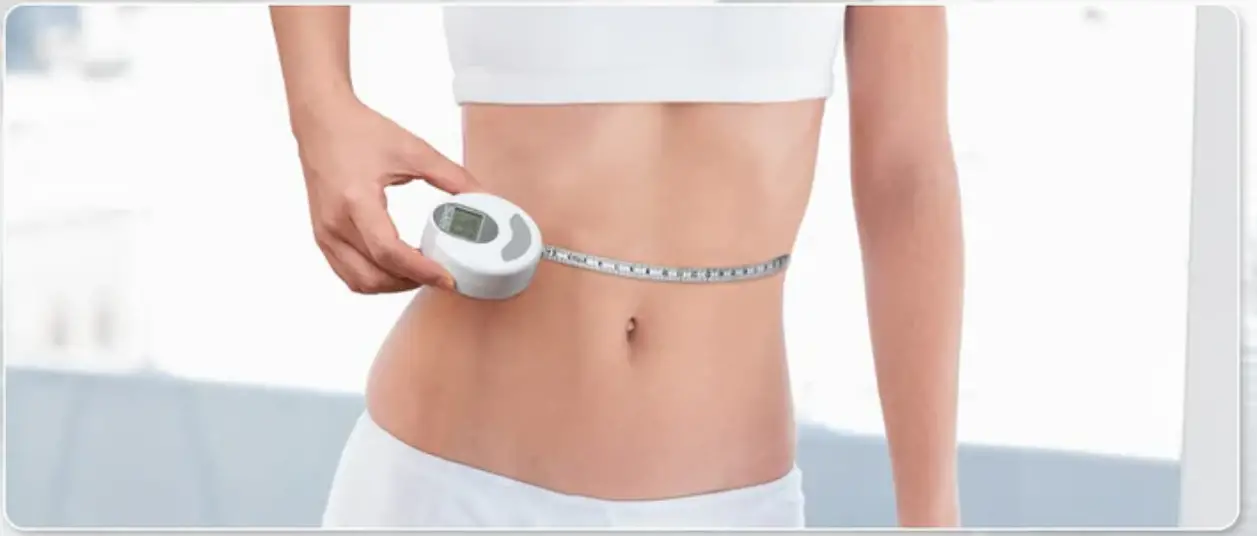
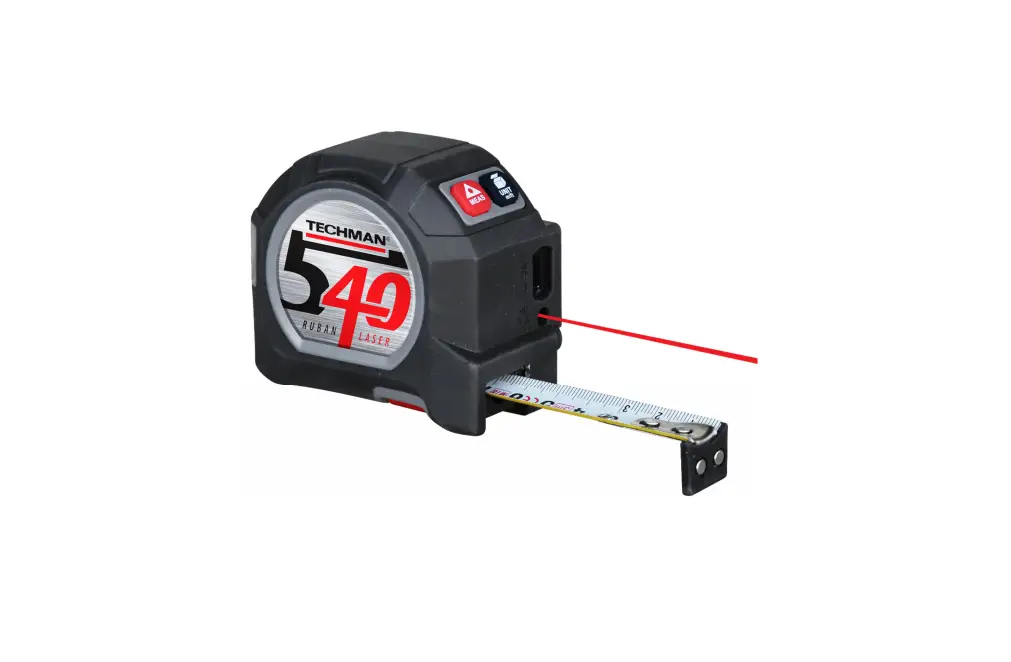
- Short press the Tape’s “M “Button and pull the Tape Buckle t o start measuring, or click any “body part” on the APP and then pull the Tape Buckle to measure.
- Click “Save” to record the data after measurement.
- Youcan click“Girth record” on the home page to check all the data.
 ” and ”
  ” onthe measuring page.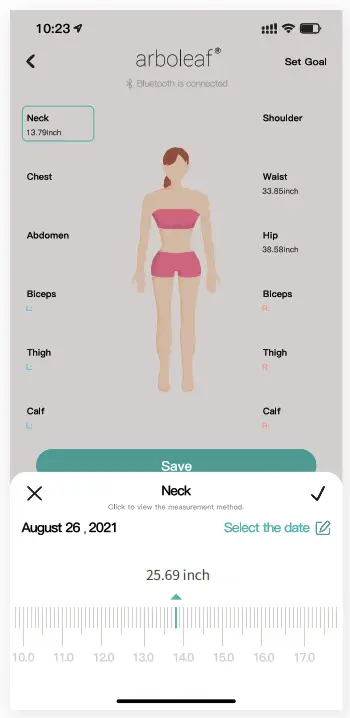
Warranty (1-year Period)
Customer Service:
Our Texas service center i s born to solve your problem. No matter what problem you meet during using the smart body tape, contact the center to get a quick reply. And we offer a 1-year warranty for return and replace.
Product Specification
| Measure unit | Inch/cm |
| Resolution | 1/16in, 0.1cm |
| Measure precision | 23130 |
| Max measure length | 60in/1.5m |
| Battery type | CR2032 |
Troubleshooting
| Problem | Potential cause | resolution |
| Blurred or no number display or numbers are mess | No battery/low power/battery installed backwards | Reinstall or replace battery |
| Numbers flash | Insufficient power | Replace battery |
| Numbers are unstable | Inside failure | Take out battery, wait for one minute and reinstall |
| Can’ t reset to zero when tape measure retract | Inside failure | Press power button and M button to get zero |
| Numbers go into zero when connect bluetooth | Insufficient power | Change new battery |
 Please do not swallow the battery in case of chemical burns.
FCC Statement
Changes or modifications not expressly approved by the party responsible for compliance could void the user’s authority to operate the equipment.
This equipment has been tested and found to comply with the limits for a Class B digital device, pursuant to Part 15 of the FCC Rules. These limits are designed t o provide reasonable protection against harmful interference in a residential installation. This equipment generates uses and can radiate radio frequency energy and, if not installed and used in accordance with the instructions, may cause harmful interference to radio communications. However, there is no guarantee that interference will not occur in a particular installation. If this equipment does cause harmful interfer-ence to radio or television reception, which can be determined by turning the equipment off and on, the user is encouraged to try to correct the interference by one or more of the following measures:
- Reorient or relocate the receiving antenna.
- Increase the separation between the equipment and receiver.
- Connect the equipment into an outlet on a circuit different from that to which the receiver is connected.
- Consult the dealer or an experienced radio/TV technician for help
This device complies with part 15 of the FCC rules. Operation is subject to the following two conditions
- this device may not cause harmful interference, and
- this device must accept any interference received, including interference that may cause undesired operation.
The device has been evaluated to meet general RF exposure requirement. The device can be used i n portable exposure condition without restriction
 [email protected]
 www.arboleaf.com
 1-800-658-1148
  FCC ID: 2ANDX-CFX00