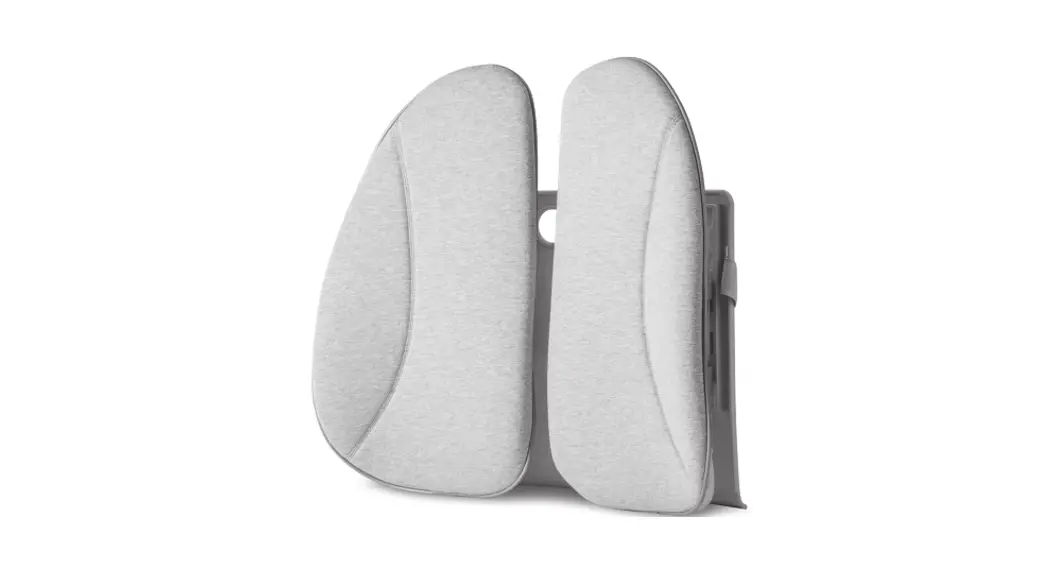
BAJBC11 Smart Back Cushion
Product Information
| Product Name | Smart Back Cushion |
|---|---|
| Model | BAJBC11 |
| Remote Control Model | BC11-C |
Product Usage Instructions
3.1 Charge Smart Back Cushion Before First Use
1. Plug USB-C Cable into USB-C Charging Port. Connect Smart Back
Cushion to a power outlet using USB-C Cable (included) and a power
outlet (not included). Smart Back Cushion would automatically
deflate for several seconds.
2. While charging, Status Light of Smart Back Cushion keeps
flashing green.
3. Once fully charged, Status Light of Smart Back Cushion turns
solid green.
3.2 Preparation
1. Have Smart Back Cushion and Remote Control ready.
2. Pull out the insulation sheet at the back of Remote Control.
Screen of Remote Control would light up and show 00. Remote Control
is on.
3. Long press Power Button of Smart Back Cushion for 2 seconds.
Status Light of Smart Back Cushion turns solid green. Smart Back
Cushion is on.
4. Put Smart Back Cushion on a chair, and sit on the chair.
Light blue side of cushion should face toward you; the tag should
be at your left side; the power button should be at your right
side.
3.3 Inflating
1. Hold Remote Control in your right hand. Turn on Remote
Control by firmly pressing + button of Remote Control.
2. Press + button of Remote Control firmly. Status Light of
Remote Control flashes green once. Sitting Number shown on Screen
will change from 00 to 01.
3. As a response, Smart Back Cushion starts inflating for
several seconds until it gets to the next inflation level. Status
Light of Smart Back Cushion keeps flashing during the process.
4. Press + button of Remote Control several times, Sitting
Number can go up to 10, which is the highest inflation level.
5. The inflation level ranges from 00 to 10: 00 indicates the
lowest inflation level; 10 indicates the highest inflation level.
The higher inflation level is, the firmer support you will get from
Smart Back Cushion.
6. The inflation process could take up to 2 minutes. During the
process, sit on the chair, feel the lumbar support from Smart Back
Cushion.
3.4 Deflating
1. You can also press – button of Remote Control firmly to
deflate Smart Back Cushion, if you want to try softer lumbar
support. Status Light of Remote Control flashes green once. Sitting
Number shown on Screen will change from 10 to 09.
Smart Back Cushion
User Manual
Table of Contents
1 Included in the box ……………………………………………………………… 2 2 Product at a glance ……………………………………………………………… 3 3 First Use ……………………………………………………………………….. 7
3.1 Charge Smart Back Cushion Before First Use ……………………………… 7 3.2 Preparation …………………………………………………………….. 8 3.3 Inflating ………………………………………………………………… 9 3.4 Deflating ……………………………………………………………….. 11 3.5 Set Up Smart Mode ……………………………………………………… 12 3.6 Remote Control …………………………………………………………. 13 3.7 Turn off Automatically …………………………………………………… 14 3.8 Turn off Manually ……………………………………………………….. 14 4 Daily Use ……………………………………………………………………….. 15 4.1 Get Ready ………………………………………………………………. 15 4.2 Recall your Sitting Number ………………………………………………. 16 5 Charging Weekly ………………………………………………………………… 17 6 Reset Smart Mode ……………………………………………………………… 19 7 Change Battery of Remote Control ………………………………………………… 20 8 Summary ……………………………………………………………………… 21
Page 1
1 Included in the box
Smart Back Cushion Model: BAJBC11
Remote Control Model: BC11-C
USB-C Cable
User Manual Page 2
2 Product at a glance
Smart Back Cushion
Status Light of Smart Back Cushion
Power Button USB-C Charging Port
Page 3
Remote Control
Status Light of Remote Control
Screen
Smart Mode Button
” + ” Button ” – ” Button
Battery Cover Page 4
Sitting Number Shown on Screen
Inflation Level of Smart Back Cushion
Page 5
Sitting Number Shown on Screen
Inflation Level of Smart Back Cushion
Page 6
3 First Use
3.1 Charge Smart Back Cushion Before First Use
1. Plug USB-C Cable into USB-C Charging Port. Connect Smart Back Cushion to a power outlet using USB-C Cable (included) and a power outlet (not included). Smart Back Cushion would automatically deflate for several seconds.
2. While charging, Status Light of Smart Back Cushion keeps flashing green. 3. Once fully charged, Status Light of Smart Back Cushion turns solid green.
Charging: Fully charged:
Page 7
3.2 Preparation
1. Have Smart Back Cushion and Remote Control ready. 2. Pull out the insulation sheet at the back of Remote Control. Screen of Remote Control would
light up and show “00”. Remote Control is on.
Pull
3. Long press Power Button of Smart Back Cushion for 2 seconds. Status Light of Smart Back Cushion turns solid green. Smart Back Cushion is on. 2s
4. Put Smart Back Cushion on a chair, and sit on the chair. Light blue side of cushion should face toward you; the tag should be at your left side; the power button should be at your right side.
Page 8
3.3 Inflating
1. Hold Remote Control in your right hand. Turn on Remote Control by firmly pressing “+” button of Remote Control.
2. Press “+” button of Remote Control firmly. Status Light of Remote Control flashes green once. Sitting Number shown on Screen will change from “00” to “01”.
3. As a response, Smart Back Cushion starts inflating for several seconds until it gets to the next inflation level. Status Light of Smart Back Cushion keeps flashing during the process.
Inflation Level
Inflation Level
Sitting Number
Sitting Number
Inflating: Page 9
4. Press “+” button of Remote Control several times, Sitting Number can go up to “10”, which is the highest inflation level. Inflation Level
Sitting Number
5. The inflation level ranges from “00” to “10”: “00” indicates the lowest inflation level; “10” indicates the highest inflation level. The higher inflation level is, the firmer support you will get from Smart Back Cushion. Refer to Page 5 and Page 6 for details.
6. The inflation process could take up to 2 minutes. During the process, sit on the chair, feel the lumbar support from Smart Back Cushion.
Page 10
3.4 Deflating
1. You can also press “-” button of Remote Control firmly to deflate Smart Back Cushion, if you want to try softer lumbar support. Status Light of Remote Control flashes green once. Sitting Number shown on Screen will change from “10” to “09”.
2. As a response, Smart Back Cushion starts deflating for several seconds. Status Light of Smart Back Cushion keeps flashing during the process.
Inflation Level
Inflation Level
Sitting Number
Sitting Number
Deflating:
3. You can use “+” and “-” to control the inflation / deflation until you find your perfect sitting number. Let’s assume it’s “06”, and the rest of the user manual will use “06” for demo purpose.
Page 11
3.5 Set Up Smart Mode
1. If you are happy with the Sitting Number you are currently enjoying, you can use Smart Mode of Smart Back Cushion. Your Sitting Number is remembered, and can be recalled later. Smart Back Cushion would inflate to the corresponding inflation level when you recall your Sitting Number.
Inflation Level
Sitting Number
2. Long press Smart Button of Remote Control for 3 seconds. The “smart” icon on the screen flashes three times, and then turns solid. Smart Mode is on. Your favorite Sitting Number is remembered by Smart Back Cushion.
3s
smart
Smart Mode setting:
smart
smart
smart
Page 12
smart
3.6 Remote Control
You do not need to turn off the Remote Control. Just leave it as it is. 1. With no further operation of Remote Control, Screen will fade out in 15 seconds.
15s
Backlight Off 2. After 3 minutes, Remote Control will turn off automatically.
3min
Screen Off 3. To turn on Remote Control, press “+” button firmly.
Page 13
smart
3.7 Turn off Automatically
1. Smart Back Cushion will automatically turn off after 9 hours.
9h
2. Smart Back Cushion will deflate to level “00”. Status Light of Smart Back Cushion keeps flashing green during the process.
Inflation Level
Inflation Level
Sitting Number
Sitting Number
Turning off:
3.8 Turn Off Manually
Or, if you want to turn off Smart Back Cushion manually, just long press Power Button of Smart Back Cushion for 2 seconds.
2s
Page 14
4 Daily Use
4.1 Get Ready
1. The next day, you should see Smart Back Cushion in “00” level (totally deflated). That means it turned off automatically after 9 hours of working.
2. Turn on Smart Back Cushion. To do that, long press Power Button of Smart Back Cushion for 2 seconds. Status Light of Smart Back Cushion turns solid green. Smart Back Cushion is on. 2s
3. Turn on Remote Control by pressing “+” button of Remote Control firmly.
Page 15
smart
4.2 Recall your Sitting Number
1. Then press “smart” button firmly to recall your Sitting Number. Your Sitting Number will show on Screen accordingly.
smart
Smart Mode starting:
smart
smart
2. Smart Back Cushion would inflate to the corresponding inflation level. The process takes up to 2 minutes.
Inflation Level
Inflation Level
Sitting Number
Sitting Number
Inflating:
3. When finished, the “smart” icon turns solid. Do not press any button of Remote Control during the inflation process.
Page 16
5 Charging Weekly
1. We suggest that Smart Back Cushion should be charged weekly. 2. When the battery is low, Status Light of Smart Back Cushion turns solid red.
Low battery:
Page 17
3. Plug USB-C Cable into USB-C Charging Port. Connect Smart Back Cushion to a power outlet using USB-C Cable (included) and a power outlet (not included). Smart Back Cushion would automatically deflate for several seconds.
4. While charging, Status Light of Smart Back Cushion keeps flashing green. 5. It takes about 3 hours to fully charge Smart Back Cushion. Once fully charged, Status Light of
Smart Back Cushion turns solid green. Charging: Fully charged:
Page 18
6 Reset Smart Mode
If you need to have a new Sitting Number of Smart Back Cushion, you can reset Smart Mode.
1. To adjust Sitting Number of Smart Back Cushion, firmly press the “+” or “-” button of Remote Control.
Inflation Level
Inflation Level
smart
smart
Sitting Number
Sitting Number
2. Long press Smart Button of Remote Control for 3 seconds. The “smart” icon on the screen flashes three times, and then turns solid. Now you have reset Smart Mode.
3s
Smart Mode setting:
smart
smart
smart
Page 19
7 Change Battery of Remote Control
It takes about 1 year for the battery of Remote Control to run out. A new 2032 battery is needed to replace the battery.
1. If the battery of Remote Control is low, Status Light of Remote Control flashes red, and the “00” on Screen flashes. Then Remote Control would turn off automatically. Status Light of Remote Control: Screen:
2. Open the battery cover by pushing it downward. Replace the battery. Then put the battery cover back on.
3. Press “+” button firmly to turn on Remote Control.
Page 20
8 Summary
Function
Operation
Turn on / off the Smart Back Cushion
Long press Power Button of Smart Back Cushion for 2 seconds.
Inflating
Press “+” button of Remote Control.
Deflating Set up Smart Mode Reset Smart Mode
Daily Use Recall your Sitting Number
Press “-” button of Remote Control.
Long press “smart” button of Remote Control for 3 seconds.
Long press “smart” button of Remote Control for 3 seconds.
Long press Power Button of Smart Back Cushion for 2 seconds to turn on Smart Back Cushion.
Press “+” to Turn On Remote Control.
Press”smart” of Remote Control to recall your Sitting Number.
Power Button
USB-C Charging Port
Turn on / off
Charging
Page 21
FCC Statement: Any Changes or modifications not expressly approved by the party responsible for compliance could void the user’s authority to operate the equipment. This device complies with part 15 of the FCC Rules. Operation is subject to the following two conditions: (1) This device may not cause harmful interference, and (2) This device must accept any interference received, including interference that may cause undesired operation.
RF warning for Portable device: The device has been evaluated to meet general RF exposure requirment. The device can be used in portable exposure condition without restriction.
NOTE: This equipment has been tested and found to comply with the limits for a Class B digital device, pursuant to part 15 of the FCC Rules. These limits are designed to provide reasonable protection against harmful interference in a residential installation. This equipment generates, uses and can radiate radio frequency energy and, if not installed and used in accordance with the instructions, may cause harmful interference to radio communications. However, there is no guarantee that interference will not occur in a particular installation. If this equipment does cause harmful interference to radio or television reception, which can be determined by turning the equipment off and on, the user is encouraged to try to correct the interference by one or more of the following measures: –Reorient or relocate the receiving antenna. –Increase the separation between the equipment and receiver. –Connect the equipment into an outlet on a circuit different from that to which the receiver is connected. –Consult the dealer or an experienced radio/TV technician for help.