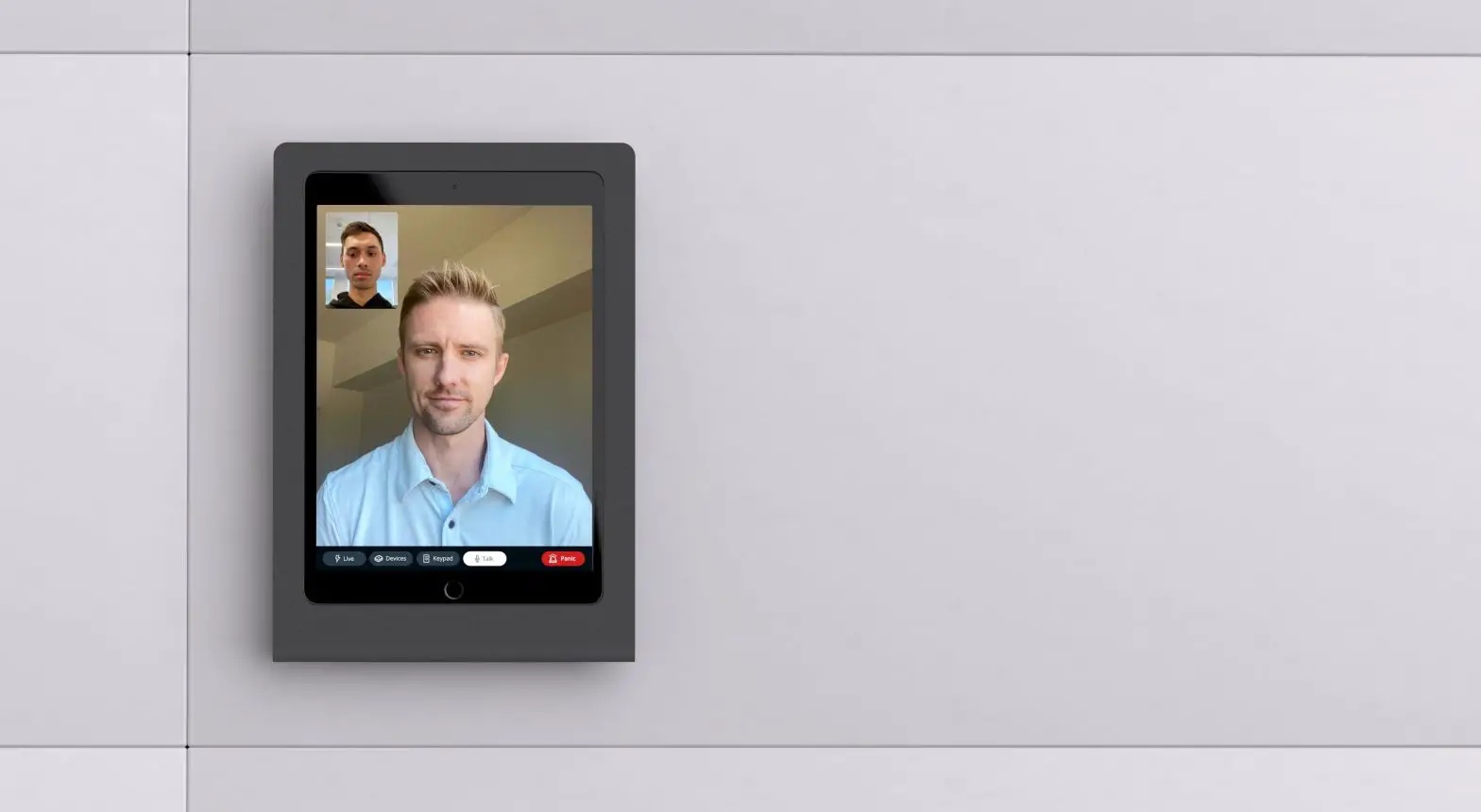

Verkada BC51 Alarm Console
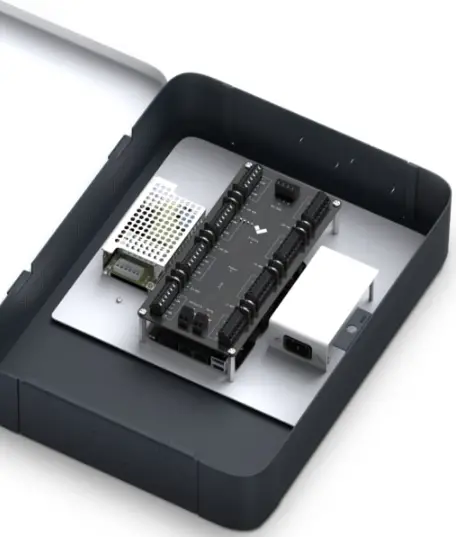
What’s in the box
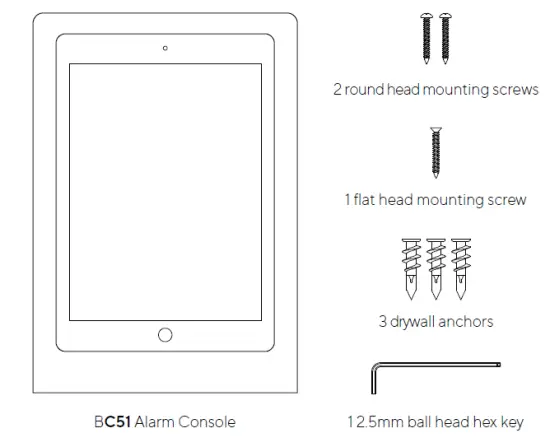
What you’ll need
- A working wired Internet connection
- 802.3af Power over Ethernet (PoE) switch, or a PoE injector.
- A smartphone or laptop
- A Cat5 or Cat6 Ethernet cable
- A #2 Phillips screwdriver or power drill with a #2 Phillips driver bit
- A 7/16 and 5/32 inch drill bit for pilot holes
Caution
Please note:
- Maintenance and repair work must always be carried out by qualified technical personnel. Disconnect power from the unit when performing a maintenance task.
- Wiring methods used for the connection of the equipment to earth shall be in accordance with the National Electrical Code, ANSI/NF PA 70, and the Canadian Electrical Code, Part 1, CSA C22.1.
- The device is only to be connected to PoE networks without routing to outside plants.
- If powered by a power adapter, the adapter should be properly grounded.
Support
Thank you for purchasing a Verkada device. If for any reason things don’t work right or you need assistance, please contact us immediately.
Sincerely,
The Verkada Team
www.verkada.com/support
BC51 Mount & Connect
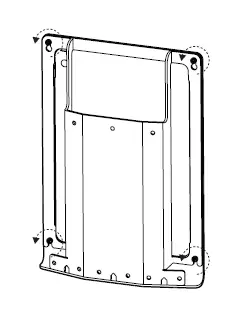
- Loosen but do not remove the four screws on the mount plate.

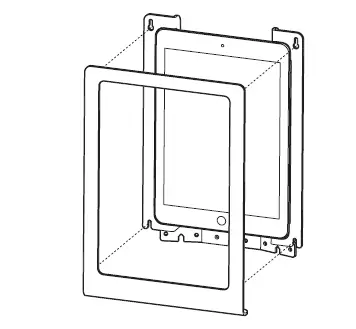
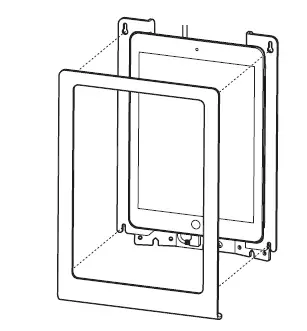
- Slide the front cover off of the mount plate.

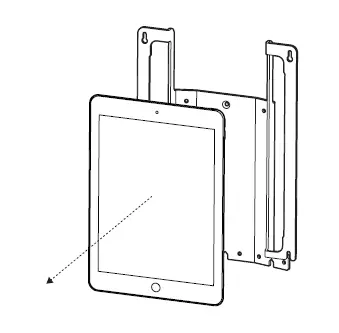
- Remove the iPad from the mount plate and set it aside.

- For drywall, drill three 7/16 inch holes and insert the drywall anchors into the holes. Fasten the mount plate onto the wall by installing the flat head mounting screw into the top wall anchor and the round head mounting screws into the bottom two wall anchors.
 For a solid material, like wood or metal, drill three 5/32 inch pilot holes. Fasten the mount plate onto the wall by installing the flat head mounting screw into the top pilot hole and the round head mounting screws into the bottom two pilot holes.
- Connect the PoE adapter to your network using the ethernet port located on the mount. Plug the lightning cable into the iPad and check connectivity.

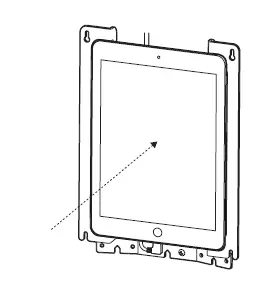
- Peel the protective film off of the adhesive strip and place the iPad into the mount.

- Press firmly on the iPad for 8 seconds to adhere it to the mount.

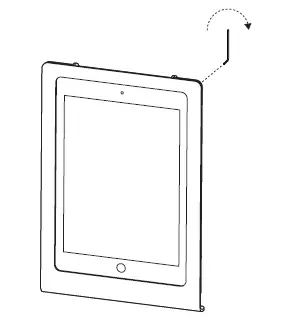
- Place the mount front cover so that screws insert into the circular holes in the mount plate, then slide the front cover up so screws are in the narrow section of the slot.

- Tighten all four screws with the 2.5mm ball head hex key tool to secure the mount front cover.

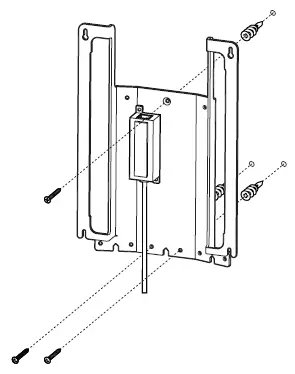 For a solid material, like wood or metal, drill three 5/32 inch pilot holes. Fasten the mount plate onto the wall by installing the flat head mounting screw into the top pilot hole and the round head mounting screws into the bottom two pilot holes.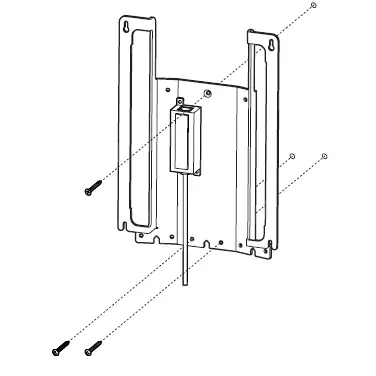
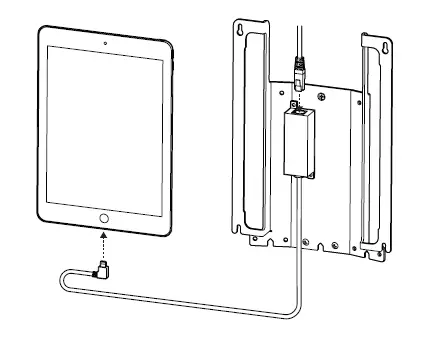
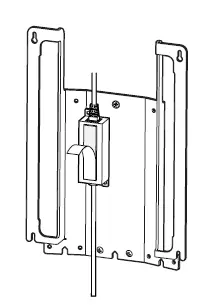
After connecting BC51 to 802.3af/802.3 at Power over Ethernet (PoE) port on your network, visit
www.verkada.com/start
For detailed installation instructions, visit
www.verkada.com/support